Author: Palla Sridhar

  • Windows Explorer Not Refreshing in 11 or 10 – [It Works]

    Windows Explorer is built into the PC system. It has multi-functionality in 10/11. You can easily browse through your files and folders. In addition you can view the image files in different sizes. File Explorer not auto refreshing can be a major time-breaking tackle.

    Cloud-drives and network drives are also seen in the same window. This is both a pleasant summer morning and winter cold.

    Since the network files are connected to your pc, file explorer not updating kind of errors can crop up.

    You fall into a dilemma whether to keep the connection or use it as a home pc. In many cases, laptops work both as office and home purpose. When you connect to your internet, OneDrive files sync to open in your word and excel applications.

    With Windows Explorer, you can add, rename, update and delete files. But for every such operation if you need refresh to see the latest status, then it is time-consuming phenomenon.

    Most of the times, the changes are instant when there are no issues. But you face windows explorer doesn’t refresh kind of error, then the below 8 solutions can help.

    Windows not refreshing Folders

    Windows has File Explorer to manage files and folders. If the Windows 10 explorer not refreshing after an edit or save, you can get confused about the latest version of files.

    Clicking the refresh icon each time is not what the File Explorer is intended for! Automatically the contents should refresh and display the new structure and files.

    Deleting, Saving, Renaming and Adding new files to a drive should reflect in the explorer window.

    Saved image or video files in an editor or app or program, can be automatically seen in the File Explorer. Windows 10 or 11 has the new interface of Windows Explorer.

    It is then easy to edit these files or folder and upload to the necessary websites.

    Windows 10 File Explorer Not Refreshing – Why?

    This can happen if you connect to LAN or network in your office. The network folders are listed in your Quick Access item type, whenever the other computer is online.

    But if the computer or network that contains files, folders, images, videos, documents etc, goes offline, Windows 10 doesn’t recognize the fact that they are not accessible.

    File Explorer in Windows 10 seems to be checking these network folders forever.

    This can break Explorer’s capability to automatically refresh whenever you save, delete, update content in your local drive, folders and files.

    File Explorer not refreshing automatically

    But, due to some problem the file explorer will not refresh and the contents are the same.

    The cause can vary based on your current Windows 10 version and updates.

    This silly error can be fixed, by right-clicking the content box and select “Refresh“.

    But this is tiresome, as it takes couple of clicks to update the content in the folder or drive.

    Solution #1 – Windows Explorer not Updating without Refresh

    As suggested by Microsoft experts, you can try clearing all the cache on your system. Then you can try this registry trick.

    • Type Registry in the search box and open the Registry Editor app.
      Go to the following path – HKEY_LOCAL_MACHINE\SYSTEM\CurrentControlSet\Control\Update
    • Click on Update. On the right-hand side, find the key UpdateMode and change its value to 0.
    • If the key doesn’t exist, then you can create a DWORD(32bit) value and set it.

    Note: Make sure you restart the system after the registry changes are complete. Also take a backup before you perform any action on the registry.

    Solution #2 – Windows 11 File explorer not refreshing automatically

    If you are using Windows 11, then you can try this tip.
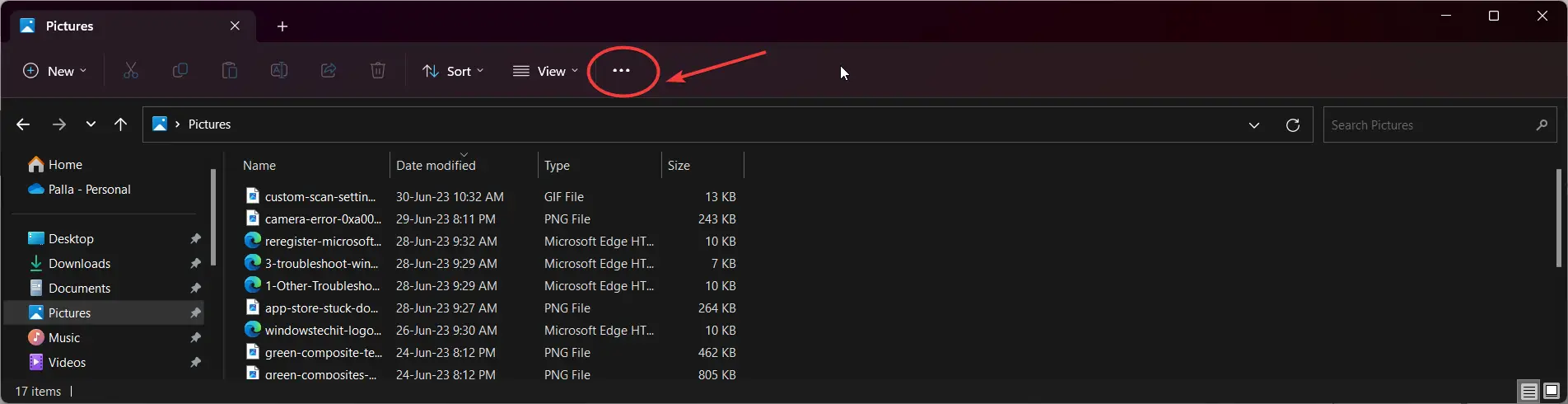
    windows explorer not refreshing
    • Open File Explorer and click the three horizontal dots on the top
    • Click on Options.
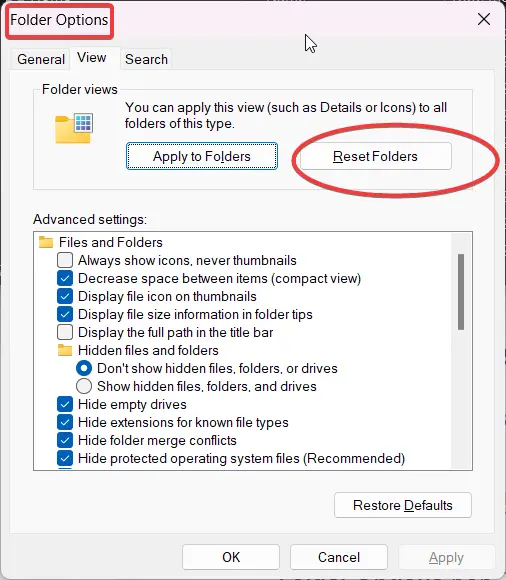
    • Folder Options pop-up window opens. Click the View tab.
    • Click on the Reset folders button.
    reset folder file explorer not refreshing

    This should fix the files or folders not refreshing automatically in Windows 11 explorer.

    Solution #3 – Window Explorer not refreshing after deleting files

    If you are in an office environment or network, you are probably connected to the server or remote hard-disk. This creates a shared network folder in your Windows Explorer.

    But Microsoft is not that competent enough to remove its mistakes. Once your PC File Explorer and network are connected, a refresh problem may arise.

    The only solution is to disconnect the network drive or shared path. Then refresh File Explorer. It should function normally.

    But you will lose the features of network interconnection and the office environment. You may need to press F5, everytime you make a change.

    Solution #4 – File Explorer not refreshing

    In many cases, the processes and services linked to file explorer get corrupted. Apps or OS files using it also may induce code that malfunctions file explorer.

    In such a case, it is better to start a new instance of File Explorer.

    1. Press Ctrl + Alt + Del, and click on Task Manager.
    2. In the Processes tab, click on Run new task in Windows 11
    3. In the open text box, enter explorer.

    A new file explorer should start. The refreshing problem should be resolved.

    Solution #5 – Windows 11 explorer not refreshing

    One of the conflicting reasons is the linking of OneDrive with Microsoft accounts. There are many cases on the forums that point to OneDrive causing explorer not refreshing problems. This is because OneDrive resides in your Windows 10/11 explorer.
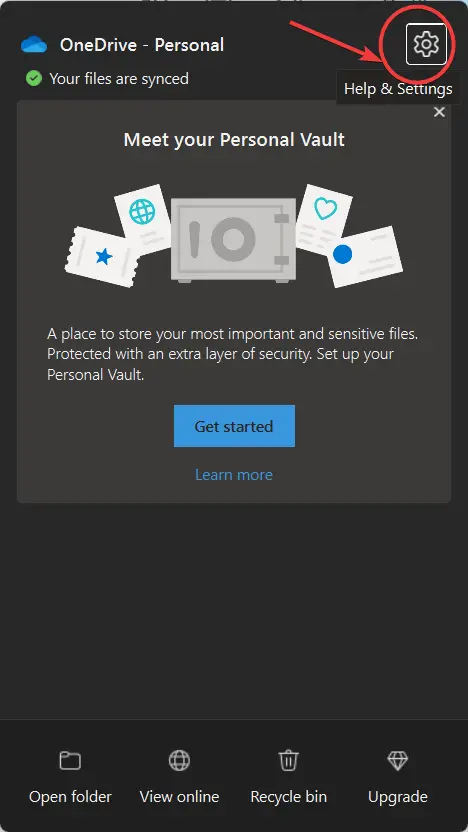
    unlink onedrive windows 11

    By default when you install Windows, it asks to backup Documents, Desktop, Downloads folders to OneDrive. This is where the case gets funny. It should be able to support this feature without causing any hassle.

    But when Desktop is backed up to OneDrive, windows explorer fails to refresh. The best bet is to unlink OneDrive from backup of Windows documents.
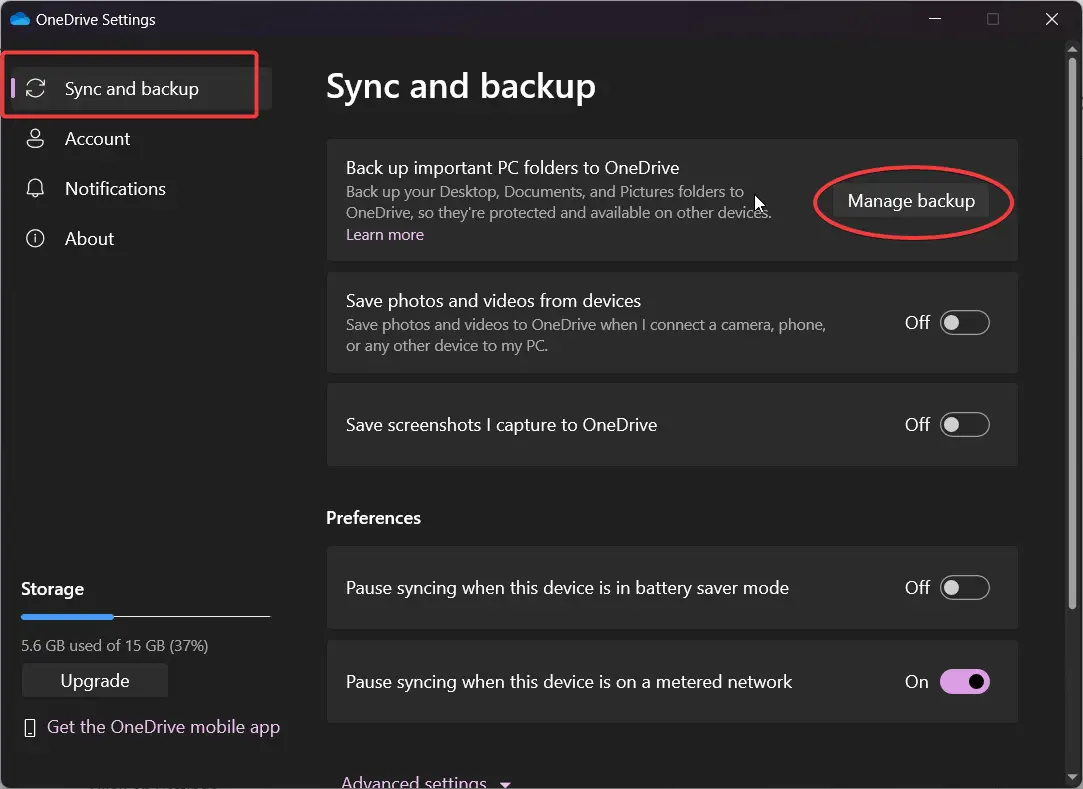
    onedrive sync backup
    • In Windows 11, you can right-click the OneDrive icon in the system tray.
    • Click on Settings.
    • Under Sync and backup, there is an item called “Back up important PC folders to OneDrive.”.
    • Click on Manage backup.
    • Turn off the slider for all the default folders.
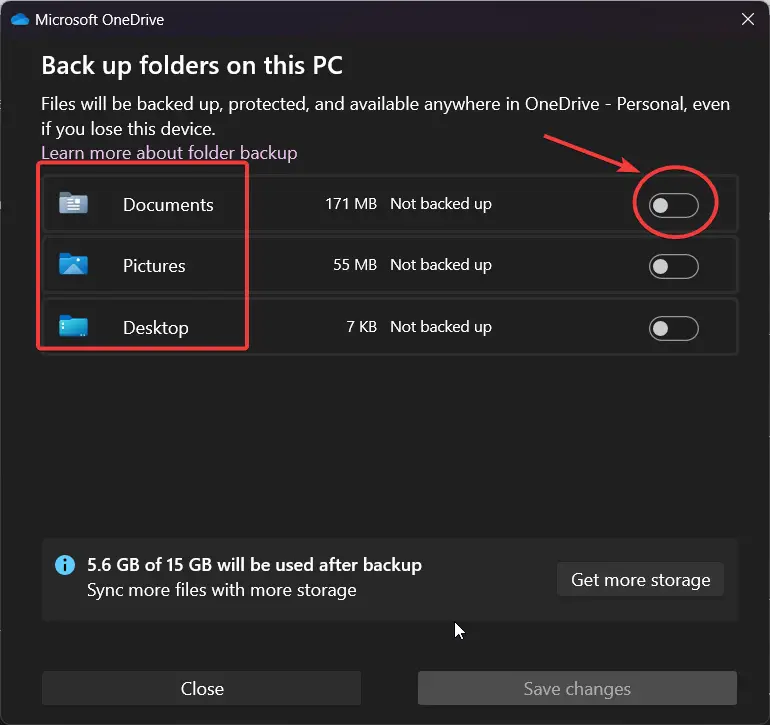
    file explorer not refreshing windows 11

    Then check if the Windows Explorer is refreshing in Windows 11. This seems to work for many users.

    Solution #6 -Windows Explorer Not Refreshing

    You have to delete some cache files to make refresh work in File Explorer again.

    1. Press Win + R to open the Run dialog.
    2. Enter the following path.

    %AppData%\Microsoft\windows\recent\automaticdestinations

    delete files in automaticdestinations folder file explorer error fix

    3. Delete all the files in that folder.
    4. Next, enter this path.

    %AppData%\Microsoft\windows\recent\customdestinations

    delete files in customdestinations folder file explorer refresh error fix

    5. Delete these files also completely.
    6. Restart your PC.

    This should remove your File Explorer Refresh error.

    Note:

    If after the 1909 update, you cannot see the above locations, you can make “hidden items” visible in File Explorer and delete them. Otherwise, you can make use of third party app like (Locate32) to find the above folder in Windows 10. Then do the necessary.

    Solution #7 – Folders not Refreshing Automatically in Windows 10

    This fix can work for some of the latest updates of Windows 10. You just have to delete the File Explorer cache using some third-party software app.

    I generally use CCleaner to clean my junk and temporary files from time to time. This is a free software provided for Windows.

    The latest version as of Sept 2021 is 5.85 (64bit). The “Easy Clean” option is the default method to clean the basic junk files. If you want to clean deep, you can use the “Custom Clean” option.
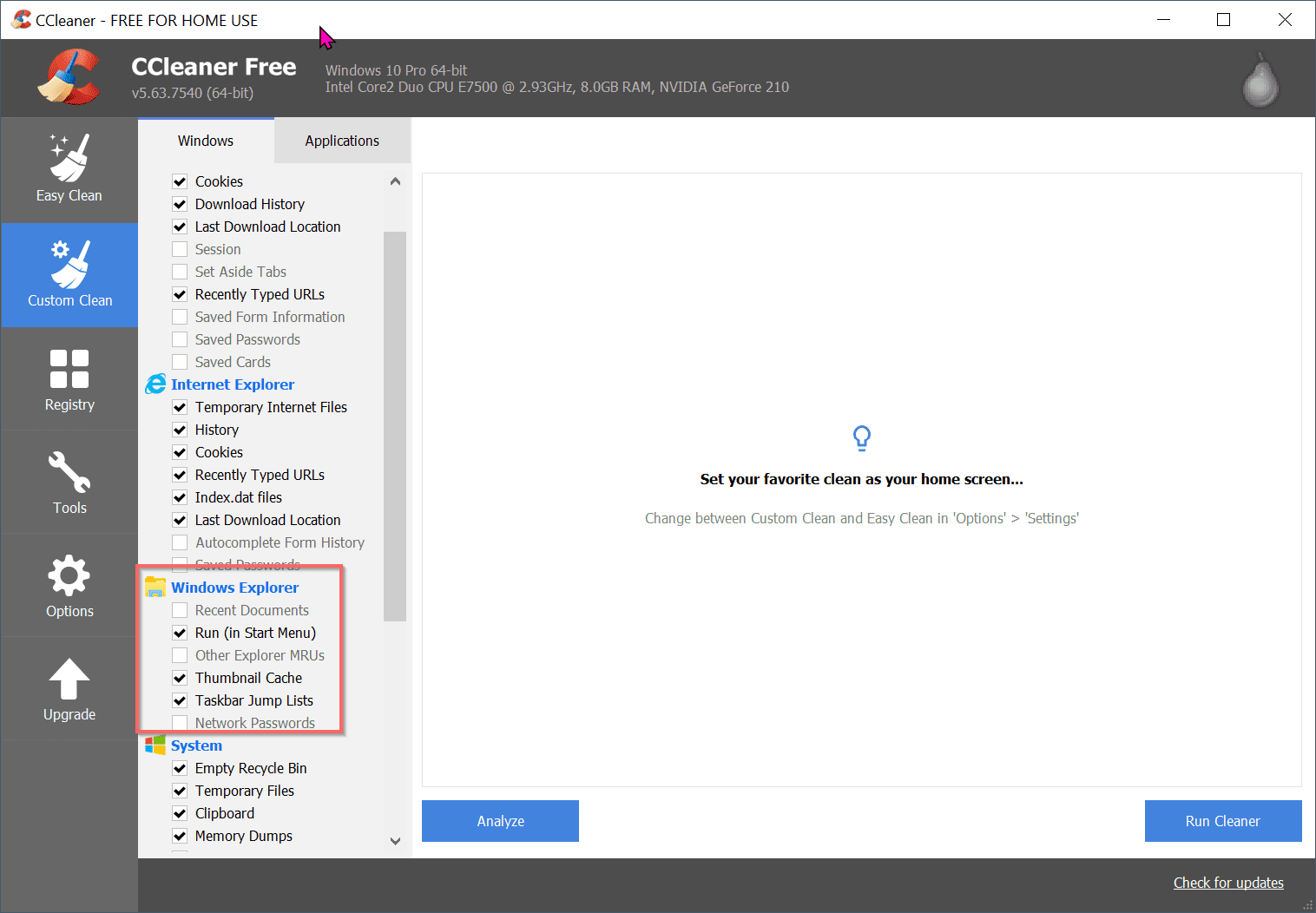
    custom clean junk files file explorer refresh error fix ccleaner

    On the left hand side, there are several options to clean for Windows Explorer. (Yes, it is still listed as it is in Windows 10 also).

    1. Recent Documents
    2. Run (in Start Menu) – Default
    3. Other Explorer MRUs
    4. Thumbnail Cache – Default
    5. Taskbar Jump Lists – Default
    6. Network Passwords

    Try to clean the registry also using the same tool. Then restart the PC. Now check if the File Explorer Refresh error is gone or not.

    registry clean file explorer stopped refreshing error fix

    Solution #8 – How to Refresh File Explorer using Windows Update

    I somehow faced this issue in the 1903 version. But after updating to the latest version of Nov, 2019 update, the problem was resolved.

    I might have accidentally removed the junk or cache folders. Though the reason is unknown, my problem seems to be gone after 1909 update.

    windows 10 update 1909 fix file explorer not refresh error

    So after applying the solution(2), you can try updating your Windows 10 to the latest 21H1 version. This should fix any errors related to File Explorer.

  • Fix Can’t Copy Files to USB due to Unspecified Error

    Copying files from one USB to another can cause errors.  Reduction of speed when you copy large files of more than 4GB size.

    A typical error “The specified network resource or device is no longer available” can occur if Windows is powering down the USB device.

    Motherboard can have USB 2.0 configuration. Two external USB hard-disks can have data on each of them.

    More related –

    To copy data from one USB hard-disk to another, you can use default File Manager in Windows 10.

    But if the files or folders are too large, then the copying process may become slow.

    Fix Error Copying Files/Folders to USB Device

    This issue can be resolved in a more crude way.

    You can copy a set of folders/files which are less in size and transfer to another USB 2.0 device.

    This way, it will take a lot of time to complete the copy process.

    The best way to solve this slow copy problem is to use a USB 3.0 PCI-E card or adapter. Your motherboard should support it.
    Related –

    Generally they have 2 or 4 ports. So you should be able to connect both your USB external drives to it. Then you can copy files/folders from each of them.

    Speed will be 4x times faster than USB 2.0. Then you can use tools like Robocopy or Teracopy to transfer files one disk to another.

    Causes of Error Copying Files/Folders to/from USB

    The following are some of the errors when you try to transfer files from one USB 2.0 device to another.

    • When you try to transfer files, the file transfer fails. You may receive an error message about a delayed write failure. The error message that you receive may vary, depending on the device that you are using.
    • Other USB devices that are connected to the USB 2.0 hub may stop working. You may receive notification that the USB devices have been disconnected or reconnected.
    • Power may be disabled on USB devices. Then, the devices are reenumerated.
    • A USB keyboard may stop working correctly. For example, the behavior of keys may be irregular. When you press a key, the key entry may be repeated many times. Alternatively, when you press a key, nothing may occur at all.

    https://support.microsoft.com/en-us/help/908673/problems-may-occur-when-you-try-to-transfer-files-to-or-from-a-device

    This can generally occur if you are using older OS like Windows XP or Vista or 7.

    To resolve the above kind of error in Win 7, you can following this solution.

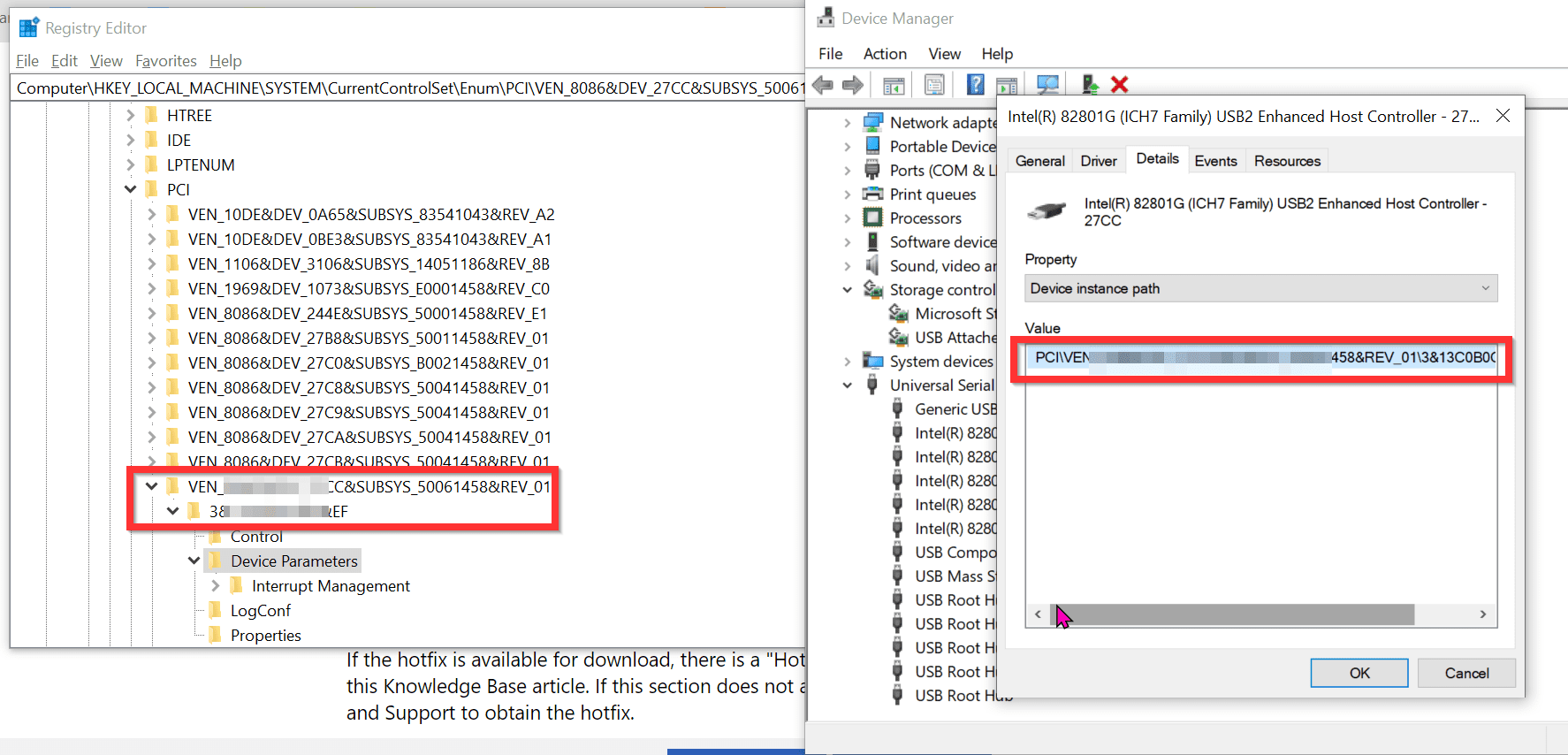
    1. Open Registry Editor. (Type “regedit” in your search box).
    2. Go to this registry key.
    3. HKEY_LOCAL_MACHINE\SYSTEM\CurrentControlSet\Enum\PCI\<hw id>\<instance id>\Device Parameters
    4. Add a EnHcSoftRetryregistry entry with a DWORD value of 1
    Note:  To obtain <hw id> and <instance id>, open the Device Manager property page for each EHCI USB host controller, click the Details tab, and then select Device Instance Path in the list.

    registry fix usb copying error windows xp vista 7

    get usb controller details fix copying files error

    For Vista,

    HKEY_LOCAL_MACHINE\SYSTEM\CurrentControlSet\Enum\PCI\<hw id>\<instance id>\Device Parameters

    For XP,

    HKEY_LOCAL_MACHINE\SYSTEM\CurrentControlSet\Services\USB\EnSoftRetry

    A hotfix for Vista and XP is need to be installed for this kind of error only. Since the support for Vista and XP has ended, you may find this hotfix on third-party sites.

    File Too Large while copying files to USB

    During USB file transfer you get an error saying that file is too large, then one of the files may be larger than 4GB. The external USB hard-disk or pen-drive may be using FAT32 file system. The maximum file size in this kind of file system is 4GB.

    If you get error code 0x80070570 while copying or moving files from/to USB devices in Windows 10, then the likely culprit is windows update KB3176934. To solve this error you can do the following.

    • Open Command Prompt in Elevated Mode.
    • Run the following command
    • chkdsk /f /r
    • This fixes any error on the USB hard disk, locates the bad sectors if any and recovers readable information.
    • Press “Y” to schedule the task if required.
    • Then restart your PC. This will repair partition errors.

    Scan USB Drive for Hardware Errors

    You can also scan your USB disk for errors using the default tool in Windows 10 or 8.1 or 7.

    • Go to This PC / Computer.
    • Right click on disk drive and choose properties.
    • Click on Tool.
    • Now, Click on Check.
    • Then, Follow onscreen instructions.
    • It will automatically check for any issues and fix them.

    This also does the similar functionality as the above command.

    https://www.xtremerain.com/fix-windows-error-0x80070570/

    Fix: Copy Error when USB Disk is Write Protected

    These kind of error messages appear while copying files to a USB drive in Windows 10. It can have different solutions.

    1. Edit your registry and add appropriate entries.
    2. Solve the problem with Command Prompt.
    3. Reinstall USB or PenDrive or Micro-SD Card.
    4. Check Permission properties of file/folder.
    5. Check if your USB drive is locked.
    6. Format your USB drive.

    open registry editor windows

    https://windowsreport.com/cant-copy-files-to-usb-drive-write-protected/

    Solutions – Copying Files to USB Error – Multiple Ways

    There are other solutions when you can’t copy files to USB devices.

    1. Change the USB cable.
    2. Plug the USB drive into another port.
    3. Directly connect to the USB of your PC or laptop, if using USB hub.
    4. Change the outer case of your USB hard-drive.
    5. Problem with the drive or card itself.

    https://help.2brightsparks.com/support/solutions/articles/43000335897

    Fix –  “The specified network resource or device is no longer available“.

    To fix this in Windows 10, follow these steps.

    1. Open Device Manager.
    2. Expand the “Universal Serial Bus Controllers”.
    3. Right-click any “USB Root Hub” and select properties.
    4. Click the “Power Management” tab.
    5. Uncheck the option that says “Allow the computer to turn off this device to save power“.

    usb root hub properties fix power shut off problem

    Solution – Fix Large Files Copying Error using Splitting

    Usage of splitting tools of files larger than 4GB is another solution. File Splitter, WinZip kind of tools split the file into many parts. You can decide the size of each individual part. Then a small executable can merge all the individual parts.

  • How to Fix Error Code 0xc1900223 in Windows 10 after 1903 update

    The reason for error code 0xc1900223 in Windows 10 is because of Update service settings tangled up. This generally occurs when you try to update to May 2019 update. You can easily resolve this problem by trying the Windows Update Troubleshooter.

    The main reason for 0xc1900223 error code, according to Microsoft support is,

    This indicates that there was a problem downloading and installing the selected update. Windows Update will try again later and there is nothing you need to do at this time.

    As you can see the solution is in the cause itself. You just have to let go some times, and try the update process again. This happens when the Microsoft Update server is busy or has numerous requests.

    cause of error code 0xc1900223

    If still it doesn’t solve the problem, then you can try the following solutions.

    Download Windows 10 and Update

    You can get the latest version of Windows 10 from the following link.
    https://www.microsoft.com/en-in/software-download/windows10

    The Update Assistant will help you update to the latest version of Windows 10. Currently you can see it as May 2019 update. You can also download as an installation media using the Download tool.

    download windows 10 1903 update

    your pc is ready to update windows 10

    If you are using the old version of Windows 10 like 1803 or 1809, then it will update to 1903 version.

    upgrade this pc media creation tool windows 10

    How to Use SetupDiag free Diagnostic tool by Microsoft

    If you want to find the root cause of Error Code 0xc1900223 then you need to analyze the error logs. SetupDiag is a error debugging tool designed by Microsoft to find and parse Windows 10 setup log files. This will let you know why an upgrade or update failed to install.

    setupdiag cmd tool windows 10

    This runs only on Windows 10 and depends on Microsoft .NET Framework 4.6.

    A results.log file is created in the same directory of parsing of log files. Logs.zip is an archive of all the log files created in the same directory it processed.

    Default Windows Update Troubleshooter

    • Press the Win + I keys to open Settings.
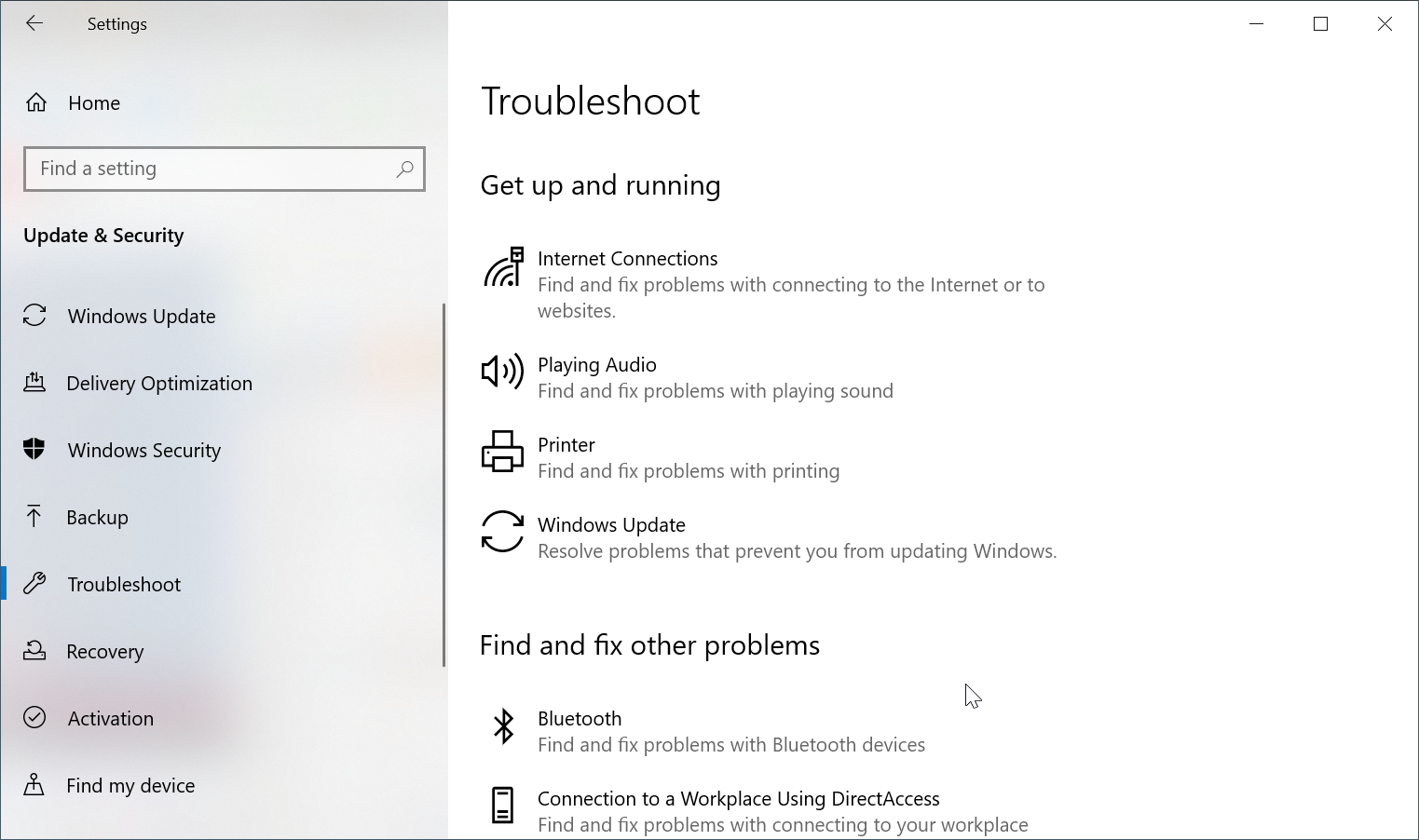
    • Click the Update & Security > Troubleshoot > Windows Update
    • Then click the “Run the troubleshooter“.
    • This will run for sometime saying “Detecting Problems“.
    • At the end, “Troubleshooting has completed” window will open.
    • Problems found can be seen here.
    • If they are fixed, you can see green tick mark against them.
    • Otherwise, you see a red mark.

    windows update troubleshooter settings 1

    windows update troubleshooter settings

    windows update troubleshooting completed

    Then you can check for Windows Updates manually again.

    Restart Windows Update Service

    In the list of services of Windows 10, you can restart Windows Update service.

    open windows 10 services

    windows 10 services

    • Press Win key and type “services“.
    • In the list click the “Services” App.
      This will open up the Services Window.
      There are two services related to Update
      1. Windows Update
      2. Windows Update Medic Service

    The first service – Enables the detection, download, and installation of updates for Windows and other programs. If this service is disabled, users of this computer will not be able to use Windows Update or its automatic updating feature, and programs will not be able to use the Windows Update Agent (WUA) API.

    The second service – Enables remediation and protection of Windows Update components. It is generally available after 1809 or 1903 update.

    You can stop, pause, resume and restart these services.

    Delete the following folders and files

    Some times the error 0xc1900223 is caused by mix up files in the C:\Windows\SoftwareDistribution folder. This can occur when earlier updates have written entries to these files. Since these are system files, they are written by Windows Update components and other apps.

    So you can delete all the files and folders in this particular folder. This will clean up the trash created by Windows Update system.

    Before doing that, you can pause the Windows Update service. After deleting the files and folders in this system folder, you can restart the service.

    Windows Installer is another service which need to be started after completion of this operation.

    Download Update Troubleshooter

    You can use the following link to download Update Troubleshooter for Windows 10- https://support.microsoft.com/en-in/help/4027322/windows-update-troubleshooter.

    The file name is wu10.diagcab.

    windows 10 update troubleshooter

    windows 10 update repairs

    Double-click the file to run it. This will resolve the following problems.

    1. Windows Update
    2. Background Intelligent Transfer Service
    3. Windows Network Diagnostics

    windows 10 update troubleshooter options

    Click Next or Advanced to Apply repairs automatically. You need to provide Administrator privileges to troubleshoot the error code 0xc1900223.

  • What’s new in Kaspersky 2013 – Review and Features

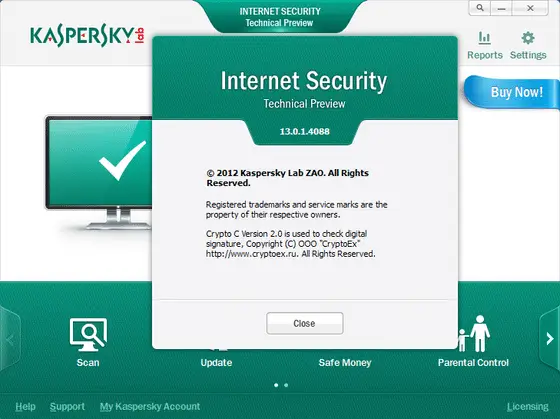
    Kaspersky Internet Security 2013 offers a wide range of security solutions.  One of the new-trends of Kaspersky Labs of products.  This security product is a multi-tiered protection of PCs and laptops.

    New features of Kaspersky Anti-Virus 2013 are –

    • System Watcher
    • Malware Search Safe Desktop
    • Enhanced Rescue Disk
    • Smart Installer Mode

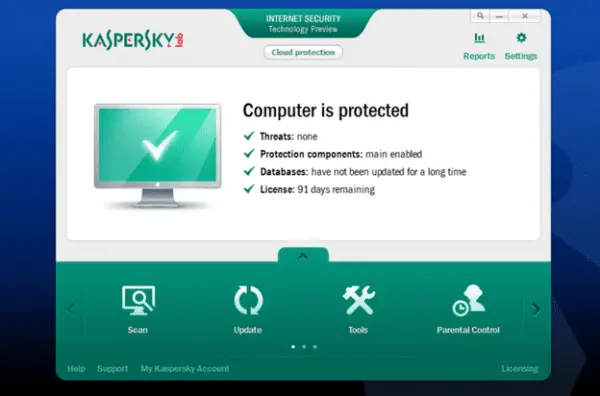
    Kaspersky Now” app can be installed on Windows 10 or 8.1 or 7. It displays your PC’s protection status. These include threats, database, license, and recommended actions.

    Let’s you quickly launch Kaspersky Antivirus and Kaspersky Internet Security features.

    KIS 13.0 review Windows 7

    Disclaimer : The usage of the above software lies in the hands of customer and the responsibility of its use completely lies with you.

    KIS 2013 – Features

    Kaspersky Internet Security is an all-in-one protection.  Protects from threats like malware, hacker exploits, spam, rootkits, phishing messages, persistent pop-up ads etc.

    The default anti-virus protection is offered by this product. This includes a new generation personal Firewall, a pro-active Defense component. It also offers protection against unknown threats.

    A Privacy Component protecting kids from internet fraud is provided. It also provides an Anti-Spam component which filters out unsolicited emails is also provided.

    Kaspersky 2013 features computer protected

    How KIS 2013 protects Online Fraud

    Safe Money Technology Kaspersky 2013 is offering more advantages than its predecessor 2012.

    Kaspersky has come up with Safe Money technology to prevent online fraud. This considers the recent changes in online cyber activity and criminal mindset.

    If you are a frequent user of credit cards online and internet banking, this technology is useful.

    The concept behind this technology is to isolate browser related malware and make them safe. It also includes checking authenticity of a commercial online store.

    Safe Money technology uses on-screen Virtual Keyboard. Helps to enter the password and credit card number without typing on the keyboard.  Makes key-logging malware almost impossible.

    The 2013 line of products are intelligent enough. Provide an improved anti-phishing engine with its renowned ability to detect phishing sites by analyzing the content in real-time.

    Safe Money mechanism can also guard against fraud by checking reputation of site certificates. This feature which was formerly known as Safe Run for websites is now part of Safe Money.

    When consumers enter a financial web site, Kaspersky will put the browser in high-safe mode. This makes security highly impossible to decipher.

    Manual selection of high-security mode is also available.

    Kaspersky added another tool in its armory – Automatic Exploit Prevention. It can block even the most recent malware/virus exploits unknown to-date.

    Malware exploit vulnerabilities are also taken care-of using this technology.

    How KIS 2013 protects consumers from Malware Exploits

    At Kaspersky Reviewers Roundup in San Francisco, Oleg Ishanov, Kaspersky’s Director of Malware Research listed the steps required for an exploit to succeed.

    1. the user opens a malicious file or visits a malicious site;
    2. the exploit passes control to malicious shell-code;
    3. the shell-code downloads a malware payload;
    4. the payload launches;
    5. malware is now running on the victim’s system.

    Automatic Exploit Prevention works in such a way that it can stop the malware exploit at various steps.

    The 2013 line of products adds a new technology called “forced ASLR” (Address Space Layout Randomization).

    Already present in Mac OS and iOS and to some extent in Windows. This method of defense relocates modules in memory, making it tough for the exploit to execute in step 2 above.

    This even works in Windows XP.

    KIS 2013 – What are its Advantages

    KIS lays emphasis on process execution control. This prevents the payload to launch in step 4 above.

    According to Kaspersky’s internal lab test results, it can block 100% of exploits. Useful for computer systems which are prone to BlackHole exploit kit.

    The latest version of KIS 2013 is 13.0.1.4107 to the date of writing this post.

    Let us know in your comments your experience with Kaspersky 2013 products and your interest in purchasing it.

  • [Review] – What are the Microsoft Account Settings in Windows 10

    To login to Windows 10 you can either use a local account or Microsoft account. You can sync your device settings. Change the sign-in options. Access work or school to control some settings on your Windows 10 device. Add an account used by Email, calendar, and contacts.

    See your account details like the account name, email address, rights and permission. You can manage billing info, family settings, subscriptions, security settings and more using your Microsoft account.

    Sync your theme, passwords, language preferences, ease of access, other windows settings with a Microsoft account. Selectively sync individual settings also.

    You just need an email account and password for this to work out.

    Outlook.com or Hotmail.com accounts are generally used for Microsoft Accounts. But you can add other email accounts like Gmail, Yahoo etc. You can see the different features that can be managed in Windows 10 using a Microsoft account.

    To set details and control your Windows 10 account settings, you need to go to Settings > Accounts.

    microsoft account windows 10

    Manage Windows 10 Account

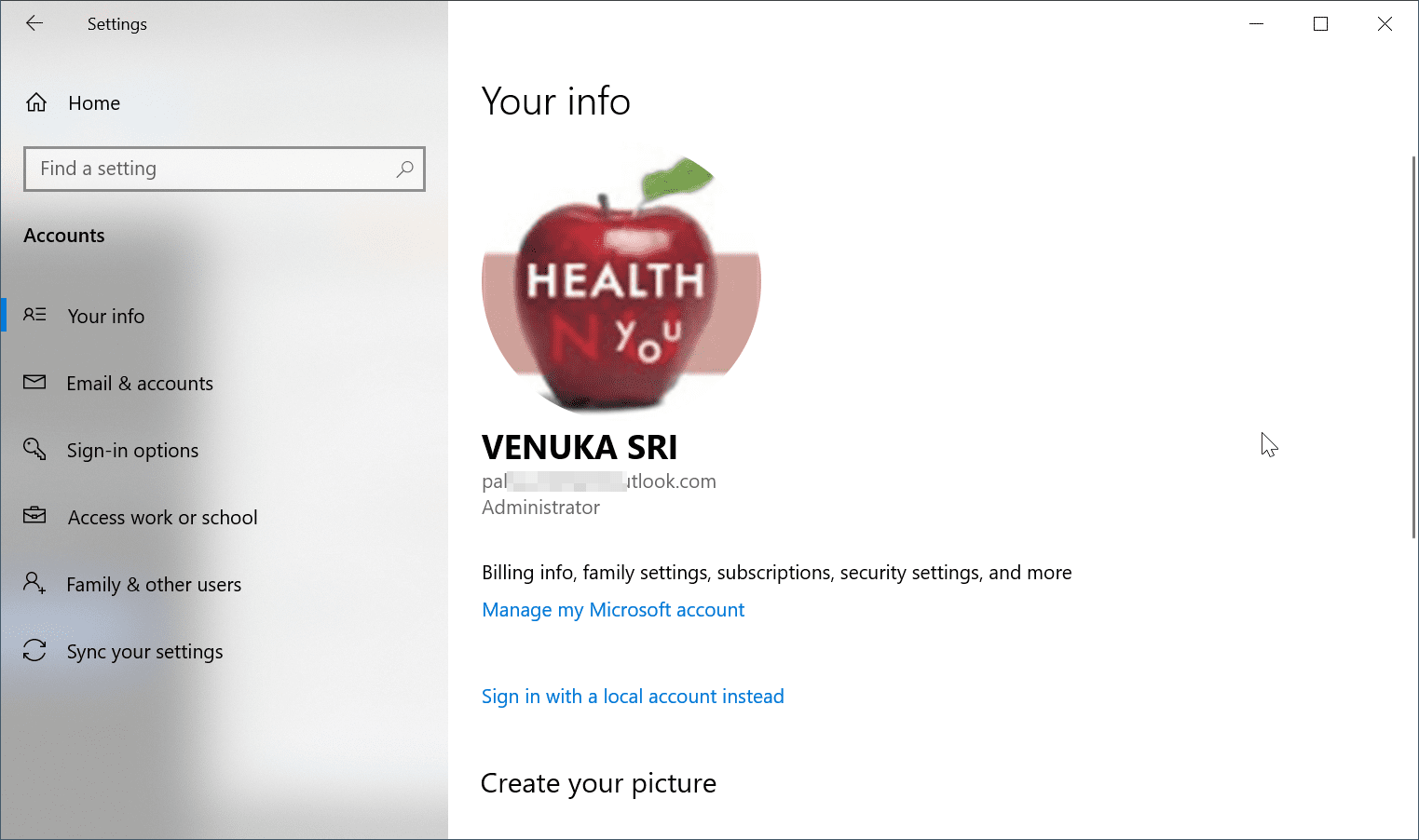
    You can do this from the “Your Info” tab on the left hand side. Billing info, family settings, subscriptions, security settings and more can be done by clicking the label “Manage my Microsoft Account” on the right hand-side of the Settings > Accounts Screen.

    microsoft account windows 10 your info

    This will open up the “Microsoft Account” settings page in your web browser. You can make necessary changes to your date of birth, name, location, language, unlink devices, security, privacy etc from the web settings.

    You can also change to a “local account” here. This will restrict some access to apps and services like OneDrive, Office 365 and other subscriptions. If you don’t use the services of Microsoft account, then this is best for you.

    You can also “Update Info” by verifying your Microsoft Account in Windows 10 with PIN or password.

    Email and accounts

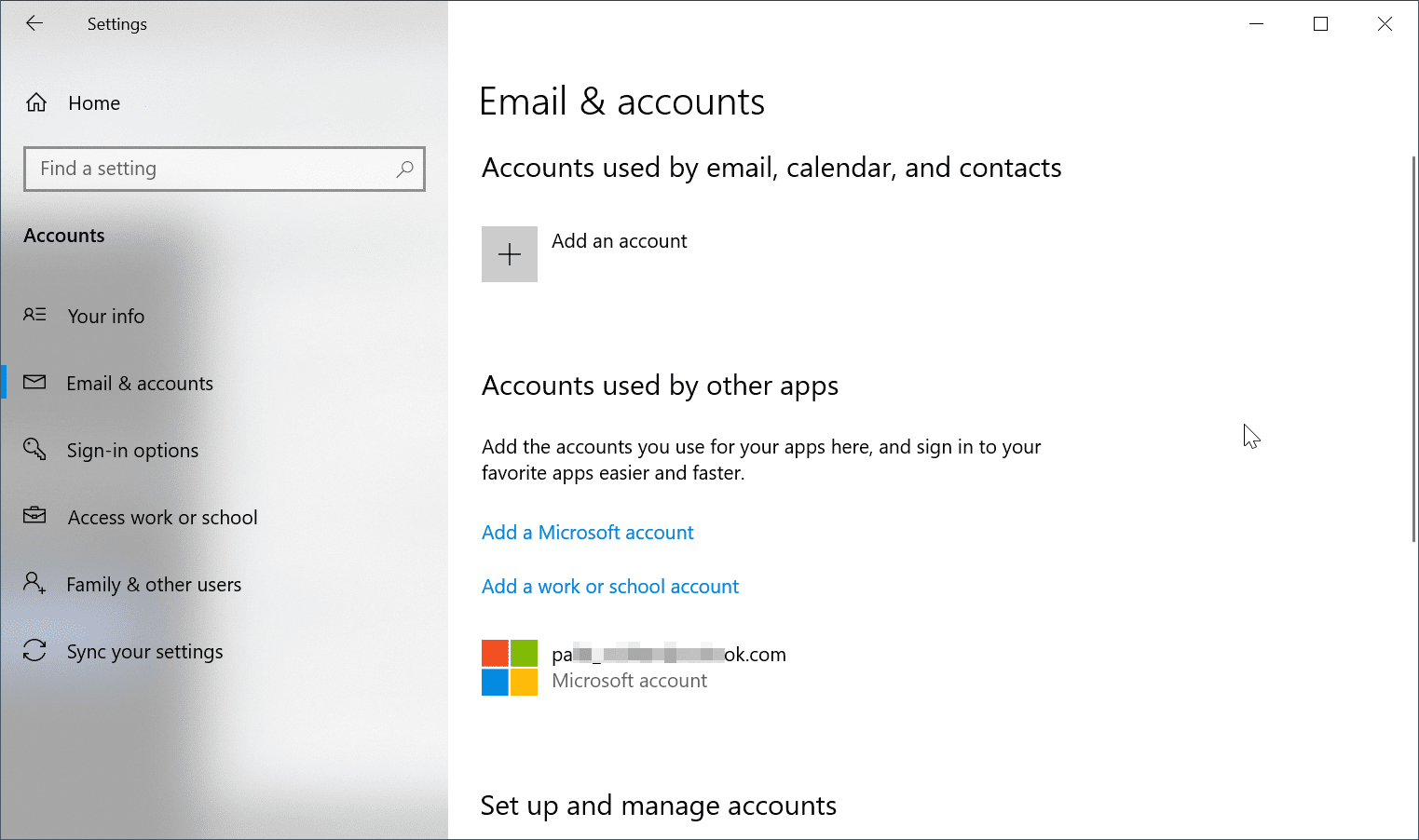
    You can add a new Microsoft Account using “Accounts > Email & accounts“. To change an account name, delete an account, or sync an account with another device, select your account and then select Manage.

    email and accounts windows 10

    You can do several things like change your Microsoft account email, unblock your account, create email signature, sign into Outlook etc.

    This is helpful if you are using too many devices.

    If you are using Windows 8.1 and 10 on different devices, but still use the same settings, then you can use the same account.

    Work or school accounts can also be added here. You can change settings on your computer, while working from office or college. This is like a remote connection.

    But if you have changed jobs and also want to change your Microsoft account, then you can create or add a new account here. This will replicate the settings of your new account.

    In another case, you want to use different settings for different devices. In that case also, you would like to maintain multiple Microsoft accounts.

    Sign-In options

    Password is the primary security for your Microsoft account. But, there is some additional protection. You can login into your Windows 10 computer, tablet, phone and laptop using several authentication methods.

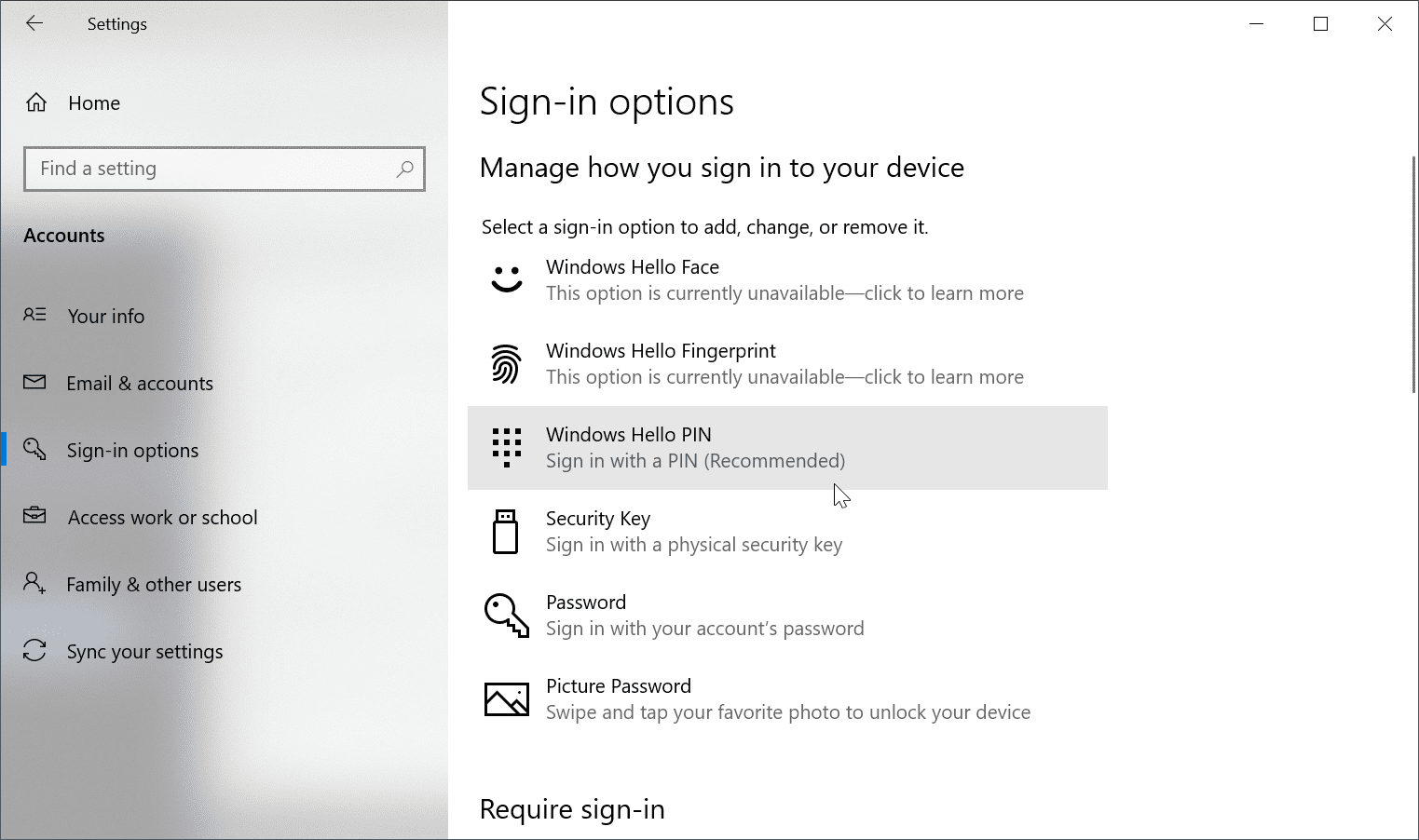
    These sign-in options include Windows Hello Face, Windows Hello FingerPrint, Windows Hello Pin, Security Key, Password, Picture Password.

    sign in options microsoft account

    Using any of the above sign-in options, you can login into your Windows 10 with Microsoft account.

    This masks your account without any problems. The most convenient method, for personal use, is to use a PIN. Instead of typing a long password, this is more easy to enter.

    But if you have confidential information stored in your Windows 10 PC, then its better you use a physical security key.

    Hello Face and Hello Finger Print require special devices attached to your all-in-one desktop or laptop. These are not supported by legacy hardware.

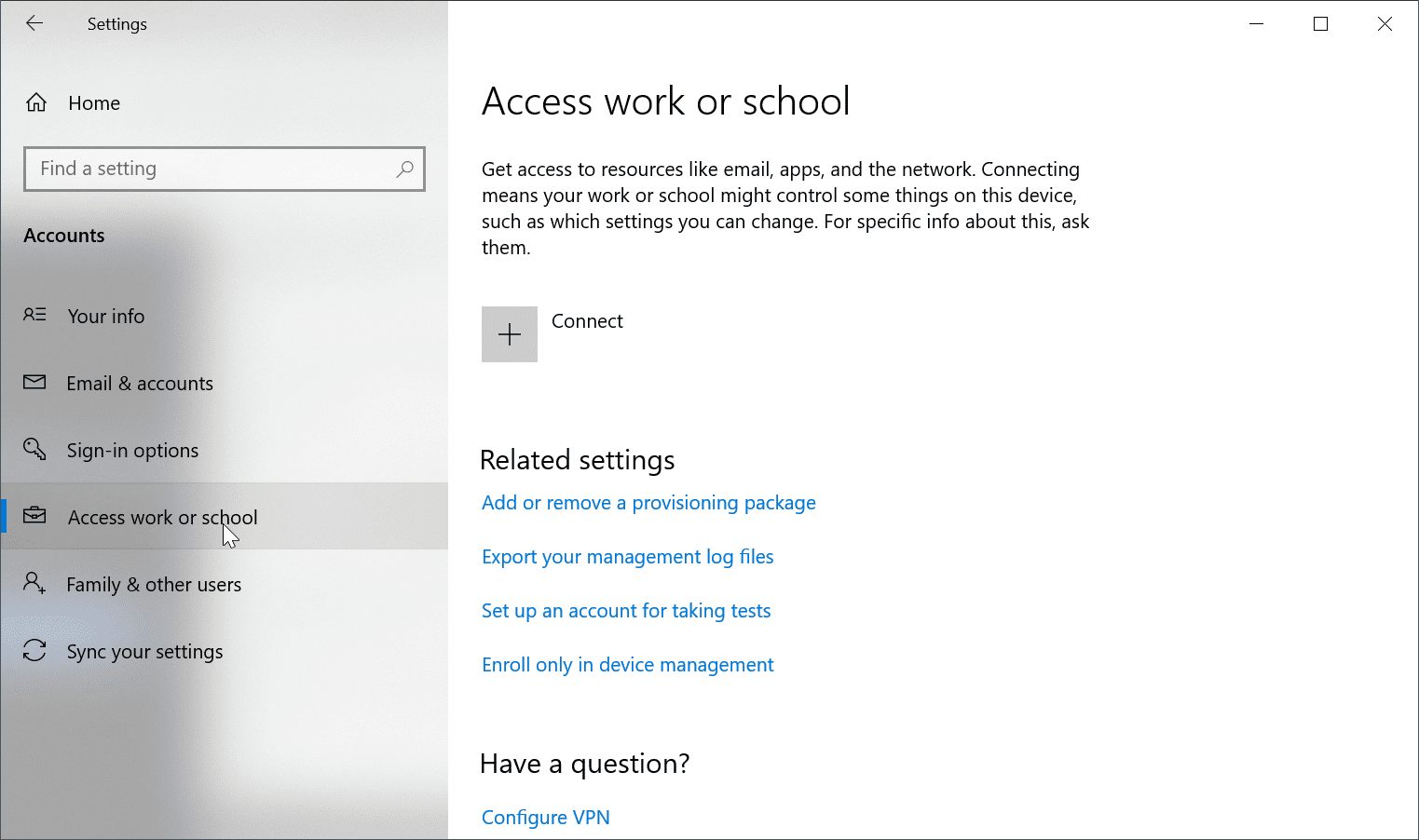
    Access Work or School

    If your Microsoft Account for Windows 10 is being used to access work accounts or school documents, then the administrator will have some control.

    You will get access to resources like email, apps and the network. Once you connect your account with your school or work, it can control some settings on your Windows 10 device.

    access work school using microsoft account

    You can export your management log files, set up accounts for taking tests, enroll only in device management etc.

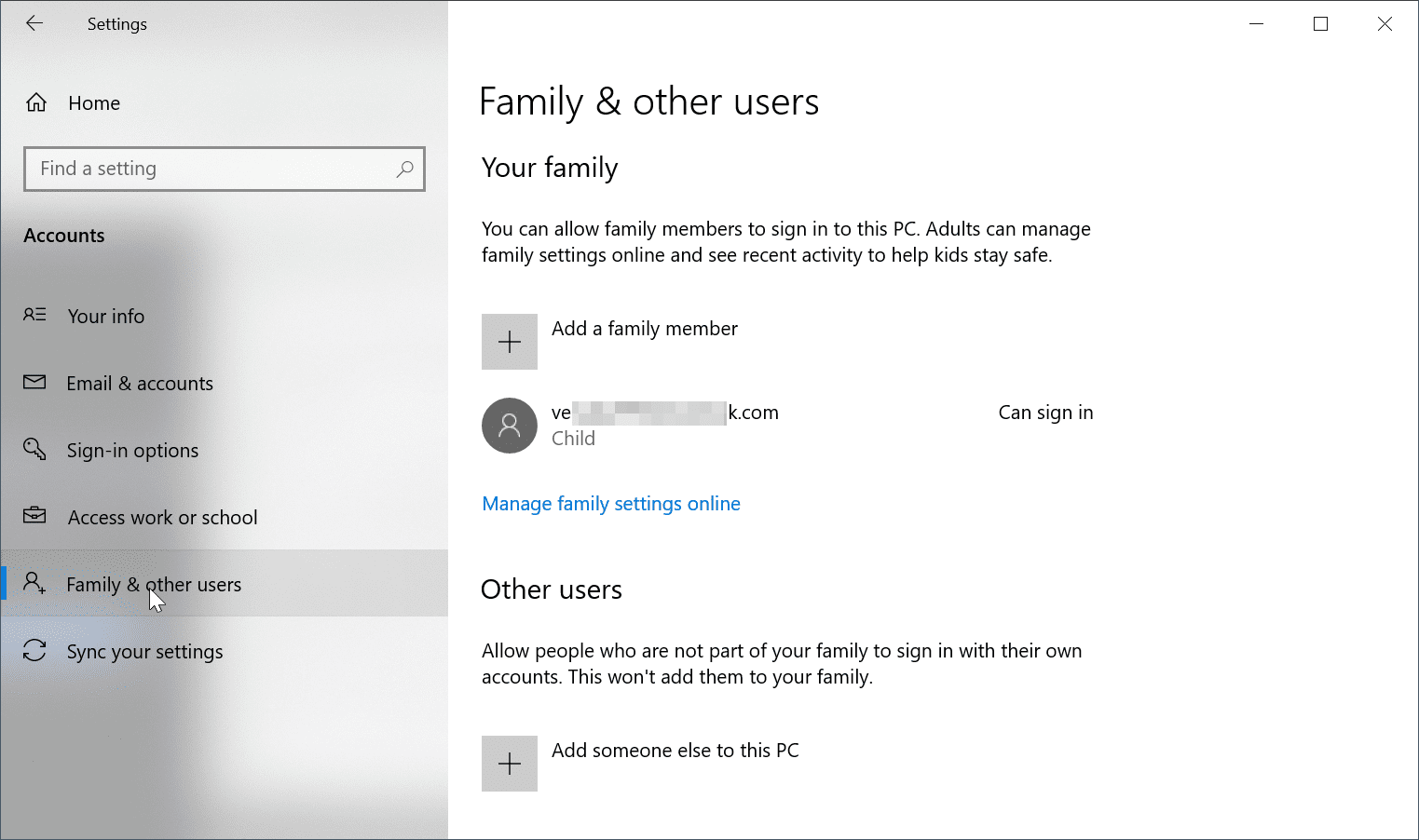
    Family Settings Overview

    Microsoft Account for Windows 10 can also be used by several members of your family.

    You can add your relatives, husband, sisters, brothers.

    There are special provisions for your kids who use your Family account. This limits their spending, access to apps, observing their internet usage etc.

    family settings microsoft account

    You can add someone else who can  be your office colleague to this account. This will not let them add to your Family, but only give some access to your account. You can manage family settings online, using your web browser.

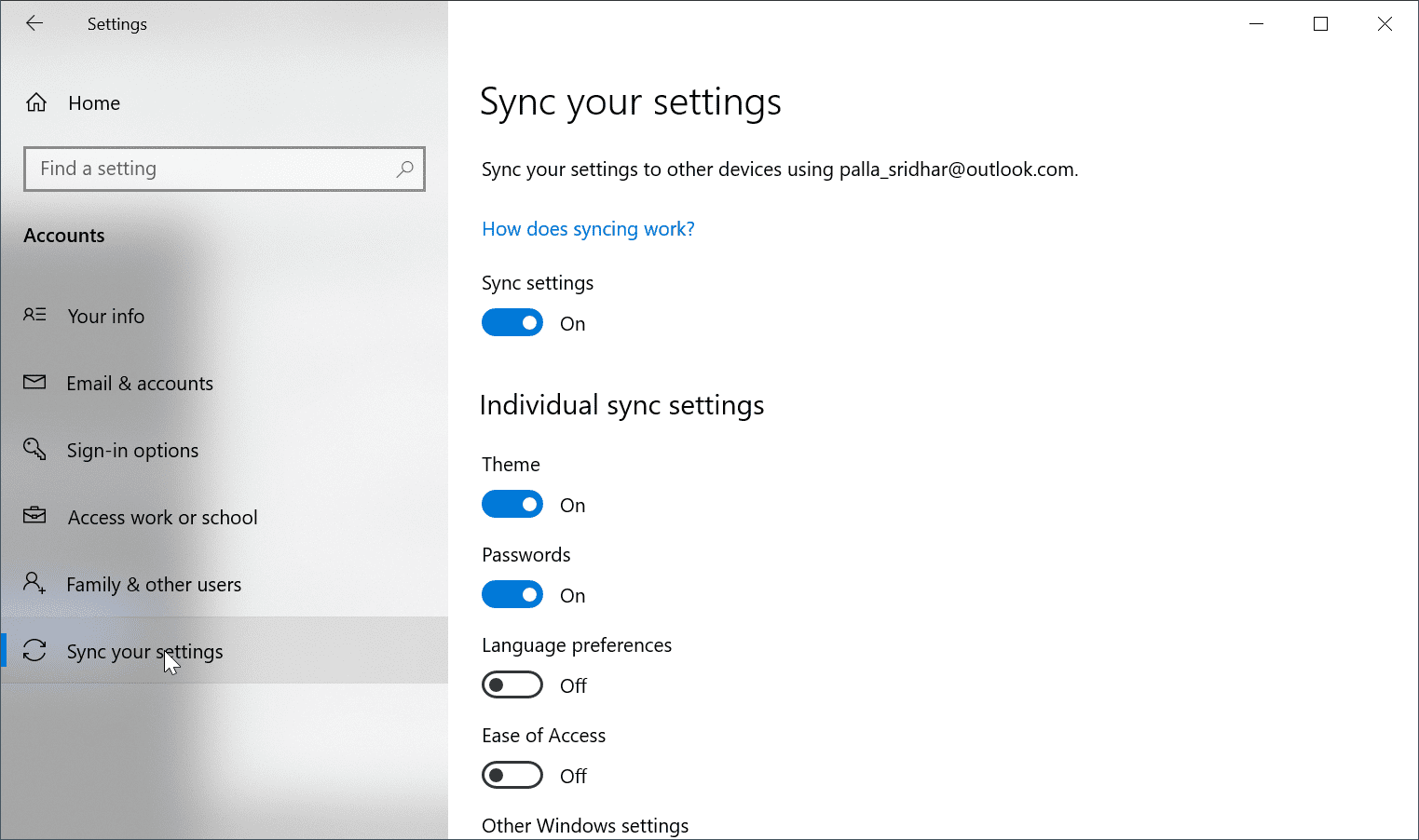
    Sync your settings

    The best part of using Microsoft Account in Windows 10, is they can sync with many other devices at once. Instead of doing personalization for each device, the same color, screen resolution can be applied to all your devices at once.

    Theme is another important aesthetic feature of Windows 10. But if you want to use the default one, instead of a different one for each device, the sync setting can be done here.

    sync settings microsoft account review

    Passwords for different web and app accounts are stored in your Microsoft Account. If you shift to another device, then re-entering each password is a big headache.

    Just by enabling the sync option for Passwords, all of them are available on your other device.

    Language Preferences and Ease of Access sync settings for your Microsoft Account can also be done here.

    Microsoft Account also stores your OneDrive and Microsoft Edge favorites.

  • Microsoft Account Settings – Things that can be managed in 2020

    Microsoft account payment options, family settings, privacy, security can be managed on one page.

    Payments & billing, Subscriptions and services, Device history, Xbox and Skype profiles, OneDrive files and folders, Microsoft Office 365 subscription, Mixer, Cortana, MSN are the other settings.

    As of Oct 2020, you can view and change payment methods, billing history, download your privacy activity, change ad communication preferences. Also Read – 10 Solutions That’ll Make You Better at Microsoft Account Problem In Windows 10

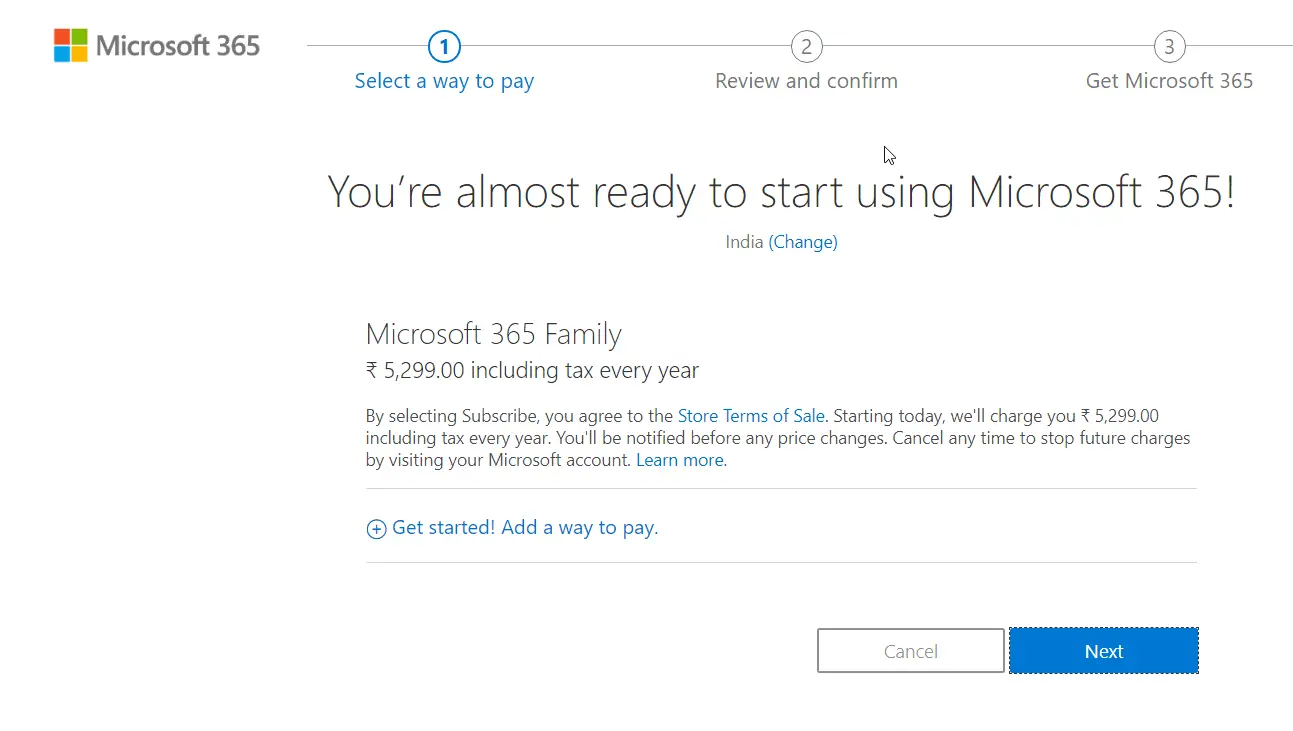
    To manage and subscribe to Office 365 services of Outlook, Word, Excel, Publisher, Note you still need a Microsoft account.

    microsoft office 365 subscription

    The account creation can be done in a few steps. To use single sign-in process, you need to create an email account . This can be used for many services.

    microsoft account review

    Why you need a Microsoft Account

    Microsoft has already managed to provide 5GB free data for OneDrive. To use this, you need an account.

    If you want to back up your Windows 10 background settings, themes, personalization, back up etc, you need a Microsoft account.

    The best part is that it all comes for free for personal use. If you want to pump up your cloud storage then you need to pay etc.

    Azure kind of services come up with business plan and require a corporate structure. But if you are like me, an individual PC user, then you can settle for small things. Also Read – 10 Robust features of Microsoft Defender for Extra Protection of Windows 10


    In this Microsoft Account settings review, we are going to see the different services available under the umbrella of one account using the web interface.

    How to make a Microsoft Account

    1. Go To https://account.microsoft.com/account
    2. Click “Create a Microsoft account“.
    3. Use your email, phone number to create an account.
    4. You can also get a new email address (if you don’t have one).

    microsoft create account

    There are two types of email
    1. @outlook.com 2. @hotmail.com

    create outlook hotmail email account

    Microsoft Account – Settings

    1. Account
    2. Your Info
    3. Privacy
    4. Security
    5. Payment & billing
    6. Services & subscriptions
    7. Devices
    8. Family

    You can look at all these options, once you login into your account using password or PIN or any other login method.

    microsoft account settings review

    Account

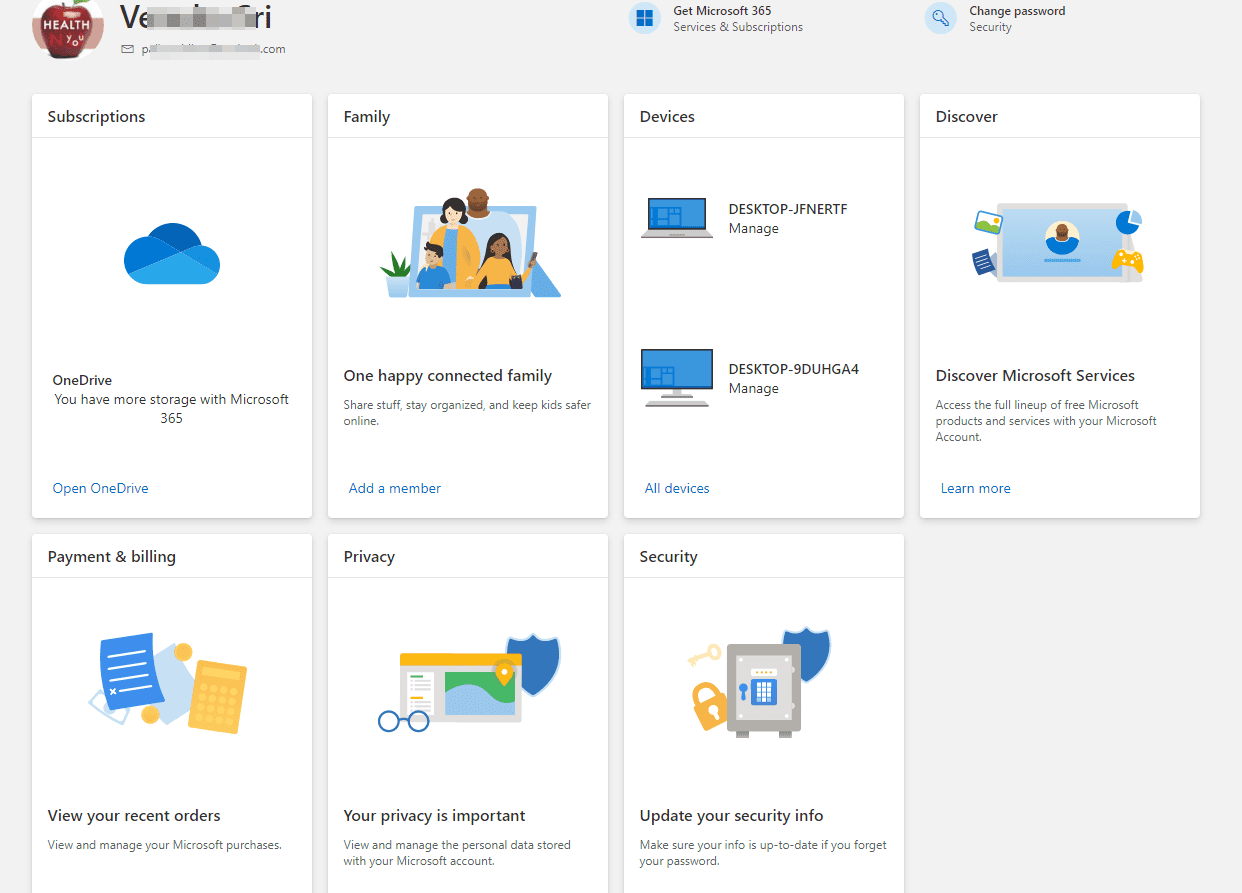
    You can see your account email and name of your account. When you click on any related link you can see that particular item information.

    1. Subscriptions
    2. Family
    3. Devices
    4. Discover
    5. Payment & billing
    6. Privacy 
    7. Security

    microsoft account

    Open OneDrive from here. You can see all the files and folders. Access modifications can also be done.

    If you have an Office 365 subscription, it is also mentioned. Otherwise, you can start a free trial.

    For security purpose, you can also change the Microsoft account password here.

    Get details of Microsoft 365 subscription and services. If you are not a member, you can purchase it from here.

    Add a member to the Microsoft family settings. See the list of devices managed under this account.

    Access the list of products and services associated with the Microsoft account. Payment and billing order history can also be looked up.

    Privacy activity history can be checked. If you forget your password, you can update the security information.

    Your Info

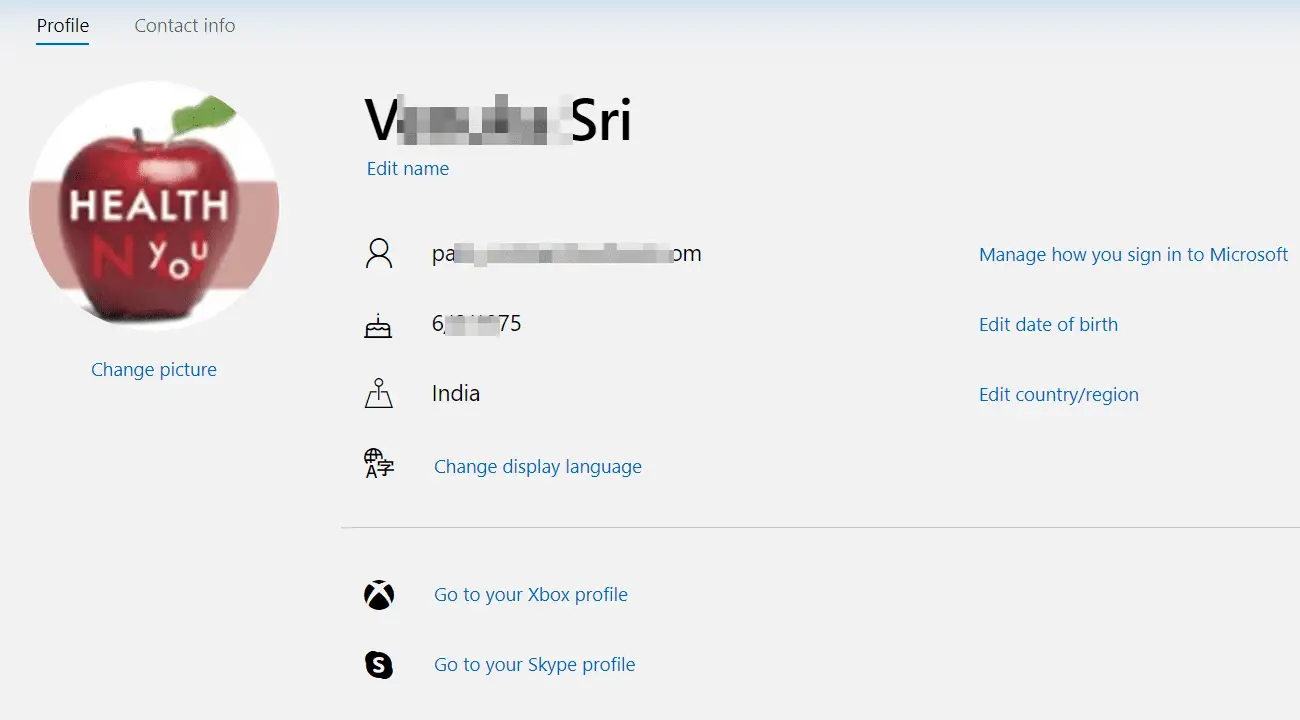
    In this Microsoft account setting, you can see the following two options.

    1. Profile 2. Contact info

    See and change your display picture (DP), Edit name, manage how you sign in to Microsoft, edit date of birth, edit country/region, change display language using this option.

    Xbox profile and Skype profile details also can be reached from here.

    microsoft account profile info

    Email addresses associated with your Microsoft account are seen under Contact Info.
    For each email account, you can manage communication permissions.
    You can manage your primary email address and remove other addresses if required.

    You can add your mobile number or remove it if required. The address book details can also be reached from here.

    Microsoft Authenticator is an app which can be used for 2-factor authentication. You can learn more details about it from here.

    Change your password and mange your billing, shipping info from this page.

    Privacy

    The following tabs are available here.

    1. Overview
    2. My activity
    3. Download your data
    4. Cortana’s Notebook
    5. Ad settings

    microsoft account explore your data

    Under overview, you can view and clear few caches. These include –

    1. View and Clear Browsing History
    2. View and Clear Search History
    3. View and Clear Location History
    4. View and Clear Voice Activity
    5. View and Clear Media Activity
    6. View and Clear Apps and Services Activity
    7. Clear Product and Service Performance Data
    8. Edit Cortana Data
    9. View LinkedIn Connection Settings
    10. Manage your HealthVault Account

    Under My activity you can explore your data. These include –

    1. Apps and services
    2. Voice
    3. Search
    4. Browse
    5. Media
    6. Locations

    Ads settings are used to use your browsing, search, and other online activity associate with your Microsoft account.
    Based upon these habits, your ads are tailored to your interests. You can also see personalized ads in your browser like Microsoft Edge, based upon these settings.

    microsoft account ad settings privacy

    see personalized ads in browser microsoft account

    Related Reading – For complete details of Microsoft account privacy settings.

    Security

    You can change password, turn on two-step verification, windows device status etc. from here.

    View your sign-in activity, update your contact info, explore other security options from here.

    These are two-step verification, identity verification apps, windows hello and security keys, recovery code, trusted devices etc.

    Payment & billing

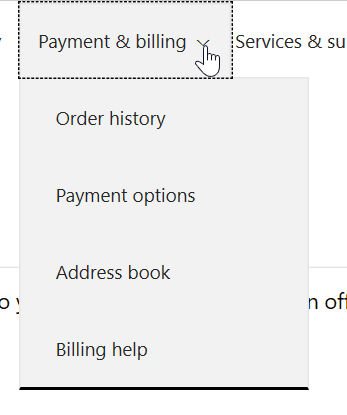
    You can see order history, payment options, address book, billing help here. The order history will show the stuff you bought and subscriptions you paid for.

    If you have multiple Microsoft accounts, check-in into each account to check your order history.

    payment billing options microsoft account

    You can refine your order history on the basis of all, in-progress, returned/refunded, digital, physical, ordered within past 3 months, 6 months, past year etc.

    order history billing settings microsoft account

    For each setting, your PIN or password may be asked.

    You can add payment options like credit and debit cards, PayPal, bank account etc.

    The preferred billing info and shipping address also can be set here.

    Services and Subscriptions

    Under this tab, you can see all the list of services and subscriptions related to your account. These are related to, but not limited, like OneDrive, Xbox Live, Skype, Outlook.com etc. If you have previously subscribed to any services like Office 365, these are listed under Canceled subscriptions.

    Devices

    This will show the list of devices to which your Microsoft Account is associated to.

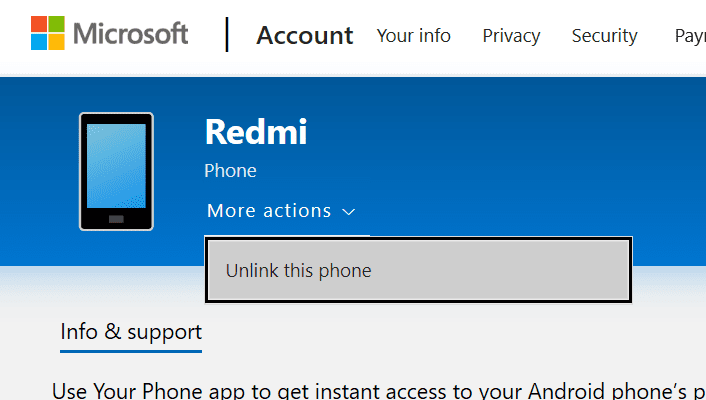
    The attached devices are listed here. For example, if you have an Android phone attached to this account, you can see it’s details.

    devices connected to microsoft account

    You can unlink the phone using the settings.

    If you have Your Phone app on your PC and Android, you can switch seamlessly between them. You can also use other Microsoft apps on your Android.

    unlink this phone microsoft account


    If your desktop or laptop is connected to your Microsoft account, then you can manage it from here.

    The default anti-virus is Windows Defender on your Windows 10 PC. You can see it’s security settings from here.

    Find my device” is another option that can be enabled from here. In case you lost the phone or mobile, then you can locate it using this preference.

    BitLocker data protection details of your drives can also be seen here. If you have enabled them, it can be seen as ON. Otherwise, it will display as OFF.

    security bitlocker data protection settings microsoft account

    manage device permissions security

    Family

    You can see the list of family members you have added to this account. You can add a family member from here. For your kids, you can manage use the “manage my child’s profile info” if you have added them. You can add a member as family or child.

    microsoft account family settings

    Adult permissions

    The Manage permissions option for an adult will give your further options. For example, you can allow other adults in your family to check the health and safety of your devices. They can make sure that they’re up-to-date and check device security and status.

    Child permissions

    You can also add child as your family members. Then you can see their activity, screen time, app and game limits, content restrictions, spending and add money to his account. This will help your set screen time limits, require kids to ask a parent before buying etc.

  • How to Block Ads in System Apps of Redmi MIUI 10

    Xiaomi like any other smartphone brand has pre-built apps like Security, Mi Video, Mi Cloud, Mi Browser, Mi Music, Mi Credit etc. Redmi Note 4 also has many of these apps. MIUI 10 is the latest version of the user interface framework sitting on the top of Android OS.

    Though MIUI system is used to simplify the look and feel of Xiaomi phones, it still has some drawbacks. The main complaints from Redmi users is system apps show different notifications and Ads.

    Android by default, does not block ads.

    Why to Remove Ads in Mi Phones

    This is unlike browsers, where you can install Ad Block extensions to prevent ads from showing.

    It is very irritating for a normal user of Redmi phones, to see pop-up ads while doing important work.

    For example, Mi Browser is the default browser for Redmi phones.

    Lot of interstitial ads and inline display ads are shown while browsing. In the same way, Security app which is used to clean junk and boost memory also displays ads between notifications.

    There is no one-general solution to remove ads in Xiaomi Redmi system apps. You have to follow the below recommendations for each app.

    1. How to Remove Ads in Redmi Note 4

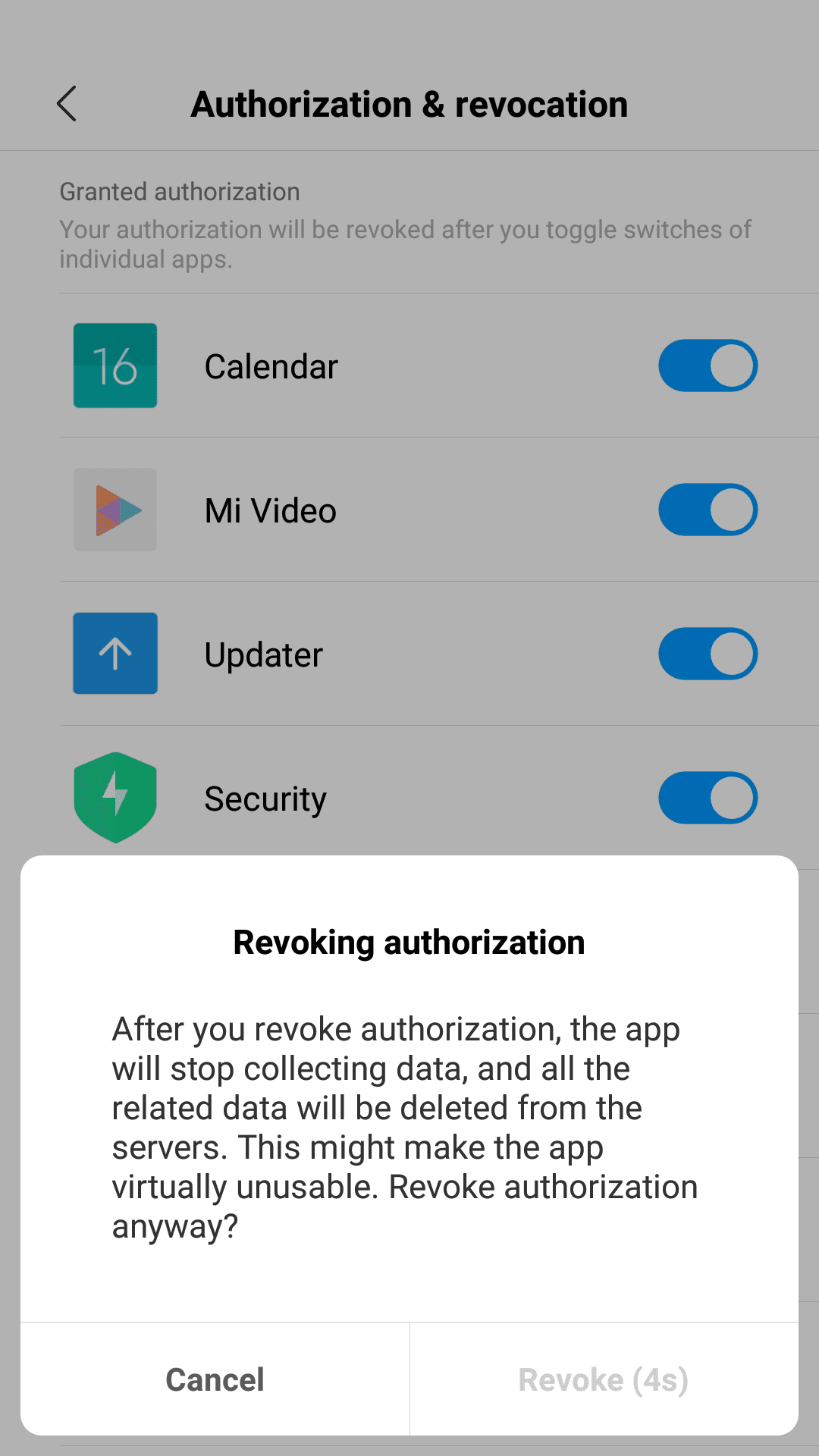
    In general, you need to disable the “msa” app. This can be done by turning off the authorization and revocation setting for “msa” app. Xiaomi made sure that it doesn’t work out easily. In MIUI 9, it was easy with 4 or 5 attempts.

    But in MIUI 10, you have to make several attempts. You also need to wait 10 secs for each revoke attempt.

    1. Your Redmi phone should be connected to Wi-Fi or Mobile Internet. This granted permission cannot be revoked without internet.
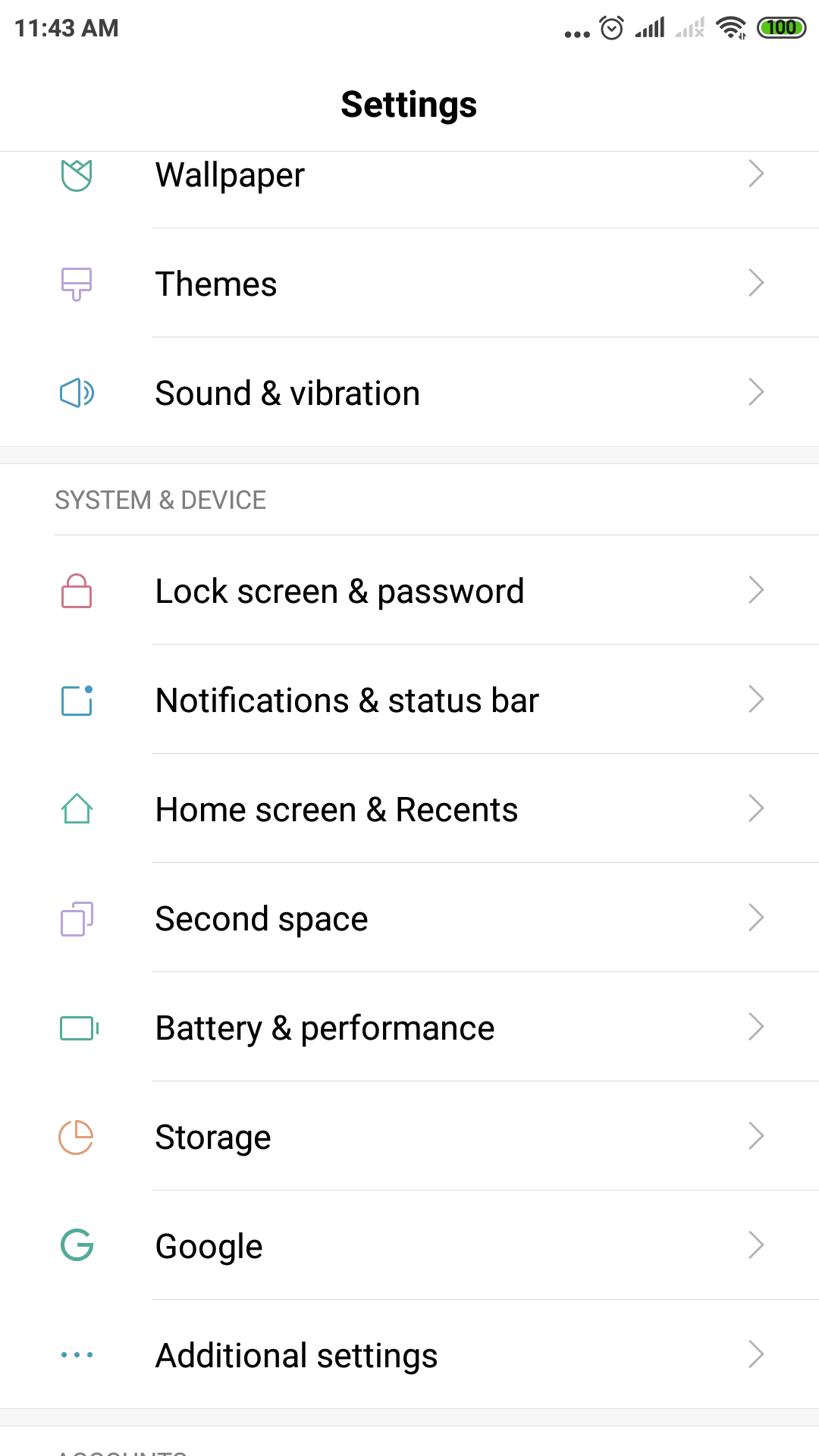
    2. Settings > Additional Settings > Authorization & revocation > and set msa to Off.
    3. Wait 10 secs to see the “Revoke” button.
    4. Tap it and you may see “Couldn’t revoke authorization” for the first time.
    5. This error is displayed 9 to 10 times, before it works out.

    Note: In my case, I failed to revoke “msa” app even after trying several attempts. Not only this app, but granted authorization was not revoked for other apps like Mi Video, Feedback etc. This looks like a bug in MIUI 10 and later versions.

    Even if this trick does not work out, you can follow the below multiple tweaks to block ads in system apps of your Redmi phone.

    redmi settings additional settings miui 10authorization and revocation setting redmi app

    revoking authorization system app xiaomi

    2. Privacy Settings to Block Personalized Ads

    Go to this path – Settings > Additional Settings > Privacy

    Under “User Experience Program” you can find the following options.
    1. User Experience Program
    2. Send diagnostic data automatically
    3. Ad services

    The first two options will prevent sharing of usage stats and personal data which can hinder your privacy.

    If you tap the “Ad services” option, then you can see the following option.
    1. Personalized ad recommendations
    When the recommendations are off, you’ll still see the same quantity of ads as when it’s on, but they won’t be based on your behavior data or your personal information.

    ad services miui 10

    personalized ad recommendations turn off

    3. How to Block Ads from Mi File Manager in MIUI 10.2

    The following steps will help remove the ads in File Manager.
    1. Open Mi File Manager app.
    2. Tap the three lines on the top left hand side.
    3. Tap Settings > About
    4. Tap Recommendations to turn it off. (By default it is on, shown in blue color. On disabling it, will turn grey color).

    4. How to Block Ads in Cleaner app in Redmi

    This app also shows ads. To remove them follow these steps.

    1. Open Cleaner
    2. Tap the brush icon the top right.
    3. Tap gear icon on the top right.
    4. Tap “Receive Recommendations” to turn off ads in this app.

    5. How to Block Ads in Mi Video app in Redmi

    1. Tap the app to open.
    2. Tap Profile on the bottom right.
    3. Tap Settings.
    4. The following two options can be turned off.

    1. Online Recommendations – Turn off to stop receiving online video recommendations.
    2. Push Notifications – Turn off to stop receiving push notifications.

    How to Block Ads from Mi Browser, Security and Mi Music apps.

    These apps also show ads by default which is little annoying. More the ads, more you have to scroll through and more taps. To stop them just remove ad recommendations by following these steps.

    1. Open Security app.
    2. Tap on the gear icon at the top.
    3. Tap Receive Recommendations to turn it off.
    4. Ads will not show in Mi Security app.

    Otherwise, you can follow a different method.

    1. Open Settings > System Apps.
    2. Tap the required app.
    3. Tap Music for example.
    4. Tap “Receive recommendations” to turn it off.
    5. Tap Browser > Privacy & security.
    6. The following options can be turned off.

    Personalised services and Authorisation

    This will prevent receiving personalised content recommendation and ads in Mi Browser.
    You can also turn off the switch Authorisation on/off to grant or revoke authorisation for this app.

    To completely remove ads from Mi Browser, you can try these settings.

    Settings > System Apps > Browser > Advanced > Set start page.

    You can enter a custom url here – like google.com or bing.com. This will remove the Xiaomi default page which has lot of recommendations and ads.

    set custom page mi browser

    How to Block Spam Notifications in Redmi MIUI 10.2

    You can go to – Settings > Notifications & status bar > App notifications.

    It will take a few seconds to open.
    Now scroll through the list of apps for which you want to disable spam notifications.

    If you want to block all notifications, tap “Show notifications” to turn it off. But if you want to disable only promotional notifications for that app and get regular notifications, you can turn on/off the following settings here.

    1. Priority – Show notifications at the top of the list.
    2. Floating Notifications – Allow important notifications at top of the screen.
    3. Lock Screen Notifications – Allow important notifications on the Lock screen.
    4. Notification light.

    The above settings will only help you prevent ads in some of the Mi apps which come pre-installed with the Xiaomi phone.

    To block ads in general for all the apps in Play Store is not possible yet. I have tried rooting methods using “Ad Blocker” app, but it didn’t work as intended.
  • Your Phone Review – App to connect Windows 10 PC to Android

    There are different ways to share your photos, documents, files between your Android phone and PC. Windows 10 has an inherent way to connect your smartphone. The advantage of this method is that the hurdles in using a third-party app are reduced.

    Your Phone is a Windows 10 app which is used to see text and recent photos from your phone. The best thing about this app is sending web pages to and from PC is easy. For this you need to install Your Phone Companion app on your Android phone.

    This is useful for instant access to your phone’s notification, photos and texts on your PC. It provides a simple way to display your Android phone SMS, notifications, photos on your PC.

    To share files and photos, you need to interconnect these two apps. One is for Windows 10 and other is for Android.

    How to Connect Your Phone Companion App

    • Go to Play Store app on your Android phone.
    • Type “Your Phone” in the search.
    • Click the install button on “Your Phone Companion” app.
    • your phone companion app play store
    • The app size is roughly 24MB.
    • It has 4.3 star rating and 78K reviews on Play Store.
    • The latest version is 3.7.9.
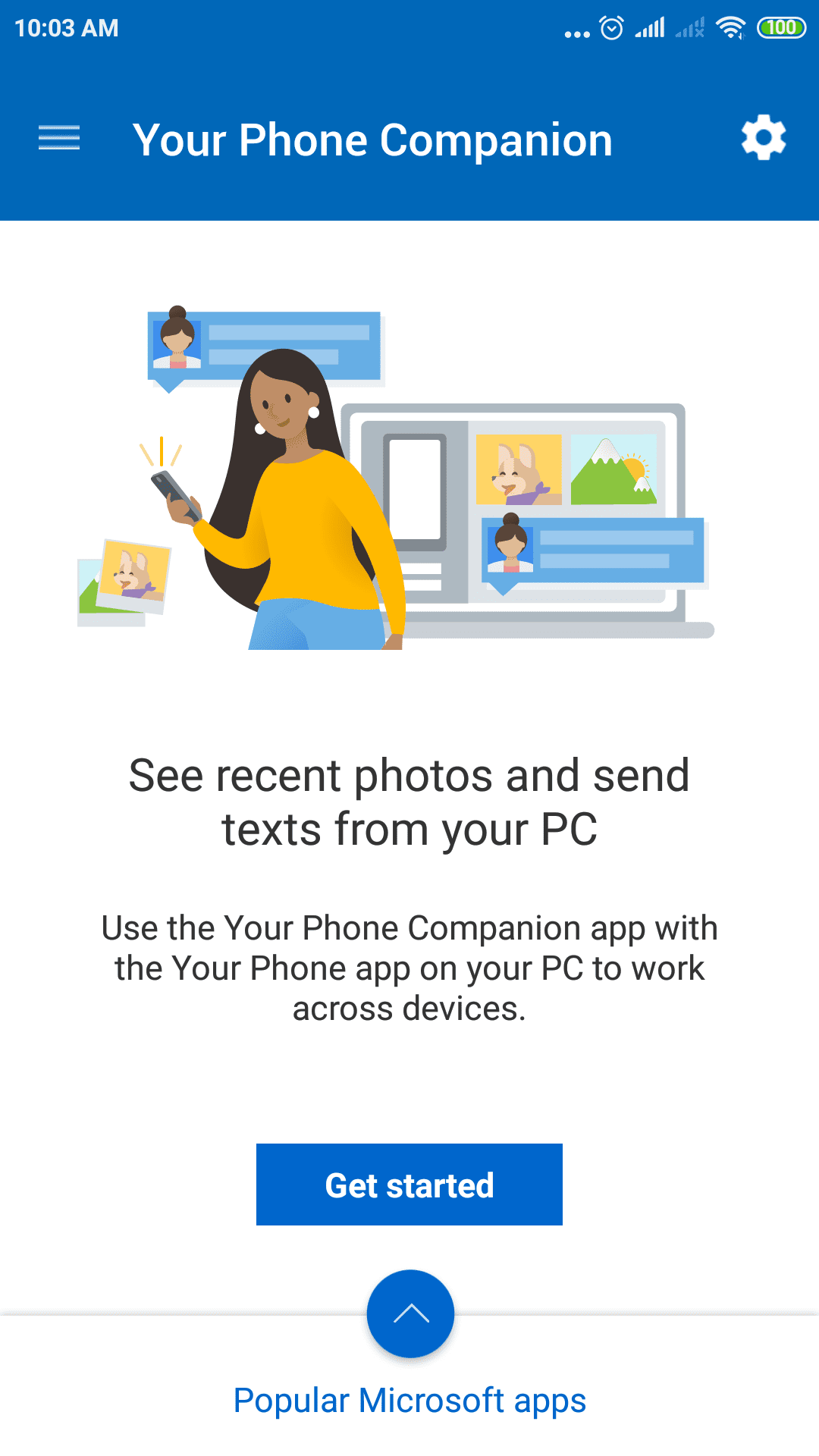
    • Click on “Get Started” after installation.

    get started your phone companion app

    You need to “set up Your Phone app on your PC”.

    • set up your phone app on pcyour phone allow the connection
    • Go to your Windows 10 PC.
    • Open Windows Settings and click on “Phone”.
    • Click on “Add a phone”.

    connect access data permission your phone app

    • The latest version of this app is 1.19092.399.0.

    android phone linked to pc

    Your Phone requires some permissions on your phone

    your phone allow app permissions

    Then you need to allow few permissions to connect your phone and PC.

    your phone companion app other permissions

    your phone companion app permissions

    Note: On this page, you can see a warning message about battery life.

    By letting the companion app refresh in the background, your texts and photos will stay up to date. This may impact your battery life preferences.

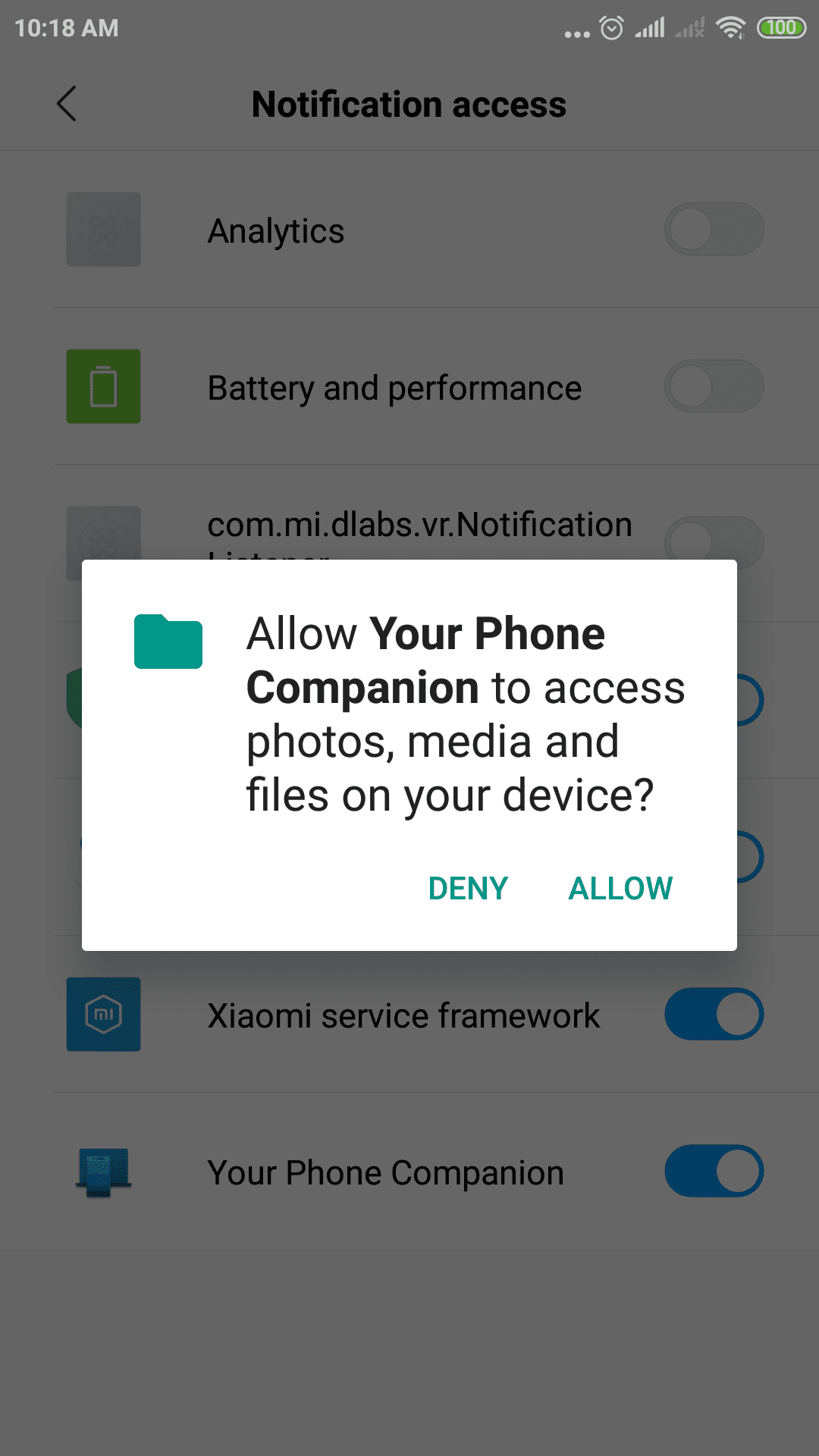
    Once you allow “Notifications” permission, they are displayed on your PC.

    1. Allow permission to access “photos” on your phone.
    2. Allow permission to send and view SMS messages.
    3. Give permission to make and manage phone calls.

    your phone companion app notification permissionallow notification acess to your phone companion app

    allow your phone companion to access photos

    In Your Phone app on Windows 10, you can see the following –
    1. Recent photos
    2. Recent messages
    3. Notifications.

    notifications your phone app windows 10 pc recent photos your phone app windows 10 computer recent messages your phone app windows 10 desktopHow to Send Web Pages To and Fro between PC and Smart Phone

    You can also send web pages between phone and pc. This is useful if you are reading an article on your Android phone and would like to read later on your PC.

    For example, in Chrome, you can tap the 3 dots at the top. Then you can tap on “Share” and click on “Continue on PC”.

    continue on pc web page your phone

    Smartphone display is not good enough for some web pages. In that case, you can send the web page to your Windows 10 pc with the help of Your Phone Companion app.

    In the same way, if you are on the go using a mobile, you would like to read your posts on your Android phone. Then you can send them from your pc to your mobile phone.

    send webpage to phone from windows 10 pcYour Phone Companion App – Settings

    On the top right-hand side you can see the gear icon.
    Click it to view Settings.
    1. Accounts
    2. Rate us 5 stars
    3. Provide feedback
    4. Sync over mobile data
    5. Terms of use
    6. Privacy Policy
    7. Third-party notices
    8. Learn about Continue on PC.

    The last feature is useful to share your web pages on your phone to pc.

    Your Phone App – Settings

    The following settings are available.

    Photos

    1. Allow this app to show photos from my phone.

    Messages

    2. Allow this app to show text messages from my phone.
    3. Allow this app to send MMS attachments from my phone.
    4. Automatically download MMS attachments from my phone.
    5. Show notification banners.
    6. Badge on taskbar.

    Notifications

    7. Display in the Your Phone app.
    8. Show notification banners.

  • Fix Windows 10 Photos App Slow to Load and Open – 4 Different Methods.

    The default apps in Windows 10 are not necessarily the best.

    For example Windows 10 photo app is slow to open even after the 1903 update.

    It is annoying when you click some image. The problems don’t end there.

    Read More –

    When you open this app, it has lot of menu items, making it confusing for the simple reader.

    Microsoft Photos app looks like the “Gallery” app of Android phone. The latest version is 2019.19071.17920.0.

    Windows 10 apps are notorious of not performing and integrating well with their features.

    In Windows 7, Windows Photo Viewer was quick to open and reduce the time to load images.

    Since Windows 10 apps are developed on UWP (Universal Windows Platform) framework, they don’t sync well with traditional programs and requirements.

    The good thing about the Photos app is that you can see all photos from PC, phone and other devices in one place.

    It has its inherent advantages in the modern day PC computing.

    The following methods will help to fix Windows 10 Photos App Slowing Down.

    Method #1: Repair and Reset Microsoft Photos App

    As we know with long term usage of any app, lot of cache, memory and junk gets attached to it.

    The same thing also occurs with Windows 10 Photo app. Also Microsoft has been constantly releasing numerous updates like 1803, 1809, 1903 etc.

    These are the major updates. There can be minor changes when other apps are installed and conflicts can happen with time.

    Due to all the above reasons, you can repair and reset the Photos app to resolve slow to open problem. The following steps will do.

    open photos app settings

    1. Press the Win key and type “Photos”.
    2. Right-click on the app and click on “App Settings”.
    3. There are different options like 1. Terminate 2. Repair 3. Reset
    4. End the app process in Task Manager and try “Repair”.
    5. If it doesn’t work out, you can try the “Reset” option.
    6. This will reinstall the app and revert to it default settings.

    Note: Your documents will not be affected. I can find another app listed on this page. This is called “Photos.DLC.MediaEngine”. You can uninstall this and check if your Photos app is not slowing down and load images quickly.

    microsoft photos settings reset repair

    Method #2: Use a better Hardware Configuration.

    It is not only the Photos app, but your whole Windows 10 PC or laptop is slowing down. This can have different reasons. It can be due to bad RAM, hard-disk or slow CPU.

    In order to improve the performance of all apps and prevent Photos app from slowing down, you can upgrade your hardware.

    This can be better RAM, CPU, GPU, hard-disk. But if you are on a tight budget then you can go for a SSD (Solid State Drive).

    A 120GB SSD is just sufficient to install Windows 10. You can use the traditional HDD for storage. You can get for under $50 in 2019.

    Method #3: Alternative Photo viewer app

    Due to changes in intellectual rights and policies, Microsoft now allows different browsers and apps to be the default ones.

    Just like you can make Chrome as your default browser to open pages, you can make another app or program as a your default photo viewer.

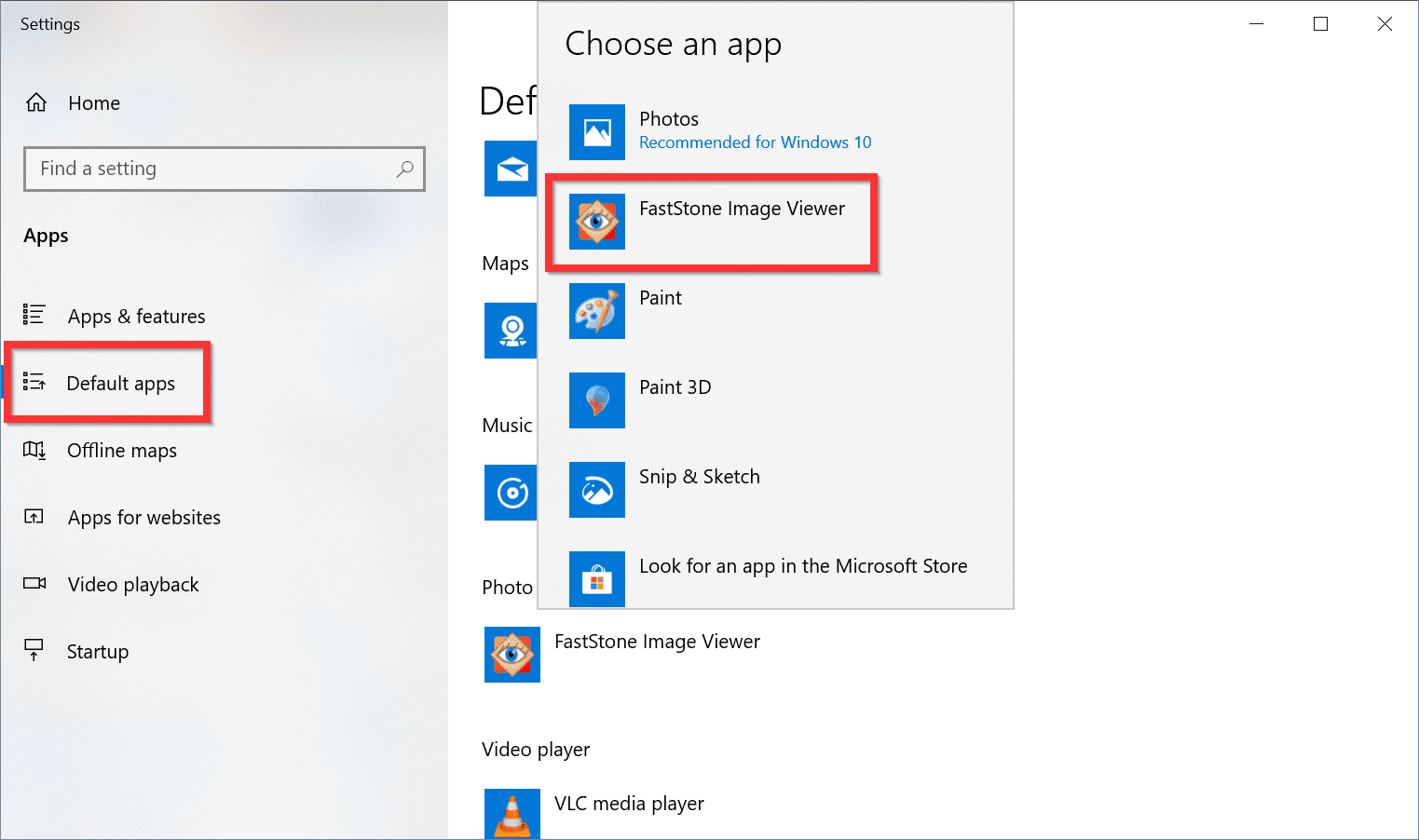
    For example, I am using the Faststone Image Viewer (freeware) as my default app. This opens your images more quickly and edit them robustly.

    In Windows Settings (press the Win + I keys) you can go to –

    Home > Apps > Default apps

    On the right-hand side, select the default photo viewer app and right-click it. You can find different apps which can open your photos. You can select any one of them and it becomes the default photo viewer.

    change default photo viewer app windows 10

    Method #4: Restore Windows Photo Viewer in Windows 10

    As we said earlier, Microsoft is trying to transform most of the Windows 10 tools, programs, software into modern or UWP apps. For this reason, Windows Photo Viewer is hidden in Windows 10. You can restore it using registry changes.

    For simplicity sake, the .reg file is uploaded as a .zip file.

    1. Unzip it and run the extracted .reg file.
    2. Windows Photo Viewer will shows in the Default apps list.
    3. File association settings for BMP, DIB, JFIF, JPE, JPEG, JPG, PNG, TIF, TIFF, WDP are already added.
    4. Under Default Apps list, select this app as the default program.
    5. From next time onwards, all your photos or images will open with old Windows Photo Viewer.

    Download Source : https://www.winhelponline.com

    If you want to associate more files with this app, you can right-click any file and use the “Open With” dialog. If you get any error during execution of the .reg file, ignore them and proceed.

  • How to Change Startup Settings in Windows 10/8.1/7

    To take control of startup settings in Windows 10 or 8.1 or 7, you need to go through the following screens.

    In dual boot mode, you might have installed the Metro BootLoader of Windows 10. You are likely to have Windows 7 and/or 8.1 and/or Windows 10 as your OS.

    The following Windows startup settings can be changed using this option.
    1. Enable low-resolution video mode
    2. Enable debugging mode
    3. Enable boot logging
    4. Enable Safe Mode
    5. Disable driver signature enforcement
    6. Disable early-launch anti-malware protection
    7. Disable automatic restart on system failure.

    Note: The above options are with Windows 10 Boot Manager. You can find similar screens in Windows 8.1 or 7. But the options may slightly differ. 

    These settings are required to troubleshoot your boot problems or Windows installation.

    Related :

    How to access Advanced Startup Options in Windows 10

    The below screen shots show how to change startup settings in Windows 10. Once you select the right options, you need to do a “restart”. When the computer starts again, you have to follow the on-screen instructions.

    Total Time: 10 minutes

    Select Windows 10 in the list of OS.

    Click on the OS for which you want to change startup options. Select Windows 10 if you want to configure its startup settings. dual boot options windows 10 and windows 7

    Press F8 (if necessary).

    This will take you to the screen where there are startup settings in Windows 10. Note: In Windows 8.1 and 7, you are likely to enter the startup options screen.

    Click on “Change defaults or choose other options” at the bottom.

    This option will take you to the screen where there are startup settings of your windows boot manager. choose defaults or choose other options windows 10

    Click on “Choose other options” on the next screen.

    This screen will show “Options” screen. You can change the amount of time required to boot into windows and select a default OS. choose other options windows 10 startup

    Select “Troubleshoot” on the next screen

    In this screen, you have to select the “Troubleshoot” option. There are settings like, continue to Windows 10, turn off your pc, use another operating system etc.

    troubleshoot option windows 10 startup

    Click on “Advanced Options” in the Troubleshoot screen

    In this screen, you have to select the “Advanced options”. Warning: Don’t click on “reset this PC”. This will remove all your configuration settings, apps and programs in your Windows 10. It will be like blank slate again.
    advanced options windows 10 start up settings

    Click on “Startup Settings” in the next screen

    This will take you to the “Advanced options” screen. You have to select “startup settings” to find different options related to it. One can also do startup repair, open command prompt, uninstall updates, system restore and system image recovery in this screen.
    startup settings windows 10

    In this screen, click on “Restart”.

    You can enable or disable different startup settings in Windows 10, once you restart.

    available startup settings windows 10

    Note: If you want to use multiple os, then you should first install Windows 7 and then Windows 10. This will prevent boot manager problems. Make sure to set the OS (timer) to more than 10 seconds. Then, you have time to select the right OS.