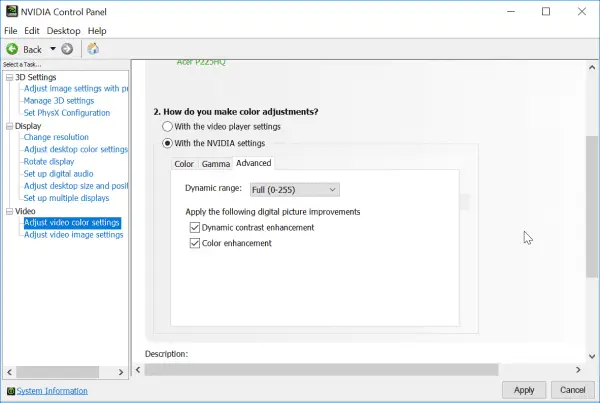
Set this value to “Full“. In most cases it will fix the “shaddy” look on your monitor. This will also make sure that the color settings “stick” when you make any display or resolution change in the game.
This generally does not make a difference for VGA display with low resolutions. But if you are using an UHD or HDMI TV kind of devices, this is going to make a change.
When you set the “Full” range and click on Apply, ‘Full Range RGB 0-255’ signal comes into force.
Solve Nvidia Color Settings Reset Problem
Many of the HDMI color problems with NVIDA and AMD graphic cards can be solved by following any of these solutions –
By creating a custom resolution of an HD device, on the same page, you can make sure that the ‘Full Range RGB 0-255’ signal over HDMI can be ensured.
If the “scrubbed” image look appears while playing game, you can “adjust desktop color settings” under Display. Just make sure the digital color format is set to YCbCr444, instead of RGB.
A small utility called ‘Nvidia Full/Limited Range Toggler’ exists, which can implement the “Full” signal successfully. You just have to click the ‘Set Full Range (0-255)’ button.
For an AMD graphic unit, you can use a DVI to HDMI cable, which will solve the pixel format problem.
Windows default color system profile is maintained even in Windows 10 computer. If you don’t have a video graphics card, this profile activates on boot up.
An ICC color profile which is given by the International Color Consortium, is a set of data that characterizes a color input or output device.
So a profile essentially a mapping from a color space to the PCS (Profile Connection Space) and from the PCS to the color space.
Adjust desktop color settings Nvidia
The following settings in the NVIDIA Control Panel also will fix the color problems.
3D Settings > Adjust image settings with preview . Check the option – Use my preference emphasizing: Quality
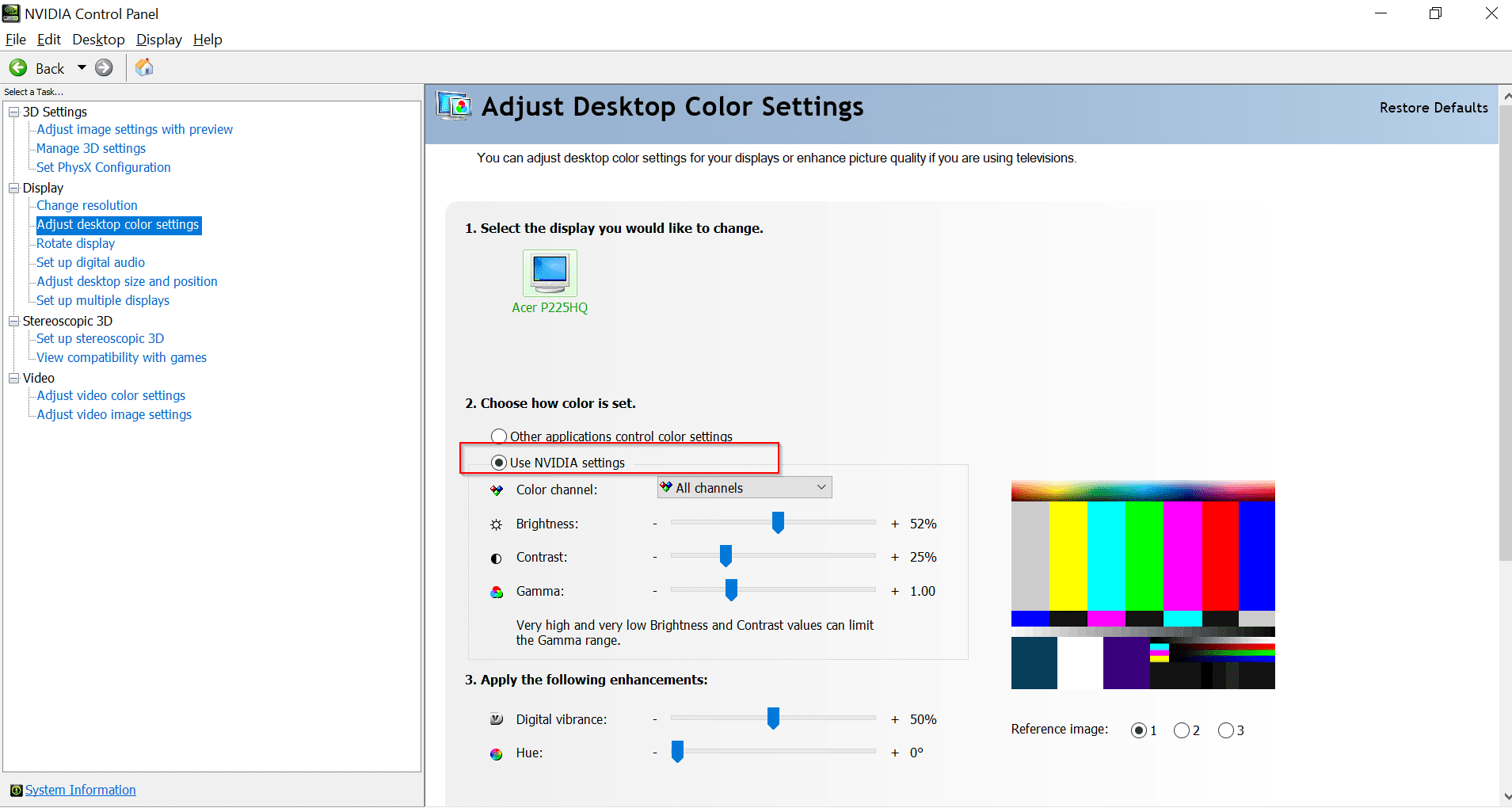
Display > Adjust desktop color settings : Use NVIDIA settings.
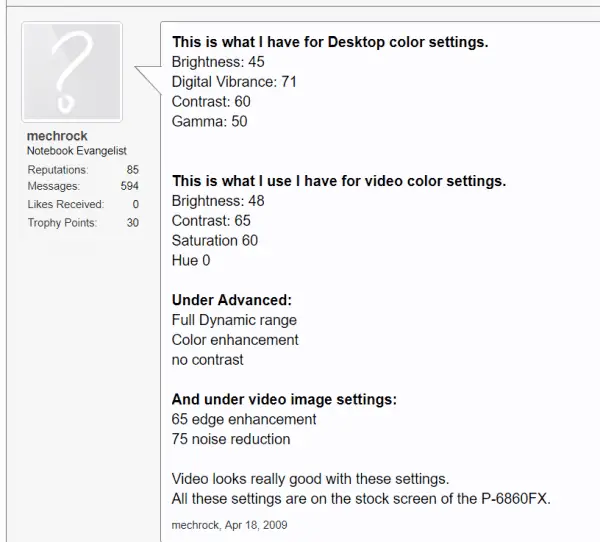
Brightness : 40 to 60
Contrast : 40 to 50
Gamma : 1.1 to 1.15
Digital vibrance : 50
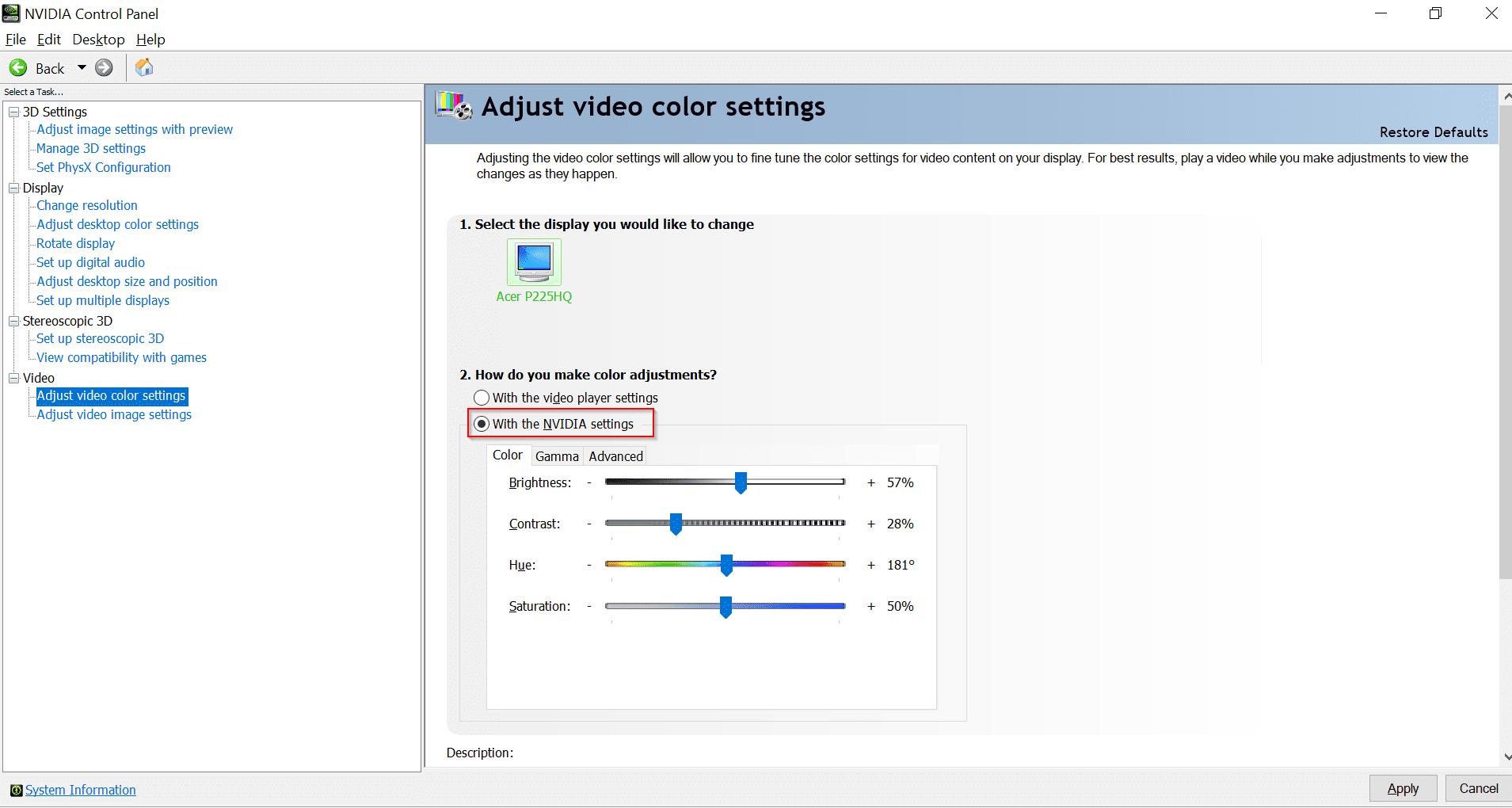
Video > Adjust video color settings : Advanced
Dynamic Range : Full (0-255)
Dynamic contrast enhancement : On (Tick)
Color enhancement : On (Tick)
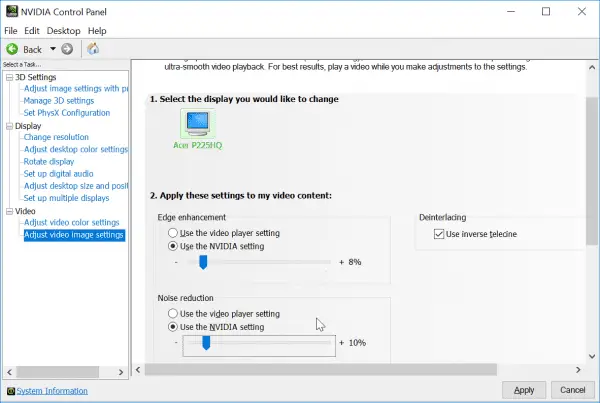
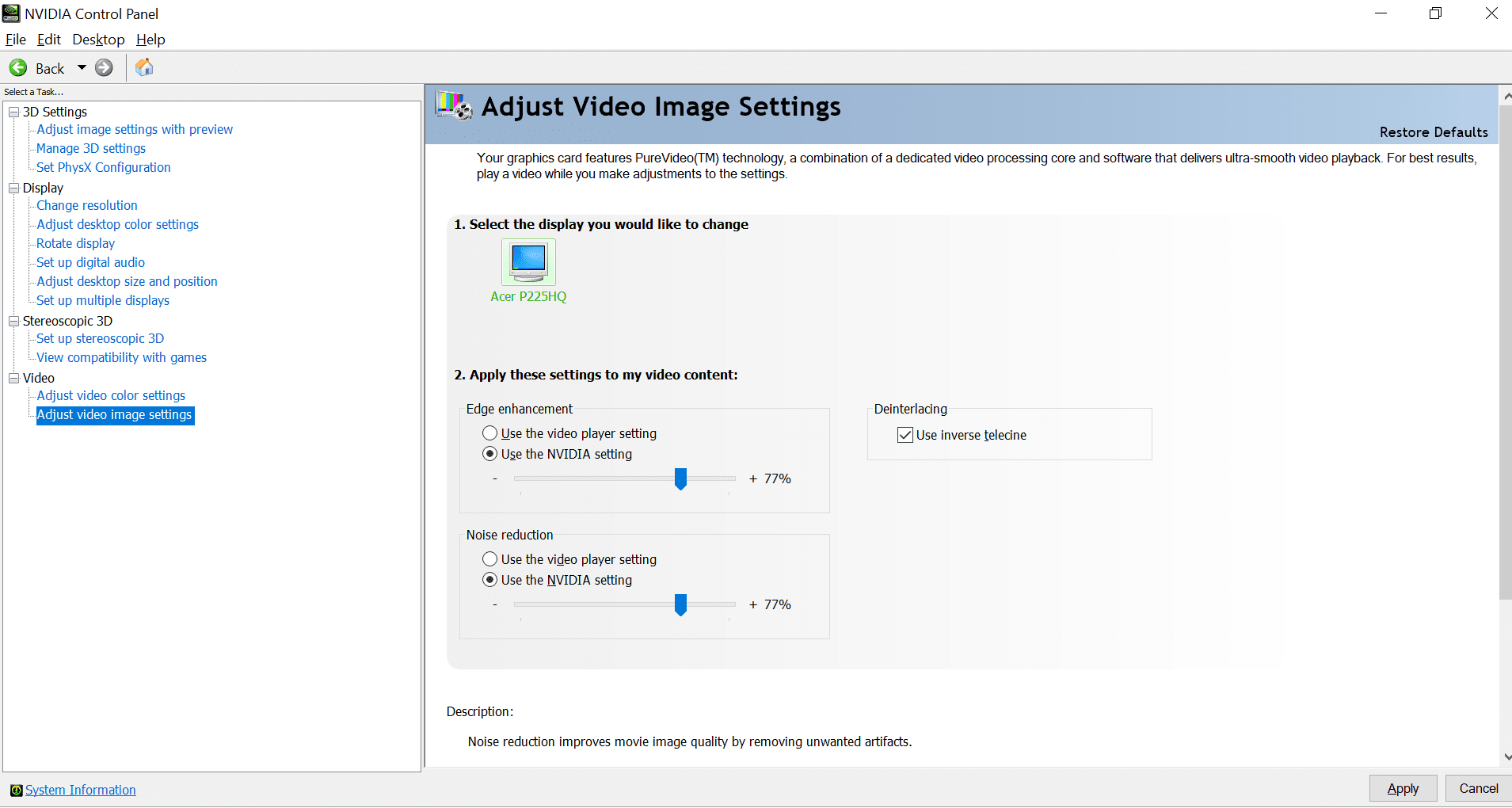
Video > Adjust video image settings
Edge enhancement: 7 to 10 (NVIDIA setting)
Noise reduction : 10 to 12 (NVIDIA setting)
Generally the above settings should make a game “gambler” ecstatic with his Nvidia control panel color settings.
If you follow the first fix, there should be no reason for Nvidia color settings keep resetting after making any change in the game settings.
But each BIG player has his own notion of color settings.
He can contact other players with similar monitor or hardware configuration and apply those environmental changes.
Typical Nvidia Color Settings for Gamers
Set Nvidia Color Caliberation – Fix Reset Problem
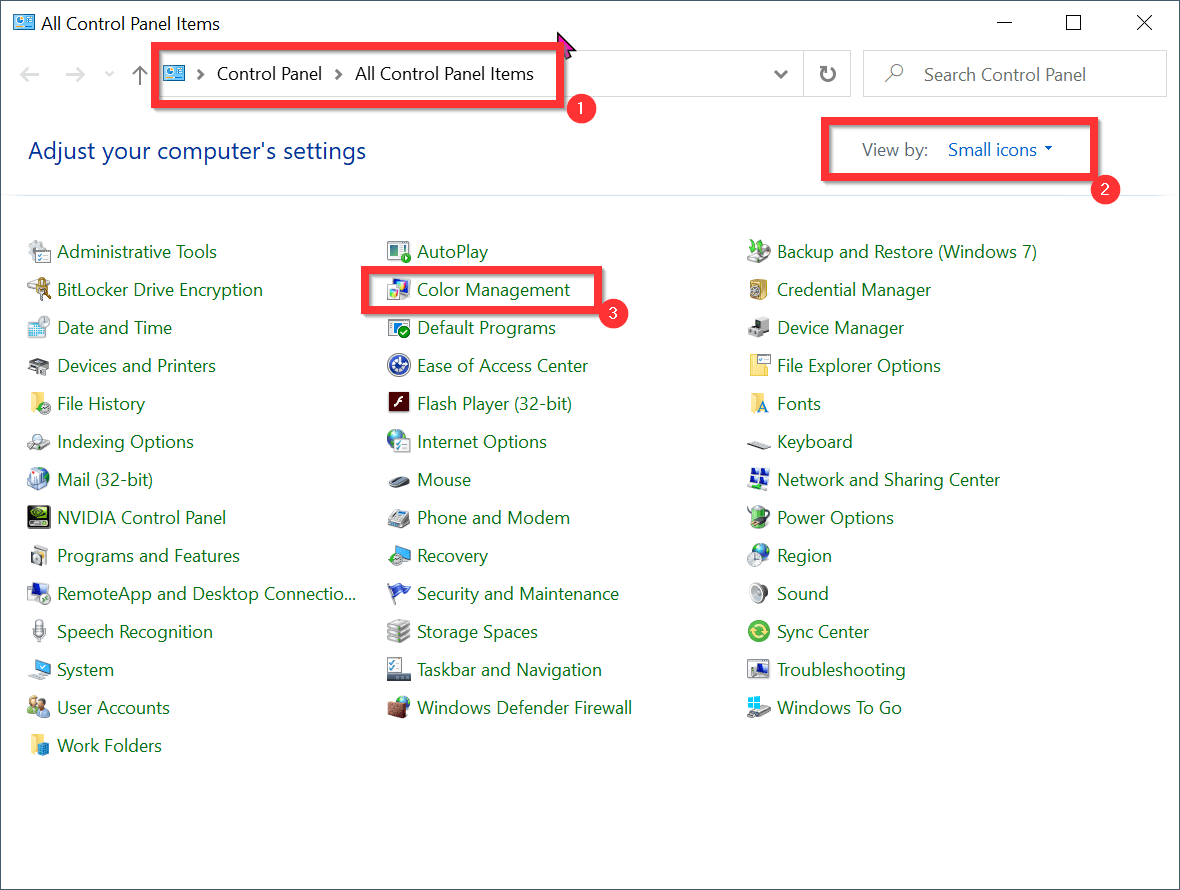
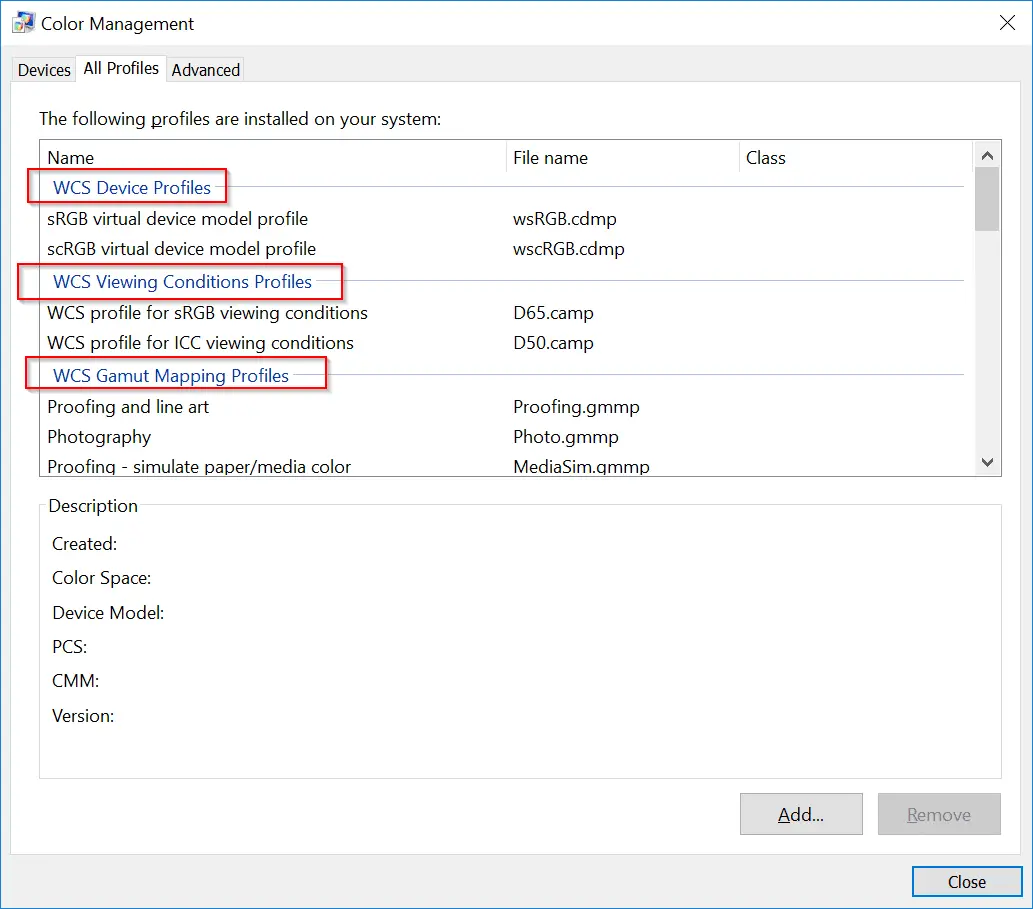
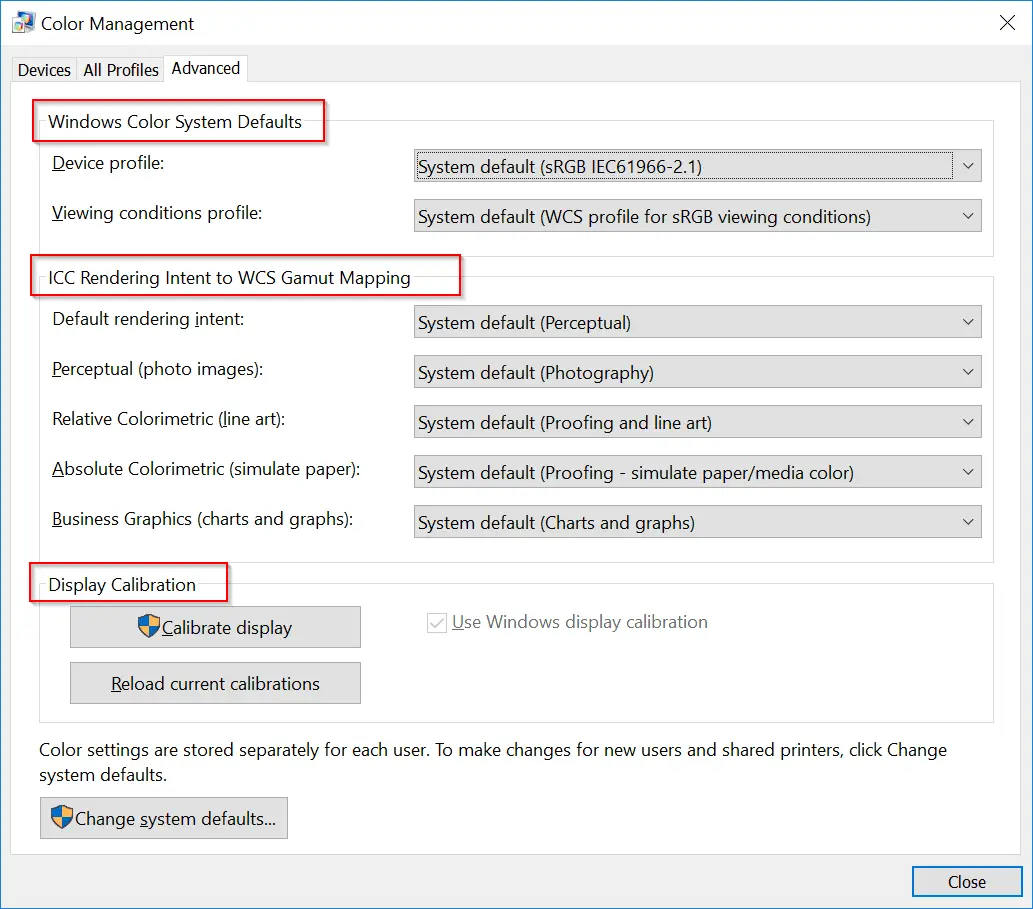
In the Control Panel we have an item called Color Management. Under this we have 3 tabs.
1. Devices
2. All Profiles
3. Advanced.
In the Devices tab, your display device (monitor) is associated with the graphics card you are using like (NVIDIA GeForce 210). The color profile associate with the device is also displayed here. You can add other profiles here and make them as default.
You can also install different color profiles on your Windows 10 computer. Some of which come by default. Some are display and some printer profiles.
The Advanced settings are difficult to understand.
Games Changing Color Profile
Generally these color profiles are of significance to gamers. When you use different Windows games, it uses the graphics card color profile like Nvidia.
But the user experience gets a backseat if it resorts to the default Windows color profile.
Also you may have multiple monitors for which you want to control each color profile using NVIDIA control panel.
For one you would like to have default color and other another profile. This can be achieved using the graphic’s card control panel in Windows 10.
So we must make sure that the Nvidia color profile doesn’t change even after a boot up.
Also during running of the game, it can change the default profile.
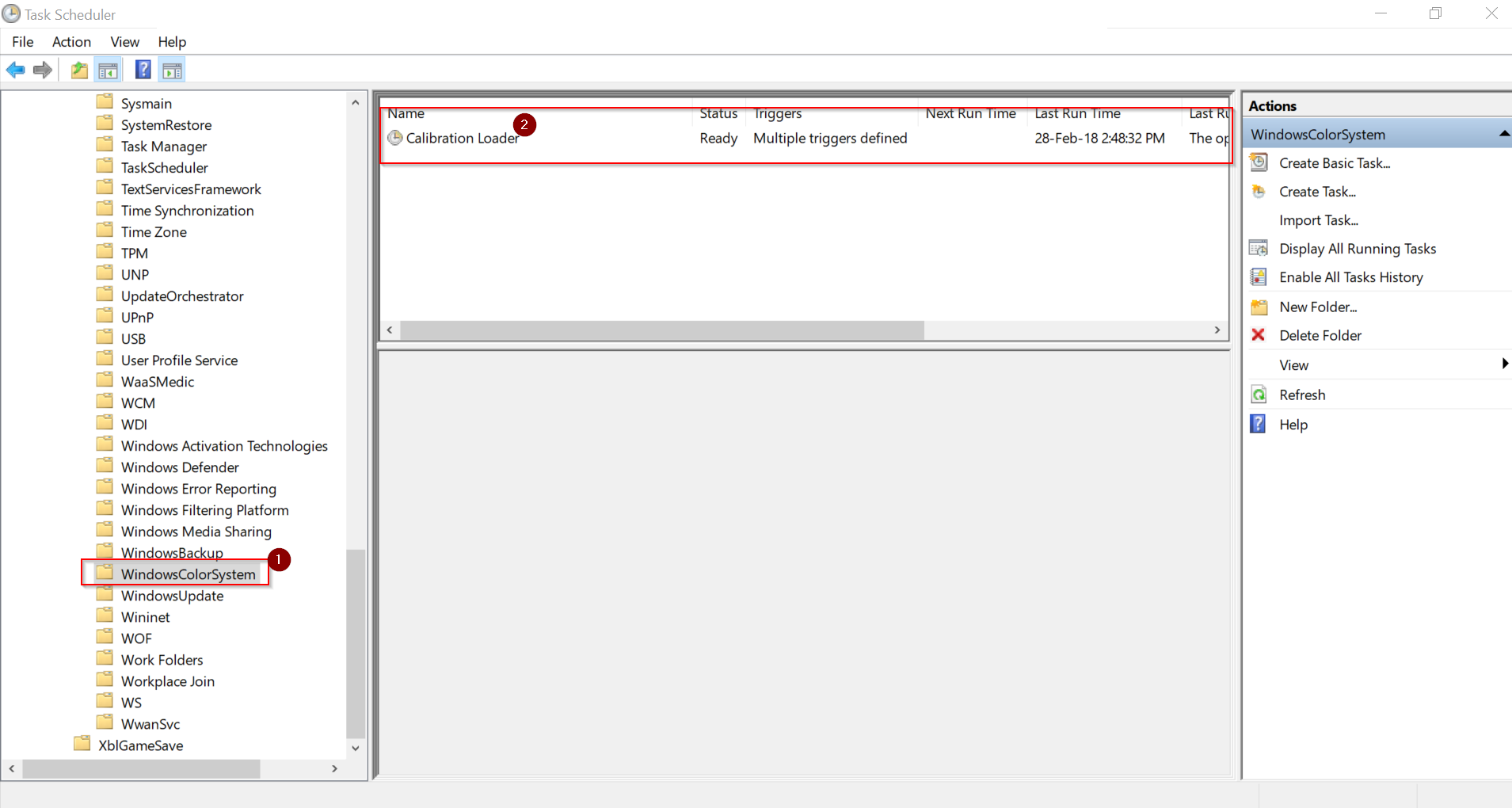
To avoid all these hiccups, we should stop the default “Calibration Loader Task” which initializes the Windows Color System at user logon.
Disable Calibration Loader Windows 10 – Stop reset Nvidia Color Settings
1. Open Task Scheduler by pressing the Windows button and typing it.
2. Then navigate to the following task.
3. Task Scheduler Library\Microsoft\Windows\WindowsColorSystem\Calibration Loader
4. On the right-hand side, you can see the “Disable” item.
5. Disable the task as shown in image.
6. Now your Nvidia color profile loads when you reboot.
After the above task has been disabled, you can set the Nvidia default color settigs as below.
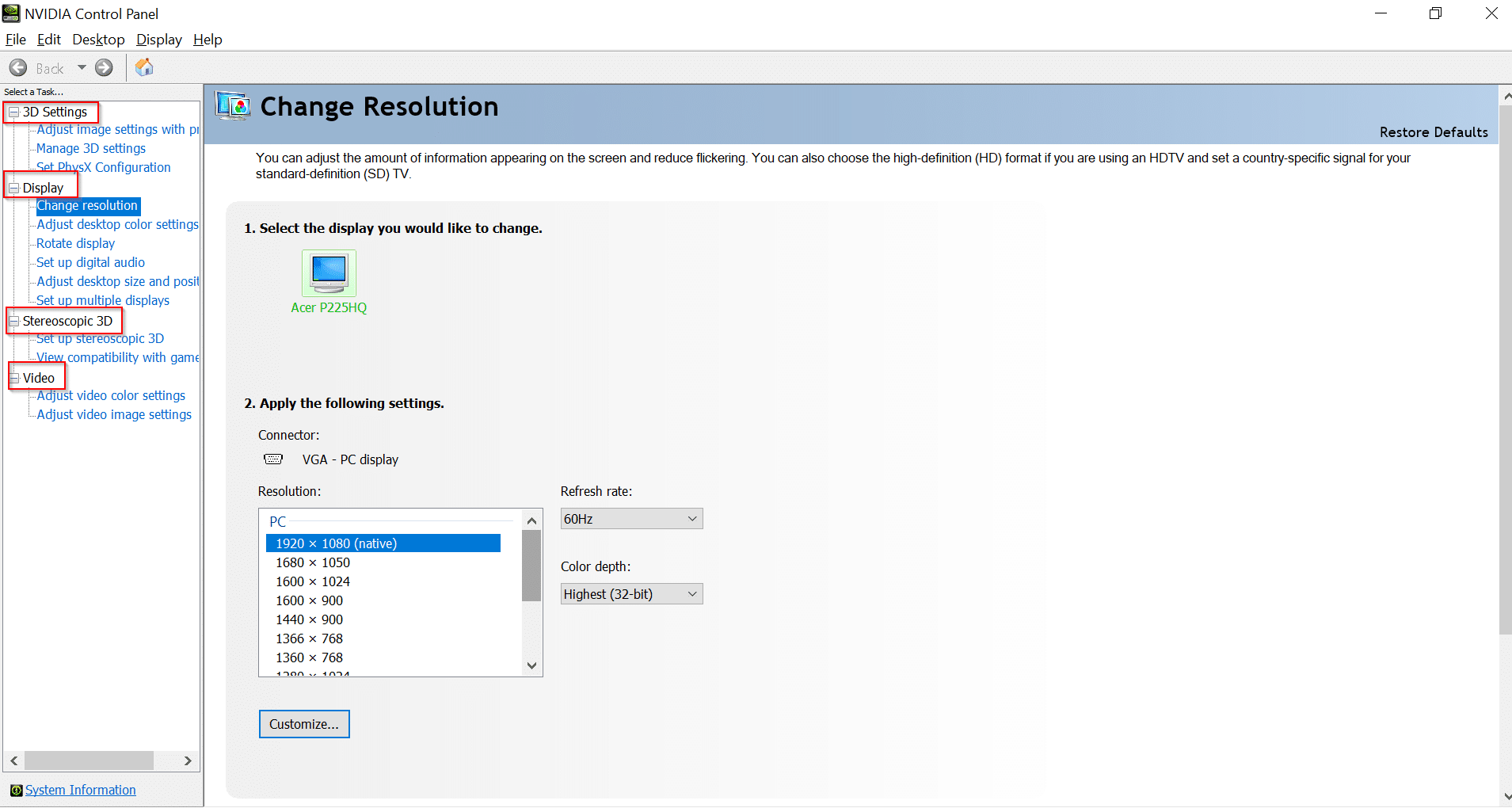
Nvidia Control Panel Color Settings
The following changes can be controlled.
1. 3D Settings
2. Display
3. Stereoscopic 3D
4. Video
Under the first category you can adjust the following. 1a. Adjust Image Settings with preview 1b. Manage 3D Settings. 1c. Set PhysX Configuration
Under Display, you can make changes like 2a. Change resolution 2b. Adjust desktop color settings 2c. Rotate Display 2d. Set up digital audio 2e. Adjust desktop size and position 2f. Set up multiple displays
Further you can adjust video settings like 4a. Adjust video color settings 4b. Adjust video image settings.
Having issues with your Skype profile picture not showing properly? Don’t worry, you’re not alone. A missing or incorrect Skype profile image is a common problem many users face. In this blog post, I’ll share 5 proven solutions to fix your Skype profile picture and get your account looking right again.
Introduction
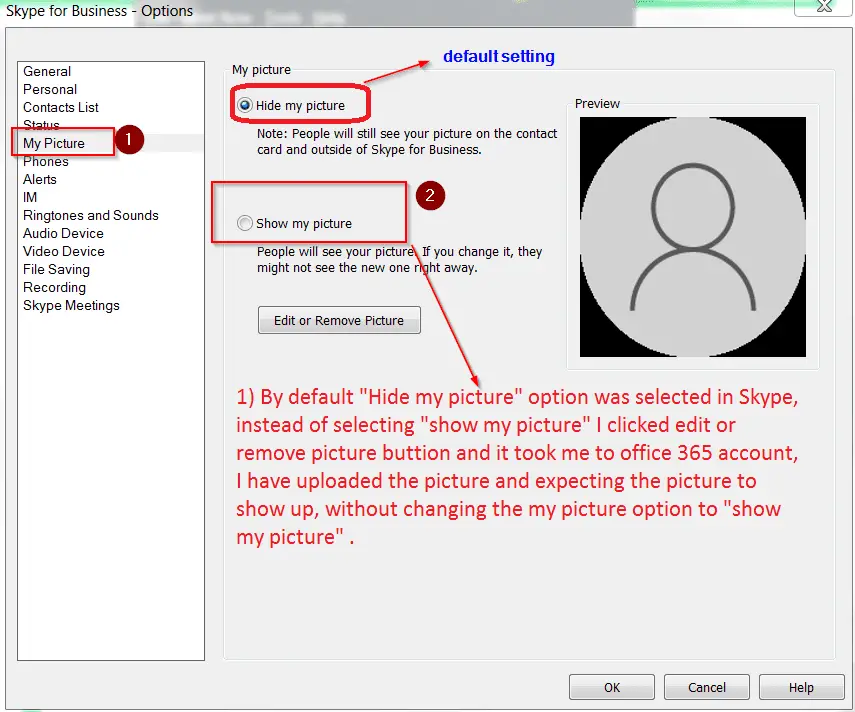
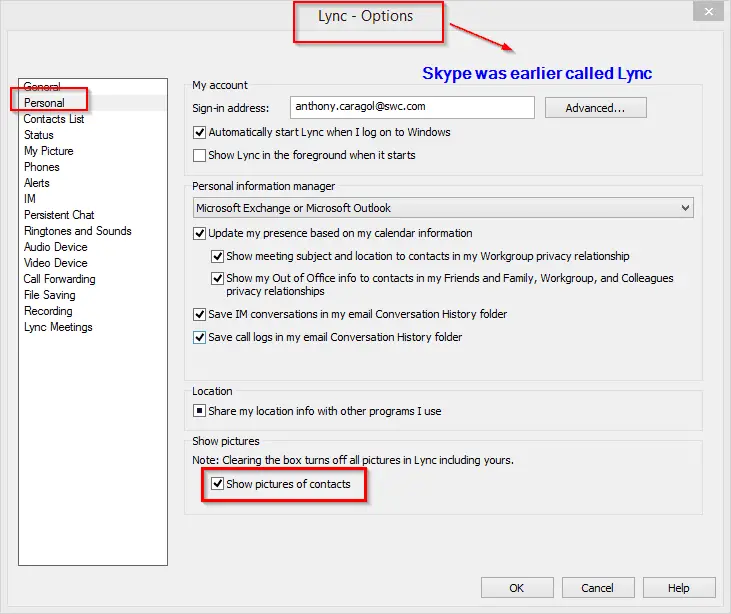
The profile picture is not showing in Skype Business, but is showing in Outlook and other Office 365 products. The reason is very simple. By default Skype for Business hides the picture. So you just have to check the option that says “Show my picture” under My Picture options.
This could be a trivial issue. But when you are in a office environment, most of your colleagues would like to identify you by your picture yourself. Though they see your name, it looks unaesthetic to the users for the contacts in your Skype list.
1. Check Image Size and Format
The most common reason your Skype profile photo isn’t showing up correctly is because it doesn’t meet Skype’s size and format requirements.
Skype profile picture size needs to be between 96×96 and 648×648 pixels. The image also must be in JPG, PNG, or GIF format. BMP and TIFF files will not work.
To fix this:
Open the image you want to use in an editing program like Paint or Photoshop.
Check the size and adjust it if needed to be between 96×96 and 648×648 pixels.
Save and re-upload the correctly sized JPG, PNG, or GIF image.
1. The best size to upload for a profile picture in Skype for Business is 96×96 pixels. Make sure it is uploaded correctly. 2. You must see your Skype profile picture in other Office 365 apps like Outlook, Word etc. Otherwise, something is wrong with the picture size or upload process. 3. Make sure your contacts can see the profile picture you uploaded. 4. The most important thing is that, it should be visible in the “Preview” section.
If still the picture is not updating in skype for business, then you need to check a few system folders, erase a few and and apply a few commands. Another reason for this issue can be found in Microsoft Outlook. There is a certain option in its settings panel which may be disabled. Once you enable this option, skype for business picture not updating error can be resolved.
This simple resize and format change could easily fix your missing Skype profile photo issue.
2. Update Skype to the Latest Version
If your Skype profile image isn’t showing properly, make sure you’re running the latest version of Skype. Updates often contain bug fixes and optimizations that improve image display.
On desktop, click your profile picture then Help > Check for Updates. On mobile, visit your device’s app store to check for any available Skype updates. Install the newest version of Skype, then try setting your profile photo again.
Updating to the newest Skype release will help ensure maximum compatibility and fix any bugs that could be preventing your profile image from appearing correctly.
3. Re-Upload Your Profile Photo
Sometimes the issue is not with the photo itself, but with how Skype saved it on upload. Re-uploading the image can force Skype to re-save your profile picture and display it properly.
To re-upload your photo:
In Skype, click your profile icon then choose your current profile image.
Select the option to change or update your photo.
Re-select and confirm the same profile image file to upload it again.
Once finished, check if your profile photo now shows correctly. The simple act of re-uploading may do the trick.
4. Clear Local AppData Folder
If you’re on Skype for desktop, a corrupted local AppData folder can prevent your Skype profile picture from displaying properly. Clearing this folder forces a refresh and re-save of settings like your profile image.
Here’s how to do it:
Exit Skype completely.
Open File Explorer and paste in %appdata%\Skype in the navigation bar.
Delete the AppData > Roaming > Skype folder.
Restart Skype and re-upload your profile picture.
This clears any corrupted local data and caches, allowing Skype to freshly re-load your profile image when you set it again.
5. Sign Out and Back In
Sometimes simply signing out and back into your Skype account is all that’s needed to reset your profile picture sync.
On desktop, click your profile and choose Sign Out. On mobile, go to Settings > Account > Sign Out.
Once signed out, sign back into your Skype account again. Then try setting your profile photo one more time.
Signing out and in again resyncs everything from the server, which should properly load your chosen profile image.
Skype for Business Office 365
1. Sign out the Skye for Business client. Delete the browser cookies and sign-in information stored on your Exchange server. 2. Sign-in again and check if the problem is resolved. 3. If that does not work out , the open the Run bar in Windows. 4. Type %AppData% in it. 5. Generally, it will take you to “Roaming” folder. 6. Just go one directory less and make sure you are in the AppData directory. 7. Then Navigate to \Local\Microsoft\Office\15.0\Lync\ for Skype for Business . 8. Delete the sip_profileName folder. If you cannot find it here, you can check it in \Local\Microsoft\Communicator directory. 9. Erase all the files in the Tracing folder. Don’t delete the folder. 10. Clear the DNS by using this command ipconfig /flushdns in the elevated command prompt.
This is one of the other solution which will fix the problem.
Also make sure that you can see your profile pic in the Outlook Web App.
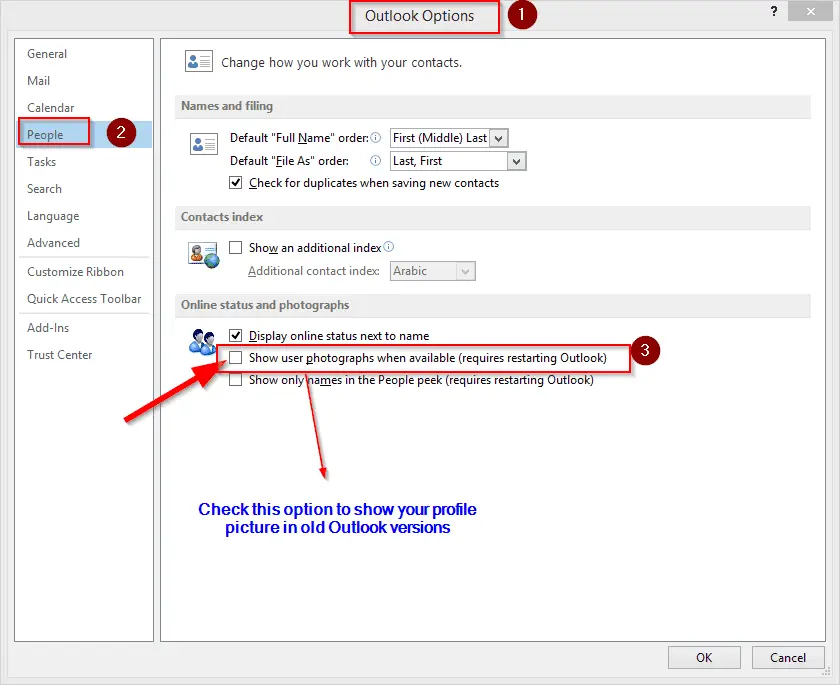
It can be a weird kind of solution when your picture does not show in Outlook, Lync or Skype. This happens from Outlook 2010 version onwards. This solution can be applied to the Office 365 applications also.
Generally, when you send email or using Skype, contact photos should be displayed beside your name. But if they are not, you can resolve this issue in this fashion.
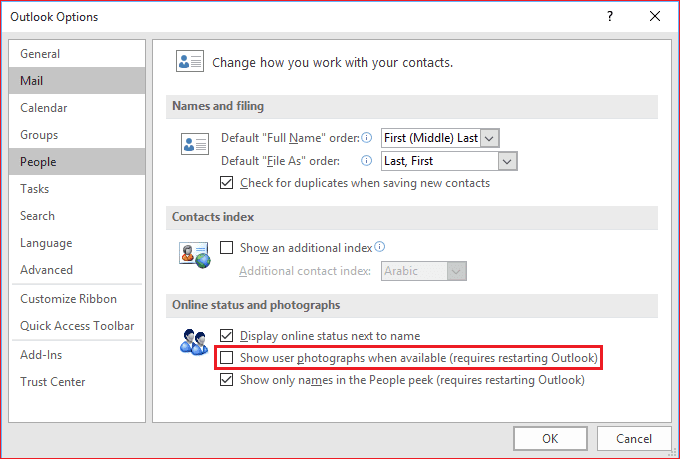
1. In Outlook (2010,13,16) open the File > Options. 2. Select People or Contacts depending on your versio of Outlook. 3. Enable the option on the right side that says “Show user photographs when available“. 4. Click OK. 5. Restart Outlook or Skype for Business.
Group Policy Editor (GPO) Fix
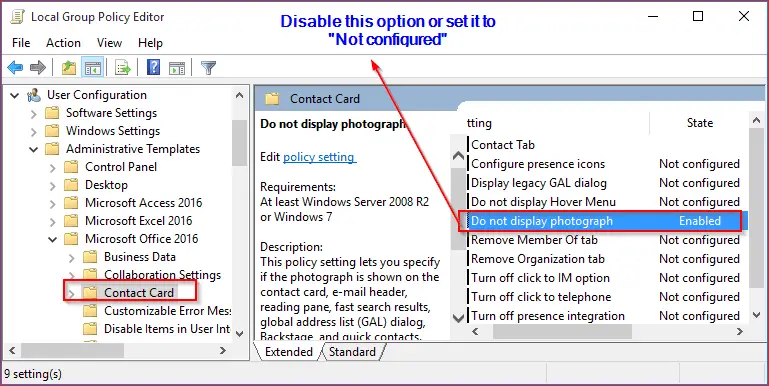
Type gpedit.msc in the Run box. This will open the Group Policy Management Console (GPMC).
Under User Configuration > Administrative templates you will see Microsoft Office xxxx node. Where xxxx stands for 2016, 2013 or 2010.
Navigate to Contact Card under this.
On the right hand side pane, you will see the “Do not display photograph“.
If it’s enabled, then that is the issue.
Make it either disable or Not configured and click OK button.
Summary
Can’t get your Skype profile image to appear correctly? Just follow these 5 fixes to troubleshoot the issue:
Resize and reformat the image to meet Skype’s specifications
Update to the latest Skype version
Re-upload the photo to force a refresh
Clear Skype’s local AppData folder (desktop only)
Sign out and sign back into your account
With one or a combination of these solutions, you should be able to get your Skype profile picture showing correctly once again. No one wants to be left with a blank grey avatar!
The connection of multiple HD devices from input to output and vice versa require lot of HDMI cables. In earlier days, you need to switch these cables between the devices to connect the same source to different HDMI monitors. But in 2018, it is much easy if you use a Bi-Direction Switch.
The necessity for a common user or a commercial entertainer to use this small mini cubicle device arises from the fact that, our place is full of HD multimedia devices. Using less of cables makes it easy to switch through different devices. This is where a good HDMI Bi-Direction Switch comes in handy.
What you Expect from a Trouble Free Switch?
The following things will be useful, before you decide to buy the cheapest one in the market.
Easy Operation
Transmission over Long Distances
Flip the Main Control
No Accidents
Application to Different Devices and Resolution
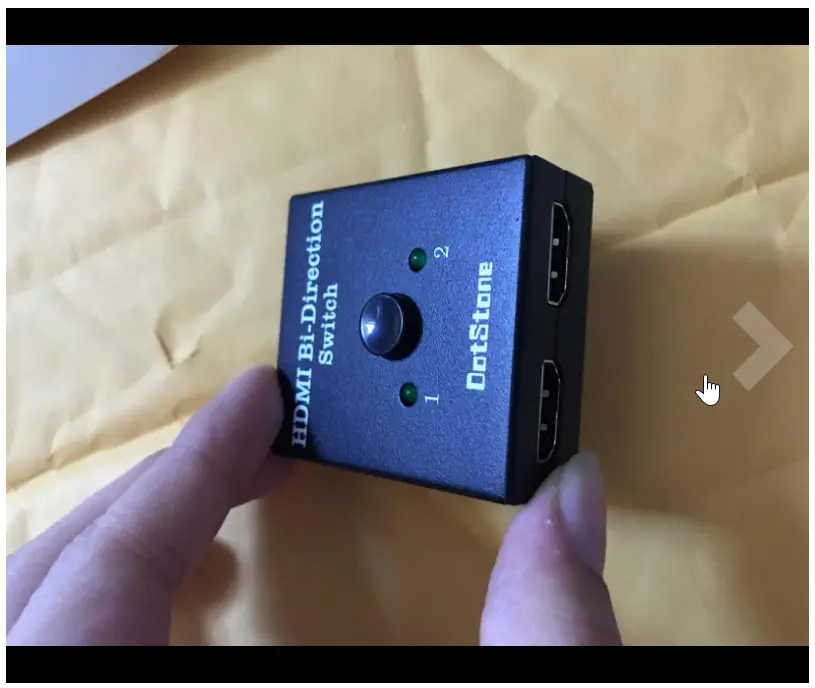
The best thing that is available with the #1 ranking on Amazon.com in the Electronics > Accessories & Supplies > Audio & Video Accessories > Distribution > Distribution Panels is the Dotstone HDMI Bi-Direction Switch.
Before I go through my marketing blah-blah, let me tell you some basics.
*** The above link is an affiliate link which will generate small commission when you buy from it. There is no extra cost or Spam tactics. It is much easier, clicking the above link and buying it, instead of going to Amazon.com. If you really want to buy it, support my site by buying from above.
What is HDMI Bi-Direction Switch?
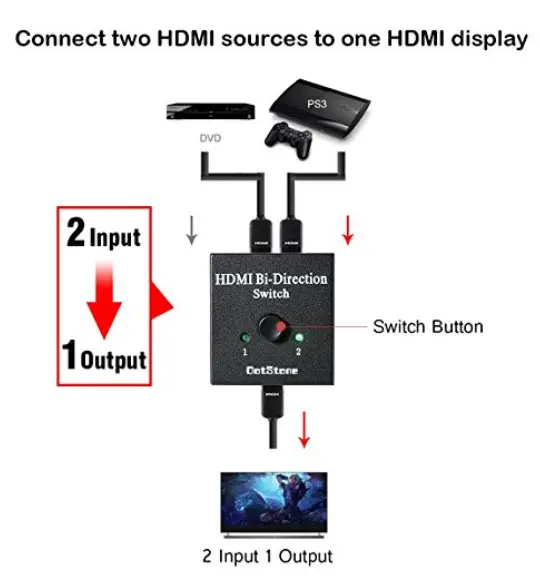
It is easier to understand with a picture than words.
In a HDMI relay, you have a source and output. Bu the real problem comes when you have multiple sources and display devices. In the 2 x 1 scenario, you connect one video source which may be for eg. Laptop, cable box, dvd player etc, to different output devices like HD TV, computer monitors, LCD tvs, Smart display devices etc.
In the olden times, you need to switch the HDMI cable from one output device port to another. But now with a switch of a button, you can change the display device from a LED TV to computer monitor. This is known as the 2 x 1 HDMI Switcher.
The reverse case is possible. For eg. you have two sources like a DVD Player, Blu-ray player, PS3 Console, Xbox etc. , but the display device is only one like the HD TV. Now you prefer to watch a movie from the DVD for some time and later you would like to play a game using the Xbox. Then you just press a switch, and this will happen. This is call as the 1 x 2 HDMI Switcher.
Since both the cases work using this device, we call it the Bi-Directional HDMI Switcher.
What about the Long Distance Signal Transmission?
As we know that using the HDMI cable, both the audio and video signals are transferred to the display devices like SMART tvs. If the source is in one room and the TV is in another room, it will require some distance apart. But this Dotstone Switcher can work up to 5 meters. You are worried about signal or data transmission loss, which is not a problem with this device. The reviews are the proof. You also get high bandwidth of 3.4Gbps.
The Bi-Direction Switch uses is compatible with current of 15ma. It also is compliant with all HDMI specifications from V1.0 to V1.4.
What is HDCP and Pass Through?
The full form is High-Bandwidth Digital Content Protection. It is a specification developed by Intel Corporation to protect digital content. This is used by companies like Netflix, Roku etc streaming sites to protect their plays, movies and serials. It acts like a barrier to protect premium internet content passed between computers and monitors, televisions etc.
So when you have such specification enables by Netflix or Roku, you will get purple scree, haphazard video transmission, improper signal etc. To bypass it you need unplug your HDMI cables and re-plug them.
So a HDCP Pass-through means, that you need not unplug these HDMI cables and can safely switch between sources to view digital content, without the fuss mentioned earlier. It is just like when encrypted CD, DVDs, were used, you were unable to copy to your computer. But this switch will help you safely view your Netflix content without any breaks or disturbance.
Audio and Video resolutions Supported
Since this switch is suitable for HDMI devices, it supports higher resolution of audio and video signals. It can accept video signals like 3D, 1080p, 2K x 4K resolution and also HD audio.
This also supports several HDMI appliances like Cs, laptops, gaming consoles,XBox 360, Xbox One, PS3, PS4, projectors, TV receivers, TVs and more. It can be used in both commercial malls, concert venues, DJ theaters and also at home.
The Simplicity and User Experience
It’s a small square 3-d item which fits in your palm. It doesn’t require any power. All of it is taken from the source device. It’s also Plug and Play. It basically consists of 3 HDMI ports and based on your requirement you can connect the HDMI cables. But only 1 to 1 device works at an instant.
For example in a 1 x 2 case, if you connect a cable TV box as source, but have two output like the LED TV and Smart TV, you will be able to watch only on one device. But you can switch to the other device with a button click.
This HDMI Bi-Direction Switch is brought about by DotStone which is a standard company in this type audio and video accessories. As mentioned before this has 2 ports which can be used bi-directional. Manual switch is a light indicator to see which device is working. It is also HDCP Passthrough and adds to its several other features supported. The resolution supports for Ultra HD devices from 4K, 3D and 1080p.
What is Ultra HD 4K resolution?
This is a higher resolution that is displayed on your TV, then the 1080p resolution. Normally the 3840 pixels × 2160 lines (8.3 megapixels, aspect ratio 16:9) is the resolution that is displayed on your TVs in the Ultra HD 4K resolution. This gives more clarity than normal HD resolution which is 1080p.
You may scratch your head about the difference between Ultra HD and 4K resolution. Actually the 4K standard supports 4096 x 2160 4K resolution and is generally played in the local multiplex shows. But the same version is simplified to 3840 X 2160 as Ultra HD for TV and other small home appliances.
Generally Netflix like companies have separate premium plans for this kind of UHD and 4K views. When you subscribe to such plans, you can watch them on your TVs.
What the Amazon.com Reviews Say?
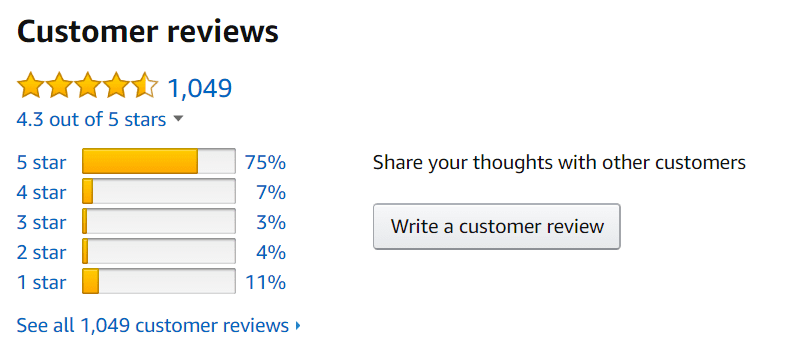
This product weighs only 3.2 ounces and is 3.5 x 2.6 x 1.5 inches. On an average the Amazon.com customer review shows 4.3 out of 5 stars. There are about 1049 reviews written by the time of this article.
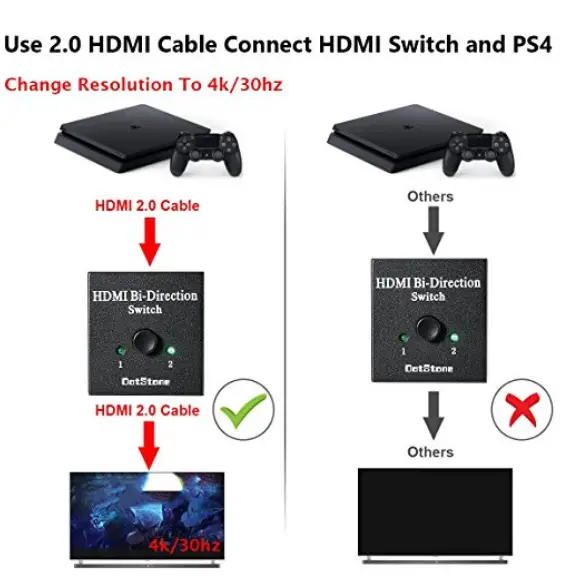
The 5 star reviews are about 75% and 1 star reviews only 11%. One user has two sources in the form of XBOX One S and PlayStation 4 Pro (or PS4 Pro) with the display device being Samsung 50″ 4K. He found that they are working perfectly in-tandem and the pictures below are an example.
Some Clarifications
You can use this to connect a CRT monitor with the help of a DVI adaptor. This can also be used to switch between tivo bolt+ and an xbox 360 and an old sharp tv. As I said earlier, you can view only 1 display device using this switch. But if you need to view the same signal on 2 devices, then you need a splitter.
This will also work with Roku and a Firestick. The general cable recommended is the AWG26 HDMI with 5m length. It also supports 30Hz and 60Hz. Since it’s also HDCP pass-through it also supports 720p resolution.
HDMI is a popular high quality connection method for both video and audio output, so it’s no wonder that so many people are using it. Speaking of HDMI, many Windows users reported various HDMI output problems.
HDMI is the gold standard for both audio and video output. It is used by over 4 billion devices worldwide. Most modern PCs make use of the HDMI standard. Output problems affect nearly all Windows versions from Windows XP to Windows 10.
When you connect your PC to an HDMI-compatible device such as a TV, monitor, or speakers, you might experience display or audio problems. Use this information to check your hardware and software, and to troubleshoot specific issues.
Make sure you use the correct HDMI cable for your PC
The majority of HDMI devices have two or more HDMI input ports. So it is important that the HDMI display’s source of input is set to the same HDMI port connected to your PC. If the input source is HDMI 1, you’ll have to connect the cable to the HDMI 1 port.
If your PC and HDMI device use different cable types, you can buy and make use of adapters.
First, inspect your HDMI connections. Unplug the cables and then plug it back in again. Make sure the fit is tight and snug for an optimal experience.
Boot your HDMI monitor, TV, or speakers, and then boot your PC. Then, power down your HDMI device before unplugging them. Wait for one minute, plug them in and power them on. This will refresh your HDMI connection and you’ll be ready to follow the next steps.
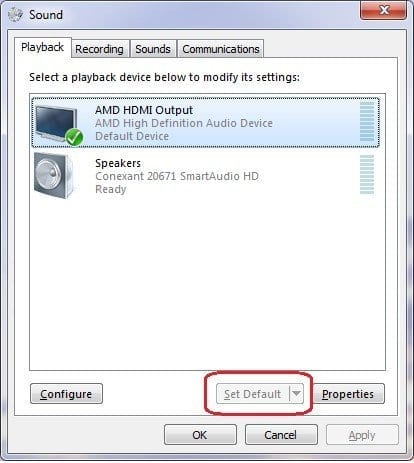
Set your HDMI device as the default audio device
Your PC typically only outputs sound to one audio device at a time. If your HDMI device is not set as the default, HDMI output will be unavailable.
Select your HDMI output device by setting the default device. This will change the sound to the appropriate devices. If you are switching between sound on your PC and the sound on an external HDMI device, open the sound devices again to make sure the right output device is activated.
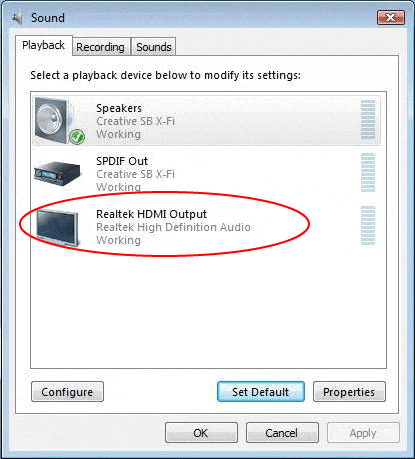
Click ‘Playback devices’. The sound window will open.
On the ‘Playback’ tab, select HDMI or your digital output device.
Set the option as default.
Make sure to enable the ‘Show disconnected devices’ option so you can view all the devices connected to your computer.
Roll back to an older driver
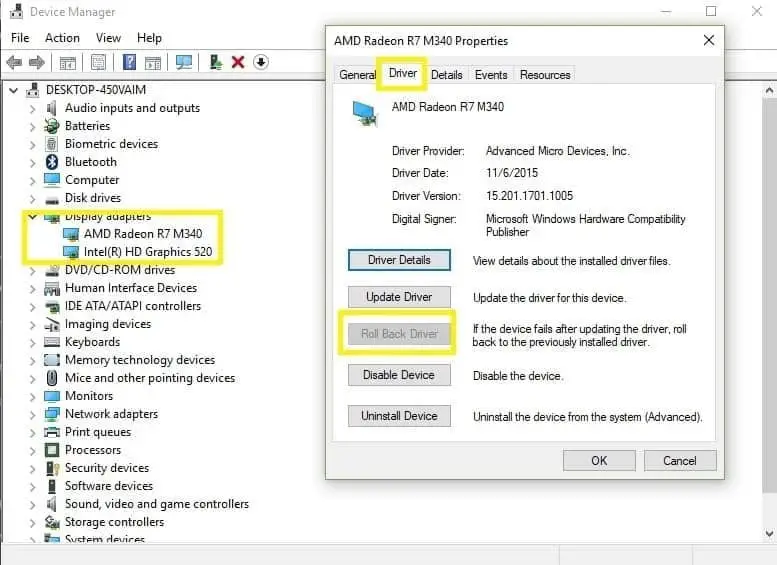
Open ‘Device Manager’ then find the malfunctioning driver. It will usually have an exclamation mark next to it. Right click on the driver and select the ‘Roll back driver’ option. This will install the preceding version of the driver.
Click on ‘Properties’ and go to the ‘Driver’ tab to find the ‘Roll back’ option. The option is usually unclickable, as seen below:
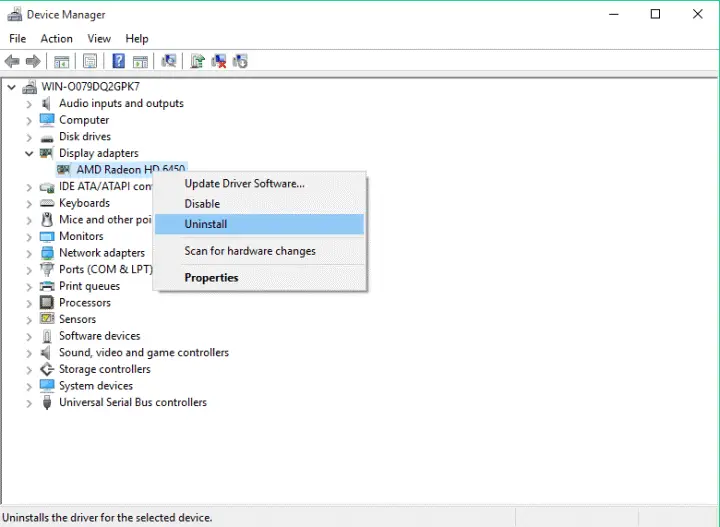
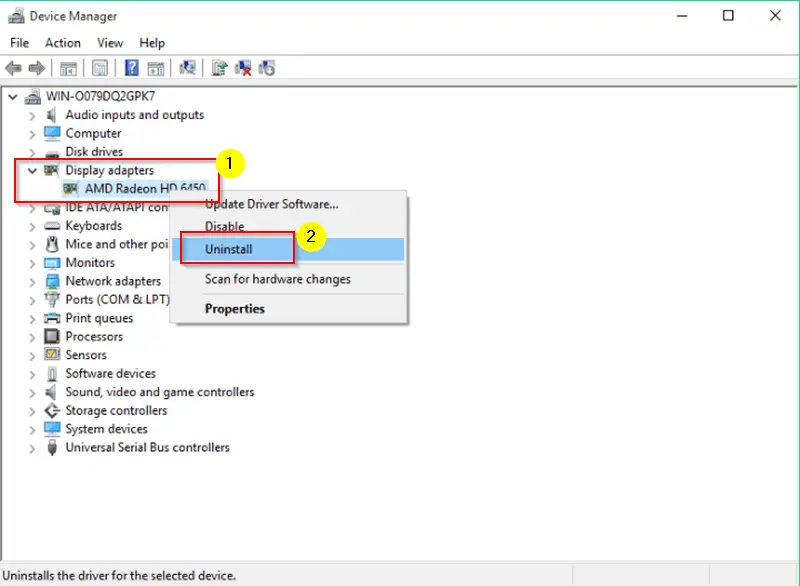
In some cases, it is better to use the default driver to avoid issues with compatibility. Use the default driver by uninstalling the current driver. The default driver will then install itself. To uninstall the driver, follow these steps:
Open ‘Device manager’ and find the malfunctioning driver.
Right click on it and select ‘uninstall’.
Select ‘Delete the driver software’ and click ‘OK’.
Restart your PC.
Update to the latest drivers
Often, fixing these issues is as simple as installing the latest drivers. Visit your motherboard or graphics card brand’s website and download the drivers for free.
Install the drivers in compatibility mode
Right click on the driver setup file and choose ‘Properties’.
Go to the ‘Compatibility’ tab.
Select ‘Run this program in compatibility mode’ and choose Windows 7.
Click ‘Apply’ and ‘OK’.
Run the setup file.
Set your secondary display
When using a secondary display with your PC, go to either the NVIDIA or AMD graphics card control panel. The process is identical with both manufacturers.
Open NVIDIA Control Panel.
Go to ‘Set up multiple displays’.
Ensure that your HDMI-connected display is showing.
If it is not showing, try selecting and unselecting other options on the list. Some users have reported that this has enabled them to activate their secondary displays.
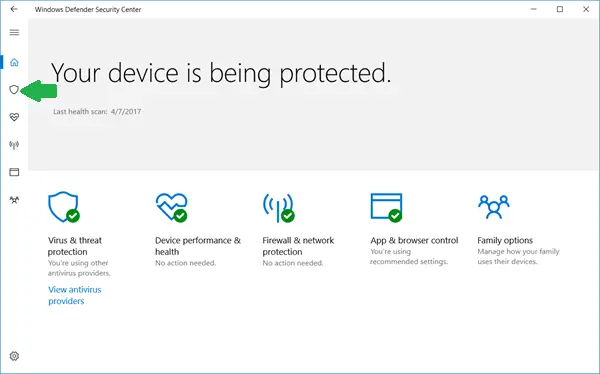
Computer viruses can cause issues on your PC, including HDMI connection problems. Performing a full system scan to detect malware may help. Windows’ built-in antivirus, Windows Defender, is a capable program.
To run a full system scan with Windows Defender, look to the following steps:
Go to Start, type ‘defender’ then double click on Windows Defender to launch the program.
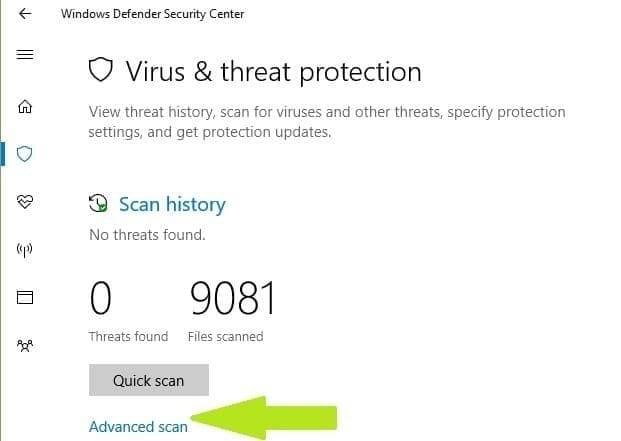
In the left-hand bar, select the shield icon.
In the new window, click the ‘Advanced scan’ option.
Check the ‘full scan’ option to launch a full system scan.
Update your Operating System
Microsoft constantly provides Windows updates to ensure your PC’s stability and to provide solutions for various issues. Ensure that you have the latest Windows OS update.
Type ‘update’ in the search box to access the Windows Update section. This works for every version of Windows. Then, go to Windows Update, check for updates and install the latest available updates.
Replace your cable
Some situations are hardware-related issues as opposed to the software issues written above. In these cases, it is recommended to try other products and see if that solves the output issues.
If your problems persist, please contact Windows 10 Support. We hope the solutions provided helped you fix your HDMI output problems. Help out the community by telling us what solution/s worked for you.
The above video show how to fix Windows 10 hdmi no audio problem when connected to PC or laptop. Image sources:
As we know fixing Windows 10 problems is not that easy. With Fall Creators Update (Build 1709), more features are helpful in this regard. Whether it is driver, audio, display, update, blue screen errors, network connectivity issues, hardware compatibility, speech, indexing functionality, store apps, programs etc, there is no one solution fits all.
First of all, finding the cause of the problem gives a quick fix.
For example, Windows 10 HDMI problems with no audio from HD display device can be fixed, if you go through this detailed review article here.
But for common Windows user it is tiresome to find every cause and solution. Lack of time is one of the primary cause. Like every human being most of the users want easy solutions without much hassle.
Another problem is that people lack the understanding of the problem. For example, in HDMI no audio case, the easiest solution is to find and just make the output HD device the default one in Playback option.
Coming to Microsoft official community solutions, they give repair options for Windows 10 which are of orthodox manner. They want you to send error logs and reports to resolve, sometimes. On many other occasions, they just give a solution which may not be that feasible or correct.
If you try a online repair Microsoft fix it kind of services, the problem is of reliability. Can you really depend on them? Will they keep the system in the same state as before or cause any intrusion etc?
These doubts keep away Windows 10 users from online repair services. Most of them like to connect to your PC or laptop using remote service protocol and we never know what they do.
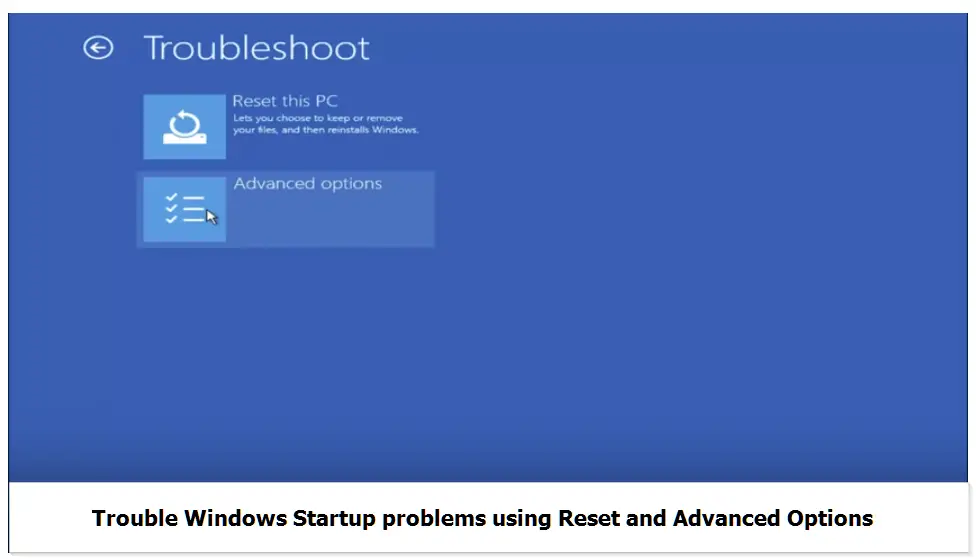
Keeping in view of all the above facts, Microsoft provided Troubleshooting options in Windows 10 Settings panel itself.
But to solve windows 10 installation error, you need to follow a different approach. You need to download a genuine version of the OS. The media to install like CD/DVD or flash drive should be without hardware errors. Your PC should follow the hardware and software requirements. The HDD or SSD should be without errors. You need the right partition system.
But once installed, the following tools will help solve Windows 10 problems with much ease, compared to third-party services. This kind of Windows 10 home repair can be done by just using the Settings panel and some mouse clicks. All you have to do is find whether it’s a hardware, update, network, store apps problem and start the corresponding troubleshooting tool.
How to find Windows 10 Troubleshoot feature?
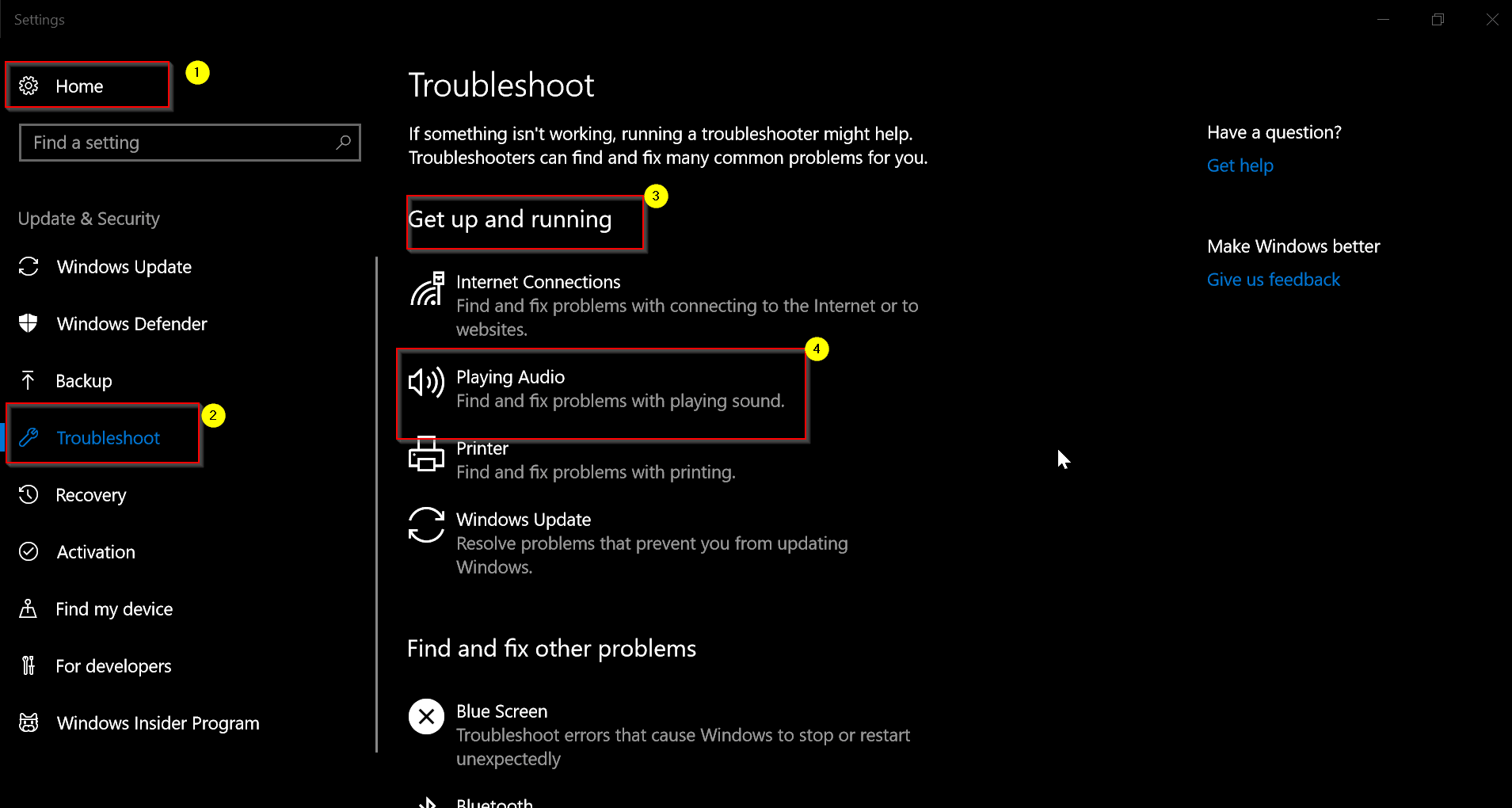
To go there, click the Windows icon and select the gear icon.
Then navigate through Update & Security > Troubleshoot.
You find two main options on the right hand-side.
Get up and running
Find and fix other problems.
The first category you can fix the following kind of problems.
Internet Connections
Playing Audio
Printer
Windows Update
The second category can fix the following issues.
Blue Screen
Bluetooth
Hardware and Devices
HomeGroup
Incoming connections
Keyboard
Network Adapter
Power
Program Compatibility Troubleshooter
Recording Audio
Search and Indexing
Shared Folders
Speech
Video Playback
Windows Store Apps
Let’s go through one by one to see how each one helps in a particular scenario. The best troubleshooting process in this method is that, you need not apply any commands or change registry entries.
Most of the fixes are done automatically, with a click of a button. Some fixing steps take place in the background and you will see a final result with a green tick mark or cross mark to indicate whether its fixed or not.
How to Repair Windows 10 Problems with Ease and not much Trouble?
Tool #1. Internet Connections
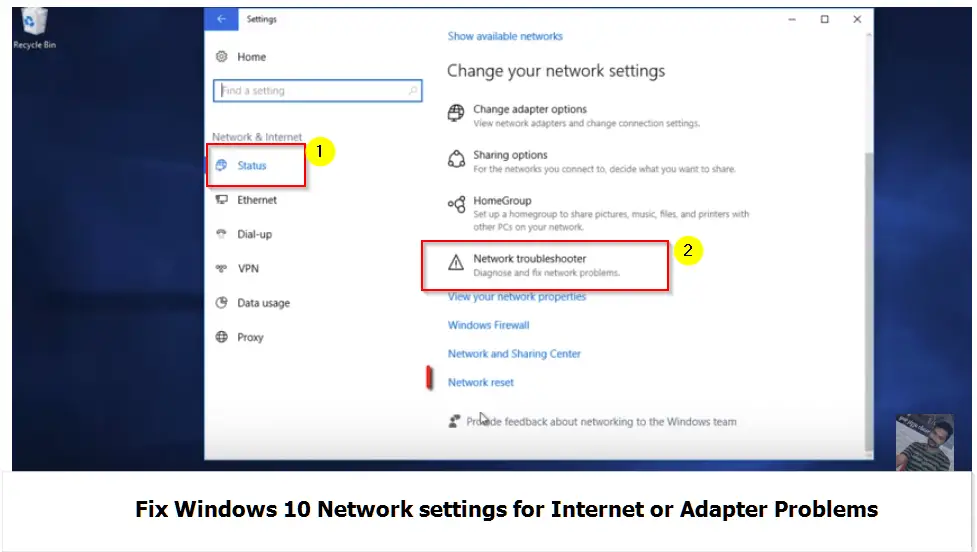
This is the most common problem you face as an Windows 10 user. For example, if you are using a router it may logout or may have other issue. The network adapter gets disabled sometimes, which is automatically fixed in this case. Some background checks are performed and fix for each case are tried.
This tool will help like network troubleshooter for Windows 10. It will basically check the DNS server and network adapter at a basic level. It will try to fix them initial by restarting any services. Otherwise, it will display an error.
Tool #2: Playing Audio –
As I said earlier when your Windows 10 PC is connected to HD devices, you may face audio issues. Even without it also you can get them. Sometimes the audio driver gets corrupted or sound may be disabled. You may not hear sound through speakers. Such primary fixes are done by this tool automatically.
Tool #3. Printer –
Most of the times, your printer drivers are needed to be updated whenever there is an update in Windows 10. The connection between drivers and hardware may get corrupted. This fixes them automatically.
Tool #4. Windows Update –
There can be many Update errors like Data Store errors, Driver util errors, Inventory errors, AU errors, Update handler errors, Download manager errors etc. Sometimes you get Windows 10 update failed to install and have different reasons. Some are gone by just restarting. These have errors codes like the following –
0x8024002F WU_E_CALL_CANCELLED_BY_POLICY Operation did not complete because the DisableWindowsUpdateAccess policy was set.
0x80240030 WU_E_INVALID_PROXY_SERVER The format of the proxy list was invalid.
0x80240031 WU_E_INVALID_FILE The file is in the wrong format.
0x80240032 WU_E_INVALID_CRITERIA The search criteria string was invalid.
Debugging error code is a huge task or needs an expert. But the above tool, tries a few fixes using the Windows update diagnostic tool and solves them if possible.
Tool #5. Blue Screen.
As you know due to memory handling errors or some new app installed or faulty hardware you can have blue screen or BSOD errors. So, Windows 10 troubleshooter for blue screen will automatically try to fix these sorts of problems.
Tool #6. Hardware and Devices.
If you have installed a new external HDD or USB device, Windows 10 may sometime give error after working for sometimes. To fix them the Windows 10 Hardware troubleshooter is useful.
Tool #7. Incoming Connections.
You block certain programs in Windows. Also, other remote computers or program services may try to connect to your computer. But due to protocol errors or Windows Firewall problem, you may face trouble. This Windows 10 troubleshooter for Incoming connections fixes them.
Tool #8. Power.
If you are on a laptop, the battery may drain quickly than the expected. Mostly it may due to store apps or some other program using lot of power. This Windows 10 troubleshooter for Power will try to shut down these programs and see fix the heavy battery usage.
Tool #9. Speech:
Windows 10 has a new feature called Cortana. Using this service, you will be able to give voice commands, just like Apple Siri and Google Talk. But mic is necessary to use this in-built item. Sometimes, the mic may not be compatible with Windows 10 or its driver may be corrupted or may get disabled etc. due to various problems. To solve such issues, we normally use this troubleshooter tool.
Tool #10. Windows Store Apps.
Mobile services are still to be developed in competition with other companies in Windows. Starting from 8, 8.1 and 10, it has feature called Store apps where you can install on phone or PC. But they are far from utilization like the Apple Store and Android apps. But sometimes the Windows Store apps behave abnormally due to inherent coding problems, excessive power usage, taking resources etc. Then this troubleshooting tools can kill or sort out the problem.
As you can see in the above video, it’s very easy to change settings in Windows 10. Its the same way with troubleshoot feature. You just have to double-click the tool and it will process in the background or ask some questions and is done all automatically.
Conclusion
This Windows 10 Troubleshoot feature is very useful for common users without much knowledge about fixing things. You can easily fix all the above problems, by just running the tools mentioned above. If they can be fixed, it shows a green mark or red cross, if it’s not.
I myself have tried the Network and Adapter troubleshooting tool many times. Since I have a router and connected to ISP, I have some connection issues. This tool restarts the necessary services to fix any kind of network issues and my Internet is back to normal.
Also, in case of audio problems, it is useful. You might have speakers disabled by a virus or program unknowingly. This troubleshoot tool will try it’s best to enable them again and make them working.
I also found this tool helpful in the case of Windows Update errors. Suddenly sometimes the KB updates give unknown errors, for which we need to scratch our head, if we don’t know the reason. This will re-run the required services and do some common repair steps make the service work again.
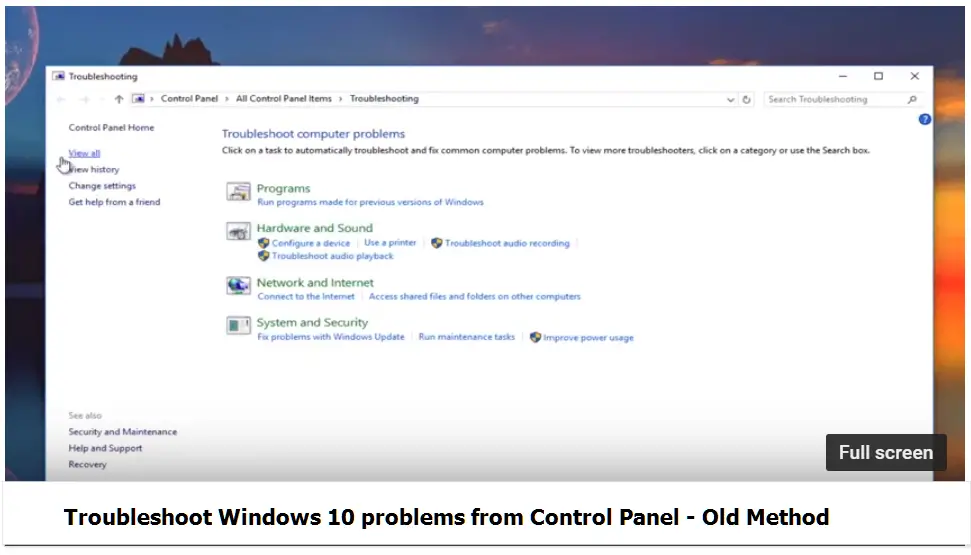
Though this feature was available in Control Panel in Windows 7, Vista and XP, it was not that much effective compared to Windows 10. Earlier it would give lot of unnecessary messages and finally would not solve the problem. But with Settings and Troubleshoot, it works more effectively compared to the earlier versions.
I hope you like this article and try to use this tool and let me know your findings.
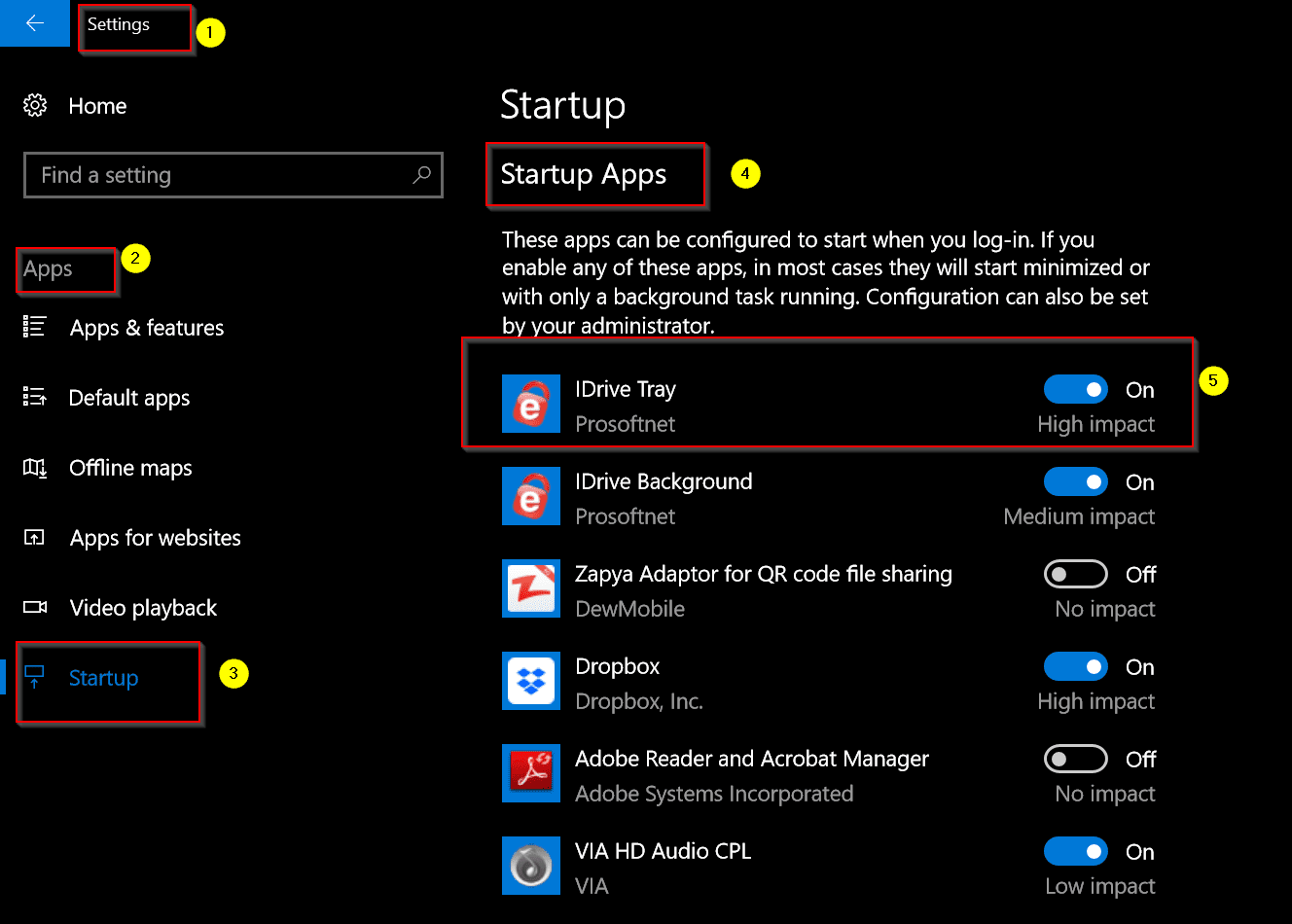
In the RS4 release Windows 10 Build 17017, a new feature called Startup Apps was added. This is the same functionality you have seen earlier in Task Manager or System Configuration. When you type “msconfig” in the Run dialog box (press Win + R keys), you get a pop-up window.
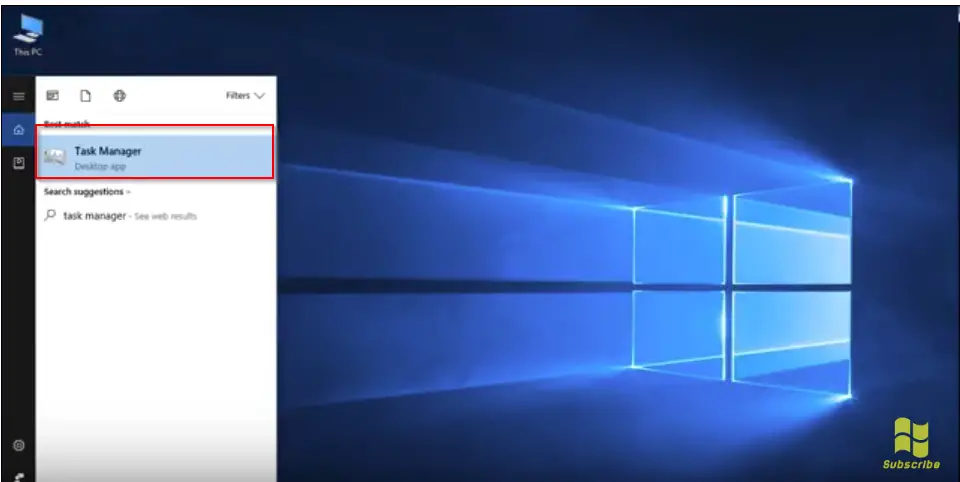
Earlier in Windows Vista and 7, you are able to control the Start up items from there. But in Windows 8.1 and 10, this item feature has been shifted to Task Manger. In it, there is a tab called Start Up where you can control the Apps or Software Applications which start while login.
How does Start Up of Apps Effect your Computer?
In Windows 10, you can see the categories under which the Start Up Apps fall.
They are divided into Low, Medium, High rating. This means that an App enabled at startup and having High scale, would increase the boot time of the PC. For example, cloud services like Google Drive, DropBox etc fall under the High category. So they have an impact on the fast and slow boot up times of your PC.
Generally, some system resources and applications you allow, start during the booting phase. As some are required for proper functionality of your PC, like Taskbar, Service Host, Windows Defender etc, they are mandatory during startup.
But instead of starting up apps manually, for our convenience sake, we try to add them during startup. So that their process can automatically start without invoking them manually.
But the more number of apps you add to the Start up list, your PC boot time will become slower and slower. This was the case in Windows 7 and 8 etc.
But with Windows 10, this impact was reduced. Also if you have higher RAM , ROM, CPU power you could easily skip this lagging case.
But for computer with less than 4 GB RAM the number of start up apps generally show some effect on the boot time.
What is the Case with Windows 10 Build 17017?
So in the new Build that is released to Fast Ring of Windows Inside users, it has a feature in the Settings panel. Under Apps, there is an item called Start Up on the left hand side.
When you click it, you can see all the Startup Apps which start during log-in. Most of these apps when enabled, will either start minimized or with a background process running. This configuration can be handled by the System Administrator if you are in a network.
It will also show the category like High Impact, Low Impact, Medium Impact or No Impact. Based on it, you can toggle the on and off switch to disable or enable it. In this way you can decide between comfort and performance.
Is this feature totally new to Windows ?
In my computer there are totally 15 Apps that I can see under Startup Apps feature. As I told before, this is not totally new way of enabling or disabling start up apps.
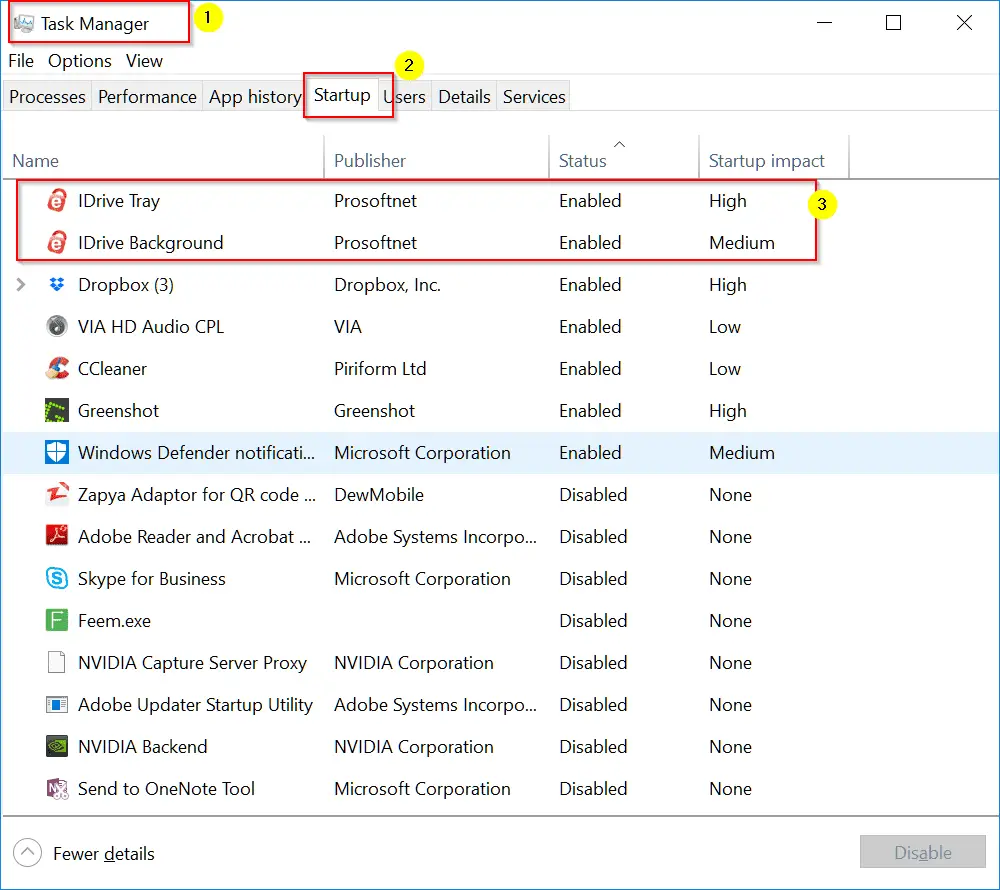
If you open Task Manager (press Ctrl + Alt + Del at the same time) and switch to the tab Start Up, you can see the same Apps.
Here also the App name, its publisher are shown. But instead of showing on and off, it shows enabled or disabled respectively. Also the Startup Impact is shown as High, Medium, Low, None.
Any Flaw in Compatibility of Task Manager Start Up and Startup Apps Functionality?
I tried to compare both the features to see if they same apps or computer programs and their data showing up. As I already said, the number of apps are the same in both the features.
But when I switch off a particular Startup App (for eg. Idrive Tray, Idrive Background) in the Startup Apps, it didn’t get disabled in the Task Manager.
So may be we have to restart the computer or logout and login. But the sync is missing with immediate effect. This is the only flaw I found till now. Other things remain the same.
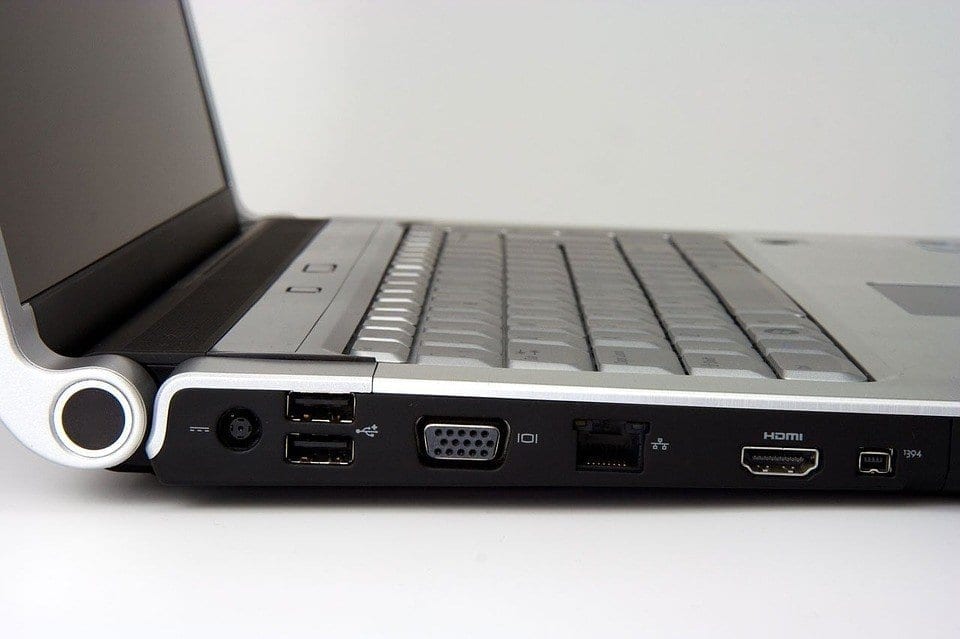
Most of the times PC HDMI ports are connected to graphics card known as the APU/GPU (Accelerated Processing Unit/ Graphics processing unit).
You need to place that card in the hardware slot provided in your PC cabinet or laptop case.
For example, the AMD Mobility Radeon HD 5470 GPU may be present in Dell XPS 15 Laptop having Windows 10.
APU is a processor that includes both the CPU and GPU on the same chip. This term was coined by AMD. These are like hybrid processors.
Fixing Your GPU HDMI Port: Get Your Display Back Up and Running
Are you struggling with your graphics card’s HDMI port not working? This issue can be incredibly frustrating, especially when you’re eager to enjoy your favorite games or watch a movie on your high-resolution display.
When you encounter a problem with your GPU’s HDMI port not functioning correctly, it can stem from various factors, such as outdated drivers, loose connections, or even physical damage to the port itself.
In this blog post, we’ll guide you through a series of troubleshooting steps to help you resolve the issue of your HDMI port on your graphics card not working.
From checking your cable connections to updating your drivers and exploring potential hardware issues, we’ll cover all the bases to get your display back up and running. Don’t let a malfunctioning GPU HDMI port ruin your computing experience – read on to discover the solutions you need!
In that case, you connect your HDMI cable directly to the motherboard, where the port is present.
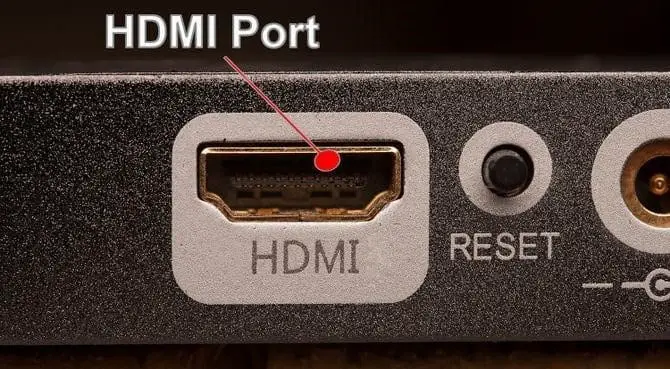
Generally this is not visible to the outside. You just see the PC HDMI port on the back side panel of your cabinet.
So you connect your HDMI cable from PC to the required HD TV or Smart TV which has a receiving port using a cable.
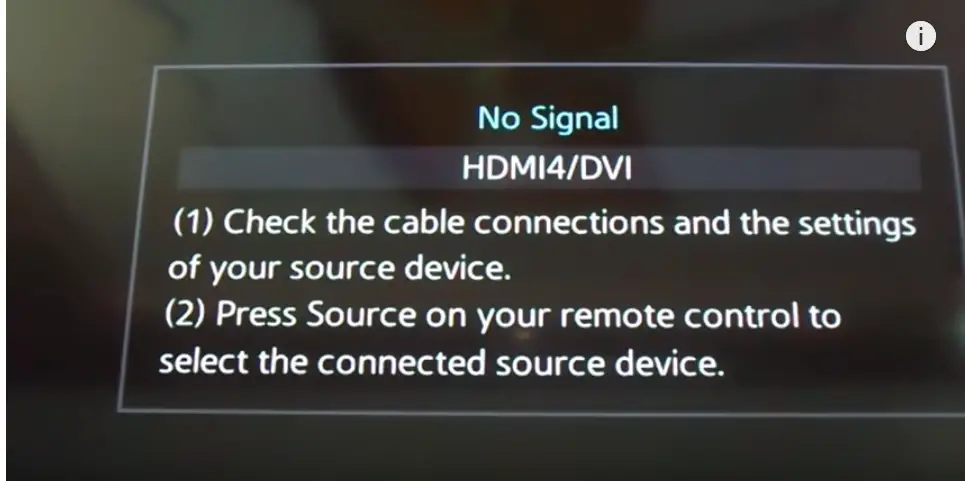
You may get a “No Signal …” kind of error on your monitor device, when your PC HDMI port is having a problem. The reasons could be many in which we listed some of them in our article “Fix Windows 10 HDMI Problems”.
Graphics card HDMI port not working
But if your PC HDMI port is not working, the first thing is you need to check is your GPU card. Open your cabinet and check whether the green lights on the card are glowing are not. Sometimes you see a red and green light. This could be due to loose cables connected to your GPU card to the PC HDMI port.
Another reason why HDMI ports fail to detect secondary monitor devices like HD TV or LCD TV, is due to faulty drivers of the GPU.
Some of the GPU cards which are having problem while updating from Windows 7 to 10 or older version like Anniversary Update are –
AMD ATI Radeon HD 4200
ATI Mobility Radeon HD 5000
AMD Mobility Radeon HD 5470
Dell Studio XPS 8100 with AMD Radeon HD 7570 graphics card
Toshiba L500-1ZP (2010) with ATI Mobility Radeon HD 5165
The main reason is that the default driver for GPU in Windows 10 is mostly not compatible with the new graphic cards. For example, if you use AMD GPU then you need to install the latest AMD Catalyst Control Center App. (atleast version 15.7).
This supports WDDM 2.0, DirectX 12, CrossFire Free Sync for gamers etc.
How to Test if GPU HDMI Port Not Working?
There is no specialized equipment like multi-meter or signal tester to test whether the HDMI port is working or not. The best way is always to use the following.
1. PC or laptop with HDMI port. 2. HDMI cable 3. Monitor or HD TV or LED TV.
Out of all these, make sure the last two are working properly. Then you can test if the problem is with your PC HDMI port.
There are many different ways in which you can connect your PC HDMI to your monitor device.
For example, HDMI to VGA Adapter, a VGA cable, and a monitor with VGA connection. This is one of the old methods.
Similarly you can use a DVD adapter and DVI cable etc. But to be more sure use the above configuration.
Now if you get a signal on your display device, it means your PC HDMI port is working.
But if you get “No Signal or blank or handshake and then no signal“, something is wrong with the PC HDMI port.
Sometimes, your HDMI port may be working but no audio or video signal. Then you have to check through the Device Manager, whether that particular device is being displayed or not.
For example, if audio is not coming, then using the Sound item of Control Panel, you can check it. In the Playback tab, you can see the HDMI output device if port is ok. You just have to enable it to default sometimes.
Sometimes, video or picture does not come on the display device. Then if you have a GPU like NVIDIA etc, you have to go through its Control settings.
You may need to select the right settings as per your GPU manual. Also make sure the OSD Menu on your HDMI display device uses the right option or the correct key on the remote.
Problem with Multiple HDMI Ports
For example, many a times, when you connect a GPU, it has the option of 2 or more HDMI ports in PC.
Then to find out cause, like whether its cable or display device or the port, just plug the HDMI cable in the other port.
If it works, then that particular PC port may not be working.
Then you need to take it to a hardware technician to check the connection is proper with the GPU or on-board graphics card like Intel.
Compatibility Problems
Sometimes as I said before, the HDMI port, OS and graphics card may not be compatible with each other.
For example, Windows 10 needs the right drivers and control panel based on the graphics card. In other cases, you may need an adapter or the right driver that connects your HDMI port and GPU.
Fix PC HDMI Port not detecting Secondary Display with AMD Graphics Card
Even after installing the latest display drivers and Catalyst Control Center App, if you have problems, then you need to manually install them using Device Manager.
First, unzip the unpack the legacy GPU driver for AMD devices.
Select the Browse option to select the location of the driver and find the right .inf (eg. C7156445.inf) and select open.
Get the model from the list corresponding to your GPU hardware and install it.
Now install the Catalyst Control Center App using the set up at this location in Windows 10.
C:\Program Files\AMD\CCC2\Install\ccc2_intall.exe (in Windows10 64-Bit )
Now restart the computer and HDMI port should be detected in your Playback devices.
Fix HDMI Port not working for Windows 10 PC using Compatibility Mode
Now your PC HDMI port may be working in Windows 7 or 8.1, but not working after upgrading to 10.
First find the setup files. Right click and select “Troubleshoot compatibility“.
After a few screens, you can see a page where theset two options need to be checked.
1. The program worked in earlier versions of Windows but won’t install or run now 2. The program requires additional permissions.
Now select the Windows version like 7 or 8, in which this HDMI port worked.
Test the program and save the settings for the version it works.
FAQ
How to get sound from Laptop to TV with HDMI on Windows 10 ?
Connect your laptop to TV with an HDMI cable. Check HDMI ports are working on both hardware devices. Open the Settings app in Windows 10 by pressing Win + I keys. Go to System > Sound app. Under Output, there is a drop-down box. Check if your TV is available as an option. Select it. Play an song on your laptop. You should hear from the TV.
Why HDMI sound not working on Windows 10 ?
It can be due to several reasons. First open the Sound Control Panel from Settings app on Windows 10. Under Playback you should see several output or playback devices. Your computer or laptop is the input and TV or HDMI speakers are your output devices. Select the correct output device and make it as default. Your HDMI sound should start working again. If not, check the cable, ports and hardware.
Connect the LG monitor and CPU using HDMI cable. Instead of external speakers, you can use LG Monitor audio. Open the Sound page as mentioned before and make LG monitor as the default playback device in the list of output devices. You should hear sound from the monitor speakers. If you still don’t hear sound then click on App volume and device preferences under Advanced sound options. Adjust the master volume and system sounds below App volume to reasonable level. Sometimes, old LG LCD monitors don’t come with good output sound. Then you have to use external speakers.
How to fix HP HDMI audio issue ?
In HP laptops and computers, some default manufacturer apps come pre-installed with Windows 10. You can search for HP Support Assistant. On the Dashboard tab, click Fixes & Diagnostics. Check Audio in the One click fixes section. The audio test should complete and repair any problems. Otherwise, you can try the Sound troubleshooter for Windows 10, which can also fix the processes and services. Update HP drivers if required using the above tool.
Why PC not detecting HDMI audio ?
There can be many reasons for this problem, but the most common is related to the wrong settings of the primary audio output. The problems occur because some HD TVs when connected to the computer via HDMI, switch automatically to the audio signal of the computer and not the TV. E.g. in Windows 10, open the Sound icon in the Control Panel, then go to the Playback tab and check the Primary audio device is the HD TV.
Why HDMI audio device not detected ?
what happens when you plug it in? Does the TV recognize that something is plugged in? Does it make a sound (if it’s supposed to have speakers)? If you don’t get any sound, I would recommend that you have a technician look at it. if you don’t get a picture, you may want to check the AV signal cables. If you are using an HDMI cable and the TV hasn’t recognized anything plugged in, you may need a different cable. Also check to make sure that the TV is set to the correct input.
Fix HDMI Port not Working with AMD Catalyst Control Center settings
Sometimes the settings in the above app, need to be tuned for HDMI port to work properly. Everything is fine, but you need to select the option in the app.
1. Detect whenever AMD Catalyst Control Center is opened.
This will detect the secondary devices automatically.
Bluetooth Keyboard not connecting in Windows 10, after update. Problem could be unknown device, bad USB port, not working Bluetooth transceiver, incompatible profile etc. Solutions to these kind of errors are mentioned in this post.
You might also have Bluetooth keyboard paired but not typing in many cases which can be due to the adapter or USB receiver problem.
As an initial troubleshooter for Bluetooth Keyboard connection problems, you can try some of these –
Initiate changes in the Device Manager
Reinstall Bluetooth drivers
Stop and Start Bluetooth Support service
Bluetooth category in Power Management options
Upgrade to the latest Windows 10 update – 1803 version
Uncheck “Drivers for Keyboard, Mice etc (HID)” under Bluetooth Keyboard > Services tab in Control Panel
Roll back Bluetooth drivers to the old ones
Go back to the old System Restore point before you had problems
If it is a pairing problem, do it manually by entering the 8 digit pin code.
Better pair with an Android Mobile device first and then try the same thing on your PC
Check a different USB port for the receiver
Unplug the USB Bluetooth receiver and plug it in again
Each version has some features added and some removed. So the solutions proposed below work for some, like 1511 and some for other. Based on your version, you try the available options.
Update Bluetooth Keyboard Drivers for Windows 10
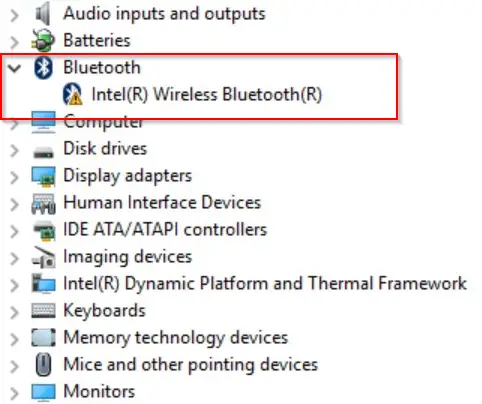
When you upgrade from Windows 7 or 8.1, or update from a previous version, such as 1511, the most likely cause is a driver issue. You can check the driver status by opening the Device Manager (described below). If the Bluetooth device has a yellow exclamation mark, it is most likely due to a Bluetooth device or USB driver issue.
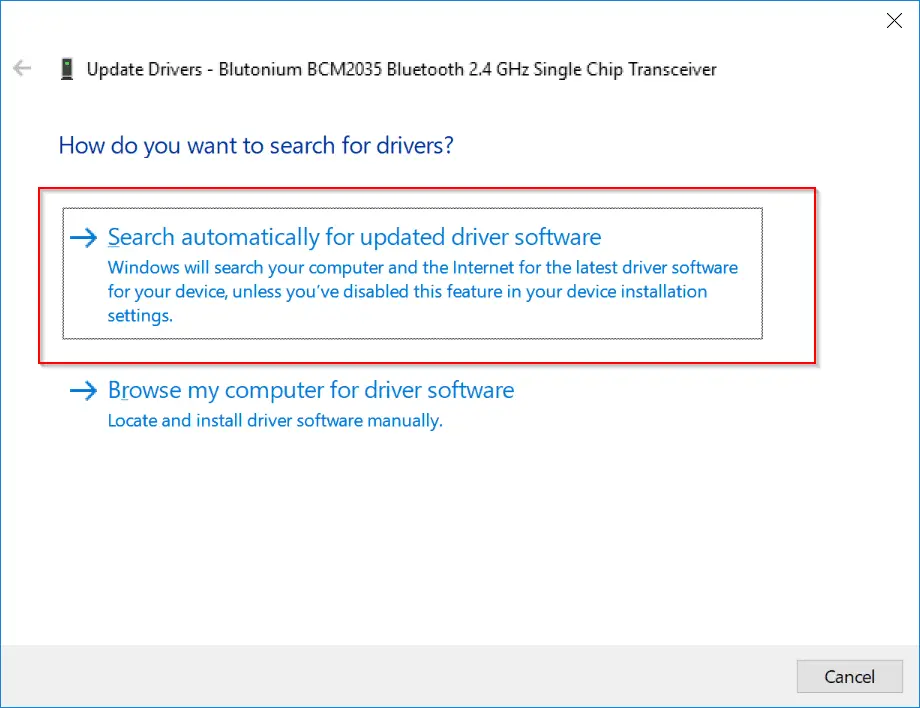
Select the device, right-click and Update driver. You now have 2 options.
Search automatically for updated driver software – This is generally used to find the drivers from the Internet, if they are available. Browse my computer for driver software – Otherwise, if you have the Bluetooth keyboard drivers on a CD/DVD, you can browse through it and select it.
You can also go to the manufacturer’s website (if your PC is branded) and get the most recent Bluetooth drivers. Choose the appropriate operating system and bit, such as Windows 10 32 bit or Windows 10 64 bit.
If you wish to automate this process, you may use the link above to automatically download the drivers based on your PC and Bluetooth keyboard model. Many times, updating the drivers should solve the problems.
Top Fix to Solve Bluetooth Keyboard not working on Windows 10
Press the Windows key and enter Control Panel.
Then select “Devices and Printers” or “Peripherals and Printers,” depending on your Windows 10 version.
Right-click on the “Bluetooth Keyboard” gadget.
Select Properties > Services from the pop-up menu.
Select the “Keyboard, mouse, and other device drivers” checkbox (HID).
Press the “Apply” and “OK” buttons.
Now the Bluetooth keyboard reconnects and in it’s device section you can see it as “connected” instead of “paired“.
Few other Fixes to do if this is not working!
Press the Win + R button and type “services.msc”.
This should open the Windows 10 services.
In this you will two Bluetooth services.
Bluetooth Support Service
Bluetooth Handsfree Service.
Make sure they are running and make their status type as “Automatic”.
USB Port Problems
Sometimes if you have too many USB devices connected to your PC/laptop, then sufficient power may not be avialable for the Bluetooth keyboard to work. Try to remove some USB devices and see if it works.
Another option is to check whether the USB port is working or not. Generally on your desktop or laptop, you have a Bluetooth receiver or adapter to accept the signals, which just looks like a dongle. If you just put it in a different working USB port, the Bluetooth keyboard may start working.
FAQ
Why is my Bluetooth keyboard not connecting ?
To connect your keyboard press and hold the windows logo key on the keyboard and then press the connect button on the bottom right hand corner of your keyboard typically to the right of the right control button. This should pair the device and enable you to use it. if your keyboard still isn’t connecting check if any Bluetooth devices are already paired if so remove the device and then try to connect again.
Why is my Bluetooth keyboard not working ?
1. Make sure the Bluetooth switch is on. 2. Make sure your keyboard is in discovery mode. 3. If you are using any other Bluetooth device, switch it off/disconnect. 4. Repair your device from the Device manager. 5. Delete the device from the device manager and try to pair again. 6. If your keyboard does not have a pairing button, try to reset it.
Why Bluetooth keyboard connected but not typing ?
Check the USB adapter of the Bluetooth keyboard. Generally, this is used to communicate with the computer or mobile using its default Bluetooth hardware. If there is incompatibility between the two Bluetooth adapters or pairing is not done properly, you could face this issue. Also, make sure the keys of the Bluetooth keyboard are working properly. Sometimes, just unplugging the USB adapter and plugging back can resolve the issue. Most probably it is due to current fluctuations.
Why Bluetooth 3.0 keyboard not working ?
Check whether your Bluetooth adapter supports 3.0 version or not. Upper versions can support lower versions, but not the opposite. If they are correct, then check pairing of Bluetooth 3.0 keyboard and your computer. If they are paired, unpair it and repair again. Sometimes, you are asking to enter a PIN. If you don’t know you can check the device documentation for PIN. You can also remove device from Settings and pair it again.
Check Power Setting Option
Right-click the Start button and select “Device Manager“.
In the list of devices, you can find the “Bluetooth Keyboard” device.
Right-click it and select Properties > Power Management .
In this you can find your Keyboard. Right-click and select “Properties” from the context-menu.
Turn off the option “Allow the computer to turn off this device to save power“. Click OK.
For your Bluetooth Keyboard to work with Windows 10 PC, it should use one of the supported Bluetooth profiles. Generally Win 10 supports Bluetooth version 4.1 and the following Bluetooth user profiles.
Advanced Audio Distribution Profile (A2DP 1.2)
Audio/Video Remote Control Profile (AVRCP 1.3)
Bluetooth LE Generic Attribute (GATT) Client
Bluetooth LE Generic Attribute (GATT) Server
Dial-up Networking Profile (DUN 1.1)
Device ID Profile (DI 1.3)
Hands-Free Profile (HFP 1.6)
Hardcopy Cable Replacement Profile (HCRP 1.0)
HID over GATT Profile (HOGP 1.0)
Human Interface Device (HID 1.1)
Object Push Profile (OPP 1.1)
Personal Area Networking User Profile (PANU 1.0)
Serial Port Profile (SPP 1.2)
How to Connect your Bluetooth Keyboard on Windows 10?
First make sure you have a Bluetooth transceiver or in-built device to receive signals.
Next turn your Bluetooth keyboard using some “on” switch and make it discoverable.
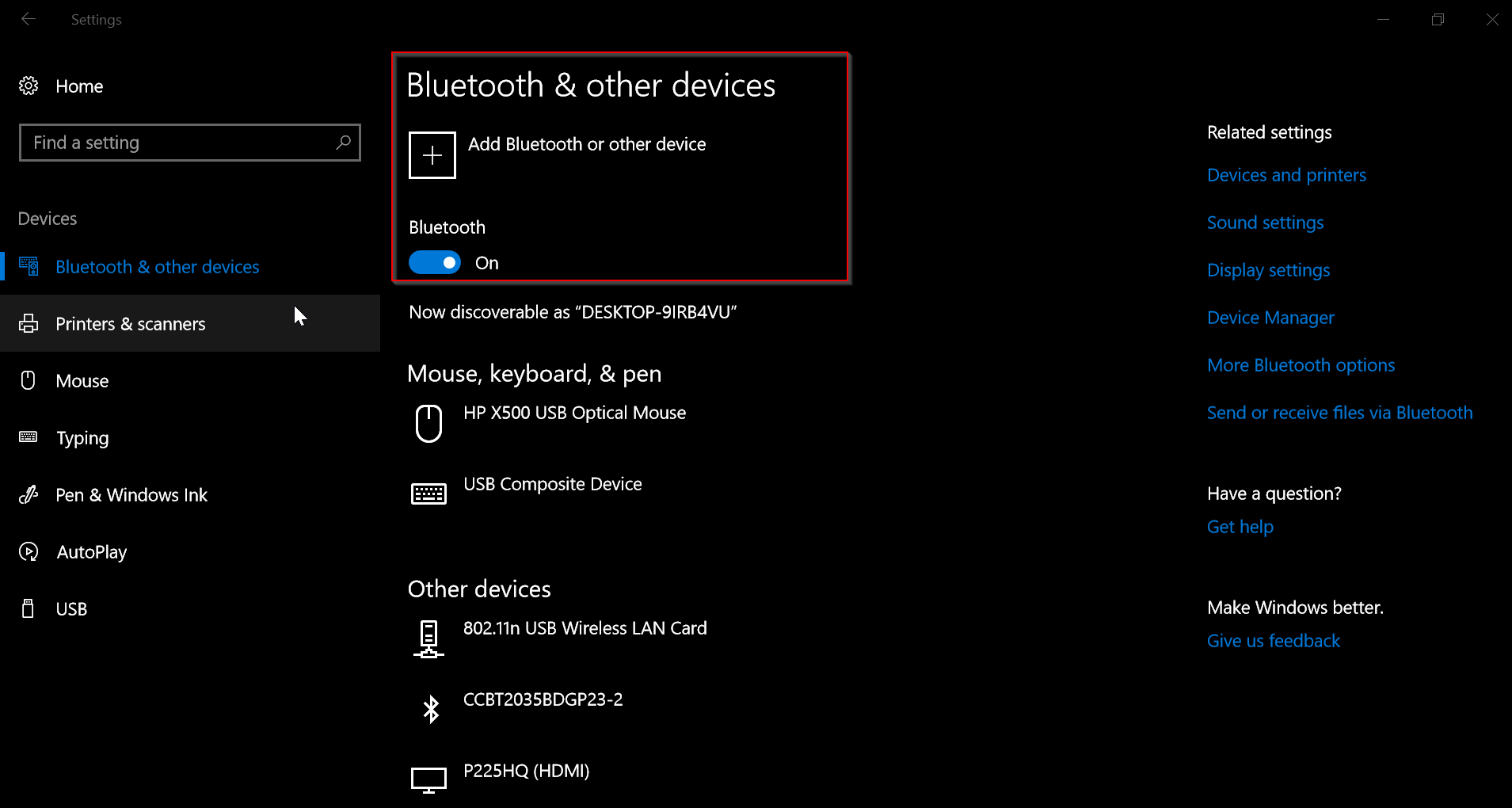
Next Start > Settings > Device > Bluetooth. Turn the “On” switch.
Now add a device and select “Pair”.
Now you may need to enter some passcodes to initially pair your PC and keyboard.
Then follow any instructions if necessary.
Bluetooth Troubleshooter to the rescue !
If you are running Windows 10 Creators update (1703), you can select Start > Settings > Update and Security > Troubleshoot.
Under Find and fix other problems, select Bluetooth > Run the troubleshooter. Let it process and fix errors automatically.
Bluetooth Keyboard device doesn’t appear in Device Manager and shown as Unknown Device
Sometimes when you upgrade from Win 7 or 8.1, you may not find your Bluetooth device. This is due to the incompatibility between Bluetooth driver and Windows 10. To find the right driver, you can do the following.
In the Device Manager, find the Unknown device and right-click and Properties.
Select the Details tab.
Select the Hardware Ids from the Property list.
Find the hardware ID for the Bluetooth radio.
The hardware ID typically looks like USB\VID_{ID}&PID_{ID}
Copy that ID and search on the web.
You should find the right driver from your Bluetooth hardware or PC manufacturer website.
Download the driver compatible with Windows 10 and install it.
Bluetooth Device doesn’t appear and Unknown Device also doesn’t appear
In the Device Manager, you can select View > Show hidden devices. View > Devices by connection.
The Bluetooth hardware may be hidden under a parent device like a USB Root Hub. Then right click the bluetooth device and update the driver. You can also uninstall the driver and restart PC.
Update from Windows 10 1511 to 1703 or similar version
If your Bluetooth keyboard doesn’t work after updating to a new version like Creators update, then you need to pair the Bluetooth device again. If your keyboard supports the Bluetooth 4.1 profiles, it should be paired and work properly.
Bluetooth Keyboard is paired but not working.
Generally, when your keyboard is working, you should see the status as Connected. When not in use, you will see Paired. For this you can remove the Bluetooth adapter or transceiver, reconnect and pair it again.
Incompatibility with Windows 10
Sometimes a bluetooth keyboard like Microsoft Sculpt Mobile Keyboard may not be compatible with Windows 10 to work as a bluetooth device. So before you buy a bluetooth keyboard check its compatibility status with Windows 10.
Bluetooth Keyboard not working after Windows 10 Creators Update
Initially to type the pin or password, you can use the “on-screen keyboard” using the “Ease of Access” icon at the bottom right hand corner.
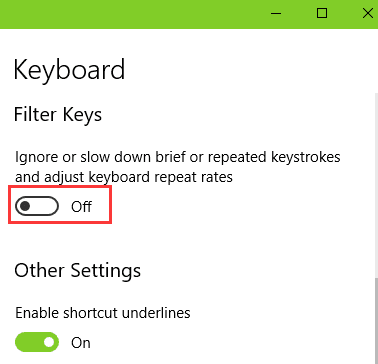
1. You can disable the “Turn on fast startup (recommended)” to see if the Bluetooth keyboard is working. 2. Uninstall the “Touchpad” device software, if keyboard is not working after Creators update. 3. Switch off the “Filter Keys” in Ease of Access settings. 4. Update the BIOS to fix the Keyboard problem. 5. Disable “Airplane” mode and enable “Bluetooth”.
Make sure Bluetooth is enabled on your PC.
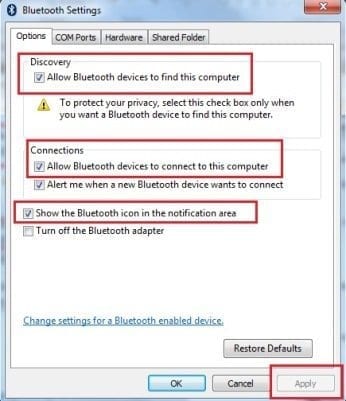
You need to enable discovery mode on your desktop, for the pairing to happen properly. In the Options tab, you need check the following options. 1. Allow Bluetooth device to find this computer. 2. Allow Bluetooth devices to connect to this computer.
Also make sure the Bluetooth keyboard functionality is on. Now try to pair or reconnect and see if its working.
Using cloud storage drive like OneDrive, Dropbox, Google Drive etc ? But for some odd reason, you want to transfer files from one service to another. This is not directly possible.
MultCloud is one such web service which facilitates transfer of files from one cloud storage service like Google Drive to another, like One Drive. It supports around 24 such cloud storage drives with privacy, security and safety guaranteed.
Why you want to do Cloud Transfer?
You are on a limited bandwidth and the size of the total files is more than 100 GB stored in the cloud. The general option is to download all those files from your current cloud service and upload to the new one. For eg. your files are currently backed up on OneDrive and the total size is say 150 GB. Now if you want to transfer these files to Google Drive, then a total of 300 GB (150 for download and 150 for upload) bandwidth is wasted.
The amount of time required for this process to complete also can take hours, if not days. In addition to this, if you are on a slow connection, it may be horrible. What if, you have a cloud transfer service, which can transfer from one cloud storage to another, by passing the above headache.
Yes, MultCloud is the tool for this job. Even with a free account, you can transfer upto 2 TB from one service to another. In this way you save time and internet bandwidth.
What is MultCloud?
This is a webservice to serve users with multiple cloud drives. Using it, you can transfer files across different branded cloud storage services. You can manage all the files on different cloud drives through just one cloud service – MultCloud.
This reduces the hazzle of any error in lose of files and manually checking if all the files are transferred are not.
It’s just like using File Explorer to transfer files from one drive to another. But the only difference is we are using cloud drives instead of hard drives. So the basic purpose of MultCloud is to be useful as a Cloud Explorer.
What is my Personal Experience?
Just like many of you, I didn’t know that such service existed. Let me explain how I found it.
In 2016, Microsoft gave OneDrive users a free 1 year of premium service to store around 100 GB. So I thought this is a good option to backup my photos, videos and other important files. But when the year was ending, the free service was not extended. Then I had to face the problem of losing my files or transferring them to a new cloud drive.
My backup size was around 40 GB and my Internet bandwidth was around 20 GB per month. So I didn’t want to completely exhaust all the month’s capacity in one go. So then I researched on Internet to find this nice service.
At the end of it, it took only an hour to complete the whole transfer process. That too, I had to spend only a few MBs of data to complete the task. It saved my time and resources.
What are the features of MultCloud?
There are 4 main things in this service.
Cloud Explorer
Add Clouds
Cloud Transfer
Cloud Sync
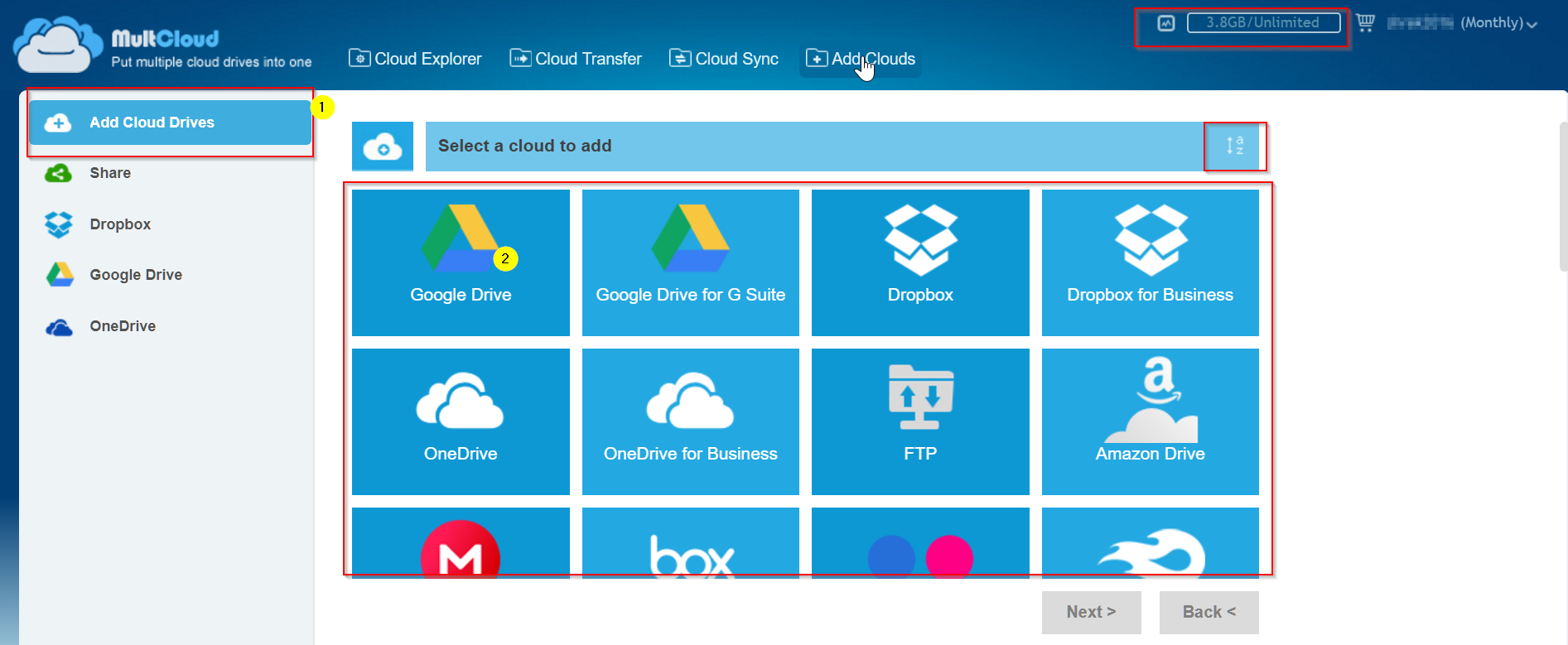
One of the important functions is the cloud sync! But before we do that, we have to add a cloud drive. This process is very simple. You have to Select the right Drive from the supported cloud storage services in MultCloud.
Then click a few buttons and the cloud drive is added to MultCloud account. The list of cloud drives that are added can be seen on the left hand side.
How to Add a Cloud Drive in MultCloud?
First, Select the drive of your choice. Click next. It will show the display name. For example, If you added. OneDrive. The display name will be the same. Now click the Add OneDrive account button. It will ask you for Microsoft account login credentials. After giving it, OneDrive is displayed in the left panel.
The following are the cloud drive supported.
Google Drive.
Google Drive for G Suite
Drop box.
Drop box for business.
OneDrive.
OneDrive for business.
FTP.
Amazon Drive
Mega.
Box.
Flickr.
Mediafire.
Amazon S 3.
Hubick.
Sugar sync.
Alfresco.
My SQL.
Evernote.
Egnyte
pCloud
Webdav
Owncloud.
Cloudme.
Cubby
Features of Cloud Explorer in MultCloud
The features are many. You can see the list of cloud drive that are added using the add option. For example, Drop box, Google Drive and OneDrive are listed. This is same like using File Explorer or Windows Explorer. But just you are using this service for files in the cloud.
Once you double-click any of the cloud instance, you can see all the files and folders stored under it.
You can also use the Upload button to add files and folders to the cloud drive.
The storage details for each cloud drive is also displayed. The amount of space utilized out of the maximum storage allowed can be seen, just like in the File Explorer of Windows.
When we click the curved arrow, it will refresh the status of the drive.The option to select folders and files is available. You can perform the following operations on the selected folders and files.
Open
New Folder
Upload
Delete
Rename
Cut
Copy
Share
Copy to
Properties
Go to official site
How to do Cloud Transfer in MultCloud?
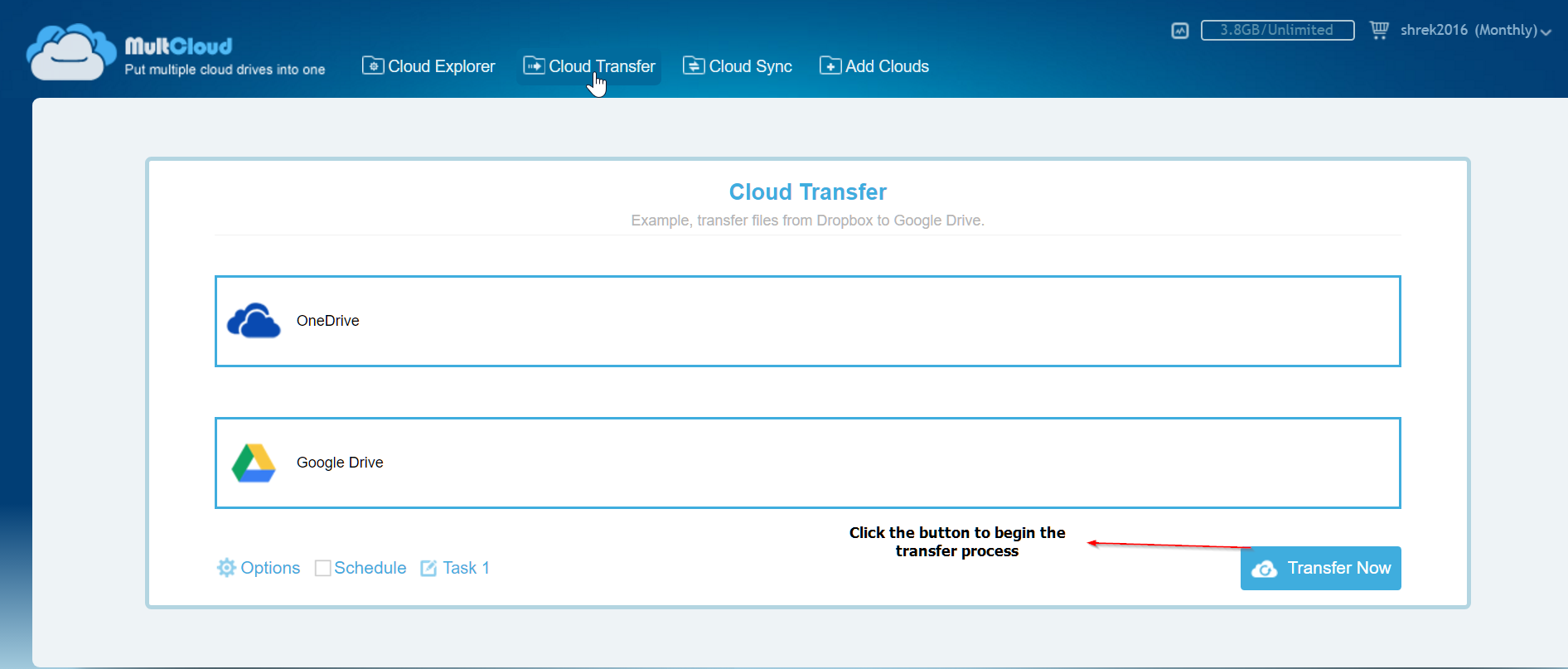
This is a useful service to transfer files between one cloud drive to another. You can select the source and target and click the “Transfer Now” button.
One can select only a few files or folders to transfer or the whole drive. Schedule of this process can be done on a daily, weekly, monthly basis.
How to do Cloud Sync in MultCloud?
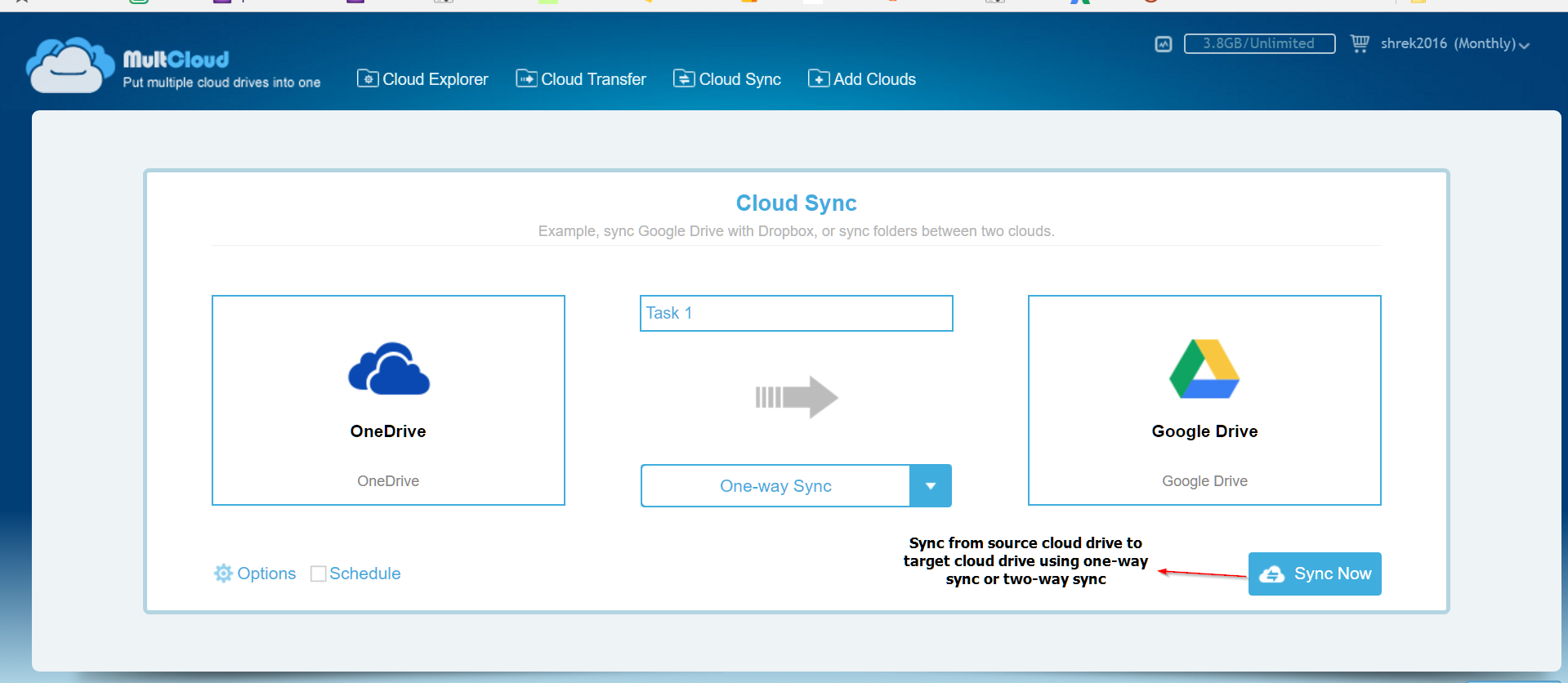
This is another rich feature which can be used to perform different kind of sync operations. There are two types of sync – One-Way Sync, Two-way Sync.
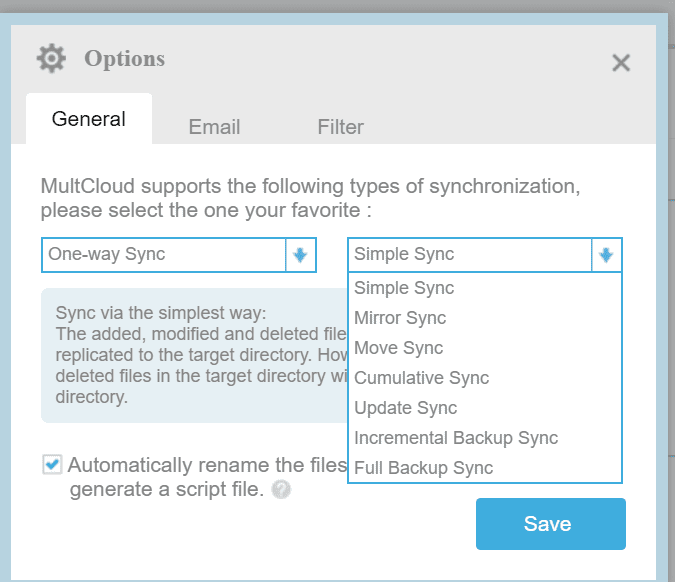
There are several options under One-way Sync.
Simple Sync – The added, modified and deleted files in the source directory will be replicated to the target directory. But the vice-versa is not possible.
Mirror Sync – The files in the source and target are always the same. If any additional files are present in the target directory , they are deleted.
Move Sync – All the files in the source will be moved to the target. Once the sync is complete, they will be deleted.
Cumulative Sync – When files in the source are deleted, the same files in the target will not be deleted. This is safe option, if you want to prevent any loss of data.
Update Sync – Any exisiting file in the target are first deleted. Then the added and modified files in the source are transferred to the target.
Incremental Backup Sync – This type of sync process is done on a subdirectory basis. So every sync operation will have its own folder.
Full Backup Sync – Everytime sync process is started, all the files in the source are transferred to the target, in a separate subdirectory.
There is a special option in here – Automatically rename the files with special characters and generate a script file.
Sometimes, file names consist of special characters or very lengthy. In such case, they will be renamed in the target drive, during the sync process.
You can also schedule the sync process at once, daily, weekly, monthly basis.
The Pricing Model
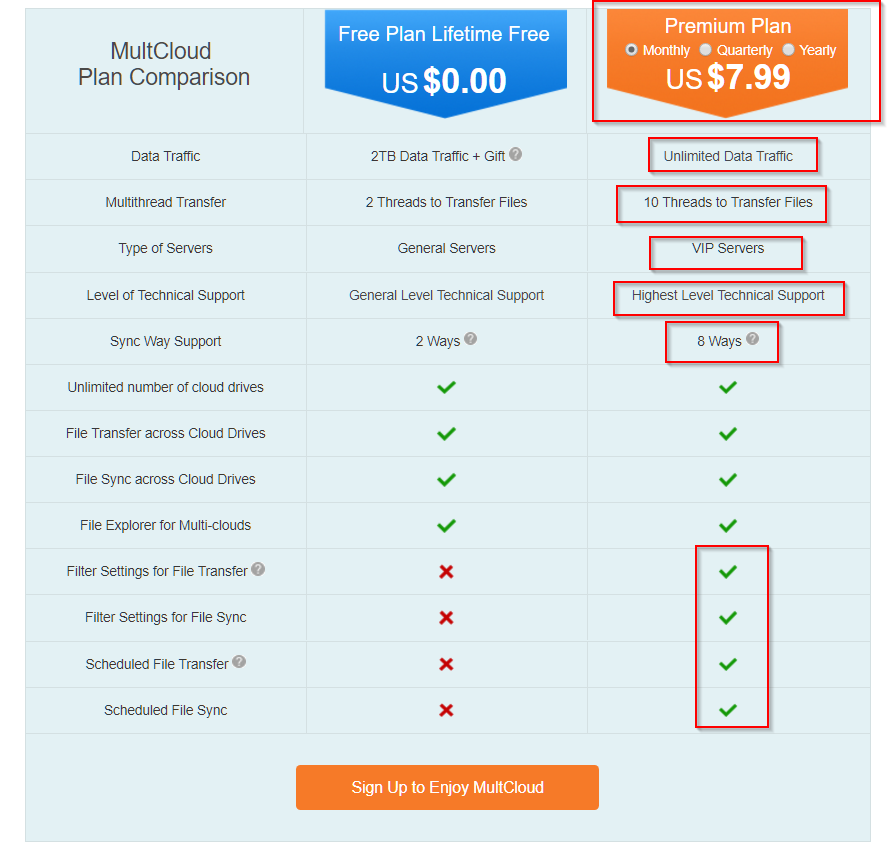
MultCloud services comes in two plans. Free Plan and Premium plan.
The features can be seen in the below image.
With free plan, you can maximum transfer only 2TB among different cloud accounts. The speed also will be normal as it only uses general servers. There is only 2 way sync support.
It also does not support filter settings for file transfer, file sync, no scheduled file transfer, no scheduled file sync etc.
But with premium plan which costs around $7.99 monthly, you can transfer unlimited data between multiple cloud accounts. VIP servers, filter settings, schedule feature etc are its advantages and worth the price.
Note: The images in this review are shown for premium feature.
Conclusion
The data transfer uses 256-bit AES Encryption for SSL. This is an advanced encryption feature and protects your data from being tampered, intercepted and hacked.
MultCloud service is only used as a medium to connect to your cloud drive. No data is saved on its servers. So the privacy and secrecy of your data is still maintained.
The authorization of your cloud drive accounts on MultCloud is based on OAuth standard. This enables third-party applications like MultCloud to build connections with cloud storage services like OneDrive, Dropbox etc without using your account username and passwords. So your cloud storage account credentials are still safe.
Installing the right Sound Blaster Z drivers cannot be under-estimated for the smooth functioning of digital sound in Windows 10.
One can visit the manufacturer website page to download the driver. But after latest Update (Creators or 1703 version) , users are having problem with sound not working properly in June 2017.
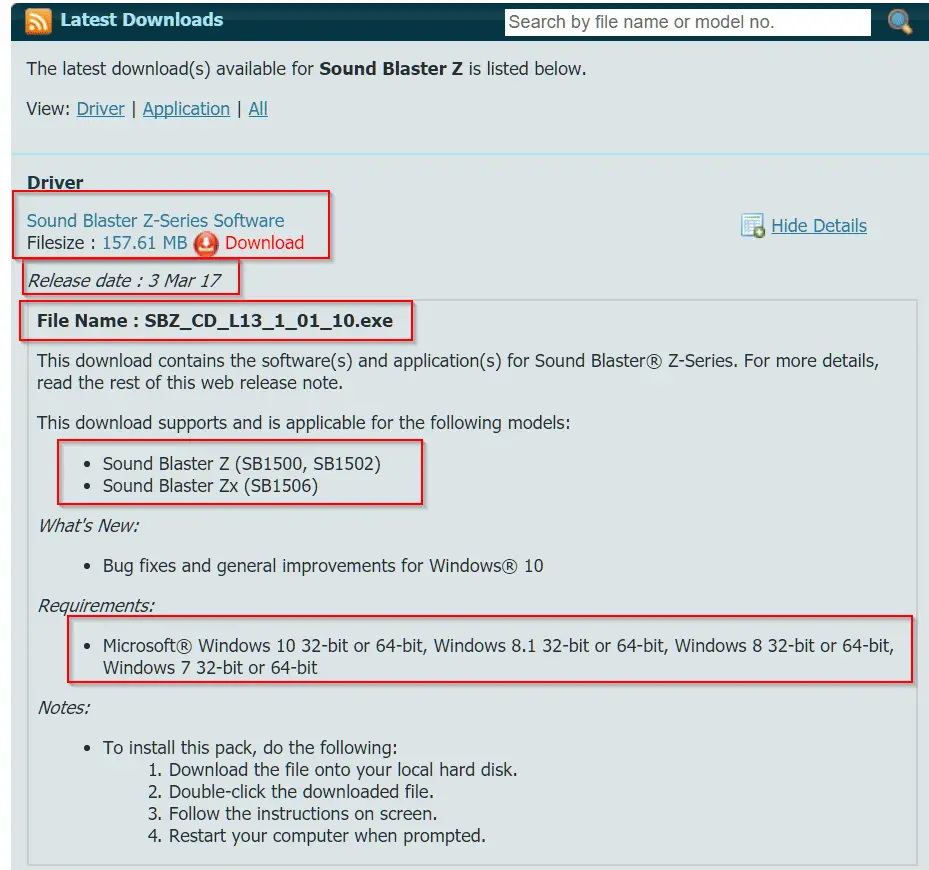
Creative has released a more recent version of the driver on 03/03/2017 with file name – SBZ_CD_L13_1_01_10.exe. The size is around 157 MB (approx). But users complain that this driver update and Creators update are not compatible.
Image Caption : This screenshot shows the latest downloads page of Creative Sound Blaster Z drivers. One can see the release date and filename in the picture. This can work after the April 1803 update also. If it doesn’t, rollback to the old driver.
[schema type=”review” url=”https://us.creative.com/p/sound-blaster/sound-blaster-z” name=”Creative” description=”It is related to sound peripherals for PCs and digital equipment. ” rev_name=”Sound Blaster Z – PCIe Gaming Sound Card” rev_body=”The Creative Sound Blaster Z and ZX series sound cards give good performance for 5.1 and 7.1 audio. But after any Windows 10 update, if you face sound issues, you need to rollback to the old drivers. One can also use Creative and Microsoft drivers to solve the issue. Third-party and Alternate drivers are also a good solution. ” author=”Palla Sridhar” pubdate=”2018-07-06″ user_review=”4.5″ min_review=”0″ max_review=”5″ ]
Windows 10 interacts with Sound Blaster Z sound card using drivers. One can record high quality audio using mic connected through one of the ports provided at the back side of the PC.
User Review about the Creative Sound Blaster Z driver after Windows 10 Creators Update
A user on tenforums.com in Dec, 2017 mentioned the difficulty he faced about with his audio experience.
[wps_quote style=”style-3″ cite=”Kuniyosh”]
So my problem consisted of Sound Blaster Z either producing no sound with no sound signal visible in volume mixer which was often accompanied by slow video streaming or none at all. I would then reinstall drivers and would get the green bars in volume mixer but still no sound and very slow video streaming, again with no sound.
Now when 1709 completed I had sound for the first time AFTER a shutdown and cold boot. This was without any Sound blaster software installed. The problem reoccurred when I installed the Sound Blaster Z drivers again and all the above problems reoccurred.
[/wps_quote]
It is always important that you install the right drivers for any of your PC hardware components. Generally, in Windows 10, 8.1, 8 and 7, Microsoft itself provides some generic drivers which makes the user experience full.
But sometimes, if these cause different problems as mentioned below, then you need to install the drivers from the manufacturer itself.
[wp-review id=”16101″]
Failed Sound Blaster Z drivers installation can cause –
Microphone Not Working
Silent sound coming from the device.
Audio settings getting mixed up.
Headphone Jack not Working
Sound Control Panel of Windows 10 is misbehaving
Sound Blaster Z driver failed to recognize the microphone.
Sound Indicator going green, but no sound.
Control panel not working
Optical out not working
Headphones not working
Connect 2 not working
Mic may be working, but no sound through headset.
Fix for Audible or Quality Sound not Working
Installing Sound Blaster Z drivers will create two entries under Device Manager > Sound, video and game controllers.
1. Sound Blaster Audio Controller 2. Sound Blaster Z
Since you are having compatibility problems with the latest driver version, do a roll-back of both the driver entries.
The last Sound Blaster Z driver before the current version was released on 24/06/2016. The file name is – SBZ_CD_L13_1_01_08.exe. So when you roll-back to this version, your sound and settings should come back to normal. Don’t forget to do a Restart of the computer.
Also after making this fix, you may find that Windows may turn down all system sounds to 0. So you just need to raise the volume back to the default level.
You may also need to go into Sound Blaster Console speaker settings and switch to Stereo mode, if you using the 5.1 channel. The latest working Creative Sound Blaster Z version is 6.0.103.34 (from 7.Feb.2017).
Third Party Drivers for Sound Blaster Z Sound Not Working Properly
If the Creative drivers are not working for your Blaster Z, then you can try the alternate drivers. These are found on some websites related to driver software and technology.
There is a tech website which provides the Sound Blaster Z drivers which are neither from Creative nor generic from Microsoft. You can see if this driver software solves your problem. The link is given here. It can work for both sound blaster z and zx models.
Though I have not tested them personally, it is one of the solutions I recommend. This is from my experience, when nothing works, try everything (trial and error).
If you are using the 2015 version of Windows 10, then you can try the Audio Driver 1.01.03 version.
Lenovo also provided sound blaster z drivers for their laptops and desktops. Its version number is 6.0.102.0037. Both 64 bit and 32 bit software are provided for 10, 8.1 and 7. The size is around 78 MB.
[wps_button style=”default” url=”https://pcsupport.lenovo.com/in/en/downloads/ds103440″ target=”blank” background=”#2D89EF” color=”#FFFFFF” size=”18″ icon=”download” wide=”no” position=”center” radius=”auto” text_shadow=”0px 1px 1px #000″ rel=”nofollow” title=”Default Button” id=”default-button” desc=”Creative Sound Blaster Z drivers (Windows 10 64 bit and 32 bit) from Lenovo”]Download[/wps_button]
Update Drivers from Microsoft – Download Creative Sound Blaster Z Driver Version 6.0.105.17
As mentioned earlier there are some default drivers provided by Microsoft for any type of sound card brand. Sometimes they work well and sometimes not. If you feel comfortable with the generic drivers (provided by Microsoft) keep them and continue listening through your mic and headphone set.
[wps_button style=”3d” url=”https://www.catalog.update.microsoft.com/Search.aspx?q=sound%20blaster%20audio%20controller” target=”blank” background=”#008e1e” color=”#FFFFFF” size=”16″ icon=”download” wide=”no” position=”center” radius=”auto” text_shadow=”0px 1px 1px #000″ rel=”nofollow” title=”Default Button” id=”default-button” desc=”Creative Sound Blaster Z driver from Microsoft – Version 6.0.105.17 (Generic)”]Download [/wps_button]
Problem with Cold Boot with AMD Ryzen Systems in April 2017?
On the Creative forum, I could find some users having problem with the Ryzen systems.
To make it work they have to shut down the computer and start again i.e cold boot only works.
So to fix this issue, you can insert the Sound Blaster Z card in the PCI-E slot, after completely turning off the computer. This is a hazzle if you would like to do a restart or hibernate your Windows 10 computer.
So installing the June, 2016 drivers should fix this, probably.
In Intel systems, users have other problem. If the boot time is too quick, the sound card cannot be initialized. For this the fix is to disable the Fast Boot on BIOS. You can also boot your computer in Legacy Boot, the option available in BIOS. One can also disable Fast Startup under ‘Power Options’ in Windows 10.
Why No Sound from SPDIF or S/PDIF Out of Sound Blaster Z Card in Windows 10 in 2016?
Using both analog and fiber optical cables to connect to SPDIF OUT may not be a logical thing. The Creative Sound Blaster Pro Studio test shows the “SPDIF-OUT” is getting audio signals, but the audio is not working.
Also, Dolby Digital Live supported by Creative Sound Blaster Z, may not detect the supported speaker device like Logitech Z906.
The solution for these kind of problems are like this –
1. Make sure the Creative Control Panel works somehow.
2. Uninstall Windows Update drivers and install the June 2016, Creative Sound Blaster Z drivers.
2. You may need to make the speakers the default playing device, instead of SPDIF-OUT.
3. The Analog cables may need to be disconnected. Only the Optical cable should run through.
4. Do not disable “Speakers” in Windows 10 Sound Control Panel.
5. Both SPDIF-OUT and speakers should be enabled in sound control panel.
6. Select “Cinematic” in Creative Control Panel and check “DTS”.
7. Sometimes, you need to enable or disable “What you Hear” in the recording area and select SPDIF as output.
The following fix may also work sometimes.
Unplug all outputs and inputs. Plug only the Optical in. Open Sound > Manage audio devices. Set SPDIF – Out as Default. Set Digital Output (optical) as Communications Device. Only Properties on SPDIF are testable (Communications Device does not respond but system should work.
Microsoft Generic Driver not working in 2015 after Windows Update
Just after the release of Windows 10, it soon released a new update called Threshold 2 in Nov, 2015. So if you have updated your computer with this version, it might be possible that Windows replaces the Creative drivers with it’s own generic drivers.
So from build 10240 onwards, you might have this problem. So for this error, you just need to uninstall the generic Microsoft drivers and update with the June, 2016 drivers. Even if you upate to 10586 build, the problem persists.
Creative Sound Blaster Z users using the Aug 2015 drivers may face a different problem.
The following type of problems may crop up.
1. Crossed up channels in the middle of a PC game.
2. Movie sounds suddenly all go to the Sub-Woofer.
3. DTS/DOLBY codec packs give irritating sounds.
4. Switching encoders is not possible.
For these kind of problems, it could be an hardware issue rather than software. You can try a few things, to settle this Aug, 2015 driver problem.
– Enable VT-D in the BIOS
– Enable legacy boot and legacy USB support in the BIOS
– Disable fast boot
– Re-seat the card, preferably into a different PCI-E slot
After the July 2015 release of Windows 10, it was free for upgrade for 7 and 8.1 users. So if you are one of those and Sound Blaster Z was working before, try to upgrade the Creative drivers to the June 2016 version.
You may hear vocal voice of music as though it is coming from tunnel and other mix up.
For all these kind of problems, you could try the above solutions.
Sometimes you install a new CPU, RAM, graphics card etc.
Then for reasonable reasons, you plan to shift your Sound Blaster Z card to a new slot, like from PciEx1 to PciEx8. Then you may face some ugly problem like sound working but the Control Panel is not working.
You may get this kind of error.
“The current selected audio device is disabled, not present,not supported by the application, or has unplugged jacks.”
The simpel fix is to uninstall the Creative Software, drivers and reinstall the working ones.
USB Rode PodCaster Mic Problem with Sound Blaster Z
Sometimes the PodCaster USB Mic is connected to the sound card using the 3.5mm output. In the Audio Control panel, you may see both the Sound Blaster Z and USB mic, which may confuse you.
The simple fix is to connect the USB Rode PodeCaste to the USB port. In the Sound Manager, make the mic as the default recording device.
This will technically mean that you can use the mic to speak and listen through the speakers, for example in an event etc.