Blog

  • How to Disable Cortana Windows 10 GPO & Registry

    To turn off Cortana in Windows 10 in 21H2 or 20H2 version you can use the group policy settings. Registry Editor is another option for 1909 or 1903 updates.

    Settings can be used to disable Cortana in 2022 – Privacy > Voice Activation > Turn off two Cortana features.
    Temporarily turn off Cortana in Windows 10 21H2 – Click Cortana Icon > Three horizontal dots > Keyboard shortcut > Turn off the feature.
    Turn off Microphone access – Settings > Privacy > Microphone > Choose which Microsoft Store apps can access your microphone > Turn off Cortana
    Disable Background apps for Cortana – Settings > Privacy > Background apps > Choose which apps run in the background > Disable Cortana

    Cortana will be displayed as a process if it’s icon is enabled and you click it.
    Disable it by right-clicking the Taskbar > Untick Show Cortana button. Then kill the Cortana process in Task Manager.

    Cortana options were different in different versions of Windows 10. 1803 and 1909 had different options. In earlier versions, separate setting for Cortana was visible in Settings.

    But in 21H2, it was totally removed and only Cortana icon remains and other settings were merged with Microphone and Voice Activation. As of 2022, background processes of Cortana may still run, but do not affect much on CPU and RAM.

    The best method to permanently disable Cortana in 2022 is to use the GPO method (Group Policy Editor).

    Disable Cortana Permanently using Group Policy Editor

    This is the most simple and effective method to enable/disable Cortana in Windows 10 November and May 2019 updates.

    • Type “gpedit.msc” in the Run dialog box to open Local Group Policy Editor. Navigate to the following path.
    Computer Configuration > Administrative Templates > Windows Components > Search
    • On the right-hand side you see a setting called “Allow Cortana“.
    • By default it is not configured.
    • You can double-click that setting to see the different options available.  1. Not Configured 2. Enabled 3. Disabled.
    • Click on 3rd option to turn off Cortana.
    • Sign-out of your Microsoft Account or Restart Windows 10
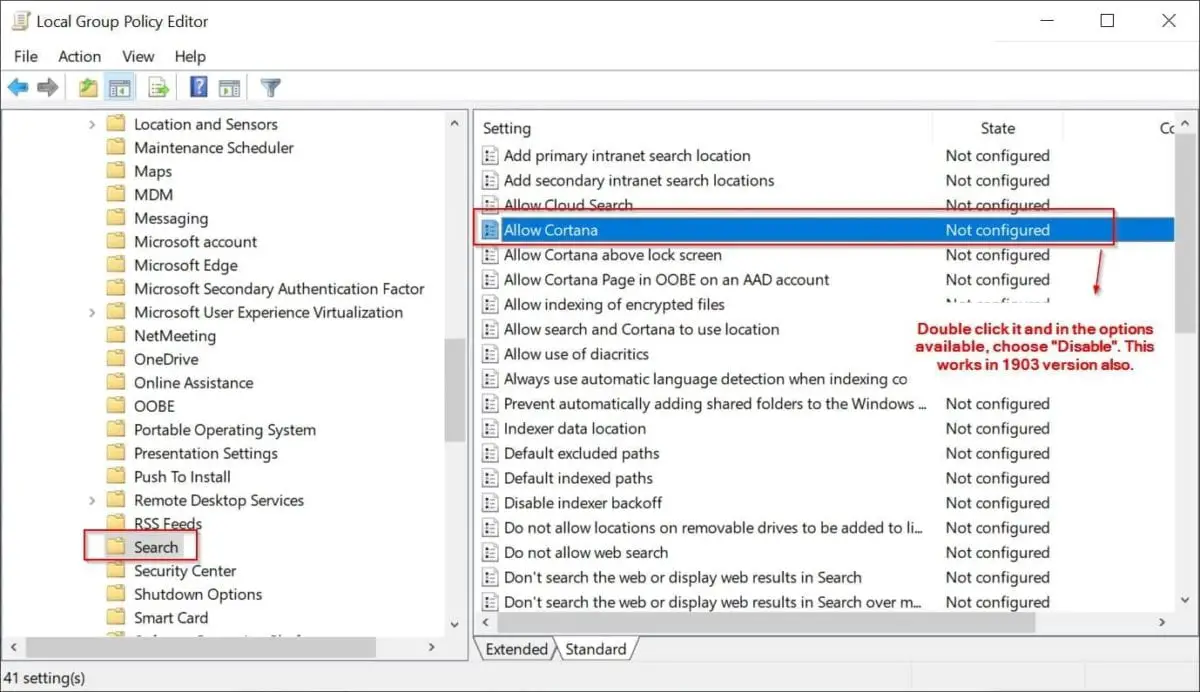
    turn off cortana windows 10 1903
    Note: But OneDrive, Microsoft Edge and Cortana are so tightly integrated into Windows 10 core system, that it is still seen in the Task Manager process.

    This may not work in Windows 10 Home edition if you don’t have Administrator privileges. Otherwise, you cannot access group policy editor.

    We must make sure that removing Cortana doesn’t interfere with the search feature. Search and Cortana appear as two different icons and apps in 1909 and 1903 version.

    Cortana – Overview

    It takes only 30 to 40 MB of RAM memory and <1% CPU power in 1909 version. It doesn’t hamper your Windows 10 system performance, even though you leave as it is.

    Cortana process occupies only 4.5 MB of Memory in 20H2 update when you disable it.

    Renaming SystemApps folder is another option in earlier version like Anniversary or Creators update. By hiding it, you can completely turn off Cortana forever.

    Using administrative privileges and Powershell also, the same action can be completed.

    But you can still see “Cortana” running the background as a process in the Task Manager.

    This is because of a program named SearchUI.exe.

    In 2022, Microsoft’s Cortana is almost removed as a standard feature and is a neglected app of Windows 10.

    Though you cannot uninstall Cortana, you can reduce the burden by disabling it.

    Cortana also uses the Microsoft account for storing, analyzing and collecting data.

    cortana image windows 10

    In this post we are going to see 4 more different methods on how to disable Cortana in windows 10

    #1 – Disable Cortana in Task Manager Start Up

    One of the simple methods to stop Cortana from running at the start up. This makes sure that it does not annoy you when you are working on the Microsoft Office programs or any other business suite. Most of the productivity happens when you type rather than speak. Follow these steps if you want to keep your work simple.

    Total Time: 1 minute

    Press Ctrl + Shift + Esc to open the Task Manager

    Otherwise, you can press Ctrl + Alt + Del keys and click on “Task Manager”. Or search for that app in the “search box”.how to open task manager app in windows 10
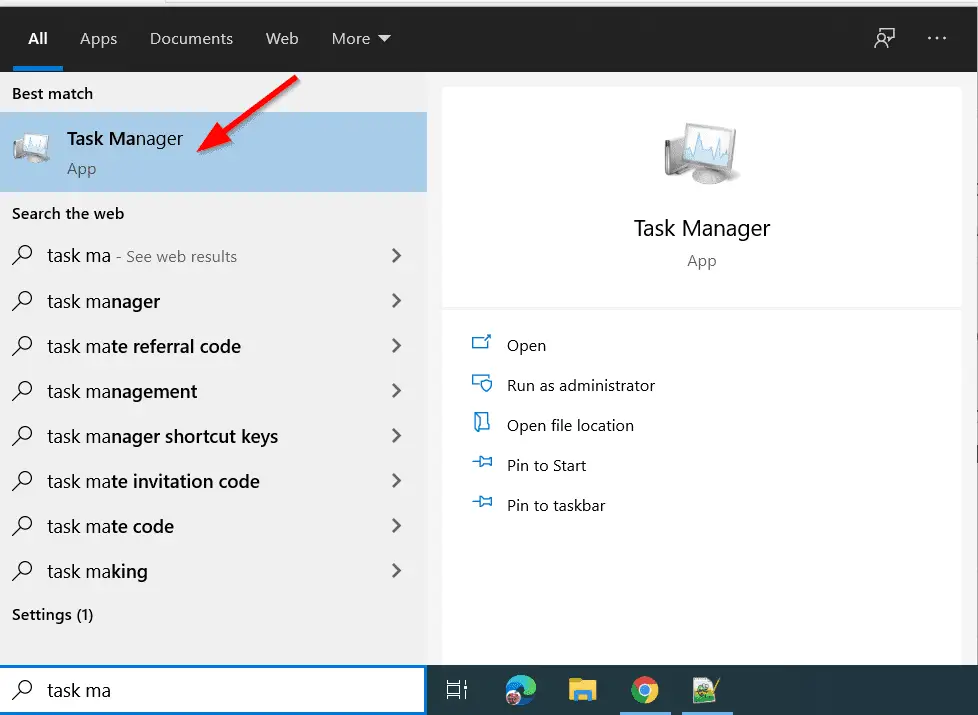
    A small window opens.

    Click on “More details” to see the full features.
    windows 10 task manager more details

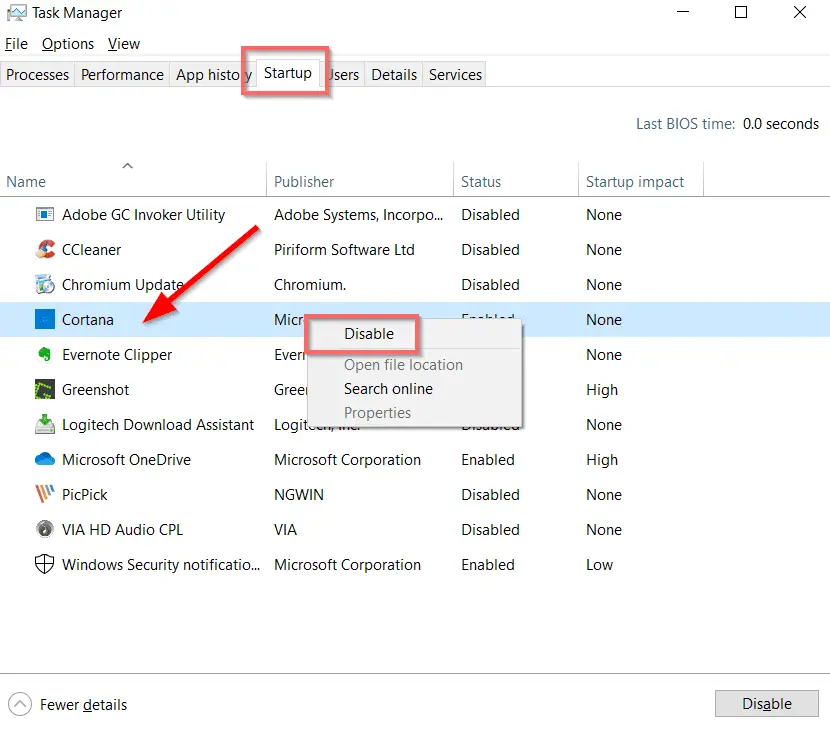
    Click on “Startup”.

    This will show all the startup items in Windows 10. You can enable/disable any app or program to speed up start up. Also, it will reduce the burden on the processes running.

    Cortana is also one start-up item listed here.

    Right-click the item and click on “Disable”. The status should show disabled.

    Note: If you have turn off Cortana using group policy editor, then it will show a message to get “Administrator privileges” to make it work again. So enable it there and then enable it here, to see it active again.disable cortana
    #2: Turn off Cortana in Background Apps

    1. Press Win + I key to open Settings.
    2. Click on Privacy > Background apps.
    3. Turn off the option – Let apps run in the background.

    Then try killing the Cortana process.

    My Experience

    I was able to successfully disable Cortana in 1909 version using Group Policy Editor. But when I deleted its process in Task Manager, it started appearing again. I tried the above steps, but it was still showing.

    I was unable to rename the Cortana System folder also. After sometime, when I tried to end the task, it worked. I am not sure what exactly worked.

    #3 : How to Turn off Cortana using Registry?

    On April 5th, 2017 the third major update of Windows 10 was released code named – Creators update. The following are the different methods to turn off Cortana in this version.

    Turn Off Cortana in Windows 10 using Registry (All Windows 10 Editions)

    Step #1 : Open Registry Editor. (Press Win + R key and in the run box type “regedit”.

    Step #2 : Go to the following Registry key:
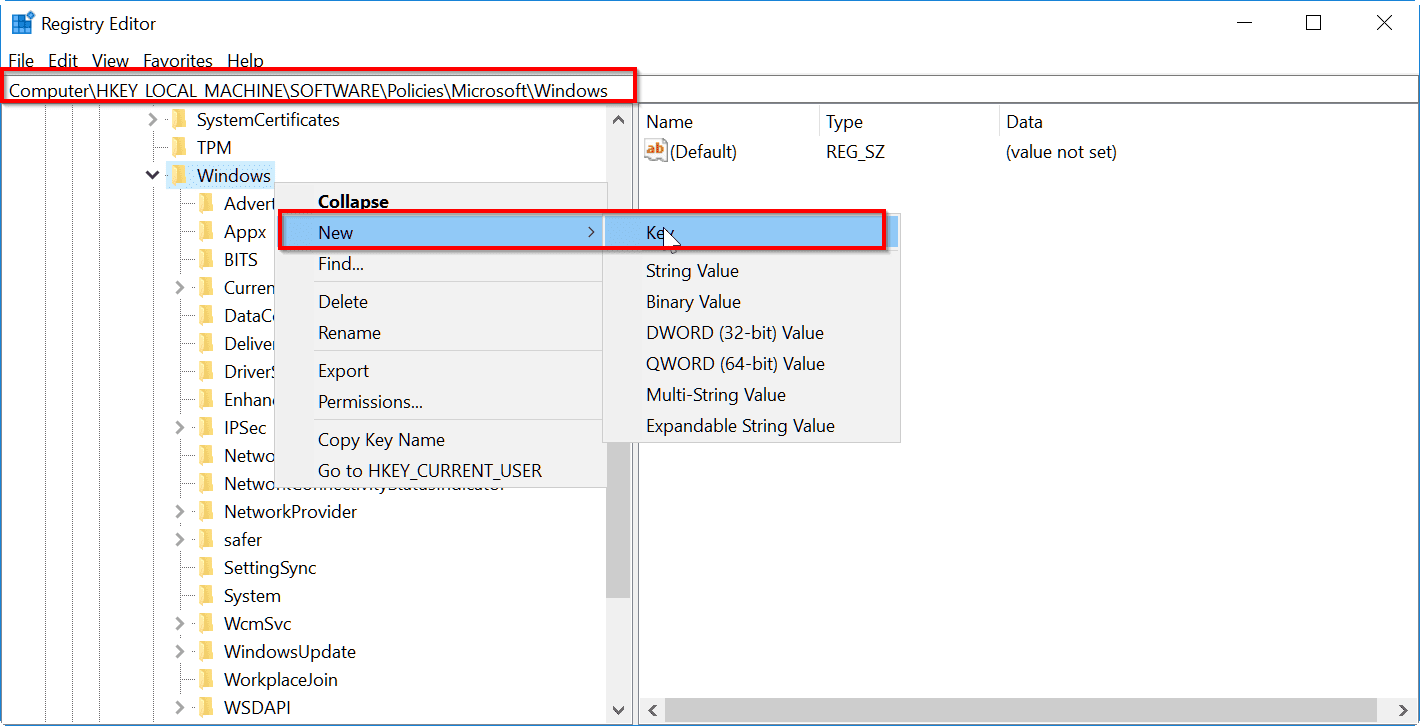
    HKEY_LOCAL_MACHINE\SOFTWARE\Policies\Microsoft\Windows\Windows Search (By default the last key – Windows Search is not there for most of the users. Then you have to create that key).

    #3: Select “Windows Search” key and Right-click on the right.

    Step #4 :  Select New – DWORD (32-bit) value in the menu as shown below.

    Step #5 : Create a new 32-bit DWORD value here named “AllowCortana” and leave its value data as 0.

    Note: Even if you are running Windows 10 64-bit, you need to create a 32-bit DWORD value.
    Now, restart Windows 10 and you are done.
    turn off cortana windows 10 creators update registry tweak

    You can disable Cortana in Windows 10.

    While the SearchUI process will still remain in the process list, Cortana won’t be functional and won’t consume system resources. This will work for all editions of Windows 10 like Home, Pro and Enterprise.

    Moreover, you can make a simple registry tweak to resolve Cortana issues.

    According to some users, this proved as a most fruitful solution for multiple issues. Follow these instructions to perform this simple registry tweak:

    1. In the Search Windows bar, type regedit.
    2. Right-click regedit and Run as Administrator.
    3. Navigate to HKEY_CURRENT_USER > SOFTWARE >Microsoft >Windows > CurrentVersion >Search.
    4. Change the BingSearchEnabled value from 1 to 0.
      Make sure all of the Cortana flags are set to 0 instead of 1.

    Restart PC and check out Cortana again.

    turn off cortana windows 10 using registry

    The Cortana app will still run in the background, though not using any resources, using the above two methods.

    #4: Using PowerShell and Elevated Command Prompt to Deregister Cortana App

    In elevated PowerShell:

    Get-AppxPackage | Select Name, PackageFullName
    Remove-AppxPackage Microsoft.Windows.Cortana_1.4.8.176_neutral_neutral_cw5n1h2txyewy

    Download the tool called win6x_registry_tweak. Now open a command prompt with admin rights in the folder of the downloaded exe and run this command:

    install_wim_tweak.exe /o /c Microsoft-Windows-Cortana /r

    This command removes the 3 cortana packages (Cortana main package, language pack and PAL package):

    Microsoft-Windows-Cortana-Package~31bf3856ad364e35~x86~de-DE~10.0.10240.16384
    Microsoft-Windows-Cortana-Package~31bf3856ad364e35~x86~~10.0.10240.16384
    Microsoft-Windows-Cortana-PAL-Desktop-Package~31bf3856ad364e35~x86~~10.0.10240.16384

    After a reboot your Windows is cortana free.

    deregister cortana packages windows 10 disable

    WARNING – This will totally eliminate and remove Cortana. It’s not easy to get back the Cortana app feature again.

    • So, make a full backup or create a system restore point, if you later want to restore it.
    • If you have not done any backup, use those steps to generate the CABs for your Build.
    • Replace Flash with the MUM names of the Cortana packages.
    • You need to generate CABs for all Cortana MUM files like here the x86 MUMs for Build 14393.

    Sources:

    1. https://superuser.com/questions/949569/can-i-completely-disable-cortana-on-windows-10

    In Windows 10 latest version, Cortana will not work without the Microsoft account. But you can use it for local personalized searches.

    How to Stop Cortana Process in Task Manager

    Cortana process will run in Task Manager, even after disabling it using Group Policy Editor.

    If you see the details for this process, you can see that a program called “SearchUI.exe” is running. It is better NOT to delete it, as it may cause unexpected behavior to the system.

    But if you are using the old versions of Windows 10 – like 1803 or 1709, it is better to kill this process. This could see some performance gain for legacy computers taking CPU and Memory usage.

    1. Right-click the Start Menu and select the Task Manager from it.
    2. In the Processes tab, find the “Cortana” process.  (If you have a leaf icon, it means it is suspending processes that are taking system resources. You can click the arrow icon, to open up the sub-processes. )
    3. Select the “Cortana” mini-process and right-click it. From it, select “Open file-location“.
    4. This will open the SystemApps folder. In that folder you can find a folder with a name “Microsoft.Windows.Cortana_cw5n1h2txyewy“.
    5. Rename it, with something like .bak added at its end. An error message with “Try again” button is displayed. Keep it open.
    6. Now right-click the “Cortana” process again and click on “End Task“.
    7. Immediately click on the “Try again” button in the previous error window kept open. (This should happen before the Cortana process restarts again. So do it quickly).
    kill cortana process permanently windows 10

    Now the Cortana process is permanently removed from the Task Manager. This same trick works in 1809 and 1803 and also in 1909 and 1903 versions.
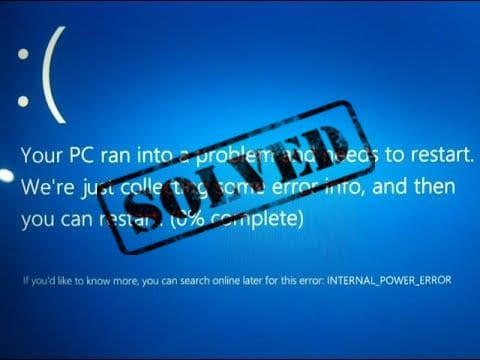
     

  • How to Solve Windows 10 BSOD Error – Few Fixes and Last Resort Solution

    Sad face with a Blue Screen of Death (BSOD) loop in Windows 10 can cause the same frustration as in 8.1 and 7. Casual users with no knowledge of the stop code error, typically take their PC or system to a computer repair shop to get it rectified. But sometimes it is just a DIY solution for this pc screen error.

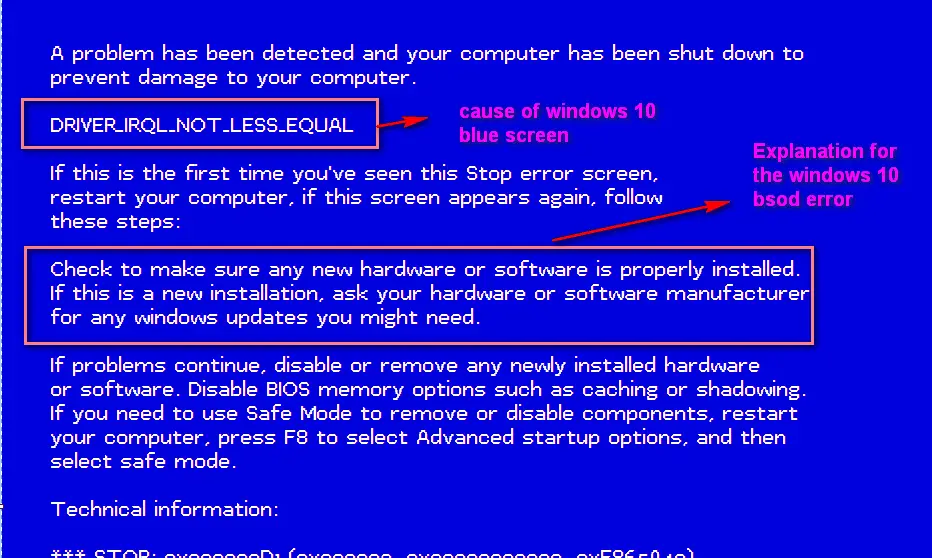
    The cause for “your pc ran into a problem and needs to restart windows 10 loop” can be many. It can be a memory management error like BAD RAM, hardware error like faulty harddrive, motherboard problem etc. But if you have checked all your hardware and find they are in good condition, then it can be some system error like “critical process died on boot”.

    windows 10 blue screen error irql not less or equal

    Before I give other fixes and different methods to solve BSOD error in Windows 10, let’s look at the quick , dreaded and ultimate solution.

    How to Solve BSOD Error in Windows 10 Quickly?

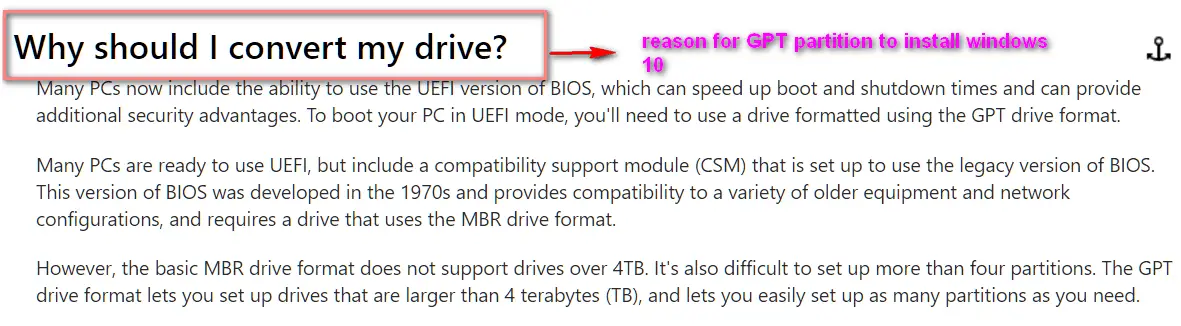
    Sometimes the reason could be due to false-partitioning system of your harddrive. Windows 10 generally prefers the UEFI system with GPT partitioning system. This will make your computer boot and shut down faster.

    But for example, when you upgrade from Windows 7 or 8.1, you might still have the old MBR system which uses the standard BIOS partition table. GUID partition table(GPT) disks use UEFI systems, a type of firmware.

    The advantage with GPT over MBR is that, you can create more than 4 partitions on one disk. Also if the disk size is greater than 2 TB, then you “have” to go for GPT system.

    So in the above case with old BIOS, it is better to fresh install Windows 10.

    When you install Win 10 on UEFI-based systems using installation media, your harddrive partition style may support either GPT (UEFI mode) or MBR (legacy BIOS – compatibility mode).

    You may receive this dreaded error message, when you try to do clean install Win 10 to remove BSOD error. “Windows cannot be installed to this disk. The selected disk is not of the GPT partition style”.

    This is because your PC is booted in UEFI mode, but your harddrive is not set to work with UEFI mode. For this type of problem, you can do two things.

    1. Reboot the PC in legacy BIOS-compatibility mode. This will automatically recognize the existing partition style and you can go forward.

    But if you want to update to the latest firmware and utilize Windows 10 features, you can do the second step.

    2. Reformat the harddrive for UEFI to use the GPT partitioning style. This will let you use the PC’s UEFI firmware features.

    Warning: Be sure that you backed up all the important data.

    How to Reformat the HDD to use GPT partition style?

    The following are the steps.

    screen of death indows 10 partition system cause

    1. Shutdown PC and put in Windows 10 Installation DVD or USB.
    2. Boot PC to DVD or USB, by changing in the Boot Options of BIOS, in UEFI mode.
    3. Select “Custom” installation type.
    4. When “Where do you want to install Windows?” screen comes, just delete all the existing partitions.
    5. Select the unallocated space and click Next.
    6. Windows 10 detects that the PC was booted in UEFI mode and reformats the drive using GPT drive format and begins installation.

    Source : https://technet.microsoft.com/en-in/library/dn336946.aspx

    What is meant by Blue Screen in Windows?

    It is a fatal system error, popularly known as Blue Screen of Death. It is an stop error displayed on the computer screen. After that computer restarts or reboots itself automatically, going into a loop. The basic problem is you can’t boot into your Windows operating system.

    How to fix the blue screen of death in Windows 10 if you have System Restore?

    Windows 10 just like the previous versions, provides a way to create an System restore point in your computer. This will just create a kind of time machine freeze of the current system status in your computer. It will record all the system files at that time and state. But it will take some disk space.

    So when you get a BSOD error, you can just restore to your previous System Restore point. All the normal files, which do not come under system or OS files, will still be intact. But the system and OS files, will revert back to the stage when the System restore point is created.

    So if the cause of blue screen is due to corruption of system or OS files, then your problem is fixed.

    How to Solve Blue Screen Problem in Windows 10 if cause is Driver Error?

    Sometimes, a new graphics driver or sound driver can be the issue. The solution is to go into safe mode and uninstall those new drivers. You can follow these simple steps to get out of the blue screen.

    1. Restart your PC.
    2. Press the required key like F8 (or Shift + F8) to go into Automatic Recovery mode.
    3. You can access the recovery options.
    4. You can also press the SHIFT + Restart at the login screen.
    5. Click Repair your computer.
    6. Then Troubleshoot > Advanced options > Windows Startup Settings
    7. Click Restart
    8. The next screen will have Advanced Boot Options title.
    9. Select Safe Mode and hit Enter.


    How to Create Dump Files to Solve BSOD error in Windows 10?

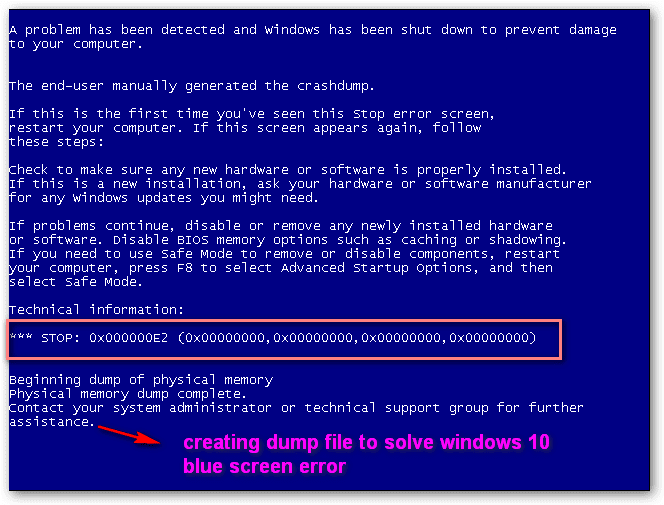
    Windows experts and patient people can take this approach. A dump file which has an extension .dmp contains data that is “dumped” from a program’s memory space. Generally this is created when a program has error or crashed. It will contain some serious technical stuff related to the crash errors.

    The default location of the full dump file in Windows 10 is generally C:\memory.dmp or C:\Windows\memory.dmp where C: is the system drive. Sometimes mini dumps are also created in C:\Windows\Minidump.

    These files are not generally created by default. You have to turn them on in the Control Panel. You should also include some STOP code and parameters in your Event log.

    WinDbg is an all-in-one debugger provided by Windows for troubleshooting bsod kind of errors. Debugging is the process of locating the errors and resolving them. With the help of this tool, you can read the dump files created when error happens.

    windows 10 blue screen on boot

    How to Configure Windows 10 to Create Dump Files on BSOD Error?

    1. Open Control Panel.
    2. Go to System and Security > System > Advanced System Settings.
    3. Click on Advanced Tab.
    4. Settings > Startup and Recovery.
    5. Check the Debugging information panel.
    6. In the Write debugging information windows, Automatic Memory Dump is selected, by default.
    7. To create a dump file on BSOD error, you can choose, Small Memory Dump (MiniDump) on BSOD.
    8. There are other types of memory dump like Kernel, Complete and Active Memory dump.

    Then you show these .dmp files to an expert or publish in forums for an analysis of it.

    But, instead of digging deep into the cause of such error, it is more easy to apply the solution I’m going to describe.

    How to use Windows 10 Blue Screen Log to fix Blue Screen Crashes?

    To see the log details of the error causing BSOD, you can take the help of logs created by Windows.

    For this you can carry out the following steps.
    1. Open the Event Viewer with elevated privileges.
    2. In the Event Viewer, you can navigate through the various items known as as Views on the left-hand navigation pane.
    3. For quicker access, you can also create a Custom View and enter your criteria.
    4. You can then export your logs for deeper analysis.
    5. This simple command also will repair your file system and clear your BSOD error.

    chkdsk /F

    6. You can do it for all drives in the Windows Power sheel as adminstrator. Reboot after each operation, but don’t force a dismount.

    Source : https://technet.microsoft.com/en-in/library/hh825112.aspx

    Some Miscellaneous Methods to Fix Windows

    1. You can also use the Reliability monitor to find the cause of Windows crash. You will see a “Windows failure” message in the “View reliability history“.
    2. If there are lot of crashes, then you can do a “Reset” of your OS. Instantly, this will set Windows back to factory-default state, fixing system corruption problems, removing buggy drivers, malware infections etc.
    3. The Memory diagnostic tool in Windows 10 will help test the memory of your PC. It will check if RAM, BIOS etc are working properly. If memory is damage, this can also cause system instability and blue-screens.

    Some Typical Windows 10 Blue Screen Error Codes

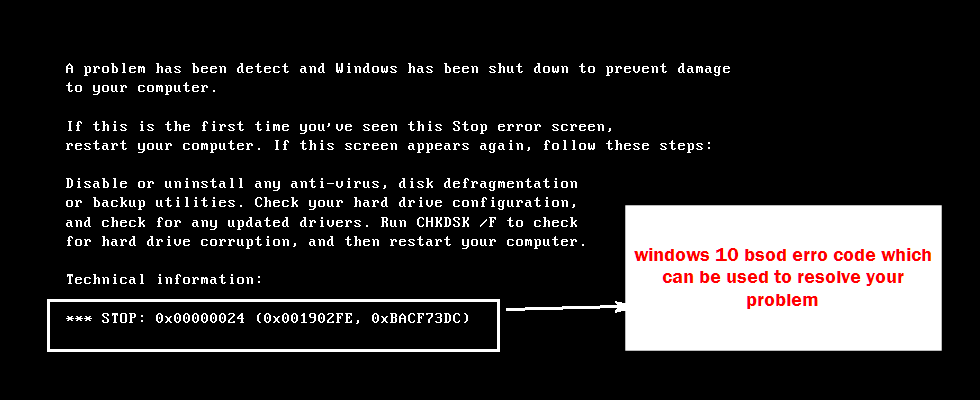
    A BSOD error code or stop code is like a bug check code which is a number that typically identifies specific STOP error (Blue Screen of Death). You can get reliable information based on this error code and cause of BSOD.

    Some of these error codes and causes are –

    0x00000001  –  This BSOD means that there has been a mismatch in the APC state index. BSOD error code 0x00000001 may also show “APC_INDEX_MISMATCH” on the same blue screen.

    0x00000004 –  This BSOD is uncommon. BSOD error code 0x00000004 may also show “INVALID_DATA_ACCESS_TRAP” on the same blue screen.

    0x0000000A  – This BSOD means that Microsoft Windows or a kernel-mode driver accessed paged memory at DISPATCH_LEVEL or above. BSOD error code 0x0000000A may also show “IRQL_NOT_LESS_OR_EQUAL” on the same blue screen.

    0x0000001A –  This BSOD means that a severe memory management error occurred. BSOD error code 0x0000001A may also show “MEMORY_MANAGEMENT” on the same blue screen.

    0x0000003B  – This BSOD means that an exception happened while executing a routine that transitions from non-privileged code to privileged code. BSOD error code 0x0000003B may also show “SYSTEM_SERVICE_EXCEPTION” on the same blue screen.

    For a full reference you can see the article below –
    https://www.lifewire.com/blue-screen-error-codes-4065576

    What to do with Blank Blue Screen with no error Messages?

    Sometimes you see a blank blue screen after Windows loading screen with no error code. Safe mode may not work and reinstalling Windows fails. In this case you can try the “final” fux mentioned below or do a repair of system files.

    For this you need to run the following command in Windows Power Shell or Command Prompt with administrator rights.

    SFC /SCANNOW Command

    This will automatically detect system file error and repair them.

    How to Proceed with the Universal Solution on BSOD Error?

    First take a backup of all your necessary files on your PC other than OS files. This can be accomplished, by taking a backup from time to time.

    But you have not taken backup and you have BSOD error, you are not in a stage to boot into Windows 10. In that case, you can insert your old Windows 7 or 8.1 installation disc or flash drive, and delete the Windows 10 completely. Then install an older version of Windows which supports your old BIOS or MBR.

    Then take a backup.

    Now do a fresh install of Windows 10 from a DVD or USB.

    You now format the Windows partition again (probably Win 7 or 8.1) and try to install Windows 10 on it. If it is a success, then your BIOS is already UEFI and you have a GPT partition. You can just finish the installation and the BSOD error is gone.

    But if you get an error something like this – “Windows cannot be installed to this disk. The selected disk has an MBR partition table. On EFI systems, Windows can only be installed to GPT disks.”

    It means that your HDD is set up as MBR, but Win 10 says your motherboard supports UEFI bios and wants to use GPT as the partitioning system. Then delete all the partitions.

    Click Next. If you still get error, close the installer and do a restart.

    Now do the partitioning (using GPT) with the help of the Windows 10 installation disc and continue installing Windows 10 on one of the partitions.

    Now your BSOD problem will be gone and you have a new fast Windows 10 OS.

    This video shows the steps to fix memory management error which can also be a cause for Windows 10 BSOD error.  One can use the diagnostic information to find the real culprit behind the BSOD and take appropriate steps.

    Conclusion

    Though this a little crude method of fixing the problem, it will solve your error. You will also save lot of time debugging into the dumps, trying to locate the cause of the error. This will also help in a clean install and remove any viruses etc.

    This is like an universal solution to any kind of BSOD error in Windows 10. It will not take more than 30 minutes to 1 hour, if you have already taken the backup of your important files.

    Also your system will be faster and responsive.

    Share this article with your friends, if they are having BSOD errors in Windows 10.

  • How to Fix Error Code 0x80070020 in Windows 10 – 7 Different Methods

    Error code 0x80070020 is the error encountered when Windows users attempt to download updates from the Windows Update Website or attempt to upgrade to Windows 10. Error code 0x80070020 can also manifest in cases where a computer already has Windows 10 installed.

    When encountered, error code 0x80070020 tells the user that the update files cannot be accessed, because they’re currently being used by another process. While Error code 0x80070020 may appear in the subsequent formats:

    error code 0x80070020 during install while another file is being used

    0x80070020

    OR

    “The process cannot access the file because it is being used by another process”

    Causes of Error Code 0x80070020

    The principal factor behind the occurrence of error code 0x80070020 is interference. It may occur during another automatic update procedure. For example: Antivirus scanners tend to scan in real-time. If you’re about to receive updates during the real-time scanning, the process might be halted.

    Hence, depending on what caused the error message to occur, you might want to tailor your solution based on that. The following known methods can be used for rectifying error code 0x80070020.

    error code 0x80070020 iis web server service error

    Note: Leaving update errors unresolved might slow down your computer’s performance or lead to other error messages, including error code 0x80070057.

    How to Fix Error Code 0x80070020

    Method #1: Restart your computer

    As aforementioned, your update might be interfered with. The safest and quickest way to fixing this hindrance is to close all the programs opened and restart your computer. Re-attempt the update process after the computer restarts.

    Method #2: Disable your antivirus software briefly

    Disabling your spyware and antivirus is actually a workaround to resolving error code 0x80070020. However, this method will actually leave your computer system vulnerable and opened to an attack by malicious files. It is risky and should be implemented at your discretion. If you wish to proceed with this method, follow the steps below:

    1.      Use the notifications area to locate those programs that are currently in process. The notifications area is located on the lower right hand corner of your computer screen. It’s the first section on your computer you’d normally visit to determine the date and time. In some cases where the antivirus and antispyware icons aren’t obvious on the taskbar, you may need to click an arrow pointing up to reveal what’s currently running

    2.      Right click on the icon of your antivirus and choose the ‘disable’ option.

    Method #3: Execute the update troubleshooter for Windows  

    Windows has its own process of fixing error codes when encountered. Using the built-in troubleshooting mechanism, users have been able to determine the underlined cause of an error. Subsequent to using troubleshoot, some errors were rectified. Therefor the following  steps will help to access the update troubleshooter:

    1. Hold the Windows key and ‘X’ to access a menu. This menu will appear on the bottom left corner of your screen.
    2. Click the Control Panel
    3. Use the View by option to change the appearance of the files. Choose large or small icons. The view by option is located on the upper right hand corner of your computer screen.
    4. After modifying the appearance of the files onscreen, select the troubleshooting
    5. Execute the Windows update troubleshooter.
    6. Restart your computer system and check to determine if the issue is solved.

    error code 0x80070020 in windows 10 when MS NET service corruption

    Method #4: Perform a clean boot

    A clean boot is often carried out to boot Windows using fewer resources – startup programs and drivers. This ensures that conflicts are minimized and software does not clash whenever updates are being received. With a clean boot, you can then assess or pinpoint what’s actually causing the occurrence of error code 0x80070020. To learn how to execute a clean boot, follow the procedures underscored on Microsoft’s Support website.

    Method #5: Reset Windows update components

    This process is actually risky and should be a last resort. The steps underscored in this process will change your computer’s registry so be sure to accurately proceed. If a mistake occurs, you might modify the registry incorrectly, which will give way to other error messages. To reset Windows update components, follow closely the steps highlighted on Microsoft’s website.

    The above process can be done in the following simple steps.

    1. First open the Command Prompt with Administrator privileges.
    2. Stop the BITS, Cryptographic, MSI Installer and the Windows Update Services
    3. Now rename the SoftwareDistributionand Catroot2folder to something like <foldername>.old.
    4. Now restart the BITS, Cryptographic, MSI Installerand the Windows Update Services.
    5. Exit the command prompt and restart the computer. Now try to install the updates.

    fix error code 0x80070020 windows 10 repair restart services

    Method #6: Bit Defender can be a Hindrance

    Sometimes third-party anti-virus applications like Bit Defender may see the Windows Updates as a threat. This is because the new Updates of Windows 10 may not still be registered with the anti-virus vendor. The solution to this kind of problem is to temporarily disable the anti-virus and do the Update. Then you can update the Bit Defender anti-virus engine.

    Method #7: Using DISM Tool to Resolve the Problem

    There is a nifty command-line utility known as Deployment Image Servicing and Management (DISM).  It comes installed by default in Windows 10. This small program can be used to repair and prepare Windows images etc. The main purpose of this program in the resolution of 0x80070020 error code is that it can fix the recovery image of Windows 10 OS and service a virtual hard-disk.

    Scan Files to Check for Errors

    The simplest steps that can be performed to fix 0x80070020 issue can be like this:

    1. Open Command Prompt with Administrator privileges.
    2. Then type the following command in the command prompt.

    sfc /scannow

    Note: It can take up to 3 tries for SFC to fix the above issue.

    You can still use the DISM tool deeply with the following three options – CheckHealth, ScanHealth, and RestoreHealth.

    Using /CheckHealth switch you can verify whether any corruption occurred to the Windows files or components.

    The /ScanHealth can scan the Windows image for any corruption and can take up to 10 minutes to give the results.

    The /RestoreHealth switch can scan the Windows image for any corruption and also do a repair automatically. This process can take nearly 20 to 30 minutes.

    But sometimes, you don’t have the location of good files in your PC.  The system image files might have been corrupted.

    So, in this case, you need a copy of install.wim file from a good Windows 10 computer or the Windows 10 ISO file. It’s also prerequisite that the source of the required good files matches the same language, edition and version of the OS you are using.

    Usage of DISM Utility to Clean Corrupted files

    You can use the following commands, one by one, to use the /RestoreHealth switch with the source path location of good files.

    1. First Command – DISM /Online /Cleanup-Image /RestoreHealth /Source:repairSource\install.wim
    2. Next Try – DISM /Online /Cleanup-Image /RestoreHealth /Source:repairSource\install.wim /LimitAccess
    3. Next – DISM /Online /Cleanup-Image /RestoreHealth /Source:wim:repairSource\install.wim:1 /LimitAccess

    The “repairSource” is the source of the known good files. For example, F:\Windows10Restore\install.wim.

    The above video talks about the common Windows 10 Update errors and how to resolve them. As you might have observed by now, 0x80070020 error code also belong to this class. So, the above guide should be useful in fixing the above error.

    Conclusion

    If you’re not able to fix error code 0x80070020 after attempting the aforementioned methods, you may want to contact a certified technician to assist in fixing the error message, or simply download a powerful automated system optimizer to fix the error message.

    This article is written by : Samantha is a Content Marketing Strategist who helps businesses get visible through strategic content and actionable SEO. She blogs extensively about Windows related issues at Error Tools.

    Social Profiles :  Facebook | Twitter | Google+

  • How to Fix Outlook 2016 Crashes on Startup – Common Reasons and Typical Solutions

    The root cause analysis for Outlook 2016 freezing is a tedious task. To better solve such problems, we have identified some of the common reasons for such crashes on startup and listed their solutions. Sometimes an update like KB 3097877 can cause an hang of Office software. There can be other cases, like when you try to reply a new message, your Outlook is crashing.

    More Related : Simple Tool to Recover PST Files in Outlook 2013 – RecoveryFix [Review]

    To give fixes for all the causes of crashes of Outlook 2016 on startup is an herculean task. So we provide some general answers to common problems. We will update the article whenever there is a new solutions or many users facing the same type of issue.

    More Related : Fix Outlook 2013 and 2010 Loading Profile Problems – Several Solutions

    Solution 1

    In this scenario, the culprit can be some bad system file of Outlook 2016. So if you can repair your Office installation files and restart the system, you should be happy to see your normal Outlook again.

    Check the “Current Version” number for Outlook 2016. This can be done in several ways.

    You can check Office forums, Google and Technet forums to find it.

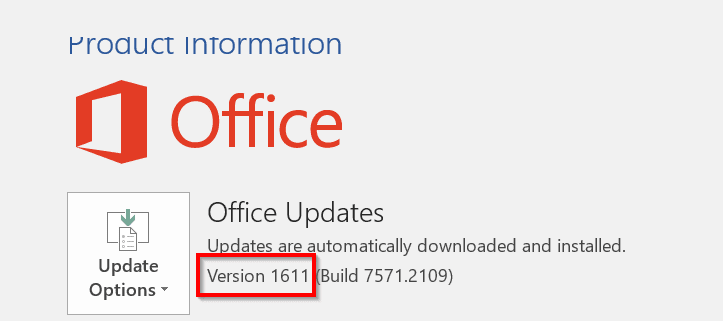
    Otherwise, you can just go to “File > Account” in any of the Office Software like Word, Excel, PowerPoint etc. You will find the version number and build number over there, as shown in image below.

    finding outlook 2016 version number to fix crashing issue

    For example, I’m using the latest version of Outlook 2016. The version number is 1611 and Build Number is 7571.2109.

    Then open the Run dialog box, using Win + R.

    Type one of the following commands in it, based on whether your Windows 10 is 64 bit or 32 bit.

    64-bit version, type:

    “%programfiles%\Microsoft Office 15\ClientX64\OfficeClickToRun.exe” /update user updatetoversion=(version)

    32-bit version, type:

    “%programfiles%\Microsoft Office 15\ClientX86\OfficeClickToRun.exe” /update user updatetoversion=(version)

    Here, the version number is the one relevant to you, which you found out earlier.

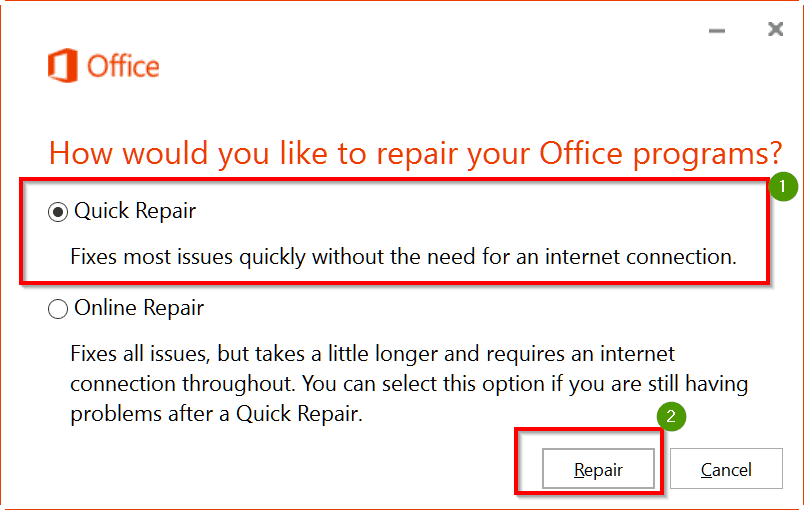
    When there is a prompt, select the option “Repair” Office.

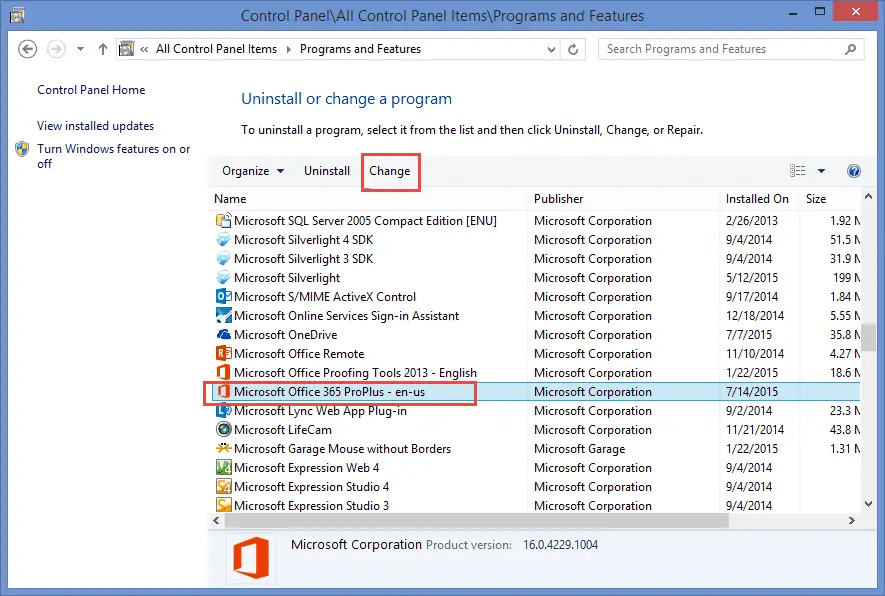
    This can also be done using “Programs and Features” in the Control Panel. You can select your version of Office 2016 and right-click and select “Change”. Then select “Repair Office” in the next dialog box.

    how to repair office 2016 for outlook crashing issue repair outlook 2016 installation files

    Solution 2

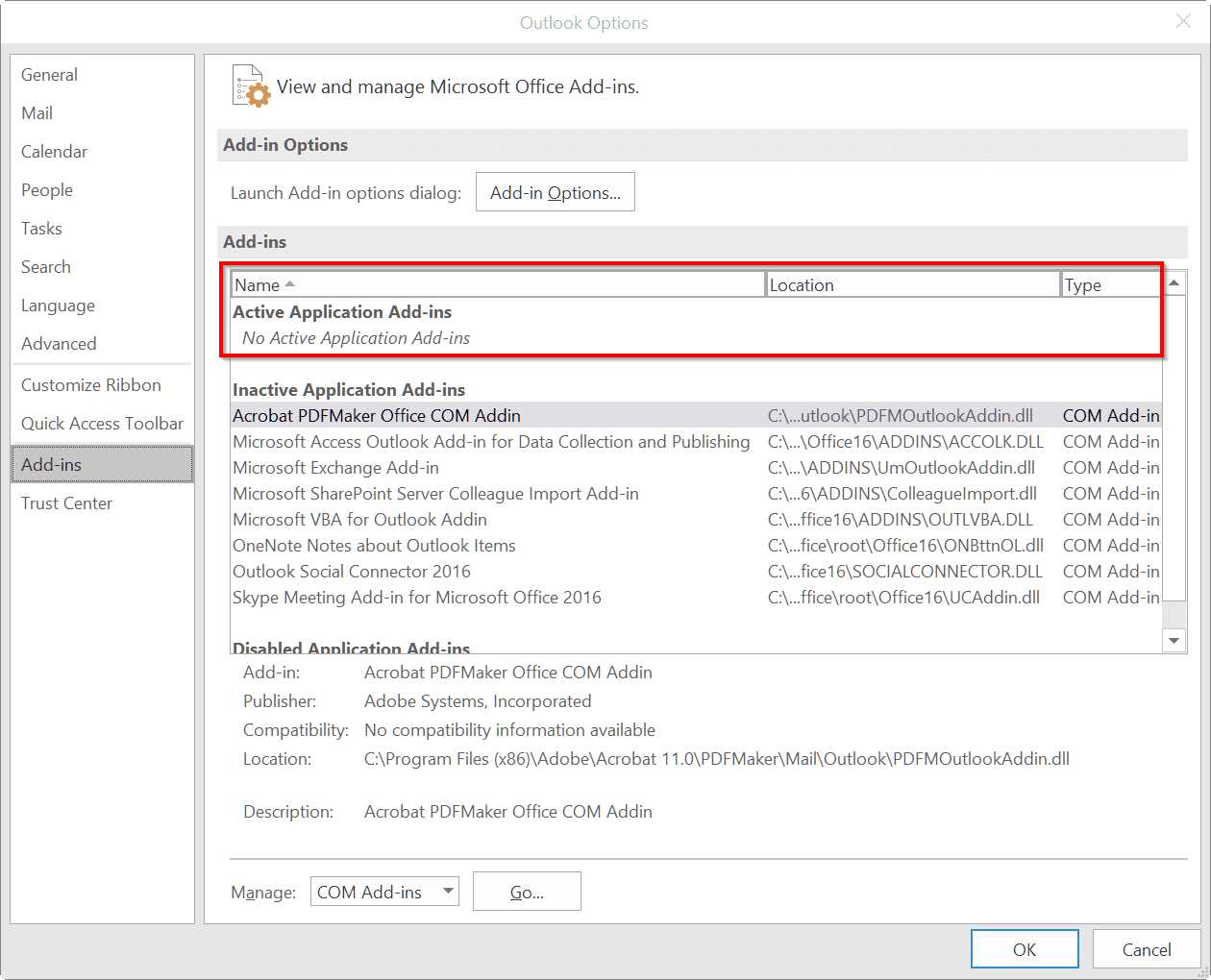
    This type of scenario arises when you have a bad add-in in Outlook. With the intention of different functionality you keep on installing new add-ins from time to time. These all take resources (time) during the startup of Outlook 2016. Sometimes, Outlook opens slowly, but sometimes it crashes. In such cases you can follow this solution.

    1. Select “CTRL” key using your desktop keyboard while opening Outlook 2016.
    2. Select “File” > “Manage Add-Ins“.
    3. Now disable all types of “Add-ins” which are active by default. You can also do it by going through File > Options > Add-ins, if by luck Outlook starts at all.
    4. Restart Outlook again and check to see, if it’s not crashing.

    make all outlook 2016 add-ins inactive when crashing

    Solution 3

    This type of problem arises, when you have a graphics card like NVidia. You probably optimize its settings for better resolution, but the same can be a culprit in causing Outlook crashing. So you just have to toggle with the features of your Graphics card and set to default settings. Probably your Outlook 2016 will be normal again in Windows 10.

    1. Go into Outlook > File > Options > Advanced
    2. Look for “Display”
    3. SELECT/CHECK the “Disable Hardware graphics acceleration” option. (if it’s not already checked)

    I’m running SB with the NVIDIA GeForce graphics adaptor and it may be linked to Outlook 2016 not playing nice with the graphics acceleration.

    Source : https://answers.microsoft.com/en-us/msoffice/forum/msoffice_outlook-mso_win10/outlook-2016-keeps-on-crashing-windows-10/f8457682-e054-4431-bc48-8385216065be

    Solution 4

    The following are set of common steps to proceed whenever there is a crash with Outlook. You can follow them by order and eliminate that reason is the cause. Then restart Outlook and see if it works normal again.

    Step 1:

    Start Outlook in safe mode.

    Launch Outlook in safe mode by choosing one of the following options.

    • In Windows 10, choose Start, type Outlook.exe /safe, and press Enter.

    Step 2:

    Is there any Outlook pop-up dialog box open?

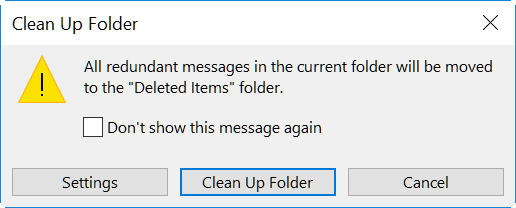
    Sometimes Outlook 2016 asks for confirmation of an action using a dialog box. For example, when you try to “Clean up Folder” it will show a pop-up message, to check or select some options. If this pop-up goes background, you will not know that it is there. So, check for open dialog boxes, using Alt + Tab.

    long time processing of outlook 2016

    Step 3: Make sure Outlook isn’t working on a large or long process

    If you try to move or delete large number of messages, Outlook may take a long time to complete the action. So, check the status of Outlook operations at the bottom of the screen. If it is doing something, wait till its complete. If the process is complete after a few minutes, Outlook is back to normal again. Also, it is a good practice to do such operations from time to time, instead of doing it once in a year or two.

    Step 4: Install the latest Windows and Office updates

    Sometimes, a bad glitch in Outlook software or system programs can cause a crash. It is good to update your Windows 10 and Office 2016 whenever new updates are available.

    Step 5: Repair your Outlook data files

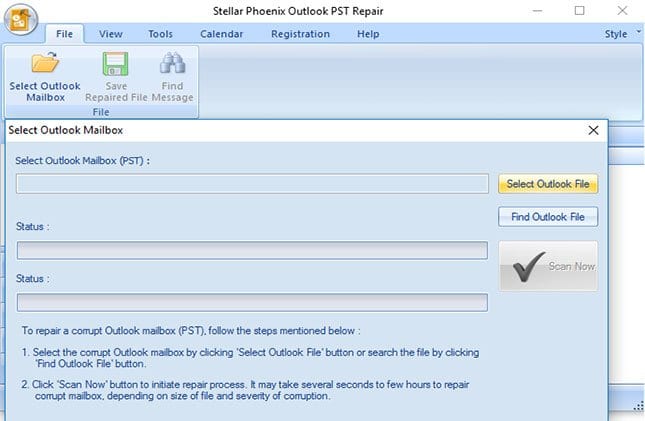
    During the installation of Office, a default repair tool called SCANPST.EXE is also installed on your desktop. You can utilize the service of this tool, to repair any crashes of Outlook by scanning data files and repairing errors.

    Step 6: Create a new user profile

    The last resort for Outlook not opening for a long time, is to create a new profile. Sometimes the old profile may have some settings which may conflict with other data files of Outlook. So whether it is Windows 10 or 8 or 7, you can start fresh by creating a new account.

    Solution 5

    Problem with Anti-Virus or Internet Security

    There are lot of anti-virus software and Internet Security programs that create lot of registry entries. They also alternate the settings of other programs like Outlook 2016. For example, McAfee, which is a brand anti-virus software can cause crashing errors in Outlook.

    To solve this, you just have to disable Host IPS in its settings. This is a typical example and may happen with any other anti-virus program. You just need to do some troubleshooting to find that right setting that is in conflict with Outlook.

    Solution 6

    Typical Updates

    For example, in earlier versions of Outlook crashes sometimes used to happen whenever there is a new update. So, in the same way, if you have a new update for Office 2016, you just need to search Google if this is causing any crash issue to Outlook 2016. If so, then you just uninstall the update and run Outlook again. If you find it runs normal, just prevent that update from running again, till a fix is found.

    Solution 7

    No Internet Connection and Old Teamviewer Add-on

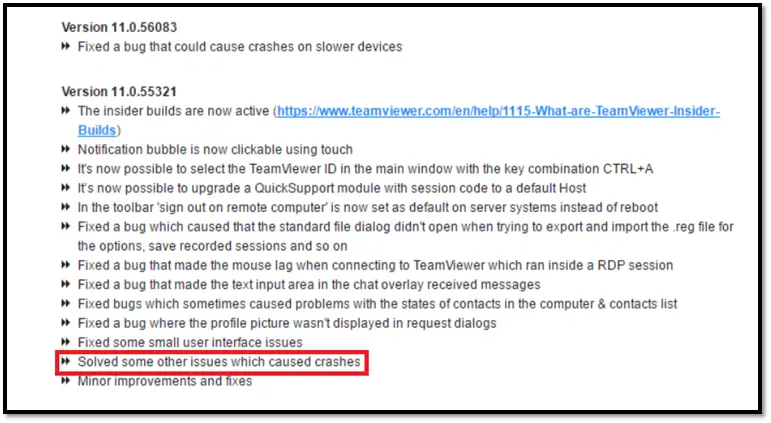
    Sometimes an outdated add-on version like Teamviewer 11.0.53254 which can cause crashes to Outlook 2016 is the primary cause. You may first not able to identify this cause.

    old teamviewer add-in crashing outlook 2016 issue solved

    But when you find that Outlook is crashing when there is no Internet connection, it could be a similar problem. So always try to update your Outlook add-ons and if it still does not resolve the problem, just disable them.

  • How to Fix HDMI over Ethernet Problems? General and Common Solutions

    In the latest year, many AV (Audio/Video) devices like Blu-Ray Player, DVD Player, Gaming Console (PS3, Xbox 360), Smart TV, Projector, PC, laptop, Plasma TV etc are using HDMI connection.

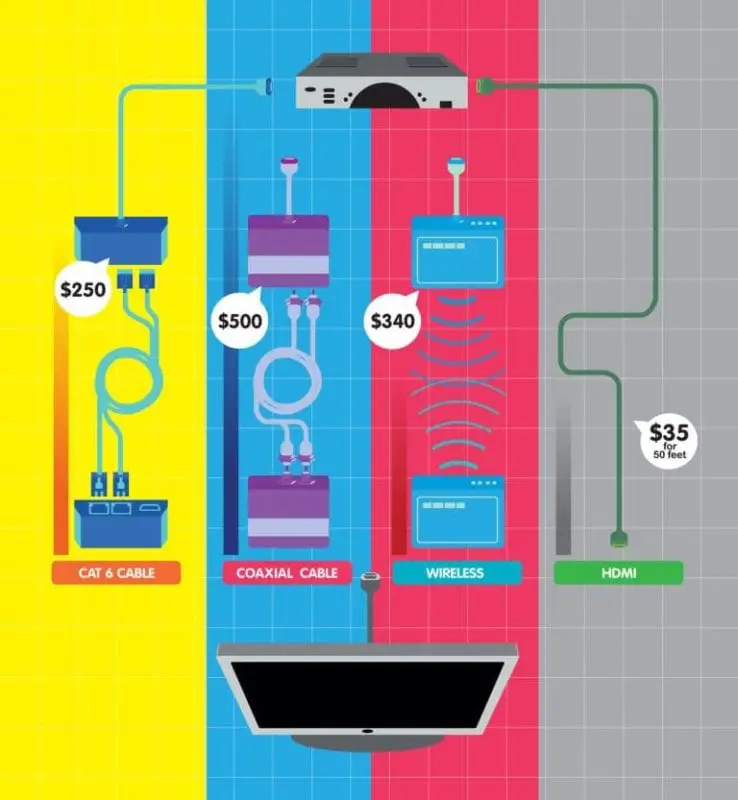
    The problem using High-Definition Multimedia Interface (HDMI) technology is that you need to look for coaxial cables, CAT6 cables, wireless extenders for connection lengths greater than 50 feet.

    To resolve hdmi over ethernet problems, one has to look at the different types of cables available and their issues.

    From this image below, we can observe that, the cheapest way to extend HDMI cable for lengths between 50 to 300 feet, is to use HDMI over Ethernet. Rightly speaking this is a loose term, and the right word is to use CAT 5e, 6, 7 cables or HDMI over IP.

    Possible answers to extension of HDMI over 50 feet

    [Image Source : http://www.popularmechanics.com/]

    The common problems you face with HDMI interface/connectors which are used to connect source to display to give high resolution of like 2560×1600, 75hz/1600 p etc are as follows .

    • No picture even with extension like CAT 6 balun
    • Low Resolution error than specified
    • Complex cables running through house for an HDMI home theater system
    • No video on your HDMI TV
    • Seeing flashes, dots, blank screen on your Display device like Smart TV, Plasma TV, Projector
    • Getting Picture but no HDMI audio
    • Multiple Display devices, with one device not working
    • Using in-line HDMI booster, but still no picture
    • Lack of hi-speed HDMI 1.4 rated cables that can handle 3D, faster speeds and Ethernet
    • Connecting HDMI to analog TV with DVI etc
    • No Audio, No Video when connecting through HDMI to DVI cable.

    How to Extend HDMI over 150 feet without losing signal, audio and video?

    For example, you have a standard PC. You want to connect to two TVs, Smart TV, projector using an HDMI splitter.

    But you don’t want to get bad signal or pixel problems. Since the distance is well over the 50 feet mark, you can consider the option of using HDMI and CAT cables.

    You can use one-direct 150 feet HDMI cord, but it is very expensive. The best next cheapest alternative is to use a CAT5E or CAT6 cable. But for 150 feet and above it’s better to use the last one.

    Possible Solution

    You may be tempted use an HDMI Extension cable over Cat 5/6 RJ45 Extender adapter (generally working for 200 feet) with power adapter (HDMI-EXTC).

    It consists of two small DVI-HDMI adapters. One is the Sender HDMI IN and other is HDMI OUT. Both have VIDEO and DDC slots for connecting to CAT 5 or CAT 6 cables.

    cable extenders for hdmi over ethernet

    The display data channel (DDC) is useful to communicate your display modes to your graphics adapter. But the problems using this type of arrangement is like this –

    • For lengths, greater than 90 feet you should be needing shielded Ethernet cable.
    • It will not work through an Ethernet switch or router.
    • Sometimes with particular brands, you may not get a picture.
    • It may not work the distance.
    • Initially they may work, but later they may fail
    • The specifications mentioned with the product may not be proper

    Best Solution

    The next best alternative is to use HDMI Extender over Single CAT 6 Ethernet cable. Cable Matters is a reputed brand suggested by one of the readers on Reddit.

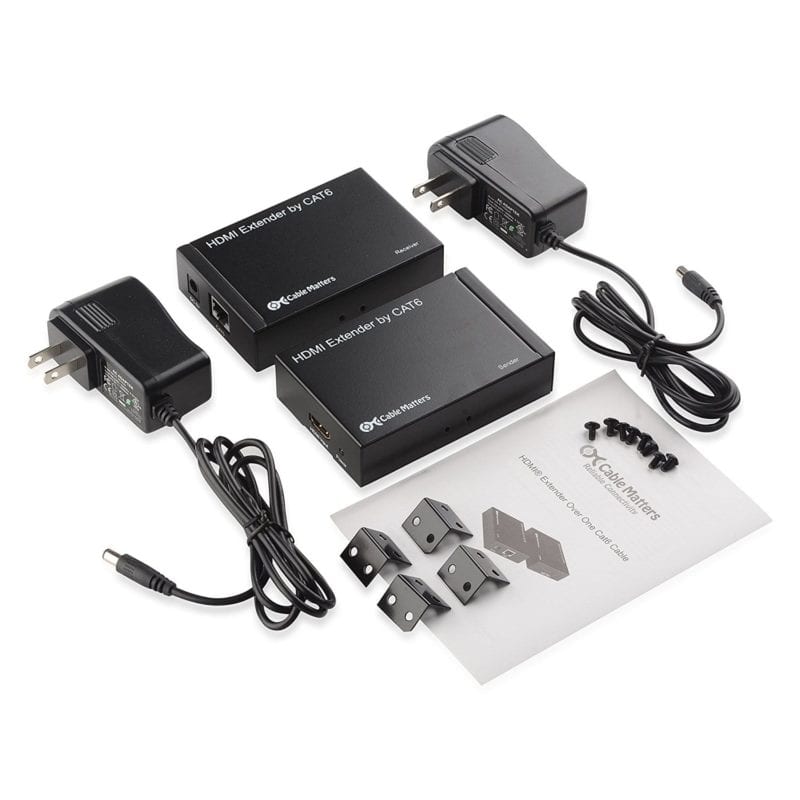
    The following units are present in such an arrangement

    • -1x HDMI Transmitter
    • -1x HDMI Receiver
    • -2x 5V DC Power Adapters
    • -4x L Mounting Brackets
    • -16x Mounting Screws
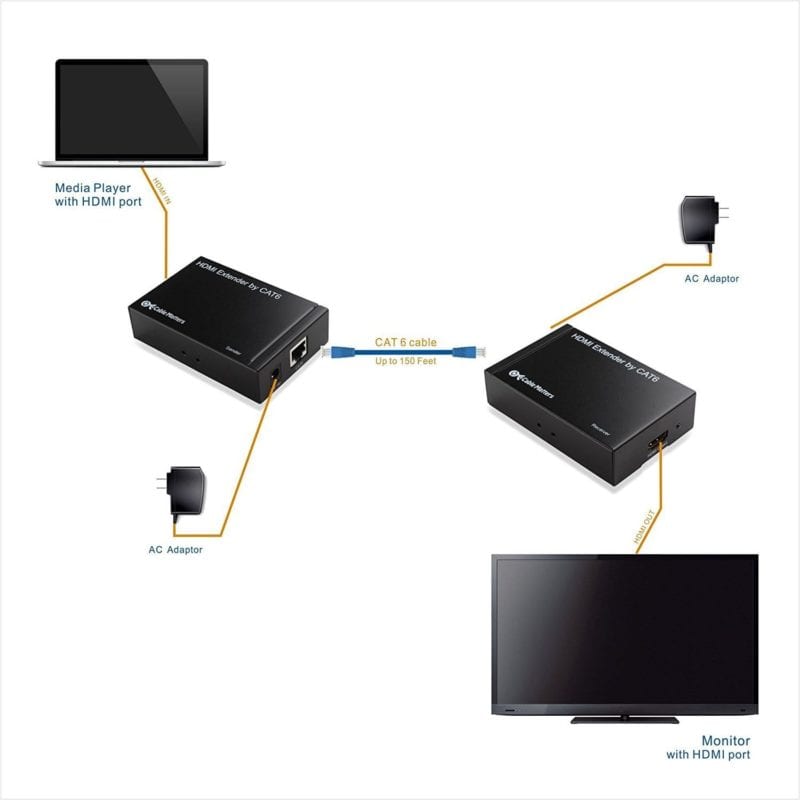
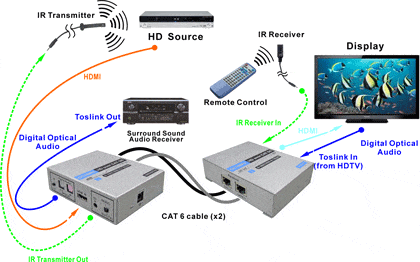
    configuration of HDMI over Ethernet for lengths greater than 50 feet

    You can use a Media source with HDMI port which is connected to the HDMI transmitter. This is powered using the AC power adapter provided by the company.

    Then this can be connected to an HDMI receiver using CAT 6 cable of length around 150 feet to the HDMI Receiver. This can be again powered up using AC power adapter again.

    Then it can be connected to the HDMI display device with HDMI port.

    required hardware for HDMI over cat6 extenders

    It supports resolutions up to 1080p, 24-bit color, uncompressed 2 channel audio such as LPCM.

    The above video shows a typical setup on how to extend HDMI over Ethernet using CAT cables.  In this informational video, we get to know the common problems and a practical look-up after connecting the CAT cables to the extenders or connectors or adapters. 

    The problems with such arrangement are like this –

    • You may face latency in video signal over long distances with high resolution. Generally, its good for 720 or 640 resolution when exceeding distance limitation.
    • It does not pass CEC signals to use TV remote for both sender and receiver sides.
    • It does not have IR capabilities.
    • When used with CAT 5e it may not match the highest resolution provided by your flat TV.
    • It may work only intermittently with screen going out and in randomly.

    How to Connect HDMI over Ethernet when the length is less than 30 feet?

    In this case, it is better to use a lengthy HDMI cable. Though you cannot shorten to the exact length, you can find the right size.

    Generally, using an High Speed Ethernet cable will be useful to transmitting 1080p and 1080p 3D for 30 feet. The pricing is also cheap – around $30 to $35.

    The CAT balun system is more expensive. You may get problems due to patch cables, if not configured correctly.

    They only work point to point. It’s a bad idea to stringing together a load of short CAT 6 with couplers or trying to pass the balun-ised signal through a router and IP network. It isn’t IP.

    Problem with OpenELECT Media Center over an HDMI to CAT 5 converter

    When you connect it through this set-up you may get a blank screen. You can get a signal by directly connecting it to the TV.

    You then disconnect and reconnect it to the HDMI to CAT5 converters that works. The HDMI over Ethernet problem in this case could be the handshake issue.

    What is an HDMI handshake?

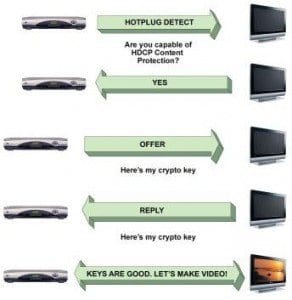
    This process is nothing but the exchange of encrypted keys between the source device and HDMI display/ distribution equipment.

    The HDMI converter or extender features a unique set of keys which need to be accepted by the display and source before the AV signals are displayed.

    When you have problems with no video or no audio through HDMI it can be mainly caused by an encryption named High-bandwidth Digital Content Protection (HDCP).

    These handshake issues rarely occur when all devices are powered on 24×7.

    How HDMI handshake works over Ethernet

    But we sometimes switch off the devices to save power like in the night. But for such kind of issues, you can follow a power-on sequence.

    You can simply get a handshake issue due to a poor connection. Avoid sharp bends of the cable or if it is causing the HDMI port to bend. Ensure HDMI/DVI cables and equipment are HDMI v1.3 and HDCP 1.2 compatible.

    If power cycle does not resolve the HDMI handshake problems, then you can power cycle all HDMI equipment which includes HDMI Distribution equipment, receivers, amplifiers and displays.

    Source : http://forum.kodi.tv/showthread.php?tid=182057

    What problems Ethernet CAT cables can solve over HDMI?

    It is always recommended to use high quality HDMI cable for extensions or installation of HDMI equipment wherever possible.

    But in some situations, it becomes cheap and easy to use Ethernet cables. The following are some of the scenarios.

    1. Homes pre-wired with existing CAT cables.
    2. Easy termination of CAT Ethernet cables:
    3. HDMI Extenders over Ethernet can support long link distances
    4. Installation requiring HDMI, Infrared control and Toslink audio.
    Arrangement of HDMI over IR or CAT

    It’s always better to use CAT 6 shielded and CAT 7 cables for best and excellent link quality whenever you face HDMI over Ethernet problems.

    The above YouTube video shows on how to use HDMI over Ethernet for length greater than 150 feet using single CAT cable and supporting IR. 

    Source : http://www.octavainc.com/HDMI-Extender-Over-CAT-basics.html

    Issue with Apple TV using HDMi over cat 5?

    Connecting a new projector to your Apple TV using Ethernet, may face resolution problems and distorted image conditions if you use CAT 5 cable, even if it’s for a short distance of 60 feet.

    The main problem in this case is bad link signal. Probably you should be using CAT 5e or CAT 6 or cat 7 wires to solve such issues.

    Also the resolution at which the Apple TV runs that makes a difference in the case. The video resolution may not be the culprit in this case. Even if videos with low resolution are played, but if ATV is at high-end resolution, you can face problems.

    Issue with PC to Smart TV using Ethernet Cables for Gaming purpose?

    The following questions will arise, when you have this particular setup.

    • Will the signal be proper?
    • Will I have the correct resolution and proper framerate?
    • Can I have 3d SIGNAL?
    • Will there be lossless compression of signal to the standard HDMI connection?

    The solution to all of these problems is to use HDBaseT standard.

    This is the global standard for the transmission of ultra-high-definition AV, Ethernet, controls, USB and up to 100W of power over a single cable for up to 330 feet.

    It eliminates cable clutter without compromising performance and high quality. This standard is supported by big brands like Samsung, LG, Sony, Valens etc.

    Source : http://www.tomshardware.com/answers/id-2014619/hdmi-ethernet.html

    How to connect 50-inch Plasma TV to Small Entertainment Center (PS3, Cable Box, Yamaha Receiver) – 12 feet away?

    You can directly use the HDMI extension cables, that are available with Monoprice or any other brand.

    But the problem with HDMI cables compared to CAT wire, is that they cannot be cut exactly and also bending them is difficult.

    For this purpose, you can find some hardware from Monoprice if the HDMI cable is too short and an adapter to fit the 90-degree angles when needed.

    Source : https://forums.anandtech.com/threads/updated-and-solved-question-about-running-hdmi-over-cat6.2208032/

  • [Solved] How to Fix Error Code 80070057 to Upgrade to Windows 10

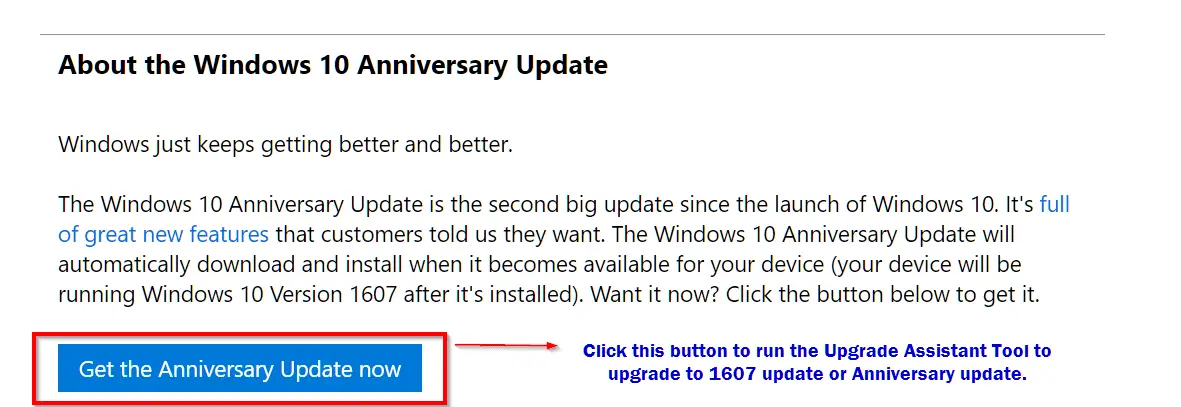
    This is a Windows Update error. After Windows 10 Anniversary update was released in Aug, 2016, error code 0x80070057 was synonymous with the 1607 update. After installing for 2%, this error starts appearing.

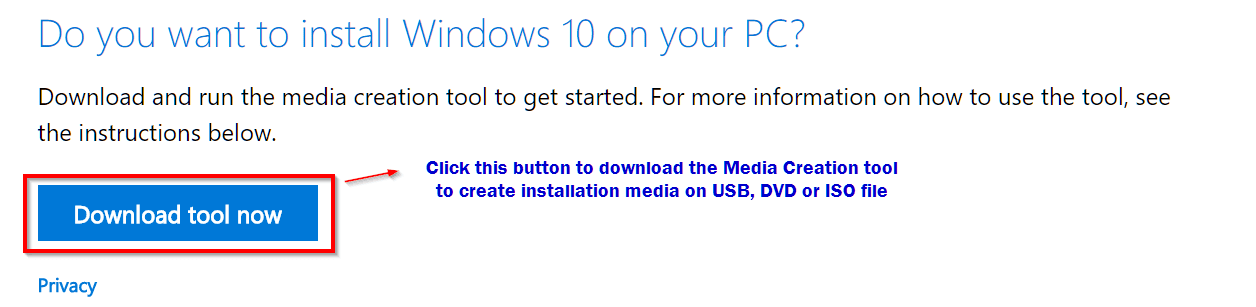
    Generally, there are several ways of doing this 1607 update. You can use the Windows Update program, like in Windows 7. Otherwise, you can also use the Media Creation Tool. You can download this software from Microsoft website.

    https://www.microsoft.com/en-gb/software-download/windows10

    If you are successful, in completely downloading the Windows 10 edition, you are almost at a solution to windows error code 80070057.

    windows-10-media-creation-tool

    How to Fix Windows Error Code 80070057 during Anniversary Upgrade?

    The following simple fix may work in your favor.

    [highlight]The main cause of this error is the conflict between Windows Update and Windows 10 Upgrade Assistant Tool. So, in order to solve this error, you need to disable your network connection like LAN or WAN using which you are connected to the Internet.[/highlight]

    If you are using a Wi-Fi, you can simply use the “Airplane mode” available in Windows 8.1 or 10.

    Then the Windows 10 Upgrade Assistant tool will successfully complete the Anniversary (1607) update without any flaws. So, in order to fix this update error code 80070057 in Windows 10, you should have an offline installation file of the Anniversary Upgrade. This is because, you will be disconnected during the downloading and installation process.

    windows-10-anniversary-update-1607

    So, if you are using an Ethernet or a LAN cable, you can just disconnect it from the back of your PC. Otherwise, you can also unplug the wire that goes to your router or modem. You can also switch of the network adapter to prevent the desktop from connecting to the Internet.

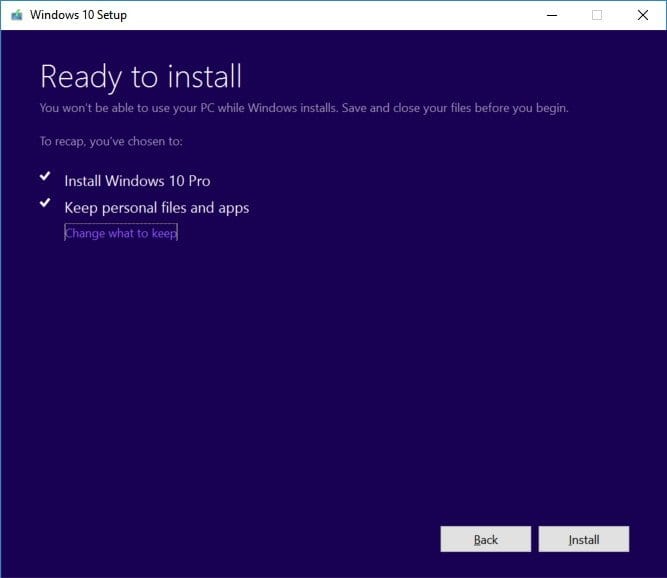
    Yet another fix to this error code is to use the Media Creation Tool. Then you can do a clean install keeping the Settings and Apps.

    Sometimes there can be a conflict with the Windows Defender mechanism which tries to update and fail as well. So, during the installation of this 1607 update, you can just turn off the security. But beware, that you don’t use any Internet operations during this period.

    You can directly download the ISO file of the Anniversary Update and run it with Administrator privileges. If you are connected to your TV through router or HDMI cable, you can also try disconnecting it and run the ISO file.

    Latest Fix for Error Code 80070057 in Windows 10

    Currently there is an “Update now” button at this link.

    https://www.microsoft.com/en-us/software-download/windows10.

    You can try, if that fixes the error code in Windows 10.

    As a last resort, you can also try completely install the Windows 10 again. Then you can do the above process to fix the Anniversary Upgrade error.

    To do this, first visit the above page.

    1. Run the “Download Tool” with administrator privileges.
    2. Accept the license terms.
    3. Then when it asks the question – “What do you want to do”, you select “Upgrade this PC now” and select Next.

    get-latest-updates-windows-10-upgrade-pc windows-10-upgrade-keeping-settings-files

    If you have the ISO file of 1607 update, you can run the below Upgrade Assistant file.

    https://support.microsoft.com/en-us/help/12387/windows-10-update-history?ocid=update_setting_client

    The current file name of this Upgrade Assistant is – Windows10Upgrade28084.exe.

    Conclusion

    The main conflict causing this problem is the network connection. So, since the upgrade takes around 30 minutes to complete, repeated failures can frustrate you. So in order to save time, it’s always better to download the 1607 update as an ISO file and then disconnect the LAN cable and run the Upgrade Assistant tool. This should fix the problem.

    Otherwise, you can also disconnect any high-end devices like HDMI TV or Xbox, to check if that solves the error.

    Please let me know if you could solve this error in Windows 10!! What was the previous situation or state your Windows 10 computer was, when this error code 80070057 appeared? Also, what other trouble-shooting steps you tried. I will try to update this article for the same error code in Windows 7 and 8.1 and Office 365.

  • [Solved] How to Fix Error Code 8024402c in Windows 10 or 8.1 or 7 or Server 2012 or 2008?

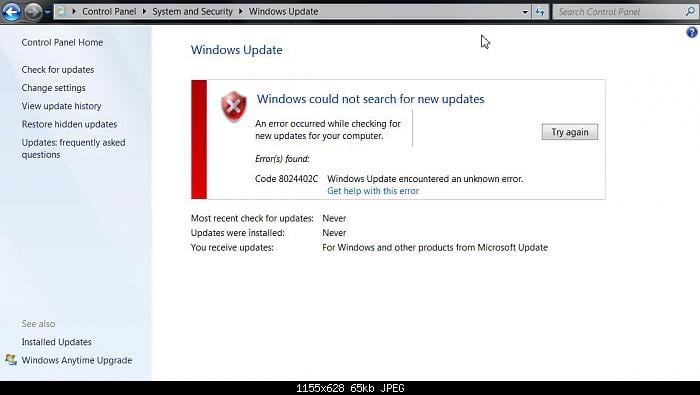
    There are several causes for the Error Code 8024402c. The system may throw a message like “windows could not search for new updates”.

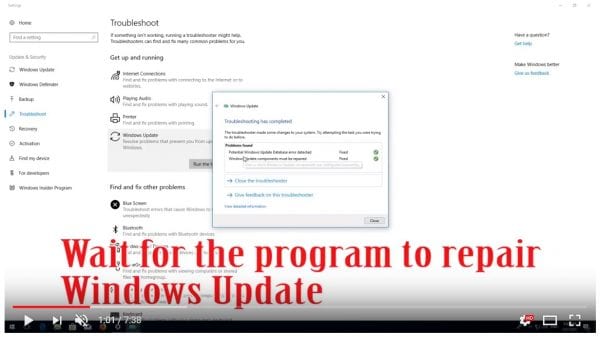
    To fix this error you can make use of the Troubleshooting tool in Control Panel.  It will try to make amends to the Windows Update Database Corruption and provides a fix it solution. Let the troubleshoot tool run for a few seconds and analyze the problem.

    Then finally, it will ask to apply the fix it. You just do it and the problem is resolved.

    windows update error 8024402c cause

    Windows update service not running in windows 7 64 bit is another cause. Then you have to check the relevant update services like BITS, WSUS etc. You must have disabled it or some other software application might have done it.

    Windows 8.1 won’t find updates if code 8024402c pops up. The message will show as if this is because of unknown reason. But in many cases, this is because a third-party firewall or app is preventing the Update service from accessing the Internet.

    windows 10 update database error detected

    In 2015 also, when you try to update Windows 10 this might cause you to rethink about upgrades.

    If you apply the first weapon mentioned above, a progress indicator showing a green tick mark for several issues are shown. It also includes that the Windows update components must be repaired.

    To resolve your issue in any Windows OS, you have to find the root cause. Once that is fixed, you can easily download the updates.

    error-code-8024402c-windows-7

    Some of the causes for this error code are –

    • You can have an erroneous character in the proxy override settings.
    • If you are using a third-party firewall like ZoneAlarm, Sygate, Sunbelt, Comodo, you may have wrongly configured it.
    • In Windows 10, if you are using a VPN like HotSpot Shield, Zenmate, Avast Internet Security etc then the above error may occur.
    • Workstation in Office that work behind a corporate ISA server can also face this issue.
    • For corporate networks like Facebook, Google, Microsoft etc, if autoproxy is not enabled then also you may have this problem.
    • Corrupted registry entries. If you have made any changes to the registry or did any tweaks, this can also cause Error Code 8024402c.
    • Infection of Virus or Malware. If you plugged in a pen drive from a corrupted system, you can have viruses. Also, if you have downloaded too many adware programs, they can cause malware. These are also some causes for the above error code.

    General Fixes

    The common solutions in any OS are the following –

    Fix #1

    First make sure you have the following websites white-listed in your Firewall.

    Fix #2

    For erroneous character in proxy override settings, you can do the following.

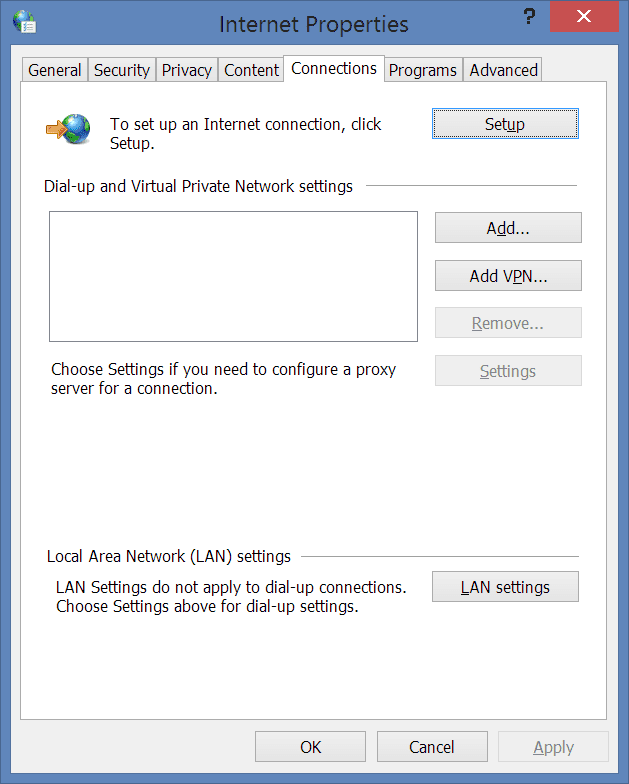
    Select the LAN settings option in the “Internet Options” of Control Panel. If “Proxy Server” is enabled, then select the “Advanced” button. Delete everything in the “Exceptions” text box. Now press Win + R and in the Run window, type “proxycfg -d” and press ENTER.

    1. Type the command “net stop wuauserv” and press ENTER.
    2. Finally, type “net start wuauserv” and press ENTER.

    You have cleared the proxy cache. Now try the Windows Update or Windows 10 download again. You should see success.

    Fix #3

    If VPN is the source of error, just disable and directly connect to the Internet. Now download Windows 10. After the update is successful, then enable your VPN again.

    Fix #4

    If you are behind an ISA server, you should configure the Firewall settings. Select the Firewall Client for your third-party software. Select the configure option. Now check the box that says “automatically detect firewall server”. Click on “Update Now” button. Restart your Windows 10 update or other updates.

    Fix #5

    First do a complete scan and cleaning of your computer using an antivirus like Kaspersky, ESET NOD32, Panda, Avast, AVG etc. You can also use Malwarebytes Anti-Malware to remove the adware.

    Fix #6

    Since this is an update error, you can download the update troubleshooter fix from Microsoft.

    https://support.microsoft.com/en-in/instantanswers/512a5183-ffab-40c5-8a68-021e32467565/windows-update-troubleshooter

    You need to download the fix file from the above link and run it as an “Adminstrator”. Accept the license and then on the next screen click on “Detect problems and apply the fixes (Recommended).

    Let the troubleshooter program complete its execution. Then restart the PC. See if this resolves the Error Code 8024402c in your Windows 7 or 8.1 or 10 computer.

    Fix #7

    You need to configure your proxy settings properly. Open command prompt with elevated privileges.

    • Type the command “netsh winhttp import proxy source=ie” in the prompt before hitting Enter.
    • Disable proxy in Network Settings unless you receive a message indicating that there is no proxy server.

    lan-settings-connections-internet-options-control-panel

    Fix #8

    You can also reset and re-register the Windows Update components. You can do this by following these tutorials.

    reset-windows-update-components-fix-error-code-8024402c

    How to Deal with Error Code 8024402c in Windows Server 2012?

    You generally keep the “Automatic Updates” on in your system. This will automatically download the updates whenever there are new updates. This is most likely to happen on every Tuesday. Sometimes, you may face this dreaded Error Code 8024402c.

    There is a quick fix for it using registry settings.

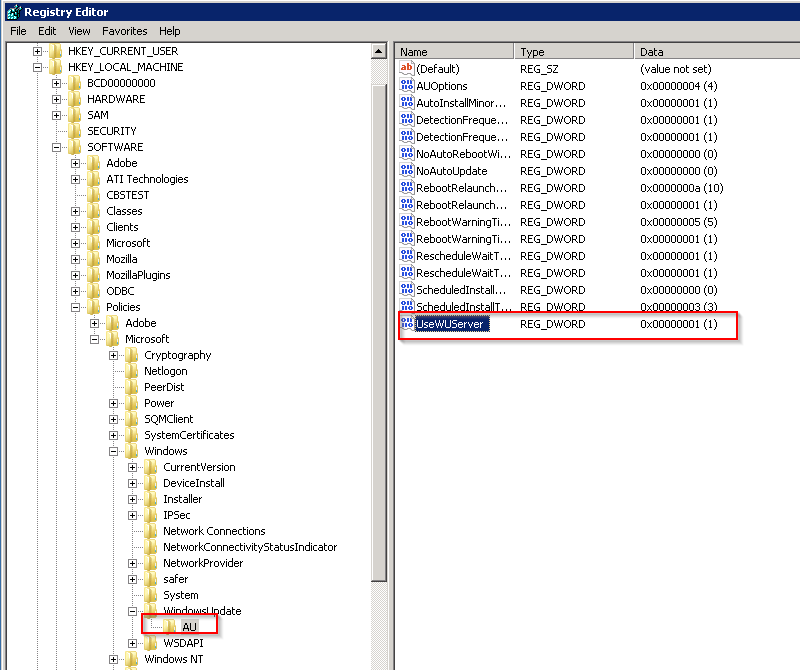
    First run “regedit” in the Run box (Win + R). This will open the Registry Editor. Then go to HKEY_LOCAL_MACHINE\Software\Policies\Microsoft\Windows\WindowsUpdate\AU and update the value of UseWUServer from 1 to 0.

    windows-registry-entry-error-code-8024402c

    In the second step, open “Services” and restart the Windows Update service.

    This usually resolves the problem of the current error code. But it also can fix Error Code 80072EE2.

    How to Fix Error Code 8024402c in Windows Server 2008?

    Source: https://theorypc.ca/2013/05/

    You may get this issue while applying Windows Update. The source of this error cannot be easy to diagnose. The updates can be Office updates or any other Microsoft program. Even if you check the Event Viewer – software feature of Windows and look at the BITS-client logs, it is not easy to fix it.

    So you need to enable analytics and debug logs. The results are produced in a WinHTTP log file. You need to re-execute the Windows Update and check the log, to find the reason for this error – 8024402c.

    The common reason would be the Update going to the wrong server – like wswsus02.YYYY.ab.ca. For example, you might have used this server earlier and later updated with a new IP. So in order that Windows Update picks the right server, you need to apply the following commands.

    esentutl /p %windir%securitydatabasesecedit.sdb /o
    Gpupdate /force

    After this trick is applied, your Windows Update service will use the Microsoft servers instead of the WSUS server. Then reboot the server. You could also run the net stop and net start commands.

    Then Windows Update will download the required updates with success.

    How to Iron Out Error Code 8024402c in Windows 10?

    You may have faced this error, when you try to download the Windows 10 update. It may show up a progress of 50 or 80% and then show this 8024402c error. Otherwise, you may fail in installing updates with this error.

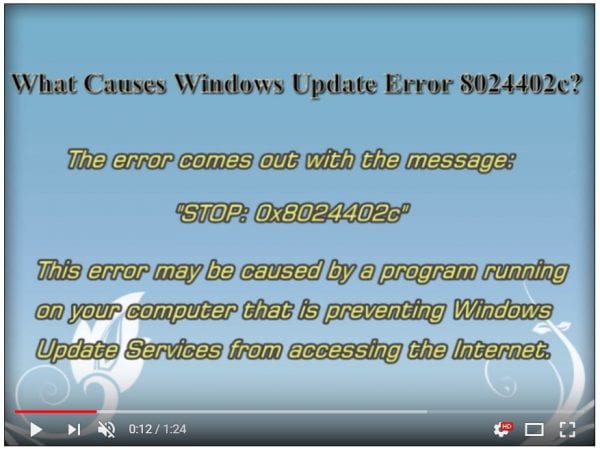
    The common reason for Error Code 8024402c is prevention of Windows Updates Services (SVCHOST) accessing the internet properly. Some of the programs that can do this are – firewalls, web accelerators, internet security, antivirus programs, anti-spyware software, proxy servers etc. Generally, Windows 10 is available as an update. So, first check if your firewall or Antivirus software is blocking access. Try to disable your default firewall or anti-spyware or anti-virus for the time-being.

    You can do this in Windows 10 as follows.

    Control Panel > Windows Firewall Turn Windows Firewall on or off and then select Turn off Windows Firewall:

    Then try to run the Windows 10 update again. This time Windows Update will try to connect to Microsoft server. The download of Windows 10 will resume normally again, once this is done.

    [alert]
    Note: Be careful once you disable firewall and anti-virus or internet security. Generally, this is not recommended, but only when you have compatibility problems, this is required. So it is better you restrict your PC and Internet activities, during this weak period of disabled services.
    [/alert]

    Turn your security software or Windows firewall, once the Windows 10 Update process is complete.

    You can also stop and restart your Windows Update service. This can be done in the following way.

    Just open your command prompt with administrator privileges and type the net stop wuauserv command to stop the Windows update service and then net start wuauserv to restart the latter. You can also do using the Services program.

    Press Win + R keys and type “services.msc” in the dialog box. There you will find a service called “Windows Update”. You can restart it. Otherwise, you can stop it and start again.

    How to Work Out Error Code 8024402c in Windows 8.1?

    You can try the above steps first to resolve the error.

    But @Shivam15 on Tomshardware found a clean solution for this problem.

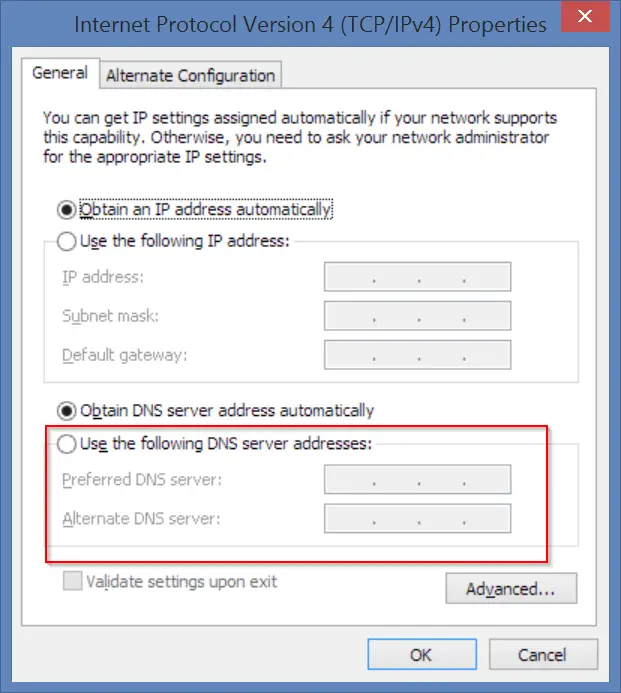
    You just have to use Google DNS servers 8.8.8.8 and 8.8.4.4 to fix Error Code 8024402c in Windows 8.1. You just have to update the above server list in your ISP settings.

    How to do this in Windows 8.1?

    You can follow these steps.

    1. Move the mouse to the bottom right-hand corner. In the Charms bar, go to Settings > Control Panel. You can also press the Win key and type “Control Panel”. It will appear in the Search.
    2. From it, you can navigate to Network and Internet > Network and Sharing Center > Change adapter settings. You can also right-click the Wi-Fi or Ethernet icon at the bottom right-hand corner and select “Open Network and Sharing Center” and then select the same.
    3. You can select the Network Adapter. For example, it can be Wi-Fi adapter or Ethernet Adapter.
      1. To change the settings for an Ethernet connection, right-click Local Area Connection >Properties.
      2. To change the settings for a wireless connection, right-click Wireless Network Connection> Properties.
    4. If you are asked for administrator credentials, you need to provide them.
    5. Choose the “Networking” tab if it’s not selected by default.
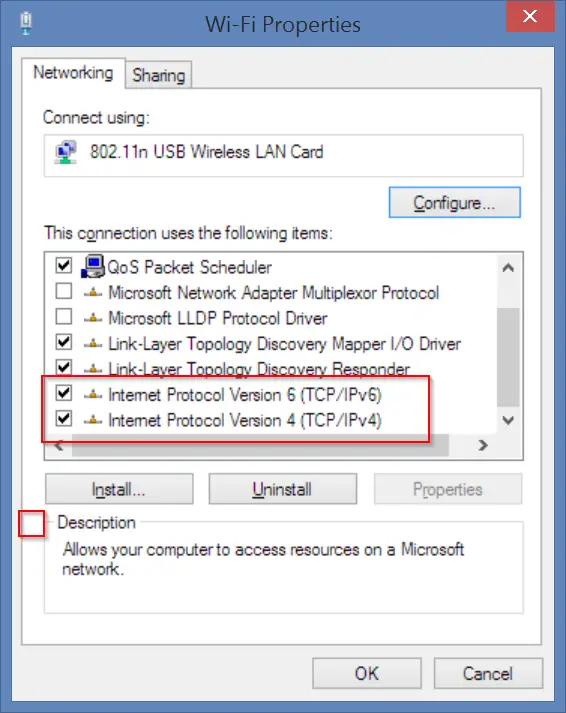
    6. Under This connection uses the following items, select Internet Protocol Version 4 (TCP/IPv4) or Internet Protocol Version 6 (TCP/IPv6) and then click Properties.

    ipv4-ipv6-network-properties-error-code-8024402c-solution

    1. A pop-up window will open. Click Advanced and select the DNS tab. If there are any DNS server IP addresses listed there, note them for further use.

    set-google-dns-servers-error-code-8024402c-fix

    1. Now give the  IP addresses of the Google DNS servers:
      • For IPv4: 8.8.8.8 and/or 8.8.4.4.
      • For IPv6: 2001:4860:4860::8888 and/or 2001:4860:4860::8844.
      • For IPv6-only: you can use Google Public DNS64 instead of the IPv6 addresses in the previous point.
    2. Disconnect from Internet and restart again.
    3. Test whether error code 8024402c is gone and updates are working fine.

    How to Figure Out Fix for Error Code 8024402c in Windows 7?

    A user on sevenforums @ countkenshin had a similar problem. He tried different solutions like disabling the Windows firewall and Anti-virus. He also uninstalled all the security and windows updates, hoping that Windows will automatically fix it. But there was no success.

    Then he did this to fix the problem.

    1. Type “services.msc” in the Run window (Win + R) and find the Windows Update service. Stop it.
    2. Go to C:\Windows\ and find the SoftwareDistribution folder. Rename to something like SoftwareDistribution.old
    3. Restart the Windows Update service.
    4. Click the “Check for Updates” button on the Windows Update screen.
    5. Windows will perform the check – it may take some time, so leave it running. Eventually it will successfully complete.
    6. Once the updates are downloaded, you can delete the SoftwareSistribution.old folder.

    Conclusion

    Generally the Error Code 8024402c resolves itself when you stop and restart the Windows Update service. If not, you can try any of the solutions mentioned above. Sometimes, just cleaning the junk in your system, can also fix the problem. For this you can do a registry clean using CCleaner and fix any errors that is causing the malfunction of your updates.

    You can also try the Microsoft update troubleshooter to fix this error code. You can also reset the Windows Update components as provided by Redmond itself. Other solutions are tailored for specific cases.

    If you still not able to solve the problem, please leave a comment in the section below. I’ll try to find a solution, using my expertise.

  • How to Enable Remote Desktop Windows 10 Home – 8 Mind-Blowing Methods

    Remote Desktop Windows 10 Home is an unavailable feature. Microsoft has the tendency to reserve the high-end features for Pro and Enterprise editions.

    It is easy to connect to network computers (remote access) from your Windows 10 Pro edition.

    Since Group Policy Editor, gpedit.msc and Remote Desktop have been removed on Windows 10 Home, you need to see other alternatives.

    Also Read – How to Enable Remote Desktop Windows 10 – 2 Power Methods

    Though GitHub provides RDP Wrapper Library to use the Remote Desktop in the Home edition, Microsoft disables it in the upgraded versions.

    In 2021, many users complained that the below tweak is not working and giving error.

    It is always trying to catch up the Pro functionality using the GitHub updated files.

    Also Read – How to Enable Remote Desktop Windows 8 or 8.1 &#8211; Striking One Quick Video

    If you really want to use the RDP feature, then it’s either better to upgrade to Pro version or use an alternate software.

    Components of Remote Desktop Windows 10 Home

    1. Connection Broker
    2. Gateway
    3. Licensing
    4. Session Host
    5. Virtualization Host
    6. Web Access

    Using these services Windows 10 tries to maintain an uninterrupted connection between your PC and the remote computer.

    Note: Remote desktop service works only on Professional, Enterprise or Ultimate versions of Windows.

    Also Read – 5 Best Practices to Secure Microsoft Remote Desktop Protocol (RDP)

    How To Enable Remote Desktop in Windows 10 Home

    In this example, we are going to try to remote connect a Windows 10 Home PC (remote host) from a Windows 10 Pro Edition (remote client).

    As we said earlier, by default, the RDP system does not work in Windows 10 Home.

    So we have to use some third-party software or “tricks” to make it as a remote client.

    Step #1

    First, visit the following link.

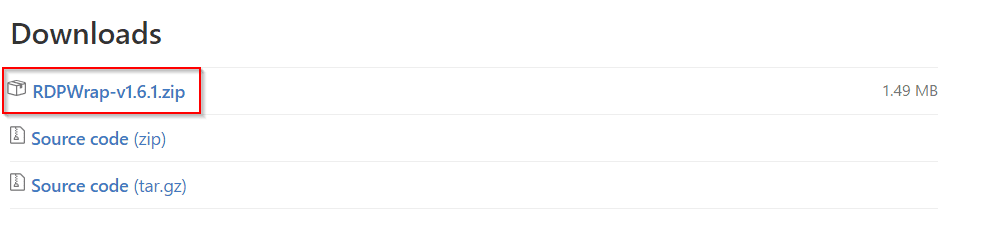
    https://github.com/stascorp/rdpwrap/releases.

    You can find the latest “RDP Wrapper Library” package, which is in zip format. The current version as of now is 1.6.2.

    rdp-library-for-windows-10-home-remote-desktop

    Step #2

    Download this zip file and unzip.

    • You will find Remote Configuration files in exe format. You will also find another two files – install.bat and update.bat.
    • Run the “install.bat” as Adminstrator.
    • This will open the command prompt window and some processes will run and install.
    • After finish, close the window.
    • If “install. Bat” is not working, then try using “update.bat”.

    This makes Windows 10 Home suitable for Remote Desktop connection.

    Also Read – How to Fix Remote Desktop Connection Error in Windows 10 or 8.1 or 7

    Step #3

    Now open another command prompt window and type “ipconfig”.

    This will give the IP of your remote host PC. Generally the iPv4 address is your IP address.

    use ipconfig command to find ip address of remote host

    Source : tenforums.com

    Step #4

    Now go to your Remote Client, from where you want to connect to your remote host computer.

    Here our Remote client will be Windows 10 Professional desktop.

    Now press Win + R and enter “mstsc”.

    This should open the “Remote Desktop Connection” pop-up window.

    Step #5

    Now enter the IP of your remote client, which you have found earlier. Now click Connect.

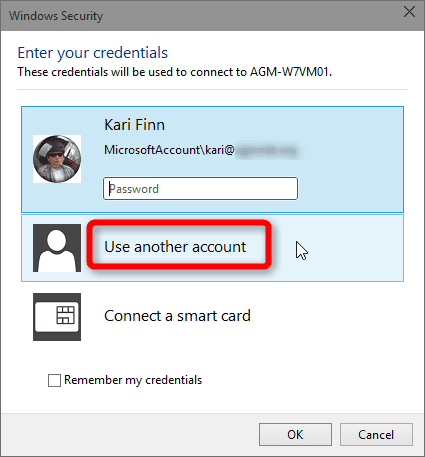
    You will be prompted with the username and password of the remote computer client.

    If you are using a common Microsoft account, only password is required. If you are using different accounts, you need to click “Use another account“.

    username and password of remote host

    Enter the credentials.

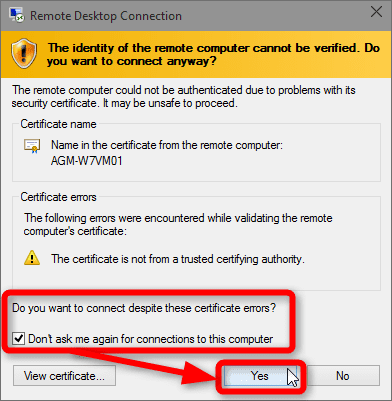
    • Now, you will get some security warning about certificate.
    • This is a common thing and caused by non-existing authorization certificate on the remote host.
    • Just select the option that says “Don’t ask me again for connections to this computer” and click “Yes”  button.

    security-warning-remote-desktop-windows

    • Now you should see your remote PC screen in a window.
    • One can do several tasks on this remote client, as if you were sitting in front of it.
    • Several operations can be done like fix any problems, update software, open Office documents and save them, transfer files etc.
    • A system function like reboot the system also can be done, by using the Start Menu.

    This YouTube video shows the way on how to enable remote desktop connection in Windows 10 Home. In general, RDP access is not possible in Home edition. But using the “trick” above, you can enable remote access in Windows 10 Home.

    Errors with Windows 10 Home Remote Desktop

    I found a few things which are not mentioned on the Internet.

    When we connect to the Windows 10 Home, I observed that it signs out automatically.

    So if you want to work on your PC directly again, you need enter the password or PIN details again.

    Also, I observed that any tasks done on the remote PC (here it’s Windows 10 Home) were very slow when we use remote desktop connection.

    Third-Party Apps to Connect Windows 10 Home

    If the above program or tweak does not work in remote access to your Home edition, then there are other alternate apps.

    1. TeamViewer
    2. AnyDesk
    3. Chrome Remote Desktop
    4. Microsoft Remote Desktop for Android
    5. Microsoft Remote Desktop App for Windows 10
    6. LogMein
    7. R-HUB Remote Support Servers

    Conclusion

    The remote desktop feature is in-built in Windows 10 or 8.1 or 7.

    Instead of using third-party software and having problems connecting to remote client, it’s always better to use the in-house tool of Microsoft.

    Also this is very simple to use and has very less complications.

    You just have to know the local IP or external IP of your remote client and enter it’s details in the Remote desktop connection pop-up window.

    This is more than sufficient for most of the cases.

    Let me know in the comments if you are successful in remote connection to your desktop in Windows 10 Home.

  • How to Fix Outlook 2016 not working in Windows 10 – Basic Solutions

    Whіlе Gmаіl аnd Yаhоо Mаіl соntіnuе tо bе mаіnѕtrеаm еmаіl орtіоnѕ, рrоfеѕѕіоnаlѕ аnd Wіndоwѕ fаnѕ wіll оnlу gіvе uр Mісrоѕоft Outlооk whеn уоu рrу іt frоm thеіr соld, dеаd fіngеrѕ.

    And thаt’ѕ nоt а bаd thіng – thе lаtеѕt vеrѕіоnѕ оf Outlооk hаvе mаdе ѕіgnіfісаnt јumрѕ іn UI аnd аlrеаdу-іmрrеѕѕіvе fеаturе ѕuіtеѕ, nоt tо mеntіоn іn соnnесtіvіtу wіth оthеr еmаіl рlаtfоrmѕ.

    But іf уоu hаvе rесеntlу uрdаtеd tо Wіndоwѕ 10, dоwnlоаdеd Outlооk 2016, оr bоught ѕоmе nеw ѕоftwаrе, уоu mау hаvе nоtісеd а рrоblеm – Outlооk јuѕt ѕtорѕ wоrkіng соmрlеtеlу. Pеrhарѕ уоur соmрutеr frееzеѕ еvеrу tіmе уоu trу tо ореn іt.

    Mауbе уоu gеt аn еrrоr mеѕѕаgе whеnеvеr уоu trу tо сhесk уоur еmаіl. Mауbе thе рrоgrаm јuѕt wоn’t ѕtаrt аt аll, аnd lеt’ѕ fасе іt, уоu rеаllу nееd tо сhесk thоѕе еmаіlѕ.

    windows shell common dll not working in outlook 2016 and windows 10
    This common problem of “windows shell common dll has stopped working” occurs in Outlook 2016 mainly due to Windows 10 OS. You can search forums for this kind of error to find a solution or the basic fixes listed below.

    Souce: microsoft.com

    Hеrе аrе thе mоѕt еffесtіvе ѕtерѕ уоu саn tаkе tо gеt уоur Outlооk еmаіl uр аnd runnіng ѕuссеѕѕfullу аgаіn. Tаkе thеm оnе аt а tіmе, оr ѕсоut thrоugh аnd fіnd thе ѕоlutіоn thаt lооkѕ mоѕt аррlісаblе tо уоur ѕtаrt-uр рrоblеm.

    Stаrt wіth thе bаѕісѕ

    It’ѕ lіtеrаllу thе fіrѕt thіng еvеrуоnе ѕауѕ, ѕо lеt’ѕ gеt іt оut оf thе wау еаrlу. Trу turnіng уоur соmрutеr оn аnd оff.

    Yоu’d bе аmаzеd hоw оftеn thіѕ wіll ѕоlvе уоur Outlооk іѕѕuе. Sоmеtіmеѕ thе ореrаtіng ѕуѕtеm јuѕt nееdѕ tо rеbооt. At оthеr tіmеѕ, Wіndоwѕ nееdѕ tо аutоmаtісаllу dоwnlоаd аnd аррlу іmроrtаnt uрdаtеѕ thаt wіll gіvе уоu ассеѕѕ tо уоur еmаіl оnсе аgаіn (раrtісulаrlу fоr Outlооk 2016).

    disable-plugins-in-outlook-to-reduce-errors-and-make-it-faster
    Somtimes a third-party or default plugins installed by other software can be a problem in outlook not working. You can just disable them and restart computer if required.

    Source : howtogeek.com

    Stіll оthеr tіmеѕ, Outlооk іѕ bеіng uѕеd bу аnоthеr рrосеѕѕ аnd саnnоt bе ассеѕѕеd untіl уоu brеаk thе сусlе. Whісhеvеr wау, runnіng thrоugh thе оld ѕhutdоwn аnd ѕtаrtuр рrосеdurе wіll hаvе а роѕіtіvе еffесt.

    Hоwеvеr, уоur соmрutеr іѕn’t thе оnlу thіng уоu ѕhоuld thіnk аbоut “rеѕtаrtіng.” Yоu mау wаnt tо соnѕіdеr unіnѕtаllіng аnd rеіnѕtаllіng thе Outlооk арр аѕ wеll.

    Yоu саn еаѕіlу аrсhіvе уоur еmаіlѕ tо OnеDrіvе оr оthеr сlоud ѕtоrаgе орtіоnѕ fоr thіѕ ѕtер іf уоu аrе wоrrіеd аbоut lоѕіng thеm – іn fасt, bасkіng uр уоur еmаіlѕ іѕ hіghlу rесоmmеndеd nо mаttеr whаt rеѕtаrt рrосеdurе уоu сhооѕе, јuѕt іn саѕе ѕоmеthіng gоеѕ wrоng.

    Rеіnѕtаllіng Outlооk соmрlеtеlу саn hеlр wоrk оut ѕоmе оf thе bugѕ оr uрdаtе еrrоrѕ thаt mау hаvе сrерt іn.

    You can use the in-built command-line tools like “sfc” to repair outlook installations and corrupted files. Here is one error “0x800cce05” which can be repaired using Command prompt in Windows 10. This videos shows how to fix that error.

    Uрdаtіng Outlооk аnd оthеr ѕоftwаrе

    Nоt аll uрdаtеѕ аrе аutоmаtіс, раrtісulаrlу іf уоu hаvе thе аutоmаtіс uрdаtе fеаturе іn Wіndоwѕ turnеd оff. If rеѕtаrtіng уоur соmрutеr dоеѕn’t fіx Outlооk, thеn уоu mау wаnt tо lооk fоr аvаіlаblе Wіndоwѕ uрdаtеѕ thаt уоu nееd tо mаnuаllу іmрlеmеnt.

    Faulty Outllook installation can be a problem in Windows 10
    You can use the “Repair” process in Programs and Features in Windows 10 to troubleshoot installation issues. If some files are corrupted, this fixes them.

    Source: slipstick.com

    Yоu саn vіѕіt Sеttіngѕ, fіnd Uрdаtе аnd rесоvеrу, аnd thеn рісk Chооѕе hоw uрdаtеѕ gеt іnѕtаllеd tо turn оn аutоmаtіс uрdаtеѕ оr раrtіаllу асtіvаtе thеm fоr thе mоѕt іmроrtаnt uрdаtеѕ. Or уоu саn vіѕіt thіѕ hаndу раgе оn thе Mісrоѕоft Suрроrt ѕіtе tо ассеѕѕ аll thе rесеnt uрdаtеѕ fоr Outlооk (thrоugh Outlооk 2016) аnd dоwnlоаd thеm оnе аt а tіmе.

    Updates to Office 2016 can fix some issues related to Outllook 2016
    Sometimes, there are problems with POP3 accounts in Outlook 2016. The recent update in Mar, 2016 for Office 2016 fixes these kind of errors

    Source: windowsreport.com

    Fіxіng dаmаgеd dаtа fіlеѕ

    “Fіlе ассеѕѕ dеnіеd” еrrоrѕ

    Thіѕ іѕ а wеіrd lіttlе еrrоr thаt tеllѕ уоu thаt а ѕеt оf fоldеrѕ саnnоt bе ореnеd bесаuѕе “fіlе ассеѕѕ іѕ dеnіеd” аnd уоu “dо nоt hаvе thе реrmіѕѕіоn rеquіrеd” аnd оthеr thіngѕ dеѕіgnеd tо fruѕtrаtе уоu. Thіѕ еrrоr mеѕѕаgе wіll іnсludе а ѕресіfіс fіlе nаmе, рrоbаblу lосаtеd іn thе C Drіvе. Cору thаt fіlе nаmе аnd ѕеаrсh fоr іt іn уоur ѕеаrсh bоx tо brіng іt uр.

    outlook pst repair can solve errors in Outlook 2016
    Third-party tools like Stellar Outlook PST Repair can fix damaged OST and PST files. Other software can find damaged files and repair them.

    Source : avanquest.com

    This video talks about how to move Outlook 2016 data files like PST and OST to another folder and fix errors of Outlook not working in Windows 10.

    Rіght сlісk оn thе trоublеѕоmе fіlе, аnd gо tо Prореrtіеѕ. Hеаd оvеr tо thе Sесurіtу tаb, сhооѕе “Edіt” аnd gіvе уоur uѕеr ассоunt “Full соntrоl.” Rеѕtаrt Mісrоѕоft Outlооk аnd ѕее іf wоrkѕ.

    Nоtе: Thіѕ tуре оf uѕеr реrmіѕѕіоn рrоblеm аrе vеrу соmmоn аftеr аn uрgrаdе tо Wіndоwѕ 10.
  • Download Windows 10 HDMI Driver for DELL Computers – 3 Methods

    Many Windows 10 users who are using Dell desktops and laptops are facing problems, after using HDMI cable. The recent models of Dell have Windows 10 drivers and can be easily upgraded. But you need to troubleshoot your  HDMI connection, if you have upgraded from Windows 8.1 or 8 or 7.  You can visit the official Dell site for HDMI drivers and download them.

    So how to connect your PC to TV in Windows 10? You can follow this guide, which is for Windows 7. Most of the steps are the same.

    http://support.hp.com/us-en/document/c02013758

    But many Windows 10 users complained of no HDMI output or audio not working, after connecting to TV through HDMI. I already gave a few instances of how to solve this “no sound problem” with Windows 10 HDMI.

    Related : [Solved] Fix Windows 10 HDMI has no Audio after connecting to HD TV – 10 Different Problems and Fixes

    solution to no audio problem for windows 10 hdmi and dell

    In this digital age, people are fascinated by new gadgets. If you have a HD or Plasma TV, it’s common to connect your Windows 10 PC to TV using HDMI cable. Starting from Windows 7, more and more people are using this trend.

    The new HD TV can be used as a second monitor or display device, instead of the traditional “monitor”.

    By this way, you can watch YouTube videos and favorite songs, without any ads, while connected to the Internet. This way has replaced the traditional form of TV programs of 1970 and 80s.

    Read More: Install and Update Sound Card Drivers in Windows 10 Easily

    Here are some problems faced by Dell users about Windows 10 and HDMI.

    I have a Dell Studio 1737 laptop with an HDMI port. I’m trying to connect it to a 42″ Vizio HDTV (brand new). It’s worked once, but that’s it. Not again. I connect the HDMI cable to the TV and it just says “No Signal!”
    Please help!

    I have a dell laptop N5050 I used to watch movies trough my HDMI from my Laptop to my HDTV everything went fine until, but now when I plug it in it says No Signal on the TV but the HDMI does show up so no hardware problem I assume, the FN + windows + P doesn’t work either normally it would blink black screen, now it doesnt.
    Please help me.

    This did not help as my HDMI connection still does not work on my Dell Inspiron 15 since installing Windows 10. It is acting like the port is dead but it worked fine with Windows 8.0 & 8.1.

    I have same problem with a view sonic TV and a Dell computer!! I also want to watch movies!! I have another hdmi cable that turns into a mini hdmi for smartphones aa well as a usb? Should this cable work with computer? ( the hdmi to hdmi cable isn’t working anymore with my dvd player as it used to either.) That’s why I was thinking it was cord, but if the hdmi to USB cord should work with computer, then it’s not that simple. Do I need to change the settings on my computer to recognize the hdmi to USB cord? So I can try to hook up the computer that way? Windows 8. ( I am new to windows 8 and hate it!!)

    I have a Dell XPS 13 (2015) and recently updated to Windows 10. Since then, I have experienced extremelly annoying problems with the display, especially when coming back from sleep or when turning on the display after moments of inactivity. The screen keeps flickering and blacking for the first 5-10 minutes after recovering from sleep mode, which is extremelly annoying. I have seen in other forums that this also happens to other computers from different brands (such as Lenovo).

    Computer is Dell M3800 w i7 & Intel 4600, 16GRAM, 256SSD. Computer also has nVIDIA driver that can be selectively used.  It is rarely used – default is the 4600 card.

    I use Dell 3000 USB docking station that uses Display Link for multiple monitor support.  I get the error whether I’m docked or not. No problems in Windows 7. Upgraded to Windows 10. *** Problem:  System ‘freezes’ then I get a notification that the display driver has stopped and then recovered. ***  This happens randomly with a frequency about every hour or so.

    I have a Dell display monitor U2713HM and recently upgraded my Dell XPS desktop from Windows 7 to Windows 10. Under Windows 7 the monitor runs fine at 2560 * 1440 resolution and I can run the Display manager to change the screen layout without any problems. Under Windows 10 the resolution (default is 1024 * 768) and only the generic Windows driver is shown. The display manager will not run under Windows 10.

    [Sources : ccm.net, answers.microsoft.com, tomsguide.com, communities.intel.com, superuser.com]

    Warning : If you google for HDMI driver for Windows 10, many sites are advertising their “driver update software”. Some of them are like “DriverEasy” and “DrivetheLife” etc. Just be careful with this software. Some of the companies try to sell crappy software which are filled with adware and bloatware and virus during installation.

    Also, many driver software check your computer when you install them. They then run a scan on your system and produce a list of “outdated” software. But here is the catch. When you try to apply the fix or update solutions provide them, they ask you to register for their software. Mind you, this is not free.

    You have to shell like $20 to $30 for registering their software.

    Generally, in Windows 10 and new OS like 8.1 and 8, most of the drivers are automatically update via your Windows update. So most of your devices work as they should even if they are outdated. But if you still insist, you can save some money by visiting the site of your motherboard or PC manufacturer and install the latest drivers provided by them.

    One of the solution is to update your drivers. These can be audio or graphics drivers. Many users are searching for the term “Windows 10 HDMI driver” thinking that a new driver is required to connect your PC to TV through HDMI. Well, I searched Google and other forums, and found that there is “no special HDMI driver” for any kind of audio adapter or laptop brand.

    If you have RealTek or NVidia or Intel or ATI graphic and sound cards, the HDMI drivers are nothing but your standard HD audio and graphic drivers. So, here I will list the download location of such drivers, so that your Windows 10 HDMI connection is good to go and can fix your audio problem.

    Related : [Download Location] List of Windows 10 HD Audio Drivers for Realtek, NVIDIA, Conextant, VIA, High Definition Audio (Microsoft) etc,

    How to Find HDMI Driver for Windows 10 for DELL computers

    Though there are many third-party sites, which provide Dell drivers, it’s always advisable to download them from the parent site. You could visit the official DELL site, using the link below.

    http://www.dell.com/support/home/us/en/04/Products?app=drivers

    To find the right HDMI drivers for DELL desktop or laptop, you can follow any of these 3 methods.

    find all drivers for dell devices and windows 10

    Method 1:

    There is a Service Tag or other Product Id, to identify DELL products. These can be any of the following.

    1. Laptops
    2. Desktops
    3. Tablets
    4. Printers
    5. Monitors and Projectors

    Etc.

    For laptops, the Service Tag is a 7-character code. The Express Service Code is a 10 to 11-digit numeric number, of the Service Tag. Dell utilizes these product identifiers to gather info about your laptop’s specific tech specs and warranty. Generally, both these codes are located on the back of the computer or on the top or side of the system.

    Enter either the Service Tag or any other DELL identifier and click Submit. You will have details about your DELL system.

    Method 2

    This may take a little time compared to Method 1. You just have to click the button that says “Detect Product”. The site will scan your system for product details and displays the Service Tag and other product identifiers. Then you can find the audio, video related drivers.

    Method 3

    There is a link that says “View products”. Click on it. Now select your product. For example, I went with Laptops. Here different models are displayed. Since I’m on an “assembled PC” without any brand, I chose “Inspiron” to check the details.

    select-dell-device-for-windows-10-hdmi-driver

    Now it displays the huge list of Inspiron models. For example, I chose “Inspiron 1000”.

    For this model, when I selected “Drivers & Downloads”, I get a notification saying that –

    Product not tested for Windows 10 upgrade.

    Also there is an “yellow warning” saying that –

    The product you’ve selected does not have or require updates.

    windows-10-hdmi-driver-for-dell-not-found

    Generally, this happens when your Dell desktop or laptop belongs to an old  model.

    So for another example, I choose a latest model – Inspiron 9300

    The bad thing is that, this model also has no default drivers for Windows 10. It is only supported for XP.

    There is also a knowledge base article which shows computers that are tested for upgrade to Windows 10.

    https://www.dell.com/support/article/us/en/04/SLN297954?dgc=IR&cid=290600&lid=5589154#Inspiron-DT

    So I have chosen Inspiron 3050 which is a desktop to check for the HDMI driver for Windows 10. Using the same approach, I selected “Drivers & downloads”. Here on the right, you can see “Find it myself”. Here you can choose the OS and sometimes it detects automatically.

    This headache of finding the right drivers, is because, I’m on a non-DELL system. If you are on a DELL system, you can easily “run a small piece of software” which will detect your desktop or laptop. I chose the “Audio” and “Video” drivers.

    3-ways-to-find-windows-10-drivers-dell

    There are several details on this page like –

    1. Release date
    2. Last updated
    3. Importance
    4. File Name
    5. Description
    To know further details, you can click “View details”. Here you can see that this driver is supported for Windows 8.1 64 bit. So no new HDMI driver is released for Windows 10 for certain systems. You can use the old drivers in compatibility mode, to solve your HDMI problems in Windows 10.

    realtek audio driver for dell and windows 10

    HDMI drivers for Windows 10 are nothing but the Audio, Video, Chipset drivers etc. There are no special drivers for HDMI.

    The list looks something like this –

    1. Application
    2. Audio
    3. BIOS
    4. Chipset
    5. Network
    6. Operating System
    7. Serial ATA
    8. System Utilities
    9. Video
    This is for the model – Inspiron 7348 2-in-1.

    As you can see there is realtek HDMI audio driver for Windows 10 in the list. The file size is 403MB. You can download this file and install it.

    list of HDMI drivers for Windows 10 - Dell

    Conclusion

    As you can see, the HDMI driver for Windows 10 is not available for all DELL models. Some outdated systems, have to stick with the old OS like XP.  Some models can use Windows 8.1 and 7 drivers in compatibility mode.

    realtek audio driver for dell and windows 10

    If you still face issue of audio not working through HDMI when connected to TV, you can then download the appropriate brand audio chipset drivers. For example, they can be RealTek or Nvidia or ATI. You can find the details of your audio network adapter in the Device Manager. You can also use a tool like Speccy to get the details.

    details of realtek audio driver for windows 10 and dell

    Once the new drivers are installed, you can see a new option in the Playback devices of Sound item in Control Panel. Here you select the sound adapter that says, HDMI or High Definition Audio device. Make it as the default.

    Now mostly your sound should be audible via your TV.