Valentine’s day is coming near. With Windows Phone 8 release, there are several apps in the Windows Store that suit lover’s day. But before we dive into the top 10, here is a brief overview of Windows Phone 8 and its history. This mobile phone is the second generation of the Windows Phone mobile operating system from Microsoft.
Since its release on October 29th, 2012, it made a buzz in the smart-phone industry. Nokia has tied up with Microsoft to release its mobile phones with Windows Phone OS as default.
Perfect Date Pro : If you are in Love and ready for the Valentine’s day, then this app can help you a lot. This app basically gives you ideas for your date. It doesn’t end there. It also has numerous important tips on how to attract a date and of course the do’s and don’ts of dating.
This app is a PAID version which costs $0.99. The latest version is 2.1.0.0 and the download is < 1 MB.
Love Expressions : This app can be useful on a Valentine’s day if you miss your loved one. It is useful to express love, care & affection to the one you love. Muffin’sLabs offers an awesome application to design and send Valentine Greetings to the one you love.
The app costs $0.99 and the download size is 21 MB. It works on both Windows Phone 8 and 7.5.
Valentine Cards : For the Feb 14th celebrations, it is quite likely that you will be sending greeting cards to your loved ones. Using this app, you can make the right type of greeting card which can be custom designed to suit your needs.
This is a PAID app and costs you $1.99. This app works on both Windows Phone 7.5 and 8.
Love Calculator : This is a fancy app which can be useful to calculate the percentage of love between two lovers based on first and last name of the couple. You need to shake the phone to know the results.
This is a FREE install and the download size is 1 MB. This app works on Windows Phone 8, 7.5 and 7.
Fandango : You will really like this app, if you are a movie freak. This is the No. 1 movie ticketing app and winner of 3 Webby Awards. Using this app, you can download movie times and tickets.
The latest version is 1.5.0.0 and in this version, the following changes have been made.
“Pin” ticket confirmation to your home screen without launching the app
Receive a notification thirty minutes prior to showtime
Usability enhancements and general bug fixes
The app download size is 1 MB and is FREE to install.
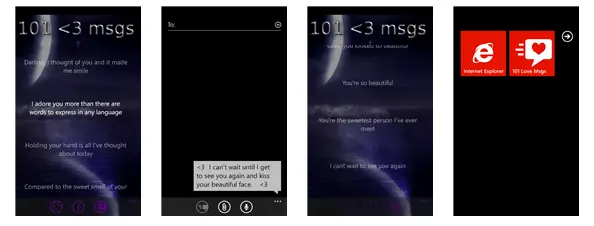
101 Love Msgs : This is another Valentine based app. You can send sweet message to your loved ones. You can pick a random message using the spin button.
It’s FREE to install and has more than 800+ reviews on its app store page.
UrbanSpoon : Using this app, you can discover the hottest restaurants, chef favorites and critic picks. Also depending upon your taste, you can create your own “My Urbanspoon” profile and share your reviews, pictures, and city guides. You can also add your restaurants to your wishlist.
The UrbanSpoon database consists of over 800,000 restaurants. This helps you find the best restaurant in your city or while on the road.
Love Text : Sometimes partners in love may be in fight and you need some kind of text to soothen each other. This app aptly named Love Text can help you send a love poem to anyone you want. With Love Text you can send love poems, family poems, friends poems, life poems to anyone in your contacts.
The app download is approximately 4 MB and is FREE.
Love Tieba : If you don’t know what is Tieba, then you are non- Chinese. Tieba is one of the largest forums in China. The app is a Tieba client mainly for Lumia800 Bar users. If the app cannot be launched, please try reinstalling.
The main features of this app is that it supports offline reading, painting by fingers, uploading of many pictures in one post, full screen and night modes and you can also modify the person info.
The app download size is 11 MB and is FREE to install. It works both on Windows Phone 7.5 and 8.
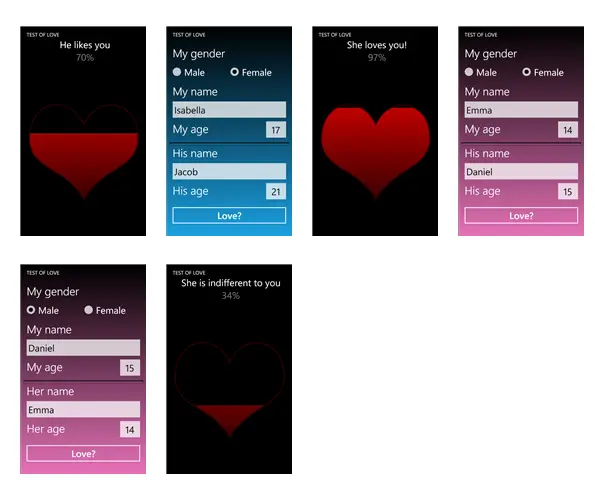
Test Of Love : This is another FREE app, using which you can test your love. It will answer many questions like ,
Does he loves you? Or hates… Does she loves him? Or hates… Does he loves her? Or hates… Does she loves you? Or hates… Do you love him? Or hate… Do you love her? Or hate…
The download size < 1 MB and the latest version is 1.5.0.0.
Conclusion:
I really didn’t try any of these apps as I don’t have a smartphone. But from their description I really find these apps very lovable and will be a definite Valentine’s choice for your boyfriend or girlfriend. Above all, you should test these apps using the new Windows 8 OS which is more tablet and mobile friendly.
Please let me know your views on these apps in the comments section. This will help other readers to rate the apps using the GD Star rating below the Author description.
When using cloud storage services, system administrators many times worry about losing data in the cloud because of a cloud provider outage. The answer is simple. You need to use multiplecloud computing services to mitigate this kind of risk. Microsoft’s SkyDrive, Apple’s iCloud, Amazon Cloud Drive, Drop Box etc are some of the best cloud services.
Today we are going to see one of the cloud backup services. Duplicati as it is called is a free software program which can be used to backup your files across a number of well-known free cloud services like Amazon S3, Microsoft Skydrive, Google Drive and more.
According to a study, it’s found that 86 percent of the companies use multiple cloud services. The increasing usage of cloud is due to the fact that it becomes simple to access your files on the go and without the use of your local computer.
Features of Duplicati – Software To Backup Files or Folder to the Cloud
Duplicati can be downloaded from the following link. The following are its features :
It uses AES-256 encryption to encrypt all your data before upload.
It supports incremental backups to save bandwidth
It supports backup scheduling to automatically backup your data.
It supports many targets like FTP, Cloudfiles, WebDAV, SSH (SFTP), Amazon S3 etc.
It allows you to selectively filter which type of files or folders you want to upload.
It can backup even in-use or locked files both in Windows and Linux.
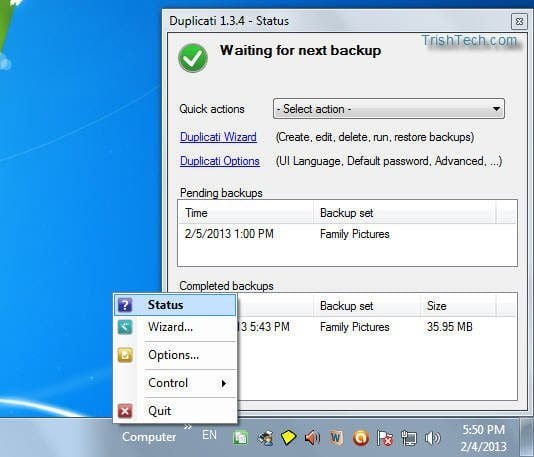
The downloads are available for both 32-bit and 64-bit editions of Windows. It also supports Linux and Mac OS. The installation of the client software is around 10 MB. After the software is installed, you can see an icon in the system tray (if it’s your OS is Windows). Using this icon you can create or restore a backup on the cloud.
How to Backup to Cloud using Duplicati ?
To setup the backup, just select the option Setup a new backup and click Next. The backup wizard takes you through different screens collecting information about the new backup. You need to give the backup a name and optionally add it to a group. If you are a Windows user, you can select the files in your user profile (like My Documents, My Pictures etc.) or you can select a custom folder to backup. You can also protect your backup using a password and encryption (AES-256 or GPG).
Then you have to choose a cloud backup service like Amazon S3, Rockspace, Cloudfiles, Google Drive, Microsoft Skydrive, FTP server, File based (backup to local hard disk or portable USB disk), WebDAV and Secure FTP as a target location.
[Img Source : TrishTech.com]
That’s it! Major work is done. For some cloud services like Google Drive, you need to provide credentials in the form of username and password. You can instantly run the backup by checking the Run backup now option. Otherwise, the backup will run at scheduled times.
The restore process of your backup from the cloud service is just as simple as creating one. You just have to run the Restore Wizard from the Duplicati icon in the system tray.
Conclusion:
The main advantage of cloud backup services is to protect your data against theft, hard disk failure, malware infection and many other unpredictable events. So using Duplicati you can store backup of your files or custom folder to the cloud service of your choice. It’s of experts opinion that backup should be saved away from the source, so in case of physical damage like fire, the backups stay safe and secure.
Thus, the Duplicati program not only helps save your backup away from the source, but also backs up to different cloud storage services which makes it doubly sure of any accidental damage of your data.
If you get two golden apples in one month, how would be your reaction? Cloud Clients for Windows Desktop have come up in the form of SkyDrive OneDrive and Google Drive. You must be already knowing that Microsoft provides online storage in the form of OneDrive to every Windows Live user account holder. Same goes with Google.
You can access Google Drive using your Google account or Gmail account. You get FREE online cloud storage of 7GB and 5GB with OneDrive and Google Drive respectively. Is this concept new? No! Apple has already been advertising and released its cloud backup service in the form of ‘iCloud’.
Though there are other online cloud clients like DropBox, Amazon Cloud, Box, Adobe Creative Cloud etc Google Drive and SkyDrive are challenging the competition. Earlier, it was possible only through third-party clients and software to connect to your OneDrive account and Google storage account. Now, the “real” vendors themselves have released clients for their online backup cloud storage services.
How to Install and Work with OneDrive Client?
The OneDrive client (one of the newly released cloud clients for desktop) is compatible with Windows Vista (SP2), Windows 7, Windows 8, Windows Server 2008 (SP2) and Windows Server R2 operating systems. By installing the OneDrive client application you will be able to synchronize your folders/files/images/videos on your computer with your OneDrive account.
Download OneDrive for Windows
There are also premium or paid versions for this cloud storage.
# Paid storage available for US$10/year for +20GB , US$25/year for +50GB, US$50/year for +100 GB # 2GB maximum file size limit
# OneDrive Client available in 106 languages
To work with OneDrive client, you need to download the executable from the above link and install the software. The installation process is intuitive and you need to provide Windows Live Id login and password to complete the process.
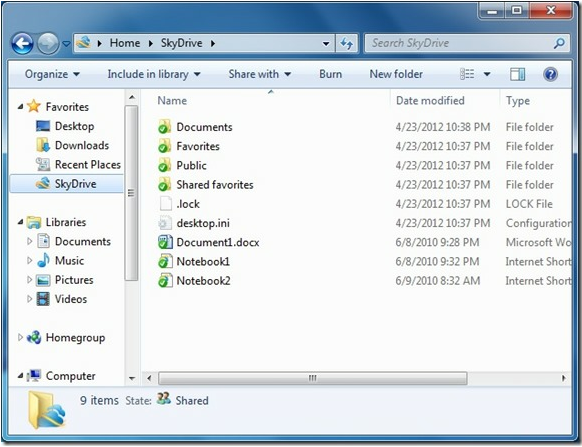
You can easily create your sign in credentials using this link. (You either need to create an Hotmail account or use your existing Email credentials). You’ll see the above screenshot once a folder called “SkyDrive”is created under “Favorites”.
Important Note:
Initially the folders will only sync with your OneDrive account ( if you’ve already uploaded any folders/files etc). To see the files in the folders also, you need to have “Shared Folder Synchronization”. I’m assuming that you need to have Office SharePoint service installed ( which comes with Office 2007 or 2010) for this to work. Please correct me if I’m wrong in the comment section. Once this is over, you can use OneDrive folder, just like any other folder in Windows.
Also, OneDrive client is available for Windows 7 Phone, Mac OS X Lion and iOS as well. If you’re also a Windows 8 Consumer Preview owner, you can also check the metro-style OneDrive app.
What about Google Drive – Another Cloud Client?
Google Docs is built right into Google Drive, so, creating, building, editing your Google Docs is fairly simple job with Google Drive. Currently, Google Drive application is available for Windows, Mac and Android operating systems. The best thing about this service is you can search your Google Drive just like you search your computer. Power users can upgrade to 25GB for $2.49/month, 100 GB for $4.99/month, and 1TB for $49.99/month. Upgrading to a paid Google Drive account will also increase your Gmail account storage limit to 25GB.
An app for iOS devices is coming soon.
Download Google Drive
Important Note: At the time of this writing, my Google Drive is not ready yet and so I couldn’t test the app as of now. So if anybody has already got their Google Drive, please let me know their experiences in the comment section.
Update (8/5/12): I received my Google Drive client recently, a couple of days, after I applied for it clicking on the above link.
Once you install the Google Drive client, you’ll see a small “triangle” kind of icon in the system tray.
As a bottom line I would like to say, that you’ll be a proud owner of FREE online cloud storage space of 12 GB if you install both SkyDrive and Google Drive client.
You can get more FREE space, if you can create more accounts related to both the clients. The only drawback is you’ve to login and logout, if you want to use multiple accounts and unlimited storage space. It’s only in theory that your storage is limited, but if you can create multiple accounts, your backup solutions are unlimited.
The general cause for Windows Update Error 80072f8f is the date and time settings being in error.
This could be due to a faulty CMOS battery or a bad RAM or buggy hardware.
The first fix to solve code 80072f8f in Windows 11 or 10 or 8.1 or 7, is to sync your time with an Internet server like time.windows.com.
Before that you should replace your failing CMOS battery.
The Windows Update problem and the solution to the code 80072ee2 error is already seen.
Today we shall see the troubleshooting steps and solution to a different kind of error – code 80072f8f.
This occurs when we do Windows 8.1 or 8 or 7 updates from Microsoft.
How to Fix Error Code 0x80072f8f in Windows 11
If you are using Windows 11 and you encounter an error code 0x80072f8f when you try to update, activate, or install apps from the Microsoft Store, you may be wondering what causes this issue and how to fix it.
What Causes Error Code 0x80072f8f in Windows 11?
Error code 0x80072f8f is a common notification that indicates a problem with your connection to the Windows servers. This may happen due to various factors, such as:
Incorrect date and time settings on your PC
Malfunctioning or missing DLL files
Outdated or corrupted root certificates
Overprotective Windows Firewall or antivirus software
Network issues or proxy settings
Depending on the cause of the error, you may try different methods to fix it. Here are some of the most effective ones:
Method 1: Check and Adjust Date and Time Settings
One of the simplest and most common solutions for error code 0x80072f8f is to check and adjust your date and time settings on your PC. If they are incorrect or out of sync with the Windows servers, you may face issues with updating, activating, or installing apps. To check and adjust your date and time settings, follow these steps:
Right-click on the clock icon on the taskbar and select Adjust date/time.
Make sure the Set time automatically and Set time zone automatically options are turned on. If not, turn them on and wait for a few seconds for your PC to sync with the Windows servers.
If the options are already turned on, you may turn them off and then back on again to force a sync.
Alternatively, you may also click on Sync now under Synchronize your clock to manually sync your PC with the Windows servers.
After adjusting your date and time settings, restart your PC and try to update, activate, or install apps again.
Method 2: Re-register DLL Files
Another possible solution for error code 0x80072f8f is to re-register some DLL files that are related to your connection to the Windows servers. DLL files are dynamic link library files that contain code and data that are used by various programs. Sometimes, these files may get corrupted or missing, causing errors. To re-register these files, follow these steps:
Press Windows + R keys to open the Run dialog box.
Type cmd and press Ctrl + Shift + Enter keys to run Command Prompt as an administrator.
In the Command Prompt window, type the following commands one by one and press Enter after each:
After running these commands, close the Command Prompt window and restart your PC.
Try to update, activate, or install apps again and see if the error is fixed.
Method 3: Install Root Certificate Update
Another possible reason for error code 0x80072f8f is that your root certificates are outdated or corrupted. Root certificates are digital certificates that are used to verify the identity and authenticity of websites and servers. If they are not updated or valid, you may face issues with connecting to the Windows servers. To install root certificate update, follow these steps:
Go to Microsoft Update Catalog website.
Type Root Certificate Update in the search box and click Search.
Find the version that matches your PC and click Download.
Follow the on-screen instructions to complete the installation of the update.
Restart your PC and try to update, activate, or install apps again.
Method 4: Turn off Firewall or Antivirus Temporarily
Sometimes, your Windows Firewall or antivirus software may be too overprotective and block your connection to the Windows servers.
This may cause error code 0x80072f8f when you try to update, activate, or install apps.
To rule out this possibility, you may try to temporarily turn off your Firewall or antivirus software and see if that helps. To turn off Windows Firewall, follow these steps:
Click on the Start menu and type firewall. Select Windows Defender Firewall from the results.
Click on Turn Windows Defender Firewall on or off from the left pane.
Select Turn off Windows Defender Firewall (not recommended) for both private and public network settings.
Click OK to save the changes.
Alternatively, you can click on Allow an app or feature through Windows Defender Firewall from the left pane.
Click on Change settings and scroll down to find Media Creation Tool. Check both private and public boxes next to it.
Click OK to save the changes.
If you have any third-party antivirus software installed, you need to disable it as well. You can do this by right-clicking on its icon on the taskbar and selecting Disable or Exit.
Restart your computer and try to run Windows Update again.
How to Fix Error 80072F8F on Windows 10
If you are trying to update your Windows 10 system, you may encounter an error code 80072F8F.
This error indicates that there is a problem with the SSL connection between your computer and the Microsoft server.
SSL is a security protocol that encrypts the data exchanged between your computer and the server. If the SSL connection is broken or corrupted, Windows Update will fail to download or install updates.
Method 1: Check and Adjust Date and Time Settings
One of the most common reasons for error 80072F8F is that your date and time settings are not synchronized with the Microsoft server. This can cause a mismatch in the SSL certificates and prevent Windows Update from verifying them. To fix this, you need to check and adjust your date and time settings as follows:
Right-click on the clock icon on the taskbar and select Adjust date/time.
Make sure that Set time automatically and Set time zone automatically are turned on. If not, toggle them on.
Alternatively, you can click on Change date and time manually and set the correct date and time according to your region.
Click on Sync now to synchronize your clock with an online server.
Restart your computer and try to run Windows Update again.
Method 2: Update or Reinstall Device Drivers
Another possible cause for error 80072F8F is that your device drivers are outdated or incompatible with Windows 10.
Drivers are software components that enable your hardware devices to communicate with your operating system.
If your drivers are not updated or installed properly, they can cause conflicts or errors with Windows Update. To fix this, you need to update or reinstall your device drivers as follows:
Press Windows + X keys and select Device Manager.
Expand the categories and look for any devices with a yellow exclamation mark or a red cross. These indicate that there is a problem with the device driver.
Right-click on the problematic device and select Update driver.
Choose Search automatically for updated driver software and follow the on-screen instructions to install the latest driver.
Alternatively, you can choose Uninstall device and then restart your computer. Windows will automatically reinstall the device driver upon reboot.
Repeat this process for any other devices that have driver issues.
Restart your computer and try to run Windows Update again.
Method 3: Run System File Checker and DISM Tools
The last method to fix error 80072F8F is to run System File Checker (SFC) and Deployment Image Servicing and Management (DISM) tools. These are built-in tools that scan and repair any corrupted or missing system files that may cause Windows Update errors. To run these tools, you need to follow these steps:
Press Windows + X keys and select Command Prompt (Admin) or PowerShell (Admin).
Type sfc /scannow and press Enter. This will scan your system for any corrupted or missing files and try to fix them automatically.
Wait for the scan to complete. It may take some time depending on the size of your system.
If you see a message that says “Windows Resource Protection found corrupt files but was unable to fix some of them“, you need to run DISM tool as well.
Why does Windows 7 Update Error 80072f8f occur ?
So you have bought a new Dell or Samsung laptop.
Otherwise, you bought Windows 7 Professional or Ultimate from a Best Buy store and you installed it on your brand new computer and you are ready to go.
Well, for now, everything is fine. After sometime the Windows giant Microsoft decides to release update to your Windows 7 OS (current update is SP1) or XP (current update is SP3).
Now you decide to update to the latest version and fail with an error code of 80072f8f.
If you receive Windows Update error 80072f8f while checking for updates, your computer’s date and time might not be the same as the date and time for the online Windows Update service.
Ah, you see, you’ve changed the date and time of your system and that’s why your update is not working.
Well, in case you are using a non-genuine version of Windows using “old system date”, then also you cannot update to the latest release.
Either you have to get better hack or crack software to make your Windows genuine and sync your date and time service with that of Microsoft.
Troubleshooting Steps
The answer is simple. Just change your date & time to the current period. You can follow the following steps from Microsoft Windows article to serve your purpose.
To change your computer’s date and time
Open Date and Time by clicking the Start button, clicking Control Panel, clicking Clock, Language, and Region, and then clicking Date and Time.
On the Date and Time tab, make sure that your computer’s date and time are correct. If they’re not, click Change date and time.
In the Date and Time Settings dialog box, do the following:
To change the date, under Date, click the left or right arrows to find the current month in the calendar, and then click the current date.
To change the time, under Time, double-click the hour, minutes, or seconds that you want to change, and then click the arrows to increase or decrease the value.
When you have finished changing the time settings, click OK.
Or otherwise, there is a better solution to your Windows Update error 80072f8f problem. Just sync your computer clock with any Internet time server. To do it, just follow the succeeding steps.
Click the Start button , click Control Panel, click Clock, Language, and Region, and then click Date and Time.
Click the Internet Time tab, and then click Change settings. If the system ask for Administrator password, then you may need to enter it.
Click Automatically synchronize with an Internet time server, select a time server, and then click OK.
This solution should work on Windows 7 other Windows OS.
How to Fix 80072f8f Error in Windows 8.1 and 8?
If you observe this video, it’ll be very clear that the above same solution also works for 8 and 8.1. In this video the author has clearly shown why the error is coming up.
When the computer date and time are set to 2021, he gets the 80072f8f error. But when he changes the time to the current time (i.e Nov 2016), you can see the updates are available.
Before changing the date, even trying several times, to update was a failure.
After correcting the date and time, the problem was resolved.
Other Issues and Fixes
Fix #1
If you are getting Windows update Error 80072f8f in Windows 8.1, you can try the following commands in a Command Prompt with (Admin) privileges.
net stop wuauserv net stop cryptSvc net stop bits net stop msiserver ren C:\Windows\SoftwareDistribution SoftwareDistribution.old ren C:\Windows\System32\catroot2 catroot2.old net start wuauserv net start cryptSvc net start bits net start msiserver pause
Exit the command prompt and check if the updates are working again.
The above problem could also be due to a bad update. One of the users on Microsoft forums found that KB 2919355 update is giving rise (80072F8F) update problem. So try uninstalling the recent updates if any, and see if the problem resolves.
Fix #3
You can also fix the Windows 8 update erreur 80072f8f, using the following commands.
Leave the system for a day or two and check whether the file %userprofile%\desktop\time.txt fills up with data. Try and check for updates meanwhile, to see if any data is recorded in the events. Sometimes, magically, updates start getting downloaded and installed.
Fix #4
One article mentioned on “TechSupportForum” gives different solutions to the above problem. One author tried to implement the SFC /SCANNOW command in an elevated command-prompt window. After completing it you can also create a CBS.log file of the result. This can be posted on different forums and analyzed by various Windows experts.
If you get the following result after the scan, “Windows Resource Protection did not find any integrity violations” it means your scan is successful and the file has been repaired.
Fix #5
You can also try the following command.
DISM /Online /Cleanup-Image /RestoreHealth
If you get the following message:
The restore operation completed successfully. The component store corruption was repaired. The operation completed successfully.
Then your computer is without issues regarding the above problem.
Fix #6
But if you still face problem there are several ways to go. You can stop and restart your Windows Time Service. You can do that from Services or apply the following command.
net stop w32time W32tm /unregister W32tm /register net start w32time w32tm /resync
Then if you still get any issue, you can see the problem in Event Viewer.
Fix #7
A better way to check is the CMOS battery. One of its purposes is maintain proper date and time of your computer hardware. So using F12 and Del key (depending upon your brand), you can go to your boot options and change the firmware or time over there.
Fix #8
If that fails too, than you can follow this link in Internet Explorer 6.0 or above only and update your root certificates. You need to find the OS (there are root certificates even for Windows 8.1 and 8) and click on Add. Download the update, run it on your PC and restart the computer. This should work out.
Fix #9
It is also important to keep your computer clean from temp files from time to time. For this you can clean out your temp/tmp folders in your Windows drive. You can also use the default clean up (Disk CleanUp) program found in Windows 8.1 or 8 or 7. The path to this program is as follows – Click Start > All Programs > Accessories > System Tools > Disk Cləanup. (This for Windows OS with Start Menu. For 8 or 8.1, you can press Win key and type the program name).
The easiest method of all is to using the FREE CCleaner program available from filehippo.com. You just have to click the “Analyze” button and then “Run Cleaner” so it clears all the cookies, temp and system dump files. Then you can use the “Registry” function to clean any left-over registry entries. This is also a solution, when some other updates are half-installed or the update progress stops in the middle.
Fix #10
You can also reset the Windows Update components. Otherwise, you can also use the Windows Update troubleshooter fix. This can be done using the tools provided by Microsoft itself.
Otherwise, you can stop and restart the “Windows Update” service in the Services window.
How to Fix 80072f8f Issue in Windows Phone?
This is the solution from “PCAdvisor”.
The date and time are to be set correctly on your phone. This error occurs when Windows attempts to run Update while your clock is set incorrectly. Simply correcting the date and time usually makes this error go away. The same issue can also occur on desktop PCs when running Windows Update.
This problem was reported by a Nokia Lumia 1020 user, who wanted to update to latest Cyan release of the Windows mobile operating system.
Fix #1
There could be other problems related to Lumia 920 or 520. The error code 80072f8f can also occur if you recently installed the Preview for Developers. In order to solve this, you can use the Windows Phone Recovery Tool and flash the phone. But there is a danger of your data being lost.
****Warning – So better make a backup of your data on the Windows phone. This step is important.
You can also do a “Hard Reset“. You can do this by resetting from Settings >> About. This will also sometimes fix the problem.
Windows Live Essentials 2012 is released and frankly speaking not many changes have occurred in Windows Live Messenger, Windows Live Mail and Windows Live Writer. Except at the start of the application the logo shows 2012. I observed a strange situation today. I tried to open an email by clicking the Inbox in WLM 2012. This opened up the Windows Live Mail application.
As you can see at the bottom I also received an email notification that mail has arrived. Before we go ahead, let me clarify a few things.
So I recently converted my Microsoft Account to use @outlook.com account. So now when I logged into WLM 2012, I used this new @outlook.com to login. Naturally the messages that are got are for @outlook.com account only.
But my Windows Live Mail is still using the old Windows Live Id. I heard that an alias would be created for your Windows Live Id with the new @outlook.com account. So I was expecting my messages would reach me without any further modifications. Alas! I was wrong!
I had to to add my @outlook.com address to Windows Live Mail 2012 manually, to send or receive any further messages from @outlook.com address.
How to Add Outlook.com Email Address to Windows Live Mail 2012?
Though Microsoft is revamping its Windows Live Essentials and we may soon get Windows Live Mail 2013, for now just follow this procedure. The negative thing is that the new Windows Live Mail 2012 can’t add Outlook.com email account automatically. It has to be added MANUALLY.
First enter your @outlook.com address in the Email address field and the password of that account. To add an email account in Windows Live Mail 2012, click the drop-down menu beside the “box” on the top left hand corner.
Moving the mouse over Options would open another menu under which Email accounts is there. Click on that. Then you will get an Accounts pop-up window to different activities. In this pop-up window click on Add to add an email account to Windows Live Mail. This should take into the next screen.
After entering your Outlook.com email credentials click on Next.
Now by default it will try to offer POP in the Server type option. But this didn’t work for me, though I tried to give the various server address and other settings on this page. So its better to go little automatic. So choose “Windows Live Hotmail” from the Server type option. This is very important. Click Next.
Voila! You get a successful message saying that your Outlook.com email account has been added to Windows Live Mail. In the below screenshot you can look at how the Outlook.com account folder is displayed in Windows Live Mail 2012.
Alas, I can finally see the email messages that I was notified of in Windows Live Messenger. Another Outlook.com tip, which many readers would benefit, provided, Microsoft rolls out some more better advantages to this cloud email service.
Probably you might have heard about “Windows Live Id” which is now passionately called “Microsoft account”. Outlook.com, the new cloud e-mail service from Microsoft, uses this account details to login. In the earlier days, the “Microsoft account” used to be any email address and a password. Generally, the email address used to be Hotmail account. You can check the “Windows Live Id” page to create an account.
So what is Outlook.com actually ?
Outlook.com is nothing but, Microsoft’s latest email service, which will replace both Hotmail and Live Mail. As we said earlier, if you have an Hotmail account you can use Outlook.com just by signing into http://outlook.com with your Hotmail account. But however, if you are interested in getting an email address with @outlook.com domain, you have plethora of options. One of the available options is to rename your existing Hotmail account.
How to Upgrade Hotmail Account to Outlook.com ?
Just login to your Hotmail Account.
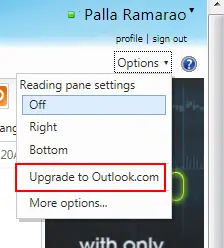
On the far right hand-side, just below your Profile Name, you can see “Options“.
Click the drop-down arrow and click on “Upgrade to Outlook.com“
A pop-up will open. You will see an Upgrade to Outlook button below the content. Click on it.
Once you click that button, your interface will be changed to that of Outlook.com. Its important to note that only the interface has changed and your email address still remains an Hotmail email address i.e @hotmail.com. In order to convert your Hotmail email address to an @outlook.com address, you need to rename your Hotmail.com email address.
How to rename your Hotmail.com email address to Outlook.com address ?
Renaming changes the primary username or email address of your Hotmail account. If you are already signed into other devices (like PC, Xbox, and Windows Phone) using your Hotmail username or account, you need to sign out from those devices and sign in again with the new name. If you are worried, that what happens to the email sent to your old Hotmail account, don’t worry! The old account acts as an alias and all the email sent to the old address will be sent to the new account.
But sometimes, its possible that you want to revert back to the old account after renaming your account. Then there is a time limit of 30 days within which you can go back to your old account. But there are 2 conditions:
If you rename an MSN account, you can revert back to the old name.
To undo a rename, you must be in the same country in which you created the account.
Warning: If you use a Windows Phone you will need to reset it to factory settings, which will cause all your installed apps and personal data to be erased or deleted.
How to rename your old Microsoft or Hotmail Account to Outlook.com ?
1. Login to Outlook.com using your Hotmail account or Microsoft account.
2. Then on the top you see a colored label on which there is “gear” icon. This is also called the Options icon.
3. Click on the gear icon and from the drop-down, click on More mail settings.
4. You are presented with different settings. From the different settings available, under Managing your account click Rename your email address. This will take you to the “Microsoft Account” or “Windows Live Id” page once again and you need to enter the password for that account once more.
5. Then a new page opens asking you to enter a new name and select the domain name (outlook.com, hotmail.com, hotmail.co.in, live.com) from the drop-down next to it.
6. Click on Save.
7. If the new name you entered is already taken, you will be prompted to enter a different address.
8. Now whenever you want to use “Microsoft Account” or want to enter into “Outlook.com”, you need to enter the new name, you just created. The password for this new name will be the same old one as that of “Microsoft account”.
9. Sometimes, when you enter Outlook.com using the new name, you will be asked to enter a code. This normally happens when you have associated a PC or phone number to your “Windows Live Id” account. The code will be sent to your mobile phone and you need to enter this code for confirmation of successful change.
Note :
You will not be able to rename an account that has been blocked more than once because someone else was using your account.
You can rename your account twice every 180 days. If you rename and then undo the rename, the undo doesn’t count towards your limit.
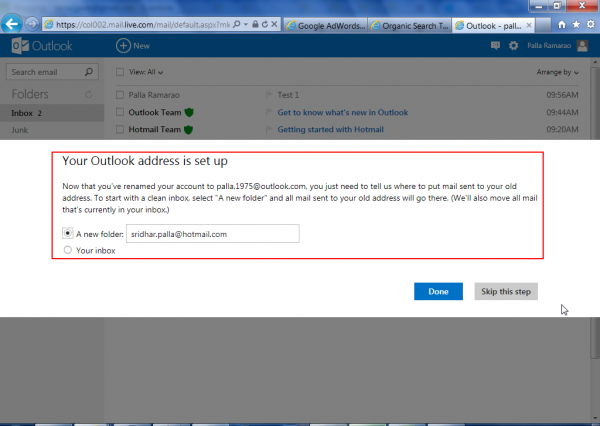
After renaming your Hotmail account to @outlook.com account, you need to specify where to put mail sent to your old Hotmail account address. There are two options : 1. A new folder 2. Inbox. The choice is yours.
As you can see, renaming your “Microsoft Account” or “Windows Live Id” account to the new “Outlook.com” account is very easy and without hazzle. On a personal note, my “Windows Live Id” username was a Gmail id. But I was able to successfully rename even the @gmail id which I was using as “Microsoft Account” to @outlook.com account.
Chrome and Firefox have excellent password management tools self-built into their browser system, that you can easily access the saved passwords of websites with just a few clicks. You can easily view the stored passwords in Chrome by following this tutorial in Windows 7.
But in IE9, you don’t have this feature built-in, which makes viewing saved passwords almost impossible without a tool. Although from a security perspective this is an excellent feature, but if you forgot any website passwords, retrieving is a difficult task.
So in case, you’re the only one using your computer, I’d introduce to you the only tool which makes viewing, editing, retrieving saved passwords in IE9 a lot more easier task.
IE PassView is a tiny utility that shows passwords in plain text that are stored by Internet Explorer. You can also delete passwords. This tool works with different version of IE from 4.0 to 9.0. So for every password you save, IE PassView displays the following information :
Web Address
Password Type (AutoComplete, Password-Protected Web Site, or FTP)
Storage Location (Registry, Credentials File, or Protected Storage)
User name/Password pair.
Cons : Some antivirus programs flag this product as Trojan/Virus. This utility has some issues from IE7 to IE9. Also if you have website with multiple stored passwords, deleting one password will delete all the other passwords.
LastPass is another online password manager and can be used to store and sync your passwords securely across all browsers and platforms. The additional feature is you can generate random and secure passwords.
The installation procedure is simple, but you have to walk through couple of steps, before you start using the software. If you have already saved some passwords in IE9 (or for that matter in any other browser like Firefox, Chrome etc) it’ll ask to import your passwords into LastPass and delete the data on these browsers for security purpose.
All the login and passwords you will be storing in LastPass will be encrypted and nobody can view this data on the web or even LastPass employees ( as this is encrypted). You also need to enter an email id and master password and create LastPass account (not mandatory) as a security feature to protect your passwords from others use or unwanted use.
Once this is done, using LastPass for IE9 is very simple. Just for example, I already saved “Yahoo!” password in IE9 and imported that data into LastPass. Now when I open the Yahoo login page, it asks me whether to automatically fill the login and password fields.
As you can see above, the fields are automatically filled and you just need to click the “Sign In” button. Similarly you can save passwords with LastPass, for websites you didn’t store the passwords AUTOMATICALLY in IE9. Hope, your password management problems in IE9 in Windows 7 are solved with both these tools.
Let me know of any other software for the same purpose in the comments section. I’ll blog about another good free open source tool called KeePass which is an excellent password management tool in my next post.
If you’re looking to block an application or software program in Windows 7, please read the following post. But if someone has managed to block the application or program you intend to use on Windows 7 and you do have the Windows 7 Administrative privileges to change the Security permissions of the program, it’s very simple to unblock the program from working again.
Just open the same Permissions pop-up window. To open it follow the directions mentioned in the “block Windows 7 application” post mentioned earlier.
Select the Group or user names you want to unblock the application in Windows 7.
Under Permissions for Users, uncheck the boxes under “Deny” column and check the “Allow” column boxes for Read & Execute and Read permissions.
When you run an Internet-Cafe or in a public place, you want to restrict permissions to an user, if you’re the system administrator. You may want to allow only specific programs/software/applications to run on your PC. Today, I will show you how to block an application or program from running on your Windows 7 PC. This way you’ll restrict users from deleting or corrupting a particular software or program.
The instructions are as follows.
You need to have Administrative privileges to do this process.
Look for the app or program, which you want to block, in your “c:Program Files” or where ever your Programs are installed.
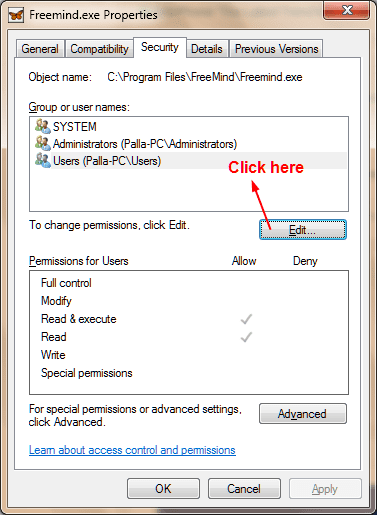
Select the .exe file of the program and right click and select Properties.
Goto the Security tab and select Edit button.
Now the following Permissions window will open.
Select the appropriate user to block access to the application/software/program. Now under Permissions for Users, click the check boxes under Deny column. Now click Apply. Then there will be a warning window, that “deny” actions will prevail over “allow” actions. Click on OK. Click on OK for the remaining windows and close them.
Now when you try to access the program or application, you’ll get the following message.
You can do the same to block a group of users or as many users you want.