Blog

  • Top 5 Best Mouse for Excel in 2022 – Logitech and Microsoft

    There may be tons of reasons in choosing a mouse for your Windows operating system!

    But if you are more of an Excel user, you would definitely look for a mouse that suits your spread-sheet application tasks.

    The best mice for excel in Logitech brand are as following.

    •  Marathon Mouse M705
    •  Anywhere Mouse MX
    •  Performance Mouse MX

    The other day I was searching an Logitech forum, and an user came up with these astonishing needs.

    The mouse should fulfill the basic requirements, like a nano usb and be wireless, be very precise at doing regular tasks like getting to cells in spreadsheets and selecting points on charts, attach programmable tasks to buttons on the mouse and should be easy enough to move between excel tabs.

    Out of these three, the M705 was accepted by the user.

    But all the 3 mice have unifying receiver,  advanced 2.4 GHz wireless connections, hyper-fast scrolling, can be programmed to use Logitech SetPoint Software,  forward and backward button at the thumb-side for assigning keystrokes.
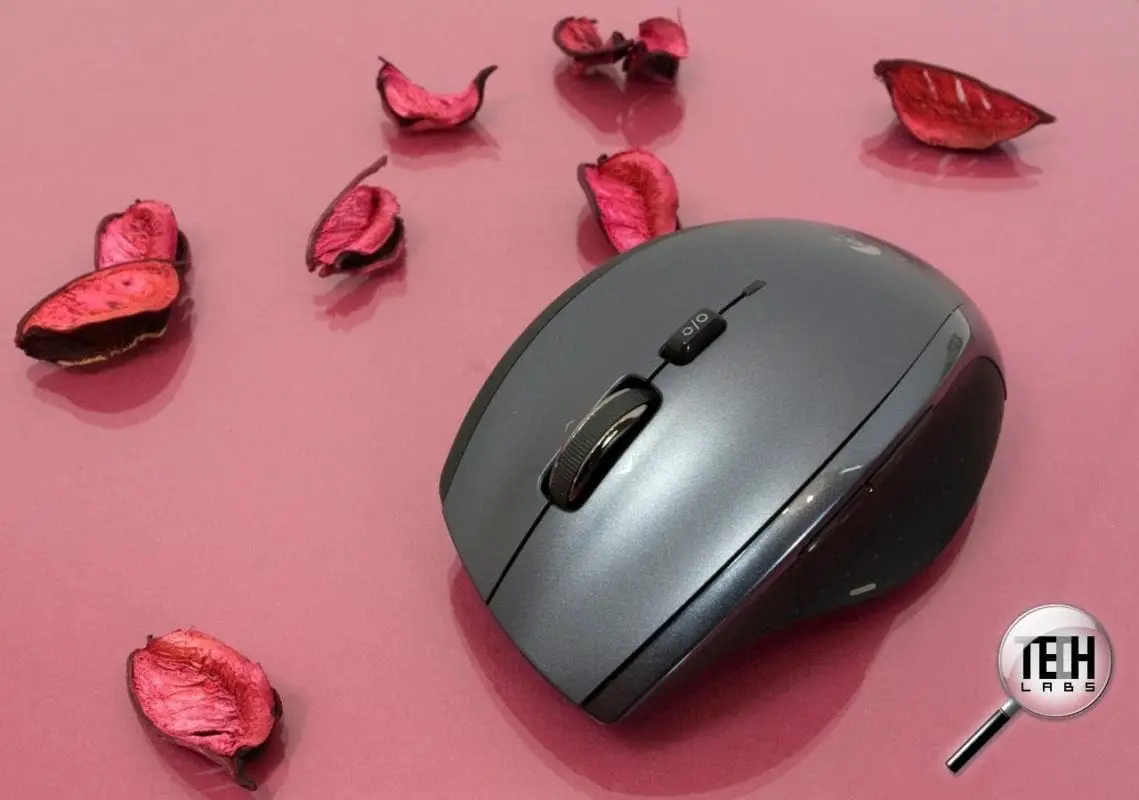
    logitech_marathon_mouse_m705

    Logitech Marathon Mouse M705

    The Logitech Corded Mouse M500 is a more affordable substitute for users who more frequently use Office apps, like Excel and Word.

    The price of this mouse is around £20.

    The 3 most important features of this mouse are a laser sensor, the scroll which is with or without notches and 2 buttons to facilitate internet browsing  | Buy Now
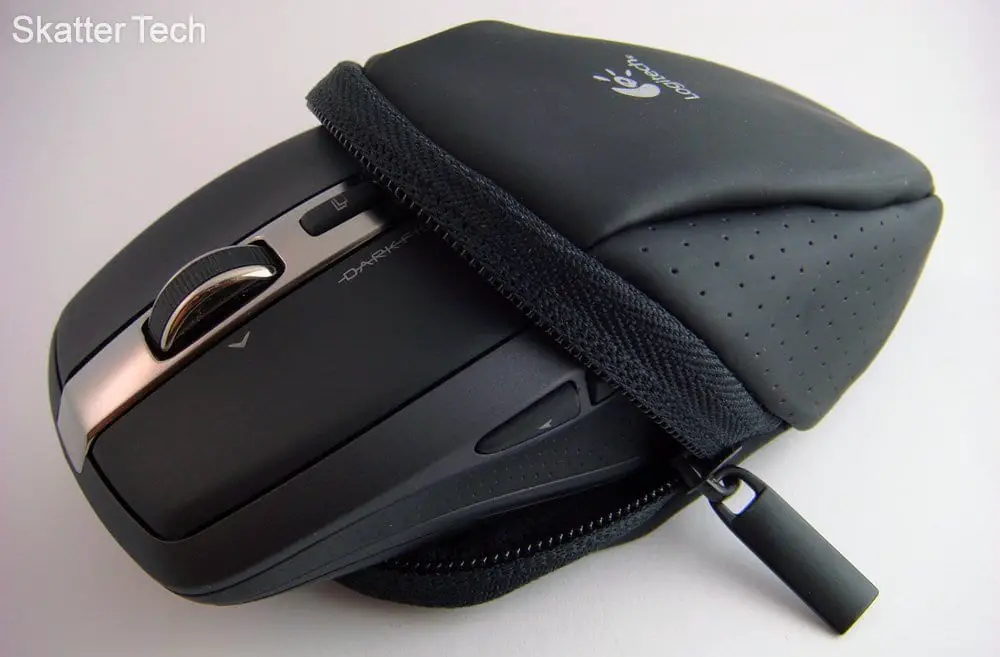
    Logitech_Anywhere_Mouse_MX 

    Logitech Anywhere Mouse MX

    The Anywhere MX is regarded as the best wireless mouse, according to the “Wirecutter.com“.

    This works out really well as a full-on desktop mouse and has all the features of a solid general-purpose mouse.

    $50 best Excel mouse. Travel mice.
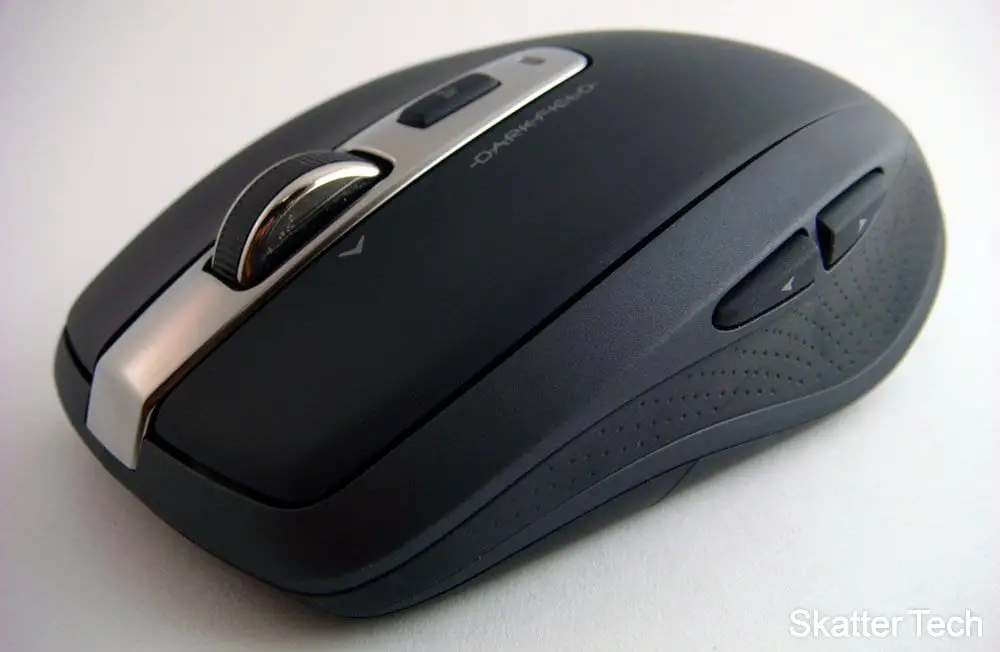
    good mouse for excel from logitech

    The ergonomics are simple and symmetrical.

    There have been changes from the 2012 version and its matte surface has changed to a more glossier plastic.

    But there are little flaws like the lack of a dedicated middle mouse button and some battery issues . | Buy Now

    Logitech Performance Mouse MX

    According to “Engadget”, it gives a critic score of 8.1.

    Even other review sites like CNET, Gizmodo, PCMag, Digital Trends have good reviews about this mouse.

    It is a laser-type, right-handed, scrolling device with 9 buttons.

    Connected using wireless with the help of RF/Radio signals.

    Users have given a score of 9.4 and 9.3 in ergonomics and design respectively. | Buy Now
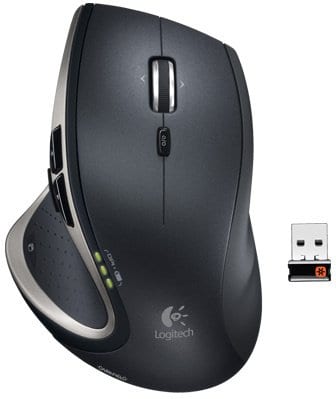
    best mouse for excel from logitech

    You can see the specs here.

    The highlights are it has an “Under Thumb button“, which is a natural position for a button.

    Advantages of Logitech Performance Mouse MX

    • No thumb motion required.
    • Just press the button and it’s good to go.
    • One can charge it using USB cable.
    • No battery required.
    • Connected wirelessly using 8mm USB receiver.
    • Battery life is very good.

    You can use it for 14 days with an average of 8-12 hours per day, per charge .

    Conclusion

    Multiple devices sync to one USB, comfortable form factor, high precision, smooth scroll wheel, unified technology are the significant features of Marathon Mouse 705, according to PCMag.

    Usage by right-handed persons only, is its disadvantage.

    The M705 as a gaming mouse can track speeds up to 3200 dpi, scroll-wheel can move horizontally through pages, 3.7 out of 5 rating on the Logitech website and plug-n-play feature.

    The horizontal scroll makes it an ideal choice for one of the best mouse for excel which makes it move across large number of columns.

    The Microsoft Sculpt Touch Mouse  costs around $50. It is an apt choice for Microsoft Excel usage

    Vertical and horizontal scroll. Mac compatible.

    The BlueTrack technology yields smooth tracking.

    For the touch enabled and tiled interface of Windows 11 or 10 or 8.1 Metro interface, this compact wireless mouse is more useful.

    Note: Some of the links above are Amazon affiliate links. With no additional cost incurred for the user, I will get a small commission if you buy from the link above.
  • [Tutorial] – A Complete Review on Kaspersky Rescue Disk 10 with Pros and Cons

    When computers are infected with hard-to-remove viruses, then we need to boot the system from a rescue disk. The best way to remove trojans, viruses and malware is when they are in a weak state. Booting into “safe mode” can be one of the options of removing viruses.

    Another way of eliminating viruses is by checking the malware load points for signs of infections. Once your PC is disinfected from malware you need to regain control of your Task Manager, Folder Options menu in Windows and other system changes by resetting them.

    Why do you need Kaspersky Rescue Disk ?

    Kaspersky Antivirus and Kaspersky Internet Security are anti-virus and internet security products developed by Kaspersky Lab for your computer protection and internet safety. The developer also released another product which can be used for emergency cases of virus removal.

    Kaspersky Rescue Disk is another form of virus removal tool that can be burned on a CD/DVD or removable thumb (USB) drive which can be launched anytime when needed.  A regular anti-virus program sometimes fails to remove the dreaded viruses and for critical situations like these, Kaspersky Rescue Disk is needed.

    [Some affiliate links are provided in this post which will earn me some commission if you buy. No other hidden costs are involved and you will not be charged anything extra if you buy through these links]

    Sometimes the viruses/malware start-up when the system boots up. Theses cannot be removed by normal anti-virus programs, though not totally impossible. In such cases, booting from a rescue disk can alienate such un-removable viruses.

    Download Kaspersky Rescue Disk 10

    How does Kaspersky Rescue Disk Works?

    Before we can use any type of CD/DVD/USB drive, it’s best to set the system to boot up from Kaspersky Rescue Disk which can be used to restart the system and fix the virus problems.

    Once the rescue disk is inserted, you will be asked to select which objects, like disk boot sector, local hard drive or hidden start up objects, would you like to process with Kaspersky. It will scan all the selected items and deliver a complete report on viruses, trojans, spyware etc. which are detected on the system.

    Kaspersky Rescue Disk then facilitates you to quarantine, disinfect or remove all those deep-rooted infections so you can be sure that your system is virus-clean and is running fast and smooth as normal it would be.

    What are the Pros of using it?

    The additional advantage with Kaspersky Rescue disk is that you can configure settings for your computer’s security level, scanning, optimization and more. You can also set regular updates and notifications. This will automatically detect or modify system errors, obsolete databases and others.

    It is highly recommended that you update your anti-virus databases of Kaspersky Rescue Disk 10 (which is the latest version) to get safety-protection for new viruses, spyware and malware.

    How to Remove Viruses from your Computer using Kaspersky Rescue Disk?

    The first thing in this process, is to download the latest version of Kaspersky Rescue Disk and use any of your favorite CD/DVD/USB burning application to burn the ISO image file to an optical disc or external thumb drive.

    How to Use a USB Drive to load Kaspersky Rescue Disk?

    • In order to use a USB device, you have to first make sure that the device is FAT or FAT32 formatted.
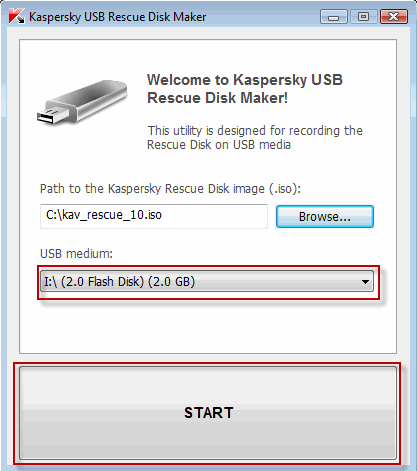
    • Download a special utility Kaspersky USB Rescue Disk Maker (rescue2usb.exe).
    • On the USB Rescue Disk Maker window, click Browse… and select the iso image of Rescue Disk.
    • Select the required USB device from the drop-down menu. and click on the big START button.
    • Wait until the process is complete.
    Install Kaspersky Rescue Disk on a USB

    How to Clean an Infected Computer?

    Insert the USB device containing the rescue disk software and boot from it. You may need to change your BIOS options to make this work.

    A message appears asking you to press any key to enter the menu. You need to do this in the next 10 seconds.

    A menu appears which has options to choose whether you want a Graphical mode or Textual mode. Generally the Graphic mode is simpler and easy to understand.

    What are the further Options?

    You then need to accept the End User License Agreeement to move forward. After than it scan your computer for connected devices and searches for file systems of your local and external disks.

    Note:

    If you are in sleep mode or hibernate mode or if the operation has been completed incorrectly, you will be asked to mount the file system or restart the computer.

    In order to boot from hard drive and shut down the operating system correctly, choose the option Restart computer. Other options like Continue, Skip will cause a high risk of file system damage. 

    Now you can see the full working status of Rescue Disk. The next thing to do is to switch to the My Update Center tab and download the latest anti-virus definitions as already told before.

    After updating to the latest file definitions, switch to Objects Scan tab. Select the drives you want to scan, and click the Start Objects Scan button. It will start scanning and clean any viruses it finds.

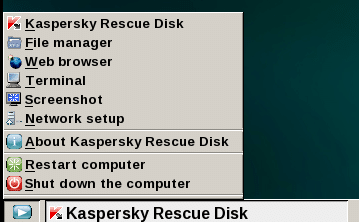
    If the rescue disk scanning finds any virus, you will have the option to clean or quarantine files.  There are finer tools included with Kaspersky Rescue Disk, which can be accessed by right-clicking the icon on the task bar, to do further research.

    Utilites included are a file manager, fully working web browser, command line (Terminal), screenshot tool and network setup.

    kaspersky_rescue_disk_tools

    [Image Credit : mytechguide.org]

    User Reviews on Kaspersky Rescue Disk Functioning – Pros and Cons

    These are some users comments on the working nature and troubleshooting performance of Kaspersky Rescue disk. There are some advantages and disadvantages as mentioned from 16 reviews from 2009 to 2013.

    • One ransom virus locked the UI and it was important to look into the system or C: drive. The user complaints that the rescue disk couldn’t recognize the C: drive.
    • One user tried running from a bootable USB device. He got block-read errors after the boot. But the rescue disk worked flawlessly when booted from a CD-ROM.
    • Another user complains the lack of options for different keyboard layouts, as the default option is the US keyboard. Also to use the Windows Unlocker tool, one has to use the Bash terminal. So he requests for a GUI option.
    • Another user’s system showed an error –  ata2:SRST failed (errno 16).  This caused – bootable device not found.
    • Sometimes, the cursor movements are too fast using the current drivers.  User Profile App Data folderis the place where the rescue disk files are generally kept, which may cause problems. The root directory, for e.g C:\KAV-RescueDisk, is the right place where these files are to be kept for rectification of this problem.
    • For another user, the process of scanning took more than 48 hours.
    • There were some issues with USB mice for another user and pointing device on notebooks.
    • Another user had a rogue virus that removed Microsoft Security Essentials anti-virus.  It held the computer hostage to force him to buy some unfamiliar virus scan software. But Kaspersky Rescue disk was able to scan the system and delete the virus files.
    • The rescue disk was able to pick up malware that escaped the Windows Malicious Software Removal tool and MS Security Essentials anti-virus software.
  • [Solved] – Fix Office 2010 SP2 Update (KB2687455) Failure Problems

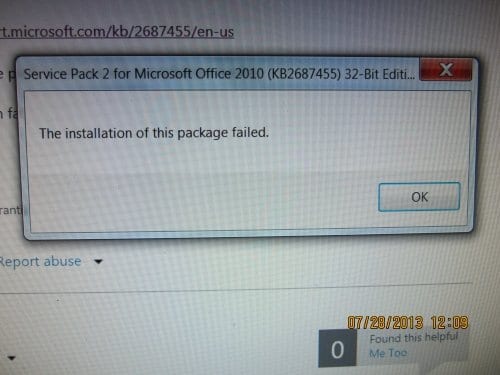
    Recently Microsoft released the Service Pack 2 update for Office 2010. I earlier wrote an article giving manual links to download this update. Most of the times running Windows update is sufficient enough to renew your 32-bit or 64-bit version of Office 2010 with this KB2687455 update. But sometimes you may face problems in installing this update and I’m here to help in such a scenario.

    Read More : Fix BOOTMGR is Missing Error During or After Windows 7 Install – Causes and Solutions

    If you are on Windows XP and failed to do this update, you can do a few things before doing the last solution. You can apply the Microsoft Automatic Fix (Mr.Fix) for Office products upgrade. One user found 4 registry commands to implement in fixing this problem in the concerned knowledge article. Suppose the KB2687455 update fails then you can follow this process.

    • Download the Office 2010 SP2 update manually from the Microsoft page. Links are already given in my earlier post.
    • Check whether you are running 32-bit or 64-bit version of Office 2010. Here is the link to check.
    • Try updating in a clean boot state. What is “clean boot”? In order to troubleshoot error messages and other issues you can start your Windows OS (Vista/7/8) by using minimal set of drivers and startup programs. This type of startup is known as “clean boot”. Here is a link on how to do it.
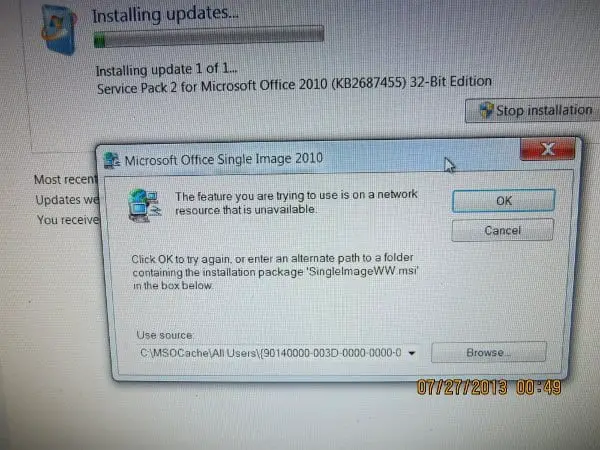
    • Office updates sometimes can fail if the update files are looking for the original installation source files of the Office Product. Downloading the full installation file and the updates can solve some problems. You can also put the installation source files on the installation drive or network source where the update tries to search.

    Ultimate Solution to all Problems of Office 2010 SP2 UPDATE Installation:

    If everything else fails it is better to perform a repair install. After researching several problems on the forums, blogs and microsoft support groups, I find this solution clearing most of the Office 2010 SP2 installation problems.

    Sometimes Intel Express chipset drive updates can interfere with Office 2010 SP2 update. Better install your Office update without the Intel chipset update.

    Sometimes you may have problems with Language settings. You administrative account language settings may be in other language then English. Changing temporarily to English and then updating may solve the problem.

    Sometimes deleting your MSOCache can cause these problems. Using the installation media in this case to find the MSOCache files may sometimes not work with Office 2010 SP2. So its better to retain the MSOCache after installing MS Office. This is generally advised in many threads and forums.

    MSOCache_failure_Office_2010_SP2_update

    How to Perform a Repair Install ?

    This is very easy.

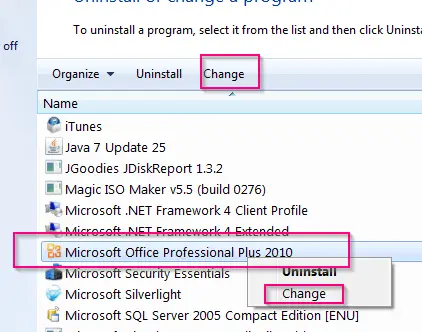
    • Goto Control Panel > Programs and Features. (View by small icons)
    • Find and Select your Office 2010 product.

    perform_repair_install_Office_2010

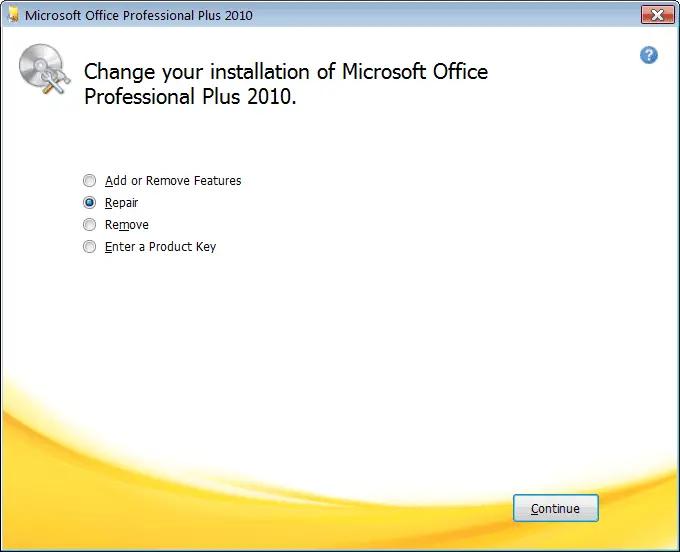
    • Right-click and from the context menu select “Change”. You can also click the same label at the top. This will pop-up the following window.

    repair_office_2010_screen

    • Select “Repair” and click the Continue button.
    • During the process it may ask the location of some source files present on Office 2010 installation media.
    • When finished, reboot your machine.

    That should complete the repair process. You are done!

    There are also some known issues detailed by Microsoft when you install Office 2010 SP2 and Sharepoint 2010 SP2. The solutions to these issues are detailed in this article.

    Some Other Office 2010 SP2 Update Problems (KB2687455) are listed below from Microsoft forums, blogs and communities.

    Service Pack 2 KB2687455 due to failure code 80070643. Automatic Trouble Shooter unable to fix problem. Suggestions?

    Microsoft Windows Update failed Error Code: 0xB56 for Office 2010 Service Pack 2 for
    Microsoft Office

    i already downloaded the update, but it does not want to complete the installation, keep on getting error 8024002D please help!

    I can’t download the update either, I keep getting error code 80070652. I have tried over 20 times to download this update. PLEASE HELP !!!

    I also have a Windows 7, 64 bit machine. My original installation was without SP1 which had been added by Windows Update. I used a 2010 plus SP1 version and ran the .exe when it came to the question of what was needed I selected Repair. After this was complete I then retried the Windows Update to update to SP2. This worked.

    When I try to activate the suite using any of the installed applications (word, excel, outlook or powepoint) I get the error “An unspecified error has occurred. Your request cannot be processed at this time. Please try again later. (0x80070190)”. If I repair the install then try the activation again it works right away.

    When I went and ran the install, I got the dialog box as shown in Picture #2. For reference, the full path to where the file “ProPlusWW.msi” is suppose to be is

    I have no idea what “SingleImageWW.msi” is..

    Sources : answers.microsoft.com, social.technet.windows.microsoft.com, dslreports.com

    Office_2010_SP2_installation_failed

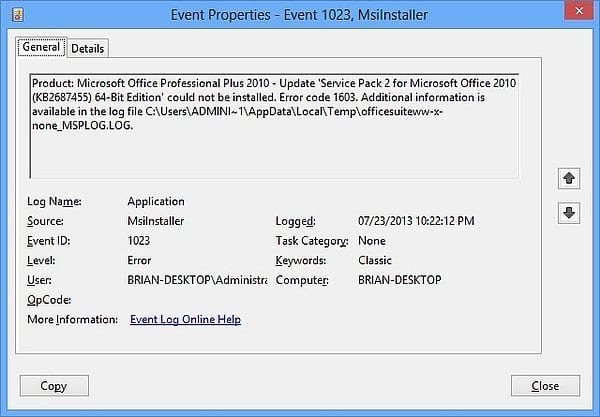
    Office_2010_SP2_for_64bit_edition_failed

    In conclusion, I’d like to deduce from reading all the above forums and threads that “repair install of Office 2010” will maximum solve your SP2 update problems. Sometimes you need to have your source for the Office 2010 installation media.

    If you still face any problem relating to Office 2010 SP2 update (KB2687455 failing), please let me know in the comments. I spent almost half-a-day researching this topic, so sharing this post and images on your social network would be useful. You can also subscribe to my Feedburner Feed or Mailchimp Weekly Newsletter.

  • Office 2010 SP2 update – Manual Download Links (July 2013)

    Talking about updates, Microsoft releases SP1, SP2, SP3 for its products. Recently it released the Office 2010 SP2 update. If you are using a genuine OS from Windows, then these updates are automatically installed when you click on the Windows Update icon in the control panel.

    Related – KB2687455 Failure Problem – Office 2010 SP2 Update (Solution)

    But many of the users in Phillipines, Malaysia and India who couldn’t afford a genuine version resort to a pirated version of Office products. For this reason or any other reason, if you want to install the updates for Office 2010, these are the download links.

    office_2010_sp2_download

    What are the File Names and Sizes of Office 2010 updates?

    1. officesp2010-kb2687455-fullfile-x86-en-us.exe – 638.2 MB
    2. officesp2010-kb2687455-fullfile-x64-en-us.exe – 730.4 MB
    3. officesuite2010sp1-kb2460049-x86-fullfile-en-us.exe – 362 MB
    4. officesuite2010sp1-kb2460049-x64-fullfile-en-us.exe – 439.8 MB

    As you can observe the update file sizes have increased from SP1 to SP2. The 32 bit version update increased from 362 MB to 640 MB. Similarly the 64 bit based update increased from 440 MB to 740 MB. The support articles are also mentioned above.

    Read More : Windows 7 64 bit BSOD Errors – Some Solutions

    What are the System Requirements for the SP2 update?

    The following are operating systems that can be updated with Service Pack 2 for Office 2010.

    • Windows 7
    • Windows 8
    • Windows Server 2003
    • Windows Vista
    • Windows XP

    What are the fixes included in Office 2010 SP2 update?

    This service pack basically includes the following 2 types of fixes.

    • Previously unreleased fixes that are included in this service pack. In addition to general product fixes, these fixes include improvements in stability, performance, and security.
    • All the public updates that were released through May 2013, and all the cumulative updates that were released through April 2013.

    If you are interested in buying this product, here is my affiliate link from Amazon using which you can download the Home & Student version of Office 2010 for PC. The contents include a disc.

    If you want to see the introduction and features of Office 2010, here is an YouTube video, that comes from Windows7Forums.com

    I hope that using the above resources should be very easy updating your Office 2010 product. If you face any problem after SP2 UPDATE, please let me know in the comments.

  • How to Extend Office 2013 Free Trial to 180 Days?

    Office 2013 ( and also Office 365) were released on Jan 29th with much pomp and galore. The Professional version of Office 2013 costs around $400 without discount. But PKCs (Product key cards) which were debuted with Microsoft Office 2010 may get you the same software at $360, 40 dollar less.

    Read More : Office 2010 SP2 Update – Failure with KB2687455 Error (Solution)

    Microsoft also offers Office 2013 as a 60 day free trial, for evaluation purposes. But now with a small hack or tweak you can extend this period to 180 days. The trial software can be directly downloaded from the Technet website. The free version contains all the features of the paid version.

    Office Professional Plus 2013 includes Word, PowerPoint, Excel, Outlook, OneNote, Access, Publisher, and Lync.

    What are the HardWare Requirements ?

    •  1 gigahertz (GHz) or faster x86- or x64-bit processor with SSE2 instruction set.
    • 1 gigabyte (GB) RAM (32-bit); 2 gigabytes (GB) RAM (64-bit)
    • 3.0 gigabytes (GB) available
    • Graphics hardware acceleration requires a DirectX10 graphics card and a 1024 x 576 or higher resolution monitor

    What are the Software Requirements ?

    Office 2013 can be installed on the following operating systems –

    • Windows Server 2008 R2 (64-bit)*
    • Windows 7 (32-bit or 64-bit)
    • Windows Server 2012 (64-bit)**
    • Windows 8 (32-bit or 64-bit)
    1. *Windows Server 2008 R2 is available only in 64-bit architecture
    2. **Windows Server 2012 is available only in 64-bit architecture

    How To Get the 60 Day Free Trial ?

    As easy as it gets, just visit the earlier link for this trial download. Click on the “Get Started” button. This will take you to the Microsoft account page. Enter your credentials. (Its also called the Live Id earlier).

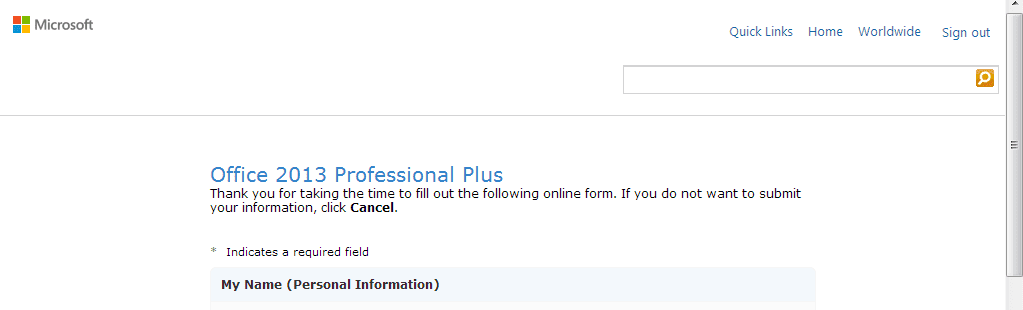
    office_2013_professional_plus_subscribe_free_trial

    Next you need to enter some personal details like name, email address, location, version of software you would like to download ( 32bit or 64bit), primary role in your organization etc. These are mandatory fields. After filling, click on Continue button at the bottom.

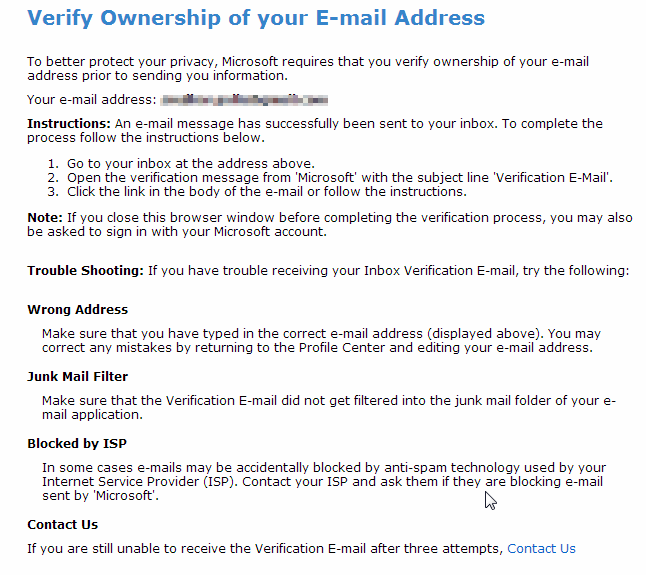
    Note : Sometimes you are required to verify your ownership of your email address. The instructions are displayed on the next screen sometimes. This generally occurs if you change your email address in the previous form which is auto-populated.

    verify_ownership_mail

    This will take you to the next screen which will display your Product key. Next select your language on the same screen. There are 14 languages to choose from Arabic, Chinese (Simplified), Chinese (Traditional), Dutch, English, French, German, Hebrew, Italian, Japanese, Korean, Portuguese (Brazil), Russian, Spanish.

    Office_2013_RTM_64_bit_free_trial

    After selecting, click the Download button. It can take about 1 hour depending on your internet connection. The file size is approximately 800 MB. The software comes in the form of a ISO file. So you can burn this file to a DVD or USB.

    How To Extend the 60 Day Evaluation to 180 Days?

    But what will you do when the trial period is over. You definitely need to buy the software, as different functions in different applications will stop working.

    To  rearm Office 2013 only takes a few steps. Firstly, visit the following folder.

    On 64-bit systems:

    C:Program FilesCommon FilesMicrosoft Shared

    On 32-bit systems:

    C:Program Files (x86)Common FilesMicrosoft Shared

    Once there, use hold the Shift key down and right-click on the following folder:

    • OfficeSoftwareProtectionPlatform

    From its context menu click “Open command window here.”

    A command prompt will open up. Just type in the following command:

    OSPPREARM.EXE

    Now the Office 2013 suite should be ready to go for another 30 days! Like this you can rearm your Office 2013 suite every month for up to 6 times and enjoy free 180 days full version.

    [Source : groovypost.com]

    This method does not use any hack software and is directly provided by Microsoft as it is. But there is another method which may require you to download a program.

    DiSTANT X has released Office Trial Extender 1.0.0.7, a new build of its tool for legally extending the trial period of Microsoft Office 2013 trial to a maximum of 180 days. Initially you need to sign up for the trial as mentioned before. After the trial is over, using the above software you can reset the trial period back to 0 (zero).

    So you get another extra free 30 days of trial. Like this you can extend it 5 times.

    BTW, did you like the Office 2013 interface? What are the major features you liked in Office 2013? Are you interested in subscription model or 1 time download service? Please let us know your views in the comments section!

  • Windows 8 or 8.1 HDMI Not Working – Couple of Solutions

    Several issues were raised in various forums related to Windows 8.1 HDMI. In this article we are going to see location of hdmi driver windows 8 or 8.1 and if any solutions found to hdmi not working problems.

    You can make use of Device Manager to install the latest graphic card drivers. Another issue is that audio is not heard through HDMI device like Smart TV or Soundbar. For this you need to make the right hdmi driver as your playback device.

    HDMI Cable Connected to TV Not Recognized on Windows 8 or 8.1

    First of all make sure you have the proper and correct drivers for your graphics card.

    If not, install the drivers from the manufacturer site and then connect the HDMI cable to the TV. Then, the HDMI should automatically be detected.

    @AudioSlave” on 7pmtech had the following to say regarding his HDMI problem.

    I recently installed Windows 8 Pro WMC on my 64-bit laptop. When I try to connect HDMI cable on it to extend my monitor to a TV, my PC can’t detect it. There’s no other option to select other monitor. I had the updated driver for the monitor & graphics card. My graphics card is NVIDIA GT216. Could the graphics card be the problem? a lower capability for Windows 8? I don’t have this problem before when I’m still on Windows 7 Pro.

    He managed to solve this problem by installing NVIDIA graphics driver through his PC’s manufacturer website.

    He first downloaded the original NVIDIA graphics driver that comes with Windows 7 and then upgraded to Windows 8. Installed the driver and the cable is now working.

    HDMI not appearing in PlayBack Devices List

    Sometimes your HDMI appears in your Device Manager but is not visible in the playback devices list.

    You may not listen to the HD music of your TV if this is the case. Instead, you may hear your PC or laptop sound.

    One of the solutions is to install the latest “Graphics media Accelerator” driver from Intel.

    Download Drivers from Intel

    Download HDMI Driver for Windows 8 or 8.1
    You can download Intel’s latest graphic or media accelerator drivers to fix hdmi problem in windows 8 or 8.1. Then you can install or update using Device Manager.

    What is HDMI

    HDMI also known as High-Definition Multimedia Interface was primarily developed by 7 companies and its forum consists of 87 companies. Basically HDMI consists of a number of HDMI-standard cable connectors, each of which can be used for transferring any uncompressed TV or PC video format signals, including standard, enhanced, high definition and 3D video signals.

    According to Wikipedia,

    HDMI (High-Definition Multimedia Interface) is a compact audio/video interface for transferring uncompressed video data and compressed/uncompressed digital audio data from an HDMI-compliant device (“the source device”) to a compatible digital audio device, computer monitor, video projector, or digital television. HDMI is a digital replacement for existing analog video standards.

    Conclusion

    As you can see above you just need to select the OS ( for eg. Windows 8.1 here) and the resulting graphic drivers will be listed below.

    I found only 1 driver for Windows 8.1 as it is relatively new. Its basically a Chipset Device Software which is primarily for Intel 8, 7, 6, 5, 4, 3 900 Series chipset.

    But for Graphics Media Accelerator driver, you can download it for Windows 7 or Vista and then see if it works.

    In future posts, I will try to detail some more HDMI issues in Windows 8 or 8.1 and their solutions. Please comment in the section below to show your appreciation of solving this problem.

  • Which is the Best Metro Web Browser?

    With PC market dwindling and Microsoft following the trend of tablet devices, Metro is here to stay. Browsers are part of Internet activity and need to cope-up with performance, speed and memory when compared with the developments in Hardware. Its almost 6 months since the release of final version of Windows 8 and we also produced an article on the best internet browsers for the Metro OS.

    Today in this article, we are going to see relatively a new comparison of benchmarks for 7 and 8 of the more popular browsers and find out which is the best metro web browser.

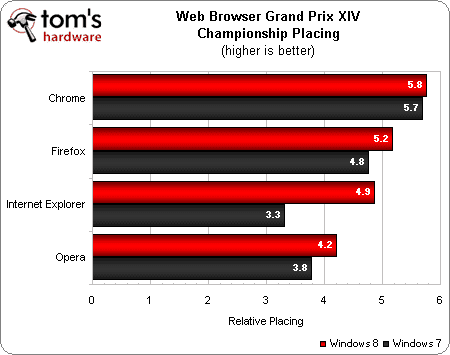
    According to the conclusion of “TomsHardware“, Chrome is the clear winner.  The browsers compared are Chrome 23, Firefox 16, Internet Explorer 10 and Opera 12.10. The website did a detailed comparison of benchmarks on various performance categories and non-performance metrics.

    The five performance categories are load time, HTML/CSS, JS/DOM, HWA, and plug-ins. The four non-performance standards are emory efficiency, render reliability, security, and standards conformance.

    Image - Best Metro Web Browser

    As you can see clearly above, Chrome outweighs other browsers by scoring relative points of 5.8 in Windows 8. Its not only the outright winner in the Metro version, but also in Windows 7. The next 3 best browsers are Firefox, IE and Opera respectively.

    One significant fact is that all the browsers scored more points in the Metro version when compared to 7. IE 10 showed major improvements in most of the categories and is worth the install in Windows 8.

    But looking at only performance benchmarks, Firefox 16 manages to beat Chrome 23 on Windows 8 by a slight margin. This can be mostly attributed to the strange delay in start-up times of Chrome in Metro. Mozilla’s new JavaScript engine is around the corner and it may be not be too distant before Firefox dethrones the King in Metro web browsers.

    Conclusion:

    Personally speaking the naive metro browsers released by Google, Microsoft, Mozilla are not working without issues. I faced frequent problems using these new app styled browsers and is best to use the old desktop based web browsers as said above. But if you are in love with the new METRO style and would love to read a review on Metro styled browsers, here is the link.


  • How to Manually Configure Outlook.com for Windows Live Mail 2011

    Earlier we talked about the POP3 settings in Outlook.com. This would only suffice enough if you are a little expert in doing things. But if your mail client is Windows Live Mail, you can also configure Outlook.com to receive and send mail. The same settings which appeared in the earlier article can act as a guide.

    But if you want a clear-cut explanation  on the details follow the tutorial below.

    Start Windows Live Mail 2011. (If you are new to Live Mail, you can get it at this link here).

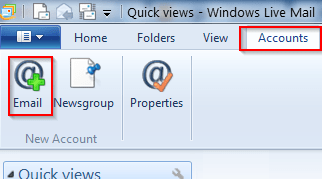
    Navigate to Accounts > Email

    windows_live_mail_2011_add_account

    So when you click the Email button on the ribbon, a window will pop-up.

    Here you can just enter your Outlook.com email and password and click on Next button to automatically configure Outlook.com in Windows Live Mail. But our purpose is to manually configure the server settings. So put a check-box to that option.

    Add Email Account Details in Windows Live Mail

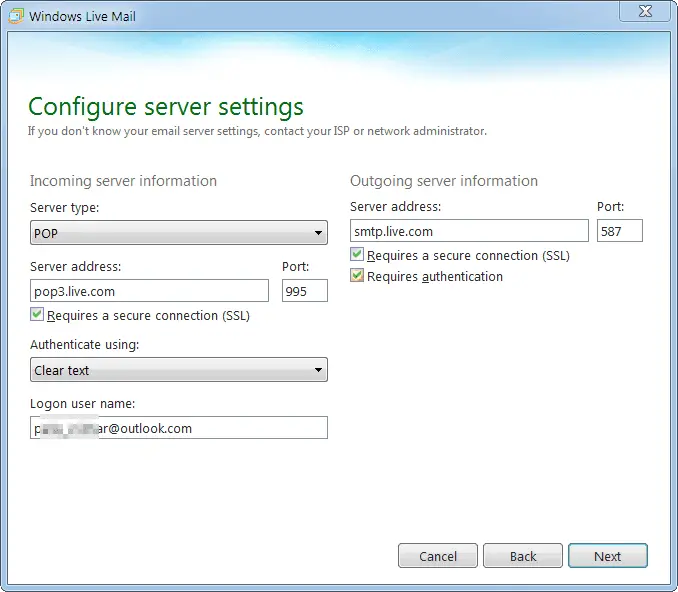
    On the next screen, the screenshot will be something like this.

    Configure Outlook.com Settings in Windows Live Mail


    In this screen, you are going to configure the Outlook.com server settings. Taking a hint from the previous article, you need to set the POP3 and SMTP setttings. POP3 is used for receiving mail and SMTP for sending mail. Under Server type, you have 3 options – POP3, IMAP and Windows Live Hotmail.

    I have mentioned the settings for POP3 access. The following options are need to be set in this server configuration settings.

    Incoming Server Information:

    • Server type : POP3
    • Server address : pop3.live.com ; Port : 995
    • Requires a secure connection (SSL) – Checked
    • Authenticate using : Clear text
    • Logon user name : <yourusername>@outlook.com

    Outgoing Server Information:

    • Server address : smtp.live.com ; Port : 587
    • Requires a secure connection (SSL) : Checked
    • Requires authentication : Checked

    Click the Next button after filling and selecting the above data.

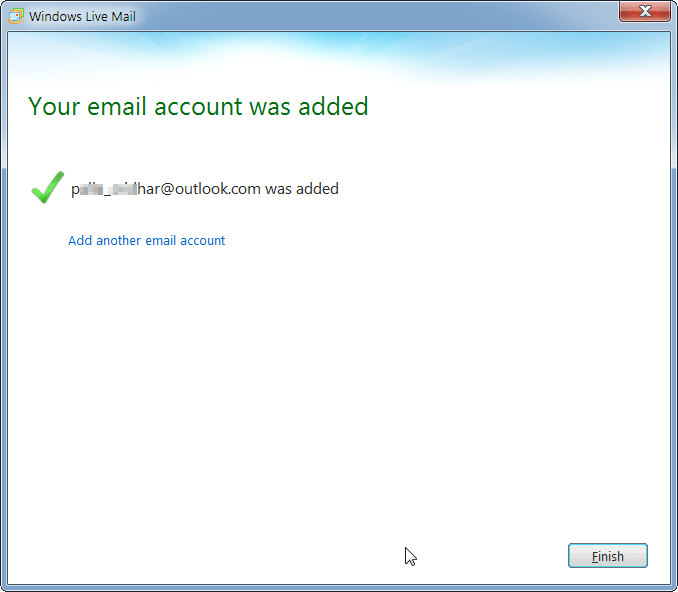
    If you are correct with all the above, you will get a successful message of Outlook.com mail account creation in Windows Live Mail.

    successful_Outlook.com_message

    Click the Finish button. Now you should see your Outlook.com mail in the left pane of Windows Live Mail window.

    Outlook.com-mail-in-windows-live-writer


    Once your account is set-up, all your Outlook.com mail should automatically download to this mail client. You can also send a trial message by clicking “Email message” under Home tab. Initially this will be queued up in Outbox. But when you click the Send/Receive button, your test mail should be sent.

    Bonus Tip : The keyboard shortcut to sync your incoming mails and for sending outgoing mails is F5. Just by pressing this button, any mail in the Outbox will be sent and any new mail in Outlook.com will be downloaded to Windows Live Mail.

  • Clear Details on Outlook.com POP3 Settings for SmartPhones and PC

    With the phase out of Hotmail and quiet launch of Outlook.com on Feb 19th, 2013, it has been kind of  frustrating experience for Microsoft email users. If you observe the reviews on the internet, many didn’t like Outlook.com and want to remove it and go back to Hotmail.com.

    But Microsoft boasts that 60 million users are actively using Outlook.com. Should we think this as a marketing strategy or forcible usage of monotony to make it’s users accept it’s web service, only Microsoft loyal users can answer!

    But since we are forced to use Outlook.com as the default mail service and we don’t want to loose our earlier mails in Hotmail, we need to know how to import Outlook.com mail into other mail clients. For this, we need Outlook.com POP3 settings.

    Incoming settings:
    username: emailaddress @ outlook . com
    password: your password
    pop3 server: pop3.live.com
    port: 995
    security type: SSL/TLS
    Delete email from server: never

    Outgoing Settings:
    SMTP Server: smtp.live.com
    Port: 587
    Security Type: STARTTLS
    Require Sign-in: YES
    Username: same as username above
    Password: same as above

    According to the user reviews on this Live forum, the above settings work for both smartphones and personal computers. One user confirmed that it worked on his Android Phone and should work anywhere.

    Another user used different POP3 settings to import mail from Outlook.com on his Exchange account.

    username was: emailaddress @ outlook . com
    password: your password
    server: blu-m.hotmail.com (i think i had actually put in m.hotmail.com, and it changed automatically to this)
    using: SSL

    These settings were confirmed to work on even Android 4.1. As you can observe the username is backslash + your full Outlook.com email address. (including @outlook.com).

    It also worked on Windows Live Mail 2009. But if you are using Eudora client, you need to make some more changes to the earlier POP3 settings.

    SSL for POP: Required (Alternate Port)
    SSL for SMTP: Optional (TLS)

    If you are using Mail on OS X or iOS, the following are the guidelines.

    1. Add account in preferences and enter e-mail, name and password as usual.
    2. Open the outlook.com tab of Accounts in the preferences window
    3. Incoming mail server should already be set to pop3.live.com
    4. User name is *youraddress*@outlook.com (as opposed to just *youraddress*)
    5. Click for the drop down menu of Outgoing Mail server and click edit SMTP server list
    6. Click on outlook.com and enter the server name smtp.live.com
    7. Click on the Advanced tab and select use custom port and enter 587 (though it should work anyway as it is a default port)
    8. Set Authentication to Password and enter your username (remember the @outlook.com after your address) and password then click OK
    9. Set TLS Certificate to None
    10. Click on the Advanced tab and make sure the “Include when automatically checking for new messages” box is checked
    11. Make sure the Port is set to 995 and the Use SSL box is checked
    12. If it isn’t already set Authentication to Password.

    This worked in OS X and should work for iOS smartphones also. If you are using iPhone 4S, the following are the steps to import Outlook.com mail using POP3 settings.

    1. Tap Settings, then tap Mail, Contacts, Calendar.
    2. Tap Add Account in the Accounts page.
    3. Tap Hotmail.
    4. Enter your full Hotmail email address and password. In the Description field, enter a name so you can identify this account when you check your email (for example, “Hotmail”).
    5. Enter your Outlook email and password to your iPhone
    6. Select the fields that you want to sync (they should say ON if you want them to sync). Tap Save.

    Outlook.com POP3 settings

    The above POP3 settings for Outlook.com also worked for Android Connect Tablet with ICS 4.03. If you are using Android Native Email app, you need to make slight modification.

    security type: STARTTLS (accept all certificate) it had both the options.

    However, if you are using MS Outlook mail client, you need to install and use the Outlook Hotmail connector which will appear as a MAPI option when you add an new account. Add your Microsoft Account or Windows Live credentials and it will sync with your Outlook. The download link for the connector is below.

    Download Outlook Hotmail Connector

    Also if you want a complete tutorial on adding your Outlook.com or Hotmail accounts in Outlook client, you may refer this article.

    How To add Outlook.com to Outlook Mail client.

    Happy Surfing!

  • Reasons behind Windows 8 Sleep Crash – Some Solutions

    Is you computer failing to recover after a Windows 8 Sleep crash? The main reason can be incompatible drivers. So uninstalling and re-installing the drivers in many cases can solve this problem.

    In one case, a user upgraded from Windows 7 Ultimate to Windows 8 Pro. Every time his computer goes to sleep mode, it crashes and restart. The cause can be an old Logitech camera driver and a Norton Internet Security 2013 driver. So when you have a driver conflict, it is best to configure your Windows to generate a memory dump file.  The mini dump file is generally in your Windows folder.

    windows_8_sleep_crash

    The error reports generally point out to Code 41 and 6008. In this case, the conflict was with a driver installed with AMD Catalyst.

    Another user had a different kind of crash problem.

    1. Computer is in S3 ACPI sleep (or hybrid sleep I guess per the latest Windows 8 implementation)
    2. I wake up the computer – it comes on-line, I login, click a web browser, etc.
    3. About 30 seconds later – black screen, hard reboot required

    After the reboot I have the following in the event log:
    “Windows failed to resume from hibernate with error status 0xC00000BB.”

    Hibernation is actually disabled.

    The solution reported was not to use Sleep or Hybrid Sleep at all. Its better to shift to Hibernate or Shutdown instead of sleep.

    There is a different kind of reason if your computer is frozen when you leave your computer for a long time. If the cause due to viruses and malware is negated, then it has to be a faulty hardware. Sometimes dust accumulating with fans on the CPU can also be a cause. So keep your hardware clean and tidy from time to time.

    One user found that his faulty hard drive was the reason behind his sleep crash. You can use a small utility called, HWmonitor, to check out the temperatures and voltage of your motherboard, which can sometimes be the reason behind crash failures.

    If you upgraded to Windows 8 Pro Build 9200 and have a failure when you press the sleep button, there are times it can be a driver conflict. One particular user had problem with NVidia drivers generally used for graphics display. In that case, its better to visit the source driver site and see if there is a solution for it. Otherwise, you can use the drivers provided by Microsoft through optional updates.

    In the olden days, the crash problem was solely due to graphics drivers (sleep or hibernate issues). But with Windows 8/7/Vista, the storage drivers and chipset drivers may also be involved in the sleep/hibernate related crashes.