Blog

  • Transfer Files from Xiaomi to PC via USB, Wi-Fi and Apps

    In an earlier post we have seen, how to install the Google USB driver for Redmi 4 in Windows 10, the right way. Today we are going to see, how to connect Redmi Note 4 to PC in different ways.

    To transfer files from Xiaomi to PC using USB, you need to install the right Android driver.  Sometimes this is not required, as Window will automatically detect the internal or external storage of Redmi phone.

    There are also different apps to connect your Redmi Note 4 phone to laptop or desktop. ShareMe is an in-built app of MIUI 10 or higher phones. To install ShareMe for PC, you need to install BlueStacks.

    But with help of ShareMe and FTP, you can transfer files between Redmi Note 4 and PC using Wi-Fi.

    Read Related:

    Easy Methods to Transfer Files Between Xiaomi Phone and Computer

    The common method to transfer files from Redmi Note 4 to PC is to use USB and Wi-Fi.  You can also transfer photos, documents, videos and folders using apps, USB and Wi-Fi.

    One of the best methods is to use ShareMe app of Redmi Note 4 or 5 phones. The background process is the same for many of the methods.

    The interface might have changed a little in MIUI 11 and other Xiaomi phones like Redmi 7.
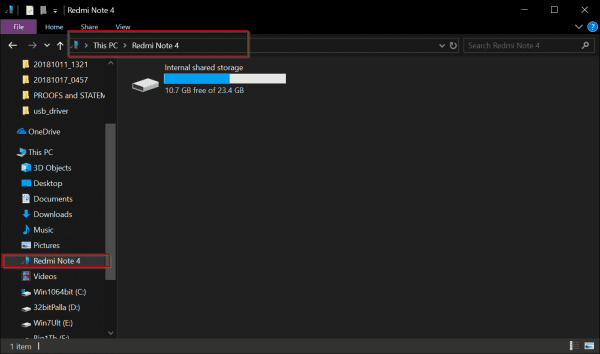
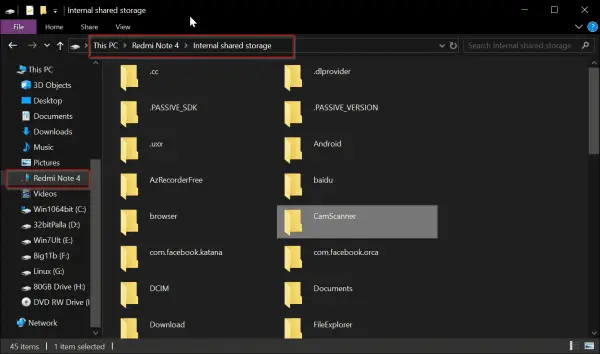
    redmi note 4 internal storage windows 10

    The above image shows the internal storage (ROM) of Redmi Note 4 in Windows 10 PC. Once you connect your Xiaomi phone like Redmi 5 or 6 or 7, you can transfer files and photos like any other normal drive.

    Warning: Please make sure to backup all your files on your phone, before you try any of the methods below. In certain cases, where you have direct access to the folders, make sure the Android OS files are not deleted.

    How to Enable Developer Option in Xiaomi Phones

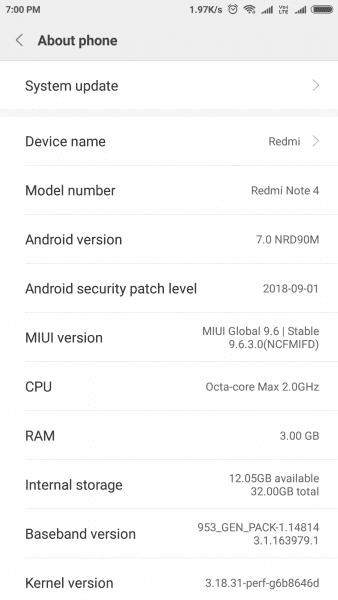
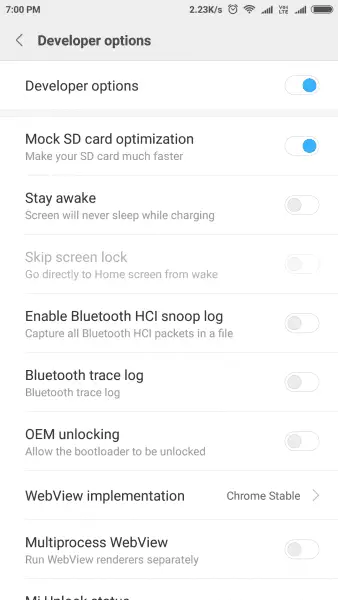
    First you need to enable the Developer option in Redmi for transfer of files to PC. This can be done by Settings > About phone > MIUI version. You have to click the last option several times (likely 8 times) to make the Developer option available.

    How to Transfer Files from Xiaomi to PC via USB

    You can use this method to transfer files and photos from Redmi Note 4 to PC. Once you are successful in connecting your PC to phone, then the job is half-done.

    You must make sure the right Google USB driver is installed. Then, you just have to connect your phone to PC through USB cable.

    Steps to transfer files from Redmi Note 4 to Windows 10 PC.

    1. Open the File Explorer.
    2. Connect the phone to PC, through USB cable.
    3. Redmi Note 4 should be visible as a drive. (But your files and folders will not be visible)
    4. In your phone, you should see Android System notification.
    5. USB charging this device – Tap for more options.
    6. You now have 3 options.
      1. Charge this device
      2. Transfer files
      3. Transfer photos (PTP)
    7. Based upon your requirement you can select 2 or 3.
    8. Now you click the <phone name> as seen under This PC.
    9. You should see the Internal shared storage and the amount of free space, just like any other drive.
    10. Double-click it.
    11. All the folders will be visible.
    12. You just have to do copy and paste, like you do for any other file transfer in Windows 10.

    That’s it, your files, folders, photos, videos, audios are transferred from Redmi Note 4 to your PC.
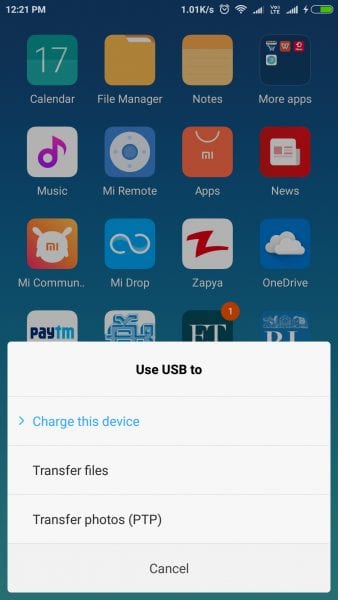
    android system setting transfer files windows 10

    Note:

    An important measure is that, you have to use the right USB port for connection.

    Sometimes, USB 3.0 ports are used, but they may not be compatible with the USB cable.

    Most of the times, the OTG cable should suffice enough. In most of the times, an USB 2.0 port will work without problem.

    Which Folders to copy in Redmi Note 4 or 5 or 7 Internal Storage

    You cannot copy, cut or delete files or folders with dot (.) at the start. Those are system related. The following are the common folders to copy photos, images and videos.

    • DCIM – All your photos taken from camera are stored here.
    • WhatsApp – All the media related to WhatsApp like videos, audios, images are stored here.
    • Download – Anything you have download from the internet is stored here
    • Documents – This is the default saving location for docx, txt and other files.
    • Pictures – Default location for any other images other than photos taken are stored here.

    Common Errors

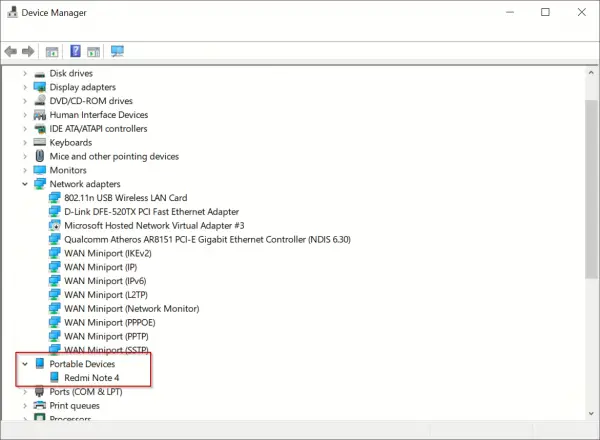
    If your Redmi Note 4 is not connecting to PC, check the driver status in Device Manager. You should see something similar to “Redmi” if the connection is working.

    Otherwise uninstall that driver and install the correct Android driver as mentioned in the link of the first paragraph.

    In the latest Windows 10 version of 1809, 1903, 1909 the right USB drivers are already installed to connect your Redmi phone to PC.

    But if you have a previous unknown driver not working, then you need to remove it and install the right one.

    How to Transfer files from Redmi Note 4 or 5 to PC over Wi-Fi

    You can make use of MiDrop now called as “ShareMe” app to transfer files between Xiaomi and PC over Wi-Fi.

    Using FTP protocol and File Explorer you can access files/folders on your Redmi Note 4 and 5. Then you can just copy and paste to your computer, like any other file/folder on your Windows 10 or 8.1 or 7 PC.

    This is useful if you are using Redmi Note 4 or 5. The “ShareMe” app comes preinstalled with most of the Xiaomi phones.

    1. Open the ShareMe app (earlier known as MiDrop).

    shareme midrop app redmi note 4 52. Click the 3 dot lines on the top left hand side.

    3 dot lines shareme midrop app 20193. Connect to Computer.

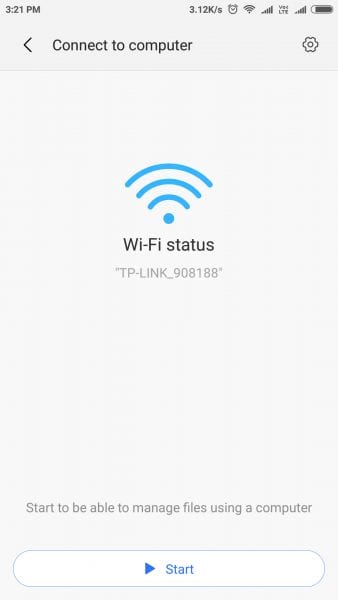
    connect to computer shareme midrop app xiaomi phone4. Tap the Start button.

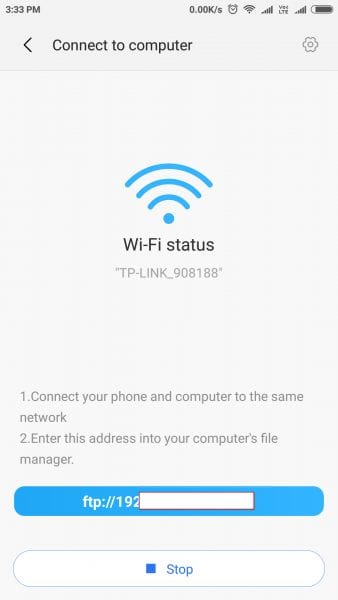
    wi fi status connect to computer redmi note 45. FTP address will be displayed.

    mi drop connect pc windows 106. Enter the ftp address in File Explorer (Windows Explorer) of Windows 10 or 8.1 or 7.
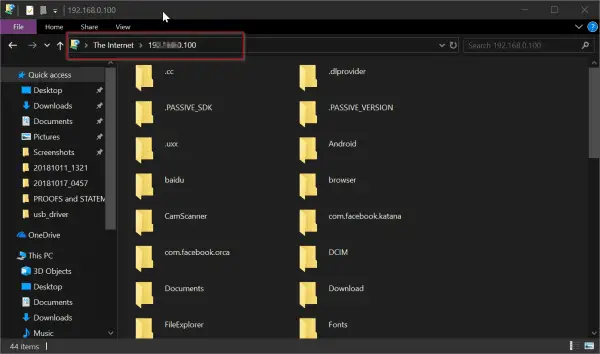
    mi drop access internal storage windows 10

    Note :

    You can sign-in anonymously into your PC . But this is less secure.  Otherwise, create login credentials (username and password).  Every time you enter the FTP address on your PC, these security details are asked.

    It is a better encryption for your files/folders on your computer and Android phone.  You can save these encryption credential on first use. From next time onwards, you can access your files automatically without entering these details.

    7. All files and folders in Redmi Note 4 or 5 are visible.
    8. Copy the required photos, videos, audio files and paste it on your hard drive.
    7. Similarly you can copy any files on your Windows 10 PC and paste it in the Redmi Note 4 or 5 internal or SD storage.

    Note:

    Generally your Screenshots, Photos, Videos etc taken  using your camera are stored in the DCIM folder.

    DCIM folder xiaomi phone internal data storage

    This works two way.

    Make sure (.) folders and files are not deleted. Also other Android OS files and folders should not be tampered with.

    Note:

    If you are using Samsung, Lenovo, OnePlus, Vivo, LG etc then you need to install this app from the Google playstore.

    Make sure you are connected to the same Wi-Fi on your Xiaomi and Computer.

    How to Transfer Files or Photos between Phones using ShareMe app in Redmi Note 4 or 5

    You can also make use of  “Transfer files” option. This makes use of the ShareMe app feature of Redmi Note 4 phone. You have two buttons. 1. Send 2. Receive

    Provide permissions on the other phone. Tap Send to send files to another phone. Ask other person to tap “Receive” and wait until your devices are connected.

    The ShareMe app feature is working as intended. To get files or photos from other Xiaomi phones, you have to tap “Receive“. If any authorization or permission is required, you have to grant access.

    All your files and folders are visible. You can just cut, copy and paste the necessary items, as you would do on a normal computer.
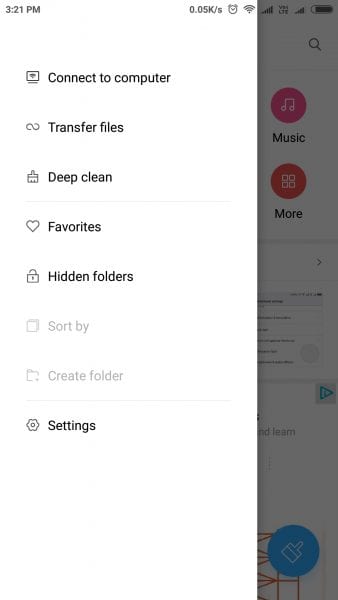
    file manager redmi note 4 connect to computer

    Then your files or apps are sent to the other phone.

    Note:

    If the other phone doesn’t have ShareMe app, then you can share it from your phone.

    You can also make use of the “Continue on PC” option of Windows 10, if you don’t have a phone. Then the link to the app, will be opened in Google Play Store on your Edge browser in Windows 10.

    Redmi Note 4 or 5 – Use Zapya app for data transfer over Wi-Fi between phone and PC

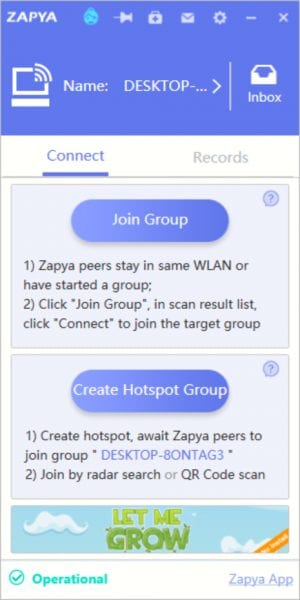
    Just like ShareMe, Zapya is a third-party app which can be used to transfer files between Xiaomi and PC.

    There is also a desktop app of Zapya which can be installed on Windows 10. Similarly, you can install the Zapya app in your Redmi Note 4.

    Then both these devices can be connected over Wi-Fi, by scanning QR code, joining hotspot group etc.

    You can then browse your files on your phone using File Manager and click on “Send”. You should see the status of receiving and sending files in the Zapya apps of the appropriate devices.

    zapya app desktop windows 10 zapya connect hotspot zapya join group windows 10

    Your Phone feature to access photos and messages from Redmi Note 4 in Windows 10

    Just install the “Your Phone Companion” app (developed by Microsoft Corporation) in your Android phone using the Google play store.

    You need to have a Microsoft account to use this app. During the process of set up, it will ask you to sign in, using your credentials.

    Here is the complete process on how to initiate the connection between the two Your Phone apps on PC and Redmi Note 4.

    https://www.windowscentral.com/how-set-your-phone-windows-10

    But sometimes you may have problem in connecting. You can fix the issue, using the Windows troubleshooter or following the guide below.

    https://support.microsoft.com/en-us/help/4459358/windows-10-your-phone-app-help#why-are-some-of-my-text-messages-missing

    The most important thing is Your Phone should be given permission to allow background apps for it to be running.
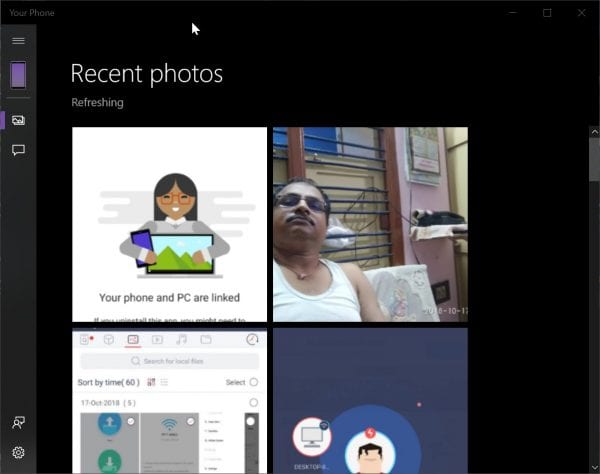
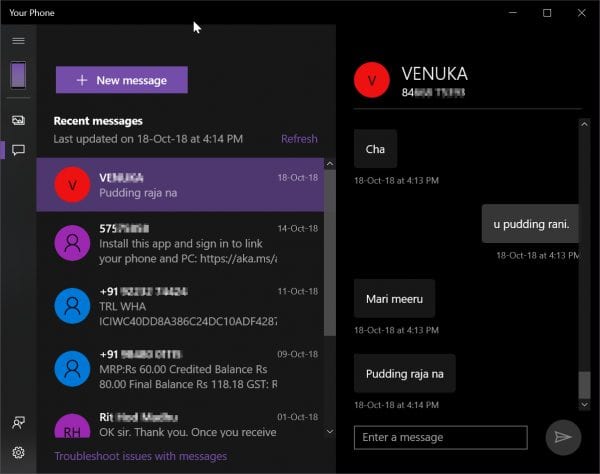
    your phone windows 10 photos your phone windows 10 messages from redmi note 4

    Then you have access to your Redmi Note 4 photos on your PC. You can copy or share them. But you cannot send photos back to your phone. Similarly you can access all your SMS messages on your PC. You can also send new messages.

    How to Transfer Photos from Redmi Phone to Laptop using Photos App of Windows 10

    Another new feature of Windows 10 is to use the Photos app.

    There are two ways of using this app to import photos into Windows 10.

    You can use the USB cable or the experimental feature of Wi-Fi. Once you install the Google USB driver, this should work as expected.

    1. The USB Connection

    In this method, just connect your PC to mobile using USB cable.

    • In the Photos app, click the Import button at the top right-hand side.
    • There will be a drop-down.
    • From it, click on “From a USB Device”. Then you device should be discovered.

    But in my case, this didn’t work. The error message showed that the phone should be unlocked for this feature to work. So I’m assuming, you should give root access to your phone for this feature to work.
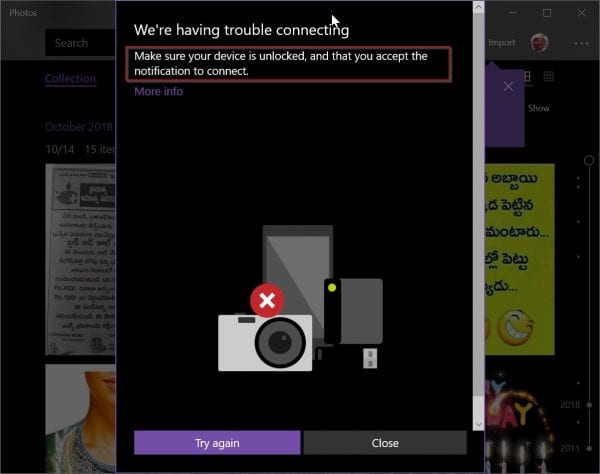
    import photos from redmi note 4 to windows 10 usb error

    1. Over Wi-Fi

    If the above method didn’t work, you need not worry.

    The Windows 10 1809 or 1903 or 1909 upgrade has bought a new feature to import photos over Wi-Fi. This uses your Wi-Fi connection to import photos.

    • In the Photos app click the 3 dots on the top-right hand side.
    • You should see “Settings”.
    • Click on it. Scroll through the page, until you see a setting called “Preview”.
    • There is a feature called “Help Microsoft test the mobile import over Wi-Fi feature”.
    • Set it to “On”.
    • Now go-back to the main page and click on “Import”.
    • Now you should see an option called “From mobile over Wi-Fi”.
    • Click it. A Scan QR code appears.
    • Install the Photos Companion app on your Redmi Note 4.
    • Using that app, scan the QR code.
    • Now your both devices are connected.
    • You should be able to import your photos.
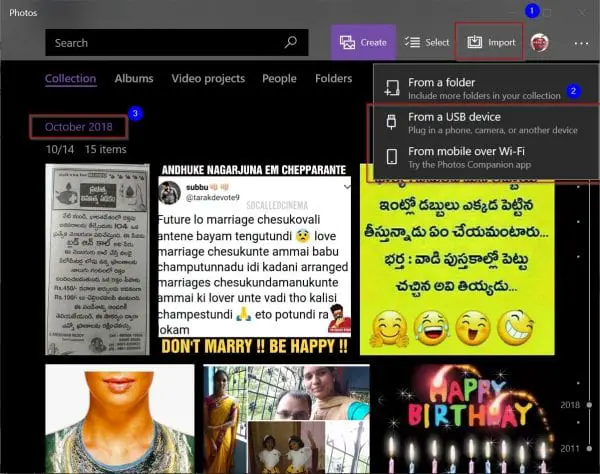
    photos app windows 10 import feature from redmi note 4 import photos over Wi Fi redmi note 4 windows 10 import wirelessly photos app

    This feature is temporary and may be removed in further updates of Windows 10. So if this doesn’t work, or you don’t have this feature, try the alternate methods mentioned above.

    Mi PowerSuite to transfer files between Redmi Note 4 and Windows 10

    This is a software tool provided by Xiaomi for Windows 7, 8.1 and 10.

    But this doesn’t work on Android 6 or Marshmellow and further upgrades.

    So if you are using Android 4 or something older version of Android, this Suite works. You can see the list of features provided, in the guide below.

    https://xiaomi-mi.com/news-and-actions/how-to-download-install-use-mi-pc-suite-features-feedback-/

    Conclusion

    Also all the above methods mentioned above do not require root access. They just will work with nominal options or at the most with Developer options.

    In the end, which method is beneficial depends on your PC hardware and Wi-Fi connection. If you PC doesn’t have a wireless adapter, then it is better to use USB cable.

    But if that is not working, you can use the Wi-Fi feature.

    I always prefer to direct access the files and folders of Redmi phone on the PC using FTP and ShareMe app.

    In this way, you can easily cut, copy and paste files, photos, videos and folders from and to, Redmi Note 4.

    But you have to be careful, not to delete the Android OS files. Otherwise, your phone may stop working.

    I hope this has helped you to transfer files between your Redmi Note 4 and PC easily. If you like it please share this post among your friends.

  • Outlook PST to Office 365 Migration – Software to do it Easily with Detailed Steps

    Follow the easy instructions discussed in this blog to know how we can import the Bulk Outlook PST files into Office 365 Exchange Online.

    Now a day’s Microsoft Office 365 is going to popular, just because it provides the Exchange Online environment and it is work on Cloud Platform.

    So the People and the small or large Business Organizations are migrating from another Email Clients (like Lotus Notes, Thunderbird, and Outlook) to o365 Mailbox.

    import outlook pst files to office 365

    In this post, we are going to explain that how to import the Outlook PST data into Exchange Online.  So if you want to convert your PST file data like email, contacts, calendars, appointments, and attachments etc into the Office 365 Mailbox.

    Two Possible ways for doing the PST to Office 365 Migration:

    For the conversion of PST to o365, Microsoft provides a process which is called the Network Upload Method and it is a free and the manual way of moving PST to Exchange Online. But due to saving the time and data most of the person or organizations also search another process of importing PST file data into Cloud Platform.

    So here we are explaining that another process which is the third-party software.

    These third parties are GUI based application.  So the non-technical or the large organization mostly prefer that application to complete the Migration steps. Now follow the instruction to know about both processes in details.

    Method 1:  Export PST file into Office 365 Mailbox manually

    With this process, you can easily convert the PST to Exchange Online environment but first, you need to give the sharing permission of the PST file or folder.

    After that, you need to add the Mailbox Import Export feature into Organization Management list. For adding this feature, open the Windows PowerShell and put these given commands.
    $o365Cred = Get-Credential  
    
    $Session = New-PSSession -ConfigurationName Microsoft.Exchange -ConnectionUri https://ps.outlook.com/powershell/ -Credential $o365Cred -Authentication Basic –AllowRedirection

    Then hit the Enter Key and configure the Office 365 Mailbox with the PowerShell by going the Office 365 Admin account.

    configure office 365 mail box

    Then create the Import PS Session by putting these commands

    Import-PSSession $Session

    mailbox import export commands

    Now assign the Mailbox Import Export role to enter these Commands:

    New-ManagementRoleAssignment -Role "Mailbox Import Export" -SecurityGroup "Organization Management" -Name "Import Export Org Management"
    
    New-ManagementRoleAssignment –Role "Mailbox Import Export" –User "username"

    management role assignment powershell

    In the username place, you need to give the valid or proper name.

    user credentials outlook to office 365

    Create the Import Job and Upload the PST

    After assigning the Mailbox import export permission, you need to upload the PST file into Office 365. So open the o365 Mailbox and log in with the Administrator, just because only the admin can do the manual process.

    Once you logged in then click Admin center and go the Data Migration by clicking Setup>> after that Upload PST file and select the PST file.

    At the end hit on New Import Job for creating the Import job and put the name,>> Next>> Next.

    Know the SAS URL and install Azure tool

    When the above process has done, a window will open on the screen. Now here you will see few options so first click the Show Network SAS URL to know the SAS address >> Copy that URL. After that hit Download Azure AzCopy option and install the Azure application.

    Once it successfully installed just launch the software and put that given command:

    “AzCopy.exe /Source:\\PST file location path/Dest:”SAS URL” /V: location  to save log file \AzCopy.log /Y”

    install azure tool powershell 

    Create CSV or Mapping file

    When the PST stored in the Azure AzCopy tool, then you need to move that PST from the Azure to Office 365. For this you have to create the CSV or mapping file like this:

    Workload FilePath Name Mailbox IsArchive TargetRootFolder
    Exchange Provide a shared file path Pankaj.pst pankaj@mails.onmicrosoft.com FALSE

    Upload CSV and validate it

    After creating the CSV file you need to go back to the import window, >> check on prepare mapping file option and upload that CSV for validating the PST. When it validates successfully, it will allow saving that PST in the Office 365 Mailbox.

    For uploading CSV file just click Select Mapping file option and browse the PST where you stored before >> hit Validate for validating PST. Once it validates>> Save it into o365 Mailbox.

    Method 2: Move from PST to Office 365 using the third-party tool

    In the manual process, you can see that it is a time-consuming and little bit difficult as it involves Windows PowerShell commands. That’s why we are suggesting one more easy method, which is the, third-party software. With this process, you can easily convert the PST file data to o365.

    There are many applications available, so it’s very important to choose the best software. Here I am also recommending you the MailsDaddy PST to Office 365 Migration Tool. This is the best application for importing the PST file data like emails, contacts, calendars, appointments, and attachments etc into the o365 Exchange Online environment.

    How the PST to Office 365 Migration Tool work?

    Follow all the instructions for uploading PST file into Cloud Mailbox.

    Step1: First, download the software from the following the link and install it on your PC.

    https://www.mailsdaddy.com/pst-to-office-365-migration-tool/

    Step 2: Once it installed just launch the application.

    Step 3: Now click Add File button to upload the PST>> Scan >> Ok

    mailsdaddy pst to office 365 interface

    Step 4: After uploading the PST, it will show the preview of PST file data.

    preview pst file data

    Step 5: Then you can select the data and give the location to save the log file >> click Export. That’s it.

    export to primary mailbox

    Why the third-party tool is better than the Manual method?

    Most of the people use the third-party application because with the third-parties tools you can export your all PST data into Office 365.

    You don’t need any PowerShell and Azure Commands.

    But the MailsDaddy PST to Office 365 Migration Tool has many other features, and these all features make it different and easy.
    1 Search by name, email & subject: With this application, you can search the required PST data item by the Name, Email, and Subject.

    2 Searches by Data Range Filter: In this features, you can easily select the PST item from particular data to data and export it.

    3 Export Multiple PST into o365 with Bulk and Impersonate option: With these options, you can import your Multiple PST file data into Multiple Office 365 mailbox by creating the CSV file.

    Note: In the Impersonate option you need to give the applicationimpersonate permission or full access to the admin account.     

    Conclusion:

    In this article, I have explained that how to import the Bulk Outlook PST to Office 365 Exchange Online Mailbox. Here I also discussed two possible methods one is manual and another is a third-party tool. You can use any one of them. If you still have any doubt then you can leave a message in the comment box.

  • Install the Right Driver for USB to work in Note 4

    USB tethering is one of the features of Android phones. Redmi Note 4 has its own Android version of MIUI over the default version of OS. Windows 10 and Redmi Note 4 can be connected over Wi-Fi. But it is more convenient to link it through a USB cable.

    Note:

    In the latest update it is much easier to connect using USB. You can skip this guide if you are using Redmi Note 12 or latest version of Android 12. But for legacy cases, when you have not updated the MIUI version or Android, you can follow this tutorial.

    I thought it the same way. But it’s not as easy you think, as just plugging in.

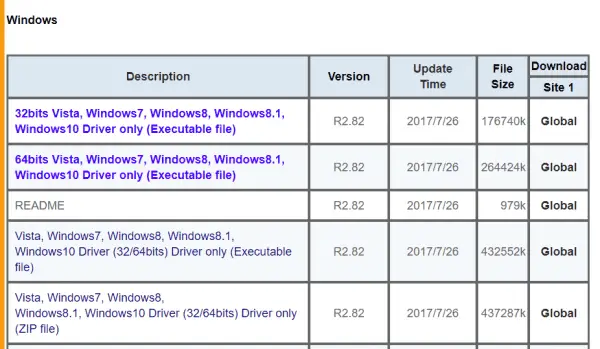
    You need to install an Android Composite ADB Interface driver, before you make them work together. In some popular sites, I observe that the Google USB driver for Redmi Note 4 is provided as an .exe file for Windows 10.

    In some other sites, the Android USB driver is provided in a .zip format.

    Redmi Note 4 USB Device not Recognized?

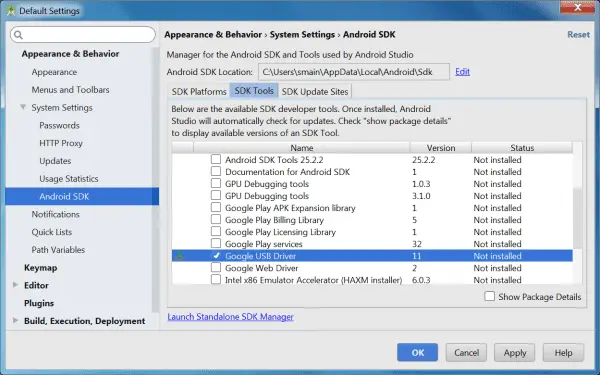
    In the first case, when you connect Redmi Note 4 to Windows 10, it’ll not be recognized as a drive under “This PC”. This is because it requires the Google USB Driver, which is part of the Android SDK Tools.

    google usb driver sdk tools

    You can go to this page –

    https://developer.android.com/studio/run/win-usb

    Here you can download the driver as a .zip file.

    But even after installing it, your USB connection may sometimes not work.

    This is because of two reasons –

    1. Not using the proper USB port
    2. USB Debugging option is not enabled under “Developer Options”.
    3. An Incorrect USB Driver might have been installed – for eg. LeMobile Android Device

    Both the above errors are to be fixed, before you can start using Redmi Note 4 as any other drive.

    The OTG cable which is used to recharge Redmi Note 4 can also be used as an USB cable to connect your mobile to your computer. But make sure it is inserted into an appropriate and working USB port. Sometimes you need an USB hub, for this purpose. Otherwise, you can try the back-end of your CPU, which generally has more ports.

    Not using the right USB port can also lead to connection not working properly.

    How to Fix the Wrong USB Driver Installation?

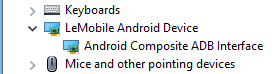
    To make your connection work, I just installed the Google USB driver from the above location. But as a result an “unknown” driver was installed for Redmi Note 4. The installed driver was shown in the Device Manager as “LeMobile Android Device”.

    From this source (https://rlbcontractor.com/replace-wrong-android-usb-drivers-on-your-pc) it is said that Windows 10 thinks that it is a better driver for your phone than the original one.

    So first you need to remove and replace this “wrong” driver and then install the correct one.

    Redmi Note 4 or any other Android phone actually requires the Google Android USB driver as a legacy hardware, if this is the problem.

    To remove the LeMobile Android Device driver (or for that matter any other driver), open Device Manager in Windows 10. Click the Start Button and it will be there in the pop-up screen.

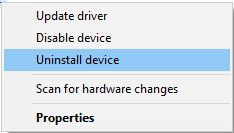
    1. Right click on the LeMobile Android Device/Android Composite ADB. Click on “Uninstall device”.
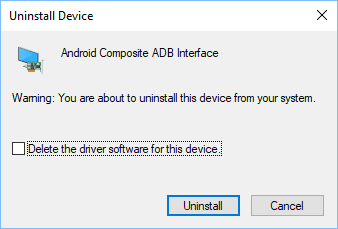
    2. From the next dialog box, check “Delete the driver software for this device”.
    3. This is important. Otherwise, the “previous” drivers will still remain there.
    4. Then click the “Uninstall” button.
    LeMobile android device drivers
    Uninstall device driver manager windows
    uninstall driver device manager windows

    Now the “unknown” or redundant driver is removed, you can now install the “actual” driver. But you will not be able to see the “USB” interface among the devices now. To add the phone to the list of hardware, you can do Action > Scan for hardware changes from the main menu (if you have already installed the Android USB driver).

    Then your correct driver will be installed. Otherwise, you can install the Google USB driver in this fashion.

    How to Install the Redmi Note 4 USB Driver using the INF file

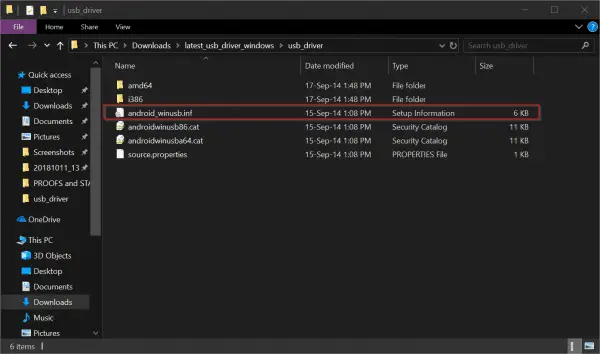
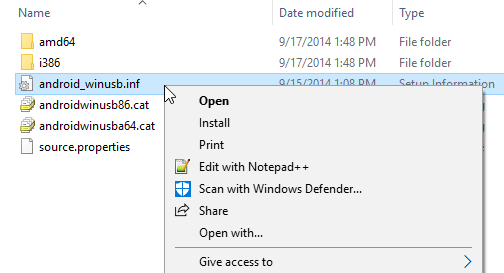
    This is a very easy process to do. First, unzip the Android USB driver file. In the (latest_usb_driver_windows) folder you can find the particular android_winusb.inf file.  There are other files in that folder, but they are unimportant for now.

    1. Right click the .INF file.
    2. From the context menu, click on “Install”.
    3. Now plugin the “Redmi Note 4” phone.
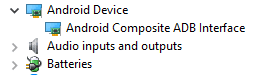
    4. In the Device Manager you should see something like this.
    5. Android Device > Android Composite ADB Interface
    android windows usb driver
    install google usb driver
    Android usb driver device manager
    portable device redmi note 4

    It is always significant to remember that uninstalling the previous drivers before installing the new ones is important. Even if you require it for later, Windows will find it automatically.

    How to Enable Redmi Note 4 Developer Options?

    If you still have problems connecting Redmi Note 4 USB to Windows 10, you should enable the USB Debugging option in your phone.

    For this follow these steps.

    1. Pull down the screen from the top in Redmi Note 4.
    2. Click the gear icon for “Settings
    3. Click the “About phone”.
    4. Now tab the “MIUI Version” several times, till it says successfully.
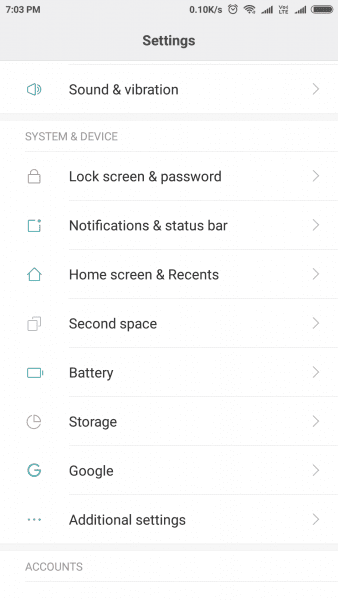
    5. Go to “Additional Settings” with three dots from “Settings” menu.
    6. Now you can see “Developer options” as one item.
    7. Click on it.
    8. Your “Developer options” screen should be enabled.
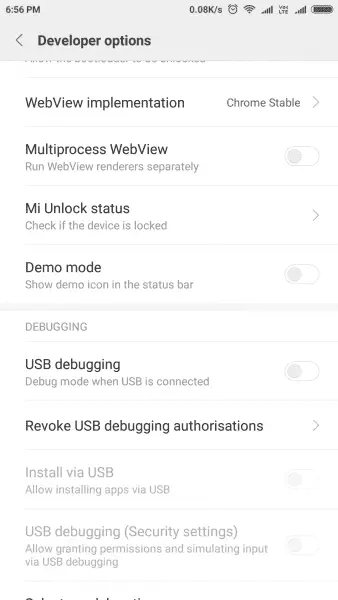
    9. Under “Debugging” you can enable the “USB Debugging” option.
    10. Further, you can also set “Select USB Configuration” to MTP (Media Transfer Protocol).
    11. Then you can disable “Developer options”.
    activate developer options android
    developer options android
    additional settings android
    usb debugging redmi note 4

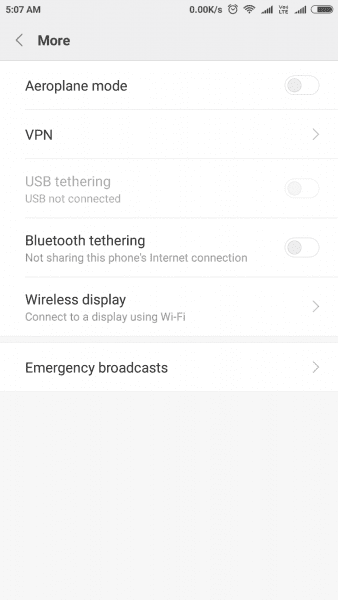
    Now you are ready to go. Connect your Redmi Note 4 phone and you should see it as a drive in your File Explorer of Windows 10.  From the phone “Settings” if you click on “…More” you should see “USB tethering” enabled. This is a signal that you are successfully connected.

    usb tethering android settings

    How to Fix (This device cannot start. (Code 10)) Error?

    This error also can crop up, when LeMobile Android Device or any other “unknown” driver is installed. This Code 10 error is one of the several Device Manager error codes.

    code 10 device cannot start errorRedmi Note 4 device may generate the Code 10 error, when your Device Manager doesn’t understand the driver. In a generic case, it is understood that some kind of unspecified driver or hardware problem can be behind this issue. This code 10 error, is mainly due to USB and audio devices.

    For this, you can try to uninstall the Lemobile Android Device and then install the correct drivers as mentioned before.

    redmi note 4 this pc file explorer windows 10

    As you can see above, when the USB connection between Redmi Note 4 and Windows 10 works properly, you should be able to see your phone as a drive. You could easily access all the folders and files in the Internal storage of Redmi Note 4.

    In another article we will see, on how to transfer photos and files from Redmi Note 4 to Windows 10 using different methods.

  • Delivery Optimization in Windows 10 – Speed Up Download and Upload of Store Apps and Updates

    Many-a-times you might have faced Windows update problems, which will hinder your user experience. In Windows 10, delivery optimization comes to the rescue for better download and update experience of store apps and updates. Though you can do other tasks while Windows 10 is updating, it is quite common to wait for the updates to finish.

    What-if there is a mechanism, where you can speed up this process? For this purpose, let’s see the Update & Security setting feature called “Delivery Optimization”.It will keep your engaging time with the updates minimal. Also you can make sure your updates are installed successfully or not.

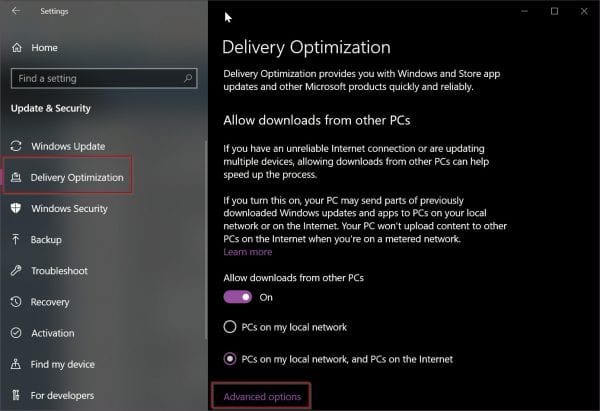
    Delivery Optimization

    This has a new tab under Update & Security setting. You can get Windows and Store app updates and other Microsoft updates quickly and securely. Your Internet connection may be unreliable or too slow. You might be updating several PCs at one time. Now allowing downloads from other systems can speed up the update process.

    Once this option is activated, your PC will send parts of previously downloaded updates and apps to PCs on the local network or Internet. But this will not work if you are on a metered connection.

    There are two options under this feature –

    Allow downloads from other PCs

    1. PCs on my local network
    2. PCs on my local networks, and PCs on the Internet

    This scenario is most suited if you are in an office environment, where you need to update lot of PCs. It is a useful feature to system administrator. If your ISP speed rate is 20 Mbps, you can easily get updates to your other PCs at a faster rate than that.

    delivery optimization settings windows 10

    There are also Advanced options.

    When the above setting is activated, Windows 10 will automatically monitor the download and upload speeds to optimize the resources, the computer needs. The amount of bandwidth required for both the above processes is dynamically taken care of, by default. But if you want to manual manage it, you have the following settings.

    Download settings

    1. Limit how much bandwidth is used for downloading updates in the background
    2. Limit how much bandwidth is used for downloading updates in the foreground

    You set the levels in between 0 to 100%.

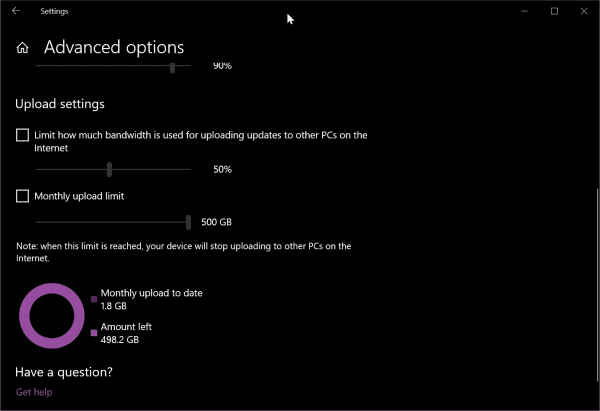
    Upload settings

    1. Limit how much bandwidth is used for uploading updates to other PCs on the Internet
    2. Monthly upload limit

    Once the monthly upload limit is reached, your PC will stop uploading updates and apps to other systems in your network.

    advanced options delivery optimization windows 10

    A graphic also shows the amount of monthly upload to date. It also shows the amount left over, which can be used for further updates.

  • How to Fix “BOOTMGR is missing and System cannot Boot” in Windows 10 – Different Ways

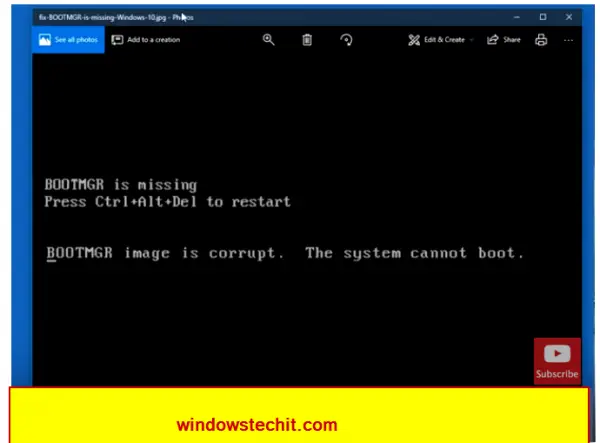
    If you are getting the following message while booting in windows 10, your files may be corrupt or something is wrong with the startup process.

    fix bootmgr is missing error windows 10 1

    This generally occurs if you are using old kind of hard disk partitions and BIOS mode. If you are using the new SSD disks with more than 2 TB disk space, you might be using the UEFI mode which is different from this kind of error.

    Method #1 – The first line of attack

    So if you get the BOOTMGR is missing in Windows 10, then you can look at this solution first?

    1. First have your Windows 10 installation media.
    2. Insert the USB or DVD into your computer and press the Enter key.
    3. After a few screens, you click on “Repair your computer”.
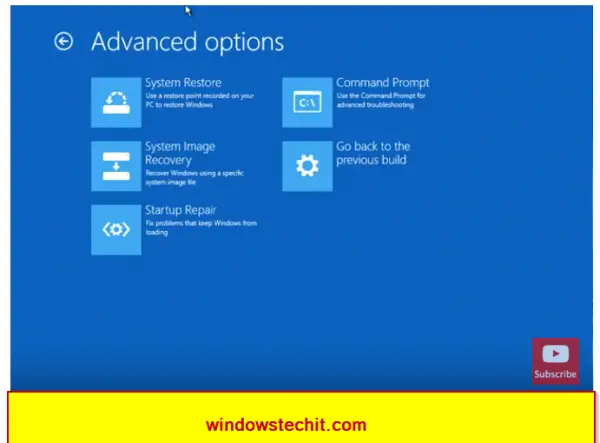
    4. Next click on “Troubleshoot > Advanced Options > Command Prompt”.
    5. Enter the command – chkdsk c: /f and press enter.
    6. The process will complete and exit.
    7. Restart the computer. Now the bootmgr problem should be solved.

    If this does not solve the problem, then go to “Troubleshoot > Advanced Options. Then click on Startup Repair. It will automatically repair the boot up problems.

    advanced options windows 10 repair 1

    Method #2 – Use Commands

    Another command prompt solution exists, if the above methods don’t work.

    For this you should use the same installation media and enter the Command Prompt window as mentioned above.

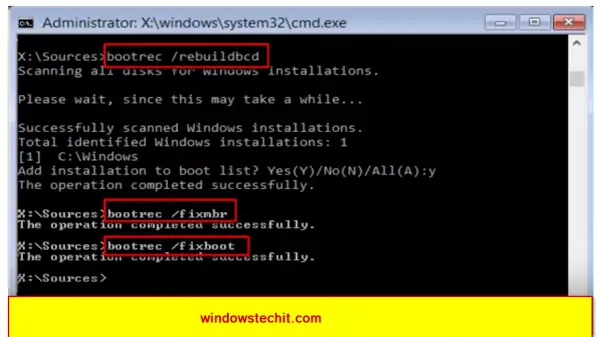
    Then enter the following commands one-by-one.

    • bootrec  /rebuildb–
    • bootrec /fixmbr
    • bootrec /fixboot

    This will definitely remove your bootmgr issues and you will be able to successfully launch into your Windows 10 again.

    rebuild bootloader commands windows 10 1

    Method #3 – Write MBR and Rebuild Bootloader

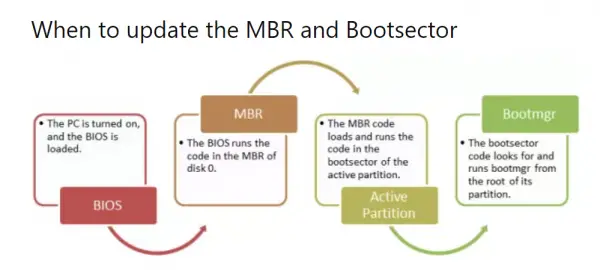
    I always keep a dual-boot system for these kind of issues. For example, if you have Windows 10 and 7 on the same system and you are not able to boot into one system, but can into the other, then you can apply this solution.

    update mbr and bootsector windows 10 1

    You can use the “EasyBCD” software to write the MBR and install a new boot loader. You can use the “BCD Deployment” tab on the software. For single users it’s a free software. You just need register for it. For companies and group of users, you may need to buy it.

    Method #4 – Tools to Write MBR

    There are other solutions to fix the bootmgr problem in Windows 10.

    1. Easy Recovery Essentials – This software has automatic repair feature. It will correct errors related to disk, partition, bootsector, filesystem and registry.
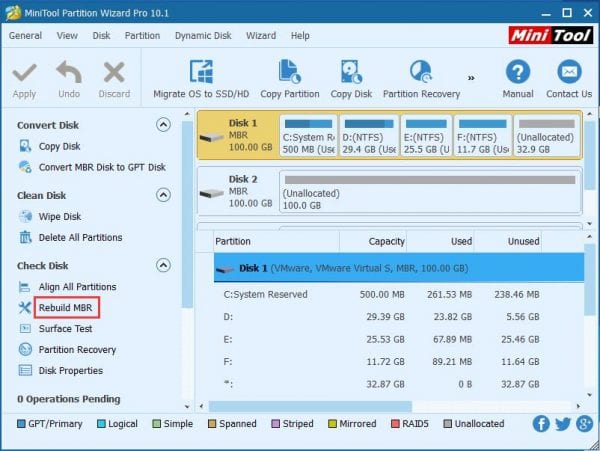
    2. EaseUS free partition software – You have to select the boot driver and click on Rebuild MBR. Select the Windows 10 operating system to repair it. You can also use the Startup Repair of Windows Recovery Environment (WRE).
    3. MiniTool Partition Wizard – The Pro and above editions of this software have a feature called “Bootable Media”. Build a bootable CD or USB and fix MBR in the features provided.

    write mbr windows 10 1

    Method #5 – Repair Windows Image or use System Restore

    You can also repair the Windows Image to restore health of your PC. Using the installation media, enter the command prompt and type the following command.

    • dism /online /cleanup-image /restorehealth

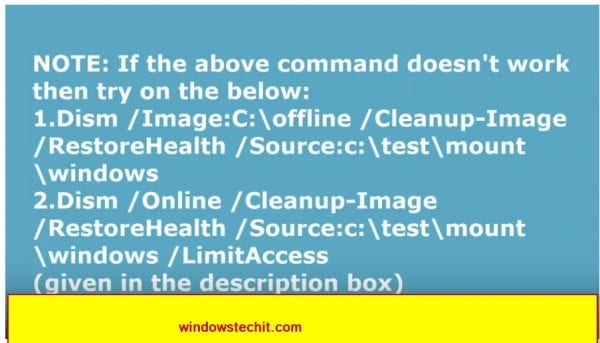
    If the above command fails to work, you can use the commands mentioned in the screenshot below.

    repair system image windows 10 1

  • How to Fix “Mic Volume Too Low or Quite in Windows 10” – Holistic Approach

    The first solution for mic volume too low problem in Windows 10 is try the default troubleshoot feature.

    If you are on Skype or any other VoIP software speaking to your office mates or friends, quiet volume can irritate the user on the other side.

    Sometimes even if the microphone volume is too low even though they are set to near 100, there is very little noise.

    For me, the Creative Headset HS 330 had similar kind of mic volume not audible issue. No matter whatever you do, there is no increase in mic volume in Windows 10. It was working fine with other versions of Windows.

    windows 10 mic volume too quite fix

    Microphone Volume in Windows 10 is too Quiet

    1. Install the latest drivers of your “branded” mic headset.
    2. Uninstall and Reset Skype kind of IM and voice calling software.
    3. Select the “correct” microphone as “default” mic device.
    4. Try the Microsoft “default” drivers first.
    5. Use a different “brand” mic headset, if it doesn’t work in Windows 10.
    6. Check for “loose” connections, if it’s a wired mic headphone.
    7. Uninstall the audio drivers and reinstall them.

    When the other headset mic volume was too quiet, I made several configuration changes.

    But the Creative headset refused to buckle. As a last resort I ordered a new “Quantum Stereo Headphone with Mic for PC Laptop Desktop – QHM 316” which was very cheap.

    It had both mic and headphones. It worked perfectly for Windows 10.

    So before you buy any kind of headset with mic, check its compatibility with Windows 10.

    Microphone volume levels need to be adjusted based on headphone, speakers, bluetooth and smart devices. Boost microphone volume if you have changed device and not hearing sound.

    Most of the times, you do not have problem with Windows 7 or 8.1, but inaudible sound can be heard while recording screencast videos or doing a Skype call.

    How to Troubleshoot Windows 10 Mic Volume is Too low

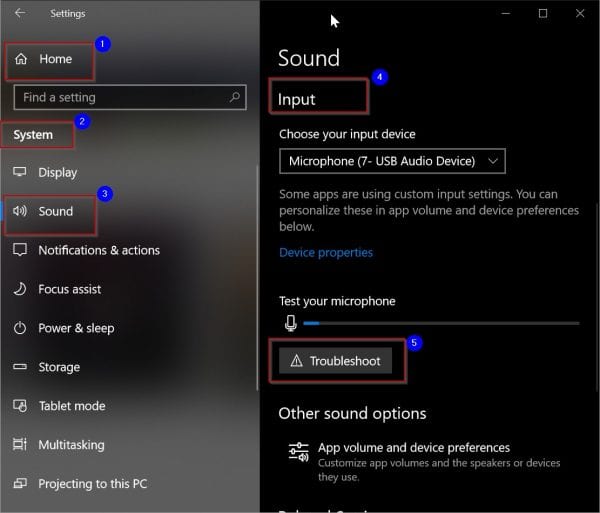
    Before in Windows 7, you could make use of Control Panel to troubleshoot any issue. But with Windows 10, the interface has changed and is much easier to do. Follow these steps –

    1. Press Start button and the gear icon.
    2. Windows Settings will open.
    3. Double-click on System.
    4. Select “Sound” on the next pop-up window.
    5. On the right-hand side, scroll through to get “Input”.
    6. Choose the right input device – (here the mic you are using. If you have different microphones than they are listed. So make sure to select the mic through which you want record voice).
    7. Check if the mic volume to quiet is solved.
    8. Otherwise, there is a “Troubleshoot” button below.
    9. Click it. This should open another window.
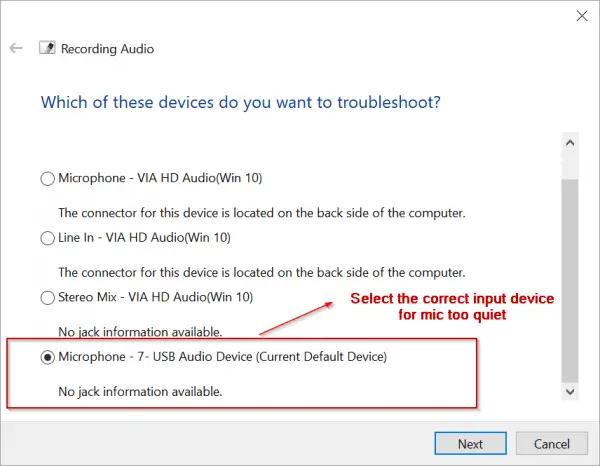
    10. Follow the next few screens, to troubleshoot your mic issue.
    troubleshoot windows 10 mic too quiet issue
    select default mic windows 10

    This should be the first step when everything is set up correct. But what-if your settings are wrong.

    Then you need to make the correction in the microphone properties to produce bigger sound.

    How to Increase Mic Volume Level in Windows 10?

    This is a generic way of improving your mic volume level without giving preference to any brand. You can use the same Windows Settings to find the mic volume properties.

    1. Go to Windows Settings.
    2. System > Sound > Input.
    3. Select the Input device – Microphone (7-USB Audio Device) (for eg. In my case)
    4. Click on “Device Properties”.
    5. This will open “Microphone Properties” pop-up window.
    6. Click on the “Levels” tab.
    7. Increase Microphone volume level, which is between 0 and 100.
    8. It depends on the brand of the mic, on what value to be set.
    9. Some mics require value of less than 50, while some require near 100.

    This is the standard solution to fix microphone too quiet and come out of low volume scenario.

    You can also reach the pop-up window, by right-clicking the “speaker” icon in the system tray. Then select “Open Sound settings”. This will directly open the “Sound” setting in “Windows Settings”.

    One can also make use of Control Panel to open the mic volume properties. Click “Start” and type “Control Panel”. View by “Small icons”. Click on “Sound” item. This will open “Sound” properties window. Select “Recording” tab. In the list select your working “Microphone”. Click on “Properties” below. “Microphone Properties” pop-up window will open.

    The rest of the process is the same to make your mic volume loud.

    Windows 10 How-to Find the Right Drivers

    This is one of the technique to make your mic work normally again with optimal sound.

    Whether it is Realtek, Plantronics or Razer Kraken mic, if the volume is too quiet, you must install their right audio drivers.

    Generally with Windows 10, Microsoft will install it default drivers.

    Increase microphone volume, if you have mistakenly lowered it.

    But sometimes these can give problems and also rectify it. If your mic volume is too quiet then install the audio drivers from the manufacturer website.

    realtek audio drivers windows 10
    • Plantronics Audio Driver location– https://www.plantronics.com/in/en/support/downloads-apps/hub-desktop
    • For Razer Kraken 7.1 Audio drivers, you can download Synapse 2.0 or 3.0 (beta) to adjust your mic volume – https://www.razer.com/synapse-3

    Here is a list of HD audio drivers for some other brands –

    Skype Problems for Windows 10 Microphone Too Quiet

    In the PC, you can install the Skype app for Windows 10. Then you can use your headset to make calls to different countries. Sometimes, there is an issue with Skype settings or software, which can prove problematic to others listening your voice. In this case, you can try some of these solutions.

    1. Re-install Skype once again. You can delete the existing Skype app and install again in Windows 10. This can be done by going to “Programs and Features” in Control Panel. Otherwise, you can make use of the “Windows Settings” feature. You can select “Apps” > Apps &features. On the right-hand side find your Skype app, uninstall and re-install again.
    2. Check your app permissions for Skype app. It should allow access to your “Mic”. This can be done by clicking the “More” option under the Skype app in “Apps & Features” section.
    3. Upgrade to the latest version of Skype. The current version I am using is 12.1815.210.0.
    4. Rest the Skype app. If you do this, your Skype app will be reinstalled in Windows 10 and revert back to its default settings, which is important. But your stored messages or documents will not be affected.

    Another important thing, you should take care of is to select the right “mic” device in your Skype settings. Open the Skype app and click the “three dots” at the top. Select “Settings”. Under Microphone, select your mic – Microphone (7-USB Audio Device) (for eg. ). Make it the default input device.

  • Resolve Skype for Business Crashes on Startup Error with these Simple Solutions !!

    Made for enterprise users, Skype for Business is useful in a Work environment. Replacing Lync in 2015, it is an instant messaging client used for online meetings. It allows your team to collaborate online. You can add 250 of your colleagues to audio/video chat conversation which provides enterprise grade security, protects employee accounts and is integrated into the Office 365 kind of apps.

    skype for business crashes right fix

    In summary, the following solutions should prevent Skype for Business crashing on start up.

    1. Clear the Lync cache, by deleting the SIP folder and files in the Tracing folder.
    2. Uninstall the KB4018326 update, if it is causing issues.
    3. Install the latest updates to Outlook and Office 2016, to see if there are any new fixes.
    4. Upgrade to Windows 10 1803, if you are using 1703 or 1709. This will defeat the purpose of any OS problems.
    5. Start Skype for Business in safe mode.
    6. Open Outlook first and then Skype for Business, to see there are no crashes.

    This Skype version has a wide variety of applications as a unified communications (UC) platform and merges with many office-based applications. It is helpful for business communication and online meetings, IMs, VoIP, file transfers, web conferencing, video conferencing, chat, mobile calls and email.

    The additional advantage of automatic cropping and head tracking makes HD video calling experience a highlight using Skype for Business.

    skype for business features

    Since it is integrated into Office 365 or Office 2016, you may face some startup crashes during a Windows or Office update.

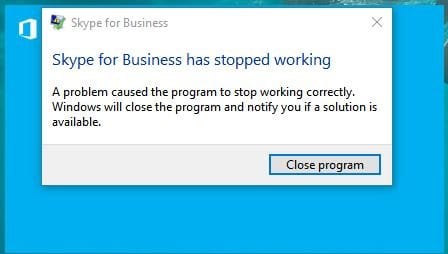
    skype for business stopped working

    Recently after the April 1803 upgrade to Window 10, we also had a KB4018326 update to Outlook 2016 and related products. Since Skype for Business crashes while sign-in process is underway, you may have to take the corrective measures to work properly with your Office mates.

    Plan B Solution to Prevent Skype for Business Crashing on Startup

    If you check your Events log report, a typical error can be seen like this –

    Application Error – Event ID 1000 – Faulting application name: lync.exe and Faulting module name:  KERNALBASE.dll

    As it can be seen, it has something to do with the executable of Skype and a .dll file. Before we go to Plan A and dwell deep, it is better you try this solution first.

    1. Open Outlook in Office 365 or 2016 and they try to sign-in. You will be posed with the same “Windows Security” login window, you usually encounter.
    2. You can also try uninstalling the KB4018326 update and restart Skype for Business again.

    If any of them works, you can proceed further.

    skype for business online meetings

    Permanent Solution – Skype for Business Crashing on Opening

    For this Windows 10 Version 1709 (OS Build 16299.371) and Skype for Business 2016 MSO (16.0.4639.1000) 32-bit, the solution below works perfectly. So it should also work on Windows 10 1803 and other versions of Skype.

    Answer : Clear the Skype for Business and Outlook cache to resolve this error.

    The following steps can be performed.

    1. Press Win + R. The “Run” command window will open.
    2. Copy and paste the following – %localappdata%\Microsoft\Office\16.0\Lync
    3. Delete the SIP Profile folder.
    4. Next move to the Tracing folder and delete all files (not the folder) in it.
    5. Logout of Windows and log back.
    6. Your Skype for Business should work normally again.

    Other Miscellaneous Solutions

    You can also disable all the Outlook add-ins as a temporary measure. It can be done in the following way.

    1. Open Outlook 2016. Select File > Options > Add-ins > Go Button.
    2. This button will appear under Manage > Com Add-ins
    3. If there is a check mark against any add-ins, clear them.
    4. Close the Office 2016 program and restart.
    5. Do for every other type of add-ins, in the same way.
    6. Disable each add-in only one at a time and repeat the above procedure.

    This will make sure which add-in is causing the issue and the cause can be found. Once Outlook starts normally, Skype for Business also will not have any problem.

    Open Skye for Business in safe mode if the above issue occurs again. This can be done like this –

    1. Press Win + R (“Run” dialog box).
    2. Type “Lync /safe” (without quotes and add a space).
    3. Click OK button and open Skype for Business again.

    The Office program Outlook can have issues sometimes. You can repair the whole software package once.

    1. Open Control Panel > Programs and Features.
    2. Select your Office Product (could be 2016 or 2013).
    3. Right-click it and select “Change”.
    4. Select “Quick Repair” and then “Repair”.
    5. Restart computer and your Office product issues should be fixed.
  • How to Upgrade or Block Windows 10 1809 (Redstone 5, October) Immediately

    With Windows 10, update and upgrade are important. Security problems can creep in instantaneously. Speed is another factor to be taken care of. Lack of features in the previous version is also another reason for upgrade.

    Keeping these things in mind, you have to make sure your Windows 10 system is always the best. In Windows 7 these updates would automatically download. Based upon the preference given, they would notify you to install or done without fail.

    Want to Install 1809 October 2018 update immediately without waiting?

    There is much curiosity whenever a new Windows 10 update is released. But with 1 billion devices in near reach, you will not be able to upgrade to 1809 version ASAP. It may take weeks to months to roll to the new update.

    There are certain pros and cons in upgrading to the new version. As with the earlier OS upgrades, there were lot of issues like keyboard, mic not working, BSOD errors, audio problems and many others. Sometimes the updates seem to hang in the middle with not able to enter the system again.

    But Microsoft leader Satya Nadella made sure that the new upgrades are without much faults. Also if you observe in many tech forums, there are not many issues related to 1809.

    So if you decide to upgrade to Redmond 5 Build, to experience the new features it brings without much waiting, you can do the following.

    Visit the following page of Microsoft – https://www.microsoft.com/en-us/software-download/windows10.

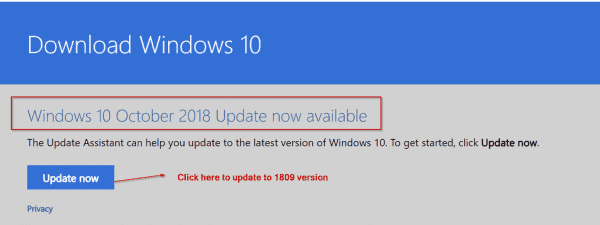
    As on today, the page has been updated to download the October 2018 update. If you are already on 1803 version and Windows 10 Pro, it will ask you to install the Windows10Upgrade9252.exe Update assistant. It is about 5.8 MB size.

    windows 10 1809 update

    Once you give permission to install it, a pop-up will show whether you want to update or not. Click the “Update now” button if you want to proceed. Then the rest of the process is same, as like before updates.

    In the next article, I’ll let you know what are the new features in 1809 version.

    But the option to stop Windows updates from downloading and installing automatically was direct. In Windows 10, the clever “developers” have forced the updates on you, with the block option, not noticeable very easily.

    There are two things, as reason, for you to block Windows 10 upgrade.

    1. The amount of time taken to do the update. It may take an hour, two or more than that based upon your system configuration and internet speed.
    2. What if the updates, hang after 45% or 55% ? You have to recover for whatever error code the Windows 10 throws up or reinstall from start again!

    So in any case, if you think you should freeze your Windows 10 updates from installing in future, there are several solutions.

    How to Block the Windows 10 Redstone 5 (October 2018 Update) Version 1809, from Installing ?

    From Oct 1st onwards, Microsoft starts to push the default upgrade of 1809 to your computers. If you are on 1703 or 1709 version, there are different ways to differ this upgrade. But if you have already made a switch to the 1803 (Redstone 4 or April Creators Update), you can disable the upgrade permanently or temporarily based upon your needs.

    Service Trick to Block 1809 Upgrade

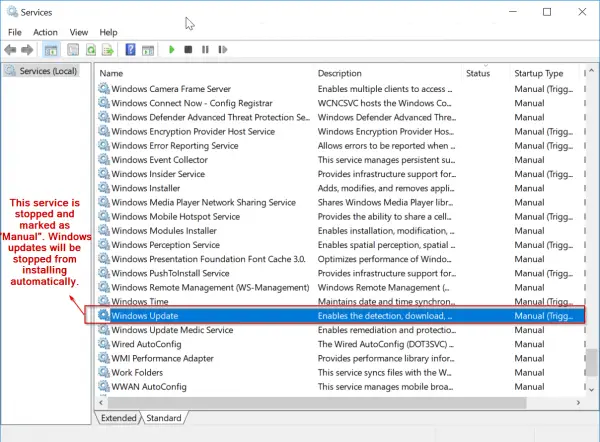
    The way to stop Windows 10 installing any new updates holds good for upgrade also. As we all know that there is a service called “Windows Update”. The function of this process is to do the following –

    Enables the detection, download, and installation of updates for Windows and other programs. If this service is disabled, users of this computer will not be able to use Windows Update or its automatic updating feature, and programs will not be able to use the Windows Update Agent (WUA) API.

    windows update service stopped

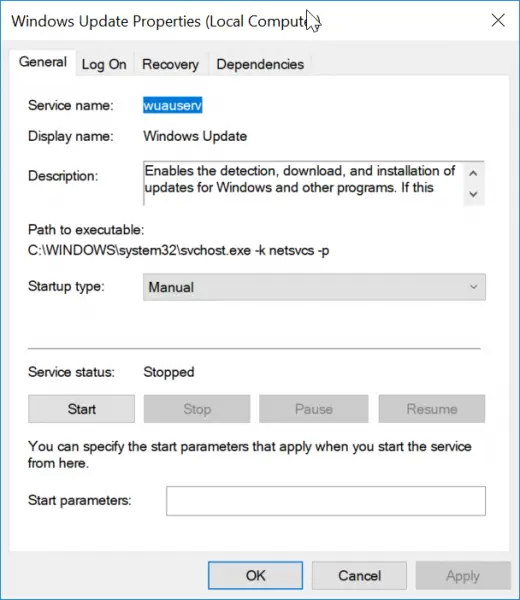
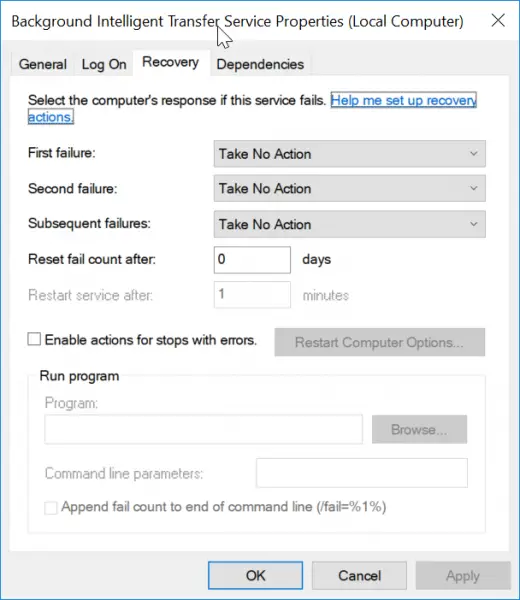
    windows update service properties 10

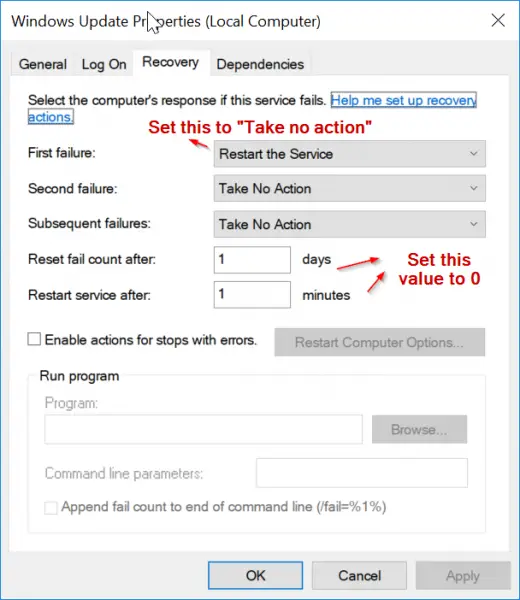
    windows 10 update service recovery properties

    So if you make the “Startup type” of the service as either “Manual” or “Disabled”, this program doesn’t kick in whenever there are new updates. Before that you have to “Stop” the service.

    But the downside is that it will not install any other updates also including Office and Windows security  updates.

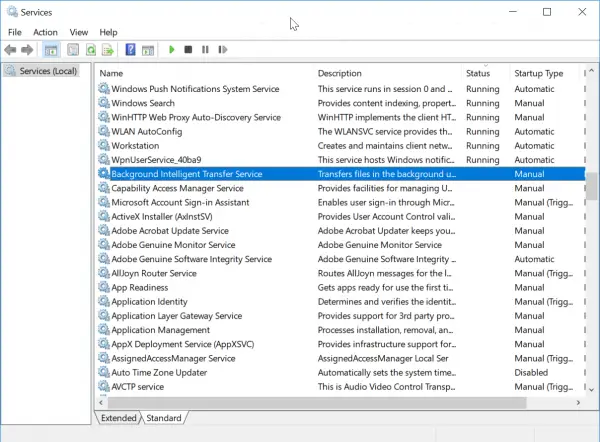
    If you want to be doubly sure that this trick works perfectly, you can also make one another service “Startup type” in a similar fashion. Background Intelligent Transfer service (BITS) is also related to installing new updates and making an upgrade to the new version.

    Transfers files in the background using idle network bandwidth. If the service is disabled, then any applications that depend on BITS, such as Windows Update or MSN Explorer, will be unable to automatically download programs and other information.

    win 10 bits service disabled prevent 1809 update

    windows 10 bits stopped block 1809 upgrade

    windows 10 bits service recovery properties

    You may not be able to set this as “Manual”. Even if you make it as “Automatic (Delayed Start)”, it starts when Windows 10 boots up. The best option to fulfill your needs is to make it “Disabled”.

    The above tip is a crude method of stopping the 1809 upgrade.

    But there is a better and smarter way of deferring your upgrade. Read along to know other tricks.

    Local Group Policy Editor to Stop Windows 10 1809 Upgrade

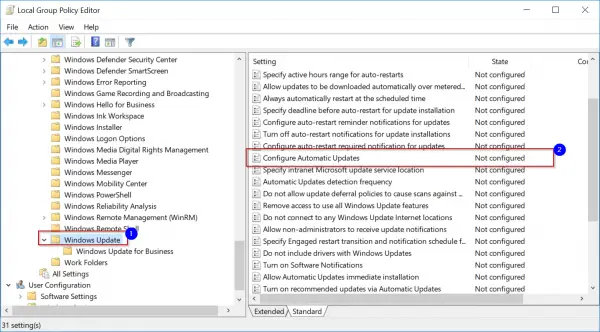
    This is another trick which will work permanently, unless removed manually. It not only stops the upgrade, but other updates also. So this must be used cautiously. Though it blocks the updates automatically, if  you have the “Windows Update” service running, then the upgrade can be done manually.

    1. Type gpedit.msc in the Run box, by pressing Win + R at the same time.
    2. Navigate to the following path.
    3. Computer Configuration\Administrative Templates\Windows Components\Windows Update
    4. I think this works for both Home and Pro users. But you need to have Administrator privileges, to do this trick.
    5. Once you reach the above item, click on the right side – Configure Automatic Updates policy.
    6. Click the Disabled option to prevent this policy from running again.
    7. Then click Apply and OK buttons.

    local group policy block win 10 1809 upgrade

    Sometimes the above option may not work or necessary privileges are there to perform this operation. In that case, you can try this other trick.

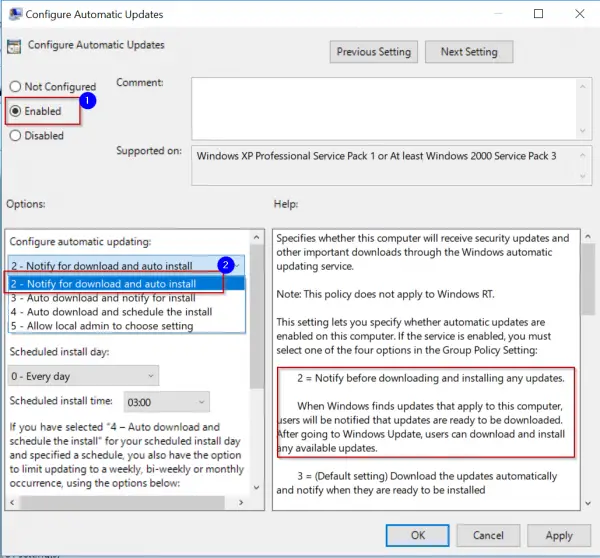
    1. Using the Local Group Policy editor path as above, double-click the option.
    2. Make the Policy as “Enabled“.
    3. There are number of options available now.
    • 2 – Notify for download and auto install.
    • 3 – Auto download and notify for install.
    • 4 – Auto download and schedule the install.
    • 5 – Allow local admin to choose setting.

    4. Select the “2” option.

    5.  This will notify of the “1809” upgrade and any other security updates before downloading.

    6. Also you can decide when to install them.

    configure automatic updates option block win 10 october update

    Once you see this notification, you can install the 1809 update manually by going to Settings > Update & Security > Windows Update. You can revert the changes at any time, by changing the above policy option from “Enabled” to “Not Configured“.


    Branch Readiness Level Tip to Block Redstone 5 Upgrade

    In this method, you can make use of the “Update & Security” option in Windows Settings. On the left-hand side you have “Windows Update”. Click it. Then on the right hand side, click on “Advanced options”.

    win 10 update security settings advanced options

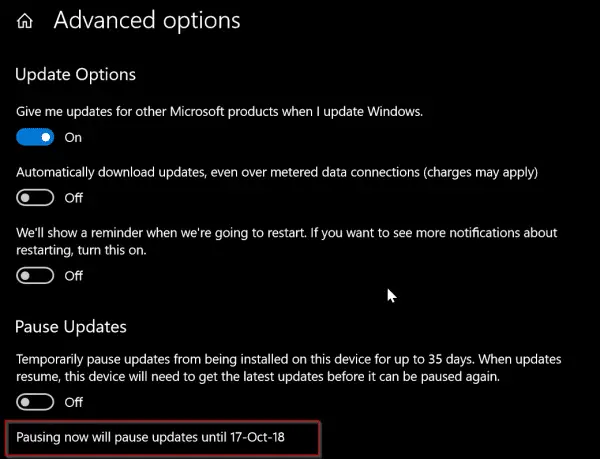
    Another window opens. Here you have the option to “Pause Updates” if you are on 1803 or April Creators update version. Switch this option to “On”. With this feature on Windows 10 Pro, you can

    Temporarily pause updates from being installed on this device for up to 35 days. When updates resume, this device will need to get the latest updates before it can be paused again.

    win 10 pause 1809 upgrade

    As we know 1809 October update is ready to be pushed from 1st Oct onwards for regular users. So you can utilize this little tweak on Sept 29th or 30th, so you have 35 days to see if the new version is stable or not.

    Then it automatically installs the latest updates, before you can pause again. So this is like a half-knife from stopping the Redstone 5 build version.

    Just below the above option, there is another setting that says –

    • Choose when updates are installed.

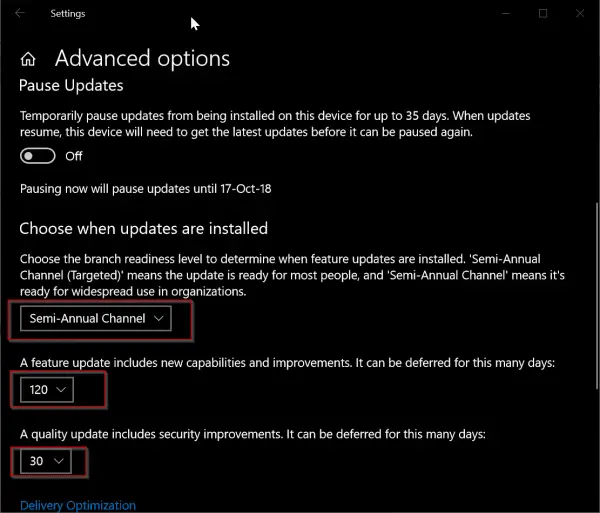
    Here you can set the branch readiness level to –

    • Semi-Annual Channel

    Don’t choose the other option that says “Semi-Annual Channel (Targeted)” which is on , by default.

    win 10 branch readiness level set to stop 1809 upgrade

    Then just below it, there are two settings –

    1. A feature update includes new capabilities and improvements. It can be deferred for this many days:
    2. A quality update includes security improvements. It can be deferred for this many days.

    Since 1809 is a feature update, you can set it something like 120 days, which will defer the October upgrade till 4 more months. I think you can leave the default setting of quality update as it is, which is generally “0” days.

    There is also a small note below this setting which embraces the “cruelty” of Microsoft. It tries to install Windows 10 new updates, without taking user acceptance into purview. This was lot easier in Windows 7 or Vista.

    Note: Windows Update might update itself automatically first when checking for other updates.

    And then it says –

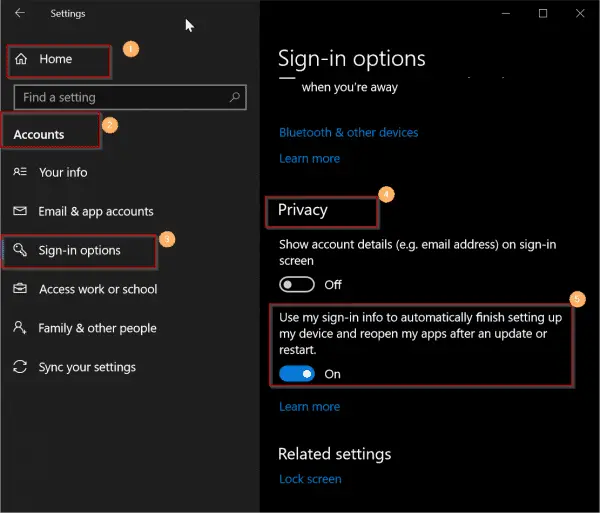
    Configure automatic device setup after an update under the Privacy section in “Sign-in” options.

    win 10 sign in options for proper working after 1809 update

    So in case Windows 10 has done the upgrade, make sure that option is set to “On”, so it can use the sign-in information automatically. Otherwise, your system might hang up in the middle.

    The Registry Tip to Block October 2018 Upgrade

    If you are a Windows 10 Home user, then the above trick may not be available on your list.

    But don’t dishearten!

    With the help of Registry Editor you can block the Octorber 2018 upgrade.

    1. Press Win+R and type “regedit”.
    2. Open the following item in it.
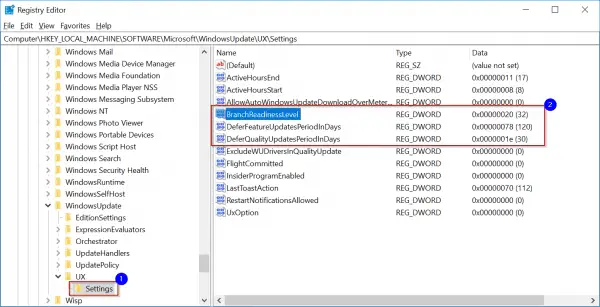
    3. HKEY_LOCAL_MACHINE\SOFTWARE\Microsoft\WindowsUpdate\UX\Settings
    4. Under this you have to create the following keys.
      1. BranchReadinessLevel
      2. DeferFeatureUpdatesPeriodInDays
      3. DeferQualityUpdatesPeriodInDays
    5. For all the above keys, you have to choose the “Base” as “Decimal“.
    6. For “BranchReadinessLevel”, you can set a value 10 or 20. To enter the value data, you need to double click the value name. A data value of 10 means “Semi-Annual Channel (Targeted)” and 20 means “Semi-Annual Channel“.
    7. For “DeferFeatureUpdatesPeriodInDays” you can set any value from 0 to 365 days. (It means you can defer the upgrade until 1 year).
    8. For “DeferQualityUpdatesPeriodInDays” you can set in the same range. (But this is not preferred, as it will also defer any security updates other than 1809 upgrade related).

    As a Pro user, you have the luxury of these keys being created automatically, once you set the options in Windows Update & Security settings.

    win 10 home registry settings block 1809 upgrade

    To create any new value, you can right-click an empty area and select New > DWORD (32-bit) value. You can choose the Decimal option while selecting the base.

    During the navigation of the path, if you don’t find any item like “UX”, simply click the parent folder and do New > key and create the missing key.

    Wushowhide Trick to Hide 1809 Upgrade

    An alternative tweak which would temporarily prevent a driver update from reinstalling in Windows 10 can also be used to defer the 1809 update. As we know with latest features and fixes, Win 10 also provides the latest updates to your drivers. These are automatically installed.

    But in some cases, the driver update can temporarily cause issues. In such a case, you can prevent the problematic driver from reinstalling again when the next Windows Updates are installed.

    Wushowhide fix to defer redstone 5 upgrade

    This trick can be used to solve our problem.

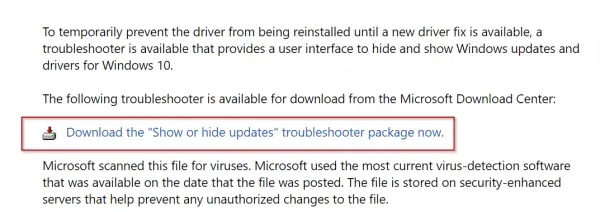
    Step 1 : Download Microsoft’s Wushowhide tool by going to  KB 3073930 page.

    Step 2: For this you can click on the link that says “Download the ‘Show or hide updates’ troubleshooter package now“.

    Step 3: Move it to a convenient location.

    Step 4: Double-click on Wushowhide.diagcab to run it.

    Step 5: It will run for long time. When it comes out of the process, click on the link with the label “Hide Updates”.

    Step 6: This will show all the “hidden updates” , Microsoft pushes to your computer.

    Step 7. If the “Feature update to Windows 10, Version 1809” (something like that) is visible and checked, just uncheck it.

    Step 8: If this troubleshooting tool successfully worked, your upgrade/update/patch will be hidden.

    Step 9 : You will see a “Troubleshooting has completed”  dialog. Then beside the “1809” update you can see that it is marked as “Problems found”. It means you have successfully completed your hack to prevent the 1809 upgrade.

    Step 10. Click close and you are finished.

  • Windows 10 System Settings – 13 Features Explained with Details [1909]

    One of the major changes in Windows 10 is Settings. This is to replace the conventional way of accessing different system options. The interface is more aesthetic and the options available also have good explanation.

    In Windows 7 and earlier versions, whenever you need to change any setting you had to use Control Panel. This has changed in 8.1 with PC Settings.

    But that didn’t go well with loyal users of Windows. So Microsoft made some drastic changes in Windows 10 after Satya Nadella took over.

    Out of the different Windows Settings, the first one is the System Setting.

    There are several sub-options under each category. Each option is available on the left hand side.

    Related –

    The following post will explain about the different system settings in Windows 10. You have to press Win + I (shortcut) to open Windows Settings.

    • Display
    • Sound
    • Notifications & Actions
    • Focus assist
    • Power & sleep
    • Storage
    • Tablet mode
    • Multitasking
    • Projecting to this PC
    • Shared experiences
    • Clipboard
    • Remote Desktop
    • About

    For each option, there are several sub-options which are given on the right-hand side. Windows gives an explanation of each sub-option in detail.

    But some of them reflect the new features included in Windows 10, which are not available in Control Panel.

    Display

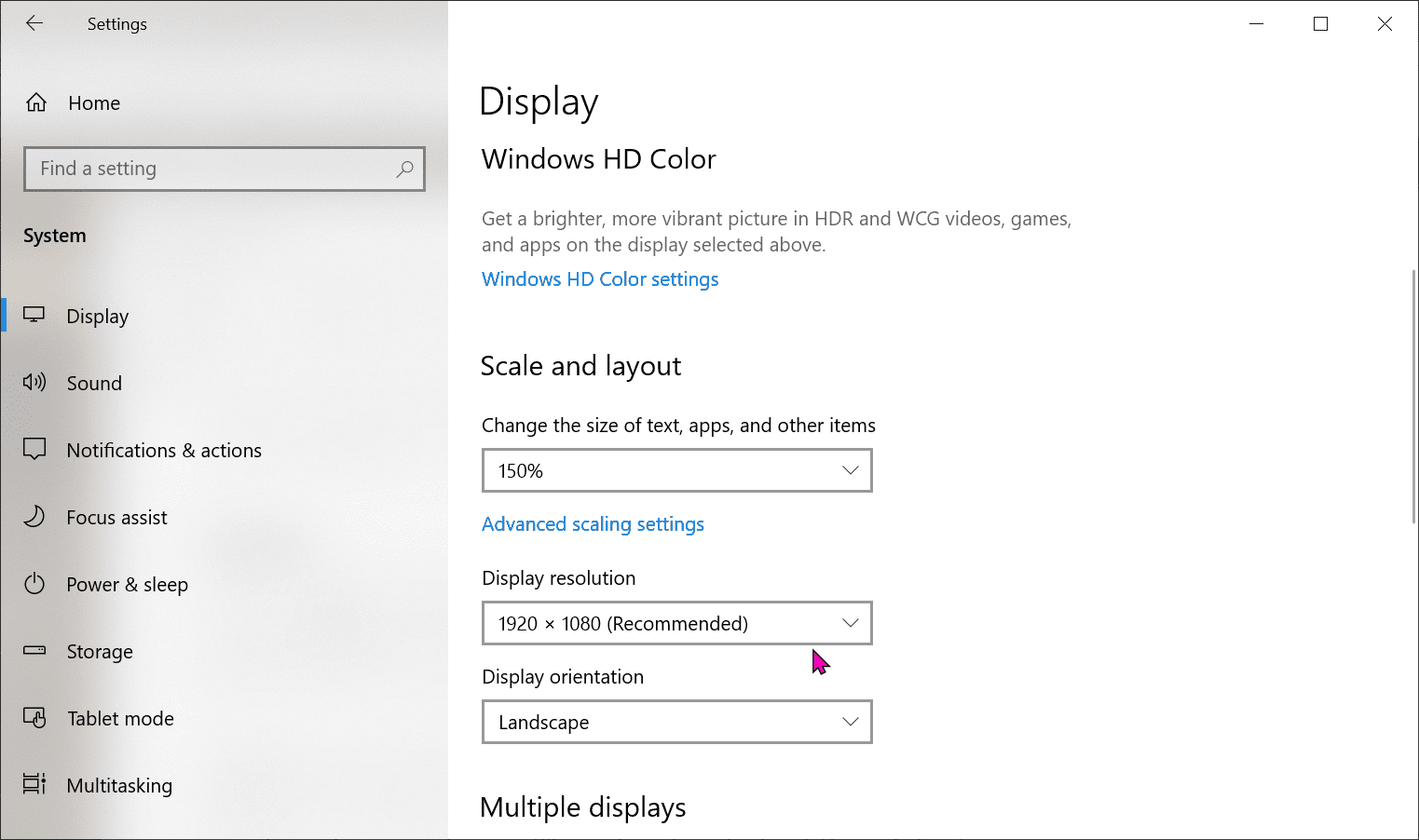
    You can toggle night-light settings and also change color profile. At night, the screen brightness will dim when you switch on “Night Light” mode. This can be activated from Action Center also.

    Windows HD Color is perfect for gamers and users of Smart TV. You get a high dynamic range (HDR) and wide color gamut (WCG) with vibrant colors in videos, games and apps.  The option to select a different display is available.

    display system setting windows 10 1909

    It is useful if you have multiple monitors. In this system setting, you can change the following.

    • Scale and layout – Change the size of text, apps and other items.
    • Display resolution – The recommended resolution is automatically given. But you can change to a different one.
    • Display orientation – You can change to Landscape and Portrait mode using this setting.

    Another important feature of this Windows 10 system setting is multiple displays. You can extend your screen to dual monitors. Click the “Detect” button, if it’s not automatically connected.

    Suggested –

    Sound

    You can choose your output and input devices here.

    Generally, the speakers are the output device and mic the input device. You can adjust the volume levels in between 0 to 100.

    There is also an advanced setting where you can adjust app volume and device preferences.

    sound system setting windows 10 pc 1909

    Notifications & Actions

    To toggle the notifications from apps and other senders, you can toggle the switch on/off.

    The following notifications are available.

    • Show notifications on the lock screen.
    • Show reminders and incoming VoIP calls on the lock screen.
    • Allow notifications to play sounds.
    • Show me the Windows welcome experience after updates and occasionally when I sign in to highlight what’s new and suggested
    • Get tips, tricks, and suggestions as you use Windows

    There are different senders like Cortana, Skype etc which send notifications. You can enable or disable them from this setting.

    notifications actions system setting windows 10 desktop

    Focus Assist

    This system setting will help you to focus on the main notifications. Other notifications will go to the Action Center.

    There are 3 settings here.

    • Off – If you select this, all notifications from apps and contacts are turned off.
    • Priority Only – You can see only selected notifications based on priority, when you turn on this option. The rest will go to Action Center.
    • Alarm only – Only alarm notifications can be seen, if you enable this.

    focus assist options windows 10 1909

    There are also automatic rules when focus assist is turned on. The following options are there.

    • During these times
    • When I’m duplicating my display (Alarms only)
    • When I’m playing a game (Priority Only)
    • When I’m using an app in full screen mode (Alarms Only)

    Power & Sleep

    This setting has different options for laptop and PC. For a desktop, you can turn off the screen after certain time using this setting. PC can go to sleep after certain period of time.

    The brightness feature is also available here in Windows 10 laptops.

    You can save energy and battery life.

    power and sleep system setting windows 10

    Storage

    The Storage Sense feature can be activated in this system setting. You can automatically free up some space by automatically deleting some files, like cache, cookie, junk etc and content in the recycle bin.

    You can see a progress bar of how much space is taken in blue and free available in grey. Different categories like –

    • System & Reserved
    • Apps & features
    • Other
    • Temporary files
    • OneDrive

    can also be seen.

    storage sense system setting windows 10

    Tablet mode

    In this system setting, you can set the following two options.

    1. When I sign in –
        1. Use tablet mode
        2. Use desktop mode
        3. Use the appropriate mode for my hardware
    2. When this device automatically switches tablet mode on or off.
        1. Don’t ask me and don’t switch
        2. Always ask me before switching
        3. Don’t ask me and always switch

    You can also hide the app icons on the taskbar in tablet mode. The option to hide taskbar in tablet mode is also present here.

    tablet mode system setting windows 10

    Multitasking

    You can work with multiple windows here. When you drag the windows to the sides or corners of your screen, they automatically fit to the right size.

    You can also Snap Windows. The following options are available here.

    • When I snap a window, automatically size it to fill available space.
    • When I snap a window, show what I can snap next to it.
    • When I resize a snapped window, simultaneously resize any adjacent snapped window.

    Timeline is another important feature of Windows 10. You can show suggestions on Timeline, using this option. Virtual desktops are a new feature of Windows 10.

    You can make all the windows in all desktops visible at the same time. On the taskbar, you can show windows that are open in only this desktop or all desktops.

    multitasking system setting windows 10

    Projecting to this PC

    You can project several android and Windows 10 devices to the current screen. Then you can make use of their keyboards, mouse and other devices.

    This is useful if you are using small screen devices like mobile. You can project the smart phone to the big screen of your windows 10 laptop or desktop.

    The setting to make the Windows 10 PC or laptop discover when connected to power source only is available here.

    Shared Experiences

    This setting and feature is available in Windows 10 only. You can have multiple Microsoft accounts and share them across different devices.

    You can make apps on other devices (which includes smart, mobile and tablet) to open and message apps on this device, using this system setting.

    Clipboard

    When you cut or copy something from notepad or word, it is copied to the clipboard history. You can have multiple items and select the right one to paste into your app.

    The following options are available

    • Clipboard history
    • Sync across devices
    • Clear clipboard data

    clipboard history windows 10 system setting

    Remote Desktop

    You can allow connection to your current desktop or laptop from a remote location using this setting. This is useful to troubleshoot problems of your existing PC and you cannot login into it.

    You can control using Remote Desktop client, which is available for Windows, iOS and macOS.

    About

    This gives brief details of your Windows 10 OS and hardware. The first notification will show whether your system is monitored and protected.

    If you see green tick marks for all the indicators then your Microsoft Defender (built-in default antivirus) is working properly.

    Then you can see the device specifications which include device name, processor, installed ram, device id, product id, system type etc.

    windows 10 system details

    The Windows specifications like edition, version, installed on date, os build can be seen here.

  • How To Add Email Accounts in Windows 10 Mail Store App? Exchange, Outlook.com, Gmail, Yahoo, Internet Email etc

    If you have used Windows phone you are familiar with Microsoft’s Office Mobile productivity suite.

    The free version of Outlook Mail on Windows 10 mobile phone has come as plain Mail app on Windows 10 PCs.

    The main advantage is the Mail app interface looks very sleek. It also takes less time to load.

    With lot of settings the Outlook desktop app creates a bigger learning curve. But the use of Mail app is so intuitive that you can just start using it as a Google or Apple app.

    You can check your mails using the Mail app of Windows 10. For this you first need to add your mail account, just you do in Outlook.

    But this is very less complicated in Mail, compared to Outlook.

    Sometimes, you need to manually fill many fields to add an email account.

    You can use the Active Directory services also to create an Exchange account in Mail. This is useful in a corporate scenario where Office 365 is used..

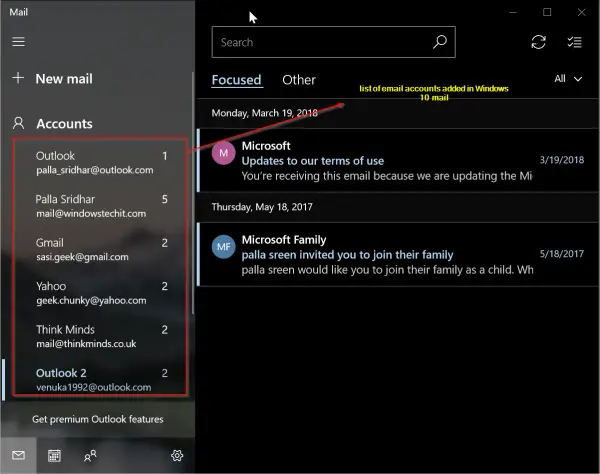
    list of email accounts added in windows 10 mail

    Instead of logging into your office website and checking mail, it is much easy to see in Mail. Also your personal and office mail can be seen on the same screen. The email setup for different services is almost the same. But for domain email, you need have your pop3 port settings ready before you add it. You can also change account settings in Mail, by just clicking the mail id. You need not download Mail app. It comes pre-installed with Windows 10.

    The Exchange account is also used in educational institutes. For .edu domains generally provide AD services to their students. Also corporates with .org can do the same.

    Common Procedure to Access Email Accounts Service

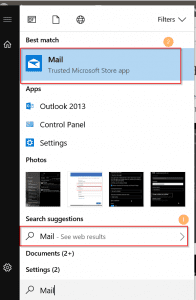
    There are many ways to access your  Store Mail app in Windows 10.

    • You can use Cortana or type in search.
    • Press the Win Key and type “Mail“.
    • Sometimes after Creators or 1803 update, it is pinned to the Taskbar.
    • Open the Mail Store App.
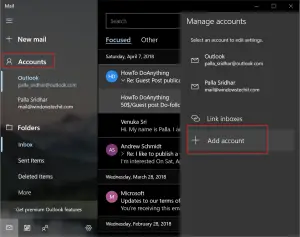
    • On the left hand side, you will find Accounts.
    • When you click it, two other windows will slide-out.
    • On the last screen, you will find “Add Account“.
    • Click it.
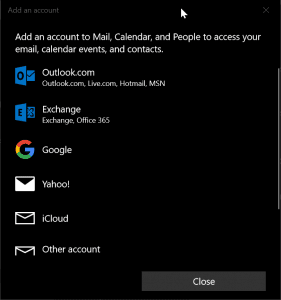
    • Then another Screen with a list of Email services that can be added to Mail are available.
    • The list is like – Outlook.com (Outlook.com, Live.com, Hotmail, MSN), Exchange (Exchange, Office 365), Google , Yahoo! , iCloud , Other account (POP, IMAP) , Advanced setup.
    • You can select the necessary one.

    access mail app windows 10

    accounts windows 10 mail

    email accounts available windows 10 mail

    Set up of Exchange account in Windows 10 Mail

    Before you add this type of account, keep the following information in hand.

    • Sign up for a Microsoft Account with a Outlook.com or Hotmail account.
    • Credential for your AD (Active Directory) – username and password.
    • The username is generally your exchange email id. (text before the @).
    • Make sure your email is registered on the Exchange organization.

    Then follow the common procedure to click accounts and find your service account. The Exchange can also have Office 365 installed. So you can add your exchange account by selecting Outlook from the services provided.

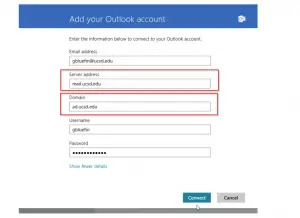
    The following details have to be entered.

    • Enter your exchange email address in the Email address field
    • Enter mail.ucsd.edu (for eg.) in the Server address field (This differs for each corporation or school)
    • Enter ad.ucsd.edu (for eg.) in the Domain field (This also differs for each Exchange or office)
    • Enter your AD username in the Username field
    • Enter your AD password in the Password field
    • Click Connect to add the account

    The domain and server field information is to be obtained from your computer administrator. Sometimes, the PC support team does all this or provides the info in a corporate office scenario.

    add exchange account in windows 10 mail

    Source : https://blink.ucsd.edu

    Set up of Gmail account in Windows 10 Mail App

    This is more easy then adding Exchange account in Mail.

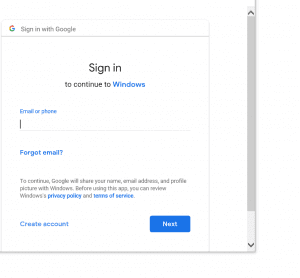
    • Select the Google item in list of services available in the common procedure.
    • Give the credentials like username, password.
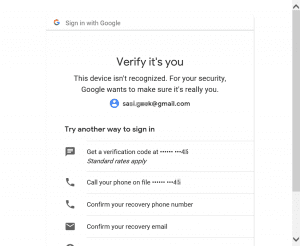
    • Sometimes verification of mail account is asked.
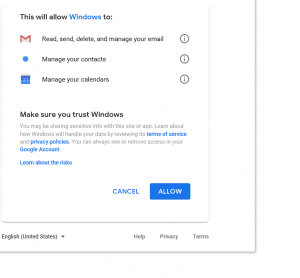
    • The permissions Mail app has access when Gmail account is added are shown.
    • Just click continue and your account is setup.

    gmail account sign in windows 10 mail

    gmail verification windows 10 mail


    gmail permissions windows 10 mail account creation

    The easy thing about this set up is you need not give any POP3 settings. But you need to provided access to it in your Gmail settings. Mail app will automatically take all the required information other than the username and password.

    For some reason, if Gmail account is not created, you have to give the POP3 mail settings like Inbound, Outbound server names etc. It is typically of a domain email setup. But I didn’t face any problem during installation. It automatically took all the settings and set it up.

    Set up of Yahoo account in Windows 10 Mail App

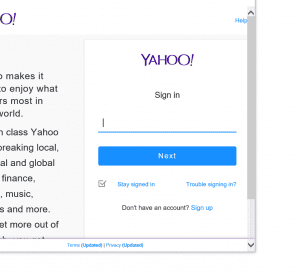
    This is typically like the Gmail account set up. You just need to provide the username, password credentials to the Mail app. When you click the item in Accounts, it will automatically connect to the Yahoo! mail service. Then a pop-up window will open, where you have to provide the necessary details.

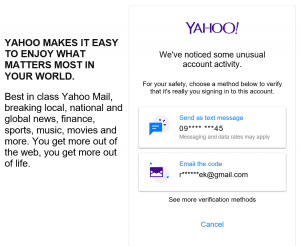
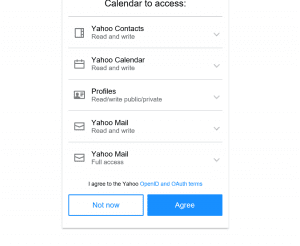
    yahoo sign in windows 10 mail yahoo verification mail windows 10 yahoo permissions windows 10 mail account creation

    Just like Gmail, sometimes, you need to verify your Yahoo! mail account and accept the permissions Mail app has access.

    Fix Error

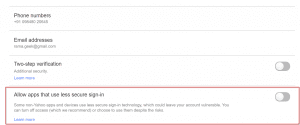
    Sometimes, Mail app is denied access to add the Yahoo! mail account creation. This is a security feature problem in Yahoo. For some reason, Yahoo! think Mail is a less secure app. So it does not provide access directly. So you have to open Yahoo! mail account in browser and go to its Profile settings and give access to less secure apps. Otherwise, you can go for 2-step verification.

    allow apps that use less secure sign in yahoo mail windows 10

    change yahoo account settings windows 10 mail

    https://help.yahoo.com/kb/account/SLN5013.html

    Set up of Outlook.com Email account in Windows 10 Mail App

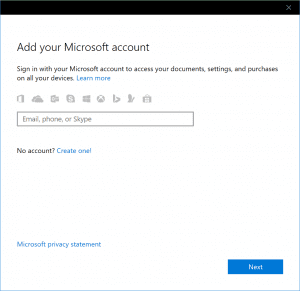
    This procedure is also similar to Gmail and Yahoo! accounts. You just have to give user credentials and all the other settings are automatically taken care of. Sometimes this account is also called the Microsoft account.

    add microsoft account outlook.com windows 10 mail

    Set up of Domain Email account in Windows 10 Mail App

    This is also called the Internet email account in Windows 10 Mail. For example, if you have a website or blog, you have an email account associated with that domain. It will end something like @example.com etc. For this kind of accounts, you need to give further information like server settings. But the ease is that, it doesn’t ask for any port settings unlike Outlook.

    Just be ready with the POP3 settings before you enter. These are available with your website hosting service. A typical picture will look like the below. All of it is not required.

    pop3 imap mail settings internet mail windows 10

    The following information has to be given.

    • Email address – This is the complete email address of the domain
    • User name – This is the same as above
    • Password – password for the above account. You need not give any cPanel or server credentials here. Just the email account password.
    • Account Name – Anything is ok.
    • Send your message using this name – The name, the sender sees.
    • Incoming email server –  this is something like mail.example.com for Non-SSL POP3 settings. For secure it is like example.com.
    • Account type – Select POP3 or IMAP4.
    • Outgoing (SMTP) email server – this is same like the Incoming email server setting. These details are available with your host.

    The below options are also asked in continuation. You just need to enable or disable them.

    • Outgoing server requires authentication
    • Use the same user name and password for sending email
    • Require SSL for incoming email
    • Require SSL for outgoing email

    The last two are only if you want to use SSL for mail account access. Personally I had problem using the last two options in Outlook also. So I generally use the non-SSL settings, if the other one doesn’t work.

    internet email account settings windows 10 mail

    Change Account Settings in Windows 10 Mail

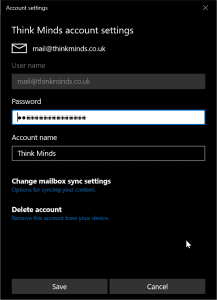
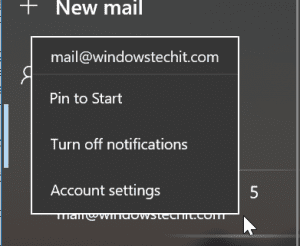
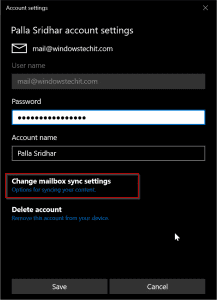
    Sometimes you need to make some amend to your existing account settings. For that, you just need to click the account name on the left hand side and select Account settings.

    change email account settings windows 10 mail

    change mailbox sync settings windows 10 mail

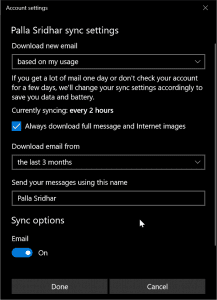
    download new email settings windows 10 mail account

    Here you can also change the time period of the amount of mail to download. You can also select whether full message and internet images are required to download or not. This is for security purpose.