
Last Updated:
When there is no sound through the HDMI port in Windows 10, you are likely to troubleshoot the smart TV or monitor hardware! But the solution is simple. In the sound control panel, you can find different playback devices, which include speakers, mini-devices, smart sound devices, and monitors with audio.
Find the right device and make it the default playback device. This will make your audio audible through your HDMI smart TV or speakers. Many people get confused when they see video but don’t hear sound.
HDMI sound not working on Windows 10 usually happens because the HDMI output is not set as the default playback device, or the HDMI audio driver is outdated or disabled. Setting the “Digital Audio (HDMI)” device as default and updating the driver restores sound through HDMI in most cases within a few minutes.
Fix 1: Set HDMI as the Default Playback Device
This is the number-one fix. Windows often keeps playing through your internal speakers even after you connect a screen. So you get a picture, but the HDMI sound output stays silent.
Step-by-step:
- Right-click the speaker icon in the taskbar and choose Sounds.
- Open the Playback tab.
- Look for your TV or monitor, often listed as Digital Audio (HDMI) or by your graphics vendor.
- Click it, then click Set Default, and press OK.
If your TV or monitor is missing here, that is the classic “TV speakers not showing up on PC” problem. Right-click inside the empty list and tick Show Disabled Devices and Show Disconnected Devices. Your HDMI device usually reappears.
Once you select the correct device, the “no sound on HDMI output” issue on Windows 10 almost always clears. If the TV still isn’t showing up as an audio device, move on to Fix 2—the driver is likely the issue.
Practical example: Connect a laptop to a living room TV, set Digital Audio (HDMI) as default, and audio instantly routes to the TV speakers instead of the laptop.
Fix 2: Update or Reinstall the HDMI Audio Driver
Sound is controlled by your graphics card’s audio driver. If it is old or corrupt, HDMI audio fails. Refreshing the HDMI audio driver on Windows 10 fixes a large share of these cases.
Step-by-step:
- Press Windows + X and open Device Manager.
- Expand sound, video, and game controllers.
- Find your HDMI audio entry — usually Intel Display Audio, AMD High Definition Audio, NVIDIA High Definition Audio, or Realtek.
- Right-click it and choose Update driver → Search automatically.
- If that fails, choose Uninstall device, then restart. Windows reinstalls a fresh driver on reboot.
For Intel Display Audio causing no HDMI sound on Windows 10, get the latest graphics package from Intel rather than relying solely on Windows Update. For a Realtek HDMI driver on Windows 10, download it from your PC or motherboard maker’s support page for the correct build.
Tip: Always match the driver to your exact GPU and Windows 10 version. A mismatched driver is a top cause of silent HDMI.
Fix 3: Enable HDMI Audio in Sound Settings
Sometimes the device exists but is switched off. You then need to enable HDMI audio on Windows 10 manually before any sound plays.
Step-by-step:
- Open Sounds → Playback again.
- If the HDMI device looks greyed out, right-click it and choose Enable.
- Click Set Default, then OK.
- Open Settings → System → Sound to confirm the output is your TV or monitor.
Check your HDMI sound settings on Windows 10 after every major update, because Windows can silently revert the default output. Two minutes here saves a lot of guesswork later.
Fix 4: Clear the “Digital Audio (HDMI)—Not plugged in” Error
This one confuses many users. The device appears in the list, but it still says “Not plugged in” even though the cable is clearly connected. Fixing the “digital audio HDMI not plugged in” message on Windows 10 restores the connection Windows thinks is missing.
Step-by-step:
- Fully power off the TV or monitor, and unplug the HDMI cable.
- Restart your PC completely.
- Reconnect the cable to a different HDMI port, then power the display on.
- Reopen Playback, right-click, and enable Show Disconnected Devices so the entry refreshes.
- Set it as default once it reads Ready.
If it still says “Not plugged in,” a driver reinstall from Fix 2 usually forces Windows to re-detect the link.
Fix 5: When HDMI Audio Is Not Detected
If the device never appears, Windows simply cannot see it. When HDMI audio is not detected, the fix is to force a hardware rescan.
Step-by-step:
- Open Device Manager.
- Click Action → Scan for hardware changes.
- Under View, enable Show hidden devices, and then re-expand the sound section.
- Enable any hidden HDMI audio entry you find.
- Restart and recheck the Playback tab.
A quick cable swap also helps here — a worn cable can carry video but drop the audio handshake.
Fix 6: Run the Windows Audio Troubleshooter
When you want Windows to do the work, the built-in tool can fix sound problems in Windows 10 HDMI audio automatically. It checks defaults, drivers, and services in one pass.
Step-by-step:
- Go to Settings → Update & Security → Troubleshoot.
- Select additional troubleshooters.
- Run Playing Audio and pick your HDMI device when asked.
- Apply every fix it recommends, then restart.
It will not solve every case, but it is the fastest first line of defense—and it often catches a disabled audio service you would otherwise miss.
Introduction
You plug in the cable, and the picture appears, but there is no sound. It is one of the most frustrating desktop problems, and it hits home users and office users alike. If your HDMI sound is not working on Windows 10, you are not alone. The screen works, so the cable is fine — yet you still get no sound through HDMI on Windows 10.
The good news is simple. Almost every case is a software or settings issue, not broken hardware. That means you can fix it yourself, without a technician.
This guide walks you through six proven fixes, in order, from the fastest to the most technical. You will learn how to set the right HDMI sound output, update the HDMI audio driver, enable HDMI audio, and clear the common “Digital Audio (HDMI) — Not plugged in” error. Let us get your sound back.
Why Is My HDMI Sound Not Working?
HDMI carries both video and multi-channel digital audio over a single cable. So when video works but audio does not, the cable is rarely the culprit.
In most cases, one of these is the cause:
- Windows is still sending audio to your old speakers, not the HDMI device.
- The HDMI audio driver is missing, outdated, or disabled.
- The display or TV was connected before Windows loaded the audio device.
- A recent update reset your HDMI sound settings in Windows 10.
Real fact: Windows 10 reached end of support on October 14, 2025. Microsoft no longer ships feature updates for it, but Extended Security Updates (ESU) still deliver critical patches to enrolled version 22H2 PCs through 2026. Older, unupdated drivers are a common reason HDMI audio breaks—which is why the driver fixes below matter more than ever.
Why Is There No Sound on My TV When Connected to My Laptop via HDMI?
There are a few common culprits for why there is no sound on my TV when connected to the laptop with HDMI on Windows 10:
- Digital audio HDMI output not enabled – The HDMI audio output needs to be enabled in the Sound settings on your Windows laptop. If it’s disabled, no sound will come through.
- A loose or faulty HDMI cable can cause no audio. Try connecting the cable properly or swap out the cable.
- Wrong audio output selected—Your Windows laptop may be outputting sound to the wrong audio device, like speakers, instead of the HDMI port.
- Outdated audio drivers – Audio drivers that are corrupt, outdated, or missing can lead to HDMI audio issues.
- HDMI not set as default device – You need to set your HDMI device as the default output in Sound settings for audio to automatically play through it.
HDMI Audio Not Showing Up in Windows 10
If the HDMI audio device doesn’t show up at all in the Sound settings on your Windows 10 PC, try these fixes:
- Turn the TV and HDMI device off/on. Also re-seat the HDMI cables.
- Update the video card and HDMI drivers from Device Manager.
- Use the original HDMI cable that came with your device. The cable may be faulty.
- Connect the HDMI device to another port on the TV or Windows PC.
- As a last resort, resetting audio services can help detect HDMI.
How to Fix HDMI No Sound Windows 10 – Best Solution
In most cases, you will not be able to find your HDMI device in your sound playlist. So, Windows 10 will use the default audio player, such as PC speakers. You can see the video on your Smart TV. Both are connected using an HDMI cable, but there is no audio from the HD display device.
In 2026, you may find some relief that this problem has an easier fix. Follow these steps.
Total Time: 3 minutes
Open the Control Panel app in Windows 10.
Type the few letters of “Control Panel” in the search box. Click on the app in the search results

Click on the Sound icon.
Adjust your computer’s settings. Make sure you can view small icons.

Now connect your PC to the TV using an HDMI connection.
Try to disconnect the PC speakers or any other speakers you are using. Then link your Windows 10 device to your HDMI display device.
Sound window will open.
Click on the Playback tab.
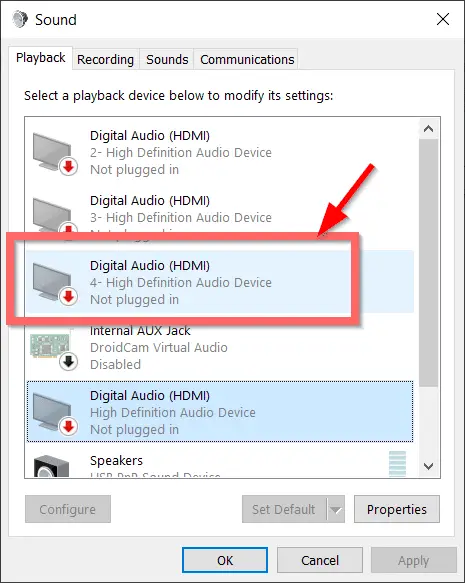
An HDMI-related sound device is seen.
Locate the relevant HDMI device in the list.
Right-click it and make it the default device.
When you make that HDMI audio device the default, you should be able to hear sound from it.
How to Fix HDMI No Sound Windows 10 – Best Solution
If the above solution does not work, you can try another fix as mentioned below.
Fix HDMI Sound Driver Windows 10
- Right-click the HDMI audio item and UNINSTALL it.
- Right-click Sound, video, and game controllers and select “Scan for hardware changes.”
- This will install a typical driver, which is something like this—”Device with HDMI AUDIO OUTPUT SUPPORT.”
- Now your Windows 10 HDMI audio problem should be resolved.
Note: Sometimes the HDMI audio driver already present may work properly. Then you just have to select it and make it the default sound playing device.
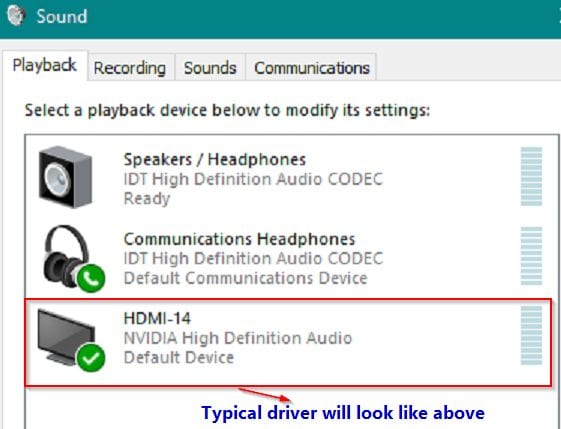
Fix HDMI sound not working on TV windows 10
The first solution is to check whether recent drivers for your GPU (graphics processing unit) are installed or not.
Visit your motherboard or PC manufacturer’s site and download the working graphics card drivers. Install and replace the old drivers.
Check if your PC or laptop has proper drivers for Windows 10.
How to Update Right Audio/Video Drivers on Windows 10
- Open the “Device Manager“”.” (press Win key and type “device …”)
- Left-click the sound device that is having the problem.
- Right-click that device and left-click the option “Update driver.”
This procedure solves most of the problems.
Windows 10 HDMI Audio Not Working – Latest Solutions from 2019, 2018, 2017, and 2016
For the last 6 months, there have been quite a good number of solutions from Microsoft and other forums to this problem of sound not going through HDMI in Windows 10.
Many users have spent anywhere from hours to months trying to solve these issues.
But I have listed the recent solutions that worked for many.
Make sure your HDMI device is not listed among the hidden devices in Device Manager.
- Otherwise, just enable that option in Device Manager, and you can see your display device under disabled and hidden options.
- Also during updates, Microsoft will try to install its new drivers for its integrated graphic devices. This can cause hindrance if the proper sequence is not followed during installation.
- Furthermore, some people might have multiple graphics drivers, like AMD, NVIDIA, or RealTek, or multiple monitors.
The default HDMI sound driver for Windows 10 will be installed. If you have further questions, please consult your computer’s manufacturer page.
For all the above kinds of issues, the summary of solutions for HDMI sound not working given by different users in various forums is mentioned here.
Fix #30
The second solution is to verify whether the audio on the playback device is activated in your Windows 10 “Sound” properties.
For this purpose you need to go to “Control Panel” by following many of the different alternative methods.
- Under Hardware and Sound > Manage audio devices > Sound, you need to select the “Playback’ tab.
- Then you need to left-click the “Digital Output Device (HDMI)” feature.
- This makes the device the default option for audio in Windows 10.
- Now try to reboot the device. This step should also fix many of the problems related to audio.
Fix #29
The third solution is to verify whether both the computer and TV have HDMI functionality.
This happens if your hardware is outdated.
Then there is no alternative but to directly connect your computer to an external sound device like “speakers” using an HDMI cable.
You will see the video on your TV, but the audio comes from external sound devices.
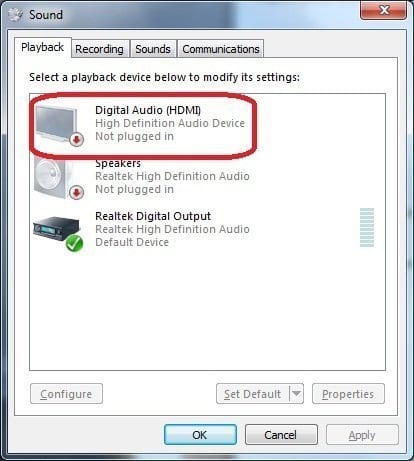
The most common reason is that HDMI is not showing up in playback devices in Windows 10.
Fix #28
Some HDMI devices comes with different ports like HDMI1, HDMI2, HDMI3, etc.
So after connecting your computer to your HDMI TV, make a note of the port you connected. If there’s no HDMI sound on the TV after connecting, check the ports.
Then, using your TV remote, select the correct port. Then try the second fix by enabling the HDMI audio playback in Windows 10 sound properties.
After these steps try to restart your Windows 10 PC. This can be a solution to modern devices with many ports.
To fix HDMI, make sure the default display and audio drivers are the defaults in Windows 10/11.
Fix #27 – How to get sound through HDMI in Windows 10?
HP users also faced problems with Windows 10 audio not working.
For example, a user with an HP ENVY TouchSmart 15-j053cl Notebook PC running on Win 10 Technical Preview connected to an HDMI TV.
The source device should emit sound.
The HDMI audio output is not shown in sound playback devices, but video is playing. There was an error message in the device manager.
"This device cannot start. (Code 10){Operation Failed}The requested operation was unsuccessful."
One user in April 2015 solved this problem by downloading the Intel driver update utility and installing the latest drivers.
They seem to have native support for Win 10.
Source: hp.com
Fix #26 – Windows 10 HDMI sound not detected
If you are using a Microsoft Surface Pro tablet having Windows 10 connected to an HDMI TV, the mouse pointer may become erratic.
Though this has nothing to do with audio problems, this could have an impact on sound properties also.
There are scaling problems on the second display and screen rendering problems.
It would be better to wait for the final version before testing the TP version with Surface Pro and HDMI devices.
Fix #25
AMD graphic card owners can have different problems. The Catalyst Control Center may not work for 10. If you have overscan/underscan issues, then you can try a registry fix, available at various forums.
Fix #24 – Windows 10 no audio HDMI
The audio front panel on your computer may stop working sometimes.
Though this seems to work in Windows 7 or 8.1, it has problems in Win 10.
This problem can also be with Realtek drivers if you are using them.
This seems to be a problem with the build 10041.
You can try uninstalling the audio drivers, restarting your PC, and reinstalling your audio drivers.
But with the initial build of TP, there seems to be no problem.
Fix #23
Another user started using the Intel Stick PC that came with 8.1. He then had sound problems with his HDMI device.
It worked on the previous OS but is not working with 10 after restoring all the drivers from 8.1. For this issue, you can try installing drivers in 8.1 compatibility mode.
Ref: http://forums.windowscentral.com
Fix #22
The HP Omni 10 tablet can have some audio problems if connected to an HDMI device in Win 10.
In this device, the HDMI audio is controlled by the “Intel Graphics Driver,” also called the “Bay Trail” driver.
So if you install the latest graphics driver, like version 10.18.10.3348, you can have your audio problems fixed.
It is found that the audio driver has nothing to do with sound over HDMI; it’s taken care of by the video driver.
If your audio is too low, you can install the Realtek I2S Audio driver (version 6.2.9600.4075).
So sometimes updating the latest graphics and video drivers can also clear your audio problems.
Ref: http://h30434.www3.hp.com
Fix #21: Sound not coming through HDMI Windows 10
You are using an HDMI TV and a Windows 10 laptop with Realtek HD Audio. But you cannot hear sound through TVs—ELD/PDP/LCD/OLED, etc.
Then the fault is not with the output device but with the Windows 10 driver utility. You can fix this issue like this—
- Go to Device manager -> Sound, video and game controllers -> Realtek High-definition audio
- Right-click on that item and choose Scan for hardware changes.
- In the list of audio devices, your TV or output device should be displayed. Please set that as the default device.
Voila, your sound is back from TV.
Fix #20 – Why is there no sound on my tv when connected to the laptop with HDMI Windows 11
The same problem of audio not working has a different fix. It’s basic. You just have to follow the sequence of switching on your devices in a particular order.
- First power off your laptop.
- Then power on your TV.
- Now connect your Windows 11 laptop to the TV using an HDMI cable.
- Now switch on the laptop. # This last step should be the final one.
Fix #19
An alternate solution is to totally disperse with HDMI cables.
You just use a Google Chromecast or Amazon Fire Stick and connect it to your monitor.
You should be able to stream video and audio on different applications like – YouTube, Netflix, HBO, etc.
There is no need for any Windows 10 HDMI driver like Realtek, NVIDIA, etc. This totally eliminates the need for Windows 10.
But the solution needs some extra bucks to buy a Fire Stick, etc. The method also solves the problem with wireless display (WiDi).
Fix #18
A completely different solution is to completely stop using Windows. You can switch to Ubuntu or Mac, as they have better compatibility with HDMI devices.
Fix #17
Sometimes, the problem with no audio on the monitor could be corrupted system files in Windows 10.
All you have to do is use a utility like System File Checker (SFC.exe) and run it as administrator (https://support.microsoft.com/en-us/help/929833/use-the-system-file-checker-tool-to-repair-missing-or-corrupted-system-files).
This will scan all protected system files and replace corrupt files with a cached copy present in <WinDir>.
You can also check the log (<WinDir>\Logs\CBS\CBS.log) to find any unrepaired files. Then if that file is not available on your computer, you can obtain it from a working computer using the same OS.
Fix #16
Sometimes when using HDMI, you have no sound on the TV with Windows 10.
The case can be when the laptop is connected to multiple monitors. You might have tried earlier solutions like updating the audio driver, etc., but still in vain.
In this case, when one of your monitors is not having sound, you can try these steps.
From the control panel, you can go to advanced display settings. Then click on “Customize your display.”
Your other monitors, which have sound working, may be displayed, but the monitor with no audio will display something like the “AV receiver” name.
Then click the option that says “Extended Desktop to this Display.” Now you can receive your audio through your AV receiver, like the Denon AVR-4100. The solution is simple but may take a lot of time troubleshooting.
Fix #15.1 – Go Back to Old Audio Driver
This fix can be the opposite of the earlier solution suggested. Sometimes, updates to your NVIDIA or Realtek drivers can solve the no audio problem.
But sometimes restoring your old drivers can do the trick. Before the Windows 10 update, your sound must have been working, but after it, it might have stopped.
If your TV audio stops working with Windows 10 HDMI, when you recently updated to new audio drivers.
In the Device Manager, you can use the option of “Rollback” to the old audio driver. This should bring the quo status to the original.
Fix #15
Sometimes the sound stops working due to Hyper-V being installed.
Previously you might have been using VirtualBox and might have updated to the new Hyper-V. Then this issue crops up.
You might have video but no audio.
Then you can try this solution
- Go to your device manager, and from there find your Hyper-V device name.
- If it’s enabled, just disable it and check with your audio.
- If it’s disabled, enable it and check the status again.
So either disabling or enabling Hyper-V should restore your sound.
Fix #14
Sometimes, you have both desktop/laptop speakers and HDMI audio speakers from your TV enabled in Windows 10.
So the OS might not automatically decide which speakers to use.
In this case, a simple solution is to disable laptop speakers before you connect your HDMI cable to it. Then you can hear the sound from the HDMI TV.
When there is no sound when connected to an external monitor in Windows 10, check the display drivers.
Fix #13 – Sound not going through HDMI Windows 10
There is a common misconception that your HDMI TV device is not visible in your list of playback devices.
This issue can happen due to many reasons. One common reason is that your HDMI audio device driver may be hidden and need to be disabled/enabled again. Then you can try this fix.
- In the Device Manager, at the top, you can select the option that says “Show hidden devices.”
- Under the System Devices tab, you can sometimes see “High Definition Audio Controller” and similar things. One can be your onboard sound, laptop speakers, or other HDMI sound.
- They can show warning signs that they are not working.
- Then select your HDMI audio controller and disable and re-enable it again.
Then your HDMI TV should be visible.
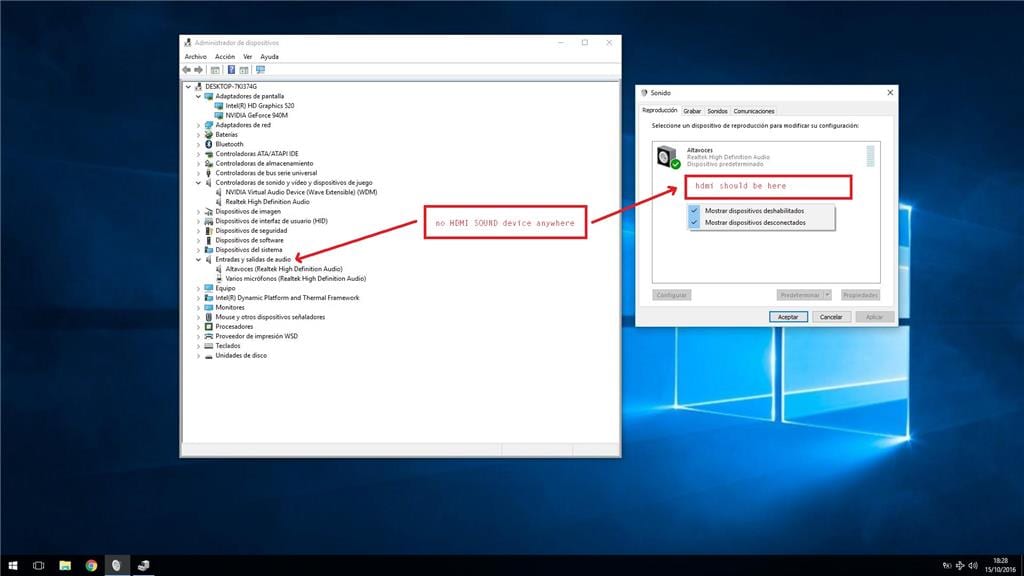
The hidden device can be NVIDIA high-definition audio drivers or any other HD audio drivers. To fix no sound through HDMI in Windows 10, check the compatible drivers for cables and audio.
Fix #12
Another solution is to power on both your Windows 10 laptop and your TV, but don’t connect your HDMI cable.
- After both power sources are switched on, you connect your HDMI cable.
- Your HDMI output device, like a monitor/TV, should be visible under Sound, Video, and Game Controllers in the form of a driver or device name.
- Right-click it and uninstall it. Then you search for “Changes in Hardware” and make the available HDMI output device the default.
Then your no-audio problem will be fixed.
The following YouTube videos below are going to explain in detail how to solve your Windows 10 not detecting HDMI audio problem. As explained earlier, the reasons can be many, but some solutions are given in them.
Fix #11 – Download the right Intel or AMD HDMI drivers
Sometimes there will be a default “Intel audio for display” internal driver installed for the existing motherboard.
This is generally the case when you don’t have specific speakers attached to your laptop or TV.
Then you uninstall that driver and install the external “Device with HDMI audio output support” driver. Your HDMI audio should start working!
Another solution for an HP DV7 laptop with an AMD graphics card and an internal Intel graphics card exists.
After updating to Win 10, you might have HDMI audio/video problems. So this procedure will install some default drivers for your AMD and Intel cards.
Just delete these old drivers and uninstall the related files. Then do a reboot. You will get the Intel driver back again after a power-up.
For AMD chipsets, graphics cards, and processors with graphics in Windows 10, you have some specific Radeon HDMI/ATI/HD drivers (.exe files). Even for legacy and integrated motherboard graphics of AMD, you can find the required audio drivers on its support page.
Download AMD HDMI Graphic and HD Drivers for Windows 10 and 7
Download this new update (AMD Radeon Software Crimson Edition 15.11.1 Update Driver version 15.30.1025.1001) and run it.
This will resolve the problems.
You will have smooth video and audio functioning from the DV7 laptop to the TV via HDMI.
Fix #10 – No sound through HDMI windows 10
In the Device Manager under the Sound, Video, and Audio Controllers section, you can find the default Intel, RealTek, NVIDIA, etc. audio drivers installed.
This is the case if you have many sound cards or speakers attached. Generally whenever Windows 10 updates happen, it will default to a Microsoft driver that doesn’t support HDMI.
So first delete the default Microsoft driver completely. Now go to your PC manufacturer’s site and download the latest Windows 10 audio drivers, ignoring Microsoft, and install them.
Still, you will not find the HDMI device you are expecting in the playback devices section.
But you can see sometimes disabled Realtek and NVIDIA sound card drivers are selected.
Now when you connect your HDMI cable between your laptop and TV, sound should come from the monitor or TV again.
Fix #9
This particular solution is for all users having problems with integrated default Intel drivers.
For example, you have no sound on an HDMI TV when connected to Windows 10 on an Acer E5-571 laptop.
So most people make the mistake of uninstalling the Intel® HD Graphics card and reinstalling it. But this does not solve the problem.
For this, you need to uninstall the Intel Chipset Driver 10.1.1.7 first and reinstall it again. Then uninstall and reinstall the typical Intel (R) HD Graphics Famly 15.40.3.4248 driver.
This will fix Microsoft’s HD Audio device problem of the TV not showing as a device in your Sound options.
The audio playback with sound on the HDMI connection will start working now.
Fix #8
When you have both integrated graphics cards like Intel, AMD, etc., and secondary graphics cards like Realtek, NVIDIA, etc., you have one specific problem.
In this case, the issue does not lie with the audio card’s driver but with the graphics card. This is because HDMI is handled by the graphics card. The solution is like this:
- Disabling driver signing (can easily find on Google how to..);
- Reinstalling the chipset driver from official computer manufacturer’s site;
- Reinstalling Integrated graphics card driver from official manufacturer site;
- Enabling drivers signing.
These steps should make your audio work again.
Fix #7
This sound issue can be with the Dell Inspiron 15 N5110 after the Win10 upgrade.
Even though Microsoft drivers were listed and updated, you still face the issue.
- In that case, go to Dell support site and provide required information like service tag etc.
- Then download Audio_IDT_W7 or the corresponding Win 10 driver.
- Install it and reboot.
- Even though it may be older than MS drivers, the HDMI device is visible, as is the comms headphone device.
Working now??
Fix #6
For some cases, new software and hardware interfering with audio could be the problem.
So if you have installed new audio/video software like VLC Media Player, WinAmp, iTunes, etc., then uninstall and check again.
- Also update your video/audio drivers in the first case and check again.
- You can also install the latest secondary graphic driver for Windows 10 and reboot.
- Then your HDMI device should be visible in Control Panel > Sounds.
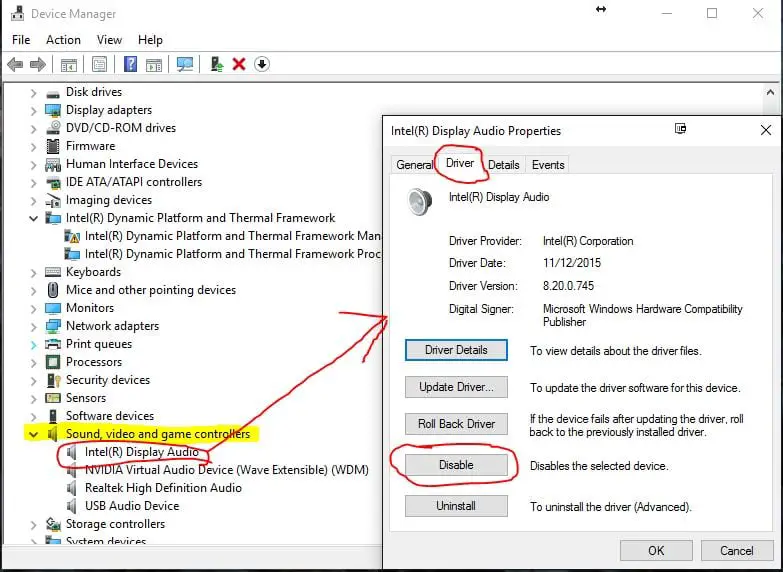
- Right-click your “Intel(R) Display Audio” device and select “Properties.” In the pop-up, on the Driver tab, disable it for a few seconds and enable it again. The HDMI device should be visible in your Sound > Playback devices.
Another fix is to go to your BIOS settings and advanced settings and device management.
There are a couple of settings for audio for some computers. Enable both, and an HDMI device should be visible.
Fix #5
Sometimes, you have a surround audio system like Sound Blaster Cinema and a secondary graphics card like NVIDIA GeForce Graphics GTX 970M.
You need to disable it. Then your HDMI output device, like a TV/monitor, will be visible. Just select it and make it the default playback device in sound.
Fix #4
On Surface Pro 4-kind of tablet devices, you have Hyper-V installed. You just need to enable/disable Hyper-V in Windows 10 to make your no-sound on HDMI TV work again.
Fix #3
For example, a user with an Acer laptop (Aspire 7745G) who has upgraded from Windows 7 to 10 is trying to connect to an external Acer monitor (G276HL).
He first tried using the HDMI connection to get a signal via the HDMI port. But he failed. Then he resorted to the VGA method. This worked. But this is not a complete fix.
Then he uninstalled all related HDMI drivers and installed the original driver from Acer using “Compatibility Mode.” This worked for him.
Fix #2
Another user with a Dell Inspiron 15 N5110 had a similar problem after the Win 10 upgrade.
He used the default MS drivers and also used the Dell website to find the latest audio drivers. But that was of no use.
So finally, he downloaded the following driver—the Audio_IDT_W7 driver. This can be done using the vendor website with the system tag.
But even though this driver is older than MS and the latest drivers, the audio works fine.
Scenario Fixes: Laptop, TV, and Monitor
When you connect your laptop to a TV and get no sound
If when you connect your laptop to a TV via HDMI there is no sound, the laptop is usually still set to its internal speakers. Open Playback, choose the TV, and set the default. Nine times out of ten, that alone fixes it.
No sound when connecting HDMI from PC to TV
For no sound when connecting HDMI from PC to TV, check the TV input source, too. Many TVs mute audio on an input until it is actively selected. Match the TV’s input to the exact HDMI port you used.
No sound on an external monitor
Getting no sound on a monitor in Windows 10 often means the monitor has no built-in speakers, or its speakers are disabled. Confirm your monitor actually has speakers, then set it as the default output and raise its on-screen volume.
Best Practices to Keep HDMI Audio Working
- Set your HDMI device as default once, and note where the setting lives.
- Keep your graphics and audio drivers current — they control HDMI sound.
- Recheck the default output after every large Windows update.
- Use a certified HDMI cable to keep the audio handshake stable.
Common Mistakes to Avoid
- Assuming a working picture means the cable is fine for audio too.
- Forgetting to click Set Default after selecting the HDMI device.
- Installing a driver that does not match your GPU or Windows build.
- Ignoring the TV’s own input and volume settings.
Recommended Tools
- Windows Device Manager — update, reinstall, or re-scan HDMI audio.
- Windows Sound settings (Playback tab) — set and enable your default output.
- The Playing Audio troubleshooter—automatic first-pass diagnosis.
- Your GPU vendor’s driver page (Intel, AMD, NVIDIA, or Realtek) — the correct, current driver.
FAQ
Do I need a special cable to get sound through HDMI?
No. Any standard, certified HDMI cable carries both video and audio. If audio drops but video works, the issue is in Windows settings or drivers, not the cable type.
What does “Digital Audio (HDMI) not plugged in” mean?
It means Windows is not registering the HDMI connection, even if the cable is in. Restart the PC, reconnect the cable to another port, enable Show Disconnected Devices, and reinstall the driver to force re-detection.
Why does my HDMI port have no sound after an update?
Windows updates can reset your default output or replace a working driver. Reopen the Playback tab, set the HDMI device as default again, and update the HDMI audio driver if the port still has no sound.
How do I enable HDMI audio on Windows 10?
Right-click the taskbar speaker icon, open Sounds, go to the Playback tab, right-click your HDMI or Digital Audio (HDMI) device, choose Enable, then Set Default. Confirm the output under Settings → System → Sound.
Why is my HDMI sound not working but the video is fine?
Video and audio travel on the same HDMI cable, so a working picture means the cable is good. The sound is almost always a settings or driver issue — usually the HDMI output is not set as the default playback device in Windows.
Conclusion
HDMI sound not working on Windows 10 looks scary, but it is almost always a five-minute fix. The picture proves your hardware works — the sound just needs the right settings.
Start simple. Set the Digital Audio (HDMI) device as your default output. If that does not do it, update the HDMI audio driver, then enable the device and run the troubleshooter. For laptop-to-TV and PC-to-monitor setups, remember to check the display’s own input and volume too.
Work through the fixes in order, and your HDMI port will have sound again. Bookmark this guide — after the next Windows update resets your defaults, you will know exactly where to look.

Intel seems to have been slow to get Windows 10 drivers out for the audio on their HD displays. I really struggled with an H87 chipset only showing Realtek audio. Visits and downloads from Intel (dated), Realtek and the motherboard maker didn’t help. Neither did searching for updates, uninstalling and searching for change. A non functioning driver did show in device manager. Only removal, using a generic Microsoft driver before rebooting finally showed the TV display in the sound choices. That was better than my Ainol Windows 8.1 TV box. After the upgrade to W10 it only showed a speaker option but the PC has no audio out. Intel driver check didn’t find a driver to upgrade. Removing the non usable speaker driver, left me with nothing and nothing could be detected by a search reboot or a third party driver updated. My only choice was to roll back to Windows 8.1; you only have 4 weeks to do that. Everything seems to indicate Intel hasn’t done its Windows 10 homework for its HD graphics HDMI audio.
@Dennis: Try installing the speaker driver manually. Normally you should have one for Windows 7 or 8.1. That should work out, if possible.
Palla: this is what happened to me, win7 and it wouldnt switch auto, so i did it manually and it works, video and audio both. why couldnt they do better then making it a control panel config, seems to me they could have. but they didnt. i have gone years without knowing this was a audio config problem, i was thinking all this time, it was a hardware problem. TY PALLA.
Unbelievable that given the high degree of technology involved in computers that one can get the video going but there are 10 “fixes” to try and get the audio. Technical experts who design these things and which are part of the promised capabilities, have let us down.
same problem here. just installed Windows 10, and now no sound. worked fine on windows 7.
I’m using a HP
Omni 220 PC
Have to share your disgust!
I have a “Home Theatre PC” from Dell circa 2011, which sends HDMI to a receiver that forwards the video to a projector. That worked like a dream for 3 years until one Windows update after another degraded it. I’m happy that the era when it would SCREEAM at us randomly is done. But having a Bose surround system that sits silent because of “new improved” software make me want to SCREEAM just as piercingly back at MS, Realtek, or Dell. No Windows box 7.1, 8.1, or 10 has worked for the last 6 months. Time to change OSs!
Fix 1 worked for me on the first try. Thanks for the help!
not one single fix worked for me
i operate w10, on an asus computer
video works fine, same audio error
im gonna try to set this in bios, none of the solutions above worked
Download this tool :
Then run the tool and update the latest intel driver. And now ur codec and or audio drivers should be up to date and your HDMI, should now get registered as normal. Hope some of you get use for this tip, it worked for be after i scanned for latest driver, and updated the driver and re-booted. Voilá presto, enjoy.
Thanks Ahmed Solution worked great
Thanks,Fix 2 worked.
I eventually worked it out thanks to this article, but it would be awesome if the instructions were updated for Windows 10. Unless I’m missing something big, there is no “Control Panel” any more…
@Kat Jenkins: There is “Control Panel” in Windows 10. You just have to do a search for it, instead of finding it in the “STart”.
In Windows 10, type Windows button and “X” simultaneously. It wil bring up a side panel window that lists Control Panel, Device Manager, etc
Hi I’m having problem with Lenovo c40 -05 series I can’t connect any device through HDMI port any idea ? I tried switch port but still nothing the screen won’t switch to watch amazon prime or use for playstation 3
your artikel just saved me some valubale time !!!!
many thanks from switzerland
Thanks Sridhar for an excellent compilation on HDMI issues resolution. It helped me to resolve my issue and now I understand it better.
Guys big big thankyou … its playing very nicely thhrough my onkyio ..masive mood changer for me x
REALTEK sucks ass!
For one whole month in the summer of 14 I believe, I dont think it was last summer, my RealTek driver would not work properly thanks to an bungled update by Microsoft!
Now, once again I am having problems with Real Tek, but w/ Windows 10 and not Winows 8.1
Im having the problem described in #8. My Front Audio Panel when I open up Playback, doesnt list my HDMI input now, just the speakers. I already updated driver through generic Microsoft and that of course didnt work.
Fingers are crossed the Intel update link works!
It didnt work. SMH Avoid Real Tek devices on Microsoft ran devices folks.
Thanks!
Tip to run Intel driver update utility immediately solved the problem. I couldn’t even see the digital audio hdmi in play back devices prior to this!
Very good article
How I fixed this problem..
I have an Asus laptop. I went do Intel website, downloaded Windows 10 drivers for my Intel graphic card and it worked right away.
http://www.intel.com/content/www/us/en/support/graphics-drivers.html
@Prez: Thanks for your experience. Hope that helps everybody regarding Windows 10 audio problems.
Voila it works!!! I am so happy. I can now play movie WITH SOUND on my LG TV using my ASUS notebook. Thanks Prez & everyone. Smiles.
I fixed this by updating the Driver for my High Def Audio Device and rebooting. I used Driver Easy to get the latest driver….hope this helps!
A Different approach but Effective
1) Device manager
2) Right Click “Sound, Video & Game Controllers”
3) Click “Scan for hardware changes” Close Device Manager
4) Now Right Sound Icon (Bottom right of screen in taskbar)
5) Playback devices
6) If this fix worked for you your Monitor should appear
7)right click it and set as default
YOURE THE MAN!
Hi, I’ve the same problem after reinstalling W10 on my laptop Acer. I’ve resolved downloading the correct driver from Acer website and then it works. Intel Audio Driver wasn’t installed correctly…
@Matteo: Hope you happy solving your HDMI problem in Windows 10. Also try to update to the new Anniversary Update.
Thank youso much! The Best Fix solution worked for our Acer ES1-572-31KW
I have Dell Inspiron N5110. I upgraded it to windows10 pro. I landed in problems for HDMI tv. When I connect it to my laptop, sound not coming, but video on TV thro HDMI. I tried many methods, but unsucessful. Atlast, my dealer fixed it. He go to the Dell website, and download latest audio drivers for windows 10- 64 bit laptop. I have Nvidia Graphics card. So he updated Nvidia audio drivers for windows 10- 64 bit. He downloaded it. Installed. Now it is working fine. Thanks for your suggestion. So the lesson is go to your manufacter’s website, update audio drivers/graphic drivers, if you have. It will check compatibility, and install it, and this will solve your problem.
Such a simple solution but it worked perfectly.
Do not switch on the laptop first.
First power on the monitor, plug the monitor HDMI cable to the laptop HDMI port, then switch on the laptop.
THANK YOU SOO MUCH, YOU ARE BLESSED, YOU HAVE FIXED MY SOUND. I WILL BE PRAYING FOR YOU.
Thanks Sridhar for a fabulous, easy to digest/comprehend and straight forward compilation on HDMI issues resolution. It helped me and my room mates to resolve our issues. thanks so much!
Thanks Smith. Hope the HDMI article was useful.
your simple tips just saved me some valuable time and extra cash!!!!
many thanks from Canada
Thanks Bright. The HDMI tips are gathered from different sources and should help everybody in this problem.
Spent hours trying to figure this problem out and just updating the drivers worked perfectly. Only other thing I had to do is to restart my pc and everything looks perfect after then. Window 10 sucks my data too much too, i hope admin can help me on that. Thanks Palla!
@Alex. As you see, several brands like Sony, Samsung, LG release drivers for their HDMI devices. You should update them time to time, as Windows 10 also gets updated every time. So, there may be a conflict between these too. Also rollback to previous drivers could help sometimes.
Waw!
First time here. I have the same problems for weeks now but your solution #4 works perfectly for me. I just enable the HDMI audio playback in Windows 10 sound properties on my laptop and then i tried to restart my system and everything is okay. Maybe because my system is still new. Thanks anyway!
@John. Good to see your problem solved. Actually that is the first solution for windows 10 hdmi problem for pc to tv. You just have to enable the HDMI item in sound panel. most of the time it works.
Hi Palla, Your solution #7 worked wonders for me. I am having NVIDIA graphic card. I updated the drivers and now the HDMI device is showing in the audio panel. I just enabled it. The sound from the Sony TV came fine. Thanks.
I sometime have this issue. It seems to me to only be related to streaming 4OD. Is this possible. I find it can start off ok it’s sound coming though the to abd then the sound reverts to the laptop speakers.
After seeing that people have experienced so many bugs with Windows, I really feel like appreciating my PC a tiny bit more as it always worked out of the box.
Thanks, reinstalled the driver.
I wanted to send my appreciation for this post. Device manger > Update Driver worked for me.
@Chad. Thanks for your comments.
fix#21 worked for me!! thank you
Glad it helped you.
Whilst running through your fixes I found a solution that you don’t mention.
Strange but true, using Chrome I have this problem. Switch to MS Edge and I don’t.
Seems very odd. Any idea how the browser could affect this?
I get this problem too.. same with Firefox.. Edge is ok of course.
I read and try all of this 30 solution but nothing work for me. Sound only work when I restart my PC. But I find solution by myself. Under windows Power option turn off Fast Start and all will be working fine. I think that under Fast Start, windows not search external hardware and because that, sound not working.
All these fixes to get audio to work over hdmi – but is there no way of getting audio to work SIMULTANEOUSLY on my computer AND TV?!
Because Won 10 let me choose “Realtek High Definition Audio” (that works for my computor speakers, connected by 3,5 mm plug) OR “AMD HDMI Output” (that works for my TV) – but not BOTH at the same time, which is what I want…
@Johannes. Probably you have to use a HDMI splitter.
Well I have a HDMI splitter, but that won’t solve the problem I’m having.
As I stated I want to take out sound BOTH from the HDMI output on my computer AND a 3,5 mm stereo plug SIMULTANEOUSLY – and that would demand that Windows let’s me use two different choices in it’s sound settings, SIMULTANEOUSLY.
But apparently Microsoft has decided that this is not an option users should have – so it’s practically impossible, even if it didn’t need to be as there should be no problem to allow a computer to allow multiple different audio outputs at the same time as far as I can see?
It’s probably still possible to jerry rig some solution if you’re more of a computer wiz then I am – but there is no simple option to do this for the average user.
So thanks Windows, for nothing. :/
But thank you, Palla Sridhar, for trying to help me and everyone else with these sound issues.
I very much appreciate your effort! 🙂
Best regards,
Johannes
The Best Fix for Windows 10 HDMI Audio Problem in 2019
this worked for me.
If you would like to get much from this article then you have
to apply these strategies to your own website.
Exellent collection of resolutions for the Windows audio issues.
Most of the HDMI-audio issues with Windows 10/8.x/7/etc. in my experience is due to the OS not detecting your HDMI-audio output.
– Most often this is as many of the listed solution says. Update your driver from the display-adapter producers. (Intel/nvidia/AMD/etc.)
– Another source of the problem is by the design of the HDMI standard itself. And its not Windows/Microsoft that’s at fault here.
Quite a few of the issues with HDMI-audio is solved by “turning on the TV before starting the computer”. So when the computer satarts it will discover all connected devices including HDMI-audio device. The same goes with “disconnect and reconnect hdmi-cable”. Windows OS will then rediscover the HDMI-audio.
If you Windows-system initiates a powersave event or your external connected HDMI-system(TV/SurroundSystem/etc) goes to sleep due to the device sleep-timer, some times Windows looses your detected audio-device. And powering on you TV again will not necessarily trigger rediscovery of your TV ‘s AudioDevice.
Restarting audio subsystem in windows will often re-trigger audio-device discovery.
Powershell:
Stop-Service Audiosrv
start-service Audiosrv
This is often a HDMI design issue implemented by different hardware producers. Your LG/Sony/Samsung/Phillips/TV/ is not always tuned for connecting to PC. Their HDMI-interface might be tuned for connecting to SetTop boxes/Playstation/xbox/PVR/etc.
When such devices are turned on, they will send a CEC power event to the “monitor” and turn it on. (Modern implementations of HDMI on monitors anyways).
Most implementations of device drivers for display adapters will not trigger Screen power on event.
And when you turn on the monitor with the remote again, the audio- device will not present itself to windows as an available audiodevice.
And intel display drivers… to say it mildly have had issues with HDMI like since “always”. If you’re on Intel display hardware don’t blame Windows, just go to the Intel Site and update your drivers.
I’ve been working with videoconferencing systems for a while and we’re seeing HDMI-Audio/video issues very often.
Unstable HDMI-audio/video can sometimes be resolved by turning of the Power saving features on your Monitor/TV.
But again, as many of the other solution listings says!
Update your drivers they might have been upgraded/downgraded to a default Microsoft-driver when you got the latest Windows feature update. (Windows 1803->1809->1903->1909->2004)
Hope this gives you all some extra insights.
@Darth: Thanks for your comments. I see that people still face this problem even after the Windows 10 2004 upgrade. So, yes if you upgrade your driver and make the playback device as the default, most of the HDMI-to-TV no sound problems will be gone. Then there is the default device driver from Microsoft, which should work for others facing driver issue.
After trying many things, the solution below by Chris worked for me.
Chris
A Different approach but Effective
1) Device manager
2) Right Click “Sound, Video & Game Controllers”
3) Click “Scan for hardware changes” Close Device Manager
4) Now Right Sound Icon (Bottom right of screen in taskbar)
5) Playback devices
6) If this fix worked for you your Monitor should appear
7)right click it and set as default
@Ahmed: Thanks for sharing your tip. Basically you are trying to scan for the monitor. So that, it appears in the playback devices and then make it as default. But this slight adjustment might help some people.
in the case of sony bravia, after much screwing around i found this solution that may also apply to other models of tv, if on your remote there is a sound or audio button, press it till it says main, turn everything off and on again, run the troublshooter if it doesnt automatically connect, or check the connection in sound tab of devices at this point
Thanks. It looks like there is a connection between the HDMI TV Remote and Windows 10.