
Last Updated:
Bluetooth Keyboard not connecting in Windows 10, after update. Problem could be unknown device, bad USB port, not working Bluetooth transceiver, incompatible profile etc. Solutions to these kind of errors are mentioned in this post.
You might also have Bluetooth keyboard paired but not typing in many cases which can be due to the adapter or USB receiver problem.
As an initial troubleshooter for Bluetooth Keyboard connection problems, you can try some of these –
- Initiate changes in the Device Manager
- Reinstall Bluetooth drivers
- Stop and Start Bluetooth Support service
- Bluetooth category in Power Management options
- Upgrade to the latest Windows 10 update – 1803 version
- Uncheck “Drivers for Keyboard, Mice etc (HID)” under Bluetooth Keyboard > Services tab in Control Panel
- Roll back Bluetooth drivers to the old ones
- Go back to the old System Restore point before you had problems
- If it is a pairing problem, do it manually by entering the 8 digit pin code.
- Better pair with an Android Mobile device first and then try the same thing on your PC
- Check a different USB port for the receiver
- Unplug the USB Bluetooth receiver and plug it in again
As you know, Windows 10 has different versions till now – 1507, 1511, 1607, 1703, 1709, 1803 etc. Some of them are nicknamed as “Anniversary Update”, “Creators Update” etc.
Each version has some features added and some removed. So the solutions proposed below work for some, like 1511 and some for other. Based on your version, you try the available options.
Update Bluetooth Keyboard Drivers for Windows 10
When you upgrade from Windows 7 or 8.1, or update from a previous version, such as 1511, the most likely cause is a driver issue. You can check the driver status by opening the Device Manager (described below). If the Bluetooth device has a yellow exclamation mark, it is most likely due to a Bluetooth device or USB driver issue.
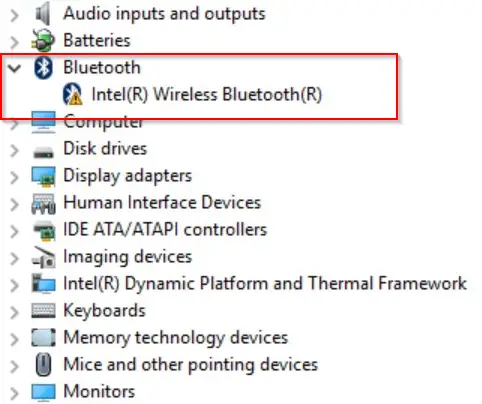
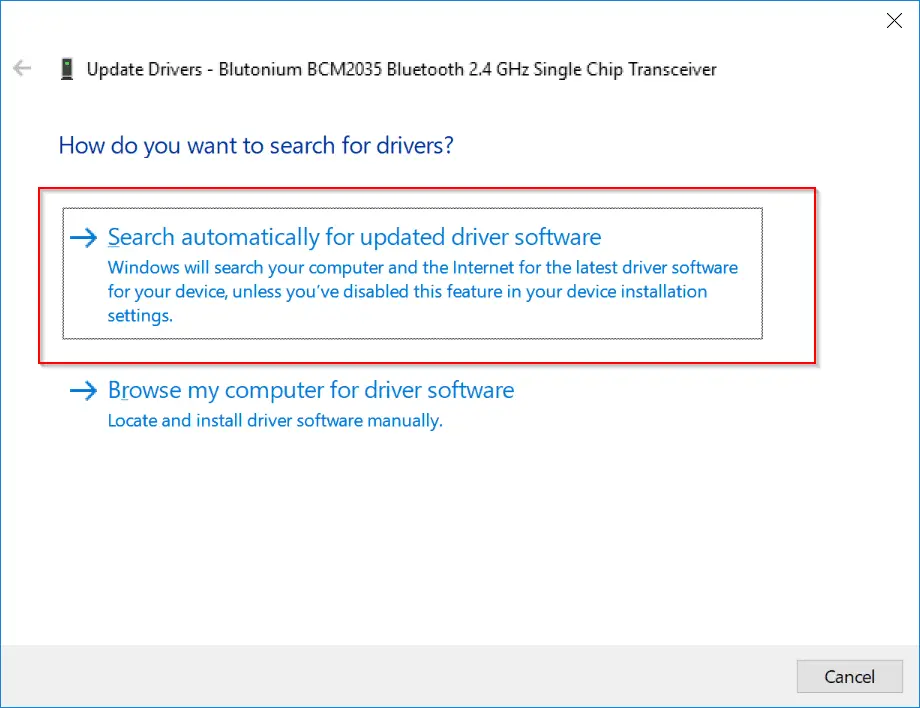
Select the device, right-click and Update driver. You now have 2 options.
Search automatically for updated driver software – This is generally used to find the drivers from the Internet, if they are available.
Browse my computer for driver software – Otherwise, if you have the Bluetooth keyboard drivers on a CD/DVD, you can browse through it and select it.
You can also go to the manufacturer’s website (if your PC is branded) and get the most recent Bluetooth drivers. Choose the appropriate operating system and bit, such as Windows 10 32 bit or Windows 10 64 bit.
If you wish to automate this process, you may use the link above to automatically download the drivers based on your PC and Bluetooth keyboard model. Many times, updating the drivers should solve the problems.
Top Fix to Solve Bluetooth Keyboard not working on Windows 10
- Press the Windows key and enter Control Panel.
- Then select “Devices and Printers” or “Peripherals and Printers,” depending on your Windows 10 version.
- Right-click on the “Bluetooth Keyboard” gadget.
- Select Properties > Services from the pop-up menu.
- Select the “Keyboard, mouse, and other device drivers” checkbox (HID).
- Press the “Apply” and “OK” buttons.
Now the Bluetooth keyboard reconnects and in it’s device section you can see it as “connected” instead of “paired“.

Few other Fixes to do if this is not working!
- Press the Win + R button and type “services.msc”.
- This should open the Windows 10 services.
- In this you will two Bluetooth services.
- Bluetooth Support Service
- Bluetooth Handsfree Service.
- Make sure they are running and make their status type as “Automatic”.

USB Port Problems
Sometimes if you have too many USB devices connected to your PC/laptop, then sufficient power may not be avialable for the Bluetooth keyboard to work. Try to remove some USB devices and see if it works.
Another option is to check whether the USB port is working or not. Generally on your desktop or laptop, you have a Bluetooth receiver or adapter to accept the signals, which just looks like a dongle. If you just put it in a different working USB port, the Bluetooth keyboard may start working.
FAQ
Why is my Bluetooth keyboard not connecting ?
To connect your keyboard press and hold the windows logo key on the keyboard and then press the connect button on the bottom right hand corner of your keyboard typically to the right of the right control button. This should pair the device and enable you to use it. if your keyboard still isn’t connecting check if any Bluetooth devices are already paired if so remove the device and then try to connect again.
Why is my Bluetooth keyboard not working ?
1. Make sure the Bluetooth switch is on. 2. Make sure your keyboard is in discovery mode. 3. If you are using any other Bluetooth device, switch it off/disconnect. 4. Repair your device from the Device manager. 5. Delete the device from the device manager and try to pair again. 6. If your keyboard does not have a pairing button, try to reset it.
Why Bluetooth keyboard connected but not typing ?
Check the USB adapter of the Bluetooth keyboard. Generally, this is used to communicate with the computer or mobile using its default Bluetooth hardware. If there is incompatibility between the two Bluetooth adapters or pairing is not done properly, you could face this issue. Also, make sure the keys of the Bluetooth keyboard are working properly. Sometimes, just unplugging the USB adapter and plugging back can resolve the issue. Most probably it is due to current fluctuations.
Why Bluetooth 3.0 keyboard not working ?
Check whether your Bluetooth adapter supports 3.0 version or not. Upper versions can support lower versions, but not the opposite. If they are correct, then check pairing of Bluetooth 3.0 keyboard and your computer. If they are paired, unpair it and repair again. Sometimes, you are asking to enter a PIN. If you don’t know you can check the device documentation for PIN. You can also remove device from Settings and pair it again.
Check Power Setting Option
- Right-click the Start button and select “Device Manager“.
- In the list of devices, you can find the “Bluetooth Keyboard” device.
- Right-click it and select Properties > Power Management .
- In this you can find your Keyboard. Right-click and select “Properties” from the context-menu.
- Turn off the option “Allow the computer to turn off this device to save power“. Click OK.
Supported Bluetooth Profiles
You can check this article – https://support.microsoft.com/en-us/help/10568/windows-10-supported-bluetooth-profiles.
For your Bluetooth Keyboard to work with Windows 10 PC, it should use one of the supported Bluetooth profiles. Generally Win 10 supports Bluetooth version 4.1 and the following Bluetooth user profiles.
- Advanced Audio Distribution Profile (A2DP 1.2)
- Audio/Video Remote Control Profile (AVRCP 1.3)
- Bluetooth LE Generic Attribute (GATT) Client
- Bluetooth LE Generic Attribute (GATT) Server
- Dial-up Networking Profile (DUN 1.1)
- Device ID Profile (DI 1.3)
- Hands-Free Profile (HFP 1.6)
- Hardcopy Cable Replacement Profile (HCRP 1.0)
- HID over GATT Profile (HOGP 1.0)
- Human Interface Device (HID 1.1)
- Object Push Profile (OPP 1.1)
- Personal Area Networking User Profile (PANU 1.0)
- Serial Port Profile (SPP 1.2)
How to Connect your Bluetooth Keyboard on Windows 10?
- First make sure you have a Bluetooth transceiver or in-built device to receive signals.
- Next turn your Bluetooth keyboard using some “on” switch and make it discoverable.
- Next Start > Settings > Device > Bluetooth. Turn the “On” switch.
- Now add a device and select “Pair”.
- Now you may need to enter some passcodes to initially pair your PC and keyboard.
- Then follow any instructions if necessary.
Bluetooth Troubleshooter to the rescue !
If you are running Windows 10 Creators update (1703), you can select
Start > Settings > Update and Security > Troubleshoot.
Under Find and fix other problems, select Bluetooth > Run the troubleshooter.
Let it process and fix errors automatically.

Bluetooth Keyboard device doesn’t appear in Device Manager and shown as Unknown Device
Sometimes when you upgrade from Win 7 or 8.1, you may not find your Bluetooth device. This is due to the incompatibility between Bluetooth driver and Windows 10. To find the right driver, you can do the following.
- In the Device Manager, find the Unknown device and right-click and Properties.
- Select the Details tab.
- Select the Hardware Ids from the Property list.
- Find the hardware ID for the Bluetooth radio.
- The hardware ID typically looks like USB\VID_{ID}&PID_{ID}
- Copy that ID and search on the web.
- You should find the right driver from your Bluetooth hardware or PC manufacturer website.
- Download the driver compatible with Windows 10 and install it.

Bluetooth Device doesn’t appear and Unknown Device also doesn’t appear
In the Device Manager, you can select
View > Show hidden devices.
View > Devices by connection.
The Bluetooth hardware may be hidden under a parent device like a USB Root Hub.
Then right click the bluetooth device and update the driver. You can also uninstall the driver and restart PC.
Update from Windows 10 1511 to 1703 or similar version
If your Bluetooth keyboard doesn’t work after updating to a new version like Creators update, then you need to pair the Bluetooth device again. If your keyboard supports the Bluetooth 4.1 profiles, it should be paired and work properly.

Bluetooth Keyboard is paired but not working.
Generally, when your keyboard is working, you should see the status as Connected. When not in use, you will see Paired. For this you can remove the Bluetooth adapter or transceiver, reconnect and pair it again.
Incompatibility with Windows 10
Sometimes a bluetooth keyboard like Microsoft Sculpt Mobile Keyboard may not be compatible with Windows 10 to work as a bluetooth device. So before you buy a bluetooth keyboard check its compatibility status with Windows 10.
Bluetooth Keyboard not working after Windows 10 Creators Update
Initially to type the pin or password, you can use the “on-screen keyboard” using the “Ease of Access” icon at the bottom right hand corner.
1. You can disable the “Turn on fast startup (recommended)” to see if the Bluetooth keyboard is working.
2. Uninstall the “Touchpad” device software, if keyboard is not working after Creators update.
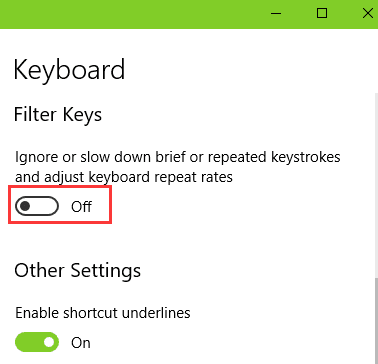
3. Switch off the “Filter Keys” in Ease of Access settings.
4. Update the BIOS to fix the Keyboard problem.
5. Disable “Airplane” mode and enable “Bluetooth”.

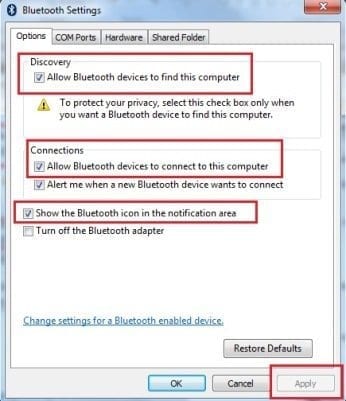
Make sure Bluetooth is enabled on your PC.
You need to enable discovery mode on your desktop, for the pairing to happen properly.
In the Options tab, you need check the following options.
1. Allow Bluetooth device to find this computer.
2. Allow Bluetooth devices to connect to this computer.
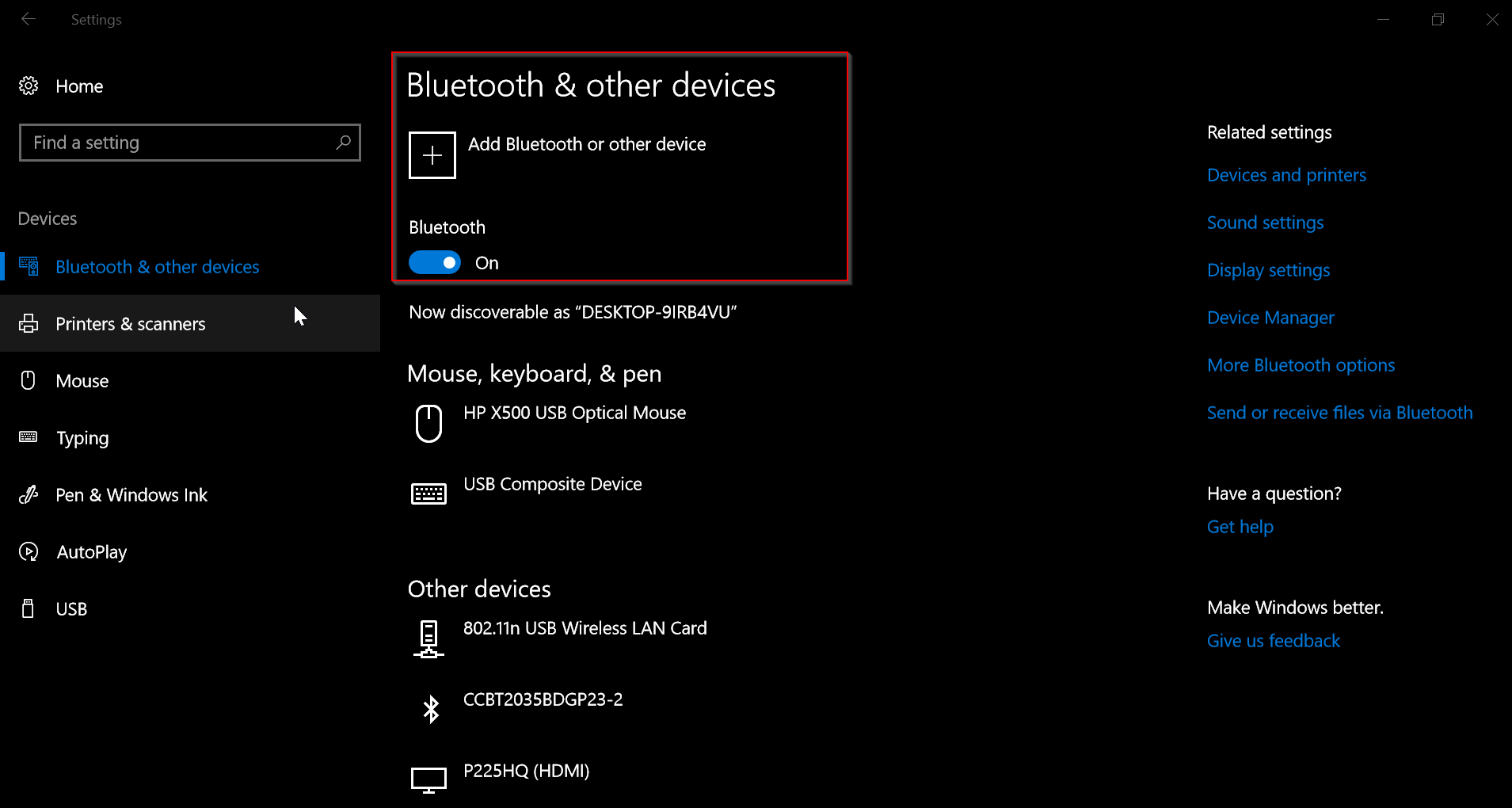
Also make sure the Bluetooth keyboard functionality is on. Now try to pair or reconnect and see if its working.

Side note: If you have a branded computer chances are that your bluetooth will not work correctly unless you install its drivers from the official manufacturer website. It happened with my Dell Laptop. Updating the drivers through the device manager was meaningless. I had to use the Dell Command Update so that I could get my Bluetooth to work at all in the first place.
I successfully paired my Goldtouch Bluetooth Keyboard with my new Windows 10 desktop computer. However, Windows has placed the keyboard under Other Devices, rather than Mouse, Keyboard & Pen, in the Bluetooth & Other Devices Menu in Settings. In Device Manager, the Goldtouch is not listed under Keyboards but under Bluetooth (without a Power Management tab in its Properties). This would seem to indicate that Windows hasn’t recognized this peripheral as an input device.
Windows 10 assigned its own Driver No. 10.0.1713.191 to the Goldtouch Keyboard. The other keyboard and mice have Driver No. 10.0.17134.1. The 191 is the same driver assigned to the Ms Bluetooth Enumerator and LE Enumerator.
I have run a diagnostic on the Bluetooth and it says it’s running fine.
Any suggestions on how I can get Win10 to recognize my Goldtouch Bluetooth Keyboard as a keyboard? Thanks!
@Penny : Regarding your Goldtouch Bluetooth Keyboard, you must be happy that its working with Windows 10. But regarding the driver version and being placed under Other devices, it could be incompatiblilty problem with Windows 10 or lack of latest drivers. Try updating the Bluetooth keyboard drivers from manufacturer site, instead from Microsoft. Let me know if this solves it.
When I was connecting bluetooth keyboard and then ‘Enter the PIN for your Bluetooth keyboard.’
How can I do?
What is the PIN?
Please let me know PIN for my Bluetooth keyboard.
Thanks a lot.
Computer : Laptop LENOVO
Window : Window 10
Keyboard : TZUMI bluetooth keyboard
@Hong. Once you power-on the bluetooth keyboard and insert the USB adapter, the “handshake” process commences. This PIN is generally displayed on your Windows monitor. Otherwise, you can manually add a device from your Control Panel. Then also the PIN is displayed on the screen only. Let me know if it answers your question.