Author: Palla Sridhar

  • How do I fix Windows 10 Restart Problem – 5 Causes and Solutions

    Computer keeps restarting in Windows 10 because of software or hardware issues.

    This problem was there in 1809 version also. It can be a hardware issue like bad RAM, faulty hard-disk, corrupted registry, drivers not updated, incompatibility of graphic drivers.

    Windows 10 works well. Don’t install pirated and hacked software.

    Also Read – Fix Error Code 0x800f081f and Installation of KB4571756 in Windows 10

    Keep your drivers up-to-date. Only install reliable apps and services. Check your hardware for faults. The recent 2004 update of Windows 10 has also caused restarts in Windows 10 laptops and computers.

    windows 10 keeps restarting faulty hardware

    Overview

    Blue screen errors can also occur after restart. Normally, an error code is display to further troubleshoot.

    Safe mode is another way to check the cause of restart problem.

    Also Read – How to Fix Error Code 0xc1900223 in Windows 10 after 1903 update

    Computer restarts automatically after sleep, shutdown, on startup, after reset, while installing, after update and many others.

    The cause for each problem can be different. It is common for Windows 10 restart after update or installation. This will happen couple of times. It should stop after the complete process is over.

    Instead if it keeps coming back without any particular reason, then you need to take action. Initially you will not understand why it is happening. But when the correct fix is applied it will stop.

    In this post, we are going to see multiple issues and fixes for pc keeps restarting problem.

    More Related – How to Prevent Skype Auto-Start in Windows 10 – 6 Methods

    Disable Automatic Restart – Find the Error Code

    1. Press the Win key and  type “Control Panel“.
    2. In it, “View by small icons“.
    3. Go to “System” item.
    4. On the left hand side, click on “Advanced system settings“.
    5. A pop-up window will open. Click on “Settings” under “Startup and Recovery“.
    6. In the following pop-up window, uncheck “Automatically restart” option, if it is checked.
    7. Otherwise, leave the default option.

    This solution will even work in the latest May update of 1903 version.

    windows 10 system start up settings

    stop automatic restart windows 10

    Method #1 – Power Settings

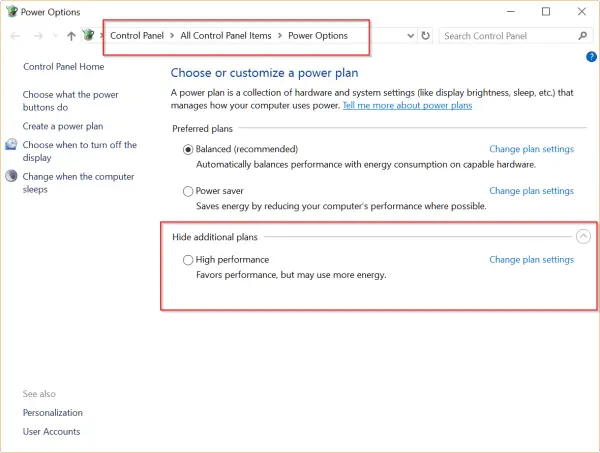
    Sometimes your Windows 10 laptop restarts after sleep. For example, with this laptop – HP Spectre x360. Generally, this can happen after PC goes to hibernate and instead of waking, it will just restart. You can also have problems with G6-1c43nr kind of HP laptops.

    Also Read – How to Permanently Disable Microsoft Defender in Windows 10 

    Solution #1

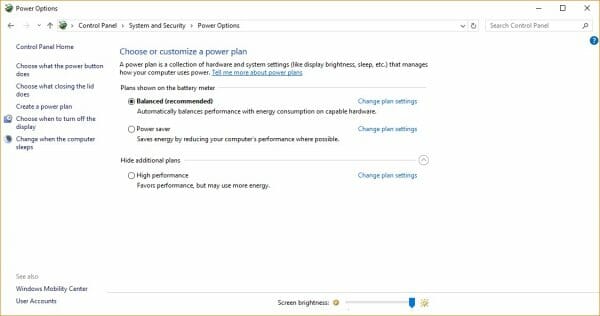
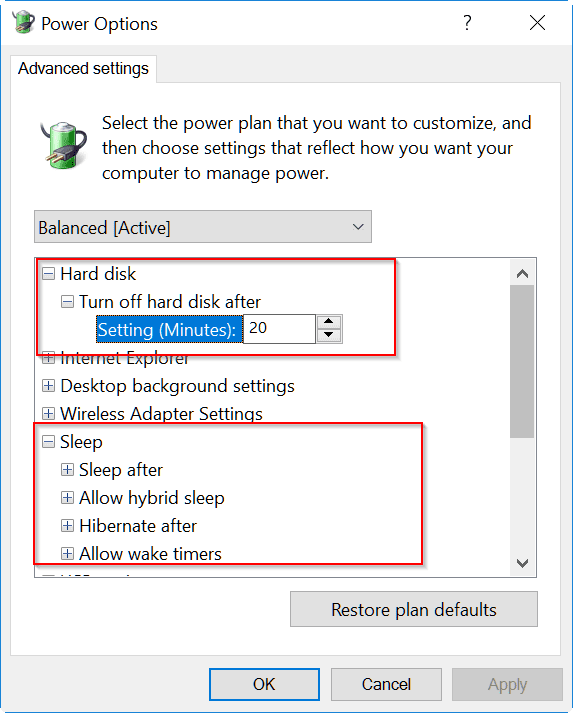
    The solution for this issue, is adjusting your “Advanced Power Settings”. In Windows 10 and new OS, by default, “Allow Hybrid Sleep” and “Hibernate” are turned on.

    So your computer goes into this mode after a few minutes (the time is set in the Power Settings). You also have the option of “Turn off Hard Disk after” a set time.

    Generally, this configuration is required for saving power. But this can be a cause for PC restarting issues.

    So you just have to turn these Setting to “Never”.

    This may keep your system hard-disk and CPU running for ever, but manually you can turn on Hibernate and Sleep, which is a fix for this kind of problem.

    [Source : http://www.tomsguide.com/answers/id-2817637/laptop-restarts-entering-sleep-mode.html]

    For G6 kind of laptops, it is the problem with new BIOS.

    Generally, you have F.48 or F.49 versions of BIOS. But reverting back to F.46 can fix the restart issue. You can see the above article for solution.

    windows 10 power options - fix restart after sleep

    Method #2 – Bad Registry Entry

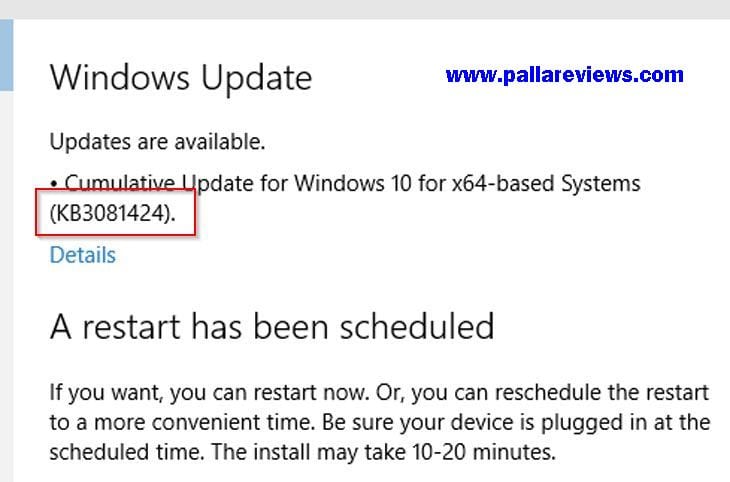
    In Aug 2015, Microsoft released an update called KB3081424.

    This is a cumulative update and for some users Windows 10 was going into a continuous loop of reboot, when they try to install this update.

    This KB3081424 update gets installed automatically if you have your “Windows 10 Update” settings to be automatic.

    The cause of the problem, is due to a bad entry written by the update in the Registry.

    After failing to install for the first time, the Registry prevents further tries to reinstall the update correctly.

    windows 10 restarts after update

    Solution #2

    The solution to this problem earlier, was deleting some keys related to this Update in the Registry. This was little tedious, because the first problem was that, you will be unable to login to your Windows 10 system when this problem occurs. Though you can try hard-booting and going through Safe Mode, still some users faced struggles through this form of solution.

    So finally, Microsoft released a fix for this problem, via the KB 3081436 update. . But Forbes reports that, some users are still stuck in an endless reboot loop, even after applying this fix.

    In that case, there is another solution as explained by http://www.theinquirer.net/inquirer/news/2421595/windows-10-cluster-update-puts-some-users-into-a-reboot-loop.

    If the update does not seem to work for you, Microsoft suggests opening the Control Panel, clicking on ‘View installed updates’, selecting ‘KB3081436’, clicking uninstall in the toolbar and restarting the computer.

    More Related – How to Speed Up Windows 10 – 25 Easy and Simple Tricks

    You can also read the comments on this article, related to the solution of this problem.

    Method #3 – Windows 10 Update and Hardware

    In July 2016, some users reported on http://www.tomshardware.com/forum/id-2995352/windows-restarts-warnings-errors-updates.html regarding Windows 10 restarting without warning, errors or updates. The system configuration reported is Z170X-Gaming 5 with an i7-6700k.

    Solution #3

    The problem looks somewhat temporary and does not happen continuously. First of all, you have to check your Windows 10 Update Settings, whether you have your PC to automatically restart after an update. If that is the case, disable this feature.

    But the problem is that Windows 10 tries to reset this setting, every time it installs a major build version like 1511 or 1607. Also some minor updates also do this as well.

    You can also try to remove the dust gathered in the PSU, CPU heatsink and other parts of the motherboard. This is to see, if you have any hardware issue, instead of a software problem.

    But most likely this issue looks temporary, which may be due to “unexplainable” features of Windows 10.

    Method #4 – Rollback to old version

    Some laptops can have restart or reboot issues during installation or setup. Generally, Windows 10 PC will re-boot 2 to 4 times, to complete installation. But instead of showing progress, if it re-starts several times like after 60% or 70% and forever, then there is an issue. There is also an issue with laptops and desktops which are like 5 and above years old. So you should also think of upgrading your hardware.

    Solution #4

    There are several solutions in this case, if Windows 10 keeps restarting during installation. The following steps can be performed as mentioned in the original article.

    1. Completely shut off power to the desktop. Pull out all the plugs. Disconnect from power outlet and wait for 40 min to 1 hour.
    2. Laptop users, can try removing the power adapter and also the battery.
    3. Completely disconnect from Internet source, whether it’s Ethernet or Wi-Fi. You can disable the network adapters until further use.

    Now, connect to the power source and keep dis-connected from the Internet.

    Two things may happen. Either your Windows installation will roll-back to the previous version like Windows 8.1 or 7 or will complete the installation.

    If set-up completes and you can see the Windows 10 desktop screen and other functions, you can continue to connect to Internet and proceed for normal use.

    [Source : http://www.groovypost.com/howto/fix-most-common-windows-10-setup-errors-issues/]

    If it roll-backs to old version, then you can try upgrading manually using the Media Creation Tool or ISO file.

    Bonus Tip:

    If you feel that your Windows 10 PC is restarting instead of shut-down, you can try the following registry changes mentioned in the above YouTube video. This fix is like in Sep 2015, but it shows some changes to the registry keys, which will make your Windows 10 computer function again.

    The above YouTube video is a solution for Windows 10 keep restarting instead of shutdown. The video has like 15k views on YouTube and is uploaded by “Iviewgle” channel.

    The above YouTube video is another solution for Windows 10 restart problems. Sometimes, there may be “system file corruption” or “hardware failure” due to which your Windows 10 will go into never-ending loop. In that case, you can take the Windows 10 installation DVD or flash-disk and boot from it. Then you are given some options, which you try to resolve your problem. See the above steps, on how to do it.

  • [Tutorial] – Network and Internet Settings in Windows 10 – Explanation of Each Option

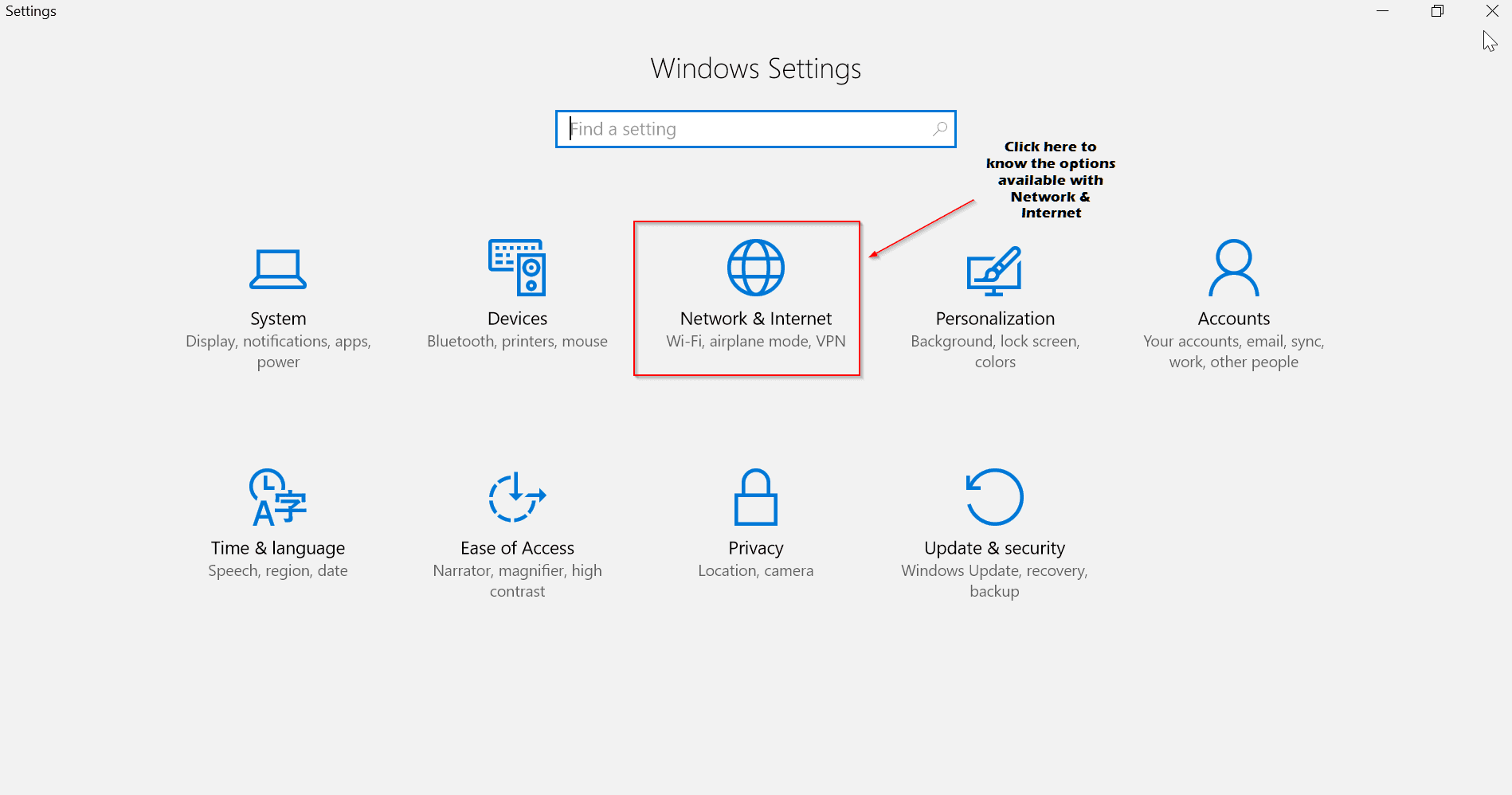
    Windows 10 is liked by the world compared to its predecessor 8.1. Lot has changed from Metro Interface. Start Menu is back with lot of modifications. Access to System, Devices, Network, Personalization and other settings is still possible through Control Panel. Redmond has introduced a new feature in Windows 10 known as “Settings” which is visible in the Start Menu as “Gears” icon.

    Navigate through each setting, to find different options to customize your Windows 10. Before you dive in through, it’s important what is in store for us. So here is a brief overview of “Network & Internet” Settings in Windows 10.

    how-to-access-settings-windows-10 network-and-internet-settings-windows-10

    Subset of Settings available under Network & Internet

    The following are the left-pane options available under the main item.

    1. Status

    2. Wi-Fi

    3. Ethernet

    4. Dial-up

    5. VPN

    6. Airplane mode

    7. Mobile hotspot

    8. Data Usage

    9. Proxy

    Each item has its own importance. So if you are using a modem with a router, then you need to make a few changes with the Wi-Fi settings. On the other side, if you are a legacy user living in the country side, with limited connectivity, then you STILL have the Dial-up option. These settings are not limited to desktop and can also be used with a laptop.

    Status

    status-network-settings-windows-10

    Here you will find the network status.  Here I’m connected to my TP-LINK router through Wi-Fi, to get my Internet. The same is shown as a diagram, with laptop, Wi-Fi, globe symbols to indicate your system connected through router to the web. If you have multiple networks, like 2 to 3 Wi-Fi and also a LAN connection which are available for connection, the same can be seen using the option below.

    Show available networks

    You can also see the network properties to which you are connected.

    View your network properties

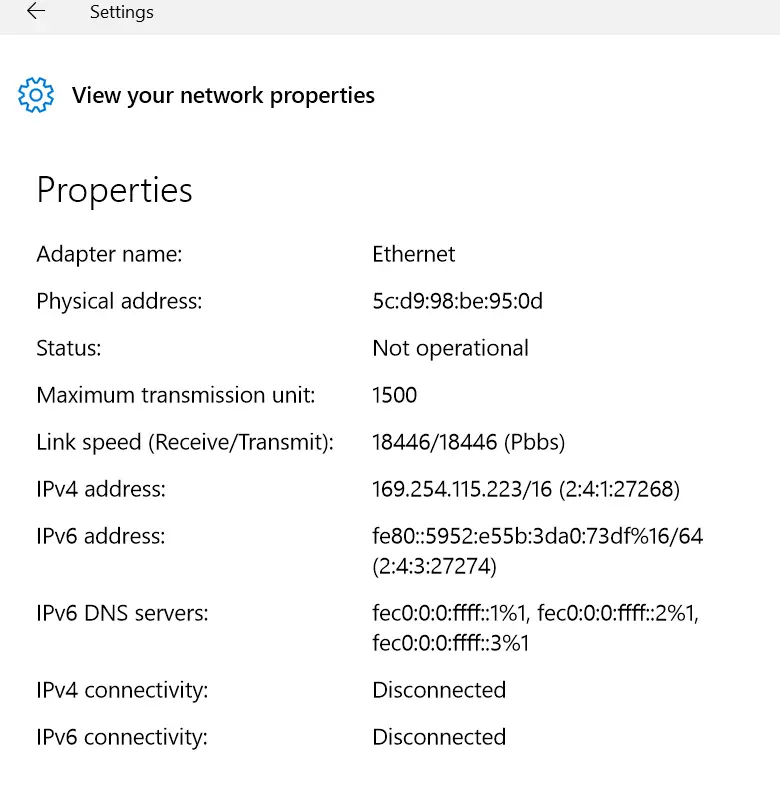
    These are useful, if you want to diagnose any problem in your connection or copy these properties to any other system. It will also show the other available adapters that are present. You can see their status also. Since Wi-Fi adapter only is operational for my system, that is indicated in the list. You can see other properties like –

    ethernet-network-properties-windows-10

    • Adapter name
    • Physical address
    • Status
    • Maximum transmission limit
    • Link speed (Receive/Transmit)
    • IPv4 address
    • IPv6 address
    • IPv6 DNS servers
    • IPv4 connectivity
    • IPv6 connectivity   Etc.

    Generally for Ethernet (Wired) adapters, you will get the above. Also the link speed is mentioned in Pbbs. The status field will show “Operational” if that particular adapter is working or “Not Operational” if it’s not working. If you are using an Wi-Fi network, you will also get details like DHCP lease etc.

    Under this category, you can find other settings like –

    • HomeGroup
    • Network troubleshooter
    • Change adapter options
    • Change advanced sharing options
    • Windows Firewall
    • Network reset

    The troubleshooter option is useful, if you are not able to connect to the Internet. This will try to reset the adapter or provide some fix to your network problems etc. These options are also available through Control Panel.

    Windows Firewall is the same old default security option available in other old OS like 7, 8 and 8.1. You can set Inbound and Outbound rules, so as to stop any applications or apps from accessing the internet. Also if you have any other third-party Firewall, you also turn it off.

    Network reset is another problem-fixer for your Internet connectivity problems. If there are many network adapters installed on your computer or if you have changed their settings or if you have uninstalled them, then there are some junk left over in your system cache or somewhere else. This option will reinstall all your network adapters and set their components to the default settings. If you have VPN etc installed, you need to reinstall again.

    Wi-Fi

    wi-fi-settings-windows-10

    This option will only be available if you are connected wirelessly like through a router. This will be set to “On” if you are using its adapter. The “network name” and its connection status are available here. There are other options like –

    • Show available networks
    • Hardware properties
    • Manage known networks

    There are some important changes to Network Settings in Windows 10. The following options are also available.

    Wi-Fi Sense

    This feature is useful in sharing your Wi-Fi with your Facebook or Skype or Outlook friends. If you share your password protected Wi-Fi network access with any of the above, they will automatically be connected to Internet (through your network) when they come in range. Though there was hip-hop of security concerns, the following message speaks the status of its usage.

    According to Microsoft, few people actually used the feature and some were actively turning it off. “The cost of updating the code to keep this feature working combined with low usage and low demand made this not worth further investment,” said Gabe Aul, Microsoft’s Windows Insider czar.

    (Source: http://www.extremetech.com/computing/228259-new-windows-10-build-kills-controversial-password-sharing-wi-fi-sense)

    Hotspot 2.0 networks

    This feature has been introduced with Windows 10 Build 14328. This is the new standard, also known as HS2 and Wi-Fi Certified Passpoint, for connecting to Wi-Fi networks in certain public places like airports, restaurants, hotels, railway stations etc. This offers secure and encrypted connection between the client and the access point.

    Almost a year ago, Microsoft announced that the company will be bringing Hotspot 2.0 support to Windows 10 Mobile. Today, we can confirm that Microsoft will be adding Hotspot 2.0 support to Windows 10 Mobile with the Redstone release, and this feature should be coming to Insiders in the coming weeks.

    (Source: http://mspoweruser.com/windows-10-mobile-redstone-will-get-hotspot-2-0-support-soon/)

    Paid Wi-Fi services

    These are services that are less secure. If you either don’t have a free Wi-Fi access and no Hotspot nearby, your best alternative is to buy a premium Wi-Fi. Such networks will be listed, if you make this option “On” and you can pay them to get Wi-Fi. These are generally available in rich countries like USA, UK, Germany, Japan, Australia, Canada etc.

    There are related settings like –

    • Change adapter options
    • Change advanced sharing options
    • Network and Sharing Center
    • HomeGroup
    • Windows Firewall


    Ethernet, Dial-Up

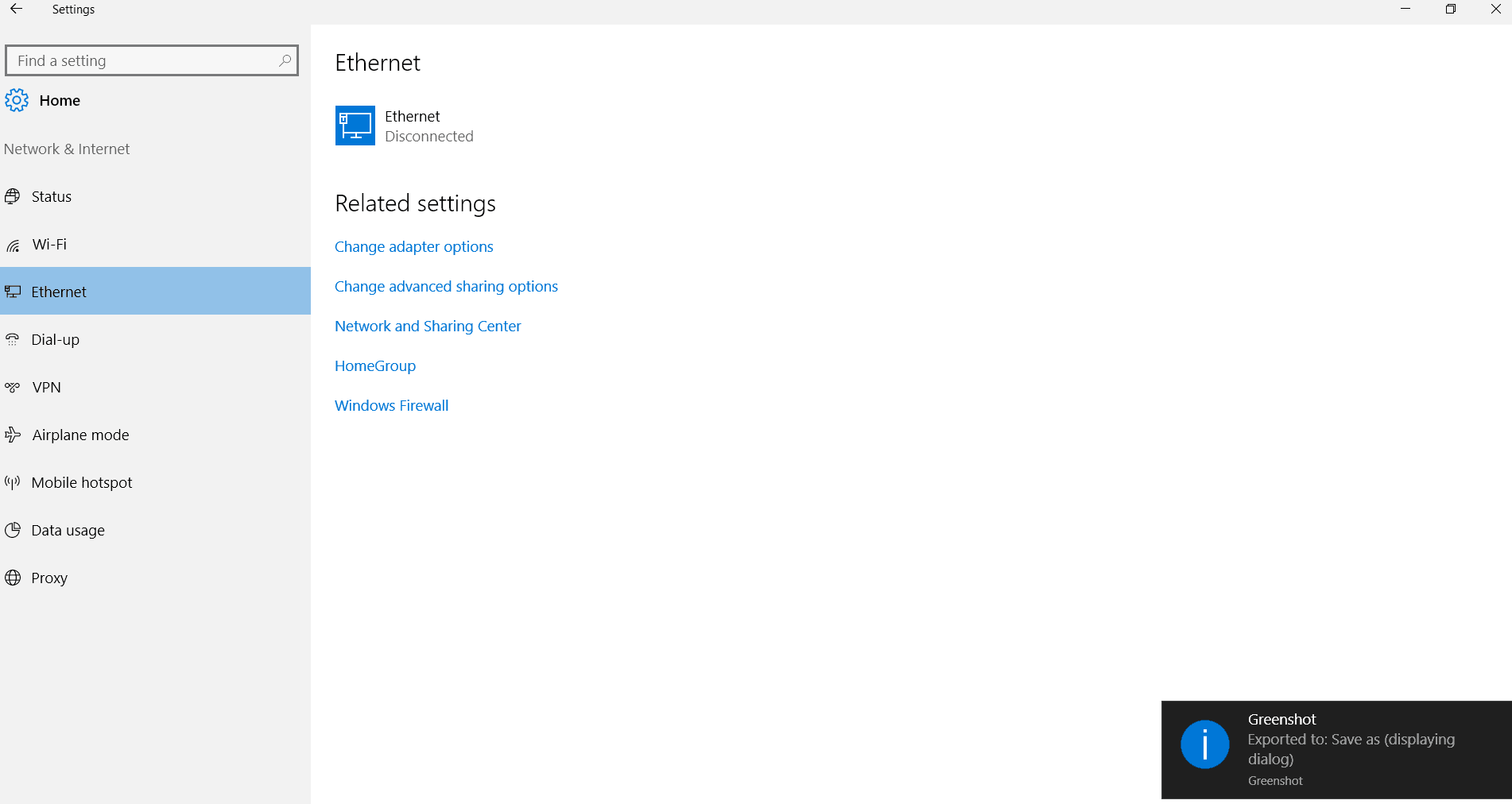
    ethernet-settings-windows-10 dial-up-related-settings-windows-10

    These two options are for little outdated users. If you are still connecting your computer through LAN wire or using your landline phone to connect to Internet, you can play with these options. Most of the times, you can use the following option.

    Set up a new connection.

    In this way, you can provide the login user credential and other IP settings to access the web. Most of the times, this will open up pop-up window, with old legacy “Control Panel” type of options.

    VPN

    vpn-settings-windows-10

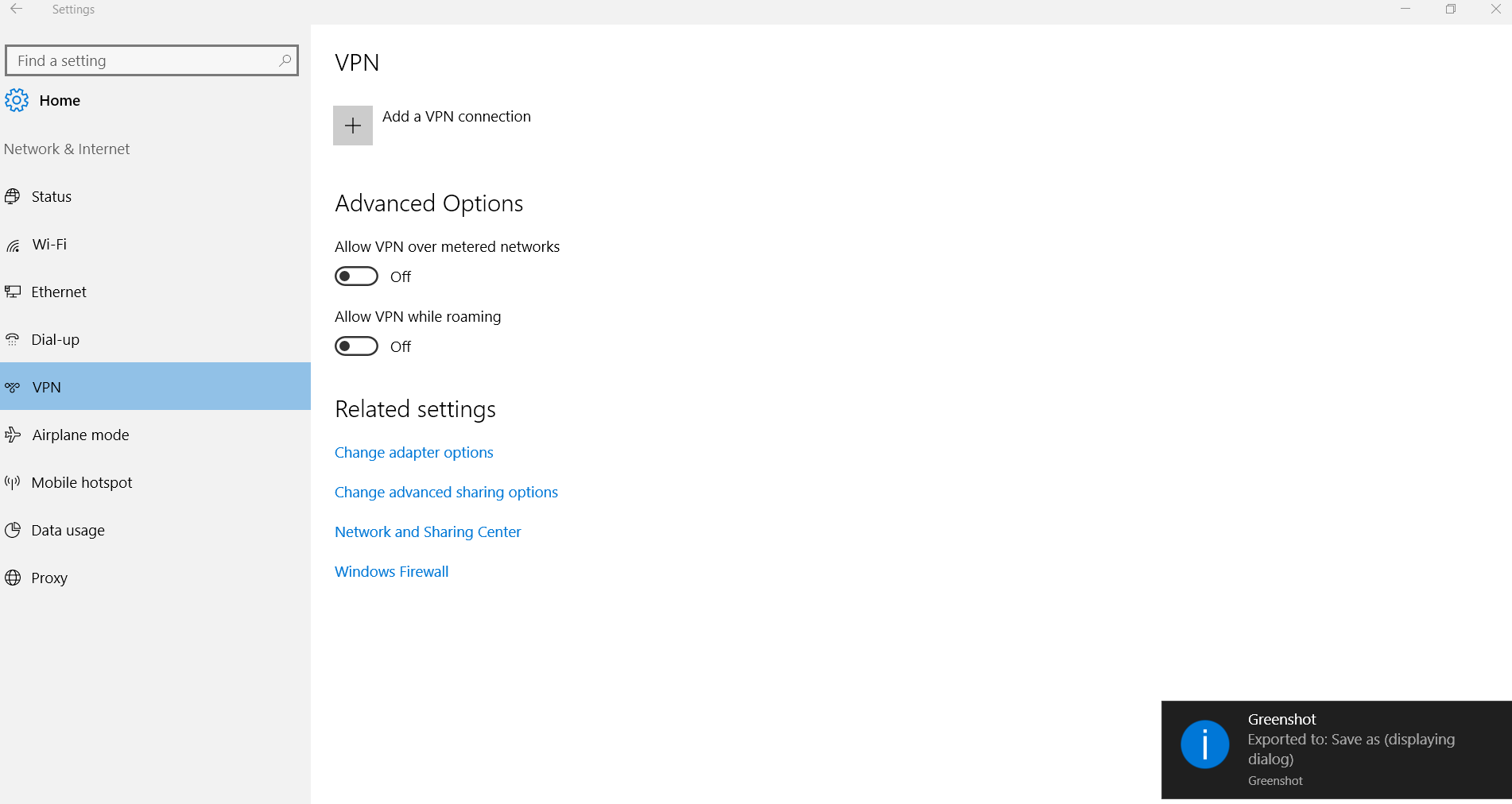
    This feature is useful if you would like to connect your computer to your office network. Most of the times, corporate offices would like to have additional security to protect their sensitive data. In such cases, VPN (Virtual Private Network) is one method to added another layer of protection. Even individual or home users, who are concerned about their privacy can buy premium VPN services and get connected.

    The following two options are generally available.

    Allow VPN over metered networks

    Allow VPN while roaming

    The other related settings are similar like the above.

    Airplane Mode

    airplane-mode-settings-windows-10

    This feature made into the Windows OS in 8 and 8.1. This is especially useful, if you are travelling through air or planes. There are places or travel locations or passages where you are not supposed to use any electronic signals. Also for privacy purposes, you would like to restrict any connections from reaching you.

    Enable this option, to stop all wireless communication, such as Wi-Fi, cellular, and Bluetooth.

    Mobile hotspot

    mobile-hotspot-settings-windows-10

    In this 2016 days, it’s common to share your Wi-Fi with your mobile devices. So if you are connected to Internet through LAN and would like to share with other devices, this option is good enough. The following options are available.

    Share your Internet connection with other devices

    Turn on remotely

    Allow another device to turn on mobile hotspot. Both devices must have Bluetooth turned on and be paired.

    Data usage

    data-usage-settings-windows-10

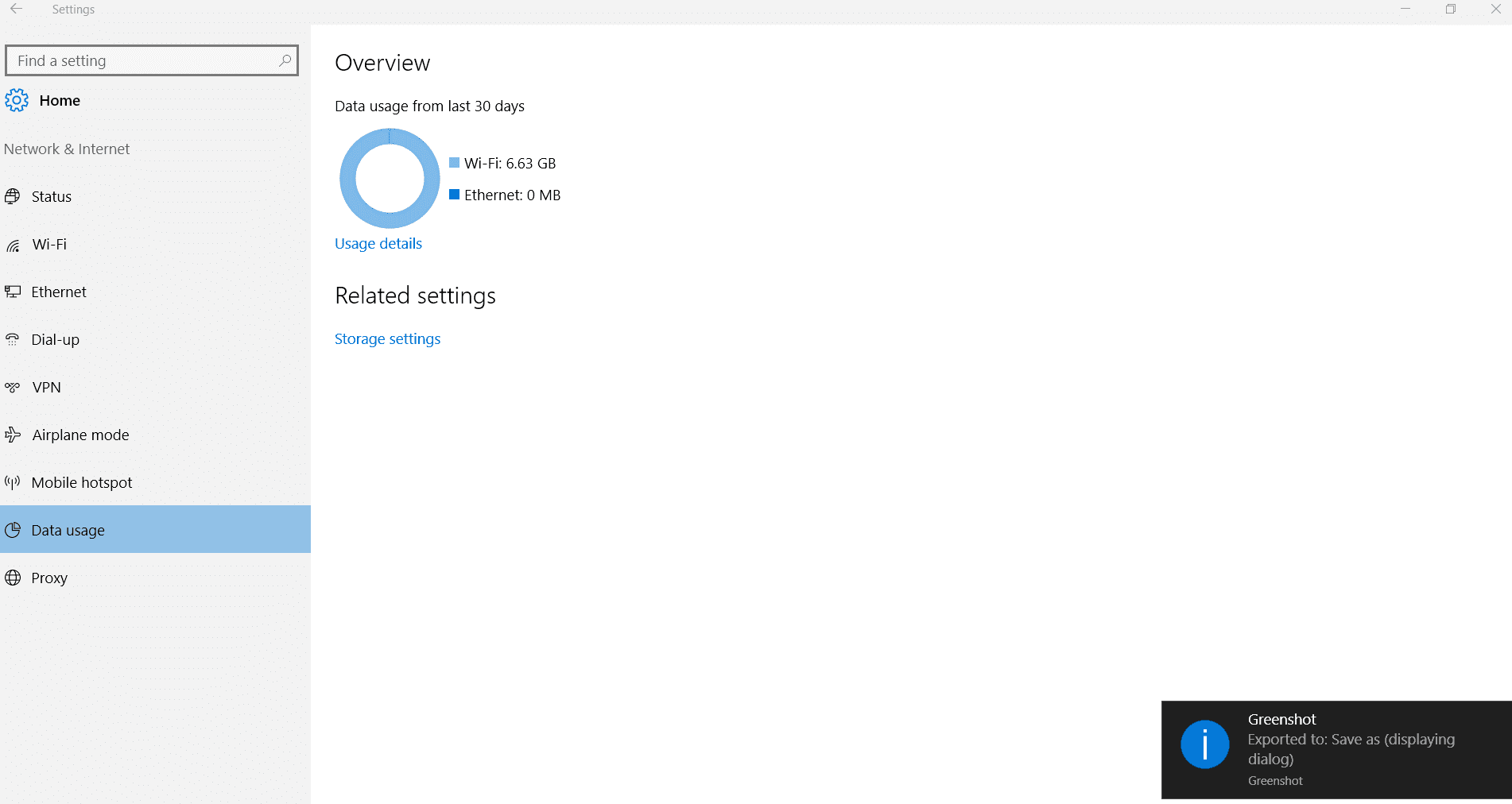
    This feature is worth-mentioning. If you have limited bandwidth and want to make sure that you are within budget of MBs, you will know how much data you consumed. Generally, for the last 30 days the amount of Wi-Fi data utilized, will be listed with other adapter connections. If you want detail stats of how much each app or program used your bandwidth, that can also be got using the option “Usage details”.

    app-bandwidth-usage-details-windows-10

    Proxy

    proxy-settings-windows-10

    Generally, if you are roaming and would like to connect with your country’s IP, this feature is very much useful. Also, if you want to check any other restricted website, you can get premium proxies of countries like US, UK and Australia. Also if you are behind a firewall, you will be connected through this proxy.

    For this you need to enter the address and port number.

    Conclusion

    Most of the above options are commonly available in Windows 8 and 8.1. But the interface through which you access these network settings, have changed in Windows 10. This is easier and intuitive compared to older ones.

    Just by using the toggle button of “On” or “Off”, you can change any of the settings here. But instead of playing with them on a main system, you should try to implement them in your home on a dumb system, to make sure all of them are working. Also it is necessary to take backup of your network connection properties, in-case you mess them up.

    Hope you like my article. If you want more people to know about the way, one can utilize network settings in Windows 10, please share this article with your friends.

  • Fix Windows 10 Bluetooth Problems – Location of Right Drivers

    Windows 10 is almost 4 years old. 1903 version is also released. Wi-Fi and Bluetooth are the necessary functions. Whether you use desktop or mobile.

    The days of wire are more like “Star Trek“. You can have various devices working on Bluetooth. You can get connected to the Internet through Wi-Fi. But that’s not with hardware.

    Some of the devices which you can use with Windows 10 are –

    • Bluetooth Audio Device
    • Bluetooth Hard Copy Cable Replacement Server
    • Bluetooth AVRCP Device
    • Bluetooth HID Device
    • Virtual Bluetooth Support
    • Bluetooth LWFLT Device

    So if your bluetooth is not working on Windows 10, all these devices will be on hold. The only thing that can rescue is to find a fix, to make Windows 10 identify the right bluetooth drivers.

    Scenario #1

    (Source : http://forums.windowscentral.com/windows-10/359190-windows-10-upgrade-will-incompatible-bluetooth-devices-affect-my-mouse-keyboard.html)

    You are having a Windows 10 mobile and want to send files to your PC over Bluetooth. Though you may have “ShareIt” or any other app to send files, sometimes it becomes necessary to send files over Bluetooth. This can happen in several cases like your PC OS and mobile OS don’t support the same protocol for sending files using apps.

    The above devices can be flagged sometimes for incompatibility on your Windows 10 PC, according to the “Get Windows 10 app“.

    Solution:

    In that case, Bluetooth feature should be working on both PC and smartphone. The Microsoft MTP (Media feature Pack) may not be present on your Windows 10 PC. This will prevent your desktop/laptop from recognizing your mobile. Then you can install those drivers from this location.

    https://www.microsoft.com /en-us/download/details.aspx?id=48231

    Most of the times, this will fix the Bluetooth incompatibility between PC and mobile.

    Scenario #2

    (Source: http://www.tenforums.com/drivers-hardware/14918-qualcomm-atheros-bluetooth-driver-windows-10-a.html)

    You may have a chipset like Qualcomm Atheros AR3012 which is a Bluetooth device. For it to work properly you need to have Windows 10 compatible drivers. In Win 7 and 8.1, you might not have had any problems, as they are already released.

    But even in Feb, 2016 you still may not find the right drivers for your 32 bit or 64 bit OS.

    Windows 10 bluetooth not working

    Solution:

    In that case, you can grab the Windows 8.1 drivers. This should normally work for the 10 version also. If you are using 32 bit Win 10 OS, you can download the INF file for 8.1 32 bit and the same thing holds good for 64 bit also.

    https://www.atheros-drivers.com/atheros-bluetooth-drivers.html

    Normally, these are downloaded in the form of ZIP file. You can unzip using “WinRaR” or any other software. Since these files don’t come with an installer, it is better to install them through “Device Manager”. You can go to the AR3012 bluetooth adapters and update the current driver by using the “Browse” button and selecting the ZIP file.

  • Windows 10 Gaming Benchmarks – The Results from 3DMark Tests

    You are a gaming freak and have installed Windows 10 lately. Definitely you would like to know how games perform, on this new OS. The best method is to check out the benchmarks offered by different tools and reviewers on YouTube. You can definitely get a hint on how a game works out on Windows 10 and under different system configurations.

    There are different software tools for benchmarking games especially– SiSoft Sandra Lite, FutureMark tools, Unigine benchmarks, Fraps, Prime95, Catzilla and many others. But one program that stands out from the others is the 3DMark software from FutureMark. Using this software you can compare the benchmarks of Windows, Android and iOS devices. It supports the latest DirectX 12 version, using the new API Overhead feature test.

    Why do Gaming Benchmark Tests on Windows 10?

    The simple reason being, in order to test the performance of the game under new set of conditions and compare it with the earlier OS, like Windows 7 or 8 or 8.1. It can also be used to test whether there are any new “software” changes in the OS, like for example DirectX 12 in Windows 10, that have any impact on the games. The main purpose of doing gaming benchmarks is to test the “video card” for its maximum performance under the given set of conditions.

    For example, when you click “Tomb Raider”, the camera will just go around the landscape doing a set movement. It allows you to see how game setting effects performance with the new OS and how well it compares with older OS. You can also use the same tests to test different graphic cards and see how well your PC compares with others.

    The results are generally represented in the form of points.

    What are the factors affecting Benchmarking Tests?

    There are different software and hardware parameters that affect your “game” performance. For example, when it comes to hardware, everybody knows that video card (GPU), CPU, RAM, motherboard, hard-drive all have an impact on the “efficiency” of the game. But what is important to know is that your game settings or video card settings can also have an impact on your game.

    Generally graphics settings, tweak your computer how it draws images on your screen in any give game. They can make blurry textures sharper, jagged edges smooth and even let you see further into the distance. So when you do a gaming benchmark test, you can vary these settings, to see whether the games perform smoother or jagged, under the given set of hardware for the new OS. You can also maximize these settings, to see if you can fully use the potential of your computer.

    Some of these graphics settings include graphics adapter, aspect ratio, resolution, FXAA, antialiasing, anisotropic filtering, texture quality, radial blur quality, shadow detail, decal quantity, refresh rate and VSync etc. Sometimes these are available in your game’s options, while some may be available with your video card settings.

    2D graphics tests focus on drawing, moving and scaling lines, fonts, elements which have a due effect on the performance of video cards in benchmark tests. It is generally measured in frames per second (FPS), so the higher the better.

    Another important parameter is the “frame rate”. If you can play your game smoothly at “optimal” performance of 60 FPS, it’s great. But generally if a game is playable at “25-30” FPS, it should be ok. But if you are not able to play your game at higher FPS rates, as found in the benchmark tests, it indicates either the OS is not supportive of its features or your hardware is of low profile. In that case, you can compare the results of two different OS like for eg. Windows 7 vs Windows 8.1 vs Windows 10, to see if it’s the hardware problem or the OS problem.

    What are the drawbacks of conducting Benchmark Tests?

    If you have a test hardware and do not care what happens to it, then you need not worry about the impact of benchmark tests on hardware. But if you own a personal computer or laptop, doing benchmarks tests can reduce the life of hardware like – graphics card, CPU, RAM, hard-drive etc. Though you may not feel this impact initially, but, at later stages when you play different games at maximized performance you can feel the “distraught” effects of benchmarks tests.

    Though there is no proof on the Internet that 3D Mark tests will reduce the life span of your hardware, be skeptical if you are using a “single” computer and worry if it gets spoilt.

    Windows 10 Gaming Benchmarks – From YouTube Reviewers

    MultiTechnopark conducted his research on Windows 10 Pro. His test system looked something like this.

    Intel i7-6700K, ASUS Z170-A ATX DDR4, G.SKILL Ripjaws 4 series 16GB – 2666 Mhz. He used the Fire Strike Ultra benchmark. It is the world’s first 4K gaming benchmark. He tested the performance of the following graphic cards using the above benchmark test.

    1. AMD RADEON R9 Fury Nano
    2. Nvidia GeForce GTX 980 Ti
    3. GeForce GTX Titan X
    4. Nvidia GeForce GTX 980
    5. Nvidia GeForce GTX 970
    6. Nvidia GeForce GTX 780 TI
    7. Gigabyte GeForce GTX 960 G1 Gaming
    8. Nvidia GeForce GTX Titan
    9. Nvidia GeForce GTX 780
    10. AMD Radeon R9 280X
    11. AMD Radeon HD 7970 GHz
    12. Nvidia GeForce GTX 770
    13. AMD Radeon R9 270X
    14. AMD Radeon HD 7950
    15. Nvidia GeForce GTX 760

    The results were produced for BATTLEFIELD 4, GTA V, METRO LAST LIGHT, CRYSIS 3, TOMB RAIDER, WATCHDOGS, and THE WITCHER 3. He tested these games on different resolutions of 1920×1080, 2560×1440, and 3840×2160.

    3dmark-benchmark-tests-on-different-video-cards-in-windows-10

    In the first resolution, GeForce GTX 980 Ti and GeForce GTX Titax were neck&neck in the highest benchmark points for all the games. The lowest performing graphics card in points was RADEON 270X.  The same is to be said in the second type of resolution.

    But the surprising conclusion from these tests was that, AMD Radeon R9 Fury X gave a good battle for the highest points. It was close third to the above two graphics cards.

    Valentin TurocK  conducted the 3DMark API Overhead Feature test to know the performance of DirectX 12 on Windows 10. Though there are very few games that support DirectX 12 the results were supportive of Microsoft’s promises. The test configuration was something like this.

    • Intel i7 4770K
    • Asus AMD R9 280X [Catalyst 15.7.1]

    It was conducted on Windows 10 Home 64  bit at a resolution of 1920×1080.  The Drawcalls/second produced the following results.

    1. DirectX 11 (Single threaded) — 1,095, 982
    2. DirectX 11(Multi-threaded) —  1,057, 685
    3. Mantle — 11,661,693
    4. DirectX 12 – 12, 738, 036

    As you can see there is a leap of 11x times the performance from DirectX 11 to 12.

    directx-12-api-overhead-feature-test-3dmark-windows-10

    Some other users presented the results of 3D Mark Fire Strike benchmark test.

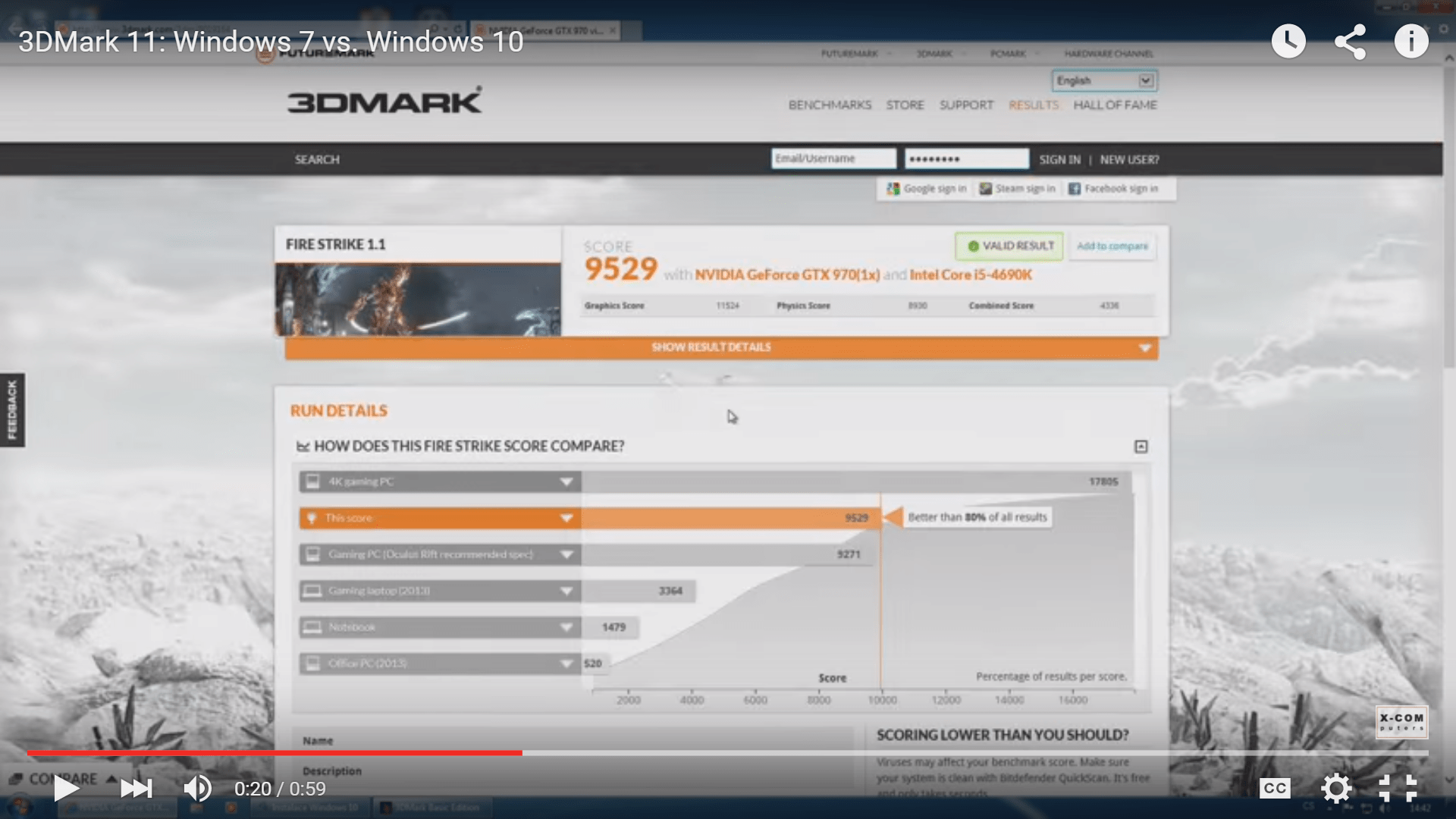
    One user using NVidia GeForce GTX 960(1x) and Intel Xeon E5450 scored 6694 on Fire Strike 1.1. This was better than 51% of all results. He tested it on Windows 10 pro 64 bit. Another user the same benchmark software. But he was using NVidia GeForce GTX 970(1x) and Intel Core i5-4690K. The score was 9529. This was better than 80% of all results.

    3dmarks-firestrike-1.1-with-GTX-970-Intel-i5 3dmarks-firestrike-1.1-with-GTX-960-Intel-Xeon

    McGrauado conducted some experiments with 3DMark Basic Benchmark on Windows 10. The version was not mentioned. He used NVIDIA GeForce GTX 980 Ti (1x) and Intel Core i7-5820K processor. The benchmark results were something like this.

    1. Fire Strike 1.1 – 14878
    2. Sky Diver 1.0 – 35680
    3. Cloud Gate 1.1 – 33469
    4. Ice Storm 1.2 – 164663.

    3dmarks-benchmark-results-windows-10

  • Fix Excel 2013 XLSX file not opening due to Not Enough Memory

    Did you ever face the challenge of Microsoft Excel cannot open or save any more documents? There can be several errors for this kind of problem. But in this article, we are going to see a fix for excel 2013 not opening files due to not enough memory. The error message would look something like this –

    Microsoft Excel cannot open or save any more documents because there is not enough available memory or disk space.

    • To make more memory available, close workbooks or programs you no longer need.
    • To free disk space, delete files you no longer need from the disk you are saving to.

    Related – https://www.windowstechit.com/5302/solutions-for-outlook-2016-crashes-on-startup/

    How I got this Error?

    I was actually using a few online tools for content writing. I was downloading Excel reports in .xlsx format from these tools and opening them without much problem for some time. Since these were Excel documents originating from the Internet, they had “Protected View” by default and were opening in read-only mode. Once I give “write” access to such files these could be edited.

    Related – Review of Excel 2013 new features – See what’s new!

    Generally this precaution from Microsoft is to prevent Excel documents from spreading virus, when downloaded from the Internet. This is a good feature and need a few authorizations to make them editable.

    But one day, I was not able to open such a report. Then the above dreaded message came. After researching the Net, I found that there were two solutions.

    excel-2013-not-opening-xlsx-files-error

    How I Fixed this Error?

    The first solution is already mentioned in the error message itself. If your drive is short of disk space and is almost completely full, you are most likely to receive this error. Then there is no other alternative, but to zip some files or delete some, to make way for your downloaded Excel document.

    Since my drive was having lot of free space, this problem was ruled out.

    But to my dismay, there was another solution for excel not enough memory to open file problem, which is more likely to occur. This is related to the “Protected View” feature of Excel documents. So this concerns the Trust and privacy issues of the document.

    Related – Top 5 Best Mouse for Excel in Windows – Logitech and Microsoft

    This second fix is to uncheck a few boxes, which will repair the downloaded Excel file from the Internet. Then you can save it normally to your drive.  The following are the steps to resolve this issue.

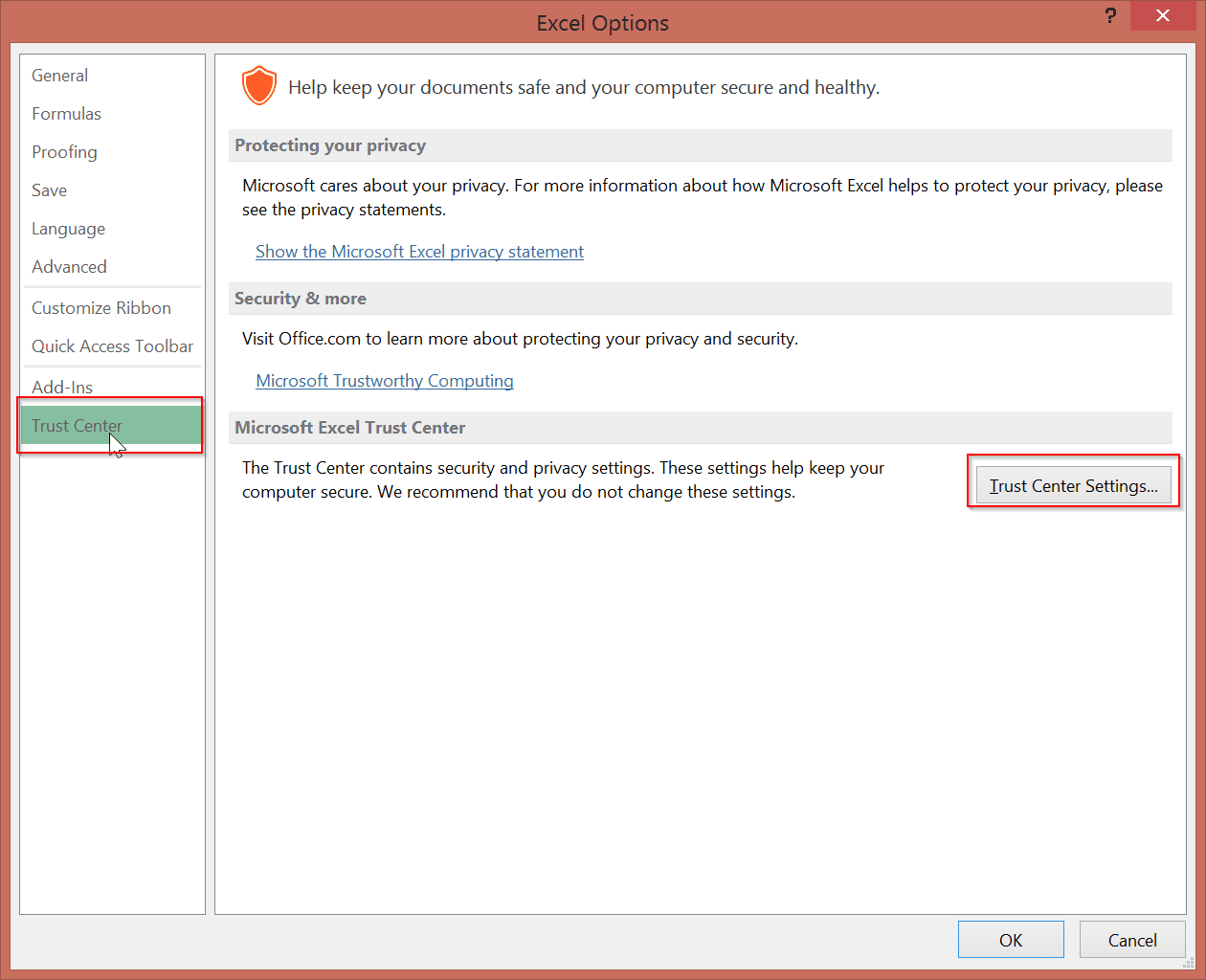
    1. Go to File > Options
    2. A pop-up dialog box opens. On the left-hand side click on the “Trust Center”.
    3. Then click on “Trust Center Settings” on the right-hand side.

    excel-options-for-trust

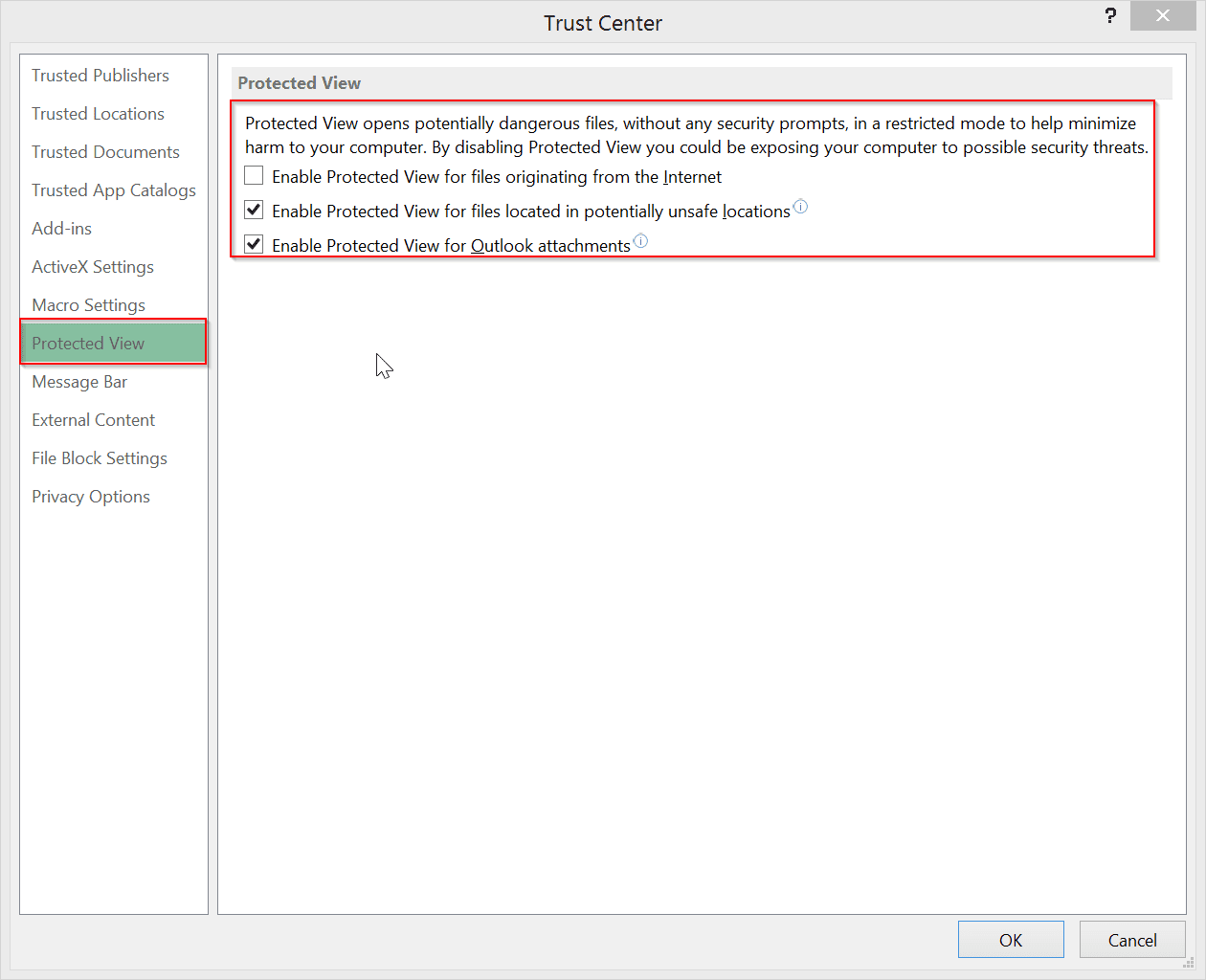
    1. This will open the “Trust Center” dialog box. On the left-hand side, click on “Protected View”.
    2. Then on the right hand side, you have few options checked by default.

    a. Enable Protected View for files originating from the Internet

    b. Enable Protected View for files located in potentially unsafe locations

    c. Enable Protected View for Outlook attachments.

    trust-center-protecetd-view-options-excel-2013

    Depending on your need, you can uncheck any of the above options. Since my problem arose with Excel sheets downloaded from the Internet, I unchecked the first option.

    This solves the above issue.

    P.S – By disabling the “Protected View” you could allow security flaws to creep into your computer. So take this necessary step with precaution. Only if you believe the Excel documents, then go ahead and apply the above solution, at your own risk.


  • How does Windows 10 Fare In Boot Time? (After Release)

    With Windows 10 release on July 29th, 2015, several videos on Performance benchmarks have been released. One of the important metric that is to be checked with any new OS, is the boot time. But this parameter varies with different software and hardware configurations. So unless you test this factor with the same CPU, motherboard, graphics card, hard disk capacity and type, chipset etc, you are not going to get the same results.

    The type of OS (32bit or 64bit) also determines the boot time speed. Several YouTube enthusiasts have measured this benchmark to analyze the speed and performance of Windows 10. But there is some ambiguity in their results also. Some of them have reported the outcome from “power on” to the “login screen” while some have measured it to the “desktop screen”.

    How Good is Windows 10 Boot Time (After Release, Not Preview Builds)?

    TechSpot has recently (Aug 10th, 2015) made a comparison of boot speeds in their performance article. This data is more authentic, as the concerned website used the same specs for comparing boot, sleep and hibernate times in Windows 7, 8.1 and 10 using the 64 bit version. The configuration setup was something like this –

    • Intel Core i5-4670K (3.4GHz – 3.8GHz)
    • Asrock Z97 Extreme6
    • 8GB DDR3-2400 RAM
    • Nvidia GeForce GTX 980
    • Crucial MX200 1TB
    • SilverStone Essential Gold 750w
    • Windows 7 Ultimate 64-bit, Windows 8.1 Pro 64-bit, Windows 10 Pro 64-bit

    Using the “Boot Racer” software, Steven Walton tested the time it took to boot, from the Windows logo to the usable desktop. Mathematically speaking, Windows 8.1 still stood in the first position in this performance test. Though the margin of difference in secs was only 1 or 2 between all the 3 OS, Windows 10 took 6 secs to boot to the usable desktop.

    comparison of boot times in Windows 10

    [Image Source: TechSpot]

    This faster speed can also be attributed to the usage of “Crucial MX200 1TB” in their hardware configuration. According to the specs page on the vendor site, the sequential read and write speeds were 555 MB/s and 500 MB/s respectively.

    But the power of Windows 10 boot times could be seen in sleep and hibernate times. Windows 10 was able to wake up from sleep in 10 secs (first among the three) and wake up from hibernation was 21 secs (first again here also).

    ITPro (UK) also tested the same parameter using “Lenovo ThinkPad X1 Carbon and a Microsoft Surface Pro”. Both machines were able to boot to login screen (it’s not the desktop here) within 8 seconds on both Windows 8.1 and 10, with only fraction of a second separating each other.

    Just to make my assumption clear, the role played by SSDs in Windows 10 booting times, the time taken by TechSpot machines to boot was much less compared to the current provider machine. Also in the ITPro case, it was only till the login screen, while in the former it was till the desktop. So there must be some other factor which is causing this difference and my hunch is that it is due to SSDs.

    windows-10-boot-time-to-desktop-17-secs
    The boot time taken by Windows 10 Pro is just 17 secs. with an SSD. (https://www.youtube.com/user/muttayab619)

    Some YouTube Video Results on Windows 10 Boot Times?

    In another case, this benchmark was tested with mSATA on Gigabyte Brix i5-5200U. But in this case an SSD was used. The results were quite impressive, with Windows 10 just taking 5 secs to boot from BIOS to login.

    Some other user tested on a Lenovo Thinkpad T430s i7 @ 2.9 GHz, Intel SSD with 8GB DDR3 RAM. The Windows 10 boot time to login was just 8 seconds.

    Riccardo Casati” tested with a high-end configuration similar to this.

    – z77 extreme4
    – 3570k @ 4,,7
    – MSI R290X
    – Samsung 840 PRO 128gb
    – WD Caviar Blue 1TB

    As you can see, the processor and SSD were quite competent enough to produce the best results. The Windows 10 boot time in this case was around 8 secs from BIOS to desktop screen using a 64bit OS and SSD.

    This YouTube from “CIRCUS MAXIMUS” shows the boot time comparison in Windows 10 with normal HDD and faster SSD.

    Till now the configurations tested were all high-end and were mostly using the recent “hardware” technology. In order to compare the results with a low-end configuration, I took the below YouTube video results. The configuration was something like this –

    • Processor : Intel i5 3470 3.20 GHz
    • Ram: 1600 KINGSTON HYPERX FURY (4×2) 8GB
    • Motherboard: Asrock h77 pro4/mvp
    • SSD: 120 GB SSD KINGSTON SATA-3 Read Speed 450 MB/s Write Speed 450 MB/s
    • Graphics card: Ggigabyte R9 270 OC

    But here the results were totally out of the blue. Though this “set up” was also using SSD, the boot time was around 24.5 secs from BIOS to desktop and the restart also took like 27 secs.

    Conclusion

    Some of the boot times were reported with SSDs installed. It must be said that the read and write speeds of traditional HDDs vary vastly with the new SSDs. The SSDs are 2x to 10x times faster than normal “mechanical” HDDs. So even if you have gained any speed improvements in your Windows 10 boot times from earlier versions of Windows 8.1 and 7, it can be due to the hardware configuration also.

    So unless one reports any comparison with the similar kind of specs (both software and hardware), you should not be tempted by the quicker boot times that are mentioned on the Internet. But yes, to say, Windows 10 is worthy enough of its compatriots like Windows 7 and 8.1 in boot times. It is hard to say, that there exists much distinguishableness of boot times, to the naked eye when compared to the recent versions of Windows OS.

    But till now, from what we have seen on the Internet, Windows 10 is quick with SSDs and is worthy the upgrade and will not see any degradability, if you take into account, the boot-time factor alone.

  • [Fix] Is your Windows 10 Monitor Not Working – These Steps can Help!!!

    Sometimes your Windows 10 monitor may not automatically go to “Sleep”, even after enabling the required option in Power settings. You may have to go to “Safe Mode” to re-enable and still you may find it’s not working. One of the best solutions for this kind of problem is to unplug your monitor and re-plug it.

    Some of the monitors facing this issue are –

    • Dell 2209WA(digital)
    • Asus PB278Q 
    • HP Pavillion 23
    • ASUS vk278q
    • Benq
    • ASUS P8Z77 V-Deluxe

    Sometimes, the above solution will also not work.

    dual-monitor-set-up-windows-10

    Related : [Fix] How to Solve Mic Volume Too Low Problem in Windows 7 or 8 or 8.1 (Troubleshooting Steps)?

    The culprit can be found in the “Device Manager”. One of the users on “TenForums” found the solution. The part that is causing this nuisance is –

    HID-compliant game controller, 10.0.10240.16384, Microsoft, 6/21/2006

    If you disable this controller in your “Device Manager”, the “Power saving mode” of your monitor may start working properly. This controller can be in various forums. One of the devices causing the problem was “Razor DeathStalker Ultimate keyboard”. Some other user disconnected his “Wingman Joystick” and his monitor was going to “Sleep” mode after the required time. It was a “USB game controller” device in another case.

    hid-compliant-game-controller-issue-windows-10-monitor-not-working

    So my advice is that, to look at the properties of each device for a “Power Management” tab. If it is enabled, just uncheck the option. Later, turn off your network adapter to wake up the computer and may be allow your keyboard to wake it up.

    Related : [Fix] Skype Not Working or Opening in Windows 8.1 – Some Solutions

    You may have also “AMD R9 290X graphics cards” installed, but that is not causing the issue. Also sometimes, you are worried that 2 or 3 monitors also could cause the problem. But the problem causing device is the above “controller”. You just have to disable it, finding the right device. You may get warnings signs in your “Device Manager”, which is best to disable them.

    There can be a different kind of problem on the “X99 Chipset” and “Asus Rampage V Extreme board”. If there is no driver update for your “graphic drivers” it may not wake up from sleep, but the normal “power-off” would work normally. But the opposite may occur, even if you do the driver update.

    Even if you unplug the device “Saitek X52” this problem may go off. For another one, it’s the “Razer Onza (Xbox 360 controller)”. Just disabling these device drivers, could make your monitor “power-off” or “sleep” after required minutes of time automatically or manually. Unplugging the “Logitech Extreme 3D Pro” could also fix this issue.

    Source: http://www.tenforums.com/general-discussion/12596-monitor-display-will-not-turn-off-4.html

    Another kind of problem is that Windows 10 cannot detect dual monitor set up. This was observed in the “10074” build. I’m not sure whether this problem still exists in the released version. The fix for this is to “rollback the driver”. You can do this by going to “Device Manager > Display Adapters” and from the properties, you can do it. This will install a “plain-vanilla” driver and then you can update that driver.

    Source: http://www.neowin.net/forum/topic/1255544-windows-10-10074-not-detecting-dual-monitor-setup-nvidia/

    You can also rectify this “multi-monitor” issue in the following way.

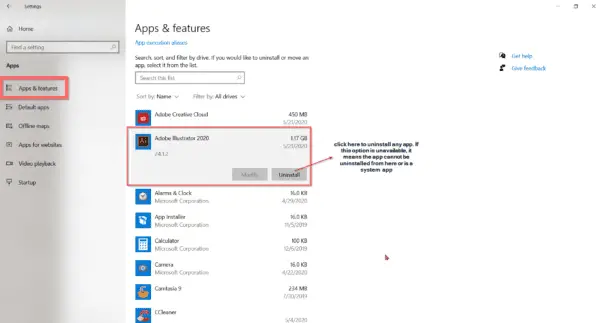
    1. Uninstall AMD drivers inside of “apps and features”.

    2. Run CCleaner for browsers and registry.  Save backup changes to registry when asked.

    3. Install latest Win 10 Driver for R9 200 (in my case).

    4. Go to CCC, Common Display Tasks.  Click Extend Desktop.

    5. Make sure Extend Desktop is active in Win 10 Display Settings also.

    6. Unplug HDMI monitor cable to PC and wait 10 seconds.

    7. Plug back in to “reconnect” the monitor.

    8. Push the source button on the monitor.

    Source: https://community.amd.com/thread/186003

    Sometimes, the “resolution” can get into problems if you have “dual-monitor” set-up. In that case, download the “*.inf” drivers that come from the computer maker or company. Normally, monitor do not have drivers, but these come from the motherboard or chipset driver configuration.

    Source: http://www.tomshardware.com/answers/id-2754583/windows-monitor-resolution-messed.html

    There can be also some issues with HDMI not working after upgrade to Windows 10, as was in the case of HP monitors. This can be resolved but updating to the latest drivers. But you may have problem if you enable the 10-bit pixel format support in the “Catalyst Control Center”. So better not enable it if you want your HDMI TV to be working.
    Source: http://h30434.www3.hp.com/t5/Notebook-Display-and-Video/hdmi-not-working-after-upgrade-to-windows-10/td-p/5173786/page/8


  • [Fix] Skype and Windows 10 – Some Early Errors and Solutions

    Skype in Windows 10 comes as 3 separate apps.

    The Universal Skype preview may be in the lining.

    But for now, it will be split into – a video app, an app for calls, a message app.

    Microsoft is trying to integrate Skype into Windows 10, making it as the iMessage service for its OS.

    Windows 10 users can also utilize the Edge browser (specific to 10) to take audio and video calls via its Skype features for the first time.

    Using the Wi-Fi sense feature, which is newly in-built into Windows 10, the OS can share your Wi-Fi passwords with your Outlook, Skype and Facebook contacts in encrypted form.

    This makes it easy for your Skype friends visiting your home. Also Read – How To Turn off Microsoft Defender Permanently in Windows 10 – Working Methods

    They need not worry about the router configuration or its Wi-Fi passwords, as they are automatically connected to the Internet, once they are in your zone.

    But this may have some security flaws in the future. It is also easy to recognize if your Skype profile picture shows in your contacts list.

    Now let’s see some of the issues, which Windows 10 users are facing with Skype when they’ve upgraded to the new OS or done a clean install.

    Issue #1

    You may get an annoying pop-up that says, “Would you like calls and Skype links to always open with Skype for Windows desktop? If so, click Yes and on the following screen Select All and Save.”. Even though you try to uninstall and re-install Skype, this disturbing pop-up will come again and again. First of all this should have been avoided automatically. If not, it should have been taken care of with clear instructions to solve the issue.

    pop-up-error-message-skype-windows-10 default-apps-settings-windows-10

    This problem can be taken care of by going to the Control Panel and Default Programs. Then set Skype to default to all its associate file types. It is little misleading in the sense, it would take you to the “modern settings”, instead of the Control Panel directory. So that solves the annoying pop-up issue.

    Issue #2

    Another issue with Skype on Windows 10 is that, you may be unable to quit Skype. Normally, you would like to right-click the taskbar icon and select “Quit Skype”. But this does not work sometimes. You may have to close it by force, using the Task Manager.

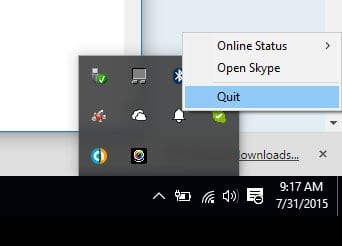
    For this issue, you can update to the latest version of Skype – at least 7.7.0.102. You can also make it quit, by right-clicking in the “System Tray” (placed next to the clock) and select “Quit”. You just have to unhide this feature, by clicking the up-arrow. You can also do the following.

    Go to TOOLS -> OPTIONS -> ADVANCED

    uncheck “Keep Skype in the taskbar while I’m signed in” and then SAVE.

    No you can close via SKYPE -> CLOSE or right-clicking the icon in the taskbar

    and then clicking on CLOSE WINDOW.

    fix-quit-skype-in-windows-10-error

    Issue #3

    If you have installed Windows 10 newly or upgraded to it, you would also like to upgrade Skype. When trying to upgrade Skype, you may get error 1638. When you try to uninstall from the Control Panel, you may not find it. Even if you go to the folder of Skype, you may not find the uninstall option.

    The best fix for this kind of problem is to use this removal tool. This software addresses several installation and re-installation issues. http://www.p–ust.com/Downloads/SRT/SRT.exe

    Issue #4

    There can be another issue when you upgrade to Windows 10 from 8.1. When you try to run the Skype client, you may get the following error kind of thing. “Skype has stopped working. Windows will try to find a solution“. You might have uninstalled Skype and re-installed again, disabled the firewall, deleted files in the %temp% folder and Skype folder etc. but that would have not solved the problem. In order to solve this problem you can post a log of DxDiag process in the community forums of Skype.

    But this error typically comes when some of the hardware that is connected to Skype is not functional or compatible with the current version. It can be a webcam or Nvidia drivers or any other hardware.

  • [Fix] Skype Not Working or Opening in Windows 8.1 – Some Solutions

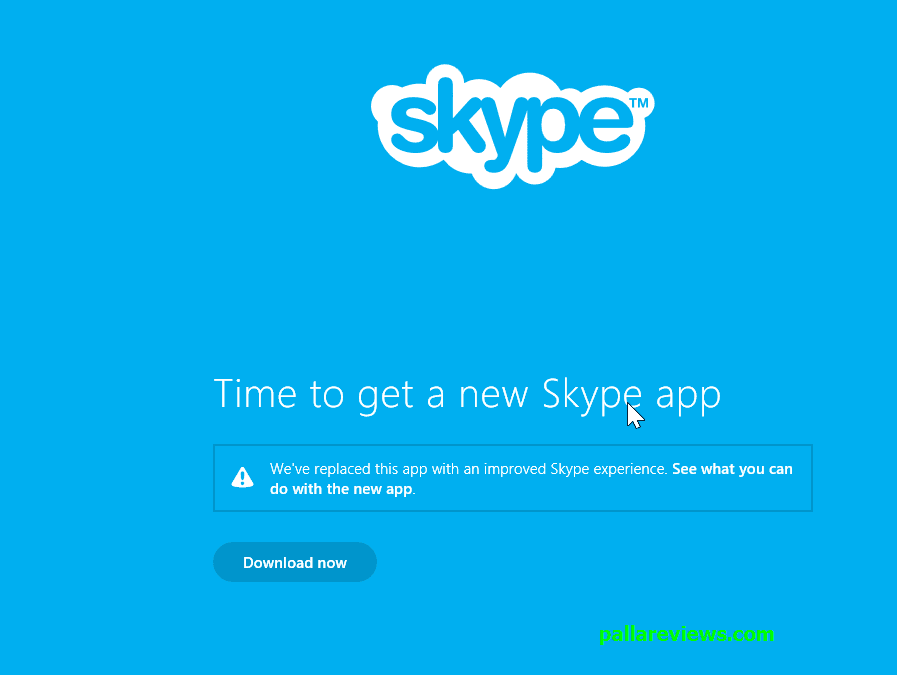
    Skype does have its own set of installation and opening errors. Recently, I upgraded to the latest version of 7.7.x and still my Skype client was not opening. I had no problems earlier. I am using Windows 8.1 64 bit.  I removed the Skype app that gets installed by default with Metro apps. So initially I thought I was making some mistake by deleting it. So I tried to re-install again. But now there is peculiar message to update the current version to the desktop, which I already installed.

    Skype app for modern windows not working
    This is a message shown when I tried to open the Skype Metro app

    So I felt that there was something wrong? So I uninstalled the desktop Skype app and re-installed it again. But the error was still there, with a message box popping up!

    Windows cannot find ‘C:\Program Files (x86)\Skype\Phone\Skype.exe’. Make sure you typed the name correctly, and then try again.

    Error message and desktop skype is not opening windows 8.1
    This is the error message shown when I tried to open the short-cut of Desktop version of 7.7.x skype

    So I tried to reach out to the original path and find the executable myself. I clicked on the Skype.exe, with administrative privileges. But it still gave me the same error. So I thought, this was something related 64 it and would not work on this version. Since it was already working on the 32 bit version of Windows 8.1, I thought this was something peculiar to 64bit.

    Get It – Resolve Skype for Business Crashes on Startup Error with these Simple Solutions !!

    Then I felt I should post this question in the “Skype Community”. Immediately I received a response within a few hours from a “Community Ambassador”. He asked me whether I installed TuneUp Utilities. The current name for this software is AVG PC TuneUP. http://www.tune-up.com/products/tuneup-utilities/features/. This application boasts that it can boost the PC speed, clean unwanted junk from 200+ PC programs and your iPhone and iPad, analyze and fix up any errors on your PC, give long battery life to your PC, and tweak the style of your PC etc.

    There was a free trial for this software. I installed it, but since I didn’t like it, I removed it. But I didn’t know that this software is going to leave some remnants in the registry.

    The Solution

    It’s very simple. You just have to delete one entry in the registry. If this is the first time you are editing your registry, then first make a backup of it. You can Google for it, how to do it.

    Press the Win+R keys together, which will open the Run box. Type “regedit”. Now navigate to the following key in the registry.

    HKEY_LOCAL_MACHINE\SOFTWARE\Microsoft\Windows NT\CurrentVersion\Image File Execution Options

    Under the last key, you can see several sub-keys. Find one key named “skype.exe” and delete it. Then close the registry. If possible try to do a restart. This should fix your error, caused by the TuneUp remnants.

    I also searched other forum posts during my problem resolution. I found that several other users were having problems with skype not opening in Windows 8.1. Most of the times, you can post your problem in community.skype.com.

    Delete Skype entry from Registry
    Problem due to TuneUp remnants in the registry

    But some users are having problems when they upgrade their systems from 8 to 8.1. One of the things to do is to update Skype to the latest version. For example, Skype 6.1.0.129 has compatibility problems with Windows 8.1. Another thing you need to do is install the .NET 3.5 framework, which doesn’t get installed by default in Windows 8.1. If it’s already installed, just do a re-install.

    You can also try to paste the error code you got in your Event Viewer in the community. Somebody will have a look and give a solution. A typical way to find and paste your log related to Skype in the Event Viewer is like this.

    Open Windows Event Viewer -> Custom Views -> Administrative Events. Look for recent error messages with timestamp corresponding to Skype crash. Copy and paste the text from the General tab.

    Sometimes the history file (main.db) can be corrupted. This file can be viewed using the free SkypeLogView application. If you are able to view this history file in Windows 7 or 8, then it may be a different problem. Then you need to run the Direct X diagnostics tool and save the results to a file. You can do this by typing dxdiag.exe in the Run box. You need to zip the file that you have created.

    You sometimes have problems with the webcam drivers. For example one user was using the USB2.0 HD UVC webcam, but didn’t update its drivers to the latest version of Windows 8.1. Failure to update the graphic drivers to the latest version can also give problem.

    Also if you are using an Intel HD Graphics display adapter, you should better update it to the latest version. The latest driver version should be at least v10.18.10.3304. Sometimes there can be problems with virtual web camera applications like CyberLink YouCam, which you need to uninstall if you want Skype to work properly.

    Sometimes, you can have problems with IE11 installed on your system. For this, you need to uninstall it and reinstall IE9. You can do this by –

    Windows Control Panel -> Program and Features -> View installed updates -> Microsoft Windows -> Windows Internet Explorer 11.

    Another user in 2014, connected to the Internet and Skype through his proxy. This created a problem. First of all, you need to clear the proxy settings in Windows Registry.

    Type: regedit.exe and press Enter

    delete the Skype keys from:

    HKEY_LOCAL_MACHINE\SOFTWARE\Policies

    and

    HKEY_CURRENT_USER\SOFTWARE\Policies (if any)

    Now change the Proxy settings.

    http://community.skype.com/t5/Windows-archive/quot-Skype-cant-connect-quot/m-p/1355148#M137443

    Recently, in 2015 there is a compatibility issue with the Intel HD Graphics driver. There was no 8.1 driver for the same and installing a generic driver for the Acer platform didn’t solve the problem. Then this was solution saved the day.

    Try to reset all Skype settings.

    Quit Skype or use Windows Task Manager to kill any Skype.exe process. Go to Windows Start and in the Search/Run box type %appdata% and then press Enter or click the OK button. The Windows File Explorer will pop up. There locate a folder named “Skype”. Rename this folder to something different, e.g. Skype_old.Next go to Windows Start and in the Search/Run box type %temp%\skype and then press Enter or click the OK button. Delete the DbTemp folder.

    Restart Skype.

    N.B. If needed, you will still be able to re-establish your call and chat history. All data is still saved in the Skype_old folder.

    Source: http://community.skype.com/t5/Windows-desktop-client/Skype-Not-Responding-in-Windows-8-1/td-p/3869736

    From July 7th, 2015, Microsoft has stopped supporting Skype App. You need to use the desktop version if you are using any of the normal versions of Windows 8 or 8.1 (like Home, Pro etc). But for RT users, the modern app will still continue to work.

    You can also have problem with one of the updates of Windows 8.1. If this KB3003667 is installed, try uninstalling it and re-start Skype. This sometimes can save from frustrating attempts to fix this problem.