Author: Palla Sridhar

  • Fix HDMI Sound Not Working in Smart TV when connected to Windows PC

    Most of the times, this problem arises because the default playback device is not set to the HDMI output device. For example, you connect your Windows 10 to a Smart TV or another HDMI monitor. But in the playback devices, the default audio device is still set to your computer speakers etc.

    So if you want to listen HDMI audio on your Smart TV, the first most troubleshooting step is to check whether its the default devices in your Windows 10 sound settings.

    The following are the steps to fix this issue after the Windows 10 1803 update.

    1. Connect the HDMI cable from your Windows 10 PC to your Smart TV.
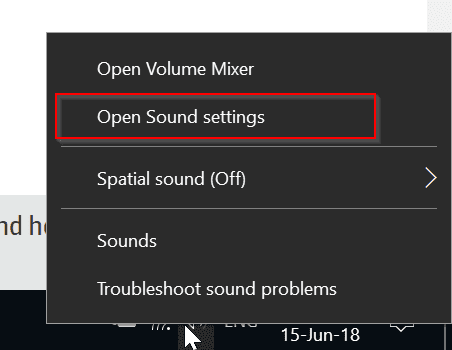
    2. Right click the volume icon and select “Sound Settings“.

    sound settings windows 10 1803
    3. This will open the “System” setting of Windows 10 settings.

    fix hdmi sound not working windows 10 1803
    4. On the left hand side, select “Sound” if not selected by default.
    5. Right hand side, we have Output and Input.
    6. For the output device, you select your “Smart TV”. (something related to it)
    7. In the input device section, select your “Windows 10 PC”.

    This should fix your HDMI audio not working on your Smart TV issue.

    The same problem can be resolved in an old fashioned way.

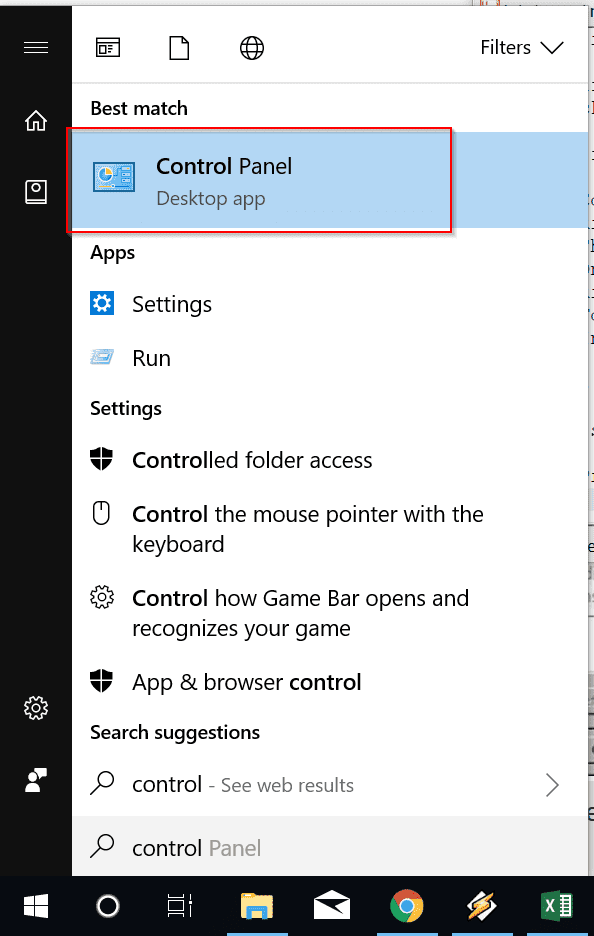
    1. Press the Win key and type “Control Panel“.

    control panel windows 10
    2. View by “Small icons” at the top.

    3. Find the “Sound” item and double click it.

    sound windows 10
    4. A pop-up window wil open.
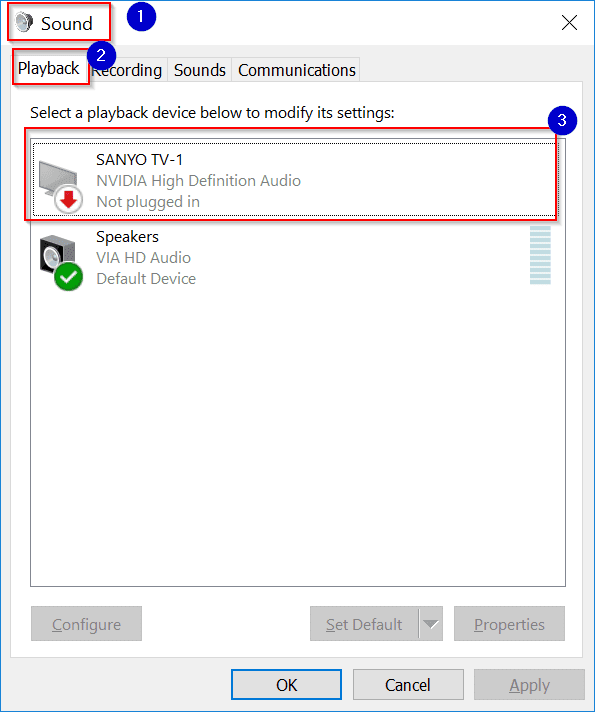
    5. On the playback devices tab, select the output device. (For example, here SANYO TV-1 is the one).

    make smart tv default device windows 10
    6. Right-click it and select the option that says “Set as Default Device”.
    7. Now restart the computer.

    This should solve the issue and your HD audio should be coming out of your Smart TV.

    This is a very common solution to your HDMI audio problem not working on your TV. But still if its not working there are other solutions I gathered from different forums and websites. – https://www.windowstechit.com/4237/windows-10-hdmi-audio-not-working/

    Another solution is to check your default device drivers are up to date or not. Most of the times, other controller device drivers may not be update. Then you should update them using Windows update or some other Driver update software.

    Also make sure that the HDMI cable joining your PC to Smart TV uses the same pin plug. For example, most of the HDMI cable connector use the 19-pin port. So check whether its the same on the other end also.

    Hope this resolves your problem. If you still have issue, comment in the section below. I will try to help.

  • Fix Computers Not Showing in Network in Windows 10 After Spring Update

    In 2018 many devices like printer, tablet, PCs, laptops are connected to your modem/router combination. They are visible under Network in File Explorer in Windows 10. But recently with 1803 Spring Update problem arises with all or some of the devices not visible in the network in any one of the device.

    The best solution can be got by using this suggestion.
    Press Win+R key and enter servicees.msc. Open it and scroll down to find the following services.

    1. Function Discovery Provider Host
    2. Function Discovery Resource Publication.

    Set them to Automatic (delayed start). Then start both the services. Now reboot all the machines and check whether they are all acting properly or not. This should likely fix the problem in Windows 10 1803 version.

    Related – How to Stop Windows 10 1809 (Redstone 5, October) Upgrade from Installing Automatically?

    This issue also arises if you previously connected all your devices to a different router and now changed them to a new one.

    computer visible in network

    How To Check if all the Devices are Connected to your Modem/Router Configuration?

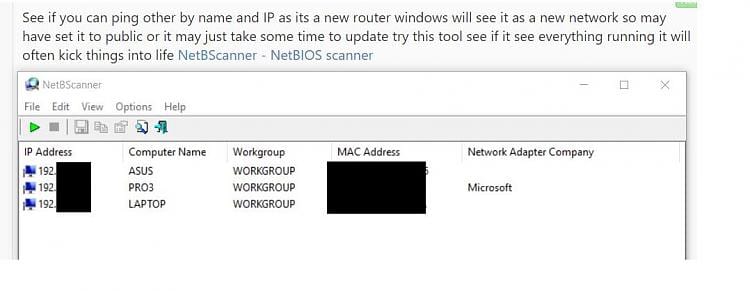
    In any one of the PC or laptop, ping the router IP or name. Windows 10 will see it as a new network, if the router or modem has changed. Sometimes the network might have been set to Public by the new router. It also takes some time to see the new network. You can also check with this tool if everything is ok.

    https://www.nirsoft.net/utils/netbios_scanner.html

    How to Resolve Devices Not Visible in Network Issue in Windows 10?

    Fix #1. First you need to check all the devices NICs are private or not. Generally, Windows 10 likes to change them to Public Network for unknown reason.

    Fix #2. Check whether your computer, device is set to visible on the Private or Home network. For this you can do the following.

    1. Navigate to the following item – Control Panel > All Control Panel Items > Network and Sharing Center.
    2. Under this click on “Change Advanced Sharing Options“.
    3. On the next window, you have Home and Public Network options.

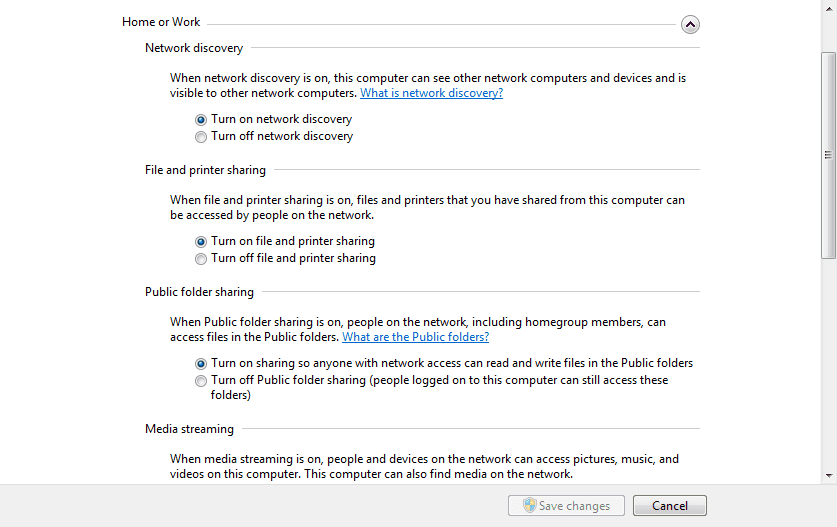
    enable network discovery windows 10

    Here you can enable the following options.
    1. Turn on network discovery.
    2. Turn on file and printer sharing

    You can allow Public folder sharing initially, to test if the computer is visible in the Network.

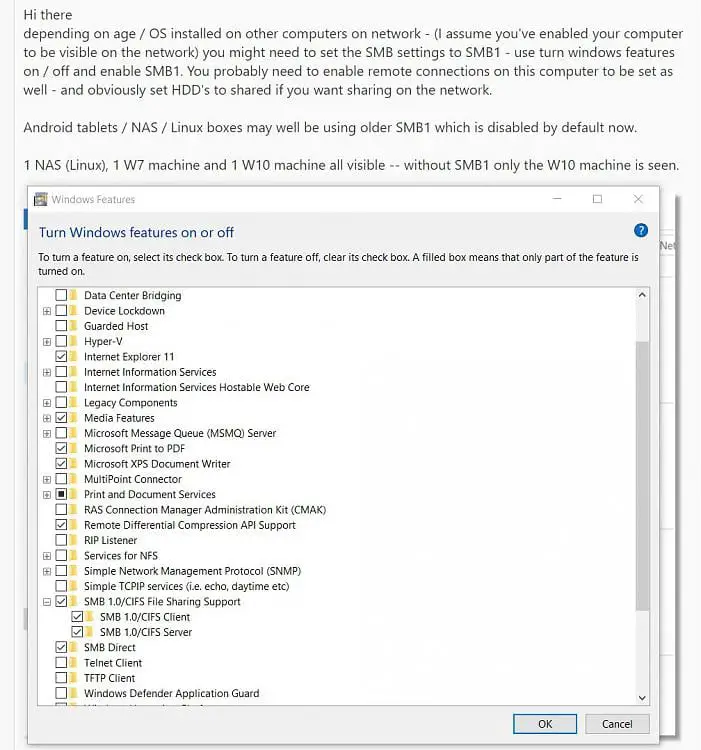
    3. In the Control Panel > Programs and Features, there is an option called “Turn Windows features on or off“. When you open it, there is a provision to set SMB settings to SMB1. You also need to enable remote connections on the current PC to make your computers visible on the network.

    smb1 settings windows 10

    Now you need to wait for somtime and ping the machines. You can also connect all your devices to a switch and then connect to your router. Once can also try to disable Router firewall, if that option is provided in the settings.

    Source : https://www.tenforums.com/network-sharing/109166-computers-not-showing-up-under-network-files-explorer-2.html

  • How to Fix Windows Update Error 0x80245006 in Windows 10, 8.1 and 7?

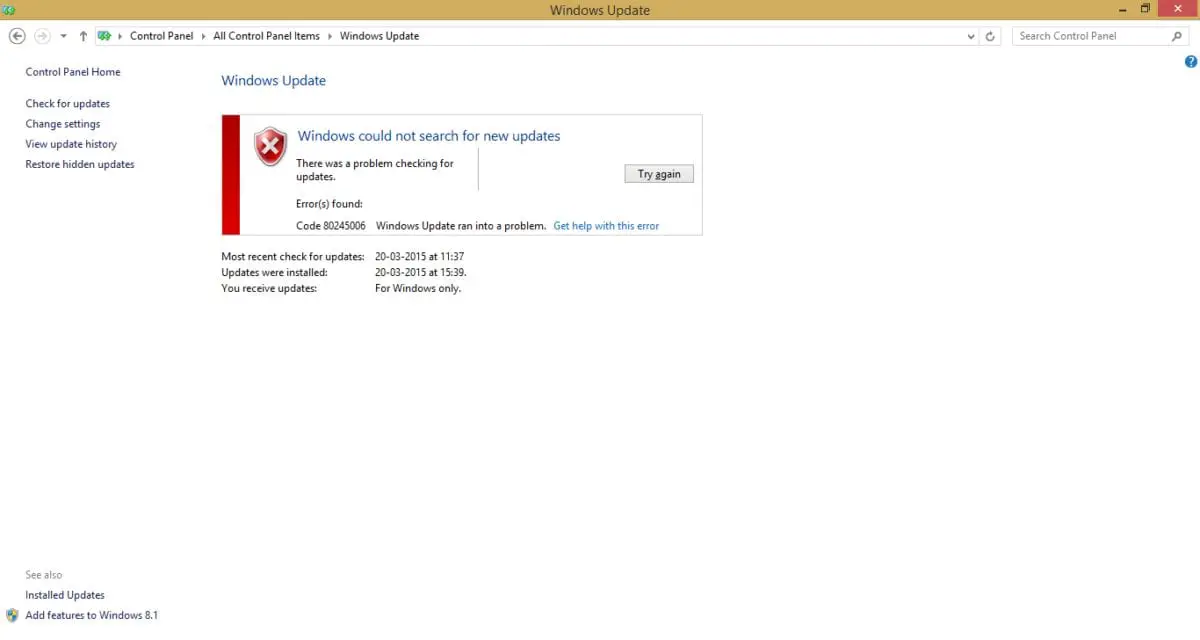
    In the 1903 version of Win 10, one may have recieved the Windows Update Error code of 0x80245006.  This will  stop downloading and installing updates.

    The cause for this error code can be many.  You need to take an appropriate action based upon the cause of the error. Otherwise bugs, fixes, security patches that are released with the updates cannot be installed.

    Security is as important as the graphics in your PC. Most of the times you install antivirus like Microsoft Essentials or Windows Defender to protect yourself from unwanted happenings to your computer.

    But as an initial step, the first and foremost step in this regards, is to install Windows Updates from time to time. This is necessary whether your computer is running on 10, 8.1 or 7.

    What is the Cause of Windows Update Error Code 0x80245006?

    In detail you can see the following causes how to repair this error code.

    1. Whenever you use the functionality of Windows Update, this error occurs. In this regards you can try the Windows Update Troubleshooter to fix the problem.
    2. In Windows 10 and 8.1, you have Windows Store to download apps. You need Internet to download these apps. If there is interference between the network connection and Windows 10 store apps, this error code can also be encountered.
    3. This type of error can occur not only in Windows 10 but in 8.1 or Server 2016.

    1. AdFender is an ad-blocking software that will block ads in Microsoft Edge.

    But this has a disadvantage. Though it can block ads, it also has the disadvantage of blocking updates.

    One of the reasons for 0x80245006 update error is AdFender software. The only solution to solve the above error code is to remove AdFender software, at the cost of not-blocking ads.

    To uninstall this software, you can use different uninstall software. One of the good ones is Revo Uninstaller.

    You can also use its Pro version. You can also use Programs and Features in Windows 10, to remove this software.

    But generally some left over items remain even after installation. For complete removal of the software and registry entries you can use the above tool.

    2. Proxy Settings can also be the cause for this Windows Update Error Code.

    To adjust them, you can go select Internet Properties in IE. In this window, you can go to the Connections tab.

    Selet LAN settings. Click Advanced in the next pop-up window. Under this you can stop proxy server from using some website addresses. So these will use the Internet connection directly without proxy.

    So to solve the Windows Update Error code 0x80245006, you can allow the following microsoft sites from not using the proxy.

    .windowsupdate.com;
    .microsoft.com;
    .windows.com;

    3. Windows Defender is the in-built anti-virus in Windows 10.

    This has lot of functionalities to control the way it is working. Some of them are –
    1. Virus & threat protection
    2. Device performance & health
    3. Firewall & network protection
    4. App & browser control.

    You can disable any of the above features to make the Windows update working again.

    Otherwise you can totally block the anti-virus you use temporarily to install the updates.

    This is because, they sometime interfere with the process of updates. This is also one solution to fix the Windows update problem by disabling anti-virus.

    4. The Error code 0x80245006 also occurs when you try to download Windows updates.

    This will prevent you from downloading any new updates and can cause security issues.

    One of the ways to fix this problem is use the in-built Windows Update troubleshooter. This can be accessed through Settings in Windows 10, while it may be different in 8.1 and 7.

    As I have said earlier, sometimes you have to download this tool on Win 7 and run it. This can fix many of the PC related update issues. The link to this tool is –

    https://support.microsoft.com/en-in/help/4027322/windows-update-troubleshooter.

    It can be found for Windows 10 which is different from the in-built tool. Download the tool and run it on your PC. After running it, check the updates and see if the problem is resolved.

    5. You can also make sure the important and necessary Windows Services are running on your PC.

    If the required services required to cure error 0x80245006 are not running, then the Windows Update will not function properly. Some of the services, which you may have disabled can also be enabled.

    Type services.msc in the Run dialog box.

    Locate the Background Intelligent Transfer service and check its status. If its not running, then start the particular service. The same can be repeated for the following services.

    1. Windows Update
    2. Workstation

    After doing it you also need to disable some services using the Command Prompt in Administrator mode. You need to apply the following commands.

    net stop wuauserv
    net stop cryptSvc
    net stop bits
    net stop msiserver
    ren C:\Windows\SoftwareDistribution SoftwareDistribution.old
    ren C:\Windows\System32\catroot2 catroot2.old
    net start wuauserv
    net start cryptSvc
    net start bits
    net start msiserver
    pause

    Then restart your PC.

    6. You can also perform a clean boot.

    This can be done by typing “msconfig” in the Run dialog box. In this window, under Services, you can “hide all Microsoft services“.

    You can also go to the Startup tab and disable some of the startup items which are having “High Startup Impact“.

    Some other start up items can interfere with Windows updates. Then you need to disable them also irrespective of “Medium” or “Low”.

    Restart the PC and check if the updates are able to download and install.

    If the problem still continues, then there are some startup-applications which are causing the error code 0x80245006.

    Once you find any startup item or service is causing problem, you can disable or update it, to permanently resolve the issue.

    You can also uninstall any recently installed apps to check if that is causing the issue.

    6. SFC and DISM tools are provided by Microsoft as part of Windows. The error 0x80245006 can be caused by corrupted system files. You can fix this problem by performing some scans. These commands are as follows. They should be entered in elevated command prompt.

    sfc /scannow

    Input the above command and press “Enter” key. If the issue is resolved its ok. Otherwise you have to use the DISM tool.

    DISM /Online /Cleanup-Image /RestoreHealth

    and press Enter.

    See if the problem is resolved and try to run SFC again, if its not solved.

    Source : https://windowsreport.com/windows-10-error-0x80245006/

    Conclusion

    In my case, restarting the BITS service helped remove the update error 0x80245006. If this error is not resolved, some websites may not open in Chrome browser.

    You also may face other issues like system hanging up and LAN settings in Internet connections disabled etc. So it is better to rectify the error first, then try to download and install the updates again.

    This should fix many of the other problems caused by Windows updates not installing. Also it is very important from security point of view that the new updates get installed from time to time.

    Microsoft generally releases these Updates during Tuesday and they are like patches. If there are any bugs, issues, errors in the earlier release they are rectified.

    So I hope you will be able to rectify this error code 0x80245006 through any of the above mentioned 6 means.

    Please comment if your error is resolved or still face the issue. I will try to help in this matter.

  • Know the Details of Windows Update and Settings in Windows 10

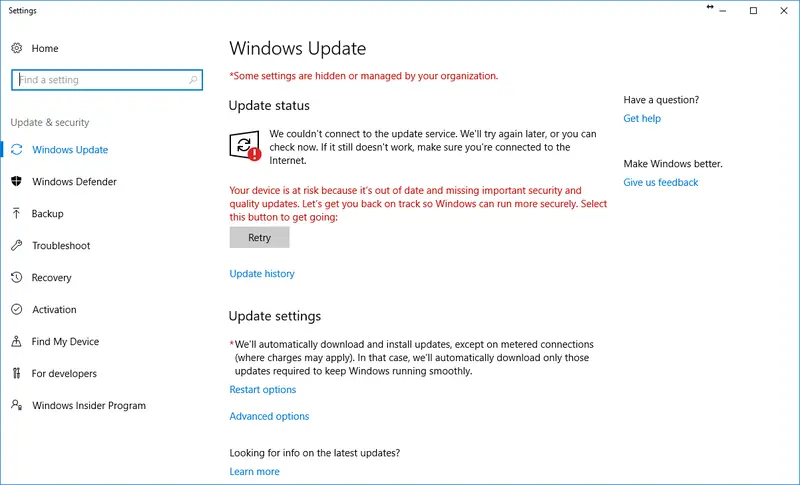
    In Windows 10 you can install updates using the option in Settings. The latest is the 1709 version. It is important you be on the latest version, as Microsoft releases patches from time to time. These provide security to your PC. On the other side, they may also repair any Windows problems.

    Sometimes your computer may become faster after installing the new updates. Many users get error codes which indicate that the updates are not installed. In such a scenario, you can try to clear the cache using cleaning tools and restart the update.

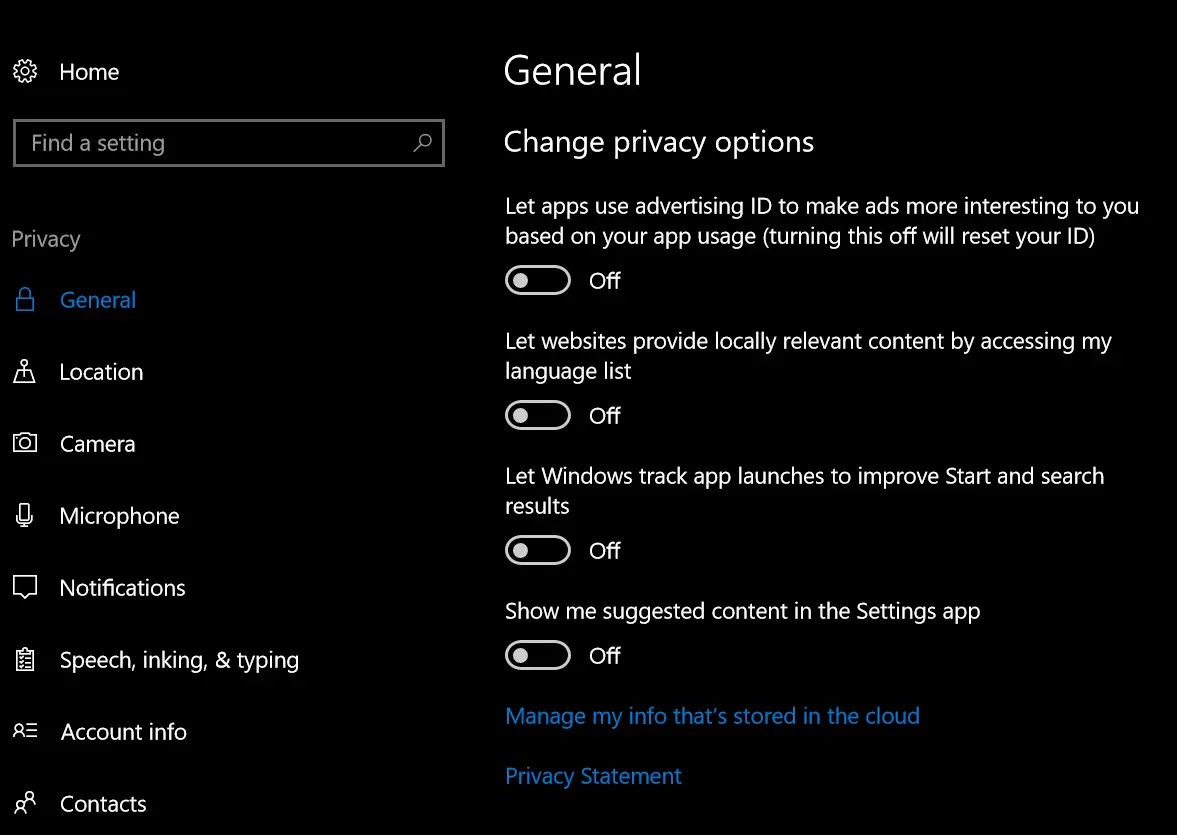
    But many don’t know that we can control the different ways in which we can apply these Windows updates. Doing so, will fix many update errors which are caused for many reasons. Instead of dwelling deep into each error code and scratching your head, these solutions are more easier to apply. One can also change the privacy settings that keep you anonymous from Windows 10 updates.

    windows 10 privacy settings

    Where is Windows Update in Windows 10?

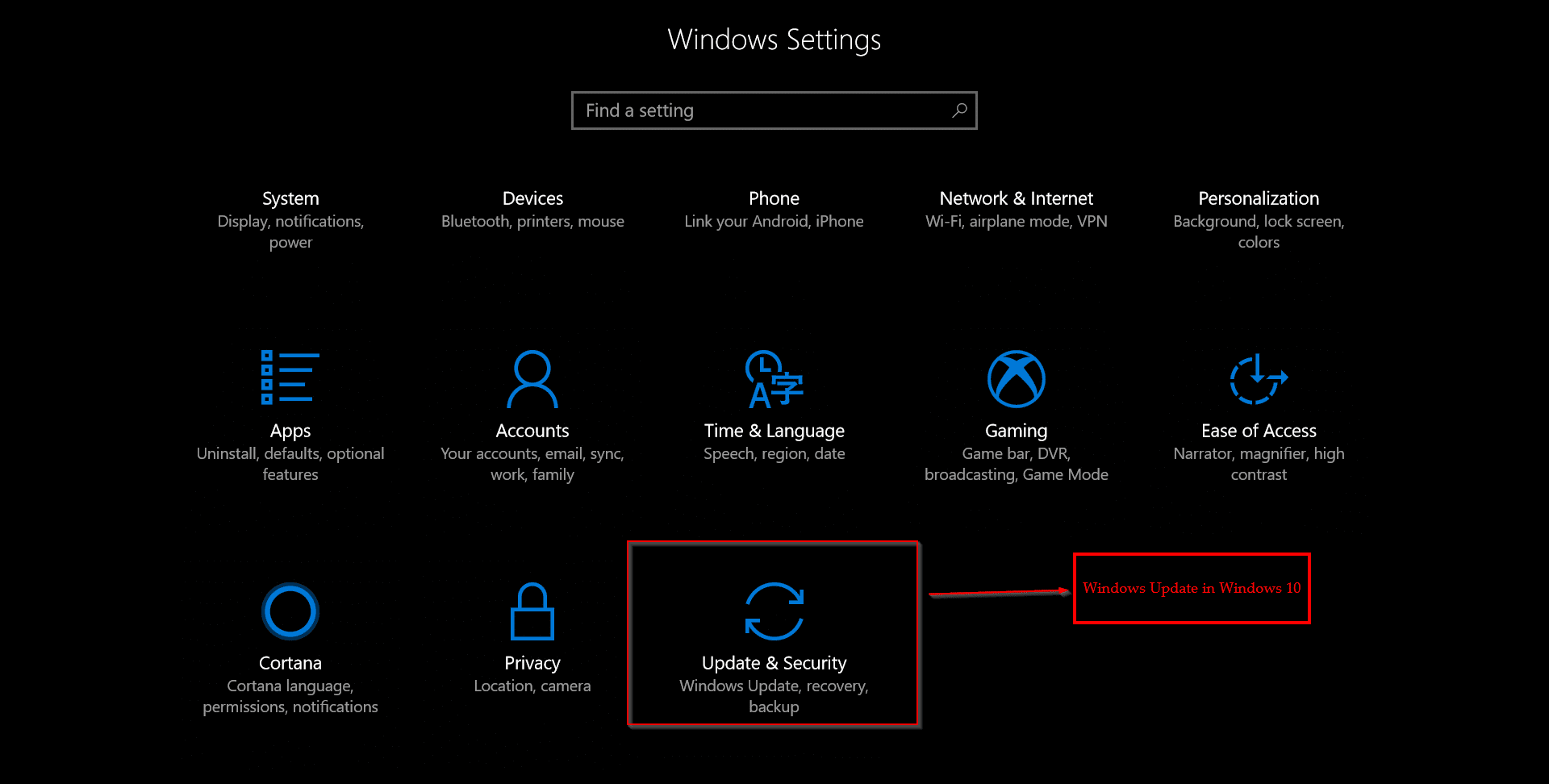
    This is available under settings with the recent versions of 1703 and 1709.
    Click Win and then the gear icon.
    Settings window will open.
    At the bottom there is Update & Security square icon.

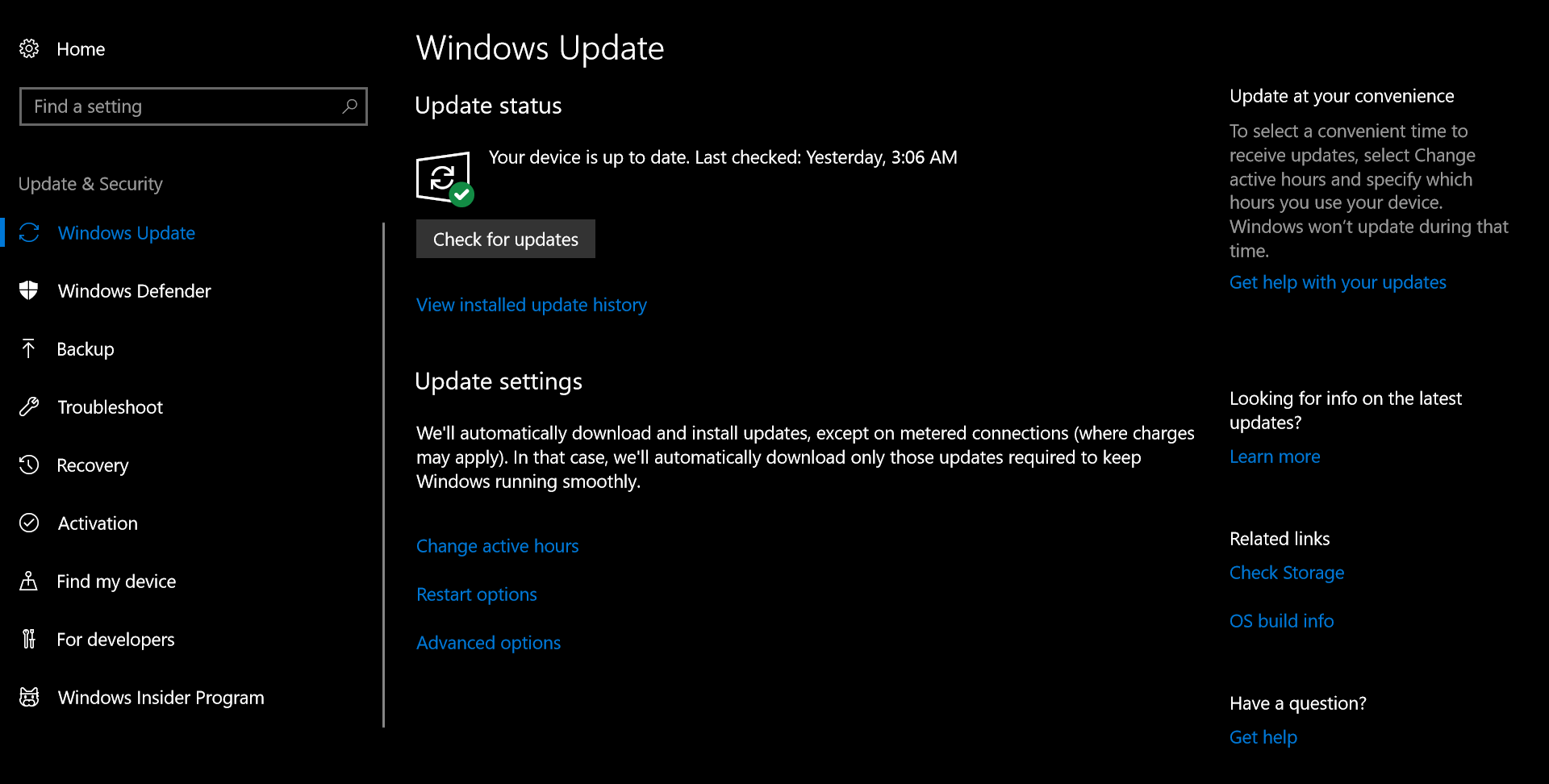
    You are taken to Windows Update screen.

    Windows update in Windows 10

    How to Manually Update Windows 10?

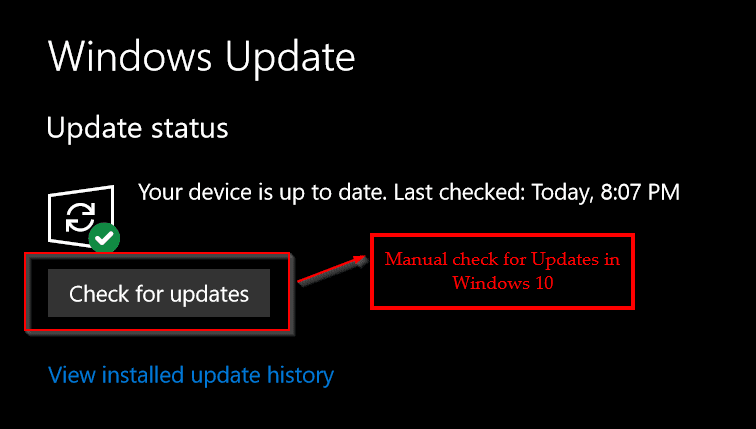
    Generally, when you login into your computer, update are automatically installed when they are released.But if you want to manually check them.

    manual check windows 10 update
    Go to the above screen and click the button “Check for Updates“.
    This can be found under Windows Update on the left.

    How to Disable Windows 10 Update?

    There are different ways in which this one can be done.

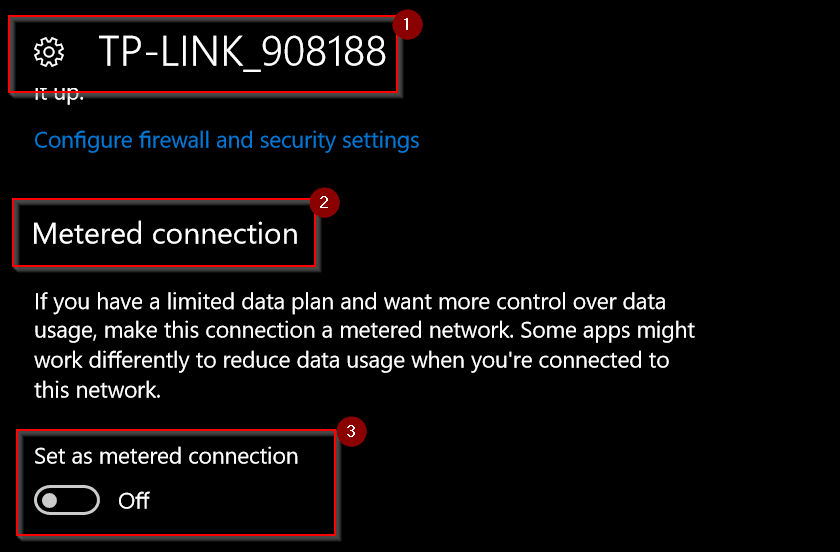
    You can set your network as metered connection to stop Windows 10 from automatically downloading and installing updates.  This can be done from the Network & Internet option in Settings.

    • On the left you have Status.
    • On the right, under Network Status you can see your network connection.
    • Under this you click, Change connection properties.

    You will go to your Network Adapter page. Under this you can see Metered Connection.

    Toggle the following option to On, that says “Set as metered connection“.

    Generally, if you have not made any change in the Group Policy Editor, Windows 10 will not update on metered connection.

    windows 10 disable update

    How To Fix Windows 10 Update Problems?

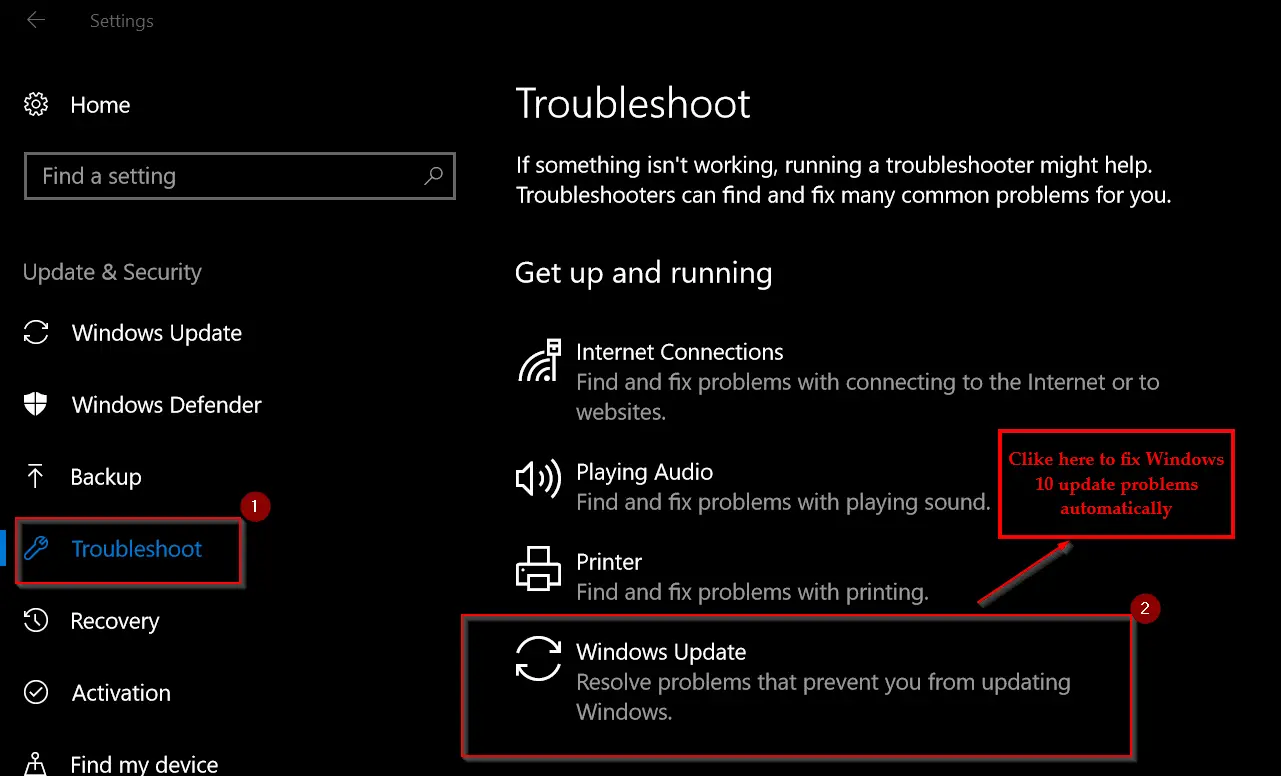
    The first aid and the most easy way to solve your update problems is using the “Troubleshoot” tool  under Update & Security option in Settings.

    troubleshoot windows 10 update problems 1


    This will start the repair service in Windows and does some operations on its own. If there are any errors in Windows Update, it automatically tries to correct them as far as possible. Sometimes, this tool may not correct the problem. In that case, you can find the exact error code which caused this inconvenience, and find the KB article information on Support and Technet forums of Microsoft.

    Let us see what are the default options provided in Windows 10 update settings.

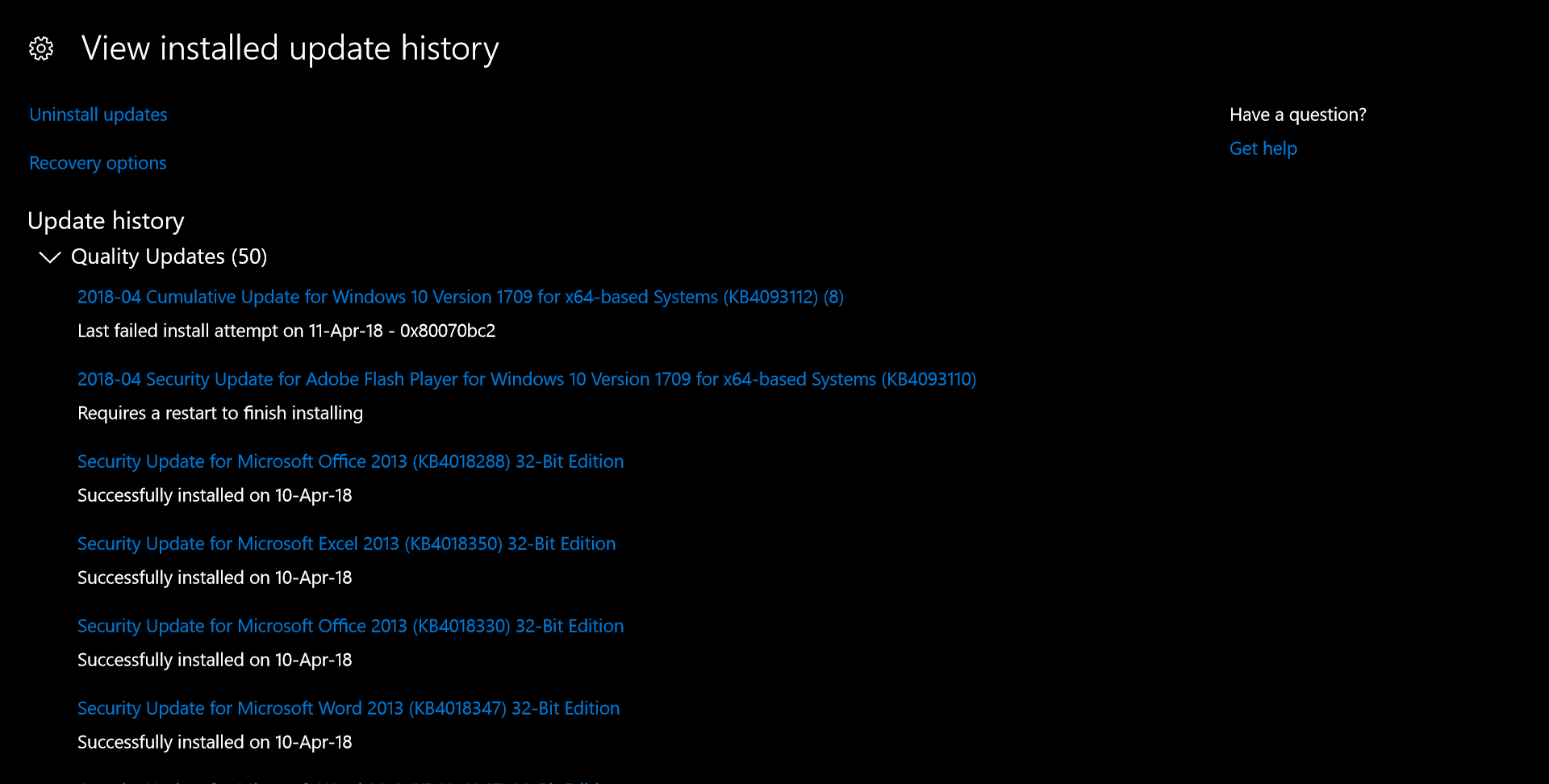
    1. View installed update history

    If you click this, the following page will open.

    windows 10 update history
    You can see the list of updates that were installed. This is useful to know whether your updates were successfully installed or were there any errors during the installation phase. Sometimes, messages are also shown to indicate what type of action you have to take further. This is useful information after the updation phase is over. The following will also help in change windows 10 update settings.

    The following are the Update settings on the same page.
    1. Change active errors
    2. Restart options
    3. Advanced options

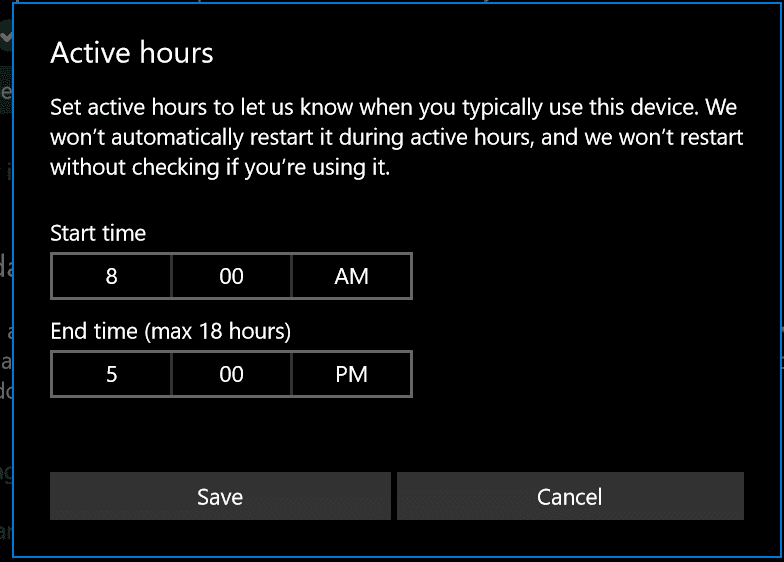
    In the first option you can set the active hours.
    Set active hours to let us know when you typically use this device. We won’t automatically restart it during active hours, and we won’t restart without checking if you’re using it.

    windows 10 update active hours

    The Start time and End time can be set here.

    In the second option, the following things are available.
    Schedule a time – We’ll restart to finish installing updates when you tell us to. Just turn this on and pick a time.

    windows 10 update settings

    You can toggle the option. Then you can pick the time and day.

    Show more notifications
    We’ll show a reminder when we’re going to restart. If you want to see more notifications about restarting, turn this on.

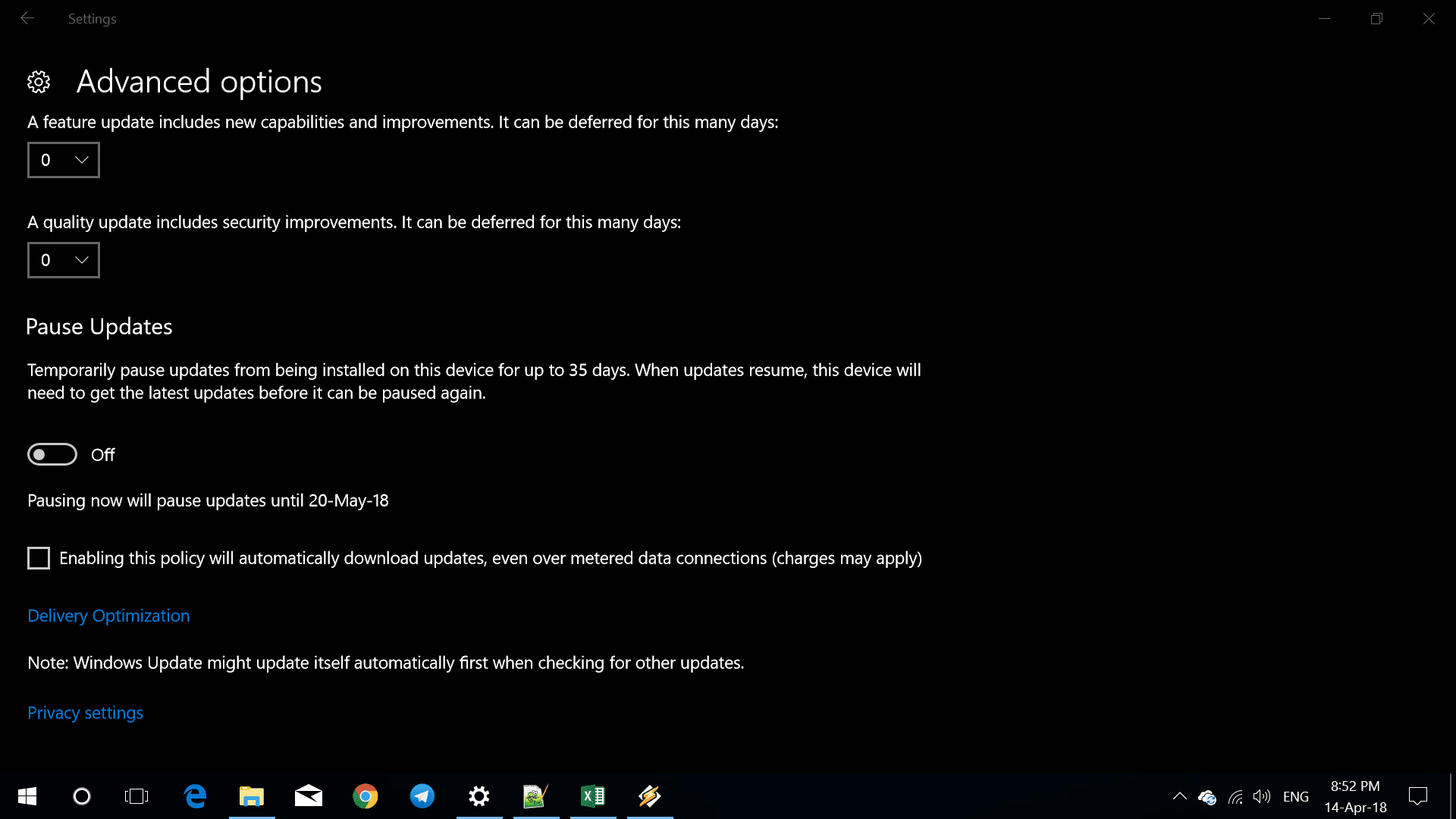
    You can also see some advanced options.
    If you installed Microsoft Office, updates for them also get installed alongwith Windows 10 updates. Here you can also decide what kind of branch you need. 1. Semi-Annual Channel (Targeted) 2. Semi-Annual Channel.

    windows 10 updates advanced options

    The first one is available to most of the people, while the second one is for enterprise people. You can also defer particular type of updates based on feature and quality.

    Pause updates

    This is one of the most important features, if you have limited bandwidth. Generally some updates of Windows slow down your computer. Sometimes, you can feel happy with a particular version of update. In that case you can do the following.

    Temporarily pause updates from being installed on this device for up to 35 days. When updates resume, this device will need to get the latest updates before it can be paused again.

    Though this can only pause the updates, you can also disable them using another trick. Some time you also get an error saying that Windows update is not downloading. For this, you need to make some changes in the Group Policy Editor or use troubleshooting feature.

    This option is useful, if you want to pause updates. At the same time, you can be free that no nonsense bugs or errors are induced into the system, which sometime happen. But if you must update on any kind of connections like metered ones, another option is available. This will download updates on any type of network, whether on Fiber or Mobile net.

  • Fix Error 0x80070bc2 in 30 seconds when you try Update Windows 10

    windows 10 error code

    The most recent version 1709 has the latest OS build update of 16299.371. This was released on April 10th, 2018. It can be got through the KB4093112 update. We earlier had 1703, 1607, 1511 version updates. Generally you can update Windows 10 to the latest version, using the in-built tool in Settings.

    But sometimes after the download is complete, Windows 10 throws a message that you need to restart. Even though you do it, it will go into a recursive loop. The solution to this error code 0x80070bc2 can be done as below.

    • Right-click on Windows key and select Command Prompt (Admin).
    • Type the following commands in Command Prompt window. To execute them, press Enter after each one. SC config wuauserv start= autoSC config bits start= autoSC config cryptsvc start= autoSC config trustedinstaller start= auto
    • Finally, restart your PC and try to install the update that was previously returning the 0x80070bc2 error.

    Source : https://answers.microsoft.com/en-us/windows/forum/windows_10-update/error-0x80070bc2-when-windows-10-update-trying-to/ba4053f2-acec-43db-9305-bca3cc2b8b0c

    My Experience

    I tried the Windows update troubleshooter, but it failed to resolve the problem. So I think the above commands are the best way to resolve error 0x80070bc2.

  • Top 5 Best SSD of 2020 – Features, Benchmarks and Performance

    Solid State Drive (SSD) is a new type of storage device for computers and laptops.

    The advantage of SSD over HDD is that it has no moving parts. No electricity is required to store information.

    SSD laptops typically consume less energy. Solid State Drives (SSD) also improve boot time in Windows 10.

    With good hardware configuration, you can boot up your laptop or PC in less than 10 secs. SSDs also have an advantage in gaming.

    Graphic cards play a major role in single player games.

    The speed of data-transfer plays a key role in smooth gaming experience.

    SSDs make this happen.

    Less sound is another beautiful feature of SSDs. HDDs can make sound due to their moving parts.

    But because of SSDs built-up mechanism, they are less noisy.

    In this post we are going to see the list of best ssd of 2020 based on user reviews , performance, benchmarks, warranty period, price etc.

    What is SSD – Introduction

    An SSD does the same operations as a HDD.

    But data is stored on interlinked flash memory chips.

    This keeps the data without power being present.

    But a typical HDD data can be read only if a power source is attached.

    The SSD chips can either be permanently installed on PC motherboard (desktops and small laptops), on a PCIe (external card like a network card) or in a box that’s soldered to a slot in a laptop or PC.

    HP S700 vs Kingston A400

    The HP ssd S700 is the new compared to Kingston A400. Both were released in 2017. The avg. sequential read speed and write speeds in HP S700 were about 40 MB/s more than Kingston ssd. The peak 4K random mixed I/O speed is the only metric that Kingston scores best.

    [table id=2 /]


    In all the average and peak metrics, HP S700 has a better edge.

    Out of 1018 ssd’s tested for benchmarks, HP S700 scores 480th rank and Kingston A400 scores 722nd rank. 25% faster effective speed can be seen in HP S700. But Kingston market share is largely higher compared to HP S700.

    Cons of HP S700

    • Won’t boot as primary drive.
    • Sometimes hardware failure occurs.
    • No improvement in boot times with i5 and i7 configuration.
    • Read/Write speeds were around 200 to 300 MB/s.

    Pros of HP S700

    • Ease of mounting in PC.
    • High data speed.
    • Suits ASRock B450M mini-ATX kind of motherboards.
    • Windows 10 installation took around ~ 8 minutes.
    • Works with Mac Mini.

    Another feature to compare is the price difference.

    Kingston is 23% cheaper than HP.  Kingston 240GB A400 SATA 3 2.5″ Internal SSD price is $39.40.

    HP SSD S700 2.5″ 250GB SATA III 3D NAND Internal Solid State Drive (SSD) is currently unavailable on Amazon.com.

    For Kingston A400 there are 85% best 5 star ratings out of 37,643 customer ratings. On the same scale, HP S700 gets 5 star ratings of 75% out of 140 customer ratings. HP S700 is good for PC, while Kingston is better for laptop.

    Pros of Kingston A400

    • Stable SSD to add performance.
    • It’s inexpensive.
    • Better performance than HDD.
    • With SATA 2 interface you get speeds around 250 to 275 MB/s.
    • Disable different services like pagefile.sys, defragment, indexing etc, if low on resources.

    Cons of Kingston A400

    • Cannot be configured as a boot drive
    • Not the fastest SSD as of 2020.
    • Most basic TLC memories.

    Source: https://ssd.userbenchmark.com/Compare/Kingston-A400-240GB-vs-HP-S700-250GB/3953vsm332066

    The following is the list of top 5 best ssd of 2020 based on no special order of ranking.

    #1 Best SSD of 2020 – Samsung 860 EVO

    • This is available in different storage capacities like 250GB/500GB/1TB/2TB/4TB.
    • It is powered by Samsung V-NAND Technology.
    • Sequential Read/Write speeds up to 550MB/s and 520MB/s respectively.
    • It supports PCs and laptops for personal, gaming and business use.

    Amazon.com user reviews Samsung 860 EVO 500GB 2.5 Inch SATA III Internal SSD MZ 76E500B AMCustomer reviews of Samsung 860 EVO on Amazon.com

    • Supports Windows 8/Windows 7/Windows Server 2003 (32-bit and 64-bit), Vista (SP1 and above), XP (SP2 and above), MAC OSX, and Linux.
    • 5 Year Warranty.
    • The interface is SATA III (6Gb/s) SSD.
    • It also supports Windows 10.
    • It also has utilities to clone the HDD and move the whole OS image, data and applications to SSD.
    • You can also use it along with HDD as a secondary storage device for photos, videos etc.
    • It also works with PS4 Pro.
    • For example, if you are using Star Wars Battlefront 1 you can arrive at the next board within 72 seconds.

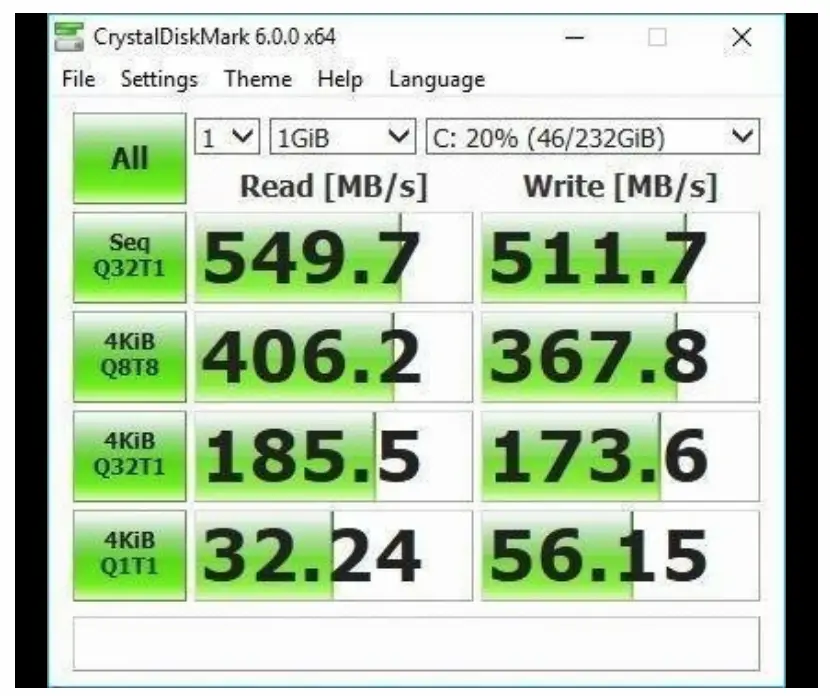
    Typical CrystalDiskMark 6.0.0 x64 benchmark tests for Samsung 860 EVO Benchmarks Samsung 860 EVO 500GB 2.5 Inch SATA III Internal SSD MZ 76E500B AM Crystal Benchmarks Samsung 860 EVO 500GB 2.5 Inch SATA III Internal SSD MZ 76E500B AM One can also get the Corsair Dual SSD Mounting Bracket for another $6.
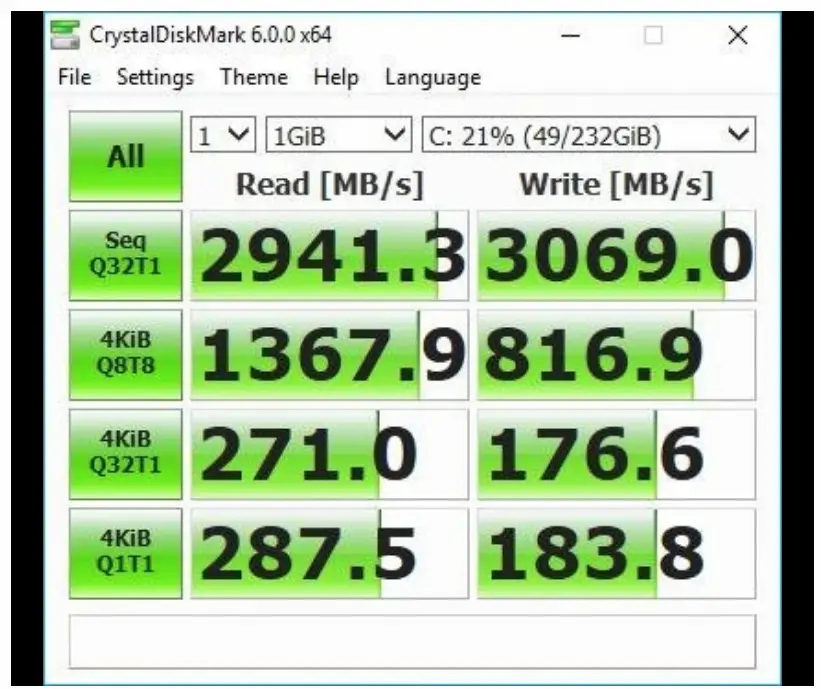
    You can use the Samsung Data Migration Software and Samsung Magician Software for installing the SSD and replace the C: drive.

    After formatting SSD in NTFS format, you can clone 232GB to SSD in around 30min with a SATA 3.0 to SATA 3.0 connection.

    If your PC motherboard supports SATA 6.0 it would be much faster.

    Users reported that there were no issues after cloning when the same port was used as the C drive HDD was connected.

    #2 Best SSD of 2020 – SanDisk SSD PLUS

    • There are different storage capacities on Amazon like 120GB/240GB/480GB/960GB.
    • You will get 20X faster speeds than your old HDD. Read/write speeds of up to: 530MB/s/440MBs.
    • One can also monitor the status of your applications using the SanDisk SSD
    • Dashboard which provides tools for monitoring and optimizing system performance.
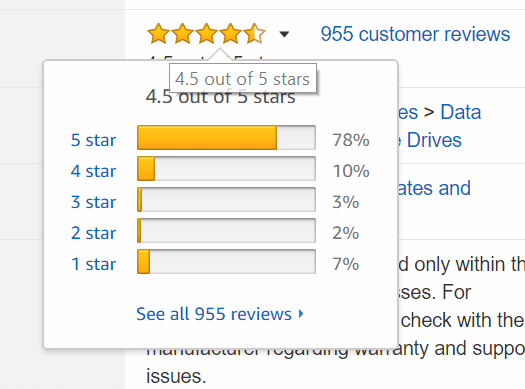
    Amazon.com user review SanDisk SSD PLUS 240GB Solid State Drive SDSSDA 240G G26 Customer reviews of SanDisk SSD PLUS on Amazon.com

    • Cloning software is available with the purchase and easily help you set up the drive.
    • It is ideal for PC workloads as it offers SLC caching to improve burst write performance.
    • It improves speed in web browsing, emailing, casual gaming, office productivity, and audio/video entertainment. hock-resistant (up to 1500G) and vibration-resistant (5gRMS, 10-2000 Hz/4.9 gRMS, 7-800 Hz), temperature (from 00 C to 700). 3 year limited warranty.
    • It uses SanDisk’s second generation 19nm MLC NAND instead of TLC NAND.
    • One user used it to upgrade Dell E6410 laptop and his boot times went up from 1 minute to about 20 seconds.
    • The apps and boot up time are very fast like less than minute in both Windows 10 and Lubuntu 16.04.
    • For Windows 10 system, the major bottlenecks seem to be the hard drives.
    • With this SSD, your PC boots in a fraction of a minute compared to the old HDDs.

    #3 Best SSD of 2020 – Crucial MX500

    It comes in different varities like 250GB/500GB/1TB/2TB.

    The Sequential reads/writes up to 560/510 MB/s and random reads/writes up to 95k/90k on all file types.

    Crucial limited 5 year warranty is given.

    As with any SSD the life span depends upon the SSD storage available like – Single Level Cell (SLC), Multi Level Cell (MLC) and Triple Level Cell (TLC).

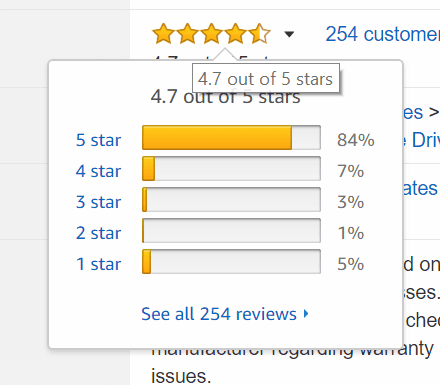
    So generally an SSD is likely to live life more than you use it and the warranty it supplies. Amazon.com user reviews Crucial MX500 500GB 3D NAND SATA 2.5 Inch Internal SSD CT500MX500S Customer reviews of Crucial MX500 on Amazon.com
    It uses minimal amount of power as it uses next-gen Micron 3D NAND technology.

    Every purchase of MX500 comes with a 7mm to 9.5mm spacer or adapter. The advantage with this type of SSD are –

    • Easy to clone old hard drive (needed some extra devices / products to help with this)
    • Lightening fast boot up
    • Bios instantly recognized the SSD as the boot drive.

    But the cloning process may require extra equipment like SATA to USB for one time.

    You need a converter kit to clone data from a 2.5 inch drive to a 3.5 inch bay.

    For 250 GB data on HDD, the cloning time is about 20 to 30 minutes.

    For 2 TB data, it takes around 90 minutes. Dell 15(5579) 2-in-1 i7Gen8 16GB DDR4 RAM Win10 64bit boots up very quickly and applications run very fast.

    #4 Best SSD of 2020 – WD Blue 3D NAND

    • The storage capacities are 250GB/500GB/1TB/2TB.
    • 3D NAND SATA SSD technology is available for storage upto 2TB.
    • The power utilized is also little compared to earlier WD SDDs. Sequential read speeds up to 560MB/s and sequential write speeds up to 530MB/s.
    • It won the Tom’s hardware Editor’s choice award in 2017. You got 5 year limited warranty.
    • It should work on any PC or laptop, even with XP if your motherboard supports SATA 3.0.
    • You can also replace your laptop HDD, by cloning it.
    • You can use different cloning software like Easeur, Acronis True Image etc to do your job.

    Amazon.com user reviews WD Blue 3D NAND 500GB PC SSD SATA III 6 Gb s 2.5 7mm Solid State Customer reviews of WD Blue 3D NAND on Amazon.com

    If you have Bitlocker enabled on your files, it is better to disable them as Acronis doesn’t support cloning those files.

    Since that tool is to encrypt files, you may have problems later of not accessing them.

    So before you clone, it is better to decrypt and then copy it. CrystalDiskMark test pegs the sequential reads as 568.8, and writes of 557.3.

    You may also require an SATA III cable and a 2.5” to 3.5” adapter bracket to fit in the desktop bay since they are not provided with the purchase.

    You can install Windows 10 and should work without problems.

    One user had a 5+ year old desktop with Win 10 booting up in 3 minutes.

    After running this SSD, it took only 15 seconds to start.

    Also the programs run faster.

    With the Windows Experience index on Win 7, the score came out to be 7.5 for a particular configuration.

    The temperature also does not exceed 42c at maximum load and does not make much noise.

    You can transfer a 100GB steam library to SSD under 10 minutes.

    #5 Best SSD of 2020 – Kingston A400 SSD

    It has different versions like 120GB/240GB/480GB/960GB.

    It supports SATA Rev. 3.0 (6Gb/s) with backwards compatibility to SATA Rev. 2.0. 120GB — 500MB/s Read and 320MB/s Write.

    Games run faster and even better.

    This will work with any desktop or laptop having a SATA drive port.

    It is one of the cheapest 120GB brand SSD you can buy in 2020.

    In case if the SSD is not recognized after hooking up and rebooting , the solution is to run Windows Memory Diagnostic tool.

    Within 5 to 10 minutes your drive will be found again.

    If your PC does not boot up on removing the old HDD, then you need to change from Legacy to UEFI boot mode, if you have partitioned them using GPT. Amazon.com user reviews Kingston A400 SSD 120GB SATA 3 2.5” Solid State Drive SA400S37 120G Customer reviews of Kingston A400 on Amazon.com

    It works with Windows 10 64 OS and boots very quickly.

    You can also rapidly load games and programs.

    For example huge Excel sheets can load quickly.

    You can use a 1 TB or 2 TB HDD storage as secondary storage.

    Even if you have SATA 2.0, this upgrade will have a huge performance difference in load time and quality of gaming.

    One can use MiniTool Partition Wizard free version to migrate OS to SSD. Typical CrystalDiskMark 5.2.1 x64 benchmark tests of Kingston A400 Crystal Disk benchmarks Kingston A400 SSD 120GB SATA 3 2.5” Solid State Drive SA400S37 120G Your data is much safer compared to the mechanical drive.
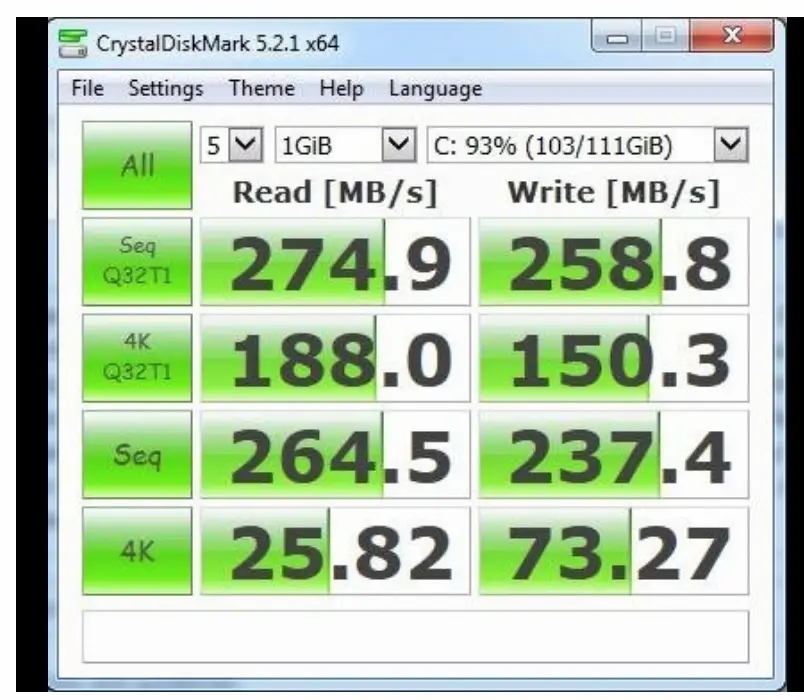
    Also if you are using old Intel processors with SATA 2.0, one may not find the practical speed that can be found with high-end machines.

    But at least if you are using i3, i5, i7 of 3rd to 7th generation, you can definitely see 10 times faster performance according to the WD benchmarks.

    Top 5 Best SSD in UK

    The following is the list of top ssd in uk.

    These are mentioned by popular tech sites.

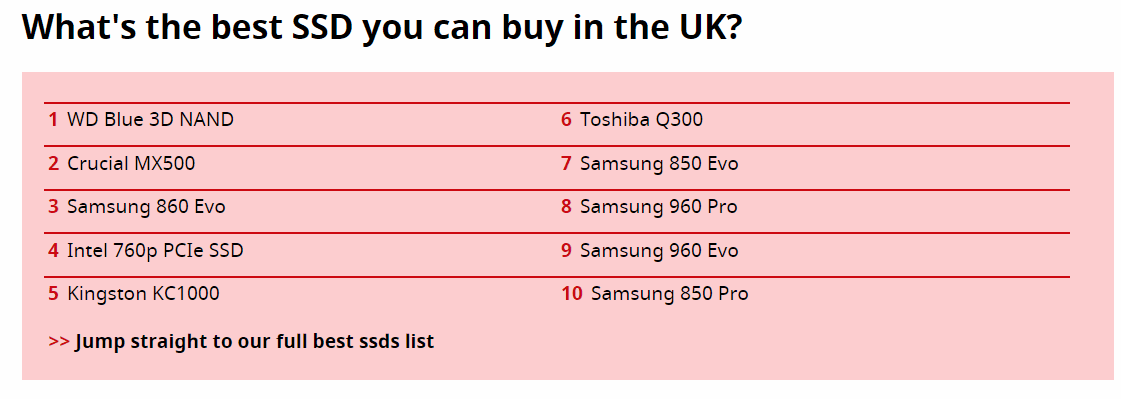
    As you can see, Samsung 860 Evo, 850 Evo, 850 Pro,  960 Pro, 960 Evo also lead the best ssd models in uk also. Best SSD 2018 Solid State Drives in UK Tech Advisor
    Best SSD from Popular PC Sites

    • Best SSD: Samsung 960 Evo
    • Gaming SSD: Kingston HyperX Predator
    • NVMe SSD: Samsung 960 Pro
    • PCIe SSD: Toshiba OCZ RD400
    • M.2 SSD: WD Black PCIe SSD
    • SATA 3 SSD: Samsung 860 Pro
    • U.2 SSD: Intel 750 Series
    • Budget SSD: Samsung 860 Evo
    • endurance SSD: HP S700 Pro
    • SSD boot drive: Intel 760p Series SSD
    • External SSD: Samsung Portable SSD T5

    Source : https://www.techradar.com/news/best-solid-state-drives-ssds

    • Samsung 860 EVO
    • Crucial BX300
    • Samsung 960 Pro
    • Intel 760P SSD
    • Intel’s Optane SSD 900P

    Source : https://www.pcworld.com/article/3234838/storage/best-ssds.html?page=2

    • WD Blue 3D NAND
    • Crucial MX500
    • Samsung 860 Evo
    • Intel 760p PCIe SSD
    • Kingston KC1000
    • Toshiba Q300
    • Samsung 850 Evo , 960 Pro, 960 Evo, 850 Pro

    Source : https://www.techadvisor.co.uk/test-centre/storage/best-ssd-2018-3235200/

    SSD Gaming Performance in 2020

    The following is a graphic of SSDs performance in different benchmark tests.

    The score given is the overall performance score calculated over an aggregate of ten benchmark tests. pc gamer best ssd performance 2018 Image Credit: PCGamer reference given at the end.
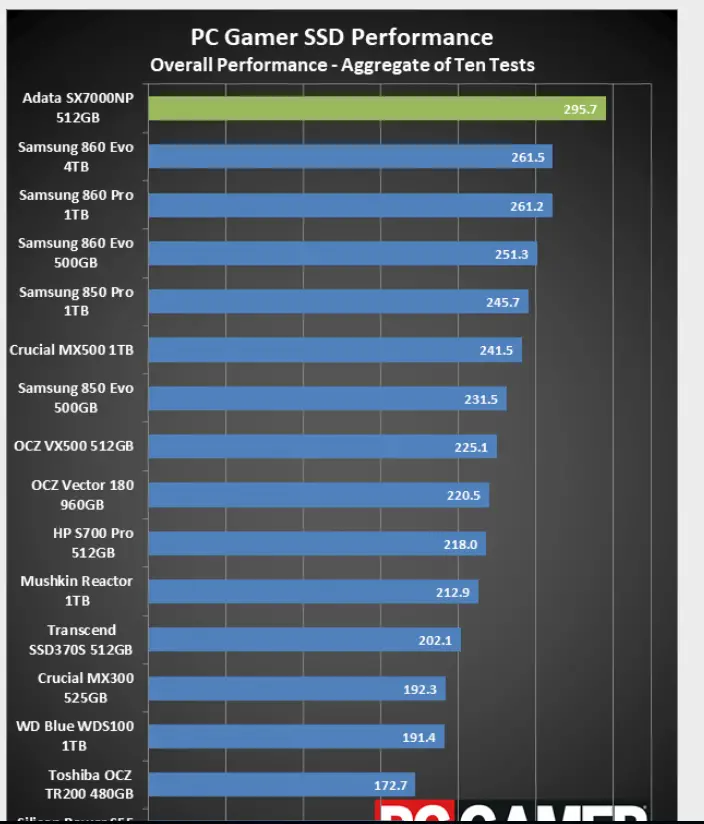
    As you can see above, Adata SX7000NP with storage capacity of 512GB is the top best ssd in performance.

    Samsung has a good score for different models of ssds. The 860 Evo, 860 Pro, 850 Pro are giving good scores in ssd benchmark tests.

    Pros and Cons of SSD

    • HDD is affected by magnets.
    • SSD data is not erased even by magnets.
    • General read/write speed of HDD is between 50 to 120 MB/s, but SSDs are 10 times faster.
    • File opening speed is also 30% time faster.
    • The drawback with SSD is that it is more costly than HDD per GB.
    • Configuration of having both SSD and HDD on the same motherboard is little difficult. Predicting performance of this kind of setup is not that easy.
    • SSD’s don’t have any moving parts.
    • They are shock-proof and don’t get damaged in vibration environments.
    • SSDs can work in high temperatures between 0°C to +70°C which allows them to work in any country.
    • The risk of mechanical failures is less in SSD.

    Recommendations of SSD in 2020 by popular tech sites
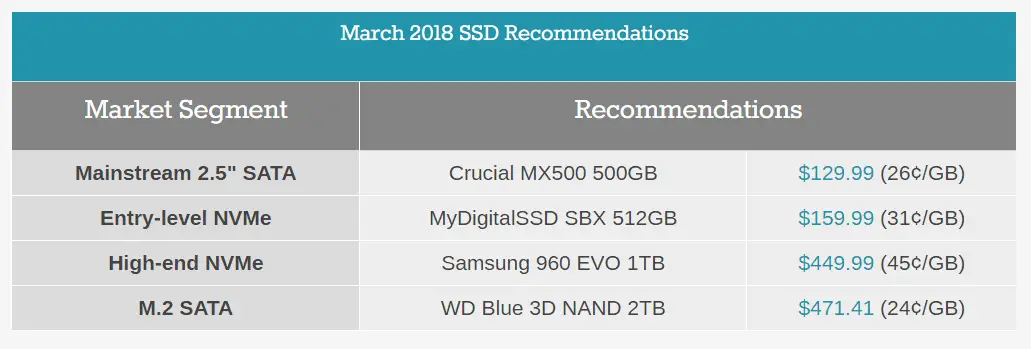
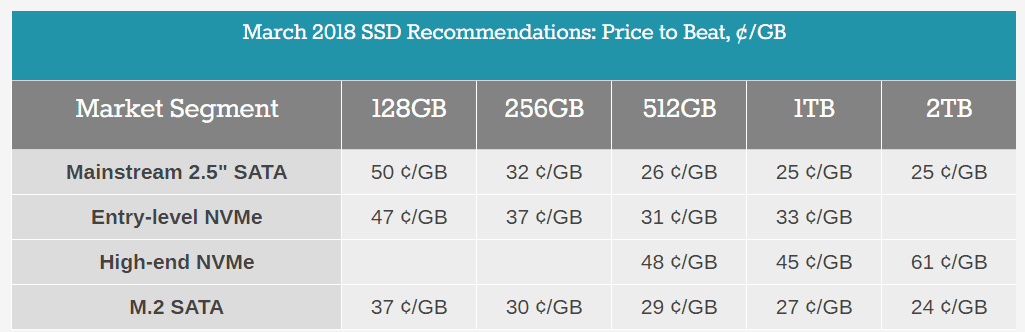
    March 2018 Best SSDs Q2 2018 recommendation Best SSDs Q2 2018 based on price There are also some disadvantages with SSD’s.

    • NAND flash memory used in SSD can be used only for a few writes.

    But in the recent SSDs this amount has increased vastly. So the life span is sufficient, before we discard them.

    • NAND can be used only for a limited number of writes and unlimited number of reads.

    This is due to the mechanism of how SSD works.

    Each time NAND writes a singly byte of information, it has to erase large block of data.

    For some ssds, charge is left in the floating-gate transistor which changes it resistance.

    So finally after some time the gate or block where information is stored becomes useless to be written and change into a “read-only” state.

    Also the capacity of SSD drives are commonly around 500GB to 1TB while that of HDD is between 2 TB to 10 TB for the same price.

    Warranty period of popular SSDs
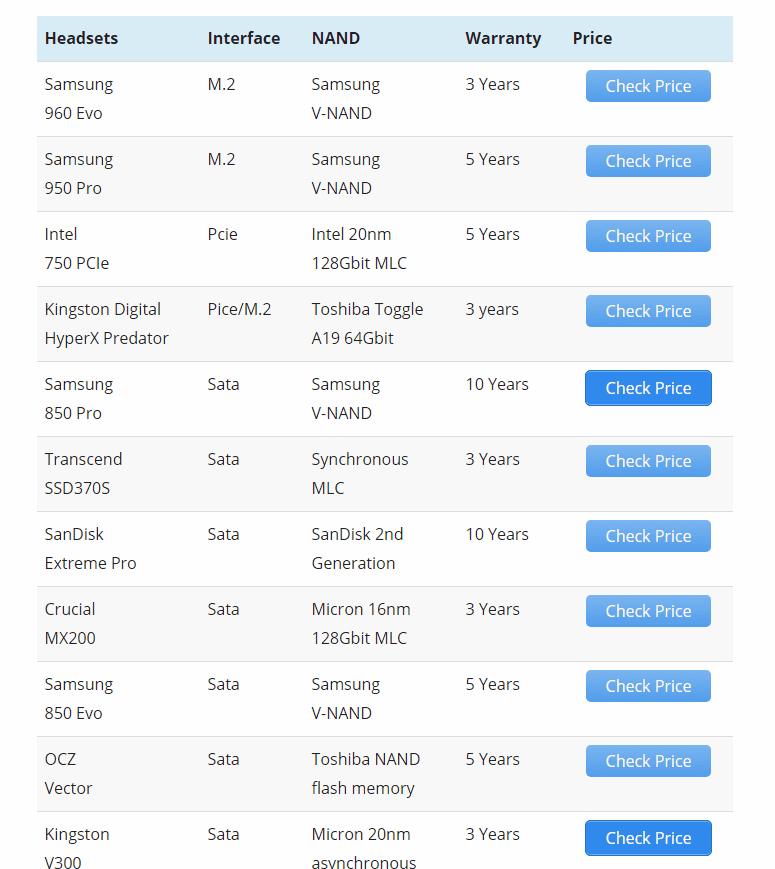
    Best SSDs 2018 10 for Gaming

    • The boot time of SSD based computers is faster compared to HDD, which can be seen as the positive side.
    • Also multimedia applications require more processing power and data speed which SSD can easily provide.
    • Since SSDs run apps and transfer files faster they are useful in education and office where time critical tasks are more important.

    Connect SSD to Motherboard – Different Interfaces

    SATA:

    • These are the minimal form and cheapest type of connecting your SSD to your PC.
    • Generally, motherboards have SATA ports and these types use them. Though it is 5 to 8x times faster than HDD, its the slowest form of SSD.
    • The sequential read/write speeds hover around 500-600MB/s. The normal version used in this type is SATA III.

    PCIe :

    • In this type NVMe memory is used.
    • It represents Non-volatile Memory Express.
    • It is technically Peripheral Component Interconnect Express but in short-form it is called PCIe or PCI-E.
    • This is a standard type of connection for internal devices on your motherboard.
    • If we connect a high-speed SSD drive it allows for faster reading and writing to the drive.

    M.2

    • This is for the sole purpose of SSD.
    • Since the form factors for these type of slots is very less, it can be used in very thin laptops, tablets and ultrabooks.
    • The M.2 specification supports applications sucha as Wi-Fi, USB, PCIe and SATA.
    • The read/write speeds can reach about 3000 to 5000MB/s.
    • They are more costlier than SATA and PCI-E type SSD, but give high performance.
    • They are generally rectangular and are generally 22mm and usually 60mm or 80mm long.
    • The card size is represented by four or five digit number.
    • The first two are for the width and the remaining for length. For example, a 2260 card means 22mm wide and 60mm long.

    mSATA

    • These are being replaced by M.2 and are of the older format.
    • The mSATA SSDs still exist and probably continue for some more time.
    • Since M.2 and mSATA cards are of different form factors and connectors , they cannot be used in tandem.
    • M.2 SSDs are more faster and store more data than mSATA cards.

    References :

    1. https://www.anandtech.com/show/9799/best-ssds
    2. https://blazinglist.com/ssds-solid-state-drives/
    3. https://www.pcgamer.com/the-best-ssd-for-gaming/
  • How to Repair Office 2010 in Windows for Different Kind of Errors?

    To repair office 2010 in windows 10 one can just use the in-built “repair” feature available via control panel. One of the products of Microsoft Office 2010 like Word, Excel etc. may not be working or behaving oddly. The symptom can be due to deletion of any Office application file by the anti-virus or during a program crash.

    Steps to Fix Office 2010 Not Working Error

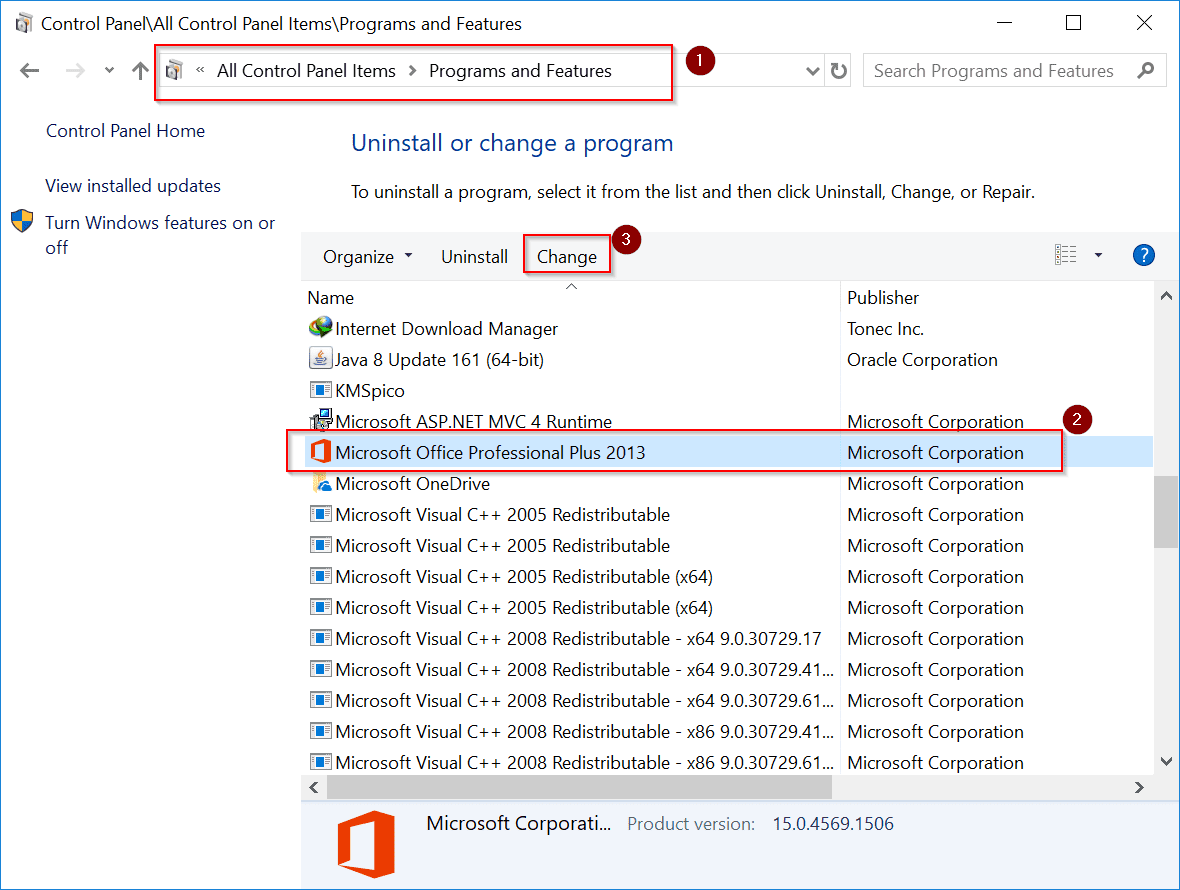
    1. Go To Control Panel
    2. View by Small Items.
    3. Double-click on Programs and Features.
    4. Select Microsoft Office 2010 that window.
    5. Then you will see a Change lable option at the top.
    6. Click it.
    7. Now several options like “Add or Remove features” etc will be availble.
    8. Now select the “Repair” option and click Continue.
    9. Office 2010 starts to repair itself automatically.

    repair office 2010 in windows

    Clean Boot Solution

    Sometimes, even the repair functionality may not work properly. Then the solution is to start your Windows in clean boot mode. Then check if you can work with Office applications. This can be done by using the “msconfig” utility provided in Windows 10.

    1. Press the Win + R button and type “msconfig” without quotes.
    2. The System Configuration window will open.
    3. There you can find the “Diagnostic startup” option under the General tab.
    4. This will load only basic devices and services only.
    5. Click Apply and restart your PC.
    6. Now if Office 2010 applications are working properly, then the problem is with one of the non-Microsoft services.

    Also Read – How to Increase or Decrease Font Size in Xiaomi Redmi Note 4

    There can be other cases of Office 2010 not working in Windows 10. It can show up some error code like 2908. This can crash the Outlook, Word etc window, Windows 10 may run slowly and response to mouse or keyboar is also sluggish, PC may freeze from time to time etc. The error dialog box can also appear when you are installing Windows 10 also.

    The causes can be many. Some of them are like these –

    1. Corrupt installation file of Office 2010 software.
    2. Registry items of Office 2010 may get corrupted due to a change like uninstall or install.
    3. Trojans, malware, virus may have infected your PC and corrupted your Office 2010 files.
    4. Another Windows 10 program might have deleted some of the Office 2010 files.
    5. Using older version of cleaning utility like CCleaner to clean unused registry items might have removed some wanted registry entries.

    The solution to this error code is to repair the corrupt registry entries associated with the error 2908. This can be done by pressing Win+R and typing “regedit” which will open the Registry. Then you find the items causing the error 2908 and repair them.

    You can also do a full anti-virus scan, update PC drivers, install recent Office 2010 updates, clean out system junk using the Disk cleanup functionality provided in Windows.

    In another case, Office 2010 click-to-run application like Word may crash multiple times when you try to start it and shows the following dialog box.

    For this kind of error, you can use the same approach mentioned in the first case. You can open Control Panel and find the Office application in the available list of programs. Then you can try the repair functionality available with it.

    How to Repair Office 2010 when you have Error Code 1935.

    When you try to re-install Office due to some reason, there may be a chance of some left-over registry entries which may hinder the progress of installation. You may get the following error during the installation phase –

    “Microsoft Office Professional Plus 2010 encountered an error during setup.

    Error 1935. An error occurred during the installation of assembly component {89EDD3A9-944B-3257-8484-D6EB6A00DDF5}. HRESULT: 0x800736FD”

    The solution to this type of error is to clean the registry before you re-install Office and then restart the PC. Then try to install Office.

    If that doesn’t solve the problem, then the only hope is correct the corrupted registry entries. Even if you try the SFC scan command you may get an error like

    Windows Resource Protection could not start the repair service

    The chance of repair lies in correcting the corrupted registry entry –

    HKLM\Software\Microsoft\Windows\CurrentVersion\Component Based Servicing\Version or subfolder in WinSxS.

    The following steps may be followed to repair Office 2010.

    1. Open the registry and navigate to the following registry entry.

    HKLM\Software\Microsoft\Windows\CurrentVersion\Component Based Servicing\Version.

    2. Next run the “Readiness Tool“.

    (Unfortunately this tool is not available for Windows 10, 8.1, 8.  You can download it for Windows 7, Vista from the following location. https://www.microsoft.com/en-in/download/details.aspx?id=20858 )

    ( Note : For Windows 10, 8.1, 8 you can use the Deployment Image Servicing and Management (DISM) tool.  Type the following command in elevated command prompt or with Administrator privileges, and then press Enter.)

    DISM.exe /Online /Cleanup-image /Restorehealth

    DISM creates a log file (%windir%/Logs/CBS/CBS.log) that captures any issues that the tool found or fixed. %windir% is the folder in which Windows is installed. For example, the %windir% folder is C:\Windows.

    Source : https://support.microsoft.com/en-in/help/947821/fix-windows-update-errors-by-using-the-dism-or-system-update-readiness

    )

    upgrade readiness windows azure repair office 2010

    This tool will create a “CheckSur.log” file in the following location. C:\Windows\Logs\CBS. Then you have to analyze this file for any corruptions in the registry.
    3. If that tool doesn’t work, then you have to manually correct the corrupted Version key.

    trustedinstallerid corrupted registry entry repair office 2010
    4. First make sure the following key is available in the Windows registry.
    HKLM\Software\Microsoft\Windows\CurrentVersion\Component Based Servicing\Version

    On the right-hand side you have several registry entries.
    One of them refers to the {TrustedInstallerId} which has a value corresponding to your Office 2010 version.

    The following are some of the examples.

    6.0.6001.18000
    6.1.7600.16385

    Windows Registry Solution To Repair Office 2010 in Win 10

    5. Once you know the {TrustedInstallerId}, using File Explorer navigate the following folder.

    C:\Windows\WinSxS

    Under this there will be sub-folders like –

    x86_microsoft-windows-servicingstack_31bf3856ad364e35_{TrustedInstaller ID} (if you have system 32bit)

    amd64_microsoft-windows-servicingstack_31bf3856ad364e35_{TrustedInstaller ID} (if you have system 64bit)

    6. Write the name of this folder somewhere or paste it in notepad.
    7. Now go to the following key in your Windows registry.

    HKLM\Software\Microsoft\Windows\CurrentVersion\Component Based Servicing

    8. Take ownership of this key and add your Microsoft user account to have full control.
    9. Under this key, create a “Version” subkey.
    10. Now create a registry entry on the right-hand side with the following items

    Name = {TrustedInstaller ID}
    Data = %SystemRoot%\WinSxS\{identified folder in point 5}

    11. Now remove your permissions for CBS key and restore ownership back to “NT Service\TrustedInstaller”.

    12. Now run the “Readiness Tool”. In the log file created, see if any errors are created.

    readiness tool in windows 7 vista errors
    13. Try to fix those errors and your Office 2010 should start working again in Windows 10.

    Conclusion

    If Office 2010 or its sub-components are not working, there can be many reasons. The above problems mentioned are some of them. Most of the times, the “repair” feature of Office 2010 which is also available in Windows 10 should fix the problem. But if this functionality is taking lot of time or unable to repair the problem, then you have to try other alternatives.

  • Best Firewall for Windows 10 in 2019 – Features and Functions

    The best firewall software will protect from viruses, malware, adware and provide powerful security.  Windows Defender is the best firewall for hacker and virus protection in Windows 10 or 7. This is unlike Mac OS and Android.

    A personal firewall is good for home computing and office users. It is always best to use the free firewall protection to cause less issues. The names of Windows Firewall vary from Windows 7 to 10.

    In my experience of 20 years, I have always used the inbuilt firewall provided in Windows 10 or 7 or XP. In 2019, security features can easily be enabled and disabled using this free firewall.

    Every Tuesday Microsoft releases security patches for Windows 7, 8, 8.1 etc to contain the security flaws that were exploited by hackers.

    In this windows 10 firewall review you are going to see the features and functions.

    Best Windows 10 Firewall
    How to Block uTorrent features using Windows 10 Firewall. You can allow or block communication on all Public and Private Networks using in-built firewall settings.

    Best Windows 10 Firewall – Windows Defender – Features

    1. It is a stateful firewall.
    2. It is an inbound firewall that memorizes.
    3. The outgoing packets of information are logged with IP addresses.
    4. When there is incoming traffic, it matches with the IPs of outgoing packets, to make sure that it is the right data.
    5. Exceptions can be made to allow unexpected packets to pass through firewall.
    6. Blocking of certain programs or apps is possible, which prevents them communicating with the outside Internet.
    7. It is a reliable method to minimize the exposure of your system to potential risks like trojans, worms and malware.
    8. The firewall is turned on by default.
    9. You can purposefully turn off the firewall. Network administrators in big companies can remotely turn them off to install service packs.
    10. Balloon notifications act as a warning if some unwanted programs or virus tries to turn off your Windows Firewall.

    Best Firewall Windows 10 – Functions

    1. It hides open ports.
    2. Identification of fraud traffic that can slow your computer.
    3. Disable corrupt programs which try to bring in virus.
    4. Security-Updates from time to time, to protect from new threats.
    5. Safer-surfing through different browsers like Chrome, Firefox, Edge etc.
    6. Creation of different rules for specific programs or apps.
    7. Monitoring the behavior of system and program processes to stop suspicious tasks.
    8. Monitoring of multiple remote connections.
    9. Providing security and safety to webcam and microphone attached to your computer.
    10. Protect your system while connected to Hotspot and Wi-Fi areas in Public, Private and Vulnerable zones.

    Why You Need a Free Firewall for Windows 10

    Once you start using Internet, software programs and apps installed on your PC will try to make incoming and outgoing connections for different reasons.

    You will not know what information they are getting in and out. Even if you are using torrent clients, there is a risk of malware, trojans, viruses etc to sneak through.

    To protect from all these evils, the “firewall” is introduced in the late 1990s.

    It acts like a barrier between the outside network and your computer. If it suspects that any worms or viruses are getting into your system, it blocks that kind of traffic.

    Another interesting feature developed by Microsoft is that you can block an app or program to communicate with the outside world or allow it.

    The simplicity of this feature is that once you install any firewall it automatically takes care of the security of your computer.

    Is it good to disable Firewall in Windows

    Personally in India, some of ISP providers disable the firewall to make Internet fast enough.

    As firewall processes the incoming and outgoing traffic, there is a small delay in opening of web pages and operation of any apps which use Internet.

    This is my observation.

    But if you disable the firewall, you are removing the security guard which prevents the demons from entering into your computer.

    So when you decide to use third-party firewall software, you should choose wisely based on  user experience between speed and security.

    In my view the best firewall for Windows 7 or 8 or 8.1 or 10 is the in-built one that is developed by Microsoft itself. The main reason is that no one knows better than the mother.

    If you are using a third-party firewall, they don’t know the full functionality code of Windows. So there may hiccups which can hinder the performance of your computer regarding speed and security.

    Some of them are difficult to uninstall. Some leave registry entries (even after cleaning) and limit the functionality of programs and apps.

    Conclusion

    In 2019, there is no necessity of installing a third-party firewall. Generally the anti-virus product owners in order to boost up their sales boast about a free firewall along with their standalone product.

    But the built-in Windows firewall takes care of many of the functionalities in protecting your PC.

    One can configure the performance of the firewall and the level of protection it can do.

    You can manually block a program that’s allowed by default, if you think its causing security vulnerability.

    Sometimes apps like iTunes requires your permission to allow installation and passage.

    If a new program is installed, Windows 10 firewall sometimes shows a pop-up whether it should be allowed access in a private or public network.

    Sometimes the anti-virus other than Windows Defender if installed may not play well with third-party firewalls.

    The best protection for your computer is to use Windows Defender as an anti-virus in combination with in-built firewall.

    This also helps keep the optimum level of protection and maintain speed also. Finally you should avoid websites which are prone to cause virus issues in your computer.

    A careful investigation of sites you visit and Microsoft supported programs will keep your computer in optimized condition.

    Otherwise, you need to format your OS, which is a waste of time and also lose your valuable documents.

  • 8 Ways to Fix Microsoft Outlook 2016 is not Working Error

    The following are some of the ways by which you can fix outlook has stopped working or not responding.

    1. If your profile is corrupted, startup errors can occur. For this to fix it, you can either use outlook recovery software or create a new profile completely. But I would prefer the later. Then re-add the email accounts again.
    2. As mentioned before, add-ins are a hinderance to Outlook and they slow the startup. So if you think they are compulsorily necessary then only keep it, otherwise disable them.
    3. Whether its Outlook 2016, 2013, 2010 you will get updates along with Windows. This is the same in 10, 8.1 and 7. So if you have a graphics card, printer, DVD writer etc, you need drivers to make them work properly. In earlier versions of Windows like XP, you need to go to manufacturer website or use the given CD, to install them. But now with 10, they are available with the updates.
    4. Repair, uninstall, reinstall Office completely to solve the problem permanently if outlook has stopped working.


    Source : experts-exchange.com

    Outlook 2016 has different features like mail, calendar, people, tasks etc. Even if one is not working that does mean your Outlook has stopped working. You can find other problems like Outlook would not start, slow in responding, profile is not created properly, corruption of archive files etc. Each one has its own solution. You can try the following solutions to make Outlook 2016 working perfectly and has no performance issues.

    Details of the Solutions of Outlook 2016 crashes

    1. The first and easy solution if you find Outlook is not working is to uninstall Office and reinstall again. After uninstallation make sure you clean the left over registry entries with CCleaner. This should clean any corrupted items in the registry. You can also try to fix Outlook 2016 by using the Change option, which repair Office 2016. Then try to reinstall Office again. This should resolve any startup and slowness errors.

    2. With the installation of Outlook 2016, several add-ins like Application Add-ins, Com Add-ins etc are added automatically. To disable these add-ins you need to start Outlook 2016 in safe mode. This can be done in the following way.

    Start > Run. Type outlook/safe (don’t put any space) and press Enter.

    You should check the title bar if Outlook has started in safe mode. It will show something like Microsoft Outlook 2016 (Safe Mode).

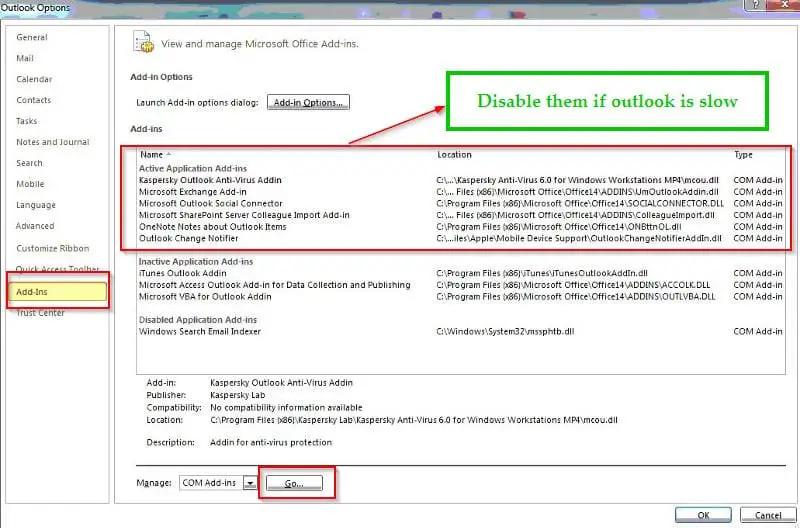
    To disable the add-ins you can do the following.
    1. File > Options > Add-ins
    2. In the following dialog box, check any type of add-ins like Application-Addins and click Go.
    3. If any add-ins are checked, uncheck them.
    4. Restart Outlook in normal mode.

    If Outlook starts normally, then that add-in is the culprit. If it doesn’t then you uncheck each other add-ins in different category. This will rule out the problem with add-ins causing the Outlook 2016 not working in Windows 10.


    3. Sometimes the problem may lie with device drivers not working properly in Windows 10. This can be resolved by updating the drivers, using any third-party tool which automatically finds all the relevant drivers for that software and updates them.

    As a general measure you can also do the following.
    For Windows 10.
    1. Start > Settings > Update & Security > Windows Update.
    Check online for updates.

    If any of them are available, then update your OS.

    Sometimes Outlook 2016 updates are also installed during this process. Microsoft sometimes releases these updates to repair any security or not working issues. Once they are patched up, it may start working again.

    4. Another problem which is less often seen in Outlook 2016 is you cannot send or receive e-mail. This was seen in the earlier editions like 2007, 2003 and 2002.

    Whenever you face this problem, you backup your existing profile if possible. Then create a new Outlook profile.

    a. For this click User Accounts > Mail.
    The Mail Setup dialog box will open.

    Click Show Profiles. If any profile exists, make it as the default profile. If that resolves the problem continue.

    Otherwise, delete that profile and create a new profile with the default settings. Then make it the default profile, which can be done as follows.

    a. On the Mail dialog box, under “When starting Microsoft Outlook, use this profile” box, click to select the profile you created. Click OK.

    5. Another problem is when Outlook hangs up when you try do a task. For example you try to archive and/or move large number of messages at once. This causes Outlook 2016 to work behind the scenes. Sometimes this looks as if Outlook is stuck. Give it a few minutes to finish the process. Then Outlook 2016 should start working again.

    If not try another solution.
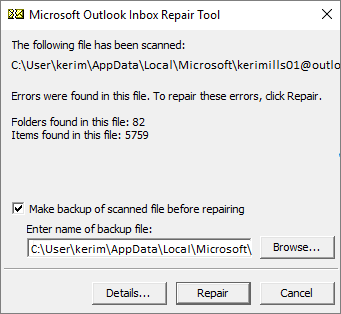
    When you install Office 2016, an Inbox Repair Tool (SCANSPST.EXE) is also installed on your PC. This can scan your Outlook related system and data files and repair errors.

    To use this tool, go to Search box and type SCANPST.EXE.
    Outlook 2016: C:\Program Files (x86)\Microsoft Office\root\Office16

    Run the file. In the “Enter the name of the file you want to scan” box, you type the name of the .pst file, you want the tool to check. Otherwise, you can browse the file. Choose “Start” to begin the scan.

    If the “Scan” finds the errors, choose the “Repair” option available at the bottom.
    When the repair is complete, you use the “Profile” which is working earlier and Outlook should work properly.

    scan outlook 2016 pst file

    6. Some times Microsoft Exchange Server which works in office and large-scale environments, connects to Outlook 2016 through an offline Outlook Data file (.ost). This is a data file. It contains all the information saved on your mail server.

    If any problems with this file, don’t try to repair it. Instead delete the offline file and recreate it by downloading all of your items again from online mode.

    7. For example in Office version 1705 (Build 8201.2193 Click-to-Run), Outlook 2016 crashes on startup. It shows a message that “Microsoft Outlook has stopped working“. It registers an Application Log error 1000 with mso20win32client.dll as the faulting module.

    You can try all the above fixes like run online repair, creating new profiles, using Fix it tools, disabling third-party add-in etc, but the problem may not get resolved. This mainly occurs if your Outlook is in an Network environment like Microsoft Exchange.


    To resolve this issue, you can make sure that “Exchanged cache mode” is configured for each user. If you run in Sophos environment, then you can disable this option under policies.

    “Protect Office Applications”.

    8. Another simple fix is to try out the following commands which can resolve the issue.

    cmd (run as administrator)
    — %programfiles%\Common Files\Microsoft Shared\ClickToRun
    officec2rclient.exe /update user updatetoversion=16.0.8431.2094
    (8431.2094 brings office back to the beginning of October 2017)

    1.Start Outlook.
    2.Click File, and then click Office Account.
    3.In the Product Information column, click Update Options, and then click Disable Updates

    Symantec Endpoint 14 latest service patches
    Windows 10 1709 latest service packs
    Office 2016 latest service packs

    You can still keep the Symantec Endpoint Outlook Add on enabled.

    Source : https://community.spiceworks.com/topic/1982552-microsoft-outlook-has-stopped-working-outlook-2016?page=2


  • 8 Ways to Fix Control Panel not Responding in Windows 10

    There can be several reasons for control panel not working in Windows 10. This post will tell you the different ways to troubleshoot this issue.

    Control Panel is the core of many tools in Windows 10. Sometimes, it closes automatically while opening or working on some of its inner features.

    Microsoft users complained that they can’t access control panel in Windows 10 when they upgraded from Windows 8.1 or 7. Make sure all the relevant new updates are installed as of July 2022.

    You can’t open sound item sometimes, which can hinder solving audio issues.

    Sometimes, the .cpl files which are the core of the Control panel may get corrupted, computer may get infected with virus, start up program list may get corrupted, windows 10 software licensing service may not be running etc.

    Drivers can be the common reason for causing this issue. It may be due to IDT High Definiction Audio Codecs. You can’t open control panel if your IDTNC64.cpl system file is corrupted in Windows 10 or 8.1 or 7.

    The Windows Error Reporting Service is useful to debug errors when your Windows 10 OS halts or hangs. It can be the root source for control panel won’t open error. You can stop the service if not wanted otherwise.

    In this post we are going to see 8 ways to solve control panel not responding error.

    Important Note : Before you get your issue resolved, create a system restore point so that you don’t corrupt your OS.

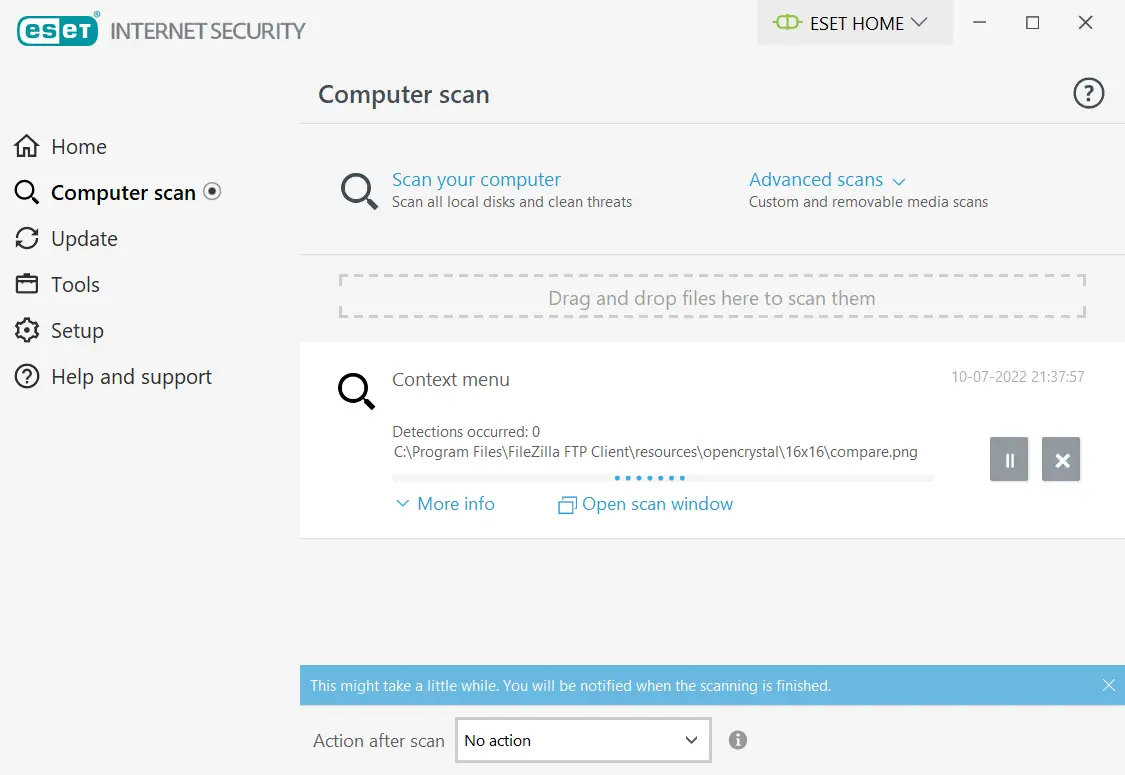
    Fix #1: Run an Anti-Virus Scan

    The Windows Defender present in 10, is a good anti-virus product developed by Microsoft.

    It is no less than other products and can detect any virus or trojans that may have corrupted your system. So as an initial defense, first run a full scan of your computer.

    If you find any malware remove them. This is the first major step you need to take if your control panel is not working. If this doesn’t work out, move to the next step.

    can t open control panel windows 10
run anti virus scan

    Fix #2: Safe Mode or Clean Boot State

    The easy solution for many Windows problems is running your computer in safe mode. In the same fashion, if you run your PC in safe mode and if the Control panel is working, then it should resolve itself. If that doesn’t work out try the next step.

    Clean startup program list. You can disable not required items.

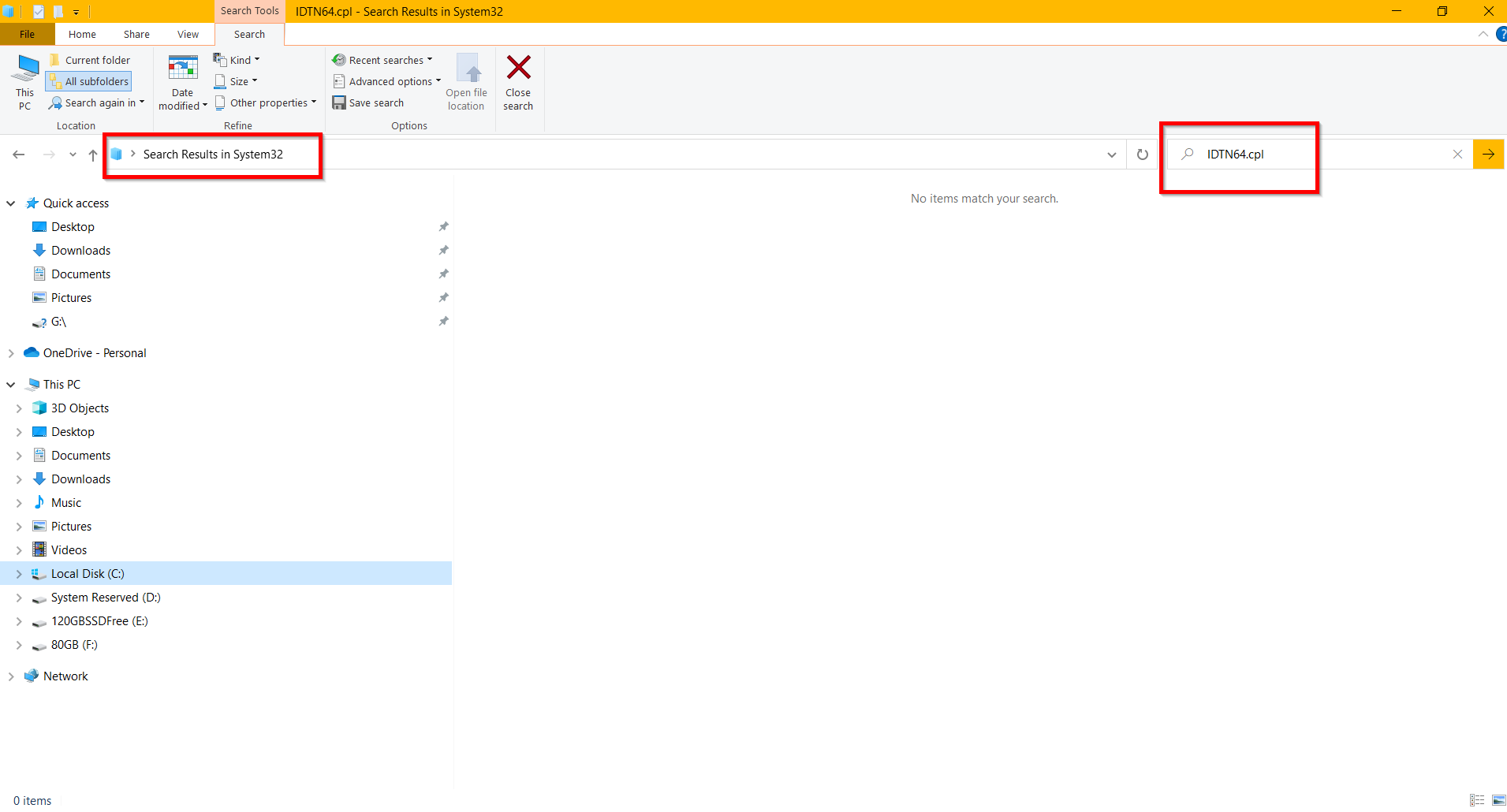
    Fix #3: Check IDTN64.cpl and sttray64 files

    The most common cause for this issue, is that one of the system files may get corrupted.
    Navigate to C:\Windows\System32 and you will find the IDTN64.cpl.

    Also in <OS Drive :>\Windows you can reach the sttray64 file. (most probably on a 64bit computer).
    If its a 32 bit file, you will find a similar file.

    Delete them and restart Control Panel and see if the problem is resolved.

    control panel wont open

    Fix #4: Registry Fix

    Before applying this fix, you take a backup of the registry.
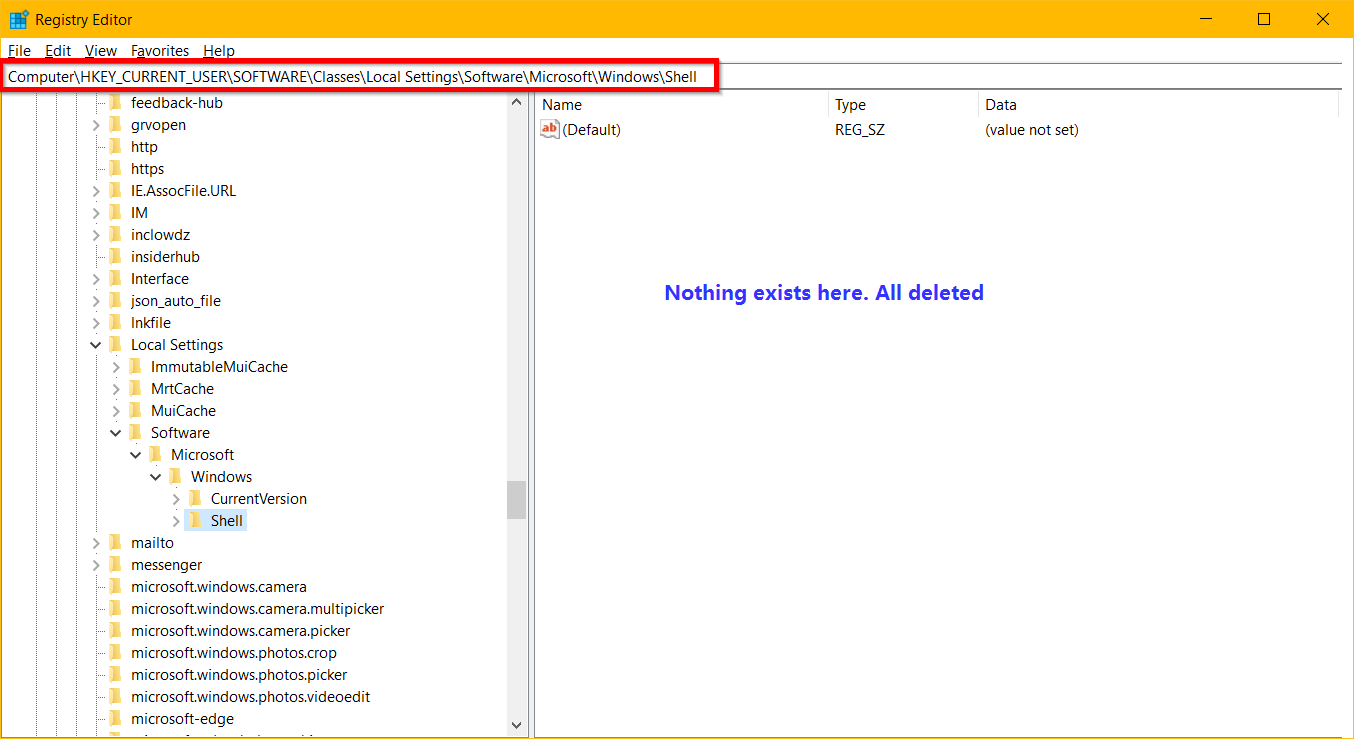
    Find the following registry entry, by typing regedit in the Run box.

    HKEY_CURRENT_USER\SOFTWARE\Classes\Local Settings\Software\Microsoft\Windows\Shell.

    Delete the following entries – BagMRU and Bags folders.
    Restart your computer and start Control panel to see if this fixes the issue.

    Source: http://answers.microsoft.com/en-us/windows/forum/windows_10-other_settings/cannot-open-control-panel-win-10-build-1058636/6018f169-2190-401f-a702-e5c58cbd0bce

    windows 10 control panel not opening registry

    Fix #5 : Use sfc command to scan your PC

    Some times your system files may get corrupt. You don’t know which system file is causing the Control panel issue. It’s better to check them all and rectify the incorrect one. In elevated command prompt, you can apply the following command.

    sfc /scannow

    This will scan the system files and correct them also.

    Fix #6: Use Microsoft Tool

    The following is the link to the fix it tool available under Microsoft downloads.
    http://download.microsoft.com/download/F/2/2/F22D5FDB-59CD-4275-8C95-1BE17BF70B21/CSSEmerg67758.diagcab

    Download it and run the file.

    This will scan the computer and the utility will fix any issues with control panel. It works with Windows 10 too.

    I recommend this tool as it is by Microsoft themselves and is the easiest way to rectify the problem.

    https://youtu.be/5Fm5RuIKsa0
    I

    Fix #7: Resolution Scaling can cause Problems

    Sometimes the strangest of reasons can cause this issue.

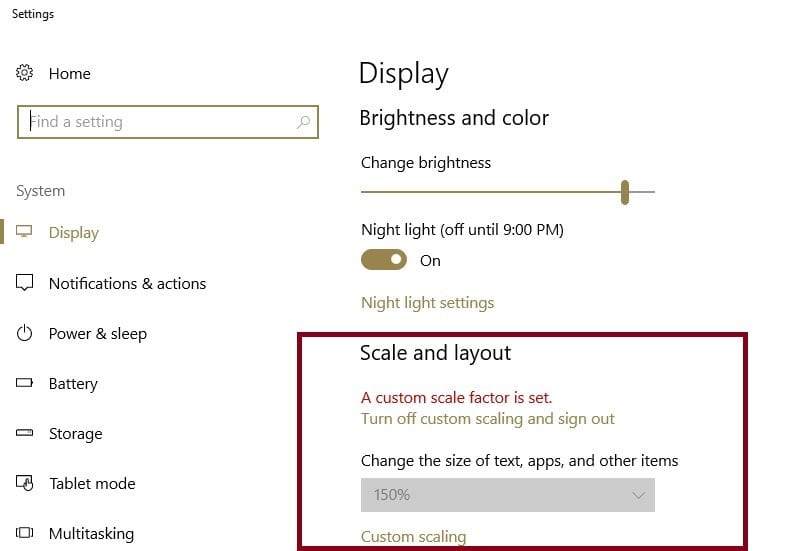
    For example, based upon your monitor size like 15″, 21″ etc, you may adjust your scaling to 150% or 100%. This is completely different from resolution. It can be done in the following way in Windows 10.

    Start > type ‘Change the size of apps on the screen’ and double click on the first result. Go to Custom scaling and change the value back to 100%.

    set scaling display in windows 10

    This can resolve the problem in Windows 10 where text, apps scaling is one of the provided features.

    Fix #8: Clean Installation of Windows 10

    The last resort, if you risk wasting some time is to completely do a fresh installation of Windows 10 again.

    This is because, the control panel not working in Windows 10 mainly occurs for the reason when you upgrade from 7, 8, 8.1 to 10.

    So if you a completely new install of Windows 10, any remnants of old OS files will be removed and will work for 100%.