Author: Palla Sridhar

  • Fix Boot Error 0xc0000428 and 0xc0000034 in Windows 10 or 8.1 or 7

    When you boot up your computer, if you see “\Windows\system32\winload.exe” file missing with error code 0xc0000428, you are more likely to format the system.

    But is it necessary?

    You get an information message saying that

    “Windows cannot verify the digital signature for this file”.

    The first-aid for this issue is to disable digital signature enforcement, if you can boot into your computer. This can be done normally by pressing the F8 key. You will find different options.

    disable driver signature enforcement windows 10

    Related : [Worked] 0xc000000e Solved on Windows 10 : Boot Error is Fixed

    Info about “0xc0000428” error

    Below are the details about this error gathered from different sources.

    A recent hardware or software change might have installed a file that is signed incorrectly or damaged, or that might be malicious software from an unknown source.

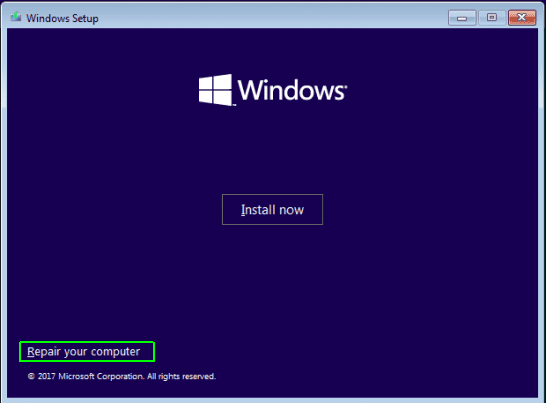
    If you have a Windows installation disk, insert the disk and restart your computer. Click “Repair your computer“, and then choose a recovery tool.

    Otherwise, to start Windows you can investigate further. Press the Enter key to display the boot menu, press F8 for Advanced Boot Options, and select Last Known Good.

    If you understand why the “digital signature cannot be verified” error is coming, start Windows without this file. Temporarily disable driver signature enforcement.

    File: \Windows\System32\winload.exe
    Status: 0xc0000428
    Info: Windows cannot verify the digital signature for this file.

    0xc0000428 error in Windows 10

    More : Fix Error 0x80070bc2 in 30 seconds when you try Update Windows 10

    User Feedback about Error Code “0xc0000428”

    A typical error due to 0xc0000428 will look like the below. You can see the causes and solutions for this problem, as you continue reading.

    whenever I start my PC (upgraded to win 8.1) I reach the windows symbol. Then I come into a blue screen with an error message. Your PC needs to be repaired. Also it shows an error code: 0xc0000428. It says:

    “Your pc needs to be repaired

    The operating system couldnt be loaded because the digital signature of a file couldnt be vertifiedFile: windows\system32\drivers\sfsync02.sys Error code: 0xc0000428 You’ll need to use recovery tools on your installation media. if you dont have any installation media , contact your system administrator, or pc manufacture.”

    When I follow the instructions in other forums it doesn’t worked. I already tried the automatically repair of my originally win 8 disk. But I get no other reactions of my PC…

    https://answers.microsoft.com/en-us/windows/forum/all/your-pc-needs-to-be-repaired-error-code-0xc0000428/cbd830d2-9d8a-43ee-9605-0c47f3a51adc

    Like this: [Solved] How to Fix Error Code 8024402c in Windows 10 or 8.1 or 7 or Server 2012 or 2008?

    Cause 1: Old BOOTMGR is being used

    If there is a Windows 10 upgrade and you have updated your system. But Windows 7 or Vista boot loader is being used which has not been updated to the new version. Then error 0xc0000428 occurs.

    Related –

    Cause 2: Dual Boot System with old BOOTMGR

    If you are using Windows 7 on one hard disk and you connected a new SSD. Then you installed Windows 10. This is a multi-boot system. But the boot loader is still the old one. So the new OS cannot detect the old BOOTMGR. This will halt the boot process. It is a software error.

    Cause 3: Service Pack Problem

    Just like in XP where SP2 and SP1 in Windows 7 are released, updates like 1709 or 1803 or 1809 updates are being released by Windows 10. The new Creators or October update will still being using the old version of the BOOTMGR. Since it is not updated to the level of the new upgrade, you can get this error.

    Cause 4: BOOTMGR remaining on existing drive

    Many people, as a safety precaution, disconnect the primary boot drive prior to installing Windows 10 on a new drive. This will cause the system boot loader on the main boot disk to outdated, while the new OS will try to find a new one. This conflict can also cause this error.

    How to Fix “0xc0000428” on Windows 10

    There are several ways to fix this problem.

    Fix #1: Update BOOTMGR manually

    The following are the commands that are to be executed to fix the error.

    1. Boot Windows 10 from installation DVD or USB. (You need to press the DEL or F12 or F2 keys to enter BIOS options. Then you need to make your installation disk (CD/DVD/USB) as your first boot device).
    2. change boot order to windows installation usb
    3. After selecting language and keyboard layout, click on Next.
    4. Click on Repair your computer.
    5. Select the boot HDD and your Windows 10 installation drive.
    6. Choose “Command Prompt” under Advanced Options.
    7. Type the following commands.

    First you can rebuild your boot manager using the following commands. Enter each command and you should get a successfully verified message.

    bootrec /rebuildb--
    bootrec /fixmbr
    bootrec /fixboot

    Then you can restart the computer.

    Note: Don’t forget to change the boot order to your active hard drive.

    change to active boot partition windows 10 8.1 7

    If the above commands fail saying that your OS partition is denied access, then enter the following command.

    B--boot C:\Windows /s D:

    Where C:\Windows is your Windows installation folder and D:\ is your active boot partition.

    Generally, it is not required to update the MBR or apply the bootrec commands for this error code 0xc0000428.

    This is because, in most of the cases, BOOTMGR is correctly configured. Then you need to only apply the last command.

    You can also follow this YouTube video which will show how to open Command Prompt window using Windows 10 installation media like CD or DVD or USB.  Then you can enter any boot commands to restore your boot files.

    Fix #2: Change the Hard Disk Boot Priority

    If you have multi-disk and multi-boot system, then there is a possibility to get this error.

    For example, if you have HDD as DISK 0 and SSD as DISK 2, you need to make the correct drive as boot disk.
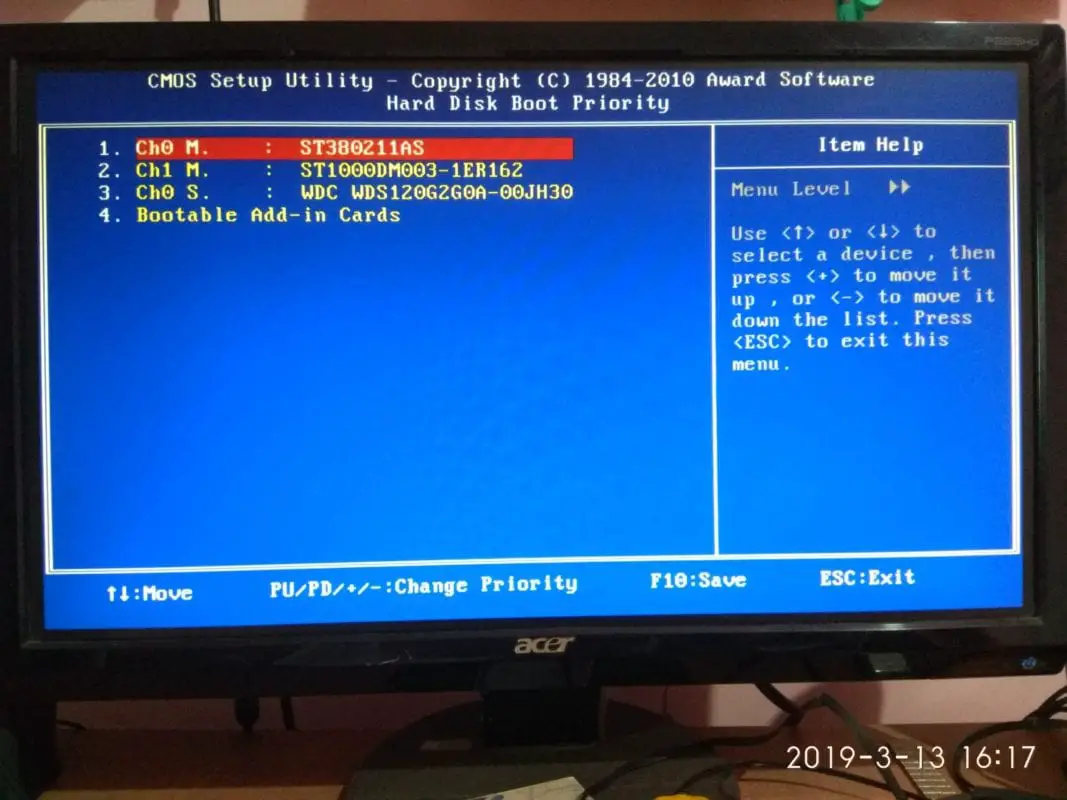
    change hard disk priority to fix 0xc0000428

    When you have Windows 10, 8.1 and 7 on different hard disk, it is important you always make DISK 0 as the boot disk. This causes less problems.

    Always make the boot drive partition as the first disk to load using BIOS options. If you have multiple drives on your boot disk, make sure the first partition is where the BOOTMGR resides.

    Fix #3: Use EasyBCD to Write MBR and Install BootLoader

    As mentioned in the causes above, if you have updated your Windows 10 OS, the boot loader also has to be updated.

    Even when your HDD is disconnected to install a new OS, the old boot configuration data may not be compatible.

    In many cases of dual boot or multi-boot system, it is better to rewrite the boot loader and MBR again to fix 0xc0000428 problems.

    For such cases, you can use a software called EasyBCD which creates the required boot files very easily.

    Fix #4: Repair BOOTMGR Data

    This works in many of the cases as reported on wintips.org. You have to apply a few commands to implement this solution.

    1. Boot your computer from the Windows 10 installation media like DVD or USB. You need to make necessary changes in the BIOS.
    2. Then select your language and keyboard layout and click on “Repair your computer“.
    3. In the Troubleshooting > Advanced Options > Command Prompt you have to type a few commands.

    a. In command prompt give these commands:

    • diskpart
    • list volume

    – Notice the Volume number of the System Rese (“System Reserved”) volume and the Driver Letter of the OS Volume. *

    * The “System Rese” volume contains the Boot Manager and the Boot Configuration Data, it has the smallest size (e.g. 100MB, 350MB) of all volumes and if you use an UEFI based computer then the “System Reserved” is in Fat32 format (aka “EFI” volume).
    ** The OS volume is the partition where the Windows is installed and commonly is the largest volume in size (GB).

    e.g. In this example:

    The volume number of the “System Rese” Partition is “2”
    The drive letter of the OS volume is “D”.

    fix error 0xc0000428 command prompt

    b. Select the System volume by typing this command: select volume 2

    * Note: Replace the number “2”, according to your case.

    c. Then give these commands:

    • assign letter=Z
    • exit

    d. Finally type this command:

    • b–boot D:\windows /s Z: /f ALL

    * Note: Replace the letter “D”, according the drive letter of the OS volume in your case.

    e. Restart your computer and try to boot in Windows normally. If Windows doesn’t boot, then follow the same steps, but at the end, type this command:

    • b–boot D:\windows /s Z: /f UEFI

    How to rectify Error “0xc0000428” if the above fail

    You can use your “Windows Installation” disk or USB to repair your computer, if the boot fails. Then you can open Command Prompt and type the following commands one by one.

    diskpart
    list disk
    select disk <#>
    list partition
    select partition <#>
    active

    This will make the OS partition active.

    You can then use BCDBoot command-line tool, to configure the boot files on a PC or laptop to run Windows 10 or 8.1 or 7.

    This is useful in the following 4 ways.

    1. Add boot files to a PC after applying a new Windows image
    2. Set up the PC to boot to a virtual hard disk (VHD) file that includes a Windows image.
    3. Repair the system partition
    4. Set up or repair the boot menu on a dual-boot PC.

    BIOS:

    • BCDBoot copies the boot files to either the active partition on the primary hard drive, or the partition specified by the /s option.
    • BCDBoot creates the BCD store in the same partition.

    Then apply the following command.

    b--boot C:\Windows /s S:

    The following example copies BCD files from the C:\Windows folder to a system partition on a secondary hard drive that will be booted on another computer. The system partition on the secondary drive was assigned the volume letter S:

    Source : https://docs.microsoft.com/en-us/windows-hardware/manufacture/desktop/b–boot-command-line-options-techref-di
    This is helpful when you have a dual-boot or multi-boot scenario.

    It works with all Windows OS. For example, of you are having Windows 10 and 7 on the same computer, then you can use the above commands.

    Note: It may not work with Windows and Linux as a dual-boot scenario. This is because it is a DOS command line tool, which will work with Windows OS only.

    If you get error code 0xc0000428 while booting on a dual-boot system, then the best bet would be to boot into one of the OS (like Windows 10 or Windows 7) first.

    Then using EasyBCD, you can later add the other OS.

    In a dual-boot scenario, when you have both Windows 10 or 8.1 and Windows 7 on the same system, it is best to leave the default Metro BootLoader.

    I faced problems trying to install the Windows 7 or Vista boot loader.

    0xc0000034 – How to Fix this Boot Error Code

    Boot loader errors like 0xc0000034 create trouble if you have no other support to troubleshoot. Either you should have another desktop PC or laptop with an internet connection to resolve your problem or find a Microsoft engineer to solve your issues.

    windows 8 boot error 0xc0000034

    How to Fix Windows 8 Boot Error Code 0xc0000034

    The error description goes something like this:

    Recovery Your PC needs to be repaired. The Boot Configuration Data file is missing some required information File : BootBCD Error code : 0xc0000034 You’ll need to use the recovery tools on your installation media. If you don’t have any installation media (like a disc or USB device) contact your system administrator or PC manufacturer.

    I earlier faced a similar issue with error code 0xc0000098 regarding booting problem and resolved it using the “b–boot” command. In that case the boot error solution was quick to solve. To resolve the issue this time, I searched Google for answers.

    Solution

    The fix that I applied was totally a different one compared to the earlier solutions. I thank “NeoSmart Technologies” for providing the command line editor commands in an easy manner.

    This solution is especially for Windows 8 or 8.1 users.

    For Windows 7 or Vista, you may need to try little different commands.

    Note: Since your Windows will not boot, you need a Windows 8 installation DVD to boot into and enter the Command Prompt tool which is available under “Repair your computer” option.

    The process involved applying commands in the command prompt Window in a 5-stage process.

    Stage 1 :

    We should first make sure that the MBR and bootsector contain the right references to the Windows 8 bootloader.

    bootrec.exe /fixmbr
    bootsect.exe /nt60 all /force

    Stage 2:

    Then we need to get rid of the old BCD registry and create a new one.

    Note: The important thing is that C: refers to the boot drive and also the Windows installation drive. If you are having a dual boot system, find out which partition is the active one.

    attrib -h -s C:WindowsbootBCD
    
    del C:bootBCD
    b--edit /createstore c:Windowsbootb--.temp
    b--edit.exe /store c:Windowsbootb--.temp /create {bootmgr} /d "Windows Boot Manager"
    b--edit.exe /import c:Windowsbootb--.temp
    b--edit.exe /set {bootmgr} device partition=C:
    b--edit.exe /timeout 10
    attrib -h -s C:Windowsbootb--.temp
    del c:Windowsbootb--.temp

    Stage 3:

    The Windows 8 bootloader is clean now and you need to add your Windows 8 installation entry to it.

    b--edit.exe /create /d "Microsoft Windows" /application osloader
    The entry {c0dfc4fa-cb21-11dc-81bf-005056c00008} was successfully created.

    Stage 4:

    Then we need to assign the device partition and set some path changes.

    b--edit.exe /set {c0dfc4fa-cb21-11dc-81bf-005056c00008} device partition=C:
    b--edit.exe /set {c0dfc4fa-cb21-11dc-81bf-005056c00008} osdevice partition=C:
    b--edit.exe /set {c0dfc4fa-cb21-11dc-81bf-005056c00008} path Windowssystem32winload.exe
    b--edit.exe /set {c0dfc4fa-cb21-11dc-81bf-005056c00008} systemroot Windows

    Stage 5:

    Finally, we need to tell the bootmgr bootloader to list the entry.

    b--edit.exe /displayorder {c0dfc4fa-cb21-11dc-81bf-005056c00008}
    

    Conclusion

    Though there are various solutions for this booting problem and error code, this is like altogether creating a new boot manager, wiping out of the old data.

    So if you had a Windows 8 Boot Manager, after applying these commands, you will see a Windows 7 or Vista styled Boot Menu.

    My Experience in a Few Words …

    I faced this issue, when I re-wrote the boot configuration data on my SSD disk. But this happened to be DISK 2 according to the disk management tool. I had 4 OS installed in my system. Only 2 of them were booting and error 0xc0000428 was displaying when I tried to boot into the other two.

    But earlier I didn’t have any problem when I installed the boot loader on DISK 0 which was a 80 GB HDD. So I reverted the changes. Hoila! It worked simply. I did not even execute any commands.

    It is always better to have a dual-boot system. Because, if you have problem with one OS, you can login into the other and make the necessary changes. If F8 works, then you can use the “Last Known Good Configuration” option and “Safe Mode with Command Prompt” to make necessary changes.

  • [Worked] 0xc000000e Solved on Windows 10 – Boot Error is Fixed

    You get 0xc000000e error code on Windows 10 when there is a problem with boot loader or wrong Boot configuration data.

    If you have multiple disks, only one of them is the boot disk.

    So, the boot configuration data is stored on one disk of all the related settings to boot different Windows OS.

    Even though you use bootrec commands to fix the boot loading options, it is important you change the order of the boot disk. You can have Metro bootloader or Windows 7 type, but the cause of the problem is the same.

    The typical error message for 0xc000000e will be like this –

    Recovery
    You’re PC/Device needs to be repaired…….
    File: \Windows\system32\winload.efi
    Error Code: 0xc000000e

    This can appear when your Windows 10 OS was deleted on one HDD, which is the boot drive. The boot order options could also have changed.

    boot error code 0xc000000e in Windows 10

    For example, having two disks like Samsung 850 Evo 1TB and Samsung SM951 m.2 NVME 128GB, can complicate the issues.

    You may get confused that the problem is with the hardware or some software. But many-a-times the real problem is with the boot loader configuration stored on your disk.

    There are different causes which can cause this Windows 10 error code issue.

    1. A required device isn’t connected or cannot be accessed
    2. Required device is inaccessible
    3. The selected entry could not be loaded
    4. The selected entry could not be loaded because the application is missing or corrupt
    5. The boot selection failed because a required device is inaccessible.

    Source : thewindowsclub.com

    As you can see above, the real cause for this error code 0xc000000e is either winload.exe file is not accessible or is corrupt or the boot loader location of Windows 10 is not accessible.

    fix 0xc000000e windows failed to boot

    How to Fix Error Code 0xc000000e in Windows 10

    The following solutions may be tried to fix this problem.

    1. Change the boot order of the disk, if you have multiple disks like HDD and SSD.
    2. Use Windows 10 Startup Repair feature using Installation Disk
    3. Apply BCD command to rebuild it manually
    4. Make your Disk Online
    5. Try third-party software

    Most-of-the-times, the above fixes will show you the way to solve error code 0xc000000e in Windows 10.

    1. Change the Boot Order in BIOS

    The first preliminary fix is to check, whether the boot disk is the first disk loading during booting.

    This can be done, by changing the options in BIOS.

    Most of the times, pressing F2 or F2 or F10 or ESC or DEL keys during booting will take you to BIOS settings.

    This depends on your PC manufacturer model and the BIOS software you are using.

    advanced bios options phoenix

    For example on Phoenix AwardBIOS CMOS setup utility, under “Advanced BIOS features” you have the following options.

    1. Hard Disk Boot Priority
    2. First Boot Device

    You can have multiple devices like USB, DVD, HDD etc connected to your PC.

    1. First make sure your HDD is the First Boot Device.
    2. If you have multiple hard disks or solid state drives on the same system, then you have to use Hard Disk Boot Priority.
    3. Go to the first option and press Enter. Then select the disk which is your boot disk and press F10.

    It will save your changes and Restart. If nothing is corrupt, you should be able to fix error code 0xc000000e and enter Windows 10.

    1. Use Startup Repair in Windows 10 Installation Disk

    Create a bootable Windows 10 installation disc. This could be either a DVD or USB. You can use an utility like Rufus to boot from USB. Otherwise, you can use software like MagicISO to boot from DVD.

    Insert the appropriate hardware and change the BOOT options to load from it, as mentioned above.

    Source : https://www.laptopmag.com/articles/windows-10-advanced-startup-options-menu

    The installation disc will boot up and select language and keyboard layout. Click Next. You will be taken to the next screen. On this screen, at the bottom you see, “Repair your Computer”.

    windows 10 repair disk

    Then click “Troubleshoot” > “Advanced Options” > Startup Repair.

    troubleshoot options windows 10 repair

    If it’s a small issue, this will fix problems that keep Windows from loading. This will also automatically solve the 0xc000000e error, as startup problem is the main cause for this issue.

    1. Rebuild BCD manually

    This solution is appropriate if the problem is due to corrupt boot loader. If the boot configuration data has been erred by some hardware change, then the BCD commands will fix this. This is the most common solution for error code 0xc000000e and in many-a-times solve the problem.

    1. Boot using the Windows 10 Installation dsic.
    2. Then go to “Advanced options”.
    3. But this time select “Command Prompt”.
    4. Enter the following commands one by one.
    bootrec /fixboot
    bootrec /scanos
    bootrec /fixmbr
    bootrec /rebuildb--

    Upon completion of each command, you will get a successful message. If you get any other error message then you  can try these troubleshooting steps.

    1. Access is denied while apply the fixboot command.

    fix Bootrec fixboot Access is denied during fix Boot configuration

    Then you have to type the following commands in the Command Prompt.

    Step 1: Type diskpart and press Enter key.

    Step 2. Type list disk and press Enter. Now check disk number to identify boot disk, this is usually Disk 0. if not, use the correct boot disk number.

    Step 3. Type select disk 0 (or your boot disk number) and press Enter.

    Step 4. Type list volume and press Enter. Now look for the volume number of EFI partition.

    Step 5. Type select volume 1 and press Enter. (Change volume to your number)

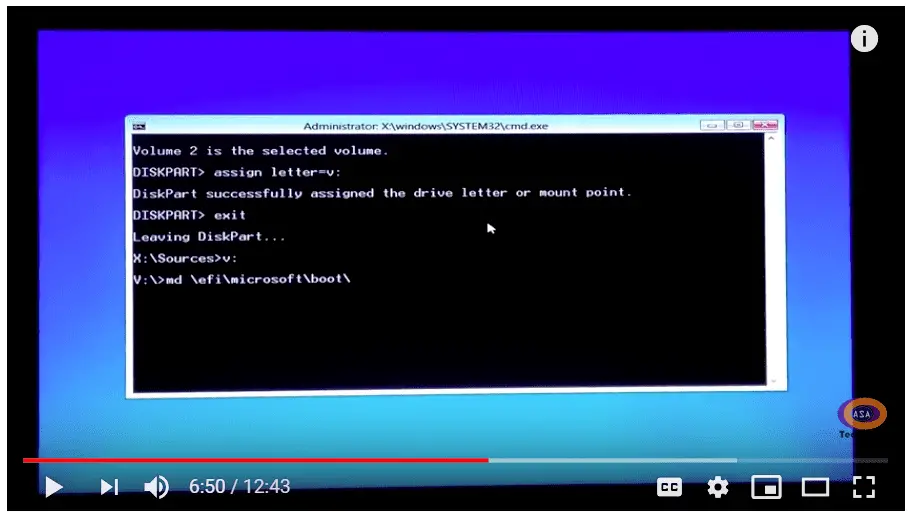
    Step 6. Type assign letter=V: and press Enter. V: can be replaced by any drive letter that is not in use by any partition.

    Step 7. Type exit and press Enter.

    Step 8. Now type V: (or the drive letter you just assigned) and hit Enter.

    Step 9. Type md \efi\microsoft\boot\ and hit Enter.

    Step 10. Type — /d V:\efi\microsoft\boot\ and hit Enter.

    Step 11. Now type bootrec /fixboot command, the problem should be solved now.

    Step 12. b–boot c:\windows /l en-us /s V: /f all

    The below YouTube video will show how to fix the Access is denied error while using the Fix MBR command. 

    If you have multiple OS on the same PC, you can add all of them to the new boot configuration. A prompt with different options is displayed during the /scanos command.

    If this still fails to boot your computer, then the correct order of the boot disc is the problem.

    So using the BIOS settings, you have to do trial and error of the correct disc on which the boot loader is situated.

    This happens when you have multiple disks.

    1. Make the Boot Disk Online and Scan Disks

    Sometimes, the boot drive can go offline and is not added to the boot loader settings. Then you have to apply the following commands.

    In the Command Prompt of your Repair Disc or Installation disc, as mentioned before, enter the following commands.

    1. diskpart
    2. list disk
    3. list volume
    4. select disk # (or) select volume #
    5. online disk # (or) online volume #

    Press Enter and restart the computer.

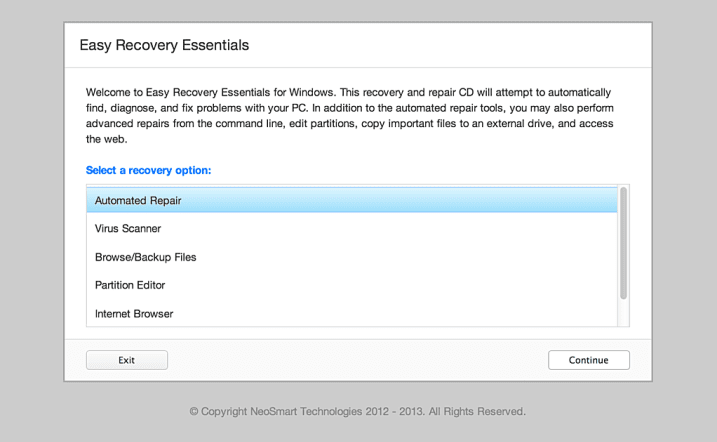
    1. Use EasyBCD kind of repair software

    There are several third-party software that will recover your corrupted boot loader. They will also scan the disks and do other functions. They are kind of repair software. You just have to boot them using an USB or DVD and make the disc bootable.

    easy recovery essentials fix 0xc000000e

    Once loaded, find the right options to regain your old boot order. This can check your hard disk for bad sectors and also make the correct drive bootable. The following are some of the software.

    1. Easy Recovery Essentials
    2. AOMEI Partition Assistant
    3. EasyBCD

    Some of the case-studies of the above error code can be like this.

    I just upgraded to Windows 10 on my laptop from windows 7 on a solid drive, All seemed to work fine at first, then I had this boot failure problem.

    “Recovery
    Your PC need to be repaired
    File: \Windows\system32\winload.exe
    Error Code: 0xc000000e
    You’ll need to use the recovery tools on your installation media, etc……
    Press Enter to try again
    Press F8 for Start-Up Settings”

    https://answers.microsoft.com/en-us/windows/forum/all/windows-10-needs-to-be-repaired-error-code/b510c535-0c4f-4c72-adfe-dbbaf54a086f

    I updated my Windows 10 OS few days back due to the forcible prompts to update.

    My laptop went out of power completely yesterday and after that I get the error Error Code 0xc000000e during startup.

    Tried many options like below :

    – bootrec /fixmbr
    – bootrec /fixboot –> Got Access is denied at this step
    – bootrec /rebuildb– –> Total identified Windows installations: 0

    The 2 TB SATA drive is not being recognized. I have important data in the hard drive, any ideas how to recover the data by a repair?

    https://answers.microsoft.com/en-us/windows/forum/all/windows-10-error-code-0xc000000e-during-startup/a0d73d2a-551d-4904-bf0f-9802aca1c878

    My Final Thoughts

    As you can see, the main cause of this error code 0xc000000e is to install the winload.exe on each OS and repair the boot configuration data. Then load the correct boot hard drive and you are back to normal.

    Sometimes, you have to try 2 to 3 different solutions mentioned above to solve your problem. Otherwise, you can use any of the software told above to repair your startup problems caused by the above error code.

    Applying the commands in the Command Prompt properly is also important.

    If you can rebuild MBR using the bootrec commands, then this error code will disappear. But sometimes, you may get error like access is denied, which can be fixed as mentioned above.

    If you have solved your error, mention your experience in the below comment section.

  • NVIDIA High Definition Audio Driver Update for Windows 10, 8.1 or 7

    NVIDIA High Definition Audio Driver plays a crucial role in enhancing your audio experience when using NVIDIA graphics cards, particularly for users running Windows 10 and Windows 11.

    This NVIDIA audio driver is designed to support high-quality digital audio output via HDMI and DisplayPort interfaces, offering seamless sound quality for movies, games, and other multimedia applications.

    Whether you’re a gamer, content creator, or casual user, the NVIDIA High Definition Audio driver ensures your audio is perfectly synced and immersive.

    For users running Windows 10, the NVIDIA audio driver for Windows 10 provides compatibility and ensures optimal performance of your system.

    The driver supports NVIDIA High Definition Audio and HDMI audio features, offering crystal-clear sound transmission to external audio systems, such as TVs, soundbars, and home theater setups.

    If you are looking for the latest version, you can simply head over to the NVIDIA High Definition Audio Driver Windows 10 download to get the most up-to-date version, whether it’s a 64-bit or a 32-bit version.

    One of the key advantages of using the NVIDIA High Definition Audio Driver is the ability to get the NVIDIA HD audio driver and HDMI audio working correctly.

    When downloading the NVIDIA High Definition Audio Driver Windows 10 64-bit download, you ensure better compatibility with your system, improving the overall sound output and avoiding common issues such as no sound or distorted audio.

    In case you encounter issues with your current version, such as no sound or malfunctioning audio, updating the NVIDIA audio driver can solve many common problems.

    The latest driver updates address various bugs and improve the overall performance of the NVIDIA HD audio driver. If you are on Windows 11, you can easily download the NVIDIA High Definition Audio Driver for Windows 11 for a smooth and uninterrupted audio experience.

    For those seeking the NVIDIA audio drivers for Windows 10 or Windows 11, downloading the latest driver version is essential to ensure optimal performance.

    The NVIDIA High Definition Audio Driver is compatible with various NVIDIA graphics cards, providing a reliable and high-quality audio output.

    Whether you’re installing the NVIDIA HDMI audio driver for Windows 10 or looking for the latest NVIDIA HD audio driver download, ensuring you have the correct version will help you unlock the full potential of your audio system.

    In summary, having the right NVIDIA High Definition Audio Drivers and keeping them updated will guarantee smooth and high-quality audio performance for your system, whether you’re using Windows 10 or Windows 11.

    What is NVIDIA High Definition Audio Driver

    HD audio drivers are not found easily for many of the NVIDIA products.

    This is because, NVIDIA sells a GPU (graphics processing unit). This includes both the video and sound cards.

    So what you require is NVIDIA GPU drivers.

    The following is an excerpt that emphasizes the same theory.

    In most cases, NVIDIA will install the HD audio driver along with the GPU drivers and other things like GeForce Experience.

    So if you are having problems with audio, just disable the NVIDIA HD audio in the Device Manager.

    Also, some motherboards support only the VIA or Microsoft default HD driver.

    The following are some of the NVIDIA products for which HD audio drivers are needed.

    • nvidia geforce 8600 gt driver
    • nvidia geforce 9400 gt driver
    • nvidia geforce 9600 gt driver
    • nvidia geforce gt 540m driver
    • nvidia geforce 7300 le driver
    • nvidia geforce gt 330m driver
    • nvidia geforce gts 450 driver
    • nvidia geforce gt 520m driver
    • nvidia geforce 9600m gt driver
    • nvidia geforce gtx 570 driver
    • nvidia geforce gtx 580 driver
    • nvidia geforce 7300 gt driver
    • nvidia geforce gtx 560 driver
    • nvidia geforce gt 525m driver
    • nvidia geforce 8400 gs driver
    • nvidia geforce gts 250 driver
    • nvidia geforce gt 240 driver
    • nvidia geforce 8800 gt driver
    • nvidia geforce 8500 gt driver
    • nvidia geforce gtx 460 driver

    1: Download the NVIDIA HDMI Audio Driver
    2: Use Device Manager to update NVIDIA Driver
    3: Download and Install the Driver from NVIDIA website
    4: Use third-party tool like Driver Booster

    The steps and screenshots mentioned below are with reference to Windows 10. Details will be similar in Windows 8.1 or 7.

    Method #1: Download and Install the NVIDIA HDMI Audio Driver

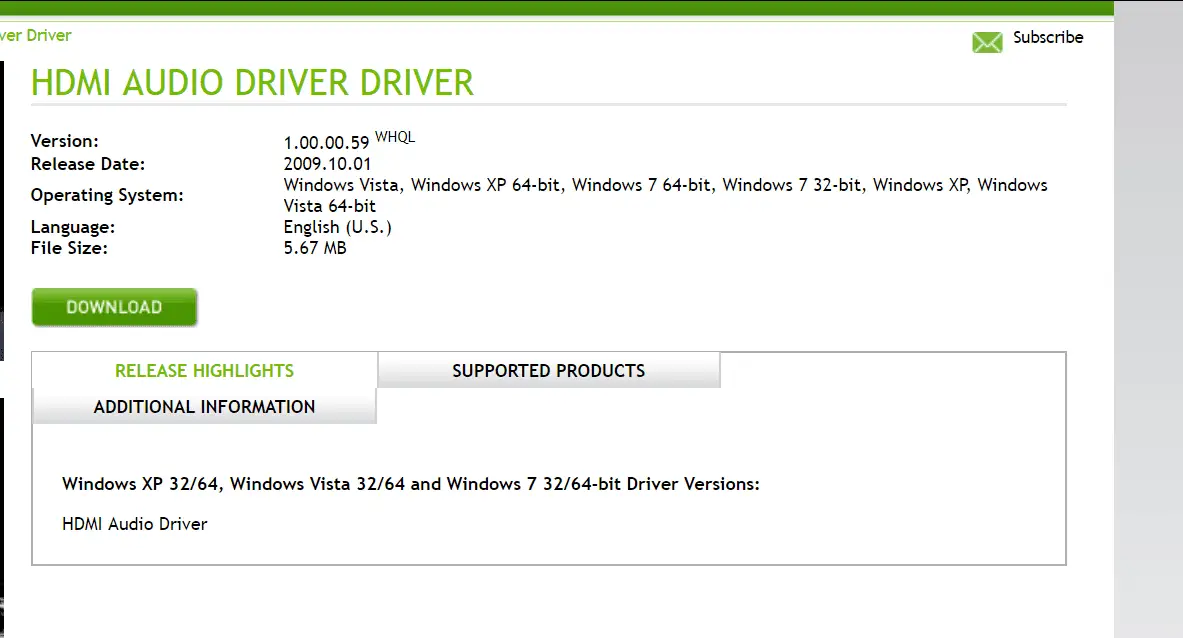
    A direct download link is given to download the HDMI audio driver for NVIDIA products. The latest version is 1.00.00.59. The release date is 2009.10.01. The file size is 5.67 MB.

    1. Visit the following link to download. https://www.nvidia.com/object/hdmi_audio_xp_vista_win7_1.00.00.59.html

    nvidia hdmi audio driver

    2. Click on the “Download” button.
    3. Run the .exe file, and it will update the NVIDIA drivers.
    4. If the drivers are not there, it will install them.

    This driver will support the following OS.
    Windows Vista, Windows XP 64-bit, Windows 7 64-bit, Windows 7 32-bit, Windows XP, Windows Vista 64-bit

    If you are using Windows 10 or 8.1, you can use the Win 7 drivers in compatibility mode.

    If this driver doesn’t work, then choose the next method.

    Method #2: Update the Audio Driver via Device Manager

    Do the following steps.

    1. Press Win+R and type devmgmt.msc.
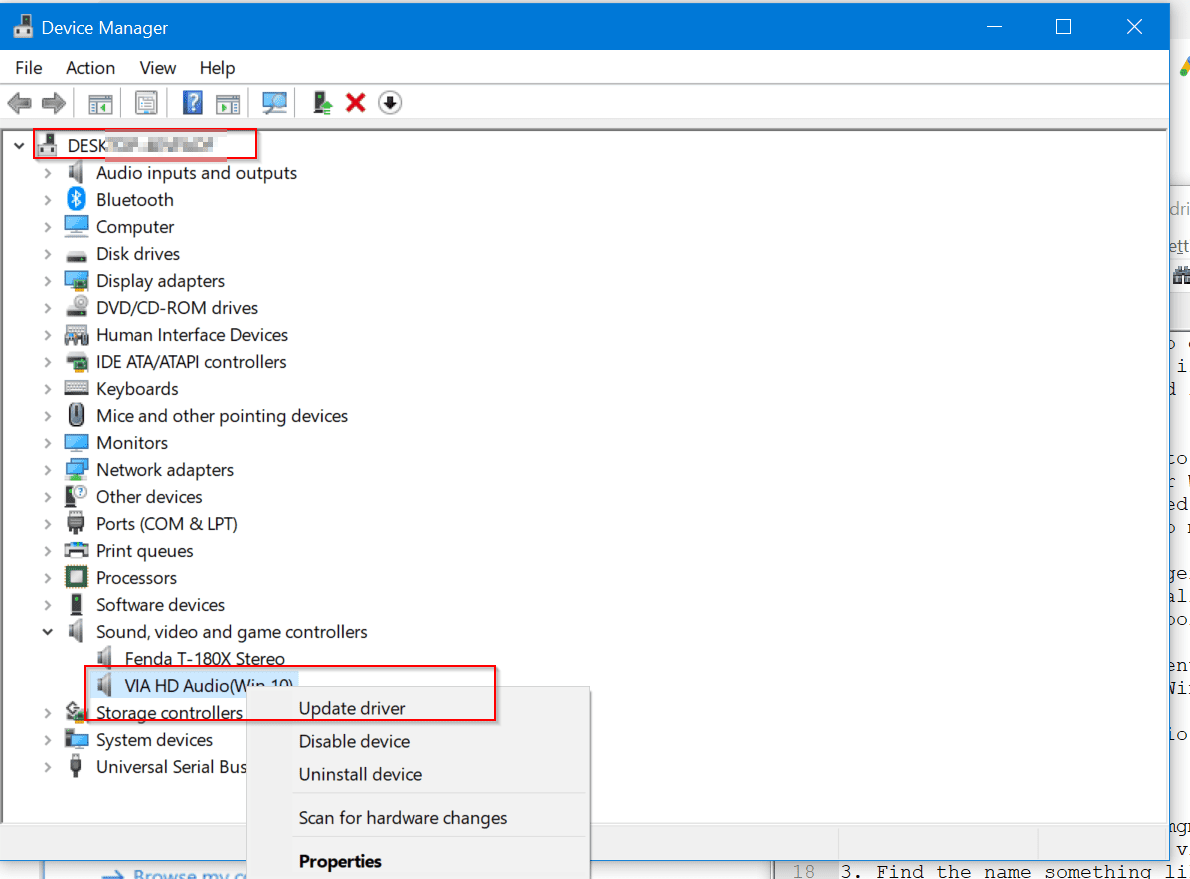
    2. (Computer Name) > Sound, video, and game controllers.

    update nvidia high definition audio driver device manager windows3. Find the name something like “NVIDIA High Definition Audio Device.”
    4. Right-click and click on “Update Driver.”
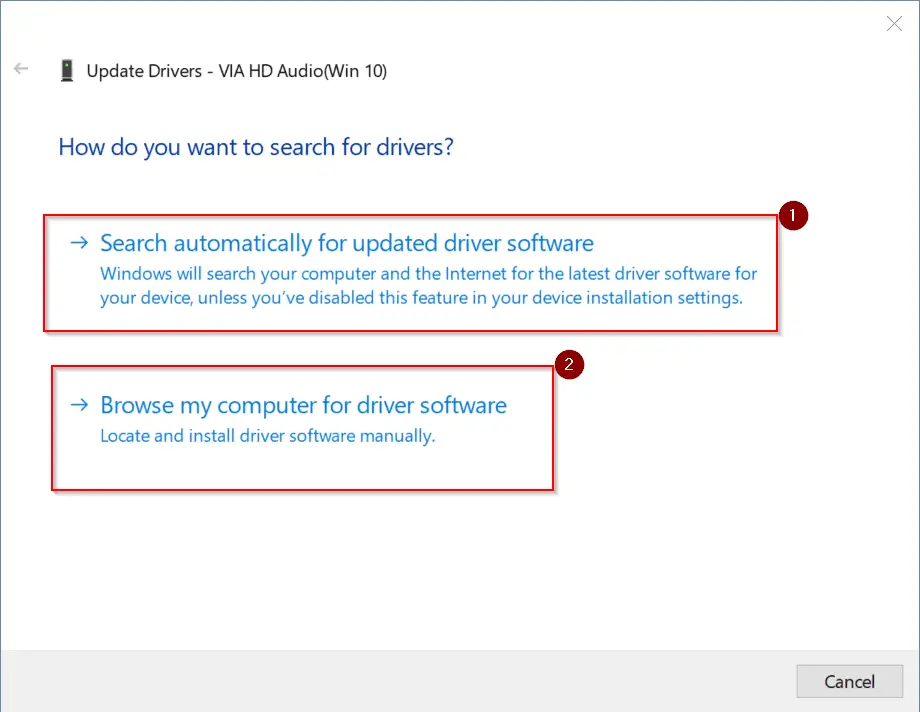
    5. There are two options

    Search automatically for updated driver software
    Browse my computer for driver software

    search automatically for drivers windows

    6. The first option will automatically check Microsoft servers for the updated version of the NVIDIA audio driver. If the latest driver is already installed, you can check “Windows Update” to get the newest version.

    searching online for drivers windowssearch nvidia drivers using windows update
    But this method is slow. It will take a long time to find the driver updates. The second option is much quicker and faster.

    1. Download the NVIDIA drivers from the location mentioned in the next approach. Then unzip it. Browse for the main folder path where these drivers are located. You can tick to include subfolders.

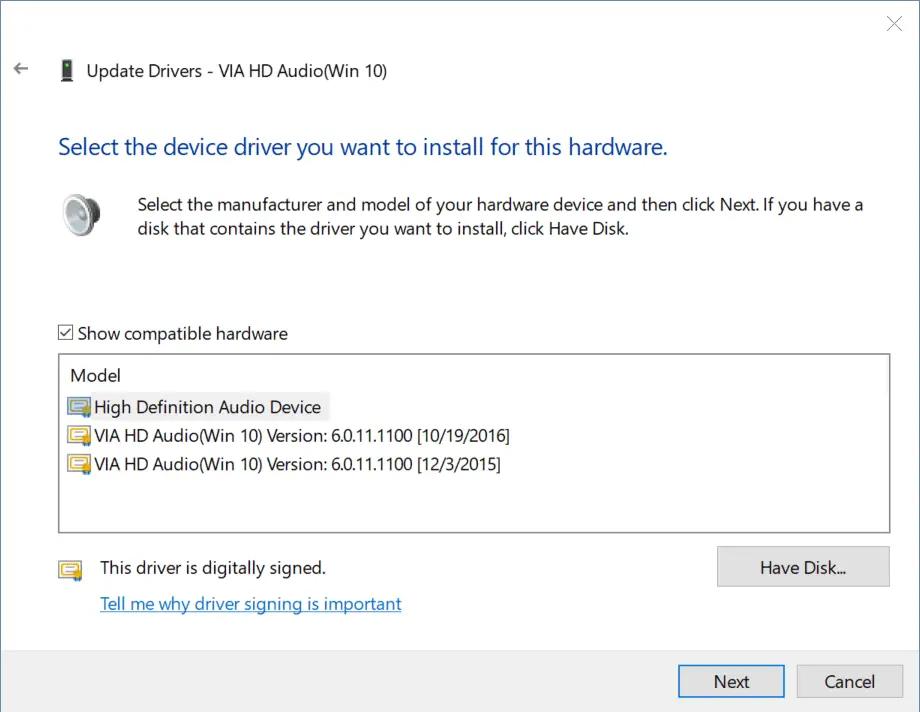
    browse for nvidia hd audio drivers manually2. Otherwise, you can use the option that says “Let me pick from a list of available drivers on my computer.”
    3. This will show some compatible audio drivers for your NVIDIA device.

    select nvidia driver windows 10
    4. Select the compatible hardware. In most cases, it will be “High Definition Audio Device,” which is from Microsoft. Then click Next and let it complete the process.

    Method #3: Download and Install the Drivers from NVIDIA Manufacturer site

    There are two ways to get the drivers for NVIDIA. You can either go to the laptop or desktop manufacturer’s website page and download the relevant audio drivers.

    But the motherboard or PC has to support the NVIDIA HD audio codecs. Otherwise, if you have a separate NVIDIA GPU card, you can download its drivers from the NVIDIA website page itself.

    Following are the steps.
    1. Visit the following page. https://www.nvidia.com/Download/index.aspx
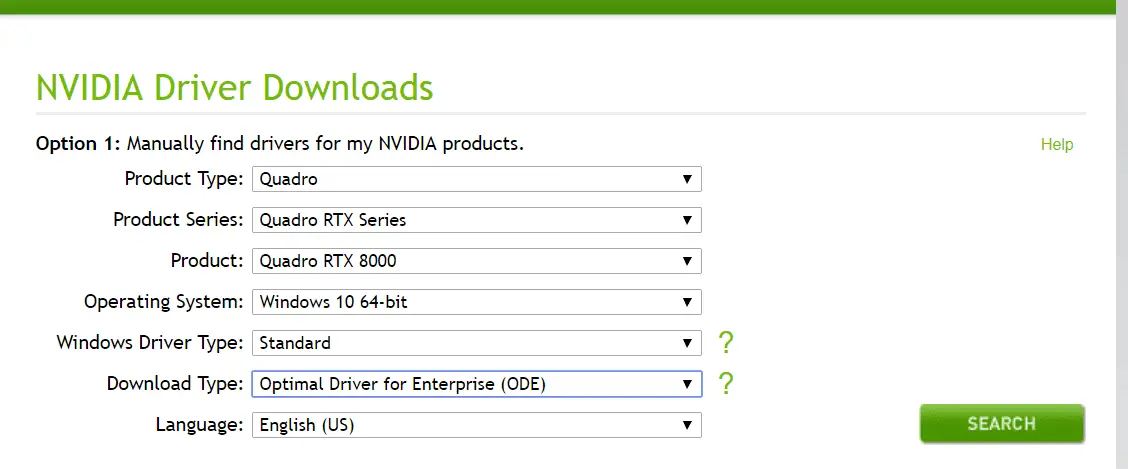
    2. There are two options.

    1. Manually find drivers for my NVIDIA products.
    2. Automatically find drivers for my NVIDIA products

    3. To download, manually select the first option. You have to provide the following details.

    1. Product Type
    2. Product Series
    3. Product
    4. Operating System
    5. Language
    4. Then click the “Search” button.
    5. On the next page, click the “Download” button.

    nvidia driver downloads windows 10 7geforce game ready driver downloadYour drivers are downloaded.

    If you are using Internet Explorer, you can automatically search and install the drivers.

    NVIDIA GPU Reader is a Java-based applet that identifies your GPU and finds the latest graphics driver for your GPU. It verifies your system information and uses it to download the right drivers. This is the second option.

    automatically find drivers for nvidia products

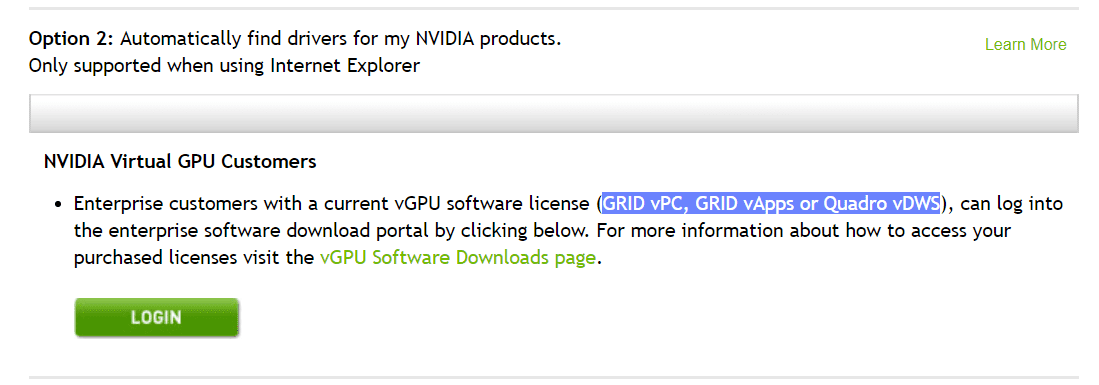
    For NVIDIA Virtual GPU customers also, HD audio drivers are provided. For this, you have to log in to the enterprise software download portal. You need to have a software license for it. It includes models like GRID vPC, GRID vApps, or Quadro vDWS.

    There are also high-definition audio drivers for beta and older devices. You can also find Unix Drivers, NVIDIA CUDA Driver for MAC, NVIDIA PhysX System Software, NVIDIA System Tools, Developer Tools and SDKs, Legacy Product Drivers, and Quadro Advance Options (Nview, NVWMI, etc.).

    beta old drivers for nvidia products

    Method #4: Update to the latest drivers using Driver Booster

    If you use a third-party tool like Driver Booster, you will get rid of the headache of finding the right drivers. Once the software is downloaded and installed, it will scan your computer and update to the latest drivers.

    Follow these steps.

    1. Download Driver Booster 6 and install it.
    2. Enter the license key for the Pro version. Now start the software.
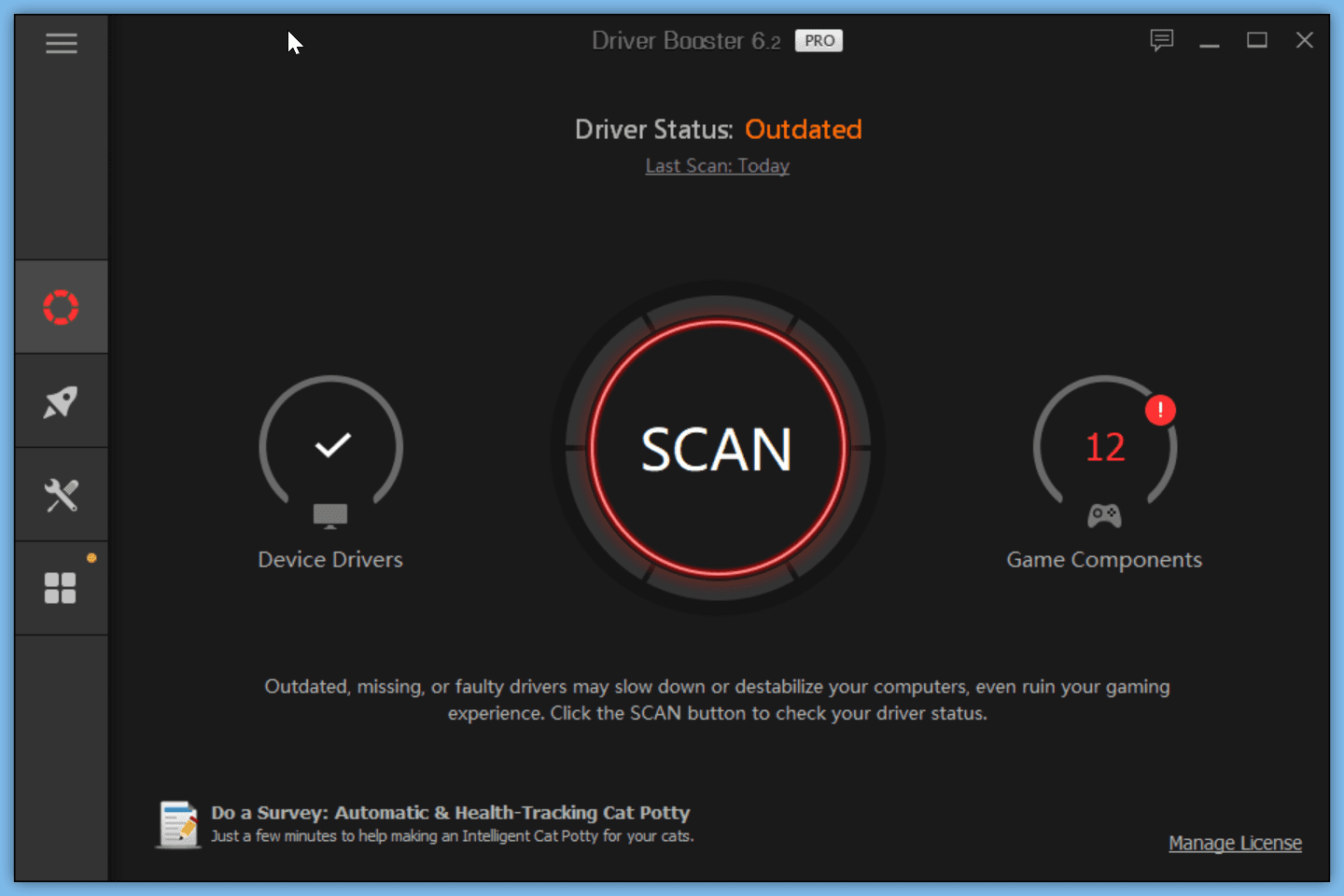
    3. Then click on the “Scan” button.

    driver booster scan for nvidia drivers4. It will scan your PC for different device drivers.
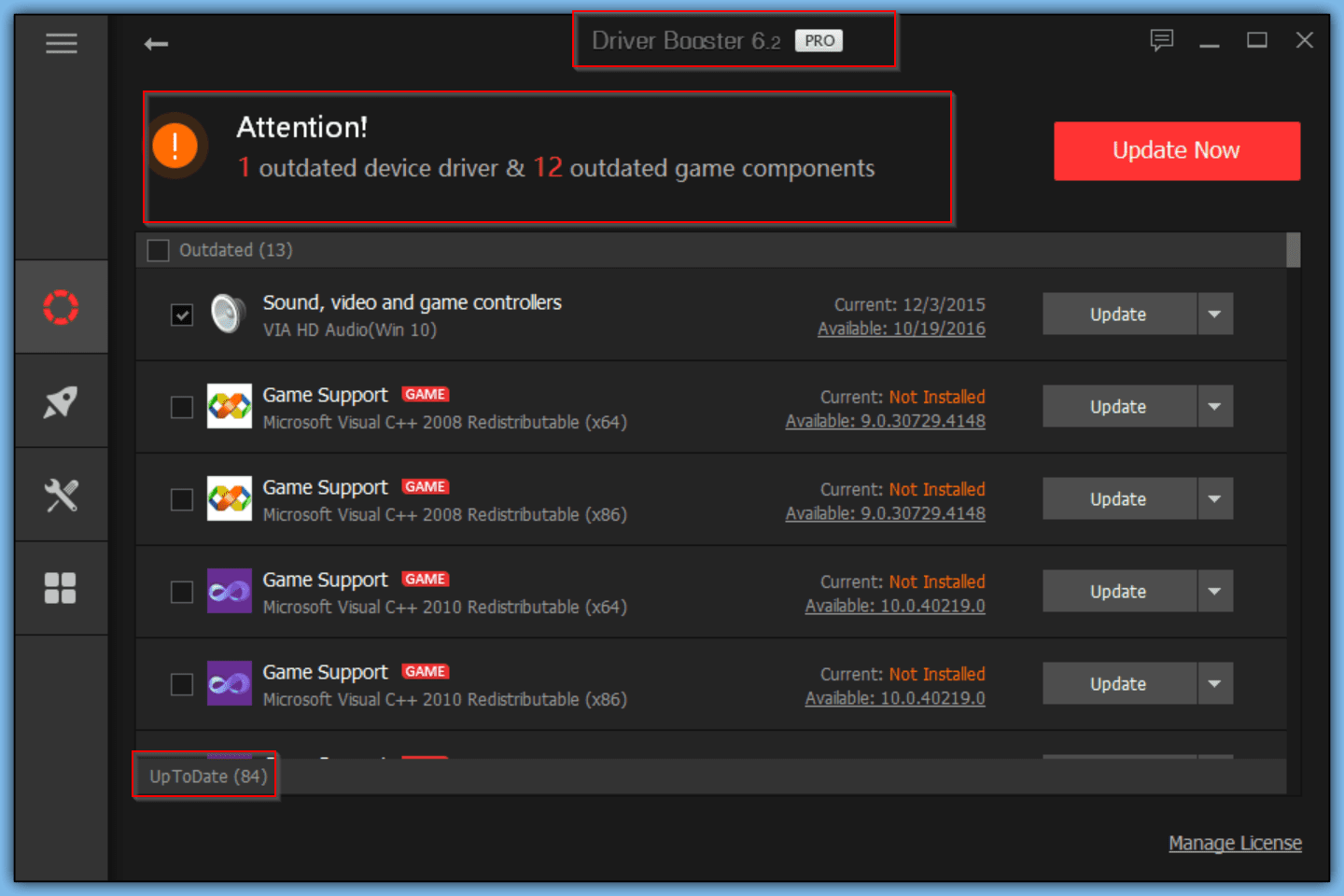
    5. If your NVIDIA HD audio drivers are outdated, it will show in the list.
    6. Select a particular product(s) and click on the “Update Now” button at the top.
    7. Otherwise, click the drop-down button beside a product and click on “Update.”

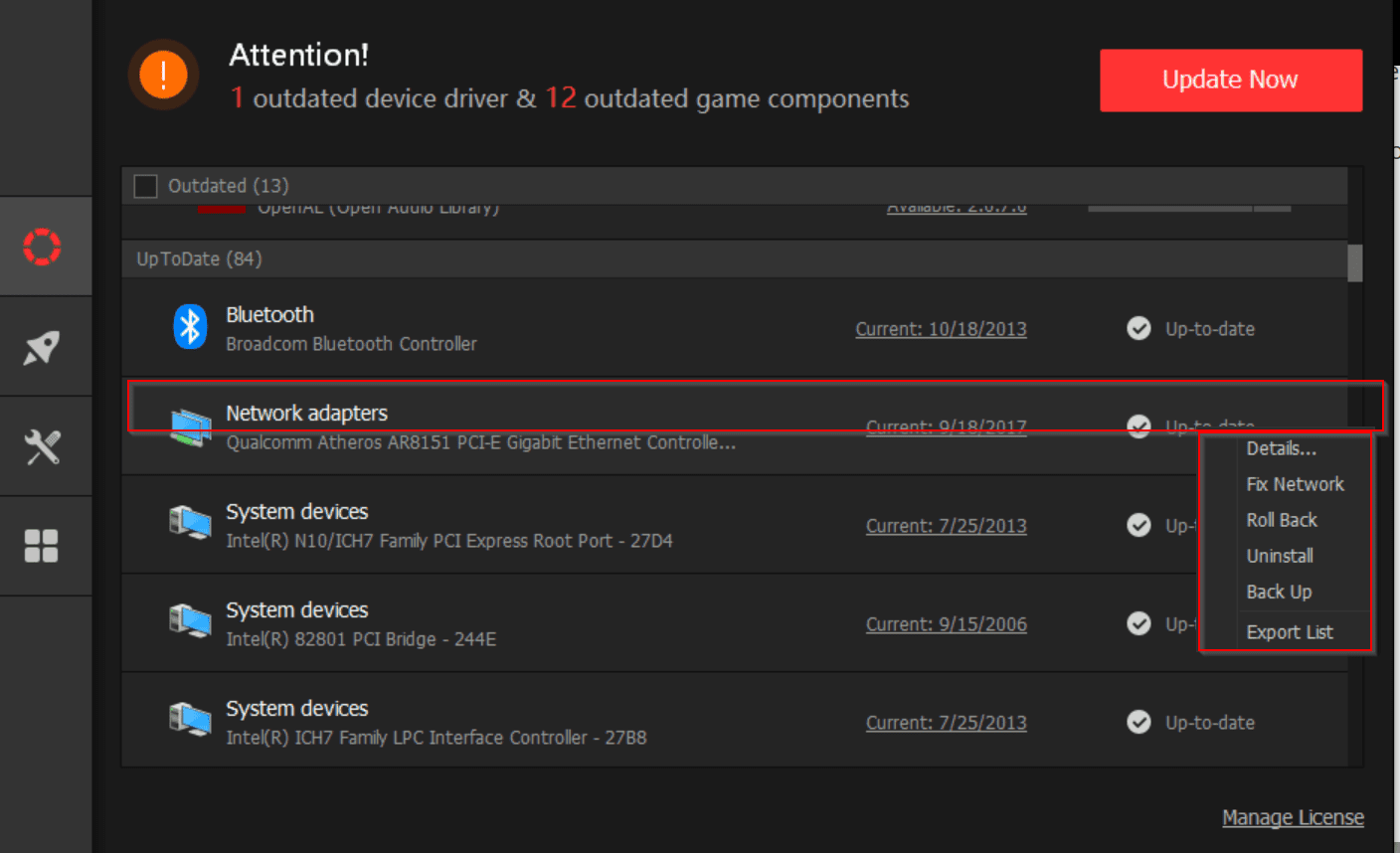
    update nvidia driver rollback uninstall driver booster

    8. You can uninstall, and roll back the installed driver, if it’s causing problems.
    9. In addition, a system restore point is created if anything fails, as a safety check.

    Conclusion

    In conclusion, the NVIDIA High Definition Audio Driver is an essential component for ensuring high-quality sound output when using NVIDIA graphics cards.

    Whether you’re running Windows 10 or Windows 11, having the correct audio driver for NVIDIA Windows 10 is crucial for seamless audio performance, especially when using HDMI or DisplayPort connections.

    NVIDIA High Definition Audio supports a variety of audio features that are necessary for clear and immersive sound, making it an indispensable tool for multimedia tasks like gaming, video streaming, and content creation.

    For Windows 10 users, downloading and installing the NVIDIA High Definition Audio Driver for Windows 10 ensures compatibility with your system and improves the overall audio experience.

    Whether you’re using the NVIDIA HD audio driver for Windows 10 64-bit or the NVIDIA audio driver download, having the latest version will prevent issues like audio lag, no sound, or poor sound quality.

    Similarly, NVIDIA Sound Drivers Windows 10 are vital for maintaining sound clarity and synchronization between your PC and external devices such as speakers, monitors, and TVs.

    In the case of Windows 7, the NVIDIA High Definition Audio Driver Windows 7 can also be installed, ensuring support for older systems while still offering high-quality sound.

    For users who need to update their drivers, learning how to update NVIDIA High Definition Audio is simple and crucial for fixing common issues and improving performance.

    For users running Windows 11, the NVIDIA High Definition Audio Driver Windows 11 and NVIDIA HD Audio Driver Windows 11 are equally important, as they ensure that your system can fully leverage the high-definition sound capabilities provided by NVIDIA graphics.

    In many cases, you may need to download the NVIDIA High Definition Audio Windows 10 or NVIDIA High Definition Audio Driver Windows 11 64-bit download to ensure the most up-to-date driver version.

    Updating your NVIDIA Audio Drivers for Windows 10 or NVIDIA sound drivers regularly can prevent audio-related issues and offer improvements in sound clarity and stability. Whether you’re looking to download the NVIDIA HD audio driver for Windows 10 or the NVIDIA High Definition Audio Driver update, ensuring you have the right driver installed will optimize your overall audio performance.

    In summary, keeping your NVIDIA High Definition Audio Drivers up to date is key to maximizing the audio experience on your system, whether you’re on Windows 10 or Windows 11. With the right drivers installed, you can enjoy clear, high-quality sound and flawless audio synchronization with all your media.

  • How to Update All Drivers in Windows 10/8.1/7 with 1-Click Solution [2019]

    To update the latest sound card, video driver and graphic drivers in Windows 10 or 8.1 or 7, there are many options. One is to go the manufacturer page and download them.

    Another option is to use free driver updater and install them. But what about the motherboard chipset and game-enhancing drivers?

    There are lot of free driver update program that can check drivers and auto detect them. To update device drivers you can also use manual methods, instead of free automatic driver installer.

    During your life-time you must have definitely faced problems related to driver issues in Windows.

    The common reason is that your drivers are not up-to-date. Otherwise, when a new Windows update is released (like the 1903 version) your device may not be compatible with it.

    Yes, I’m talking about the new Windows 10. The driver problems persist even in Windows 8.1 or 7, as they are new OS’es.

    how to update all drivers windows

    What is the need of PC Driver Update Tool

    Many old model hardware still don’t have reliable device drivers for this OS. If you are still in the old XP days, they might work with it, but with security vulnerabilities.

    Most of your hardware like your mic, speakers, mouse, keyboard, usb controllers etc must have been compatible with Windows 7, Vista, XP.

    But there is another big problem afterwards. What-if the company closed manufacturing those devices?

    For such issues you need a free driver update software in Windows 10. A driver auto installer can easily find all the updated drivers with one-click and at one-place.

    Today, we are going to talk about Driver Booster (ver 6.5.0), which is the best driver update software in 2019. No one would like to spend lot of time downloading each driver update and then get frustrated, that a new Windows update has been released.

    driver booster 6 free

    What are the features of this Driver Update Utility?

    • Large Driver Database
    • Smooth Game Performance
    • Quick & Safe Driver Update
    • Fix Hardware Errors

    It is a 1-click solution which works as a Windows driver update software related to your PC or laptop. It is a free driver tool and has additional features with the Pro version.

    The large database of 3 million+ free drivers for Windows 10 or 8.1 or 8 or 7 can update computer drivers which are WHQL certified.

    This PC driver updater can help you easily and securely update outdated drivers, install missing drivers and fix incorrect drivers.

    Driver Booster 6 automatically checks for the recent version of your device drivers from Intel, Nvidia, and AMD etc.

    This will help in less system performance issues like freezing and crashing.

    It works as an online driver update tool to scan for old drivers and install the latest ones.

    [wps_button style=”3d” url=”https://www.windowstechit.com/recommends/driver-booster-check-out/”  onclick=”return gtag_report_conversion(‘https://www.windowstechit.com/recommends/driver-booster-check-out/’);”  target=”blank” background=”#2D89EF” color=”#FFFFFF” size=”13″ icon=”download” wide=”no” position=”center” radius=”auto” text_shadow=”0px 1px 1px #000″ rel=”nofollow” title=”Free Driver Updater” id=”default-button” desc=”1-Click solution to Download and Update all Windows 10/8.1/7 Drivers”]Driver Booster[/wps_button]

    The Pro version supports some additional features. Slow game performance can be a hindrance to your amusement.

    game boost configuration driver booster pro 2019

    It simply updates the graphic drivers with ease and Game Ready drivers, to give you best speed and agility out of your hardware. This will take your games to the next level with minimal cost.

    The following are the system requirements

    • Windows XP/Vista/7/8/8.1/10
    • 1 GB of free disk space mainly for driver download and installation
    • 1024*768 screen resolution and above

    The following are the main features

    • Scan/Update
    • Boost
    • Tools
    • Action Center

    Click the Scan button on the home screen. Driver Booster will automatically scan all your drivers. It will come up with a list which are already up-to-date and which require updates.

    You can stop and re-scan your PC whenever you like.

    The Scan Result will show something like this –

    driver updater software scan results

    The total quantity of outdated device drivers and game components can be seen. The scan results depend upon the PC status. It will show 4 different type of results, based on your system condition.

    • Outdated drivers, dates of both the current version and available version are provided.
    • Missing drivers, the current status is “Missing Driver”.
    • Faulty drivers, the current status is “Faulty “.
    • Not installed game component, the current status is “Not Installed”.

    If you are using the Pro version, you can also take a back up of your driver, before its updated.

    Another interesting feature of Driver Booster 6 is that, a system restore point is created before it starts installing the new and updated version of the drivers.

    The Settings feature of Driver Booster

    The following are the options

    • General
    • Scan
    • Drivers
    • Ignored
    • Network

    driver booster settings driver booster general settings

    Under the General option you have different items like –

    • Launch automatically at Windows startup
    • Minimize to system tray when program is closed
    • Font Size and Transparency

    By default, the Scan process will commence immediately, once the software is installed or launched. This can be disabled under “Scan setting“. One can also schedule your scans based on frequency – weekly, biweekly etc.

    disable automatic scan driver booster 6

    You can feel secure with your updated drivers, because only those will be installed that have passed the WHQL tests.

    The downloaded drivers and backup of old drivers are safe to keep. You can chose the default location for both these type of new and default drivers. Other options like –

    • Automatically delete installed driver packages
    • Automatically back up a driver before it is installed
    • Accelerate download when you update drivers

    You can also decide to ignore any devices from getting driver updates from Driver Booster. This is for legacy drivers or when there is compatibility problem with the new drivers.

    You can also use a proxy and proxy server to connect to the Internet.

    There are some other useful functions of this software tool.

    • Auto Driver Update
    • Restore Driver Updates
    • Ignore Unwanted Updates
    • Driver Update History
    • Fix Sound
    • Uninstall Driver
    • Export list
    • Details

    Tools Available with Driver Booster

    There are additional tools that are added for extra functionality.

    • Rescue Center
    • Fix No Sound
    • Solve Device Errors
    • Troubleshoot Network Failure
    • Fix Bad Resolution
    • Clean Unplugged Device Data
    • System Information

    driver booster 6 additional tools

    The Action Center will show different other IObit Software that can be useful for your PC.

    1. Advanced SystemCare Pro
    2. IObit Malware Fighter Pro
    3. IObit Uninstaller Pro
    4. NordVPN

    and many others.

    The Pro version helps in Game Boost performance. You can configure its settings. The recommended processes and settings are selected to close when you are playing a game.

    This also includes non-Windows services and others. You can select any other additional items based upon your experience.

    What are the Pros

    • No need to open any other website to download drivers.
    • Auto Driver Updater for all your current drivers.
    • Automatically scan your PC to update all drivers
    • Creates a system restore point before the drivers are updated
    • Game Boost Performance in the Pro version
    • No limit on the number of driver downloads and updates
    • Free license giveaways from time-to-time
    • Repair driver issues to make the device work properly
    • Additional tools to fix your PC problems
    • Optimize your PC with additional software
    • Recover old drivers, if the new drivers fail
    • Backup of your old drivers, before downloading new drivers
    • Roll back of your drivers is possible

    What are the Cons

    • The Scanning process starts immediately without your intervention
    • During installation, it tries to install other programs
    • An activate pop-up is always shown to get the “Pro” version.
    • The Free version is limited to only 12 driver updates

    Conclusion

    I was lucky enough to get a free Pro serial to test Driver Booster latest version. I used it on my Windows 10 PC. It successfully updates my VIA sound drivers to the latest ones.

    I would have otherwise couldn’t have found the drivers to my other device controllers and chip-set modules.

    This software made it easy to get all the drivers in one place and install them automatically. There is always an option to roll back to your previous one, if the current driver fails.

    I was also available fix a device error with this tool, without installing any additional software.

    It also updated the mobile device drivers required to connect my Android phone to PC.

    This is especially useful when you are using an USB to connect them.

    In all, I definitely recommend this product, to update windows drivers automatically, using 1-click solution.

  • How to Fix Sound Not Working in Windows 10 – 15 Solutions

    Windows 10 has several audio output devices.

    You can connect it to headphones, speakers, loud speakers, 5.1 channel home theater, sound card, portable speakers, power amplifiers and many others.

    Multiple audio output devices can create sound issue.

    To solve sound not working on Windows 10 output devices, check your speaker output device, primarily. Select the right playback device.

    You can also fix the generic audio driver by installing branded drivers like VIA, Realtek etc.

    PC connected to TV through HDMI, can also have audio problems. A typical problem may look like this

    so i have my pc connected to tv using HDMI cable, so sound goes through this cable and uses nVIDIA audio driver (as the hdmi calbe is connected to my nvidia gpu). when the computer wakes up from sleep, it automatically changes to realtek driver (although there are no speakers that are connected), and also the nvidia driver disappears from the drivers options.

    Source: https://answers.microsoft.com/en-us/windows/forum/all/sound-problems-after-computer-sleep/ad30707e-b598-4b44-9b5a-6568a87cadb7

    The following 15 methods should help you solve your windows 10 sound problems in 2020

    Use Device Manager to Solve Sound Problems

    • Right click Start Menu and select “Device Manager“.
    • Click on “Sound, video and game controllers
    • Select your audio device driver.
    • Right-click it and select “Uninstall device“.

    uninstall audio driver windows 10 - fix sound issue
    Uninstall sound driver and scan for hardware changes to solve sound problems in Windows 10

    Restart the computer and the correct driver is installed on reboot.

    Use the Sound Drivers from Manufacturer Website

    • If that doesn’t work, then use the option “Update driver“.
    • Select the option “Browse my computer for driver software“.
    • If you have the correct sound driver download, you can select it’s location and click on “Next“. This will manually install the correct driver.

    This is more often the case when you download drivers for sound card manufacturer web page.

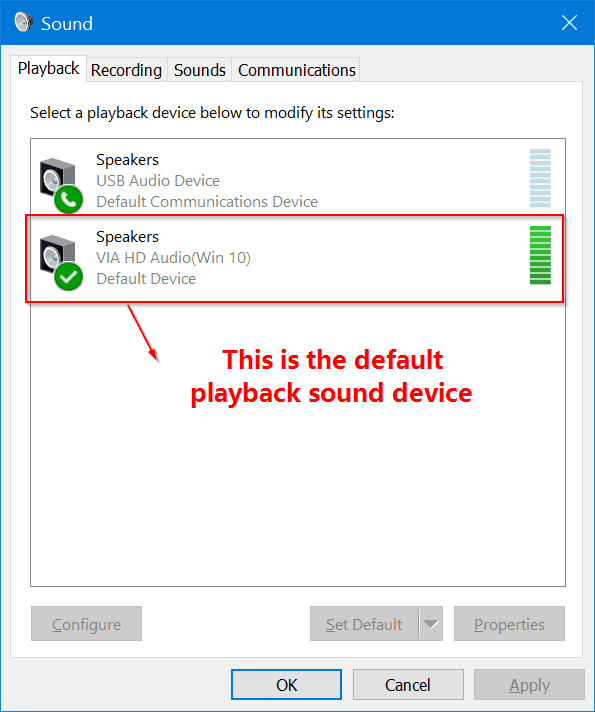
    Check the default playback device

    • If you go further down, you can see “Related Settings“.
    • Below it there is an item called “Sound Control Panel“.
    • Clicking it will open the “Sound” pop-up box.
    • Under “Playback” tab, you can see all your sound devices.
    • Check whether your sound device is the default one or not.
    • If not, right-click it and make it “Default“.

    default playback device sound properties windows 10 audio fix

    • If the sound is not still working, keep the above window open.
    • You can use it for further troubleshooting audio problems of Windows 10.
    • If you go little below, there is another option called “Have a question?“.
    • Under this you can find “Fix sound problems“.
    • This should open the default browser and give different search results related to sound not working in Windows 10.

    Check the default Output and Input devices

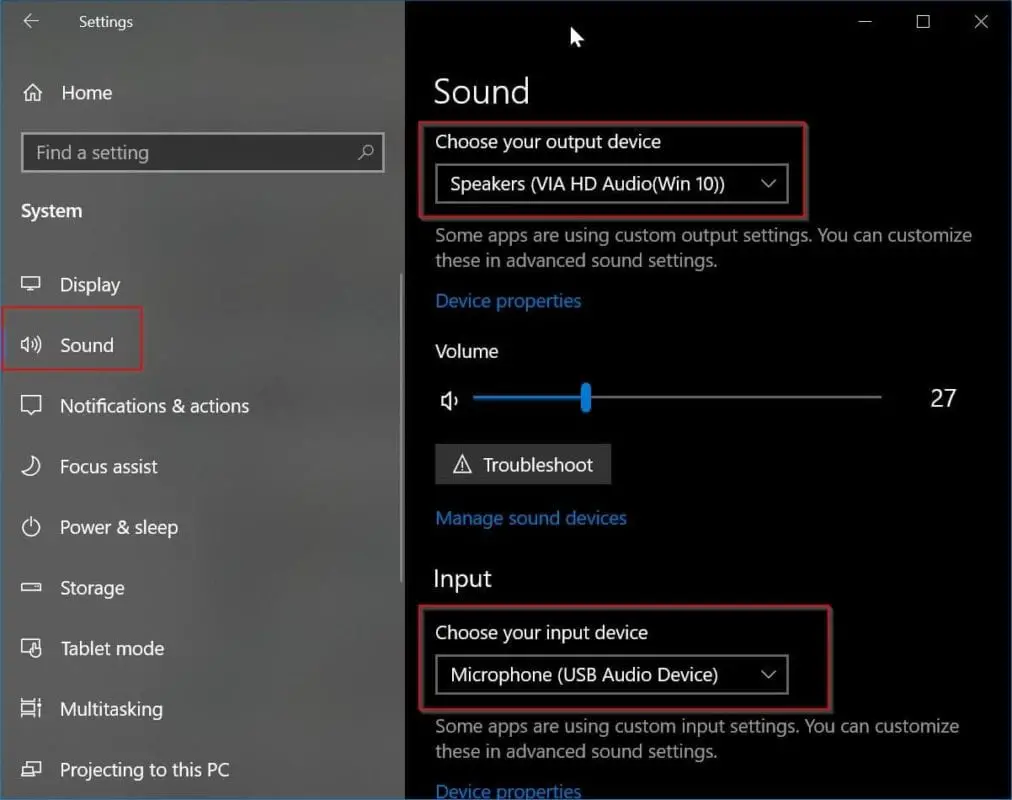
    • Press Win+I to show up Windows 10 Settings
    • System > Sound
    • On the right-hand side, check the output and input device for Sound.
    • The desired playback device should display under the output option.
    • You can have your mic from headphones and output sound from speakers, if you like.

    select output speaker device correctly windows 10 fix

    Try the Audio Troubleshooter in Windows 10

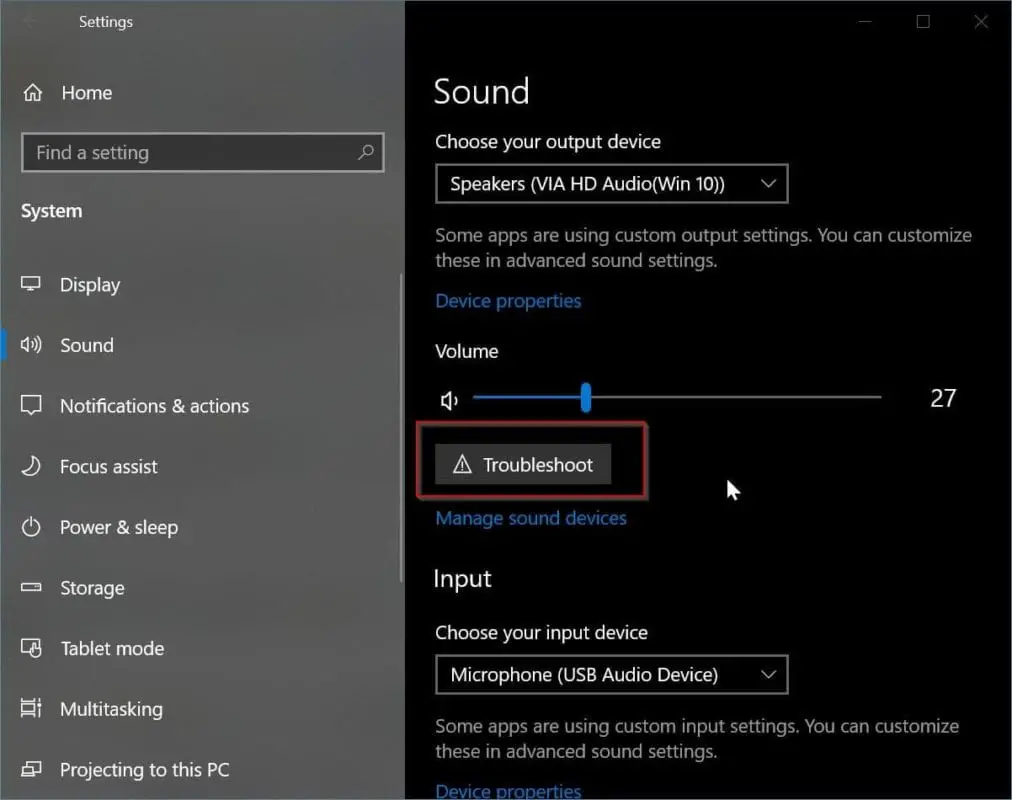
    Just below the default output device in “Sound” settings of Windows 10, you can find the “Troubleshoot” button.

    • Clicking it will automatically start the Audio troubleshooter for Windows 10.
    • It will ask for the speaker device to troubleshoot.
    • Select the required device and click on “Next“.
    • It will automatically do some cross-checks and restore your sound to normal in Windows 10.
    • This works for most of the sound problems.

    windows 10 troubleshoot audio service

    This can also be found in the Control Panel under the “Troubleshooting” and “Troubleshoot computer problems“. Under “Hardware and Sound” you can click on “Troubleshoot audio playback“. It will do the same.

    Check the Audio Service status in Windows 10.

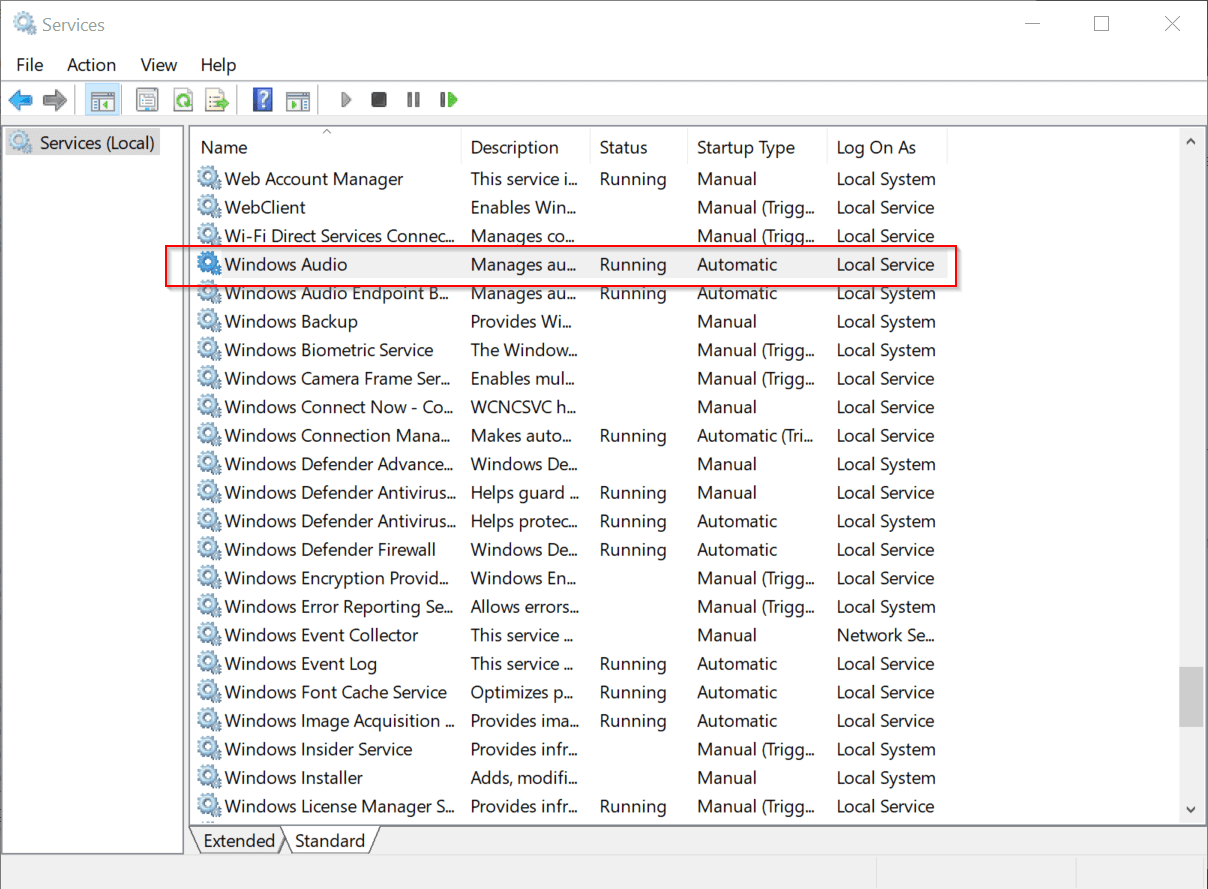
    • Press the Win+R to open the Run dialog and type “services.msc“.
    • This should open Services window.
    • Check the “Windows Audio” service is running or not.
    • It may be disabled by third-party software or virus sometimes.

    windows audio service status windows 10

    Turn Off all Enhancements

    • By default with every sound device, “Speakers properties” are associated.
    • Under this we have a property called “Enhancements“.
    • This provides certain subtle enhancements to improve your speaker configuration like –
    1. Loundness Equalization
    2. Sound Equalizer
    3. Environment Modeling
    4. Room Correction

    Sometimes if we enable any of them and forget it later, they can interfere with the audio device sound in Windows 10.

    This can also be a reason for sound not working in Windows.

    To disable it you can do the following.
    Use the “Sound” pop-up window mentioned above.
    1. Select the default speaker
    2. Click on “Properties
    3. The “Speakers Properties” window will open
    4. Click on “Enhancements” tab
    5. Check the option “Disable all enhancements

    Click on OK or Apply. Close all the Sound window and check your audio.

    disable all enhancements sound properties windows 10 sound fix

    Uninstall Realtek HD Audio driver in Windows 10

    Using the Device Manager, go to the Realtek audio driver and uninstall it.

    This is because Microsoft has added Dolby and own Sonic drivers to Realtek HD drivers.

    So these will be set to off, if you uninstall it.

    This is a major problem in 1803 version and your sound should start working, once the default generic driver is being used.

    Otherwise, you can use the Realtek driver from the manufactuer web page.

    Windows 10 sound is not working – Primary Steps

    • Check the multiple audio devices connected to your PC/laptop
    • See whether the required sound device is the default playback device or not
    • Check your speakers and headphones cables – Sometimes the jacks may be loosely connected to the ports
    • See whether the cables connecting the audio devices are functioning properly or not
    • For wireless devices, see whether the adapter USB ports are working or not
    • Sometimes, speakers and apps have their own software controls. They are to be checked whether they are enabled or not.
    • The power and volume levels may be set to “zero” or minimum. You just have to raise the volume slider in that case.
    • Try an alternate USB port for the speakers and headphones, if sound was working previously and not working now
    • Only one device will work at a time. So if headphones are working, the speaker sound will not work.

    How to Fix No Sound in Windows 10

    In many forums on the Internet like Reddit and Microsoft, users complained that their sound stopped working after installing the Windows 10 1809 update.

    It just says that “No Audio Device is installed“.

    According to a Microsoft employee, the cause was that an incorrect audio driver was pushed during this update.

    This mainly affects if you are using an Intel Audio driver, which comes mostly with your motherboard.

    In the Device Manager, View menu > Devices by connection. 

    If you look at the parent device which says something like – “Intel SST Audio Controller” (Intel Smart Sound Technology driver version 09.21.00.3755), then this is the wrong device pushed to your computer.

    Just uninstall the device. Then use the Realtek or default generic driver provided by Microsoft.

    There is another way to circumvent this problem. If you get an error that “No Audio Output Device” is installed on your PC/laptop, then you can try this solution.

    Steps to fix No Sound issue in Windows 10

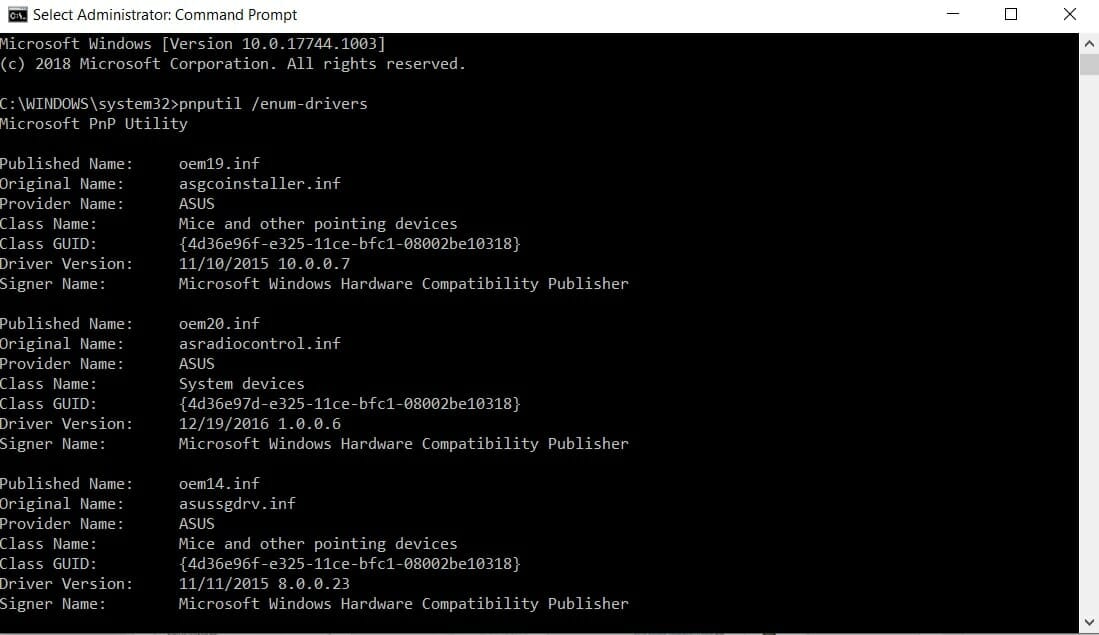
    • Open elevated Command Prompt (i.e with Admin rights)
    • Type the following
    pnputil /enum-drivers
    • A lot of drivers will be listed, something like this.

    elevated command prompt list of drivers windows 10

    • Then you have to find the audio driver with a typical name like oemXXXX.inf.
    • It should be the correct driver related to your sound.
    • Otherwise, that device functionality will stop working.

    sound problems after 1809 update fix

    • Once the driver name .inf is found, run the following in the same command prompt window.
    pnputil /delete-driver oemXXXX.inf /uninstall
    • The oemXXXX.inf is the driver name of the sound device you found earlier.

    The sound problem will be solved in Windows 10.

    No Sound after Windows 10 Update

    Even in 1909 and 1903 updates, you find that people face sound driver problems in Windows 10.

    You need to fix your audio drivers, for these kind of sound issues.

    The latest 1909 update in Nov 2019 has given some audio problems to a few users.

    It is fixed in the next KB updates and many users to have found a solution in Jan 2020.

    Some sound errors look very silly like not selecting the default playback device.

    Others tend to get sound from headphones, but complain that speaker sound is not working.

    In other cases, the sound drivers are the issue.

    As mentioned many times, compatible drivers and software are required for sound cards and mother boards.

    You may be getting sound in Windows 10 through any of the above devices.

    In Windows 10, if you use Windows Update, it automatically update the sound drivers also.

    These generic drivers work with normal sound and giving good effects based upon the speakers you have.

    Creative and ASUS are good speaker companies which produce audible sounds. But sometimes these are incompatible with your motherboard.

    Also many sound card companies did not release drivers for Windows 10 (64 bit in most cases).

    Sound Issue Resolved after Windows 10 1809 Update in Jan 2019

    Now in Jan, 2019 you are in luck.

    Microsoft has listened to its valuable customers about their vows related to audio problems in Windows 10 and come out with another update.

    The KB4468550 update when installed will solve the earlier problem created by 1809 update in Oct, 2018.

    The problem arising from Intel Smart Sound Technology driver (version 09.21.00.3755) should be fixed by the above update.

    Doing a System Restore in Windows 10

    Before you upgraded to 1809 update, a system restore point might have been created automatically by Windows 10.

    If you can use that, to go back to the previous version, it can fix your audio problems.

    In many other cases, the 1709 update seems to work fine with audio in Windows 10.

    It is always reasonable to wait for the new 1809 update to stabilize and then install it.

    Finally, Microsoft is pushing the 1809 update in Jan 2019 again and it should fix all the problems caused by the Oct 2018 update.

    Windows update could be causing problems

    Sometimes other updates like the 1803 update could have made changes to other apps.

    This could cause an issue to your existing sound device drivers.

    Third-party apps may sometimes take control of your sound and reduce it, so that it is not audible.

    You just have to pump up the volume levels again, to see if the sound is fixed in Windows 10.

    Try Different Sample Rates and Bit Rates

    • In the “Speakers Properties” window, click on “Advanced” tab.
    • There are different audio formats available here.
    • To set the default format you can click the drop-down box.
    • Several audio formats with a combination of frequency and bit depth are available.
    • Try one after other, till your sound plays.
    • Most of the times, 24bit, 48000Hz (Studio Quality) works for many computers.

    select right audio format sound fix windows 10

    Check the “Spatial Sound” option

    Another tab present in the “Speakers Properties” window is Spatial Sound.

    The Spatial sound format has several options based upon your sound card, mother board and audio codec.

    The most common is the “Windows Sonic for Headphones“.

    If that is enabled, the 7.1 virtual surround option is also enabled sometimes.

    This can interfere with your speaker sound sometimes and could stop working. In that case, choose the “off” option.

    Check the Audio Driver status

    • On the “General” tab of “Speaker Properties“, you can see your audio controller information.
    • Check whether it is the right driver.
    • For example, some motherboards only support VIA and not Realtek or NVIDIA.
    • Install VIA audio codecs only.

    Latest Audio Driver installed

    • Click on “Properties” for the above property window.
    • This will open the audio driver properties window.
    • Then install the latest audio driver.
    • This can happen after an update to Windows 10.
    • Some sound card manufacturer release Windows 10 drivers immediately and some take time.
    • In any case, you can use Windows 7 drivers under compatibility mode.
    • You can use several options like “Update Driver” or “Roll Back Driver” .

    Your sound problem in Windows 10 should disappear.

    check driver details windows 10

    Use the Microsoft’s High Definition Audio Device Driver

    select generic microsoft high definition audio drivers sound fix

    • Otherwise, you can select the next option that says “Let me pick from a list of available drivers on my computer“.
    • You can see compatible sound drivers here.
    • Try the “High Definition Audio Device” as your sound driver.
    • This is the generic driver provided by Microsoft.

    Most-of-the-time, this solution should work even-if all the other sound drivers fail to work.

  • How to Update Sound Card Drivers Windows 10—Different Methods

    Updating sound drivers on your Windows 10 system is essential for maintaining high-quality audio performance. If you’re experiencing issues such as distorted sound, no audio output, or even system crashes related to sound, it’s likely time for a sound driver update.

    In this guide, we’ll explore the steps to update sound drivers on Windows 10 to help ensure smooth and clear audio functionality.

    Knowing how to update sound drivers Windows 10 is critical, whether you’re troubleshooting or upgrading your system’s performance.

    The process to update audio drivers in Windows 10 is simple, but it’s important to follow the correct steps to avoid complications.

    Your sound card drivers for Windows 10 are responsible for managing how your system processes sound. Keeping these drivers up-to-date is crucial to ensure compatibility with new software, improve performance, and fix any bugs. Regular updates can also help with security, as outdated drivers may leave your system vulnerable to potential threats.

    To update the sound driver in Windows 10, you can use the Device Manager, a built-in Windows tool that allows you to manage your device drivers.

    If you’re unsure how to update sound drivers on Windows 10, this method will walk you through the process with ease. Additionally, manufacturers like Realtek often release sound card driver updates that can be downloaded directly from their websites.

    These updates often include bug fixes, enhanced functionality, and compatibility improvements.

    A key part of how to update sound card drivers Windows 10 involves identifying your sound card driver Windows 10 version.

    This ensures that you are downloading the appropriate driver update for your hardware. If you’re looking to perform a sound card update manually, visiting the official website of your sound card’s manufacturer is recommended.

    For those who prefer a more automated approach, third-party tools can also help in automatically finding and installing the latest sound card drivers for your system.

    In this article, we will provide detailed instructions on how to update sound card drivers through various methods. Whether you’re updating from the Device Manager, using third-party tools, or manually downloading a sound card driver update, you will find all the information you need to ensure that your audio system functions optimally. Following these steps will help you update sound drivers effectively and resolve any sound-related issues on your Windows 10 computer.

    How to Uninstall Sound Drivers Windows 10

    In the Device Manager, the list of all device drivers can be seen. But when you install any unwanted drivers, they still remain in the system.

    When you try to overwrite them, by deleting them and installing the new drivers, they don’t go away so easily. So first, you should uninstall the old or redundant drivers completely, to properly update or install the new drivers.

    This is how it is done in Windows 10.

    1. Right-click the Start Menu and select “Device Manager.”
    find device manager windows 10 start menu
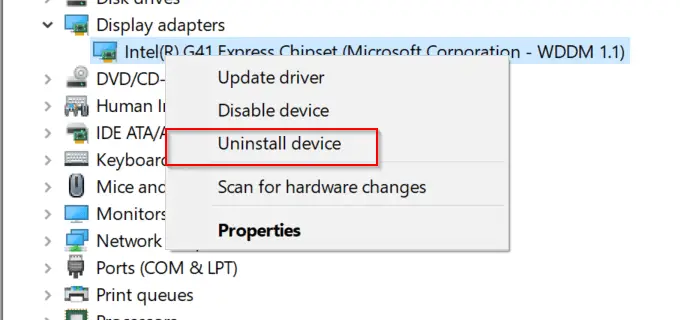
    1. Select the driver you want to uninstall.
    2. Right-click the driver and click “Uninstall device.”
    uninstall device windows 10
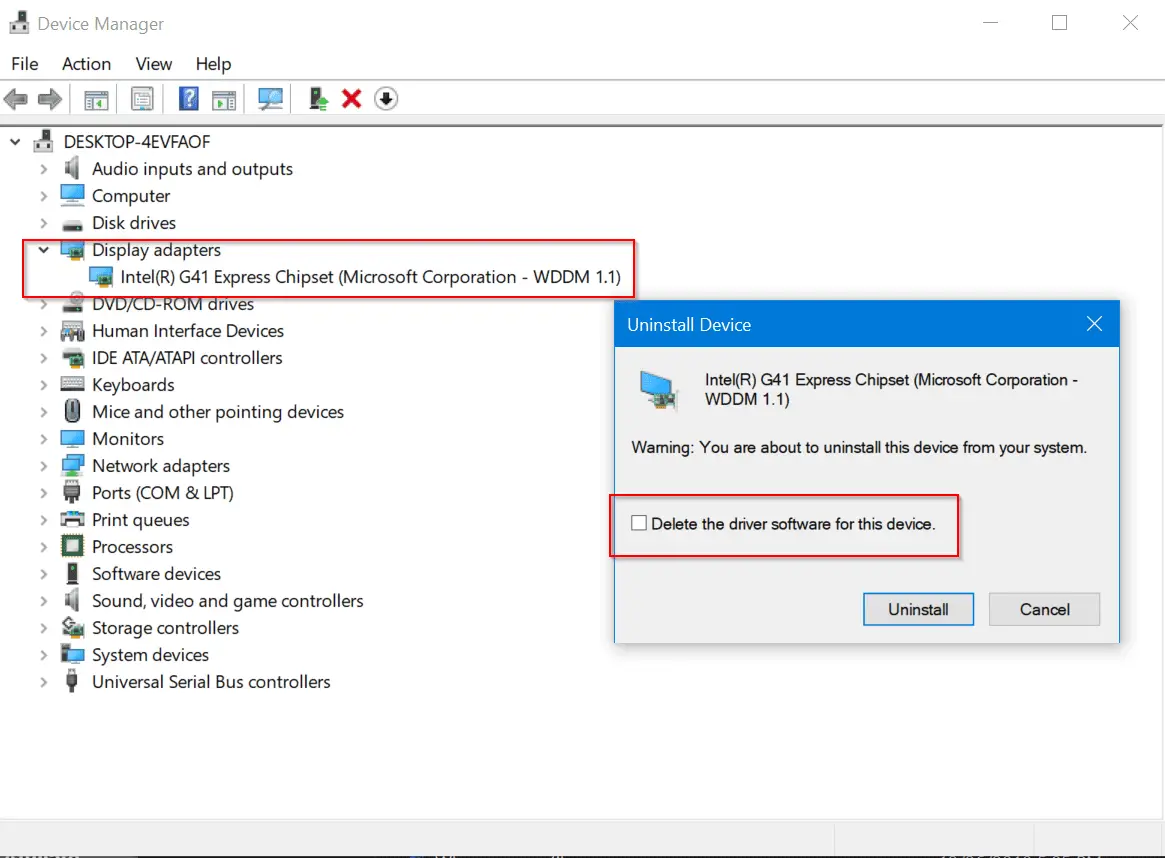
    1. In the pop-up, check “Delete the driver software for this device.”
    2. Then click “Uninstall.”
    uninstall third party drivers windows 10

    This should delete the wrong or third-party drivers from your system. Then you can update the drivers as mentioned below.

    Note: Sometimes the above option is not displayed, if the drivers are installed by Microsoft. Then you can leave them as they are and select the right drivers as mentioned in the list below.

    Why you should Update Sound Drivers in Windows 10

    Many a . EXE files are given as downloads for sound card drivers. Along with it, other unnecessary software like adware, spyware, viruses, etc., also gets downloaded when you run it. Sometimes, when you click the download link, you will be redirected to another page. This means that site is a spammy one.

    Sound Card Manufacturer

    • Creative Sound Blaster
    • Asus Xonar
    • Asus Essence
    • StarTech
    • HT OMEGA
    • APLINK
    • SMACC
    • Enter E-4S
    • Eira
    • ATI Sound Card Drivers
    • Open Sound Card Drivers (AW32, AW300, AW230, AW200)
    • Conexant Sound Card Drivers (Conexant Audio Drivers)
    • IDT Sound Card Drivers (IDT HD Audio Drivers)
    • Intel Sound Card Drivers (Intel Audio Driver)
    • CIRRUS LOGIC Sound Card Drivers (CIRRUS Sound Drivers)
    • VIA HD Audio Drivers

    The two main sound card manufacturers are Creative and Asus. There are different models produced by these two companies. In addition to that, there are other brands that produce good-quality sound drivers.

    First of all, we need to download sound card drivers for the required Windows OS. For most of the old sound cards, Windows 7 drivers are available. But Windows 10 drivers are available for new sound cards, mostly. In most of the cases, Windows 7 drivers are suited for both 8.1 and 10.

    How to Obtain Creative Sound Card Drivers

    There are different sound cards under the Creative brand.
    https://asia.creative.com/p/sound-cards

    creative sound cards homepage

    Based upon your location, you can open the home page. Generally, it is divided by continental region.

    The sound cards are categorized on different conditions like channel output, interface, platform, gaming, home entertainment, pro audio, recording, etc.

    The main division is of the form of

    • Internal Sound Cards
    • External Sound Cards
    • Multi-channel Sound cards
    • Recording
    • Accessories

    You can also sort them by popular and latest. There are different models like –
    Sound Blaster
    – Recond3D PCIe
    – ZxR
    – Zx
    – Z
    – Audigy Fx
    – Audigy Rx
    – X-Fi Go!Pro
    – Omni Surround 5.1
    – Play!3
    – Play!2

    Sound BlasterX G5
    Sound BlasterX G1

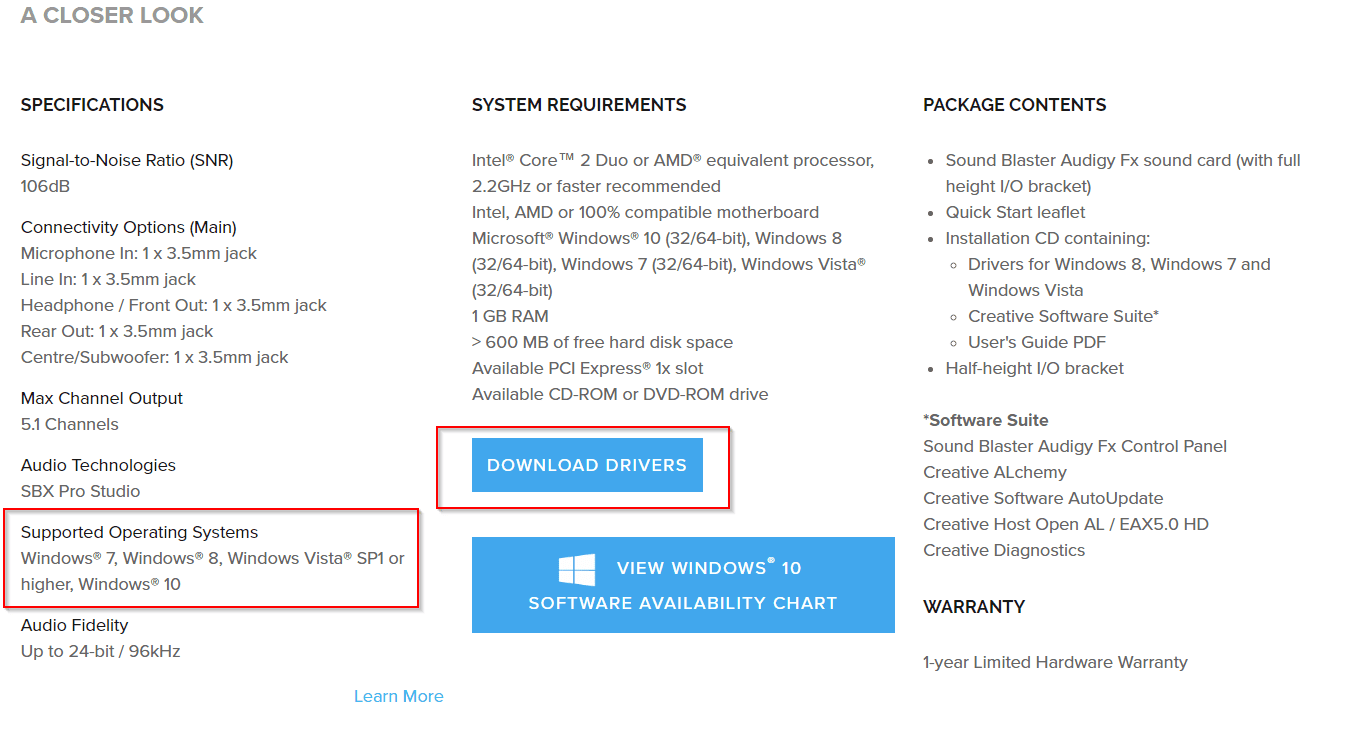
    Click on any model, like Sound Blaster Audigy FX. A new page opens for that model product. You can go to the bottom, to find specifications, system requirements, package contents, etc.

    Here you can click the link that says “Download Drivers.” You can also view the Windows 10 software availability chart to check its compatibility.

    download creative sound drivers windows 10

    You can also directly download the required Creative Sound Card drivers for old products using Google. Some of them are directly given under the Creative Worldwide Support page.

    download creative sound drivers support page

    How to Get ASUS Sound Card Drivers for Windows 10

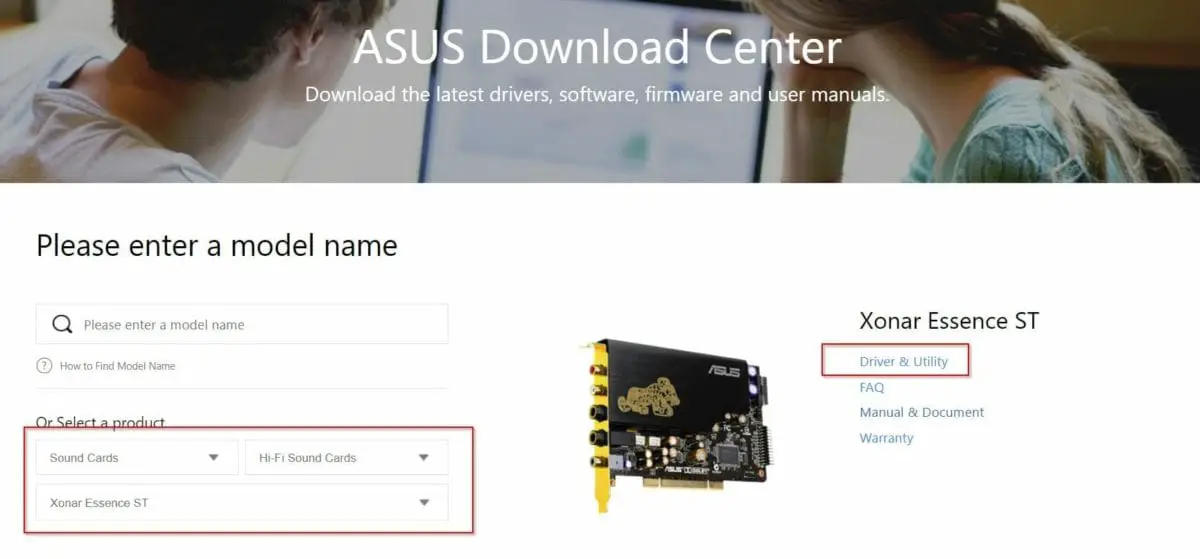
    To find the sound drivers for ASUS, you need to visit their download center page.

    https://www.asus.com/support/Download-Center/#

    You can either enter the model name of your sound card or go through a lengthy process.

    Using Select a product, you can choose the following options.

    1. Sound Cards
    2. Type—like Entertainment, Hi-Fi Sound Cards, gaming, etc.
    3. Model

    On the right-hand side, you can find “Driver & Utility.” On clicking it, you will go to the next page.

    asus download center audio drivers

    Here, you can select the OS, like Windows 10 64-bit or 32-bit. Download it and follow the procedure below to update your sound card driver.

    download asus audio driver windows 10

    If the sound card driver from the ASUS manufacturer page, does not fit your motherboard model, then you can download from a different site, as mentioned below, or use a tool like Driver Booster.

    How to obtain VIA Sound Card Drives for Windows 10

    Unfortunately, this manufacturer does not provide Windows 10 audio drivers on its home page. But you can download compatible Windows 7 drivers and install the same for Win 10.

    First, visit the following page.
    http://download.viatech.com/en/support/driversSelect.jsp

    Then there are 4 steps to find your drivers. Let’s see an example for Windows 7.

    1. Select your operating system type
    2. Select your operating system
    3. Select the type of driver
    4. Select your VIA product

    select audio via driver download panel

    Generally, the VIA audio card drivers are divided into two categories, as mentioned on the manufacturer’s website.

    1. VIA Envy24 PCI Audio Controllers
    2. VIA Vinyl HD Audio Codecs

    download via audio drivers windows 10

    The second one is more for the old motherboard audio codecs.

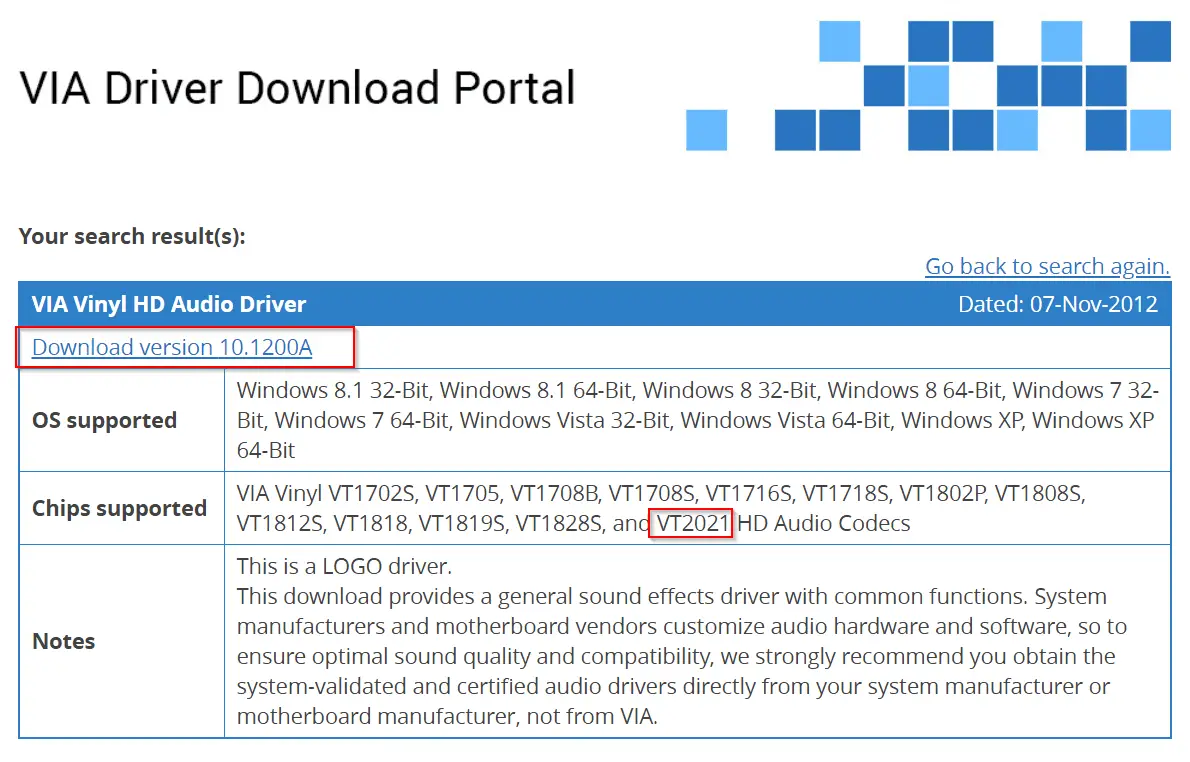
    But if you insist on Windows 10 drivers, you can go to a third-party site. I installed from the following site, and the drivers worked well till now.

    https://drivers.softpedia.com/get/SOUND-CARD/VIA/VIA-Vinyl-VT2021-HD-Audio-Driver-111100e-for-Windows-10.shtml

    download via hd audio drivers windows 10

    How to Update Sound Card Drivers in Windows 10

    There are different ways of doing this.

    1. Using Windows Update

    The safest way to install sound card drivers is to use the Windows Update functionality. This is because the drivers and packages available through this feature are verified by Microsoft.

    Sound card updates are available automatically in this section. Some of them can be seen in the optional updates section. Then you need to manually install them. Creative sound card drivers are easy to install as they are more popular.

    Installing a sound card requires some expertise. Either you need to take the help of a computer technician or follow the DIY guides available on the internet. There are PCIe slots in the desktop to install them.

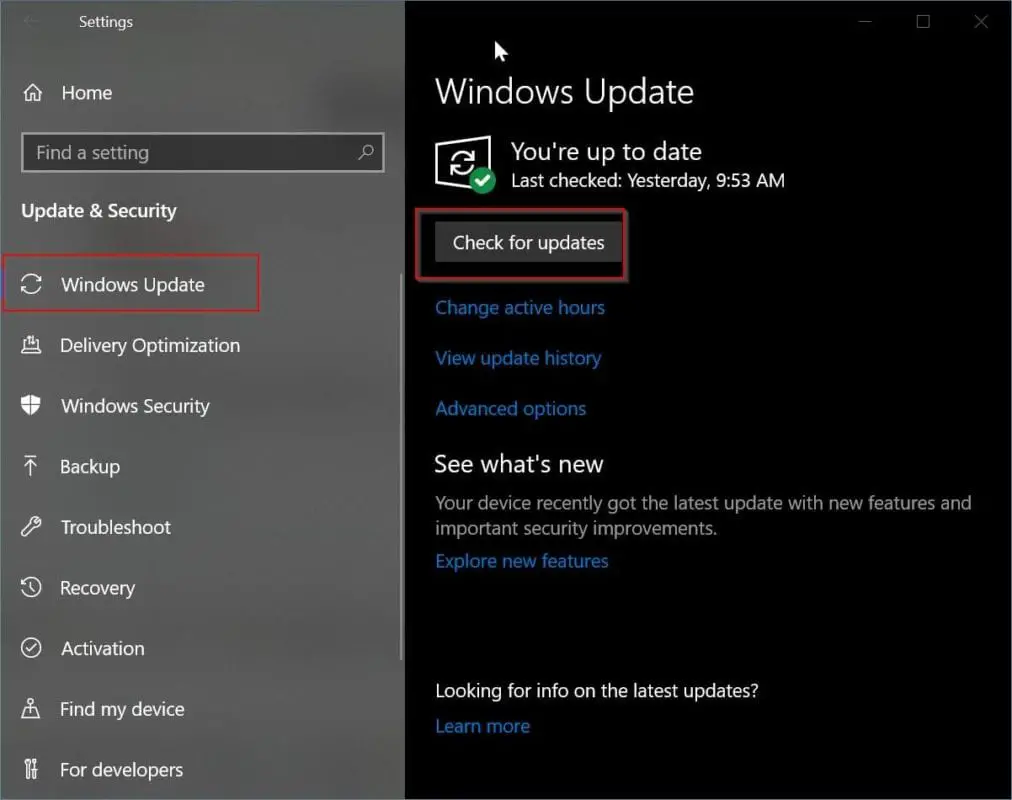
    To download and update sound card drivers, follow these steps.

    1. Open Settings.
    2. Find and click on Update & Security.
    3. Click on Windows Update.
    4. Click the Check for updates button.
    windows update settings windows 10

    The sound card hardware manufacturer releases new updates from time to time. These are then automatically downloaded through the Windows Update channel.

    But there is a catch. Manufacturers may not release the new update for the drivers instantly through the Microsoft Update channel. So you have to wait for some time.

    In other cases, Microsoft installs its own drivers for sound cards. These are substitutes for the manufacturer drivers. Sometimes these work well, and sometimes they don’t.

    If they don’t work, you need to uninstall the Microsoft drivers and install the right drivers from the manufacturer’s web page.

    2. Using Device Manager

    This method is useful, if you want to uninstall the earlier drivers and install a new set of sound card drivers. Sometimes these drivers are available on third-party sites.

    So you have to be careful, before you download them. Make sure there is no adware or malware before you install or update them.

    1. Open Start.
    2. Search for Device Manager and click the top result to open the experience.
    3. Expand the category with the hardware you want to update.
    4. Right-click the device, and select Update Driver.
    5. Click the Search automatically for updated driver software option.

    how to update sound drivers in windows 10
    search automatically for updated driver software windows

    This will install the latest driver, which is available within the Microsoft database. If there is a new version, it will be automatically downloaded and installed.

    3. Install Drivers Manually

    After downloading the driver package from the manufacturer website, you can double-click the .exe or .zip file. This will extract the required sound card driver files to a folder.

    1. Open Start.
    2. Search for Device Manager and click the top result to open the experience.
    3. Expand the category with the hardware you want to update.
    4. Right-click the device, and select Update Driver.
    5. Click the Browse my computer for driver software option.
    6. Click the Browse button.
    7. Browse and select the main folder with the content you have extracted earlier.
    8. Click OK.
    9. Check the Include sub-folders to allow the wizard to find the correct .inf file with the instructions to update the driver.
    10. Click the Next button.

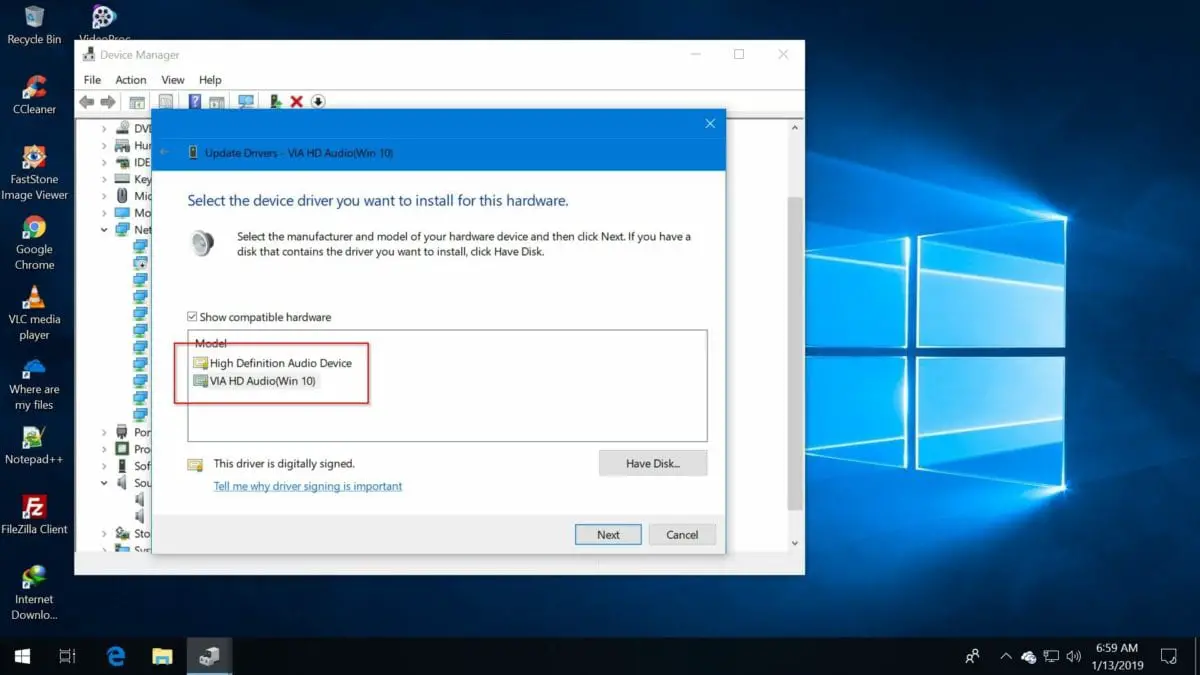
    Sometimes you need to uninstall the old driver, before you install any new driver. This is useful if you have the original driver from the manufacturer. If the correct driver is already installed, you have to “select the device driver you want to install for this hardware.”

    update sound drivers via hd audio windows 10

    If the “Show compatible hardware” is not checked, you need to check it. Then you can select the correct sound card driver from the list and update it. This is more useful when you try to install the updated version of the driver.

    As told before, if the Microsoft driver, like “High Definition Audio Device,” is installed, you can replace it with the manufacturer driver, like VIA HD Audio.

    4. Update Sound Card Drivers automatically using Driver Booster

    You can also use third-party tools to update your existing sound card drivers. One of them is Driver Booster.

    All you have to do is install the software and check for drivers. It will automatically scan your PC and check if the sound card drivers are up-to-date or not. If it is not, it will automatically download from the required website and install them.

    This is easier, as you don’t need to download the drivers from the manufacturer’s website or search on third-party websites. The Pro version of Driver Booster supports all the Windows OSs, like 10, 8.1, 8, 7, Vista, and XP.

    This software not only updates sound card drivers, but all the outdated drivers on your computer. The free version is limited to only a few drivers.

    driver booster 6 pro

    This includes your chipset, audio, video, controller, peripherals, and other devices.

    Conclusion

    As you can see, to update sound card drivers in Windows 10, there are different methods. But the easiest of all the above procedures, is to download the drivers from the manufacturer’s website and update them. This will be spam-proof, and correct drivers will be installed.

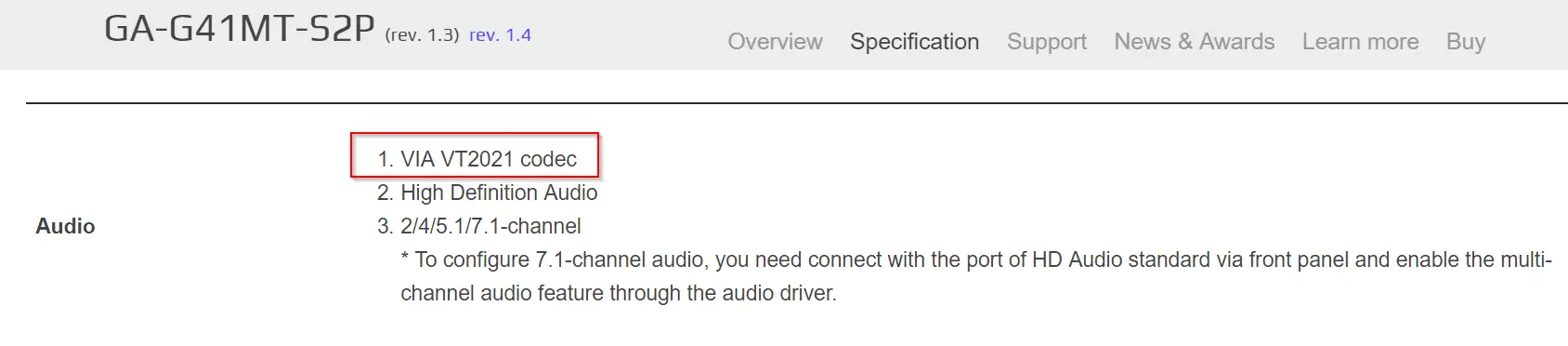
    The drivers also depend upon the motherboard configuration. So if you are using an old motherboard like G41-MT2P, you need to either install the old drivers or find them on a good site.

    via vt2021 audio codec
    via driver download panel

    Most of the time, the old drivers will fit on the Windows 10 OS. But for some manufacturers, you need to find the right drivers. It is also important, whether you are updating the 32-bit or 64-bit drivers, based upon your OS configuration.

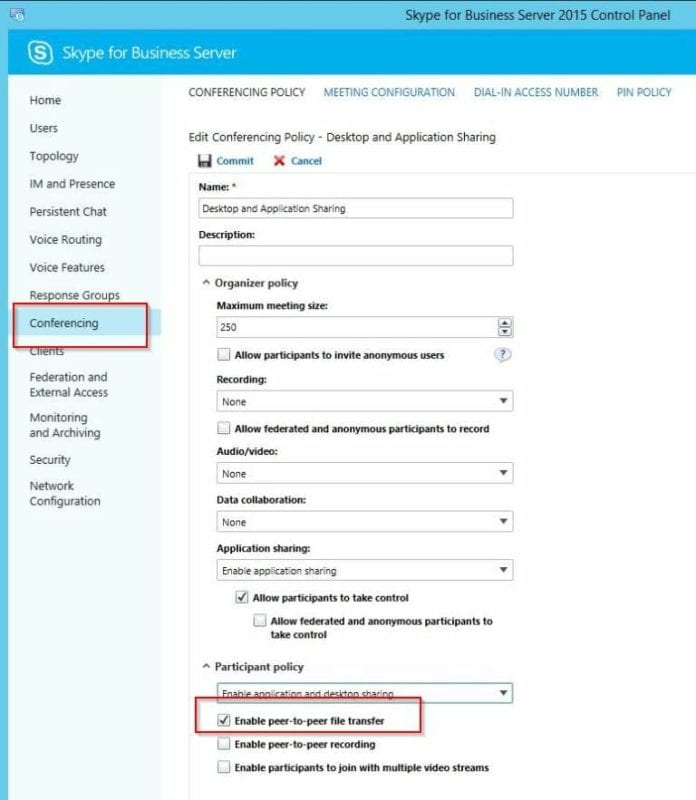
  • Fix : Skype for Business – File Transfer Not Working in Windows 10 or 7

    Skype is generally used for instant messaging services. But you could also transfer images and files also. If the transfer is not working then there could be several reasons.

    One can add images or include files in Skype IM chats. Sometimes due to several reason these doesn’t reach the other contacts. It can be an Office 365 or Server environment or simple web interface.

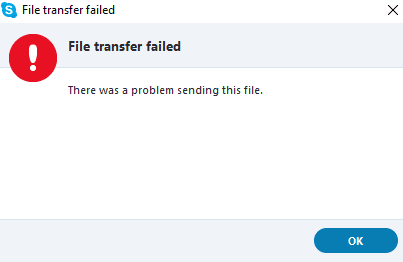
    skype file transfer failed

    First check the following points before you debug the issue.

    • If you are on a Skype call and limited bandwidth, then Skype will prioritize voice over file transfer. This is to provide quality Skype call.

    Note: For example, if you have a 6 Mbps connection and you are on a Skype voice-over-call, may be 4 Mbps will be used for voice-call. Automatically you will get 125KBps download speed. This will increase the time to transfer the file and sometimes may hang up. When the Skype call is over, the file transfer speed will improve again.

    • Due to network connecting issues, if there is a break in file transfer, then it will pause and automatically resume when connection is back.
    • Check the file size before sendinng it. The maximum size you can send in Skype is 300MB. More than that, you need to use OneDrive or any other cloud storage.
    • Make sure the file you are sending to the contact, has accepted your request. You cannot send files to non-Skype contacts.

    skype for business supported files

    If still the Skype file transfer is not working in your Windows 10 or 7, then you can try these basic troubleshooting steps.

    1. Reset all Skype settings. In Windows 10, this can be done from Settings > Apps.
    2. Kill the Skype process using the Task Manager in Windows.
    3. Press Win + R and in the Run dialog box, type %appdata%.
    4. In the File or Windows Explorer, locate the “Skype” folder.
    5. Rename Skype to something like Skype_bkup.
    6. Restart Skype again.

    Note: All the call and chat history is still saved in the old Skype folder.

    File Transfer Not Working in Skype for Business – Several Fixes

    The server or client may not be working, based upon the network it is present. The issue can be based on whether Skype for Business is being used in pure cloud or intranet or hybrid environment.

    File Transfer between Users of Different Companies or Microsoft Teams or Domains

    In Dec 2018, the important concept is federation between Teams and Skype for Business. Using the above technology, one can talk to external organizations using Skype for Business.

    Each company can decide to enable federation for specific domains or allow for everyone. It depends on whether Skype for Business is On-Premise or Online. Sometimes there can be a Hybrid environment.

    In the Island Mode (i.e both clients having installed the same features on their PC) the default chat and calling client is Skype for Business.

    The messages from a federated user will be received by Skype for Business client.

    In Microsoft Teams mode, the IM messages and calls from federated users are received in Microsoft Teams.

    This configuration can also have an effect on file not transfer not working between domains or networks or companies.

    For complete details you can see this article. https://stefanoceruti.wordpress.com/2018/08/10/demystify-federation-between-teams-and-skype-for-business/

    Fix #1

    If you are unable to do file transfer in the internal premise network of Skype for Business users, you may need to check the following.

    1. The “For compliance, turn off non-archived features” option is unchecked.

    For the steps, you can refer to: https://support.office.com/en-us/article/Configure-settings-for-individual-users-77B26EAC-8228-4161-BA9F-733B187BD836

    2. External Skype for Business and Skype users have turned on external communications.

    This article is for your reference: https://support.microsoft.com/en-us/kb/2799505

    Fix #2

    One has to make sure whether Skype is not blocked by firewall or any other network settings. You can also uninstall and reinstall Skype to see if file transfer is working properly.

    Fix #3

    Sometimes the image file transfer may not work. You can see the image is dimmed up and an up arrow on it, to indicate that the transfer is not complete. Also make sure the latest Skype for Windows 10 or Desktop is installed, based upon the requirement.

    To troubleshoot this issue, you can type this text /dumpmsnp in any chat window and click Send. Copy and paste the output from the command and send to the Skype Network Administrator for analysis.

    Fix #4

    File Transfer is a basic part of Skype for Business and is enabled by default for all users. As a Skype admin you decide whether each user can send files to one another or not. The most common way of sending files is using P2P protocol in IM.

    If for reason, your access to file transfer is denied, you can contact your Skype Administrator. For in-depth commands, you can go through this post. http://lyncinsider.com/skype-for-business/whats-involved-skype-business-file-transfer/

    skype file transfer permissions

    Fix #5

    It is also important you collect troubleshooting logs when you have file access denied error in Skype for Business. These can be found in Settings (Windows 10) or Control Panel (Win 7 or 8.1).

    The Skype for Business logs can be found here.
    C:\Users\YOURUSERNAME\AppData\Local\Microsoft\Office\[16.0 or 15.0]\[Skype for Business or Lync]\Tracing.

    If your Lync or Skype for Business process is blocked by some program, you can give web exclusion using a software like Malwarebytes.

    skype for business create logs

    Fix #6

    Sometimes VBSS (Video based screen sharing) can interfere with file transfer on different computers. By disabling it through registry edits can fix the problem sometimes.

    skype meeting options

    Fix #7

    If you can’t sign into Skype for Business, then that could also be an issue for file transfer not working. In that case, first resolve this error. The reasons could be like this.

    • SFB Client or Computer issues
    • Authentication or provisioning issues
    • Network/Connectivity related issues
    • Server related issues

    You can also add distribution groups to contacts. In this way, people in the group is granted the Colleagues access level by default.

    Fix #8

    There can be Skype for Business Conference collision when you have two or more conference calls set up back-to-back. When users from the second conference enter the first conference, there can be some confusion.

    So create an Unique ID for each conference call to stop this mix up.

    Source:

    https://answers.microsoft.com/en-us/msoffice/forum/msoffice_sfb/disable-desktop-sharing-and-file-transfer-in-skype/2ca0945d-a61c-4d21-9294-00d75afb931c

    Fix #9

    In Office 365, you can turn on “For compliance, turn off non-archived features”. This can be used to disable desktop sharing and file transfer for specific users.

    office 365 skype for business compliance issues

    Fix #10

    After upgrading from Lync Server 2013 to Skype for Business Server 2015, you may see messages like “File Transfer is turned off”. In that case, you need to change the Server settings.

    skype for business conference settings

    You need to edit the Conferencing tab on the left-hand side. Then modify the Global and Desktop and Application Sharing policy to Enable peer-to-peer file transfer. Wait for the update to complete and restart the Skype client on your PC. Then the above message will be gone for all the other users also.

  • The Best Screen Recorders for Windows 10 and 7 – How to do it

    To record computer screen and audio in Windows there are native ways in Windows 10 and 7. But screen recording software provide different filters and features to spice up the video. The computer screen recorder should be able to start and stop when required.

    To record game in Windows 10, you can use the Xbox and Gamebar combination. But if you are looking for free online desktop recorder, you just need a simple recording screen software. The main things in a desktop recording software should be the agility and smoothness.

    There should not be any blurry of images. A free video recorder for Windows will be able to justify the capturing of game shots and at the same time video tutorials.
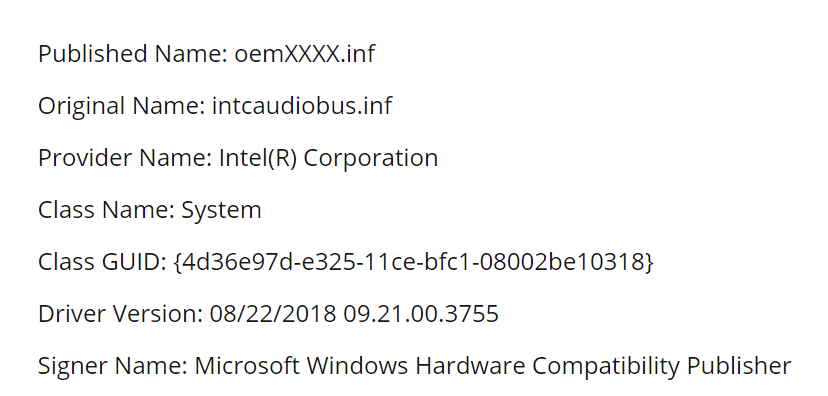
    A laptop screen recording software should have the following features

    • record step-by-step tutorial of any product
    • capture tips and tricks of windows like registry edits
    • show pointers while playing a game
    • able to record web-cam
    • record a snapshot of software bugs and issues

    How to Record Screen in Windows 7

    You can always use free screen recording software with system audio in your OS. The pc screen recording is very easy. You just to have to make a few clicks to start capture. The most important are the “Record” and shortcut to stop the recording.

    ShareX 12.3.1

    It is written using C# programming language and .NET Framework. To take a screenshot on Windows 7 there are many ways.

    1. Open the software.
    2. On the left-hand side, select Capture > Window > (any window)
    3. Other options like Full Screen, Region etc are also available.

    To use it as a screen video recorder, you can use the option

    Capture > Screen recording

    It will be saved in MP4 format. You can also save it in GIF format.
    Scrolling capture, Web Capture, Text capture (OCR recognition) are also supported. To use screen recording, you have to download “ffmpeg.exe” which will be automatically done.

    screen capture tool windows 7

    Initially there may be a conflict of hotkeys with other applications. You can change that by clicking on “Hotkey Settings” on the left-hand side. You can set the hotkey for Start and Stop recording.

    A 6 minute recorded video took 15MB of size in MP4 format. But the functionality of this software is limited. There is no video editing feature after the screen recording is complete. You can also cannot add annotations, arrows, symbols etc. But you can upload the video to YouTube etc.

    VideoProc

    This is an one-stop video processing solution. It is the only full GPU accelerated video processing software. The following features are supported in Ver 3.0.

    videoproc new version features 2019 screen recorder

    1. Video Processing – Complete video toolbox to cut, trim, merge and edit videos; convert or compress large 4K 8K videos, HD MKV, HEVC, MP4 and any other videos ultra fast ast perfect size-to-quality ratio

    2. DVD Conversion & Backup – Digitize DVDs to MP4, AVI, multi-track MKV, MP3 etc. Convert and edit DVDs to fit iPhone, iPad, Android, YouTube etc. 6 DVD Backup options to deliver original quality and fast speed.

    3. Video Downloader – Download video streams, live videos, video playlist, channel and music from YouTube, Facebook and other UGC sites, and save them in different resolutions and format.

    4. Video Recorder – Easily capture videos from your computer’s screen or webcam or from both in picture-in-picture mode. You can speak, draw, and add texts, arrows or outlines during recording.

    videoproc video recorder desktop windows 7

    The following can be recorded using this software.
    1. Screen
    2. Webcam
    3. Screen & Webcam

    • You need to click the video button to load the screen.
    • Then click the red circle “Record” button to start recording.
    • There is a few seconds delay to choose the window or region.
    • You can also crop the region of which you want to record.
    • Then Press Ctrl + R to stop recording.

    The saved videos can be seen in \Videos\VideoProc. You can also disable audio, if you don’t want it in the recording.

    videoproc recorder settings

    How to Record Screen on Windows 10

    The Windows 10’s built-in Game Bar can be used to record screen. The main purpose of it is to record games. First make sure your graphics card or internal graphics chipset supports this functionality. The hardware requirements should be met before you implement this feature.
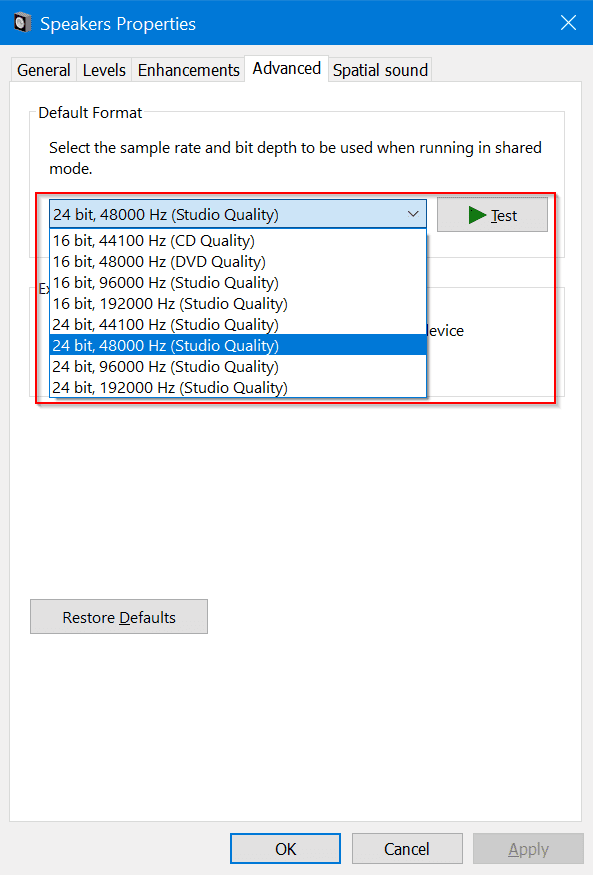
    game dvr xbox screen recording error windows 10

    1. Type “Xbox” in the search box and click it.
    2. Press Win+G on your keyboard and click “Yes, this is a game” on the pop-up.
    3. Press Win+Alt+R to start recording or click the red circle button.
    4. Recorded videos will be saved in MP4 format in Videos/Capture folder of Windows 10.
    5. The recorder’s settings can be customized by logging into the Xbox app and access the Game DVR options.
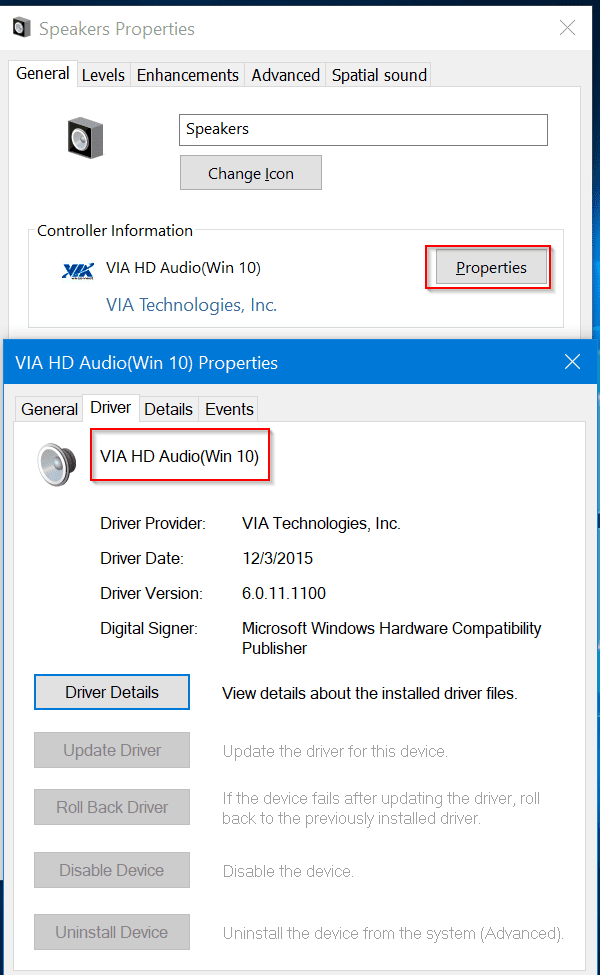
    6. You can change the destination folder.
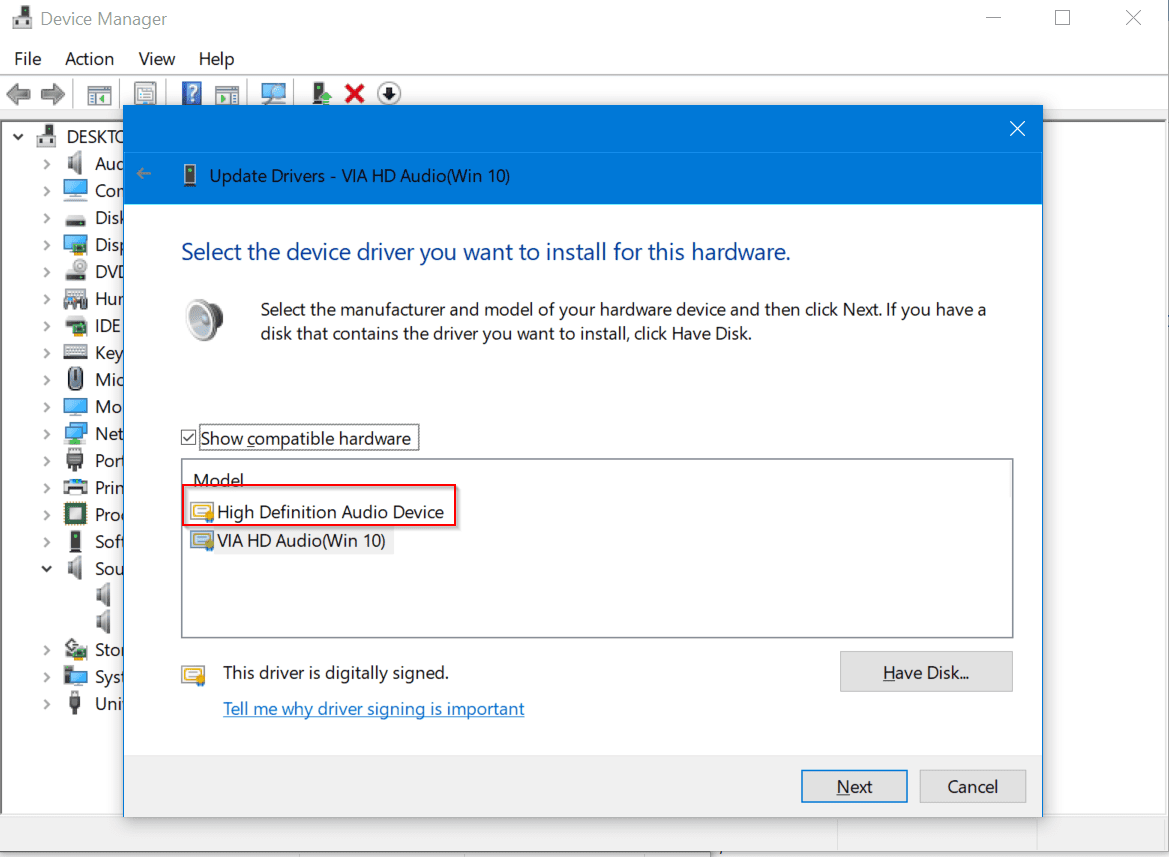
    7. Change the quality settings and whether you want to record audio or not.

    The video cards supporting these encoders are required to record the game.

    • Intel Quick Sync H.260
    • Nvidia NVENC
    • AMD VCE

    Note: Even if your graphics card is not supported, you can try this small trick to see if the above Xbox recording tip can be used in Windows 10.

    game dvr config

    Screen Recorder Windows 10

    One can use the GameBar and XBox functionality in Windows 10 to record your PC screen. But that is little complicated. In this paragraph, we are going to see the use of Camtasia as a screen video recorder and image capturing software.

    I am showing how to use Camtasia 9.0.4 Build 1948.

    • One can see a big red button for recording your computer screen.
    • Click it to see the different recording options.
    • A small window pop-up at the bottom right-hand corner.
    • The two main options that are available are 1. Select area 2. Recorded inputs
    • Using Select area, you can record full screen or custom screen.
    • In the Recorded inputs, you can select camera and the audio device you want use.
    • In the Effects tab, you can add system stamp and caption.
    • You can also select the Recording Toolbars like Audio, Effects, Duration etc.
    • One can click the “x” mark to close this window

    You have a free trial version of 30 days. After that you need to purchase the premium version. If you are less on budget you can download from the Internet.

    Note: It should be used only for demo purpose and buy from reseller program or original website.

    Free Screen Video Recorder from DVDVideoSoft

    This is a free program which contains no spyware or adware. To record your desktop screen, you can following these steps.

    1. Launch the program. A small ribbon-like window opens.
    2. The interface is simple and self-explanatory.
    3. Make a Screenshot or Capture video.
    4. The software captures the following screenshots.

    • A single full screen
    • window
    • object (button or icon)
    • region

    5. To capture the region, click the corresponding button on the program panel. Select a region to capture. Then a single-click will capture the image.
    6. The recording is similar. Click the appropriate button to capture full region, window, object or region. Press Esc to cancel the action.
    7. To stop recording in full video, click the stop or pause buttons in the system tray.
    8. There are also different settings.

    • change delay’s time before capturing;
    • set the program to run at Windows start-up;
    • set file name format for images or videos;
    • change media format;
    • select program language;
    • check for updates.


    Apowersoft Free Screen Recorder 3.1.0

    Apowersoft Free Online Screen Recorder Web based

    This is a robust application to record the screen, choose audio input, take simple screenshots and add lines, arrows etc. It has different recording options alongwith task scheduler.

    This free screen recorder is web-based. You don’t have to download or install any software. One can Export videos to MP4, WMV, AVI, FLV, MPEG, VOB, ASF and GIF.

    The following are the other features
    1. Ultra Simple Recording
    2. Record anything on the screen
    3. Flexibile screen capture
    4. Add webcam into screen recording.
    5. Capture video and audio simultaneously
    6. Edit screencast in Real time

    Open Broadcaster Software

    This is a free and open source software. The best free screen recording software for streaming games and achieve high quality recordings. It is possible to take HD streaming and recording. There are no restrictions on video length.

    But the installation takes little time. Since there is restriction on the number and length of recording, it is quite useful for lengthy video screen recordings. You can stream like to Twitch or YouTube gaming, save projects and encode your footage in FLV format.

    Flashback Express

    flashback express screen recording software 2019

    The free screen recorder can record screen and sounds. You can capture webcam and add commentary. There are no time limits and watermarks. In the pro version you can do video editing, add text, image, sounds, use video effects, save in all file formats.

    It’s free screen recorder can be used to record games. Smooth HD recording is one of its highlight. The home license costs you $49 for lifetime license, $59 for business license.

    The best feature of Flashback Express is its scheduled recording. You can capture your screen at a particular time and date or when a particular program is run. You can use plain desktop background, hide icons, limit the file size for recordings. The FPS for games can also be set during recording.

    CamStudio

    This is a free desktop recorder and can record streaming videos. It can record all screen and audio activity on your Windows 10 or 7. It will create industry standard AVI video files. The use of built-in SWF Producer can turn the recorded videos into bandwidth-friendly Streaming Flash videos (SWFs).

    Create videos for commonly asked questions. You can create video tutorials for your school or college class. If there are any recurring technical problems in a software or web application, it can be captured using this software.

    Screencast-O-Matic

    screencast matic record desktop screen features

    This is another online web based application software for recording screen. Just like other favorite screen recorders of 2019, you can capture screen, add a webcam and use narration to customize your video.

    It can be used for education, work and developers.

    To integrate into learning management systems, hosting services and intranet it is very easy. You can publish your videos from the app itself to the local drive, YouTube or GoogleDrive.

    • Integrate with Canvas, Moodle, Schoology, and D2L Brightspace.
    • Single Sign-On (SSO) from LMS with support for Google Account and SAML.
    • Add videos to LMS announcements, assignments, discussions, etc.

    How to Record Computer Screen using Camtasia 2018

    You can create smooth and professional looking videos using this software. It is very useful in screen recording. You can choose whether to record the full screen or just custom screen. TechSmith Camtasia 2018 will automatically zoom-in on where you need video capturing. One can add cursor highlight effects.

    One can include typing the address in the URL box, show all your mouse movements and clicks, to tell people how to navigate on a webpage or a screen. The computer’s built-in mic can also be used as a narration device.

    camtasia 2018 record computer screen windows 10The following are the steps.

    1. Start the Screen Recording Software. A small rectangular pop-up window will open. You can click the Red button to start recording.
    2. Select the region to record. This is useful if a small portion of the desktop is to be shown.
    3. Record. You can add some notes or talking points to the recording video. If you are using full-desktop, you can hide the unnecessary programs to have a clean recording.
    4. Edit the completed video. It’s not easy to get the perfect video recording on the first attempt. You need to cut some items and highlight others.
    5. Then Share this video on your favorite social media channel like YouTube, Vimeo, Screencast.com or save to GoogleDrive, OneDrive etc.

    The tool has additional features like animate, pan over, zoom into and move things around after you have recorded the video.

    For example, if you are recording a software demo and want to zoom on the intricate details of the menu options, it can be done later. Animated callouts allow you to draw square or arrows around specific portions of the video for highlighting important elements.

    Conclusion

    One side of the screen can be stopped and other part of the screen continued while screen recording. This is useful while doing webcam recording. Using TechSmith Camtasia 2018 you can record Microsoft Powerpoint slideshow and turn into a video.

  • Microsoft OneDrive Review 2019 – What are the different Options available

    In Windows 10, one need not install OneDrive separately. It is an in-built application like Microsoft Edge. A free storage of 5GB is given on sign-up for new users. The 15GB Camera Roll storage bonus has been discontinued. If you have any loyalty bonus, it will be carried forward. A referral storage bonus also still exists.

    Just like Office, OneDrive is a product of Microsoft. So the compatibility with Windows 10 or 8.1 or 7 is much higher compared to other cloud storage services. You can easily send feedback from Windows itself, if you find any problems. Also you need not download and install separately, just like other services.

    It is always better to use the default cloud service like – OneDrive, if you are just saving a few documents.

    For photos and videos backup, I use Google One and for saving important documents, I use OneDrive. You can just drag and drop files and folders in the OneDrive item, in your File Explorer. They are automatically backed up to your cloud storage service. The sync process is automatic and you need not do any specific operations or apply special commands.

    onedrive for windows

    OneDrive Pricing Plans – Revew 2019

    There are four basic plans

    1. Office 365 Home
    2. Office 365 Personal
    3. OneDrive 50GB
    4. OneDrive Basic 5GB

    For the complete details of each plans you can visit the following page.
    https://onedrive.live.com/about/en-us/plans/

    The 100GB and 200GB plans have been discontinued. It’s a sad part that we have to buy Office 365 also, if we want high storage. This is in contrast with Google Drive plans. They have both the above plans for a paltry $1.99/month and $2.99/month respectively.

    office 365 one drive plans onedrive pricing simple plans

    onedrive pricing simple plans

    OneDrive Review – Online App

    The following items are available on the left-hand side
    1. Files
    2. Recent
    3. Photos
    4. Shared
    5. Recycle bin

    onedrive items on the left hand side online app

    You can search all your files, photos, videos and folders using “Search everything” option.

    onedrive search everything 2019

    When you click “Files” on the left-hand side you can see all the files and folders on the right-hand side, just like File Explorer. The most important feature which is not available in Google One or Drive file explorer is the folder size.

    view folder size onedrive online app

    Here you can directly see the folder size, as part of the details. One can sort the list based on largest to smallest and vice-versa. Use the “New” option you can create Word, Excel, Powerpoint, OneNote, Excel Survey and Plain text document. Using the “Upload” option you can upload files and folders.

    create new items onedrive

    When you click a folder, three vertical dots appear against it. Clicking on them will show the following options. You can download, delete, copy to, move to, rename, embed and get details on the folder.

    folder options onedrive online app

    You can also “Share” and grant access to the Cloud Explorer items like files and folders. A shareable link is created to share among colleagues, friends, relatives, family and others. You can decide on the access permissions here. You can share the link on Facebook, Twitter etc here itself.

    share documents grant access onedrive

    amount of storage onedrive

    manage storage onedrive

    The recent list will show the files that are opened recently. It has the following fields.

    1. Last opened
    2. Modified
    3. Location
    4. Size

    The Photos item displays the albums, photos etc. But the date displayed seems to be on the wrong side for some of the photos. Also it is confusing to navigate through these photos. I think Google Photos better display them in an easy navigable manner.

    All the items shared by you and others are listed under “Shared” item. This will make sure of the things that you have given access to others. It can be easy to remove access with a few clicks.

    remove items from shared list onedrive

    OneDrive Review of Desktop App in 2019

    In the status bar column of OneDrive in File Explorer, you will see different icons.

    one drive files folders file explorer windows 10
    One must understand the six basic icons.

    1. People icon
    2. Blue cloud icon
    3. Green tick icons
    4. Green circle with the white check mark
    5. Sync arrows
    6. Three little blue lines

    If you see a “people” symbol, next to the cloud icon, it indicates that the file or folder has been shared with other people. By default, it does not happen. But since you are using a cloud storage drive, you have decided to share that file or folder with someone.

    To make sure, you remember this privilege, a “person” or “people” icon exists beside the cloud icon.

    By default, when you connect your OneDrive with Microsoft account, all your files and folders in your OneDrive will be displayed in the File Explorer of Windows 10. But that doesn’t mean all these files or folders have downloaded to your computer. A blue cloud icon indicates that your fild or folder is available “online” only. If you click it, it will be downloaded to your computer.

    Meaning of Important Icons in OneDrive

    A green tick icon appears when you double-click a file or folder in OneDrive in File Explorer. It downloads to your desktop or laptop. It becomes “locally available” file. Even without Internet connection, you can access this file. If you want to make it online only, select “Free up space”, by right-clicking the item.

    A green circle with white check mark (which is little different from the above), gives the option to “Always keep on this device”. These files download to your computer and take up space. Even when deleted from your OneDrive web app, it is there on your device and when you are offline.

    The circular arrows rotating indicate that the sync process in place. This includes when you are uploading files from your device to OneDrive or syncing new friles from the cloud to your PC. OneDrive will also check for other changes, and show “Processing changes”. Sometimes a file is open, even when saved. It is always better to close the file or folder in sync before you restart or shutdown your computer.

    The glimmer marks (three little blue lines) indicate that file is new. You will see this only in OneDrive online app.

    Source : https://support.office.com/en-us/article/what-do-the-onedrive-icons-mean-11143026-8000-44f8-aaa9-67c985aa49b3

    What the Settings in OneDrive Desktop App

    When you right-click the double-cloud icon (indication of OneDrive in system tray), you can select “Settings”. The following options are available. You can also pause and resume syncing from here.

    1. Settings
    2. Account
    3. AutoSave
    4. Network
    5. Office
    6. About

    onedrive settings

    Under Settings, the following options are available which you can uncheck or check.

    a. Start OneDrive automatically when I sign in to Windows
    b. Let me use OneDrive to fetch any of my files on this PC

    This “fetch” feature can be used to access files on a remote computer using OneDrive. Even though you have not saved the required files in OneDrive folder, checking the above option gives remote access to that computer.

    You should turn this feature on, connected to the Internet and have OneDrive running on the remote computer. For this logon to, https://onedrive.live.com/, and select PCs on the left-hand side. All the PCs connected to your OneDrive account will be listed.

    Then sign-in into that computer using a security code. You can then browse the files and folders on the connected PC. This works on Windows 7, 8 and 10, but not in 8.1. You cannot use OneDrive to fetch files in Windows 8.1.

    file right click options onedrive

    Then there are notifications.
    a. Display notification when people share with me or edit my shared files
    b. Notify me when many files are deleted in the cloud
    c. Warn me before removing files from the cloud

    You can also save space on your computer, by using Fils On-Demand.

    a. Save space and download files as you use them.

    In the Account tab, you can see the amount of “cloud storage” taken by OneDrive. You can also “Get more storage” and “Unlink this PC” if you want stop syncing this PC.

    The Choose Folders option decides –
    Choose what you want to be available in your “OneDrive” folder. These files will be available on-demand. Unselected folders will be hidden from File Explorer.

    The AutoSave feature has the following options.

    1. Protect your important folders
    Sync your Documents, Desktop and Pictures folders from this PC to access them anywhere from other devices, even if you lose this PC.

    secure back up important folders

    2. Photos and videos
    Automatically save photos and videos to OneDrive whenever I connect a camera, phone, or other device to my PC.

    3. Screenshots
    Automatically save screenshots I capture to OneDrive

    The Network option allows you to control bandwidth settings. If you are on limited bandwidth, you can limit upload and download rates.

    Under Office tab, you can use File collaboration.
    You can work on Office files with other people at the same time by syncing the files with Office.

    The About section details about Microsoft OneDrive version. The current one is
    Version 2018 (Build 18.212.1021.0008).

    One thing Google Drive scores over OneDrive. There is no option to sync any custom folder on the computer to OneDrive.

  • How to Confront High CPU usage of Edge browser in Windows 10

    When Microsoft Edge was introduced in Windows 10, it boasted to be the fastest browser. Chrome and Firefox took a beating in response and download times. But after the April and October updates, it is found that, this browser takes high CPU usage than normal.

    In another forum, this bad reputation is attributed to lack of proper coding of the browser engine. Though many new features were introduced in Edge, care might have not be taken to see the performance issues. Also with Windows 10 making mandatory some of the updates, any issues in them can also cause hindrance to smooth functioning of Edge.

    Personally, I like using Edge (typing this response in Edge) but in order to do so, you need to have the hardware to support it because it is probably the most hungry web browser out there even though it was supposed to be an improvement to IE. It works fine on my PC because I’m running a fairly new and high end intel processor with 8GB of RAM and a 256GB SSD. But if those are not your specs or close to it, then yeah Edge is going to be difficult to use even with just a few tabs open.

    From what I can tell, the issue is whatever they may have done to the javascript engine.  HTML video heavy or javascript heavy websites or ads can spin the CPU to over 80%.

    Source : https://answers.microsoft.com/en-us/windows/forum/windows_10-performance/high-cpu-and-memory-usage-on-windows-10-with/3f561b71-2b00-44a2-a692-46ceddde5ba7?page=1

    I initially suffered from this set back, when I was saving bookmarks to Favorites. Microsoft Edge refused to do the task and was hanging, until it was closed. It was a little frustrating moment as it was important to store sites as bookmarks. I resorted to use Chrome as a substitute.

    edge app advanced options repair reset windows 10

    But the browsing speed and the look of Edge, tempted me to further solve this issue.

    Steps to Solve High CPU usage of Microsoft Edge in Windows 10

    1. Turn off background apps for Edge app.
    2. Update your BIOS/Firmware of your motherboard.
    3. Turn off “Get tips, tricks, and suggestions as you use Windows” from System > Notifications & action in Windows settings.
    4. From App > Apps & features in Windows Settings, go to Edge app. Click on “Advanced Options”. Use the “Repair” and “Reset” options to bring Edge back to normal.

    Note: If you use the “Reset” option you will lose some data like browsing history etc.

    1. Try to disable “Superfetch” service. This has been renamed as “SysMain” in the recent upgrades of Windows 10. Type “services.msc” to open Services window. Find the “SysMain” label and double click it. Click on “Stop”. Then select the “Startup type” as “Disabled”.
    2. Uninstall any other apps or programs, you think are interfering with Edge. For eg. I deleted the Zapya desktop app on my Windows 10 and it reduced my CPU usage far better.
    3. Better use SSD instead of HDD. Also use 7th or 8th generation i7 processor with high-end GPU.

    notifications actions windows 10 edge high cpu usage fix windows 10 background apps edge

    Conclusion

    There is no guarantee that the above steps will definitely reduce the CPU percentage, but the chances are high, that you are going to get your solution. As a general case, we should wait till Microsoft improves the Edge engine. Otherwise the best bet is to use the Internet Explorer 11, which is also available on Windows 10.

    But the chances that you leave the Windows 10 Metro browser due to high cpu usage are less, once you start using it. In one forum a user tells his experience that, using a high-end PC with i7 Processor and 16 gig-RAM could solve most of your problems. Also with a SSD disk it is far easier to read/write bytes from RAM to disk and thus improve Edge performance.