
Last Updated:
Error 0xc004f211 is one of the most frustrating Windows activation errors you can encounter—and it tends to hit at the worst possible time: right after you’ve just upgraded your hardware or updated your BIOS.
The full error message reads: “Windows reported that the hardware on your device has changed. Error code: 0xc004f211.” This means Windows can no longer match your PC’s current hardware configuration to the activation profile stored in Microsoft’s servers.
I’ve worked through this error across dozens of different hardware configurations, and the most important lesson is this: the fix depends entirely on your license type (OEM, Retail, or Digital). Using the wrong fix for your license type may result in wasting an hour trying to figure it out.
The 0xc004f211 error code is a common Windows activation issue that users encounter when attempting to activate their operating system.
In this updated guide for May 2026, I’ll walk you through every working fix—from the Activation Troubleshooter to the slmgr command-line reactivation and phone activation—with clear instructions for each license type. Whether you’re in the US, Europe, or India, these steps work for all regions.
Let’s get your Windows reactivated.
What Is Error Code 0xc004f211?
Error code 0xc004f211 is a Windows Activation Technologies (WAT) error that indicates Windows cannot validate your current license against your PC’s hardware configuration.
The Exact Error Message You See
When this error appears, Windows displays:
“Windows reported that the hardware on your device has changed. If you believe you are seeing this message in error, please contact support. Error code: 0xc004f211
Your system will show as “Windows is not activated” in Settings > System > Activation, and you may see a persistent watermark on your desktop.
How Windows Hardware Fingerprinting Works
When Windows activates, it creates a hardware fingerprint — a unique identifier based on your PC’s key components (primarily the motherboard, but also the CPU, TPM chip, and other identifiers). This fingerprint is stored in Microsoft’s activation servers alongside your license key or digital entitlement.
When you change significant hardware, the new fingerprint no longer matches the stored one. Windows detects the mismatch and reports error 0xc004f211.
What Causes Windows Activation Error 0xc004f211?
Understanding the trigger helps you choose the right fix. Here are every known cause as of 2026:
Motherboard Replacement (Most Common)
Replacing your motherboard is the most frequent trigger. The motherboard is the primary component in Windows’ hardware fingerprint. A new motherboard results in a new hardware ID, which causes an activation mismatch.
CPU Swap
Swapping your processor alone can also trigger 0xc004f211. The CPU is part of the hardware fingerprint, particularly on systems where the CPU is closely tied to the chipset’s unique identifiers.
BIOS or Firmware Update (New 2026 Trigger)
This practice is increasingly common in 2025–2026. OEM manufacturers (ASUS, Dell, HP, and Lenovo) push mandatory firmware updates, and in some cases these updates alter low-level hardware identifiers that Windows uses for activation. You can receive 0xc004f211 without changing any physical hardware — just from a BIOS update.
This scenario is particularly reported on new laptops (ASUS ROG STRIX, HP Spectre, and Dell XPS) immediately after automated installation of Windows update firmware.
TPM / Secure Boot Changes
Enabling or disabling Secure Boot, or resetting your TPM chip, can shift the hardware fingerprint Windows uses for digital license validation. This issue is less common but increasingly reported on systems with TPM 2.0.
Minor Changes That Should NOT Trigger This Error
For reassurance, the following changes typically do not cause 0xc004f211:
- Adding RAM
- Adding or replacing a GPU
- Adding or replacing storage drives (SSD/HDD)
- Updating Windows or drivers
If you’ve only made these changes and still see the error, the cause is likely a background firmware update or an activation database inconsistency.
Step 0: Identify Your License Type First (Critical)
Before applying any fix, you must know your license type. Using the wrong fix wastes time and leads to dead ends.
OEM License — Tied to Original Motherboard
An OEM license came pre-installed on your PC from the manufacturer (Dell, HP, Lenovo, Asus, Samsung, etc.). It is permanently tied to the original motherboard and cannot be transferred.
If you have an OEM license and replaced your motherboard: You will need to purchase a new Windows license. There is no workaround; this limitation is due to Microsoft’s licensing design.
If you have an OEM license and only did a BIOS update: Contact Microsoft Support directly — this is a case where they often make an exception and manually reactivate.
Retail License — Transferable
A retail license was purchased separately from the Microsoft Store, Amazon, or an authorized retailer. It is transferable and can be moved to new hardware.
Fix: Re-enter your 25-character product key on the new hardware via Settings > System > Activation > Change product key.
Digital License — Linked to Microsoft Account
A digital license (also called “digital entitlement”) requires no product key—it’s stored in Microsoft’s servers and tied to your hardware ID. If it was linked to your Microsoft account before the hardware change, it can be recovered via the activation troubleshooter.
In case it wasn’t linked to a Microsoft account, contacting Microsoft Support for manual reactivation will be necessary.
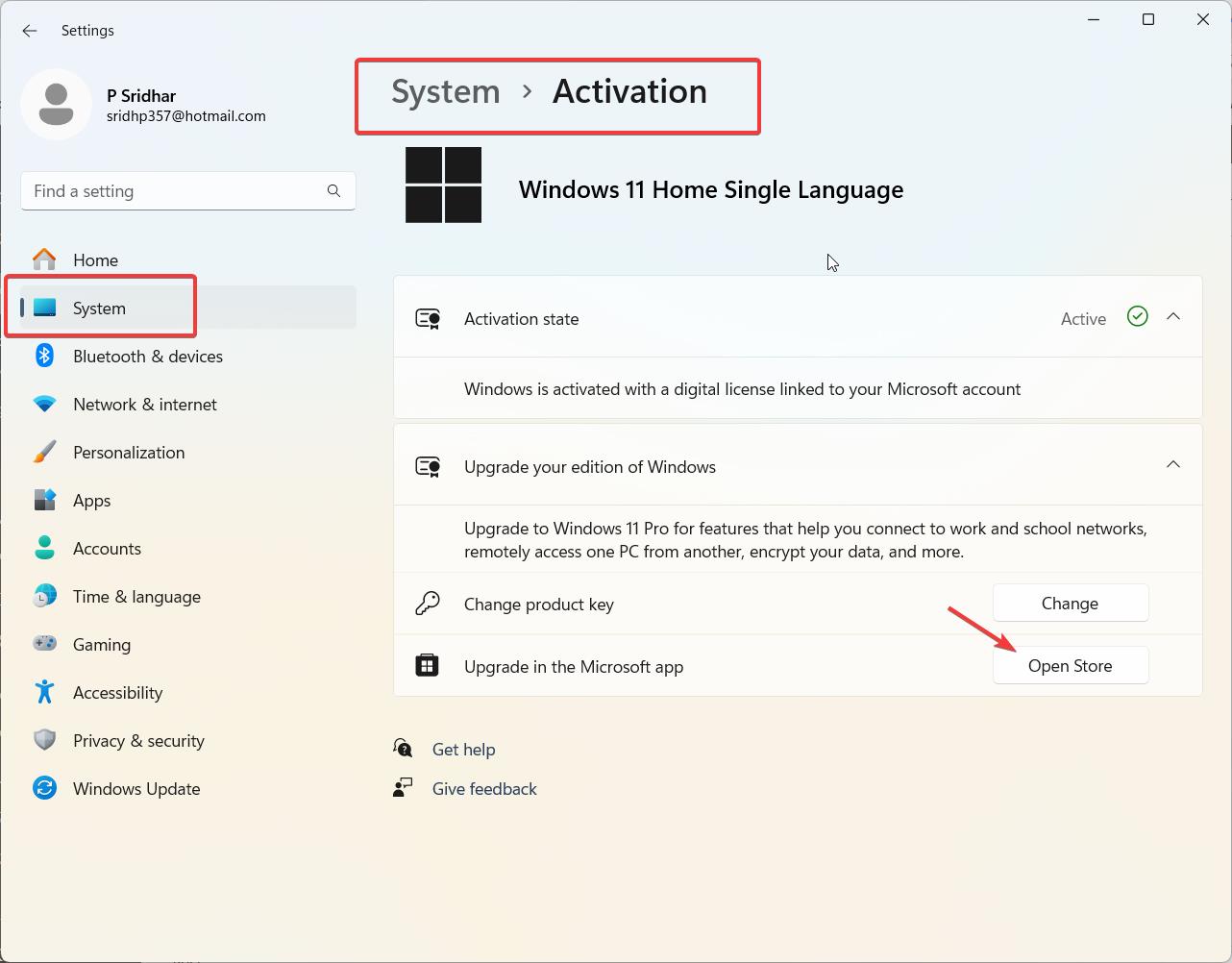
How to Check Your License Type in Windows 11
Step 1: Open Settings > System > Activation.
Step 2: Check the status message.
- “Windows is activated with a digital license linked to your Microsoft account” → Digital license, linked ✅ (easiest recovery)
- “Windows is activated with a digital license” → Digital license, NOT linked ⚠️ (harder recovery)
- “Windows is activated” → Product key-based activation (OEM or Retail)
You can also run this command in an elevated Command Prompt to check:
slmgr /dliThe output shows your license type, partial product key, and activation status.
Fix 1: Run the Windows 11 Activation Troubleshooter
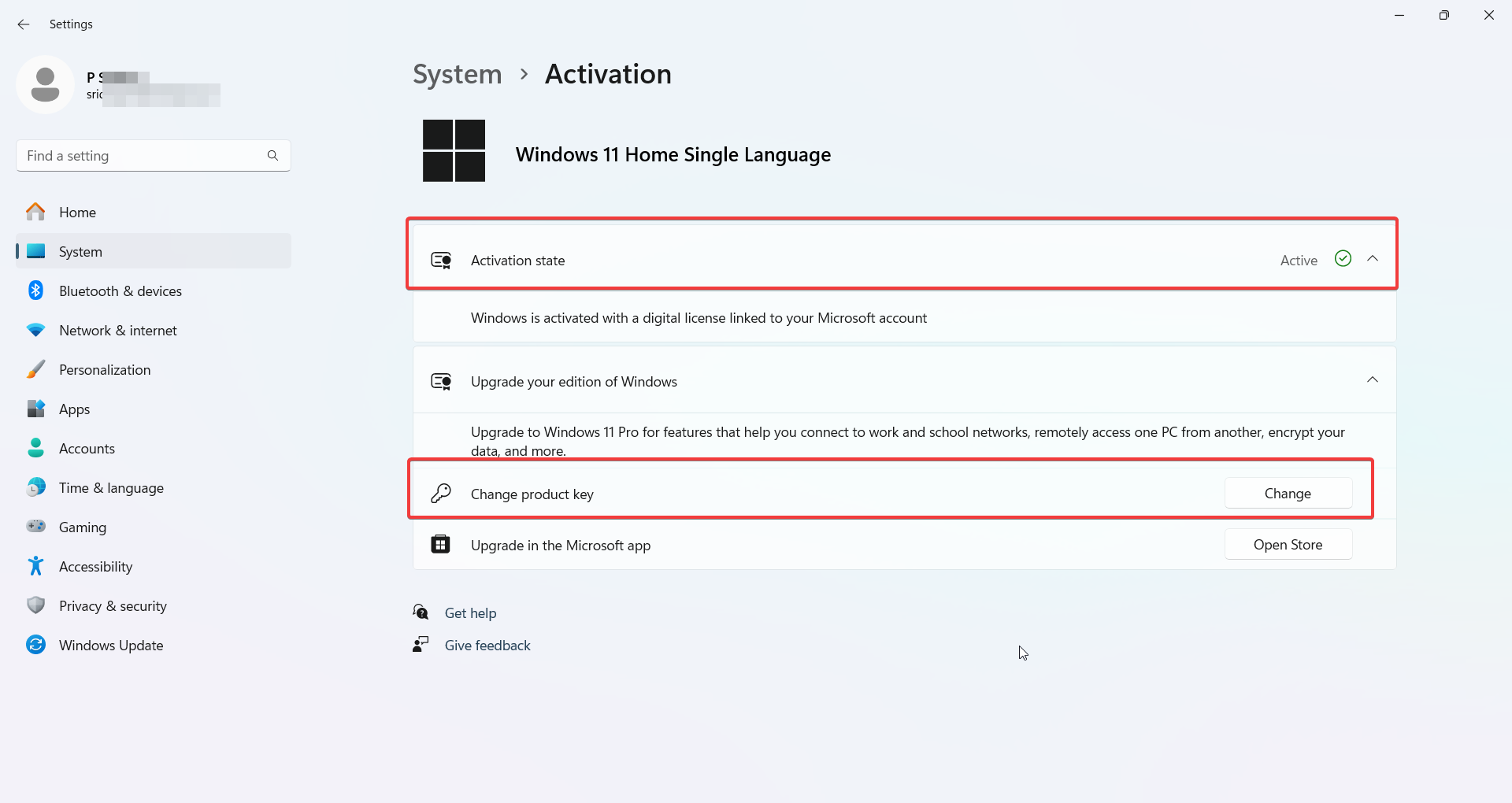
This is always the first step—it resolves the error automatically for most digital license holders whose license is linked to a Microsoft account.
Step-by-Step Instructions
Step 1: Press Windows + I to open Settings.
Step 2: Navigate to System > Activation.
Step 3: If you see the 0xc004f211 error, look for a Troubleshoot button and click it. (In Windows 11 25H2, this may appear as “Fix now” or “Troubleshoot” depending on your build.)
Step 4: When prompted, select “I changed hardware on this device recently.”
“I Changed Hardware on This Device Recently” Option
Step 5: Sign in with your Microsoft account (the same one linked to your Windows license).
Step 6: You’ll see a list of devices associated with that Microsoft account. Find your current PC (or the device closest to your hardware configuration) and select it.
Step 7: Click Activate.
In most cases, Windows will reactivate within 30 seconds. If the Troubleshooter says, “We can’t reactivate Windows on this device,” or doesn’t show your device in the list, proceed to Step 2.
Fix 2: Link Your Digital License to Your Microsoft Account (or Re-Link)
If the Activation Troubleshooter didn’t work, the issue is often that the digital license was never linked to a Microsoft account—or the wrong account is signed in.
How to Add Your Microsoft Account to Activation
Step 1: Go to Settings > System > Activation.
Step 2: Under Activation state, click Add an account (if it is not already linked).
Step 3: Sign in with your Microsoft account.
Step 4: Once linked, the page should display “Windows is activated with a digital license linked to your Microsoft account.”
Step 5: If you then obtain the 0xc004f211 error (because you’ve already changed hardware), run the activation troubleshooter again—now it will have access to your linked license.
Remove Old Device from Microsoft Account First (2026 Update)
A critical step that competitors miss and that Microsoft now explicitly recommends (confirmed in April 2026 documentation):
If reactivation continues to fail, it may be because the old hardware configuration is still registered as an active device in your Microsoft account.
Step 1: On any browser, go to account.microsoft.com.
Step 2: Sign in with the same Microsoft account linked to your Windows license.
Step 3: Click Devices.
Step 4: Locate the entry for your previous hardware configuration (it may appear as the same PC name with a different ID).
Step 5: Click Show details, then Remove the device.
Step 6: Return to your PC and run the Activation Troubleshooter again.
This step alone resolves reactivation failures for many users who’ve replaced motherboards or done significant hardware upgrades.
Fix 3: Re-Enter Your Product Key
If you have a retail license with a 25-character product key, re-entering it on the new hardware is the most direct solution
Using Windows Settings
Step 1: Go to Settings > System > Activation.
Step 2: Click Change product key (or “Update product key”).
Step 3: Enter your 25-character product key and click Next.
Step 4: Click Activate and wait for confirmation.
Your product key is on the original product packaging, in your Microsoft account’s purchase history, or in a confirmation email from the retailer.
Using slmgr Command (Command Prompt Method)
For users who prefer the command line, or when the Settings method doesn’t work:
Step 1: Press Windows + X and select Terminal (Admin) or Command Prompt (Admin).
Step 2: First, remove the existing key (this step is optional but recommended).
slmgr /upkStep 3: Install your new or existing product key.
slmgr /ipk XXXXX-XXXXX-XXXXX-XXXXX-XXXXX(Replace X’s with your actual 25-character product key.)
Step 4: Activate online:
slmgr /atoStep 5: Verify activation status:
slmgr /dliThis command-line method works even when the Settings UI is buggy or the Change product key button is greyed out.
Fix 4: Phone Activation (slui 4)
Phone activation works for all license types and is especially useful when online activation fails repeatedly or when your internet connectivity is unreliable.
Step 1: Press Windows + R to open the Run dialog.
Step 2: Type slui 4 and press Enter.
Step 3: Select your country or region from the dropdown.
Step 4: Note the phone number displayed on screen for your region.
Step 5: Call the number (it’s an automated system, available 24/7 in the US, UK, and major markets).
Step 6: When prompted, enter the installation ID shown on your screen (usually a long series of digits grouped in blocks).
Step 7: The automated system will provide a confirmation ID. Enter it back into the phone activation window on your PC.
Step 8: Click Activate Windows.
Phone activation works independently of your internet connection and is Microsoft’s official fallback method for persistent activation failures.
Fix 5: Contact Microsoft Support Directly
If all automated methods fail — especially for OEM users with BIOS-triggered errors or edge-case license issues — Microsoft Support can manually reactivate your license.
Using the Get Help App
Step 1: Press Windows + S and search for “Get Help.”
Step 2: Open the Get Help app.
Step 3: Type “Activation error 0xc004f211” and press Enter.
Step 4: Follow the guided troubleshooting. If it doesn’t resolve the issue, select the option to chat or speak with a support agent.
What to Say When You Call
Be specific and provide:
- Your license type (OEM, Retail, or Digital)
- The hardware that changed (e.g., “I replaced my motherboard and CPU”)
- The exact error code: 0xc004f211
- Whether the license was linked to a Microsoft account
Microsoft support agents can manually reactivate licenses, especially for retail license holders who have proof of purchase. Be persistent — initial bots may redirect you to articles, but a human agent can resolve the issue.
Fix 6: Purchase a New License (OEM Users After Motherboard Change)
If you have an OEM license and replaced your motherboard, your license is permanently tied to the original hardware. In this case, you need a new Windows license.
Options for purchasing legitimately:
- Microsoft Store (microsoft.com/en-us/store) — official pricing: Windows 11 Home from $139 (US)
- Microsoft-authorized retailers—Amazon, Best Buy, Newegg
- Microsoft 365 subscription does not include a Windows license
Avoid third-party key resellers with prices below $30 — these are typically recycled OEM or volume license keys that may deactivate without warning.
Windows 11 Home activation key guide
0xc004f211 vs 0xc004f213 — What’s the Difference?
These two error codes are frequently confused and often co-searched:
| Error Code | Message | Cause | Fix Path |
|---|---|---|---|
| 0xc004f211 | “Hardware has changed.” | Hardware fingerprint mismatch after hardware change | Activation Troubleshooter, re-link MS account, re-enter key |
| 0xc004f213 | “No product key found.” | No valid key or digital license found for this hardware | Enter product key or purchase new license |
Both errors appear after hardware changes, but 0xc004f211 specifically means Windows found a license but can’t match it to the current hardware. 0xc004f213 means no license was found at all on the new hardware.
How to Prevent 0xc004f211 Before Your Next Hardware Change
The best time to prepare is before you swap hardware.
Step 1: Link your digital license to your Microsoft account before making any hardware changes.
- Go to Settings > System > Activation > Add an account
- Sign in with your Microsoft account
Step 2: Verify the link is active — you should see “Windows is activated with a digital license linked to your Microsoft account.”
Step 3: Note your product key (for retail licenses) using:
wmic path SoftwareLicensingService get OA3xOriginalProductKeyStep 4: After hardware changes, sign in to Windows using the same Microsoft account and run the Activation Troubleshooter immediately.
Following these steps means that even after a full motherboard swap, reactivation is typically a single click in the Activation Troubleshooter.
What does error code 0xc004f211 mean in Windows 11?
Error code 0xc004f211 means Windows detected that your PC’s hardware has changed significantly since it was last activated. The hardware fingerprint—based primarily on your motherboard—no longer matches the one stored in Microsoft’s activation servers. This is the activation system’s way of confirming that the license is not in use on a completely different PC.
How do I resolve Windows 11 activation error 0xc004f211?
The fix depends on your license type. For digital licenses linked to a Microsoft account: run the Activation Troubleshooter (Settings > System > Activation > Troubleshoot), select “I changed hardware recently,” and sign in with your Microsoft account to reactivate. For retail licenses: re-enter your 25-character product key. For OEM licenses after a motherboard replacement, contact Microsoft Support or purchase a new license.
Is 0xc004f211 common in India after hardware upgrades?
Yes—error code 0xc004f211 affects users in India, the US, Europe, and globally whenever hardware changes occur. The fix process is identical regardless of region. Indian users who purchased OEM laptops (common in Indian retail) should be aware that OEM licenses cannot be transferred to new motherboards—a new license would be required after a motherboard replacement.
Can I reactivate Windows 11 after replacing the CPU without replacing the motherboard?
Possibly. CPU swaps can trigger 0xc004f211 because the CPU ID is part of the hardware fingerprint. However, the Activation Troubleshooter often resolves the issue automatically, especially if your digital license is linked to your Microsoft account. Run the troubleshooter first — most CPU-only swaps reactivate successfully without needing phone activation or a new license.
How do I resolve 0xc004f211 using the command prompt?
Open Command Prompt as Administrator and run the command slmgr /upk to remove the current key, then slmgr /ipk YOUR-PRODUCT-KEY to install your key, then slmgr /ato to activate online. For diagnosis, run slmgr /dli to see your current license status. If online activation fails, use the phone slui 4 to open the activation window.
Conclusion
Whether you’re dealing with Windows 10 0xc004f211 or Windows 11 0xc004f211 activation, the error message is “Windows reported that the hardware of your device has changed. Error code 0xc004f211” can be frustrating but is often resolvable with the right steps.
Getting Past Error 0xc004f211
The 0xc004f211 activation error looks alarming, but it’s nearly always fixable without buying a new license—if you have a retail or digital license linked to your Microsoft account.
The fastest path: run the Activation Troubleshooter, select “I changed hardware recently,” sign in with your Microsoft account, and select your device. For most users, that’s all it takes.
If the troubleshooter fails, re-enter your product key or use phone activation (SLUI 4). OEM users who replaced their motherboards are the exception—that license is permanently tied to the original hardware.
While the 0xc004f211 activation error may seem daunting, it’s a manageable issue with clear solutions. By following trusted troubleshooting methods and leveraging official resources, you can restore your system’s activation status and maintain a seamless Windows experience.
