
Key Takeaways
- A yellow warning icon in Device Manager is the one reliable “outdated or broken” signal. It flags drivers that actually have a problem — unlike third-party scanners that label every old driver as “outdated” to sell you an update.
- Old does not mean outdated. Windows keeps stable drivers for years on purpose. A 2022 driver that works perfectly is not something to fix. Chasing a “you have 30 outdated drivers” warning usually means installing software you don’t need.
- Built-in tools show you everything for free. PowerShell lists every driver with its version and date; Device Manager flags problems visually; CMD gives a full inventory. You never need a paid scanner just to check.
Quick answer: To check for outdated drivers in Windows 11, open Device Manager and look for yellow warning icons—those flag drivers with problems. For a full inventory, run
Get-WmiObject Win32_PnPSignedDriver | Select-Object DeviceName, DriverVersion, DriverDatein PowerShell to see every driver’s version and date, then compare against the manufacturer’s website.
Introduction
Before you update anything, there’s a smarter first step most people skip: finding out which drivers are actually outdated. Blindly updating everything wastes time and occasionally breaks a working setup—and the “you have 30 outdated drivers!” A pop-up from a random scanner is almost always a sales tactic, not a diagnosis.
Learning how to check for outdated drivers in Windows 11 puts you in control. You’ll see exactly what’s on your system, spot the one or two drivers that genuinely need attention, and ignore the dozens that are perfectly fine being a couple of years old.
This guide covers four ways to check—the visual Device Manager method, the complete PowerShell inventory, the CMD approach, and how to confirm a driver is truly outdated by comparing versions. I’ll also be honest about the biggest myth in this space: old does not mean broken. Home users and office users can follow every step.
How to Check for Outdated Drivers
To check for outdated drivers in Windows 11, open Device Manager and look for any device with a yellow warning triangle — that marks a driver with a problem. For a complete check, run
Get-WmiObject Win32_PnPSignedDriver | Select-Object DeviceName, DriverVersion, DriverDatein PowerShell to list every driver’s version and installation date, then compare the dates against the manufacturer’s website.
The key distinction: Device Manager shows you what’s broken, while the PowerShell inventory shows you what’s old — and those are not the same thing, as you’ll see below.
The Truth First: Old Doesn’t Mean Outdated
This is the part scare-tactic software never tells you, so let’s settle it before the methods.
Windows deliberately keeps stable, working drivers in place for years. Microsoft doesn’t push a new driver just because one exists—if your current one works, it stays. So a driver dated 2022, or even 2020, is not automatically a problem. Often it’s the best version for your hardware, and “updating” it gains you nothing.
That’s why a third-party scanner reporting “30 outdated drivers on this PC” is misleading. It’s counting every driver that isn’t the newest available — not every driver that actually needs updating. Most of those 30 are fine. The tool flags them all to create urgency and sell you a paid “fix.”
The rule to remember: update a driver when it’s causing a problem (a device isn’t working, you’re troubleshooting a bug, or a game needs a newer GPU driver)—not simply because a newer version exists. The methods below help you tell the difference.
Method 1: Check Device Manager for Problem Drivers (Fastest)
Device Manager is the quickest way to see which drivers genuinely have an issue.
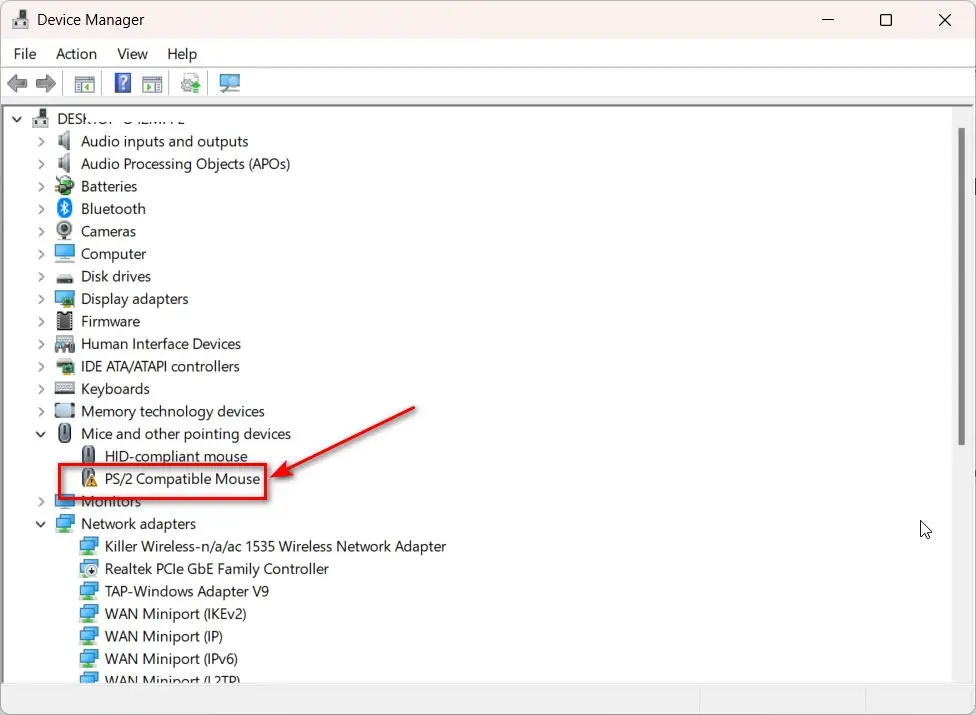
- Right-click Start → Device Manager.
- Scan the list for any device showing a yellow triangle with an exclamation mark. That icon means the driver is missing, broken, or malfunctioning — a real problem worth fixing.
- Expand categories to check inside. A device that’s working normally shows no icon.
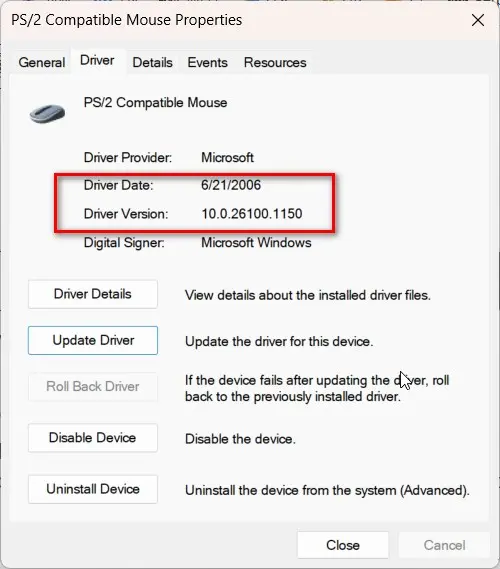
To view a specific driver’s details:
- Right-click the device → Properties.
- Open the Driver tab.
- You’ll see Driver Date and Driver Version. Note these to compare against the manufacturer’s site.
You can also right-click a device → Update driver → Search automatically for drivers, and Windows will tell you if a better driver is available. If it says “The best drivers for your device are already installed,” that driver is not outdated, regardless of its date.
The honest takeaway from Device Manager: no warning icon usually means no action needed. The yellow triangle is your real signal.
Method 2: List Every Driver with PowerShell (Full Inventory)
When you want to see everything at once — every device, its driver version, and its date — PowerShell gives you the complete picture in one command.
- Right-click Start → Terminal (Admin) or open PowerShell as administrator.
- Run:
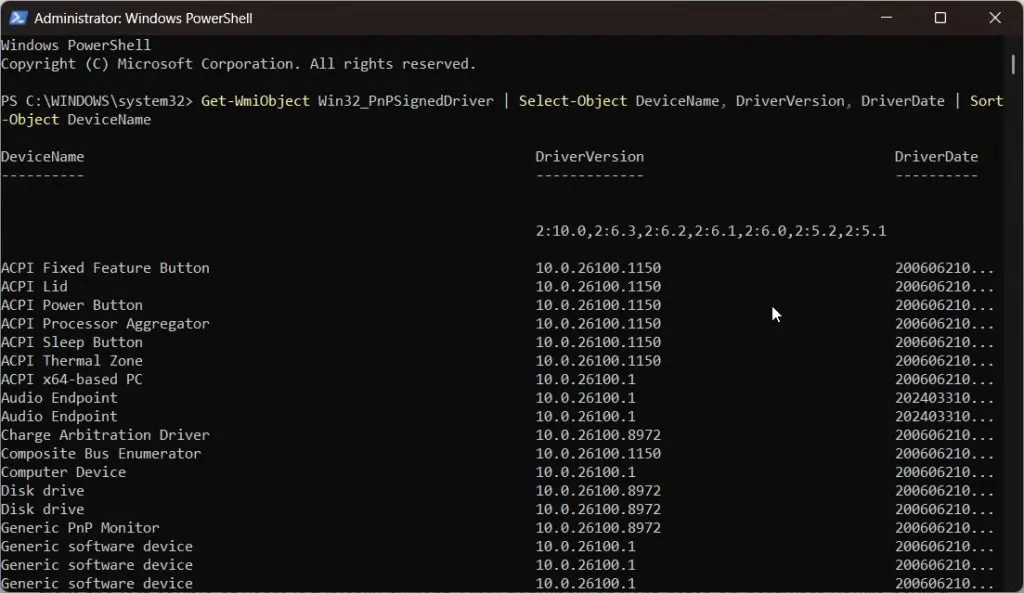
Get-WmiObject Win32_PnPSignedDriver | Select-Object DeviceName, DriverVersion, DriverDate | Sort-Object DeviceNameThis lists every signed driver on your system, alphabetically, with its version number and installation date. It’s the fastest way to check all drivers for updates in one view.
To export the list to a file, you can review or keep it as a record:
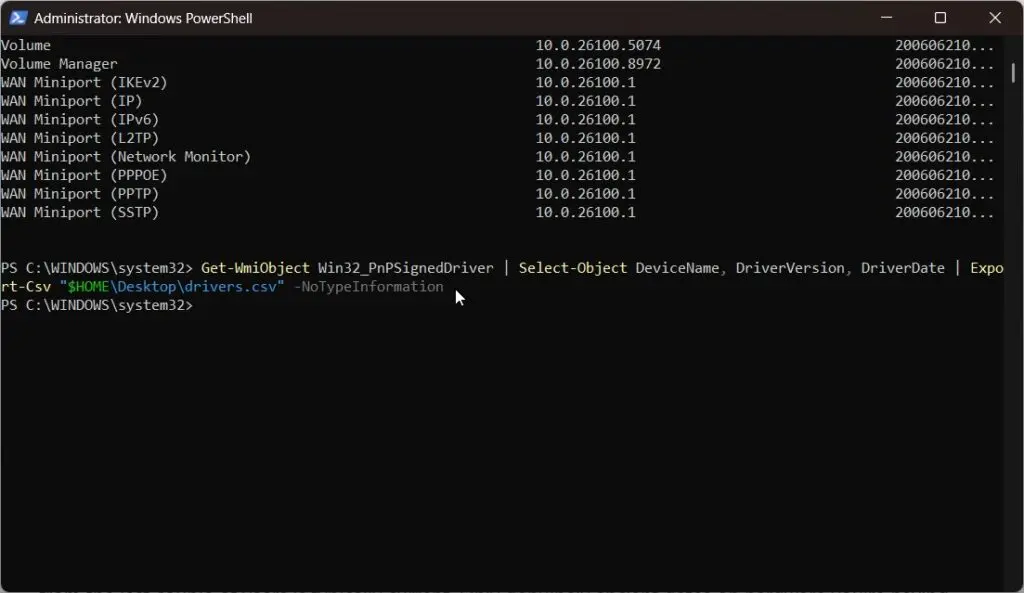
Get-WmiObject Win32_PnPSignedDriver | Select-Object DeviceName, DriverVersion, DriverDate | Export-Csv "$HOME\Desktop\drivers.csv" -NoTypeInformationNow you have a spreadsheet of every driver on your desktop. Scan the DriverDate column — anything from the last couple of years is typically current. Only genuinely ancient dates on hardware you’re having trouble with are worth investigating.
Method 3: Check Drivers Using CMD (pnputil)
If you prefer Command Prompt, pnputil gives a clean inventory of third-party drivers.
- Open Command Prompt as administrator.
- Run:
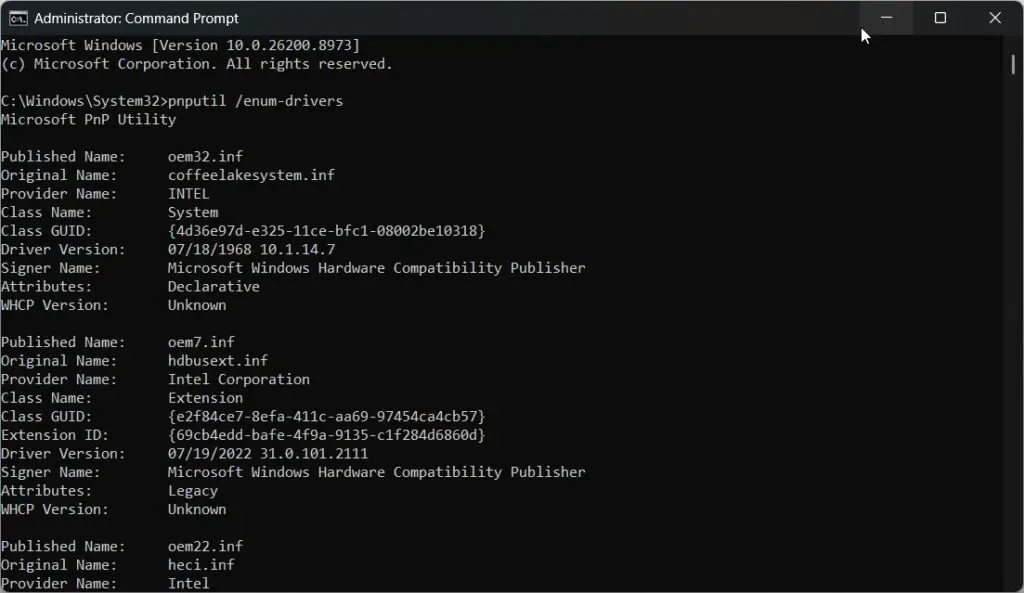
pnputil /enum-driversThis lists each installed driver package with its published name, original INF file, provider, class, version, and date. It’s the CMD answer to how to check all drivers in cmd — useful for spotting duplicates or unusually old third-party packages.
For the full command-line approach to updating what you find, see our dedicated guide on updating drivers using CMD — this article focuses on checking, that one on fixing.
Method 4: Confirm a Driver Is Actually Outdated
Finding an old date is only half the check. To know if a driver is genuinely outdated, compare your version with the source:
- Note the Driver Version and Driver Date from Method 1 or 2.
- Visit the manufacturer’s website — the device maker (NVIDIA, Intel, Realtek) or your PC brand (Dell, HP, Lenovo, ASUS).
- Find the latest driver for your exact model and compare version numbers.
If the vendor’s newest matches what you have, you’re current — done. If theirs is meaningfully newer and you’re experiencing a problem the update mentions fixing, then it’s worth updating.
For GPUs specifically, the vendor’s own app (NVIDIA app, AMD Software, Intel Driver & Support Assistant) checks and flags outdated graphics drivers automatically — the one category where staying current genuinely matters for performance.
What to Do Once You’ve Found Outdated Drivers
Found one or two drivers that genuinely need updating? You have a few options depending on how many and which:
- A single problem device — update it right in Device Manager (right-click → Update driver).
- Several at once — use Windows Update’s optional driver updates, or the command line.
- GPU drivers — always from the vendor’s app for the latest version.
For the complete step-by-step on updating everything you’ve identified, see our main guide on how to update all drivers at once. Check here first, update there.
Best Practices
- Trust the Device Manager yellow icon over any third-party “outdated” count.
- Export the PowerShell list periodically as a record of your driver baseline.
- Only update drivers tied to an actual problem or a GPU you want current.
- Please confirm that the driver is “outdated” on the vendor’s site before installing anything.
- Ignore scare-tactic pop-ups claiming dozens of outdated drivers.
Common Mistakes to Avoid
- Treating “old” as “outdated.” A years-old driver that works is fine—date alone isn’t a problem.
- Trusting a scanner’s “30 outdated drivers” count. It’s a sales tactic, not a diagnosis.
- Updating every driver just because newer exists. You risk breaking a stable setup for no gain.
- Ignoring the yellow warning icon. That’s the one signal that genuinely means “fix me.”
- Skipping the vendor check. Only the manufacturer’s site confirms whether you’re truly behind.
Recommended Tools
- Device Manager — visual check for problem drivers (the yellow icon).
- PowerShell (Get-WmiObject) — full driver inventory, including versions and dates.
- pnputil — CMD-based driver list.
- Vendor apps (NVIDIA/AMD/Intel, Dell/HP/Lenovo) — confirm and flag genuinely outdated drivers.
Everything except the vendor apps is built into Windows 11.
How do I ensure all drivers are updated?
Run Windows Update including its optional driver updates page, then verify in Device Manager that no device shows a yellow warning icon. Use PowerShell’s Get-WmiObject command for a complete version list. For GPUs, check the vendor’s app. If nothing is flagged and Windows finds no updates, your drivers are current.
Does an “old driver” date mean the driver is outdated?
No. Windows keeps stable drivers in place for years by design, so a driver dated 2021 or 2022 can be perfectly current and correct for your hardware. A driver is only “outdated” if a newer version fixes a problem you’re actually having—not simply because the date is old.
Why does a scanner say I have 30 outdated drivers?
Because it counts every driver except the absolute newest available, not every driver that needs updating. Most of those are working fine. Third-party scanners inflate the “outdated” count to create urgency and sell a paid fix. Trust Device Manager’s yellow warning icon instead — it flags only genuine problems.
How do I check drivers using CMD?
Open Command Prompt as administrator and run pnputil /enum-drivers. This lists every installed driver package with its name, version, date, and source INF file. It’s a quick way to inventory third-party drivers and spot unusually old packages. To update what you find, use pnputil’s add-driver command or PowerShell’s PSWindowsUpdate.
Conclusion
Knowing how to check for outdated drivers in Windows 11 saves you from two mistakes: missing the one driver that genuinely needs updating, and wasting time “fixing” thirty that don’t. The tools are all built in — Device Manager’s yellow icon shows you what’s broken, PowerShell’s inventory shows you what’s old, and the vendor’s site confirms what’s truly behind.
The honest rule worth keeping: old is not the same as outdated. Update drivers that cause problems, keep your GPU current, and let the stable ones be. That approach keeps your PC reliable and spares you the scare-tactic updater apps entirely.
Open Device Manager now and scan for yellow icons, then run the PowerShell inventory to see your full driver picture. Then tell us in the comments how many genuine problems you found versus what a scanner would have claimed — the gap surprises most people.
