

Key Takeaways
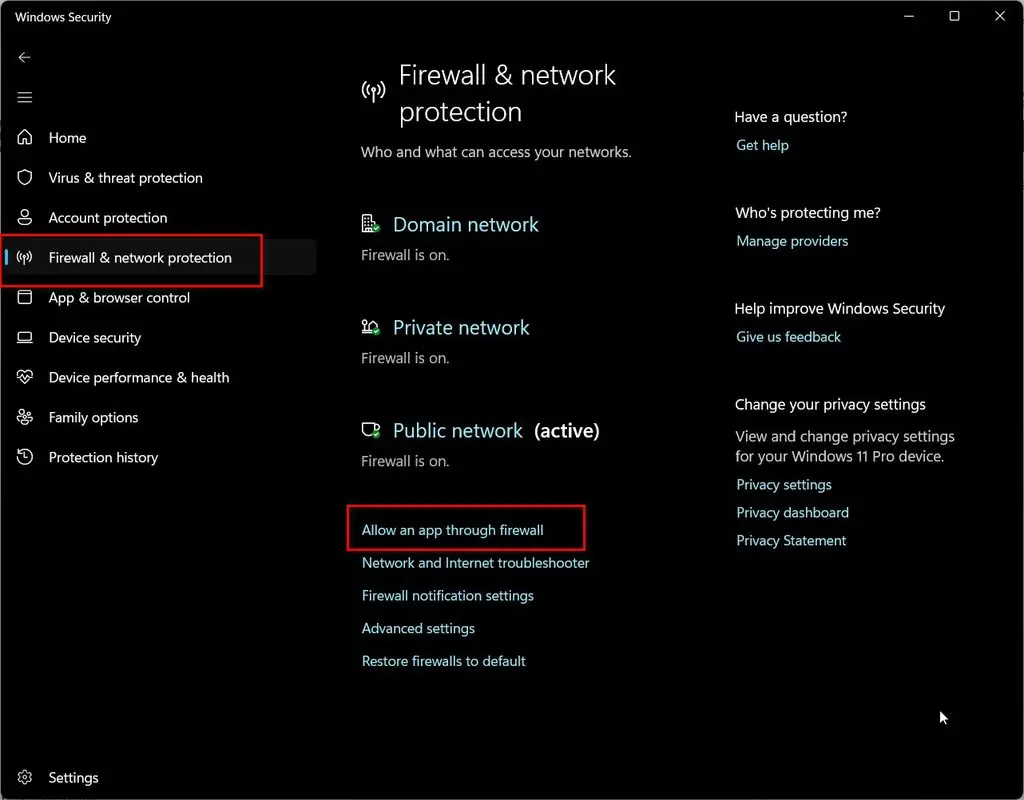
- “Allow an app through firewall” is the main settings page for unblocking a trusted app on Windows 11.
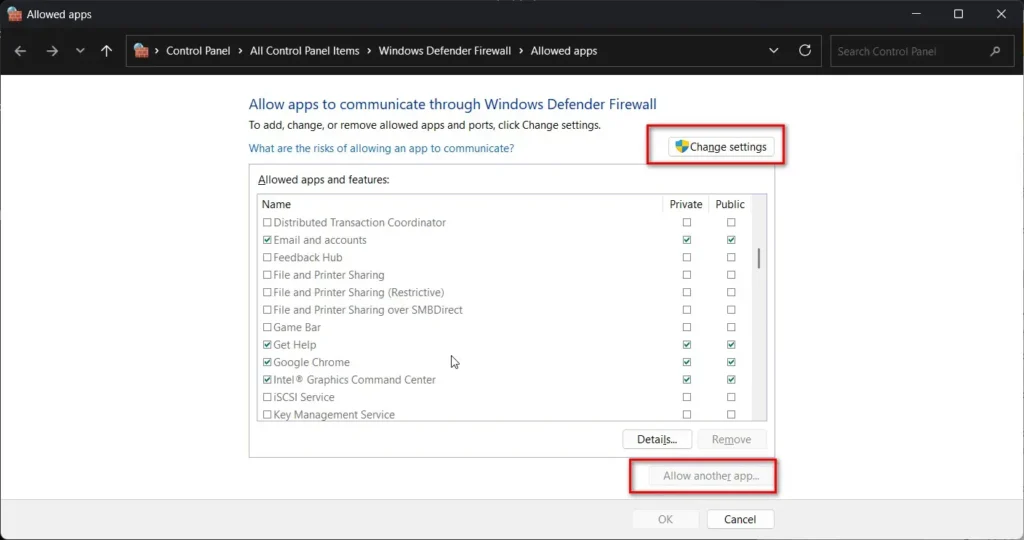
- Changes need an admin unlock first. Click “Change settings” before any checkbox becomes editable.
- Private and Public network permissions are separate. Check both if the app needs to work everywhere.
- A missing app isn’t blocked automatically. Click “Allow another app” and browse to the executable directly.
- Third-party antivirus software can hide this entire page. Check that program’s own firewall settings instead.
Quick Answer
Open Windows Security, go to Firewall & Network Protection, and then click “Allow an app through firewall.” Click “Change settings” to unlock the list, find the app, and check both Private and Public boxes. If the app isn’t listed, click “Allow another app” and browse to its .exe file directly. Unblock app in Windows Firewall to allow network connections and inbound, outbound rules.
Unblock app in Windows Firewall Windows 11
A blocked app usually shows itself the same way: no internet, no connection error, just silence.
Windows Firewall blocks by default and stays quiet about it unless a prompt happens to appear at the right moment.
The fix takes under a minute once the right settings page is open.
Allow an app through firewall
This single page controls every app-level exception on Windows 11.
Open Windows Security, select Firewall & network protection, then click “Allow an app through firewall.”
Every currently permitted and blocked app shows up here, sorted alphabetically, with checkboxes for network type.
Windows Security Firewall & network protection
Windows Security is the built-in hub for this entire process; no separate download is required.
Search for “Windows Security” from Start, or reach it through Settings, Privacy & Security, Windows Security.
Firewall & network protection sits as its own section inside that app, distinct from virus protection or app control.
Change settings button (admin unlock)
Every checkbox stays grayed out until this one button gets clicked first.
Look for “Change settings” near the top of the allowed apps list, marked with a shield icon.
Windows prompts for admin confirmation immediately after, standard behavior for any firewall-level change.
Private vs Public network firewall
Two separate checkboxes control where an app can connect, not just whether it can.
Private covers trusted networks, home or office. Public covers everything else, including café Wi-Fi and hotel networks.
Check only Private for anything sensitive, and both boxes only for apps that genuinely need to work anywhere.
Allow another app (add program manually)
A missing app from the list doesn’t mean it’s blocked by default. It just hasn’t registered a rule yet.
Click “Allow another app,” then browse directly to the program’s .exe file if it doesn’t appear in the suggested list.
Confirm the network type immediately after adding it, since new entries default to unchecked.
Third-party antivirus blocking firewall settings
Norton, McAfee, and similar security suites frequently take over firewall management entirely.
Windows Security’s own firewall page can be grayed out or hidden when one of these is installed and active.
Instead, check that program’s own firewall or network settings. Windows’ native controls won’t apply while it’s in charge.
New-NetFirewallRule PowerShell command
A stubborn app that keeps losing its permission benefits from a permanent rule set through PowerShell instead.
Open PowerShell as administrator and run a command like New-NetFirewallRule -DisplayName “AppName” -Direction Inbound -Program “C:\Path\App.exe” -Action Allow -Profile Private,Public.
This creates a rule that Windows won’t silently reset, as it sometimes does with GUI-based exceptions.
Inbound vs outbound firewall rules
Windows Firewall allows outbound traffic by default. Blocking outbound needs an explicit rule, it isn’t automatic.
Inbound is the opposite: blocked by default, requiring an explicit allow rule for anything trying to reach the PC from outside.
Most everyday “app can’t connect” problems involve inbound rules, which is exactly what the Allowed apps page manages.
Windows Firewall Advanced Security
The Allowed apps page handles simple exceptions. Advanced Security is where granular, explicit rules live instead.
Search for “Windows Defender Firewall with Advanced Security” to reach it, a separate console from the basic Settings page.
Use it for specific port rules, program-level outbound blocks, or anything the simple checkbox list can’t express.
Firewall troubleshooter
A built-in troubleshooter exists specifically for connection problems tied to firewall misconfiguration.
Run it from Settings, System, Troubleshoot, Other troubleshooters, listed under network-related tools.
It catches common misconfigurations automatically, worth trying before manually hunting through every setting by hand.
Reset firewall to default settings
A firewall that’s accumulated years of rules and exceptions sometimes behaves unpredictably.
Windows Security includes a “Restore firewalls to default” option, which clears every custom rule back to a clean slate.
Use this as a last resort. Every app that needed a manual exception will need it added again afterward.
App keeps getting blocked again (reset behavior)
Some apps lose their allowed status after an update, since a new executable can register as a different program to Windows.
This happens frequently with browsers and apps that auto-update their own binary in place.
A PowerShell rule pointed at the install folder, rather than a specific file version, holds up better against this pattern.
Windows Defender Firewall blocked some features error
This exact message means Windows already detected the app requesting network access and paused it for a decision.
Clicking “Allow access” on that prompt does the same job as manually checking the box in Settings afterward.
If the prompt was accidentally dismissed, find the app manually on the Allowed apps page instead.
Group Policy firewall restrictions
Work and school machines sometimes lock firewall settings through Group Policy, the same way personalization settings can be locked.
Settings will show the relevant controls grayed out or note that an organization manages them.
There’s no user-side fix here. Whoever manages the device’s policy needs to grant the exception centrally.
Firewall exception vs. explicit block rule
Removing an app from the Allowed list doesn’t automatically block its outbound connections, a common misunderstanding.
Outbound traffic is permitted by default unless a specific block rule exists for that program.
Genuinely blocking an app’s internet access requires creating an explicit outbound rule in Advanced Security, not just unchecking a box.
Allow the app for gaming or file sharing.
Games that can’t host multiplayer sessions, or file-sharing tools that can’t accept incoming connections, usually need an inbound exception specifically.
The Allowed Apps page handles this directly, since it’s built for exactly this kind of inbound permission.
Check both Private and Public if friends connect from outside the home network.
Firewall notification prompt when app requests access
A pop-up asking to allow or deny network access appears the first time a new app tries to communicate.
Clicking “Allow access” here creates the same rule as manually adding it through Settings afterward.
Pay attention to which network type the prompt mentions. It only grants access for that specific one unless both are selected.
netsh advfirewall command
A command-line alternative to PowerShell’s New-NetFirewallRule, still functional on Windows 11 for scripting and legacy compatibility.
A typical command looks like netsh advfirewall firewall add rule name=”AppName” dir=in action=allow program=”C:\Path\App.exe” enable=yes.
PowerShell’s cmdlet is generally the more modern choice, but netsh remains useful in older scripts and batch files.
Checking firewall logs for blocked connections
To confirm that the firewall is the cause, rather than guessing, you need to check its logs directly.
Enable logging inside Windows Defender Firewall with Advanced Security, under Properties, then the Logging tab for each profile.
The resulting log file lists dropped connections by IP and port, useful for confirming exactly what’s being blocked and why.
Common Mistakes
Assuming an app is automatically blocked just because it’s missing from the Allowed apps list.
Checking only Private or only Public, then wondering why the app fails to connect from the other network type.
Forgetting that a third-party antivirus suite manages its own firewall, separate from Windows Security entirely.
Unchecking an app expecting it to fully block outbound traffic, when outbound stays allowed unless a specific block rule exists.
Recreating the same manual exception repeatedly after every app update, instead of setting a PowerShell rule that survives it.
FAQs
Why can’t I check or uncheck any app on the firewall list?
Click “Change settings” near the top of the page first. Every checkbox stays locked until that admin-level unlock is clicked.
My app isn’t on the allowed apps list at all. What now?
Click “Allow another app” and browse directly to its .exe file. Not every installed program registers itself automatically.
Why does my app get blocked again after every update?
Some apps register as a new program each time they update their executable. A PowerShell rule targeting the install folder, rather than one specific file, holds up better against this.
Does removing an app from the allowed list block its internet access?
Not fully. Outbound traffic stays allowed by default unless an explicit block rule exists. A genuine block needs a dedicated outbound rule in Windows Firewall with Advanced Security.
Conclusion
Unblocking an app on Windows 11 is a two-click job once “Allow an app through firewall” is open and unlocked.
Private and Public need separate attention, and a missing app just needs adding manually rather than assuming it’s blocked.
For anything that keeps losing its permission, a PowerShell rule beats repeating the same manual fix after every update. And if a third-party antivirus suite is involved, remember the fix lives in its settings, not Windows Security’s.
