
Key Takeaways
- A dedicated shortcut with “Run as administrator” enabled is the cleanest way to auto-elevate Command Prompt on Windows 11.
- Quick, one-off elevation is faster through Ctrl + Shift + Enter, no shortcut required.
- Pinning a plain cmd.exe shortcut to the taskbar breaks the elevation setting. Pin the custom shortcut file instead.
- Windows Terminal needs its own “elevate” setting in profile settings, separate from any Command Prompt shortcut trick.
- Permanent elevation is convenient, but risky for daily use. Reserve it for accounts and machines where that risk is acceptable.
Quick Answer
Right-click a Command Prompt shortcut, open Properties, click Advanced, and check “Run as administrator.”
Every launch from that shortcut now triggers UAC and opens elevated automatically. For a one-time elevated session without any setup, press Ctrl + Shift + Enter from Search or the Start menu instead.
Run Command Prompt as administrator Windows 11
Frequent admin tasks turn a manual “Run as administrator” click into a genuine time sink.
Windows 11 offers several routes to skip that step entirely, some permanent, some just faster for a single session.
Pick the permanent shortcut method if you use elevated Command Prompt daily. Pick the keyboard shortcut if it’s occasional.
Always run Command Prompt as admin
A proper elevated shortcut fixes this for good.
Open File Explorer and go to C:\Windows\System32. Right-click cmd.exe, choose Send to, then Desktop.
Right-click the new desktop shortcut, open Properties, click Advanced on the Shortcut tab, and tick “Run as administrator.” Every double-click now triggers UAC and opens elevated.
Ctrl+Shift+Enter shortcut
A single keystroke combination beats any shortcut setup for occasional use.
Search for cmd in Start or the taskbar search box, then press Ctrl + Shift + Enter instead of clicking the result.
Windows triggers the UAC prompt immediately. Confirm it, and Command Prompt opens elevated, no permanent shortcut needed.
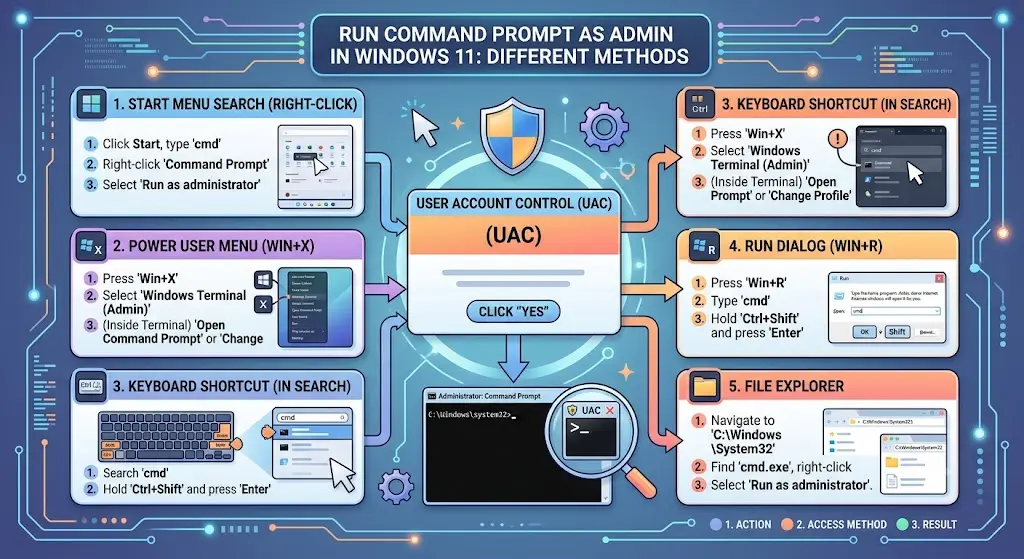
User Account Control (UAC) prompt
UAC still appears every time, even with an auto-elevate shortcut configured.
That’s intentional. Windows never silently grants admin rights without confirmation, regardless of which method triggers the request.
A genuinely silent elevation setup requires disabling UAC outright, which carries real security trade-offs covered further down.
cmd.exe elevated shortcut
The shortcut method above is the most durable fix across reboots, updates, and reinstalled profiles.
Store it somewhere memorable, the desktop or a dedicated tools folder, rather than leaving it buried in System32.
Rename it clearly, something like “CMD (Admin),” so it doesn’t get confused with the regular unelevated shortcut.
Run as administrator checkbox
This single checkbox, under Properties, Shortcut, Advanced, is the setting every method above ultimately relies on.
Any shortcut with this box checked behaves identically: launch triggers UAC, confirm, get elevated access.
It applies per shortcut file, not system-wide, so duplicate shortcuts need the setting applied individually.
Windows Terminal elevate profile
Windows Terminal handles elevation differently from a plain shortcut, since it’s a container for multiple shell profiles.
Open Settings inside Windows Terminal, select the Command Prompt profile, and enable “Run this profile as Administrator.”
Save the change, and that specific profile now always launches elevated within Windows Terminal.
Windows Terminal settings JSON elevate true
Power users can skip the settings UI entirely and edit the underlying JSON directly.
Open the settings.json file from Windows Terminal and add “elevate”: true inside the relevant profile block.
Save the file, and the change takes effect immediately without restarting Terminal.
PowerShell run as administrator
PowerShell follows the exact same pattern as Command Prompt for both shortcuts and Windows Terminal profiles.
A dedicated PowerShell.exe shortcut with “Run as administrator” checked behaves identically to the cmd.exe version.
Set it as your default Terminal startup profile too, if PowerShell is your primary shell rather than Command Prompt.
Task Manager Run new task admin
A genuinely useful fallback when Explorer or Start has crashed.
Open Task Manager with Ctrl + Shift + Esc, select File, Run new task, type cmd, and tick “Create this task with administrative privileges.”
This works even in situations where the taskbar and Start menu are completely unresponsive.
Pin elevated shortcut to taskbar
A common mistake breaks elevation right after setup: dragging the shortcut straight to the taskbar.
Windows sometimes re-links a taskbar pin to the plain, unelevated cmd.exe binary instead of your custom shortcut file.
Right-click the desktop shortcut, choose “Show more options,” then “Pin to taskbar” specifically, rather than dragging the icon directly.
Group Policy elevate Command Prompt
Organizations managing many machines can push elevation behavior through Group Policy rather than configuring each PC by hand.
This sits under Computer Configuration, Administrative Templates, and requires domain admin access to deploy properly.
Skip this route on a personal PC. It’s built for IT-managed fleets, not individual setups.
Task Scheduler run as admin at logon
A scheduled task can launch an elevated Command Prompt automatically when you sign in, bypassing manual launches entirely.
Create a new task in Task Scheduler, set the trigger to “At log on,” and check “Run with highest privileges” under the General tab.
This still prompts UAC once, unless UAC itself has been adjusted, which most security guidance advises against.
Local Security Policy admin approval mode
Admin Approval Mode is the underlying Windows feature that makes every elevation request trigger a UAC prompt in the first place.
It lives in Local Security Policy, under Security Options, and it’s enabled by default on every standard Windows 11 install.
Disabling it removes the prompt entirely, but it also removes a meaningful layer of protection against unauthorized privilege escalation.
Registry AutoElevate
Some older guides mention registry tweaks under HKEY_LOCAL_MACHINE to force auto-elevation for specific executables.
Microsoft doesn’t document or support this path for cmd.exe directly, and it varies significantly by Windows build.
Stick with the shortcut and Task Scheduler methods instead. They’re supported, predictable, and far less likely to break after an update.
Windows Search cmd admin
Right-clicking a search result works fine, but it’s slower than the keyboard shortcut for repeat use.
Type cmd into the search box, right-click the top result, and choose “Run as administrator” from the context menu.
Ctrl + Shift + Enter does the same thing in one motion, without needing the right-click menu at all.
Run dialog elevated command
The Run dialog offers a near-identical shortcut to Search, for anyone who prefers keyboard-first navigation.
Press Windows + R to open Run, type cmd, then press Ctrl + Shift + Enter instead of just hitting OK.
A UAC prompt appears immediately, and confirming it opens Command Prompt elevated.
Compatibility tab run as administrator
A separate but related setting lives under the Compatibility tab of a shortcut’s Properties, not the Shortcut tab.
“Run this program as an administrator” here applies specifically to compatibility mode scenarios, mainly older applications.
For Command Prompt itself, the Advanced button on the Shortcut tab is the correct setting, not this Compatibility checkbox.
Disable UAC prompts (not recommended)
Fully disabling UAC removes every elevation prompt, including the ones triggered by auto-elevate shortcuts.
It’s technically possible through Control Panel’s User Account Control settings, dragging the slider to “Never notify.”
Security guidance consistently advises against this. UAC is a meaningful barrier against malware silently gaining admin rights.
Command Prompt vs Windows Terminal Windows 11
Windows 11 ships Windows Terminal as the default console host, with Command Prompt running inside it as one profile among several.
Elevation settings differ between the two: a Command Prompt shortcut elevates that specific launch, while a Terminal profile setting elevates every session using that profile.
Set both up if you switch between launching Command Prompt directly and through Windows Terminal.
Common Mistakes
Dragging a shortcut straight to the taskbar, which silently reverts it to the unelevated cmd.exe binary.
Editing the Compatibility tab instead of the Shortcut tab’s Advanced settings, which does nothing for Command Prompt elevation.
Disabling UAC entirely just to skip prompts, trading meaningful security for a few saved clicks.
Forgetting that Windows Terminal profiles need their own elevate setting, separate from any desktop shortcut.
Assuming a registry tweak found online will auto-elevate cmd.exe without a UAC prompt at all.
FAQs
Does an elevated shortcut skip the UAC prompt entirely?
No. Every method here still triggers a UAC confirmation. Windows never grants admin rights silently, regardless of which shortcut or setting launches Command Prompt.
Why did my elevated shortcut stop working after I pinned it to the taskbar?
Windows sometimes re-links a taskbar pin to the plain cmd.exe binary instead of your custom shortcut. Right-click the shortcut and choose “Pin to taskbar” from its own menu rather than dragging it directly.
Is it safe to leave Command Prompt set to always run as administrator?
It’s convenient but carries real risk if you run untrusted scripts or commands regularly. Reserve permanent elevation for machines and accounts where that trade-off makes sense.
What’s the fastest way to open an elevated Command Prompt just once?
Press Ctrl + Shift + Enter after typing cmd into Search, the Start menu, or the Run dialog. It triggers UAC immediately, with no shortcut setup required.
Conclusion
Skipping the manual “Run as administrator” click comes down to matching the method to how often you actually need it.
A dedicated elevated shortcut suits daily admin work. Ctrl + Shift + Enter suits the occasional command.
Windows Terminal users need one extra step, since its profile settings sit apart from any desktop shortcut. Skip the registry tweaks and UAC-disabling shortcuts floating around online. The supported methods above are faster to set up anyway, and they don’t quietly weaken your system’s defenses in the process.
