
Key Takeaways
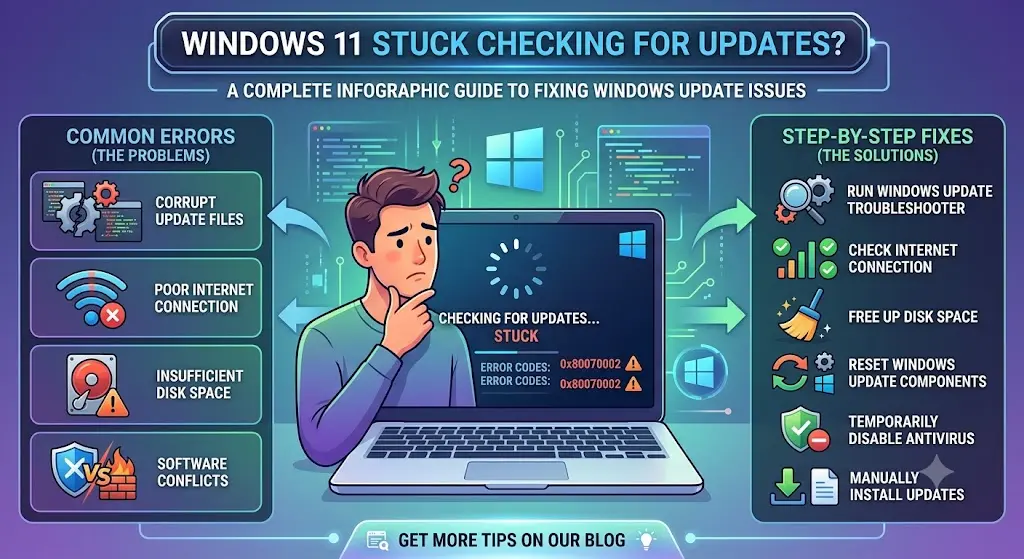
- Windows 11 gets stuck on “Checking for updates” almost always because of a corrupted update cache, a stalled service, or a system clock that’s out of sync.
- Restarting the Windows Update, BITS, and Windows Update Medic services clears most cases in under five minutes.
- If a restart doesn’t help, deleting the contents of the SoftwareDistribution folder forces Windows to rebuild its update cache from scratch.
- Run SFC and DISM if the problem keeps coming back—that points to damaged system files, not just a stuck service.
- The September 2026 Patch Tuesday update, KB5124008, is the current cumulative update for 24H2 and 25H2, so confirm you’re not just waiting on a slow connection before assuming something’s broken.
Quick Answer
Windows 11 stuck checking for updates is usually due to a stalled Windows Update service or a corrupted update cache.
Open Services, restart Windows Update and BITS, then verify for updates again. If it’s still stuck, stop those services, delete everything inside C:\Windows\SoftwareDistribution\Download, and restart the services. This fixes the issue in most cases without a reinstall.
Windows 11 stuck checking for updates
This is the most common way people describe it. You open Settings, click Check for updates, and the circle just spins.
No error appears. No progress bar moves. It looks like nothing is happening at all.
In almost every case, one of the background services that handles updates has stalled, not crashed. That’s why a full error message never shows up.
Windows Update stuck spinning
A spinning circle with no percentage or status text means Windows hasn’t even started downloading anything yet.
It’s still trying to contact Microsoft’s update servers and get a response.
Give it 10 to 15 minutes on a normal connection before assuming it’s actually stuck. After that, treat it as stuck and move to the service restarts below.
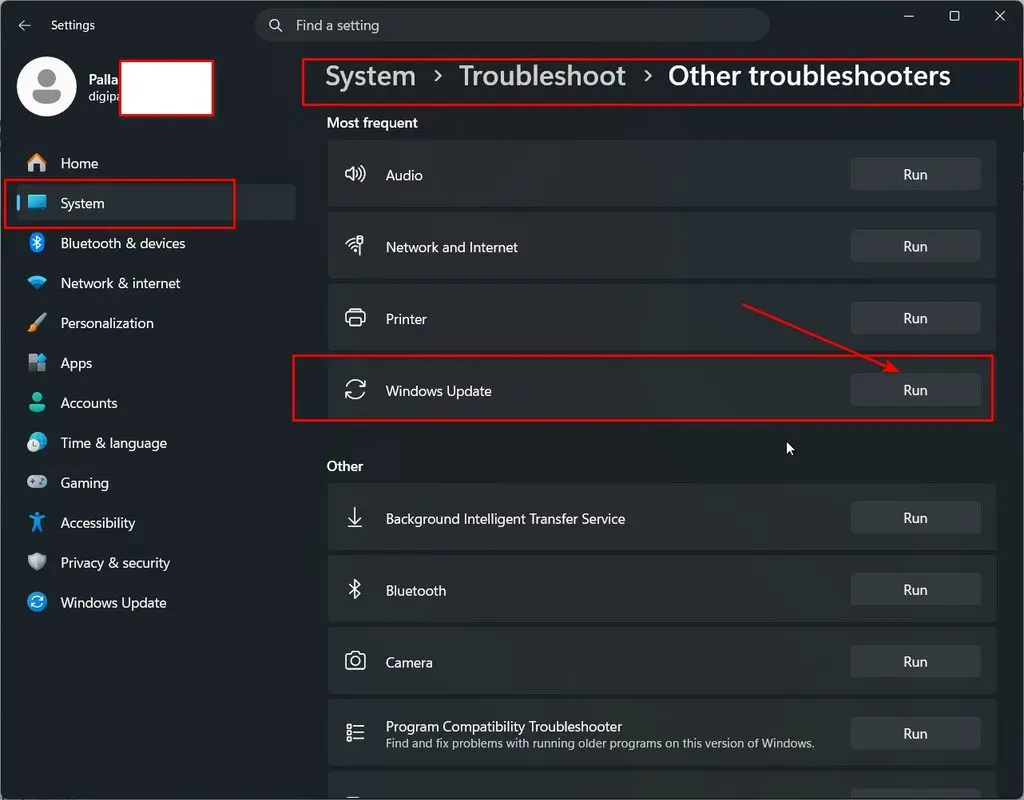
Windows Update troubleshooter
Windows 11 has a built-in troubleshooter specifically for this problem.
Go to Settings, System, Troubleshoot, Other troubleshooters, and run Windows Update.
It checks the update service status, corrupted cache files, and pending restarts automatically and fixes several of them without you touching a command line.
Run it first. It solves the problem outright in a fair number of cases.
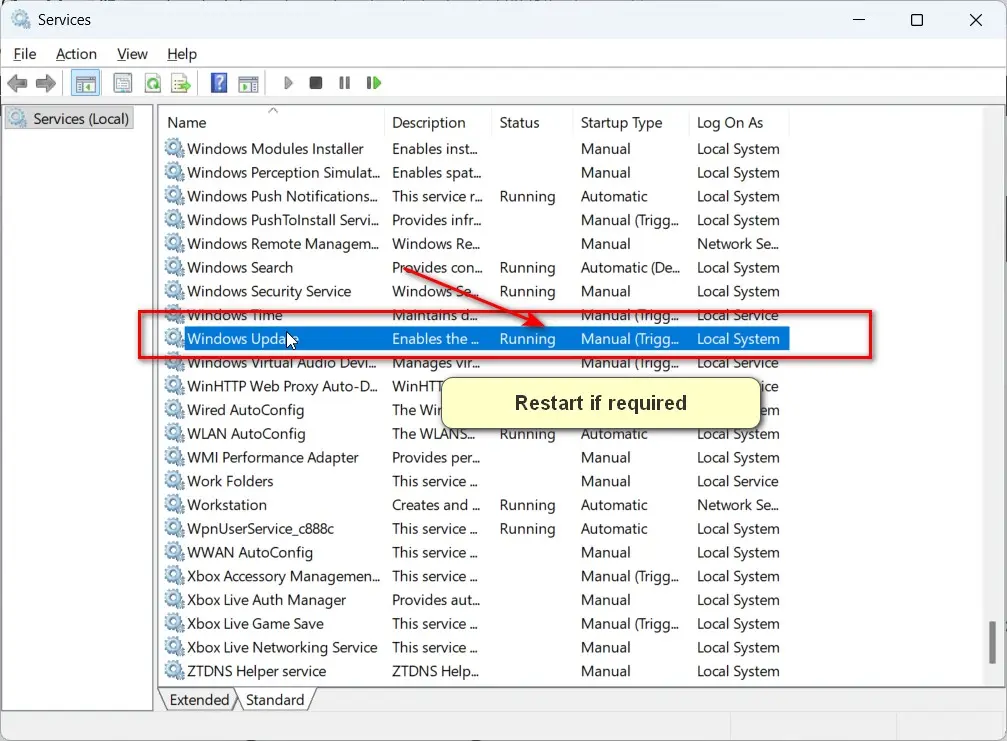
wuauserv service
wuauserv is the actual name of the Windows Update service in Windows.
Press Windows + R, type services.msc, and press Enter. Find Windows Update in the list.
Right-click it and select Restart. If it’s already stopped, select Start instead.
This alone unsticks the checking-for-updates screen more often than any other single step.
Background Intelligent Transfer Service (BITS)
BITS handles the actual downloading of update files in the background.
If BITS is stopped or stuck, Windows Update can query for updates but never receives the download, which shows up as an endless “checking” state.
In services.msc, find Background Intelligent Transfer Service and restart it the same way as wuauserv. Restart both together, not just one.
SoftwareDistribution folder
This folder, at C:\Windows\SoftwareDistribution, is where Windows stores update files while it downloads and prepares them.
If a previous update download was interrupted or corrupted, this folder can leave Windows Update permanently confused about what it’s already done.
Stop the Windows Update and BITS services first, delete everything inside the Download subfolder, then restart both services and check for updates again. Windows rebuilds the folder automatically.
Windows Update cache corrupted
A corrupted cache is the single primary cause of a stuck checking-for-updates screen on Windows 11.
The symptoms are always the same: no error code, no progress, just an indefinite spin.
Clearing the SoftwareDistribution folder, described above, is the direct fix. There’s no way to selectively repair a corrupted cache—clearing it out is faster and just as effective.
Windows Update Medic Service (WaaSMedicSvc)
This is a lesser-known service that repairs Windows Update components automatically when something breaks.
It runs quietly in the background, and normally you’ll never see it.
If Windows Update has been stuck for a while, open an elevated Command Prompt and run sc query wuauserv to confirm it isn’t disabled, then restart the PC. WaaSMedicSvc often resolves update component corruption on its own after a restart.
DataStore.edb corruption
DataStore.edb is the internal database Windows Update uses to track which updates you have and need.
Corruption in this single file can cause the exact same symptom as a bad cache: an endless “checking for updates” spinner.
It sits inside C:\Windows\SoftwareDistribution\DataStore, so clearing the SoftwareDistribution folder (covered above) removes and rebuilds this file too. You don’t need to target it separately.
Reset Windows Update components.
If restarting services and clearing the cache doesn’t work, a full component reset goes one step further.
Open Command Prompt as administrator and stop wuauserv, bits, and cryptsvc. Rename the SoftwareDistribution and catroot2 folders by adding “.bak” to each name. Restart all three services, then check for updates.
This forces Windows to rebuild every update-related component from a clean state, not just the cache.
System File Checker (sfc /scannow)
If the update problem keeps recurring even after a component reset, corrupted system files are the likely cause, not the update service itself.
Open Command Prompt as administrator and run sfc /scannow. Let it finish completely before doing anything else.
SFC repairs damaged protected system files that Windows Update depends on to run correctly.
DISM RestoreHealth
DISM works one level deeper than SFC. It repairs the underlying Windows image, which SFC then uses as its repair source.
Run DISM /Online /Cleanup-Image /RestoreHealth in an elevated Command Prompt, and run it after SFC, not before.
Running DISM first and SFC second is a common mistake that reduces how effective either tool is.
Windows Update is stuck at 0 percent.
If you already see 0% rather than just a spinning circle, that’s a slightly different problem: Windows has started the update process but can’t move past the very first stage.
This usually means low disk space, particularly on the small EFI system partition. Microsoft has confirmed this pattern with recent cumulative updates.
Please free up at least 20GB on your main drive and ensure that you have sufficient space before repeating any of the service or cache fixes mentioned above.
Clean boot Windows Update
Third-party antivirus tools and background startup apps occasionally interfere with Windows Update’s ability to reach Microsoft’s servers.
A clean boot starts Windows with only essential Microsoft services running, which isolates whether something else on your PC is the actual cause.
Open System Configuration (msconfig), go to Services, check Hide all Microsoft services, then disable everything remaining. Restart and check for updates again.
Windows Update won’t connect.
Sometimes the checking-for-updates screen never resolves because your PC genuinely can’t reach Microsoft’s servers, not because of a local file issue.
Confirm your internet connection works normally in a browser first.
If it does, the block is usually a firewall rule, a security suite, or a misconfigured proxy—covered next.
Proxy or VPN interfering with Windows Update
An active VPN or a manually configured proxy can silently block the connection Windows Update needs.
Temporarily disconnect any VPN and check for updates again.
If you use a proxy, open Settings, Network & Internet, Proxy, and confirm “Automatically detect settings” is turned on rather than a manual proxy address that may be stale or incorrect.
System clock and time sync issues
Windows Update relies on your system clock being accurate to validate the security certificates it uses to talk to Microsoft’s servers.
If your date or time has drifted, even by a few minutes, the update check can silently fail and hang rather than showing a clear error.
Go to Settings, Time & language, Date & time, and turn on “Set time automatically.” Then sync now if that option is available.
Windows Update blocked by Group Policy
On managed devices — work laptops, school computers, some prebuilt PCs — Group Policy settings can restrict how Windows Update behaves.
Press Windows + R, type gpedit.msc, and navigate to Computer Configuration, Administrative Templates, Windows Components, Windows Update.
If any policy here is set to “Enabled” and you don’t recognize why, that’s worth flagging to whoever manages the device rather than changing it yourself.
KB5124008 and the September 2026 update
Microsoft released KB5124008 on September 9, 2026, as the Patch Tuesday cumulative update for both Windows 11 24H2 and 25H2, bringing 24H2 to build 26100.9445 and 25H2 to build 26200.9445.
If your PC is stuck checking for updates around this specific release, it’s worth confirming you’re actually waiting on KB5124008 rather than an older, unrelated failure.
Press Windows + R, type winver, and press Enter to see your current build number and compare it against the numbers above.
Windows 11 24H2 and 25H2 updates stuck
Both current versions of Windows 11 share the same monthly cumulative updates, so a stuck check affects 24H2 and 25H2 users identically.
The fixes in this guide apply to both versions without any changes.
If you’re still on an older version like 23H2, confirm it hasn’t reached end of servicing before spending time troubleshooting an update that may no longer be offered to it.
Common Mistakes
Running DISM before SFC instead of after, which produces weaker repair results.
Assuming a spinning circle means the PC is frozen, then force-restarting instead of waiting or restarting the service first.
Clearing the SoftwareDistribution folder without stopping the Windows Update and BITS services first, which can fail silently or get partially blocked.
Ignoring a low-disk-space warning and repeating the same fix over and over without actually freeing up space.
Leaving a VPN connected while troubleshooting, then blaming Windows Update for a connection problem the VPN itself is causing.
FAQs
Why is my Windows 11 stuck on checking for updates for hours?
It’s almost always a stalled Windows Update or BITS service, or a corrupted update cache in the SoftwareDistribution folder. Restarting both services and clearing that folder resolves it in most cases within minutes.
Is it safe to force restart my PC if Windows Update is stuck?
Yes, but only as a last resort. Try restarting the Windows Update and BITS services first, since a forced restart during an actual download can occasionally cause additional file corruption.
Will resetting Windows Update components delete my files?
No. Renaming the SoftwareDistribution and catroot2 folders only affects update cache data, not your personal files, apps, or settings.
How do I know if it’s a slow connection instead of a stuck update?
Give it 15 minutes on a normal connection first. If the circle is still spinning with no progress after that, treat it as stuck and start with the Windows Update troubleshooter.
