
Key Takeaways
- Change Taskbar color Windows 11 hides inside Settings, Personalization, Colors, not inside taskbar settings directly.
- Light mode blocks the taskbar accent option entirely. Dark or Custom mode unlocks it.
- “Show accent color on Start and taskbar” must be toggled on manually, or the taskbar stays its default shade, regardless of the color you pick.
- Transparency effects dull a chosen color, especially over bright wallpaper. Turn them off to check the true shade.
- Windows 11 ties the Start menu and taskbar to one shared color. There’s no built-in way to give them separate shades.
Quick Answer
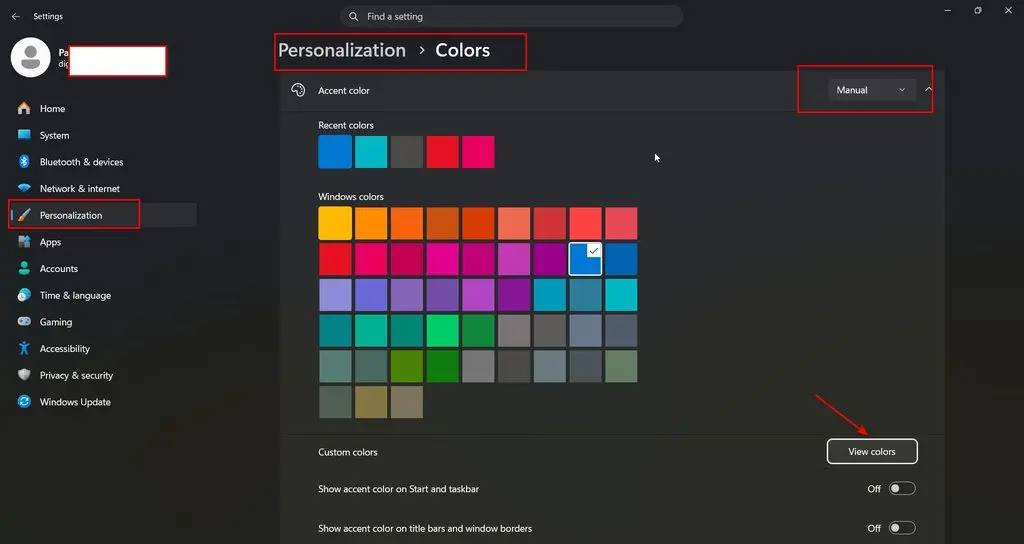
Open Settings, Personalization, Colors. Set “Choose your mode” to Dark or Custom. Turn on “Show accent color on Start and taskbar.” Pick Manual under Accent color, then choose a preset or click “View colors” for a custom hex value. The taskbar updates instantly, no restart needed.
Change taskbar color Windows 11
A colored taskbar looks like a simple toggle, but Windows 11 buries the actual control a few menus deep.
Nothing changes until you set the color mode correctly first. Skip that step, and every other setting stays grayed out.
Follow the settings path below in order, since each one depends on the one before it.
Settings Personalization Colors
Right-click an empty spot on the desktop and choose Personalize, or open Settings directly with Windows + I.
Select Personalization in the sidebar, then Colors. Every taskbar-related setting lives on this one page.
Bookmark this path mentally. It’s also where wallpaper, transparency, and contrast themes live, all connected to the same color system.
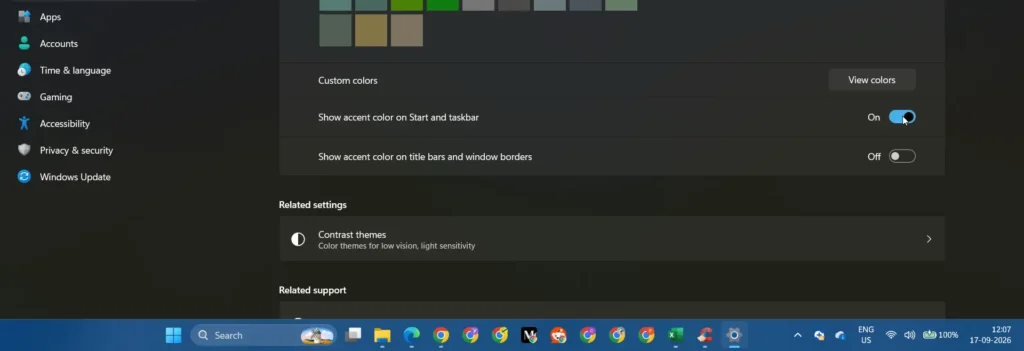
Show accent color on Start and taskbar
A single missed toggle causes most “my color won’t apply” confusion.
Selecting a bold new accent color does nothing on its own. The taskbar stays its default dark shade until this specific switch is flipped on.
Scroll down on the Colors page until it appears, directly below the accent color options.
Dark mode vs Custom mode
Light mode disables the taskbar accent option outright, no workaround inside Settings.
Dark mode unlocks it immediately. Custom mode offers a middle path: dark taskbar and Start menu, light everywhere else.
Choose Custom, set “Choose your default Windows mode” to Dark, and set “Choose your app mode” to Light for that hybrid look.
Accent color Automatic vs Manual
Automatic pulls a color straight from the current desktop wallpaper, updating whenever the wallpaper changes.
Manual hands full control back, letting a specific preset or custom shade stick regardless of wallpaper.
Pick Manual for a color that won’t shift unexpectedly after switching backgrounds.
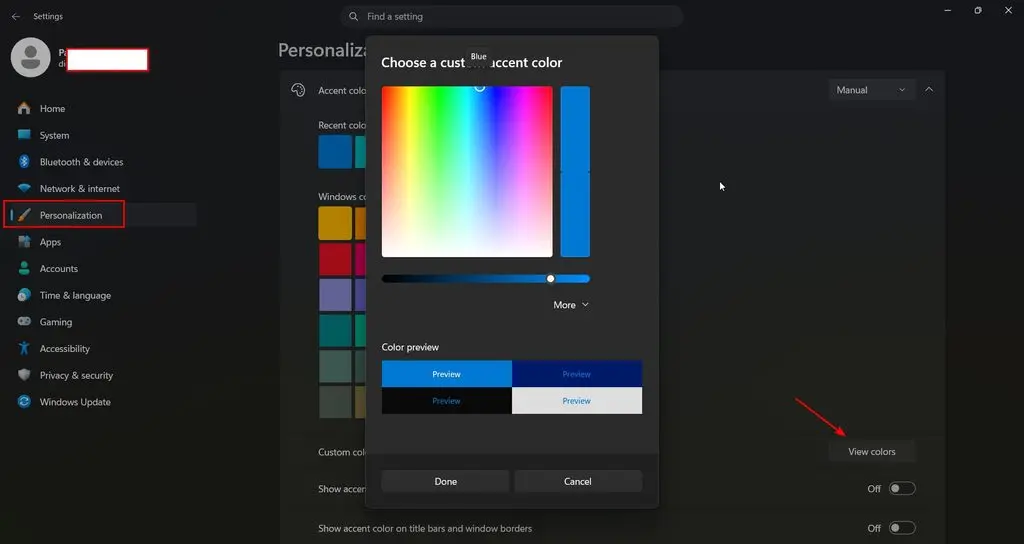
Custom hex color taskbar
Precise brand colors or exact shade matches need the hex code entry, not the preset swatches.
Click “View colors” under Custom colors, then enter the exact hexadecimal or RGB value.
Confirm the selection, and that precise shade applies to both taskbar and Start menu immediately.
Transparency effects
A washed-out accent color is usually transparency, not a bad color choice.
Windows 11 applies a subtle blur and tint to the taskbar when transparency is enabled, which can noticeably dull vivid colors over busy wallpapers.
Toggle “Transparency effects” off on the Colors page to see the true, solid shade before deciding.
Show accent color on title bars and window borders
A separate toggle extends the same accent color beyond the taskbar and Start menu.
Enabling this option applies the color to the top edge of every open window, matching the taskbar for a more unified look.
Test both light and dark app modes before committing. A color that pops against dark gray can look flat on white.
Light mode taskbar color limitation
Light mode users hoping for a colored taskbar without switching everything to dark have exactly one option: Custom mode.
There’s no hidden setting or registry trick that unlocks accent colors while staying fully in Light mode.
Custom mode remains the only supported path to a colored taskbar with light app windows.
ColorPrevalence registry key
Advanced users can toggle the same accent-color behavior directly through the registry instead of Settings.
Navigate to HKEY_CURRENT_USER\Software\Microsoft\Windows\CurrentVersion\Themes\Personalize and set ColorPrevalence to 1 to enable accent colors on the taskbar.
Stick with Settings unless there’s a specific reason to script this. The registry path offers no real advantage for a one-time change.
AccentColor registry value
The actual color value itself lives at HKEY_CURRENT_USER\Software\Microsoft\Windows\CurrentVersion\Themes\Accent, under the AccentColor key.
Editing this directly sets a hexadecimal color value without touching the Settings UI at all.
A sign-out and sign-back-in is usually required afterward, since registry changes don’t always refresh the shell immediately.
Taskbar color not changing troubleshooting
A color that refuses to apply almost always traces back to one of three things: Light mode being active, the accent toggle being off, or transparency masking the result.
Check “Choose your mode” first, then the “Show accent color” toggle, then transparency effects, in that order.
If none of those explain it, sign out and back in. Settings occasionally needs a session refresh to render a change.
Start menu and taskbar shared color
Windows 11 ties the taskbar and Start menu to a single shared accent color through one toggle.
There’s no built-in setting to give them two different shades natively.
Third-party shell customization tools can separate them, but they carry their own update-compatibility risks, covered further down.
Wallpaper-based automatic accent color
Automatic accent color mode analyzes the current desktop background and picks a matching shade on its own.
It updates dynamically each time the wallpaper changes, which suits anyone who rotates backgrounds often.
Switch to Manual if a specific shade needs to stay fixed regardless of what wallpaper is active.
Contrast themes and accessibility override
Accessibility settings take priority over any accent color choice, by design.
Active contrast themes or color filters can visibly change how a chosen accent renders, overriding the exact shade selected in Colors.
If text or interface elements become hard to read after a color change, dial back the intensity before assuming Settings is broken.
Organization-managed policy override
Work and school devices sometimes lock personalization settings entirely through organizational policy.
Settings will explicitly show when a choice is “managed by your organization,” graying out the relevant controls.
There’s no user-side workaround for this situation. Please reach out to IT if a locked color setting is genuinely blocking something you need.
Taskbar color reset after Windows update
Minor cumulative updates rarely touch personalization settings, but annual feature updates occasionally reset them.
A custom hex color is worth noting down before installing a major version upgrade, just in case it needs reapplying afterward.
Check Settings, Personalization, Colors immediately after any big update if the taskbar looks different than expected.
Third-party taskbar customization tools
Tools like StartAllBack or ExplorerPatcher go further than built-in Settings, including separate colors for Start menu and taskbar.
They hook directly into the shell to do it, which makes them a known source of breakage after Windows feature updates.
Weigh that trade-off before installing one just for a color Settings can’t quite deliver natively.
Common Mistakes
Picking a bold accent color, then wondering why nothing changed, because “Show accent color on Start and taskbar” was never toggled on.
You might judge a color as too dull while transparency effects are quietly softening it.
Trying to set the taskbar color while still in Light mode, where the option stays hidden regardless of any other setting.
Expecting separate colors for the Start menu and taskbar, when Windows 11 ties both to one shared toggle.
I installed a third-party shell tool for a minor color tweak, but then I lost it after the next feature update.
FAQs
Why doesn’t my taskbar change color even after I pick a new accent?
Check that “Show accent color on Start and taskbar” is turned on and that Windows is set to Dark or Custom mode, not Light. Both conditions need to be met before any color choice actually applies.
Can I set a custom color instead of the built-in presets?
Yes. Click “View colors” under Custom colors on the Colors page and enter an exact hex or RGB value. It applies to the taskbar and Start menu the same way a preset would.
Why does my chosen color look duller than expected?
Transparency effects apply a blur and tint that can wash out vivid shades, especially over bright wallpaper. Turn transparency off temporarily to see the true color before deciding.
Can the taskbar and Start menu have different colors?
No, not through built-in Settings. Windows 11 applies one accent color to both through a single toggle. Separate colors require a third-party shell customization tool instead.
Conclusion
Windows 11 makes taskbar color simple once the right menu is found, and confusing until then.
Dark or Custom mode first, the accent toggle second, and a Manual or custom hex color third covers nearly every use case.
Transparency and contrast settings explain most of the “it’s not working” moments people run into. Save the exact hex code before any major Windows update, and a colored taskbar stays a five-minute fix rather than a recurring chore.
