
If your Windows 11 update keeps failing with install error 0x80070306, you’re dealing with one of the most persistent and least-documented update errors of 2025 and 2026.
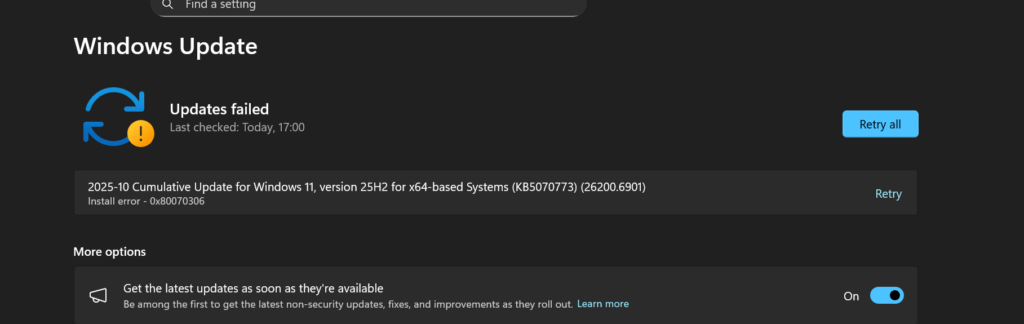
This error has hit users trying to install KB5066835 (October 2025), KB5070773, KB5077181 (February 2026), KB5079473 (March 2026), and KB5089549 (May 2026)—across both 24H2 and 25H2 builds.
The technical description behind 0x80070306 is “handle is invalid”—a cryptic Windows error code that points to a corrupted component in the Windows servicing stack, not a simple cache problem.
That’s why the standard reset-and-retry approach so many guides recommend often doesn’t work.
I’ve gone deep into certain forums (which have multiple solved threads for this exact error from October 2025 through May 2026).
Use different communities to find fixes that real users and moderators have confirmed actually work.
This list includes some that no mainstream blog has documented. Whether you’re in the US, Europe, or India dealing with this error on a Dell, HP, Lenovo, or ASUS system, these five fixes cover the full spectrum of root causes.
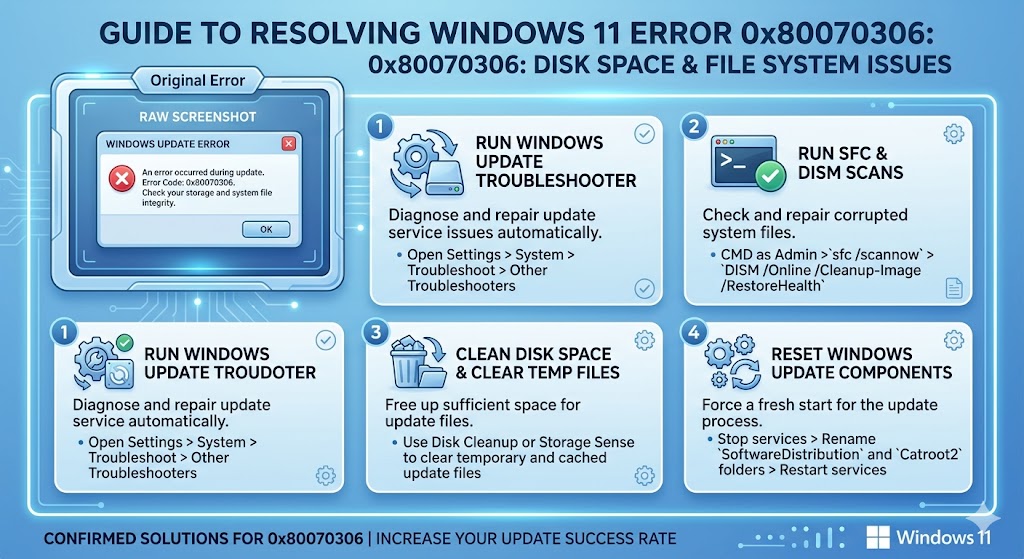
What Is Error 0x80070306? (“Handle Is Invalid” Explained)
Error 0x80070306 is a Windows Update servicing error that means “handle is invalid.” It occurs when Windows attempts to install a cumulative update or security patch, reaches the installation phase (sometimes 100%), and then fails because a component handler—the process responsible for finalizing a specific Windows package or language component—cannot locate or access the required file in the component store.
Featured Snippet Definition : Error 0x80070306 means “handle is invalid” in Windows Update terminology. It occurs when the Windows servicing stack fails to finalize an update because a component handler cannot access required files in the component store. It’s caused by component store corruption, hydration failures in CBS logs, or conflicting Windows capabilities and affects Windows 11 24H2 and 25H2 cumulative updates.
Unlike cache-based update errors (which SoftwareDistribution reset fixes), 0x80070306 almost always points to something deeper — corrupted components, orphaned language packs, or conflicting Windows features that need to be diagnosed through CBS logs.
Which Windows 11 Updates Are Affected?
This error has been confirmed across multiple recent updates:
| KB Number | Release Month | Windows Version |
|---|---|---|
| KB5066835 | October 2025 | 24H2 (26100.6899) |
| KB5070773 | October 2025 | 25H2 (26200.6901) |
| KB5067036 | October 2025 Preview | 25H2 |
| KB5077181 | February 2026 | 24H2 + 25H2 |
| KB5079473 | March 2026 | 24H2 + 25H2 |
| KB5089549 | May 2026 | 24H2 (26100.8457) |
If your KB number isn’t in this table, the same fixes still apply — the root cause (component store corruption or conflicting capabilities) is consistent across all builds.
What Causes the 0x80070306 Install Error?
Based on Sysnative Forums’ solved threads (October 2025 through May 2026) and Microsoft Q&A MVP responses, these are the confirmed root causes:
- Component store hydration failure—a specific Windows component (language pack, spelling dictionary, ink recognition module) fails to “hydrate” (apply delta patches) during update installation
- Servicing stack mismatch—the Servicing Stack Update (SSU) on the system doesn’t match what the cumulative update expects, causing handle failures
- Conflicting Windows capabilities — WMIC or Wireless Display Connect capabilities in a broken state block the update handler
- Malwarebytes and third-party security tools — confirmed by Sysnative moderators as blocking certain update operations
- Corrupted COMPONENTS registry hive—the
C:\Windows\System32\Config\COMPONENTSfile becomes corrupted, preventing component state tracking - Language/regional component damage—en-IN (India), en-GB (UK), en-AU (Australia), and Russian language dictionaries repeatedly appear as hydration failure culprits in CBS logs
What Is a “Hydration Failure” in CBS Logs?
Hydration is the process where Windows applies binary patches (delta updates) to existing files in the component store during update installation. When a CBS log shows the following:
Error CSI 0000000d (F) Hydration failed for component Microsoft-Windows-[ComponentName]It means the patching of that specific component failed — Windows couldn’t transform the existing file into the new version. DISM /RestoreHealth sometimes fails to fix 0x80070306 because it only repairs store integrity, while the hydration failure needs either capability removal or SFCFix for a rebuild.
Before You Begin: Quick Pre-Fix Checklist
- Check Settings → Windows Update → Update History → Failed Updates and note your exact KB number
- Confirm Windows 11 version: press
Win + Rand typewinver - Ensure at least 10 GB free on C: drive
- Temporarily uninstall or disable Malwarebytes and third-party antivirus
- Note your system language settings (Settings → Time & Language → Language & Region)—relevant for language component hydration failures
- Back up your data before running CBS log fixes or capability removal commands
Fix 1 — Run SFC and DISM to Repair Component Store Corruption (Start Here)
This is the first confirmed fix from Microsoft Q&A (October 2025, 10+ “same question” votes). A user reported, “I was able to fix it using SFC /scannow and DISM.exe /Online /Cleanup-image /Restorehealth and then restarting. This only takes about 10 minutes tops.”
Run all three commands in sequence for maximum effect.
Step 1: SFC Scan
- Open Command Prompt as Administrator (
Win + X → Terminal (Admin)) - Run:
sfc /scannow- Wait for the scan to complete (10–20 minutes)
- Restart your PC
Step 2: DISM RestoreHealth
- Open Command Prompt (Admin)
- Run:
DISM.exe /Online /Cleanup-Image /RestoreHealth- This requires an internet connection and downloads replacement files from Microsoft—allow 15–30 minutes
- Restart after completion
Step 3: DISM StartComponentCleanup
After RestoreHealth, also run this command to clear out superseded and orphaned components that can cause hydration failures:
DISM /Online /Cleanup-Image /StartComponentCleanupRestart, then retry the Windows Update. For many users with straightforward component store corruption, this three-step sequence resolves 0x80070306 completely.
Note for Indian users: DISM RestoreHealth downloads replacement components from Microsoft servers. The hydration failure
Microsoft-Windows-CoreInkRecognition.en-INhas been specifically confirmed in Sysnative CBS logs. Running RestoreHealth on a stable Jio Fiber or Airtel Xstream connection ensures en-IN components download correctly.
Fix 2 — Use SFCFix Tool to Resolve Deep Component Corruption (Sysnative Method)
This method is the fix that no mainstream blog documents — and it’s the one Sysnative Forums moderators (who specialize in Windows servicing) use when SFC/DISM fails to resolve 0x80070306. SFCFix (by niemiro, a Sysnative developer) is a free tool that repairs component store corruption at a deeper level than built-in Windows tools.
It has been used as the primary fix in at least six confirmed Solved Sysnative threads for error 0x80070306 between October 2025 and May 2026—including KB5063878, KB5067036, KB5079473, and KB5089549.
What Is SFCFix?
SFCFix is a free Windows repair tool that reads CBS logs, identifies specific component failures, and applies targeted patches to the component store. Unlike DISM, which works at the store level, SFCFix works at the individual component level—making it the right tool when you know a specific component is broken.
How to Run SFCFix on Windows 11
- Download SFCFix.exe from:
https://www.sysnative.com/niemiro/tools/SFCFix.exe - Save it to your Desktop
- Right-click
SFCFix.exe→ Run as Administrator - Let it complete—it will scan CBS logs and attempt automatic repairs
- Once finished, a file called SFCFix.txt will appear on your desktop.
How to Read SFCFix.txt
Open SFCFix.txt and look for lines containing:
Repaired— successfully fixed components (good)FAILEDorError— components that need further manual intervention
After running SFCFix, restart your PC and retry the Windows Update.
Important: Sysnative moderators note that SFCFix generates system-specific repair scripts. If the generic run doesn’t fully resolve the error, post your CBS logs and SFCFix.txt on the Sysnative Forums for a customized fix script—this is how all six solved threads above were ultimately resolved.
Fix 3 — Remove the Conflicting Windows Capability via DISM
This is the most unique fix in this guide—confirmed by Sysnative moderator w32sh across multiple solved threads in March and April 2026. When CBS logs show that a specific Windows capability (WMIC or Wireless Display) is in a broken state, removing it via DISM unblocks the update handler.
Remove WMIC Capability (Confirmed Fix for March 2026 KB5079473)
From the Sysnative Solved thread for KB5079473 (25H2, March 2026), moderator w32sh confirmed the following:
- Open Command Prompt as Administrator
- Run:
DISM /Online /Remove-Capability /CapabilityName:WMIC~~~~1.0.0.0- Restart Windows
- Retry the cumulative update installation
Why this method works: The WMIC capability (Windows Management Instrumentation Command-line) exists as an optional feature. When its component state becomes corrupted, the update handler fails with a handle error when it tries to service it. Removing it entirely removes the blocker — you can reinstall it later via Settings → Optional Features if needed.
Remove Wireless Display Connect Capability (Alternate Fix)
In a separate Sysnative Solved thread (KB5079473, 25H2, March 2026), the command below resolved the 0x80070306 error when WMIC removal wasn’t the issue:
DISM /Online /Remove-Capability /CapabilityName:App.WirelessDisplay.Connect~~~~0.0.1.0Restart after running this command, then retry the update.
How to know which capability to remove: Check your CBS log (see Fix 4 below) for the component name that appears in the hydration failure line. If it mentions wireless display or WMIC-related entries, start with the matching capability removal.
Fix 4 — Read Your CBS Log to Find the Exact Failing Component
If Fixes 1–3 haven’t resolved 0x80070306, your CBS log contains the exact answer. This is the diagnostic approach used by SysNative moderators in every solved thread—and it’s the most powerful tool available for this error.
Where to Find CBS.log
C:\Windows\Logs\CBS\CBS.logCopy this file to your desktop before opening it (the original may be locked by the system).
What to Look for in CBS. log
Open the copied file in Notepad and use Ctrl+F to search for:
Hydration failed— shows the exact component that failed to patch0x80070306— the error line itselfCSI 0000000d (F)— another marker for critical component failures
A real example from a Sysnative solved thread (November 2025):
Error CSI 0000000d (F) Hydration failed for component
Microsoft-Windows-Spelling-Dictionaries-Russian-Main,
version 10.0.26100.6725, arch amd64
Another from February 2026 (Server 2025):
Hydration failed for: Component Microsoft-Windows-CoreInkRecognition.en-AU
Component Microsoft-Windows-CoreInkRecognition.en-GB
Component Microsoft-Windows-CoreInkRecognition.en-IN
What to Do Once You Identify the Component
| Component Type in CBS Log | Recommended Action |
|---|---|
Spelling dictionary (Spelling-Dictionaries-*) | Run SFCFix; change display language temporarily, retry update |
| CoreInkRecognition.en-IN / en-GB / en-AU | Remove the language pack in Settings → Language; retry update |
| WMIC~~~~1.0.0.0 | DISM /Online /Remove-Capability /CapabilityName:WMIC~~~~1.0.0.0 |
| WirelessDisplay.Connect | DISM /Online /Remove-Capability /CapabilityName:App.WirelessDisplay.Connect~~~~0.0.1.0 |
| Unknown / generic package | Run SFCFix + post CBS log to Sysnative Forums for custom fix script |
For English (India) users: If your CBS log shows
CoreInkRecognition.en-INas the hydration failure, go to Settings → Time & Language → Language & Region and temporarily set English (United States) as the display language. Please retry the update, then switch back. Multiple community users report that this method resolves language-component hydration failures.
Fix 5 — Use Settings Recovery or Manual Catalog Install to Bypass the Error
When component-level fixes are taking too long or you need the update installed urgently, these two bypass methods get the job done quickly.
Settings → System → Recovery → Fix Problems Using Windows Update
This repair install method (confirmed working on Microsoft Q&A for KB5070773 in October 2025) rebuilds Windows Update’s core components:
- Open Settings (
Win + I) - Go to System → Recovery
- Under “Fix problems using Windows Update”, click “Reinstall now”
- Allow the repair to complete (45–90 minutes)
- Return to Windows Update and check for updates
Manual Install via wusa.exe from Microsoft Update Catalog
Microsoft Q&A MVP confirmed (March 2026): “Manually download the KB from the Microsoft Update Catalog and install it using wusa.exe to bypass Windows Update.”
- Go to
https://www.catalog.update.microsoft.com - Search for your KB number
- Download the
.msufile for your architecture (x64) - Open Command Prompt (Admin) and run:
wusa.exe "C:\path\to\update.msu" /quiet /norestart- Restart when prompted
AskWoody note: If you get “update is not applicable to your computer” when running the .msu directly, you may need the Servicing Stack Update (SSU) first. Search the catalog for the SSU associated with your build and install it before the cumulative update.
Bonus: Check for Malwarebytes and Security Software Conflicts
Sysnative moderator w32sh confirmed in a March 2026 Solved thread: “Please uninstall Malwarebytes Antimalware. You may use the Malwarebytes Support Tool to remove it cleanly. Restart Windows and install the update again. That should fix the error.”
This specifically applies when 0x80070306 escalates to secondary errors (0x80070005 / access denied) after the initial fixes. Malwarebytes’ self-protection driver can interfere with Windows servicing at a kernel level.
To cleanly remove Malwarebytes:
- Download the official Malwarebytes Support Tool from malwarebytes.com/support
- Run it → select Clean (full removal option)
- Restart your PC
- Retry the Windows Update
After the update installs successfully, reinstall Malwarebytes from scratch.
Does 0x80070306 delete my files or damage Windows?
No. Error 0x80070306 triggers a rollback, which safely reverts the failed update and returns Windows to its previous working state. Your personal files, settings, and installed applications are not affected. The update simply doesn’t install—your system remains on its current build until the component issue is resolved and the update retried.
How do I read CBS logs to diagnose the 0x80070306 error?
Navigate to C:\Windows\Logs\CBS\CBS.log, copy the file to your Desktop, and open it in Notepad. Search for “Hydration failed” or “CSI 0000000d (F)” to find the exact component that caused the 0x80070306 failure. The component name tells you whether you need SFCFix, a capability removal command, or a language pack adjustment.
How do I fix 0x80070306 on KB5077181 or KB5079473?
These specific KBs are affected by capability conflicts. Run DISM /Online /Remove-Capability /CapabilityName:WMIC~~~~1.0.0.0 or the Wireless Display capability removal command in Admin Command Prompt. These are confirmed fixes from Sysnative Forums Solved threads for both KB numbers in February–March 2026. Restart after the command and retry the update.
Why does 0x80070306 appear after the update reaches 100%?
The error occurs during the post-installation finalization phase, not during download. Windows successfully downloads and begins applying the update, but the servicing stack fails when trying to hydrate (patch) a specific component — usually a language dictionary, ink recognition module, or optional feature in a broken state — causing the entire update to fail and roll back.
Conclusion
Error 0x80070306 is a different class of Windows Update problem — not a cache issue, not a connectivity problem, but a component store failure that requires targeted diagnosis. The “handle is invalid” description tells you exactly this: something in the servicing chain is broken at a structural level.
Here’s the quick recap of what works:
- SFC + DISM RestoreHealth + StartComponentCleanup — resolves straightforward component store corruption
- SFCFix tool (Sysnative)—the deep-repair tool confirmed across 6 Solved threads (Oct 2025–May 2026)
- DISM Remove-Capability (WMIC or Wireless Display)—confirmed unique fix for KB5079473 and KB5077181
- CBS log analysis — identifies the exact failing component so you target the right fix
- Settings Recovery repair or wusa.exe manual install—bypass method when you need the update installed fast
Whether you’re in the US, Europe, or India, the approach is the same: read the CBS log, identify the breaking component, and apply the targeted fix. 0x80070306 is always fixable once you know what component is failing.
Has one of these fixes resolved your 0x80070306 error? Comment below with your KB number and which method worked — your input helps the next reader skip straight to the right solution.
ENJOYING OUR CONTENT?
Stay up to date with our latest guides, insights, and news. Tap below to follow us directly via your search feed.
