
Last Updated:
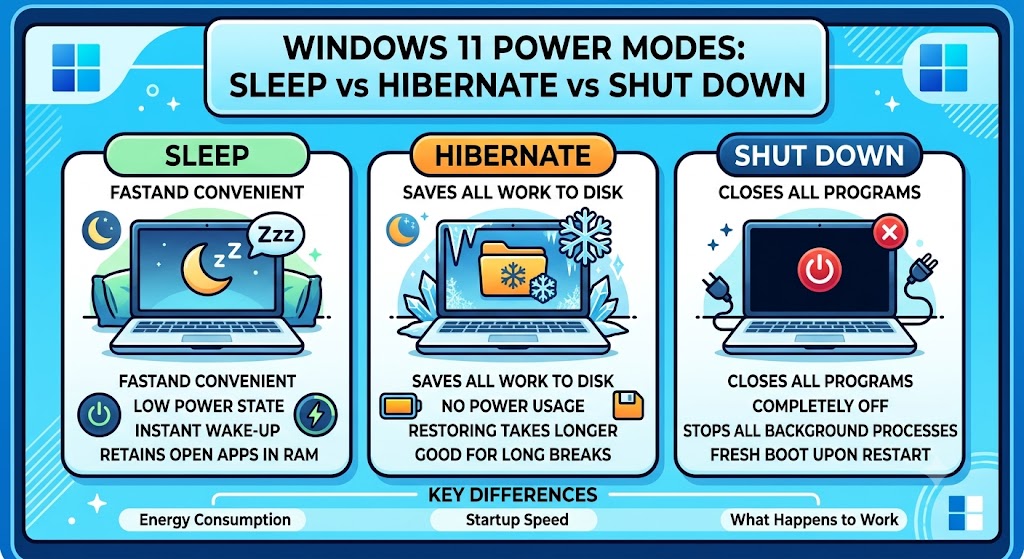
What’s the difference between sleep vs. hibernate vs. shut down Windows 11? Sleep saves your session to RAM for an instant wake-up and uses minimal power. Hibernate saves your session to the hard drive, uses no power, and wakes up more slowly. Shut down closes everything and uses no power, requiring a full restart. “Sleep” suits short breaks; “hibernate” suits longer ones; “shut down” suits updates and storage. If you’re on Windows 7 or 8/8.1, the same reasoning for choosing between these three still applies — see the legacy method near the end for what’s changed.
Introduction
You step away from your desk—but should you let your PC sleep, hibernate, or shut it down completely? It’s a question almost every Windows 11 user faces daily, yet most people just guess.
Choosing the wrong option has real consequences. The wrong setting can drain your laptop battery overnight, slow down your morning startup, or even wear down your hardware faster than necessary.
Understanding sleep vs. hibernate vs. shut down in Windows 11 helps you save power, protect your battery, and get back to work faster. This guide breaks down exactly what each power state does, how much energy it uses, and when to choose each one, whether you’re a home user or running a busy office setup.
By the end, you’ll know precisely which button to press, every single time.
What Do Sleep, Hibernate, and Shut Down Actually Do?
Each of these three power states handles your open work and energy use differently. Understanding the mechanics makes the right choice obvious.
The main difference is where your session is stored and how much power is used while the PC is off or idle.
Sleep Mode in Windows 11 Explained
Sleep mode pauses your PC and saves your current session—open apps, documents, and browser tabs—into RAM (memory). The system enters a low-power state, keeping just enough energy flowing to preserve that memory.
Key characteristics:
- Wake speed: Instant (1–2 seconds)
- Power usage: Low, but not zero — draws a small trickle of power
- Best for: Short breaks, lunch, meetings
The main advantage is speed. Open the lid or press a key, and you’re back exactly where you left off. The downside? If your laptop battery dies completely while sleeping, you lose any unsaved work.
✅ Practical Example: Stepping away for a 30-minute lunch? Sleep is perfect. Your PC sips minimal power and resumes instantly when you return.
Related Topic – How to stop Windows 11 from going to sleep
Hibernate Mode in Windows 11 Explained
Hibernate saves your entire session to your hard drive or SSD (in a file called “hiberfil.sys”) instead of RAM—then powers down completely. Because nothing is stored in volatile memory, it uses zero power.
Key characteristics:
- Wake speed: Slower than sleep (10–30 seconds)
- Power usage: None — completely powered off
- Best for: Longer breaks, overnight, travel
Hibernate gives you the best of both worlds for extended absences: your session is preserved and no battery is consumed. It’s ideal for laptop users who want to resume work tomorrow without leaving the PC running.
✅ Practical Example: Closing your laptop for the night but want your tabs back tomorrow? Hibernate saves everything and uses no battery at all.
Shut Down in Windows 11 Explained
Shutting down closes all your apps, ends your session entirely, and powers off the machine completely. Nothing is saved — you start fresh on the next boot.
Key characteristics:
- Wake speed: Slowest (full boot — 20–40 seconds)
- Power usage: Zero
- Best for: Installing updates, troubleshooting, long-term storage
Importantly, Windows 11’s default shut down uses Fast Startup, a hybrid feature that saves the system kernel to disk for quicker boots. This is why a “full” shutdown sometimes doesn’t fully clear the system—relevant when troubleshooting.
⚠️ Note: For a true, complete shutdown (useful for fixing issues), hold Shift while clicking Shut Down or disable Fast Startup in Power Options.
Sleep vs Hibernate vs Shut Down: Full Comparison Table
| Feature | Sleep | Hibernate | Shut Down |
|---|---|---|---|
| Session saved to | RAM | Hard drive/SSD | Not saved |
| Power usage | Low | Zero | Zero |
| Wake/boot speed | Instant (1–2s) | Slow (10–30s) | Slowest (20–40s) |
| Unsaved work safe? | Yes (if power lasts) | Yes | No |
| Best for | Short breaks | Long breaks/overnight | Updates/storage |
| SSD wear impact | Minimal | Slight (write cycles) | Minimal |
Which Option Uses the Least Power?
For European users mindful of energy costs and EU efficiency standards, this matters.
- Hibernate and Shut Down both use zero power—they’re tied for the most energy-efficient
- Sleep uses a small amount—typically 1–2 watts, enough to drain a laptop battery 1–5% overnight
- Modern Windows 11 laptops use “Modern Standby” (S0 sleep), which can drain more than older sleep states if background apps stay active
If saving electricity is your priority, hibernation is the smarter choice for any absence longer than an hour or two.
When Should You Use Each Power State?
Here’s a simple decision framework:
Use Sleep when:
- You’re stepping away for under an hour
- You want instant resume
- Your laptop is plugged in or has good battery
Use Hibernate when:
- You’re away for several hours or overnight
- You’re traveling and want to preserve battery
- You want your session saved with zero power use
Use Shut Down when:
- You’re installing Windows updates
- You’re troubleshooting a problem
- You won’t use the PC for days
- You want maximum security (nothing left in memory)
How to Enable Hibernate in Windows 11 (It’s Hidden by Default)
Many Windows 11 PCs don’t show Hibernate in the power by defaulte box. Here’s how to enable it:
Steps:
- Press Win + R, type
powercfg.cpl, press Enter - Click “Choose what the power buttons do” in the left sidebar
- Click “Change settings that are currently unavailable.”
- Check the Hibernate box under Shutdown settings
- Click Save changes
Now Hibernate will appear in your Start → Power menu alongside Sleep and Shut Down.
Best Practices for Managing Power States in Windows 11
- ✅ Use Sleep for short breaks and Hibernate for long ones
- ✅ Shut down weekly to clear memory and apply pending updates
- ✅ Disable Fast Startup if you experience boot or driver issues
- ✅ On SSDs, don’t over-rely on hibernate—each cycle writes several GB to disk
- ✅ For office desktops, configure sleep timers via Group Policy for consistency
- ✅ Check battery drain in Settings → System → Power & Battery to spot Modern Standby issues
Common Mistakes to Avoid
1. Never shutting down your PC Relying solely on sleep means updates never install and memory never clears. Shut down at least once a week to keep Windows 11 healthy.
2. Using sleep for overnight storage on a low battery If the battery dies during sleep, unsaved work is lost. Use hibernation overnight instead.
3. Assuming shut down fully resets the system, Fast Startup means a normal shut down isn’t a true reset. For troubleshooting, use a full shutdown via Shift + Shut Down.
4. Over-using hibernate on an SSD Hibernation writes your entire RAM contents to the SSD. On systems with 16GB+ RAM, that’s a lot of repeated write cycles over time.
For Windows 7/8 Users (Legacy Method)
The core logic here — Sleep for short breaks, Hibernate for longer ones, Shut Down for updates — is unchanged from Windows 7 and 8, since these power states work the same way at a technical level.
Enabling Hibernate on Windows 7/8 uses a similar path to Windows 11: Control Panel → Power Options → Choose what the power buttons do → Change settings that are currently unavailable, then check the Hibernate box. If it still doesn’t stick after enabling it, one reader found it worked reliably after setting it correctly the first time — if yours keeps reverting, it’s worth checking whether you’re on an OEM-customized build versus a clean retail install, since OEM power management utilities have been known to override this setting.
A genuine, unresolved gap worth knowing about: on Windows 8/8.1, resuming from Hibernate drops you at the password/lock entry screen even if you were sitting at the desktop when you hibernated — unlike Windows 7, which returns you straight to the desktop. There’s no built-in toggle for this in Windows 8 specifically. The practical workaround readers used was configuring the PC to boot directly to desktop mode (bypassing the Start screen and Microsoft account login), which also carries over to make the post-hibernate resume land back on the desktop rather than the lock screen.
Windows 10 and 11 both handle this better by default and don’t have this specific quirk.
Recommended Tools
- powercfg (built-in) — Run
powercfg /ain Command Prompt to see which sleep states your PC supports - Windows Power & Battery settings — Track battery drain and identify background apps
- BatteryInfoView (free) — Third-party tool to monitor battery health and drain rates on laptops
Related Topic – How to fix wake-from-sleep problems in Windows 11 ( Save Power)
FAQ: Sleep vs Hibernate vs Shut Down Windows 11
Does sleep mode use a lot of battery in Windows 11?
Sleep uses minimal battery — typically 1–5% overnight on most laptops. However, devices using Modern Standby (S0) can drain faster if background apps stay active. If overnight drain is a concern, use hibernate instead, which uses zero power.
Why is hibernate missing from my Windows 11 power menu?
Hibernate is disabled by default on many Windows 11 PCs. Enable it via Control Panel → Power Options → “Choose what the power buttons do” → “Change settings that are currently unavailable” → check the Hibernate box and save.
Does Windows 7 or Windows 8 handle hibernate the same way as Windows 11?
Mostly yes — Hibernate saves your session to disk and uses zero power on all versions. The one notable difference is that Windows 8/8.1 shows a password/lock screen after resuming from Hibernate even if you were on the desktop beforehand, unlike Windows 7, 10, or 11. See the legacy method section above for the workaround.
Does shutting down Windows 11 close all programs?
Yes. Shutting down closes every open application and ends your session completely. Unsaved work is lost unless you save it first. Unlike sleep or hibernation, nothing is preserved—you start with a fresh session on the next boot.
What is Fast Startup in Windows 11, and should I disable it?
Fast Startup is a hybrid shutdown that saves the system kernel to disk for faster boots. It’s useful for most users, but disabling it can fix boot, driver, or dual-boot issues. Disable it via Power Options if you experience these problems.
Which option uses less power in Windows 11: sleep or hibernate?
Hibernate uses less power than sleep. Hibernate uses zero power because it saves your session to disk and fully powers off. Sleep keeps your session in RAM and draws a small amount of continuous power to maintain it, slowly draining the battery.
Author: M Bagus Rachmat Dianto
Comment: Reports that the Hibernate feature sometimes turns itself off, and asks how to enable it permanently.
Reply (Palla Ramarao): Notes that following the steps correctly should make the setting stick permanently, and asks whether the reader is running an OEM build, RTM, or a pre-release version (Consumer Preview/Developer Preview/Release Preview), since that can affect behavior.
Author: GingerNutter
Comment: Asks how to disable the lock/password screen that appears when resuming from Hibernate.
Follow-up (GingerNutter): Clarifies the issue isn’t the swipe/drag lock screen, but the password entry screen specifically — notes they can boot cold to the desktop fine, but resuming from Hibernate doesn’t return them straight to the desktop the way it did on Windows 7.
Reply (Palla Ramarao): Recommends a tutorial for configuring Windows 8 to boot directly to desktop mode, which also skips the Microsoft account login screen — and confirms that once set up this way, resuming from Hibernate returns straight to desktop mode rather than the lock/password screen. Also points to a second tutorial specifically on bypassing the Windows 8 login screen.
Conclusion
Choosing between sleep, hibernate, and shut down in Windows 11 is straightforward. Each power state serves a clear purpose: sleep for quick breaks, hibernate for longer absences, and shut down for updates, troubleshooting, and storage.
The simple rule to remember:
- Short break? Sleep.
- Overnight or traveling? Hibernate.
- Updates, problems, or days away? Shut down.
For European users watching energy use, hibernate and shut down are your zero-power friends, while sleep trades a little electricity for instant convenience.

Suppose your windows sessions are confusing or operating slowly or erratically. You may be rebooting the same troublemakers every time you turn on your computer. Disabling Fast Startup causes a slightly slower reboot with more dependable windows performance. Restart your computer. Next use the windows start icon and select the power button. There are 4 choices; Lock, Sleep, Shut Down and Restart. Selecting Shut Down uses hibernation mode to save your window’s caches. As a result, using Shut Down will retain many of the problems you were having in your previous sessions. The good news is that selecting Restart will flush the windows caches allowing a cleaner windows reboot. If your computer has been on for many hours it is a good idea to Restart and thereby clear the window’s caches for better performance. The fact that Window’s updates have to use Restart is probably why it is designed to flush out old setting and caches.
Time to time restart restart and shutdown are necessary. But if you need to save your work and start where you ended, hibernate is the best option. For a coffee break, you can always use the sleep function. Also shutdown protects your laptop for power surges and clears the cache as you mentioned. thanks.