
Last Updated:
How do I fix Windows 11 not waking from sleep? To fix Windows 11 not waking from sleep, update your display and chipset drivers, disable Fast Startup, adjust power management settings for your keyboard and mouse, and check for BIOS updates. In most cases, outdated graphics drivers or incorrect device wake permissions are the root cause. The same driver-first troubleshooting order applies on Windows 7 and 8/8.1 — see the legacy method near the end for what’s different.
Introduction
You press a key. You move the mouse. You tap the power button—and nothing. The screen stays black, and the fans spin, but Windows 11 is not waking from sleep. Sound familiar?
This is one of the most frustrating Windows 11 issues, especially when you’re in the middle of a busy workday. A PC that won’t wake forces a hard reset, risking unsaved work and interrupting your flow. For both home users and office professionals, it’s more than an annoyance — it’s lost time.
Threassuringod news is that this problem is almost always fixable. In this guide, you’ll learn eight proven fixes for Windows 11 not waking from sleep—from quick driver updates to deeper BIOS and power setting adjustments. Each step is clear, beginner-friendly, and tested to get your PC responding again.
Why Won’t Windows 11 Wake From Sleep?
When your PC enters sleep mode, it stores your session in RAM and powers down most components. Waking requires the right “wake signals” from your keyboard, mouse, or power button—and several things can break that chain.
The most common causes include:
- Outdated or buggy graphics drivers — the display fails to re-initialize after sleep
- Fast Startup conflicts—this hybrid feature often interferes with wake behavior
- Device wake permissions disabled — your keyboard/mouse can’t signal the PC to wake
- Modern Standby (S0) bugs—newer laptops use a sleep state prone to wake failures
- BIOS/firmware issues — outdated firmware mishandles power state transitions
- Windows Update side effects — major updates can reset or break power configurations
According to Microsoft Community forums, wake-from-sleep failures rank among the top reported Windows 11 power issues—and they increased noticeably after the rollout of Modern Standby across European laptop models.
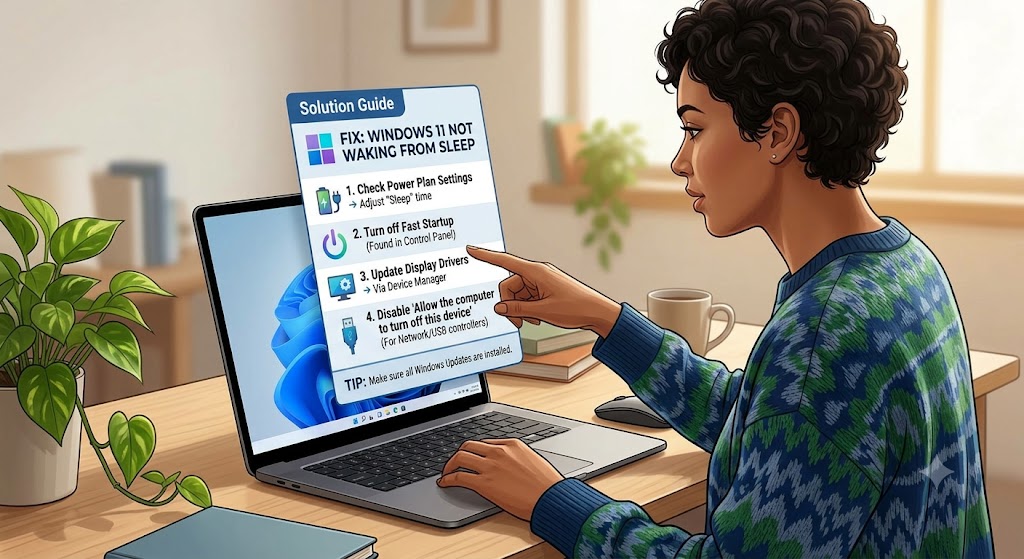
Fix 1: Update Your Graphics and Display Drivers
Outdated graphics drivers are the single most common cause of a black screen when Windows 11 won’t wake. The GPU fails to reinitialize the display after sleep, leaving you staring at darkness.
Steps:
- Press Windows + X → select Device Manager
- Expand Display adapters
- Right-click your graphics card → Update driver
- Select Search automatically for drivers
- Restart your PC
For best results, download the latest driver directly from your GPU manufacturer:
- Intel: intel.com/support
- NVIDIA: nvidia.com/drivers
- AMD: amd.com/support
✅ Tip: Windows Update often lags behind. OEM and GPU vendor sites usually have newer, more stable drivers.
Fix 2: Disable Fast Startup
Fast Startup is a hybrid shutdown feature that frequently conflicts with sleep and wake behavior in Windows 11. Disabling it resolves wake failures for a large number of users.
Steps:
- Press Win + R, type
powercfg.cpl, press Enter - Click “Choose what the power buttons do.”
- Click “Change settings that are currently unavailable.”
- Uncheck “Turn on fast startup (recommended).”
- Click Save changes and restart
This is often the single most effective fix—especially on PCs upgraded from Windows 10.
Related Topic – Why your PC keeps going to sleep in Windows 11 – Change Power Settings
Fix 3: Allow Your Keyboard and Mouse to Wake the PC
If pressing keys or moving the mouse doesn’t wake Windows 11, their wake permissions may be disabled.
Steps:
- Open Device Manager (Windows + X)
- Expand Keyboards, right-click your keyboard → Properties
- Go to the Power Management tab
- Check “Allow this device to wake the computer.”
- Repeat for your mouse under Mice and other pointing devices
- Click OK
⚠️ Note: If the Power Management tab is missing, the device may not support wake—try the power button instead and update the device driver.
Fix 4: Check Power Management Settings
Incorrect power plan settings can cause Windows 11 to enter a sleep state it struggles to exit from. Reviewing these settings often resolves the issue.
Steps:
- Press Win + R, type
powercfg.cpl, press Enter - Click “Change plan settings” next to your active plan
- Click “Change advanced power settings”
- Expand Sleep → Allow hybrid sleep → set to Off
- Expand Sleep → Allow wake timers → set to Enable
- Click Apply → OK
Disabling hybrid sleep removes a common source of wake conflicts, particularly on desktops.
Fix 5: Run the Power Troubleshooter
Windows 11 includes a built-in troubleshooter that automatically detects and repairs many sleep and wake problems.
Steps:
- Press Windows + I → System → Troubleshoot
- Click Other troubleshooters
- Find Power → click Run
- Apply any fixes it recommends
This tool is quick, safe, and often catches misconfigured settings left behind by Windows updates.
Fix 6: Diagnose the Problem with powercfg
Windows 11’s command-line tool is invaluable for gaining a deeper understanding of what is disrupting your sleep and wake cycle.
To generate a detailed energy report, open Command Prompt as Administrator and run:
powercfg /energy
This produces an HTML report flagging driver issues, devices preventing proper sleep, and power configuration errors.
Review which devices can wake your PC:
powercfg /devicequery wake_armed
See what last woke your PC:
powercfg /lastwake
These commands are the same diagnostic tools IT professionals use — and they work perfectly for home users too.
Fix 7: Update Your BIOS/UEFI Firmware
Outdated motherboard firmware is a frequently overlooked cause of wake-from-sleep failures. Manufacturers regularly release BIOS updates that fix power state and Modern Standby bugs.
Steps:
- Identify your PC or motherboard model
- Visit the manufacturer’s support page (Dell, HP, Lenovo, ASUS, MSI, etc.)
- Download the latest BIOS/UEFI update
- Follow their instructions carefully to install it
⚠️ Important: BIOS updates carry some risk. Don’t interrupt the process, and ensure your laptop is plugged in or your desktop is on stable power throughout.
Fix 8: Disable or Manage Modern Standby (S0 Sleep)
Many newer Windows 11 laptops in Europe use Modern Standby (S0) instead of traditional sleep (S3). While it enables instant-on features, it’s also prone to wake failures and battery drain.
You can check your sleep state by running the following:
powercfg /a
If your PC uses S0 and you’re experiencing repeated wake issues, the most reliable solution is to keep your BIOS and chipset drivers fully updated, as manufacturers continue patching Modern Standby bugs. Some advanced users disable S0 via registry edits, but such actions should only be done with caution and a full backup.
Best Practices to Prevent Wake-From-Sleep Issues
- ✅ Keep graphics and chipset drivers updated from OEM/vendor sites
- ✅ Disable Fast Startup if you experience any wake problems
- ✅ Run
powercfg /energyevery few months to catch issues early - ✅ Update your BIOS/UEFI at least once or twice a year
- ✅ On laptops, use hibernate instead of sleep for overnight to avoid Modern Standby drain
- ✅ Verify power settings after every major Windows 11 feature update
✅ Once your PC wakes reliably, if the resume itself still feels sluggish, that’s a storage bottleneck rather than a wake bug — the best SSDs for faster wake-from-sleep on Windows 11 make reloading your session near-instant.
Common Mistakes to Avoid
1. Forcing a complete reset every time Repeatedly holding the power button risks data corruption. Try the fixes above instead of relying on frequent resets as a habit.
2. Ignoring driver updates Most wake failures trace back to outdated graphics or chipset drivers. Skipping updates leaves the root cause unresolved.
3. Leaving Fast Startup enabled during troubleshooting Fast startup interferes with both sleep and wake. Always disable it as an early troubleshooting step.
4. Overlooking BIOS updates Many users never update their BIOS. Yet firmware fixes are often the key to resolving stubborn Modern Standby wake bugs.
For Windows 7/8 Users (Legacy Method)
Windows 7 and Windows 8/8.1 don’t use Modern Standby (S0) — they rely on the older S3 sleep state — so several of the fixes above don’t apply directly. But the core diagnostic approach is the same: identify the driver or hardware component actually causing the failure.
Check your wireless/network adapter driver first, not just the graphics driver. One reader diagnosed a Windows 8.1 wake failure back to an outdated Realtek WLAN driver, confirmed by reading the crash dump with BlueScreenView — updating that one driver resolved it completely. On older hardware, network adapters are just as likely a culprit as the GPU.
Some wake failures are a known vendor-confirmed hardware issue, not something you can fix with software. One reader’s HP support technician confirmed a documented Windows 8.1 sleep/wake defect on specific hardware models, with the practical workaround being to avoid Sleep entirely and use Hibernate or a full shutdown instead. If you’ve tried every driver and power setting fix with no luck, checking your manufacturer’s support site for a known issue on your exact model is worth doing before assuming you did something wrong.
Device wake permissions work the same way in Device Manager on Windows 7/8 as described in Fix 3 above — the menu path is identical.
BIOS updates matter even more on older hardware, since Windows 7/8-era motherboards are less likely to have received power-management firmware fixes than devices sold alongside Windows 11.
As with our other Windows 7/8 legacy sections: both operating systems are years past end of support with no security updates available, so if a wake-from-sleep issue turns out to be hardware-specific and unresolvable, it’s a reasonable trigger to consider moving to Windows 10 or 11 rather than continuing to troubleshoot an unsupported system.
Recommended Tools
- powercfg (built-in) — The essential command-line tool for diagnosing all sleep and wake issues
- Device Manager (built-in) — Manage drivers and device wake permissions
- Manufacturer support apps—Dell SupportAssist, HP Support Assistant, Lenovo Vantage automatically find driver and BIOS updates
Related Topic – Difference between sleep and hibernate in Windows 11 – Power and Sleep Settings
FAQ: Windows 11 Not Waking From Sleep
Why does my Windows 11 PC show a black screen when waking from sleep?
A black screen on wake usually means your graphics driver failed to reinitialize the display. Update your display driver via Device Manager, disable Fast Startup, and ensure your monitor connection is secure. If it persists, a BIOS update often resolves the underlying issue.
Does disabling Fast Startup resolve wake from sleep issues in Windows 11?
Yes, very often. Fast Startup is a hybrid shutdown feature that commonly conflicts with sleep and wake cycles. Disabling it via Power Options resolves wake failures for many users, especially those who upgraded from Windows 10 to Windows 11.
Why does Windows 11 wake but the keyboard and mouse don’t respond?
This usually means USB power management is suspending your input devices. In Device Manager, open each USB Root Hub’s Power Management tab and uncheck “Allow the computer to turn off this device to save power.” Updating USB and chipset drivers also helps.
What is Modern Standby and does it cause wake problems in Windows 11?
Modern Standby (S0) is a sleep state used in newer laptops for instant-on features. While convenient, it’s prone to wake failures and battery drain. Keeping BIOS and chipset drivers updated is the most reliable fix for Modern Standby wake issues.
How do I force Windows 11 to wake from sleep?
Try pressing the power button once (not holding it), then a keyboard key, and then moving the mouse. If nothing works, hold the power button for 10 seconds to force a restart. To prevent recurrence, enable keyboard/mouse wake permissions in Device Manager.
Does this fix work for Windows 7 or Windows 8 wake-from-sleep issues?
Mostly, yes — the driver-update and device wake-permission steps apply the same way. The main difference is that Windows 7/8 use the older S3 sleep state rather than Modern Standby, so Fix 8 (Modern Standby) doesn’t apply, and BIOS updates matter more since older hardware is less likely to have received recent firmware fixes. See the legacy method section above for specifics.
Author: MK
Comment: Traced their issue to an outdated driver — a common cause per other reports online. Using BlueScreenView, they pinpointed a RealTek WLAN driver as the culprit; updating it to the latest version resolved the issue.
Author: Carolsue
Comment: Describes a brand-new Windows 8.1 HP computer that went to sleep after 10 days and never woke up, requiring a reformat. The HP support technician confirmed this was a known Windows 8.1 issue Microsoft was aware of, and advised turning the PC off entirely rather than letting it sleep if stepping away for more than 30 minutes.
Author: Carolsue (follow-up)
Comment: Notes the same HP technician also advised against using Hibernation, and asks whether Microsoft would issue a patch or a full update to address it.
Conclusion
When Windows 11 is not waking from sleep, it feels like your PC has frozen for good, but in nearly every case, the fix is straightforward. The root cause is usually an outdated graphics driver, Fast Startup conflict, or disabled device wake permission.
Here’s the smart order to troubleshoot:
- Start simple: Update graphics drivers and disable Fast Startup—this fixes most cases
- Go deeper: Check device wake permissions and power management settings
- For stubborn issues: Run
powercfg /energyand update your BIOS
