Key Takeaways
- “Isn’t commonly downloaded” SmartScreen is a reputation warning, not a virus detection—it means SmartScreen hasn’t seen enough people download that exact file yet.
- The fastest fix is the three-dot menu → Keep → Show more → Keep anyway, but only do this step once you’ve verified the source.
- You can also Report this file as safe, which submits it to Microsoft for review instead of just overriding it for yourself.
- On a work or school device, IT policy may remove the override entirely — you’ll need to request an exception rather than bypass it.
- Software vendors can stop their users from seeing this warning by signing installers consistently with an Authenticode certificate.
If you’ve just tried to download a file in Microsoft Edge and got stopped by a message saying the file “isn’t commonly downloaded” and to “make sure you trust it” before opening, you’re not alone—and no, your computer probably isn’t infected.
This warning comes from Microsoft Defender SmartScreen, and it shows up far more often than people expect, especially for legitimate installers from smaller software vendors.
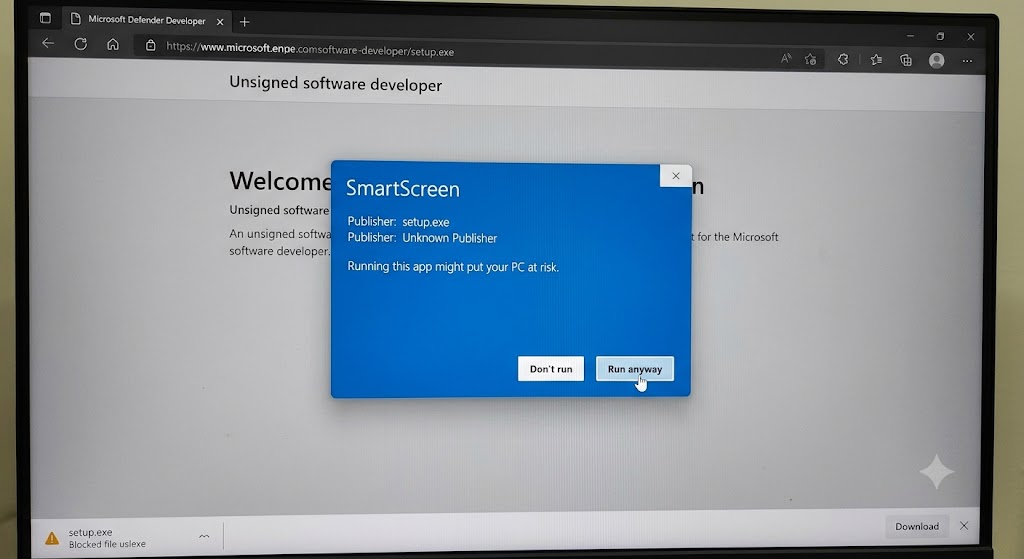
In this guide, we’ll explain exactly why SmartScreen flags perfectly safe files this way, walk through the fastest ways to keep your download; and cover what to do if the warning won’t go away—whether you’re a home user or managing this on a work laptop.
What Does “Isn’t Commonly Downloaded” SmartScreen Mean?
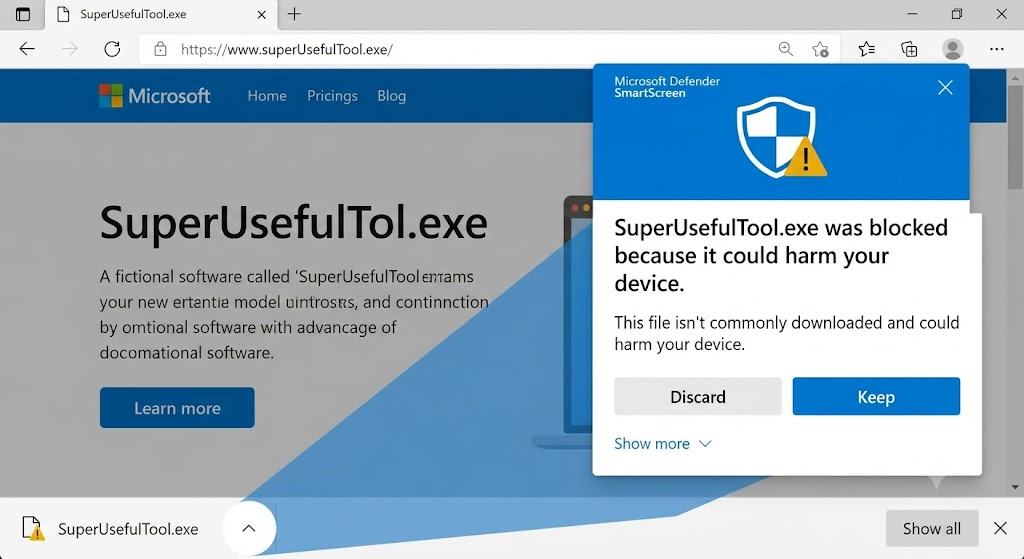
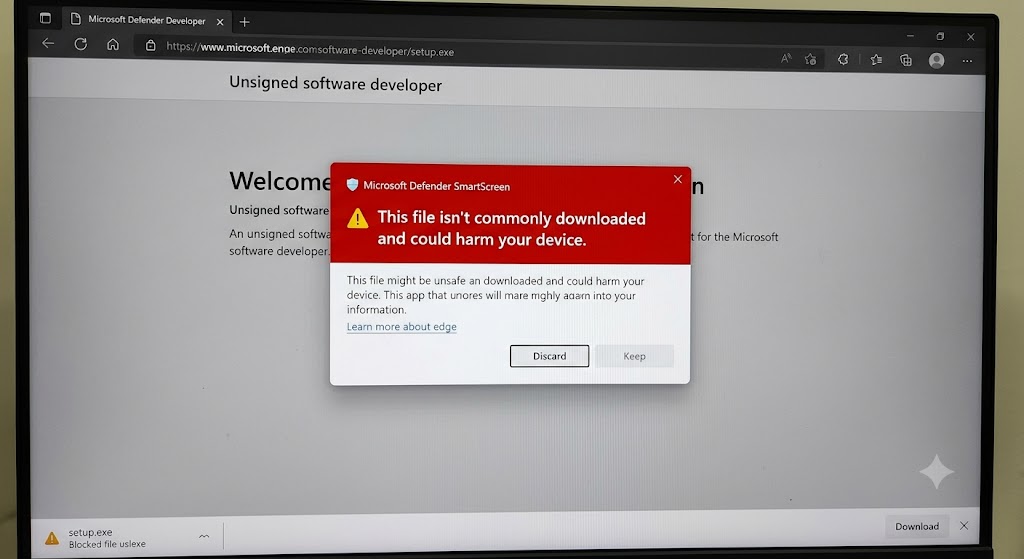
“Isn’t commonly downloaded” is a Microsoft Defender SmartScreen warning shown in Microsoft Edge when a file has a low or unknown reputation in Microsoft’s cloud-based scoring system.
It doesn’t mean the file is malware — it means SmartScreen simply hasn’t seen enough people download it yet to vouch for it.
The full message reads: “Microsoft Defender SmartScreen couldn’t verify if this file is safe because it isn’t commonly downloaded. Make sure you trust the file you’re downloading or its source before you open it.”
Why Microsoft Defender SmartScreen Has Blocked Your File
SmartScreen doesn’t scan the contents of your file for viruses the way traditional antivirus software does.
Instead, it checks two things: the reputation of the download URL and the reputation of the file itself, built from how many other Windows users have downloaded and run that exact file safely before.
A brand-new installer, a freshly updated build, or software from a small independent developer simply hasn’t built up that download history yet—so SmartScreen has blocked it as unsafe by default, even though nothing is actually wrong with it.
This is why the “file is not commonly downloaded” fix requests are so common on forums: the warning is really a “we don’t know yet” flag, not a “this is dangerous” verdict.
5 Fixes for the “Isn’t Commonly Downloaded” Warning That Actually Work
Only proceed with these once you’re confident the file and its source are genuinely trustworthy—that’s the entire point of the warning.
You’ll typically see this on installer files with names like setup.exe, installer.msi, or vendor-specific builds—for example, a fresh installer such as retrac_3.0.1_x64_en-us.msi or a dated build like carboniferousforestsetup_2015.03.28.exe will often trigger it on first release, purely because too few people have downloaded that specific file yet.
Step-by-Step Guide: How to Fix the “Isn’t Commonly Downloaded” Warning
Only follow these steps if you’re confident the file and its source are trustworthy — this warning exists precisely because SmartScreen can’t verify that for you.
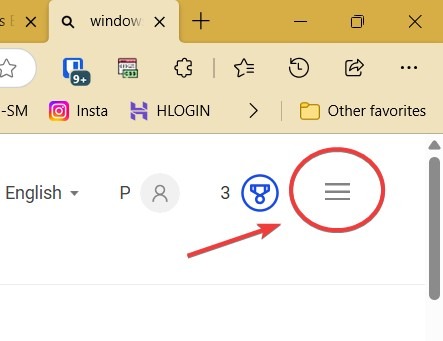
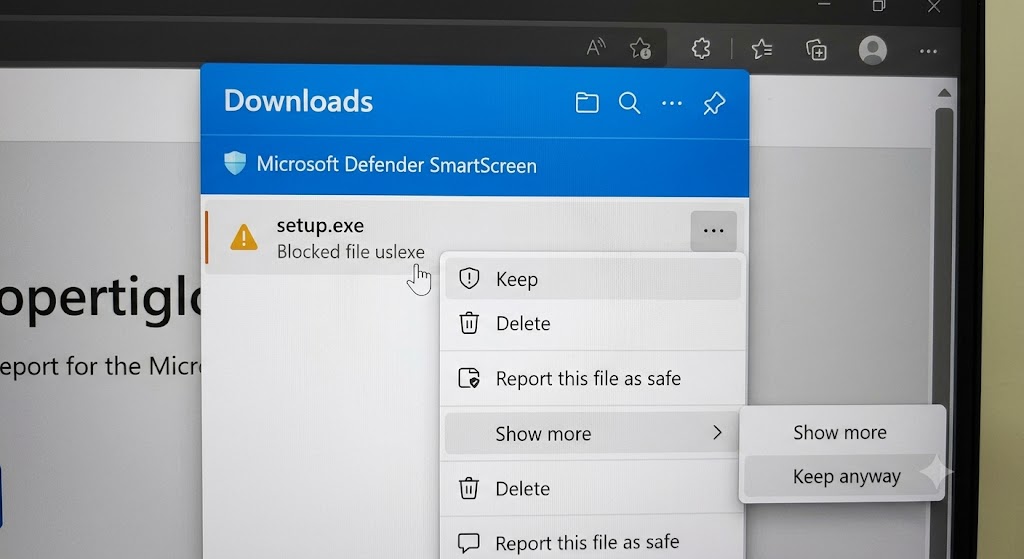
- Hover over the download notification in Edge’s download bar and click the three-dot menu (⋯) next to it.
- Click “Keep” from the menu that appears.
- If Edge shows a second prompt with the message that Microsoft Defender SmartScreen couldn’t verify if this file is safe, click “Show more.”
- Select “Keep anyway” to confirm you want the file saved despite the warning.
- Once saved, if Windows shows a further “Windows protected your PC” prompt when you try to run it, click “More info” and then “Run anyway.”
If you’d rather flag the file for Microsoft’s review instead of just bypassing the warning, look for the “Report this file as safe” option in the same expanded menu — this option is different from “Keep anyway” because it actually submits the file to Microsoft rather than just letting you personally override it.
Verify the Source Before You Override Anything
Make sure you trust the download isn’t just boilerplate text—it’s a genuine prompt to check a few things first:
- Did you download it from the official source? A file hosted on an unfamiliar mirror site is riskier than the same file from the vendor’s own domain.
- Does the publisher name match? Edge shows “Publisher: Unknown” when there’s no digital signature at all — worth a second look for
.exeor.msifiles. - Were you expecting this download? If a file started downloading without you clicking anything, delete it instead of keeping it.
- Run a second opinion. Upload the file (or its download URL) to VirusTotal for a multi-engine analysis before you click Keep anyway.
Report the File as Safe Instead of Just Overriding It
If you’d rather flag the file for Microsoft’s review rather than just bypassing the warning yourself, look for “Report this file as safe” in the same expanded menu. This is different from “Keep anyway” because it actually submits the file to Microsoft rather than only overriding the block on your device.
Common Filenames That Trigger This Warning
Almost any niche or newly released installer can trigger the block, as it is based on download volume rather than the file’s actual safety — regardless of the publisher.
Examples reported by users include vendor installers like ascension-setup-1.0.101.exe, pmodule-setup-3.5.22.exe, and vatbridge123_setup_1_5_7814.exe, along with dated or auto-generated builds such as workmonitor_20260705_223023.exe.
None of these being flagged is, by itself, evidence of anything malicious — it simply reflects how new or low-volume that specific file is in Microsoft’s reputation database.
For IT Admins: When SmartScreen Has Blocked This Unsafe Content on a Managed Device
If you’re on a work or school laptop and see a message that Microsoft Defender SmartScreen has blocked this unsafe content with no override option at all, that’s usually a Group Policy or Intune configuration set by your organization’s IT department — not something the “Keep anyway” trick will fix.
In this case, you’ll need to request an exception from your IT admin rather than trying to override it yourself, since managed-device SmartScreen policies are deliberately locked down to prevent staff from bypassing warnings on company hardware.
For Developers: How to Stop Your Own Installer From Being Flagged
If you’re a software vendor and your own users keep asking why the Chess Steps method software download has an untrusted error (or the equivalent for your own app), the fix isn’t on the user’s end—it’s on yours. SmartScreen reputation improves through:
- Signing your installer with a paid Authenticode code-signing certificate from a Certificate Authority in the Windows Root Certificate Program, rather than shipping unsigned.
- Keeping that signing certificate consistent across releases — switching certificates between versions resets your accumulated reputation.
- Distributing exclusively from your own domain, since SmartScreen also scores the hosting URL, not just the file.
- Submitting the file to Microsoft for review if it’s being misidentified via Microsoft’s Windows Defender Security Intelligence submission portal.
Reputation builds gradually as more users download and run the signed build without issue — there’s no way to buy or force instant trust.
Common Mistakes to Avoid
- Deleting a file you actually needed just because the warning looked alarming, without checking the source first.
- Repeatedly clicking Keep anyway on unfamiliar files from sites you don’t recognize—the warning exists for a reason, and habitually dismissing it defeats the point.
- Assuming “Publisher: Unknown” always means malware — many legitimate small developers and open-source tools don’t purchase code-signing certificates, which alone triggers this.
- Trying registry or Group Policy edits to disable SmartScreen entirely on a personal machine, which removes a real layer of protection for the sake of one download.
Recommended Tools and Checks
- VirusTotal — upload the file (or check the download URL) for a second opinion from multiple antivirus engines before overriding SmartScreen.
- Microsoft Defender — let it complete its scan after the file lands locally; SmartScreen and Defender are separate checks.
- The vendor’s official checksum/hash, if published, to confirm the file wasn’t tampered with in transit.
FAQs
Does “isn’t commonly downloaded” mean the file has a virus?
No. It means SmartScreen doesn’t have enough download history to score the file’s reputation yet. It’s a caution flag, not a malware detection — always verify the source yourself before proceeding.
Why is there no “Keep” option, just Delete and Cancel?
Edge sometimes hides the override behind an extra step. Click “Show more” beneath the warning to reveal the “Keep anyway” option alongside Delete and Cancel.
How long until SmartScreen stops flagging a specific installer?
There’s no fixed timeline — it depends on how many additional users download and run that exact signed build safely. More downloads gradually build reputation.
Can I report a file as safe instead of just keeping it?
Yes. Look for “Report this file as safe” in the expanded download menu. This submits the file to Microsoft for review, unlike “Keep anyway,” which only overrides the block for you personally.
Why can’t I select Keep on Edge with .msg files?
Some file types, including certain .msg email attachments, are blocked by a separate file-type policy rather than the reputation-based SmartScreen warning, so “Keep anyway” may not appear at all for them
Is it safe to disable SmartScreen completely?
Not recommended. Turning it off removes protection from all future downloads, not just the one file you’re trying to save — verify the specific file instead of disabling the feature.
My company blocked this — can I fix it myself?
No. If your IT department has configured Group Policy or Intune to remove the override option, you’ll need to request an exception through them rather than trying to bypass it locally.
Conclusion
The “isn’t commonly downloaded” warning looks alarming, but in most cases it simply means your file is new to Microsoft’s reputation system—not that it’s dangerous.
Check the source and confirm the publisher where you can, and use the Keep anyway or Report this file as safe options once you’re confident the download is legitimate.
If you manage software distribution yourself, signing your installers consistently is the real long-term fix. And if you’re on a locked-down work device, please save yourself the trouble and loop in IT first.