
Last Updated:
Key Takeaways (Change Default Account Microsoft Edge)
- In Edge, an account lives inside a profile. “Changing your default account” really means changing which profile Edge favors. Once you know that translation, every setting suddenly makes sense.
- Each profile keeps its own separate world. Two accounts in two profiles mean two histories, two sets of bookmarks, and two password stores. Nothing mixes, which is exactly the point.
- You will not lose bookmarks by changing the default. Setting a different account as the main one just changes what opens first. Your other profile, and everything in it, stays intact.
Quick answer: To change the default account in Microsoft Edge, open edge://settings/profiles, and set your preferred profile under Multiple profile preferences → Default profile for external links. To make that account open on launch too, edit the Edge shortcut and add –profile-directory with that profile’s folder name from edge://version.
Introduction
You have two accounts in Microsoft Edge — maybe personal and work, or personal and university. And every time you open the browser, the wrong one greets you. Your email links open in the wrong inbox. You just want to change the main one.
Here is the secret that unlocks all of it. Edge does not really have a “default account” setting. It has profiles, and each account lives inside one. So learning how to change the default account in Microsoft Edge is really about telling Edge which profile to prefer.
That one translation is why so many people search for this and find nothing useful — they are using the word “account” while Edge’s settings say “profile.”
This guide bridges that gap. You will set your main account in minutes, keep both histories separate, and lose nothing in the process. Home users and office users can follow every step.
Accounts vs Profiles: The Translation (Featured Snippet)
In Microsoft Edge, every signed-in account lives inside a profile — a separate browser identity with its own bookmarks, passwords, and history. There is no direct “default account” setting. To change your default account in Edge, you change which profile is the default using the profile settings at edge://settings/profiles.
Think of it this way: the account is the person, and the profile is their room. You do not choose a default person — you choose which room Edge opens first.
Once you make that mental switch, the settings pages stop being confusing.
First: See How Many Accounts You Have
Before changing anything, check what is actually on your computer. Many people are surprised.
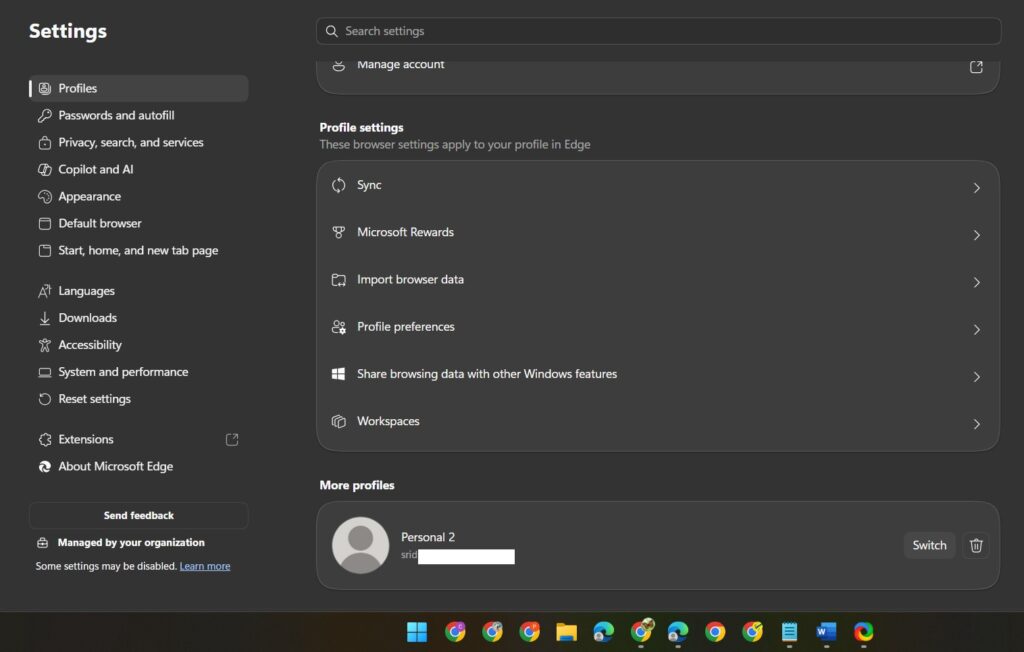
- Open Edge and go to edge://settings/profiles in the address bar.
- The page shows your current profile at the top, with the account it is signed into.
- Scroll down — every other profile on this device is listed there, each with its own account.
That is your full inventory. If you see a profile you never created, Edge likely added it automatically when you signed into a work or school account—Outlook on the web is a common trigger. It is normal, not a glitch.
Each of those profiles is a separate world: its own history, bookmarks, passwords, and extensions. So yes, if you have 2 accounts on Edge in two profiles, you have two different histories. They never mix.
Method 1: Make Your Account the Default for Email Links
This fixes the most common complaint: clicking a link in your mail and having it open in the wrong account.
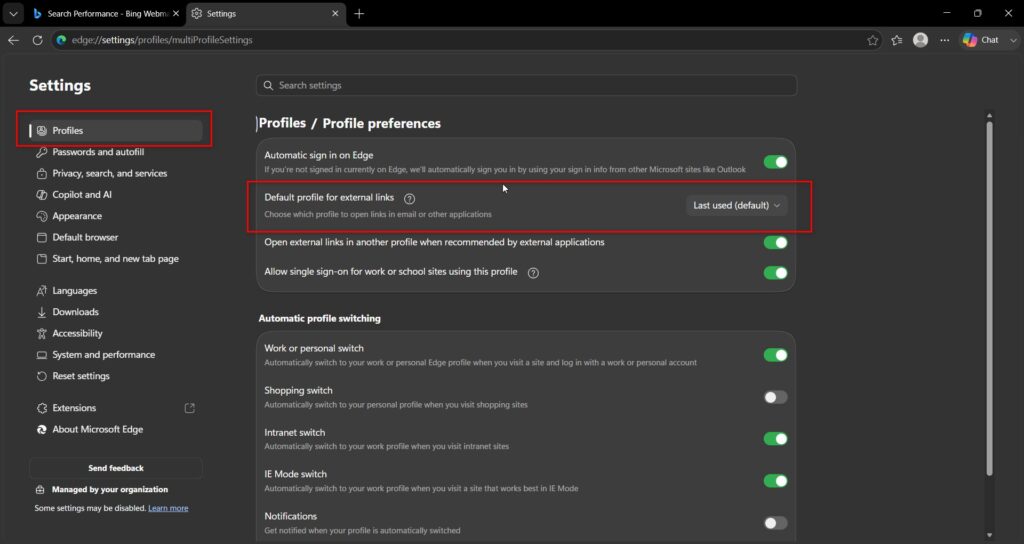
- Go to edge://settings/profiles.
- Click Multiple profile preferences.
- Under the Default profile for external links, select the profile holding the account you want as your main one.
- Restart Edge.
Not sure what else lives on that page? Our walkthrough of the multiple profile preferences in Edge settings explains every option, including the per-site rules.
From now on, links from Outlook, Teams, and other apps open in that account’s profile. If your problem was “email links keep opening my work account,” this alone solves it.
What it does not do: it does not control which account opens when you click the Edge icon itself. That is a separate behavior—covered next.
Method 2: Make Your Account Open When You Launch Edge
By default, Edge opens the last profile you used — not a fixed one. That is why your work account keeps appearing: you used it last.
The reliable fix is a shortcut pointed at your preferred account’s profile:
- Switch to the profile with your preferred account, and open edge://version.
- Note the folder name at the end of the Profile path line — for example,
Profile 2. This folder name often differs from the display name, and using the wrong one is the classic mistake. - Right-click your Edge shortcut → Properties, and add this to the end of the Target box, after the closing quote:
--profile-directory="Profile 2"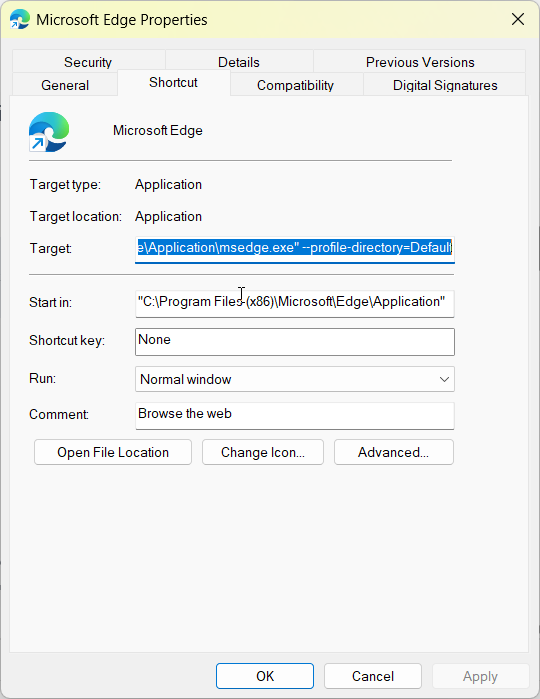
- Apply → OK, then launch Edge from that shortcut.
Your chosen account now opens every time. We cover this method in full detail—including the Windows Pro policy option for office PCs—in our guide to setting the default profile in Microsoft Edge.
Did the university or work account take over? Here Is Your Way Back
This scenario deserves its own section, because it is the exact situation behind most of these searches: you signed into your university or work account once, and now Edge acts as if that is who you are. You want your personal account back as the main one.
The good news is that your personal account remains untouched. It is sitting in its own profile. Here is the reclaim sequence:
- Open edge://settings/profiles and confirm both profiles exist — personal and work/school.
- Set Default profile for external links to your personal profile (Method 1).
- Point your Edge shortcut at the personal profile’s folder (Method 2), so Edge defaults to personal, not university, on launch.
- Keep the work or school profile — do not delete it. Open it only when needed, from the profile menu at the top-right.
The work account did not “take over” your browser. It just created its own profile and happened to be the last one used. Redirect the defaults, and your personal account will be the main one again—while work stays cleanly separated for when you need it.
Switching the Account Inside a Profile (Without Losing Bookmarks)
One more situation: you want to change which account is signed into your existing profile—from one alias to another—without losing anything.
Here is the distinction that decides whether your bookmarks are safe:
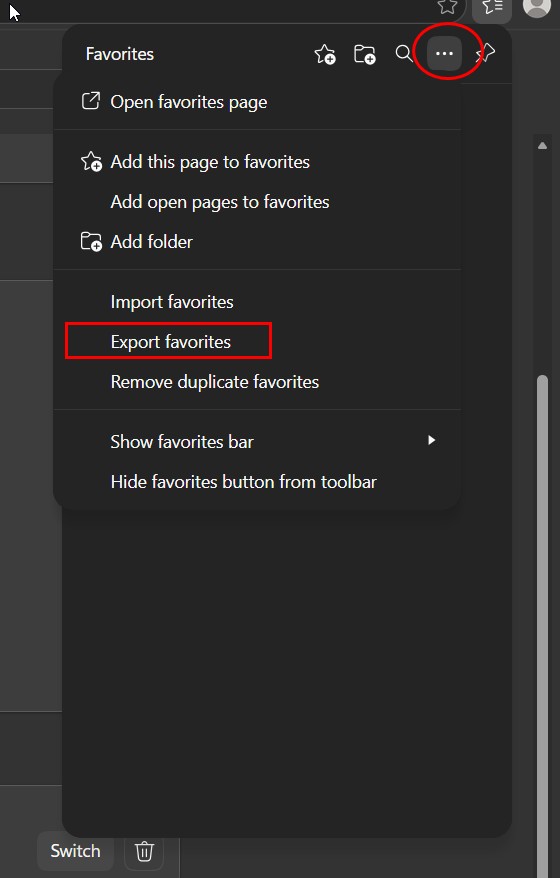
Your bookmarks belong to the profile, not the account. Signing out of one Microsoft account and into another within the same profile keeps the local bookmarks in place. But there is a sync catch: bookmarks synced to the old account stay associated with it in the cloud. Before switching, export your favorites (Favorites → ⋯ → Export favorites) as a safety copy, then sign out and sign in with the new account.
If you want both accounts genuinely usable side by side, the cleaner move is one profile per account rather than swapping sign-ins inside one profile. And no—you cannot have two accounts signed into one profile simultaneously; one profile holds one signed-in account at a time. Two accounts at once means two profiles.
Best Practices – Change default account Microsoft Edge
- One account per profile. It keeps histories, passwords, and bookmarks cleanly separated.
- Set the external-links default first — it fixes the most visible daily annoyance.
- Export favorites before switching accounts inside a profile as a safety net.
- Keep the work or school profile instead of deleting it; switch to it only when needed.
- Name your profiles clearly (“Personal,” “Uni”) so the switcher menu is easy to see.
Common Mistakes to Avoid
- Don’t search Edge settings for the word “account.” The settings say “profile”—that vocabulary gap is the whole confusion.
- Deleting the work profile is intended to “fix” the default. It is unnecessary, and you will lose the local data. Change the defaults instead.
- Using the profile’s display name in the shortcut. Use the folder name from edge://version.
- Assuming histories mix between accounts. They do not share a history; each profile’s history is separate.
- Switching accounts inside a profile without exporting favorites first. Local bookmarks stay, but synced data follows the old account.
Recommended Tools
- edge://settings/profiles — see all accounts and profiles on the device.
- edge://settings/profiles → Multiple profile preferences — the default for external links.
- edge://version — the true profile folder name for shortcuts.
- Favorites export — your safety copy before account changes.
Everything here is built into Edge and Windows. No downloads needed.
Can I have a default Microsoft Edge account if I have 2 accounts?
Yes. Keep each account in its own profile, then set your preferred one as the default for external links at edge://settings/profiles, and point your Edge shortcut at its profile folder. The second account stays available in the profile switcher whenever you need it.
How many Microsoft Edge accounts do I have on my computer?
Open edge://settings/profiles and scroll down the page. Your current profile appears at the top with its signed-in account, and every other profile on the device is listed below. Each profile shows which account it holds, giving you a complete inventory in one view.
If I have 2 accounts on Edge, will there be two different histories?
Yes, as long as each account is in its own profile. Every Edge profile keeps a completely separate browsing history, along with its bookmarks, passwords, and extensions. Nothing crosses between them, which is precisely why profiles work well for separating work and personal life.
How do I have Edge default to my personal account, not my work or university account?
Set your personal profile as the default for external links under Multiple profile preferences, and add –profile-directory with your personal profile’s folder name to the Edge shortcut. Keep the work profile for when you need it—just stop it being the one that opens first.
Can I have two accounts in one profile in Microsoft Edge?
No. Each Edge profile holds one signed-in account at a time. To use two accounts side by side, put each in its own profile and switch between them using the profile icon at the top right. That also keeps their histories, bookmarks, and passwords fully separate.
Conclusion
Changing the default account in Microsoft Edge stops being confusing the moment you learn the translation: accounts live inside profiles, and Edge’s defaults are profile settings.
So the recipe is short. Check your inventory at edge://settings/profiles. Set your main account’s profile as the default for external links. Point your Edge shortcut at its folder so it opens on launch. And if a university or work account moved in uninvited, redirect those two defaults, and your personal account is back in charge—with work kept safely one click away.
Nothing gets deleted, no bookmarks are lost, and both histories stay separate.
Open edge://settings/profiles now and see how many accounts are actually on your machine — then tell us in the comments which default you changed first. It helps the next reader with the same two-account tangle.
ENJOYING OUR CONTENT?
Stay up to date with our latest guides, insights, and news. Tap below to follow us directly via your search feed.
