
Last Updated:
Key Takeaways
- edge://settings/profiles is the control center for every Edge profile. Typing it into the address bar jumps you straight there—faster than clicking through menus.
- The most useful settings hide one level deeper. Automatic profile switching and per-site profile rules live at edge://settings/profiles/multiProfileSettings, not the main page. Most people never find them.
- A “Profile 2” you did not create is normal. Edge automatically adds a work profile when you sign in with a Microsoft 365 or work account. It is a feature, not a glitch.
Quick answer: edge://settings/profiles is the Microsoft Edge settings page for managing browser profiles. Type it in the address bar to add or edit profiles, sign in, and set a picture and name. Deeper pages handle sync (Settings → Profiles → Sync), multiple profile preferences (/multiProfileSettings), and importing browsing data (/importBrowsingData).
Introduction
You saw the address edge://settings/profiles somewhere—a support thread, a colleague’s note—typed it in, and landed on a page full of options you did not fully understand. Or worse, you were told to go there to fix something, and had no idea what to change.
This page is the heart of how Microsoft Edge manages profiles. It is where you add accounts, sign in, set up sync, and control which profile opens where. Used well, it keeps your work and personal browsing cleanly separated.
This guide walks through the edge://settings/profiles section, section by section, in plain language. You will learn what each panel does, how to reach the deeper settings pages, and how to fix the common confusions—including why a mysterious second profile suddenly appeared. Home users and office users can follow every step.
What is edge://settings/profiles? (Featured Snippet)
edge://settings/profiles is the internal settings address for managing profiles in Microsoft Edge. Typing it into the address bar opens the Profiles page directly, where you can add a profile, sign in with an account, edit your profile picture and name, and access sync and import options. It is the fastest route to Edge’s profile controls.
The edge:// prefix marks an internal Edge page — you cannot reach it from a normal web link, only by typing it in the address bar or clicking through Settings.
How to Open the Edge Profiles Page
There are two ways, and knowing the address is the faster option.
By address (fastest): click the address bar, type edge://settings/profiles, and press Enter. You are there instantly. This is why the address is worth remembering — it skips several clicks.
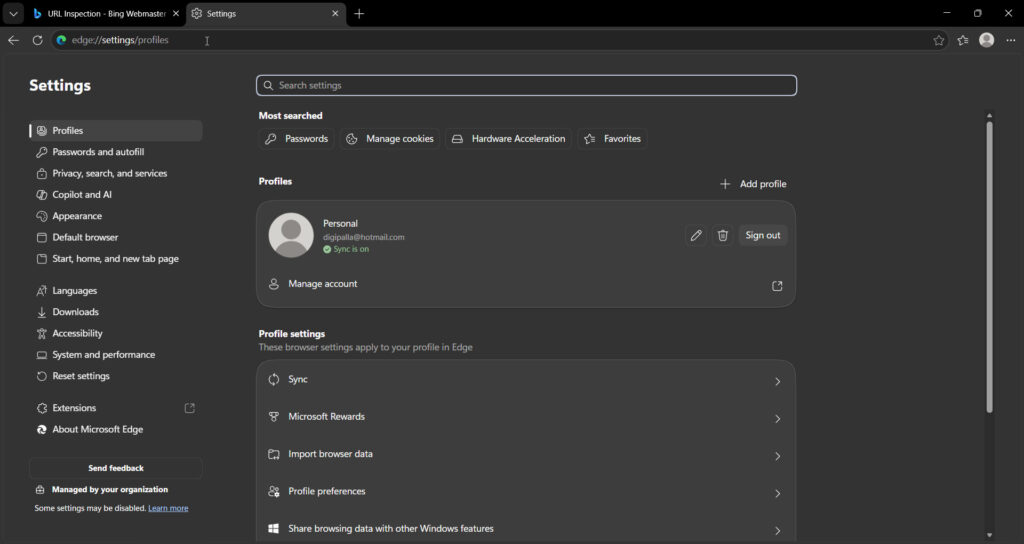
Through the menu: click the profile icon at the top-right or the three-dot menu → Settings → Profiles. Same destination.
If you were wondering, “where do I find settings profiles on Edge?” that is it. Everything profile-related branches from this one page.
The Main Profiles Page: What You See
The top of the page shows your current profile — its picture, name, and the account it is signed into. Below that sits a list of any other profiles on the device.
To edit your profile picture or name: click the pencil icon next to the profile. One catch that confuses people—you must be switched to that profile to edit it. You cannot customize a profile from inside a different one. Find it in the list, click Switch, then edit.
To sign in: If the profile is not signed in, click Sign in and add your Microsoft account, work account, or school account. Signing in unlocks sync across devices.
This main page handles identity and appearance. The real power settings are one level deeper.
edge://settings/profiles/multiProfileSettings: Multiple Profile Preferences
This section is the most important sub-page, and almost nobody finds it. Type edge://settings/profiles/multiProfileSettings directly, or from the Profiles page, click Profile preferences.
Here you control how profiles behave together:
- Default profile for external links: this profile opens links clicked from Outlook, Teams, or other apps.
- Automatic profile switching — lets Edge switch profiles automatically based on the site.
- Choose preferred profile for sites — per-site rules that pin certain websites to certain profiles.
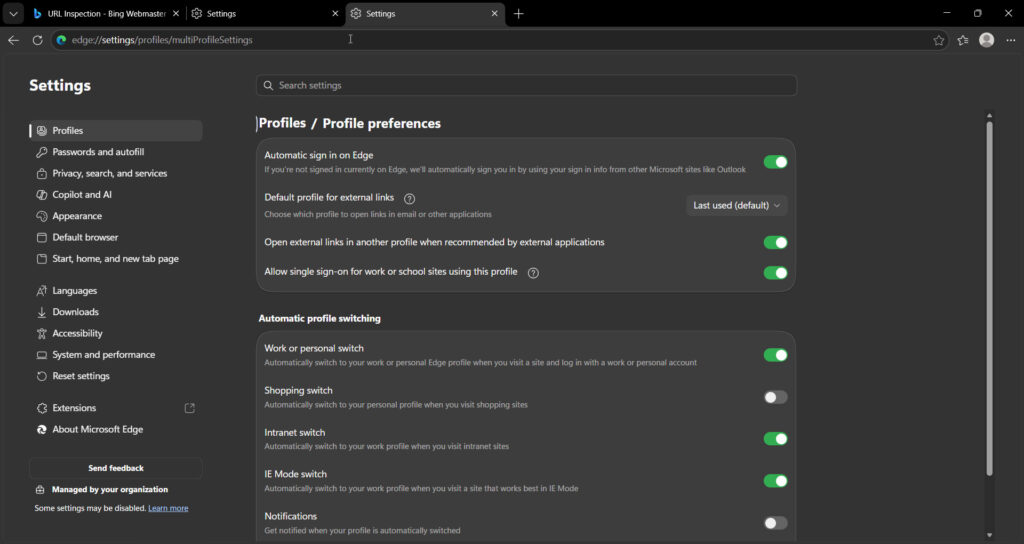
A real fix that lives here. A common work complaint: you switch to Profile B, open portal.office.com, and it stubbornly shows Profile A’s documents. Microsoft’s own support guidance is to open this exact page for both profiles, disable everything under Automatic profile switching, and clear all the sites under Choose preferred profile for sites. After that, each profile signs into Office with its account correctly.
If profiles keep jumping on you beyond this one site, our guide on how to stop Edge switching profiles automatically covers every scenario, including the shortcut method.
edge://settings/profiles + Sync: Keeping Devices in Step
Sync is what lets a profile follow you across devices. You can reach it via Settings → Profiles → Sync.
Once signed in, you can turn sync on and choose exactly what travels with you:
- Favorites and bookmarks
- Passwords
- Browsing history and open tabs
- Autofill and payment info
- Extensions
- Settings and preferences
Enable only what you need. Many people sync favorites and passwords but keep history off for privacy.
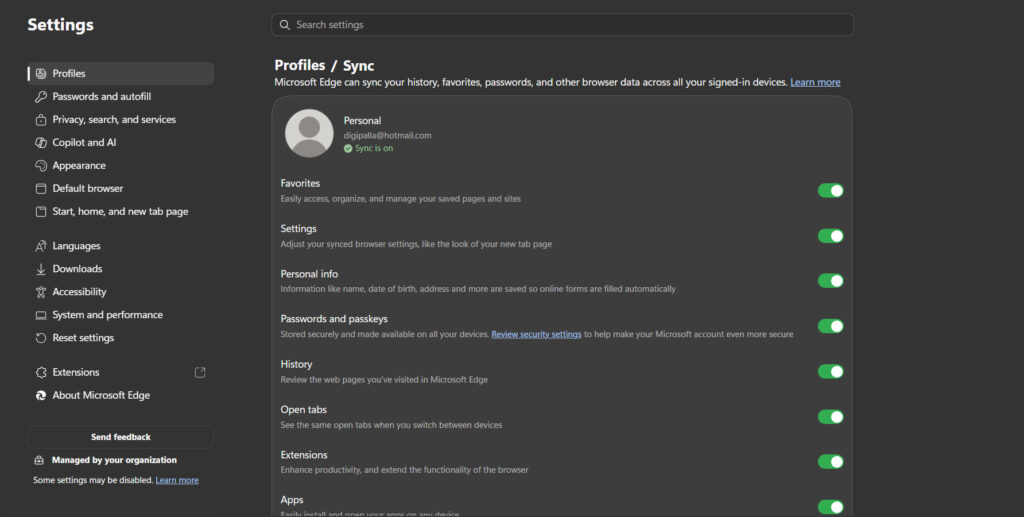
Why syncing matters for profiles: it is tied to the account, not the device. Sign into the same profile on your laptop and desktop, and your bookmarks and passwords appear on both. This is also the honest answer to moving data between computers—Edge has no traditional export file for most of it, so sync is the reliable path.
edge://settings/profiles/importBrowsingData: Bringing Data In
Switching from Chrome, Firefox, or another browser? This page handles it. Reach it at edge://settings/profiles/importBrowsingData, or from the Profiles page under Import browser data.
You can import:
- Favorites and bookmarks
- Saved passwords
- Browsing history
- Autofill form data
- Open tabs and more, depending on the source browser
Choose the source browser, tick the data types, and confirm. It pulls everything into your current profile — so switch to the right profile first if you keep them separate.
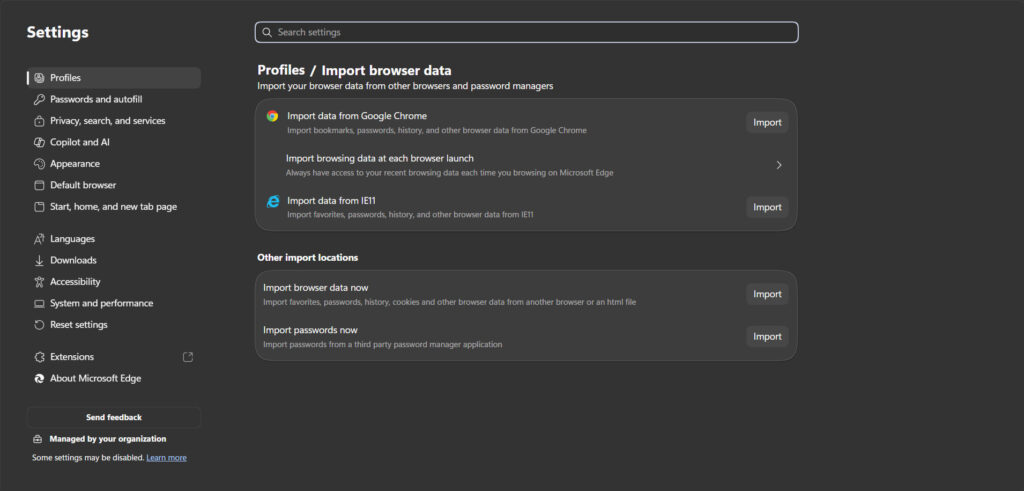
This is the clean way to move from Chrome to Edge without losing your saved logins and bookmarks.
Add, Switch, and Remove Profiles
Add a profile: on the Profiles page, click Add profile → Add. A new profile window opens, and you can sign it in or use it signed-out.
Switch profiles: click the profile icon at the top-right and pick another profile. Each opens in its window with its own bookmarks and extensions.
Remove a profile: from the Profiles page, click the three dots next to a profile → Remove. Note that removing a profile deletes its local browsing data—so if it holds anything you want, sync it or export favorites first.
These are the quick steps. For the deeper version — naming strategies, what removal deletes, and recovering from mistakes—see our overview on how to add and manage multiple Edge profiles.
Why Is There a Profile 2 I Did Not Create?
This one confuses many people, so here is the plain answer.
Edge often creates a second profile automatically when you sign into a Microsoft 365, work, or school account—for example, by logging into Outlook on the web or a Teams link. Edge separates that work identity from your personal one, which is generally what you want: work data stays in the work profile.
So a “Profile 2” you never deliberately made is almost always this automatic work profile. It is a feature designed to keep accounts from mixing. If you do not want it, you can remove it from the Profiles page — but many people find the separation useful once they understand it.
That automatic profile is the foundation of a proper two-identity setup — our guide to the automatic work profile in Edge shows how to turn it from a surprise into a genuinely useful separation.
Best Practices
- Bookmark the address or just memorize
edge://settings/profiles— it is faster than the menu. - Set up Default profile for external links so email links open in the right profile.
- Sync favorites and passwords, but consider leaving history off for privacy.
- Keep work and personal on separate profiles—let the automatic work profile do its job.
- Switch to a profile before editing or importing into it.
Common Mistakes to Avoid
- Editing a profile from inside another one. You must switch to it first.
- Missing the multiProfileSettings page. The most useful controls are one level deeper than the main page.
- Importing into the wrong profile. Import lands in your current profile—switch first.
- Removing a profile without saving its data. Please ensure to sync or export your data beforehand, as removal will delete local data.
- Assuming Profile 2 is malware. It is Edge’s automatic work profile, created on Microsoft 365 sign-in.
Recommended Tools
- edge://settings/profiles — the main profiles page.
- edge://settings/profiles/multiProfileSettings — automatic switching and per-site rules.
- edge://settings/profiles/importBrowsingData — import from other browsers.
- edge://version — to confirm which profile folder you are actually in.
Everything here is built into Edge. No downloads required.
What is edge://settings/profiles used for?
It is the central page for managing Microsoft Edge profiles. From there you add or remove profiles, sign in with Microsoft, work, or school accounts, customize the profile picture and name, set up sync across devices, and import browsing data from other browsers into your current profile.
Why is there a Profile 2 in the profiles section of my Edge settings?
Edge usually creates a second profile automatically when you sign in with a Microsoft 365, work, or school account, such as opening Outlook on the web. It separates work data from personal browsing. It is a normal feature, not a glitch, and you can remove it if you prefer.
How do I open multiple profile preferences in Edge?
Type edge://settings/profiles/multiProfileSettings into the address bar, or open the Profiles page and click Profile preferences. This page holds the default profile for external links, automatic profile switching, and per-site profile rules — the settings most people cannot find.
How do I import browsing data into an Edge profile?
Go to edge://settings/profiles/importBrowsingData, or open the Profiles page and click Import browser data. Choose the source browser, tick the data types like favorites and passwords, and confirm. The data will be imported into your current profile, so please switch to the correct one first.
How do I sign in to my Edge profile?
Open edge://settings/profiles, find your profile, and click Sign in. Add your Microsoft, work, or school account and follow the prompts. Once signed in, you can enable sync to carry favorites, passwords, and other data across all devices using the same account.
Why does Edge keep opening the wrong profile for a website?
Automatic profile switching or a per-site rule is likely forcing it. Open edge://settings/profiles/multiProfileSettings, disable everything under Automatic profile switching, and clear the sites under Choose preferred profile for sites. Each profile will then use its account for that website.
Conclusion
edge://settings/profiles looks simple on the surface, but it spreads useful controls across a few pages, and that is exactly why people get lost.
The main page handles identity—your picture, name, and sign-in. The deeper pages do the real work: multiProfileSettings for automatic switching and external links, Sync for carrying data across devices, and importBrowsingData for moving in from another browser.
And if a Profile 2 appeared that you never created, relax—that is Edge’s automatic work profile, keeping your accounts tidy.
Type edge://settings/profiles into your address bar now and explore the deeper pages. Then tell us in the comments which setting you did not know existed—the multiProfileSettings page surprises almost everyone.
ENJOYING OUR CONTENT?
Stay up to date with our latest guides, insights, and news. Tap below to follow us directly via your search feed.
