
Last Updated:
Key Takeaways (Switch Profiles Microsoft Edge)
- Switching manually takes two clicks. Click the profile icon at the top-right to open the switcher, select a profile, and a new window will open with that identity.
- Edge has no built-in “ask me which profile” screen on launch. Microsoft support has confirmed it. The working substitute is one desktop shortcut per profile—your own homemade profile picker.
- Automatic profile switching can be turned off completely. If Edge keeps jumping profiles when you open links, the off switches are under Profile preferences at edge://settings/profiles.
Quick answer: To switch profiles in Microsoft Edge, click the profile icon at the top right of the toolbar and select the profile you want—it opens in its own window. Edge has no launch-time profile picker, so to choose a profile when opening Edge, create one desktop shortcut per profile using the –profile-directory switch.
Introduction
You have two profiles on Microsoft Edge — how to switch between them should be obvious. Somehow it is not. The button is unlabeled, Edge keeps opening as the wrong identity, and sometimes it even switches profiles on its own when you click a link.
Three separate frustrations, three separate fixes — and most guides only cover the first.
This guide shows every way to switch profiles in Microsoft Edge: the two-click manual method, the shortcut trick that acts as a profile picker when you open the browser, and the settings that stop Edge from switching profiles automatically behind your back.
We will also answer the question people keep asking—can Edge simply ask which profile to use on startup?—with the honest answer, straight from Microsoft’s own support forums. Home users and office users can follow every step.
How Profile Switching Works (Featured Snippet)
To switch profiles in Microsoft Edge, click the profile icon at the top-right of the browser toolbar, then select the profile you want from the menu. Edge opens that profile in its own window, with its own bookmarks, passwords, and history. Both profiles can stay open side by side in separate windows.
That is the whole manual method. Everything else in this guide handles the situations where that is not enough.
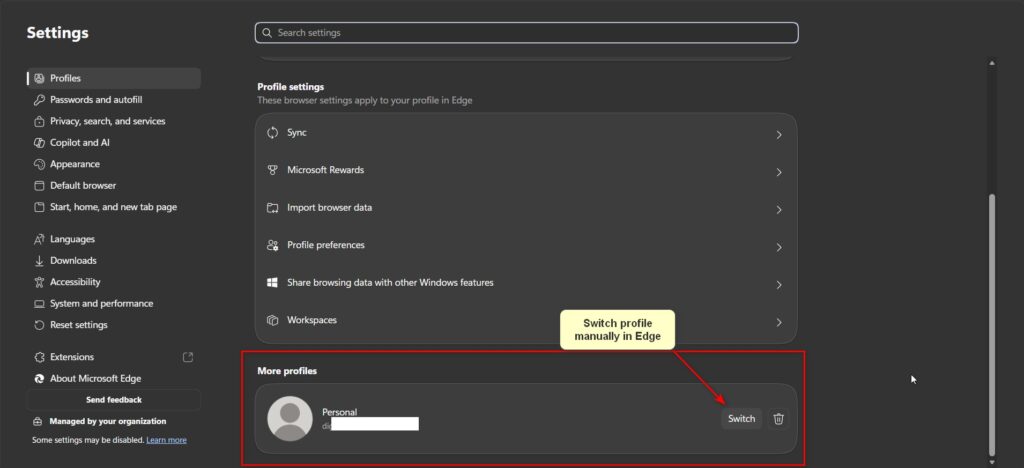
Method 1: Switch Profiles Manually (Two Clicks)
The standard way, on any Windows 11 or Windows 10 laptop or desktop — HP, Dell, Lenovo, anything:
- Look at the top-right of the Edge toolbar, next to the address bar. The small round picture (or colored initial) is your profile icon.
- Click it. A menu opens showing your current profile and, below it, every other profile on the device.
- Click the profile you want. It opens in a new window as that identity.
Two details people miss:
Both windows stay open. Switching does not close your current profile — you get one window per profile, side by side. Work in one, be personal in the other.
No top menu? Same trick works. If you are in a stripped-down window with no visible menus, the profile icon still sits on the title-bar area at the top-right. Progressive web apps installed from Edge also show a profile switcher on the application title bar for exactly this purpose.
Is there a keyboard shortcut to switch Edge profiles? No — Edge has no native hotkey for switching profiles. The two-click route above is the fastest built-in path. If you want something faster, Method 2 effectively gives each profile its own launch key.
Method 2: Make Edge Ask Which Profile to Use (The Honest Answer)
This is the feature everyone wants: open Edge and get a prompt asking which profile to use. Chrome-style.
Here is the truth, and it comes from Microsoft’s own support channel: Edge does not have a built-in option to select a profile when launching the browser. A Microsoft support specialist answering exactly this request put it plainly—there is no profile selection window, and the recommended approach is creating multiple Windows shortcuts for Edge, each targeting a different profile.
So you build your own picker. One shortcut per profile:
- Switch into the first profile and open edge://version.
- On the Profile path line, note the folder name at the end—for example
Profile 2. This often differs from the display name, and using the display name is the classic mistake. - Right-click the desktop → New → Shortcut, and enter:
"C:\Program Files (x86)\Microsoft\Edge\Application\msedge.exe" --profile-directory="Profile 2"- Name it after the profile—”Edge – Work.” Finish.
- Repeat for each profile, and pin them to the taskbar if you like.
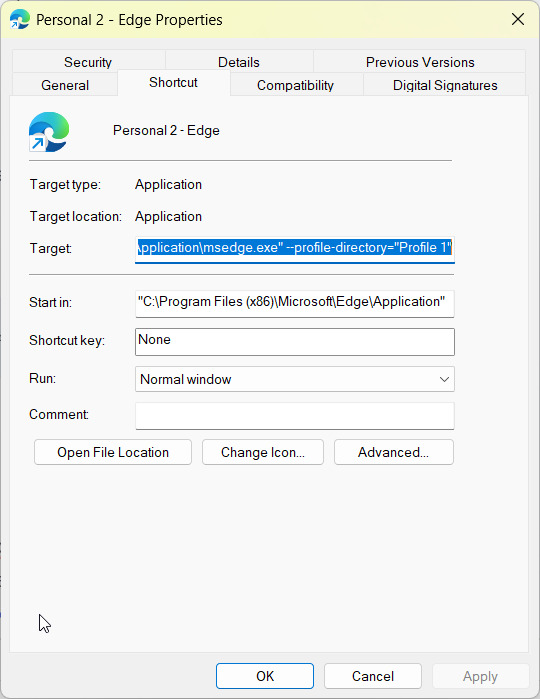
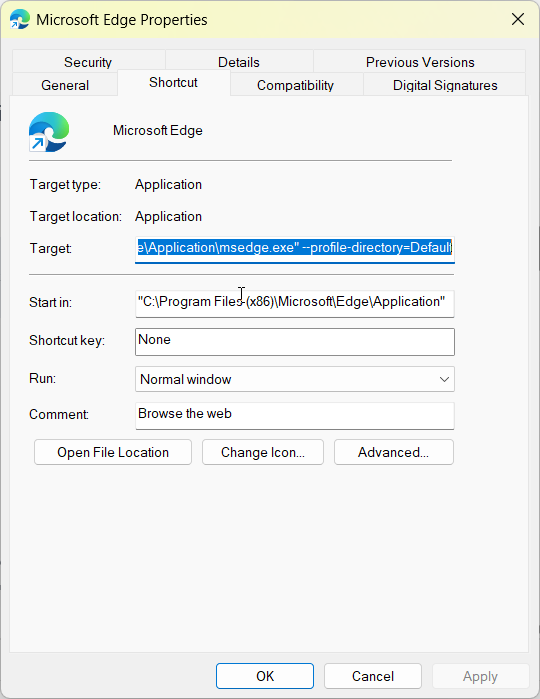
Now your desktop is the profile picker: click “Edge—Work” for work and “Edge—Personal” for personal. Each opens directly into its profile, every time. Keep the folder name in quotes if it contains spaces.
Want one profile to open by default instead of choosing each time? That is a different goal — set a default rather than a picker. We cover it fully in our guide to setting the default profile in Microsoft Edge, including the Windows Pro policy option.
Method 3: Turn Off Automatic Profile Switching
The reverse problem: you are not switching—Edge is, on its own. You open a link and suddenly you are in the other profile. You want to stay on this profile and not switch to other ones.
That behavior is automatic profile switching, and you can turn it off:
- Go to edge://settings/profiles.
- Click Multiple profile preferences (also reachable at edge://settings/profiles/multiProfileSettings
- Turn off all automatic profile switching options.
- While there, check “Choose preferred profile for sites and remove any per-site rules—these silently force certain websites to open in certain profiles.
- Also review Default profile for external links: set it to the profile you actually want links from email and other applications to open in, rather than leaving it on last-used.
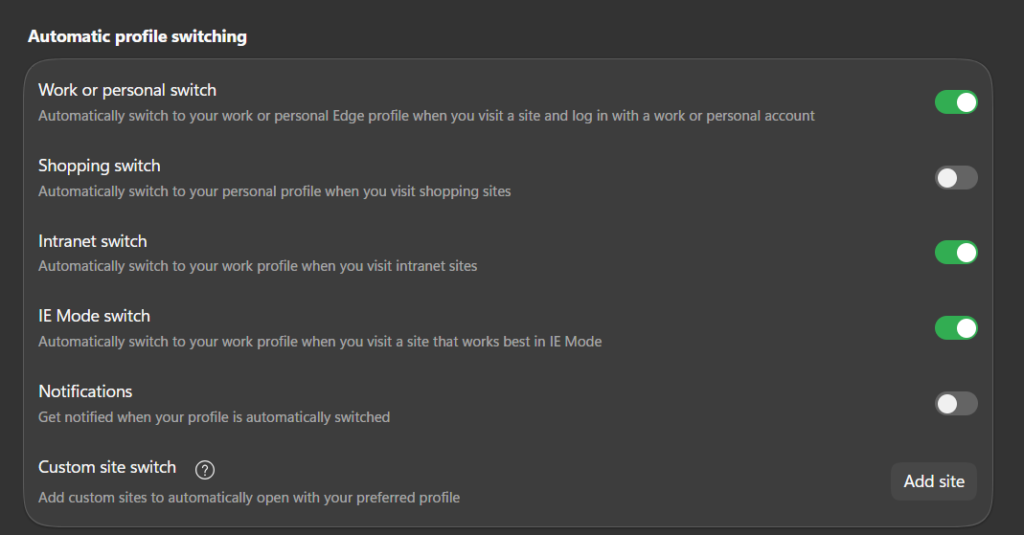
Microsoft’s support guidance for “stop Edge switching my profile” is precisely this path—Profile Preferences, automatic switching off.
What about those extra profiles you never created? Profile 2 or 3 appearing on their own is not automatic switching — Edge creates a work profile automatically when you sign into a Microsoft 365 or work account. It is normal. You can manage it or remove it from the Profiles page if you find that you do not need it.
Method 4: Move Favorites and Preferences Between Profiles
Sometimes “switching” means migrating—you built up saved sites in Profile 1 and want them in Profile 2.
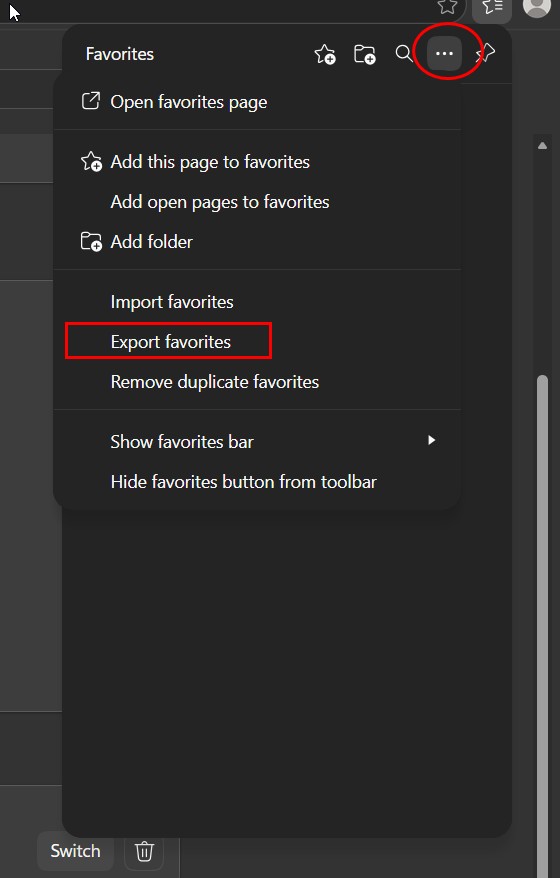
Favorites: In the source profile, open Favorites (Ctrl+Shift+O), click the ⋯ menu, select Export favorites, and save the HTML file. Switch to the target profile, and in the same menu, select “Import favorites” and choose the file. Done.
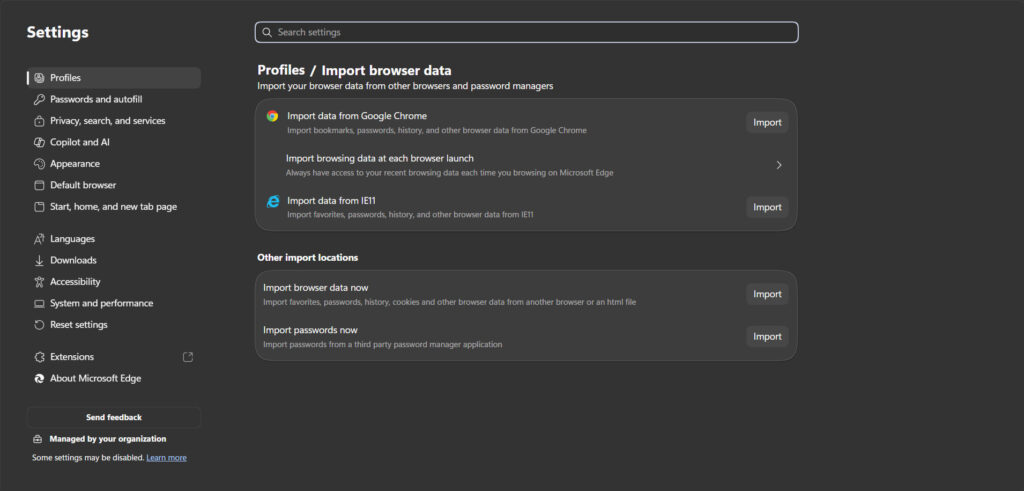
To import passwords and other data, use the target profile’s import page at edge://settings/profiles/importBrowsingData; it can pull favorites, passwords, and history from another browser or profile on the device.
Settings and preferences themselves do not transfer—things like appearance and startup pages are per-profile and need setting again. Plan a few minutes for that.
One warning: keep the export file safe until you have confirmed the import worked, then delete it—a favorites HTML file is readable by anyone who opens it.
Best Practices – Switch Profiles Microsoft Edge
- Name profiles clearly (“Work,” “Personal”) so the switcher menu is instant to read.
- Give each profile a different picture or color — you will notice the wrong window immediately.
- Use per-profile shortcuts (Method 2) if you switch daily; the desktop-as-picker workflow is faster than the menu.
- Turn off automatic switching if it has ever surprised you — predictability beats cleverness.
- Keep both windows open side by side instead of switching back and forth in one window.
Common Mistakes to Avoid
- Hunting the menus for a “switch profile” command. It is the round icon at the top-right, not a menu entry.
- Using the profile’s display name in shortcuts. Use the folder name from edge://version, or Edge creates a new empty profile.
- Expecting a launch-time profile picker. It does not exist — the per-profile shortcuts are the substitute.
- Blaming yourself for surprise switches. That is automatic profile switching or a per-site rule; turn them off.
- Deleting a profile to “move” its data. Export favorites first — removal deletes local data.
Recommended Tools
- The profile icon (top-right) — the built-in switcher.
- edge://version — the true profile folder name for shortcuts.
- edge://settings/profiles/multiProfileSettings — automatic switching and per-site rules.
- Favorites export/import — moving saved sites between profiles.
Everything here is built into Edge and Windows. No downloads needed.
Can Edge ask me which profile to use when it opens?
No. Microsoft support has confirmed Edge has no built-in profile selection window at launch. The practical substitute is to create one desktop shortcut per profile using the –profile-directory switch, so choosing a shortcut becomes choosing a profile. Each shortcut opens Edge directly into that identity.
Is there a keyboard shortcut to switch profiles in Edge?
No, Edge offers no native hotkey for profile switching. The fastest built-in route is two clicks—the profile icon, then the profile. For near-instant switching, create per-profile desktop or taskbar shortcuts with the –profile-directory switch and launch each profile directly.
How do I stop Edge from switching profiles automatically?
Open edge://settings/profiles, click Multiple profile preferences, and turn off all automatic profile switching. Also clear any sites listed under Choose preferred profile for sites and set Default profile for external links to your preferred profile. Edge will then stay in whichever profile you opened.
Are Profile 2 and Profile 3 automatic in Microsoft Edge?
They can be. Edge automatically creates a separate work profile when you sign into a Microsoft 365, work, or school account—opening Outlook on the web is a common trigger. A profile you never made is usually this feature, not a glitch, and you can remove it if unwanted.
How do I permanently switch to Profile 2 in Edge?
That is a default-profile question rather than a switching one. Add –profile-directory=”Profile 2″ (the folder name from edge://version) to your Edge shortcut’s target, and set Profile 2 as the default for external links in Multiple profile preferences. Edge will then open Profile 2 every time.
Conclusion
Switching profiles in Microsoft Edge comes down to knowing which of three problems you actually have.
Manual switching is two clicks — the profile icon, then the profile. Choosing a profile at launch needs the shortcut trick, because Edge has no built-in picker and Microsoft has said so. And profiles changing on their own is automatic switching, which turns off in Multiple profile preferences.
Set up one shortcut per profile, switch the automatic behaviour off, and Edge finally acts predictably: the profile you choose is the profile you get.
Create your first per-profile shortcut today — it takes two minutes — and tell us in the comments whether you went with the picker approach or a single default. It helps the next reader pick their path faster.
ENJOYING OUR CONTENT?
Stay up to date with our latest guides, insights, and news. Tap below to follow us directly via your search feed.
