
Last Updated:
Key Takeaways (Set default profile in Edge)
- Edge has two different “default profile” settings, and people confuse them. One controls which profile opens links from Outlook and other apps. The other controls which profile Edge opens with on launch. Setting the first will not fix the second.
- On launch, Edge remembers the last profile you used—by default. There is no simple consumer toggle that says “always open Profile 2.” That single fact explains almost every “my profile won’t stay default” complaint.
- The reliable fix is a shortcut. Point your Edge shortcut at a specific profile folder, and it opens that profile every time, regardless of what you used last.
Quick answer: To set the default profile for external links in Microsoft Edge, go to edge://settings/profiles → Multiple profile preferences → Default profile for external links. To make Edge always open a specific profile on launch, edit your Edge shortcut’s target to end with
--profile-directory="Profile 1", using the folder name from edge://version.
Introduction
You created a second profile in Microsoft Edge — one for work, one for home. You set one as the default. Then you restarted Edge, and the wrong one opened anyway.
You are not imagining it, and you are not doing it wrong. This is the single most confusing thing about Edge profiles, and it catches thousands of people.
Here is the root of it. Learning how to set the default profile in Microsoft Edge is really two separate questions. One setting decides which profile opens links from your email. A completely different behaviour decides which profile Edge opens when you click its icon. Most guides only explain the first, which is why your problem never gets solved.
This guide covers both, plus the shortcut trick that finally makes one profile open by default every time. Home users and office users can follow every step.
The Two “Default Profiles” Explained
Microsoft Edge has two default-profile behaviors. The “Default profile for external links” setting controls which profile opens links from Outlook, Teams, and other apps. Separately, when you launch Edge itself, it opens the last profile you used — not a fixed default. To force one profile to open on launch, you must edit the shortcut with the –profile-directory switch.
Understand this split and everything else falls into place. Set the wrong one, and Edge keeps ignoring you.
Method 1: Set the Default Profile for External Links
This is the built-in setting, and it handles links clicked from outside the browser—an email in Outlook, a message in Teams, or a document link.
- Open Edge and go to edge://settings/profiles in the address bar.
- Click Multiple profile preferences (on some versions, the direct path is edge://settings/profiles/multiProfileSettings).
- Find Default profile for external links.
- Select the profile you want, then restart Edge.
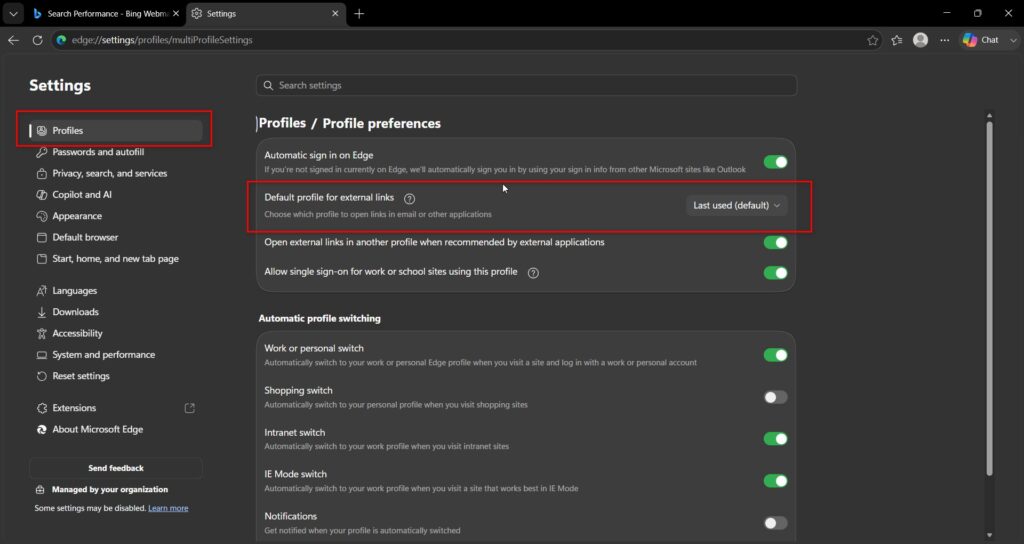
From now on, links from other apps open in that profile. This is genuinely useful — it stops a work document opening in your personal profile.
But note what it does not do. It does not change which profile opens when you click the Edge icon itself. That is a separate behavior, and it is where most people get stuck.
Method 2: Understand Why Edge Opens the Wrong Profile on Launch
Before the fix, the explanation—because this is the content every other guide skips.
By default, Microsoft Edge opens the last profile you used. There is no simple on/off setting in the consumer version that says “always start with this profile.” So if you last used your personal profile, Edge opens the personal one next time. Set your work profile as default for external links all you like—it changes nothing about launch behavior.
This frustration is evident in complaints such as “My profile won’t open as default when I restart Microsoft Edge, even though I set it as the default profile for external links” and “Why is my account not the default on my laptop with multiple profiles in Microsoft Edge?” “The setting they changed was never the one that controls launch.
So if you want a specific profile — say, Profile 2 — to open every time, you need one of the next two methods.
Method 3: Force a Profile to Open with a Shortcut (The Reliable Fix)
This is how you make one Edge profile default on launch, and it works on Windows 11 Home, Pro, every edition. The catch is a naming quirk that trips almost everyone, so follow closely.
Step 1: Find the real profile folder name
This is the part people get wrong. A profile’s display name is not the same as its folder name. Your profile might be called “Work” but live in a folder named “Profile 3.” They can even be mismatched — a profile shown as “Profile 3” sometimes sits in a folder called “Profile 4.”
To find the true folder name:
- Open the profile you want as default.
- Go to edge://version in the address bar.
- Find the Profile path line. Note only the last part after the final backslash—for example, in
...\Edge\User Data\Profile 4, the folder name is Profile 4.
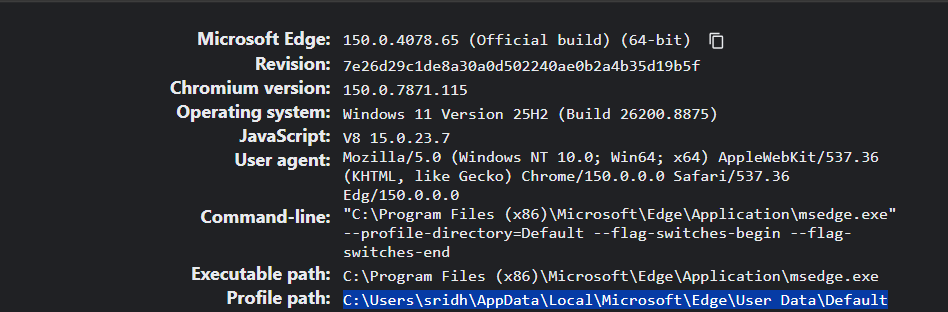
Use this folder name, not the display name. This single step is why so many shortcuts fail.
Step 2: Edit your Edge shortcut
- Close Edge completely.
- Right-click your Edge shortcut → Properties (on the taskbar, right-click the icon, then right-click Microsoft Edge → Properties).
- In the Target box, add the switch to the end, after the closing quote:
"C:\Program Files (x86)\Microsoft\Edge\Application\msedge.exe" --profile-directory="Profile 4"- Click Apply, then OK.
- Launch Edge using that shortcut.
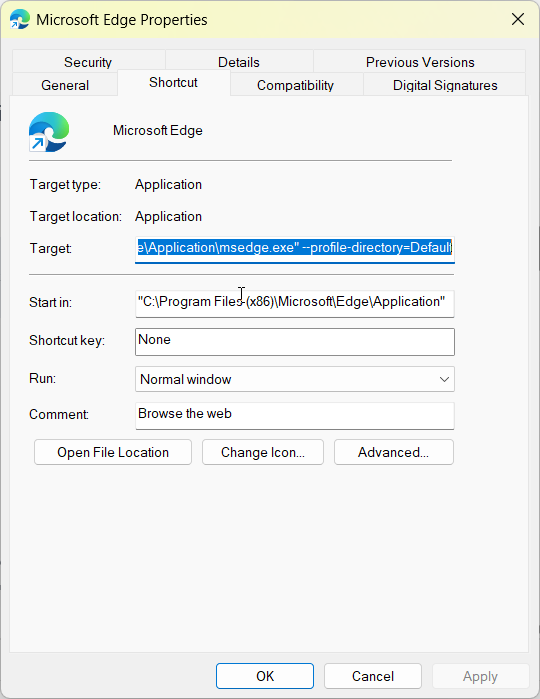
Edge now opens straight into that profile every time.
Critical warning: if you type a folder name that does not exist, Edge creates a brand-new empty profile instead. That is the cause of the common “Edge keeps creating an empty profile” problem. Copy the folder name exactly from edge://version.
You can make several shortcuts this way—one for work and one for personal—each launching its own profile. Add a URL after the switch if you want a specific page to load too.
Method 4: Fix Taskbar and Start Menu Pins
Sometimes the shortcut trick is not even needed—the problem is which shortcut you pinned.
Users have found that pinning the Start Menu Edge shortcut restores the normal last-used toggling, while a badly pinned taskbar icon breaks it. If your pinned Edge behaves oddly:
- Unpin Edge from the taskbar and Start.
- Open File Explorer and go to
C:\ProgramData\Microsoft\Windows\Start Menu\Programs. - Right-click the Microsoft Edge shortcut there and pin that one.
One user reported this alone fixed their profile-switching behaviour after nothing else worked.
For Windows Pro and Enterprise: The Policy Method
If you run Windows 11 Pro, Enterprise, or Education, there is now a proper setting — and almost no consumer guide mentions it.
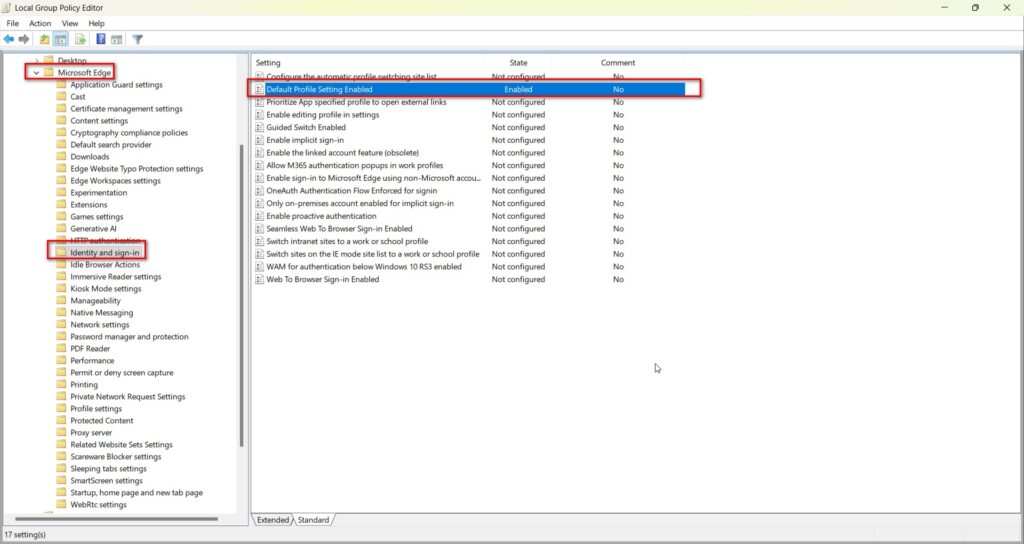
The EdgeDefaultProfileEnabled group policy lets you set a default profile to be used when opening the browser rather than the last profile used. It sits under Administrative Templates → Microsoft Edge → Identity and sign-in → Default Profile Setting Enabled.
Two things to know. It uses the profile name, which is case-sensitive. And it does not apply if a --profile-directory switch is already on your shortcut — the switch wins. For a single home PC, Method 3 is simpler. For a managed office fleet, this policy is the clean way to enforce it.
If you fail to locate the above setting, then you need to download the group policy templates from Microsoft. In another article we are going to see how to install those templates. Stay tuned in.
Does the Default Profile Sync Across Devices?
No — and this is a common wrong assumption worth stating plainly.
Your default-profile choice does not sync between machines. If you want the same profile to open by default on your laptop and your desktop, you must set it on each device separately. Bookmarks and passwords sync inside a profile; the default-profile-on-launch behaviour is a per-device shortcut setting, so it stays local.
So the answer to “how to set different default edge profiles on different devices” is simply: do it per machine. You can even have work open by default on your office PC and personal on your home PC.
Best Practices
- Decide what you actually want first: default for external links (Method 1) or default on launch (Method 3). They are different.
- Always read the real folder name from edge://version before editing a shortcut.
- Keep one clearly named shortcut per profile if you switch often.
- On a managed work PC, ask IT about the EdgeDefaultProfileEnabled policy rather than editing shortcuts yourself.
- Re-check your shortcut after major Edge updates, which occasionally reset targets.
Common Mistakes to Avoid
- Setting “external links” as default and expecting launch to change. The single most common mistake—they are separate.
- Using the display name in the shortcut. Use the folder name from edge://version, or Edge creates a new profile.
- Typing a non-existent folder name. Edge silently makes a blank profile.
- Expecting the default to sync across devices. It does not — set it per machine.
- Editing the target while Edge is running. Close it fully first, or the change may not stick.
Recommended Tools
- edge://settings/profiles — the built-in profiles panel.
- edge://version — where you find the true profile folder name.
- Shortcut Properties dialog — built into Windows, no extras needed.
- Group Policy Editor (Pro/Enterprise) — for the EdgeDefaultProfileEnabled policy.
Everything here is built into Windows 11 and Edge. No downloads required.
Why won’t my profile open as default when I restart Microsoft Edge?
Because by default Edge opens the last profile you used, not a fixed one. The “Default profile for external links” setting does not control launch behaviour. To force a specific profile on startup, use a shortcut with the –profile-directory switch pointing to that profile’s folder name.
How do I make Profile 2 the default in Microsoft Edge?
First open edge://version while in Profile 2 and note the folder name on the Profile path line — it may differ from the display name. Then edit your Edge shortcut target to end with –profile-directory=”Profile 2″, using that exact folder name. Edge will open Profile 2 every time.
Can I set different default Edge profiles on different devices?
Yes, and you have to. The default-profile setting does not sync across devices, so you configure it separately on each machine. This lets you open your work profile by default on your office PC and your personal profile on your home laptop, which many people prefer.
What is the difference between profile name and profile directory in Edge?
The profile name is the label you see on the profile picture, like “Work.” The profile directory is the actual folder on disk, like “Profile 3.” They are often different, and sometimes mismatched. Shortcuts and command-line switches need the directory name, not the display name.
Conclusion
Setting the default profile in Microsoft Edge feels broken until you realize it is two settings, not one.
If you want links from Outlook and other apps to open in the right profile, use Default profile for external links in edge://settings/profiles. If you want Edge itself to open a specific profile every time you click its icon, that setting will not help — you need a shortcut with –profile-directory, pointing at the real folder name from edge://version.
Get that folder name right, and the wrong-profile problem disappears for good. On a work PC, ask IT about the EdgeDefaultProfileEnabled policy instead.
Try the shortcut method on your most-used profile today, and tell us in the comments which approach finally made the right profile open — it helps the next reader skip the confusion.
ENJOYING OUR CONTENT?
Stay up to date with our latest guides, insights, and news. Tap below to follow us directly via your search feed.
