
Key Takeaways (Edge Work vs Personal Profiles)
- One careless “OK” can sync your private data to your employer. A documented corporate case found employees’ personal bookmarks and saved passwords appearing in the company environment — because a sign-in prompt quietly connected their personal profile to the work account with sync on. Proper profile separation prevents exactly this.
- Work and personal profiles run side by side, in separate windows. You do not switch back and forth — you keep both open. Each has its own passwords, history, extensions, and sign-ins.
- There is no merge button. Edge cannot combine two profiles into one. Consolidation is a manual export-and-import job — and usually, keeping them separate is the better choice anyway.
Quick answer: To set up Edge work vs personal profiles, create one profile per identity at edge://settings/profiles — sign the work profile into your work or school account and the personal profile into your Microsoft account. Never sign the work account into your personal profile. Both profiles can stay open side by side in separate windows.
Introduction
You use one laptop for everything. Company SharePoint in one tab, personal banking in the next, and somewhere in between, a sign-in prompt you clicked OK on without reading.
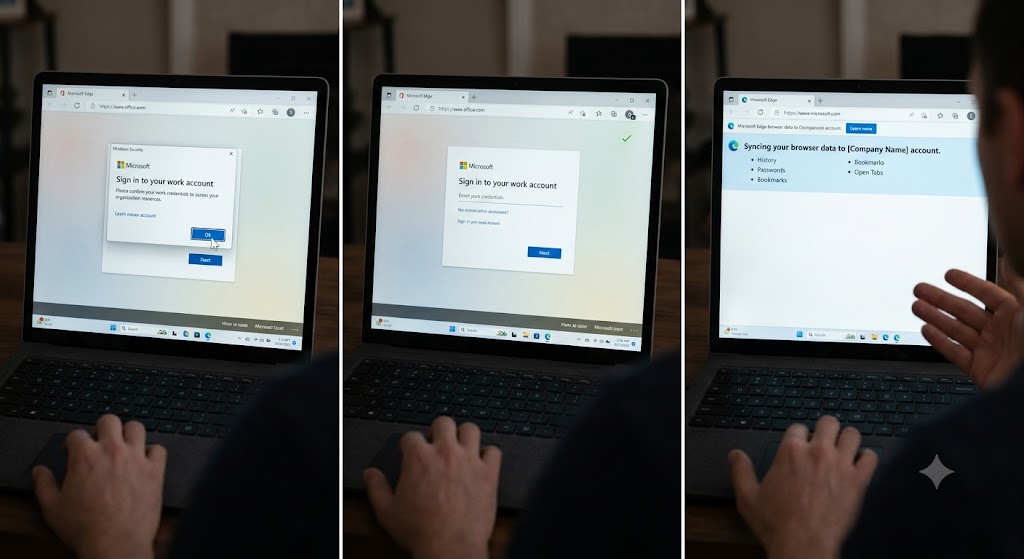
That last part matters more than you think. In one documented corporate case, employees’ private bookmarks and saved passwords started appearing in their company’s environment — collected over months — because a single prompt had connected their everyday profile to the work account, with sync switched on.
Edge work vs personal profiles exist to prevent exactly this. Set up properly, your work profile stays signed into Microsoft 365, Teams, and the intranet, while your personal profile keeps your banking, email, and shopping completely separate — different passwords, different history, different everything.
This guide covers the correct setup, running both at once, what your employer can and cannot see, and the honest answer on combining profiles. Home users and office users can follow every step.
Why Separate Profiles Matter (Featured Snippet)
Edge work and personal profiles are separate browser identities on the same computer. The work profile signs into your work or school account for Microsoft 365, Teams, and company sites; the personal profile signs into your Microsoft account for private browsing. Each keeps its own passwords, favorites, history, and extensions — nothing crosses between them.
The separation is the entire benefit: your work profile stays signed into Microsoft 365, SharePoint, and the company intranet, while the personal profile holds Outlook.com, shopping, and banking. Extensions are profile-specific too — a work tool never appears in your personal window, and vice versa.
Step 1: Set Up the Two Profiles Correctly
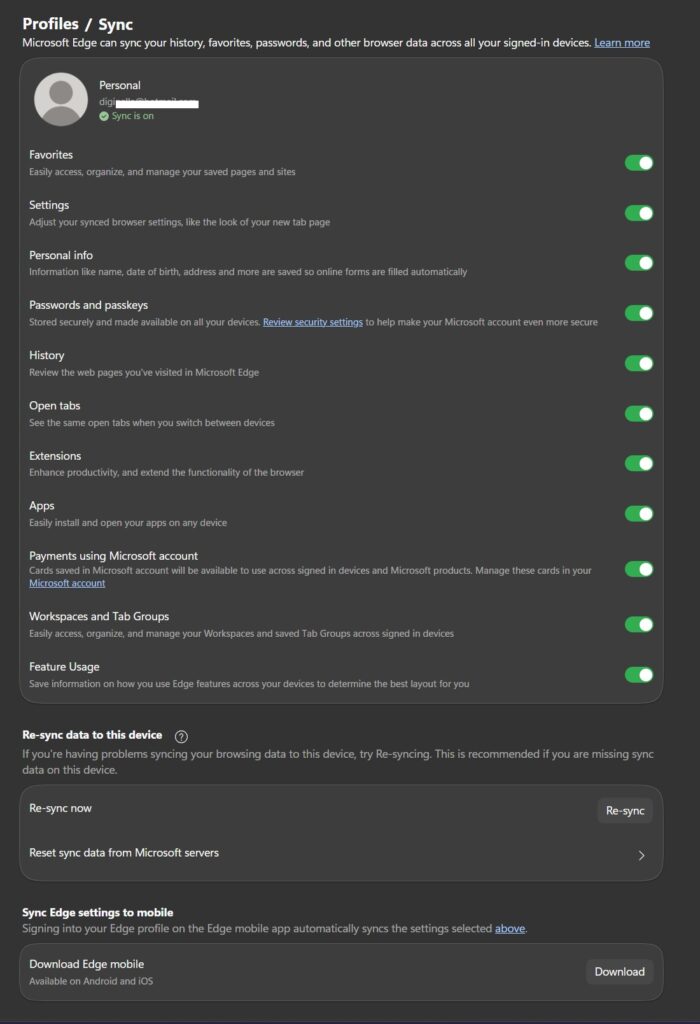
- Open edge://settings/profiles.
- Check what already exists. On a company machine, a work profile is often preconfigured. If you signed into Outlook on the web at some point, Edge may have auto-created one.
- If you need a second profile: Add profile → Add.
- Sign the work profile into your work or school account (the one from your employer).
- Sign the personal profile into your personal Microsoft account.
- Name them unmistakably — “Work” and “Personal” — and give each a different picture or color so the wrong window is obvious at a glance.
The golden rule underneath all of this: one identity per profile, always. The moment a work account signs into your personal profile — or the reverse — the separation is gone.
Step 2: Avoid the Sync Trap (The Part That Goes Wrong)
Here is how the corporate incident above actually happened, because you will recognise the moment.
You are browsing in your normal profile. A Microsoft site — or an Office document — shows a sign-in prompt for your work account. You click OK to make it go away. Quietly, that connects your current profile to the company account. On the next restart, Edge announces it is now syncing your browser data across devices — history, passwords, bookmarks, all of it — into the work account’s cloud.
Your private data is now in your employer’s environment. Not through spying — through one misdirected click.
The defence is simple:
- When a work sign-in prompt appears while you are in your personal profile, do not accept it there. Cancel, switch to the work profile, and sign in where it belongs.
- Periodically glance at edge://settings/profiles and confirm each profile shows only its intended account.
- If it has already happened: open the affected profile’s sync settings, turn sync off, sign the work account out of that profile, and change any personal passwords that were synced. Then set up the separate work profile properly.
This one habit — sign in only in the matching profile — is worth more than every other tip in this guide.
Step 3: Run Both Side by Side
You do not toggle between identities. You keep both open:
- Open Edge — say it opens in Work.
- Click the profile icon at the top-right → select Personal.
- Personal opens in its own window. Both stay open, independently.
The right-click trick most people never find. Edge has an “Open link as” option in the right-click menu—hover over a link, and you can open it directly in your Work or Personal profile without switching windows first.
Reading a personal email that contains a work document link? Right-click, open as Work, done. Power users report using this far more than they expected once they discover it exists.
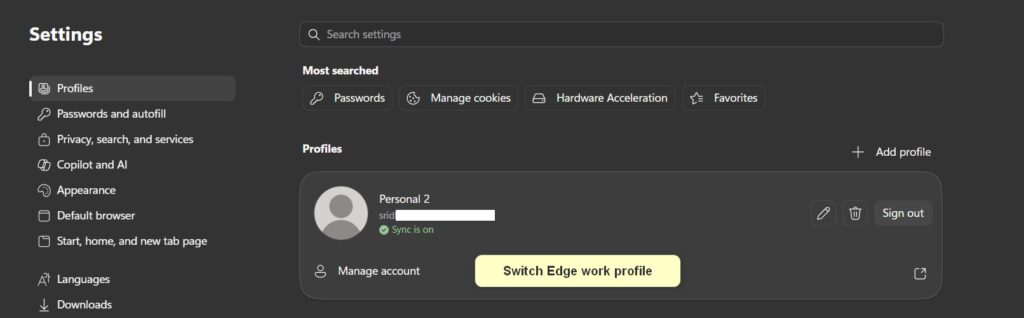
The faster way to create per-profile shortcuts.
You do not always need the manual --profile-directory shortcut. Open Edge, switch to the profile you want, then right-click the running Edge icon on the taskbar and choose Pin to taskbar.
Edge pins a shortcut with the correct profile switch already configured. Do it once per profile, and your taskbar holds a Work Edge and a Personal Edge side by side.
For faster access, create per-profile shortcuts to switch Edge profiles—our switching guide walks through the taskbar re-pin trick and the folder-name detail that trips people up.”
The manual method remains useful for custom icons or extra switches—and if you edit shortcut targets, it %LOCALAPPDATA%\Microsoft\Edge\Application\msedge.exe works for any username, with no path editing needed.
Put work on one monitor and personal on the other, or use Alt+Tab. Teams and SharePoint stay logged in on one side; your private email on the other. Switching profiles never closes the other window.
For faster access, create one desktop shortcut per profile using the --profile-directory switch with the folder name from edge://version — covered in full in our profile-switching guide.
Give Each Profile Its Own Apps (The PWA Trick)
Here is where profiles stop being a browser feature and become a workspace. Edge can install websites as apps—Outlook, Teams, Office.com—via the install icon in the address bar or Settings menu → Apps. The key detail: an installed web app belongs to the profile that installed it.
Install Teams as an app from your Work profile, and it launches signed into work, pinned to your taskbar like a native program. Install Outlook.com from Personal, and it opens as your personal mail app.
Some teams skip installing Office entirely and run Office.com as a PWA. For a work vs. personal setup, this means your taskbar can hold work apps and personal apps that never share a sign-in—the separation extends beyond browser windows into what looks and behaves like installed software.
Step 4: Point the Defaults at the Right Profile
Two defaults decide your daily experience, and both frustrations — “email links keep opening my work account” and “Edge keeps starting in my school profile” — trace back to them:
Links from other apps (Outlook, Teams): set Default profile for external links under Multiple profile preferences at edge://settings/profiles.
Which profile opens on launch: Edge opens the last-used profile by default; forcing a fixed one takes the shortcut method or, on managed machines, a policy.
We cover both in depth in our guides to setting the default profile and changing the default account in Edge — including the exact fix when a work or university account has taken over as the default.
One note for office machines: on corporate devices, IT may enforce automatic switching between work and personal profiles through Edge for Business — Microsoft’s managed Edge experience — so if switching behaviour seems locked, that is your organization’s policy, not a bug.
And if you think of this problem as an account issue — ‘my school account became the main one’ — our companion guide on how to change which account is the default in Edge approaches it from exactly that angle.
Step 5: Know What Your Employer Can and Cannot See
The question everyone quietly wants answered. The honest version has two layers.
Profile-level: your work account cannot browse your personal profile. Signed into separate profiles, your personal history, passwords, and favorites are not visible to the work identity. That is the separation working.
Device-level is different. It depends on who owns and manages the machine. On a fully managed corporate device, IT’s management tools have visibility into essentially the whole device.
On your own personal device with only a work account added (the BYOD scenario), only the work data and container are visible and managed — administrators can see work apps, compliance status, and corporate data, but not your personal files or non-work activity.
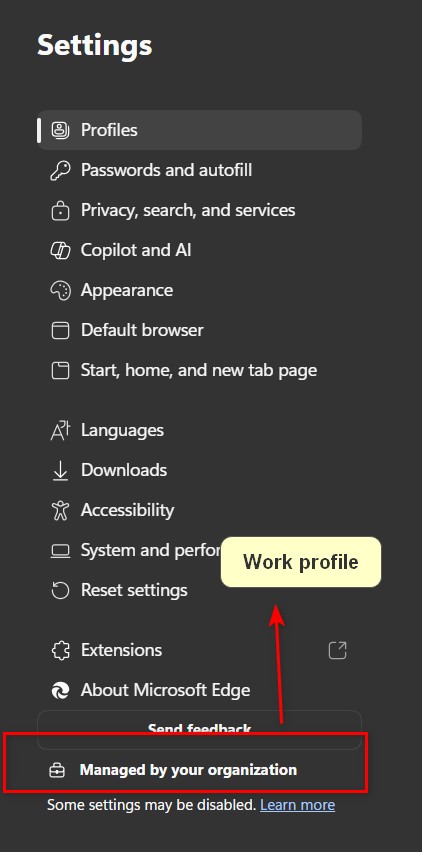
If Edge shows “This setting is managed by your organization,” browser policies are in force on that profile — normal on company machines.
The practical rule: profiles protect you from account-level mixing on any machine. On a company-owned laptop, assume the device itself is visible to IT regardless of profiles — and keep genuinely private browsing on your own hardware.
Beyond Two: The Consultant Pattern
Two profiles is the common case, not the ceiling. IT consultants and freelancers routinely run four or five: one personal, one for their own company, one per active client, and a separate profile for privileged admin accounts.
Each client profile stays signed into that client’s Microsoft 365 tenant, so switching contexts means switching windows—no logging out, no abandoned tabs, and no cookie collisions between tenants.
Two refinements for this pattern.
First, know when Guest mode is the better tool: for a one-off session in a clean context, Guest mode (profile menu → Browse as guest) needs no setup and leaves nothing behind — profiles are for recurring identities.
Second, a privileged admin-only profile with no extensions installed is a genuine security improvement: your everyday extensions never see your admin sessions.
If you juggle multiple Microsoft 365 tenants for any reason, this pattern pays for its five-minute setup within a day.
Can You Combine Work and Personal Profiles? (The Honest Answer)
No — Edge has no merge feature. Two profiles cannot be combined into one with a button.
If you genuinely need to consolidate (say, you are leaving a job and want your own bookmarks out of a school profile), it is a manual move:
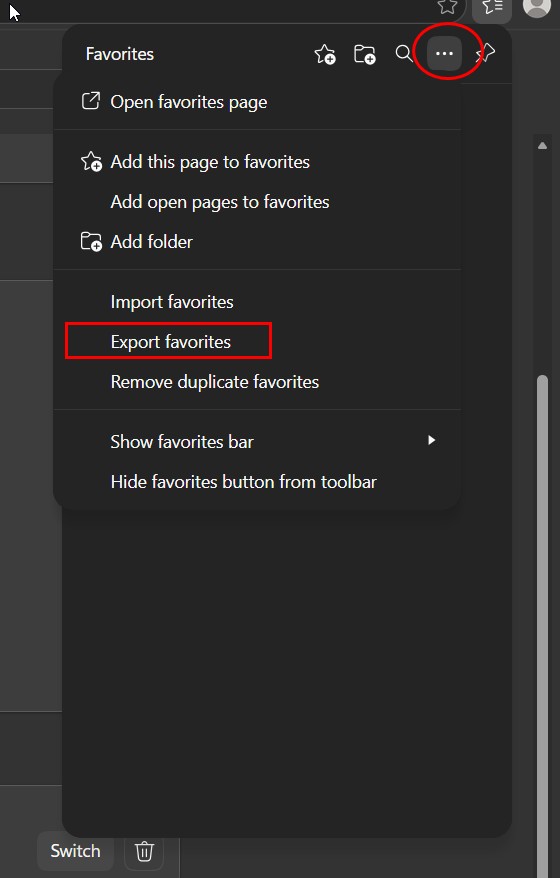
- In the source profile: Ctrl+Shift+O → ⋯ → Export favorites to an HTML file.
- In the target profile: same menu → Import favorites, or use edge://settings/profiles/importBrowsingData for broader data.
- Passwords: export from the source profile’s password settings, import into the target — then delete the export files, which are unencrypted.
- Only after confirming everything arrived: remove the old profile.
But think twice before merging work into personal at all. Company bookmarks and saved work passwords inside your personal profile recreate the mixing problem in reverse — and if the work account was organization-managed, some data may be blocked from leaving by policy anyway. Separation is usually the feature, not the problem.
Best Practices
- One identity per profile — never sign work into personal or personal into work.
- Distinct names, pictures, and theme colors, so the wrong window is visible instantly.
- Decline work sign-in prompts that appear in the personal profile; switch first.
- Review edge://settings/profiles monthly to confirm accounts are where they belong.
- On company hardware, keep truly private browsing on your own device.
- Use the taskbar re-pin trick (switch to profile → right-click Edge icon → Pin) instead of handwriting shortcuts—Edge configures the profile switch for you.
Common Mistakes to Avoid
- Clicking OK on a work sign-in inside your personal profile. The documented route to private data syncing into the employer environment.
- Using one profile for everything. One shared password store and history for both identities.
- Deleting the auto-created work profile in frustration. Configure it properly instead — it exists to protect the separation.
- Merging profiles casually. No native merge exists; manual consolidation reintroduces mixing.
- Assuming profiles hide anything on a managed device. Device-level management sees past profiles.
Recommended Tools
- edge://settings/profiles — set up and audit both identities.
- Multiple profile preferences — external-link defaults and automatic switching.
- Favorites export/import — the manual consolidation path.
- edge://version — profile folder names for per-profile shortcuts.
Everything here is built into Edge. No downloads needed.
Can my employer see my personal Edge profile browsing?
Your work account cannot see into your personal profile — histories and passwords stay separate. However, on a company-owned, fully managed device, IT’s management tools have visibility into the device itself. On your personal device with just a work account added, only the work data is visible to them.
How do I combine my school and personal profiles in Edge?
There is no merge feature. Export favorites from the school profile (Ctrl+Shift+O, then Export favorites), import them into your personal profile, move passwords via the password export, then remove the school profile. Note that organization policies can block some managed data from transferring.
Why did my private bookmarks appear on my work computer?
Most likely your everyday profile got signed into the work account — often from accepting a sign-in prompt — and sync then uploaded your bookmarks and passwords to that account. Turn off sync in that profile, sign the work account out, and set up a separate work profile properly.
Should work and personal Edge profiles use different Microsoft accounts?
Yes — that is the entire design. The work profile signs into the work or school account your employer provides; the personal profile signs into your own Microsoft account. Each profile holds one identity, keeping passwords, favorites, and browsing history completely separate between the two.
How do I stop email links from opening in my work profile?
Open edge://settings/profiles, click Multiple profile preferences, and set Default profile for external links to your personal profile. Links from Outlook and other apps will then open there. Which profile appears when you launch Edge itself is a separate setting, covered in our default profile guide.
Can I open one link in my other Edge profile without switching?
Yes. Right-click the link and use the “Open link as” option to send it straight to your Work or Personal profile. The page opens in that profile’s window with its sign-ins, while you stay where you are. It is the fastest way to handle a work link that arrives in personal email.
Conclusion
Edge work vs. personal profiles are not a convenience feature—on a shared-use laptop they are a data boundary, and the documented cases of private passwords syncing into employer environments show what happens when the boundary is sloppy.
The setup is five minutes: one profile per identity, unmistakable names and colors, defaults pointed at the right profile, and both windows open side by side. The discipline is one habit: sign in only in the matching profile and treat every unexpected work sign-in prompt in your personal window as a wrong-way sign.
Open Edge now and audit your profiles at edge://settings/profiles — our panel-by-panel guide shows what every setting on that page does — and confirm which account each profile holds.
Open edge://settings/profiles now and audit which account each profile holds. If anything is signed in where it should not be, fix it today—then tell us in the comments what you found. The prompt-click trap catches more people than you would think.
ENJOYING OUR CONTENT?
Stay up to date with our latest guides, insights, and news. Tap below to follow us directly via your search feed.
