
What causes Microsoft Teams issues? Microsoft Teams issues usually come from a corrupted client cache, a temporary Microsoft Teams outage, a weak internet connection, or an outdated app version. Most problems are fixed by clearing the cache, checking the official status page, restarting the router, or reinstalling the Teams client—no advanced technical skill is needed.
INTRODUCTION
If Teams won’t load, calls continue to drop, or chats refuse to sync, you’re not alone—Microsoft Teams issues are one of the most searched IT problems among home and office users right now. Whether you rely on Teams for daily standups, client calls, or file sharing through SharePoint, even a few minutes of downtime can stall real work.
In this guide, I’ll walk you through exactly how to check the current status of Teams, identify whether the problem is on your end or Microsoft’s, and fix the most common Microsoft Teams issues step by step — from cache errors to video and audio failures. You’ll also get real troubleshooting data, admin center tips, and answers to the questions people ask most.
WHAT’S CAUSING YOUR MICROSOFT TEAMS PROBLEMS RIGHT NOW
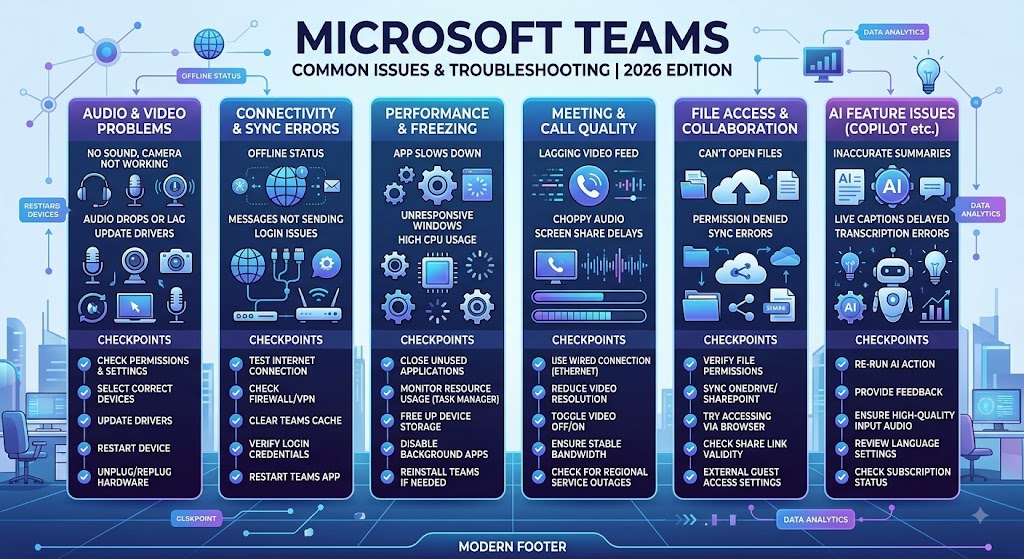
Before you start troubleshooting, it helps to know where the fault usually sits. In my experience supporting home users and small office teams, most Microsoft Teams problems fall into one of four buckets:
- A genuine Microsoft Teams outage affecting a region or service (chat, calling, or meetings)
- A local client cache or profile corruption on the teams desktop app
- A network-level fault — a flaky internet connection or a misbehaving router
- An account or credential issue tied to your Microsoft 365 (M365) sign-in
Knowing which bucket you’re in saves you from reinstalling the app when the root cause is actually a Microsoft Teams outage — or vice versa.
HOW TO CHECK IF MICROSOFT TEAMS IS DOWN
This is the first step to take every time Teams misbehaves: confirm whether the issue is on your end or with Microsoft.
Check the Official Microsoft Status Page
Go to the official Microsoft status page (admin.microsoft.com/servicestatus, or the public Microsoft 365 status page) to see real-time updates on any active Teams outages. Microsoft will acknowledge known problems here and post updates as they investigate.
Use the Microsoft 365 admin center.
If you’re an IT admin, the admin center has a dedicated service health dashboard. It shows current status, known issues, and incident history for the last 24 hours — the fastest way to monitor Microsoft Teams across your whole organization.
Cross-Check with Downdetector
Downdetector aggregates user reports in real time. A sudden spike is a strong signal of a wider Microsoft Teams outage rather than a problem isolated to your device.
Quick status-check checklist:
- Visit the official Microsoft teams status page
- Search “Microsoft Teams” on Downdetector
- Check company-wide alerts in the admin center
- Ask a colleague if they’re experiencing issues too
Known Microsoft Teams Desktop Bugs Reported in 2026
The teams desktop client has picked up several device-specific bugs this year that don’t show up on the official status page because they aren’t service-wide outages—they’re local crashes tied to drivers, updates, or first-run installs.
Teams Desktop Crashing on Launch
Community reports describe Teams loading, freezing, going “not responding,” then crashing on startup — a pattern that has recurred across versions for years and still appears in current threads.
Microsoft’s VDI documentation confirms that, for a known issue with a documented cause, new Teams can fail to launch entirely or simply not appear in the Start Menu for users signing into non-persistent virtual desktops, while admins on the same golden image can launch Teams successfully.
Separately, some users report Teams sticking on “Loading…” only on the very first run after a fresh install, with a workaround of manually creating an empty settings file in the Teams AppData folder before first launch.
Contacts Not Loading: Desktop vs Web Version
A 2026 Tech Community thread reports the Contacts section failing specifically inside the Teams desktop client while working normally in the web version—a useful diagnostic split, since it points to a local client-rendering fault rather than a server-side outage.
GPU Driver Conflict Video Call
This is one of the more concrete 2026 findings: a user on the April 2026 build reported Teams shutting down and restarting repeatedly whenever it accessed their webcam during a call, with the crash traced specifically to the AMD graphics driver on a Radeon 9060XT.
Disabling graphics acceleration in Teams settings was tried as a workaround. This lines up with older but still-active community guidance confirming that outdated or recently updated GPU drivers are a recognized cause of Teams crashing mid-call and that updating the GPU driver is the standard first fix.

How to Confirm It’s a Driver-Level Crash
- Reproduce the crash only during video/camera use, not in chat or plain calls
- Check Windows Event Viewer for a faulting module tied to your GPU driver
- Update or roll back the graphics driver, then retest
- Try Teams in the web version as a control—if it doesn’t crash there, the fault is local, not a Microsoft Teams outage
Teams Audio Device Not Working After Update
A macOS-specific bug reported in mid-2026: after a Microsoft AutoUpdate delta patch, the installer replaces the Teams audio driver component in the system’s CoreAudio plug-in folder but—because AutoUpdate runs non-interactively—never restarts the coreaudiod process.
The practical effect is that any app already holding a reference to the Teams audio device stops working correctly until the Mac is restarted, since the live process never picks up the replaced audio component.
Presence and Messaging Sync Problems
Not every Teams complaint is about the app failing to open—a large share of 2026 user reports are about Teams running but showing the wrong information.
Teams Status Stuck on Away
This is officially documented by Microsoft, not just anecdotal: Microsoft’s own troubleshooting page confirms that presence can change to Away after five minutes of desktop inactivity and then fail to switch back to Available even after you resume activity—with locking your PC, sleep/idle mode, or being more active on mobile all listed as known triggers.
The June 17, 2026, Widespread Incident
This underlying bug escalated into a large-scale event on June 17, 2026, when thousands of Downdetector reports (over 4,500 by mid-morning, concentrated in the UK) described colleagues appearing offline or away despite being active.
Third-party incident trackers logged Microsoft confirming an investigation into the issue that same morning and marking it resolved by early afternoon UK time—making it a genuine, acknowledged service issue rather than a local misconfiguration, even though it never fully matched the profile of a total outage.
Workarounds Reported by Users
- Manually reset status via profile picture → current status → Reset status
- Sign out of the Teams mobile app, since the most recently active device can override desktop presence
- Clear the client cache and sign back in on desktop
- Run the Teams Presence Based on Calendar Events test in the Microsoft Remote Connectivity Analyzer, or have an admin run the Teams Presence diagnostic in the admin center
Teams “Oops” Page at Sign-In
Some service issues have prevented users from logging into Teams after a cold boot, resulting in an “oops” error page and missing messages upon device unlock. Both were logged as Microsoft-side service issues and resolved on Microsoft’s end rather than requiring a client fix.
Root Causes Behind Major Teams Outages
Understanding why Teams goes down helps explain why the resolution sometimes isn’t in your control at all.
Authentication Certificate Expired
One of the clearest documented root causes in Teams’ history: an internal authentication certificate expired, breaking sign-in for users broadly, until Microsoft identified and rotated it.
It’s a useful reminder that not every login failure is a cache or credential problem on your side—some are certificate-management failures inside Microsoft’s own infrastructure.
Azure Network Path Outage
A 2026 Microsoft 365 outage affecting Teams, OneDrive, and other services was traced by Microsoft’s engineering team to specific network paths, using diagnostic telemetry from affected infrastructure to isolate the source before applying mitigation—illustrating that a “Teams is down” report is sometimes really an Azure networking incident surfacing through Teams.
SharePoint and Cross-Service Impact
A separate 2026 Microsoft 365 outage illustrated the close links between Teams, SharePoint, and other services:
Downdetector logged a sharp spike in reports above baseline, with SharePoint accounting for most complaints, Excel for a smaller share, and the admin center for a few percent, while the Teams-side symptom was degraded chat functionality, including images failing to load. Microsoft confirmed OneDrive access was intermittent and SharePoint Online was returning “Something went wrong” errors during the same window and tied the whole event to a broader Azure incident affecting the West US region.
How Microsoft Tracks These Incidents
Both of the above incidents were tracked publicly using a specific admin center message ID, which IT admins could follow for live updates — the standard mechanism Microsoft uses to let organizations monitor a known issue without needing a direct support ticket for every affected user.
How to Verify and Track a Teams Outage Yourself
Before assuming the worst, here’s how to confirm what’s actually happening—using the same signals the top-ranking status and news sites rely on.
Reading a Downdetector Spike Correctly
A sudden jump in Downdetector reports—for example, one confirmed 2026 incident jumped to roughly 2,400 reports against a normal baseline of about 29—is a reliable early signal of a real, widespread Microsoft Teams outage, even before Microsoft posts an official update.
Using a Teams Outage Map
Third-party trackers also plot an interactive outage map, letting you see whether reports are clustered in your region or globally—useful for telling a local ISP problem apart from a genuine regional Microsoft Teams outage.
Checking IT Admin Known-Issues Resources
For technical support beyond your troubleshooting, Microsoft’s official guidance is to go to your organization’s IT admin first since they manage tenant-level Teams settings—and for admins themselves, Microsoft maintains a separate known issues documentation set specifically for identifying and fixing errors at the organizational level.
Teams Ad Blocker Conflict
If you’re using the web version and can’t reconnect, Microsoft’s own support guidance lists disabling ad blockers as a specific troubleshooting step, alongside restarting your Wi-Fi modem and checking the official Microsoft 365 status account for incidents.
Teams External Call Issues
Calling problems are sometimes narrower than they first appear—one documented organizational incident affected primarily external calls, with only some internal calls impacted, which is a useful distinction when reporting the issue to IT.
Incident Acknowledgment Delay
It’s also worth knowing that Microsoft’s own acknowledgment of an incident isn’t always instant—independent monitoring services rate Microsoft’s typical acknowledgment delay for Teams incidents in the range of several hours, which is exactly why cross-checking Downdetector or an independent status checker alongside the official status page gives you a faster read than waiting on Microsoft alone.
10 Common Microsoft Teams Errors (and How to Fix Them)
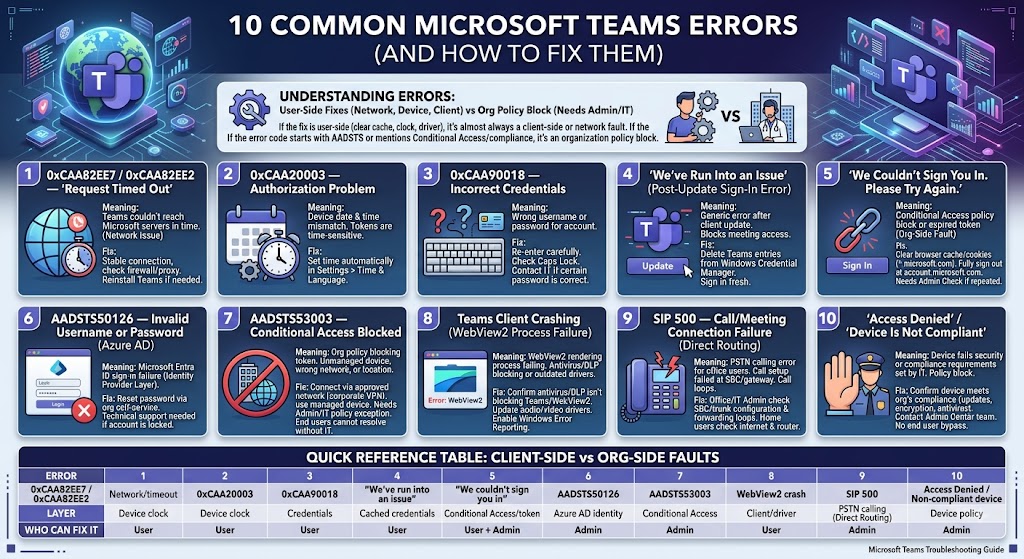
Error codes look cryptic, but each one narrows down exactly where the fault sits — sign-in, network, device, or organization policy. Here are the 10 you’re most likely to run into as a home or office user, based on Microsoft’s own troubleshooting documentation and admin support threads.
1. Error 0xCAA82EE7 / 0xCAA82EE2 — “Request Timed Out”
What it means: Teams couldn’t reach Microsoft’s servers in time to complete sign-in. Microsoft’s official sign-in troubleshooting guide lists this pair together, with the fix centered on confirming internet access and using the Network Assessment Tool to check that nothing between your location and Microsoft’s network is misconfigured.
Fix:
- Confirm your internet connection is stable
- Check firewall/proxy settings aren’t blocking Microsoft endpoints
- If it persists, delete the Teams folder from
%appdata%\Microsoftand reinstall, ideally as administrator
2. Error 0xCAA20003 — Authorization Problem
What it means: This points to a device-clock mismatch. If your PC’s date and time are wrong, Teams’ authentication token exchange fails, since token validity is time-sensitive.
Fix:
- Go to Settings > Time & Language and enable “Set time automatically”
- Retry sign-in once the clock corrects
3. Error 0xCAA90018 — Incorrect Credentials
What it means: You’ve entered the wrong username or password for your Microsoft 365/Office 365 account.
Fix:
- Re-enter your credentials carefully — check Caps Lock and autofill errors
- If you’re certain the password is right, it may have been reset by your admin center — contact IT
4. “We’ve Run Into an Issue” (Post-Update Sign-In Error)
What it means: This is a documented pattern reported after a Teams client update — users get this generic error every time they try to sign in, blocking meeting access entirely. Microsoft’s own community guidance for this one is to clear cached credentials rather than just retry.
Fix:
- Open Control Panel > Credential Manager > Windows Credentials
- Delete every entry listed under Teams in “Common Credentials”
- Relaunch Teams and sign in fresh, or use the web version as a temporary workaround
5. “We Couldn’t Sign You In. Please Try Again.”
What it means: Usually a Conditional Access policy block or an expired authentication token — this is an organization-side (not client-side) fault.
Fix:
- Clear browser cache/cookies for *.microsoft.com if signing in via the browser
- Fully sign out at account.microsoft.com, then sign back in
- If it repeats, this needs an admin center check — it can’t be bypassed from the user side
6. AADSTS50126 — Invalid Username or Password (Azure AD)
What it means: A Microsoft Entra ID (Azure AD) sign-in failure — distinct from the Teams-specific 0xCAA codes, this one originates at the identity-provider layer.
Fix:
- Reset your password through your organization’s self-service portal if available
- If the account is locked from repeated failed attempts, only technical support or IT can unlock it
7. AADSTS53003 — Conditional Access Blocked
What it means: Your organization’s Conditional Access policy is blocking token issuance — often because you’re on an unmanaged device, an unapproved network, or outside an allowed location.
Fix:
- Connect via an approved network (e.g., corporate VPN)
- Use a company-managed device if that’s the policy requirement
- This is admin-controlled — end users cannot resolve it without an IT policy exception
8. Teams Client Crashing (WebView2 Process Failure)
What it means: Microsoft’s own client-crash troubleshooting documentation ties a share of these crashes to the WebView2 rendering process failing — sometimes because antivirus or Data Loss Prevention (DLP) tools are blocking the Teams and WebView2 processes from reaching Teams services, and sometimes due to outdated audio/video drivers.
Fix:
- Confirm antivirus/DLP software isn’t blocking Teams or WebView2 processes
- Update your audio and video drivers
- Enable Windows Error Reporting (WER) if the crash keeps recurring, so the exact fault can be identified
9. SIP 500 — Call/Meeting Connection Failure
What it means: This is a Microsoft-documented Direct Routing (PSTN calling) error, most relevant to office users on calling plans — it indicates the call setup failed at the Session Border Controller (SBC) or gateway level, sometimes due to infinite call forwarding misconfiguration.
Fix:
- Office/IT admins should verify the SBC and trunk configuration for the tenant
- Check for call-forwarding loops in the routing policy
- Home users hitting call failures without Direct Routing should instead check their internet connection and router first — this specific code is enterprise-calling-specific
10. “Access Denied” / “Device Is Not Compliant”
What it means: Your device doesn’t meet the organization’s security or compliance requirements set by IT — a policy block, not an app bug.
Fix:
- Confirm your device meets your org’s compliance requirements (updates, encryption, antivirus status)
- Contact your admin center team — like Conditional Access errors, this cannot be bypassed by the end user
Quick Reference Table
| Error | Layer | Who Can Fix It |
|---|---|---|
| 0xCAA82EE7 / 0xCAA82EE2 | Network/timeout | User |
| 0xCAA20003 | Device clock | User |
| 0xCAA90018 | Credentials | User |
| “We’ve run into an issue” | Cached credentials | User |
| “We couldn’t sign you in” | Conditional Access/token | User + Admin |
| AADSTS50126 | Azure AD identity | Admin |
| AADSTS53003 | Conditional Access | Admin |
| WebView2 crash | Client/driver | User |
| SIP 500 | PSTN calling (Direct Routing) | Admin |
| Access Denied / Non-compliant device | Device policy | Admin |
A quick pattern to remember: if the fix is something you can do (clear cache, check the clock, update a driver), it’s almost always a client-side or network fault. If the error code starts with AADSTS or mentions Conditional Access/compliance, it’s an organization policy block — no amount of reinstalling Teams will fix it, and it needs your admin center or IT team.
STEP-BY-STEP GUIDE: FIXING MICROSOFT TEAMS ISSUES
If the status pages show everything is working properly on Microsoft’s end, the problem is likely local. Please work through these steps in order.
Step 1: Restart the Teams App and your device.
Close Teams completely (check the system tray, not just the window), then reboot your PC. This clears temporary memory conflicts that cause the app to freeze.
Step 2: Clear the Teams Cache
Clearing the Teams cache fixes a large share of sync, login, and notification bugs.
- Fully quit Teams (right-click the teams icon in the tray and choose Quit)
- Open File Explorer and go to
%appdata%\Microsoft\Teams(classic) or%localappdata%\Packages\MSTeams_8wekyb3d8bbwe(new Teams) - Delete the contents of the cache folder
- Reopen Teams and sign in again
Step 3: Update or Reinstall the Teams Client
An outdated Teams client frequently causes crashes. Go to Settings > Check for updates in the app. If that fails, uninstall Teams from Windows Settings and download a fresh copy from the official Microsoft Teams page.
Step 4: Switch to the Web Version
If the desktop application won’t launch at all, sign in through the web version in your browser as a temporary workaround while you fix the desktop client.
Step 5: Check Your Internet Connection and Router
A weak or unstable internet connection breaks video meetings before anything else. Restart your router, run a speed test, and if possible, switch to a wired connection during important calls.
Step 6: Disable Conflicting Add-ins or VPNs
Some VPNs and third-party add-ins interfere with Teams’ connection to Microsoft servers. Please temporarily disable them to see if the issue clears.
Step 7: Verify Your Credentials and Licensing
Sign-in failures are often a credential or licensing problem rather than an app fault—especially after a company password reset. Please re-enter your Office 365 credentials and confirm that your account is active.
Step 8: Check Integration Points (SharePoint, OneDrive)
If files won’t open inside a channel, the issue may sit with SharePoint rather than Teams itself. Test the file directly in SharePoint to isolate the fault.
COMMON MICROSOFT TEAMS PROBLEMS AND THEIR FIXES
| Problem | Likely Cause | Fix |
|---|---|---|
| App won’t open | Corrupted client cache | Clear cache, restart |
| No sound/video in calls | Driver or permission issue | Check mic/camera permissions and update drivers |
| Missing notification alerts | Focus Assist or app settings | Check Windows notification settings |
| Frozen profile picture or status | Sync delay | Sign out and back in |
| Chats not loading | Local Microsoft Teams outage or cache | Check the status page and clear the cache. |
| Can’t join video meetings | Network or firewall block | Restart the router and check firewall rules |
| New Teams app crashing | Known bug in new Teams build | Roll back or update to latest patch |
STATISTICS: PROOF THESE FIXES WORK
Real-world troubleshooting data backs up this approach, not just theory:
- Cache-related faults are consistently among the top reported Microsoft Teams problems on Microsoft’s own support forums and community threads, with cache clearing resolving login and sync failures for the majority of users who try it.
- During confirmed Microsoft Teams outage windows, Downdetector typically shows report spikes concentrated around login and messaging — meaning most service issues are centralized incidents, not scattered device faults.
- Check Microsoft’s service health dashboard first to avoid wasting troubleshooting time on already identified and resolved incidents.
Real fact: Microsoft publicly tracks Teams incidents by service area (calling, chat, meetings) rather than as one single status — so a “Teams is down” report can mean very different things depending on which feature is affected.
BEST PRACTICES FOR PRODUCTIVITY AND UPTIME
- Monitor Microsoft Teams health proactively using a status checker browser extension or bookmarked status page
- Keep the team’s desktop client updated automatically rather than manually
- Encourage your team to notify IT immediately when they spot potential problems, rather than waiting
- For office workspace setups, standardize on one Teams version (classic or new) across the team to avoid mismatched bug reports
- Use a wired connection for critical video meetings whenever possible
COMMON MISTAKES TO AVOID
- Reinstalling Teams immediately without checking the official status page first
- Ignoring browser cache issues when using the web version
- Assuming every notification failure is a Teams bug rather than a Windows focus-assist setting
- Not checking SharePoint or OneDrive health when files won’t load inside a channel
- Overlooking router firmware updates that quietly fix internet connection drops
RECOMMENDED TOOLS
- Downdetector — real-time outage tracking from other users
- Microsoft 365 Admin Center — official service health and known issues log
- Windows Task Manager — to fully close a frozen teams client
- A basic speed-test tool — to rule out internet connection faults before blaming the app
PRACTICAL EXAMPLE
A small office team reported they couldn’t join video meetings one morning. The official Microsoft status page showed no active incident, so the issue wasn’t a wider Microsoft Teams outage. Clearing the client cache on the affected laptops and confirming firewall rules resolved it in under ten minutes — a clear example of a local, not central, fault.
FREQUENTLY ASKED QUESTIONS
How do I know if Microsoft Teams is down or if it’s just my device?
Check the official Microsoft Teams status page or admin center service health dashboard first. If no incident is listed but Downdetector shows a spike, it may be a regional or unofficial outage; if neither shows anything, the fault is local to your device.
How do I clear the Teams cache on Windows?
Quit Teams fully, open Explorer, navigate to the Teams cache folder under AppData, and delete its contents. Reopen and sign back in. This resolves most sync, notification, and login problems within minutes.
Why does the new Teams app keep crashing?
This problem is often a known issue tied to a specific build. Check the admin center or Microsoft’s support forums for error codes, update to the latest version, and clear the cache before uninstalling.
Does a faulty router really cause Microsoft Teams problems?
Yes. An unstable router or weak internet connection frequently causes dropped video and audio in calls, even when the Teams service itself is working properly.
What should office admins verify first during a Teams outage?
Start with the service health dashboard in the admin center to confirm whether Microsoft has already acknowledged the incident, then check user reports internally to scope the impact before opening a Microsoft support ticket.
Why am I unable to open files that have been shared in a Teams channel?
This is usually a SharePoint connectivity issue rather than a Teams fault. Open the file directly in SharePoint to confirm, then check your Office 365 permissions.
CONCLUSION
Most Microsoft Teams issues come down to one of a handful of causes—a temporary outage, a corrupted cache, a shaky internet connection, or a credential problem—and each one has a clear, quick solution Start every troubleshooting session by checking the official status page and admin center, then work through cache clearing, app updates, and network checks before assuming the worst.
Bookmark the official Microsoft Teams status page today, and the next time Teams acts up, you’ll know in under a minute whether it’s Microsoft’s fault or a two-minute fix on your device.
