
Affiliate Disclosure: As an Amazon Associate, WindowsTechIt earns from qualifying purchases. When you click our laptop recommendations and buy through our links, we may earn a small commission at zero absolute cost to you.
Finding the best active HDMI to DisplayPort adapter can be confusing when connecting a Windows laptop or desktop to a DisplayPort monitor. A regular HDMI-to-DisplayPort cable may not work because HDMI and DisplayPort use different signal technologies.
An active HDMI to DisplayPort adapter converts the HDMI output from your computer into a compatible DisplayPort signal for your monitor. Depending on the model, it can support Full HD, 4K at 60Hz, 4K at 120Hz or even 8K resolutions.
In this guide, I compare five manufacturer-documented HDMI-to-DisplayPort adapters from StarTech, Club 3D, ATEN, IOGEAR and Cable Matters. I also explain the difference between active and passive adapters, USB power requirements, HDMI 2.0 and 2.1 compatibility, and common connection problems.
Whether you use Windows 11 or Windows 10 for office work, gaming or professional applications, this comparison will help you choose the right adapter without wasting money on an incompatible cable.
Important: These adapters are generally directional. If your computer has a DisplayPort output and your monitor has an HDMI input, you need a different type of converter.
An active HDMI-to-DisplayPort adapter is necessary when your computer has an HDMI output and your monitor accepts DisplayPort input. Unlike a simple connector converter, an active adapter contains electronic circuitry that translates the video signal.
Here are five options worth considering.
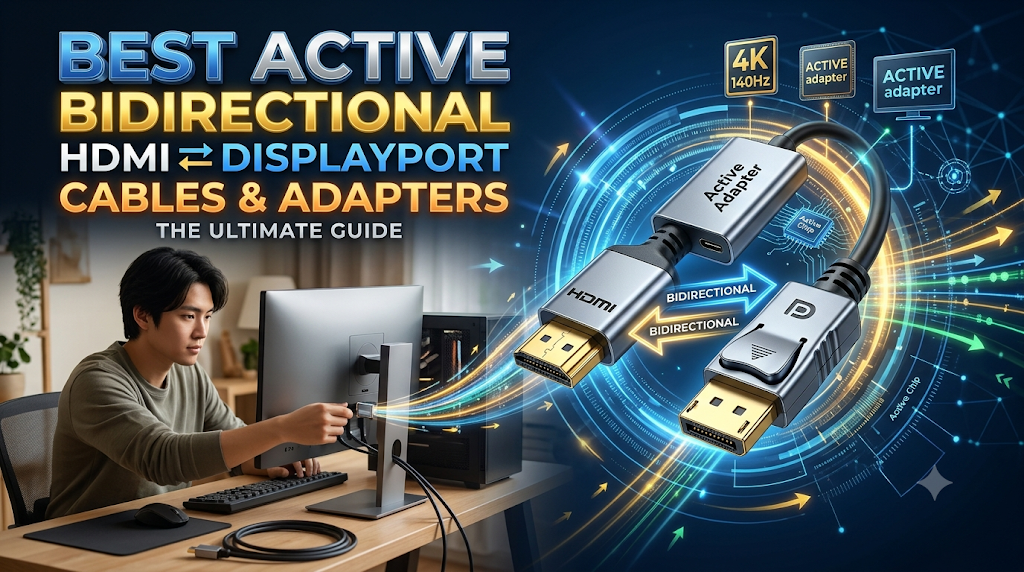
1. StarTech 148B-HDMI-DP-8K – Best Premium Adapter
The StarTech 148B is designed for users who need HDMI 2.1 input and DisplayPort 1.4 output. It supports up to 8K at 60Hz under the manufacturer’s specified DSC conditions.
Key features include:
- HDMI 2.1 input and DisplayPort 1.4 output.
- Support for 4K 120Hz and 8K 60Hz modes.
- HDR10 and HDCP 2.3.
- Two-channel DisplayPort audio.
- USB power cable.
- No additional driver installation.
This adapter is worth considering for compatible high-resolution workstations. However, the source computer must support the required output mode. An adapter cannot upgrade an HDMI 2.0 graphics output to HDMI 2.1 capabilities.
2. Club 3D CAC-1335 – Best for 4K 120Hz
The Club 3D CAC-1335 is an active HDMI-to-DisplayPort converter designed for high-resolution displays.
Its advertised specifications include:
- Up to 3840 × 2160 at 120Hz.
- Up to 7680 × 4320 at 30Hz.
- HDMI input and DisplayPort output.
- USB bus power.
- HDR support.
- HDCP 2.2.
- Two-channel DisplayPort audio.
It is a useful option for users connecting compatible gaming computers and high-refresh-rate monitors.
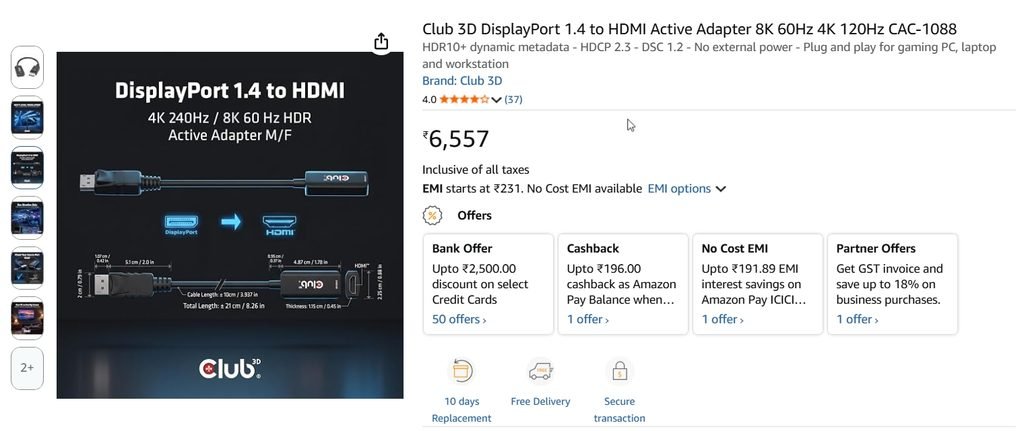
Check the manufacturer’s supported timings and source compatibility before purchasing. A 4K 120Hz monitor alone does not guarantee 4K 120Hz output.
3. ATEN 2L-7D02HDP – Best for Office Monitors
ATEN provides an active HDMI-to-DisplayPort cable for connecting HDMI-enabled computers and other equipment to DisplayPort displays.
Its main specifications include:
- Maximum resolution of 4096 × 2160 at 60Hz.
- 1.8-metre cable.
- Audio support.
- HDCP 1.4 compliance.
- Optional USB power connection.
The integrated cable makes installation convenient in office environments. It can reduce the need for separate adapter boxes and additional DisplayPort cables.
4. IOGEAR G2LHDDP03 – Best for Longer Connections
The IOGEAR G2LHDDP03 is designed for connecting an HDMI-equipped computer, laptop or media player to a DisplayPort-based monitor or switching device.
Its listed features include:
- Up to 4K at 60Hz.
- Three-metre cable length.
- DisplayPort 1.2a compatibility.
- HDMI input.
- HDR support.
- HDCP 1.4/2.2 support.
- USB power when required.
It is worth considering when the computer and monitor are separated by a longer distance.
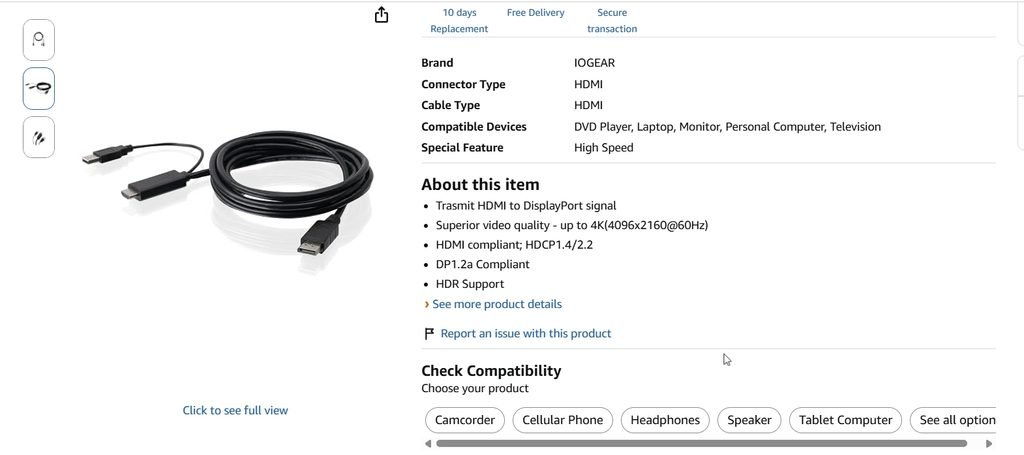
5. Cable Matters 103069 – Best for Basic Office Use
Cable Matters offers a directional active HDMI-to-DisplayPort adapter for connecting an HDMI laptop to a DisplayPort monitor.
Its documented specifications include:
- 4K at 30Hz.
- 1440p at 60Hz.
- 1080p at 60Hz.
- Optional USB power.
- Active signal conversion.
This is a more basic choice for spreadsheets, browsing, documents and general desktop productivity.
It is not the right choice if you specifically require 4K at 60Hz or 120Hz.
HDMI to DisplayPort vs DisplayPort to HDMI
The direction of signal conversion is the most important consideration when buying an adapter.
HDMI and DisplayPort connectors may look similar in size, but they use different communication protocols.
An HDMI-to-DisplayPort adapter receives an HDMI signal and converts it into DisplayPort output. A DisplayPort-to-HDMI adapter performs the opposite conversion.
| Feature | HDMI to DisplayPort | DisplayPort to HDMI |
|---|---|---|
| Source | HDMI | DisplayPort |
| Display | DisplayPort | HDMI |
| Conversion | Active required | Passive or active, depending on setup |
| USB power | Commonly required | Depends on adapter |
| Direction | HDMI to DP | DP to HDMI |
For example, if your laptop has an HDMI output and your monitor has a DisplayPort input, purchase an active HDMI-to-DisplayPort converter.
Do not purchase a DisplayPort-to-HDMI cable and expect it to work in reverse.
Are HDMI to DisplayPort Cables Bidirectional?
Most HDMI-to-DisplayPort adapters are not bidirectional.
This is an important distinction because many online product listings use confusing descriptions.
A product with HDMI and DisplayPort connectors does not automatically support signal conversion in both directions.
For example:
- HDMI laptop to DisplayPort monitor: Use an active HDMI-to-DP converter.
- DisplayPort desktop to HDMI monitor: Use a DP-to-HDMI adapter.
- HDMI gaming console to DisplayPort monitor: Use a compatible active HDMI-to-DP converter.
- DisplayPort laptop to HDMI television: Use a compatible DP-to-HDMI adapter.
If you need both connection directions, purchase separate converters designed for each direction.
How Does an Active HDMI to DisplayPort Adapter Work?
HDMI and DisplayPort use different signal transmission methods.
HDMI uses TMDS or FRL signalling, depending on its version and operating mode. DisplayPort uses packet-based video transmission.
An active adapter contains a conversion chipset that processes the incoming HDMI signal and produces an appropriate DisplayPort output.
The conversion process generally involves:
- Receiving the HDMI video and audio signal.
- Detecting the connected display and its supported capabilities.
- Converting the signal using the internal chipset.
- Delivering the converted DisplayPort signal to the monitor.
- Maintaining supported audio and content-protection features.
Some adapters require additional USB power because the HDMI port may not provide sufficient power for their conversion circuitry.
HDMI to DisplayPort Adapter Buying Guide
Before ordering an adapter, compare the following specifications.
1. Check the Maximum Resolution
The adapter must support your monitor’s native resolution.
| Resolution | Typical use |
|---|---|
| 1920 × 1080 | Office and home computing |
| 2560 × 1440 | Productivity and gaming |
| 3840 × 2160 | 4K monitors |
| 7680 × 4320 | 8K professional displays |
Always check the maximum refresh rate at the selected resolution.
2. Understand Refresh Rates
Resolution alone does not determine display performance.
A 4K 30Hz adapter may display a 4K image, but mouse movement and scrolling can feel less responsive than on a 4K 60Hz display.
For everyday productivity, 4K 60Hz is generally a practical target.
For high-refresh gaming, check whether the adapter explicitly supports your required resolution and refresh rate.
3. HDMI 2.0 vs HDMI 2.1
HDMI 2.0 and HDMI 2.1 offer different bandwidth capabilities.
HDMI 2.0 has a maximum bandwidth of 18Gbps, while HDMI 2.1 supports higher bandwidth modes up to 48Gbps.
However, the complete connection must support the required video format.
Check the following:
- Graphics card HDMI version.
- Adapter input specifications.
- DisplayPort output version.
- Monitor resolution and refresh rate.
- Color depth and chroma format.
- DSC support, when required.
4. Check USB Power Requirements
Some active converters include a USB-A or USB-C power connection.
Connect it to a suitable powered USB port or compatible USB power supply when the manufacturer requires it.
If the adapter receives insufficient power, you may experience:
- No signal.
- Intermittent display output.
- Screen flickering.
- Random disconnections.
- Unstable monitor detection.
Do not assume that every active adapter works without external power.
5. Check HDR and HDCP Compatibility
HDR improves the display of supported content through a wider range of brightness and color.
HDCP is a content-protection technology used by protected video services and devices.
If you watch protected streaming content, verify that the source, adapter and display support compatible HDCP versions.
HDR support also depends on the complete video signal path, not just the adapter specification.
6. Check Audio Support
Some HDMI-to-DisplayPort adapters carry audio through the DisplayPort connection.
However, audio support is not universal.
After connecting the adapter, open Windows sound settings and select the external monitor as the output device if it provides an audio endpoint.
How to Connect an HDMI Laptop to a DisplayPort Monitor
Follow these steps to connect your Windows laptop or desktop to an external DisplayPort monitor.
- Switch off the monitor and computer if recommended by the adapter manufacturer.
- Connect the HDMI male connector to the laptop’s HDMI output.
- Connect the DisplayPort end to the monitor’s DisplayPort input.
- Connect the USB power cable if the adapter requires it.
- Switch on the monitor.
- Select DisplayPort as the monitor’s input source.
- Start the computer.
- Configure the display in Windows.
Use the correct signal direction. The HDMI end must connect to the source device, while the DisplayPort end must connect to the monitor.
Configure HDMI to DisplayPort in Windows 11 and Windows 10
Windows normally detects a compatible external display automatically.
Windows 11
- Right-click the desktop.
- Select Display settings.
- Locate the Rearrange your displays section.
- Select Detect under Multiple displays if the monitor is missing.
- Select the external display.
- Choose Duplicate or Extend these displays.
- Open Advanced display settings.
- Select a supported refresh rate.
You can also press Windows + P to switch between display modes.
Windows 10
- Right-click the desktop.
- Select Display settings.
- Scroll to Multiple displays.
- Select Detect if required.
- Choose Extend these displays or Duplicate these displays.
- Open Advanced display settings.
- Select the appropriate refresh rate.
Make sure the selected resolution and refresh rate are supported by the source, converter and monitor.
HDMI to DisplayPort Not Working? 8 Fixes
If your monitor displays No Signal, try these troubleshooting methods.
Fix 1: Check the Adapter Direction
First, verify that the adapter converts HDMI to DisplayPort.
A DisplayPort-to-HDMI adapter will not normally work when connected in reverse.
Fix 2: Connect the USB Power Cable
If your converter includes a USB power connector, connect it to a suitable power source.
Check the product instructions to determine whether USB power is optional or mandatory.
Fix 3: Select the Correct Monitor Input
Use the monitor’s physical buttons to open its input selection menu.
Choose DisplayPort rather than HDMI or another available input.
Fix 4: Detect the External Monitor
In Windows 11:
Settings > System > Display > Multiple displays > Detect.
In Windows 10:
Settings > System > Display > Detect.
Fix 5: Change the Display Mode
Press Windows + P.
Select Extend or Duplicate.
If the external display is detected but remains blank, try lowering the resolution temporarily.
Fix 6: Reduce the Refresh Rate
An adapter may support 4K at 30Hz but not 4K at 60Hz.
Open Advanced display settings and choose a supported refresh rate.
Fix 7: Update the Graphics Driver
Open Device Manager.
Expand Display adapters.
Right-click your Intel, NVIDIA or AMD graphics adapter and select Update driver.
For better compatibility, check the computer manufacturer’s support page for the appropriate graphics driver.
Fix 8: Reset the Graphics Driver
Press:
Windows + Ctrl + Shift + B
This keyboard shortcut resets the Windows graphics driver. The screen may briefly go blank or flash.
Reconnect the adapter and check whether the monitor is detected.
If the issue continues, test the monitor, adapter and cable separately with compatible equipment.
Common Buying Mistakes
Avoid these mistakes when shopping for an active HDMI-to-DisplayPort adapter.
- Buying a passive cable for HDMI-to-DisplayPort conversion.
- Purchasing a DisplayPort-to-HDMI cable instead of the reverse.
- Assuming every 4K adapter supports 4K 60Hz.
- Ignoring the USB power connection.
- Assuming an HDMI 2.1 adapter upgrades an HDMI 2.0 laptop.
- Ignoring HDR and HDCP compatibility.
- Assuming every adapter supports gaming features such as VRR.
- Forgetting to check the monitor’s DisplayPort input specifications.
The safest approach is to identify the source and display ports first, then compare the adapter’s complete supported video modes.
7. User experiences and forum evidence
Your prompt requests five testimonials from Reddit, Microsoft forums, Super User and Medium.
I would not invent five user testimonials or attribute fabricated quotes to forum members. The research retrieved useful Microsoft Q&A discussions, but did not establish five verified, solved HDMI-to-DisplayPort adapter testimonials.
Instead, these are five documented troubleshooting themes you can use in the article:
| User problem | Practical resolution to explain |
|---|---|
| Second monitor not detected | Check physical connection and select Detect |
| Monitor stays on No Signal | Check conversion direction and input selection |
| Display does not extend | Use Windows + P and select Extend |
| Display fails after an update | Check graphics driver and display configuration |
| Monitor intermittently disconnects | Check power, cable and adapter compatibility |
Relevant discussions:
- Microsoft Q&A – Laptop cannot detect additional monitor
- Microsoft Q&A – Windows 11 cannot detect second monitor
- Microsoft Q&A – Connecting additional monitors
- Microsoft Q&A – Second monitor not detected after update
These are supporting troubleshooting references, not testimonials about the five recommended products.
Frequently Asked Questions
1. Can HDMI to DisplayPort cables work in both directions?
No. Most HDMI-to-DisplayPort adapters are directional. They convert an HDMI source signal into DisplayPort output. To connect a DisplayPort computer to an HDMI monitor, you need a separate DisplayPort-to-HDMI converter.
2. Do I need an active HDMI to DisplayPort adapter?
Yes. HDMI-to-DisplayPort conversion requires active signal conversion. A basic passive cable cannot normally translate an HDMI output into a DisplayPort signal.
3. Can an HDMI to DisplayPort adapter support 4K 60Hz?
Yes. Several active adapters support 4K at 60Hz, including suitable models from ATEN and IOGEAR. Check the complete specifications and confirm that your laptop, adapter and monitor support the same video mode.
4. Can I connect an HDMI laptop to a DisplayPort monitor?
Yes. Connect the laptop’s HDMI output to an active HDMI-to-DisplayPort converter, then connect its DisplayPort output to the monitor. Connect USB power when required and select DisplayPort as the monitor input.
5. Why does my HDMI to DisplayPort adapter need USB power?
The conversion circuitry requires electrical power. Some adapters obtain enough power from the HDMI source, while others require a separate USB connection. Insufficient power can cause black screens, flickering or connection failures.
6. Does an HDMI to DisplayPort adapter support audio?
Many active adapters transmit audio through DisplayPort, but support varies by product. Check the manufacturer’s specifications and select the external monitor or its audio device in Windows sound settings.
7. Will an HDMI to DisplayPort adapter work with Windows 11?
Most standard active HDMI-to-DisplayPort converters work with Windows 11 without additional software when the hardware specifications are compatible. Windows detects the external monitor and lets you configure resolution, refresh rate and display mode.
8. Can I use an HDMI to DisplayPort adapter for gaming?
Yes, provided the adapter supports the required resolution and refresh rate. For example, a compatible 4K 120Hz converter can be suitable for high-refresh gaming. Verify HDR, VRR and other gaming features separately rather than assuming they are supported.
9. Why does my monitor show No Signal after connecting the adapter?
Common causes include incorrect adapter direction, missing USB power, an incorrect monitor input, unsupported resolution or refresh rate, and incompatible equipment. Check these items before replacing the adapter.
10. Is HDMI 2.1 to DisplayPort 1.4 better than HDMI 2.0 to DisplayPort 1.2?
It can support higher video modes, depending on the converter and equipment. HDMI 2.1 to DisplayPort 1.4 is worth considering for compatible high-resolution and high-refresh displays. HDMI 2.0 to DisplayPort 1.2 is sufficient for many standard 4K 60Hz office setups.
Conclusion: Which Active HDMI to DisplayPort Adapter Should You Buy?
Choosing the best active HDMI to DisplayPort adapter depends on your computer’s HDMI output, monitor resolution and required refresh rate.
For high-end displays, consider the StarTech 148B or Club 3D CAC-1335. For everyday office monitors, ATEN and IOGEAR offer documented 4K 60Hz options. Cable Matters is worth considering for basic 4K 30Hz requirements.
Remember that HDMI-to-DisplayPort conversion is directional. Always check USB power, supported resolutions, refresh rates and audio compatibility before purchasing.
If you are experiencing display problems on Windows 11 or Windows 10, follow the troubleshooting steps in this guide.
Have you used an active HDMI-to-DisplayPort adapter? Share your experience, monitor model and adapter specifications in the comments. Your feedback can help other Windows users choose compatible hardware.
Prefer WindowsTechIT in Google?
Add us as a preferred source so our Windows fixes show up more often in your Top Stories.