
Last Updated:
Affiliate Disclosure: This post contains affiliate links — if you buy through them, we may earn a commission at no extra cost to you. As an Amazon Associate we earn from qualifying purchases. Learn more.
Does an SSD improve waking from sleep on Windows 11? An SSD makes your Windows 11 PC resume and boot dramatically faster once it wakes, since data loads near-instantly. However, an SSD does not fix a PC that won’t wake—that’s caused by drivers, Fast Startup, or BIOS issues. For the fastest response, a PCIe 4.0 NVMe drive like the WD Black SN7100 or Samsung 990 Pro is ideal.
Introduction
You open your laptop or tap a key—and wait. The PC stirs, the drive grinds, and a few seconds later you’re finally back to work. On an aging hard drive or slow SATA SSD, those moments add up every single day.
A fast NVMe SSD changes that. Once your Windows 11 PC wakes, a modern drive loads your session almost instantly, turning a sluggish resume into a near-seamless one. It’s also the single biggest upgrade for boot and app-launch speed overall.
Storage speed shapes how fast your PC feels every single day — from cold boots to waking from sleep. A fast NVMe drive transforms an aging desktop, and it’s the same upgrade that makes even the laptops with the best battery endurance feel instant when they resume. Here’s what actually matters when choosing one.
This guide covers the best SSDs for waking from sleep on Windows 11 — the drives that deliver the fastest resume and boot times in 2026. You’ll also learn an important truth most articles skip: when your PC won’t wake at all, the cause usually isn’t the SSD. Whether you’re a home user or an office professional, you’ll know exactly what to buy—and what an SSD can and can’t fix.
What an SSD Actually Does for Wake from Sleep
Let’s be clear up front, because this section is where most guides mislead readers.
An SSD affects the speed of resume and boot—how fast Windows 11 reloads your data once the system powers back on. A fast NVMe drive makes that near-instant. What an SSD does not do is control whether your PC wakes in the first place.
If your Windows 11 PC won’t wake from sleep at all—black screen, unresponsive keyboard—the cause is almost always software: outdated graphics drivers, Fast Startup conflicts, disabled device wake permissions, or BIOS issues. No SSD upgrade resolves those. If that’s your situation, work through our guide to fix Windows 11 not waking from sleep first.
✅ The honest takeaway: Buy a speedy SSD for instant resume and boot speed — a genuine, daily-felt benefit. Don’t buy one expecting it to fix a PC that won’t wake; that’s a driver or firmware fix.
Why a Fast SSD Still Makes a Huge Difference
Even though it doesn’t fix wake failures, upgrading to a modern NVMe SSD is, as multiple 2026 testing roundups put it, the single most impactful hardware change you can make for Windows 11 responsiveness.
The benefits you’ll actually feel:
- Near-instant resume from sleep and hibernate—your session reloads in a blink
- Faster boot times — from minutes on an HDD to seconds on NVMe
- Snappier app launches and File Explorer responsiveness
- Faster hibernation—since hibernation writes your RAM to disk, a fast drive speeds both saving and restoring
One tester upgrading a 2019 desktop from a SATA SSD to NVMe described the improvement in boot, app launch, and responsiveness as genuinely striking. For anyone still using a hard drive, the difference is huge.
SSD Buying Basics for Windows 11
Before the picks, a quick primer on what matters.
- NVMe over SATA — NVMe drives are far faster than SATA SSDs. Only choose SATA if your PC lacks an NVMe-capable M.2 slot.
- PCIe 4.0 is the sweet spot—For most users, PCIe 4.0 offers the best price-to-performance. PCIe 5.0 is faster but pricier and runs hotter, with little real-world gain for everyday tasks.
- Capacity — Windows 11 alone can need ~60GB; a single AAA game can exceed 100GB. 1TB is a sensible minimum, 2TB ideal.
- Low-queue-depth performance—This, not peak sequential speed, is what you feel in everyday responsiveness like resume and app launches.
- Endurance (TBW) — Around 600 TBW per 1 TB is typical for TLC drives; plenty for normal use.
- Boot capability — To run Windows 11 from it, your system must support booting from NVMe (which any modern PC does).
💡 Heat note: Gen4 and especially Gen5 drives run hot in 2026. Use your motherboard’s M.2 heatsink (or an inexpensive third-party one) to prevent thermal throttling.
Best SSD for Wake from Sleep on Windows 11: Top Picks
Based on consistent 2026 testing, here are the standout drives for speedy resume and boot. (Note: SSD prices have risen sharply due to NAND shortages — always check current pricing.)
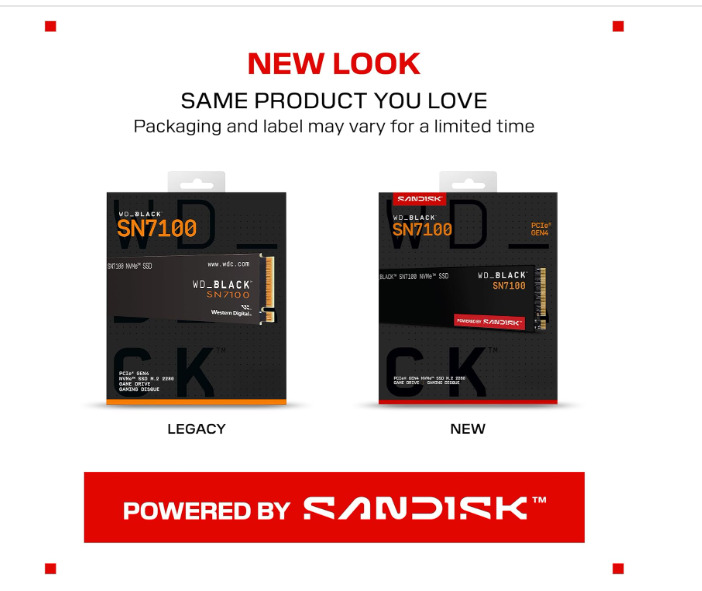
1. Best Overall Value: WD Black SN7100 (PCIe 4.0)
A frequent top pick. This PCIe 4.0 drive (now also sold as the SanDisk Optimus GX 7100) was among the fastest overall in testing, runs cool, draws minimal power, and uses an efficient host-memory-buffer design that keeps it competitively priced. Available up to 4TB.
WD Black SN7100 (PCIe 4.0)
✅ Pros
- The power-efficiency champion of PCIe 4.0 drives — draws notably less power than rivals, making it excellent for laptops, handhelds (Steam Deck), and PS5, and reviewers crowned it the top DRAM-less Gen 4 drive tested
- Fast, cool-running single-sided design with the latest 218-layer BiCS8 TLC NAND and WD’s in-house Polaris 3 controller; rated up to 7,250 MB/s read
- Standout random read performance — the metric that matters most for real-world responsiveness, game loads, and wake/boot speed
- Five-year warranty, solid 600 TBW-per-TB endurance, and WD’s excellent Dashboard software for health monitoring and firmware updates
❌ Cons
- Being DRAM-less, sustained write performance is its weak spot — large sequential writes trail DRAM-equipped drives
- Priced about the same as the older flagship SN850X, so it’s efficient rather than cheap
- Tops out at 2TB in some regions (4TB arrived later) — limiting for data hoarders versus 4TB rivals
- No included heatsink; you’ll add one for PS5 use
Best for: Most Windows 11 users who want top speed without the premium.
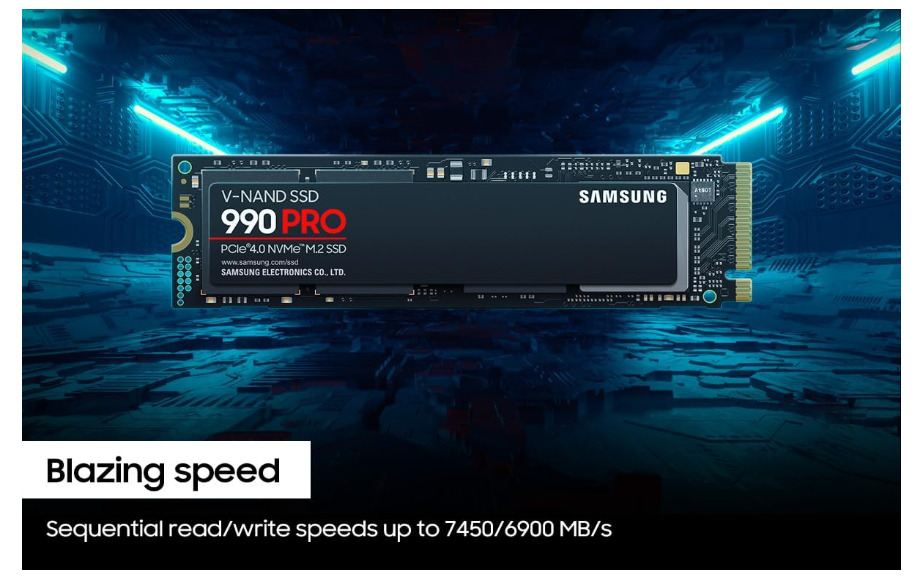
2. Best Performance: Samsung 990 Pro (PCIe 4.0)
Consistently one of the highest-performing consumer NVMe drives, it is compatible with virtually any machine with an M.2 slot. A safe, premium choice for a fast resume and boot.
Samsung 990 Pro (PCIe 4.0)
✅ Pros
- One of the fastest and most consistent PCIe 4.0 drives ever made — near the top of virtually every benchmark, with excellent sustained performance thanks to its DRAM cache
- Rock-solid reliability reputation and the best-in-class Samsung Magician software for monitoring, firmware, and optimization
- Strong power efficiency for a high-performance drive; available with or without a heatsink (the heatsink version fits PS5)
- Broad compatibility, up to 4TB capacity, and a five-year warranty with high 600 TBW-per-TB endurance
❌ Cons
- Premium pricing — usually costs more than equally capable rivals like the SN7100 or Crucial T500
- Overkill for everyday users who won’t notice the difference over a cheaper Gen 4 drive in normal use
- Can run warm under sustained load without the heatsink version
- Early 990 Pro units had a widely reported firmware health-drop issue (since fixed via update) that lingers in some buyers’ memory
Best for: Users wanting proven flagship Gen4 performance.
3. Best for PS5 / Gaming: WD Black SN850X (PCIe 4.0)
An improved controller and newer flash maximize the PCIe 4.0 interface, with a heatsink option (RGB on 1TB/2TB) and a five-year warranty. Excellent for gaming, with DirectStorage benefits.
✅ Pros
- A longtime gaming favorite — one of the fastest PCIe 4.0 drives with a DRAM cache, delivering excellent sustained performance for large game libraries and content creation
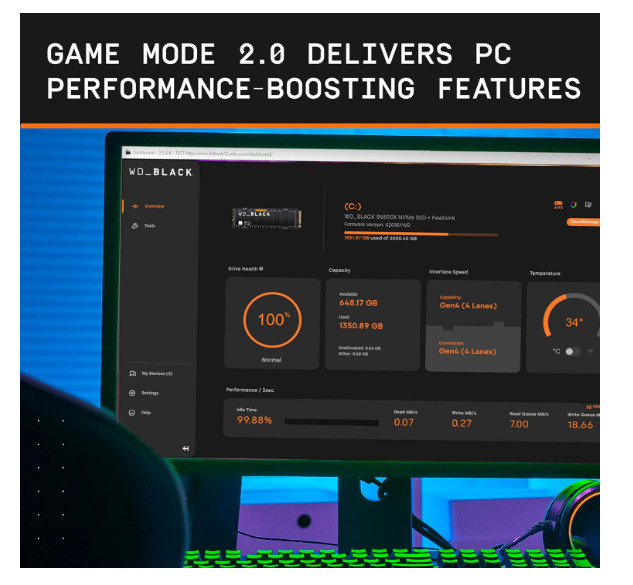
- Optional heatsink (with RGB on some capacities) and a dedicated Game Mode that optimizes for gaming workloads; fully PS5-compatible
- Available up to 4TB — more headroom than the SN7100 — with strong endurance and a five-year warranty
- Consistently high real-world performance and reliable WD build quality
❌ Cons
- Uses more power than the newer SN7100 — a worse pick for laptops and handhelds
- Runs hotter than efficiency-focused drives; a heatsink is advisable under sustained load
- Older platform now priced similarly to newer drives, so the value proposition has narrowed
- No meaningful performance gain over the SN7100 for everyday tasks despite the “flagship” positioning
Best for: Gamers and PS5 owners.
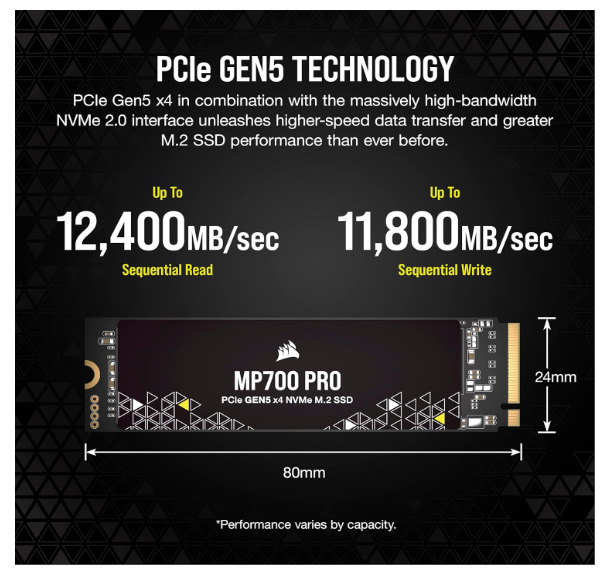
4. Best Cutting-Edge (PCIe 5.0): WD Black SN8100 / Corsair MP700 Pro XT
For the fastest possible performance, these Gen5 drives approach extraordinary speeds (up to ~14,900 MB/s read on the SN8100) with surprisingly impressive power efficiency. Requires a Gen5-capable AM5 or recent Intel platform, plus a large heatsink.
✅ Pros
- Cutting-edge PCIe 5.0 performance — sequential speeds approaching ~14,000+ MB/s, among the fastest consumer drives available
- Excellent for the most demanding workloads: large-file content creation, DirectStorage gaming, and heavy data processing
- The WD SN8100 in particular pairs Gen 5 speed with surprisingly good power efficiency for its class; both offer high capacities and five-year warranties
- Future-proofs a new AM5 or latest-Intel build that has a Gen 5 M.2 slot
❌ Cons
- Runs hot — Gen 5 drives require a substantial heatsink (often motherboard-supplied) to avoid thermal throttling
- Expensive, with little real-world benefit over Gen 4 for everyday tasks, gaming loads, or wake/boot speed
- Requires a Gen 5-capable platform — wasted on older motherboards, where it runs at Gen 4 speeds anyway
- Higher power draw makes it unsuitable for laptops and handhelds
Best for: Enthusiasts on the latest platforms wanting maximum speed.
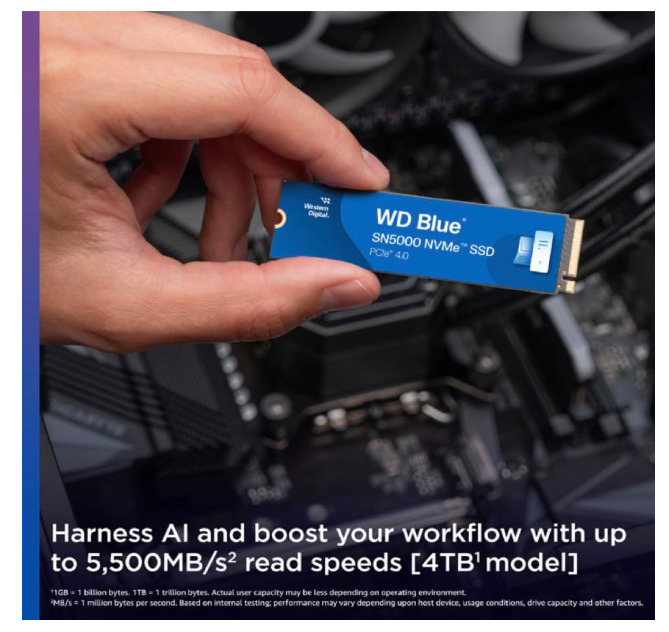
5. Best Budget: WD Blue SN5000 / Kingston NV3 (PCIe 4.0)
Solid, affordable NVMe drives that still deliver the transformative HDD-to-SSD (and SATA-to-NVMe) leap for everyday Windows 11 use.
✅ Pros
- Excellent budget value — both deliver the transformative HDD-to-SSD (and SATA-to-NVMe) leap for everyday Windows 11 use at a low price
- Efficient, cool-running, single-sided designs well-suited to laptops, secondary drives, and general-purpose desktop storage
- The WD Blue SN5000 uses the same reliable Polaris controller family as the SN7100 and offers capacities up to 4TB
- Solid warranties and low power draw; more than fast enough for boot, browsing, office work, and most gaming
❌ Cons
- DRAM-less with slower sustained write speeds — large file transfers slow noticeably once the cache fills (the Kingston NV3 in particular showed a large drop in long writes)
- The SN5000 shifts to QLC NAND at its 4TB capacity, which lowers endurance and sustained write performance versus the TLC smaller capacities
- The Kingston NV3’s exact controller/NAND has varied between production batches — performance isn’t perfectly consistent unit to unit
- Not for heavy content creation or sustained high-write workloads — these are value drives, not performance drives
Best for: Budget upgrades, older PCs, secondary drives.
Bonus: Speed Up Resume Even Further on Windows 11
A speedy SSD is the foundation, but two free tweaks compound the benefit.
1. Enable the native NVMe driver (25H2). Windows 11 25H2 includes a new native NVMe driver that, in testing, improved random read performance by large margins—but Microsoft doesn’t enable it by default. (Note: Microsoft has, at times, blocked the registry trick that unlocks it, so check whether it’s currently available before attempting, and only do so with a backup.)
2. Keep TRIM enabled and firmware updated. TRIM keeps your SSD writing at full speed over time; it’s on by default, but updates can reset preferences. Updated firmware and optimal thermals keep the drive at advertised speeds.
✅ Tip: Pair your speedy SSD with the right Windows 11 sleep settings so resume is as quick as possible — and so the PC sleeps and wakes reliably in the first place.
Common Mistakes to Avoid
1. Expecting an SSD to fix wake failures is the most important mistake. If your PC won’t wake at all, it’s a driver, Fast Startup, or BIOS issue — not the drive. Fix the software first.
2. Buying SATA when your PC supports NVMe: NVMe is dramatically faster. Only choose SATA if you have no NVMe-capable M.2 slot. Check whether your M.2 slot is NVMe (not mSATA) before buying.
3. Overspending on PCIe 5.0 for everyday use For browsing, office work, and resume speed, a PCIe 4.0 drive feels virtually identical to Gen 5—at a much lower price and cooler temperature.
4. Skipping the heatsink, Gen4 and Gen5 drives throttle when hot, halving speed. Always use an M.2 heatsink.
5. Disabling the page file to “save space” is bad practice, even with lots of RAM, because Windows 11 uses it for stability. Leave it on.
While an SSD makes your PC wake and boot in a blink, the display it drives is often the biggest ongoing power draw on the desk. If you’re upgrading your setup anyway, the energy-efficient monitors with power management we’ve covered are the natural pairing — speed from the drive, savings from the screen.
Best Practices
- ✅ Choose NVMe over SATA whenever your PC supports it
- ✅ For most users, a PCIe 4.0 drive is the ideal balance of speed and price
- ✅ Run Windows 11 from the SSD for the biggest responsiveness gain
- ✅ Use an M.2 heatsink to avoid thermal throttling
- ✅ Keep TRIM enabled and firmware updated
- ✅ Fix any wake-from-sleep software issues separately—an SSD won’t solve them
- ✅ Back up your data before any drive swap or system-setting change
FAQ: Best SSD for Wake from Sleep on Windows 11
Will a new SSD fix my Windows 11 PC that won’t wake from sleep?
No. An SSD makes your PC resume faster once it wakes, but it doesn’t fix a PC that won’t wake at all. Wake failures arOutdated drivers, Fast Startup conflicts, or BIOS issues cause wake failures.oftware causes first; the SSD only affects resume speed, not whether the system wakes.
What’s the best SSD for fast boot and wake times on Windows 11?
For most users, a PCIe 4.0 NVMe drive like the WD Black SN7100 or Samsung 990 Pro offers the best balance of rapid resume, boot speed, and value. PCIe 5.0 drives are faster but costlier and hotter, with little everyday benefit over Gen4 for tasks like waking and booting.
How much faster is an SSD than a hard drive for waking and booting?
The difference is dramatic. Boot times that take minutes on a traditional hard drive are nearly instantaneous with an NVMe SSD. Resuming from sleep, app launches, and file loading all become far snappier. For any PC still on an HDD, an SSD is the single most impactful upgrade you can make.
Does the Windows 11 native NVMe driver improve SSD speed?
Windows 11 25H2 includes a native NVMe driver that improved random read performance significantly in testing, but it’s off by default and enabled via registry changes. Microsoft has sometimes blocked the workaround, so availability varies. It’s an advanced tweak—only attempt it with a full backup and current guidance.
Conclusion
A fast SSD is one of the best upgrades you can make for a snappier Windows 11 experience—turning sluggish resume and boot into near-instant moments. But it’s worth being clear: an SSD speeds up how fast your PC wakes and loads, not whether it wakes.
Here’s the quick takeaway:
- Best value: WD Black SN7100 (PCIe 4.0)
- Best performance: Samsung 990 Pro
- Gaming / PS5: WD Black SN850X
- Cutting-edge: WD Black SN8100 (PCIe 5.0)
- Budget: WD Blue SN5000 or Kingston NV3
- Remember: if your PC won’t wake at all, fix the drivers, Fast Startup, and BIOS first—no SSD solves that
