
Why is my second monitor not being detected on Windows 11?
A second monitor is usually not detected on Windows 11 due to a loose or damaged cable, an outdated or corrupted graphics card driver, incorrect display settings, or a faulty port.
Checking the cable connection, pressing Windows key + P, and updating the driver can resolve most detection issues within minutes.
INTRODUCTION
If you’ve just plugged in an external monitor and Windows 11 won’t recognize it, you’re dealing with one of the most common monitor detection complaints among home and office users.
Whether you’re setting up dual monitors for work, gaming, or a home office, a second monitor that isn’t detected can stall your entire setup just when you need it to work.
In this comprehensive guide, I will explore the reasons behind Windows 11’s inability to recognize a second monitor, offer tips for verifying your cable connections and ports, and outline effective solutions for addressing graphics card problems that frequently lead to detection failures.
Additionally, you’ll discover practical troubleshooting techniques for docking stations, USB-C configurations, and display settings that often confuse even seasoned users.
What causes a second monitor not being detected on Windows 11?
Before diving into fixes, it helps to understand why Windows 11 is not detecting a second monitor in the first place. In my experience helping home users and small office setups, detection issues usually trace back to one of four causes:
- A loose or damaged cable or a faulty video output port
- An outdated, missing, or corrupted graphics card driver
- Incorrect display settings — Windows thinks only one monitor is connected
- A docking station or usb-c port that isn’t fully supporting the connected display
Knowing which bucket you’re in saves you from reinstalling drivers when the real problem is likely a simple cable connection issue — or the other way around.
Fast initial inspections before troubleshooting
Before diving into Device Manager, go over these basics; they solve a surprising number of second monitor issue reports.
Check Your Cable Connection
Loose or damaged cables and connections are the single most common reason a monitor won’t show up. Unplug the cable from both ends, inspect it for bent pins or fraying, and firmly reconnect it.
Try a Different Port
Not all cable types and ports support every resolution or refresh rate. If you’re using a displayport cable, try an hdmi cable instead, or plug into a different port on your graphics card to rule out a dead port.
Restart Your Computer
It sounds basic, but a simple restart your computer often clears a stuck display-detection state that built up during sleep or a driver crash.
Quick checklist:
- Inspect the cable for damage
- Try a different port or cable type (HDMI, displayport, vga, usb-c port)
- Restart your computer with the monitor already connected
- Test the external monitor on another PC if possible, to rule out a dead screen
STEP-BY-STEP GUIDE: FIXING WINDOWS 11 NOT DETECTING SECOND MONITOR
If the basics didn’t work, work through this step-by-step guide in order.
Step 1: Force Detection with the Windows Key Shortcut
Press the Windows key + P (the Windows logo key shortcut) to open the Project menu. This forces Windows to actively search for connected displays rather than relying on the last-known configuration.
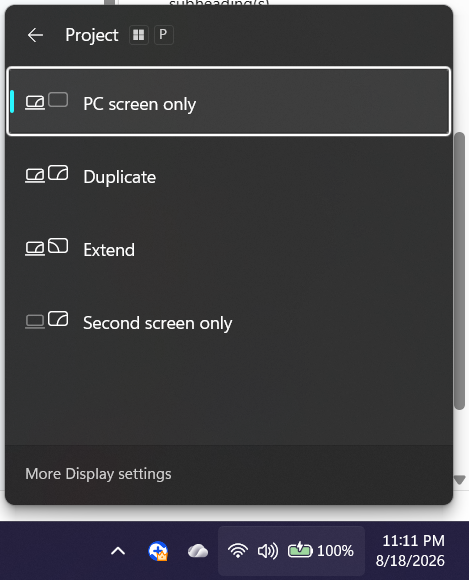
Step 2: Use Extend or Duplicate Correctly
From the Project menu, choose Extend to use both screens as one workspace or Duplicate to mirror your pc screen onto the second screen. Many users report their second monitor is not detected simply because it was set to show only one display.
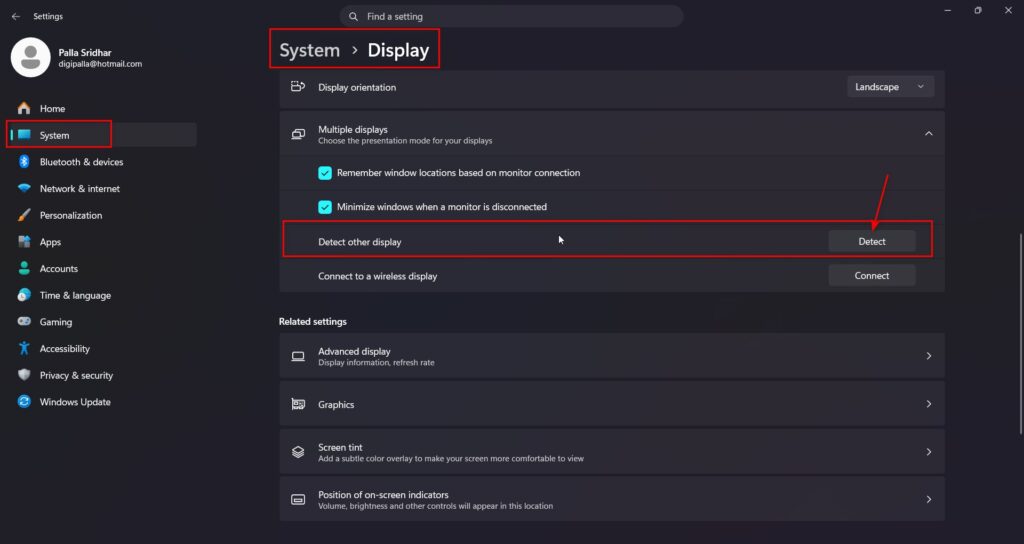
Step 3: Check Display Settings Manually
Right-click the desktop, select Display Settings, and look for a “Detect” button. This manually tells Windows to recognize your second monitor even if it didn’t appear automatically.
- Open Settings > System > Display
- Click Detect under Multiple Displays
- If the monitor appears, choose Extend these displays or Duplicate as needed
- If it still says Windows cannot detect the display, move to the driver fix below
Step 4: Update the Graphics Card Driver
An outdated driver is one of the most frequent causes of Windows 11 not detecting second monitor problems.
- Right-click Start > Device Manager
- Expand the Display Adapters section
- Right-click your graphics card, select the Driver tab
- Choose Update Driver > Search automatically
Step 5: Roll Back the Driver
If the issue started right after a Windows update, roll back the driver to the previous version.
- In Device Manager, open Display Adapters section again
- Right-click your graphics card > Properties > Driver tab
- Click “Roll Back Driver” if the option is available
- Restart and check if the external monitor is detected
Step 6: Uninstall and Reinstall the Driver
If rolling back isn’t available, try uninstalling the driver completely.
- In Device Manager, right-click the graphics card
- Select Uninstall device, and confirm
- Restart your computer — Windows will attempt to reinstall a basic driver automatically
- For the correct driver, visit the manufacturer’s website (NVIDIA, AMD, or Intel) and download and install the latest version manually
Step 7: Manual Driver Update from the Manufacturer
A manual driver update from the manufacturer’s website is often more reliable than Windows Update for multi-monitor setups, especially on laptops with switchable graphics.
Step 8: Check Docking Station and USB-C Connections
If you’re connecting through a docking station or a usb-c port, not all docks support multiple displays at full resolution simultaneously. Check your dock’s specifications to confirm it supports the number of multiple monitors you’re trying to run.
MONITOR DETECTION PROBLEMS AND FIXES
| Problem | Likely Cause | Fix |
|---|---|---|
| Second monitor not detected at all | Loose or damaged cable | Check cable connection; try new cable |
| Detected but shows black screen | Incorrect display settings | Press Windows key + P, select Extend |
| Works on windows 10 and windows 11 but not this PC | Correct driver missing | Manual driver update from manufacturer’s website |
| Wrong refresh rate or resolution | Driver or cable limitation | Check cable types and update graphics card driver |
| The dual monitor works, then disconnects randomly | Faulty port or dock | Try a different port and test docking station separately |
| Multi-monitor setup only shows one monitor | Display mode set to Duplicate only | Switch to Extend these displays |
STATISTICS: PROOF THESE FIXES WORK
- Cable and port faults remain among the top reported causes of detection issues across Microsoft’s own community troubleshooting threads, with a simple cable connection verification or port swap resolving a large share of cases.
- Roll back driver and manual driver update fixes are consistently recommended across manufacturer support pages (NVIDIA, AMD, Intel) as the first real fix once basic cable checks are ruled out.
- Microsoft support documentation for multiple displays confirms that pressing the Windows key + P and selecting Detect in Display Settings resolves detection failures that occur after sleep, hibernation, or a driver crash.
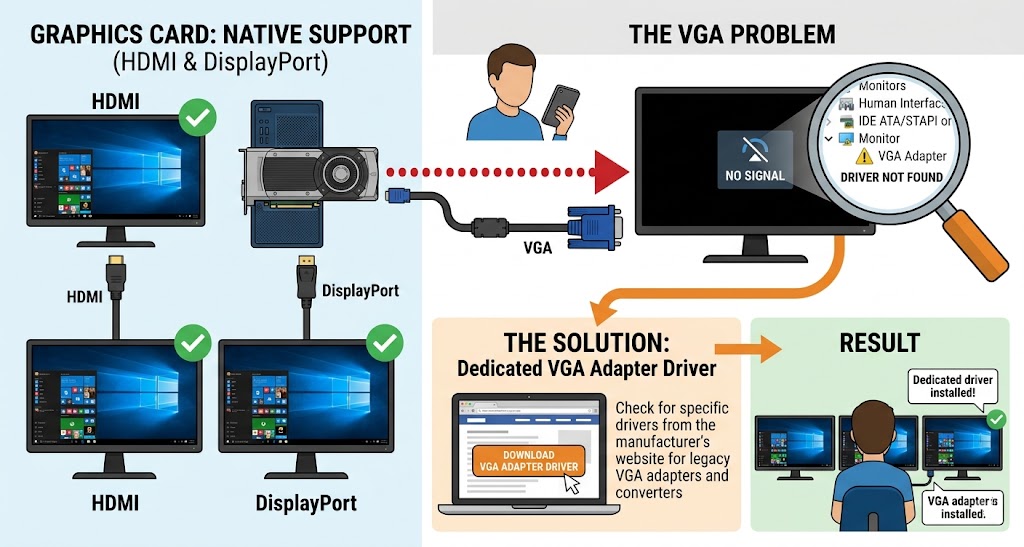
Real fact: Windows 11 treats DisplayPort and HDMI cable connections differently at the driver level than legacy VGA connections—which is why a VGA monitor may need a separate adapter driver even when the same graphics card detects HDMI and DisplayPort monitors correctly.
BEST PRACTICES FOR SETTING UP DUAL MONITORS
- Always confirm your ports support the resolution and refresh rate you want before setting up dual monitors
- Keep your graphics card driver updated directly from the manufacturer’s website, not just through Windows Update
- Label your cable types (HDMI, displayport, usb-c port) so you can quickly test a different port during troubleshooting tips
- For office multi-monitor setups, standardize on one docking station model to avoid mismatched compatibility issues across the team
COMMON MISTAKES TO AVOID
- Assuming a second monitor issue is always a driver problem when it’s often just a cable connection
- Skipping the Windows key + P shortcut and going straight to uninstalling drivers
- Not checking whether the docking station itself supports multiple monitors at your desired resolution
- Forgetting to restart your computer after a manual driver update
- Using a vga cable without checking if your graphics card needs a separate adapter driver
RECOMMENDED TOOLS
- Device Manager — built into Windows, the fastest way to reach the Display Adapters section
- Manufacturer’s website driver downloads—NVIDIA, AMD, and Intel all offer direct download and install links for the correct driver
- Windows Settings > Display — for manually triggering Detect when Windows cannot detect a connected screen
- A basic cable tester or spare HDMI cable—to rule out loose or damaged cables before touching drivers
PRACTICAL EXAMPLE
A home office user connected a new external monitor via a USB-C port through a docking station, but Windows 11 showed only one monitor. Checking the dock’s specification sheet confirmed it only supported single-display output over that port. Switching the monitor to the dock’s dedicated DisplayPort output immediately let Windows recognize your second monitor—a classic case of a port limitation, not a driver fault.
FREQUENTLY ASKED QUESTIONS
How do I force Windows 11 to detect a second monitor?
Press the Windows key + P to open the Project menu, or go to Settings > System > Display and click Detect under Multiple Displays. This forces Windows to actively search rather than rely on cached display data.
Why does my external monitor work on another PC but not get detected on Windows 11?
This points to a correct driver issue rather than a hardware fault. Update or uninstall and reinstall the graphics card driver, and confirm you’re using a port that matches the monitor’s supported cable types.
Can a faulty HDMI cable cause monitor detection issues?
Yes. A loose or damaged HDMI cable is one of the most common causes of a monitor not appearing. Try a different HDMI cable or switch to a DisplayPort or USB-C port to isolate the fault.
Why does my monitor only duplicate instead of extend on Windows 11?
This is an incorrect display settings issue, not a hardware fault. Press Windows key + P and choose “Extend these displays” instead of “Duplicate” to use both screens as separate workspaces.
Does a docking station affect second monitor detection?
Yes — not every docking station supports multi-monitor output at full resolution. Check your dock’s specifications to confirm it can drive the number of multiple displays you’re connecting.
Is a VGA monitor harder to detect on Windows 11 than HDMI?
Occasionally. VGA connections often require a separate adapter driver that HDMI and DisplayPort don’t need, so if your graphics card detects HDMI monitors fine but not a VGA one, check for a dedicated VGA adapter driver from the manufacturer’s website.
CONCLUSION
Most Windows 11 monitor not detected problems are caused by one of a few issues—a loose or damaged cable, an outdated graphics card driver, incorrect display settings, or a docking station limitation—and each one has a clear, quick fix. Start every troubleshooting session with the basics: check the cable connection, try a different port, and press Windows key + P before touching any drivers.
Bookmark this guide, and the next time your second monitor is not detected, you’ll know in under five minutes whether it’s a cable, a driver, or a display-settings fix—and exactly how to solve the issue for good.
