
Last Updated:
Affiliate Disclosure: This post contains affiliate links — if you buy through them, we may earn a commission at no extra cost to you. As an Amazon Associate we earn from qualifying purchases. Learn more.
What are the best monitors power management Windows 11? The best power-managing monitors for Windows 11 combine low operating wattage (around 13–25W), an eco mode, and ENERGY STAR or EPEAT certification. Models like the Philips 27B2N2100 add a presence sensor that dims the screen when you step away. Paired with Windows 11’s display-off timers, these cut energy waste significantly.
Introduction
Your monitor runs for hours every day — and it’s one of the biggest energy users on your desk. Most people never think about it, but display brightness and standby draw quietly add up on every electricity bill.
The good news: modern monitors come with real power-management features, and Windows 11 adds its own display controls on top. Combine the two, and you can cut your screen’s energy use without giving up image quality or performance.
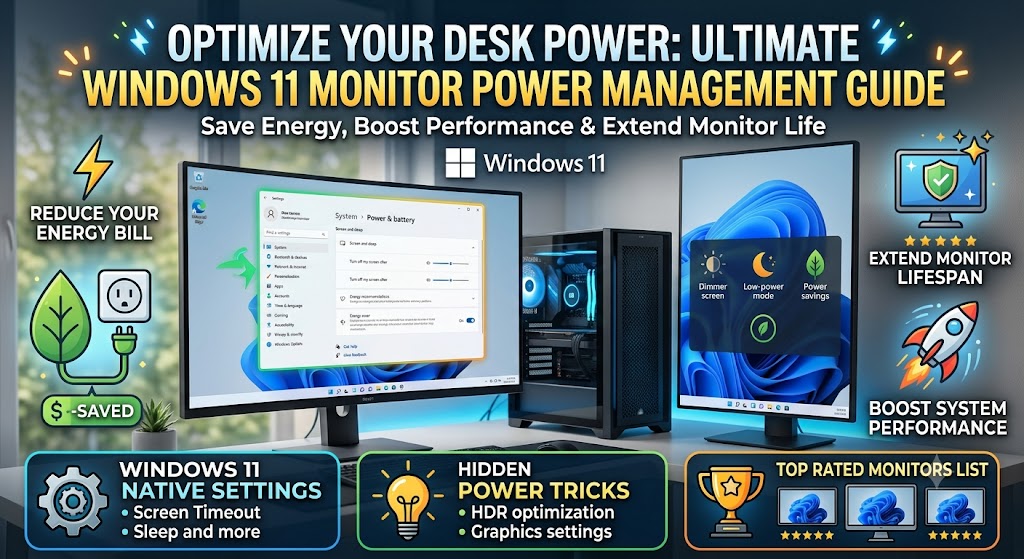
This guide covers the best monitors for power management on Windows 11 — energy-efficient displays with eco modes, presence sensors, and recognized efficiency certifications. You’ll learn which models lead in 2026, what features actually save power, and how to pair them with Windows 11’s own screen settings. Whether you’re a home user or running an office workstation, you’ll know exactly what to look for.
Why Monitor Power Management Matters
A display’s wattage might seem trivial, but over a year of daily use, it’s real money — and it scales fast across multi-monitor and office setups.
Brightness is the single biggest factor. According to efficiency testing, running a monitor at 70% brightness instead of 100% can save 25–35% of its power, and eco modes can reduce consumption by 20–40% during normal use. On a desk that’s powered 8+ hours a day, those percentages compound.
There are two layers of control:
- The monitor’s own features — eco modes, auto-brightness, presence sensors, efficient panels
- Windows 11’s display settings — turning the screen off after inactivity
The best results come from using both together, which is exactly what most buying guides overlook.
An external display is often the biggest energy user on a desk — sometimes drawing more than the PC itself. That matters whether you’re powering a desktop workstation or extending one of the top battery-life laptops for Windows 11 users with a second screen. Choosing a monitor with real power management built in keeps that draw in check all day.
What Makes a Monitor Good at Power Management?
When shopping for an energy-efficient display, prioritize these features:
- Low operating wattage — the best efficient monitors draw roughly 13–25W in typical use
- Eco / Economy mode — fine-tunes brightness and backlight for lower draw (Philips calls it Economy mode in its SmartImage menu)
- Auto-brightness (light sensor) — adjusts to ambient light so you’re never needlessly bright
- Presence sensor — detects when you leave and dims or sleeps the screen automatically
- ENERGY STAR / EPEAT certification — verified, measurable efficiency rather than marketing claims
- A true power switch — some Philips models include a “0-watt hard switch” that fully cuts AC power
💡 Watch for marketing fluff: Terms like “eco” and “energy efficient” are sometimes just badges. Look for an actual wattage figure and a recognized certification (ENERGY STAR, EPEAT) to confirm real savings.
Best Monitors for Power Management on Windows 11: Top Picks
Based on consistent 2026 efficiency testing, here are the standout models. (Prices and availability change — always check current pricing before buying.)
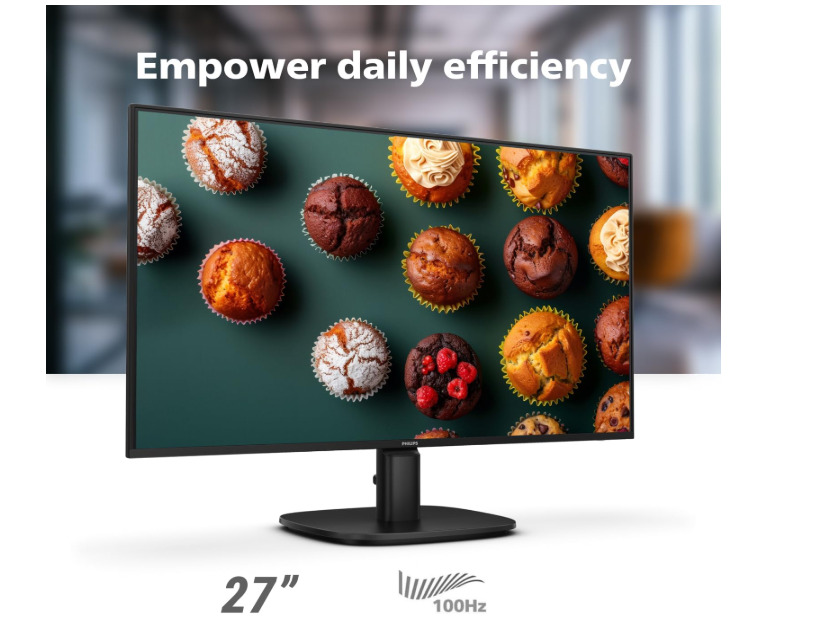
1. Best Overall: Philips 27B2N2100
A frequent Editor’s Choice for efficiency, this 27-inch display carries the rare combination of ENERGY STAR and EPEAT Gold certifications. It works well for office use by day and casual gaming in the evening, with verified low power draw. Philips’ broader B-line also offers PowerSensor (a presence sensor) and LightSensor tech that can cut energy costs substantially when you step away.
✅ Pros
- Rare dual ENERGY STAR + EPEAT Gold certification — verified, measurable efficiency rather than a marketing badge, making it one of the most thoroughly vetted picks for low power draw
- Genuinely low consumption — testers measured it operating under ~25 watts, among the lowest of any gaming-capable display
- Practical office/casual-gaming feature set: 100Hz refresh, Adaptive-Sync, SoftBlue/low-blue-light and flicker-free tech for eye comfort, ultra-slim bezel, and VESA mount
- Strong value (often around $128–130) backed by a 4-year advance-replacement warranty
❌ Cons
- ⚠️ Panel-type listings conflict — some sources describe it as IPS, others (including the Amazon listing) as VA; confirm on your exact listing, since VA has weaker viewing angles than IPS
- Only Full HD (1920×1080) at 27 inches — pixel density is modest; text looks softer than a 1440p panel at this size
- Basic connectivity (HDMI + VGA), no USB-C or built-in USB hub
- No presence sensor or 0-watt hard switch (those live on Philips’ pricier B-line), and only 100Hz — fine for casual play, not competitive gaming
Best for: Home and office users wanting verified, certified efficiency.
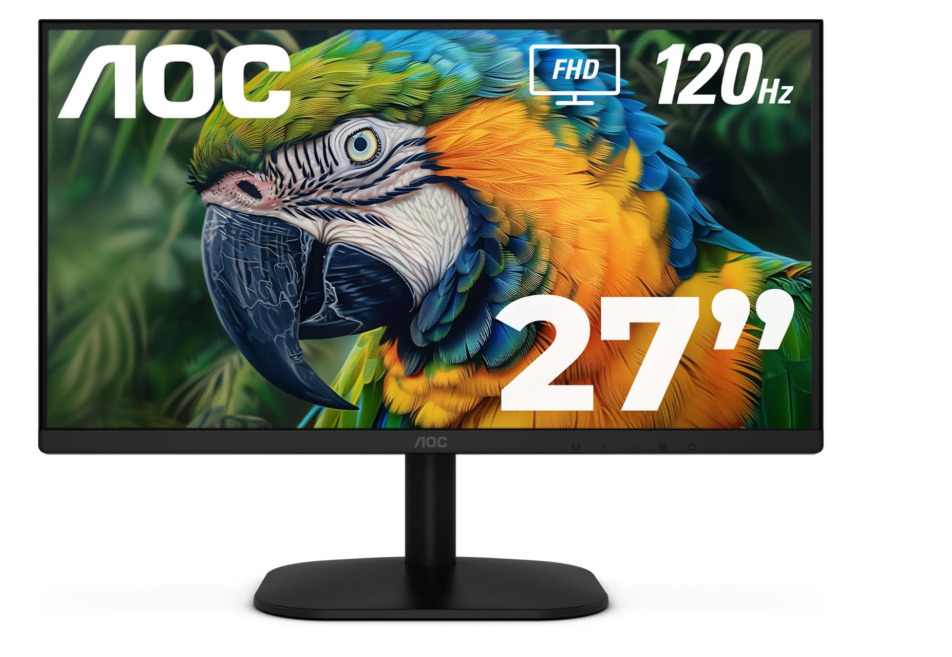
2. Best Value: AOC 27B35H3
Excellent efficiency-per-dollar, with a 13W eco mode and 120Hz performance. Proves you don’t have to choose between smoothness and low power.
✅ Pros
- Excellent efficiency-per-dollar — a low-wattage eco mode paired with a fast 120Hz panel proves you don’t have to trade smoothness for low power
- IPS-class image quality with good viewing angles and color for the price; suits both office work and casual gaming
- Affordable, no-frills value pick with Adaptive-Sync and a slim modern design
- Low idle/standby draw and a reasonable brightness range for typical indoor use
❌ Cons
- Full HD at 27 inches — the same modest pixel-density trade-off as the Philips
- Basic build and stand (typically tilt-only, no height adjustment) at this price
- Limited ports and no USB-C
- Not certified to the same dual ENERGY STAR + EPEAT Gold standard as the Philips, so efficiency claims rest more on the eco mode than on independent verification
Best for: Budget-conscious buyers wanting low wattage plus a fast panel.
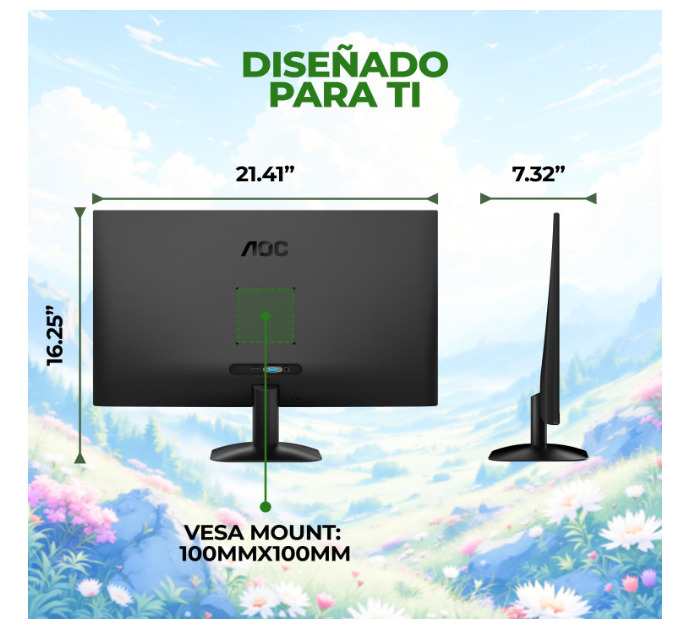
3. Best Budget / Compact: AOC 24B35H3
A 24-inch version delivering similar 13W eco-mode efficiency at an even lower price (often under $80). Smaller panels draw less — a 27-inch typically uses 30–50% more power than a 24-inch with identical specs.
✅ Pros
- The most efficient choice by virtue of size — a 24-inch panel inherently draws roughly 30–50% less power than a comparable 27-inch, with the same low-wattage eco mode
- Compact and budget-friendly (often under $80), ideal for smaller desks or a low-power secondary display
- IPS-class panel with 120Hz and Adaptive-Sync — smooth and colorful despite the low price
- Easy on both desk space and electricity — a strong pick for maximum efficiency
❌ Cons
- Smaller screen real estate — 24 inches feels tight for multitasking or split-screen work
- Basic stand and limited ergonomic adjustment
- Full HD only (though at 24 inches the pixel density is more acceptable than at 27)
- Minimal connectivity; no USB-C or hub
Best for: Small desks, secondary displays, maximum efficiency.
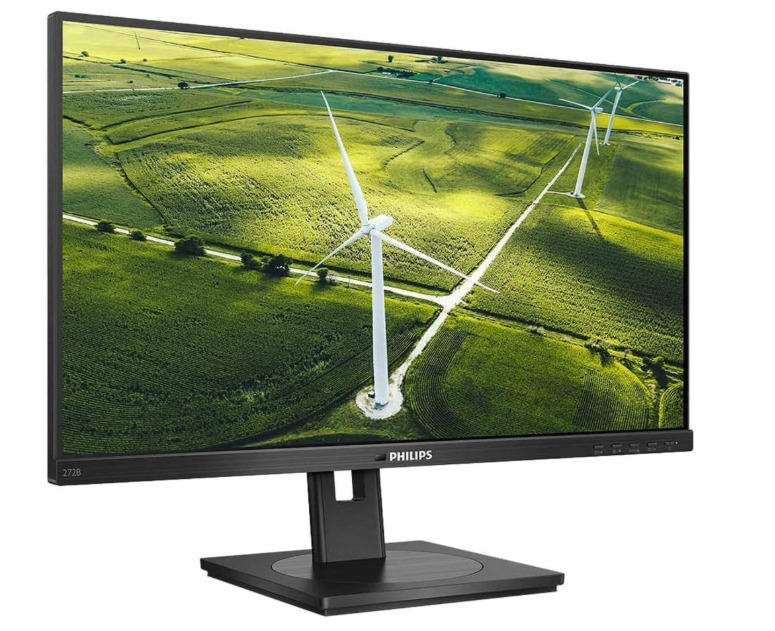
4. Best for Presence-Sensing: Philips B-Line (e.g., 24B2G / 27B2G series)
These eco-focused Philips models center on PowerSensor, which uses harmless infrared to detect whether you’re at the desk and automatically reduces brightness when you’re not — Philips cites energy savings of up to 70–80% in that idle state, plus a 0-watt hard switch.
✅ Pros
- The presence-sensing specialist — PowerSensor uses harmless infrared to detect when you step away and automatically dims the screen, with Philips citing energy savings up to ~70–80% in that idle state
- Adds a 0-watt hard switch that fully cuts AC power for true zero standby draw, plus LightSensor auto-brightness
- High efficiency ratings (ENERGY STAR, often A++-class in EU labeling) with a super-efficient power supply and low-power LED backlight
- Genuine office ergonomics on many models: height/pivot/swivel/tilt stand, USB hub, and eco-focused recycled materials
❌ Cons
- This is a series, not one model — the 24B2G and 27B2G differ in size, price, and exact specs, so confirm which the link opens
- Typically 60–75Hz — built for office efficiency, not gaming smoothness
- Full HD resolution and business-oriented (rather than vibrant) color
- Costs more than the plain efficiency picks above, since you’re paying for the sensor tech
Best for: Users who frequently step away and want automatic dimming.
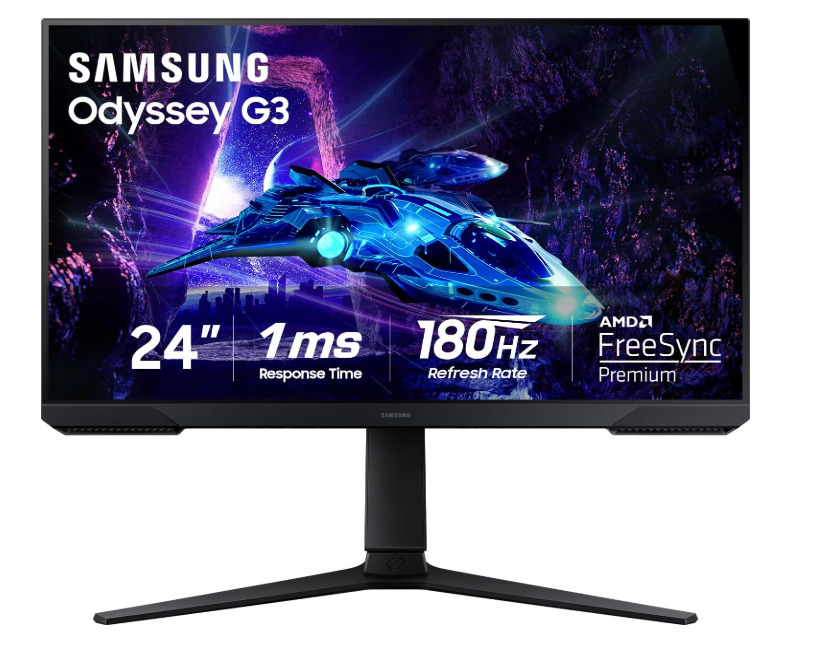
5. Best Efficient Gaming Pick: Samsung Odyssey G3
For gamers, this draws around 25W typical — less than many laptop chargers — while delivering 180Hz, plus an Eye Saver Mode for blue-light reduction.
✅ Pros
- Efficient gaming pick — draws around ~25W typical while delivering a fast gaming panel (commonly 165–180Hz depending on variant), less than many laptop chargers
- Includes Eye Saver Mode (blue-light reduction) and Flicker-Free tech for longer comfortable sessions
- Fast response time and Adaptive-Sync/FreeSync for tear-free gaming; solid Samsung build and a fully ergonomic stand on most models
- Good value for a genuine gaming monitor that stays relatively low-power
❌ Cons
- ⚠️ Refresh rate varies by exact SKU (144Hz vs 165Hz vs 180Hz) — confirm the specific model your link opens
- Uses a VA panel — great contrast, but narrower viewing angles and some motion smearing versus IPS
- Full HD at typical sizes; not the pick for color-critical work
- Higher refresh rate means it draws more than the pure office-efficiency displays above — it’s the efficient gaming option, not the outright lowest-power one
Best for: Gamers who still want low power draw.
How to Pair Your Monitor With Windows 11 Display Settings
Here’s the angle the generic eco-monitor roundups miss entirely — your monitor’s eco features only do half the job. Windows 11’s own display-off timer does the rest.
Set Windows 11 to turn the screen off automatically:
- Press Windows + I to open Settings
- Go to System → Power & battery → Screen, sleep, & hibernate timeouts (on 24H2/25H2)
- Set “turn off my screen after” to a short interval (e.g., 3–5 minutes)
- Set separate values for on battery and plugged in if you’re on a laptop
This means even if you forget, Windows blanks the display after inactivity — and your monitor’s own eco mode keeps draw low while it’s on. If you’re running demanding workloads on a high-output desktop, you can also enable Ultimate Performance Mode in Windows 11 to keep your system responsive under load while the monitor handles its own efficiency.
✅ Best combo: A presence-sensor monitor + a 3-minute Windows 11 screen-off timer = the display is almost never wasting power when you’re not actively looking at it.
Common Mistakes to Avoid
1. Running at 100% brightness The biggest avoidable waste. Most monitors give adequate visibility at 200–250 nits (around 60–80% brightness). Dropping from 100% to 70% saves 25–35% power.
2. Buying on “eco” badges alone “Eco mode” and “energy efficient” can be marketing terms. Check the actual wattage and look for ENERGY STAR or EPEAT certification.
3. Oversizing the screen A 27-inch draws notably more than a 24-inch. If you don’t need the extra space, a smaller panel saves power continuously.
4. Ignoring Windows 11’s screen-off timer A monitor’s eco mode doesn’t blank the screen on its own. Set Windows 11 to turn the display off after inactivity to capture the rest of the savings.
5. Forgetting standby draw Even “off,” most monitors sip a little power. A model with a true 0-watt switch eliminates it entirely.
Best Practices for Monitor Power Management
- ✅ Run at 70–80% brightness rather than maximum
- ✅ Enable the monitor’s eco / economy mode
- ✅ Choose models with ENERGY STAR or EPEAT certification for verified efficiency
- ✅ Prefer a presence sensor if you step away often
- ✅ Set Windows 11 to turn the screen off after 3–5 minutes
- ✅ Consider screen size — 24-inch over 27-inch saves power if you don’t need the space
- ✅ Use a 0-watt switch or smart strip to kill standby draw overnight
FAQ: Best Monitors for Power Management on Windows 11
How much power does a typical monitor use on Windows 11?
Most modern monitors draw between 13 and 50 watts depending on size, brightness, and panel type. Efficient 24-inch models in eco mode can run as low as 13W, while 27-inch displays at full brightness may reach 40–50W. Lowering brightness and enabling eco mode significantly reduces consumption.
Does Windows 11 control monitor power management?
Partly. Windows 11 manages when the display turns off after inactivity, via Settings → System → Power & battery → Screen, sleep, & hibernate timeouts. The monitor’s own hardware handles eco modes, brightness, and presence sensing. For the most savings, combine a short Windows 11 screen-off timer with the monitor’s eco features.
Are ENERGY STAR monitors worth it for a Windows 11 PC?
Yes. ENERGY STAR and EPEAT certifications represent verified, measurable efficiency rather than marketing claims. Certified monitors meet strict power-consumption standards in both active and standby modes, translating to lower electricity bills over the monitor’s lifespan — especially valuable in multi-monitor or office setups.
Do energy-efficient monitors sacrifice performance?
Not necessarily. Many efficient 2026 monitors deliver 120–180Hz refresh rates while drawing only 13–25W. The Samsung Odyssey G3, for example, runs at 180Hz on around 25W. Eco modes and efficient LED panels let you keep smooth performance while reducing power draw, so you rarely have to choose between the two.
How do I reduce my monitor’s power use without buying a new one?
Lower brightness to 70–80%, enable your monitor’s eco or economy mode, and set Windows 11 to turn the screen off after 3–5 minutes of inactivity. If your monitor has a presence sensor or auto-brightness, enable it. These steps cut power use substantially on any existing display.
A power-smart monitor handles the efficiency side of your desk — but if your PC still crawls out of sleep, the bottleneck is inside the case. Adding a fast SSD for near-instant resume is the companion upgrade: together, they make your setup both frugal at idle and instant when you sit back down.
Conclusion
Your monitor doesn’t have to be an energy drain. The best monitors for power management on Windows 11 combine low operating wattage, smart eco modes, and presence sensors — and when you pair them with Windows 11’s own display-off settings, the savings add up across every workday.
Here’s the quick takeaway:
- Best overall: Philips 27B2N2100 (ENERGY STAR + EPEAT Gold)
- Best value: AOC 27B35H3 with its 13W eco mode
- Step-away savings: a Philips PowerSensor model
- Efficient gaming: Samsung Odyssey G3 at ~25W
- Always: run at 70–80% brightness, enable eco mode, and set a short Windows 11 screen-off timer
A few smart choices at purchase, plus the right settings, turn your display from a silent power drain into one of the most efficient parts of your setup.
⚠️ A note on prices and models: Monitor pricing, availability, and model numbers change frequently and vary by region. The models above reflect 2026 efficiency reviews; always confirm current specs, certification, price, and stock with the retailer before buying.
