
Key Takeaways (HDMI Input vs Output)
- Your laptop’s HDMI port is almost certainly output-only. It is wired to your graphics card’s output, so it sends video out and cannot receive it. That is why you cannot find any “HDMI input settings” on your computer — they do not exist.
- No app or setting can reverse the port. The direction is fixed in hardware. Software claiming to turn HDMI output into input is junk at best. The real ways in are a USB capture card or wireless projection.
- HDMI output settings do exist — just not under that name. Windows controls your HDMI output through the Display settings and the sound output picker. Everything you can actually adjust is there.
Quick answer: HDMI output sends video and audio out of a device (PC, laptop, console); HDMI input receives it (TV, monitor). Nearly all laptop HDMI ports are output-only, so there are no HDMI input settings on a computer. To display another device on your laptop, use a USB capture card or wireless projection instead.
Introduction
You plugged your Xbox into your laptop’s HDMI port, expecting the game to appear on the laptop screen. Nothing. So you searched for the HDMI input settings on this computer and found nothing there either.
Here is the answer nobody puts plainly: you are not missing a setting. HDMI input vs output is a hardware distinction, and your laptop’s port is almost certainly an output. It sends video to a TV or monitor. It cannot receive video from a console, camera, or another PC, regardless of any changes made in Windows.
Everything configurable on the output side lives in a handful of places—our overview of HDMI settings in Windows 11 maps them all.”
This guide explains the difference in plain language, shows you how to check your port in ten seconds, walks through the HDMI output settings that do exist in Windows 11, and gives you the two real ways to get an external device’s picture onto your laptop screen. Home users and office users can follow every step.
HDMI Input vs Output: The Difference (Featured Snippet)
An HDMI output is a port that sends video and audio out of a device—PCs, laptops, consoles, and Blu-ray players have outputs. An HDMI input is a port that receives that signal—TVs and monitors have inputs. A signal always flows from an output to an input, and two outputs cannot be connected to each other.
That last sentence explains the Xbox-to-laptop failure: your console’s HDMI is an output, your laptop’s HDMI is an output, and connecting output to output does nothing. Both devices are talking; neither is listening.
Think of it like plumbing. Outputs are taps, inputs are drains. Water flows one way.
Why There Are No HDMI Input Settings on Your Computer
This is the confusion driving thousands of searches, so let us settle it properly.
Your laptop’s HDMI port is wired directly to the graphics card’s output stage. The physical pathway only runs in one direction—GPU to port to screen. There is no receiving circuitry behind it, which means there is nothing for Windows to configure. The ports are wired differently for input and output, and converting one into the other is impossible.
So when you search your PC for “HDMI input settings” and find nothing—that is the correct result. Windows is not hiding the setting. The hardware for it does not exist.
The same applies to USB-C and Thunderbolt. Those ports can act as display outputs on laptops but not inputs—Dell’s own support forum confirms it for exactly this question. Plugging a console into your laptop’s USB-C with an HDMI adapter changes nothing.
And beware the fake fixes. Search results offer “HDMI input apps” for laptops and even claim an HDMI splitter can reverse the port. Neither works. An app cannot create a hardware pathway, and a splitter only duplicates an output signal — it cannot make your laptop listen. Some of those downloads are worse than useless. Skip them all.
The Rare Exception: Laptops with a Real HDMI-In Port
A handful of laptops genuinely shipped with a dedicated HDMI input—most famously older Alienware models such as the M17x, M18x, R4, and Alienware 18. These had two separate HDMI ports, one in and one out, and could act as a portable display for a console.
How to check if yours is one of them in ten seconds:
- Look at the label beside your HDMI port. A true input says “HDMI In” or “HDMI Input.” An unlabeled HDMI port is an output.
- Still unsure? Search the manufacturer’s site for your exact model number plus “HDMI input” and check the official spec sheet.
Two honest caveats apply even if you own one of these rarities. First, HDMI-in on these laptops drives the display only — the laptop’s speakers and keyboard do not serve the connected device on all models, so check yours. Second, these models are old and discontinued; if you are shopping for a laptop because you want HDMI-in, a cheap external monitor is the far better purchase.
For everyone else — which is nearly everyone — the two workarounds below are the real answer.
Real Way #1: A USB Capture Card
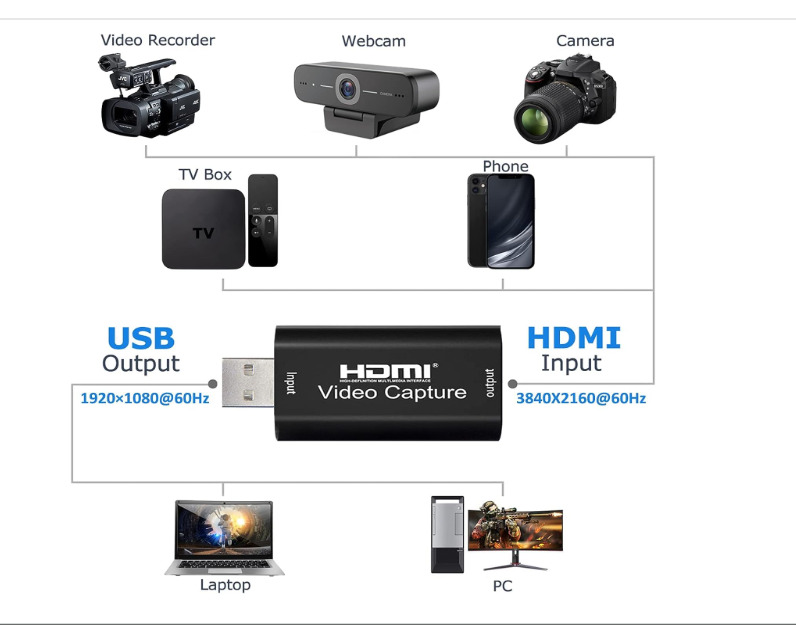
If you want your console, camera, or a second PC to appear on your laptop, this is the proper tool.
A capture card plugs into your laptop’s USB 3.0 port and offers its own HDMI-in jack. The setup:
- Connect the capture card to a USB 3.0 port on the laptop.
- Run an HDMI cable from your console’s or camera’s output into the card’s HDMI In.
- Open OBS Studio (free) and add the capture card as a video source.
- The external device’s picture appears in the OBS window on your laptop.
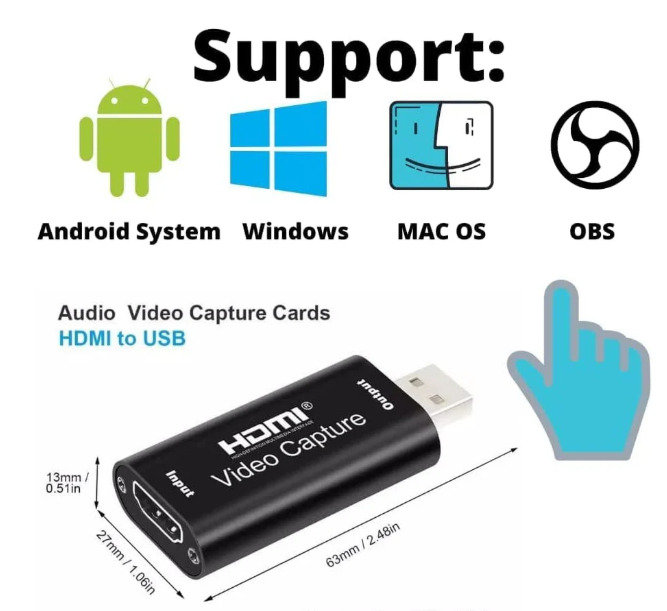
This is exactly how streamers record console gameplay on a laptop. Cards range from budget USB sticks to studio-grade units.
One honest limitation: there is a delay. USB capture adds latency, so fast-paced gaming on the laptop screen feels laggy — capture cards are built for recording and streaming, not for replacing a monitor. For casual viewing and recording they are excellent; for competitive play, connect the console to a real display instead.
Real Way #2: Wireless Projection (No Hardware Needed)
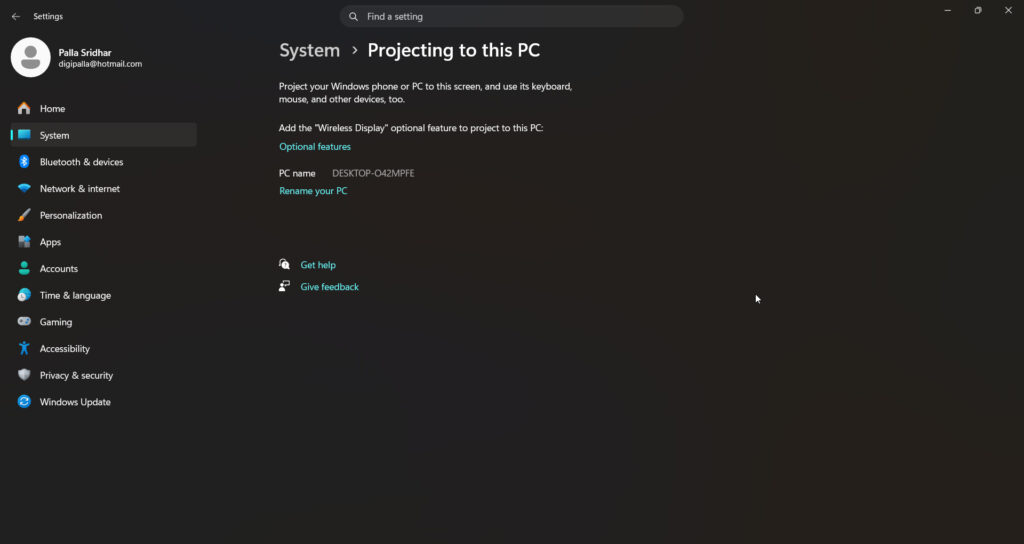
If the device you want on your laptop screen is another Windows PC or an Android phone, you may not need any hardware. Windows includes Miracast receiving, called Projecting to this PC:
- On the laptop that should act as the screen: Settings → System → Projecting to this PC.
- If the options are greyed out, first install the feature: Settings → System → Optional features → Add a feature → Wireless Display.
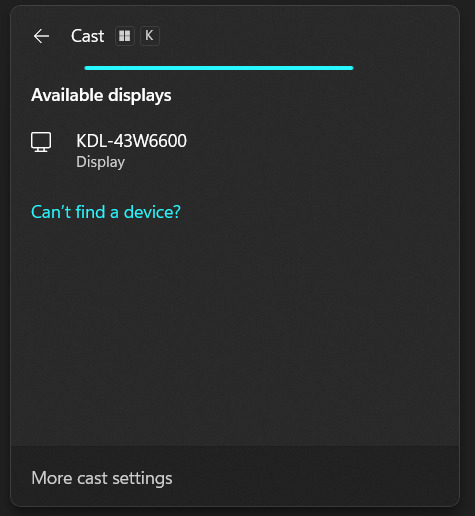
- Set it to available, then on the other PC, press Windows + K (or Cast from Quick Settings) and select your laptop.
The second device’s screen now appears on your laptop over Wi-Fi — no HDMI involved. Quality depends on your network, and note the limits: this method works for Miracast-capable sources like Windows PCs and many Android phones, but not for consoles or cameras. Those still need the capture card.
The HDMI Output Settings That Actually Exist
Now the productive half of HDMI input vs. output is configuring the output that your PC really has. When people search for HDMI settings, these are the controls they can genuinely change, and none of them is labeled “HDMI” in Windows.
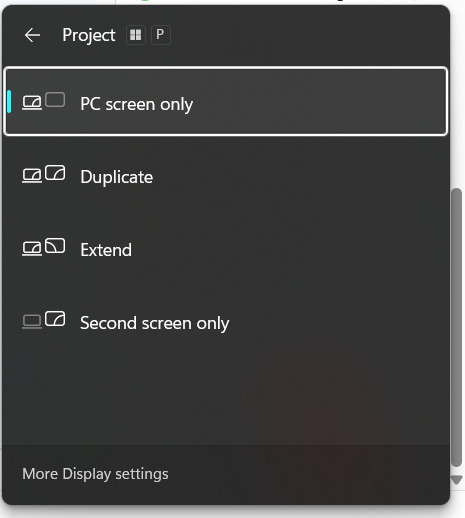
Get your computer to output over HDMI: connect the cable to the TV or monitor’s HDMI input, select that input source on the TV with its remote, and then press Windows + P on the PC and choose “Duplicate” or “Extend.” That key combo is the master switch for video output settings.
Once you know your port is an output, the next practical step is our guide to connecting a laptop to a TV with HDMI, including fixes for blur and cut-off edges.
Display output settings for HDMI: right-click the desktop → Display settings. Here you specify which screen is which, the arrangement, and the scale.
Change your PC’s HDMI output to 1080p (a worked example): Settings → System → Display: select the HDMI-connected screen, scroll to Display resolution, and choose 1920 × 1080. Blurry TV picture? This mismatch is usually why you set the resolution to the TV’s native one. Refresh rate lives under Advanced Display on the same page.
HDMI audio output settings: When HDMI connects, Windows can route sound to the TV—or stubbornly keep it on laptop speakers. Click the speaker icon in the taskbar, open the output picker, and select the TV/monitor entry to change where sound outputs when HDMI is plugged in. If sound refuses to move at all, that is a deeper issue—our complete guide to HDMI sound not working in Windows covers every fix.
If sound refuses to move at all, it indicates a deeper issue—our complete guide to HDMI sound not working in Windows covers every fix.
Best Practices
- Check the port label before troubleshooting — ten seconds of reading beats an hour of settings-hunting.
- Match the input source on the TV to the physical port you used; HDMI 2 on the remote means the jack labeled HDMI 2.
- Set the display resolution to the TV’s native resolution for a sharp picture.
- Buying a capture card? Insist on USB 3.0, as USB 2.0 cards cause significant bottlenecks.
- Want a portable second screen for a console? A small external monitor beats every laptop workaround on price and lag.
Common Mistakes to Avoid
- Connecting output to output. The console to laptop over HDMI does nothing—both ports are talking, but neither listens.
- Hunting Windows for HDMI input settings. They do not exist on an output-only machine, which is nearly every machine.
- Downloading “HDMI input apps.” No software can create a hardware pathway; some of these downloads are actively harmful.
- Buying a splitter to “reverse” the port is not a solution. Splitters duplicate outputs; they cannot convert one into an input.
- Gaming through a capture card on the laptop screen is miserable. The USB latency makes it miserable; capture cards are for recording and streaming.
Recommended Tools
- Windows + P — the projection switch for every HDMI output scenario.
- Settings → System → Display — resolution, refresh rate, and arrangement.
- A USB 3.0 capture card + OBS Studio — the legitimate HDMI-in workaround.
- Projecting to this PC (Wireless Display feature)—the no-hardware option for PC-to-PC.
Why am I unable to find the HDMI input settings on this computer?
Because your computer has no HDMI input hardware, Windows has nothing to configure. The HDMI port sends video out; a receiving pathway simply is not there. Any HDMI options you do have live under display settings and the sound output picker—all of them control output.
Is there an HDMI input app for laptops?
No. Software cannot turn an output port into an input, because the limitation is physical wiring, not settings. Apps advertising this feature are useless or unsafe. To see another device on your laptop, use a USB capture card with OBS or wireless projection for Miracast-capable PCs and phones.
How do I change my PC’s HDMI output to 1080p?
Open Settings, go to System, then Display, and select the HDMI-connected screen. Scroll to Display resolution and select 1920 × 1080. For the refresh rate, open Advanced display on the same page. Matching the TV’s native resolution fixes most blurry or stretched HDMI pictures.
Can I play my Xbox or PS5 on my laptop screen with HDMI?
Not by cable — both the console and the laptop have HDMI outputs, and two outputs cannot connect. A USB 3.0 capture card with OBS will show the console on your laptop, but with noticeable lag, so it suits recording more than play. For gaming, a small external monitor works better.
Where do HDMI audio output settings live in Windows 11?
In the sound output picker: click the speaker icon on the taskbar and choose your TV or monitor from the output list. Windows routes audio there over HDMI. If the TV never appears or sound stays on the laptop, work through a dedicated HDMI audio troubleshooting guide.
Conclusion
HDMI input vs. output stops being confusing the moment you accept one hardware fact: your PC’s HDMI port talks; it does not listen. That is why the input settings you searched for do not exist — and why no app, splitter, or registry trick will ever create them.
What you can do is get the most from the output you have: Windows + P for projection, display settings for a sharp 1080p picture, and the sound picker for audio. And when you genuinely need another device on your laptop screen, the real doors are a USB 3.0 capture card with OBS or wireless projection between PCs.
Check your port label today; ten seconds will clarify which side of the input vs. output line your machine is on. Then tell us in the comments what you were trying to connect; the appropriate workaround depends on this information and will help the next reader choose more quickly.
ENJOYING OUR CONTENT?
Stay up to date with our latest guides, insights, and news. Tap below to follow us directly via your search feed.
