
Key Takeaways
- Several recent Windows 11 Settings App won’t open-related failures on Windows 11 25H2 were confirmed Microsoft bugs, not something wrong with your PC—check the known-issues table below before troubleshooting further.
- The fastest fix for most people is to re-register the Settings app package via PowerShell, without needing to reinstall it.
- A less obvious cause: the Sensor Service being disabled can make Settings crash instantly, even on hardware with no physical sensors.
- Windows 11 26H2 is already rolling out as of late August 2026 and shares the same codebase as 25H2, so a fix for one generally applies to both.
- Windows 11 24H2 loses support on October 13, 2026 — if you’re still on that version and hitting unresolved Settings issues, upgrading is worth prioritizing regardless.
Quick answer
If the Windows 11 Settings app won’t open, first press Win + I and Win + R > ms-settings: to rule out a Start menu-specific glitch.
If neither works, open PowerShell as admin and run the app re-registration command below—this fixes the large majority of cases without a reinstall.
If you’re on Windows 11 25H2 and the issue started after a recent update, check the known-issues table first, since several genuine Microsoft bugs have caused exactly this symptom in 2026.
I’ve been fixing this exact complaint since Windows 11 launched, and one thing has changed recently: a growing share of “Settings won’t open” reports in 2026 trace back to specific, confirmed Microsoft bugs tied to recent cumulative updates—not user error or corruption. Worth checking that angle first before doing anything more invasive.
Check for a known 25H2 bug first
Before troubleshooting your PC, it’s worth ruling out whether you’re hitting a bug Microsoft has already acknowledged and fixed.
| Issue | Caused by | Fixed by |
|---|---|---|
| Desktop background and related display settings fail to load, sometimes cascading into other Settings pages not responding | Updates released August 27, 2026 (KB5120998) and later | KB5124008 (September 8, 2026) |
| Mouse customization resets on non-English Windows devices | Recent 25H2 servicing updates | Resolved in 25H2 |
| Teams and Outlook fail to launch on ARM-based devices (Surface Pro 11, Surface Laptop 7) | Updates released August 11, 2026 (KB5121003) and later | KB5124008 (September 8, 2026) |
If your Settings problem started right after installing one of these specific updates, the fastest fix is simply installing the newer cumulative update that resolves it, rather than troubleshooting from scratch. Go to Settings > Windows Update > Check for updates if Settings is at least partially accessible, or use the standalone Microsoft Update Catalog to download KB5124008 directly if Settings won’t open at all.
Fix 1: Try alternate ways to open Settings
Before deeper troubleshooting, rule out a Start menu-specific issue rather than a Settings app problem:
- Press Win + I
- Right-click the Start button and choose Settings
- Press Win + R, type
ms-settings:, and press Enter
If one of these works and the others don’t, the issue is isolated to how you’re launching Settings, not the app itself.
Fix 2: Re-register the Settings app
This resolves the large majority of genuine Settings-not-opening cases.
- Press Win + X and choose Windows Terminal (Admin) or PowerShell (Admin)
- Run this command:
Get-AppXPackage | foreach {Add-AppxPackage -DisableDevelopmentMode -Register "$($_.InstallLocation)\AppXManifest.xml"}
- Wait for it to complete — this re-registers every built-in app, including Settings, without removing any data
- Restart your PC and try opening Settings again
Fix 3: Enable the Sensor Service
This solution is a less obvious fix, but it’s resolved the issue for a fair number of users, even on desktops with no physical sensors installed.
- Press Win + R, type
services.msc, press Enter - Scroll down to Sensor Service
- Double-click it, set Startup type to Automatic
- Click Start under Service status
- Apply the changes and try opening Settings again
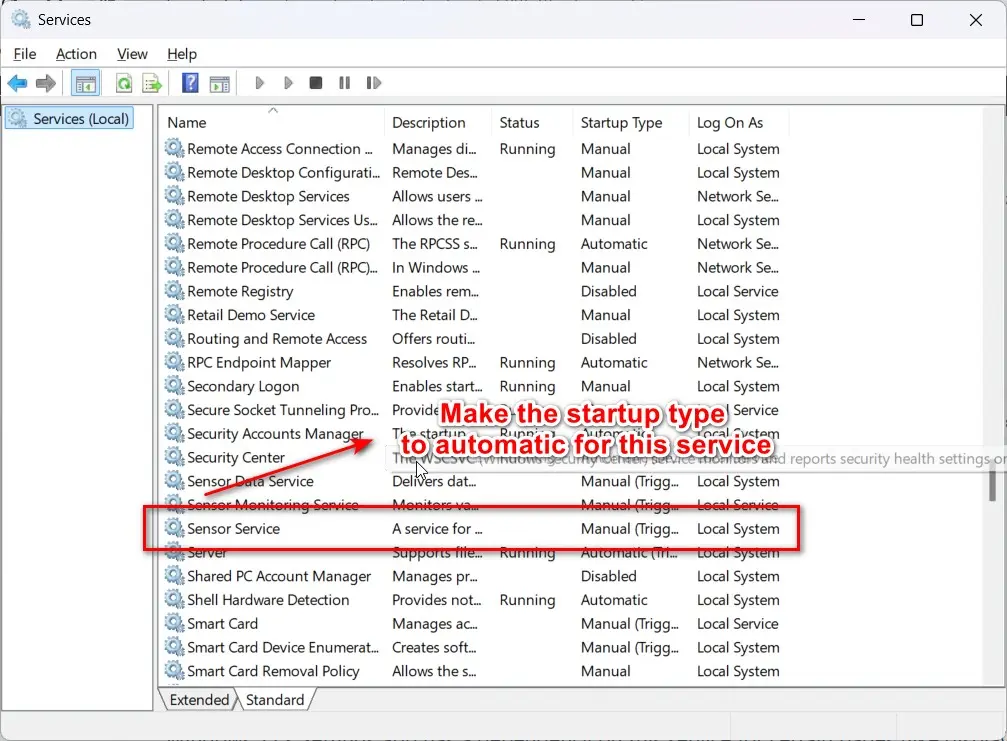
Windows 11’s Settings app has a dependency on this service for certain pages (like display and accessibility settings) even on hardware without sensors, so a disabled service can cause an unrelated-looking crash.
Fix 4: Run System File Checker and DISM
If the above doesn’t help, corrupted system files are the next likely cause.
- Open Terminal as administrator
- Run:
sfc /scannow
- If SFC reports it couldn’t fix everything, follow with:
DISM /Online /Cleanup-Image /RestoreHealth
- Restart and try Settings again
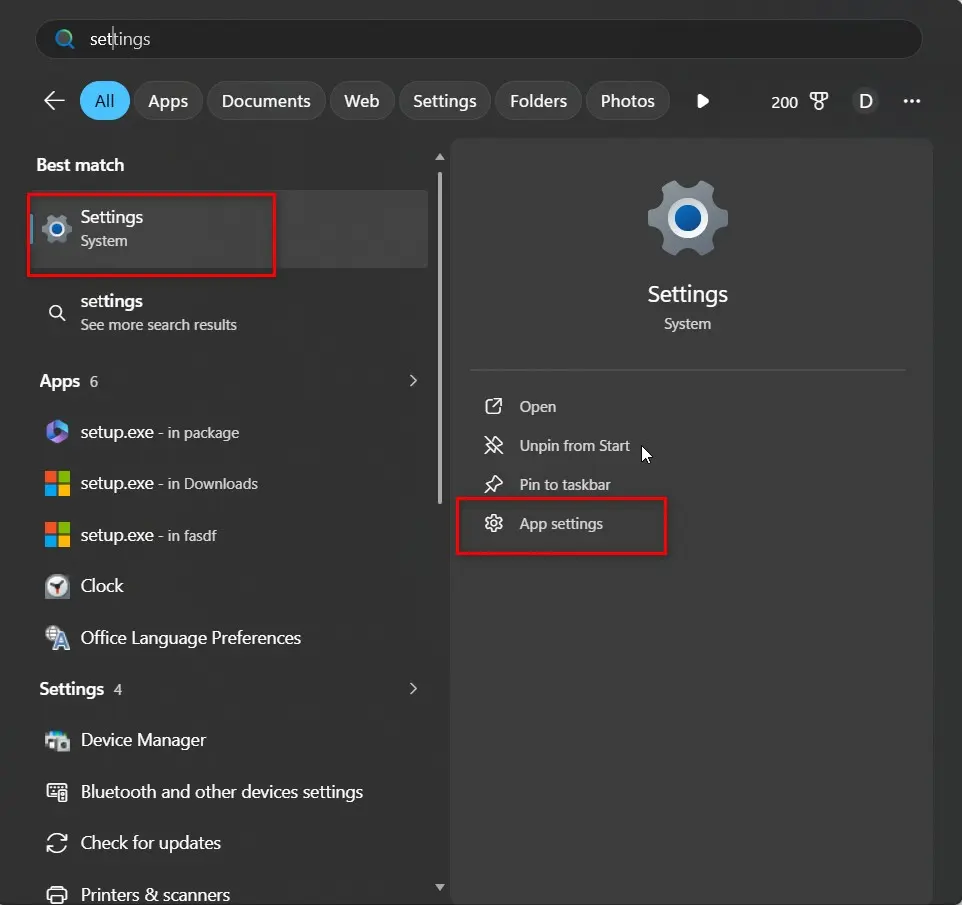
Fix 5: Reset or repair the Settings app directly.
- Open Start, type Settings, and click App settings under the search result (this works even though Settings itself won’t open normally, since it’s accessing app-level controls rather than the app itself)
- Click Repair first, test Settings
- If that doesn’t help, click Reset, then test again
Fix 6: In-place reinstall as a last resort
If nothing above resolves it, an in-place upgrade repair reinstalls Windows 11 without touching your files or apps. Run Setup from a matching Windows 11 ISO and choose Keep personal files and apps. This is more effective than a clean install for this specific problem and doesn’t require backing up first, though doing so is still good practice.
What’s changed with Windows 11 26H2
Windows 11 26H2 began rolling out in late August 2026 as an enablement package—meaning it shares the same underlying code as 25H2, so any fix that resolves a Settings issue on 25H2 applies equally once you’re on 26H2.
There’s no separate Settings-app overhaul specific to this release; the main visible changes are a new Start menu size dropdown (Automatic, Small, Large) and groundwork for a movable taskbar, neither of which affects the troubleshooting steps in this guide.
One relevant deadline: Windows 11 24H2 loses support on October 13, 2026. If you’re still on 24H2 and hitting unresolved Settings crashes; moving to 25H2 or 26H2 is worth prioritizing anyway, since you’ll stop receiving fixes for exactly this kind of issue once support ends.
Common mistakes when troubleshooting this issue
- Jumping straight to a full reinstall. The re-registration command in Fix 2 resolves most cases without that level of effort.
- Not checking whether it’s a known, already-fixed bug. If your issue started right after a specific update, installing the next cumulative update is often faster than manual troubleshooting.
- It may be helpful to consider the Sensor Service fix, as it could be related. This dependency isn’t obvious, but it’s a real, low-effort thing to try before more invasive fixes.
- Assuming the Settings and Start menu problems are the same issue. Testing Win+I versus right-click Start > Settings versus the ms-settings: command helps isolate which layer is actually broken.
Recommended tools
- Windows Update (built-in) – Always check for the latest cumulative update before deep troubleshooting; several 2026 Settings bugs were resolved this way
- Windows Terminal (built-in, pre-installed on 25H2/26H2)—Needed for the re-registration command and SFC/DISM
- Microsoft Update Catalog—Useful for manually downloading a specific KB if Windows Update itself isn’t accessible
Frequently asked questions
Why did my Settings app suddenly stop opening after a Windows update?
Check whether you installed KB5120998 or KBKB5121003—both introduced confirmed Settings-related bugs on Windows 11 25H2 that were later fixed by KB5124008. Installing the newer update resolves the issue directly.
Does re-registering the Settings app delete my settings or files?
No. The PowerShell re-registration command reinstalls the app package itself, not your personal configuration or files.
What does enabling Sensor Service have to do with Settings crashing?
Certain Settings pages, particularly around display and accessibility, have a dependency on this service even on PCs without physical sensors. If you disable it, some users will see a Settings crash as a side effect.
Should I wait for 26H2 instead of troubleshooting on 25H2?
No—26H2 is an enablement package built on the same code as 25H2, so it won’t resolve a Settings issue on its own. Please apply the fixes in this guide, regardless of which version you’re on.
Is it safe to do an in-place reinstall to fix the issue?
Yes, and it preserves your files and apps when you select that option during setup. It’s a reasonable last resort if the other fixes here don’t resolve the issue.
Conclusion
A Settings app that won’t open in Windows 11 usually isn’t as serious as it feels—for most people, it’s either a known, already-patched bug or a quick PowerShell re-registration away from working normally again.
Check the known-issues table above first if the problem started right after an update, since installing the fix is often faster than any manual troubleshooting.
If none of that works, go through the fixes in order, and treat the in-place reinstall as your last resort, not your first move.
