

Key Takeaways
- Task View is the interface; virtual desktops are what it manages—they’re related but not the same thing, and mixing them up is where most confusion starts.
- Windows 11 now has a separate “Virtual Workspaces” settings page for Hyper-V and Sandbox, but the name overlaps with virtual desktops, which causes genuine confusion that’s worth clearing up early.
- A full set of keyboard shortcuts covers creating, closing, switching, and cycling through desktops without touching the mouse at all.
- Windows 11 has no built-in way to permanently pin an app to a specific desktop automatically—that level of automation requires third-party software like Dexpot.
- Virtual desktops and a second monitor solve different problems and aren’t a substitute for one another, despite often being pitched as if they were interchangeable.
Quick answer
Windows 11 virtual desktops let you create multiple separate workspaces on a single screen, managed through Task View — opened by pressing Win + Tab or clicking its taskbar icon. Create a new desktop with Win + Ctrl + D, switch between them with Win + Ctrl + Left/Right Arrow, and close one with Win + Ctrl + F4. Everything else in this guide builds on those four shortcuts.
Multiple monitors solve one kind of clutter. Virtual desktops solve a different one — the kind where your single screen has fifteen windows open and you can’t find the one you actually need.
Windows 11 has had this feature built in since launch, but most people either don’t know it exists or opened it once, got confused by the terminology, and never went back.
This guide covers every part of it: what Task View actually is, every shortcut and setting, a brand-new 2026 feature that’s easy to confuse with it, and where dedicated third-party tools genuinely outperform what’s built in.
What is Task View in Windows 11
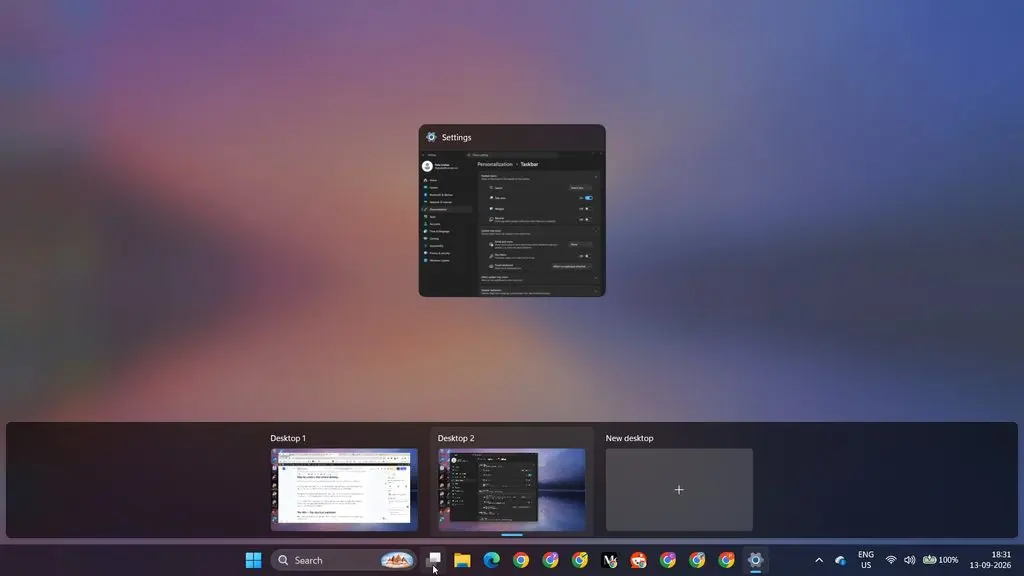
Task View is Windows 11’s built-in interface for managing open windows and virtual desktops in one place. Clicking the Task View icon on the taskbar—it looks like two overlapping rectangles—or pressing a keyboard shortcut opens a full-screen overview showing thumbnails of everything you currently have open, plus a row of desktop thumbnails along the top.
From here, you can switch between windows, create new desktops, rearrange them, or drag an app from one desktop to another.
It’s been part of Windows since Windows 10 first introduced it, carried forward into Windows 11 largely unchanged in function, though the visual design has been refreshed to match the rest of the OS.
What are Windows 11 virtual desktops (multiple desktops)?
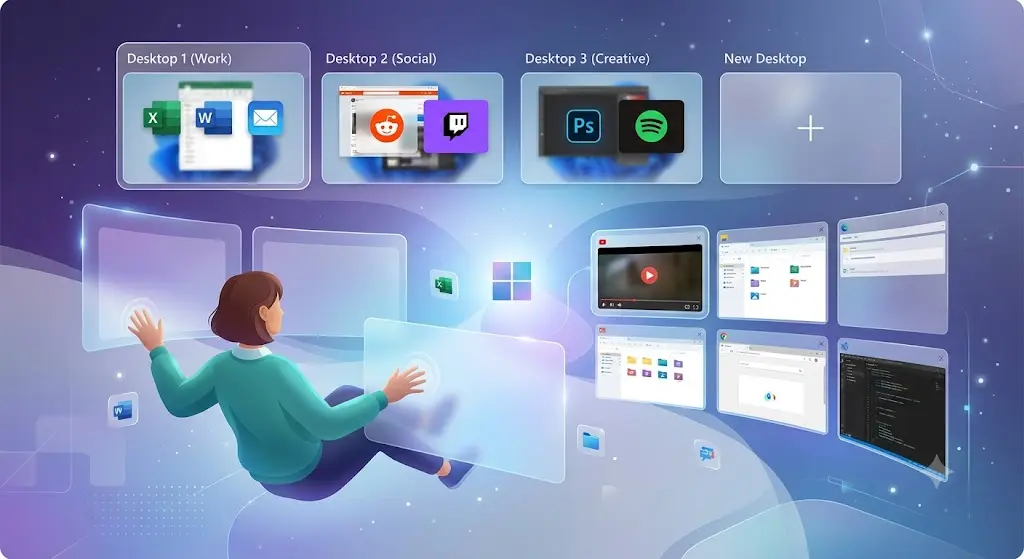
Virtual desktops—sometimes called “multiple desktops” in Microsoft’s own documentation—are separate workspaces that each hold their own set of open windows, all running on the same physical screen and the same PC.
Switching to a different virtual desktop doesn’t close or minimize anything; it simply changes what’s currently visible, the same way switching to a different browser tab hides the other tabs without closing them.
You might keep one desktop for work applications, another for personal browsing, and a third for a specific project — each staying exactly as you left it when you switch away and back.
How to create a new virtual desktop
There are two ways to create a new desktop, and both take about a second once you know them.
From Task View: Open Task View (see the shortcut below), then click the + New Desktop button that appears near the top of the screen, to the right of your existing desktop thumbnails.
Directly, without opening Task View first: Press Win + Ctrl + D. This creates a new empty desktop and switches you to it immediately, without needing to see the Task View overview at all.
There’s no hard limit on how many virtual desktops you can create beyond available system memory, though in practice, most people find that keeping track of more than four or five becomes counterproductive rather than helpful.
The Win + Tab shortcut explained
Win + Tab is the primary way to open Task View from anywhere in Windows, regardless of what you’re currently doing.
Unlike some other Windows shortcuts, it doesn’t require holding the key combination down—press it once, and Task View opens and stays open until you click somewhere else or press Escape.
This is different from Alt+Tab, which requires holding Alt while tapping Tab to cycle through options, then releasing to make a selection.
Win + Ctrl + D: the quick-create shortcut
While Task View’s “+ New Desktop” button works fine, Win + Ctrl + D is faster once it’s memorized, since it skips the step of opening Task View entirely.
Press it from anywhere, and a new desktop appears with you already switched onto it, ready to open whatever application you need there.
This is the shortcut worth building into muscle memory first, since desktop creation is something you’ll likely do more often than any other single action covered in this guide.
How to switch between desktops in Windows 11
Beyond the keyboard shortcut covered next, you can switch desktops directly from Task View by clicking any desktop thumbnail along the top of the screen.
This is useful when you have several desktops open and want to see a visual overview before deciding where to go, rather than cycling through them one at a time.
A three-finger swipe left or right on a precision touchpad also switches between desktops on supported laptops, offering a gesture-based alternative to both the keyboard shortcut and clicking through Task View.
Win + Ctrl + Left/Right Arrow
This is the fastest way to move between desktops without opening Task View at all. Win + Ctrl + Right Arrow moves you to the next desktop in order; Win + Ctrl + Left Arrow moves you back.
Desktops are arranged in the order you created them, and this shortcut cycles through that same order — it doesn’t jump to a specific desktop by number, so if you have several desktops open, you may need to press it more than once to reach the one you want.
Full virtual desktop keyboard shortcuts reference
| Shortcut | Action |
|---|---|
| Win + Tab | Open Task View |
| Win + Ctrl + D | Create a new virtual desktop |
| Win + Ctrl + F4 | Close the current virtual desktop |
| Win + Ctrl + Right Arrow | Move to the next desktop |
| Win + Ctrl + Left Arrow | Move to the previous desktop |
These five cover essentially everything most people need day to day. There’s no default shortcut to jump directly to a specific numbered desktop (like “go to desktop 3”) — switching is always sequential, one step at a time, in either direction.
How to assign apps to a specific desktop
By default, any app you open appears on whichever desktop you’re currently viewing.
To move an app that’s already open to a different desktop, open Task View, then click and drag that app’s window thumbnail onto the desktop thumbnail you want it moved to, along the top of the screen.
The app disappears from its original desktop and appears on the new one immediately.
This is a manual, one-time action—Windows doesn’t remember the assignment for next time, so if you close and reopen that same app later, it opens on whatever desktop you’re viewing at that moment, not automatically back on the desktop you’d previously moved it to.
How to rename a virtual desktop
Desktops are labeled “Desktop 1,” “Desktop 2,” and so on by default, which becomes hard to track once you have more than two or three open.
To rename one, open Task View, hover over the desktop’s thumbnail, and click directly on its name — it becomes an editable text field. Type a name that reflects what you actually use that desktop for, like “Work,” “Research,” or a specific project name, and press Enter to save it.
This single small step does more to make multiple desktops actually usable day to day than almost anything else in this guide, since numbered defaults give you no information about what’s actually on each one.
Setting a desktop background per virtual desktop
Beyond renaming, you can also give each virtual desktop its own distinct wallpaper, which makes it possible to tell which desktop you’re on at a glance, without reading any label at all.
In Task View, right-click a desktop’s thumbnail and choose Choose background, then pick an image that is specific to that desktop. Combined with a clear name, a distinct background makes switching between several desktops far less disorienting than leaving every one of them visually identical.
How to close a virtual desktop without losing your windows
Press Win + Ctrl + F4 to close your current desktop, or hover over its thumbnail in Task View and click the X that appears.
In either case, any windows that were open on that desktop are not closed — they’re automatically moved to the desktop immediately to its left (or the only remaining desktop, if you’re closing down to just one).
This is worth knowing in advance, since it means you never lose work by closing a desktop, though it can be momentarily confusing if you’re not expecting your windows to reappear somewhere else.
Alt+Tab vs Task View: what’s actually different
These two get confused constantly, since both involve switching between things.
Alt+Tab cycles through individual open windows one at a time, regardless of which virtual desktop each one lives on — it has no concept of desktops at all, and treats every open window across every desktop as one combined list.
Task View, by contrast, is desktop-aware: it shows you windows grouped by which desktop they’re on, and lets you create, rename, close, or rearrange the desktops themselves, which Alt+Tab simply can’t do.
If you only ever use one desktop, this distinction doesn’t matter much. Once you’re using several, Alt+Tab can start feeling chaotic, since it pulls windows from every desktop into a single list — Task View keeps that separation intact.
Virtual Workspaces: the new Windows 11 feature with a confusing name
As of a recent Windows 11 update, Settings now includes a page called Virtual Workspaces — and the name overlap with virtual desktops is going to trip people up.
This is important to get right: Virtual Workspaces has nothing to do with Task View, desktop switching, or anything covered so far in this guide.
It’s a management interface for Hyper-V, Windows Sandbox, and other virtualization features, letting you configure and launch actual virtual machines and sandboxed environments directly from Settings, aimed primarily at developers and IT professionals rather than everyday multitasking.
If you went searching Settings for your desktop-switching options and landed on a page about Hyper-V instead, that’s exactly why — Microsoft used similar terminology for two unrelated features.
The feature this entire guide covers is still called Task View, still lives on the taskbar, and is unaffected by anything on the Virtual Workspaces settings page.
Virtual desktop manager software: when Task View isn’t enough
Task View handles the basics well, but it has real, specific limitations:
there’s no way to automatically assign an app to always open on a particular desktop, no saved desktop layouts that persist across a reboot, and no rule-based automation of any kind.
If you find yourself manually dragging the same handful of apps to the same desktops every single day, that repetitive friction is exactly what dedicated third-party virtual desktop manager software is built to eliminate.
VirtuaWin for Windows 11
VirtuaWin is a free, lightweight virtual desktop manager that’s been around for years and remains compatible with Windows 11.
It’s a good fit specifically for older or lower-spec hardware, since it adds meaningfully more configuration depth — window rules, hotkey customization, plugin support — without much added system overhead compared to heavier alternatives.
It won’t feel as visually polished as Windows 11’s native Task View, but for anyone prioritizing function over appearance, that trade-off is usually worth it.
Dexpot as a Windows 11 alternative
Dexpot goes further than VirtuaWin in one specific way: it supports window rules, meaning you can configure a specific application to always open on a specific desktop automatically, every time, without manually dragging it there yourself.
This is the exact automation gap Task View doesn’t fill natively. One caveat worth knowing: Dexpot’s development has slowed considerably in recent years, with its last major update released some time ago — it still functions correctly on current Windows 11 builds, but long-term update support remains less certain than with more actively maintained alternatives.
Virtual desktops vs multiple monitors: which one actually solves your problem
| Situation | Better fit |
|---|---|
| You need to see two things at once, side by side | Second monitor |
| You want to mentally separate “work mode” from everything else on one screen | Virtual desktops |
| You’re on a laptop without room or budget for extra hardware | Virtual desktops |
| You do video editing, multi-window coding, or need to watch live data feeds | Second monitor |
| You get distracted seeing unrelated windows while trying to focus | Virtual desktops |
| Desk space and budget both allow for it | Both — they’re not mutually exclusive |
Virtual desktops require no hardware and cost nothing, but they fundamentally can’t show you two things simultaneously the way a physical second screen does — switching between desktops still means only one is visible at a time.
Most people who rely heavily on both report using virtual desktops to separate different project contexts, while reserving a second monitor for genuinely needing to reference one thing while actively working in another.
How Task View differs between Windows 10 and Windows 11
Task View isn’t new to Windows 11 — it was actually introduced in Windows 10 as one of that version’s headline multitasking features.
The core functionality carried forward largely unchanged: creating, switching, and closing desktops all work the same way, and the underlying keyboard shortcuts are identical across both versions.
What changed with Windows 11 is mostly visual — refreshed thumbnail styling, rounded corners consistent with the rest of the OS redesign, and tighter integration with Snap Layouts, letting you save and restore a specific window arrangement per desktop more smoothly than Windows 10 managed.
If you’re moving from Windows 10 to Windows 11, none of the muscle memory built around Task View needs to be relearned — everything in this guide applies identically to both versions unless otherwise noted.
How many virtual desktops should you actually use
There’s no correct number, but a pattern shows up consistently among people who stick with virtual desktops long-term rather than abandoning them after a week: two to four desktops, each with a clear, narrow purpose, tends to work far better than five or more loosely defined ones.
A common setup looks something like one desktop for core work applications, one for communication tools (email, chat), and one for anything unrelated to work entirely.
Once you’re maintaining more than four or five, the cognitive overhead of remembering what’s where starts to cancel out the organizational benefit the feature is supposed to provide in the first place.
Fixing a missing Task View icon
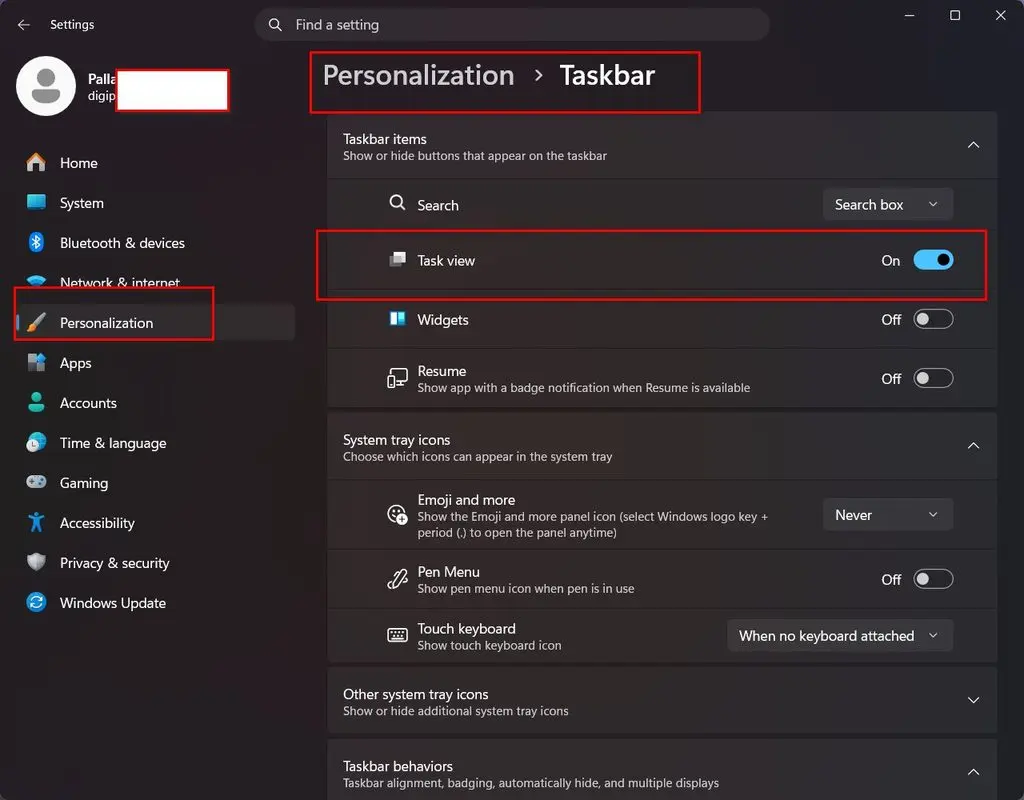
If the Task View icon has disappeared from your taskbar, right-click anywhere on the taskbar, select Taskbar settings, and confirm the Task View toggle is switched on. This setting occasionally gets turned off during a Windows update or a taskbar customization, and turning it back on restores the icon immediately without needing a restart.
Fixing Task View shortcuts that stop working
If Win + Tab or the other shortcuts in this guide stop responding, the most common cause is another running application intercepting the same key combination — this happens most often with virtual machine software, some remote-desktop tools, and certain gaming overlays.
Close recently opened or recently installed programs one at a time to isolate which one is claiming the shortcut, then check that program’s own settings for a way to disable or remap its use of that key combination.
Common mistakes people make with virtual desktops
- Confusing Virtual Workspaces (Hyper-V/Sandbox settings) with virtual desktops (Task View). They share similar names but serve completely different purposes — one manages virtual machines, the other manages multitasking workspaces.
- Expecting an app to remember which desktop it was assigned to. Windows doesn’t retain this — reopening an app after closing it places it on whatever desktop you’re currently viewing, not automatically back where you’d previously moved it.
- Leaving every desktop with the default name and background. This is the single biggest reason people abandon virtual desktops after trying them briefly — without renaming and customizing backgrounds, it’s genuinely hard to remember what’s on each one.
- Assuming virtual desktops replace the need for a second monitor. They solve different problems; virtual desktops separate context, a second monitor lets you see two things at once. Neither fully substitutes for the other.
- Troubleshooting a “broken” shortcut without checking for a conflict first. Before assuming Windows itself is at fault, check whether another running application has claimed the same key combination.
Frequently asked questions
Does Windows 11 limit how many virtual desktops I can create?
There’s no fixed limit built into Windows itself — you’re constrained only by available system memory. In practice, tracking more than four or five desktops tends to become counterproductive rather than helpful for most people.
What happens to my open apps if I close a virtual desktop?
Nothing closes. Any windows open on the desktop you close are automatically moved to the desktop immediately to its left, so you never lose work by closing a desktop you’re done with.
Is the new Virtual Workspaces settings page the same as virtual desktops?
No — despite the similar name, Virtual Workspaces manages Hyper-V, Windows Sandbox, and other virtualization features for developers and IT professionals. Virtual desktops and Task View, covered throughout this guide, are a completely separate, unrelated feature for everyday multitasking.
Should I use virtual desktops instead of buying a second monitor?
It depends on what problem you’re solving. Virtual desktops are ideal for mentally separating different contexts on one screen at no cost, but they can’t show you two things simultaneously the way a physical second monitor can. Many people who need both end up using virtual desktops for organization and a second monitor for side-by-side reference work.
