
Key Takeaways
- There is no single CMD command that downloads and updates every driver. Any guide promising one magic line is wrong. Microsoft splits driver servicing across three tools—pnputil, DISM, and PowerShell’s PSWindowsUpdate—and this article shows exactly when to use each.
- pnputil is the real bulk-install command for a running PC.
pnputil /add-driver *.inf /subdirs /installinstalls every driver package in a folder at once. It’s built into Windows and works on Windows 11 and 10. - PowerShell’s PSWindowsUpdate is the closest thing to “update all drivers from the internet.” It pulls Microsoft-approved driver updates from Windows Update via the command line—the only command-line route that actually downloads.
Quick answer: To update drivers using CMD, open Command Prompt as administrator. To install drivers from a folder, run
pnputil /add-driver "C:\Drivers\*.inf" /subdirs /install. To download Microsoft-approved driver updates, use PowerShell: install the PSWindowsUpdate module, then runInstall-WindowsUpdate -MicrosoftUpdate. There is no single native command that updates every driver at once.
How to Update Drivers Using CMD in Windows 11 and 10
You can update drivers using cmd with Windows’ built-in PnPUtil tool. Open Command Prompt as administrator, then run the following command after downloading and extracting compatible driver packages into C:\Drivers:
pnputil /add-driver "C:\Drivers\*.inf" /subdirs /installThis command processes downloaded driver packages and installs or updates them on matching devices. It does not search the internet or guarantee that every device receives a newer driver.
Important: There is no built-in cmd command to update all drivers that automatically downloads every manufacturer’s latest driver. Use PnPUtil for local driver packages and Windows Update for recommended and optional updates.
Introduction
You want to skip the clunky driver-updater apps and just do it from the command line. Smart instinct—but here’s the honest truth most guides bury: there is no one-line cmd command that scans your PC, downloads the latest versions, and installs them all at once. Microsoft simply doesn’t build driver servicing that way.
That doesn’t mean the command line is useless — far from it. Once you know the right tools, you can update drivers using CMD safely and completely.
I’ve used these exact commands to rebuild drivers on dozens of fresh Windows installs, and in this guide I’ll show you the three that genuinely work: pnputil for installing driver packages, DISM for offline images, and PowerShell for pulling updates straight from Windows Update.
For a broader look at every way to update drivers—including the software and Device Manager methods—see our main guide on how to update all drivers at once.
You’ll learn how to use the command prompt for driver management the right way, which command fits your situation, and—just as important—what CMD honestly can’t do. Home users and office users can follow every step.
Why There’s No Single “Update All Drivers” Command
Let me clear up the myth first, because it saves you hours of frustration. Windows delivers drivers through several separate channels — Windows Update for most hardware, and vendor installers for GPU, chipset, and specialty devices. No single built-in command bridges all of them.
So when you search for a command to update all drivers, what you’re really after is a small toolkit:
- pnputil—installs INF-based driver packages you already have on disk.
- DISM — adds drivers to a Windows image (mainly offline).
- PowerShell + PSWindowsUpdate — downloads Microsoft-approved driver updates from the internet.
Used together, these bring nearly every driver up to date from the command line. Used alone, each does one specific job. Below, I’ll show all three so you can pick the appropriate command for updating drivers in the command line for your situation.
How to Use Command Prompt for Driver Management (First Steps)
Before any work on driver updates using the command prompt, do two things:
Open an elevated prompt. Press the Start button, type cmd, right-click Command Prompt, and choose Run as administrator. Every command here needs admin rights — without them, they silently fail.
See what’s installed. To list every third-party driver already on your system, run:
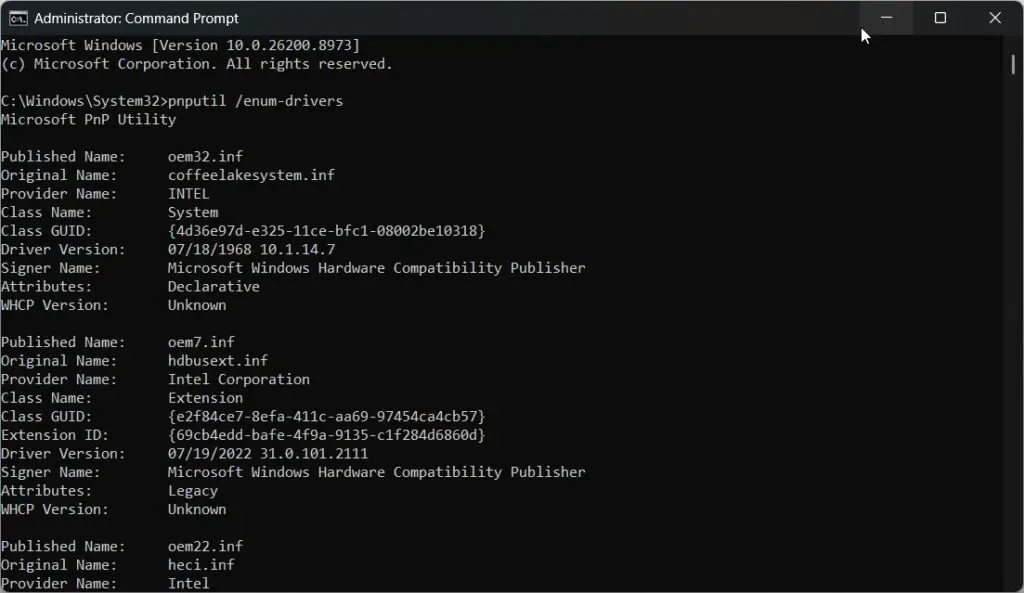
pnputil /enum-driversThis shows each driver’s published name, original INF, version, and date—a useful inventory before you change anything. To trigger Windows to recheck hardware and match any pending drivers, run the following:
pnputil /scan-devicesThat’s the foundation. Now, the three methods to actually update drivers are –
Method 1: pnputil—The Real Bulk-Install Command
This is the pnputil command for updating drivers, and it’s the one that genuinely installs many drivers at once on a live, running PC. It’s built into every copy of Windows 11 and 10, so there’s nothing to download.
The scenario: you’ve downloaded driver packages (or backed them up) into a folder, and you want to install them all. First, extract them—pnputil needs the actual .inf files, not the original setup .exe. Then run:
pnputil /add-driver "C:\Drivers\*.inf" /subdirs /installHere’s what each part does, straight from Microsoft’s documentation:
/add-driver "C:\Drivers\*.inf"— targets every INF file in the folder./subdirs— traverses subfolders too, so nested driver packages are caught./install— actually installs/updates the driver on any matching device (without this flag, it only adds them to the store).
This single line is how you update all drivers through cmd when you have the packages on hand—after a clean Windows install, a motherboard swap, or restoring a driver backup.
One honest limitation: pnputil only installs drivers you already have as files, and only if the driver is the highest-ranked match for the device. It won’t force an older or mismatched driver onto hardware. If you see “No driver packages found,” your folder path is wrong or holds installers rather than extracted INF files.
Method 2: DISM — For Offline Images and Deployment
DISM is powerful, but there’s a crucial distinction most guides get wrong: DISM driver management targets offline Windows images, not your live running system. Use it when preparing a Windows image for deployment or servicing a mounted install.
To list drivers in an online image:
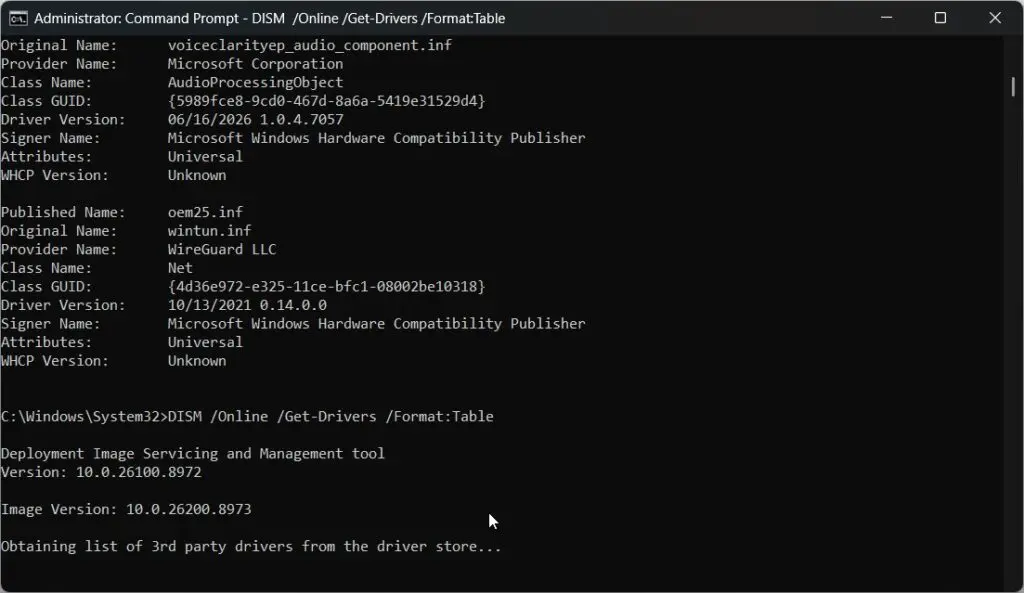
DISM /Online /Get-Drivers /Format:TableTo add all driver packages from a folder to an offline image, including subfolders:
DISM /Image:C:\mount\offline /Add-Driver /Driver:C:\Drivers /RecurseThe /Recurse flag pulls in every subfolder’s packages. Microsoft’s own caution: it /Recurse can bloat an image, since shared payload files get duplicated per INF—so point it at a clean driver folder, not your whole Downloads directory.
For a normally running PC, use pnputil (Method 1) instead—that’s the right tool for a live system. DISM is the deployment specialist.
Method 3: PowerShell + PSWindowsUpdate — Download From Windows Update
This method is the closest thing to what people imagine when they search “update all drivers cmd automatically“—a command that actually reaches out to the internet and pulls driver updates. It uses PowerShell (technically a shell, but a command line all the same) and a free, widely trusted module.
Step 1 — Install the module. Open PowerShell as an administrator and run:
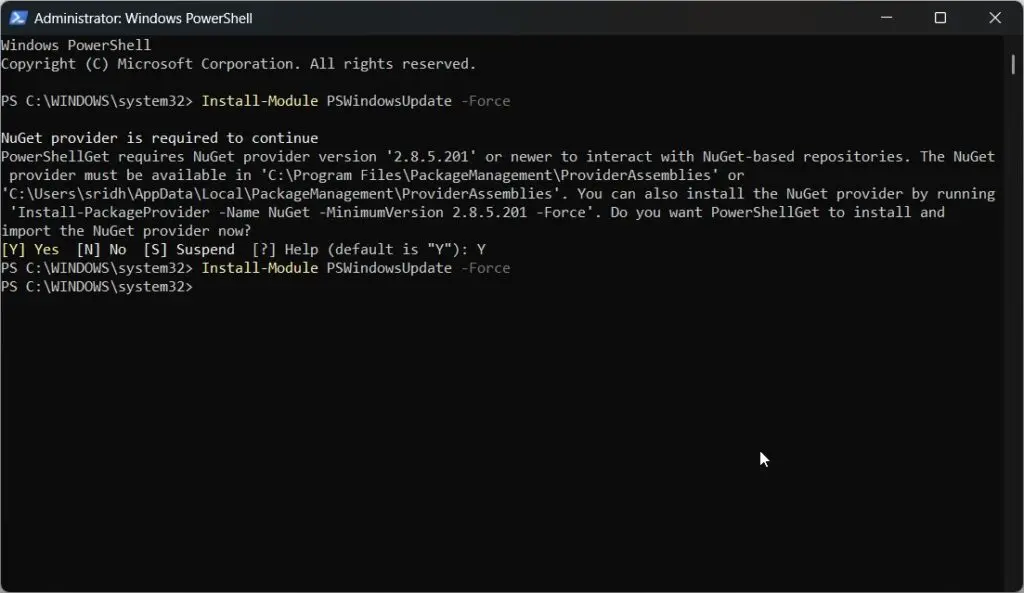
Install-Module PSWindowsUpdate -ForceIf it’s blocked, set the execution policy first: Set-ExecutionPolicy RemoteSigned -Scope CurrentUser, then retry.
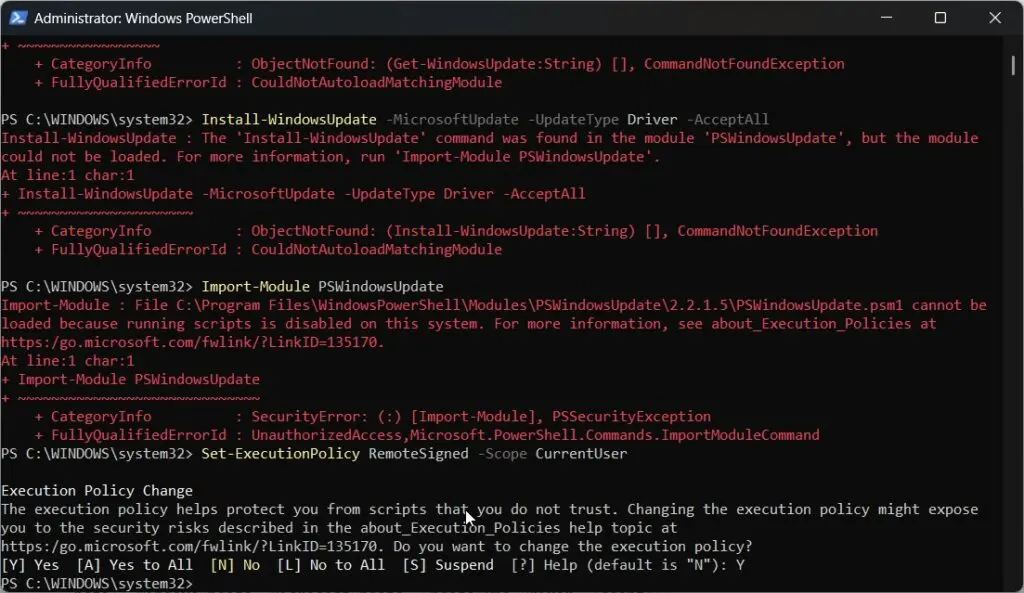
Step 2—Verify what’s available, drivers included.
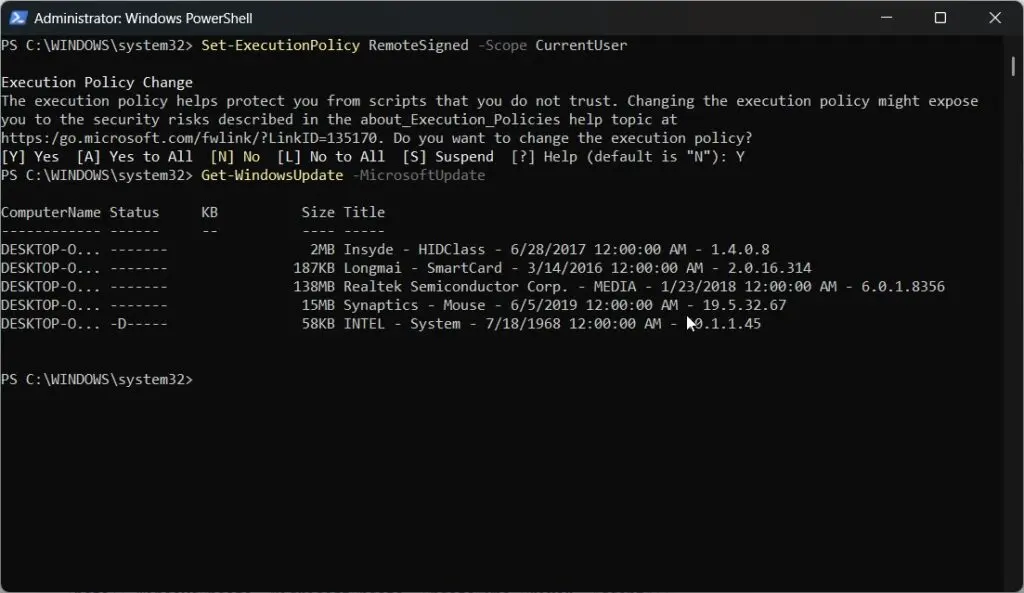
Get-WindowsUpdate -MicrosoftUpdateStep 3 — Install the driver updates:
Install-WindowsUpdate -MicrosoftUpdate -UpdateType Driver -AcceptAllThis downloads and installs the driver updates Microsoft distributes through Windows Update — the same ones the Settings app would fetch, but scriptable and hands-off. For IT admins, this is the real Windows command to update all drivers across many machines.
The honest caveat: PSWindowsUpdate only installs Microsoft-approved driver versions. For the absolute latest GPU drivers, you still want NVIDIA, AMD, or Intel’s own installers—Windows Update lags a version or two behind on graphics.
How to Verify Your Driver Updates Worked
After any method, confirm the changes. In PowerShell:
Get-WmiObject Win32_PnPSignedDriver | Select-Object DeviceName, DriverVersion, DriverDate | Sort-Object DeviceNameThe command lists every device with its current driver version and date, so you can confirm the updates have taken effect. Or open Device Manager, expand a category, and right-click a device → Properties → Driver tab to check its version.
Restart your PC afterward—a reboot isn’t always required, but it’s strongly recommended after updating core drivers like graphics, audio, or chipset so the changes fully take effect.
Does This Work on Windows 10 Too?
Yes. Every command here—the cmd command to update all drivers in Windows 11 and the cmd command to update all drivers in Windows 10—is identical on both. pnputil, DISM, and PSWindowsUpdate all work the same across Windows 10 and 11. There’s no separate update for all drivers’ Windows 11 cmd syntax to learn; the commands are version agnostic.
Common Mistakes to Avoid
- Don’t believe in a single “update all drivers” command. It doesn’t exist; use the three-tool toolkit.
- Running DISM /Add-Driver on your live system will not download drivers from the web. DISM installs local packages to images; it doesn’t fetch updates.
- Pointing pnputil at a folder of .exe installers. It needs the extracted .inf files.
- Forgetting admin rights. The number one reason a command prompt to update drivers appears to do nothing is that it’s not actually doing anything.
- Skipping the reboot after core driver changes.
Choose the Right Command
Before you update windows drivers using cmd, identify whether you want to list existing drivers, install one downloaded package, or process several packages.
| What you want to do | Command | Purpose |
|---|---|---|
| List installed drivers | driverquery | Shows installed drivers and their properties |
| List third-party driver packages | pnputil /enum-drivers | Displays third-party packages in the driver store |
| Install one driver package | pnputil /add-driver "C:\Drivers\Device\driver.inf" /install | Installs or updates the package on matching devices |
| Process multiple packages | pnputil /add-driver "C:\Drivers\*.inf" /subdirs /install | Includes INF packages in the folder and its subfolders |
| Export driver packages | pnputil /export-driver * "C:\DriverBackup" | Creates a backup of packages from the driver store |
Different searches, different tasks
Search phrases such as cmd driver and cmd drivers can refer to either inspecting drivers or installing them. These tasks use different commands: driverquery displays information, while PnPUtil manages driver packages.
For installation, the relevant driver update cmd command is:
pnputil /add-driver "C:\Drivers\Device\driver.inf" /installThe same syntax applies when looking for a cmd driver update command, windows driver update cmd command, or windows cmd driver update command. The /add-driver and /install options add packages and install or update them on matching devices.
Update Drivers Step by Step
This method explains how to update drivers using cmd, how to update drivers from cmd, and how to use command prompt to update drivers with downloaded INF packages.
Download the correct package
Get the driver from your PC manufacturer or the hardware manufacturer’s official website. Choose a package that matches your device and Windows version.
Extract the downloaded package into a folder such as:
C:\Drivers\WiFiPnPUtil requires INF driver packages. You cannot simply replace the INF path in these commands with a downloaded EXE installer.
Open Command Prompt as administrator
Search for Command Prompt in Start and choose Run as administrator.
This preparation applies whether you call the process driver update by cmd, driver update with cmd, or driver update through cmd.
Back up your driver packages
Create a folder and export existing packages:
mkdir C:\DriverBackup
pnputil /export-driver * "C:\DriverBackup"
This backs up driver packages from the driver store. It is not a complete system backup.
Install a single driver
To install driver using cmd, specify the downloaded INF file:
pnputil /add-driver "C:\Drivers\WiFi\driver.inf" /installReplace the example filename with the actual INF filename.
If your goal is cmd install driver, install driver cmd, or install drivers via cmd, this is the basic syntax to use. The /add-driver option adds the package to the driver store, while /install attempts to install or update it on matching devices.
The phrase pnputil update driver describes this combination of options; PnPUtil does not use a separate /update-driver option.
Process several packages
To install drivers cmd from one directory and its subfolders, run:
pnputil /add-driver "C:\Drivers\*.inf" /subdirs /installFor example, you could place downloaded Wi-Fi, audio, and other compatible packages under C:\Drivers. The command processes their INF files, but installation still depends on device matching and driver ranking.
This is the practical answer to pnputil install all drivers in subfolders. The /subdirs option includes nested folders, and /install attempts installation on matching devices.
Check the outcome
Read the output carefully. PnPUtil will not force a package onto a device if that package is not the highest-ranked driver. A successful import therefore does not always mean the active driver changed.
To review third-party packages, run:
pnputil /enum-driversThis lists driver-store packages rather than providing a complete list of drivers currently active on devices.
Restart your computer if the installation reports that a restart is required.
Windows 11 and Windows 10
PnPUtil’s /add-driver syntax is supported starting with Windows 10 version 1607 and is also available in Windows 11. The basic local-package installation command is therefore the same on both operating systems.
Windows 11 driver updates
For how to update drivers in windows 11 using cmd, use:
pnputil /add-driver "C:\Drivers\*.inf" /subdirs /installThis also answers how to update drivers windows 11 using cmd and update drivers using cmd windows 11 when you already have compatible driver packages.
The following related searches all describe that same local-package workflow:
| Search phrase | What to use |
|---|---|
| update drivers windows 11 command prompt | PnPUtil in an administrator Command Prompt |
| driver update command prompt windows 11 | /add-driver with /install |
| command to update drivers windows 11 | A specific INF path or a wildcard |
| driver update windows 11 cmd | Downloaded compatible INF packages |
| update drivers cmd windows 11 | The same PnPUtil syntax |
These are alternative descriptions of installing or updating matching packages, not separate Windows features.
Windows 10 driver updates
For how to update drivers in windows 10 using cmd, use the same command:
pnputil /add-driver "C:\Drivers\*.inf" /subdirs /installFor update drivers windows 10 cmd, check that your Windows release supports the options you are using. /add-driver, /subdirs, and /install are available from Windows 10 version 1607.
Can you update everything at once?
The searches below usually express the same goal: process several driver packages with one command.
| Windows version | Related search phrases |
|---|---|
| Windows 11 | cmd command to update all drivers windows 11; windows 11 update all drivers cmd; update all drivers windows 11 cmd |
| Windows 11 | cmd update all drivers windows 11; command prompt to update all drivers windows 11; command to update all drivers windows 11 cmd |
| Windows 11 | how to update all drivers in windows 11 using cmd |
| Windows 10 | cmd command to update all drivers windows 10; how to update all drivers in windows 10 using cmd |
For all of these, the batch installation command is:
pnputil /add-driver "C:\Drivers\*.inf" /subdirs /installHowever, “all drivers” means the eligible packages you supply—not every possible update available online. PnPUtil processes INF files and installs qualifying packages on matching devices.
If you are asking how to update all drivers at once or how to update all drivers at once with command, first decide whether you mean installing downloaded packages or obtaining updates online. These require different workflows.
The same limitation applies to cmd update all drivers, update all drivers via cmd, how to update all drivers in cmd, command to update all drivers, and command prompt command to update all drivers: one command can process your package collection, but it cannot promise an update for every device.
Use Windows Update for downloads
For Windows 11, open:
Settings → Windows Update → Advanced options → Optional updatesWindows installs recommended drivers automatically. Available optional driver updates require you to select them and choose Download and install.
On Windows 10, open Windows Update under Settings → Update & Security, check for updates, and use View optional updates when available.
Troubleshooting CMD Driver Updates
If your command prompt driver update appears unsuccessful, inspect the package path and command output before attempting another installation.
No driver package found
A cmd update drivers command needs a valid INF path. Check that the download has been extracted and that the command points to the folder containing its INF files. Use /subdirs when packages are stored in nested folders.
pnputil /add-driver "C:\Drivers\*.inf" /subdirs /installPackage imported but not installed
A driver update command prompt operation can add a package without replacing the active driver. PnPUtil does not force installation when Windows ranks another package higher.
This is why update drivers command prompt results should be checked rather than assuming that every successful import changed a device.
An option is unavailable
For cmd commands for driver update, consult the syntax available on your own system:
pnputil /?Options vary by Windows release. For example, /scan-devices is available starting with Windows 10 version 2004.
Hardware changes need scanning
Run this on a supported system:
pnputil /scan-devicesThis detects hardware changes. It is not a windows command to update drivers that downloads new packages.
Changing an existing driver
For how to change driver in cmd, install the intended replacement package:
pnputil /add-driver "C:\Drivers\Device\replacement.inf" /installWindows still applies its driver-selection rules. PnPUtil will not force a lower-ranked package onto the device.
PowerShell and Common Questions
Can PowerShell update drivers?
For powershell driver update command, run PnPUtil from an elevated PowerShell window:
pnputil.exe /add-driver "C:\Drivers\*.inf" /subdirs /installThis also addresses powershell command to update all drivers and powershell command to update all drivers windows 11 when the goal is installing downloaded packages. It does not become an online driver updater simply because you run it in PowerShell.
Readers searching через powershell—“through PowerShell”—can use the same local-package command.
Does driverquery update drivers?
No. There is no driverquery update command for installing drivers. driverquery lists installed drivers and their properties.
To export a detailed inventory from Command Prompt:
driverquery /v /fo csv > "%USERPROFILE%\driver-list.csv"The /v option requests verbose output, and /fo csv selects CSV formatting.
Can CMD update drivers offline?
Yes. For how to update drivers in cmd without an internet connection, use driver packages downloaded beforehand. PnPUtil’s installation syntax works with local INF files.
The same applies to update drivers through cmd, cmd to update drivers, and windows driver update cmd.
Does command-line updating replace Windows Update?
No. Searches such as windows drivers update cmd, windows update drivers command line, and how to update windows drivers using cmd often combine two different tasks. PnPUtil installs local packages; Windows Update provides recommended and optional driver updates.
Likewise, how to update drivers using command prompt should start with choosing the right source: downloaded manufacturer packages for PnPUtil, or Windows Update for updates offered to your device.
Can you update all Windows 11 drivers?
For alle treiber aktualisieren windows 11 cmd—“update all drivers Windows 11 CMD”—the same limitation applies: PnPUtil processes the packages you provide, but it does not automatically download and replace every driver.
How do I update drivers using CMD without third-party software?
Use built-in tools. Run pnputil /add-driver "folder\*.inf" /subdirs /install to install driver packages you have on disk, or use PowerShell’s PSWindowsUpdate module to pull Microsoft-approved updates from Windows Update. Both avoid third-party updater apps entirely.
What is the pnputil command to update all drivers?
The command must be run in an admin Command Prompt. The /subdirs flag reaches nested folders and /install applies the drivers to matching devices. It installs every valid driver package in the folder — the true bulk-update command for a running PC.
Does the cmd command to update all drivers work on Windows 10 and 11?
Yes, pnputil, DISM, and PSWindowsUpdate behave identically on Windows 10 and Windows 11. There’s no separate syntax—the same command to update all drivers works across both versions, since these are core Windows tools that haven’t diverged between the two.
Can CMD update my graphics driver to the latest version?
Only partly. PSWindowsUpdate installs the Microsoft-approved GPU driver, which usually lags a version or two behind. For the newest NVIDIA, AMD, or Intel graphics drivers, download from the vendor’s site and install with their installer or pnputil. Windows Update is reliable but not cutting-edge for GPUs.
How do I check which drivers are outdated before updating?
Run it pnputil /enum-drivers in an admin prompt to list every third-party driver with its version and date, or use it Get-WmiObject Win32_PnPSignedDriver in PowerShell for a full device-and-version table. Compare versions against the vendor’s site to spot outdated ones before you update.
Conclusion
Learning to update drivers using CMD comes down to abandoning one myth and adopting three tools. There’s no single command that updates everything, but PnPUtil installs your driver packages in bulk, DISM handles offline images, and PowerShell’s PSWindowsUpdate downloads Microsoft-approved updates straight from the command line.
For most people on a normal PC, the workflow is simple: Use PSWindowsUpdate to pull what Windows Update offers and PnPUtil to install anything you’ve downloaded manually. That combination brings nearly every driver current without a single third-party app.
Open an admin Command Prompt today, run pnputil /enum-drivers to see what you have, and pick the method that fits. Then tell us in the comments which command did the job for you—the honest, no-magic-button approach is the one that actually works.
