Blog

  • Effortlessly Sync Your Team – 5 Simple Steps to Create a Shared Outlook Calendar

    Creating a shared calendar in Outlook is a game-changer for streamlining collaboration and boosting productivity. With just a few simple steps, you can effortlessly coordinate schedules, meetings, and events with your team.

    Outlook’s intuitive interface makes setting up a shared calendar a breeze, allowing you to grant access to specific individuals or groups. By leveraging this powerful feature, you can ensure everyone stays on the same page, minimizing scheduling conflicts and enhancing communication.

    Whether you’re managing a small team or a large organization, a shared calendar in Outlook is an indispensable tool for keeping everyone organized and aligned.

    In this guide, we’ll walk you through the process of creating and managing a shared calendar, unlocking the full potential of Outlook’s collaborative capabilities. Get ready to revolutionize the way you and your team manage your time and resources and experience the benefits of a seamlessly synchronized schedule.

    share outlook calendar 2016 1

    5 detailed steps to create a shared calendar in Microsoft Outlook 365

    Create a new calendar

    • Open Outlook and navigate to the Calendar view.
    • In the Home tab, click on “Add Calendar” and select “Create New Blank Calendar”.
    • Give your calendar a name, choose a color to distinguish it, and click “OK”.
    shared calendar office 365

    Share the calendar

    • Right-click on the newly created calendar in the left-hand navigation pane.
    • Select “Share” and then “Share Calendar”.
    • In the “Share Calendar” dialog box, enter the email addresses of the people you want to share the calendar with, separated by semicolons.
    • Choose the permission level for each person: “Can view all details”, “Can edit”, or “Delegate”.
    • Include a message if desired, and click “Send”.
    add contact shared calendar 365

    Manage calendar permissions

    • Right-click on the shared calendar and select “Calendar Permissions”.
    • In the Calendar Properties dialog box, you can view and modify the permissions for each user.
    • You can add or remove users, change their permission levels, or set specific permissions like “Free/Busy time”, “Subject and Location”, or “Full Details”.

    Access the shared calendar:

    • Recipients will receive an email invitation to access the shared calendar.
    • They can click on the “Accept” button in the email to add the calendar to their Outlook.
    • The shared calendar will appear in their calendar list, typically under “Other Calendars” or “Shared Calendars”.
    • They can toggle the visibility of the shared calendar by checking or unchecking the box next to its name.

    Collaborate and update the shared calendar:

    • Depending on the permission level granted, users can view, edit, or manage the shared calendar.
    • They can create, modify, or delete events on the shared calendar.
    • Changes made by any user will synchronize and be visible to all participants.
    • Users can also set up notifications or reminders for events on the shared calendar.

    Additional notes:

    • Outlook 365 supports sharing calendars with both internal (within the organization) and external (outside the organization) users.
    • When sharing calendars with external users, they may need to have a Microsoft account or an Office 365 account to access the shared calendar.
    • Shared calendars can be accessed not only through Outlook desktop but also via Outlook Web App (OWA) and Outlook mobile apps.
    • Calendar owners can modify or revoke permissions at any time by going back to the Calendar Properties dialog box.

    5 detailed steps to create a shared calendar in Microsoft Outlook 2016:

    Create a new calendar:

    • Open Outlook 2016 and navigate to the Calendar view.
    • In the Home tab, click on “Open Calendar” and select “Create New Blank Calendar”.
    • Give your calendar a name, choose a color to distinguish it, and click “OK”.

    Share the calendar:

    • Right-click on the newly created calendar in the left-hand navigation pane.
    • Select “Share” and then “Calendar”.
    • In the Calendar Properties dialog box, go to the “Permissions” tab.
    • Click on “Add” to select the people you want to share the calendar with from your address book.
    • Choose the permission level for each person: “Owner”, “Publishing Editor”, “Editor”, “Publishing Author”, “Author”, “Nonediting Author”, “Reviewer”, or “Contributor”.
    • Click “OK” to save the permissions.
    share calendar 2016

    Send sharing invitations:

    • In the Calendar Properties dialog box, go to the “Summary” tab.
    • Click on “Add” under “Calendar Sharing”.
    • Select the names of the people you want to send sharing invitations to, and click “OK”.
    • Compose the invitation message, including any necessary instructions or information.
    • Click “Send” to send the sharing invitations.

    Access the shared calendar:

    • Recipients will receive an email invitation to access the shared calendar.
    • They can click on the “Open this Calendar” button in the email to add the calendar to their Outlook.
    • The shared calendar will appear in their calendar list, typically under “Other Calendars” or “Shared Calendars”.
    • They can toggle the visibility of the shared calendar by checking or unchecking the box next to its name.

    Collaborate and update the shared calendar:

    • Depending on the permission level granted, users can view, create, modify, or delete events on the shared calendar.
    • Changes made by any user will synchronize and be visible to all participants.
    • Users can also set up notifications or reminders for events on the shared calendar.
  • Secure Outlook Email in 6 Simple Steps – Guaranteed Safety

    Sending a secure email in Outlook is essential for protecting sensitive information and maintaining privacy in digital communication. In this introduction, we will guide you through the process of sending encrypted emails using Outlook, ensuring that your messages remain confidential and accessible only to intended recipients.

    To begin, you will need to obtain and install a digital certificate, which serves as a unique identifier and encrypts your emails. Next, we will walk you through configuring your Outlook settings to enable encryption and adjust security options according to your preferences.

    Once your Outlook is set up for secure email, we will demonstrate how to compose an encrypted email, including the importance of sharing your public key with recipients to allow them to decrypt and read your message. Finally, we will briefly explain the underlying technical aspects of encryption, such as public-key cryptography and digital signatures, to provide a deeper understanding of the security measures in place.

    secure email in outlook

    5 steps with details on how to send a secure email in Outlook:

    Obtain a digital certificate

      • Purchase a digital certificate from a trusted Certificate Authority (CA) or obtain one from your organization.
      • The certificate will include a public key and a private key, which are essential for encrypting and decrypting emails.
      • Install the certificate on your computer and ensure that Outlook recognizes it.
      trust center settings outlook

      Configure Outlook settings

        • In Outlook, go to File > Options > Trust Center > Trust Center Settings.
        • Click on “Email Security” and under “Encrypted email,” click “Settings.”
        • Enable the option to encrypt outgoing messages and choose the encryption algorithm (e.g., AES, 3DES).
        • Select your digital certificate from the list of available certificates.
        encrypted email settings outlook

        Obtain the recipient’s public key

          • To send an encrypted email, you need the recipient’s public key.
          • Ask the recipient to send you their public key or obtain it from a trusted source, such as a company directory or public key server.
          • Import the recipient’s public key into Outlook by going to File > Options > Trust Center > Trust Center Settings > Email Security > Import/Export.

          Compose and send the secure email

            • Create a new email message in Outlook and compose your content as usual.
            • Before sending, click on “Options” in the top menu and then click “Encrypt” to enable encryption for the message.
            • If prompted, select the recipient’s public key to encrypt the email.
            • Send the email as you normally would.

            Verify and troubleshoot

              • After sending the encrypted email, inform the recipient that they will need to use their private key to decrypt and read the message.
              • If the recipient experiences issues decrypting the email, double-check that you have used the correct public key and that the recipient has the corresponding private key.
              • In case of any issues, work with the recipient to resolve the problem, such as resending the email with the correct public key or assisting them in importing your public key.

              By following these steps, you can send secure emails in Outlook, ensuring that your sensitive information remains protected and accessible only to the intended recipients.

            1. How to Fix Download Error 0x80248014 on Windows 11- 3 Effective Methods

              Windows 11, despite its sleek interface and advanced features, can sometimes throw a wrench in your plans with frustrating download errors.

              One such culprit is the infamous 0x80248014 error, often hindering updates or app downloads from the Microsoft Store. But fear not, fellow Windows users! Let’s explore three effective methods to vanquish this error and get your downloads back on track. This was occurring in the 22H2 update.

              You can try the DISM repair tool to cleanup-image and restore health using cmd line tools. The commands can be found on most of the popular window’s blogs. Some of the common services you need to check for download update error are the following.

              Windows Update Service – Manual (Triggered)
              Windows Update Medic Services – Manual
              Cryptographic Services – Automatic
              Background Intelligent Transfer Service – Manual
              DCOM Server Process Launcher – Automatic
              RPC Endpoint Mapper – Automatic
              Windows Installer – Manual.

              Source: thewindowsclub.com

              Make sure they are running or not. Other popular solutions include resetting network components, delete the software distribution folder, flush dns. These can rectify the download error code 0x80248014 in Windows 10 and 11 and start the updates again. You can also try the 3 different solutions mentioned below.

              Method 1: Resetting the Microsoft Store Cache

              A cluttered store cache can often lead to download hiccups. Clearing it out is a simple yet powerful first step:

              1. Open “Run” by pressing Windows key + R.
              2. Type “wsreset.exe” and hit Enter.
              3. A black window will appear, indicating the cache is being reset. Once it closes, the Microsoft Store will automatically open.
              4. Try your download again.

              0x80248014 fix : Running the Windows Update Troubleshooter

              Windows comes equipped with a handy troubleshooter specifically designed to tackle update issues:

              1. Open Settings (Windows key + I).
              2. Navigate to System > Troubleshoot > Other troubleshooters.
              3. Locate Windows Update and click Run.
              4. Follow the on-screen instructions to diagnose and fix any detected problems.

              Method 3: Repairing or Resetting the Microsoft Store App

              If the issue persists, the Microsoft Store app itself might need some attention:

              1. Open Settings and go to System > System Components.
              2. Search for Microsoft Store in the app list.
              3. Click on the three dots next to it and select Advanced options.
              4. Try Repair first. If the problem remains, use the Reset option (note: this will erase app data).
              fix 0x80248014 windows 11

              Additional Tips:

              • Check your internet connection: Ensure you have a stable internet connection before initiating downloads.
              • Disable VPN/Proxy: Temporarily disable any VPN or proxy services that might interfere with the connection to Microsoft servers.
              • Scan for malware: Malware can sometimes disrupt system processes. Run a thorough scan with your antivirus software.
              • Update Windows: Ensure your Windows 11 is up-to-date with the latest patches and fixes.

              By following these methods, you should be able to successfully overcome the 0x80248014 error and resume your downloads without a hitch. Remember, a little troubleshooting goes a long way in ensuring a smooth Windows experience!

            2. 0x800f0991 Error Fix in Windows 11 – Best Solution

              Error code 0x800f0991 is an issue that can occur when attempting to update Windows 11. This error is often accompanied by a message stating, “There were some problems installing updates, but we’ll try again later.” If you’ve encountered this error, don’t worry – there are several solutions you can try to get your system running smoothly again.

              The best solution that worked on Microsoft forums is to do an in-place upgrade. This will in most cases resolve update errors, repair broken operating system files, personal files, system files, apps, settings and many other things. Doing an in-place upgrade will not delete your apps or installed applications. You can also keep your personal files and settings.

              Before that you can try 2 things that can resolve the error 0x800f0991.

              windows 11 install

              In this blog post, we’ll explore five alternate methods to resolve error code 0x800f0991 in Windows 11.

              Solution 1: Run the Windows Update Troubleshooter

              1. Press the Windows key + I to open the Settings app.
              2. Click on “System” and then select “Troubleshoot.”
              3. Under “Other troubleshooters,” locate and click on “Windows Update.”
              4. Click “Run the troubleshooter” and allow it to detect and fix any issues automatically.
              fix 0x800f0991

              Fix 0x800f0991: Reset the Windows Update Components

              1. Press the Windows key + R to open the Run dialog box.
              2. Type “cmd” and press Ctrl + Shift + Enter to open Command Prompt with administrator privileges.
              3. Run the following commands one by one, pressing Enter after each:
              • net stop wuauserv
              • net stop cryptSvc
              • net stop bits
              • net stop msiserver
              • ren C:\Windows\SoftwareDistribution SoftwareDistribution.old
              • ren C:\Windows\System32\catroot2 Catroot2.old
              • net start wuauserv
              • net start cryptSvc
              • net start bits
              • net start msiserver

              Restart your computer and check for updates again.

              Solution 3: Perform a Clean Boot

              1. Press the Windows key + R to open the Run dialog box.
              2. Type “msconfig” and press Enter to open the System Configuration window.
              3. Click on the “Services” tab and check the box next to “Hide all Microsoft services.”
              4. Click “Disable all” to disable all third-party services.
              5. Click on the “Startup” tab and then click “Open Task Manager.”
              6. In the Task Manager, disable all startup items.
              7. Close the Task Manager and click “OK” in the System Configuration window.
              8. Restart your computer and attempt to update Windows.
              msconfig windows 11

              Solution 4: Download and Install Updates Manually

              1. Visit the Microsoft Update Catalog website.
              2. Search for the specific updates that are failing to install on your system.
              3. Download the appropriate update files for your version of Windows 11.
              4. Double-click on the downloaded update files to install them manually.

              Solution 5: Perform a Clean Install of Windows 11

              1. Back up your important files and data.
              2. Download the Windows 11 ISO file from the Microsoft website.
              3. Create a bootable USB drive using the Media Creation Tool or a third-party tool like Rufus.
              4. Boot from the USB drive and follow the on-screen instructions to perform a clean install of Windows 11.
              5. After the installation, ensure that your system is up to date by running Windows Update.

              Conclusion

              Error code 0x800f0991 can be a frustrating issue to deal with, but by following these five solutions, you should be able to resolve the problem and successfully update your Windows 11 installation. If the issue persists, consider reaching out to Microsoft support or a professional technician for further assistance.

            3. How to Disable the “Save Password” Prompt in Microsoft Edge

              Are you tired of seeing the “Save password” prompt every time you log into a website on Microsoft Edge?

              This prompt can be useful for saving passwords directly in your browser, but it can also be annoying or even a security concern for some users.

              If you prefer to use a separate password manager or simply don’t want your browser storing sensitive information, disabling this feature can help streamline your browsing experience and enhance your privacy. Here’s how you can turn off the save password prompt in Microsoft Edge.

              Step 1: Open Microsoft Edge

              Start by launching the Microsoft Edge browser on your computer. You can do this by clicking on its icon on your desktop, taskbar, or Start menu.

              Step 2: Access Settings

              Once Edge is open, click the three horizontal dots (…) located at the top right corner of the browser window to open the menu. From the dropdown menu, select Settings. This will open a new settings tab in the browser.

              microsoft edge settings

              Step 3: Navigate to Profiles

              In the settings menu, look for the Profiles section on the left-hand sidebar. Click on Profiles to expand and view more options related to user profiles.

              Step 4: Click on Passwords

              Within the Profiles menu, you will see an option labeled Profile Settings. Click on it to open the password settings. Below that there is Sync option. Click on it.

              sync profile settings edge windows 11

              Step 5: Turn off “Passwords”

              In the Passwords settings, you will find a switch next to Passwords. This switch is typically turned on by default. Click on it to toggle it off. Once the switch is in the off position, Edge will stop offering to save passwords.

              disable passwords edge profile sync

              Step 6: Confirm Changes

              There is no need to save your changes manually in Microsoft Edge. The changes take effect immediately once you toggle the switch.

              Additional Settings to Consider

              While you’re adjusting your password settings, you might also want to disable the Auto Sign-in feature if it is not already turned off. This feature automatically signs you into websites using stored credentials, which might not be desirable if you are enhancing your security or sharing the computer with others.

              Microsoft Wallet and Passwords

              On the same page, you can see Microsoft Wallet settings.

              microsoft wallet settings
              • Click on Passwords. This will open a new tab or screen on desktop.
              • Click on Settings at the bottom.
              • On the right-hand side there is Passwords section. There are two options.
              1. Offer to save passwords.
              2. Autofill passwords and passkeys.
              disable save passwords edge 1
              • Disable both of them. This will stop the Edge pop-up or prompt asking to save passwords.

              Conclusion

              Disabling the “Save password” feature in Microsoft Edge is a simple process that can help keep your browsing experience both streamlined and secure. Whether you’re using a dedicated password manager or just prefer to enter your passwords manually, following these steps will ensure that Edge behaves exactly as you want it to.

              By taking control of how your browser handles passwords, you not only improve your personal security but also gain a smoother and more customized browsing experience.

            4. How to Disable “Show More Options” and Show the Default Context Menu in Windows 11

              Windows 11 introduces a redesigned context menu that appears when you right-click on an item.

              This new menu features a more compact and streamlined design, displaying only the most commonly used options. But it is annoying to some users, as you have to always click that option to display further settings.

              To access additional options, users can click on the “Show more options” button at the bottom of the menu, which expands to reveal the classic context menu with all available actions.

              This change aims to simplify the user experience and make it easier to find the desired option quickly. However, some users may prefer the classic context menu and can follow a few steps to disable the “Show more options” button.

              Step 1: Open the Registry Editor

              1. Press the Windows key + R to open the Run dialog box.
              2. Type regedit and press Enter to open the Registry Editor.
              3. Click “Yes” if prompted by the User Account Control (UAC) to allow the Registry Editor to make changes to your device.

              Step 2: Navigate to the Windows 11 Context Menu Key

              1. In the Registry Editor, navigate to the following key:
                 HKEY_CURRENT_USER\Software\Classes\CLSID
              1. Right-click on the CLSID key, select “New,” and then click on “Key.”
              2. Name the new key {86ca1aa0-34aa-4e8b-a509-50c905bae2a2}.
              regedit phZrHnqnZ3

              Step 3: Create a New Key for InprocServer32

              1. Right-click on the newly created {86ca1aa0-34aa-4e8b-a509-50c905bae2a2} key, select “New,” and then click on “Key.”
              2. Name the new key InprocServer32.

              Step 4: Modify the Default Value of InprocServer32

              1. Double-click on the (Default) value in the right pane of the InprocServer32 key.
              2. In the “Edit String” window, leave the “Value data” field blank.
              3. Click “OK” to save the changes.

              Step 5: Restart File Explorer

              1. Open the Task Manager by right-clicking on the taskbar and selecting “Task Manager” or by pressing Ctrl + Shift + Esc.
              2. In the Task Manager, navigate to the “Processes” tab.
              3. Locate and select “Windows Explorer” in the list of processes.
              4. Click on the “Restart” button in the bottom-right corner of the Task Manager window.

              After completing these steps and restarting File Explorer, the classic context menu will appear by default when you right-click on an item in Windows 11. The “Show more options” button will no longer be displayed.

              Note: Modifying the registry can cause serious issues if done incorrectly. It is recommended to create a system restore point or back up your registry before making any changes.

              If you want to revert the changes and restore the Windows 11 context menu, simply delete the {86ca1aa0-34aa-4e8b-a509-50c905bae2a2} key that you created in Step 2 and restart File Explorer.

              How to use Command Prompt to Disable Show More Options in Windows 11

              It may tedious and complicated to edit the registry. But an easier way is to make use of the command prompt to add the required keys to the registry.

              1. Open the command prompt by typing cmd in the search box.
              2. Right-click and Run as Administrator.
              3. In the command line window, enter the following command.

              reg add HKCU\Software\Classes\CLSID{86ca1aa0-34aa-4e8b-a509-50c905bae2a2}\InprocServer32 /ve /d “” /f

              4. Press Enter and Restart the computer.

              show all options context menu windows 11

              You should now see the traditional context menu with all the options. But if you have a long context menu, then it is advisable to keep the new context menu, as it will reduce the congestion.

            5. Goodbye, Copilot! 5 Swift Steps to Customize Your Windows 11 Experience

              AI-powered virtual assistant introduced by Microsoft as part of the new operating system. Sometimes it can be annoying. To disable copilot Windows 11, make use of settings, group policy editor or registry settings.

              Designed to enhance user experience and productivity, Copilot helps users navigate their computer, perform tasks, and find information more efficiently.

              With natural language processing and machine learning capabilities, Copilot can understand and respond to voice commands, as well as provide personalized recommendations based on user behavior and preferences.

              This intelligent assistant is integrated into various aspects of the Windows 11 user interface, making it easier for users to interact with their computer and streamline their workflow.

              Whether you need help finding a specific file, setting a reminder, or optimizing your system settings, Windows 11 Copilot is there to assist you every step of the way.

              In this blog post, we will guide you through 5 steps to disable Copilot on Windows 11 using 3 different methods.

              Method 1: Disable Copilot Windows 11 through Settings

              The following setting may be found in old versions of Windows 11 or new versions. If this setting is not available you can follow the Windows 11 Home setting.

              Step 1: Open the Windows Settings app by pressing the Windows key + I.
              Step 2: Navigate to the “Privacy & security” section.
              Step 3: Scroll down and click on “Copilot.”
              Step 4: Toggle off the switch next to “Enable Copilot.”
              Step 5: Restart your computer for the changes to take effect.

              Method 2: Disable Copilot Windows 11 using Group Policy Editor (for Pro, Enterprise, and Education editions)

              If you have turned off Copilot using Windows 11 settings, it is fine. But if you still have problem, you can follow these steps. Usually it is found in the Computer configuration, but sometimes, you can see this setting in User configuration.

              Step 1: Press the Windows key + R to open the Run dialog box.
              Step 2: Type “gpedit.msc” and press Enter to open the Group Policy Editor.
              Step 3: Navigate to User Configuration > Administrative Templates > Windows Components > Windows Copilot.
              Step 4: Double-click on the “Disable Copilot” policy and set it to “Enabled.”
              Step 5: Click “Apply” and “OK,” then restart your computer.

              disable copilot windows 11 using group policy editor

              Method 3: Disable Copilot Windows 11 using the Registry Editor (for all editions)

              Step 1: Press the Windows key + R to open the Run dialog box.
              Step 2: Type “regedit” and press Enter to open the Registry Editor.
              Step 3: Navigate to HKEY_LOCAL_MACHINE\SOFTWARE\Policies\Microsoft\Windows\Copilot.
              Step 4: Right-click on the “Copilot” key, select “New,” and then click “DWORD (32-bit) Value.”
              Step 5: Name the new value “DisableCopilot,” double-click it, and set its value to 1. Restart your computer.

              registry settings windows 11 disable copilot

              How to Disable Copilot Windows 11 Home Edition

              If you’re using Windows 11 Home edition and wish to disable Copilot, the AI-powered assistant, you can do so by following these 5 simple steps. This guide will walk you through the process of turning off Copilot on your Windows 11 Home computer.

              Total Time: 3 minutes

              Step 1: Right-click the Taskbar

              To begin, press the Windows key + I on your keyboard to open the Windows Settings app. This is where you’ll find the options to manage various aspects of your Windows 11 system, including Copilot.

              Step 2: Click on Taskbar settings

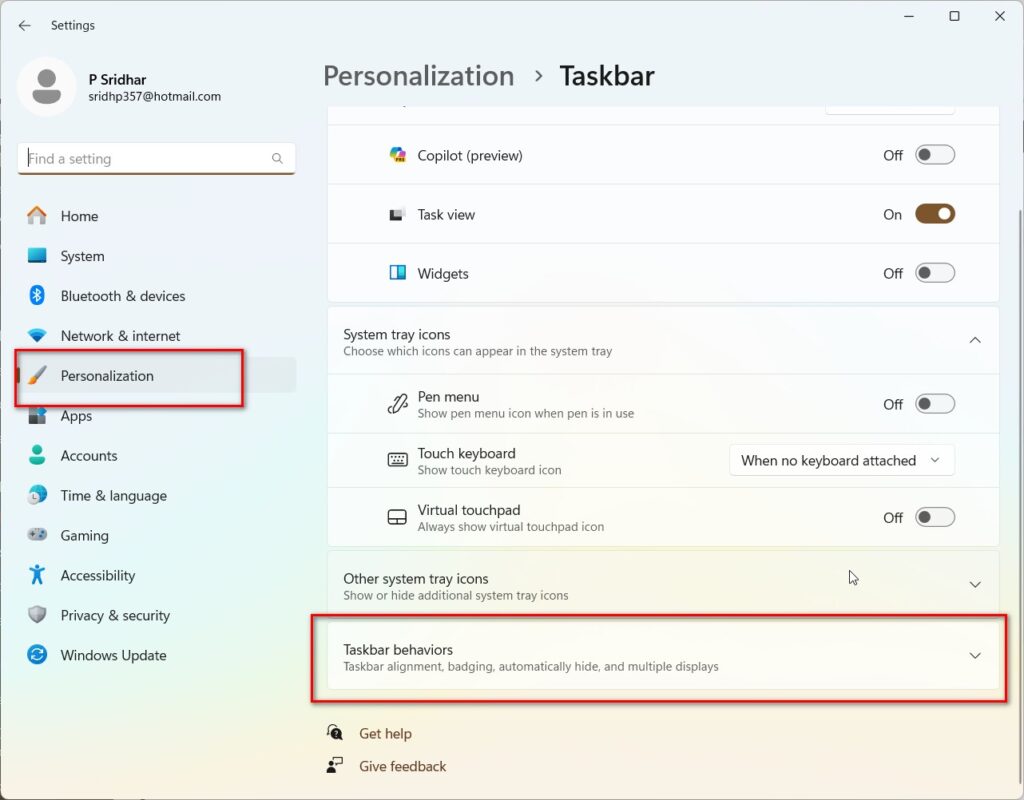
              Once you have the Windows Settings app open, look for the “Personalization” section in the left-hand menu. Click on it to access the Taskbar settings for your Windows 11 Home computer.

              Step 3: Navigate to Personalization > Taskbar

              Within this section, scroll down until you find the “Copilot” option under Taskbar items. This is where you can manage the settings related to the Copilot assistant on your Windows 11 Home edition.

              Step 4: Toggle Off the “Copilot in Windows (preview)” Switch

              To disable Copilot, simply click on the toggle switch next to “Enable Copilot.” By turning this switch off, you’ll effectively disable the Copilot assistant on your Windows 11 Home computer.

              Step 5: Restart Your Computer

              After you’ve toggled off the “Enable Copilot” switch, it’s important to restart your computer for the changes to take effect. Once your computer has restarted, Copilot will be disabled, and you’ll no longer see the AI-powered assistant on your Windows 11 Home edition.

              Conclusion

              Disabling Copilot on Windows 11 is a straightforward process that can be achieved through various methods. Whether you prefer using the Windows Settings app, Group Policy Editor, or Registry Editor, following these 5 steps will allow you to successfully disable Copilot. Choose the method that best suits your needs and enjoy a Copilot-free Windows 11 experience.

            6. 0x80070643 Windows 10 Update Error – Effective Remedy

              The error code 0x80070643 is a common issue encountered by Windows 10 users when attempting to install updates through the Windows Update feature. In 2024, the root cause is the KB5034441 update. It requires the Windows Recovery environment (WRE) to have 250MB of free disk space. This is to install the security updates.

              If sufficient space does not exist, then this update will fail. Typically, you will receive an error like 0x80070643 – ERROR_INSTALL_FAILURE. You need to resize the partition and install the WinRE update. You can also use a sample bat file to increase the size of the partition. Then your Windows 10 updates will install.

              You can also try other methods for troubleshooting the 0x80070643 error. These may help in certain cases.

              0x80070643 fix windows re environment

              This error typically occurs during the update process and prevents the successful installation of one or more updates. The 0x80070643 error can be caused by various factors, such as corrupted update files, conflicting third-party software, incorrect system settings, or issues with the Windows Update components.

              When this error appears, users may experience difficulties in keeping their Windows 10 system up to date with the latest security patches, bug fixes, and feature improvements. Resolving the 0x80070643 error is crucial to ensure the smooth operation and security of the Windows 11 operating system.

              How to Increase Windows Recovery Partition Size in 10?

              It is easy to do this if you have one OS and one drive. You need to execute certain commands in command prompt to change the size of recovery environment in Windows 10.

              By default, there will be OS partition, boot partition, recovery partition and if done, some data partition also.

              The error is caused when the Win RE partition size is of default value – 500 MB.

              To remove the error code, 0x80070643, you need to make the partition size of at least 750 MB.

              Guide to Manually Resize the Recovery Partition in Windows 10

              If you encounter the error message “Windows Recovery Environment servicing failed” when trying to update the Windows Recovery Environment (WinRE) through Windows Update or Windows Server Update Services (WSUS), it may be due to insufficient space in your recovery partition. This guide will walk you through the steps to manually resize your recovery partition to resolve this issue.

              Prerequisites:

              • Ensure that your device has the recovery partition located after the OS partition.
              • You will need administrator access to run the required commands.

              Step 1: Check the WinRE status

              1. Open a Command Prompt window (cmd) as an administrator.
              2. Run the command reagentc /info to check the WinRE status.
              3. If WinRE is installed, you should see a “Windows RE location” with a path to the WinRE directory, such as \\?\GLOBALROOT\device\harddisk0\partition4\Recovery\WindowsRE.
              4. Note down the disk and partition index where WinRE is located (e.g., harddisk0 and partition4).
              windows 10 recovery partition status

              Step 2: Disable WinRE

              1. In the Command Prompt window, run the command reagentc /disable to disable WinRE.

              Step 3: Shrink the OS partition and prepare the disk for a new recovery partition

              1. Run the command diskpart to enter the diskpart utility.
              2. Run list disk to display the list of disks.
              3. Select the OS disk by running sel disk<OS disk index>, using the same disk index as WinRE.
              4. Run list part to check the partitions under the selected OS disk and find the OS partition.
              5. Select the OS partition by running sel part<OS partition index>.
              6. Run shrink desired=250 minimum=250 to shrink the OS partition by 250 MB.
              7. Select the WinRE partition by running sel part<WinRE partition index>.
              8. Run delete partition override to delete the existing WinRE partition.
              recovery partition commands win 10

              Step 4: Create a new recovery partition

              1. Check the disk partition style by running list disk. If there is an asterisk (*) in the “Gpt” column, the drive is GPT. Otherwise, it is MBR.
              2. For GPT disks, run create partition primary id=de94bba4-06d1-4d40-a16a-bfd50179d6ac followed by gpt attributes =0x8000000000000001.
              3. For MBR disks, run create partition primary id=27.
              4. Format the new partition by running format quick fs=ntfs label="Windows RE tools".
              5. For MBR disks, run set id=27.
              6. Run list vol to confirm that the WinRE partition has been created.
              7. Run exit to exit the diskpart utility.

              Step 5: Re-enable WinRE

              1. Run the command reagentc /enable to re-enable WinRE.
              2. Run reagentc /info to confirm where WinRE is now installed.

              Note: If the creation of the new recovery partition fails or you do not want to extend the WinRE partition, run reagentc /enable to re-enable WinRE with the existing configuration.

              By following these steps, you should be able to manually resize your recovery partition and resolve the “Windows Recovery Environment servicing failed” error. This will allow the WinRE update to be successfully installed through Windows Update or WSUS. Remember to exercise caution when modifying partitions and always backup your important data before proceeding with such changes.

              Run Windows Update Troubleshooter

              • Open the Settings app by pressing Windows key + I.
              • Navigate to System > Troubleshoot > Other troubleshooters.
              • Locate the “Windows Update” troubleshooter and click on the “Run” button next to it.
              • Follow the on-screen instructions to complete the troubleshooting process. The Windows Update Troubleshooter is a built-in tool that can automatically detect and fix issues related to Windows Update. It checks for common problems that may prevent updates from installing successfully, such as corrupted update files, incorrect settings, or service-related issues. By running this troubleshooter, you allow Windows to identify and resolve any underlying problems that may be causing the 0x80070643 error.

              Reset Windows Update Components

              • Press Windows key + R to open the Run dialog box.
              • Type “cmd” and press Ctrl + Shift + Enter to open Command Prompt with administrator privileges.
              • Run the following commands one by one, pressing Enter after each command:

              net stop wuauserv

              net stop cryptSvc

              net stop bits

              net stop msiserver

              ren C:\Windows\SoftwareDistribution SoftwareDistribution.old

              ren C:\Windows\System32\catroot2 catroot2.old

              net start wuauserv

              net start cryptSvc

              net start bits

              net start msiserver

              Source: AI Tools.

              Conclusion

              The “Reset PC” option allows you to reinstall Windows while keeping your personal files (if chosen) or removing everything and starting fresh. This process can help resolve more complex issues, including the 0x80070643 error, by restoring the operating system to its default state. However, keep in mind that resetting your PC will remove all installed programs and settings, so make sure to back up your important data before proceeding.

              Remember to always create a system restore point or backup your data before attempting any troubleshooting steps to ensure the safety of your files and system.

            7. How to Display Taskbar on Multiple Displays Windows 10

              In the realm of digital workspaces, a dual monitor setup under Windows 10 can dramatically improve your productivity. This system offers enhanced capabilities for managing multiple applications and windows.

              A common feature users often seek is the ability to show the taskbar on all displays, which facilitates easier navigation and access across multiple monitors. This guide will walk you through the simple steps to enable this feature and make your workspace more efficient and user-friendly.

              How to Show Taskbar on All Displays in Windows 10

              A key feature that enhances this setup is the ability to show the taskbar on all displays, which streamlines navigation and access to necessary tools and programs across multiple screens. This guide provides a straightforward approach to enabling this feature, ensuring a more connected and efficient multi-monitor environment.

              Step 1: Access Taskbar Settings

              Right-click on an empty area of the taskbar on your primary monitor. From the context menu that appears, select “Settings” to open the taskbar settings menu.

              Step 2: Open Taskbar Settings

              Once you are in the settings menu, scroll down to find the “Taskbar” section which contains various customization options for your taskbar.

              Step 3: Locate the Multiple Displays Section

              Within the Taskbar settings, scroll further down to reach the “Multiple displays” section. This section is specifically dedicated to settings that affect how your taskbar behaves across multiple monitors.

              Step 4: Enable Taskbar on All Displays

              In the “Multiple displays” section, you’ll find an option labeled “Show taskbar on all displays.” Toggle this switch to “On” to enable the taskbar to appear on each of your connected displays.

              Step 5: Customize Taskbar Buttons

              Directly beneath the toggle switch, you will see an additional setting “Show taskbar buttons on.” Here, you can choose how the taskbar buttons are displayed: on all taskbars, main taskbar and taskbar where window is open, or taskbar where window is open. Choose the option that best fits your workflow.

              By following these steps, you will have successfully configured your Windows 10 system to show the taskbar on all displays. This setup ensures that you have easy access to all your applications and tools across your multiple monitors, enhancing your productivity and multitasking capabilities.

            8. How to Set the best Windows 11 Advanced Power Settings

              The Power Options menu in Windows 11 allows you to manage power plans and set basic options like sleep and display timeouts.

              However, for more granular control over specific hardware components, you need to access the Advanced Power Settings.

              Windows 11 allows users to customize power settings to control how devices use power in different scenarios.

              While basic options like sleep timeouts and screen brightness can be configured directly in the Power Options control panel, Windows also provides more advanced power settings for fine-tuning specific hardware components.

              These advanced options give users granular control over power consumption and performance. By tweaking these hidden settings, you can optimize your Windows 11 device’s battery life, heat levels, and speed to suit your exact needs.

              Key Notes

              The advanced power options cover various categories like processor throttling and boost states, hard drive sleep and spin down behaviors, PCI Express link power states, USB selective suspend policies, and graphics card performance and frame buffer compression.

              Savvy users can dig into these categories and alter power-saving features, performance tradeoffs, and timeouts to achieve the right balance for their workflow. Many more obscure power settings can also be unlocked and exposed through a simple registry tweak.

              Testing and iterative tuning while checking metrics like battery runtime and thermals is key to finding your PC’s optimal power configuration.

              Custom power plans can be created to save groups of advanced settings for easy switching between modes.

              With some learning and experimentation, the advanced options offer a powerful way of maximizing your Windows 11 computer’s capabilities and battery efficiency.

              This guide will cover accessing, understanding, modifying, and applying Windows 11’s advanced power settings with step-by-step instructions to help you customize performance, fan usage, and battery lifespan.

              Accessing Advanced Power Settings

              Here are the steps to get to the advanced options:

              edit power plan windows 11
              1. Open the Start menu and search for “Edit Power Plan
              2. Click on the top result to open the Power Options control panel
              3. On the right side, click “Change advanced power settings
              advaned power settings windows 11

              This will open up the Advanced settings window with a long list of expandable categories.

              Key Categories

              Some important categories to understand:

              • Processor power management: Control CPU throttling, performance boosting, and power saving features.
              • Hard disk: Configure spin down timeouts and sleep states for HDDs.
              • USB settings: Manage selective suspend and autonomous suspend for USB devices.
              • PCI Express: Change link state power management policy for PCIe devices.
              • Graphics settings: Configure frame buffer compression, GPU performance states, and more.

              Expand each category to see the available advanced options.

              Modifying Settings

              To change a setting, expand its parent category and click the plus (+) icon to expand the option:

              1. Locate the setting you want to configure
              2. Click directly on its row to expose a dropdown menu
              3. Select your desired value from the available choices

              For example, to enable PCI Express power savings:

              1. Expand “PCI Express”
              2. Locate and expand “Link State Power Management”
              3. Click on the setting and choose “Moderate power savings” or “Maximum power savings” from the menu

              Some settings have a text field instead of a dropdown menu. Enter your desired value manually, like changing GPU frame buffer compression from 0% to 30%.

              Link State Power Management is an advanced power setting that allows PCI Express devices like graphics cards, Wi-Fi cards, SSDs, etc. to enter very low power states when not in use. This saves electricity and reduces heat generation.

              Essentially, it allows these components to temporarily power down or “sleep” when idle. They then automatically switch back to an active, working power state when needed.

              Enabling Link State Management lets PCIe devices conserve more power but at the cost of slightly higher latency when waking back up from the low power state.

              So in summary, Link State Power Management gives users control over whether or not PCI Express devices in their system can dynamically power down to save energy when inactive or idle. It’s one of the many advanced configuration options helping optimize between power efficiency and active performance.

              Key Settings to Adjust

              Here are some important advanced power settings you may want to customize:

              • Processor > Maximum processor state: Limit CPU speed to save power on laptops
              • Display > Turn off after: Higher value to delay display shutdown
              • Sleep > Hibernate after: Lower time to hibernate instead of sleep
              • Hard disk > Turn off hard disk after: Faster spindown for power savings
              • PCI Express > Link State Power Management: Enable power savings for devices
              • Graphics settings > Frame buffer compression: Boost battery life with compression

              Finding More Options

              Many advanced settings are hidden by default. To unhide them:

              1. From the Power Options control panel, click “Choose what the power buttons do
              2. Click “Change settings that are currently unavailable
              3. New settings will now appear in the advanced menu!

              Now you can access the full range of advanced configuration options.

              Testing and Tuning

              Make small changes at a time and test their impact:

              • Check if performance is still satisfactory
              • Log battery runtimes to gauge power efficiency
              • Monitor heat output to prevent thermal throttling

              Reverse any settings that cause instability, overheating, or drastic battery drain. With trial and error, you’ll settle on the optimal combination of power and performance.

              Final Tips

              • Create custom power plans to save groups of settings
              • Toggle Rapid Start or USB selective suspend for fast wakeups
              • Revert problematic changes by loading the default balanced plan

              You now have in-depth knowledge to unleash the full potential of Windows 11’s advanced power settings and customize them for your usage needs!