Windows 11 introduced a new Power Mode feature that allows you to choose between best battery life, best performance, and balanced power usage. However, some users have reported getting the error “Power Mode cannot be set” when trying to change this setting.
Some of the basic repairs you can do as a user, is to follow the in-built tools. Unreliable commands can change the default settings. If you had registry settings or group-policy editor ill configured, then there could be problems.
Make sure the system is like brand new as it is when you received from OEM. Then try to set the desired power mode to your liking.
First, run the built-in Power Troubleshooter in Settings, which can diagnose issues with power plans and suggest fixes.
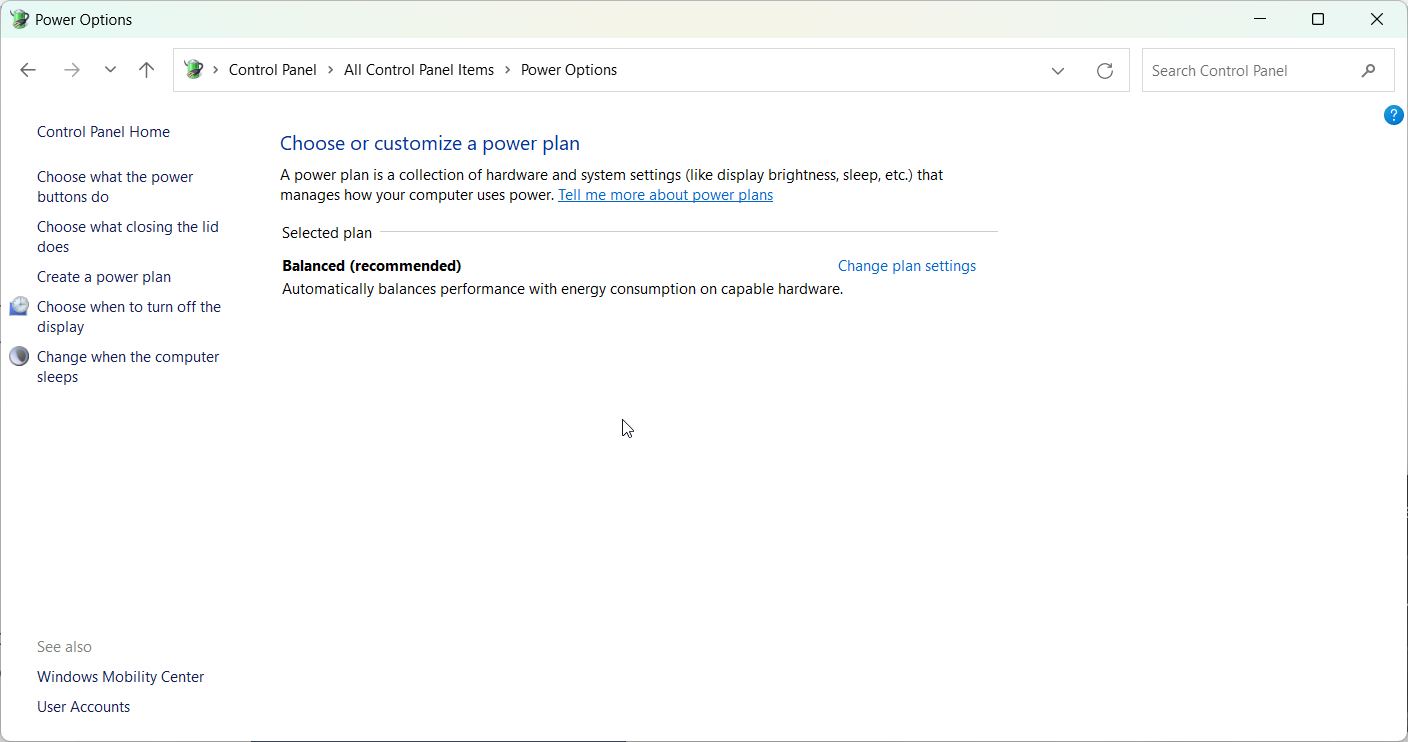
Second, change the active power plan away from a custom or high performance plan in Control Panel. The balanced plan or a custom plan based on it allows switching Power Modes. Alternatively, use Group Policy Editor to set the active power plan.
Third, reset all power plans to default in Command Prompt to eliminate any customizations causing problems. This deletes all custom power plans.
Fourth, run the System File Checker tool to scan for and restore corrupted system files that may block power settings.
Fifth, check for any OEM software managing power settings and override Windows’, like Dell or HP software. Update graphics drivers subsequently.
Sixth, create and restore from a system restore point if the issue began recently, reverting system state from before the problems occurred.
Seventh, disable the BrightnessReset task in Task Scheduler if applicable, as it can interfere with power modes.
The article outlines several troubleshooting steps in detail to try when unable to change the Power Mode in Windows 11/10.
Solution 1: Check Your Hardware Compatibility
Some older devices may not fully support the Power Mode feature in Windows 11. Check if your device meets the Windows 11 minimum hardware requirements, especially the processor generation. Updating drivers may also help resolve compatibility issues.
As per this Microsoft forum post, Power Mode requires at least an 8th generation Intel core processor or AMD Zen 2 processor. If your CPU is older, you will get the “cannot set Power Mode” error. Consider upgrading your hardware if possible.
Solution 2: Check Power Plan Settings
The error can occur if you have disabled certain power plan settings that the Power Mode relies on. Go to Control Panel > Hardware and Sound > Power Options > Edit Plan Settings. Ensure the following options are enabled:
Turn off display after
Put the computer to sleep
Advanced power settings > Processor power management > System cooling policy
As noted in Microsoft’s documentation, having these settings disabled can block you from setting Power Mode. Re-enable them and try changing the mode again.
Solution 3: Update or Reinstall Drivers to Fix Power Mode cannot be Set Windows 11
Outdated or corrupted drivers related to power management could cause issues with Power Mode. Follow these troubleshooting steps:
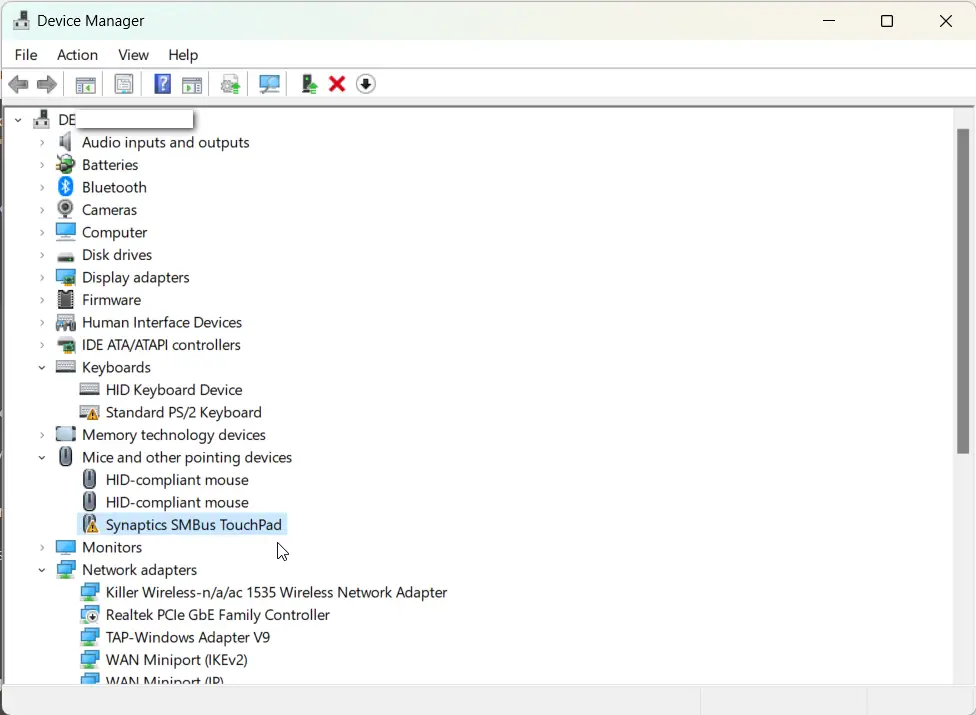
Open Device Manager and check for devices with warning signs.
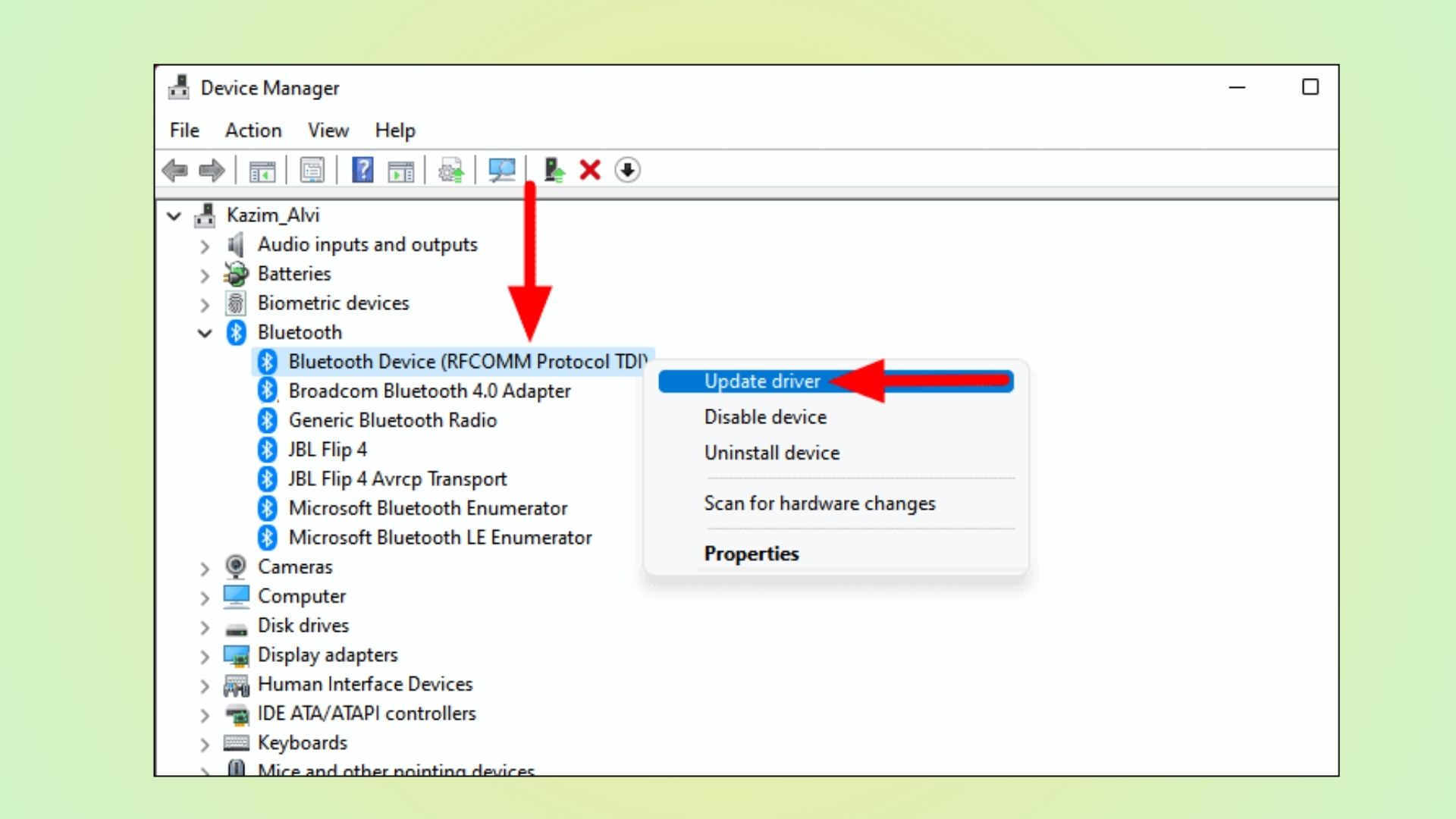
Right click them and select Update Driver.
If updating does not work, uninstall the device/driver and restart your PC to reinstall fresh copies.
Focus on updating processor, chipset, and other platform-related drivers first. See this Microsoft Answers post for more details on this solution.
Solution 4: Turn Off Fast Startup
Having Fast Startup enabled can sometimes cause problems with Power Mode settings. According to Microsoft, disabling Fast Startup fixes issues related to power settings not applying correctly.
To turn off Fast Startup:
Go to Control Panel > Hardware and Sound > Power Options
Click “Choose what the power buttons do”
Click “Change settings that are currently unavailable”
Uncheck “Turn on fast startup”
Now restart your PC and try to set Power Mode again in Settings.
Solution 5: Perform Recovery Options
If all else fails, rely on Windows recovery tools as a last resort option:
Run SFC and DISM scans to check for corruption
Reset Power Plan defaults
Uninstall latest Windows Updates
Refresh/reset Windows 11 system files
See this forum thread for using these recovery steps to fix Power Mode issues.
Conclusion
Finally, other questions are addressed – the high performance and ultimate power plans lock in max performance mode, while custom plans also commonly disable mode switching. Power troubleshooter, balanced plan, and SFC can help fix issues.
In summary, changing power plans, resetting to defaults, updating drivers/files, disabling conflicting apps, or booting into a previous restore point should resolve the inability to set Power Mode in Windows 11/10.
Hopefully one of these 5 solutions can help you get Power Mode working again! Let me know if the “Power Mode cannot be set” error persists even after trying the above fixes.
Looking for laptop selection tips on what to keep in mind when buying a new laptop? With so many options and technologies to consider, selecting the perfect laptop that meets your needs can be challenging.
This article provides laptop buying considerations, laptop purchase guidelines, as well as a technical laptop specification guide to help you make the best choice.
Firstly, consider what you primarily intend to use the laptop for: tasks like web browsing, office work, gaming, graphic design, video editing or programming.
Your main usage scenario should dictate priorities regarding laptop criteria like CPU power, RAM, GPU, storage space or display resolution.
Next, here are key factors to evaluate when picking out ideal laptop qualities:
CPU (Central Processing Unit)
The CPU handles the actual computing, calculations and processing of tasks. Core aspects are:
Brand: Popular options – Intel Core i3, i5, i7, i9 or AMD Ryzen 3, 5, 7, 9. Higher series number indicates better performance.
Speed (GHz): Faster clock speed → better multitasking and computing power. Avoid less than 1.5 GHz for optimum performance.
Cores/Threads: More cores/threads allows parallel processing, especially useful for intensive tasks like video editing, graphics work, programming etc.
Good CPU examples – Intel Core i7-8565U (Quad core, 1.80 GHz, for ultrabooks and general use) or AMD Ryzen 9 5900HS (Octa core, 3.0 GHz, for gaming laptops and workstations).
RAM (Memory)
RAM enables quicker access to open apps and files. Things to note:
Type – DDR4 is the latest standard. Speed of at least 2666 MHz is suggested.
Size: 8 GB RAM is minimum. Go for 16GB+ RAM for gaming or media editing needs.
Some laptops allow further RAM upgrades/customization. Overall, more RAM improves performance when multitasking.
Storage
Essential for installing the operating system, applications, files. Key factors:
HDD (Hard Disk Drive) – Cheaper, more storage (up to 2 TB). Useful for secondary storage needs.
SSD (Solid State Drive) – Expensive, less storage, but MUCH faster read/write speeds and better performance especially for bootup/loading apps/games. Popular only storage option for most laptops now.
Combination – Some laptops provide both 128/256/512 SSD for boot + high speeds + 1 TB HDD for more storage. Great for performance as well as large storage needs.
GPU (Graphics Processing Unit)
Dedicated GPUs are designed for gaming, video editing and graphical applications. Aspects to consider:
Type – Options like NVIDIA GeForce or AMD Radeon. NVIDIA RTX 3000 series and AMD RX 6000 series are latest integrated GPUs offering advanced capabilities.
RAM – More VRAM (video RAM) enables handling better graphics and higher resolutions. Minimum 4 GB GPU RAM recommended.
Gaming/media creative laptops should have powerful GPU options like NVIDIA RTX 3050ti, 3060 or AMD Radeon RX 6600M or better.
Display Panel
As you stare at it continually, the display panel is an integral element influencing overall laptop usability. Components to evaluate in display performance:
Resolution – The sharpness of the visuals. 1080p Full HD (1920 x 1080 pixels) is standard. 1440p (2560 x 1440p) or 4K (3840 x 2160) offered on higher-end laptop displays. Gamers may prefer 1080p with a high refresh rate (144Hz) panel.
Size – Typical options range from 11 to 17 inches. Choose based on your portability needs versus immersive experience.
Panel Technology – Progressing from standard to best viewing experience –> TN/IPS/OLED/Mini-LED panels.
Connectivity Ports
Physical ports are required to connect external devices like mouse, storage drives etc. Do choose a laptop with:
Multiple USB Type A and/or Type C ports
HDMI for secondary displays
Headphone jack (3.5mm)
Inbuilt or external webcam, mic
Card reader for camera memory cards (for media editing)
Having more available ports or ability to extend ports through a dock provides superior long term connectivity and convincing perfect laptop attributes.
Wireless Connectivity
A key ideal laptop quality is excellent wireless connectivity enabling mobility/portability:
WiFi – Support for latest 802.11ax WiFi 6/6E standards offer fastest wireless internet speeds and low latency connectivity with compatible routers. Great for office work, streaming or gaming needs.
Bluetooth – Bluetooth v5.1 or above provides fast connectivity and minimal lag with paired wireless headphones, mice or other compatible accessories and IoT devices.
SIM Slots – Integrated 4G or even 5G SIM card slots for internet connectivity is now available on certain premium laptop models. Super useful when travelling without accessible WiFi networks.
Choosing the right specifications based on intended usage along with nice-to-have laptop features like long battery life, large precision trackpad, comfortable backlit keyboard etc sets you on the path to selecting the ideal laptop as your daily driver device for work and play!
Some examples of well-rounded laptops with excellent combo of above traits are:
Popular laptop models with key specifications:
General/Everyday Use Laptop
Dell XPS 13 (9310)
CPU: 11th Gen Intel Core i7-1185G7
RAM: 16GB LPDDR4X
Storage: 512GB M.2 PCIe NVMe SSD
Graphics: Intel Iris Xe
Display: 13.4″ FHD+ (1920 x 1200) InfinityEdge Touch
Ports: 2x Thunderbolt 4, MicroSD card reader, Headphone jack
I hope these laptop purchase guidelines help you zero in on your target laptop with necessary performance criteria whilst also keeping budget constraints in mind during your buying decision process.
Let me know if you have any other specific queries regarding the ideal specs for choosing the perfect laptop to suit your needs!
Wondering what RAM of laptop is or how to check the RAM configuration? RAM (Random Access Memory) is an important component that impacts your laptop’s performance.
Having sufficient RAM allows your laptop to run multiple programs efficiently by providing quick access to data. In this blog post, we will discuss the different types of laptop RAM, how to check your laptop’s RAM, and provide an overview of the latest RAM options for laptops in 2023.
How to Know Amount of RAM in Laptop
The first step to understanding your laptop’s RAM configuration is to check the DDR or Double Data Rate type. DDR refers to how many times per second the RAM can read and write data. Common DDR types found in laptops include:
DDR3 – An older type of RAM that allows up to 8 data transfers per second. DDR3 RAM has been used in laptops since 2007.
DDR4 – The most widely used type currently, allowing up to 16 data transfers per second. Improves performance over DDR3.
DDR5 – The newest RAM specification released in 2020, allowing up to 32 data transfers per second. DDR5 is the fastest type but is only found in newer high-end laptops.
To check if your Windows laptop has DDR3, DDR4 or DDR5 RAM:
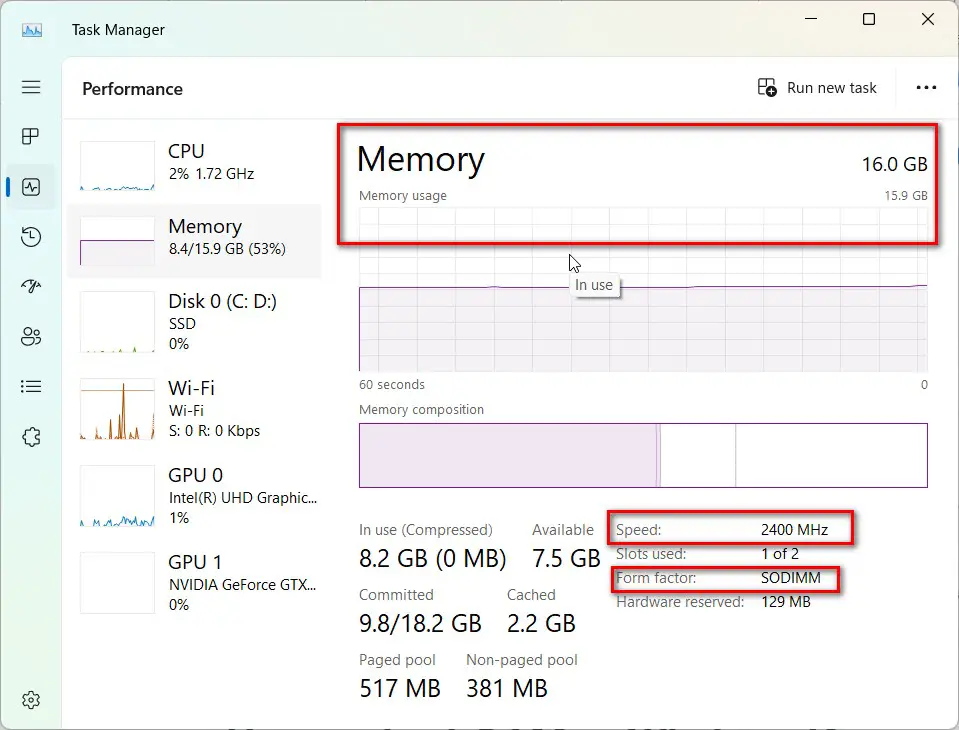
Go to the Start menu and search for “Task Manager”
Click on the Performance tab
Check the section labeled “Memory” – it will show the DDR type next to the word “Speed”
Knowing the DDR type will give you an idea of your laptop’s RAM speed and performance capabilities.
How Many Types of RAM in Laptop
Laptop RAM comes in different physical types or form factors. The common RAM types are:
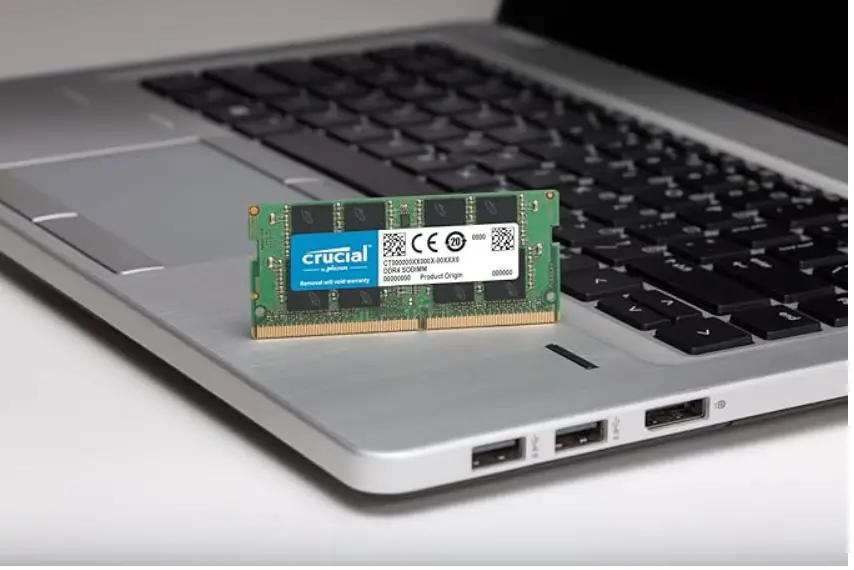
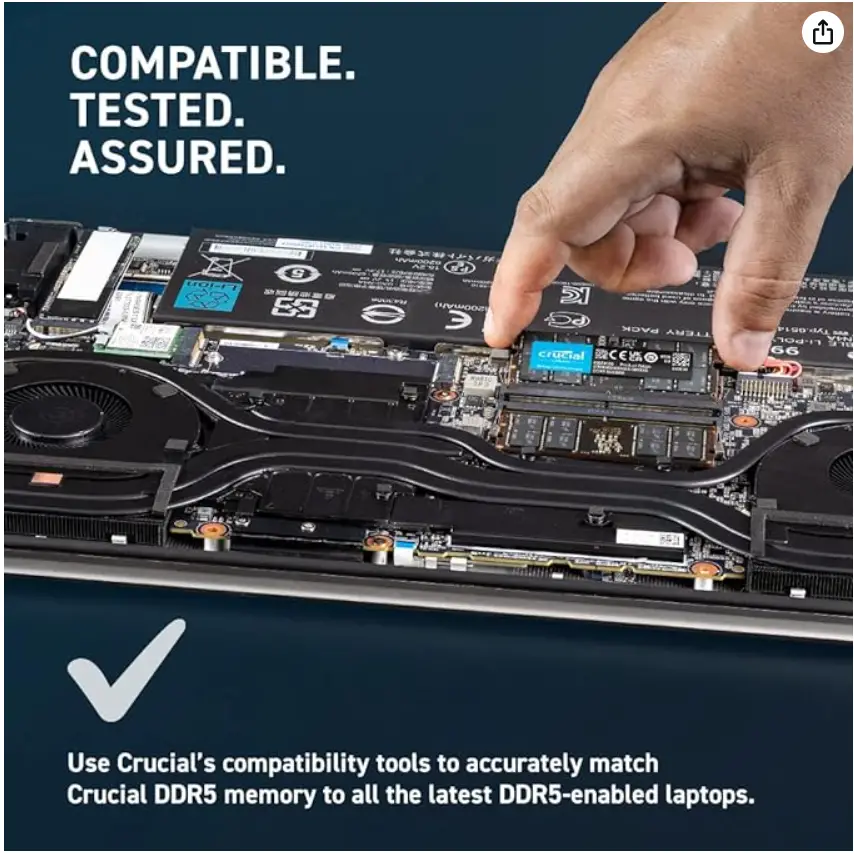
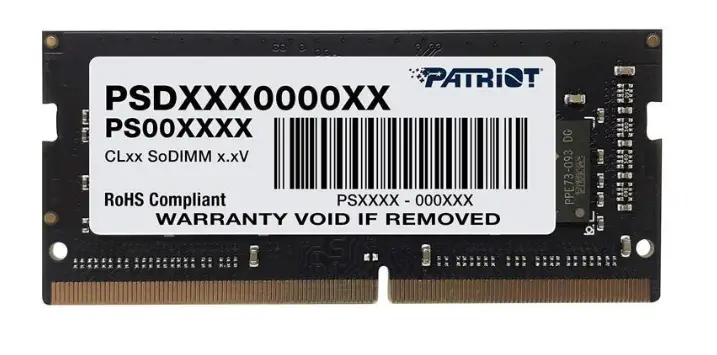
SO-DIMMs – The smaller, denser RAM sticks made specifically for laptops and small devices. SO-DIMM stands for Small Outline Dual In-line Memory Module.
SODIMMs DDR4 – The latest SO-DIMM type that supports DDR4 RAM for faster data transfer speeds. This is the most widely used laptop RAM today.
SODIMMs DDR5 – An emerging SO-DIMM format for DDR5 RAM. Provides ultra-fast data transfer but is currently only found in high-end laptops.
Laptops require the use of specialized SO-DIMM RAM sticks to fit into the smaller slots. Knowing if you need DDR4 or DDR5 SO-DIMMs is important for upgrading or replacing your laptop RAM.
How to Check RAM Type on a Laptop using CPU-Z
CPU-Z is a free system information tool that provides detailed specs of your computer hardware including RAM details.
Install and Open CPU-Z
Go to https://www.cpuid.com/softwares/cpu-z.php and download the latest version of CPU-Z.
Double click on the .exe file and install CPU-Z on your Windows laptop.
Open the CPU-Z app after installation.
Check RAM Details
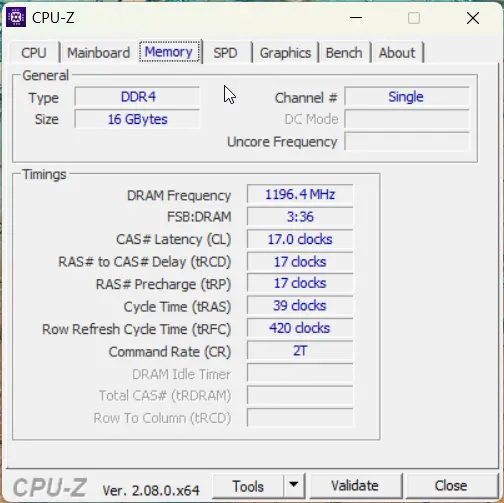
In the CPU-Z window, go to the “Memory” tab.
Under the section SPD, you can view manufacturer, type, frequency and timings details of RAM stick 1 and stick 2.
The type will clearly show whether your laptop’s RAM is DDR4 or DDR5.
You can also see further technical specifications of your RAM configuration in CPU-Z like voltage, data width etc.
That’s it! With CPU-Z you can easily find out if your laptop is running DDR4 or latest gen DDR5 memory in a few simple clicks. CPU-Z offers much more detailed RAM information compared to Task Manager.
Which Type of RAM is Used Exclusively in Laptops
As mentioned above, the SO-DIMM form factor RAM is made exclusively for use in laptops and small devices. SO-DIMM sticks are about half the size of desktop RAM sticks.
The main benefits of SO-DIMMs are:
Small size – Allows more RAM capacity in the limited space of laptop motherboards.
Low power draw – SO-DIMM RAM uses less voltage to stay within laptop power budgets.
Efficient design – Provides notches, connectors, and pins specifically engineered for mobile devices.
For these reasons, laptops will always use SO-DIMMs over the larger DIMMs found in desktop PCs. Both DDR4 and DDR5 RAM types come in SO-DIMM variants to meet exclusive laptop compatibility.
Latest RAM of Laptop of 2023
DDR5 RAM is the latest RAM specification that is gaining adoption in new laptop models for 2023. Key features of DDR5 laptop RAM include:
Faster clock speeds – Starts at 4800MHz speed, almost double that of DDR4 which maxes out around 3200MHz. Enables better laptop performance.
Higher capacities – DDR5 goes up to 64GB per RAM stick allowing more memory in laptops.
Lower voltage – Operates at just 1.1v vs 1.2v for DDR4. Results in battery life savings.
On-board error correction – DDR5 chips have additional memory circuits to monitor and fix data errors. Improves stability.
Top laptop brands like Dell, HP and Lenovo are releasing premium consumer and business laptops with DDR5 RAM options. As manufacturing scales up, DDR5 will be more affordable and become the mainstream choice moving forward.
Types of RAM in 2023 for Laptop
To summarize, here are the types of laptop RAM that will be widely used going into 2023:
DDR4 SO-DIMMs – The current standard for laptop memory. DDR4 SO-DIMMs provide a cost-effective performance boost over older DDR3 RAM. They are available in frequencies up to 3200MHz and capacities up to 64GB per stick.
DDR5 SO-DIMMs – The latest generation packed with new features. DDR5 SO-DIMM capacities go up to 64GB at speeds starting from 4800MHz. Ideal for professional creators and gamers.
LPDDR4X – A variant of DDR4 used in ultra-thin and light laptops focused on portability. LPDDR4X has reduced power demands, allowing smaller batteries to power sleek designs. Available up to 64GB also.
LPDDR5 – Next-gen low power RAM for thin and light systems. Launching in 2023 laptop models with properties of both DDR5 and LPDDR4X. Enables faster yet efficient performance.
DDR4 currently offers the best balance of price and performance for most laptop users shopping in 2023. However DDR5 SO-DIMMs are the new premium option available for those wanting cutting-edge speeds. Consider your usage needs and laptop model compatibility when deciding on your next RAM upgrade!
Getting through school nowadays requires a trusty laptop by your side. Whether you’re working on papers, creating presentations, collaborating with classmates, joining online lectures, or just taking notes, having the right laptop makes all the difference.
The best laptops for students offer a balance of portability, power, battery life and features – while also fitting within a student budget.
As we head into 2024, here is an in-depth look at the best laptop options for high school, college and university students:
Best Laptop for High School Students
High school places demands on students unlike earlier grades. You juggle advanced coursework, extracurriculars, college prep and a social life. Having a reliable laptop helps you power through busy school days and nights without disruption.
When searching for the best laptop for high school students, keep these factors in mind:
Weight – Since high school students haul their laptops around all day from class to class, cafeteria, library and home, an ultraportable is ideal. Look for less than 4 pounds.
Battery life – A battery that lasts 6+ hours allows you to make it through a full day of classes without having to scramble for an outlet between periods.
Responsiveness – Quick boot up and load times help you start working without delay whenever inspiration strikes. Prioritize laptops with SSD drives and solid state memory.
Durability – Accidents happen when you’re rushing between activities. Find a laptop made of strong materials that can handle some bumps and drops along the way.
Good keyboard – You likely have lots of papers and online assignments to type up. Make sure the keyboard offers a comfortable, responsive typing experience.
Taking these factors into account, here are two fantastic options that earn top marks as the best high school laptop for students in 2024:
Apple MacBook Air (M2 Chip, 2022)
The recently updated MacBook Air with Apple’s blazing fast new M2 chip sits at the top of the class for a high school laptop this year.
Weighing just 2.7 pounds with an ultra-slim design, the MacBook Air won’t weigh down your backpack as you move between your locker, classrooms and extracurriculars. It also promises all-day battery life up to 18 hours, so you can keep your work and entertainment going even during the busiest days.
The new M2 chip makes the MacBook Air faster than ever. It boots up and jumps between tasks incredibly quickly thanks to the 8-core CPU. The 8-core GPU also brings a boost to graphics performance. This responsiveness will come in handy whether you’re researching a term paper, streaming videos for a presentation or messaging classmates about an upcoming group project.
While matching the portability of previous models, the 2022 MacBook Air steps up durability by adding the updated MagSafe magnetic power adapter. This magnetic attachment protects your laptop if someone trips over the charging cable. Apple also made the display 20% larger while keeping a very portable form factor.
With the excellent MacOS operating system and access to all the Apple apps, the 2022 MacBook Air brings simplicity plus seamless iPhone and iPad integration. Add in the best-in-class trackpad and keyboard for breezing through assignments, and the MacBook Air is a standout choice for ambitious high school students.
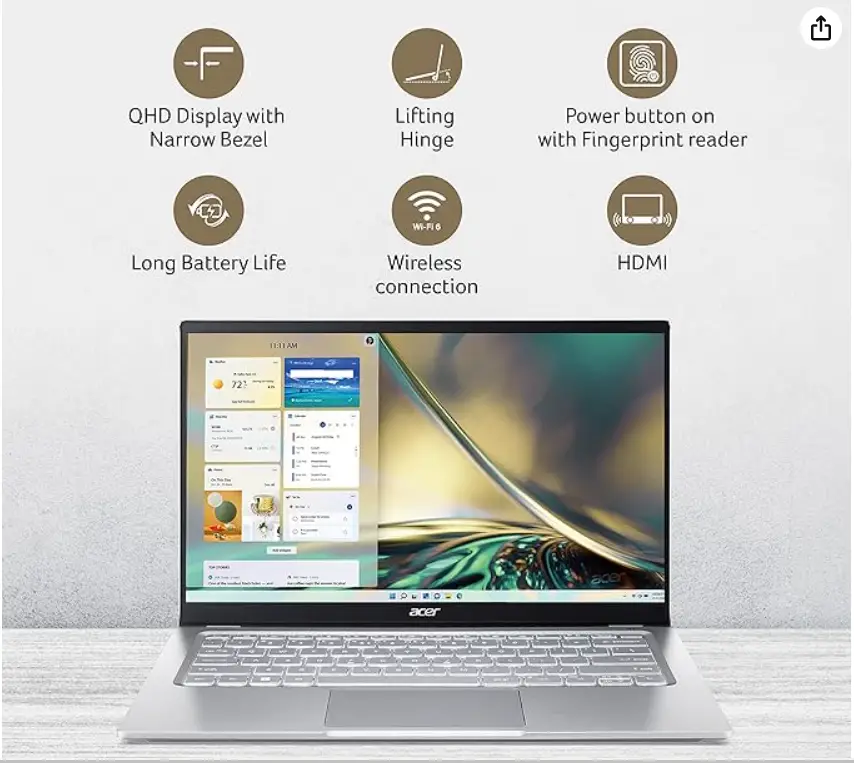
Acer Swift 3 Thin & Light Laptop
If you want a Windows laptop alternative that’s suited for high school without the premium Apple price tag, look no further than the Acer Swift 3. This lightweight clamshell laptop weighs just 2.65 pounds for easy portability around campus.
Acer packs long battery life into the Swift 3 that lasts up to 17 hours per charge. It also features fast Wi-Fi 6 connectivity and multiple ports like USB-C, USB 3.2 Gen 1 and HDMI that keep you connected.
Every high school student needs responsiveness when working on multiple assignments and shifting between homework, hobbies and socializing. The Swift 3 delivers with the latest 12th Generation Intel Core i7 processor and Intel Iris Xe graphics. Quick start-up, fast load times, smooth interface animation and great multitasking capabilities make this Acer Swift 3 perfect for high schoolers always on the go.
Think you might accidentally drop your laptop amidst the high school hustle? No worries with the durable aluminum chassis on this laptop that withstands bumps, scrapes and drops. Acer also constructed a reliable keyboard that allows for comfortable typing to finish all your papers and online assignments.
Overall, the Acer Swift 3 checks all the boxes of an ideal laptop for high school that’s portable, fast, long-lasting and able to keep up with busy student life.
Best Budget Laptop for Casual Students
College students have enough financial burdens to deal with just paying for tuition, housing, books and other expenses. Finding an affordable yet capable laptop helps ease the monetary strain. When you’re shopping for the best budget laptop for college students or those headed to university, prioritize the following:
Processing power – College coursework and multimedia projects require substantial processing capabilities for optimal performance
Storage – A 128-256GB SSD allows you to store all required apps, notes, assignments and other documents
RAM – Look for 8GB RAM at a minimum to efficiently multitask programs and browser tabs
Display – Pick a screen 11″ up to 15″ that clearly displays text, images and videos without eyestrain
Battery life – 5+ hours of use lets you complete assignments around campus away from the charger
Weight – Under 3 pounds if carrying the laptop to/from classes over substantial distances
While you’ll still get premium features with budget options, you’ll likely have to accept some plastic casing instead of metal. But the performance can still compete with far more expensive devices.
After comparing all options on the market right now, two affordable Windows laptop models stand out:
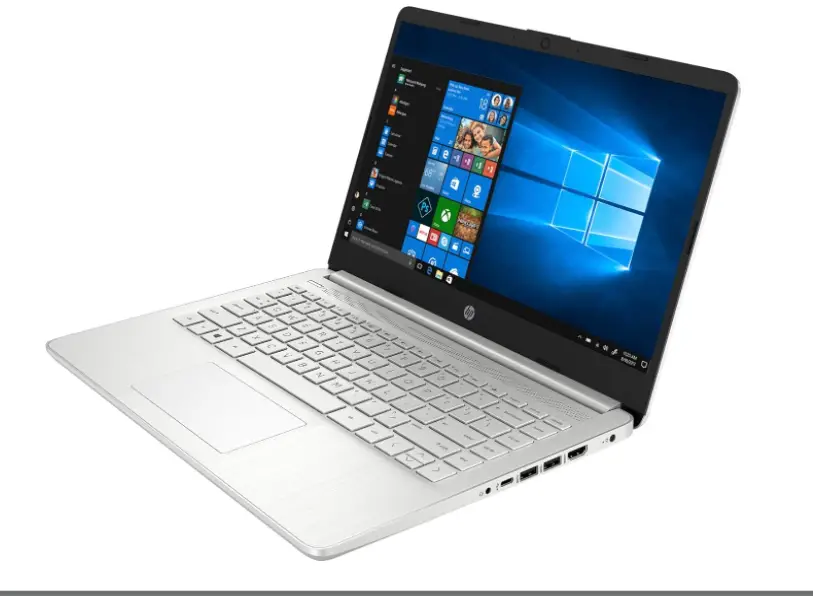
HP 14″ Laptop
This multipurpose HP 14″ laptop costs several hundreds dollars less than premium options while still packing substantial power. Part of HP’s budget line focused on core performance for everyday users, it handles all the tasks high school and college students need to zoom through busy school days.
Some of the most impressive features packed into this budget-friendly laptop include:
11th Generation Intel Core i5 processor
Intel UHD integrated graphics
8 GB RAM
Fast 256 GB SSD storage
14-inch 1080p display with stunning image quality
Audio by B&O for crisp sound
HD camera with wider field of view for online classes
Wi-Fi 5 connectivity
Weighing 3.24 pounds, it offers desktop-class performance when traveling around campus or working from your dorm room desk. The battery lasts around 8 hours when away from an outlet.
If portability matters most, it’s hard to beat the HP 14″ price-to-performance ratio that still packs substantial power.
Lenovo IdeaPad 3
Another Windows laptop with premium features at a student budget cost comes from Lenovo. The IdeaPad series focuses on portability plus performance at an affordable price point.
The Lenovo IdeaPad 3 nails the basics for students needing reliable tech by including:
12th Gen Intel Core i3 processor
Intel UHD graphics
8GB DDR4 RAM
128GB SSD storage
14-inch FHD display
720p webcam with privacy shutter
Dolby Audio speakers
Up to 8 hours battery life
Weighing 3.3 pounds, this 14-inch Lenovo IdeaPad offers desktop-level performance in a portable package students can easily transport in backpacks and bags around campus for long days of learning and group work.
Between the i3 processor, SSD storage, 8GB RAM and FHD display packing nearly 2 million pixels, it delivers reliable speed and performance for research projects, papers, graphic design work, coding applications, online classes and more without delays.
Ultimately, Lenovo designed this affordable IdeaPad with non-stop productivity in mind. Students will appreciate just how much computing power Lenovo packed in for hundreds less than premium options.
Best Laptop for College Students Under $500
Most college students need to stick to a laptop budget under $500. Luckily, many respectable options exist in 2023 without sacrificing tons of performance, display quality and portability college demands.
Here is what to prioritize when seeking out the best laptop for college students under $500:
Processing power – Look for at least 11th Gen Intel Core i3 or equivalent AMD Ryzen 3 processor
RAM – Find a laptop with 8GB RAM minimum to comfortably run multiple programs simultaneously
Storage – 256GB serves as the minimum SSD storage for apps, files and media
Display – Focus on at least Full HD (1920 x 1080p) resolution and avoid less than 14 inches
Battery life – Try to get at least 6 hours away from an outlet
Weight – Remain under 3.5 pounds for easy transport across campus
Bonus features – Webcam, Wi-Fi 6, Bluetooth 5.1, USB ports
Balancing all these factors with a $500 budget proves challenging. But two laptops giving premium brands a run impress with well-rounded capabilities college students need:
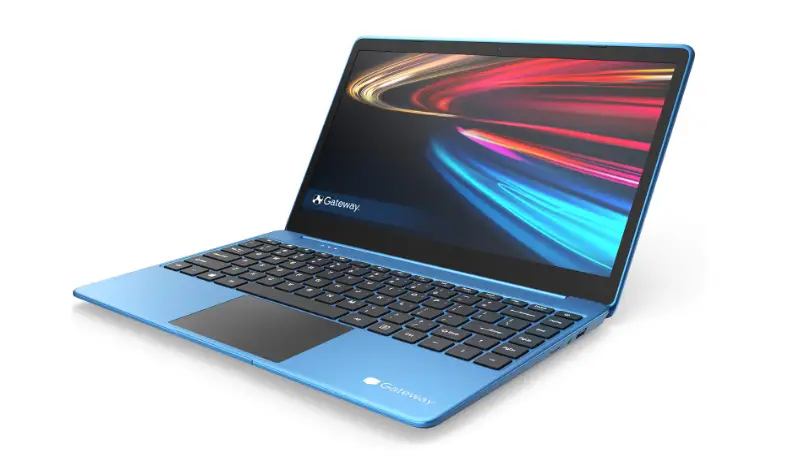
Gateway Ultra Slim Notebook
This slim black notebook from Gateway measures just 0.78 inches thin and weighs 3.64 pounds but still promises a full computing experience.
It comes configured with respectable internals including an:
11th Gen Intel Core i3 processor
Integrated Intel UHD graphics
8GB of RAM
128GB SSD
College students will appreciate the 14-inch Full HD 1080p display packing high-color accuracy at over 45% NTSC. The narrow bezels give a screen-to-body ratio over 82% so the display fills more notebook real estate.
Battery life lasts around 8.5 hours for full days on-the-go. It also comes with an HD webcam, fingerprint reader for quick secure logins, and USB 3.1 Type C port alongside USB 3.1 Gen 1 and HDMI input.
Overall for under $500, this Gateway Ultra Slim Notebook gives premium styling, respectable performance and over 8 hours of battery in an ultraportable package.
ASUS VivoBook 15 Thin and Light Laptop
If you want even more performance at less than $500 tailored for college students, consider the ASUS VivoBook 15.
It bumps up processing power through the:
AMD Ryzen 5 5500U Processor
AMD Radeon Graphics
8 GB DDR4 RAM
256GB SSD storage
This hardware combo makes the VivoBook 15 snappier at loading apps, playing videos, surfing Chrome with multiple tabs open and breezing through design projects.
The 15.6-inch Full HD four side narrow bezel display creates an immersive viewing experience with sharper visuals. This makes watching lecture recordings, following along presentations and editing photos much easier on the eyes.
Rounding out the complete package, ASUS extended the battery life to last over 6 hours per charge. It also added Bluetooth 5.0 and USB Type-C / USB 3.2 compatibility. Weighing 3.97 pounds and under 0.8 inches thin, it slips easily into any bag or backpack.
Ultimately by going with AMD over Intel components, the ASUS VivoBook 15 stretches budget laptop performance further for college students.
Best Laptop for University Students
University life may overlap a lot with the high school and college laptop requirements already covered. But university students tend to juggle even greater workloads and more advanced projects. Having lots of computing power, storage and the latest tech features eases worries so you focus time on learning rather than laptop limitations.
Here are the biggest factors for picking out the best laptop for university students:
Processing performance – Look for 12th Gen or equivalent latest generation chips that enhance speeds for quicker workflows when under pressure
High capacity SSD storage – At least 512GB provides substantial space for apps, files, media and more
16GB RAM – Allows seamless multitasking and quick shifting between dozens of Chrome tabs
Bright, high resolution display – Choose a laptop with at least QHD (2560 x 1440) display for crisp visuals during long study sessions
Lightweight build – Preferably under 3 pounds for lugging across campus all day
Connectivity – Find something with Wi-Fi 6, Bluetooth 5.1, Thunderbolt 4 and numerous USB inputs to stay connected
All day endurance – A battery exceeding 8 hours keeps productivity high when outlet access proves difficult
The two clear leaders that tick all these boxes for a top-tier university laptop come from premium brands:
Dell XPS 13 Plus
The Dell XPS 13 Plus brings together bleeding edge performance perfect for university students not wanting to compromise, no matter their major or course load.
Universities challenge students with intense work in all fields – spanning computer science, programming, visual effects, statistical analysis, 3D modeling and media creation. Having a laptop ready for any workload gives you confidence to take on any class.
That’s why Dell packed the latest 12th Gen Intel Core i7 processor into the slim XPS 13 Plus chassis alongside Intel Iris integrated graphics. It blazes through CPU-intensive university tasks quicker than ever thanks to intelligent hybrid processing.
It also steps up with 16GB LPDDR5 RAM and 512GB SSD storage for incredible responsiveness when opening huge files and running multiple programs simultaneously. Students working in statistical software, video editors, data science tools and other intensive desktop-class programs benefit greatly from all that memory and storage.
The bright 13.4-inch Quad HD+ display with touch support makes the XPS 13 Plus very friendly for graphical work requiring high resolutions. Slim bezels allow Dell to fit this high pixel density screen into a compact footprint.
Weighing just 2.57 pounds and measuring 0.6 inches thin, the XPS 13 Plus barely adds burden to students racing between classes and study sessions with their gear in tow. It also lasts nearly 12 hours per charge, so you don’t have to cut productivity short when outlets prove hard to find.
Overall the blazing performance packed into this premium yet portable chassis makes the XPS 13 Plus a dream machine for ambitious university students.
LG Gram 17 Ultraportable 17″ Laptop
Another premium pick earning rave reviews in 2023 comes from LG’s Gram series focused on extreme portability. The 17-inch model amazes by packing a large, gorgeous display into an ultralight 2.98 pound chassis.
By going with a WQXGA (2560 x 1600) LCD screen reaching 500 nits max brightness, the LG Gram 17 creates a cinematic viewing experience perfect for visual arts students. Animators, graphic designers, photographers and videographers greatly benefit from the accurate colors, inky blacks and vivid detail.
Of course, LG pairs this vibrant 17-inch screen with internal power suiting intense university workloads. You get a:
12th Gen Intel Core i7 processor
Intel Iris Xe graphics
16GB LPDDR5 5200MHz RAM
1TB NVMe SSD storage
That hardware combo makes the LG Gram 17 a productivity and creativity powerhouse for undergraduate and graduate university students alike completing processor-intensive tasks.
The 80Wh battery also keeps you powered up for over 18.5 hours per charge based on MobileMark benchmarks. So you can get from early lectures through late night study groups or homework sessions without stopping to recharge.
If portability matters for making your trek across campus grounds, the LG Gram 17 offers the perfect solution. Despite the desktop-like 17-inch screen size, this LG notebook remains featherlight and slim enough to easily transport in any bag.
Best Laptop for Students in India
Whether in secondary school, pursuing undergraduate studies or working on postgraduate degrees, students in India rely greatly on technology. Choosing the right laptop in 2023 can make keeping up with advanced courses, research projects and busy schedules much simpler.
Here are key considerations when selecting the best budget laptop for students in India:
Processing power from latest generation Intel or AMD chips
At least 8GB DDR4 RAM
512GB SSD storage
Full HD 1920 x 1080 resolution display between 14 to 15 inches
Strong Wi-Fi antenna for reliable connectivity
5+ hours battery life
Durable chassis that resists everyday wear-and-tear
Affordable pricing around 30,000 to 60,000 Indian Rupee range
Many capable options like the Acer Aspire 5, ASUS VivoBook 14 and HP 15s meet these criteria for budget-conscious Indian students. But two alternatives stand above the competition when balancing price, performance and premium feel.
Lenovo IdeaPad Slim 5i Pro Laptop
This thin yet mighty Lenovo IdeaPad Slim 5i Pro packs serious power into a professional-looking aluminum chassis costing under 60,000 Rupees.
It outpaces the competition by including a 12th Gen Intel Core i5 processor with integrated Intel Iris Xe graphics. This lets the Slim 5i Pro chew through heavy workflows like statistical analytics tools, data science programming suites, 3D rendering software and more.
The 14-inch 2.2K IPS display with 90Hz refresh rate keeps visuals buttery smooth while reaching high 2560 x 1600 resolution perfect for graphical design work. 400 nits peak brightness combat distracting glare.
Other student-friendly features include 16GB RAM, 1TB PCIe SSD storage, Thunderbolt 4 support and fast Wi-Fi 6 connectivity. It also delivers over 8 hours of battery life for full busy days on-the-go.
For students wanting a premium yet affordable laptop without compromising performance, Lenovo makes a compelling case with the IdeaPad Slim 5i Pro.
ASUS Vivobook S 14X OLED
For creative students pursuing visual arts, animation, graphic design and similar visual fields, the ASUS Vivobook S 14X OLED brings spectacular viewing with an organic light emitting diode 2880 x 1800 touch display reaching 600 nits brightness. The 16:10 aspect ratio also gives more vertical space that’s ideal for coding and content creation.
Of course, ASUS pairs this stunning OLED screen with capable internals fit for rendering 3D graphics and manipulating large source files.
Also known as a notebook computer, is a small, portable personal computer and laptop usage is to easily transport, variety of locations.
Laptops integrate most of the typical components of a desktop computer, including the display, speakers, keyboard, touchpad (which replaces the desktop’s mouse), processor, memory, hard drive and ports, into a single unit.
They utilize an LCD screen and can be powered by either an internal battery or by plugging the laptop into an electrical outlet using an AC adapter.
Laptops are designed to provide significant computing capability in a compact form factor. Their portability makes them very convenient for users who need to frequently travel and work in different locations.
Many modern laptops are powerful enough to meet the majority of typical home and office computing needs.
Compared to desktop computers, laptop components are often less powerful to accommodate reduced size, weight and power requirements, but they can still handle everyday productivity, communication, entertainment and analysis needs effectively for many users.
Advantages of Laptops
Laptops provide some significant functionality and convenience advantages over traditional desktop PCs:
Portability: The compact, integrated design of a laptop allows it to be easily transported in a bag or sleeve and readily used in different locations. This portability enables flexibility in where you can work or be entertained by your computing device.
Space Saving: Laptops take up much less space than desktop components spread over a desk. This helps minimize clutter and allows computing practically anywhere with a hard surface.
All-In-One Convenience: With the display, keyboard, touchpad, components and battery integrated into one device, setting up and starting to use your laptop is quick and convenient. There are no extra cords or peripherals needed.
Increased Productivity: The ability to work on documents, connect to the internet, analyze data, etc. practically anywhere can greatly boost productivity, allowing tasks to be worked on during downtimes between locations.
Energy Efficiency: Laptop components are designed to draw less power, allowing battery-powered usage away from electrical outlets. Sleep and hibernation modes also conserve battery life when a laptop is not actively being used.
For many users who value portability and convenience, a laptop can fully cover their home and mobile computing needs. As component technology continues advancing while decreasing in size, laptop capabilities come closer and closer to matching desktop PC performance.
How to Use a Laptop for the First Time
Using a laptop for the first time is easy if you follow these basic steps to get started:
Set up the Hardware: Unbox your new laptop and accessories, including the AC adapter/charger. Connect the adapter to charge the battery if it isn’t already charged. While optional, you may also want to connect an external mouse and/or keyboard for easier interaction.
Power On: Locate the power button, usually near one of the keyboard corners and marked with a power symbol. Press and hold it for a few seconds to power the laptop on for the first time.
Configure the Operating System: The first time your laptop powers on, it will walk you through configuring essential OS settings like language, location, date/time, etc. Follow the on-screen prompts to configure your basic settings.
Connect to the Internet: For a full laptop experience, get online by connecting to a Wi-Fi network or plugging in an Ethernet internet cable. This will allow you to to browse the web, install apps, access cloud storage and more.
Explore Pre-Installed Apps and Features: Most new consumer laptops come with a host of apps and tools pre-installed. Spend some time exploring these programs to understand what is readily available for your usage. Common pre-installed features include web browsers, media players, games, security software and office/productivity suites.
Customize Settings: Make sure your new laptop feels like your own by customizing various OS and hardware settings to your liking. Adjust display brightness, sound volume levels, touchpad sensitivity, keyboard layouts, power management and any other settings to personalize your experience.
Spend the first few days getting comfortable with all your laptop can do out of the box before the real fun begins customizing it even more to become an optimized tool tailored to your unique needs and preferences.
10 Uses of Laptops
Laptops are extremely versatile devices useful for far more than just browsing social media and messaging friends. Here are 10 great ways to get the most out of your laptop:
Work Remotely: Use your laptop to work on business tasks, documents and emails from practically any location with Wi-Fi access.
Stream Entertainment: Enjoy TV shows, movies, sports and other entertainment seamlessly streamed to your laptop from various streaming services.
Social Media Management: Run your business or personal social media accounts easily from your laptop to schedule posts, engage followers and analyze metrics.
Everyday Computing: From browsing shopping and news sites to paying bills online and video chatting with family, laptops cover the majority of basic home computing needs.
Graphic Design: Create visually engaging designs, illustrations, animations and more with graphic design apps optimized for laptop capabilities.
Gaming: Immerse yourself in gaming worlds by playing various genres of games, from fast-paced shooters to epic role-playing adventures, on your laptop.
Home Automation: Use your laptop to conveniently monitor and control networked home automation devices like security cameras, lighting, thermostats and appliance settings.
Web and App Development: Develop everything from simple websites and blogs to complex business web apps and mobile apps with development tools tailored for programming on your laptop.
Writing and Note Taking: Use your laptop’s keyboard and notebook apps to write everything from to-do lists to novels, school papers, business plans and more from anywhere inspiration strikes.
Data Analysis: Import, manipulate and analyze CSV spreadsheets, database tables and big datasets using your laptop for personal finance management, business intelligence and data science applications.
Laptop Usage – Basic Knowledge
Here is some essential basic knowledge about laptop components and functionality to help you better understand these portable, versatile computing devices:
CPU: The central processing unit or processor acts as the computational brain of the laptop, letting it execute program instructions and complete calculations. Intel and AMD are the major CPU makers, with models ranging from power efficient to high performance.
GPU: The graphics processing unit renders all the visual, audio and media elements needed to run programs and display content on the screen. A dedicated GPU provides better graphics performance for gaming, video editing, etc.
RAM:Random access memory provides the short-term storage needed to run active apps and programs quickly. 8GB to 16GB is typical for most laptops, with some high-end models offering even more RAM.
Storage: Hard disk drives or solid state drives store all your programs, files, photos, videos and data permanently. SSDs are faster and more reliable, while HDDs offer larger capacities for less cost. Storage capacities range from 256GB to several TB for high performance laptops.
Display: Screens typically range from 11 to 17 inches diagonally in size and utilize LCD technologies like IPS or OLED panels to produce high quality visuals. Touchscreens that allow finger-based interaction are also common on many laptops now.
Ports: Key ports like USB 3.0/4.0, USB-C, HDMI and memory card readers allow you to easily connect external displays, storage drives, accessories and more to expand laptop functionality.
Connectivity: Wired ethernet and Wi-Fi (usually 802.11ac) provide networking connectivity. Bluetooth enables pairing accessories and peripherals wirelessly, while some laptops also incorporate mobile broadband options.
What is “Laptop”? Meaning and Uses
The word “laptop” refers to portable computers small and lightweight enough to rest comfortably on a person’s lap. Laptops integrate the critical components of a desktop PC into a thin, compact housing with an attached keyboard and display screen that can fold down and close securely over the top.
While originally marketed as “laptop computers” or “notebook computers” emphasizing portability, over time “laptop” has become the commonly used term. Some also use “laptop” to distinguish more fully-featured portable PCs from tablets.
FAQ – laptop Usage
What’s the best way to connect my laptop to the internet?
For the fastest internet speeds, connect your laptop to the internet using an Ethernet cable or connect to a 5GHz WiFi network if available.
How do I take my laptop outside without damaging it?
Put your laptop in a laptop sleeve or padded bag when traveling to protect it from bumps, spills, and bad weather that could damage it.
My laptop battery drains very fast. What should I do?
Dim your screen brightness, quit unused apps running in the background, and try updating computer and battery drivers to help your laptop charge last longer per battery cycle.
I spilled liquid on my laptop. Is it ruined?
Do not try turning on a wet laptop. Wipe off excess liquid, allow your closed laptop to dry for at least 24 hours, and try turning it back on again before assuming water damage has ruined internal parts.
The meaning behind the name refers directly to their key distinguishing feature and benefit compared to desktop computers – compact portability that enables comfortable use while resting on one’s lap rather than a desk.
This allows using the laptop practically anywhere to work, be entertained or communicate from parks and public transportation to back yards, medical waiting rooms, airplanes and hotel rooms while traveling.
The full personal computing power packed into these thin on-the-go devices enables:
Work productivity away from the office
Email and web access from remote locations
Social, photo and video sharing while traveling
Entertaining oneself during commutes or downtime between activities
Capturing thoughts and ideas no matter where creativity strikes
For many professionals, parents, students, travelers and more, the ability to utilize a highly functional windows or chrome OS PC from practically anywhere is invaluable for keeping up with modern demands and lifestyle convenience.
The portability and versatility inherent in the meaning and design behind laptops is what sets them apart as essential computing appliances.
Getting a new Roku device set up without a remote control might seem tricky but there are actually a few straightforward ways to connect Roku to Wi-Fi without remote or app access.
Whether you have a Roku player, Roku stick, or Roku TV, you can complete the Wi-Fi connection process using just your computer, smartphone, or the buttons on the device itself.
Why Connect Without a Remote
There are a few common reasons you might need to set up Roku Wi-Fi connection with no remote:
You lost or broke your Roku remote control.
You bought a used or refurbished Roku that didn’t come with a remote.
You have a second Roku device and only have one remote control.
You want to set up Roku in a place where using a remote control is difficult or inconvenient.
In any of these situations, not having a Roku remote on hand doesn’t mean you can’t get your device connected to your Wi-Fi. Setting up a connection just requires using alternative methods.
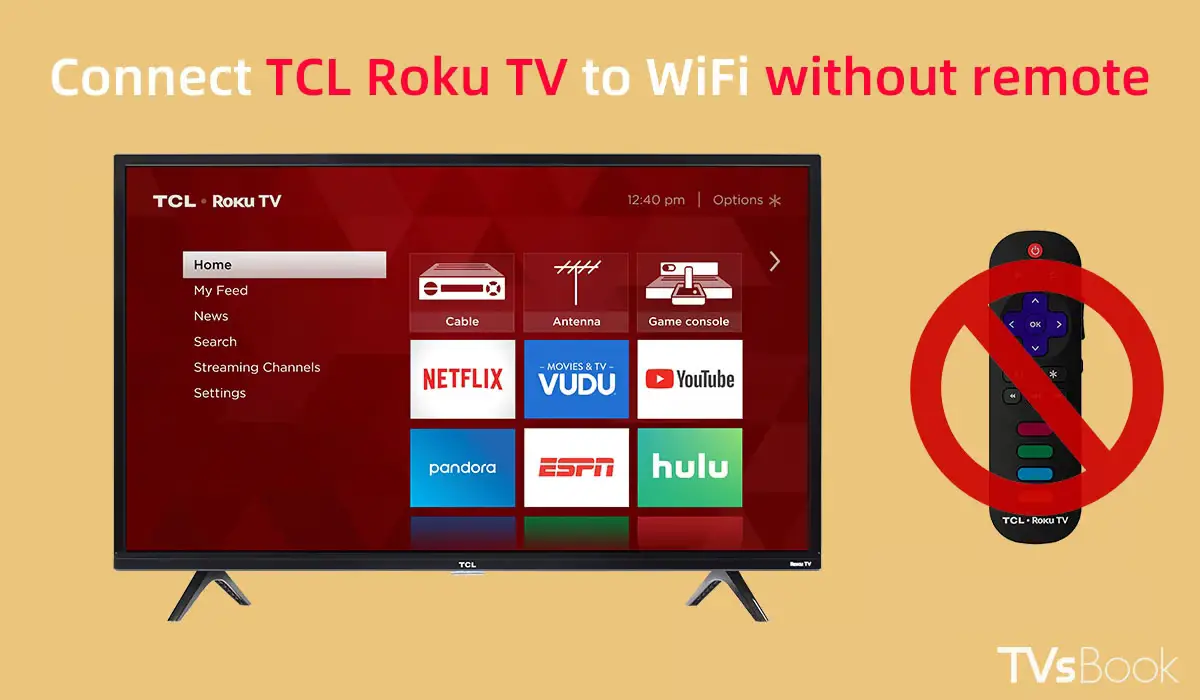
Image Source: tvsbook.com
Connecting with the Roku Mobile App
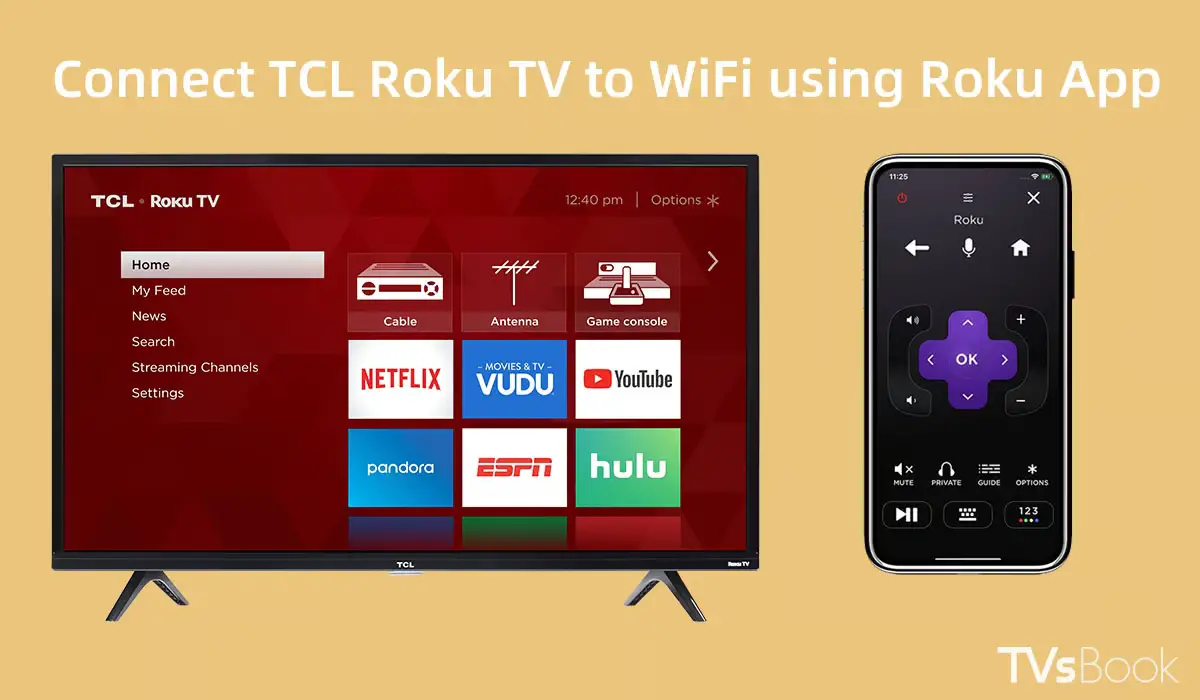
One of the easiest ways to get your Roku box, stick, or smart TV onto your Wi-Fi is by using the Roku mobile app for your smartphone or tablet instead of the remote control. Here are instructions for connecting each type of Roku device with the mobile app:
Roku Streaming Player
First, power on your Roku device if it isn’t already on.
Select the “Add a device” option. This will put the app into setup mode.
When you see the prompt, select your Roku model from the list.
On the next screen, choose “I can’t find my remote or other devices aren’t working”
The app will now walk you through connecting both devices to your Wi-Fi network. Simply enter your Wi-Fi name and password to setup the connection.
The app allows you to fully configure Wi-Fi on Roku just as if you were using the remote.
Roku Streaming Stick
Setting up a Roku Streaming Stick is nearly the same, just without a few initial steps:
Download the Roku app.
Open the app and choose “Set up device”.
Select your streaming stick model.
Choose the remote connection issue option again.
Enter Wi-Fi details when prompted to connect your stick.
Roku Smart TVs
Finally, for Roku TVs the process is again very similar:
Make sure your Roku TV is powered on.
Get the Roku mobile app.
Select “Add device” to initiate setup.
Choose your Roku TV model and click next.
State that you can’t connect the remote.
Provide your Wi-Fi name and password to link the TV.
Once finished, your Roku mobile app can fully control your TV through buttons on your phone or tablet!
Using a Computer Instead
Don’t have a smartphone or the Roku app available? No worries, your trusty laptop or desktop can also handle the Roku Wi-Fi setup no remote job. Here’s how:
Power on your Roku.
Using your preferred web browser, go to my.roku.com.
Choose whether you’re setting up a Roku player, Roku stick, or Roku TV.
On the next screen, select your exact model.
Click “I can’t find my remote”.
Enter your Wi-Fi network name, password, and security type (typically WPA2 for home networks).
Click Connect to configure your Roku with Wi-Fi.
It may take a few minutes to establish connectivity, but the web portal gives full control to hook up your device.
Using the Physical Buttons
If you don’t have remote access set up on your phone or a computer nearby, most Roku devices can also connect to Wi-Fi networks with just the buttons on the unit itself. Here is the process for both Roku players and streaming sticks:
For Roku Players
Press the round button on your Roku player remote port.
On the remote pairing screen, scroll down instead of entering a code.
Select and confirm “Connect to the internet”.
Your Roku will list detected Wi-Fi networks. Scroll to highlight your desired network.
Press the round button one more time to confirm Wi-Fi selection.
For Roku Streaming Sticks
Unplug then plug your Roku stick back into power
Wait 2 minutes for it to restart
Once your stick reboots:
Hold down the “Home” button on the stick itself.
Continue holding the button for at least 10 seconds until the connectivity menu pops up.
Let go of the button and use the stick’s controls to scroll and select your Wi-Fi network.
Entering your network password will require sporadically pressing the “Home” button to cycle through letters and numbers, which takes patience. But it is doable for connecting Roku Express to Wi-Fi no remote 2023.
How to Connect Roku to WiFi Without a Remote
Finally, for those with a Roku Streaming Stick+ model 3811X or newer, there’s a special shortcut to connect Roku streaming stick to home Wi-Fi with no controller:
Turn on your TV
Unplug then reconnect the power adapter to restart stick
Wait two minutes after plugging back in
Quickly click the pairing button 4 times on the side of the Roku Streaming Stick+
The device will immediately launch Wi-Fi setup wizard
Follow the on-screen prompts to select and enter a password for your home Wi-Fi
The quad-pressing of the pairing button skips the traditional remote pairing process, taking you directly into connecting your streaming stick to the internet.
Troubleshooting Tips
If your Roku isn’t successfully linking up to Wi-Fi through any of these methods, don’t panic yet! Here are some troubleshooting suggestions you can try before giving up:
Carefully re-enter the Wi-Fi password during setup to ensure no typos
Double check security and password if connecting to a 5G versus 2.4Ghz network
Try moving the Roku closer to your wireless router temporarily
Reboot modem and router to refresh network connection
Factory reset Roku stick or box and redo network installation
For especially finicky connections:
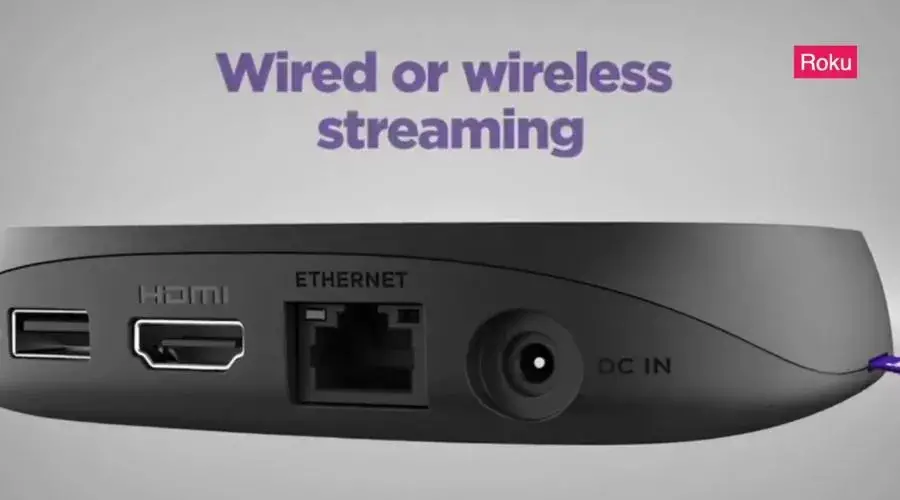
Connect Roku wired via ethernet cable instead of Wi-Fi
Buy USB to ethernet adapter for Roku sticks to hardwire to router
Using one or combining multiple tips usually sorts out Roku won’t connect to Wi-Fi no remote troubleshooting. Keep at it and your device should link up!
Simple and easy video to find your Wi-Fi and connect to your Roku device. You can use your mobile as a remote and move around.
Frequently Asked Questions
How do I connect my Roku to Wi-Fi if I lost my remote control?
You can download the free Roku mobile app on your smartphone or tablet and use it to connect your Roku to Wi-Fi. Open the app, select “Add Device”, choose your Roku model, and follow the on-screen instructions to connect to your Wi-Fi network.
What if I don’t have a smartphone to use the Roku app?
Visit my.roku.com on any web browser, select your Roku device type, choose your model, and follow the instructions to connect to Wi-Fi by entering your network name and password manually.
Is there a way to connect without the mobile app or a computer?
Yes, most Roku devices have physical buttons you can use to connect. For Roku players, press the round button on the remote port and use on-screen menus to select Wi-Fi. For Roku sticks, hold down the home button for 10+ seconds to bring up Wi-Fi setup.
Connect Roku Without Remote Moving Forward
Getting Roku configured is only step one – controlling it without a physical remote continues being an issue. Here are options for Roku TV connect to Wi-Fi network without remote or mobile app long term:
Enable voice commands to operate Roku handsfree
Control Roku through Google Home, Echo Dot (Alexa) or other assistant
Purchase inexpensive basic IR Roku remote as temporary backup
Have another person or place to setup Roku? Now you know every trick for getting Roku on Wi-Fi network without remote control. Use a phone, computer, the device itself buttons – whatever is convenient to get connected. Then start streaming away remote-free!
Have you recently upgraded to Windows 11 only to find your Bluetooth has stopped working properly? You’re not alone. Bluetooth driver issues seem especially common after upgrading from Windows 10 to 11.
Bluetooth driver for Windows 11 is updated for different brands of laptops. You need to check the Microsoft updates or the manufacturer page.
In this post, we’ll explore some of the most common Bluetooth problems on Windows 11 and how to fix them. We’ll look at issues with both Intel and AMD Bluetooth drivers specifically for Dell, HP, Asus and other major manufacturers.
Why Bluetooth Drivers Cause Problems in Windows 11
Before we dig into solutions, let’s quickly understand why Bluetooth seems especially prone to Windows 11 bluetooth driver problems.
The main culprits are:
New Bluetooth Stack – Windows 11 features an all-new Bluetooth stack and support for new standards like Bluetooth LE Audio. This requires updated drivers that are compatible. Older drivers may partially work or completely fail.
Driver Incompatibility – Many existing drivers for Windows 10 are not fully compatible with Windows 11 without an update. This leads to anything from glitchy behavior to total failure.
Fast Pace of Updates – Windows 11 is still new and receiving constant cumulative updates. Key components like the Bluetooth stack are evolving. Drivers need to keep up with these changes.
When your Bluetooth driver has issues with this new stack, you’ll see symptoms like missing or disconnected devices, audio problems, failed file transfers, and more.
Fortunately manufacturers are releasing updated Windows 11 drivers. Getting the latest drivers can fix many problems.
Now let’s look at some specific issues and driver update solutions for major hardware brands…
Fixing Bluetooth Problems on Dell Laptops
Dell laptops like the XPS 13 and 15 series seem especially prone to Bluetooth woes after upgrading to Windows 11.
The bluetooth audio receiver should be working or present in the output device. Download and Install the latest adapter driver packages if you are using external hardware.
Common problems include unstable Bluetooth connections, having to sit right next to the laptop for devices to connect, and stuttering streaming audio.
Download the Latest Dell Drivers
If you’re experiencing Bluetooth issues on a Dell, your first troubleshooting step is to directly download windows 11 bluetooth driver:
Go to Dell’s Driver & Download page
Enter your Dell’s Service Tag or use auto-detect to find your model
Make sure you have the latest drivers for:
Realtek Bluetooth Driver
Intel Bluetooth Driver (if applicable)
Also review the release notes for mentions of windows 11 bluetooth driver download compatibility or bug fixes related to your issues.
Updating these two key drivers often resolves common Bluetooth problems after upgrading to Windows 11. The latest releases directly address Windows 11 compatibility issues that can cause problems.
Toggle Airplane Mode
Here’s a weird trick that sometimes kickstarts misbehaving Bluetooth drivers: toggle Airplane mode on and off.
The drivers missing troubleshoot problems can be caused by simple reasons like wrong settings.
Press Windows key + A to open Quick Settings, then flip the Airplane switch and wait a few seconds. Turn it off again and test if Bluetooth begins working properly in Windows 11 again.
Uninstall Problematic Bluetooth Drivers
If the latest Dell drivers don’t solve your issues, boot into Safe Mode then try fully uninstalling the current Bluetooth drivers:
Boot into Safe Mode (restart your computer and hold down the Shift key)
Open Device Manager
Expand the “Bluetooth” section
Right click the Bluetooth driver > Uninstall
Also uninstall the Radio drivers (typically Intel, Qualcomm, Realtek etc)
Restart back into normal Windows 11
Let Windows automatically reinstall fresh default drivers
This often resolves driver conflicts that cause flaky Bluetooth in Windows 11. Be sure to test connectivity before reinstalling any old drivers like Dell’s.
Issues with Intel Bluetooth Drivers
Intel wireless adapters are popular in many Windows laptops and desktops. However, Intel’s Bluetooth driver has been notoriously problematic after upgrading to Windows 11.
Update Intel bluetooth driver along with other graphic and hardware updates of laptop. If it fails, rollback to the old one. You can also use default Microsoft drivers if they fail.
Symptoms include Bluetooth randomly turning off, struggling to detect devices, and problems pairing new devices.
Install Intel’s Latest Bluetooth Driver
Just like Dell, begin troubleshooting Intel Bluetooth problems by getting their latest Windows 11 driver from Intel’s download site.
Important notes when installing their latest driver:
Choose the adapter that matches your Intel hardware. Most modern laptops use the AX200 or AX210 adapter.
Make sure you get the Drivers Only package, not the full Intel PROSet software. The bare driver is more Windows 11 compatible.
Fully uninstall your existing Intel Bluetooth driver first in Safe Mode, as covered above.
Updating to Intel’s latest WiFi and Bluetooth driver often fixes compatibility issues causing problems in Windows 11. Take the extra step to completely remove your old driver first for best results.
Disable Bluetooth Low Energy (LE) Support
Here’s an advanced troubleshooting tweak if the Intel driver doesn’t help:
Press Windows key + R then enter devmgmt.msc to open Device Manager
Find the Bluetooth driver under the “Bluetooth” section
Double click to open the driver’s Properties
Switch to the Advanced tab
Set “Bluetooth Low Energy Support” to Disabled
Restart your PC
Disabling Bluetooth LE reverts the adapter to normal Classic Bluetooth mode. For some reason this works better with Intel’s driver in Windows 11. Give it a try if you still have flaky Bluetooth behavior after updating Intel’s driver.
Fixing Bluetooth Issues on HP Laptops
HP is another big brand facing Bluetooth bugs after upgrading HP laptops to Windows 11. Issues seem especially common on popular models like HP Spectre, Envy and Pavilion laptops.
Headphones bluetooth audio cannot be played if the wrong device is selected. You need to pair it again. Download bluetooth driver either from standard sites or from a reliable source
Problems include frequent Bluetooth disconnects, struggling to detect Bluetooth speakers and headphones, as well as intermittent loss of Bluetooth on HP laptops after waking from sleep.
Update to the Latest HP Driver Package
Just like with Dell laptops above, many issues can be resolved by installing the complete latest driver package:
Go to HP Customer Support
Enter your specific HP laptop model
Download and install the “Recommended” driver package
This will update your WiFi, Bluetooth, chipset and other key drivers tailor-made for your exact HP model. These customized driver packages directly address Windows 11 compatibility issues that often affect Bluetooth stability.
Change Bluetooth Drivers to Generic Microsoft
If the latest HP drivers still give you grief, try switching to the basic Microsoft drivers:
Boot into Safe Mode
Open Device Manager
Find your Bluetooth driver, right click and select Update Driver
Click “Browse my computer for drivers”
Click “Let me pick from a list available drivers on my computer”
Select the basic “Microsoft” driver and complete the installation
Microsoft’s generic Bluetooth driver lacks some advanced features, but works consistently stable in Windows 11. Give it a try if you still have Bluetooth headaches even after updating HP’s customized driver package.
Disable Bluetooth Low Energy Support
Similar to the Intel trick above, you can also resolve finicky HP Bluetooth in Windows 11 by disabling Bluetooth Low Energy (LE) support:
Open Device Manager > Bluetooth driver Properties > Advanced tab
Change “Bluetooth Low Energy Support” to Disabled
Restart your laptop
This forces the adapter back into basic Bluetooth mode without the problematic LE functions that sometimes make Windows 11 act up.
Troubleshooting Issues with Asus Bluetooth Drivers
Asus is another big player struggling with Bluetooth stability after upgrading Asus laptops to Windows 11.
Common symptoms include limited Bluetooth range (devices only connect when very close to the Asus machine) as well as Bluetooth randomly disconnecting or turning off completely.
Update Asus Bluetooth and WiFi Drivers
Just like other brands, much of these issues can be resolved by installing Asus’s latest Bluetooth and WiFi drivers tailored for your specific model:
Get drivers from Asus Download Center
Enter your Asus laptop’s exact model to get customized drivers
Download and install their latest WiFi and Bluetooth drivers
These updated drivers directly target the Bluetooth compatibility changes in Windows 11 to resolve common disconnection and detection issues.
Check Router Frequency Band
Here’s an unusual source of Bluetooth problems — WiFi! Many Asus laptops come with Intel WiFi 6 (AX200/AX210) adapters that operate on the same frequency band as Bluetooth (2.4 Ghz).
If your WiFi router is also broadcasting on 2.4 Ghz channels, try these steps:
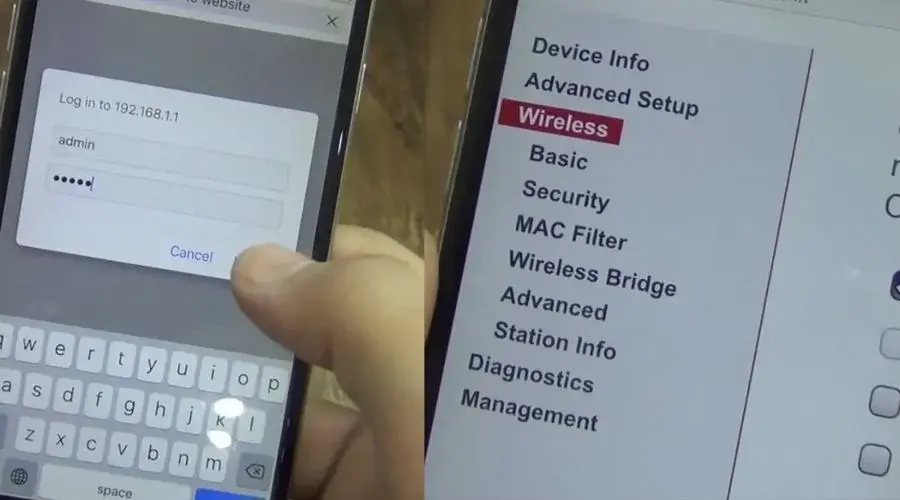
Access your router management page
Switch the router broadcast frequency band to 5 Ghz only
Disable 2.4 Ghz channels completely
See if Bluetooth reliability improves in Windows 11
The WiFi and Bluetooth radios can interfere with each other if operating on the same frequencies. Switching to 5Ghz-only WiFi prevents this source of conflicts.
Toggle Bluetooth Radio Power Management
An advanced troubleshooting tweak that helps some Asus models is to disable Bluetooth radio power saving features:
Open Device Manager > Bluetooth driver > Properties > Advanced tab
Set Bluetooth Radio Power Management to Disabled
Disable Bluetooth Radio Power Save Mode
Disabling these radio power management features prevents the adapter from entering power-saving states that seem to disrupt Bluetooth connectivity in Windows 11.
Wrapping Up
As you can see, Bluetooth woes in Windows 11 typically boil down to driver compatibility issues with the new OS release.
The good news is hardware brands like Dell, HP, Intel, and Asus have all released updated drivers that resolve most of these problems. Take the time to get the latest tailored drivers for your specific device model.
Beyond drivers, toggling settings like Airplane mode, Bluetooth LE Support, WiFi frequency bands, and radio power management modes can also help stabilize flaky Bluetooth behavior.
With a bit of focused troubleshooting and tweaking, you can get Bluetooth working reliably again in Windows 11 just like it did in Windows 10. The new Bluetooth stack just takes some compatibility adjustments.
I hope this breakdown gives you some ideas to solve your own Bluetooth headaches after upgrading to Windows 11! Let me know in the comments if you have any other tips for readers.
Having no sound from your monitor when connected via HDMI can be frustrating. Fortunately, there are several troubleshooting steps you can take to resolve the monitor no sound hdmi issue.
This guide will walk you through all the common causes and solutions to help get your monitor audio working again through the HDMI connection.
Common Causes of No Sound from Monitor via HDMI
Here are some of the most common reasons why your monitor may show no audio output when connected to your PC or other device via HDMI:
HDMI cable – Faulty or loose HDMI cable resulting in no audio transmission. Try different HDMI cables.
Wrong input source – Monitor input set to the wrong source. Ensure you have selected the correct HDMI input on the monitor.
Disabled audio device – Audio device disabled in Windows, Mac OS or device settings. Make sure integrated audio and HDMI audio output are enabled.
Incorrect audio output – Wrong sound output device selected on the computer. Change to HDMI or monitor speakers as the audio output device.
Driver issues – Outdated, corrupted or missing audio drivers. Update drivers to the latest available versions.
Monitor settings – Incorrect monitor settings like disabled speakers. Verify monitor audio settings are configured correctly.
Hardware problems – Issues with the monitor speakers, sound card or HDMI ports. Test with different hardware to isolate the problem.
HDMI version – Older HDMI versions may not support audio. Use HDMI 1.4 cables or higher for audio pass-through.
Troubleshooting Steps for No Monitor Audio via HDMI
Follow these steps to troubleshoot and fix monitor speakers not working with HDMI:
1. Check HDMI Cable Connection
The most common reason for no sound on monitor with HDMI cable is a loose HDMI connection.
Make sure the HDMI cable is firmly plugged into the HDMI port on both the monitor and computer or other source device like a streaming stick.
Try connecting the cable to a different HDMI port if available.
Inspect the HDMI cable for any damage or bent pins. Test with a different HDMI cable that you know works properly.
Ensure the HDMI source and monitor are not too far apart. HDMI cables longer than 10 feet can cause issues.
2. Set Monitor to Correct HDMI Input Source
If the HDMI connection is fine, next check that the monitor input source is set correctly:
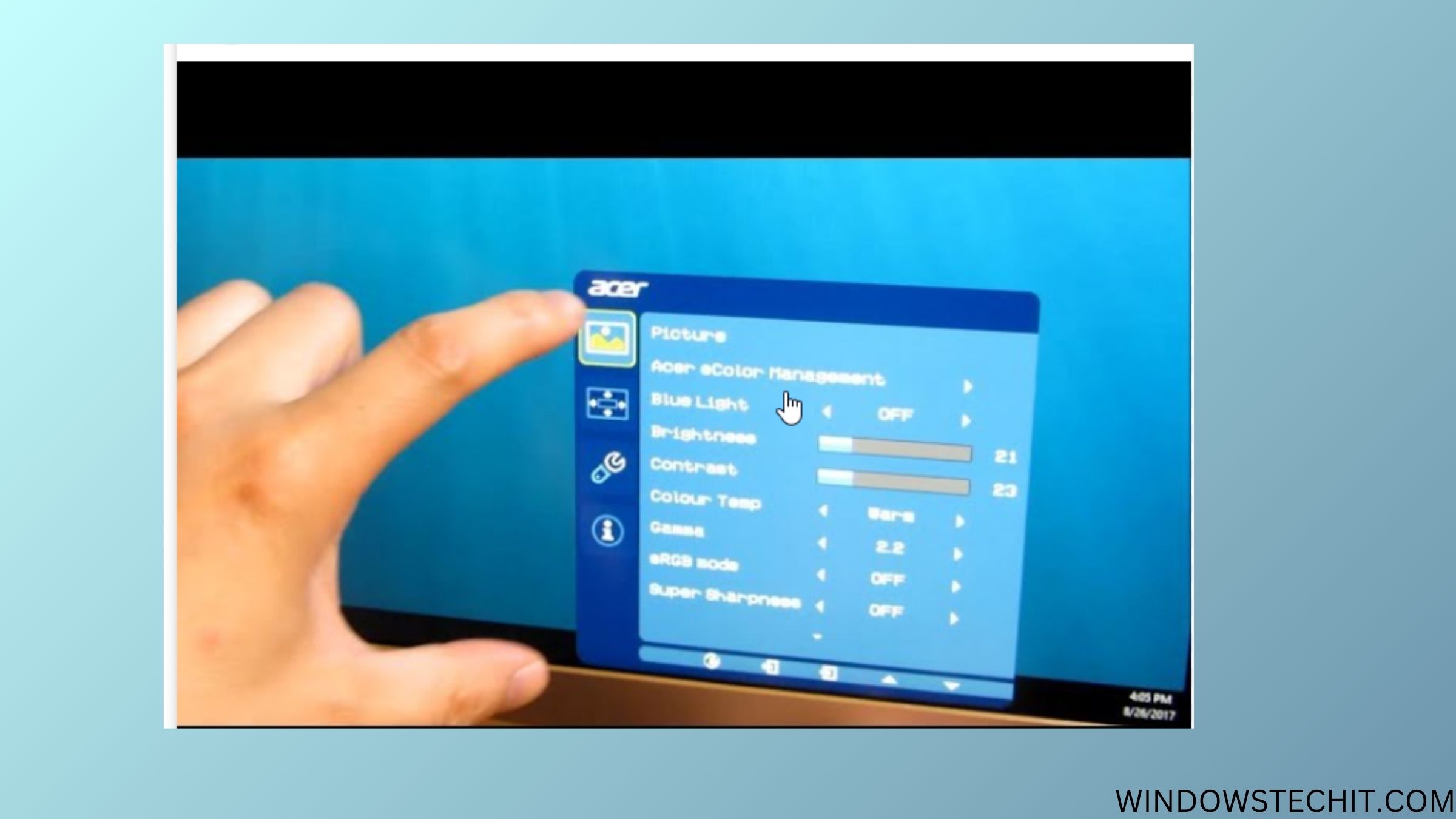
On the monitor, access the Input Source options from the monitor menu using the buttons or remote if available.
Select the input that corresponds to the HDMI port you connected the HDMI cable to. This is commonly labelled as HDMI1, HDMI2, HDMI3 etc.
The monitor screen should now show the display from the HDMI source device.
Image Source: quora.com
3. Enable Audio Output to HDMI Device
Once you confirm video output is working from the HDMI source, next enable HDMI audio:
On Windows:
Go to Start > Settings > System > Sound.
Under Choose your output device, check if HDMI or your monitor brand is listed. If not, select it from the dropdown.
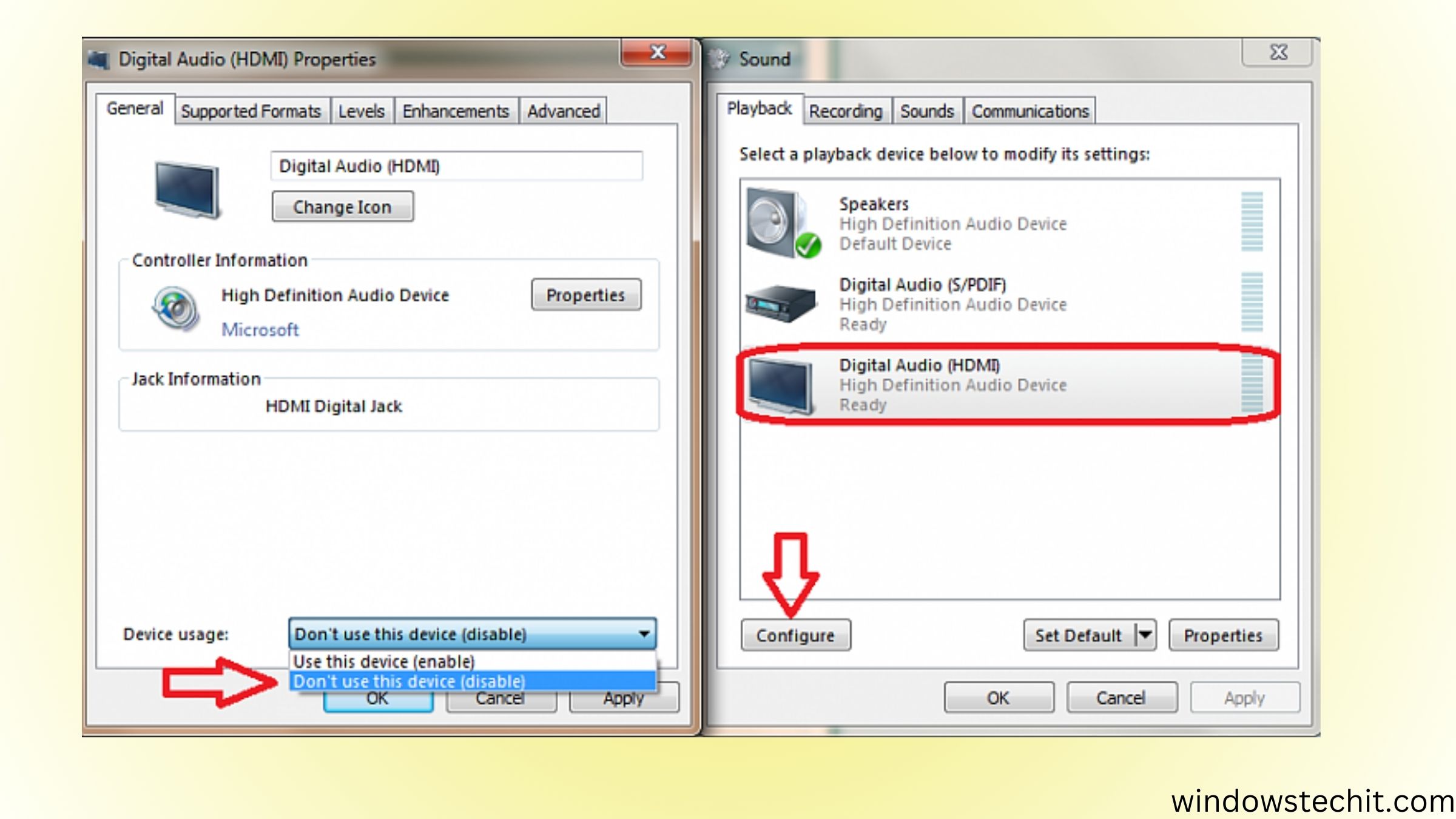
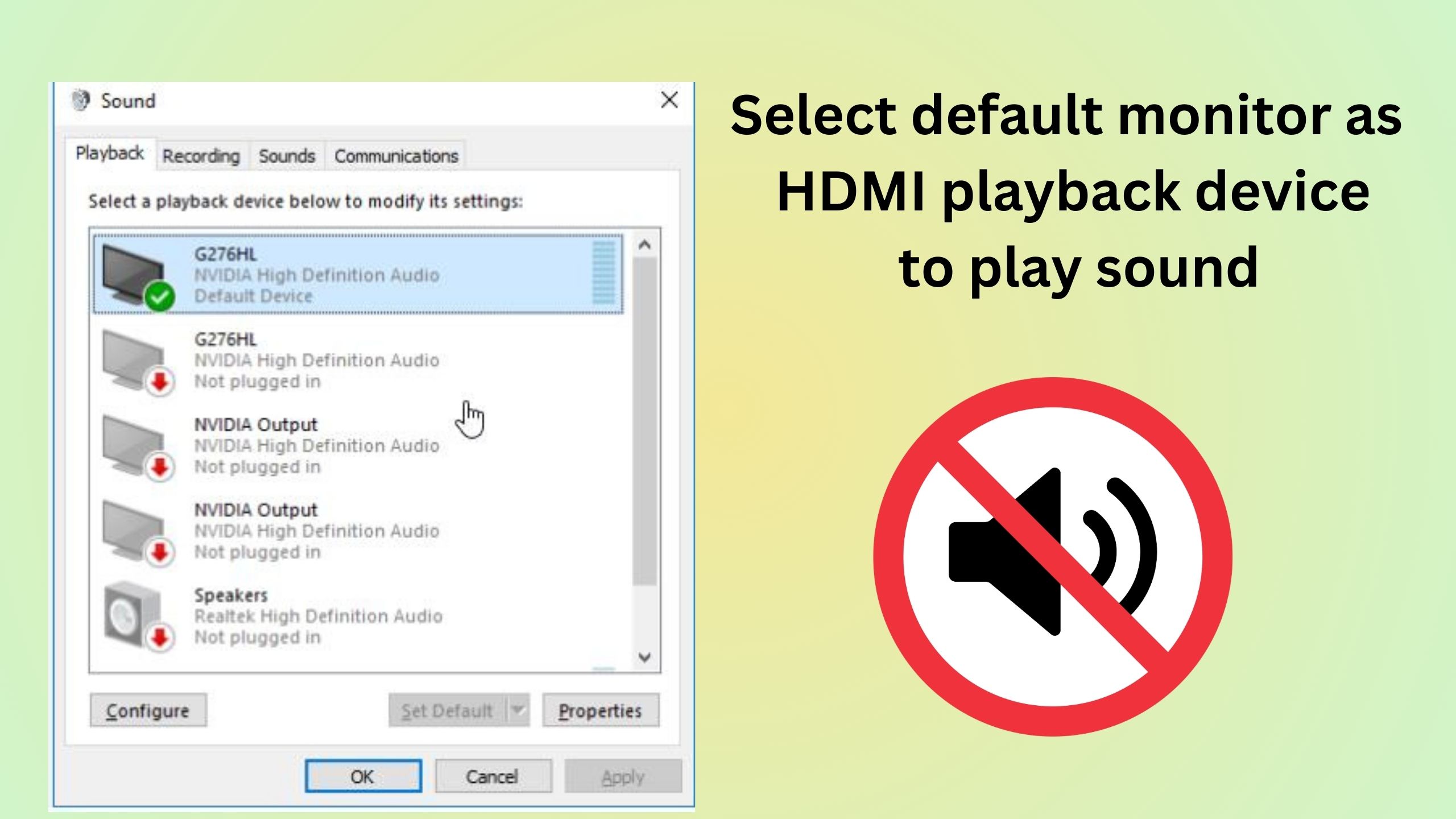
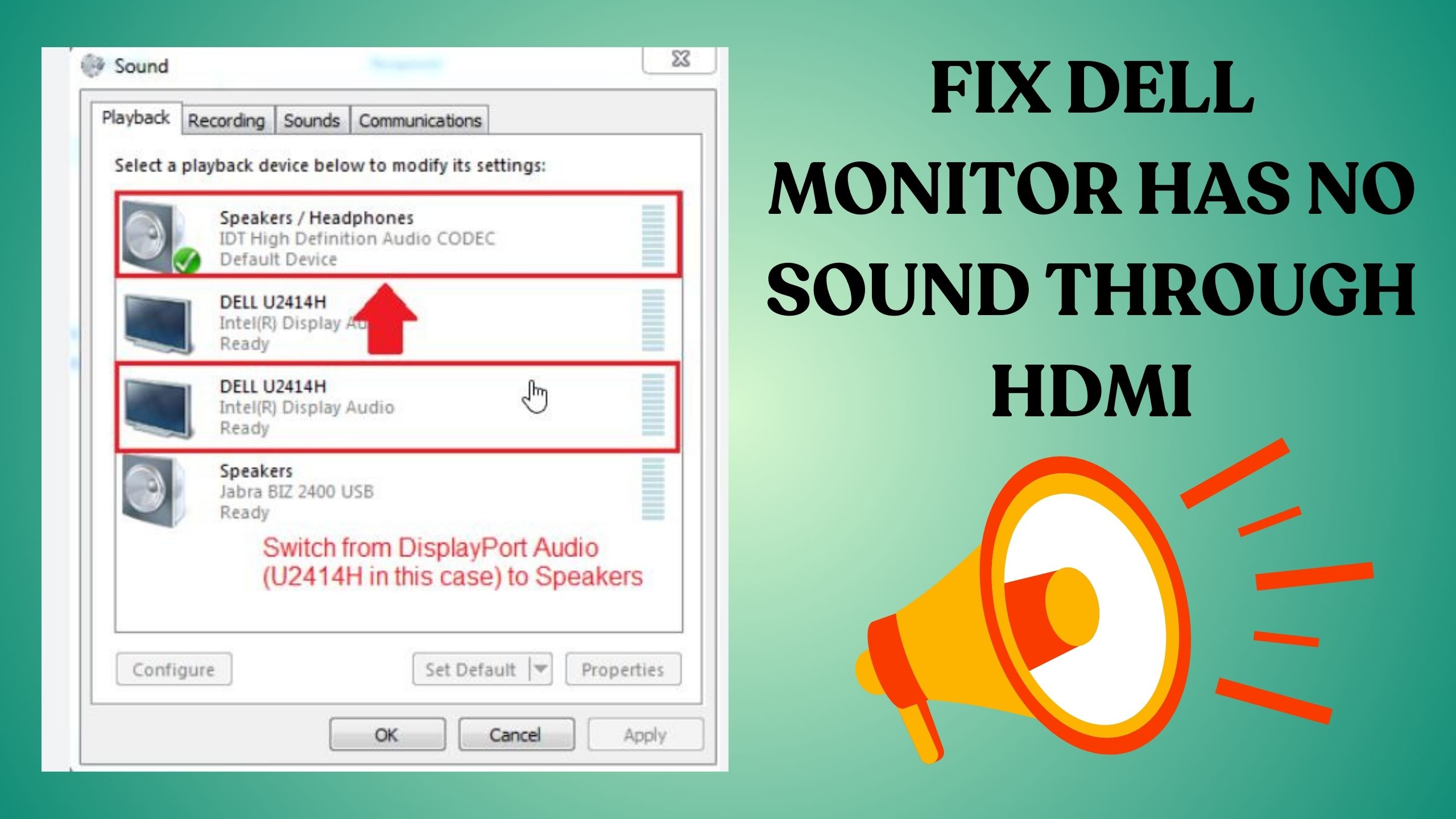
Open Sound Control Panel from the right pane and go to the Playback tab. Enable the HDMI or monitor audio device. Set it as the Default Device.
Right-click the HDMI device and select Properties. Go to Supported Formats and make sure all audio formats are enabled.
On Mac:
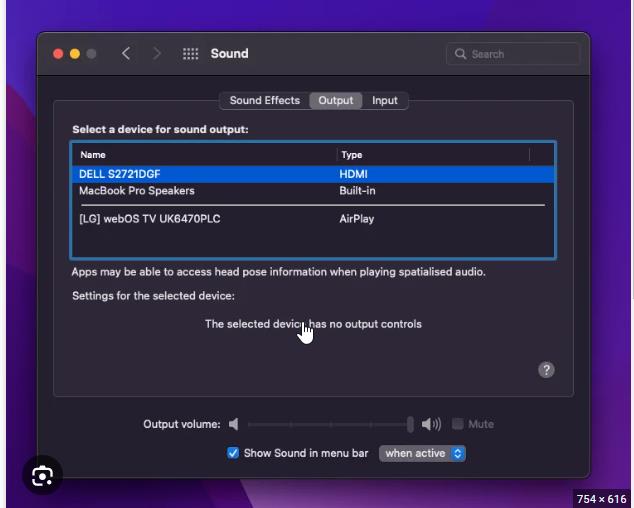
Go to Apple menu > System Preferences > Sound.
On the Output tab, select your HDMI connected monitor or TV.
You can also click the HDMI device and select Use This Device for Sound.
On streaming devices:
Access Audio settings from the Settings menu.
Set HDMI or External Speakers as the audio output device instead of TV or Internal Speakers.
4. Update or Reinstall Audio Drivers
HDMI monitor no sound from speakers can also occur due to corrupt, outdated or missing audio drivers:
On Windows, open Device Manager and expand the Sound, video and game controllers list.
Right click on your audio device like Realtek HD Audio and select Update driver.
If updating does not fix the issue, uninstall the device, reboot your PC and reinstall the latest audio drivers from your motherboard or hardware manufacturer’s website.
On Mac, install the latest versions of macOS and your monitor brand software like OnScreen Control from LG to get updated drivers.
5. Adjust Incorrect Monitor Audio Settings
If drivers are up-to-date, check for incorrect monitor audio configurations:
Access the monitor menu using the buttons or remote and locate Audio settings.
Make sure the monitor speakers are enabled and not muted or set to zero volume.
For HDMI audio, the monitor sound option should be set to HDMI not Line-in, DisplayPort or other modes.
Try resetting the monitor audio settings to default if the configurations seem wrong.
6. Switch to Different Hardware
No sound on monitor HDMI after trying the above steps may point to hardware related problems:
Connect the monitor via HDMI to another source like a streaming stick, game console or Blu-ray player. See if you get audio from them.
Try a different HDMI cable and port on both the monitor and source device.
Test the monitor with another computer or laptop.
Use an external speaker system connected via audio out from the monitor.
If the monitor works fine with other devices, the problem lies with the original HDMI source like your PC.
For PC issues, connect its HDMI audio to a different monitor or TV. Also try using a USB sound card or HDMI audio extractor as workaround.
If nothing works, it likely indicates a hardware fault with the monitor speakers or HDMI ports. Contact the manufacturer for repair or replacement options.
No Sound from Specific Monitor Brands via HDMI
HDMI monitor no sound problems are commonly reported for certain brands like Dell, HP, Acer, Asus, Samsung etc. Here are some tips for monitors with no audio output from major brands:
Go to System > Sound Output in the monitor settings and select HDMI.
Disable and re-enable HDMI UHD Color to force redetect the HDMI source.
Firmware bugs can cause HDMI audio problems on Samsung monitors. Install the latest firmware update.
Conclusion
With the right troubleshooting steps, you can resolve monitor speakers not working with HDMI in most cases.
The key is methodically checking cable connections, software settings, driver updates and hardware changes to isolate the audio issue.
Refer to your monitor manual as well for any brand-specific fixes. If nothing works, get in touch with the monitor or HDMI device manufacturer for assistance or service options.
I hope this guide gives you all the tips to get your HDMI connected monitor working flawlessly with both video and sound output!
Many Dell monitor users face issues with Dell monitor audio not working, which can be frustrating, especially when you’re relying on your monitor for entertainment or work.
The problem may stem from various sources, but understanding the common causes can help you troubleshoot effectively. In this article, we will explore potential reasons why your Dell monitor speakers are not working and provide you with solutions to restore sound.
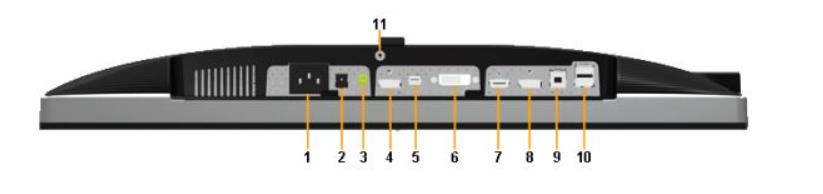
One of the most common causes of Dell monitor sound not working is an improper connection. If you are using an HDMI cable to connect your monitor to your Dell computer, there could be an issue with the cable or the monitor’s settings.
In many cases, users may find that dell monitor no sound hdmi is the issue because HDMI carries both video and audio signals. If the audio portion of the signal isn’t being transmitted correctly, it results in no audio.
Another frequent issue is the Dell monitor audio out not working. Many Dell monitors come equipped with an audio-out jack, but it may not be properly configured.
It’s important to ensure that the correct audio output device is selected in your system’s sound settings. If you’re using external speakers or headphones, the Dell monitor audio-out jack must be correctly connected to those devices.
In some cases, the Dell monitor speaker not working problem might be due to incorrect settings or a failure to enable the built-in speakers.
You should check whether the monitor’s sound output is set to the correct device in your operating system’s audio settings. Moreover, if your Dell monitor has no audio jack, you might want to confirm that the sound is being sent through HDMI or another supported connection.
If you are using a Dell monitor HDMI cable with a device like an Xbox, and there’s no sound on the Dell monitor, it’s possible that the settings for the connected device need to be adjusted.
Why is no sound coming from my Dell monitor? It could be due to an incompatible audio format or an issue with the monitor’s firmware. Additionally, the Dell monitor’s lack of an HDMI cable may also be a factor in this issue.
In the following sections, we will dive into solutions for fixing sound-not-working Dell monitor issues, from basic troubleshooting steps to more advanced fixes.
Stay tuned as we guide you through resolving your Dell monitor sound output challenges.
Step 1: Check HDMI Cable and Connections
The first step is to ensure all of your physical connections are secure and that you’re using a working HDMI cable.
Make sure the HDMI cable is inserted completely into the ports on both your monitor and computer. Remove and reinsert both connections.
Try using a different HDMI cable, preferably a newer high-speed HDMI cable. Older HDMI cables may not support audio transmission.
Try connecting your monitor’s HDMI port to another source like a game console, DVD player, or streaming device. If you get sound from another source, the issue is with your computer, not the monitor.
For Dell monitor audio not working via HDMI, rule out any loose port connections.
Getting audio over HDMI requires a solid physical connection between the source and display. Verify this first before troubleshooting any software-related issues.
Step 2: Set Sound Output to HDMI
If you have a confirmed working HDMI connection but still no sound, the next thing to check is your audio output settings.
On your Dell monitor, make sure Dell Display No Audio HDMI is selected as the audio source or output. There may be a source or audio input setting in the monitor’s on-screen menu.
In Windows, go to Control Panel > Sound and set your HDMI device as the Default Playback Device. This will route all system audio through HDMI.
For Dell monitor no sound via HDMI, check the sound settings in both Windows and your monitor’s menu. Toggle through different options until you get sound.
On a Mac, check System Preferences > Sound and select your HDMI output. Set the volume to an audible level.
With the Dell monitor HDMI connection, there is no sound; double-check your sound output selection in both the monitor settings and your computer.
Choosing the wrong sound output is a very common cause of the HDMI no sound problem. Make sure it’s configured correctly.
Step 3: Update Graphics Drivers and Monitor Firmware
Outdated graphics drivers and monitor firmware can also prevent HDMI audio from working properly.
In Windows, go to Device Manager and update your graphics card drivers. For NVIDIA cards, use GeForce Experience. For AMD, use Radeon Software.
Check the Dell website for any available firmware updates for your monitor model. Newer firmware may resolve Dell monitor HDMI no audio output problems.
After updating graphics drivers and monitor firmware, restart your computer and test HDMI audio again. Drivers play an integral role in HDMI functionality.
On Dell’s site, you can enter your monitor’s Service Tag to automatically find the latest drivers and firmware. This helps fix Dell monitor no sound HDMI Windows 10 problems.
Make sure your HDMI drivers are up to date in macOS as well using System Information. Old drivers contribute to Dell monitor no audio via HDMI cable problems.
Updating critical software components like graphics drivers and firmware ensures maximum compatibility with the HDMI standard and your specific monitor model. Always keep these up to date.
Step 4: Change Audio Format in Windows
Another common cause of no sound on a Dell monitor HDMI is an incompatible audio format. Windows defaults to high-definition audio formats that may not be supported.
In Windows Sound settings, select the HDMI device and click Device Properties. Go to the Advanced tab.
Try changing the audio format to CD quality 16-bit 44.1 kHz or lower, like 22.05 kHz. Click Test to check for sound.
If setting a lower audio format resolves your Dell monitor’s no audio over HDMI problem, leave it at that quality. Higher formats may not work.
Alternately, go to Sound Control Panel > Playback tab. Select your HDMI device, click Configure, and try different formats.
Setting a basic stereo audio format like 2-channel 16-bit 44100 Hz may be required for Dell monitor HDMI no sound fixes.
Windows sometimes defaults to surround sound or other higher-quality formats your monitor may not support. Setting a standard stereo format typically resolves any compatibility issues.
Step 5: HDMI EDID Reset
Finally, you can resolve stubborn audio issues by resetting the EDID (Extended Display Identification Data) on your HDMI port. EDID stores information about your display capabilities.
Turn off your Dell monitor and disconnect power for 60 seconds. This clears any stored EDID data.
Reconnect and turn on your monitor. Windows will re-read the EDID information, which may fix the Dell monitor’s no sound through HDMI.
You can also go into your monitor’s service menu and select Reset EDID or Factory EDID to reset audio capabilities that fix Dell monitor audio not working HDMI problems.
If you have a graphics card utility like NVidia Control Panel, you can do a manual EDID reset there as well. This resolves Dell display no audio HDMI issues.
Resetting EDID essentially clears the HDMI handshake and allows devices to re-establish optimal compatibility. When everything else fails, this straightforward reboot method frequently restores HDMI audio.
Conclusion: Resolving Dell Monitor No Sound Issues
If your Dell monitor has no sound, there are several troubleshooting steps you can take to resolve the issue and get your audio working again.
Many users face the problem where the Dell monitor is not detecting HDMI or the Dell HDMI port is not working. This can occur for a variety of reasons, such as faulty cables, incorrect settings, or even outdated drivers.
Whether you are trying to figure out how to get sound on a Dell monitor or resolving an issue with no sound HDMI Windows 10, the key lies in systematically checking and addressing each potential cause.
First, it’s crucial to verify that Dell monitor audio is enabled. Some Dell monitors may not have built-in speakers, so in such cases, you’ll need external audio devices.
If your Dell monitor does have speakers, ensure that the audio settings on your computer are configured correctly. Also, check your Dell monitor troubleshooting options, such as ensuring the right HDMI port is selected in the monitor’s menu.
If you’re experiencing the issue of no sound on your Dell computer, make sure that your sound output settings are correct in the Windows 10 sound settings.
Sometimes, the system might default to other audio outputs, like a connected headset, rather than the Dell monitor audio. If you’re facing an issue where the Dell HDMI port not working is preventing audio from passing through, testing a different HDMI cable or port might help.
In some cases, the problem might be related to HDMI no sound Windows 10 issues. You can try updating your drivers or adjusting your audio output settings in the system to resolve this.
Additionally, if the monitor is not detecting the HDMI signal, it could be a Dell monitor no HDMI signal issue, which requires checking the HDMI cable or port for any damage or malfunction.
For Dell gaming monitor no sound issues, gaming setups often require precise configuration, and you might need to use external speakers or a soundbar if the built-in monitor speakers are inadequate.
Similarly, if you’re experiencing issues like Xbox One no sound through HDMI, ensure the audio settings on your gaming console or HDMI connections are properly set up.
Finally, knowing whether Dell monitors have speakers or not is crucial for determining whether you need external audio equipment. If the built-in speakers are not working, troubleshooting the Dell monitor no sound issue might involve using external devices to ensure you can enjoy the full audio experience.
In conclusion, resolving Dell monitor no sound problems involves a combination of checking cables, settings, drivers, and external audio solutions.
By following the troubleshooting steps outlined in this guide, you can easily resolve sound issues and enjoy seamless audio from your Dell monitor.
Experiencing an Acer monitor no sound issue can be frustrating, especially when your workflow or entertainment is disrupted unexpectedly.
Many users encounter scenarios where their Acer monitor speakers are not working, often noticing that there is no sound from Acer monitor despite connecting via HDMI.
This common issue can stem from various factors, such as incorrect audio settings, incompatible cables, or hardware limitations—particularly if your Acer monitor has no audio jack. Understanding the root cause of your Acer monitor audio problems is crucial to swiftly restoring sound and functionality.
When your Acer monitor sound is not working, especially via an HDMI connection, it’s essential to examine both software configurations and physical connections.
Users frequently report issues like Acer monitor no audio output or face situations where the Acer monitor speakers are not working with HDMI despite video signals displaying correctly. Other times, the monitor may incorrectly show an Acer monitor no signal message, complicating the troubleshooting process further.
Whether you’re dealing with your Acer monitor volume not working, or simply experiencing intermittent audio dropouts, this comprehensive guide will provide effective solutions.
From ensuring your device’s audio output settings are correctly configured to checking your monitor’s compatibility, including whether your Acer monitor audio output is functional, we’ll address every angle.
By carefully following this guide, you can quickly restore your Acer monitor sound, transforming your frustrating audio issues into a seamless multimedia experience. Dive into our step-by-step solutions to swiftly troubleshoot and permanently resolve your Acer monitor no sound HDMI concerns today.
Common Causes of No Sound over HDMI on Acer Monitors
There are a few common reasons why your Acer monitor might not be outputting sound over HDMI:
Incorrect audio output settings – The audio output may be set to the wrong device in your computer’s sound settings. It should be set to output to the HDMI device.
HDMI cable issues – If you’re using a faulty or old HDMI cable, it may be unable to transmit the audio signal. Try replacing the cable.
HDMI output not enabled – Some computers and monitors require you to actively enable HDMI audio output in the sound or display settings.
Driver problems – Outdated, corrupt or missing audio/video drivers can prevent HDMI audio from working properly.
HDMI version incompatibility – Older HDMI versions may not support audio transmission. Use HDMI 1.4 cables or higher.
Problem with source device – The problem may lie with the device transmitting the audio/video over HDMI like a Blu-ray player, game console, etc.
Monitor hardware issues – In rare cases, a hardware fault in the monitor can lead to HDMI audio problems.
Troubleshooting Steps to Fix No Sound on Acer Monitor over HDMI
If you aren’t getting any audio when connecting your Acer monitor to a computer using HDMI, try these troubleshooting tips:
1. Confirm HDMI Audio Output is Set Correctly
The most common issue is having the wrong audio output device selected on your computer. HDMI audio will not work if your computer’s sound is set to the speakers, headphones or another output.
On Windows:
Go to Start > Control Panel > Hardware and Sound > Sound
Under the Playback tab, make sure your HDMI device is selected as the Default Device and default communications device. The HDMI device may appear as your graphics card name such as NVIDIA or AMD High Definition Audio.
On Mac:
Go to Apple Menu > System Preferences > Sound
Click on the Output tab and select your HDMI device. The device name may be your monitor’s brand and model.
2. Try Connecting HDMI to Another Device
To rule out any issues with the HDMI port on your Acer monitor itself, connect another device like a Blu-ray player or game console via HDMI. If you get audio from another device, the issue lies with your computer settings.
If you don’t get audio from other devices as well, your Acer monitor may have a problem with the HDMI input hardware. Contact Acer support.
3. Use a Different HDMI Cable
One of the most common causes of no HDMI sound is a faulty or damaged HDMI cable. HDMI uses separate channels to transmit audio and video signals.
If the audio channel in the cable is broken or has a bad connection, no sound will come through – even though the video still works fine.
Try using a different Premium Certified HDMI cable to see if that fixes the no sound problem. Make sure it is HDMI version 1.4 or higher.
4. Update or Reinstall Audio and Video Drivers
Outdated, corrupt or missing drivers for your GPU, sound card and monitor can prevent proper HDMI audio transmission.
On Windows:
For your GPU drivers, head to NVIDIA or AMD’s website, and download the latest drivers. Use a tool like DDU to fully uninstall old GPU drivers before installing the new ones.
Update your sound card drivers from the manufacturer’s website or Device Manager.
For monitor drivers, go to Acer’s website and search for your monitor model. Install the latest monitor/display drivers.
On Mac:
MacOS and your Mac hardware should automatically have the latest drivers. But you can install any updates from the App Store.
For your monitor, get drivers from the Acer website.
5. Toggle HDMI Audio Settings
Some PCs require you to actively enable HDMI audio output, even if your HDMI device is set as the default output.
On Windows:
Go to Sound Settings, select your HDMI device and click Device Properties.
In the properties window, go to the Advanced tab and check that HDMI audio is enabled. If disabled, enable it.
Also choose the correct HDMI audio format supported by your monitor and HDMI device.
On Mac:
In System Preferences > Sound settings, select your HDMI output device and click the Output tab.
Ensure that HDMI audio is toggled on, and not muted or disabled.
6. Check HDMI Version Compatibility
Older HDMI versions may not support audio transmission. Most modern HDMI ports and cables are version 1.4 and higher, which fully supports audio.
But if you’re using an older 1080p monitor or TV with your PC, it may only work with HDMI 1.3 or older. These will provide video transmission but no audio.
Check the supported HDMI versions of both your monitor and graphics card. Use HDMI cables labeled 1.4 or higher for full audio and video capability.
7. Try HDMI on Another Monitor/TV
To confirm the HDMI port on your Acer monitor is working properly, connect it to another external monitor or TV via HDMI.
If you get both audio and video on the other display device, the issue likely lies with incorrect settings on your PC.
However, if the other display also loses audio over HDMI, your Acer monitor may have a hardware defect affecting the HDMI ports. Contact Acer support for repair options.
8. Reset HDMI Interface
Resetting the HDMI connection can sometimes resolve HDMI handshaking issues that prevent audio transmission.
Turn your monitor and the HDMI source device OFF. Unplug the HDMI cables from both ends and leave them unplugged for 5-10 minutes. This clears residual signals and resets the HDMI interface.
Now plug the HDMI cable back in and turn your devices on. The HDMI reset can often fix audio problems.
9. Perform a Clean Reinstall of Windows
If you still can’t get HDMI audio working despite trying the above steps, a clean reinstall of your Windows OS may be required. This will completely refresh all drivers and settings related to audio outputs.
Backup your data, boot into safe mode, and choose the option to reformat your Windows drive and perform a clean install. After the OS reinstall, download the latest drivers for your hardware and re-configure your HDMI audio settings.
10. Test with a Different Source Device
Try connecting your Acer monitor’s HDMI input to another source device like a Blu-ray player, game console, streaming stick etc.
If HDMI audio works fine from the other source, then the issue lies with your PC’s settings, cables or the HDMI output.
However, no HDMI sound from multiple source devices indicates your Acer monitor has a hardware problem – likely with the monitor’s internal audio processing circuits related to the HDMI ports. You will need to contact Acer support.
Conclusion
No sound when using HDMI on an Acer monitor can be frustrating, but is mostly fixable through software settings or cable tweaks. Updating drivers, changing default audio output, getting Premium HDMI 1.4+ cables, and toggling HDMI audio settings usually resolves the problem.
Understanding precisely how to get sound on Acer monitor involves methodically verifying connections, audio settings, and ensuring compatibility, especially when the issue arises via an Acer monitor HDMI port.
Many users often wonder, “does Acer monitor have sound?” as not all models include built-in speakers or audio jacks. It’s important to verify your monitor’s specifications first, especially if you’re dealing with an Acer monitor built-in speakers not working situation.
If your Acer monitor audio is not working, check your system’s sound settings to confirm the HDMI output is correctly selected, especially when there’s no sound when connected to external monitor MacBook devices, as macOS occasionally requires manual audio configuration.
Additionally, updating device drivers or adjusting HDMI audio settings on your PC or gaming console can often restore your Acer gaming monitor sound effectively.
Ultimately, realizing “my Acer monitor has no sound” doesn’t necessarily indicate a hardware failure.
Simple troubleshooting methods—such as switching HDMI cables, adjusting sound settings on your computer or console, or confirming the Acer monitor no audio output issue through external speakers—can efficiently resolve the issue.
Always ensure firmware and software drivers are updated regularly to maintain compatibility and optimal performance.
By following these practical troubleshooting steps, you can quickly diagnose and resolve common audio problems, enhancing your overall experience.
With proper adjustments and knowledge of your monitor’s audio capabilities, you can easily overcome the frustration of sound issues, ensuring your Acer monitor delivers a seamless and immersive multimedia experience every time.