The Skype data usage is dependent on video or audio call.
The bandwidth requirements are based upon whether you require video conferencing, HD video calls, group calls and many others.
For this you need a powerful webcam, high resource computer or laptop and a good mic.
Many Skype users complain that it is using too much data over mobile and internet.
In order to know the reality, we have researched the web and found the “near” correct internet usage of Skype application and app.
You can also install Skype on an Android or Windows Phone.
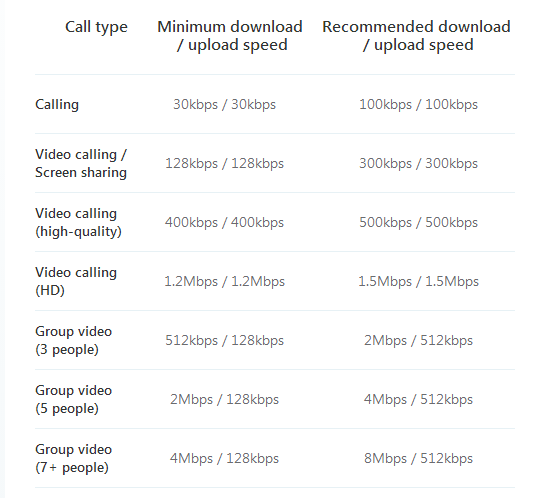
For normal video calling if you have a bandwith of 300kbps it is sufficient.
You can have a download speed of 40kBps. But for HD video call you need a 1.5Mbps connection. This is for single-person video calling.
Once you are on limited bandwidth, you are supposed to use your apps and software very resourcefully.
Skype Data Usage for Video
This is because, you don’t know which app or program is consuming bandwidth. At the end of the day you may find out that your calculated bandwidth is way more than you estimated.
But if you have more number of persons in the same video call, you need to have more bandwidth.
For example, if you have 6 people in a live-video conference, you should have atleast 10 Mbps connection.
Skype Usage in PC and Mobile
This is because you may need to share some important files if you are on an official network like Skype for Business.
This generally happens with your mobile phones and smart gadgets.
Though many brand OS like Android, iOS and Windows 10 come with precautionary measures to save your valuable bandwidth. Its also important that one can take care of the resource hogs that give you black nightmare.
According to one source in 2018, the amount of bandwidth required for a 5 minute conversation was about 2 MB. In earlier days it didn’t work swiftly with 56K dial-up modems and you needed ISDN 64K connections. Somebody posted in Yahoo Answers about Skype bandwidth usage some 2 years ago.
The satisfied answer looked something like this:
On ADSL i checked the Skype download/upload speeds :
Netlimiter shows stats of around ruffly 6kb up , 6kb down. (12kb per sec)
on average 43.2mb per hour,
The above usage estimates, is for Skype voice only.
For Skype Video The estimates figured up show about 3.4MB per minute being used during a video call. The test was done by logging the data usage before and after a 1-minute call. However, if you’ve got 2 GB to play with, you shouldn’t have too much of a problem skypeing.
Finally, I Suggest, Use Netlimiter (netlimiter.com if I recall correctly).
Later I found on another post saying that Skype adjusts itself to different forms of connections. If it’s on a speedy connection it will use more bandwidth and on a slower connection it adjusts itself to use the appropriate bandwidth.
Skype Bandwidth Requirements – Minimum and Maximum
If you are using the latest version of Skype, you can also see, how much bandwidth is taken during a video call.
Some 4 years ago it was found that a typical voice call requires 55MB per hour and a video call takes 72 to 180 MB per hour.
Since those days the network speeds were slow and people had limited bandwidth, video chat was almost impossible without interruptions.
The latest reports in 2023 suggests that Skype uses 200-300mb of data (up & down combined) per hour of usage on a video call, and around 40-50mb per hour on a voice only call.
Skype Data Usage Per Hour – 6 Important Points
Skype data usage depends on the type of calls you make, the quality of the video, and the number of participants.
Skype-to-Skype calls use about 50kbps or 3MB per minute of calling, while calls to landlines or mobile numbers use 6-20 kbps or 1MB per minute of calling.
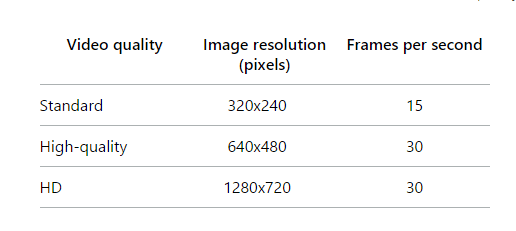
For one-on-one video calls, Skype uses about 135MB per hour on standard quality, 240MB per hour on high quality, and 720MB per hour on HD quality.
For group video calls, Skype uses more data and bandwidth. The data usage can range from 512kbps to 4Mbps for download and 128kbps to 512kbps for upload, depending on the number of people in the call.
Screen sharing also increases the data consumption and bandwidth requirements of your internet connection. Skype uses about 270MB of data per hour for screen sharing on standard quality, 450MB per hour for high quality, and 1.35GB per hour for HD quality.
To reduce your data usage on Skype, you can adjust the video quality settings, turn off your video or other participants’ videos, use a Wi-Fi connection instead of mobile data, or use audio calls instead of video calls.
How much Data does Skype Use?
The following is the rough calculation of data usage by Skype for audio and video calls.
min – minimum , rec- recommended (or maximum)
Audio or Voice Only Calls
Calling (min) .22 MB/min
Calling (rec) .73 MB/min
How much Data does a Video Call use
Video call (min) .94 MB/min
Video call (rec) 2.12 MB/min
Video call HQ (min) 2.93 MB/min
Video call HQ (rec) 3.66 MB/min
Video Call HD (min) 8.78 MB/min
Video Call HD (rec) 10.98 MB/min
Max Idle bandwidth per Skype client running 1.35 GB/month (Skype running 24/7)
The following is the rough estimate of data usage for Skype calls from/to various kinds of devices.
Skype-to-Skype: 50kbps or around 3MB for one minute of calling
Calls to landlines or mobile numbers: 6-20 kbps or around 1MB for one minute of calling
Video calls between two mobile devices: 500kbps
Video calls between a mobile device and a computer: 600kbps
What is 1 hour skype call data usage like?
This again depends on whether the call is audio or video. You can see the rest of the section, to know video data usage. But, for approximate usage at recommended rate of 100 kbps for voice only Skype calls is:
0.75 MB per min
7.5 MB per 10 mins
22.5 MB per 30 mins
45 MB per hour
But this again may vary. If you are on a send/receive communication channel, the internet plan works for both download and upload usage. So it may even come up to 90 MB per hour, if you and your friend are talking continuously on the audio call.
How much is the Skype Data usage for Video call?
It depends upon the type of resolution. There are 3 types of video calls, according to Skype – standard, high or HD (high definition).
The quality of your video call is determined by Skype. This depends on various factors like quality of webcam, speed of internet connection, specification of your computer, the person you are calling etc.
So if you take the above metrics for skype data usage, the following will be the video call data usage per hour.
HD (high definition) Video Call – 550 MB (min), 700 MB (rec)
The above statistics are from theoretical point-of-view.
But practically speaking, if you observe different users on Skype Community forum, the case-studies look something like this.
Case-Study of Skype Data Usage per hour
In Sep, 2023, the data usage per hour for a Skype video call between iPad and Macbook over Verizon LTE took around 2GB.
Skype also uses too much data on Android, according to a recent post. Recently users complain that Skype is using double the data. This is mostly likely the case, if you consider both the upload and download bandwidth usage.
Most of the computers and webcams are powerful, so we expect a HD video call every time Skype connects to your friends.
So on an average for a 1:1 call, Skype consumes around 700 MB per hour of video call. If you include both sides, it can come up to 1.5 GB.
But if you are on a group call of say 7+ people, it can consume around 4 GB on one side. If you consider both send/receive communication, it can come up to 8 GB per hour.
So if you are on a data plan on your mobile, your bandwidth can be consumed very quickly.
To detect skype data usage on your computer, you can use a software like Netlimiter.
What is the Average Skype Data usage for Voice over Data Calls?
It consumed around 875 Kb (kilo bytes) for a 1 minute, 2-way call. Out of the list of 10 apps, Skype scored the least points in data usage.
This again confirms the fact, that an average 1-way voice call may take 45 MB and 1-way video call (standard quality) may take around 130 MB. If it’s a two-way call, it may take roughly double the data.
What is Skype?
Skype is a voice-over-IP Microsoft service whose (VoIP) technology can be used to text, talk and have video conversations with your friends and relatives online.
It came into existence in 2003. The software was firstly developed by some Estonian developers.
What Skype Can do?
You can buy some credit on this service and use that to call somebody’s mobile and landline from the comfort of your home computer or laptop.
But if both the caller and receiver are using Skype then you can chat, make audio and video calls for free.
But you have to be careful about the bandwidth usage when using Skype, because it does not give the actual internet memory consumed during this process.
The Samsung brand is well-known in the television and electronics sectors. Digital HD televisions have replaced analog ones in recent years. Samsung smart tv hdmi ports are connected to external sources for video and audio signals.
Samsung LCD, LED, OLED, QLED, Crystal, UHD and Smart TVs are all available. All of them offer excellent quality, great picture, great sound, as well as different interfaces. One of the common types of input used in many of these televisions is HDMI.
Wireless technology is slowly replacing wired connections. Wired connections, however, are cheap and provide a good signal. HDMI, Wi-Fi, and Bluetooth are the newer brands for connecting input and output devices. You can connect Samsung TV to a laptop, Windows 11 or 10 computer, cable box, high-quality speakers, etc.
Image Credit : Samsung.com
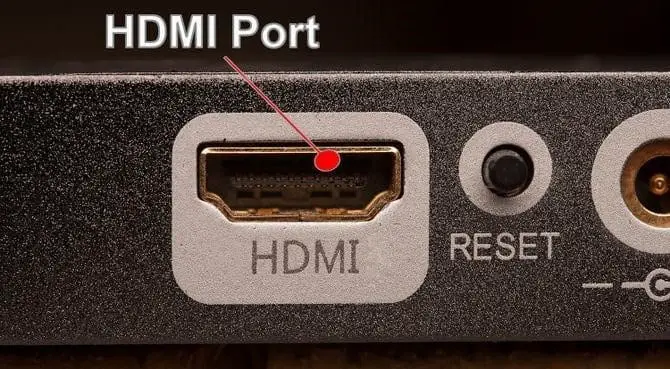
In many new Samsung TVs, HDMI ports are built-in. They can be used both for video and audio. HDMI cables are generally used to connect input and output sources of HDMI ports. HDMI transfers content digitally, so picture and sound quality are excellent.
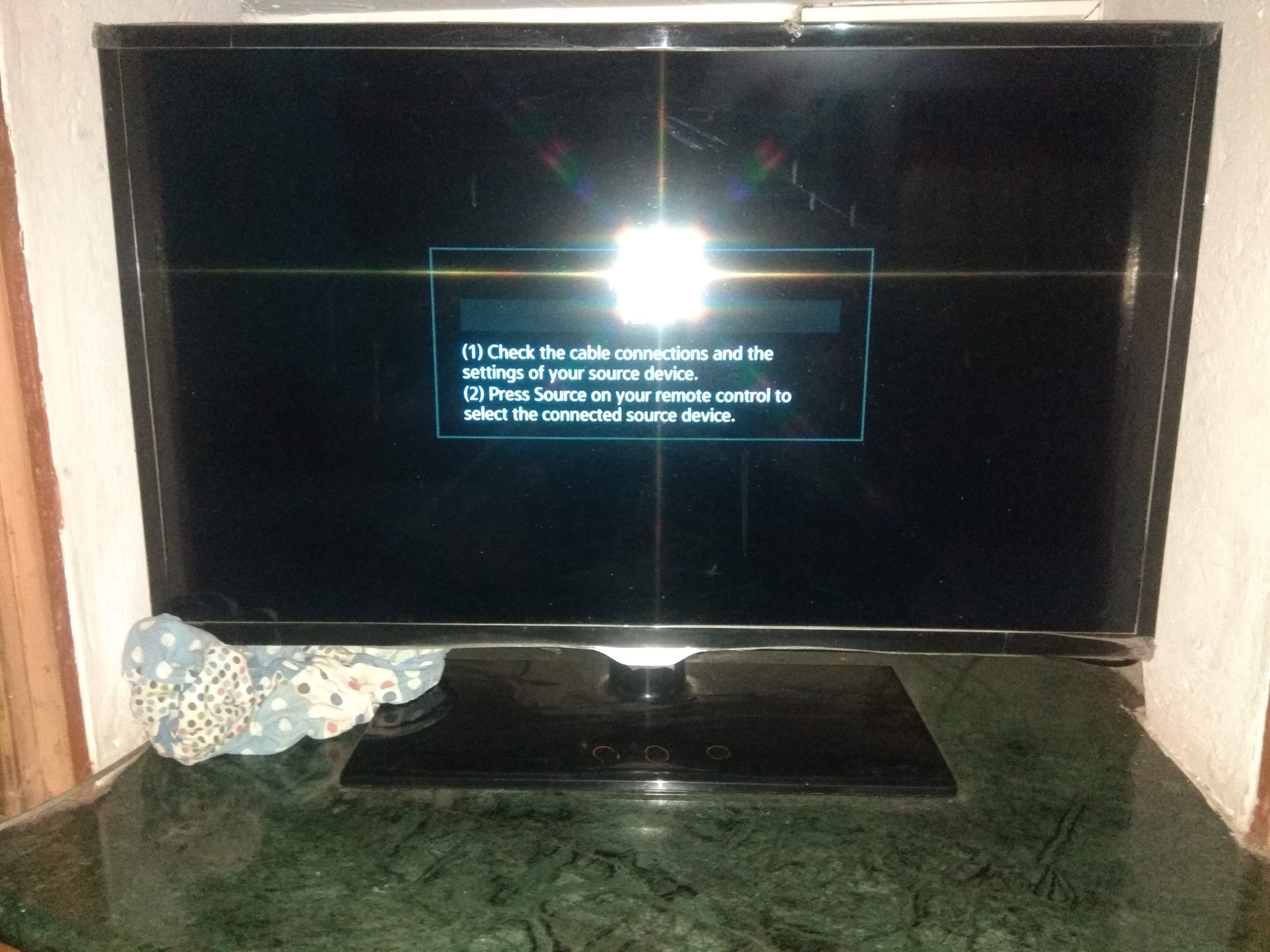
What if your Samsung TV does not recognize HDMI inputs from a cable box, Roku device, Amazon Fire TV Stick, or Windows 11 computer? You will need to identify the cause of the problem. There are a few steps that you can take to solve this type of problem.
Test Samsung TV motherboard
On Samsung TVs, the HDMI ports are usually integrated into the motherboard through various channels. Therefore, if something goes wrong with this system, the HDMI ports may also be affected. When you connect an external source, HDMI glows in color.
It is sometimes necessary to replace the entire board. A good technician will sometimes solder the loose circuits and capacitors in order to make it work again. Make sure your inside board isn’t the problem, whatever the reason may be. DIY videos also exist to repair the HDMI input ports.
DIY video to fix the Samsung HDMI port if it is not working.
If that doesn’t happen and you still can’t see the picture, call your TV technician to check the inner details.
Check out external sources
Cable boxes are often affected by this problem. HDTV cable boxes are necessary for HD TV channels on your display unit, as you know. They also feature HDMI ports. The HDMI cable passes through the HDMI port on the cable box to the HDMI port on the Samsung TV.
When an external source signal is destroyed by lightning or thunder, you will see a red signal. There will be no HDMI signal on the Samsung TV. The cable relay is temporarily disconnected and will be reconnected soon.
HDMI input and output ports work fine. This is a temporary problem.
How to Choose the Right HDMI Source
Modern Samsung TV sets have more than one HDMI port. You will not be able to view your external source if you connect it to another HDMI input.
To select your HDMI source, you will need to know where you have inserted your HDMI cable and use your TV remote to select that source. In general, all connected ports will be blue to indicate that they are active.
Indicators may not work every time, but the ports should still function normally. In such cases, you need to check your display and make each HDMI source active on your TV.
Reconnect your HDMI cables
Usually, a loose connection between the HDMI cable and the port is responsible for Samsung TV not recognizing HDMI input. All you have to do is make sure that the HDMI cable end is properly inserted and tightened.
After a rainstorm or lightning, there can also be some static electricity left in HDMI sockets. So, all you have to do is disconnect the HDMI cables and reconnect them again.
HDMI cable messed up
Sometimes, Samsung televisions don’t have a problem with their HDMI input socket. Rather, the problem lies in the HDMI cable. Since you are using an HDMI cable to connect the external source and your Samsung device, there is a problem with the connection.
Try a new HDMI cable and see if Samsung TV recognizes the external source. If it does, then you need to replace the cable.
External source of error
There are a variety of devices that can be connected to the HDMI ports on your Samsung TV. It could be a computer running Windows 11 or 10 or a cable box. To get the display on your TV, the source should be switched on and working perfectly.
Selecting the right Samsung device for your Windows 10 computer is essential if you have multiple monitors. The external HDMI port may not be working or the device may not be turned on.
Thunder or rain may cause your HDMI cable box to not turn on or off automatically. Check the external device, reconnect the cables, and enable the options in Samsung TV again.
Update the Samsung TV software
Samsung’s new HDMI-connected TVs are typically digital HD products. Many of them come with firmware installed. Depending on the version of your TV, a new OS might have been installed. In all of these cases, you can update the Samsung TV software.
Go to Settings > Support > Software Updates > Update Now
How to update Samsung TV Software with Ease
FAQ
How to Fix Samsung tv HDMI ports not working ?
Samsung TVs with HDMI ports are very problematic in nature. I will always recommend to take the services of an authorized Samsung service center for any TV repair. Most of the authorized service centers for Samsung TVs have been certified by the company and the technicians will have skills to fix your TV. In case you have decided to fix your TV on your own, you can refer the troubleshooting guide from http://www.samsung.com/us/support/owners/usefulinfo/flat-panel-displays-troubleshooting-info . This will help you to troubleshoot the issues with your TV. Try to follow the troubleshooting guide and check if your TV is working fine. If not, then you will have to contact the authorized service center.
Why Samsung tv not recognizing HDMI ?
It is a very common problem with Samsung TV. If you have tried different HDMI cables, and also tried other HDMI ports on your TV, then it is most likely due to the settings on your TV. you have to go to the HDMI settings on your TV and make sure that the HDMI ULTRA HD Deep Color setting is turned ON.
Why Samsung Smart TV not recognizing cable box ?
It’s not a problem with the tv. It’s a problem with your cable box. The tv has a newer type of connection than your cable box, so it’s not being recognized. Try plugging the tv into the wall with an ethernet cable and see if that works. If it does, then you can buy a network adapter to plug into your cable box and your problem will be fixed.
How do i reset the HDMI port on my Samsung TV ?
In order to reset the HDMI port of your smart TV, you need to make sure that your TV is disconnected from the power socket. Now, you need to take a pin and press it against the HDMI port for about 2 seconds. The HDMI port will get reset and now it should work properly.
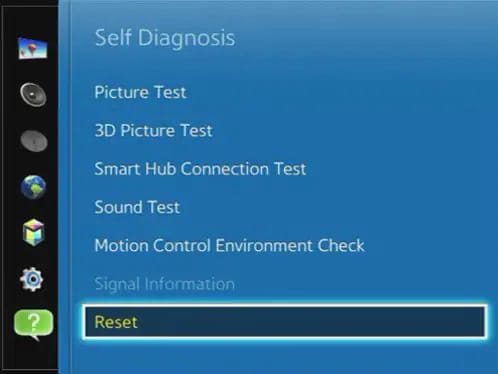
Reset Samsung TV to factory settings
There is no issue if the above upgrade works. However, the new update may not be compatible with your model. If so, you need to restore your factory settings. As a result, the software status will be restored to the previous one, when you purchased the TV.
Since it worked before, it should also work now. Don’t update. Keep the old one. Here’s how to factory reset it.
Go to Settings > General > Reset > Enter your reset pin
In general, it is 0.0.0.0 and confirms a reset. You should get your old firmware back. Otherwise, contact your dealer for the PIN and this information.
In the real sense, a free driver manager is not completely “exempt” from any charges. Many of the programs scan your computer for outdated versions and provide information on the latest version of drivers.
To update to the latest version or install the correct driver, you need to purchase the pro version. Most of the time, we call this a “freemium” model. After you test their software for available drivers, you pay for the right version of drivers to be installed.
Without the right drivers, even your sound devices won’t work properly. Graphic drivers, motherboard, printers, bluetooth etc all require the correct drivers. Compatibility of driver updater software and the actual devices should work out properly.
Some old devices require old drivers while the new ones need the latest. Only then the connection between Windows and devices works properly.
Download the missing the HD Audio Drivers from RealTek, Conextant, VIA and NVIDIA? Make sure your motherboard supports these sound hardware.
Driver Updater free tools
Prices range from $9.99 to $39.99, but most of them aren’t as cheap as Windows Store or Android Play Store apps.
Every program has its own “loophole” in finding the right driver. Sometimes the device is too old to find its drivers. The company is otherwise not producing these items.
Is Driver Easy Safe? It is one of the product commonly used by many Windows users. It is popular and makes it easy to update all the program drivers at once. Is Driver Booster safe? This program also has a trial version, but to update the drivers you need to purchase it.
In all these cases, the drivers provided by these third-party programs can be useful. The Bluetooth adapter driver that Tech-Com purchased in 2001, for example, was not available on the Internet. You can then update using a good driver updater software.
What do you do then? For such cases, you can either delve deep into Google to find relevant drivers or rely on these programs to find the latest drivers.
Other times, you won’t find the latest drivers. In Windows 11 and 10, for example, some devices do not have drivers. Their support ends with Windows 7. Therefore, you have to rely either on Microsoft drivers or on drivers from other companies.
Why Use Free Driver Updater Windows 10?
The drivers can be found in one place with one click. Most of the time, you just need to click the scan button.
The third-party utility will then identify all the necessary driver updates for your computer and update them. It’s easier than finding each one individually, isn’t it?
In this review, we will look at the top 5 best free driver updater software that will not only display the right drivers required for your devices, but will also update them.
Are you facing issues related to driver updates and installs. Then follow these guides.
If Freeware Driver Updater is Faulty?
One wrong device driver installation can cause an unlimited number of problems. Other device drivers may install without a hitch.
However, in some cases, if a driver is downloaded from a malicious source or a rigged site, you may encounter more problems than solutions.
Incorrect updates to display adapters, CPUs, PCI cards, graphic cards, chipset drivers, etc., can cause your computer to freeze.
If the wireless or ethernet drivers are incorrect, connectivity issues can arise. Crashes and bugs might also happen after a driver update. Unnecessary updates to wireless mice can also cause the mouse to hang.
If printer drivers are not updated or installed correctly, they may mis-align or print visibility may be obscured. You need the right drivers to install, upgrade, and from the right source for all of these reasons.
Top 5 Best Free Driver Updater Software for Windows 11/10/8.1/7
The list below is available in many of the reviews on several websites. But we have picked only those driver utilities which come from big companies and work well.
Driver Easy
CCleaner
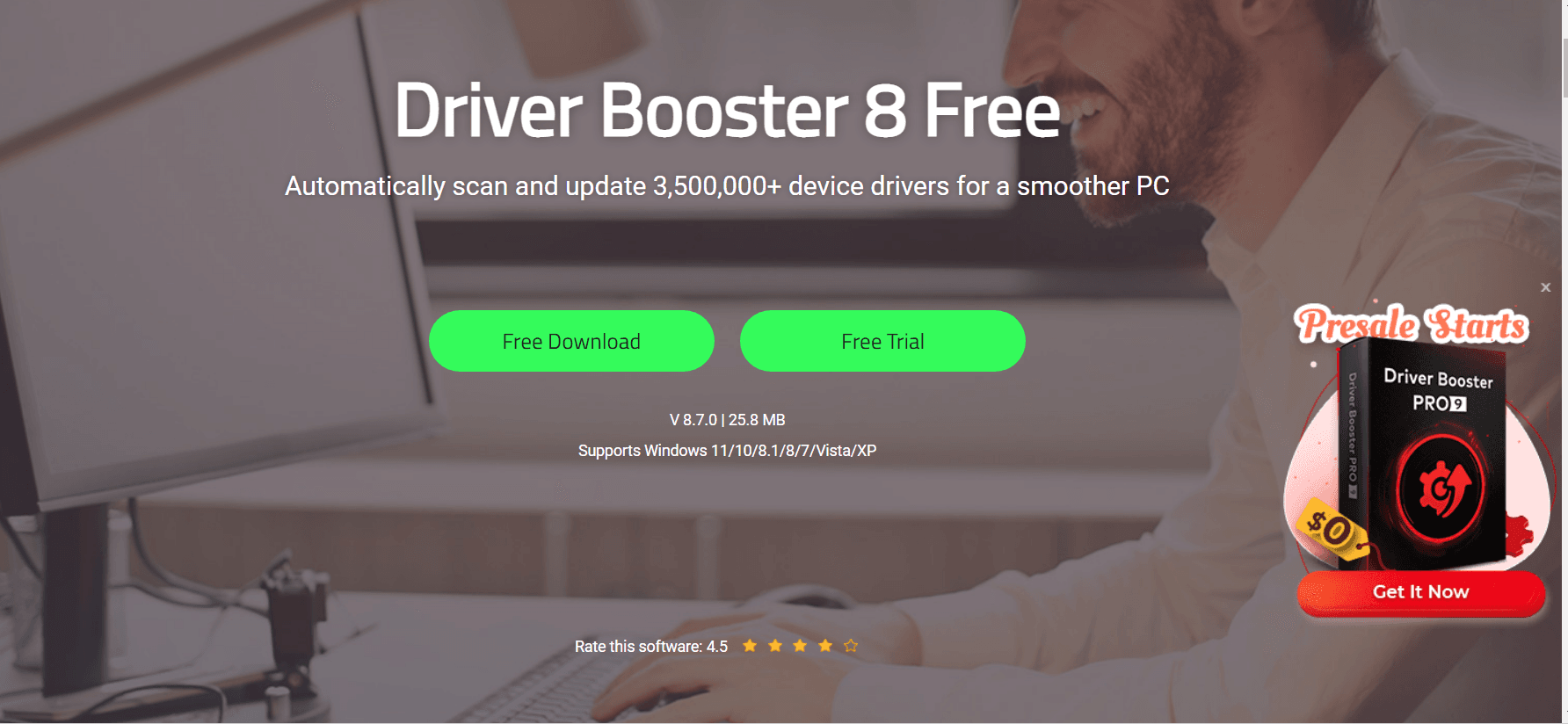
Driver Booster
Bit Driver Updater
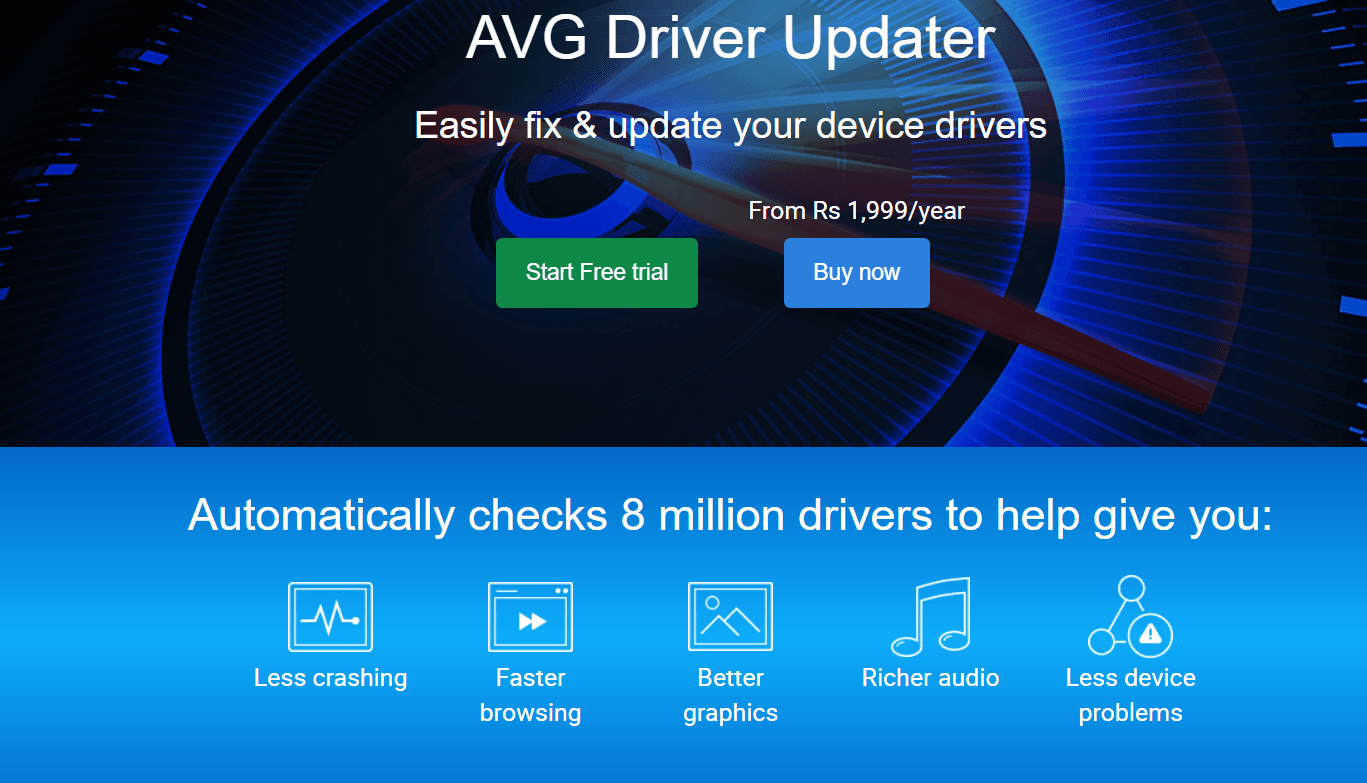
AVG Driver Updater
We can try the free version before you purchase the Pro version to install and upgrade drivers. Most of the companies mentioned below provided different license terms like 1 PC/ 1 year or 3 PC/1 year or Unlimited. The price we mentioned below each product is the minimum of all.
You can check their home page for complete details, features and prices.
Download Driver Easy for PC
Pro – $29.95
Corporate Headquarters
Unit 503, 5/F, Silvercord Tower 2, 30 Canton Road, Tsimshatsui, Kowloon, Hong Kong.
Support: support@drivereasy.com
Kevin Zheng
Founder & CEO
Easeware Technology Limited
To find outdated drivers is not possible by all the mentioned above utilities. When you have an old motherboard, chipset and PCI Bus kind of drivers are not found everywhere. Though the manufacturer can release some of them, Windows 11 and 10 are not available. In such cases, you need a free driver update utility that fills the gap.
Is DriverEasy free?
Yes, there is a free version. It is just like any other free driver updater utility. You can scan for drivers and see the results. But you cannot install or upgrade. To work completely, you need to purchase the pro version.
There are many similar utilities available in the market. They work similarly to Driver Easy, except that they do not check drivers automatically. You need to go through their site and download one which is compatible with your computer’s operating system.
If you are using Windows 10 or 8.1 or 7 then Driver Easy is for you. It checks drivers automatically and updates them to the latest version available in the market. If your system crashes, then it will give you an option to roll back or replace that driver with an updated one.
Is Driver Easy Safe Reddit?
Driver Easy does not have any malware or viruses. However, it is recommended to download from the official website only. If you are using a third-party site then use that with caution.
Is Driver Easy any good?
Yes, it is good. It has an inbuilt feature that checks for any driver update automatically. If you do not want to download them manually then Driver Easy will do the job for you.
Most of all it is downloaded by more than 3 million people around the world. It has both the free and Pro versions. The free version will list all the drivers that need an update. So if you don’t want to purchase the premium version, you can just manually search around the Internet. This way, you get updated drivers for free.
Using this tool you can find drivers for audio devices, graphic cards, network/ethernet cards, wi-fi cards, chipsets, printers, USB devices, Bluetooth devices, PCI cards, modems, CD/DVD drives and scanners. You can get drivers for old and new devices.
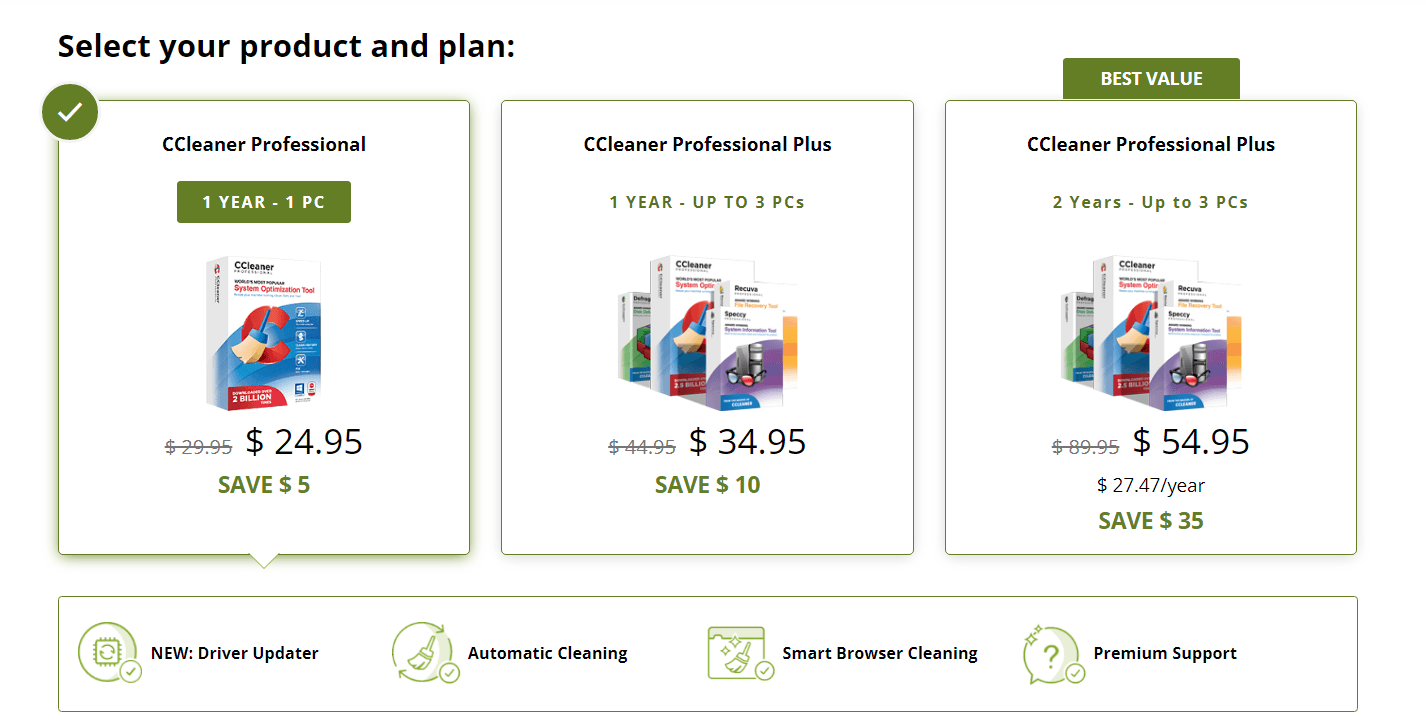
CCleaner Driver Updater Program
Pro – $24.95
Piriform Ltd
It is a British software company based in London, owned since 2017 by Avast.
Founder: Guy Saner
Founded: 15 September 2005, London, United Kingdom
Headquarters: London, United Kingdom
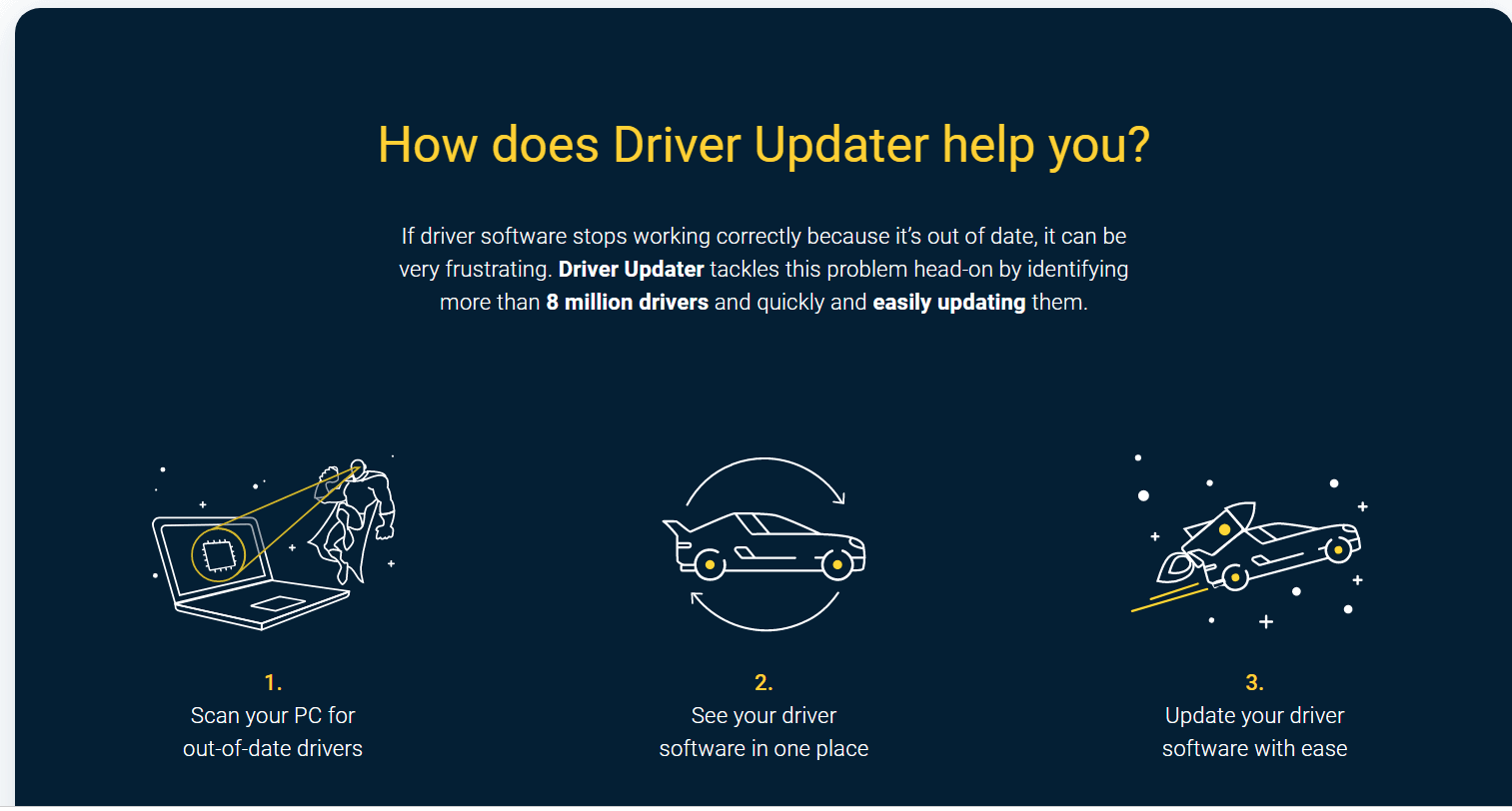
We all knew that it’s a cleaning and optimization software. But did you know that it has a new driver updater tool in it’s list of modules?
We can’t thank the developers for providing such an utility at a very cheap cost. The free version just like any other driver updater tool will scan the pc and find all the necessary drivers.
You can update driver that is not out-of-date. The driver if not found or updated, sufficient information is given.
Is CCleaner driver updater any good?
CCleaner Driver Updater is a free application that allows you to update your device drivers without having to go through the hassle of manually searching for them. You can use this tool with Windows 10 or 8.1 or 7 operating systems.
Just like all other driver updater tools, this tool also scans the system and lists out the outdated drivers. It has a built-in update mechanism which will automatically check for new updates once you launch it. The free version of CCleaner Driver Updater will only list out the outdated drivers.
CCleaner’s Driver Updater is an in-built tool in CCleaner, a freeware system cleaning and optimization software that scans your computer for outdated drivers. Once installed, it runs in the background and checks if any updates are available for your device.
Can CCleaner update drivers?
Yes, CCleaner can update drivers. But you need to use the Pro version. You can use it to download and install the latest updates for your device.
CCleaner is a free software that optimizes and cleans Windows registry and improves computer performance by removing unused files from your system. It also helps you clean up junk files.
Is CCleaner harmful?
CCleaner is not harmful. It does not have any malware or virus in it.
No, CCleaner is not an anti-virus program. There are many programs that can scan your computer for viruses and malware without slowing down your computer.
No, CCleaner is not a rootkit. A rootkit is a piece of software that allows an attacker to gain control over the system and monitor what you are doing on it.
It will then tell you how many drivers are up-to-date and are required to be updated. In this way you can skip the Device Manager to see all the list of devices that need driver updates. The interface makes it clean to see all the devices at one place. I didn’t know that my PC required so many drivers and updates.
May-be most of them are not required, but my PC works well even after updating them. So we can believe that this tool does it’s job of updating drivers and is functioning well. In some cases, it is not able to update the drivers, though it says that update is required.
IOBit Driver Booster Review
Pro Version – $19.95
IObit’s CEO is Hugo Dong
IObit generates $25M in revenue
IObit’s headquarters is in San Francisco California, USA
It is also a popular freeware tool provided by IOBit. The latest version is 8.7.0. You can install the free version and test the number of drivers it displays. The welcome feature of this tool is that it also supports Windows 11 as stated on the home page.
In its database are around 3.5 million device drivers. It is a lot compared to other products. I already tried this product some time ago. The advantage with this tool is that it can install necessary graphic card, display drivers in offline mode also. It supports 1200+ major brands.
Is Driver Booster Safe 2021?
Is Driver Booster Safe?
Driver Booster works very well and is recommended. But still, there are some concerns about the safety of Driver Booster. The problem with this product is that it only supports major brands such as Intel, AMD, NVIDIA and VIA etc.
However I noticed that its main purpose to detect and update drivers.
How is the Performance of Driver Booster?
I was not able to check the safety of this product after I installed it on my PC. It can also slow down your system if you have a lot of device drivers which are outdated in your computer. Driver Booster has many features that will make sure that your system is up to date.
It is an excellent product, but still there are some concerns about the safety of this product.
I can’t say that it is completely safe because there are no official statements from the company about the security issues related to Driver Booster.
So if you want to use this, test it on your own system. I have not tested the latest version of 8 and should be different from the older versions.
Is Driver Booster the best?
Is Driver Booster the best?
Driver Booster is a very useful and powerful tool that can help you update your drivers quickly. It will detect all the devices on your computer including graphic card, sound card, network adapter etc. You can also use it to scan for outdated drivers as well as install those which are missing in your system.
How to update your drivers with Driver Booster?
How to update your drivers with Driver Booster?
Scanning for outdated drivers can be done offline or online. You need to do this before you reboot your PC so that it detects the missing driver which are not found by Microsoft or any other utility.
You can use the following two methods to update your device drivers with Driver Booster: Scan for outdated drivers in offline mode Downloading the latest drivers for your device, installing them and then rebooting your computer will automatically update all of the devices in your system.
There is a free trial and refund policy for many of the above driver update programs. If you find any missing drivers you can contact support. Driver database is large in most of these software utilities.
In addition all the drivers are Microsoft WHQL test certified and from original manufacturer sources. This makes it a reliable tool. You can prevent the mis-happening of installing another driver which can make your device malfunction.
Hardware drivers are difficult to find if they are not from a brand. But with large database it becomes easy with Driver Booster. Windows Drivers can also be upgraded, instead of reaching the manufacturer. As most of these drivers are Microsoft certified.
Another picky pro is that it also provides fix-it tools for sound, bad resolution and network problems. In many cases, not updating drivers to the latest ones are the cause of numerous device failures. As a double-edged knife it updates and fixes the errors.
Bit Driver Updater
Pro Version – $10.99
Bit Guardian GmbH
Address
Am Kirchenhölzl 14, 82166 Gräfelfing, Germany
Phone Number
+49 89 89827904
Email – support@bit-guardian.com
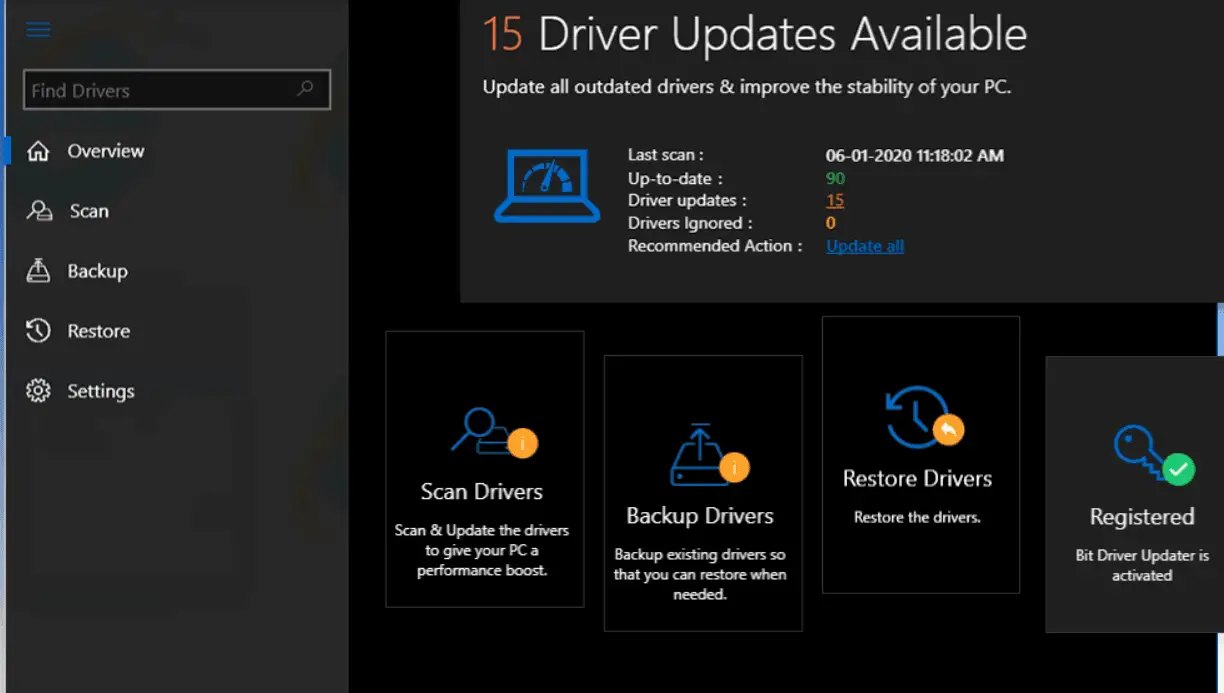
If defective drivers are found, then they are updated using this tool. Install driver updates and fix other driver related issues. Scan drivers on your computer to give the list of devices that need upgrade and installation.
If something goes wrong during installation, you can restore them from a backup. This facility to use the existing drivers in case of any upgrade failure is a useful feature. Sometimes, with any driver updater tool, they may not be successful. Restoration of drivers is its inherent advantage.
What is Bit Driver Updater?
Bit Driver Updater Review
Bit Driver Updater is a Windows device driver updater tool that will automatically update your drivers to the latest version. This means you can avoid reinstalling, repairing or updating drivers manually each time you install new hardware on your computer.
This program works with all major brands of hardware and software. It is not a driver manager or a driver update tool, but a complete solution for updating drivers automatically. This program will find the correct version of your hardware’s drivers from all manufacturers in one place and downloads them for you at no cost.
Bit Driver Updater scans the Internet for the latest drivers and makes them available to you. This allows you to update all of your hardware drivers automatically with just one click!
Bit Driver Updater works as a Windows service that monitors all updates available on the Internet. It will detect which device has an outdated or missing driver and downloads it for you, then installs it when complete. It is very easy to use – no complicated settings are there.
Is Bit Driver Updater safe?
Is Bit Driver Updater safe?
Bit Driver Updater is completely safe to use. It doesn’t contain any malicious code or viruses and does not install any software on your computer.
Create a restore point before you apply any update. This makes sure that nothing goes wrong. Driver Downloads are only half-perfect in any tool. So read the documentation provided with the drivers in their report. Internet Connection can be restored once the correct and accurate driver is installed. This is one of the best driver update software according to many review sites.
Compatibility with old OS has to be checked when using these tools. Read their documentation page if these driver updates work for Vista, XP and 7. As most of them are not supported by Microsoft, you may face damages later for installing corrupt drivers.
Recommended action to ignore updates, installs is available. With a single-click you can also update all the drivers. Top notch Windows performance without slowing your computer, is its primary benefit. 24×7 support is available.
AVG Driver Updater
Pro Version – $39.99/year
Founder: Jan Gritzbach and Tomáš Hofer
Headquarters: Prague, Czech Republic
Founded: 1991
It seems to be the most costly driver of all the above. Just like other models it has a free version to scan and list the drivers. But to install and upgrade you need to purchase the pro version. 8 million drivers are available in its database. System drivers can also be installed using this AVG product.
PC performance will not be affected if they are certified by Microsoft. Most of them are their partners. Scheduler is another advantage with this kind of software. So at appropriate times, driver updates are done automatically. Clutter-free interface is another advantage of these tools.
Is it safe to use AVG Driver Updater?
AVG Driver Updater is very efficient. It also provides a backup of the drivers before updating them to make sure that they are not corrupted after installing new ones. This tool can be downloaded for free and install it on your computer without any issues at all. The only thing you need to be careful about is that it can not be downloaded from the internet.
Does Driver Updater really work?
Yes, it does. It is an excellent tool for Windows XP and Vista users to update their drivers. If you are looking for a tool that will automatically download the latest driver updates on your computer then Driver Updater is what you need. This software can be downloaded without any issues from its original site.
The benefits of using this tool are that it causes less crashes, faster browsing, better graphics, richer audio and less device problems.
Though it says that it can speed up browsing and downloading, it will only optimize the speeds. As we know we can never get the better of your ISP speed, but you can reach the maximum limit.
Gaming and Streaming will be smooth with the right driver updates and installs. The latest graphic drivers are checked. Hardware conflicts are reduced and drivers installed smoothly. You can identify which specific driver is causing the issue and fix it easily.
Scan for drivers from over 1300 major brands. These include big companies like Acer, Asus, AMD, ATI, Canon, Compaq, Gigabyte, Intel, HP and many others. It pre-checks the drivers for correctness and installs secure drivers.
No loss to virus or ransomware. It reduces hardware problems by installing the branded and manufacturer drivers.
Frequently Asked Questions – Best Free Driver Updater
Suggest a good free driver updater for Windows 11?
To suggest a good free driver updater for Windows 11, the best one is IOBit Driver Booster. It scans your system for any errors in the installed drivers and provides updated versions of them automatically. Their homepage also displays that it supports Windows 11.
How do I update all drivers at once in Windows 10?
You can update all drivers at once in Windows 10 using a driver update program. Though most of them are not complete, most of them fulfill you needs. In addition, Windows 10 automatically provides updates to your drivers using Windows Update.
If that doesn’t work out then you can either go out the manual method or find from the manufacturer page.
Here is a very simple way to manually update each driver. Open Device Manager and right-click on the device. Update Driver > Choose Update Driver Software from the left menu.
What is the best driver updater software for Windows 7?
The best driver update software for Windows 7 is Bit Driver Updater. It is a Germany product and the latest one in these type of tools. It provides you with a hassle-free and easy way to download and install all your drivers at once. Scan the system for any errors in the installed drivers, eliminate them and provide updated versions of them.
How can I update all my drivers for free?
You can get a free driver update program from the manufacturer’s website. Though it will take some time to update all drivers, you will have no issues with compatibility and security of your devices. In addition, the company provides updates for newer versions of Windows 10.
What is the best driver updater for PC and Laptop?
The best driver updater for a PC and laptop is Driver Easy. It is an American software, so it provides you with the latest version of all drivers in your system automatically. Moreover, it scans the entire system for any errors or incompatibilities that are causing issues to your hardware.
The Steelseries Arctis 2019 edition wired gaming headset works for PC, PlayStation 4, Xbox One, Android and iOS. In this related post, you can read about microphone low volume and its solutions.
The Discord certified Clear Cast microphone given with it produces studio-quality voice clarity and background noise cancellation. It also gives Windows Sonic spatial sound.
This is compatible with the native surround sound built into Windows 10 PCs and Xbox Console.
The steelseries arctis 3 low mic volume is one of the problems faced by these headset users.
This audio device comes with a mute button. It is comfortable to switch it off, when you are not on Skype or Google Meet or Zoom meeting. This helps you to enjoy listening to music without being disturbed by mic sound.
Arctis 3 Low Mic Volume
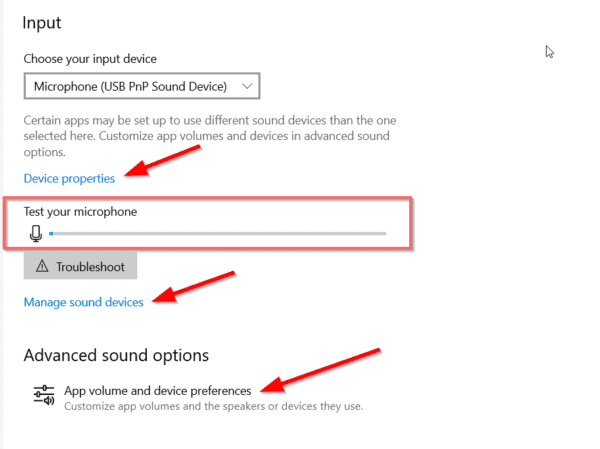
In Windows 10, you can try the following steps.
1. Right-click the speaker icon in the Notification area.
2. Open Sound Settings.
3. System > Sound is open.
4. Under the Input section select your mic device.
5. Tap the mic with your fingers..
6. Below “Test your microphone” you should see the change in the reading or progress bar.
It should move too rapidly on the reading line. If you see a small part moving, it means your microphone is very low.
How do I make my Arctis 3 louder
You can make the SteelSeries Arctis 3 mic volume louder in Windows 10 by increasing the volume level and with mic boost. In Windows 7, you can make use of the Control Panel and Microphone properties. Install the latest drivers and move the mic close to your mouth. The ClearCast mic can be connected to an USB sound card.
Total Time:1 minute
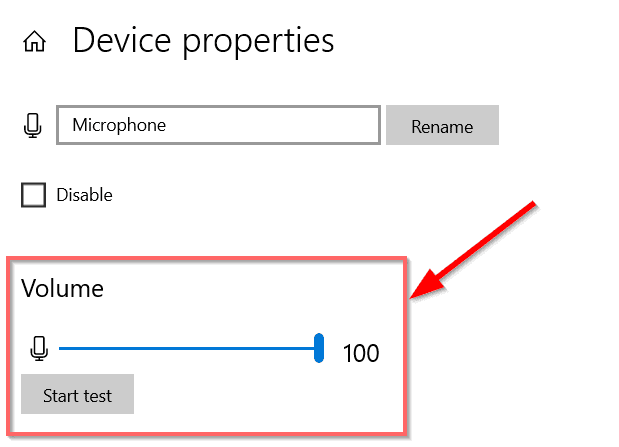
Click on the label “Device Properties” above the audio recording volume indicator.
This should be visible in the Settings app of Windows 10. Other than that, you can make use of the speaker icon at the bottom right hand side of the computer or laptop.
On the next page, you can see the “Volume” indicator.
This should be visible clearly. You can easily drag the slider to the required volume. It is not necessary to set 100, if it is loud. If you are using a sound card, you can set it to lower. This depends on how low is the mic volume.
Set to 100. You can also do “Start Test” to test the audio volume.
This will give the maximum mic boost to be audible in your team meetings. Also, your gaming partners should hear crystal sound. Check this before you start the game.
This works in the latest 20H2 update of Windows 10.
In the latest Windows 10 updates of 2004 and October, this increase in mic volume should be visible.
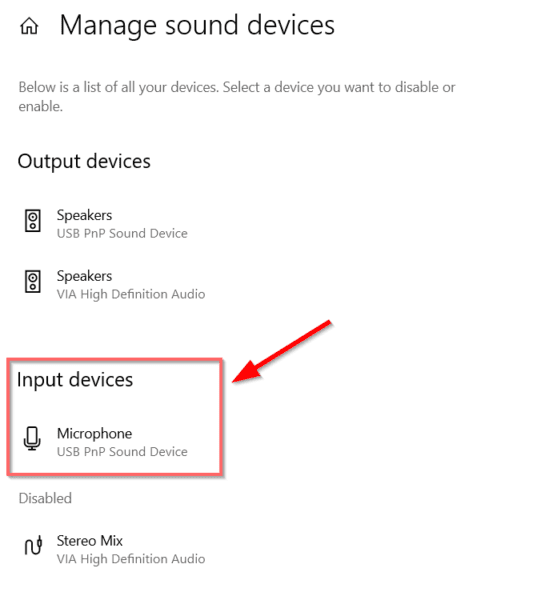
Solution #2 – Manage Sound Devices
If you are not sure whether your mic is enabled or not, you can check it here.
Click on “Manage Sound Devices“. Under “Input Devices” you can see the Arctis 3 Mic. Click it to check if it’s enabled.
Solution #3 – Troubleshoot
You can also click this button below “Test your microphone” to see if the volume level is high enough. This will open the “Get help” dialog box and will ask some automated questions. It will try to do a quick scan to find a solution.
Image Source: microsoft.com
Solution #4 – App Volume and Device Preferences
In this option, you can check if the volume is low for certain apps like Cortana, Skype, Zoom etc. If it’s specific to one app, then you can increase the volume here.
Solution #5 – Make use of Sound Card
Another resort to this problem is to use an USB Dongle Most of these headset mic, have the feasibility to connect your audio jacks.
Since many of them have the tendency to amplify the sound, this can be useful to make your mic sound loud.
The following is one of the mic input sound USB cards – Quantum USB Sound Card QHM-623
For All Computer/PC/Laptop.
It is an analog audio type of device with Integrated 2 channel USB Audio Controller. Contains Digital Class-B Power Amplifier inside.
Supports 3D positional sound and virtual 5.1 CH sound track.
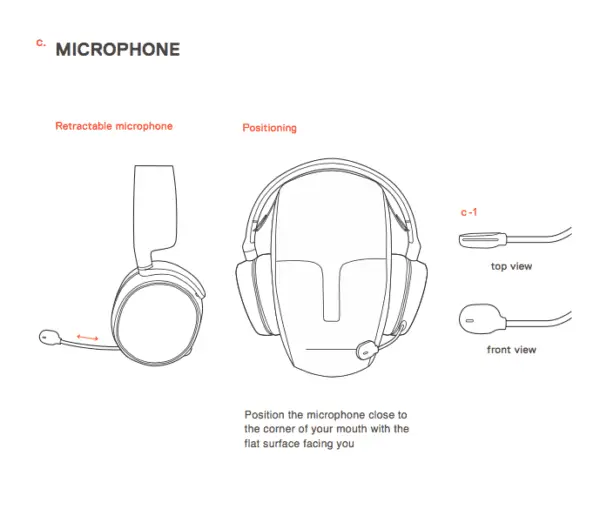
Solution #6 – Make sure the mic is in the right position – Clearcast Mic
The Arctis 3 Clearcast Mic should be made sure that the flat side of the mic faces your face. Poor positioning is also one of the reasons for low microphone volume. The head of the mic should be positioned near the corner of your mouth with no 1.5″ away.
Image Source: support.steelseries.com
Solution #7 – Advanced Tab of Sound
You can make sure the voice communication is good with the help of sound frequency settings.
In Windows 10/Windows 8.1/Windows 7/ Vista/XP you can open the Control Panel and view by small icons. Then click on Sound. This will open up a small pop-up dialog box.
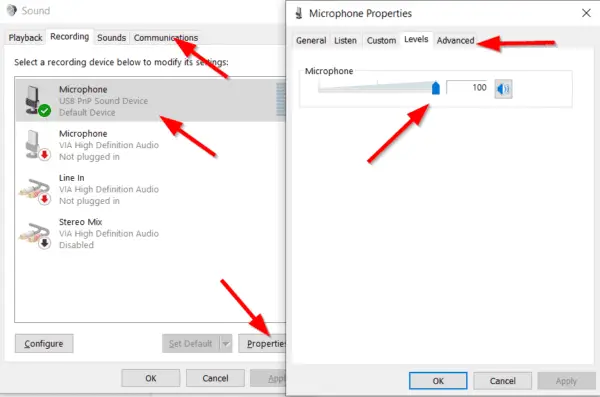
Click on the “Recording” tab. Select your Steelseries Arctis 3 Mic as the default one and click on “Properties”. On the next pop-up window, click on “Advanced“. Make sure the “DVD Quality Sound” with 1 channel, 16 bit, 48000 Hz frequency is selected.
Solution #7.1 – Communications
Click on the “Communications” tab of the main dialog box opened up earlier. There are 4 options here –
Mute all other sounds
Reduce the volume of other sounds by 80%
Reduce the volume of other sounds by 50%
Do Nothing.
Check the last radio button, click on Apply and OK. Restart the computer to see if this has any effect on steelseries arctis 3 quiet mic problem.
Solution #8 – Set the Microphone level to 100 in Windows 7
Using the same pop-up dialog box of the above, you can set the mic level to 100. Click on the “Levels” tab. Then move the microphone level to either 100 or enter its value in the text box.
This gives the retractable mic the maximum speakable sound to hear on the other side of your network.
Solution #9 – Change the Headset Driver for Clear Sound
Sometimes, Realtek Sound card drivers can really cause disturbance. You can either try the Steelseries Arctis 3 drivers. Download the SteelSeries Engine from the following locations –
This works for Windows 7 Ultimate and other versions. It is approximately 158MB in size. The latest version 3.8.12. In the Gearbox, you can connect an analog audio jack. Arctis 3 is the only headset that has analog support.
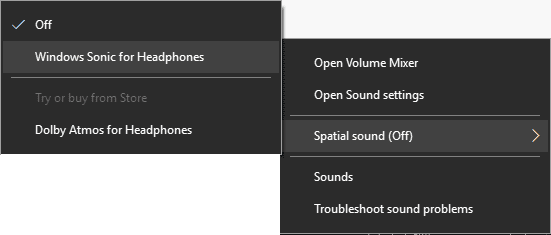
If you are using Windows 10, then you can make use of Spatial Sound. Right-click the speaker icon at the bottom > Spatial Sound > Windows Sonic for Headphones.
Solution #10 – Download Discord App
This is also available in the above sound engine. Download it to get the appropriate sound.
Solution #11 – Use of Device Manager
Search for the device manager in the Control Panel. Click the Audio Inputs and outputs.
Right-click your mic device and click on “Update Driver”. Click on “Search Automatically for drivers”. If the right driver is not installed or if there is any update, it will install.
Otherwise, click on “Browse my computer for drivers” > Let me pick from a list of available drivers on my computer. Then select the “Generic software device“. It most probably comes with Microsoft drivers or other relevant drivers.
Sound, video and game controllers. Right-click your headset sound device and uninstall it. Restart the computer or Scan for hardware changes.
This should re-install the drivers.
Also, make sure that pairs of headphones are not conflicting with each other. Gaming headphones may have microphone mute buttons.
So unmute it to see if the mic volume is working. Uninstall the other usb headset and keep only the Arctis 3 connected and check.
Solution #12 – Skype Mic Volume Check
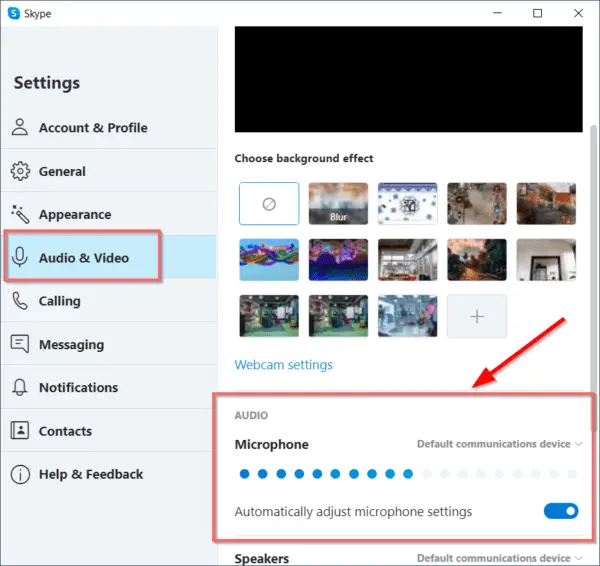
If you go to Settings > Audio & Video of Skype desktop application, you can see that the default communication device should be your Arctis 3 mic.
Make sure that “Automatically adjust microphone settings” is turned on.
This automatic setting will make Acoustic noise isolation possible with the right sound coming from your microphone.
Image Credit : Skype
Solution #13 – Choose the Line-In option
When you plug the mic to the headset, there will be a prompt asking you to choose “mic” or “line-in” option. Sometimes, the mic option doesn’t work properly, then you have to select the “line-in” for clarity recording or meeting sound.
Solution #14 – Microphone properties
Click the “Advanced” tab of this pop-up dialog box from
Control Panel > Hardware and Sound > Sound > Recording > Double-Click SteelSeries Headset.
Under Exclusive mode, uncheck the following two options.
1. Allow applications to take exclusive control of this device
2. Give exclusive mode application priority
Click on “Apply” and “OK“.
Also disable the “AGC” option under Custom tab, if you find anything like that.
Solution #15 – Plug USB Headset
As mentioned earlier, Arctis 3 mic is an analog type. So you can connect it to an USB sound card. This gives additional properties.
Check the “Microphone Properties” dialog box and click on “Levels” tab.
You should see the Microphone Boost option with certain sound cards.
Then you can set to the maximum level +30dB. But this can cause additional noise, if the sound card is of not good brand. So only use this method, if the microphone is really low on sound.
FAQ – SteelSeries Arctis 3 Headset and Mic in 2020
Is the Arctis 3 good
This pair of headphones produces the best quality of sound. ClearCast Microphone can be used for gaming to produce studio-quality voice clarity. Long length 3.5mm cables with S1 speaker drivers. Analog type being the disadvantage and can be converted to a USB headset with the help of sound cards. It has a high 5 star rating on Amazon.
Is the Arctis 3 surround sound
It produces 7.1 surround sound in Windows 10. Immersive sound, Compatibility and Easy connectivity for better volume control are its advantages. ultra-low distortion audio helps in quality recording. In Windows 7, you may be required to connect to SteelSeries Engine 3. Then you can make the necessary adjustments. It works with Windows only. No mac version.
How-to Connect Arctis 3 to Steelseries Engine
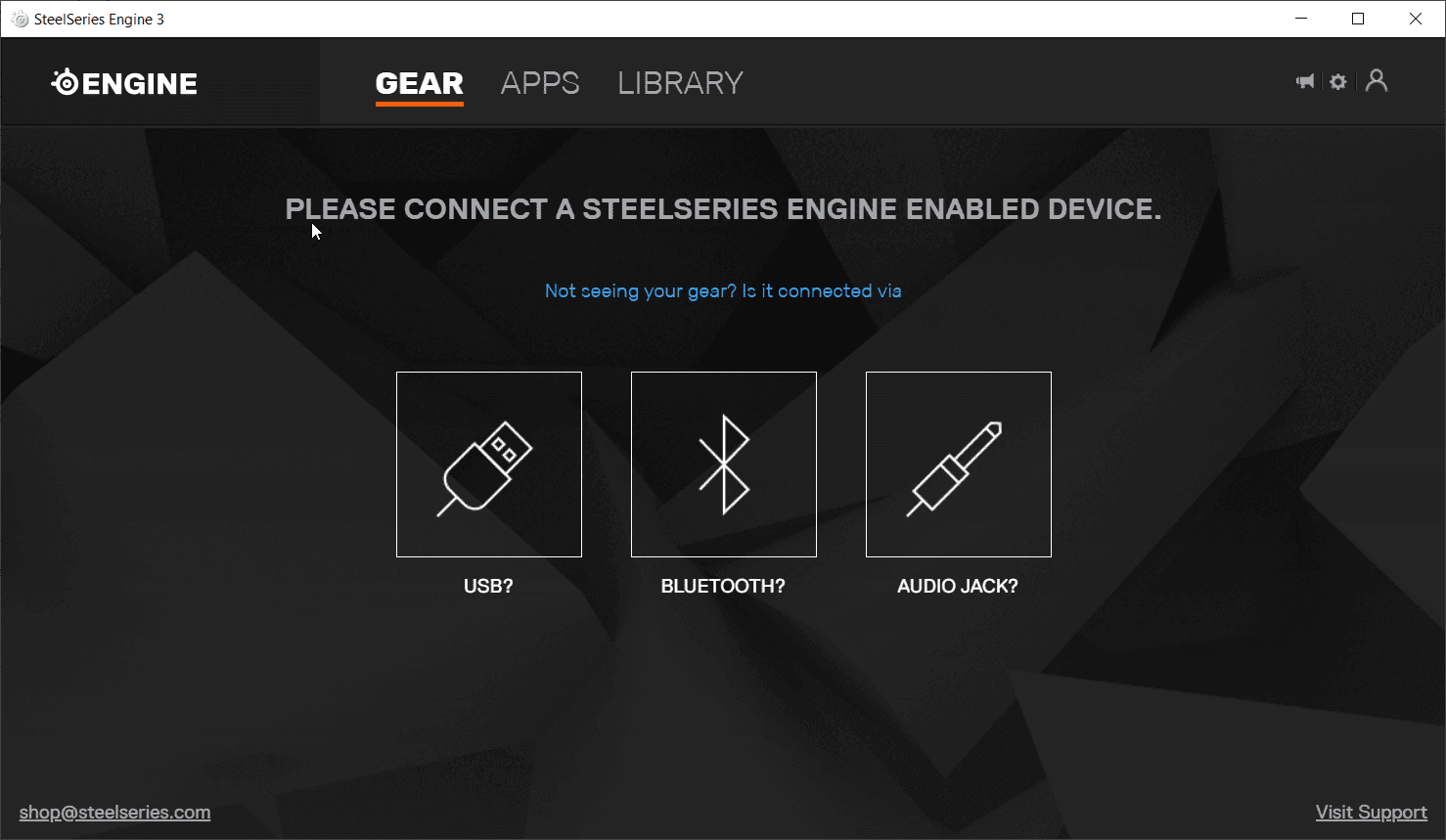
Arctis 3 no longer supports Engine and you don’t receive any registration code. Earlier you could register for the SteelSeries Engine and could connect to your gaming rig using a single 4-pole 3.5mm connector or two 3 pole 3.5 mm connectors. If you are having an old registration code, then open the Engine and click on “Audio Jack” under the Gear tab.
SteelSeries Arctis 3 Low Volume PC
The low volume of your Arctis 3 headset or mic could be due to several reasons. Turn off the mute button for the mic on the left ear cup for better recording sound. Make sure the headset microphone volume is set to 100. Right-positioning of the headset near the edge of the mouth is also necessary.
PC Screen may not be sufficient to do big tasks like video editing. Connecting to a 32″ or 49″ or 55″ TV will increase the aspect ratio.
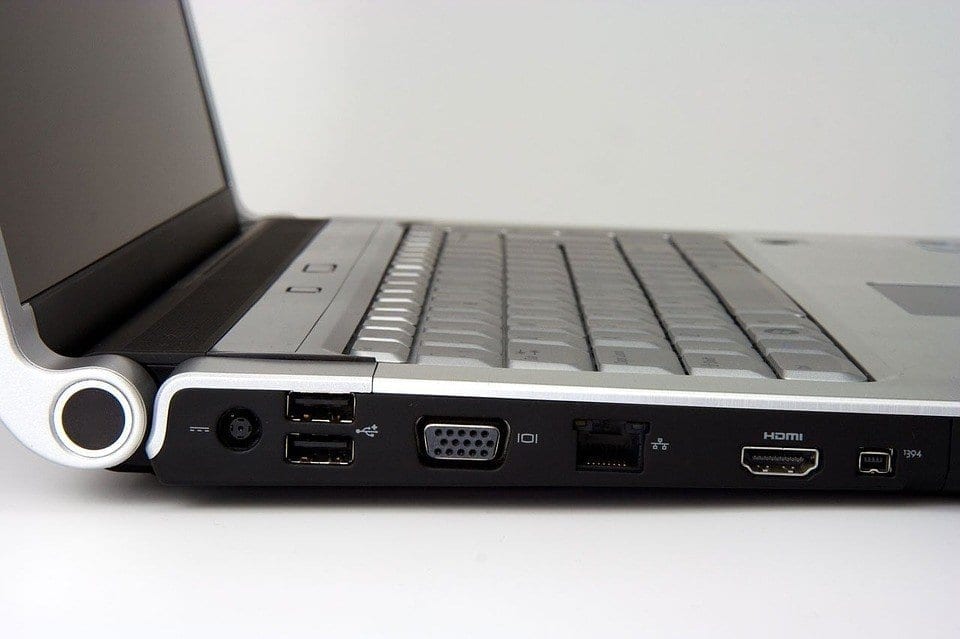
Windows 10 makes this opportunity very easy to do. HDMI source is required on the PC and TV. Then you can connect using an HDMI cable.
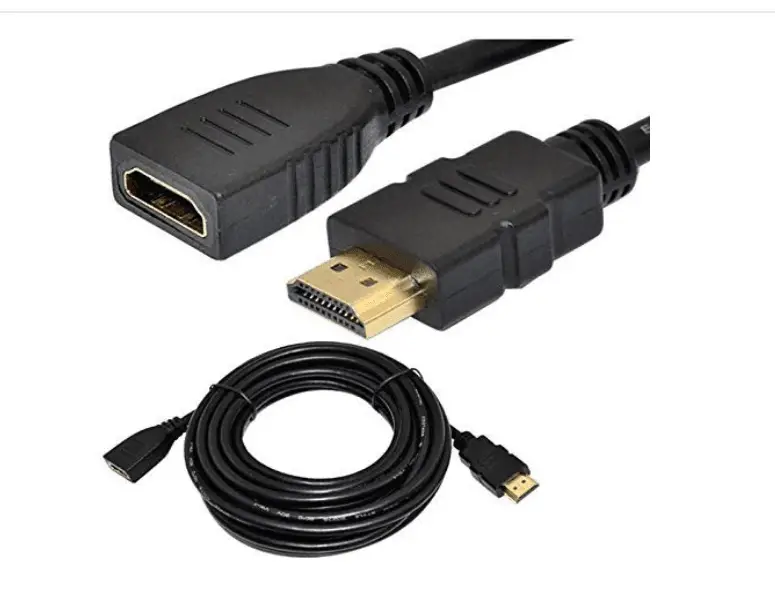
10 feet HDMI cables are available to connect your PC in hall to your TV in bed room. Extend the current display of your Windows 10 PC or use it as a primary display device. Your TV and PC should have a HDMI port.
Some old computers, still have legacy VGA port. In that case, you need to use a converter like VGA to HDMI or DVI to HDMI. The purpose of connecting PC to TV, is to stream videos. You might like to watch a downloaded movie on your computer.
Streaming services like Netflix, YouTube, Amazon Prime etc are available to directly watch movies on your TV.
But if your TV is not Smart, then the below method is useful. You might have some several personal videos. Then you can connect your laptop to TV and watch them.
In this post, we are going to see 3 methods on how to connect Windows 10 to TV using HDMI and wireless.
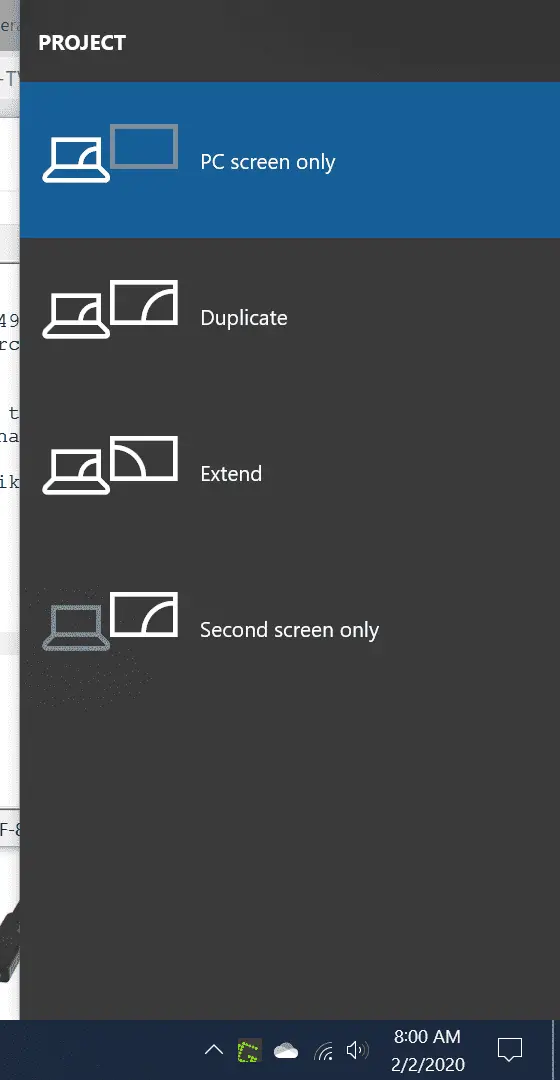
Method #1: Using Project Option
1. Connect the HDMI cable to your PC and TV.
2. Press the Win + P on your Windows 10 computer.
3. Four options are available.
a. PC Screen only
b. Duplicate
c. Extend
d. Second screen only
4. Select “Duplicate” option to check whether your PC and TV are connected. (Note: You can choose any option).
5. Windows 10 will automatically detect TV and your PC screen is displayed on it.
Note: Depending on which option you choose, some bizzare things may happen. For example, your PC screen resolution may change when you select “Duplicate”. If you select “Second screen only”, your PC screen will become blank. When you chose “Extend” you can move windows between PC and TV screen.
Method #2: Using Connect Option
You can connect your PC to TV wirelessly also using this procedure.
1. Press Win + K to open the “Connect” panel. (The same can be done from Action Centre).
2. Check the “Wireless Display” option in your Smart TV.
2. TV should be available as a device. (You can also search for your device)
3. Click on it.
Both devices should be connected. Then you can make use of Project option, to extend, duplicate your PC screen to TV.
Method #3: Using Windows Settings.
You can add the TV to your list of devices in Windows 10 using Settings.
1. Press Win + I to open Settings.
2. Click on “Devices“.
3. On the next screen, click on “Add Bluetooth or other device“.
4. In the pop-up screen, click on “Wireless display or dock“.
5. Find your TV in the list and click on it.
Your PC and TV should be connected now. Wireless monitors, TVs or PCs can be connected using Miracase or wireless docks.
Conclusion
The above are 3 methods by which you can connect your Windows 10 to TV. It can be done using HDMI or wirelessly. Wireless Adapter is required to use wireless method on your PC. This can be bought from Amazon or Microsoft.
Otherwise, an error is displayed, when pairing devices.
Sometimes, you need to enter a PIN number. This is displayed on the TV.
Though all the above methods using the same philosophy of connecting devices, each above method is useful in certain situations.
HDMI is a popular high quality connection method for both video and audio output, so it’s no wonder that so many people are using it. Speaking of HDMI, many Windows users reported various HDMI output problems.
HDMI is the gold standard for both audio and video output. It is used by over 4 billion devices worldwide. Most modern PCs make use of the HDMI standard. Output problems affect nearly all Windows versions from Windows XP to Windows 10.
When you connect your PC to an HDMI-compatible device such as a TV, monitor, or speakers, you might experience display or audio problems. Use this information to check your hardware and software, and to troubleshoot specific issues.
Make sure you use the correct HDMI cable for your PC
The majority of HDMI devices have two or more HDMI input ports. So it is important that the HDMI display’s source of input is set to the same HDMI port connected to your PC. If the input source is HDMI 1, you’ll have to connect the cable to the HDMI 1 port.
If your PC and HDMI device use different cable types, you can buy and make use of adapters.
First, inspect your HDMI connections. Unplug the cables and then plug it back in again. Make sure the fit is tight and snug for an optimal experience.
Boot your HDMI monitor, TV, or speakers, and then boot your PC. Then, power down your HDMI device before unplugging them. Wait for one minute, plug them in and power them on. This will refresh your HDMI connection and you’ll be ready to follow the next steps.
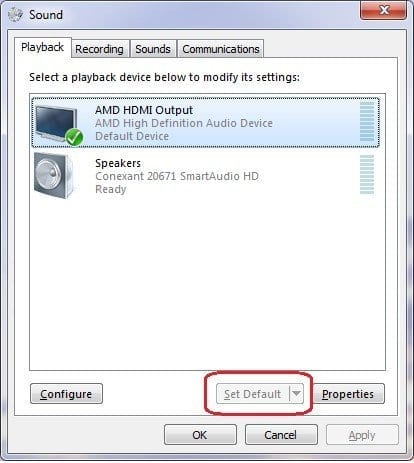
Set your HDMI device as the default audio device
Your PC typically only outputs sound to one audio device at a time. If your HDMI device is not set as the default, HDMI output will be unavailable.
Select your HDMI output device by setting the default device. This will change the sound to the appropriate devices. If you are switching between sound on your PC and the sound on an external HDMI device, open the sound devices again to make sure the right output device is activated.
Click ‘Playback devices’. The sound window will open.
On the ‘Playback’ tab, select HDMI or your digital output device.
Set the option as default.
Make sure to enable the ‘Show disconnected devices’ option so you can view all the devices connected to your computer.
Roll back to an older driver
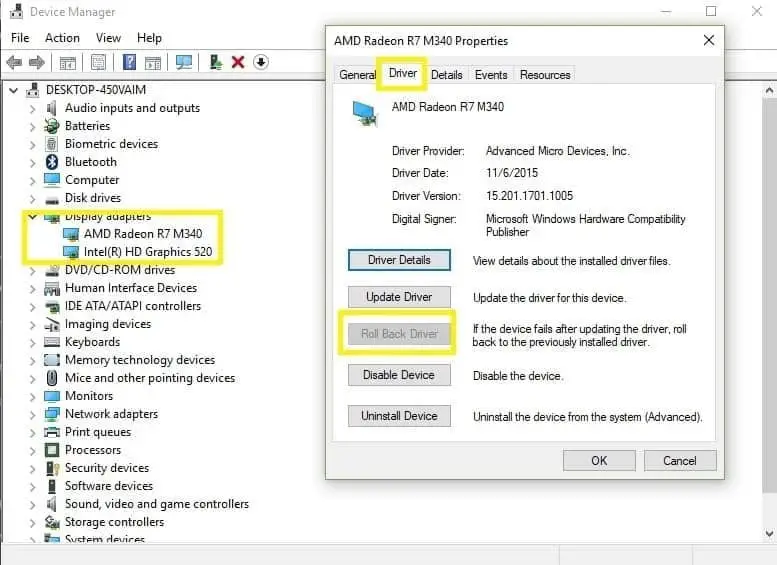
Open ‘Device Manager’ then find the malfunctioning driver. It will usually have an exclamation mark next to it. Right click on the driver and select the ‘Roll back driver’ option. This will install the preceding version of the driver.
Click on ‘Properties’ and go to the ‘Driver’ tab to find the ‘Roll back’ option. The option is usually unclickable, as seen below:
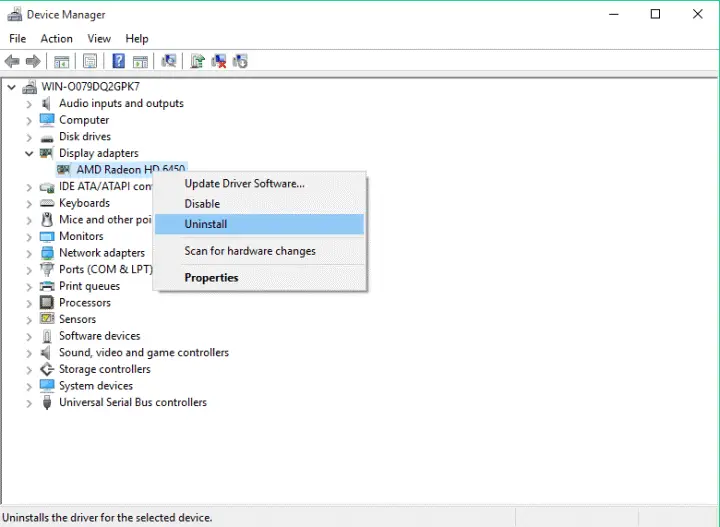
In some cases, it is better to use the default driver to avoid issues with compatibility. Use the default driver by uninstalling the current driver. The default driver will then install itself. To uninstall the driver, follow these steps:
Open ‘Device manager’ and find the malfunctioning driver.
Right click on it and select ‘uninstall’.
Select ‘Delete the driver software’ and click ‘OK’.
Restart your PC.
Update to the latest drivers
Often, fixing these issues is as simple as installing the latest drivers. Visit your motherboard or graphics card brand’s website and download the drivers for free.
Install the drivers in compatibility mode
Right click on the driver setup file and choose ‘Properties’.
Go to the ‘Compatibility’ tab.
Select ‘Run this program in compatibility mode’ and choose Windows 7.
Click ‘Apply’ and ‘OK’.
Run the setup file.
Set your secondary display
When using a secondary display with your PC, go to either the NVIDIA or AMD graphics card control panel. The process is identical with both manufacturers.
Open NVIDIA Control Panel.
Go to ‘Set up multiple displays’.
Ensure that your HDMI-connected display is showing.
If it is not showing, try selecting and unselecting other options on the list. Some users have reported that this has enabled them to activate their secondary displays.
Computer viruses can cause issues on your PC, including HDMI connection problems. Performing a full system scan to detect malware may help. Windows’ built-in antivirus, Windows Defender, is a capable program.
To run a full system scan with Windows Defender, look to the following steps:
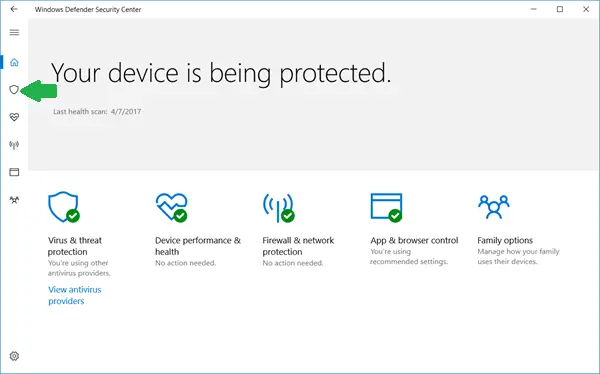
Go to Start, type ‘defender’ then double click on Windows Defender to launch the program.
In the left-hand bar, select the shield icon.
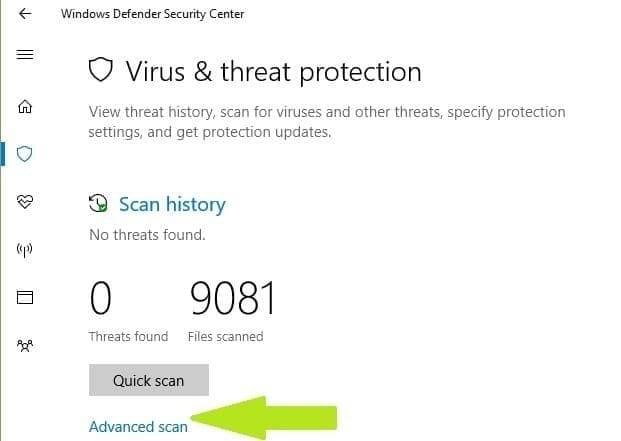
In the new window, click the ‘Advanced scan’ option.
Check the ‘full scan’ option to launch a full system scan.
Update your Operating System
Microsoft constantly provides Windows updates to ensure your PC’s stability and to provide solutions for various issues. Ensure that you have the latest Windows OS update.
Type ‘update’ in the search box to access the Windows Update section. This works for every version of Windows. Then, go to Windows Update, check for updates and install the latest available updates.
Replace your cable
Some situations are hardware-related issues as opposed to the software issues written above. In these cases, it is recommended to try other products and see if that solves the output issues.
If your problems persist, please contact Windows 10 Support. We hope the solutions provided helped you fix your HDMI output problems. Help out the community by telling us what solution/s worked for you.
The above video show how to fix Windows 10 hdmi no audio problem when connected to PC or laptop. Image sources:
To turn off Cortana in Windows 10 in 21H2 or 20H2 version you can use the group policy settings. Registry Editor is another option for 1909 or 1903 updates.
Settings can be used to disable Cortana in 2022 – Privacy > Voice Activation > Turn off two Cortana features. Temporarily turn off Cortana in Windows 10 21H2 – Click Cortana Icon > Three horizontal dots > Keyboard shortcut > Turn off the feature. Turn off Microphone access – Settings > Privacy > Microphone > Choose which Microsoft Store apps can access your microphone > Turn off Cortana Disable Background apps for Cortana – Settings > Privacy > Background apps > Choose which apps run in the background > Disable Cortana
Cortana will be displayed as a process if it’s icon is enabled and you click it. Disable it by right-clicking the Taskbar > Untick Show Cortana button. Then kill the Cortana process in Task Manager.
Cortana options were different in different versions of Windows 10. 1803 and 1909 had different options. In earlier versions, separate setting for Cortana was visible in Settings.
But in 21H2, it was totally removed and only Cortana icon remains and other settings were merged with Microphone and Voice Activation. As of 2022, background processes of Cortana may still run, but do not affect much on CPU and RAM.
The best method to permanently disable Cortana in 2022 is to use the GPO method (Group Policy Editor).
Disable Cortana Permanently using Group Policy Editor
This is the most simple and effective method to enable/disable Cortana in Windows 10 November and May 2019 updates.
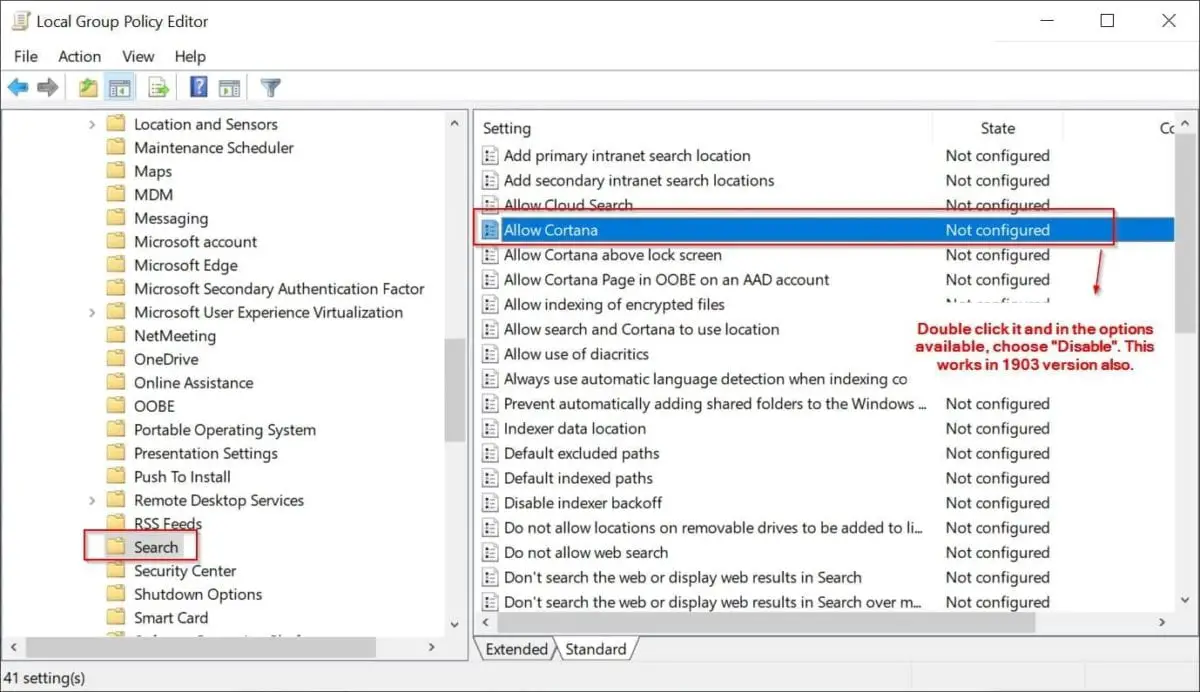
Type “gpedit.msc” in the Run dialog box to open Local Group Policy Editor. Navigate to the following path.
Computer Configuration > Administrative Templates > Windows Components > Search
On the right-hand side you see a setting called “Allow Cortana“.
By default it is not configured.
You can double-click that setting to see the different options available. 1. Not Configured 2. Enabled 3. Disabled.
Click on 3rd option to turn off Cortana.
Sign-out of your Microsoft Account or Restart Windows 10
Note: But OneDrive, Microsoft Edge and Cortana are so tightly integrated into Windows 10 core system, that it is still seen in the Task Manager process.
This may not work in Windows 10 Home edition if you don’t have Administrator privileges. Otherwise, you cannot access group policy editor.
We must make sure that removing Cortana doesn’t interfere with the search feature. Search and Cortana appear as two different icons and apps in 1909 and 1903 version.
Cortana – Overview
It takes only 30 to 40 MB of RAM memory and <1% CPU power in 1909 version. It doesn’t hamper your Windows 10 system performance, even though you leave as it is.
Cortana process occupies only 4.5 MB of Memory in 20H2 update when you disable it.
Renaming SystemApps folder is another option in earlier version like Anniversary or Creators update. By hiding it, you can completely turn off Cortana forever.
But you can still see “Cortana” running the background as a process in the Task Manager.
This is because of a program named SearchUI.exe.
In 2022, Microsoft’s Cortana is almost removed as a standard feature and is a neglected app of Windows 10.
Though you cannot uninstall Cortana, you can reduce the burden by disabling it.
Cortana also uses the Microsoft account for storing, analyzing and collecting data.
In this post we are going to see 4 more different methods on how to disable Cortana in windows 10
#1 – Disable Cortana in Task Manager Start Up
One of the simple methods to stop Cortana from running at the start up. This makes sure that it does not annoy you when you are working on the Microsoft Office programs or any other business suite. Most of the productivity happens when you type rather than speak. Follow these steps if you want to keep your work simple.
Total Time:1 minute
Press Ctrl + Shift + Esc to open the Task Manager
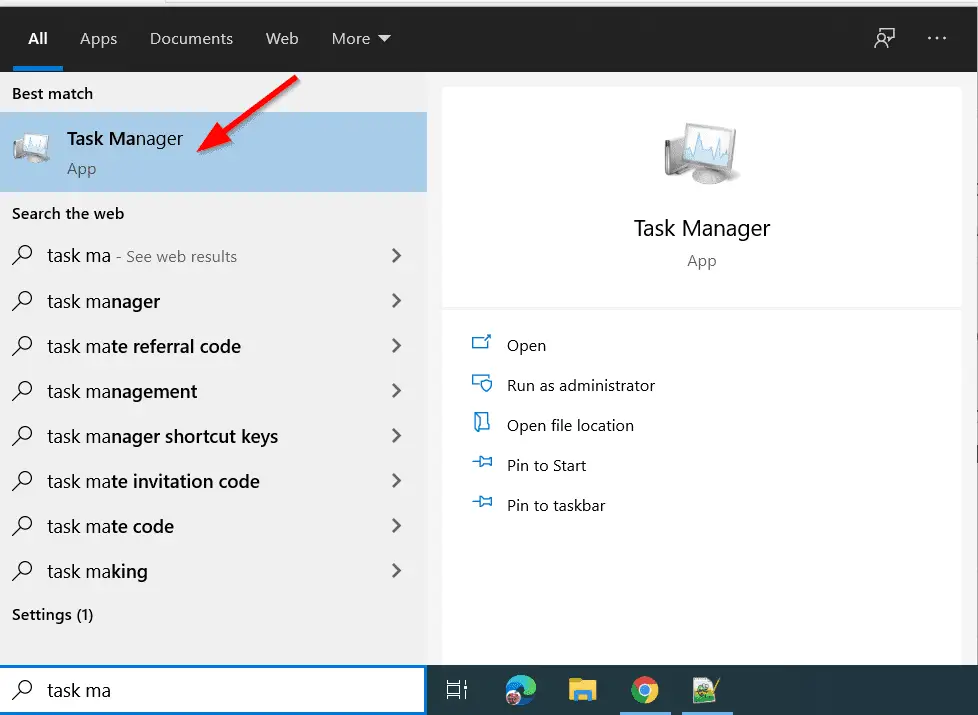
Otherwise, you can press Ctrl + Alt + Del keys and click on “Task Manager”. Or search for that app in the “search box”.
A small window opens.
Click on “More details” to see the full features.
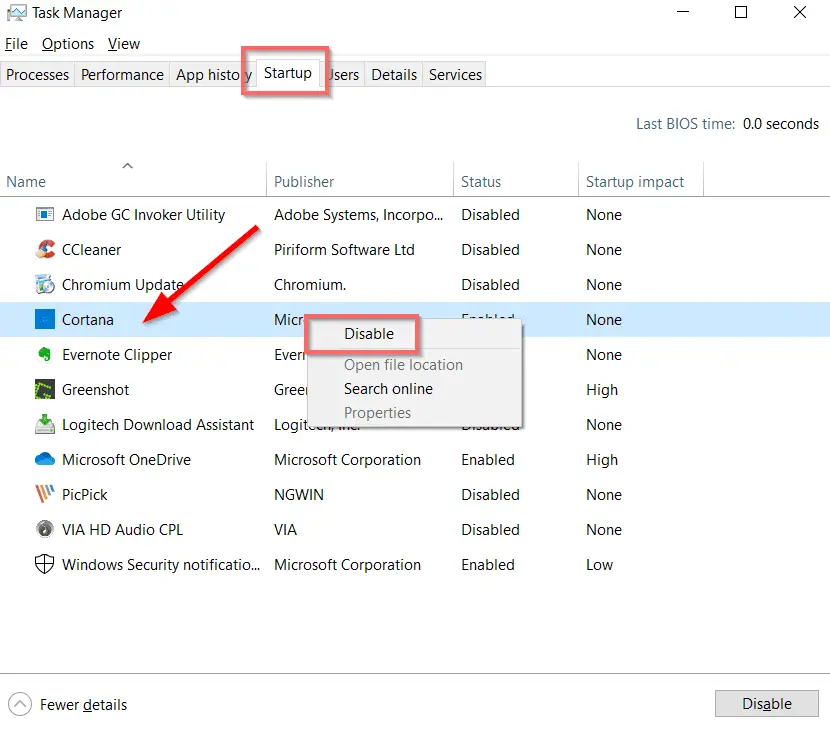
Click on “Startup”.
This will show all the startup items in Windows 10. You can enable/disable any app or program to speed up start up. Also, it will reduce the burden on the processes running.
Cortana is also one start-up item listed here.
Right-click the item and click on “Disable”. The status should show disabled.
Note: If you have turn off Cortana using group policy editor, then it will show a message to get “Administrator privileges” to make it work again. So enable it there and then enable it here, to see it active again.
#2: Turn off Cortana in Background Apps
Press Win + I key to open Settings.
Click on Privacy > Background apps.
Turn off the option – Let apps run in the background.
Then try killing the Cortana process.
My Experience
I was able to successfully disable Cortana in 1909 version using Group Policy Editor. But when I deleted its process in Task Manager, it started appearing again. I tried the above steps, but it was still showing.
I was unable to rename the Cortana System folder also. After sometime, when I tried to end the task, it worked. I am not sure what exactly worked.
#3 : How to Turn off Cortana using Registry?
On April 5th, 2017 the third major update of Windows 10 was released code named – Creators update. The following are the different methods to turn off Cortana in this version.
Turn Off Cortana in Windows 10 using Registry (All Windows 10 Editions)
Step #1 : Open Registry Editor. (Press Win + R key and in the run box type “regedit”.
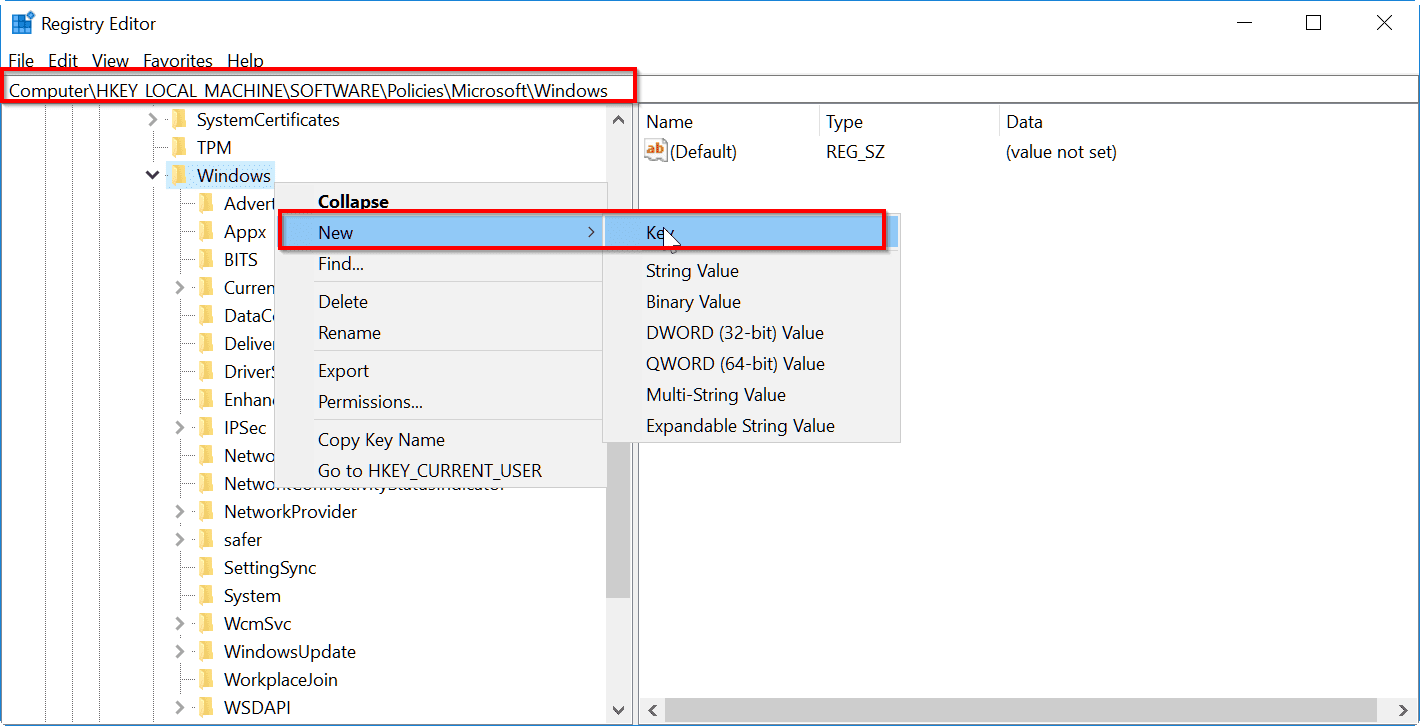
Step #2 : Go to the following Registry key: HKEY_LOCAL_MACHINE\SOFTWARE\Policies\Microsoft\Windows\Windows Search (By default the last key – Windows Search is not there for most of the users. Then you have to create that key).
#3: Select “Windows Search” key and Right-click on the right.
Step #4 : Select New – DWORD (32-bit) value in the menu as shown below.
Step #5 : Create a new 32-bit DWORD value here named “AllowCortana” and leave its value data as 0.
Note: Even if you are running Windows 10 64-bit, you need to create a 32-bit DWORD value. Now, restart Windows 10 and you are done.
You can disable Cortana in Windows 10.
While the SearchUI process will still remain in the process list, Cortana won’t be functional and won’t consume system resources. This will work for all editions of Windows 10 like Home, Pro and Enterprise.
Moreover, you can make a simple registry tweak to resolve Cortana issues.
According to some users, this proved as a most fruitful solution for multiple issues. Follow these instructions to perform this simple registry tweak:
In the Search Windows bar, type regedit.
Right-click regedit and Run as Administrator.
Navigate to HKEY_CURRENT_USER > SOFTWARE >Microsoft >Windows > CurrentVersion >Search.
Change the BingSearchEnabled value from 1 to 0. Make sure all of the Cortana flags are set to 0 instead of 1.
Restart PC and check out Cortana again.
The Cortana app will still run in the background, though not using any resources, using the above two methods.
#4: Using PowerShell and Elevated Command Prompt to Deregister Cortana App
In Windows 10 latest version, Cortana will not work without the Microsoft account. But you can use it for local personalized searches.
How to Stop Cortana Process in Task Manager
Cortana process will run in Task Manager, even after disabling it using Group Policy Editor.
If you see the details for this process, you can see that a program called “SearchUI.exe” is running. It is better NOT to delete it, as it may cause unexpected behavior to the system.
But if you are using the old versions of Windows 10 – like 1803 or 1709, it is better to kill this process. This could see some performance gain for legacy computers taking CPU and Memory usage.
Right-click the Start Menu and select the Task Manager from it.
In the Processes tab, find the “Cortana” process. (If you have a leaf icon, it means it is suspending processes that are taking system resources. You can click the arrow icon, to open up the sub-processes. )
Select the “Cortana” mini-process and right-click it. From it, select “Open file-location“.
This will open the SystemApps folder. In that folder you can find a folder with a name “Microsoft.Windows.Cortana_cw5n1h2txyewy“.
Rename it, with something like .bak added at its end. An error message with “Try again” button is displayed. Keep it open.
Now right-click the “Cortana” process again and click on “End Task“.
Immediately click on the “Try again” button in the previous error window kept open. (This should happen before the Cortana process restarts again. So do it quickly).
Now the Cortana process is permanently removed from the Task Manager. This same trick works in 1809 and 1803 and also in 1909 and 1903 versions.
In the 2020 PC world, there are only 2 OS competing for the top spot. Windows 10 and Windows 7. But which gives better benchmarks in terms of performance like ram, memory and gaming?
During the initial release of Windows 10 of 2015, it was lagging in many of the speed aspects as compared to Windows 7.
But in 2020, there has been tremendous improvement in terms of Windows updates, Microsoft Defender, security, operations, support for Unix kernel, less virus.
Unless you are in the Insider Preview, where you may get unstable builds. Windows 10 is fast enough in doing normal functions like opening files, opening of different apps, moving from one window to another etc.
Since Windows 7 is no more supported now, you have only one OS that gets the real updates – Windows 10. Though Windows 8.1 is still supported, it doesn’t occupy much of PC market.
For example, HTC One for Windows is faring better than Android, not only in battery life, but also is faster. Also the IE10 and IE11 are having better JavaScript experience in Windows 10.
Windows 7 vs 8.1 vs 10 – Resource Usage and Performance in 2015
PCWizKids did some performance tests to compare Windows 7 vs Windows 8.1 vs Windows 10 Technical Preview in memory usage, gaming and fps. He used a dual-boot scenario of Windows 8.1 and 10 Technical Preivew, but later added Windows 7 also to test their comparison.
The system configuration was something like this :
Processor – AMD A10-6700 (Richland)
Motherboard – ASUSTek Model F285- V PRO
Memory : 4 GB.
Graphics Card – NVidia GeForce GT 740
Hard Disk – Minimal
Windows 7 vs 8.1 vs 10 RAM Usage
Windows 7 was using around 800 MB of memory, which is about 20% of the total memory for the normal processes.
10 and 8.1 used about 17% of the memory, which comes to around 700 MB.
Though, it’s very early to compare the 10 Technical Preview memory usage, but 17% is better than 20%.
So with less resources it can run the processes, while the remaining can be used for gaming and other memory intensive programs.
The idle usage of RAM on a Asus T100 machine for Windows 10 was less compared to Windows 8.1 (Mar, 2015).
Though it depends on various factors like the size of RAM, it also depends on the beta build version. For example v10041 had problems with RAM usage compared to v10130.
But there are contrary reports on RAM usage on the same forum. In another forum post (recently in May, 2015), it was found that Win 10 was using 90% RAM.
But in another post, a user posted a comparison ram usage for Windows 10 vs Windows 8.1.
He didn’t find much difference. (Feb, 2015). But the noticeable difference is that Windows 10 has more free memory, instead of standby memory.
[Image Source : tenforums.com]
Windows 7 vs 8.1 vs 10 BenchMark Tests
The AIDA64 Cache & Memory Benchmark tests produced the following results.
Windows 10 copy memory bandwidth usage was little higher than the others.
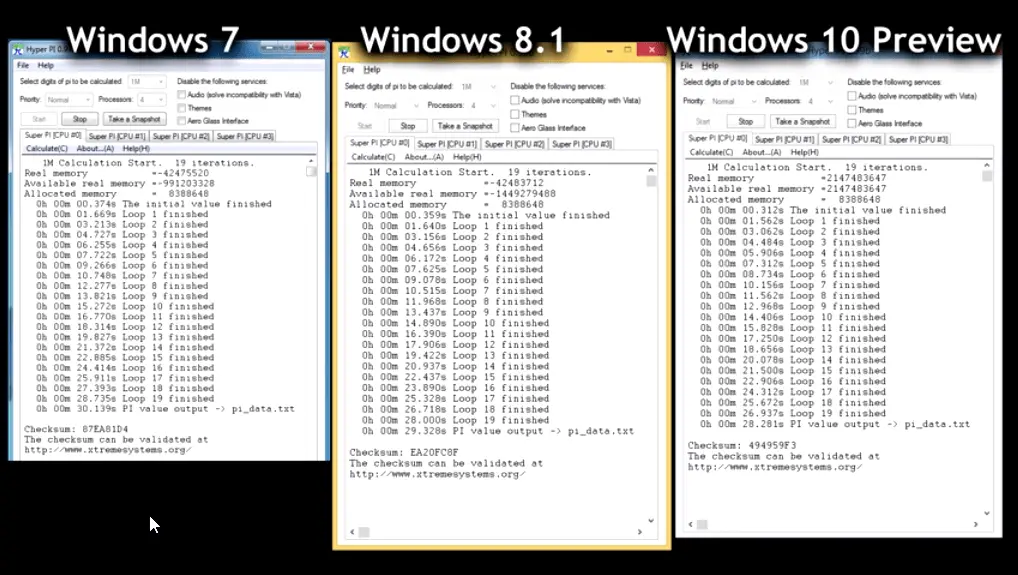
With driver improvements we can see better benefits. Also calculating Pi to 1 million decimal places, Windows 10 was the winner.
It calculated in 28 secs, while Windows 8.1 did it in 29 secs and Windows 7 in 30 secs.
On the CPU Queen Scores, Windows 10 scored a higher score of 21203.
The other two OS, scored 21168 and 21079 respectively.
The overall system performance test on PCMark 8 Home tests showed that Windows 7 and 8 scored 2743 points.
But Windows 10 made a better score of 2768.
3DMark doing the SkyDiver test, Windows 7 scored 6544 while Windows 8.1 scored a bit less (because of the physics score probably) 6483.
But Windows 10 made improvement than 8.x with 6510.
Though 7 outscored all the three, it can be seen that 10 had improvements and we can see better scores in the final versions.
The drivers are all identical in all the 3 scenarios.
In the Unigine Heaven Benchmark 4.0 tests, there was not much difference in the average FPS score.
The FPS speed was 20 in Windows 7, while in Windows 8.1 and 10, there was only half-frame second difference.
The FPS scores were also almost identical at around 503. With better driver improvements, we can see more benefits.
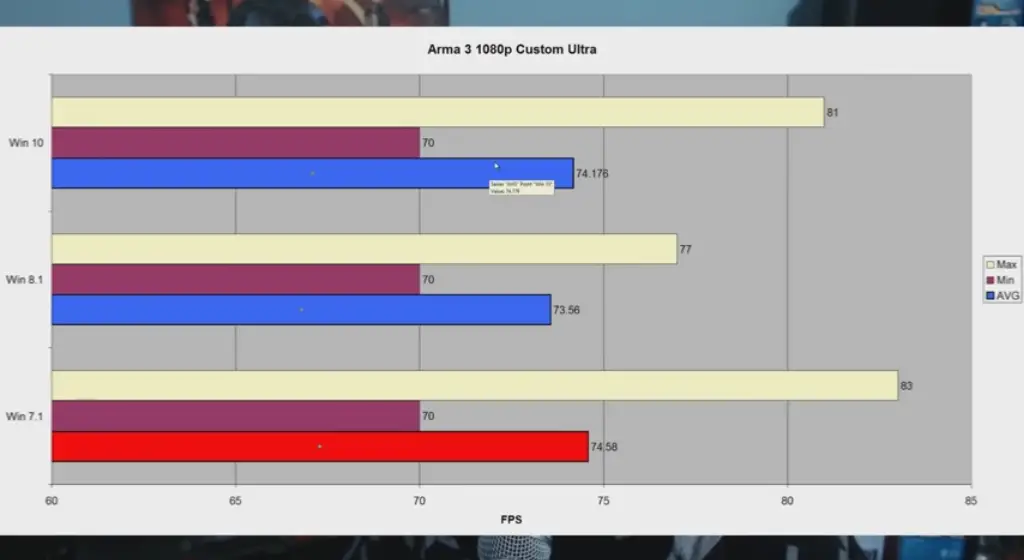
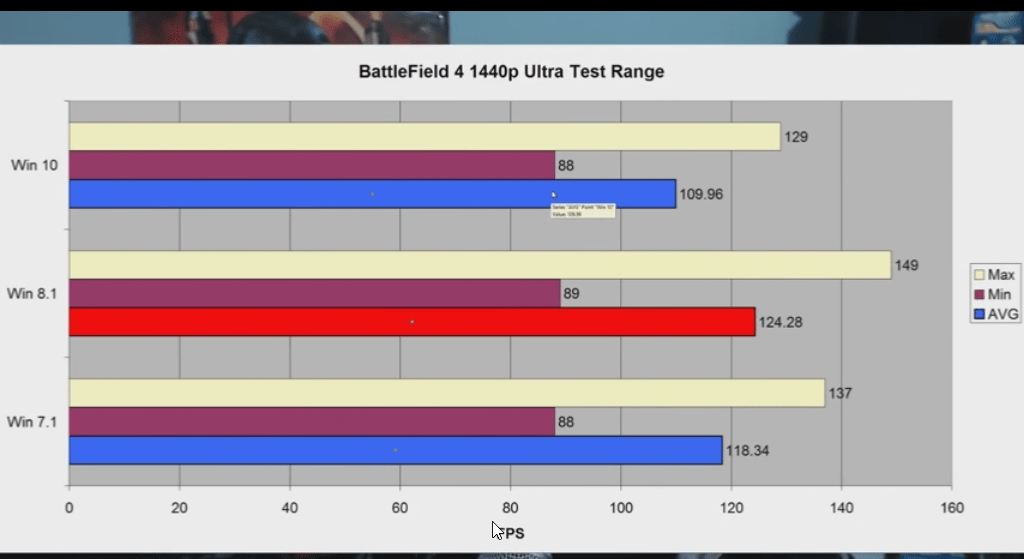
The following games and softwaer were tested. (Battlefield 4 / Skyrim / Arma 3) / Adobe CS6 Premiere pro benchmark (rendering times) and a start up (boot) times test.
The final conclusion was that all the 3 games fared well the same in all the 3 OSes.
But there was minor advantages with two of the games in Windows 8.1.
But with Directx 12 round the corner, Windows 10 may show some drastic improvements. Crysis 3 didn’t work out in Windows 10, but the performance score was the same in 7 and 8.1.
In the Unigine Heaven 4.0 Extreme Present benchmark test, Windows 7 scored a higher FPS rate with different resolutions.
For a 1080p mode, the average FPS was 66.7 in Windows 7, while it was 66.0 and 65.2 in Windows 10 and 8.1 respectively.
The BattleField 4 performance tests showed neck and neck comparison within all the three OS.
One did well with one resolution and also the average FPS rates were also not much different. Windows 10 scored an average FPS rate of 88.72 with 1080p mode.
In the Watch Dogs benchmark comparison, Windows 8.1 was almost the clear winner with different resolution modes of 1080p, 1440p, 2160p.
It gave around 2 to 6% improvement scores in the average FPS rates.
The Tomb Raider also showed that Windows 8.1 is better at FPS rates.
Though the difference is only marginal, it can be seen that games go well with 8.1 OS.
The average FPS rates for Windows 10 were 53.10, 33.00, 14.20 in different resolution modes.
The website also conducted Power Consumption tests.
With Idle mode as the parameter, Windows 10 was using less power compared to 8.1 and 7.
It used only 68 watts power, a 5% less compared to Windows 7.
The FurMark benchmark tests showed that, Windows 10 used 221 watts, only a 2% decrease compared to Windows 7.
Anyhow, it can be seen that, if you want normal performance of games with little power usage, than Windows 10 is the winner.
Many-a-times, Windows 7 and 8.1 showed a minor performance increase in the game average FPS rates, but they can be out-scored.
 Skype Bandwidth Requirements – Minimum and Maximum