Windows 10 is getting good reviews about its performance. On Windows 8.1 and 7, you can still reserve and cancel the upgrade, if you like. I tried the OS, on my system configuration and, till now there are not too many glitches. Though many preview builds were released before the RTM release, the current build was functioning normally as it should. Cortana is a dismay. It cannot recognize my words properly. Things which it cannot understand are automatically redirected to search on Bing.
One of the main reasons you would like to upgrade to Windows 10, is its free pricing and plethora of features. As you know, if you want to buy a new Windows 10 OS, it’d cost you like $120. But if you reserve this free upgrade, it automatically downloads in the background and notifies you when ready.
Even pirates can upgrade to this new version without much hassle. I even found a hack on torrent site, where you can do a clean install and then activate the new version, instead of upgrading. This is better, if you want to save hard-disk space on drives like SSDs. This is because, when you upgrade from 8.1 or 7, a backup folder is created on the 10 drive and takes like 20GB of space.
But why would you cancel the upgrade? One thing you have to understand is that Windows 10 is not only for desktops, laptops and PCs. It’s a One OS for all devices. So if you are on a limited bandwidth and you are paying per GB, the price of the download is 3GB to 6GB. It depends whether you are using the 32bit or 64bit version and the other software you would like to install.
How to Reserve your Windows 10 Upgrade?
This is very simple. As you know only 7 SP1 and 8.1 users can utilize this free upgrade. But some users like Win 7 Enterprise, Win 8/8.1 Enterprise and Windows RT 8/8.1 are excluded from this offer. Your Windows Media Center, if available on your current 7 or 8.1 version, will be removed with this upgrade. For a limited time, Windows DVD Player will be available. After that you have to buy it from the store.
First of all, the “Get Windows 10 App” icon gets installed automatically, if you have automatic updates on. This is part of the KB3035583 update. You will see this icon in the notification tray at the bottom right corner of your screen.
You will see this small icon at the bottom right corner of your screen
Right click the App and click on any of these two options.
Get Windows 10
Check your Upgrade Status.
These two options are available when you right click the app
2. Doing so, the current OS will do a small check whether your current hardware and system configuration meets the system requirements of Windows 10.
3. After that this screen is displayed.
4. Now click the “Reserve your free upgrade” button. Then the process will initiate by contacting the Microsoft servers.5. After the work is complete, you will see that your Windows 10 upgrade is reserved for download.
6. Now click the button that says, “Ok, notify me when ready“. That’s it. You successfully have reserved your Win 10 upgrade. You will get a notification, when the download is complete and ready for install.
This finishes reserving your Windows 10 for free upgrade. But the download does not start immediately. Since this is a huge event, Microsoft is preserving bandwidth and do the upgrade in stages. Most likely USA and Europe users will first get the upgrade. Next, Asia and other countries may get the upgrade. To force the upgrade, there are a few hacks or tweaks you can try here.
My Experience with the Reservation?
I got the “Windows 10 icon” installed by default during the automatic updates installation. So reserving the upgrade was a piece of cake. It just took less than 1 minute to finish the process. But I didn’t get any notification that Windows 10 is downloaded, even after the release. As I’m from India, it may take a little time for this process as I mentioned earlier.
As I told you before, if you heard bad feedback from your friend about Windows 10 and want to cancel the upgrade, you can. Most likely, users with limited bandwidth, would like to do this. Also many users would think of a clean install, instead of upgrading. For those consumers, direct download links are provided in the above post and you need to have the Windows 8 or 7 product key with you during installation.
But you can skip the product key during installation and activate the “clean install” later.
Right click the “Get Windows 10 App” again and click any of the two options, which are mentioned earlier. You will see a familiar screen, that you saw at the end of reserving your free Windows 10 upgrade. But to cancel the upgrade, you have to click the hamburger icon at the top, which looks like 3 small lines drawn.
2. Now you will see another new set of options. In that panel, click on the option that says “View confirmation“.
3. Now you will see another screen, emphasizing that “Your upgrade is reserved“. But you all see “Cancel reservation” button. Click on it.
4. Now you will be shown few more display screens, before you can confirm the “Cancellation“.
But if you are still in doubt, that Windows 10 may be downloaded in the background, you can uninstall the KB3035583 update. For this, you need to go “Windows Update” either using Control Panel or the Charms bar in Windows 8.1. This process is shown in the following images below.
My Experience with Cancellation
Even though I uninstalled the update, it somehow came back. So if you are like me, reluctant to do the upgrade, you can just hide this update. Generally, the KB3035583 update is available as Optional update. So it will not install, until you say so. So when it becomes available again in the list of updates, just hide it.
Till now it didn’t appear in the notification tray again. I’ll update it if it happens to come back again. You can also read this post, if you are having trouble in cancelling your upgrade and remove the Windows 10 update completely from your system. It looks like there is a scheduled task running and a background process for this phenomenon. http://www.dedoimedo.com/computers/windows-7-to-10-gwx-how-to-remove.html
What reviews did you hear about Window 10? Are you interested in reserving or cancelling the upgrade? What made you think to do any of the issues above? Will you install Windows 10 on your mobile? Please let me know in the comments section.
You might have reserved your copy of Windows 10, using the “Get Windows 10 App”. It is released in 190 countries world-wide. Microsoft goal is to upgrade 1 billion devices with Windows 10 operating system. Once you have reserved your copy of Win 10, it will silently download in the background. The file size may vary between 3GB to 6GB. Then you will get a notification, whether you like to install the OS. But here is the catch!
All devices are not going to get the download at the same time on July 29th, 2015. The upgrade is rolling out in phases to manage the high demand on release date. First of all, TechNet and Windows Insider users will have the first taste of Windows 10. Then incrementally, other users worldwide, are pushed this free update. Microsoft has reserved upto 40Tb/s bandwidth for this occasion. But if you can’t wait and want to force download Windows 10 on your computer, without waiting here is a tweak or hack.
[Image Source : Redmondpie.com]
How to Upgrade to Windows 10 without Waiting, after July 29th, 2015?
This is a six step process, first mentioned on a Reddit post. You either need to have Windows 7 SP1 or Windows 8.1 Update for this hack to work.
Go To the following folder on your Windows drive. Generally it’ll be C: , but your drive letter may be different. “C:\Windows\SoftwareDistribution\Download“. Then delete all the files.
Using the search feature or pressing the Win+S on Windows 8.1, type “Windows Update”. This would open the standard Windows Update. You can also navigate using the Control Panel.
Now open an elevated command prompt or type “cmd” in Run box or Search and open with administrative privileges, by right clicking the option and selecting “Run as Administrator”.
Now in this elevated command prompt, type “wuauclt.exe /updatenow“, but do not press Enter.
Now go back to the previously opened Windows Update window and click on “Check for updates” option. Once clicked, Windows will show the message “Checking for Updates”.
Now go back to the command prompt box and press enter. Now you would see in the Windows Update window that Windows 10 is downloading.
[Image Source: googlereader.com]
If you are on a limited bandwidth, then downloading 6GB can be a problem. So beware of your monthly budget.
This YouTube video is demonstration of the hack or tweak mentioned above for downloading Windows 10 without waiting in queue.
Note: It is recommended to take a system image of your current Windows 7 SP1 or Windows 8.1 OS, in order to prevent any miss-happening. This will back up all the important system files and folder present on your Windows drive. If anything fails, you can restore back to your original OS.
How to Download Windows 10 Directly from Microsoft and Upgrade without Waiting?
This is second method of upgrading your computer OS to Windows 10 without waiting for Microsoft notifying you through “Get Windows 10 App“.
On that page, you have a button that says – Download Tool Now. You have both the 32-bit and 64-bit versions of this tool. This is of size 18MB approx. Once this is downloaded and run, you will get a message screen. This will give you the option to upgrade your current OS or download Windows 10 to a media device like USB or DVD.
You might want to check whether your Windows 10 is downloading or not? Otherwise whether the above tweaks are working or not? For this you can check the following folder – C:\$windows.~BT . This folder is generally hidden. So you can go to your File Explorer or Windows Explorer and check the size o
Are you able to upgrade using any of these two hacks? Do you have any problems implementing these tweaks? How much time does it take to upgrade? Do you like the features of the new Windows 10? Please comment in the section below.
It is easy to Set Up and easy to Secure. High-Speed Wired and Wireless Connectivity.
There are two 5 dBi antennae, 4 LAN ports (output), 1 WAN port and Ethernet LAN cable.
It has 1 year manufacturing warranty.
The best Wireless speed is upto 750 Mbps.
It is good for multimedia streaming and high bandwidth application.
You will be able to play online games smoothly – ideal for gaming consoles like PS3 and Xbox360.
It has good Coverage area.
It is backed by D-Link’s 3 years service support.
150+ customer reviews.
65+ 5 star ratings.
Average customer rating of 3.8/5.
45+ answered questions.
16 customer reviews.
48 ratings.
23 5 star ratings.
Average customer rating: 4.0/5.
6 answered questions.
50+ customer reviews.
170+ ratings.
80+ 5 star ratings.
Average customer rating 3.9/5.
Pros
It has dual band.
It has power button.
Implements High speed 802.11ac Wi-Fi specification.
It supports concurrently 10 to 12 users.
You can register the product online.
Up to 25 devices can be connected.
Built-in QoS
All ports are RJ45 compliant.
Cons
Little costly.
There are no USB ports.
It does not have built-in ADSL modem.
It doesn’t give much range to Airtel 4g.
You have to use LAN cable to use it as AP.
If you are using 60 Mbps ACT connection, you may not get the real speed supported through this router.
Buy from Amazon.in (aff link) – D-Link DIR-819 Wireless AC750 Dual Band Router (Black, Not a Modem)
Conclusion
The above wireless router comparison for home use shows different models from TP-Link and D-Link.
Personally, I have not bought any of these routers and only based on user comments from retail stores, I’m giving this recommendation.
But recently from Amazon.in, I bought the TP-Link TL-WR841N 300Mbps Wireless N Cable router.
I should say for Rs 999, this WiFi device, gave me no trouble in installing with Tikona ISP provider.
All you had to do is connect the RJ-45 LAN wire coming from the roof-top device to the WLAN port.
Then using the configurations page of the Router, you can set-up a password for your Wi-Fi connection.
Important Notes
So whenever a device connects to this Wi-Fi, you have to give password.
If you want more speed, you can also connect the LAN cable that comes with the package to the Ethernet port on the router.
The other end will be connected to your PC LAN port. It just took me 5 minutes and Tikona recognized everything.
Regarding other routers, I should say it depends on your needs.
For example, the TP-Link TL-WR740N Wireless Router router was not giving enough Wi-Fi signal to the floor below and 2 rooms ahead from where the router was placed.
Best WiFi Router for my 1000 sq ft Home
So I ordered for the TL-WR841N 300Mbps router, which has two 5dBi antennas and works for my entire house with 3 floors.
The router is placed on the first room of second floor and could receive signal in the ground floor.
But as you move to more than 3 rooms, the wifi signal drops considerably. I can’t receive any wifi strength in the 4th room on the same floor.
The D-Link routers are also having good reputation. Especially the DIR-803 model will give less interference as it has dual band. If there are many microwave devices around you, better go for this one.
My Recommendation on Wireless Routers for Home Use in India
The DIR-600M is best suited for connectivity requiring in only 2-3 rooms on the same floor.
But if you are looking for a modem+router, then DSL-2750U is more suited for you.
It also has the additional facility of ADSL modem, which is good for BSNL type connections.
Do you think the above routers are good for your need? If you are already having these devices, are you able to configure them easily?
Please share your experience in the comment section and also share this article in your social circles.
650+ customer reviews.
3100+ ratings.
1500+ 5 star ratings.
Average customer rating 4.4/5.
This YouTube talks about the configuration part of D-Link Dir-600M router which is one of the best for home use.
Pros
It has 4 LAN ports.
Comes within budget.
It is good for 2 BHK house or 20-40 mtr distance.
You can use it as a router to your BSNL connection.
You can run wi-fi without turning on the PC.
It is compatible with Windows 8.1 Pro.
Compatible with BSNL DNA-A20BEI Modem which has ADSL2+.
600M is better than 600L.
Cons
It doesn’t have an ADSL modem.
It only works as a router.
You need to switch on your PC everytime
Can connect only to 4 devices at a time.
Your PC remains to be switched on to use this Wi-Fi
Buy from Amazon.in (aff link) – D-Link DIR-615 Wireless-N300 Router (Black, Not a Modem)
D-Link DIR-819 Wireless AC750 Dual Band Router (Black, Not a Modem)
Wi-Fi Range :
Coverage area: 2000 sq. ft. or 10 to 15 mtrs.
The latest Wireless AC Technology is used.
It has Dual-band Wi-Fi for Seamless Performance.
It is easy to Set Up and easy to Secure. High-Speed Wired and Wireless Connectivity.
There are two 5 dBi antennae, 4 LAN ports (output), 1 WAN port and Ethernet LAN cable.
It has 1 year manufacturing warranty.
The best Wireless speed is upto 750 Mbps.
It is good for multimedia streaming and high bandwidth application.
You will be able to play online games smoothly – ideal for gaming consoles like PS3 and Xbox360.
It has good Coverage area.
It is backed by D-Link’s 3 years service support.
150+ customer reviews.
65+ 5 star ratings.
Average customer rating of 3.8/5.
45+ answered questions.
16 customer reviews.
48 ratings.
23 5 star ratings.
Average customer rating: 4.0/5.
6 answered questions.
50+ customer reviews.
170+ ratings.
80+ 5 star ratings.
Average customer rating 3.9/5.
Pros
It has dual band.
It has power button.
Implements High speed 802.11ac Wi-Fi specification.
It supports concurrently 10 to 12 users.
You can register the product online.
Up to 25 devices can be connected.
Built-in QoS
All ports are RJ45 compliant.
Cons
Little costly.
There are no USB ports.
It does not have built-in ADSL modem.
It doesn’t give much range to Airtel 4g.
You have to use LAN cable to use it as AP.
If you are using 60 Mbps ACT connection, you may not get the real speed supported through this router.
Buy from Amazon.in (aff link) – D-Link DIR-819 Wireless AC750 Dual Band Router (Black, Not a Modem)
Conclusion
The above wireless router comparison for home use shows different models from TP-Link and D-Link.
Personally, I have not bought any of these routers and only based on user comments from retail stores, I’m giving this recommendation.
But recently from Amazon.in, I bought the TP-Link TL-WR841N 300Mbps Wireless N Cable router.
I should say for Rs 999, this WiFi device, gave me no trouble in installing with Tikona ISP provider.
All you had to do is connect the RJ-45 LAN wire coming from the roof-top device to the WLAN port.
Then using the configurations page of the Router, you can set-up a password for your Wi-Fi connection.
Important Notes
So whenever a device connects to this Wi-Fi, you have to give password.
If you want more speed, you can also connect the LAN cable that comes with the package to the Ethernet port on the router.
The other end will be connected to your PC LAN port. It just took me 5 minutes and Tikona recognized everything.
Regarding other routers, I should say it depends on your needs.
For example, the TP-Link TL-WR740N Wireless Router router was not giving enough Wi-Fi signal to the floor below and 2 rooms ahead from where the router was placed.
Best WiFi Router for my 1000 sq ft Home
So I ordered for the TL-WR841N 300Mbps router, which has two 5dBi antennas and works for my entire house with 3 floors.
The router is placed on the first room of second floor and could receive signal in the ground floor.
But as you move to more than 3 rooms, the wifi signal drops considerably. I can’t receive any wifi strength in the 4th room on the same floor.
The D-Link routers are also having good reputation. Especially the DIR-803 model will give less interference as it has dual band. If there are many microwave devices around you, better go for this one.
My Recommendation on Wireless Routers for Home Use in India
The DIR-600M is best suited for connectivity requiring in only 2-3 rooms on the same floor.
But if you are looking for a modem+router, then DSL-2750U is more suited for you.
It also has the additional facility of ADSL modem, which is good for BSNL type connections.
Do you think the above routers are good for your need? If you are already having these devices, are you able to configure them easily?
Please share your experience in the comment section and also share this article in your social circles.
The router supports 150 Mbps Wireless Speed.
It has 1 WAN Port, 1 External Antenna.
Highest level of security in the form of WPA/WPA2 Encryption.
It has 3 Year Warranty for its parts.
1100+ customer reviews.
550+ 5 star ratings.
Average customer rating of 4.1/5.
370+ answered questions.
1100+ customer reviews.
3300+ ratings.
1800+ 5 star ratings.
Average customer rating 4.2/5.
90+ answered questions.
650+ customer reviews.
3100+ ratings.
1500+ 5 star ratings.
Average customer rating 4.4/5.
This YouTube talks about the configuration part of D-Link Dir-600M router which is one of the best for home use.
Pros
It has 4 LAN ports.
Comes within budget.
It is good for 2 BHK house or 20-40 mtr distance.
You can use it as a router to your BSNL connection.
You can run wi-fi without turning on the PC.
It is compatible with Windows 8.1 Pro.
Compatible with BSNL DNA-A20BEI Modem which has ADSL2+.
600M is better than 600L.
Cons
It doesn’t have an ADSL modem.
It only works as a router.
You need to switch on your PC everytime
Can connect only to 4 devices at a time.
Your PC remains to be switched on to use this Wi-Fi
Buy from Amazon.in (aff link) – D-Link DIR-615 Wireless-N300 Router (Black, Not a Modem)
D-Link DIR-819 Wireless AC750 Dual Band Router (Black, Not a Modem)
Wi-Fi Range :
Coverage area: 2000 sq. ft. or 10 to 15 mtrs.
The latest Wireless AC Technology is used.
It has Dual-band Wi-Fi for Seamless Performance.
It is easy to Set Up and easy to Secure. High-Speed Wired and Wireless Connectivity.
There are two 5 dBi antennae, 4 LAN ports (output), 1 WAN port and Ethernet LAN cable.
It has 1 year manufacturing warranty.
The best Wireless speed is upto 750 Mbps.
It is good for multimedia streaming and high bandwidth application.
You will be able to play online games smoothly – ideal for gaming consoles like PS3 and Xbox360.
It has good Coverage area.
It is backed by D-Link’s 3 years service support.
150+ customer reviews.
65+ 5 star ratings.
Average customer rating of 3.8/5.
45+ answered questions.
16 customer reviews.
48 ratings.
23 5 star ratings.
Average customer rating: 4.0/5.
6 answered questions.
50+ customer reviews.
170+ ratings.
80+ 5 star ratings.
Average customer rating 3.9/5.
Pros
It has dual band.
It has power button.
Implements High speed 802.11ac Wi-Fi specification.
It supports concurrently 10 to 12 users.
You can register the product online.
Up to 25 devices can be connected.
Built-in QoS
All ports are RJ45 compliant.
Cons
Little costly.
There are no USB ports.
It does not have built-in ADSL modem.
It doesn’t give much range to Airtel 4g.
You have to use LAN cable to use it as AP.
If you are using 60 Mbps ACT connection, you may not get the real speed supported through this router.
Buy from Amazon.in (aff link) – D-Link DIR-819 Wireless AC750 Dual Band Router (Black, Not a Modem)
Conclusion
The above wireless router comparison for home use shows different models from TP-Link and D-Link.
Personally, I have not bought any of these routers and only based on user comments from retail stores, I’m giving this recommendation.
But recently from Amazon.in, I bought the TP-Link TL-WR841N 300Mbps Wireless N Cable router.
I should say for Rs 999, this WiFi device, gave me no trouble in installing with Tikona ISP provider.
All you had to do is connect the RJ-45 LAN wire coming from the roof-top device to the WLAN port.
Then using the configurations page of the Router, you can set-up a password for your Wi-Fi connection.
Important Notes
So whenever a device connects to this Wi-Fi, you have to give password.
If you want more speed, you can also connect the LAN cable that comes with the package to the Ethernet port on the router.
The other end will be connected to your PC LAN port. It just took me 5 minutes and Tikona recognized everything.
Regarding other routers, I should say it depends on your needs.
For example, the TP-Link TL-WR740N Wireless Router router was not giving enough Wi-Fi signal to the floor below and 2 rooms ahead from where the router was placed.
Best WiFi Router for my 1000 sq ft Home
So I ordered for the TL-WR841N 300Mbps router, which has two 5dBi antennas and works for my entire house with 3 floors.
The router is placed on the first room of second floor and could receive signal in the ground floor.
But as you move to more than 3 rooms, the wifi signal drops considerably. I can’t receive any wifi strength in the 4th room on the same floor.
The D-Link routers are also having good reputation. Especially the DIR-803 model will give less interference as it has dual band. If there are many microwave devices around you, better go for this one.
My Recommendation on Wireless Routers for Home Use in India
The DIR-600M is best suited for connectivity requiring in only 2-3 rooms on the same floor.
But if you are looking for a modem+router, then DSL-2750U is more suited for you.
It also has the additional facility of ADSL modem, which is good for BSNL type connections.
Do you think the above routers are good for your need? If you are already having these devices, are you able to configure them easily?
Please share your experience in the comment section and also share this article in your social circles.
1800+ customer reviews.
5200+ ratings.
3000+ 5 star ratings.
Average customer rating 4.3/5.
This YouTube video talks about connecting your D-Link DSL-2750U Wireless N 300 ADSL2 router to the PC through USB.
Pros
Good coverage and Wi-Fi signal for both ground and first floors.
It comes with a line-splitter.
It has a USB port.
Works for BSNL connections also, as it has ADSL modem.
Cons
There is no clarity on whether it can be used as router alone. (by-passing modem).
No clarity on whether it can be used with network drive or personal cloud.
Get details from Amazon.in (aff link) – D-Link DSL-2730U Wireless-N 150 ADSL2+ 4-Port Router (Black)
D-Link DIR-615 Wireless-N300 Router (Black, Not a Modem)
Wi-Fi Range :
Range is 20-40 mtr. Or 1000 to 1200 sq.ft.
The router supports 150 Mbps Wireless Speed.
It has 1 WAN Port, 1 External Antenna.
Highest level of security in the form of WPA/WPA2 Encryption.
It has 3 Year Warranty for its parts.
1100+ customer reviews.
550+ 5 star ratings.
Average customer rating of 4.1/5.
370+ answered questions.
1100+ customer reviews.
3300+ ratings.
1800+ 5 star ratings.
Average customer rating 4.2/5.
90+ answered questions.
650+ customer reviews.
3100+ ratings.
1500+ 5 star ratings.
Average customer rating 4.4/5.
This YouTube talks about the configuration part of D-Link Dir-600M router which is one of the best for home use.
Pros
It has 4 LAN ports.
Comes within budget.
It is good for 2 BHK house or 20-40 mtr distance.
You can use it as a router to your BSNL connection.
You can run wi-fi without turning on the PC.
It is compatible with Windows 8.1 Pro.
Compatible with BSNL DNA-A20BEI Modem which has ADSL2+.
600M is better than 600L.
Cons
It doesn’t have an ADSL modem.
It only works as a router.
You need to switch on your PC everytime
Can connect only to 4 devices at a time.
Your PC remains to be switched on to use this Wi-Fi
Buy from Amazon.in (aff link) – D-Link DIR-615 Wireless-N300 Router (Black, Not a Modem)
D-Link DIR-819 Wireless AC750 Dual Band Router (Black, Not a Modem)
Wi-Fi Range :
Coverage area: 2000 sq. ft. or 10 to 15 mtrs.
The latest Wireless AC Technology is used.
It has Dual-band Wi-Fi for Seamless Performance.
It is easy to Set Up and easy to Secure. High-Speed Wired and Wireless Connectivity.
There are two 5 dBi antennae, 4 LAN ports (output), 1 WAN port and Ethernet LAN cable.
It has 1 year manufacturing warranty.
The best Wireless speed is upto 750 Mbps.
It is good for multimedia streaming and high bandwidth application.
You will be able to play online games smoothly – ideal for gaming consoles like PS3 and Xbox360.
It has good Coverage area.
It is backed by D-Link’s 3 years service support.
150+ customer reviews.
65+ 5 star ratings.
Average customer rating of 3.8/5.
45+ answered questions.
16 customer reviews.
48 ratings.
23 5 star ratings.
Average customer rating: 4.0/5.
6 answered questions.
50+ customer reviews.
170+ ratings.
80+ 5 star ratings.
Average customer rating 3.9/5.
Pros
It has dual band.
It has power button.
Implements High speed 802.11ac Wi-Fi specification.
It supports concurrently 10 to 12 users.
You can register the product online.
Up to 25 devices can be connected.
Built-in QoS
All ports are RJ45 compliant.
Cons
Little costly.
There are no USB ports.
It does not have built-in ADSL modem.
It doesn’t give much range to Airtel 4g.
You have to use LAN cable to use it as AP.
If you are using 60 Mbps ACT connection, you may not get the real speed supported through this router.
Buy from Amazon.in (aff link) – D-Link DIR-819 Wireless AC750 Dual Band Router (Black, Not a Modem)
Conclusion
The above wireless router comparison for home use shows different models from TP-Link and D-Link.
Personally, I have not bought any of these routers and only based on user comments from retail stores, I’m giving this recommendation.
But recently from Amazon.in, I bought the TP-Link TL-WR841N 300Mbps Wireless N Cable router.
I should say for Rs 999, this WiFi device, gave me no trouble in installing with Tikona ISP provider.
All you had to do is connect the RJ-45 LAN wire coming from the roof-top device to the WLAN port.
Then using the configurations page of the Router, you can set-up a password for your Wi-Fi connection.
Important Notes
So whenever a device connects to this Wi-Fi, you have to give password.
If you want more speed, you can also connect the LAN cable that comes with the package to the Ethernet port on the router.
The other end will be connected to your PC LAN port. It just took me 5 minutes and Tikona recognized everything.
Regarding other routers, I should say it depends on your needs.
For example, the TP-Link TL-WR740N Wireless Router router was not giving enough Wi-Fi signal to the floor below and 2 rooms ahead from where the router was placed.
Best WiFi Router for my 1000 sq ft Home
So I ordered for the TL-WR841N 300Mbps router, which has two 5dBi antennas and works for my entire house with 3 floors.
The router is placed on the first room of second floor and could receive signal in the ground floor.
But as you move to more than 3 rooms, the wifi signal drops considerably. I can’t receive any wifi strength in the 4th room on the same floor.
The D-Link routers are also having good reputation. Especially the DIR-803 model will give less interference as it has dual band. If there are many microwave devices around you, better go for this one.
My Recommendation on Wireless Routers for Home Use in India
The DIR-600M is best suited for connectivity requiring in only 2-3 rooms on the same floor.
But if you are looking for a modem+router, then DSL-2750U is more suited for you.
It also has the additional facility of ADSL modem, which is good for BSNL type connections.
Do you think the above routers are good for your need? If you are already having these devices, are you able to configure them easily?
Please share your experience in the comment section and also share this article in your social circles.
It has fast Internet transmission rates of up to 24 Mbps downstream and 1 Mbps upstream speeds.
You can get wireless speeds up to 54 Mbps using the 802.11g standard and 300 Mbps using 802.11n standard.
It is compatible with D-Link 3G USB adapter and DWM-156.
Some of the new versions of routers are not providing ON/OFF button.
But a wireless ON and OFF button is included for convenience.
The device interfaces include an RJ-11 ADSL port, WPS button, Power on/off switch, USB host 2.0., Built-in 802.11n Wireless Lan.
It has 1 year warranty for parts and can have warranty, even if you buy online.
The contents of the package include – DSL-2750U Wireless ADSL Router, Power Adapter, CD-ROM with User Manual, One Micro Splitter, One twisted-pair telephone cable used for ADSL connection, One straight-through Ethernet cable.
3300+ customer reviews.
1800+ 5 star ratings.
Average customer rating: 4.3/5.
510+ answered questions.
3 customer reviews.
10 ratings.
5 5 star ratings.
Average customer rating 4.1/5.
3 answered questions.
1800+ customer reviews.
5200+ ratings.
3000+ 5 star ratings.
Average customer rating 4.3/5.
This YouTube video talks about connecting your D-Link DSL-2750U Wireless N 300 ADSL2 router to the PC through USB.
Pros
Good coverage and Wi-Fi signal for both ground and first floors.
It comes with a line-splitter.
It has a USB port.
Works for BSNL connections also, as it has ADSL modem.
Cons
There is no clarity on whether it can be used as router alone. (by-passing modem).
No clarity on whether it can be used with network drive or personal cloud.
Get details from Amazon.in (aff link) – D-Link DSL-2730U Wireless-N 150 ADSL2+ 4-Port Router (Black)
D-Link DIR-615 Wireless-N300 Router (Black, Not a Modem)
Wi-Fi Range :
Range is 20-40 mtr. Or 1000 to 1200 sq.ft.
The router supports 150 Mbps Wireless Speed.
It has 1 WAN Port, 1 External Antenna.
Highest level of security in the form of WPA/WPA2 Encryption.
It has 3 Year Warranty for its parts.
1100+ customer reviews.
550+ 5 star ratings.
Average customer rating of 4.1/5.
370+ answered questions.
1100+ customer reviews.
3300+ ratings.
1800+ 5 star ratings.
Average customer rating 4.2/5.
90+ answered questions.
650+ customer reviews.
3100+ ratings.
1500+ 5 star ratings.
Average customer rating 4.4/5.
This YouTube talks about the configuration part of D-Link Dir-600M router which is one of the best for home use.
Pros
It has 4 LAN ports.
Comes within budget.
It is good for 2 BHK house or 20-40 mtr distance.
You can use it as a router to your BSNL connection.
You can run wi-fi without turning on the PC.
It is compatible with Windows 8.1 Pro.
Compatible with BSNL DNA-A20BEI Modem which has ADSL2+.
600M is better than 600L.
Cons
It doesn’t have an ADSL modem.
It only works as a router.
You need to switch on your PC everytime
Can connect only to 4 devices at a time.
Your PC remains to be switched on to use this Wi-Fi
Buy from Amazon.in (aff link) – D-Link DIR-615 Wireless-N300 Router (Black, Not a Modem)
D-Link DIR-819 Wireless AC750 Dual Band Router (Black, Not a Modem)
Wi-Fi Range :
Coverage area: 2000 sq. ft. or 10 to 15 mtrs.
The latest Wireless AC Technology is used.
It has Dual-band Wi-Fi for Seamless Performance.
It is easy to Set Up and easy to Secure. High-Speed Wired and Wireless Connectivity.
There are two 5 dBi antennae, 4 LAN ports (output), 1 WAN port and Ethernet LAN cable.
It has 1 year manufacturing warranty.
The best Wireless speed is upto 750 Mbps.
It is good for multimedia streaming and high bandwidth application.
You will be able to play online games smoothly – ideal for gaming consoles like PS3 and Xbox360.
It has good Coverage area.
It is backed by D-Link’s 3 years service support.
150+ customer reviews.
65+ 5 star ratings.
Average customer rating of 3.8/5.
45+ answered questions.
16 customer reviews.
48 ratings.
23 5 star ratings.
Average customer rating: 4.0/5.
6 answered questions.
50+ customer reviews.
170+ ratings.
80+ 5 star ratings.
Average customer rating 3.9/5.
Pros
It has dual band.
It has power button.
Implements High speed 802.11ac Wi-Fi specification.
It supports concurrently 10 to 12 users.
You can register the product online.
Up to 25 devices can be connected.
Built-in QoS
All ports are RJ45 compliant.
Cons
Little costly.
There are no USB ports.
It does not have built-in ADSL modem.
It doesn’t give much range to Airtel 4g.
You have to use LAN cable to use it as AP.
If you are using 60 Mbps ACT connection, you may not get the real speed supported through this router.
Buy from Amazon.in (aff link) – D-Link DIR-819 Wireless AC750 Dual Band Router (Black, Not a Modem)
Conclusion
The above wireless router comparison for home use shows different models from TP-Link and D-Link.
Personally, I have not bought any of these routers and only based on user comments from retail stores, I’m giving this recommendation.
But recently from Amazon.in, I bought the TP-Link TL-WR841N 300Mbps Wireless N Cable router.
I should say for Rs 999, this WiFi device, gave me no trouble in installing with Tikona ISP provider.
All you had to do is connect the RJ-45 LAN wire coming from the roof-top device to the WLAN port.
Then using the configurations page of the Router, you can set-up a password for your Wi-Fi connection.
Important Notes
So whenever a device connects to this Wi-Fi, you have to give password.
If you want more speed, you can also connect the LAN cable that comes with the package to the Ethernet port on the router.
The other end will be connected to your PC LAN port. It just took me 5 minutes and Tikona recognized everything.
Regarding other routers, I should say it depends on your needs.
For example, the TP-Link TL-WR740N Wireless Router router was not giving enough Wi-Fi signal to the floor below and 2 rooms ahead from where the router was placed.
Best WiFi Router for my 1000 sq ft Home
So I ordered for the TL-WR841N 300Mbps router, which has two 5dBi antennas and works for my entire house with 3 floors.
The router is placed on the first room of second floor and could receive signal in the ground floor.
But as you move to more than 3 rooms, the wifi signal drops considerably. I can’t receive any wifi strength in the 4th room on the same floor.
The D-Link routers are also having good reputation. Especially the DIR-803 model will give less interference as it has dual band. If there are many microwave devices around you, better go for this one.
My Recommendation on Wireless Routers for Home Use in India
The DIR-600M is best suited for connectivity requiring in only 2-3 rooms on the same floor.
But if you are looking for a modem+router, then DSL-2750U is more suited for you.
It also has the additional facility of ADSL modem, which is good for BSNL type connections.
Do you think the above routers are good for your need? If you are already having these devices, are you able to configure them easily?
Please share your experience in the comment section and also share this article in your social circles.
660+ customer reviews.
2200+ ratings.
1200+ 5 star ratings.
Average customer rating 4.2/5.
This YouTube video reviews the TP-LINK TL-WR841N 300Mbps Wireless N Router anddetails about the extended features it has got over a 150Mbps router.
This YouTube video is about the setup of TP-LINK TL-WR841N 300Mbps Wireless N Router. It’s so easy to configure and setup, that clear instructions with a real desktop are shown. You just have to set your Wi-Fi password, to be secure from outside interference and prevent bandwidth outage.
Pros
Supports majority of ISP providers like ACT, Idea Broadband, Reliance Broadbank, Tikona, YouBroadband.
3 year warranty service.
Extra Ethernet cable.
All ports are RJ45.
Physical button to turn on and off the Wi-Fi feature.
Compatible with MTNL broadband having WLAN cable.
compatible with BSNL FTTH Connection which has a ONT(Optical Network Terminal) and no Modem.
Cons
It doesn’t support USB modems.
Doesn’t support MIMO.
This is only a router, no Modem.
Doesn’t work with BSNL Broadband or ADSL or RJ11.
Get details from Amazon.in (aff link) – TP-LINK TL-WR841N 300Mbps Wireless N Router
It has fast Internet transmission rates of up to 24 Mbps downstream and 1 Mbps upstream speeds.
You can get wireless speeds up to 54 Mbps using the 802.11g standard and 300 Mbps using 802.11n standard.
It is compatible with D-Link 3G USB adapter and DWM-156.
Some of the new versions of routers are not providing ON/OFF button.
But a wireless ON and OFF button is included for convenience.
The device interfaces include an RJ-11 ADSL port, WPS button, Power on/off switch, USB host 2.0., Built-in 802.11n Wireless Lan.
It has 1 year warranty for parts and can have warranty, even if you buy online.
The contents of the package include – DSL-2750U Wireless ADSL Router, Power Adapter, CD-ROM with User Manual, One Micro Splitter, One twisted-pair telephone cable used for ADSL connection, One straight-through Ethernet cable.
3300+ customer reviews.
1800+ 5 star ratings.
Average customer rating: 4.3/5.
510+ answered questions.
3 customer reviews.
10 ratings.
5 5 star ratings.
Average customer rating 4.1/5.
3 answered questions.
1800+ customer reviews.
5200+ ratings.
3000+ 5 star ratings.
Average customer rating 4.3/5.
This YouTube video talks about connecting your D-Link DSL-2750U Wireless N 300 ADSL2 router to the PC through USB.
Pros
Good coverage and Wi-Fi signal for both ground and first floors.
It comes with a line-splitter.
It has a USB port.
Works for BSNL connections also, as it has ADSL modem.
Cons
There is no clarity on whether it can be used as router alone. (by-passing modem).
No clarity on whether it can be used with network drive or personal cloud.
Get details from Amazon.in (aff link) – D-Link DSL-2730U Wireless-N 150 ADSL2+ 4-Port Router (Black)
D-Link DIR-615 Wireless-N300 Router (Black, Not a Modem)
Wi-Fi Range :
Range is 20-40 mtr. Or 1000 to 1200 sq.ft.
The router supports 150 Mbps Wireless Speed.
It has 1 WAN Port, 1 External Antenna.
Highest level of security in the form of WPA/WPA2 Encryption.
It has 3 Year Warranty for its parts.
1100+ customer reviews.
550+ 5 star ratings.
Average customer rating of 4.1/5.
370+ answered questions.
1100+ customer reviews.
3300+ ratings.
1800+ 5 star ratings.
Average customer rating 4.2/5.
90+ answered questions.
650+ customer reviews.
3100+ ratings.
1500+ 5 star ratings.
Average customer rating 4.4/5.
This YouTube talks about the configuration part of D-Link Dir-600M router which is one of the best for home use.
Pros
It has 4 LAN ports.
Comes within budget.
It is good for 2 BHK house or 20-40 mtr distance.
You can use it as a router to your BSNL connection.
You can run wi-fi without turning on the PC.
It is compatible with Windows 8.1 Pro.
Compatible with BSNL DNA-A20BEI Modem which has ADSL2+.
600M is better than 600L.
Cons
It doesn’t have an ADSL modem.
It only works as a router.
You need to switch on your PC everytime
Can connect only to 4 devices at a time.
Your PC remains to be switched on to use this Wi-Fi
Buy from Amazon.in (aff link) – D-Link DIR-615 Wireless-N300 Router (Black, Not a Modem)
D-Link DIR-819 Wireless AC750 Dual Band Router (Black, Not a Modem)
Wi-Fi Range :
Coverage area: 2000 sq. ft. or 10 to 15 mtrs.
The latest Wireless AC Technology is used.
It has Dual-band Wi-Fi for Seamless Performance.
It is easy to Set Up and easy to Secure. High-Speed Wired and Wireless Connectivity.
There are two 5 dBi antennae, 4 LAN ports (output), 1 WAN port and Ethernet LAN cable.
It has 1 year manufacturing warranty.
The best Wireless speed is upto 750 Mbps.
It is good for multimedia streaming and high bandwidth application.
You will be able to play online games smoothly – ideal for gaming consoles like PS3 and Xbox360.
It has good Coverage area.
It is backed by D-Link’s 3 years service support.
150+ customer reviews.
65+ 5 star ratings.
Average customer rating of 3.8/5.
45+ answered questions.
16 customer reviews.
48 ratings.
23 5 star ratings.
Average customer rating: 4.0/5.
6 answered questions.
50+ customer reviews.
170+ ratings.
80+ 5 star ratings.
Average customer rating 3.9/5.
Pros
It has dual band.
It has power button.
Implements High speed 802.11ac Wi-Fi specification.
It supports concurrently 10 to 12 users.
You can register the product online.
Up to 25 devices can be connected.
Built-in QoS
All ports are RJ45 compliant.
Cons
Little costly.
There are no USB ports.
It does not have built-in ADSL modem.
It doesn’t give much range to Airtel 4g.
You have to use LAN cable to use it as AP.
If you are using 60 Mbps ACT connection, you may not get the real speed supported through this router.
Buy from Amazon.in (aff link) – D-Link DIR-819 Wireless AC750 Dual Band Router (Black, Not a Modem)
Conclusion
The above wireless router comparison for home use shows different models from TP-Link and D-Link.
Personally, I have not bought any of these routers and only based on user comments from retail stores, I’m giving this recommendation.
But recently from Amazon.in, I bought the TP-Link TL-WR841N 300Mbps Wireless N Cable router.
I should say for Rs 999, this WiFi device, gave me no trouble in installing with Tikona ISP provider.
All you had to do is connect the RJ-45 LAN wire coming from the roof-top device to the WLAN port.
Then using the configurations page of the Router, you can set-up a password for your Wi-Fi connection.
Important Notes
So whenever a device connects to this Wi-Fi, you have to give password.
If you want more speed, you can also connect the LAN cable that comes with the package to the Ethernet port on the router.
The other end will be connected to your PC LAN port. It just took me 5 minutes and Tikona recognized everything.
Regarding other routers, I should say it depends on your needs.
For example, the TP-Link TL-WR740N Wireless Router router was not giving enough Wi-Fi signal to the floor below and 2 rooms ahead from where the router was placed.
Best WiFi Router for my 1000 sq ft Home
So I ordered for the TL-WR841N 300Mbps router, which has two 5dBi antennas and works for my entire house with 3 floors.
The router is placed on the first room of second floor and could receive signal in the ground floor.
But as you move to more than 3 rooms, the wifi signal drops considerably. I can’t receive any wifi strength in the 4th room on the same floor.
The D-Link routers are also having good reputation. Especially the DIR-803 model will give less interference as it has dual band. If there are many microwave devices around you, better go for this one.
My Recommendation on Wireless Routers for Home Use in India
The DIR-600M is best suited for connectivity requiring in only 2-3 rooms on the same floor.
But if you are looking for a modem+router, then DSL-2750U is more suited for you.
It also has the additional facility of ADSL modem, which is good for BSNL type connections.
Do you think the above routers are good for your need? If you are already having these devices, are you able to configure them easily?
Please share your experience in the comment section and also share this article in your social circles.
300 Mbps wireless speed.
Two 5dBi fixed Omni Directional antennas.
4 10/100Mbps LAN PORTS, 1 10/100Mbps WAN PORT. Ideal for streaming HD video, making VoIP and online gaming.
IP QoS – Controlled Bandwidth Allocation.
Wi-Fi On/Off button.
2T2R MIMO technology.
The following access control features are present – Parental Control, Local Management Control, Host List, Access Schedule, Rule Management. The Wi-Fi signal work better in the same floor .
The version number is 9.2.
1600+ customer reviews.
840+ 5 star ratings.
Average customer rating of 4.2/5.
350+ answered questions.
1200+ customer reviews.
3500+ ratings.
1900+ 5 star ratings.
Average customer rating 4.3/5.
70+ answered questions.
660+ customer reviews.
2200+ ratings.
1200+ 5 star ratings.
Average customer rating 4.2/5.
This YouTube video reviews the TP-LINK TL-WR841N 300Mbps Wireless N Router anddetails about the extended features it has got over a 150Mbps router.
This YouTube video is about the setup of TP-LINK TL-WR841N 300Mbps Wireless N Router. It’s so easy to configure and setup, that clear instructions with a real desktop are shown. You just have to set your Wi-Fi password, to be secure from outside interference and prevent bandwidth outage.
Pros
Supports majority of ISP providers like ACT, Idea Broadband, Reliance Broadbank, Tikona, YouBroadband.
3 year warranty service.
Extra Ethernet cable.
All ports are RJ45.
Physical button to turn on and off the Wi-Fi feature.
Compatible with MTNL broadband having WLAN cable.
compatible with BSNL FTTH Connection which has a ONT(Optical Network Terminal) and no Modem.
Cons
It doesn’t support USB modems.
Doesn’t support MIMO.
This is only a router, no Modem.
Doesn’t work with BSNL Broadband or ADSL or RJ11.
Get details from Amazon.in (aff link) – TP-LINK TL-WR841N 300Mbps Wireless N Router
It has fast Internet transmission rates of up to 24 Mbps downstream and 1 Mbps upstream speeds.
You can get wireless speeds up to 54 Mbps using the 802.11g standard and 300 Mbps using 802.11n standard.
It is compatible with D-Link 3G USB adapter and DWM-156.
Some of the new versions of routers are not providing ON/OFF button.
But a wireless ON and OFF button is included for convenience.
The device interfaces include an RJ-11 ADSL port, WPS button, Power on/off switch, USB host 2.0., Built-in 802.11n Wireless Lan.
It has 1 year warranty for parts and can have warranty, even if you buy online.
The contents of the package include – DSL-2750U Wireless ADSL Router, Power Adapter, CD-ROM with User Manual, One Micro Splitter, One twisted-pair telephone cable used for ADSL connection, One straight-through Ethernet cable.
3300+ customer reviews.
1800+ 5 star ratings.
Average customer rating: 4.3/5.
510+ answered questions.
3 customer reviews.
10 ratings.
5 5 star ratings.
Average customer rating 4.1/5.
3 answered questions.
1800+ customer reviews.
5200+ ratings.
3000+ 5 star ratings.
Average customer rating 4.3/5.
This YouTube video talks about connecting your D-Link DSL-2750U Wireless N 300 ADSL2 router to the PC through USB.
Pros
Good coverage and Wi-Fi signal for both ground and first floors.
It comes with a line-splitter.
It has a USB port.
Works for BSNL connections also, as it has ADSL modem.
Cons
There is no clarity on whether it can be used as router alone. (by-passing modem).
No clarity on whether it can be used with network drive or personal cloud.
Get details from Amazon.in (aff link) – D-Link DSL-2730U Wireless-N 150 ADSL2+ 4-Port Router (Black)
D-Link DIR-615 Wireless-N300 Router (Black, Not a Modem)
Wi-Fi Range :
Range is 20-40 mtr. Or 1000 to 1200 sq.ft.
The router supports 150 Mbps Wireless Speed.
It has 1 WAN Port, 1 External Antenna.
Highest level of security in the form of WPA/WPA2 Encryption.
It has 3 Year Warranty for its parts.
1100+ customer reviews.
550+ 5 star ratings.
Average customer rating of 4.1/5.
370+ answered questions.
1100+ customer reviews.
3300+ ratings.
1800+ 5 star ratings.
Average customer rating 4.2/5.
90+ answered questions.
650+ customer reviews.
3100+ ratings.
1500+ 5 star ratings.
Average customer rating 4.4/5.
This YouTube talks about the configuration part of D-Link Dir-600M router which is one of the best for home use.
Pros
It has 4 LAN ports.
Comes within budget.
It is good for 2 BHK house or 20-40 mtr distance.
You can use it as a router to your BSNL connection.
You can run wi-fi without turning on the PC.
It is compatible with Windows 8.1 Pro.
Compatible with BSNL DNA-A20BEI Modem which has ADSL2+.
600M is better than 600L.
Cons
It doesn’t have an ADSL modem.
It only works as a router.
You need to switch on your PC everytime
Can connect only to 4 devices at a time.
Your PC remains to be switched on to use this Wi-Fi
Buy from Amazon.in (aff link) – D-Link DIR-615 Wireless-N300 Router (Black, Not a Modem)
D-Link DIR-819 Wireless AC750 Dual Band Router (Black, Not a Modem)
Wi-Fi Range :
Coverage area: 2000 sq. ft. or 10 to 15 mtrs.
The latest Wireless AC Technology is used.
It has Dual-band Wi-Fi for Seamless Performance.
It is easy to Set Up and easy to Secure. High-Speed Wired and Wireless Connectivity.
There are two 5 dBi antennae, 4 LAN ports (output), 1 WAN port and Ethernet LAN cable.
It has 1 year manufacturing warranty.
The best Wireless speed is upto 750 Mbps.
It is good for multimedia streaming and high bandwidth application.
You will be able to play online games smoothly – ideal for gaming consoles like PS3 and Xbox360.
It has good Coverage area.
It is backed by D-Link’s 3 years service support.
150+ customer reviews.
65+ 5 star ratings.
Average customer rating of 3.8/5.
45+ answered questions.
16 customer reviews.
48 ratings.
23 5 star ratings.
Average customer rating: 4.0/5.
6 answered questions.
50+ customer reviews.
170+ ratings.
80+ 5 star ratings.
Average customer rating 3.9/5.
Pros
It has dual band.
It has power button.
Implements High speed 802.11ac Wi-Fi specification.
It supports concurrently 10 to 12 users.
You can register the product online.
Up to 25 devices can be connected.
Built-in QoS
All ports are RJ45 compliant.
Cons
Little costly.
There are no USB ports.
It does not have built-in ADSL modem.
It doesn’t give much range to Airtel 4g.
You have to use LAN cable to use it as AP.
If you are using 60 Mbps ACT connection, you may not get the real speed supported through this router.
Buy from Amazon.in (aff link) – D-Link DIR-819 Wireless AC750 Dual Band Router (Black, Not a Modem)
Conclusion
The above wireless router comparison for home use shows different models from TP-Link and D-Link.
Personally, I have not bought any of these routers and only based on user comments from retail stores, I’m giving this recommendation.
But recently from Amazon.in, I bought the TP-Link TL-WR841N 300Mbps Wireless N Cable router.
I should say for Rs 999, this WiFi device, gave me no trouble in installing with Tikona ISP provider.
All you had to do is connect the RJ-45 LAN wire coming from the roof-top device to the WLAN port.
Then using the configurations page of the Router, you can set-up a password for your Wi-Fi connection.
Important Notes
So whenever a device connects to this Wi-Fi, you have to give password.
If you want more speed, you can also connect the LAN cable that comes with the package to the Ethernet port on the router.
The other end will be connected to your PC LAN port. It just took me 5 minutes and Tikona recognized everything.
Regarding other routers, I should say it depends on your needs.
For example, the TP-Link TL-WR740N Wireless Router router was not giving enough Wi-Fi signal to the floor below and 2 rooms ahead from where the router was placed.
Best WiFi Router for my 1000 sq ft Home
So I ordered for the TL-WR841N 300Mbps router, which has two 5dBi antennas and works for my entire house with 3 floors.
The router is placed on the first room of second floor and could receive signal in the ground floor.
But as you move to more than 3 rooms, the wifi signal drops considerably. I can’t receive any wifi strength in the 4th room on the same floor.
The D-Link routers are also having good reputation. Especially the DIR-803 model will give less interference as it has dual band. If there are many microwave devices around you, better go for this one.
My Recommendation on Wireless Routers for Home Use in India
The DIR-600M is best suited for connectivity requiring in only 2-3 rooms on the same floor.
But if you are looking for a modem+router, then DSL-2750U is more suited for you.
It also has the additional facility of ADSL modem, which is good for BSNL type connections.
Do you think the above routers are good for your need? If you are already having these devices, are you able to configure them easily?
Please share your experience in the comment section and also share this article in your social circles.
To find out the best WiFi router in India, you need to first check the requirements on how to decide it.
Linksys, TP-Link, D-Link, Tenda, Netgear are some of the good brands available for wireless router.
You need a high range wifi router and shoud fit your best budget.
There are various factors like dual band, router with usb port, wireless modem, fits your 4000 sq ft house when you are interested in buying best home router.
Best WiFi Router – Requirements
In most of the cases, legacy wireless routers will provide the basic necessities for a small house with 1000 sq ft area .
You can have dual band and marginal speeds up to 300Mbps and also get RC-11 connector type for some of these routers.
With new devices, there may be compatibility issues, but wi-fi signal will be better.
Which Router is Best in India
If you are the casual home user, then wireless routers in the range of Rs 750 to Rs 2000 are sufficient. But if it’s for business or office purpose, you may need higher capacity wireless routers.
A best wi-fi router for home in 2022 depends on various parameters.
What is your budget?
Type of modem you are having?
What is the coverage area of your flat or house?
Are there more than 1 floors?
Do you need a USB port to connect other devices like printers, external HDD?
How many devices and users will connect to this router?
For example, in a BSNL connection, you are typically going to have a ADSL modem. So for that purpose, you need to take an ADSL router.
Some other ISPs like Tikona, support Ethernet cable connected Modem with RJ-45 connector.
For that purpose, you need to take DSL router.
Some other ISPs charge rent for your modem.
So if you want to avoid this hassle, you can buy a built-in modem+router.
So we cannot just say, which is the best?
It depends on one’s own requirements.
So if you can research on Google on the routers within your budget, you will get to know more details.
Also reading users reviews and comments on different online retailer sites like Amazon, Snaphow, Flipkart will answer many of your questions.
Then you can decide which is the best for your personal use for your home.
Let’s see the details of the top 5 best wireless routers for home use in India, in no specific order.
How TP-Link Router Works ?
This is how QoS system works in TP-Link routers for better bandwidth allocation.
TP-Link TL-WR740N Wireless Router
Currently NA in India
Wi-Fi Range
The Wi-Fi range is about 30 feet. It can be used in a 1250 sq.ft apartment.
Amazon.in :
3000+ customer reviews.
1500+ 5 star ratings.
Average customer rating : 4.2/5.
380+ answered questions.
Snapdeal.com:
1900+ customer reviews.
5000+ ratings.
3000+ 5 star ratings.
Average customer rating: 4.2/5.
50+ answered questions.
Flipkart.com
2400+ customer reviews.
7300+ ratings.
4300+ 5 star ratings.
Average customer rating 4.4/5.
Product Description:
Around 150Mbps speed on WiFi network.
It is compatible with Google Chromecast and RJ45.
It has 3 years warrantly. 5 watts power.
Supports wireless type pf 802.11bgn and connectivity type of b,g,n standards. It is compatible with UNIX also. The current version is 4.28.
It is compatible with BSNL Wimax Outdoor CPE. It supports SPI firewall and access control management.
This YouTube video by “Sayantan Mitra” gives a review about the TP-Link TL-WR740N Wireless Router. It details about the un-boxing and the contents that come with the package. For detailed instructions on configuring and installing it, you can find other video by “Harry Nawaz“.
Pros:
Works with ACT, Alliance, You Broadband, Beam Broadband and Tikona.
Easy setup. Even a person with NO networking skills, can configure it in 2 min.
Low budget.
Excellent stable signal strength.
Compatible with Windows 8.1 Pro (32bit and 64bit)
3 year warranty.
It supports PPPoE.
Cons:
Not compatible with BSNL broadband, as it doesn’t have ADSL configuration.
The coverage area is around 1000-1200 sq. feet or 25 mtrs. Or 2 to 3 rooms.
300 Mbps wireless speed.
Two 5dBi fixed Omni Directional antennas.
4 10/100Mbps LAN PORTS, 1 10/100Mbps WAN PORT. Ideal for streaming HD video, making VoIP and online gaming.
IP QoS – Controlled Bandwidth Allocation.
Wi-Fi On/Off button.
2T2R MIMO technology.
The following access control features are present – Parental Control, Local Management Control, Host List, Access Schedule, Rule Management. The Wi-Fi signal work better in the same floor .
The version number is 9.2.
1600+ customer reviews.
840+ 5 star ratings.
Average customer rating of 4.2/5.
350+ answered questions.
1200+ customer reviews.
3500+ ratings.
1900+ 5 star ratings.
Average customer rating 4.3/5.
70+ answered questions.
660+ customer reviews.
2200+ ratings.
1200+ 5 star ratings.
Average customer rating 4.2/5.
This YouTube video reviews the TP-LINK TL-WR841N 300Mbps Wireless N Router anddetails about the extended features it has got over a 150Mbps router.
This YouTube video is about the setup of TP-LINK TL-WR841N 300Mbps Wireless N Router. It’s so easy to configure and setup, that clear instructions with a real desktop are shown. You just have to set your Wi-Fi password, to be secure from outside interference and prevent bandwidth outage.
Pros
Supports majority of ISP providers like ACT, Idea Broadband, Reliance Broadbank, Tikona, YouBroadband.
3 year warranty service.
Extra Ethernet cable.
All ports are RJ45.
Physical button to turn on and off the Wi-Fi feature.
Compatible with MTNL broadband having WLAN cable.
compatible with BSNL FTTH Connection which has a ONT(Optical Network Terminal) and no Modem.
Cons
It doesn’t support USB modems.
Doesn’t support MIMO.
This is only a router, no Modem.
Doesn’t work with BSNL Broadband or ADSL or RJ11.
Get details from Amazon.in (aff link) – TP-LINK TL-WR841N 300Mbps Wireless N Router
It has fast Internet transmission rates of up to 24 Mbps downstream and 1 Mbps upstream speeds.
You can get wireless speeds up to 54 Mbps using the 802.11g standard and 300 Mbps using 802.11n standard.
It is compatible with D-Link 3G USB adapter and DWM-156.
Some of the new versions of routers are not providing ON/OFF button.
But a wireless ON and OFF button is included for convenience.
The device interfaces include an RJ-11 ADSL port, WPS button, Power on/off switch, USB host 2.0., Built-in 802.11n Wireless Lan.
It has 1 year warranty for parts and can have warranty, even if you buy online.
The contents of the package include – DSL-2750U Wireless ADSL Router, Power Adapter, CD-ROM with User Manual, One Micro Splitter, One twisted-pair telephone cable used for ADSL connection, One straight-through Ethernet cable.
3300+ customer reviews.
1800+ 5 star ratings.
Average customer rating: 4.3/5.
510+ answered questions.
3 customer reviews.
10 ratings.
5 5 star ratings.
Average customer rating 4.1/5.
3 answered questions.
1800+ customer reviews.
5200+ ratings.
3000+ 5 star ratings.
Average customer rating 4.3/5.
This YouTube video talks about connecting your D-Link DSL-2750U Wireless N 300 ADSL2 router to the PC through USB.
Pros
Good coverage and Wi-Fi signal for both ground and first floors.
It comes with a line-splitter.
It has a USB port.
Works for BSNL connections also, as it has ADSL modem.
Cons
There is no clarity on whether it can be used as router alone. (by-passing modem).
No clarity on whether it can be used with network drive or personal cloud.
Get details from Amazon.in (aff link) – D-Link DSL-2730U Wireless-N 150 ADSL2+ 4-Port Router (Black)
D-Link DIR-615 Wireless-N300 Router (Black, Not a Modem)
Wi-Fi Range :
Range is 20-40 mtr. Or 1000 to 1200 sq.ft.
The router supports 150 Mbps Wireless Speed.
It has 1 WAN Port, 1 External Antenna.
Highest level of security in the form of WPA/WPA2 Encryption.
It has 3 Year Warranty for its parts.
1100+ customer reviews.
550+ 5 star ratings.
Average customer rating of 4.1/5.
370+ answered questions.
1100+ customer reviews.
3300+ ratings.
1800+ 5 star ratings.
Average customer rating 4.2/5.
90+ answered questions.
650+ customer reviews.
3100+ ratings.
1500+ 5 star ratings.
Average customer rating 4.4/5.
This YouTube talks about the configuration part of D-Link Dir-600M router which is one of the best for home use.
Pros
It has 4 LAN ports.
Comes within budget.
It is good for 2 BHK house or 20-40 mtr distance.
You can use it as a router to your BSNL connection.
You can run wi-fi without turning on the PC.
It is compatible with Windows 8.1 Pro.
Compatible with BSNL DNA-A20BEI Modem which has ADSL2+.
600M is better than 600L.
Cons
It doesn’t have an ADSL modem.
It only works as a router.
You need to switch on your PC everytime
Can connect only to 4 devices at a time.
Your PC remains to be switched on to use this Wi-Fi
Buy from Amazon.in (aff link) – D-Link DIR-615 Wireless-N300 Router (Black, Not a Modem)
D-Link DIR-819 Wireless AC750 Dual Band Router (Black, Not a Modem)
Wi-Fi Range :
Coverage area: 2000 sq. ft. or 10 to 15 mtrs.
The latest Wireless AC Technology is used.
It has Dual-band Wi-Fi for Seamless Performance.
It is easy to Set Up and easy to Secure. High-Speed Wired and Wireless Connectivity.
There are two 5 dBi antennae, 4 LAN ports (output), 1 WAN port and Ethernet LAN cable.
It has 1 year manufacturing warranty.
The best Wireless speed is upto 750 Mbps.
It is good for multimedia streaming and high bandwidth application.
You will be able to play online games smoothly – ideal for gaming consoles like PS3 and Xbox360.
It has good Coverage area.
It is backed by D-Link’s 3 years service support.
150+ customer reviews.
65+ 5 star ratings.
Average customer rating of 3.8/5.
45+ answered questions.
16 customer reviews.
48 ratings.
23 5 star ratings.
Average customer rating: 4.0/5.
6 answered questions.
50+ customer reviews.
170+ ratings.
80+ 5 star ratings.
Average customer rating 3.9/5.
Pros
It has dual band.
It has power button.
Implements High speed 802.11ac Wi-Fi specification.
It supports concurrently 10 to 12 users.
You can register the product online.
Up to 25 devices can be connected.
Built-in QoS
All ports are RJ45 compliant.
Cons
Little costly.
There are no USB ports.
It does not have built-in ADSL modem.
It doesn’t give much range to Airtel 4g.
You have to use LAN cable to use it as AP.
If you are using 60 Mbps ACT connection, you may not get the real speed supported through this router.
Buy from Amazon.in (aff link) – D-Link DIR-819 Wireless AC750 Dual Band Router (Black, Not a Modem)
Conclusion
The above wireless router comparison for home use shows different models from TP-Link and D-Link.
Personally, I have not bought any of these routers and only based on user comments from retail stores, I’m giving this recommendation.
But recently from Amazon.in, I bought the TP-Link TL-WR841N 300Mbps Wireless N Cable router.
I should say for Rs 999, this WiFi device, gave me no trouble in installing with Tikona ISP provider.
All you had to do is connect the RJ-45 LAN wire coming from the roof-top device to the WLAN port.
Then using the configurations page of the Router, you can set-up a password for your Wi-Fi connection.
Important Notes
So whenever a device connects to this Wi-Fi, you have to give password.
If you want more speed, you can also connect the LAN cable that comes with the package to the Ethernet port on the router.
The other end will be connected to your PC LAN port. It just took me 5 minutes and Tikona recognized everything.
Regarding other routers, I should say it depends on your needs.
For example, the TP-Link TL-WR740N Wireless Router router was not giving enough Wi-Fi signal to the floor below and 2 rooms ahead from where the router was placed.
Best WiFi Router for my 1000 sq ft Home
So I ordered for the TL-WR841N 300Mbps router, which has two 5dBi antennas and works for my entire house with 3 floors.
The router is placed on the first room of second floor and could receive signal in the ground floor.
But as you move to more than 3 rooms, the wifi signal drops considerably. I can’t receive any wifi strength in the 4th room on the same floor.
The D-Link routers are also having good reputation. Especially the DIR-803 model will give less interference as it has dual band. If there are many microwave devices around you, better go for this one.
My Recommendation on Wireless Routers for Home Use in India
The DIR-600M is best suited for connectivity requiring in only 2-3 rooms on the same floor.
But if you are looking for a modem+router, then DSL-2750U is more suited for you.
It also has the additional facility of ADSL modem, which is good for BSNL type connections.
Do you think the above routers are good for your need? If you are already having these devices, are you able to configure them easily?
Please share your experience in the comment section and also share this article in your social circles.
It has a new build – 19045.3031. For PC users, changes like Start Menu, Cortana, Virtual desktops, Universal Apps, Edge browser, DirectX 12, Free Pricing, Continuum make Windows 10 the best bet to upgrade.
If you observe different benchmark performance points on YouTube and web on comparison of Windows 7 vs Windows 10, there is nothing much different till now.
Both score same FPS rate and equal scores in variety of games.
In many of benchmark tests like PCMark, conducted on Windows 7 and Windows 10, the results show that they are conflicting. For example, the system startup times are better in Windows 10 while the benchmark performance is good in Windows 7.
Continuum feature is included for phones and tablets running Windows 10. If you connect your phone to a big monitor, you will have the similar desktop experience, when you connect to a CPU.
But as of 2023, most of the Windows 10 users are not using this. Because of Microsoft has stopped the mobile OS. You can clearly observe that Windows 10 performs quickly than Windows 7 in various features like performance, security and booting time.
In addition, support till exists for the newer builds of Windows 10. But the life warranty of Windows 7 has ended.
This will help the transition from tablets and PC modes. In its Build 2015 keynote address, Microsoft has confirmed that it is giving developers tools to create software that runs across PCs, tablets, convertibles, smartphones and Xbox.
The “unity” of Windows 10 OS makes apps running on a phone adapt to any screen size, using continuum.
You can seamlessly copy and paste between mobile-centric apps and can even use the legendary ALT-TAB, when your phone is connected to your PC. Continuum makes working with different devices so easy.
You can see a hybrid of Windows 7 Start Menu in the newest version of Windows 10.
The new Start Menu has two sections: A classic “legendary” style Start Menu on the left hand side and tile-filled type Start Screen on the right. There are several customizations to this Start Menu in Windows 10.
The start menu of Windows 10 is far better than Windows 7. Though it is easy to find control panel items in the old version, the new build supports web searches. You can also find any app in the system.
You can shift gears and have only styled Start Screen by changing to “tablet-mode”.
You can also have “full-screen Start in the desktop”. You can also change the color of the Start Menu, taskbar and Windows borders.
You can pin and un-pin tiles. You can resize and move tiles. You can edit the tile sections. You can pin items to the left side of the Start-Menu.
The Voice Assistant – Cortana
Since the times of Apple’s Siri, Microsoft has been struggling to release a similar product.
With the advent of Windows 10 on mobile phones, “Hey, Cortana” becomes a reality. In early 2015, Microsoft announced that Cortana is coming to the Windows 10 desktop.
The setting up process does take few minutes depending upon desktop or mobile.
Toshiba is likely to include a button for Cortana in its laptops and PCs.
The main purpose of this feature is to interact with your computer using voice-recognition without the help of a keyboard.
Though there are some problems in Cortana’s ability to ‘actively listen’ to users commands and respond, Toshiba is making sure that it works properly. It is installing high fidelity mics to its PCs.
When Windows 10 debuts on July 29,2015, it is going to deliver Direct 12, six years after Windows 7.
There is a difference between DirectX feature levels and DirectX point updates (DirectX 10.1, DirectX 11.1 / 11.2).
For example DirectX 10.1 allows developers to perform certain tasks more efficiently and offer specific capabilities. This is a useful feature for gamers.
Though there is still some confusion whether ‘old’ GPU hardware will support DirectX 12, gamers will have a feast with the plethora of new improvements.
Virtual Desktops – More Workspace
If you are using a single-monitor this virtual workspace can really come in handy. Though this feature was introduced in earlier Windows, but it’s the first-time that we see multiple desktops as a mainstream feature.
You can add as many desktops as you like on your single physical monitor. So when one of your desktop gets clumsy with lot of apps and programs, you can just shift to another virtual desktop.
This way, you can keep all the office stuff on one desktop and play games on the other.
Just press the Win+Tab and from the Task View pane, click on Add a desktop. You can even switch between desktops with ease.
This feature you really missed in Windows 7. You can even move windows between desktops. You can also a desktop, if its empty.
Universal Apps – Many Devices
But with Windows 10, it is presenting the Universal app platform (UAP) which works across every Windows device.
It works from Windows desktop PCs, Windows Phones to Xbox consoles. You can write the code once and that will work on every Windows device. Even the change in screen size can be automatically handled by this API.
This YouTube video talks about the new features introduced in build 10158. Most of them pertain to the Edge technology, but lot more features are explained.
Edge Browser – A New Innovation
In the new build, Microsoft is moving forward to replace it’s ‘old horse’ of Internet Explorer with Edge browser.
This program supports filling in forms and password fields, bringing in closer to other modern browsers like Chrome, Opera and Firefox.
You can search the web faster, create a Hub and it keeps all the visited pages in one place. You can take notes on the web pages and create annotations. You can take blog pages to your home for continuation in reading and also read with fewer distractions.
Windows 7 had the common notification area in the form of System Tray.
You used to get notifications from Windows Control Centre, Malware messages, Google Drive and many others. But the number of applications was limited. Also, you want to see the search history of notifications, it was not possible.
But the new notification area of Windows 10 is more informative.
This new feature brings together system messages, app notifications into one place and alerts are ordered date-wise. It also consists of useful functions like system functions and able to change to Tablet mode or access the settings screen.
Better Multi-Monitor Support
Windows 7 supported this feature with some limited access. You have only mirroring mode or one that stretches the whole desktop across multiple-monitors, with only a single taskbar. It also had a Snap tool, which has limited set of features.
With Windows 10, different monitors can have different backgrounds, with different slideshows.
The taskbar can appear on multiple-monitors or only the primary monitor and the active monitor. Snap has also been improved, to support snapping to all the four corners.
Free Pricing
Also Microsoft confirmed, it will continue to update the OS for the supported lifetime of the device, keeping it more secure, safe and bringing in new features.
But with all these hype, Windows 10 has also some disadvantages. You are going to lose some features when you upgrade your Windows 7 to 10. The 5 pains you will feel when you do an update on July 29th, 2015 are something like this.
This YouTube talks about the pros and cons of Windows 10 phone. You will see in action, how the guest talks about the different features which are advantageous, while some are not working properly.
Windows 10 Reviews Pros and Cons
Windows Media Centre will be dead
When you have installed Windows 10, WMC will be deleted as part of the upgrade. It may provide a free DVD player program as a consolation for anyone who bought WMC.
One Drive may suck
The One Drive files are visible in your File Explorer. But to make things worse, Windows 10 will only show files that are synced to your computer. The sad part of this story is that, you have to frequently visit the “web service” of One Drive to download files which are not synced on your computer.
No more Hearts Game
There were certain legendary games installed in Windows 7. One such thing is Hearts – card game. But this will be removed in Windows 10. May be it will include in Windows 11 or 12, when users cry in disgust.
Floppy Disks Unusable
Though floppies, DVDs are becoming obsolete, you may feel the necessary of installing an old game or software from a floppy. But with Windows 10, you have to install new drivers. This is unlike Windows 7 and its predecessors, where the drivers are built-in. Also you may have to install a media player like VLC to watch a disc.
Home Users have no Control on Updates
Though Pro and Enterprise users of Windows 10 have control on when updates are installed, Windows 10 Home users will have no control. Windows updates will automatically download and install without your interference. Though it may have a positive sign, with less security flaws, many of the users may not like this idea.
This YouTube video gives a comparison of 3DMark benchmark tests between Windows 10 (10130) and Windows 7 SP1 64 bit. Out of the 4 games, Windows 10 is the winner in 3 games. The FPS rates are better.
Conclusion
Though Windows 10 is like a “new movie” waiting to be reviewed, it’s just not finished. You just have to wait till the release date of July 29th and may be couple of months more.
This is because the RTM version, will surely will not be without bugs and Microsoft will start patching these flaws in the coming updates.
So until 3 or 6 months pass-by, it will be very difficult to assess the performance of Windows 10. Though with the hype of TV commercials and Internet advertisements, Microsoft may lure its ‘old’ Windows users into its ‘new One’ system.
But if you are satisfied with the current Windows 7 OS and your boot speed, resume after hibernate, system performance is not that slow, it is better stick to the old OS.
But if you are a GUI freak like me, waiting to see new developments in action, you can try Windows 10 on a test system.
Also features like better search, window management, file management, system tools, gaming tools make Windows 10 ‘a new chocolate’ in town.
It looks like Microsoft is ready to adopt the ‘new game changing scenario’ of mobile OS and compete with competitors like Apple and Google.
In the 2020 PC world, there are only 2 OS competing for the top spot. Windows 10 and Windows 7. But which gives better benchmarks in terms of performance like ram, memory and gaming?
During the initial release of Windows 10 of 2015, it was lagging in many of the speed aspects as compared to Windows 7.
But in 2020, there has been tremendous improvement in terms of Windows updates, Microsoft Defender, security, operations, support for Unix kernel, less virus.
Unless you are in the Insider Preview, where you may get unstable builds. Windows 10 is fast enough in doing normal functions like opening files, opening of different apps, moving from one window to another etc.
Since Windows 7 is no more supported now, you have only one OS that gets the real updates – Windows 10. Though Windows 8.1 is still supported, it doesn’t occupy much of PC market.
For example, HTC One for Windows is faring better than Android, not only in battery life, but also is faster. Also the IE10 and IE11 are having better JavaScript experience in Windows 10.
Windows 7 vs 8.1 vs 10 – Resource Usage and Performance in 2015
PCWizKids did some performance tests to compare Windows 7 vs Windows 8.1 vs Windows 10 Technical Preview in memory usage, gaming and fps. He used a dual-boot scenario of Windows 8.1 and 10 Technical Preivew, but later added Windows 7 also to test their comparison.
The system configuration was something like this :
Processor – AMD A10-6700 (Richland)
Motherboard – ASUSTek Model F285- V PRO
Memory : 4 GB.
Graphics Card – NVidia GeForce GT 740
Hard Disk – Minimal
Windows 7 vs 8.1 vs 10 RAM Usage
Windows 7 was using around 800 MB of memory, which is about 20% of the total memory for the normal processes.
10 and 8.1 used about 17% of the memory, which comes to around 700 MB.
Though, it’s very early to compare the 10 Technical Preview memory usage, but 17% is better than 20%.
So with less resources it can run the processes, while the remaining can be used for gaming and other memory intensive programs.
The idle usage of RAM on a Asus T100 machine for Windows 10 was less compared to Windows 8.1 (Mar, 2015).
Though it depends on various factors like the size of RAM, it also depends on the beta build version. For example v10041 had problems with RAM usage compared to v10130.
But there are contrary reports on RAM usage on the same forum. In another forum post (recently in May, 2015), it was found that Win 10 was using 90% RAM.
But in another post, a user posted a comparison ram usage for Windows 10 vs Windows 8.1.
He didn’t find much difference. (Feb, 2015). But the noticeable difference is that Windows 10 has more free memory, instead of standby memory.
[Image Source : tenforums.com]
Windows 7 vs 8.1 vs 10 BenchMark Tests
The AIDA64 Cache & Memory Benchmark tests produced the following results.
Windows 10 copy memory bandwidth usage was little higher than the others.
With driver improvements we can see better benefits. Also calculating Pi to 1 million decimal places, Windows 10 was the winner.
It calculated in 28 secs, while Windows 8.1 did it in 29 secs and Windows 7 in 30 secs.
On the CPU Queen Scores, Windows 10 scored a higher score of 21203.
The other two OS, scored 21168 and 21079 respectively.
The overall system performance test on PCMark 8 Home tests showed that Windows 7 and 8 scored 2743 points.
But Windows 10 made a better score of 2768.
3DMark doing the SkyDiver test, Windows 7 scored 6544 while Windows 8.1 scored a bit less (because of the physics score probably) 6483.
But Windows 10 made improvement than 8.x with 6510.
Though 7 outscored all the three, it can be seen that 10 had improvements and we can see better scores in the final versions.
The drivers are all identical in all the 3 scenarios.
In the Unigine Heaven Benchmark 4.0 tests, there was not much difference in the average FPS score.
The FPS speed was 20 in Windows 7, while in Windows 8.1 and 10, there was only half-frame second difference.
The FPS scores were also almost identical at around 503. With better driver improvements, we can see more benefits.
The following games and softwaer were tested. (Battlefield 4 / Skyrim / Arma 3) / Adobe CS6 Premiere pro benchmark (rendering times) and a start up (boot) times test.
The final conclusion was that all the 3 games fared well the same in all the 3 OSes.
But there was minor advantages with two of the games in Windows 8.1.
But with Directx 12 round the corner, Windows 10 may show some drastic improvements. Crysis 3 didn’t work out in Windows 10, but the performance score was the same in 7 and 8.1.
In the Unigine Heaven 4.0 Extreme Present benchmark test, Windows 7 scored a higher FPS rate with different resolutions.
For a 1080p mode, the average FPS was 66.7 in Windows 7, while it was 66.0 and 65.2 in Windows 10 and 8.1 respectively.
The BattleField 4 performance tests showed neck and neck comparison within all the three OS.
One did well with one resolution and also the average FPS rates were also not much different. Windows 10 scored an average FPS rate of 88.72 with 1080p mode.
In the Watch Dogs benchmark comparison, Windows 8.1 was almost the clear winner with different resolution modes of 1080p, 1440p, 2160p.
It gave around 2 to 6% improvement scores in the average FPS rates.
The Tomb Raider also showed that Windows 8.1 is better at FPS rates.
Though the difference is only marginal, it can be seen that games go well with 8.1 OS.
The average FPS rates for Windows 10 were 53.10, 33.00, 14.20 in different resolution modes.
The website also conducted Power Consumption tests.
With Idle mode as the parameter, Windows 10 was using less power compared to 8.1 and 7.
It used only 68 watts power, a 5% less compared to Windows 7.
The FurMark benchmark tests showed that, Windows 10 used 221 watts, only a 2% decrease compared to Windows 7.
Anyhow, it can be seen that, if you want normal performance of games with little power usage, than Windows 10 is the winner.
Many-a-times, Windows 7 and 8.1 showed a minor performance increase in the game average FPS rates, but they can be out-scored.
Outlook is a popular mail client from Microsoft which is being continuously developed in interface and functionality.
Furthermore in the latest versions of Outlook, there are performance problems too.
As a result, one such problem you face in Outlook 2013 or 2010, is “Outlook taking too much time to load and hangs on loading profile“.
This issue can be seen in different versions of Windows. You may try to rename the .pst file, thinking its corrupted. But Outlook will not give permission to do so, even if you killed it using the Task Manager.
This is the familiar picture you see for sometime, until your head goes dizzy and want to restart your computer or close Outlook.
The Solution
I too experienced the same problem while adding an email account created with HostGator. I had to research forums and many other blogs to find the solution. But the ultimate answer lies in deleting the default profile and re-creating one.
How to you do it in Windows 8.1 and 10?
The fix for this kind of problem is the same in 32 or 64 bit. I was searching through microsoft community for deleting profiles in Outlook, when a solution appeared for “Outlook stuck during loading Profile” kind of problems.
Close Outlook.
Press Windows key and type mail. (This is for Windows 8 or 8.1. If its Windows 7 or Vista you can find it in the Control Panel. Another way is to open the Charms bar and use search and type mail. )
Remove the profile that is existing, typically “Outlook“. Start with a new profile. The downside is that if you have any email accounts added to this profile they will also be deleted. (I’m assuming).
Let me know your experience in the comments section.
Just start Outlook again and your “Loading profile hanging problem” is gone.
The Other Solutions
There are typically other solutions which I found out while researching on this topic.
Fix It – #1
You can try to uninstall Office 2013 completely and re-install it. But this will take some time. You can also do a repair install from the Programs and Features section in the Control Panel.
You can also repair the .pst or .ost file using the Outlook repair tool. ScanPST is a tool to scan and repair corrupted pst file. This file is located in different locations for different versions of Microsoft Outlook.
SCANPST IN OUTLOOK 2010 32-Bit
Windows 32-Bit C:Program FilesMicrosoft OfficeOffice14
Windows 64-Bit C:Program Files (x86)Microsoft OfficeOffice14 SCANPST IN OUTLOOK 2010 64-Bit
Windows 64-Bit C:Program FilesMicrosoft OfficeOffice14 SCANPST IN OUTLOOK 2013 32-Bit
Windows 32-Bit C:Program FilesMicrosoft OfficeOffice15
Windows 64-Bit C:Program Files (x86)Microsoft OfficeOffice15 SCANPST IN OUTLOOK 2013 64-Bit
Windows 64-Bit C:Program FilesMicrosoft OfficeOffice15
Windows 32-Bit C:Program FilesMicrosoft OfficeOffice15
Windows 64-Bit C:Program Files (x86)Microsoft OfficeOffice15
Run that file with elevated privileges and find the location of the .pst or .ost file. These files are nothing but related to your email accounts, in Outlook 2013. The most noteworthy location will be like this –
C:\Users\palla\AppData\Local\MicrosoftOutlook
Click on the Start button. The tool will check for file consistency and check for any repairs in the .ost file in Outlook 2013. Once the repair complete dialog box is displayed, you can click on OK and try re-opening Outlook again.
Method : – simple solution on Windows 8: Win + X -> Command Prompt (Admin) -> chkdsk c: /f -> Answer (Y) -> Restart Windows.
Fix It – #5
Another simple method is to open Outlook in safe mode and disable the add-ins.
Method :
Let us open Outlook in safe mode and check. Follow the steps:
1. Press the Windows + R key on the keyboard.
2. Type Outlook /safe (leave a space after Outlook) -> Click OK.
If you are able to open Outlook 2013 or 2016, then disable the add-ins and check if it helps. Follow the steps disable the add-ins:
1. Click on File -> Go to Options.
2. Click on Add-ins -> select COM Add-ins under Manage ->Click Go
3.Select the add-ins to disable -> Click OK.
Fix It – #6
Sometimes a third-party VPN like “Express VPN” can interfere with the normal startup of Outlook. So either uninstalling the VPN or disabling it from running at start-up can solve the issue.
Fix It – #7
In corporate environment, you will not be given the access to uninstall VPN software. In such cases, if you can open Outlook in safe and disable the add-ins of your VPN software, then this can solve the issue. You can run the following two commands in the Run box.
outlook.exe /resetnavpane or outlook.exe /resetfolders
If everything works fine after the first command, then you are good to go. Otherwise, try the second command. But Outlook may take a bit of time, after execution of the 2nd command.
Fix It – #8
In Windows 8 and 7, there are some services which can interfere with the proper functioning of Outlook 2013 and 2016. One such service is the “Desktop Window Manager Session Manager”. You can stop this service and set the status to “Disabled“. Now Re-start and Outlook should open fine.
Fix It – #9
Lync is one Office product which can have compatibility problems with Outlook. So if you have it running parallel, then it’s best to kill the task using the Task Manager. Now Outlook 2013 should open without problems.
Fix It – #10
The common cause for Outlook Profile not loading is because its data files are being accessed by other applications. If the data file are being locked or accessed by third-party applications like Google Calendar, Microsoft Communicator etc, this can happen. There are a few solutions in this case.
You can stop the sync process of other applications which are trying to access these data files.
You can disable your anti-virus temporarily and check if the problem is resolved.
You can stop the Windows search indexing service and see if Outlook loads fine.
You can kill the outlook.exe process and then restart Outlook.
Fix It – #11
Another common problem of Outlook taking forever to load in 2016 version could be due to compatibility problems. For example, if you are using Windows 7 SP1, then you can check the properties of Outlook 2016 shortcut. Now under “Compatibility” tab, uncheck the box next to ‘Run this program in compatibility mode for: Windows 7 Service Pack 1‘.
If it is Windows 10, the short-cut would be available in the following path.
You can then run the “Troubleshoot Compatibility” tool which can fix this issue.
Fix It – #12
In Windows 10 and Outlook 2016, there can be problems related to Networking things. So while loading up Outlook if you can cut-off your Wi-Fi and other network interfaces, your Outlook should load fine. The general problem may be due to Telemetry and TCP related stuff.
These are some of the solutions I have tried to fix my Outlook 2013 loading profile problem. You can disable the add-ins, which will reduce the delay in opening Outlook.
Were you able to solve your slow Outlook Loading Profile problems using these tips ? Which fix did you apply ? Did it work out for Outlook 2010 and 2007 in the same way I told you? Please comment and share about this post.
I already talked about the significant differences between Office 365 and 2013. The former is more of a subscription based model and has cloud-based support. The latter is more of a traditional upgraded version of spread-sheet software which Microsoft has been earning dollars for years.
Installing Office 2013 is just like a piece-of-cake if you have the right system requirements like RAM and CPU power. But sometimes, when you have different software like Adobe Photoshop, GIMP and open source like LibreOffice, certain hiccups may follow during the installation phase.
One such error is 1603.
This error is not confined to Office 2013 and is more of a Windows Installer package error.
What are the Symptoms of 1603 Error?
When you try to install a Microsoft Windows Installer package, you may receive the following error message:
Error 1603: A fatal error occurred during installation.
If you click OK in the message box, the installation rolls back.
What are some of the Causes and Solutions to Error 1603?
Scheduler service was stopped. At a cmd window typing “net start schedule” resolves the problem.
CMD.exe was customized via the following registry key. Solution was to temporarily disable the customization by changing autorun value to autorun_old.
HKEY_LOCAL_MACHINESOFTWAREMicrosoftCommand Processor
HKEY_LOCAL_MACHINESOFTWAREWow6432NodeMicrosoftCommand Processor
Permission issues – seems some custom permissions affected Ingram’s install which he explained in his previous post.
Environment variable “ComSpec” had been modified (semicolon added). Fix was to remove the added semicolon (there should be no semicolon).
The way to identify you are hitting this specific issue is if in the %temp%OfficeSetup.log there is a mention of “Office64MUI.msi” failing to install with return value of 1603.
Resolution from the Microsoft Support Article
You can also find this KB article which will help you in resolving your problem. The main cause of 1603 error is insufficient permissions to the file or folder where the Windows Installer Package is being installed. Also you may not have administrative privileges for the account you are currently logged in.
There are several solutions to this problem.
Install the Office 2013 installation package to a folder that is not encrypted.
Install the Office 2013 installation package to a drive that is not accessed as a substitute drive.
Sometimes lack of permissions to the SYSTEM account, if you are an Windows 2000 or XP user can also create trouble during installation. Giving FULL control permissions to this account can sometimes resolve the problem.
Here is an example of QuickBooks installation error which is related to Microsoft .NET Framework, a component used by programs to integrate with Web applications.
There are two solutions to this problem. The first one is to download the QuickBooks Install Diagnostic Tool and let the tool run. It will attempt to correct problems related to Microsoft Components which can cause unexpected errors.
If you are an advanced Windows expert, you can try the second solution. This applies to QuickBooks 2013 and 2012 products. If one is a Windows 8 user, he has to make sure that .NET Framework 4.5 is enabled. This can be found in Turn Windows Features on or off feature. You will find a small box beside this option which has to be check-marked.
If its already checked and you are still having problems, you need to un-check the box and reboot the system and re-enable the box and re-boot again. This whole process is little tiresome but works out.
Trend Micro Titanium Installation Error 1603
The installation of the software stops between 70 and 100 percent. The error can be resolved by looking at this article where the solution is found for Vista, 7 and 8 users.
You need to delete the “Temp“folder and tmtdi.sys file. Then you need to download the permission tool and run it. You need to delete the Trend Micro folder in the following two locations.
C:Program Files folder
C:ProgramData folder
Then you need to delete the TrendMicro registry entries at the following locations in the registry.
HKEY_LOCAL_MACHINESoftware
HKEY_CURRENT_USERSoftware
Then you need to re-install the Titanium 2014 version according to the instructions given.
Conclusion
With Windows XP support being ended this April 8th, security vulnerabilities may creep in if you are using legacy software. Though Office 2010 is still widely being used by the public, the Redmond giant always envisages to go for the newest version. Whether it’s for better security, UI, performance or just as a marketing gimmick, you have no choice, but to jump into the new bandwagon!
You may get the following error “the product key you entered cannot be used on this machine” while installing Office 2013 or 2016 or 2019 on your Windows 10 or 7 PC.
In Windows 8.1 or 10 you can get Office 2013 RT apps like Word, Excel, PowerPoint, OneNote and Outlook when you upgrade from Windows RT to Windows RT 8.1.
So if you are getting an error “25004” and “1073422314” on Surface RT while updating Office 2013 RT, its most likely an installation error. As per this Microsoft forum, the error message would look something like this –
Microsoft Office encountered an error during setup.
Error 25004. The product key you entered cannot be used on this machine. This is most likely due to previous Office 2013 trials being installed. (System error: -1073422308)
As we compare this Office 2013 installation error with Office 2013 RT update error codes, there should be some link.
A Toshiba tablet user who tried to install Microsoft Professional Visio 2013 faced a similar error.
He was of doubt that a failed trial version of Microsoft Project could be the culprit.
But there is no written documentation to prove his apprehensions. So the likely error could be re-installing the same trial.
The best fix for this kind of problem (according to a Wiki Author) is re-installing Windows. A better alternative to this is to install the trial in a fresh virtual computer installation.
The most likely cause for this kind of problem is if you are trying to install a Windows Installer (MSI) based version of Office 2013 on a computer whose manufacturer has already installed a version of Microsoft Office 2013, which is most likely a trial version.
The resolution for this problem is to uninstall any trial, preview or beta version that came pre-loaded with your computer.
As you have seen above, there can be malpractices in obtaining the keys for Office 2013 edition.
Unauthorized volume license keys also would stall the installation process and create a trouble during re-installation of any official version.
“Error 25004. The product key you entered cannot be used on this machine” when Installing Microsoft Office 2010
The difference between the earlier error and this error is only the Office version.
System error 1073422314 can also occur for other reasons given below. This has connection to Error 25004.
The other cause could be due to bits of beta release of Office 2010 still remaining on the system, which might have not been removed during a new installation.
The other hypothetical case relating to both the problems could be that Office 2013 being installed over a 2010 version.
The following article should help you in a complete removal of any Office software, before you install the latest version. This should be the key, for solutions related to Error 25004 problems.
File-viruses are common that attack your computers and personal data. The number of viruses, as per Symantec, has crossed over a million in 2008. Computer users (even mobile users) are more aware of the nuisances of phishing attacks in 2013, compared to a decade earlier. About two-thirds are attacking Microsoft systems and hence need better protection. Mac OS and Unix are comparatively less prone to such attacks, which is why some tech geeks are more interested in buying their systems.
Most people are willing to buy and install an Anti-Virus software for their computer system in 2014. But is it really worth buying a new one, when one comes pre-installed (like Windows Defender in 8.1) with existing operating systems? The answer is in using cloud-protection tools like Kaspersky Security Network.
Though my experience shows that Windows Defender was quite successful in eliminating viruses, even when you attach software devices like USB drives, there lurks a problem of new viruses and malware. So I recently bough Kaspersky Anti-Virus 2014 for a meagre price of Rs. 300 in India.
I will detail in another review about my experiences with KAV 2014. But one feature I really like, which makes Kaspersky and other cloud anti-virus software so powerful, is the KSN (Kaspersky Security Network).
What is Kaspersky Security Network?
According to the Kaspersky Lab, KSN is a knowledge-based service tool which uses the powerful knowledge-base of Kaspersky Labs and is useful in assigning authority to files, Internet sources and software.
KSN makes detection to new threats lot quicker and aids in their quick removal. Its one of the best virus protection which you get free with almost all Kaspersky products.
KSN consists of a large user base of Kaspersky products and any new threat on a particular user system is quickly shared with the other users of KSN. First of all, you should be willing to join this network of “smart-idiots” for better anti-virus protection.
Is it Trust-worthy to Participate in Kaspersky Security Network?
According to the parent website page, it guarantees that no personal data is gathered as part of gathering virus-statistics while submitting information to Kaspersky Lab.
The EULA agreement which shows details about the authenticity of this network can be read here.
What are the Components that use KSN?
The following are the components that use KSN, once you agree to participate in their network.
File Anti-Virus
Web Anti-Virus
Application Startup Control
Application Privilege Control
System Watcher
Scan tasks
There is also an option to opt-out of the KSN community.
How to Enable/Disable KSN participation in KAV 2014 User Interface?
Just right-click the “Kaspersky icon” in the system tray and click on Settings. That will pop-up a window. Click on “Additonal” tab in the left pane and then Feedback in the right-pane.
Once you click that button, you are taken to the KSN settings.
Here you can opt-out/opt-in from the KSN community. As you can see above, its already enabled. You just need to click the Disable button to stop being part of the cloud-protection service. You can learn further things about Kaspersky online-protection using the link below it.
How to Check Reputation of a File in KSN?
This is the significant use of this web-service. Just right-click a file and click on the option “Check reputation in KSN“.
This will check the file-status online and give a report something like this:
As you can see above, the details of the file are displayed. If its a well-known file, you can get the application name and vendor details. You will also know when the file became known (more like the file-age) and also how many KSN users have used this application.
For example, I checked the file DOSBox.exe for file-reputation with KSN. The details of the online-scan produced the above results. You can also get further details by clicking the “More details” button below.
You will precise details like the path of the file, its version, size, when created and modified and most importantly the user-rating. For example, 22% users trust this application and 78% users restrict and 0% users block it.
You can also scan the file for viruses, if you wish in the same pop-up window. This option gives more information about the reputation of the file using the “Kaspersky Security Scan” online. This also gives higher level of computer-protection from all online-threats.
With better UI and advanced disinfection at install time, Kaspersky Anti-Virus 2014 (KAV) gives computer-protection a new meaning. Cloud-assisted protection, Instant Safety Checks, Support for Windows 8.1, excellent rating from Independent labs are the killer features of this new drone. Customer ratings are good. With a 24/7 support from its help-desk, removing viruses, Trojans, worms, rootkits, spyware is as easy like fishing in a bowl.
System Requirements
The simple hardware and software requirements make KAV-2014 installation a breezy task for the common user. One of the noted things is that it still works on Windows XP. But you need to have Service Pack 3 or higher for the 32 bit edition and SP2 or higher for the 64-bit version.
You can make it work with even your Pentium-IV computer, as only 800 Mhz Processor is required with 512 MB RAM as minimum. If you are sandwiched between Windows 7 and XP with the Vista OS and you are asking Microsoft support whether KAV-2014 is supported? Yes it works for you, as well!!! The only difference in requirement is that you need a 1GHz or higher processor with minimum of 1 GB available RAM for 32 bit system or 2 GB RAM for 64 bit system.
If you have ventured into the most popular OS (Windows 7) of Redmond, then there is no stopping in the system requirements. It works on the Windows 7 Starter, Home Basic, Home Premium, Professional and Ultimate. But some features only work on the 32-bit operating system.
The KAV-2014 also supports the Windows 8 and 8.1 OS. It works both on the Pro and Enterprise versions. The hardware requirements are the same, just like the Windows 7 OS. You also need 480 MB free hard-disk space which is mainly required for storing anti-virus database.
The hardware requirements for the good-old Netbooks are little different. The Kaspersky home page gives more clear specifications on this requirement.
CPU: Intel Atom 1.6 GHz
RAM: 1 GB DDR2
Hard Disk: 160 GB
Video Card: Intel GMA950
Screen: 10.1 inch, 1024×600 widescreen
Operating System: Microsoft Windows XP Home Edition
The latest product version of KAV-2014 is 14.0.0.4651abc. (as on 5th Jan, 2014).
Pros and Cons
One of the needy features present in KAV-2014 is its ability to handle active malware. It has accurate phishing protection. Bonus tools are an added advantage. It has improved features like faster GUI speed, low resource consumption, refreshed GUI, easier installation and activation. A new feature in the form of anti-blocker functionality is also introduced.
According to the AV-test, Kaspersky has the power to detect threats at a 100% success rate. This is only second to Bitdefender AntiVirus plus which scores more points than KAV-2014. It scores 100% on the protection and usability scores for Windows 7 performance on AV-test conducted by toptenreviews.com.
The help and support from Kaspersky team is good. It has Live-chat, Email and Phone support which is essential in case of troubleshooting a problematic PC.
Though its full of advantages KAV-2014 isn’t without any drawbacks. Sometimes its difficult to install KAV-2014 on malware-infested systems. On the hands-on test conducted by PCMag, it did not produce great results on the malware blocking test. A user complained that it had some performance and installation difficulties on Windows 8.1. The loading time on start-up was long and gave a false-positive security-risk during installation. The other AV like BitDefender and Free Panda are much quicker than KAV-2014.
Features
It has all the important features of the best 10 anti-virus in 2014, which some of them are missing. These include:
Anti-malware
Anti-virus
Anti-Trojan
Anti-Spyware
Anti-Worm
Anti-Rootkit
Anti-Phishing
Email scans
Bootable Rescue CD
Auto-clean infected files
Scan compressed files
Infected File Quarantine
Instant Messaging Protection
Registry Startup Protection
Gamer Mode
Auto USB Detect
Price of KAV-2014
The price of KAV-2014 in the Indian Market is around Rs 300. It costs $40 (approx) for 1PC – 1 Year Protection. The added advantage with Kaspersky just like some others, is that you can upgrade to the latest version next year with much less price than the original market price. If it’s in the UK, the price is £29.99 from the manufacturer himself. The price is the same in Australia, just like their US counter-parts. There is also 30% off if you renew your Kaspersky AV license. A FREE trial offer for 30 days should be sufficient to test this product.
So if you can find a good online shop in your country like eBay, Amazon etc, there will be discounts and the offer price will be much less.
This video tests different web-links with Kaspersky Anti-Virus 2014 software. The power of web-protection and its ability to block malware can be seen in this video.
Rating for Kaspersky AV -2014 from various websites
There are many websites when I searched on Google that have given a good rating for KAV-2014. PCMag reviewer Neil J. Rubenking gave a rating of 4/5. On the US site of Kaspersky, it got a rating of 4.5/5 among 904 votes till date. On CNET, it got 3.5/5 out of 534 reviews.
Conclusion
But as a bottom-line, it is recommended by many review websites to buy it. The reason is its cheap price compared to the costly BitDefender AV and protects your computer well from latest and common malware attacks.
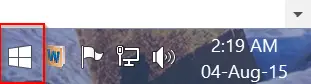
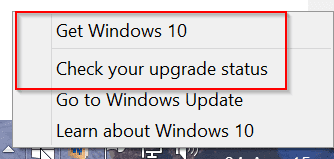
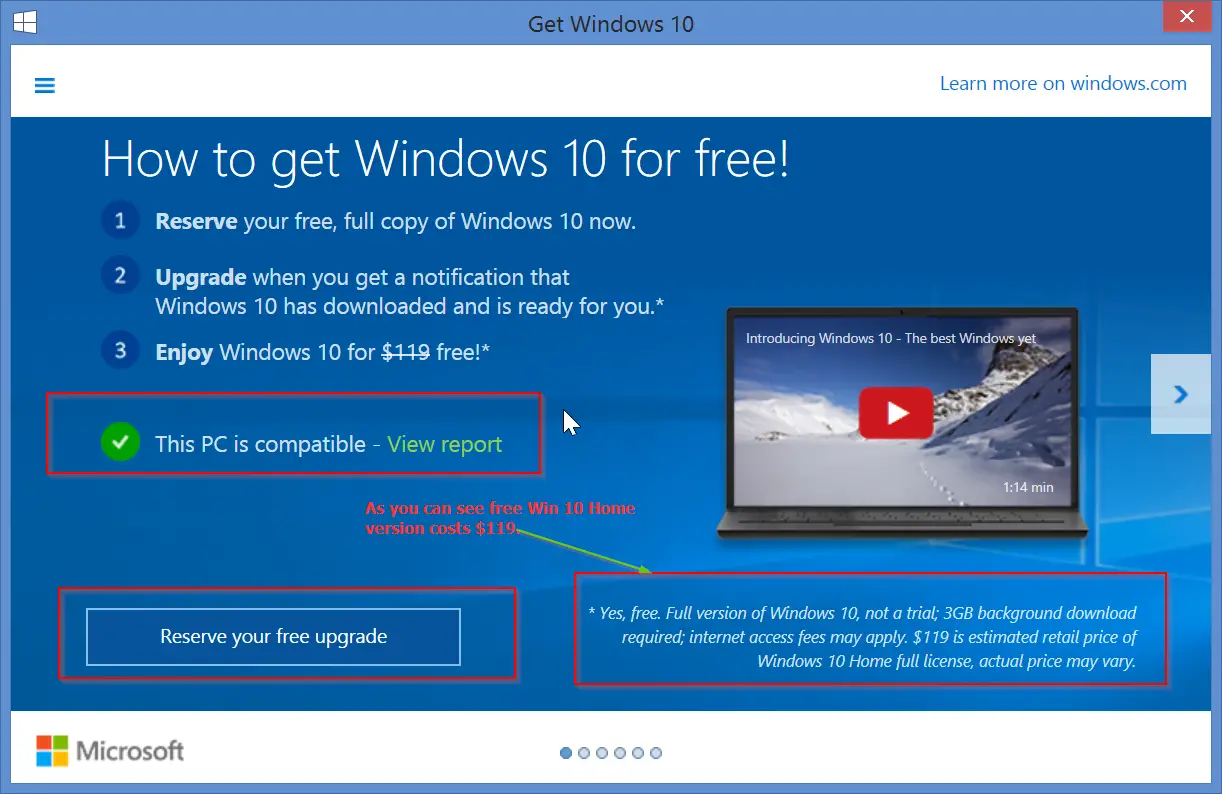
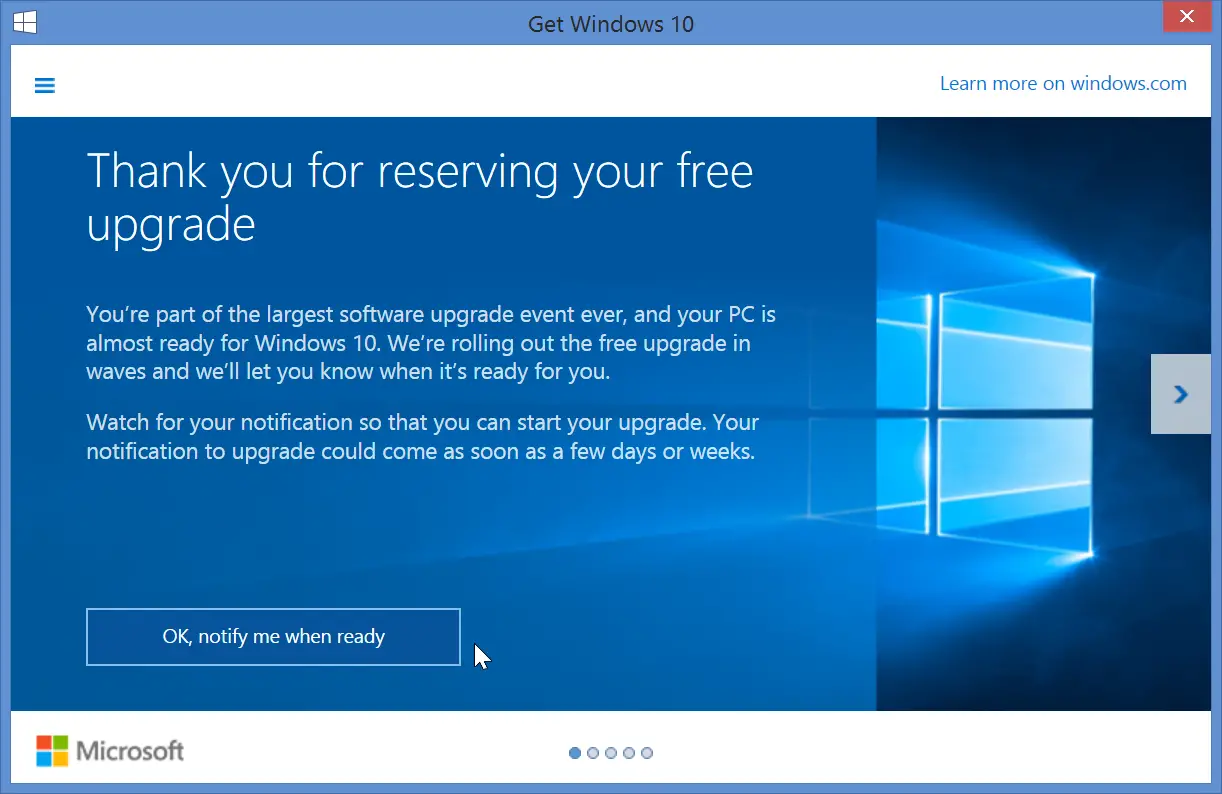
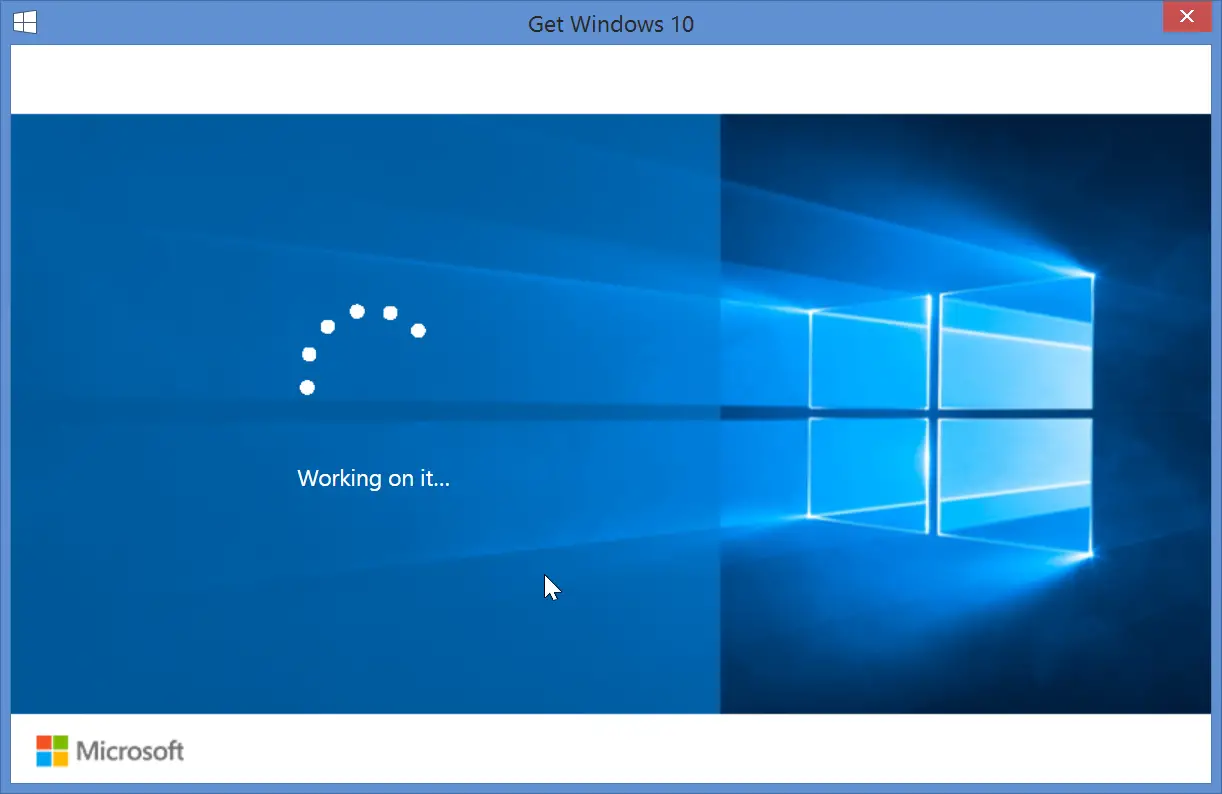 5. After the work is complete, you will see that your Windows 10 upgrade is reserved for download.
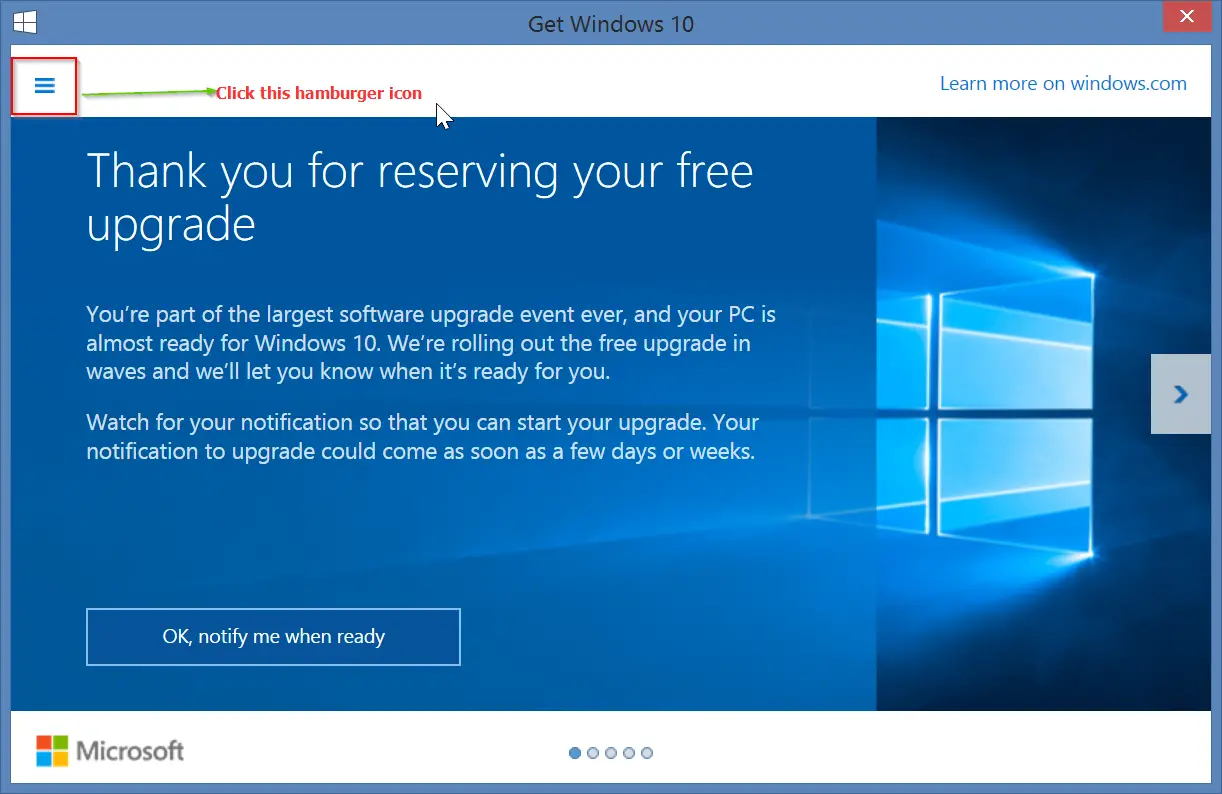 2. Now you will see another new set of options. In that panel, click on the option that says “View confirmation“.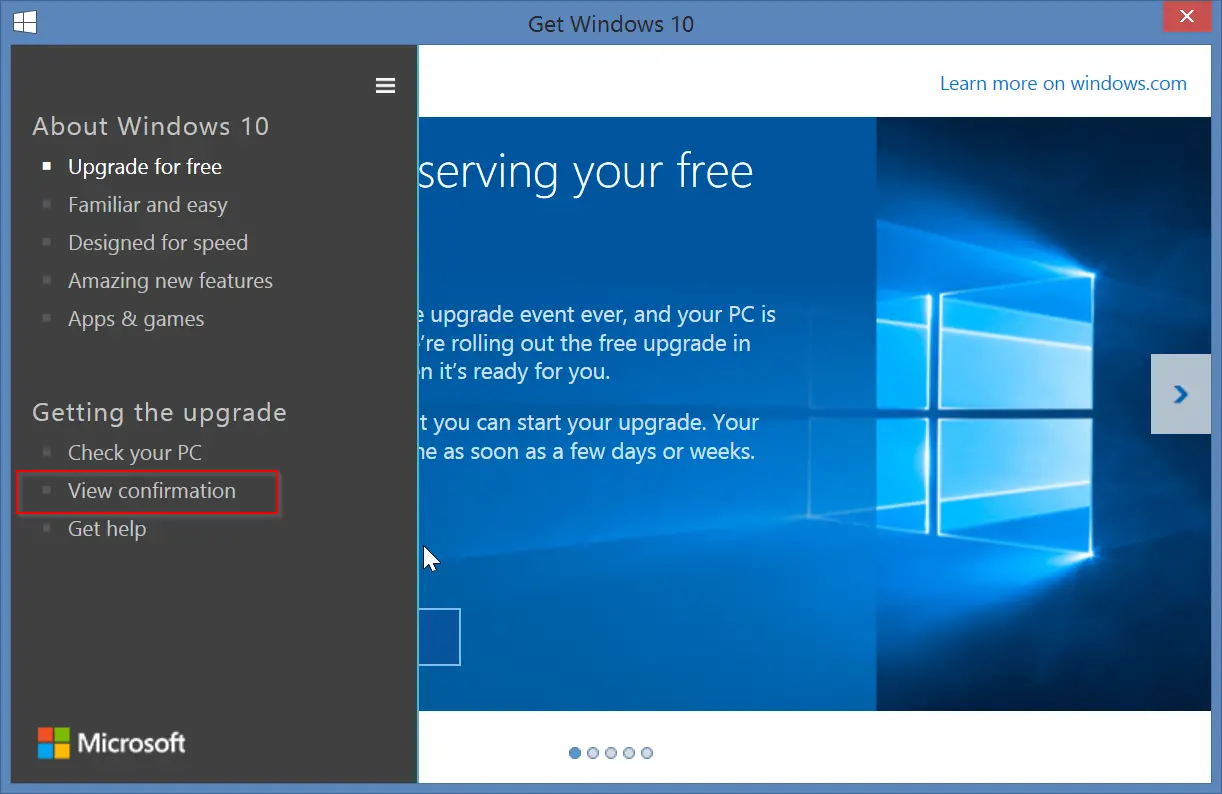
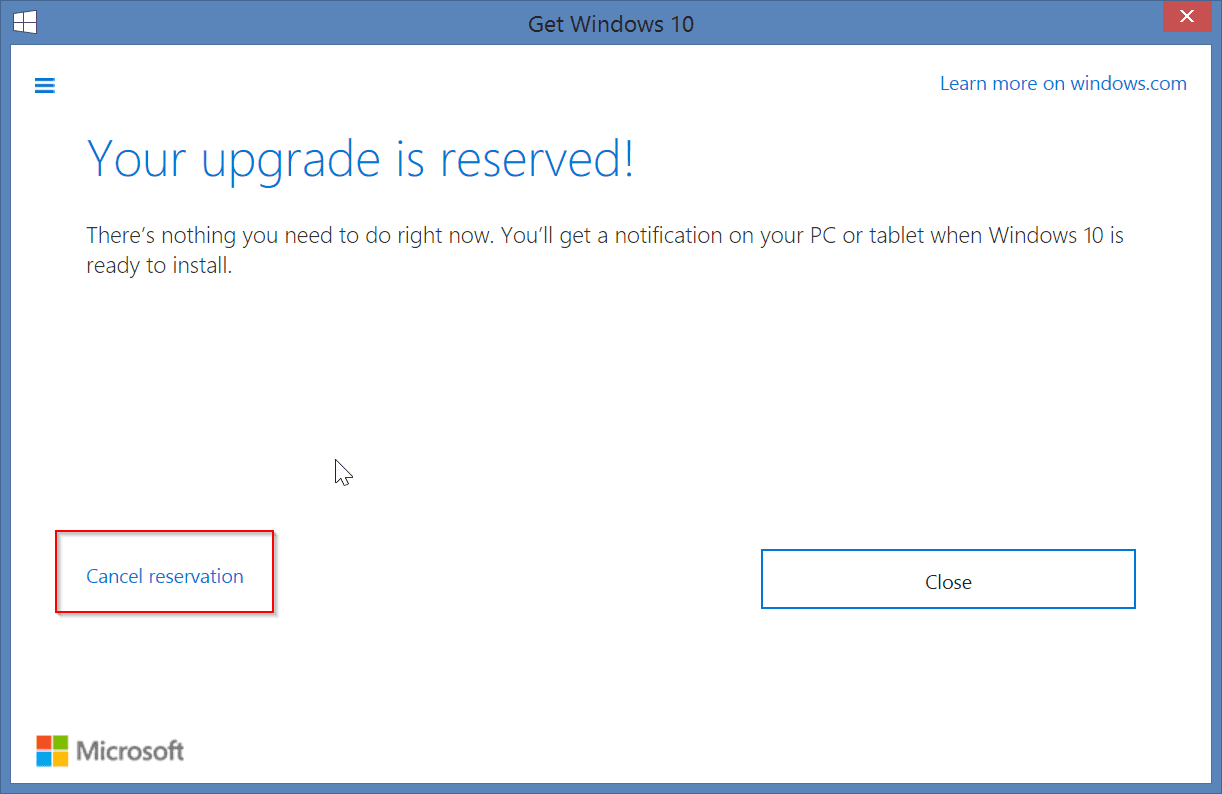
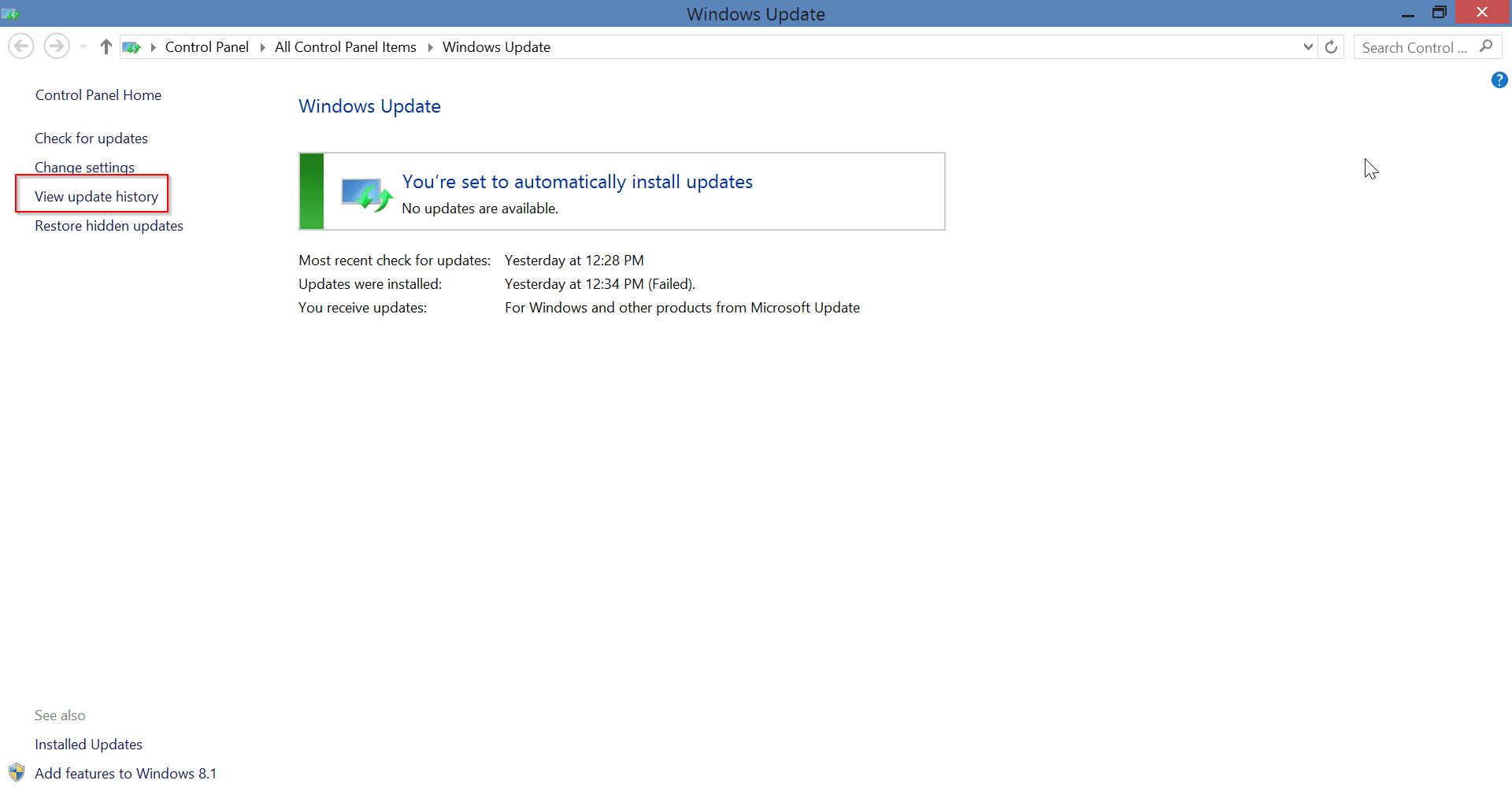
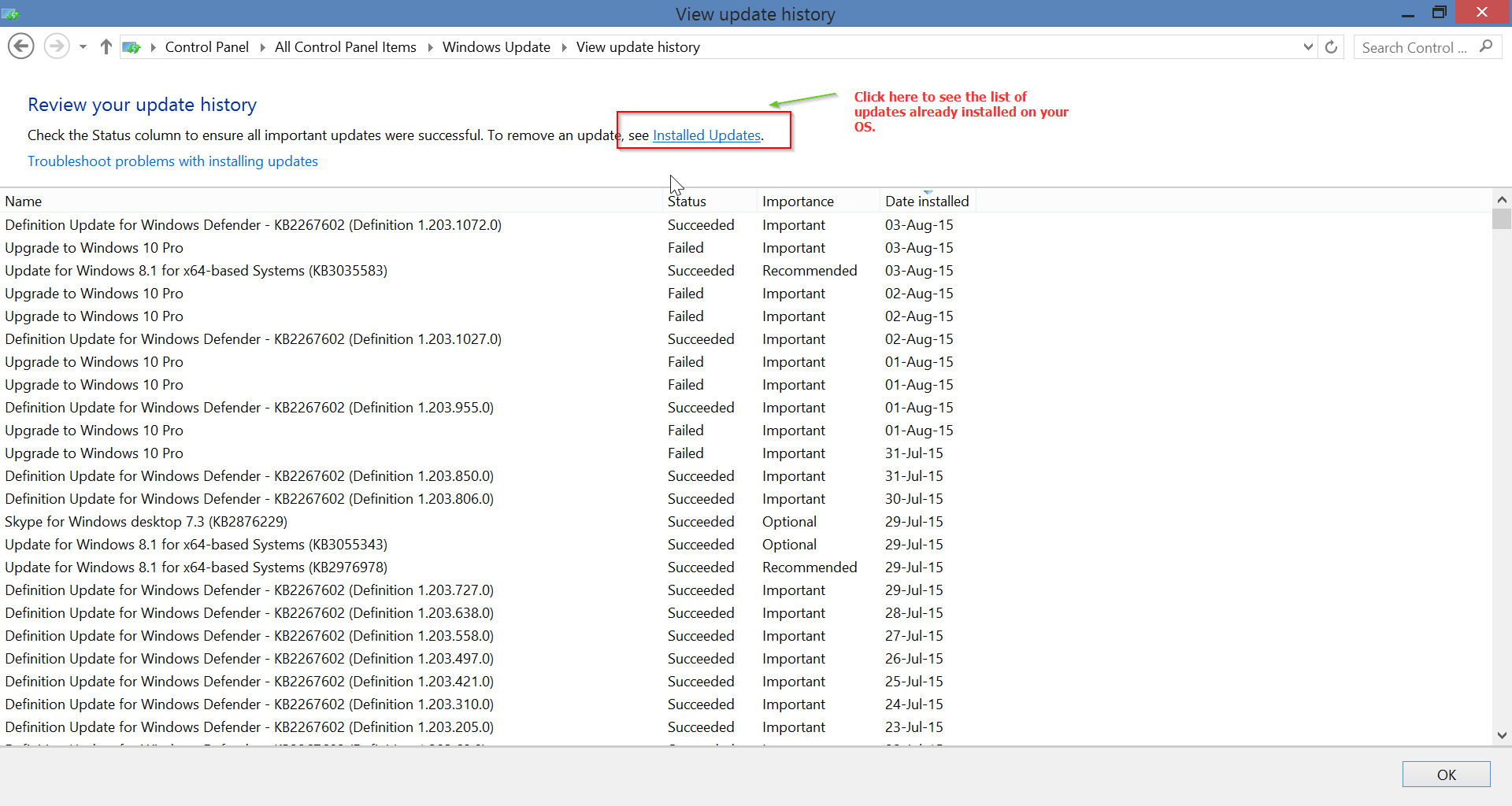
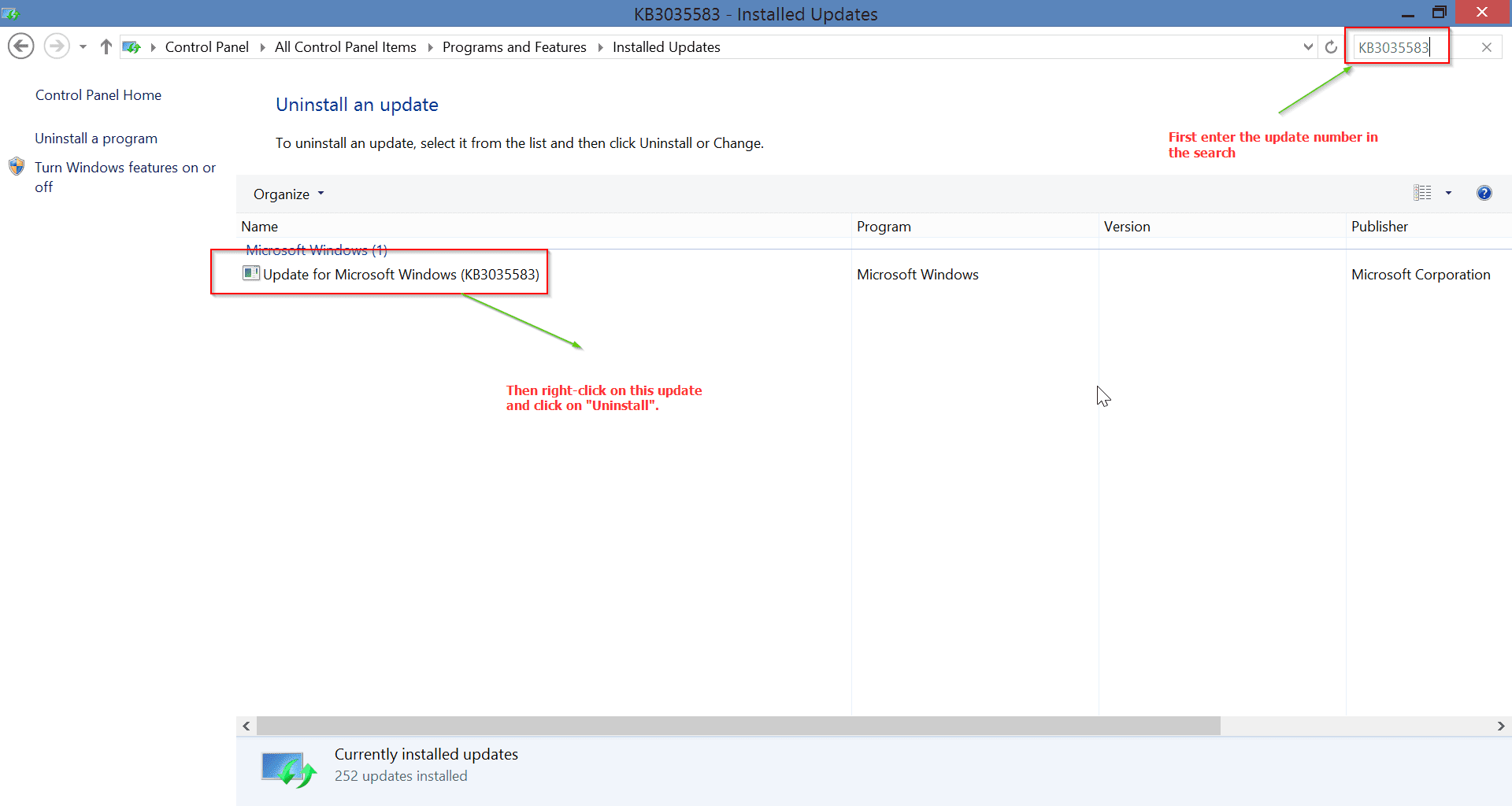
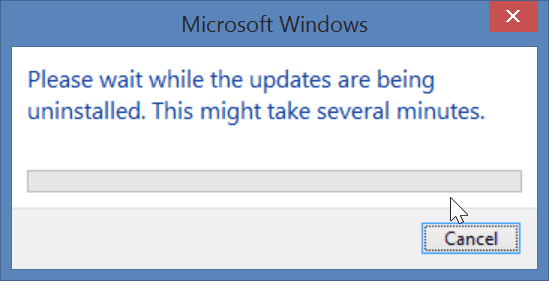

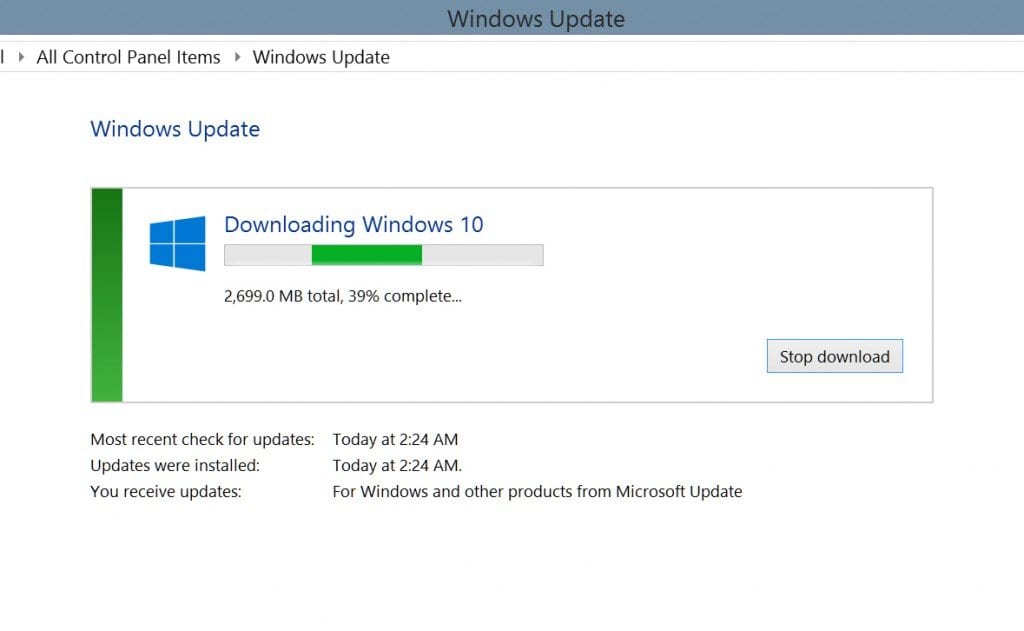
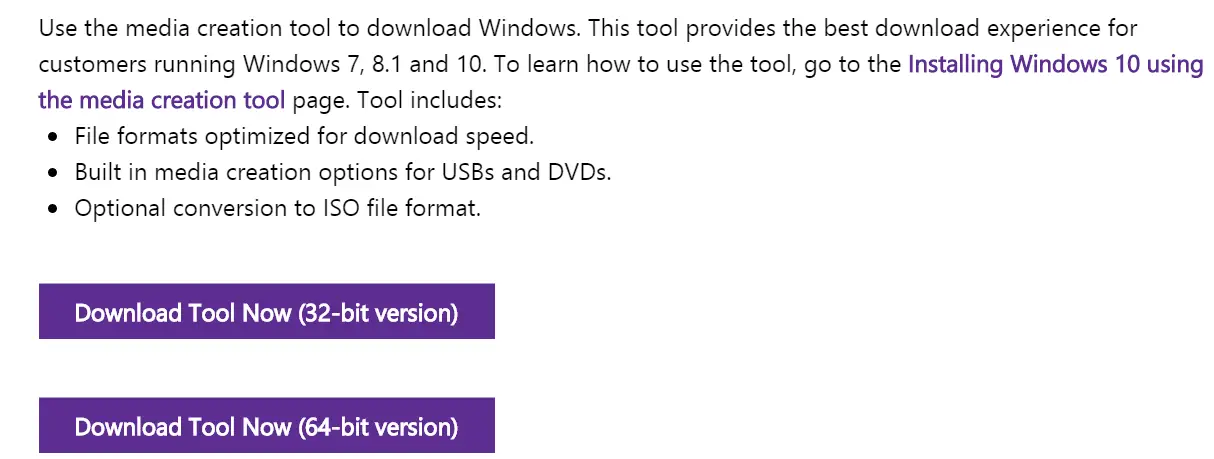

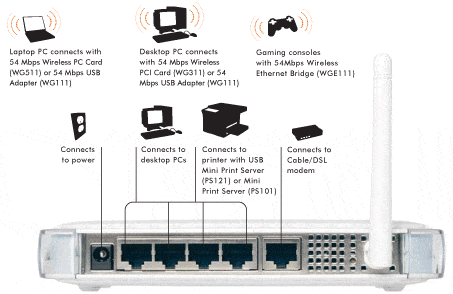
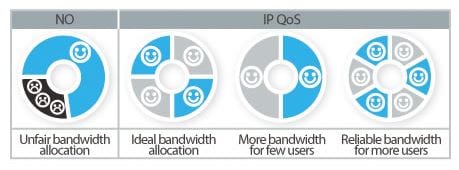


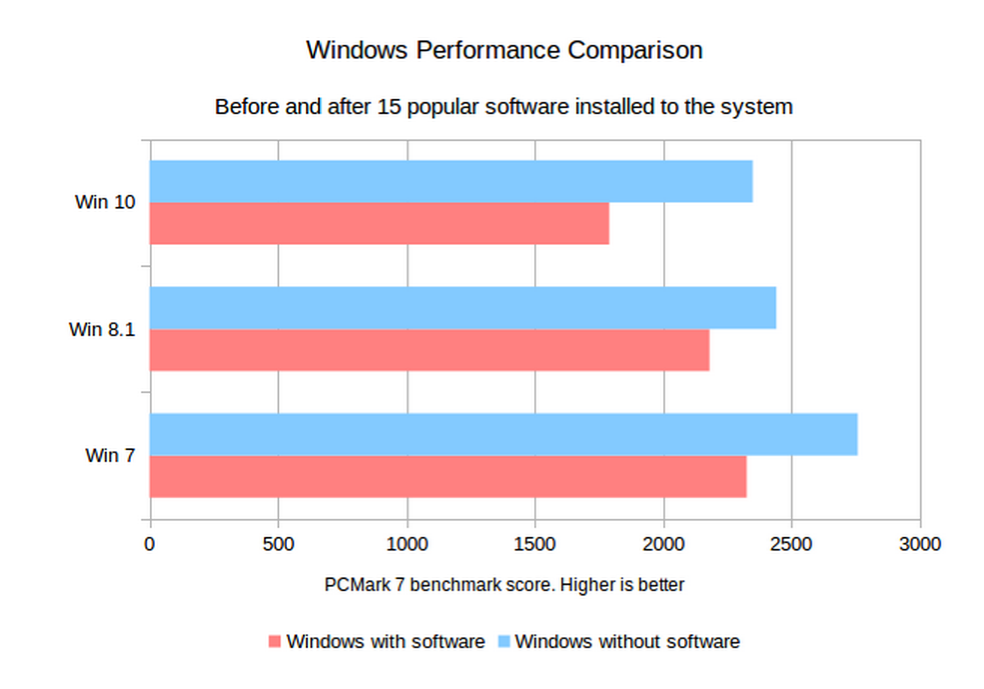


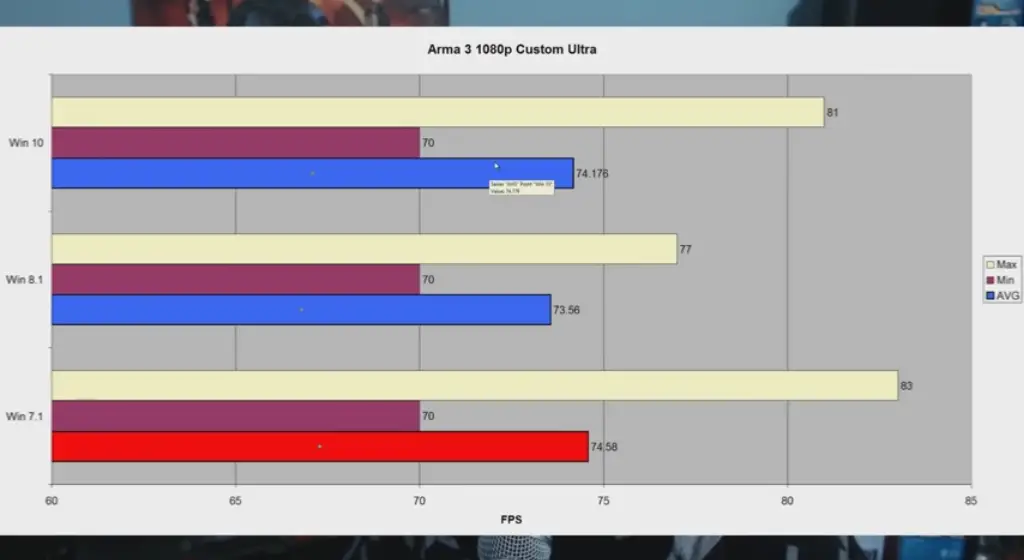
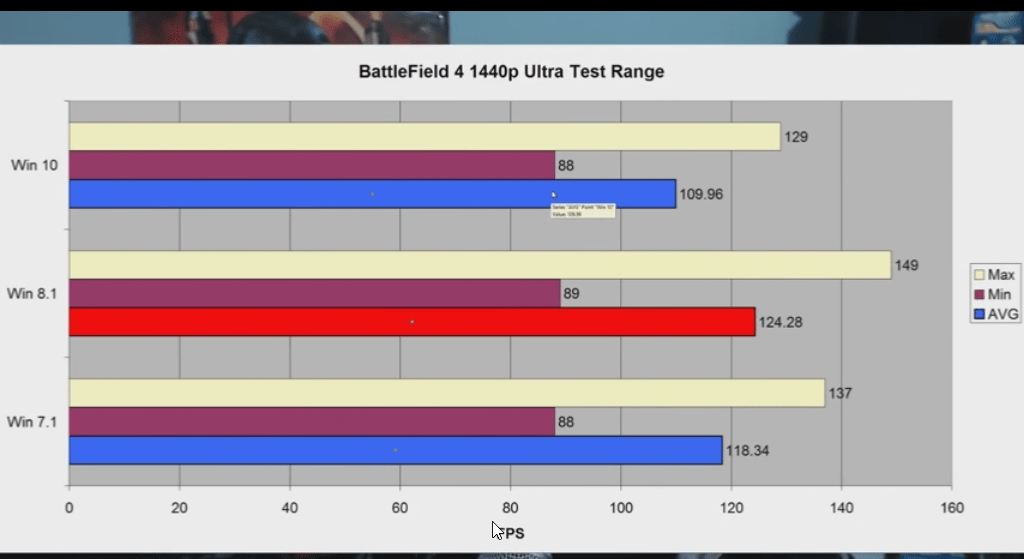

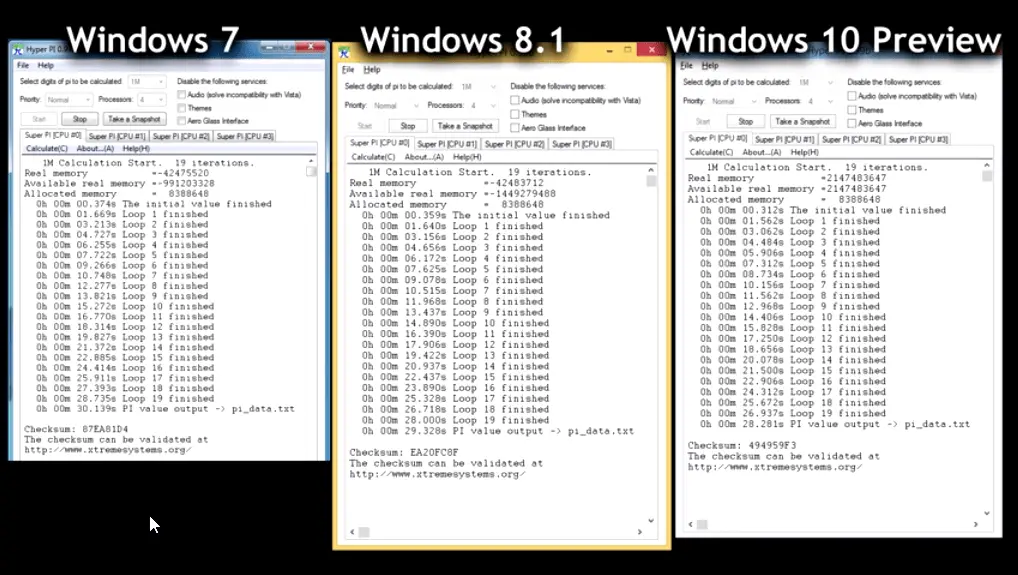


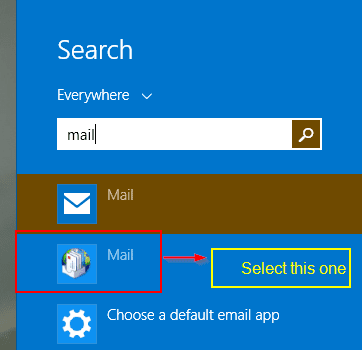
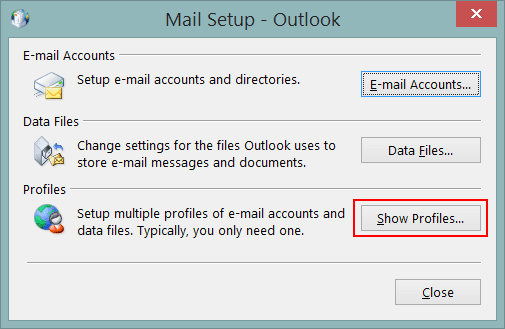
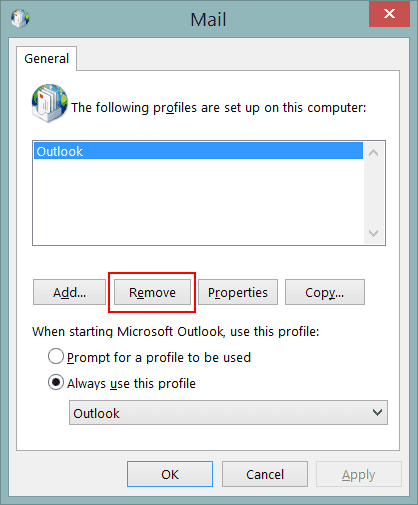
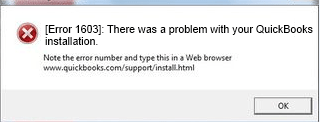
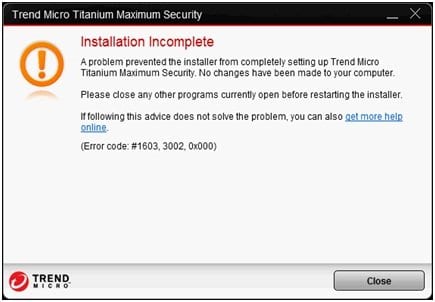
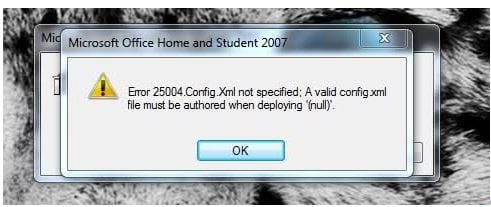
 – Affiliate Link on Amazon