- The latest Wireless AC Technology is used.
- It has Dual-band Wi-Fi for Seamless Performance.
- It is easy to Set Up and easy to Secure. High-Speed Wired and Wireless Connectivity.
- There are two 5 dBi antennae, 4 LAN ports (output), 1 WAN port and Ethernet LAN cable.
- It has 1 year manufacturing warranty.
- The best Wireless speed is upto 750 Mbps.
- It is good for multimedia streaming and high bandwidth application.
- You will be able to play online games smoothly – ideal for gaming consoles like PS3 and Xbox360.
- It has good Coverage area.
- It is backed by D-Link’s 3 years service support.
- 150+ customer reviews.
- 65+ 5 star ratings.
- Average customer rating of 3.8/5.
- 45+ answered questions.
- 16 customer reviews.
- 48 ratings.
- 23 5 star ratings.
- Average customer rating: 4.0/5.
- 6 answered questions.
- 50+ customer reviews.
- 170+ ratings.
- 80+ 5 star ratings.
- Average customer rating 3.9/5.
Pros
- It has dual band.
- It has power button.
- Implements High speed 802.11ac Wi-Fi specification.
- It supports concurrently 10 to 12 users.
- You can register the product online.
- Up to 25 devices can be connected.
- Built-in QoS
- All ports are RJ45 compliant.
Cons
- Little costly.
- There are no USB ports.
- It does not have built-in ADSL modem.
- It doesn’t give much range to Airtel 4g.
- You have to use LAN cable to use it as AP.
- If you are using 60 Mbps ACT connection, you may not get the real speed supported through this router.
Buy from Amazon.in (aff link) – D-Link DIR-819 Wireless AC750 Dual Band Router (Black, Not a Modem)
Conclusion
The above wireless router comparison for home use shows different models from TP-Link and D-Link.
Personally, I have not bought any of these routers and only based on user comments from retail stores, I’m giving this recommendation.
But recently from Amazon.in, I bought the TP-Link TL-WR841N 300Mbps Wireless N Cable router.
I should say for Rs 999, this WiFi device, gave me no trouble in installing with Tikona ISP provider.
All you had to do is connect the RJ-45 LAN wire coming from the roof-top device to the WLAN port.
Then using the configurations page of the Router, you can set-up a password for your Wi-Fi connection.
Important Notes
- So whenever a device connects to this Wi-Fi, you have to give password.
- If you want more speed, you can also connect the LAN cable that comes with the package to the Ethernet port on the router.
- The other end will be connected to your PC LAN port. It just took me 5 minutes and Tikona recognized everything.
Regarding other routers, I should say it depends on your needs.
For example, the TP-Link TL-WR740N Wireless Router router was not giving enough Wi-Fi signal to the floor below and 2 rooms ahead from where the router was placed.
Best WiFi Router for my 1000 sq ft Home
So I ordered for the TL-WR841N 300Mbps router, which has two 5dBi antennas and works for my entire house with 3 floors.
The router is placed on the first room of second floor and could receive signal in the ground floor.
But as you move to more than 3 rooms, the wifi signal drops considerably. I can’t receive any wifi strength in the 4th room on the same floor.
The D-Link routers are also having good reputation. Especially the DIR-803 model will give less interference as it has dual band. If there are many microwave devices around you, better go for this one.
My Recommendation on Wireless Routers for Home Use in India
The DIR-600M is best suited for connectivity requiring in only 2-3 rooms on the same floor.
But if you are looking for a modem+router, then DSL-2750U is more suited for you.
It also has the additional facility of ADSL modem, which is good for BSNL type connections.
Do you think the above routers are good for your need? If you are already having these devices, are you able to configure them easily?
Please share your experience in the comment section and also share this article in your social circles.
- 650+ customer reviews.
- 3100+ ratings.
- 1500+ 5 star ratings.
- Average customer rating 4.4/5.
This YouTube talks about the configuration part of D-Link Dir-600M router which is one of the best for home use.
Pros
- It has 4 LAN ports.
- Comes within budget.
- It is good for 2 BHK house or 20-40 mtr distance.
- You can use it as a router to your BSNL connection.
- You can run wi-fi without turning on the PC.
- It is compatible with Windows 8.1 Pro.
- Compatible with BSNL DNA-A20BEI Modem which has ADSL2+.
- 600M is better than 600L.
Cons
- It doesn’t have an ADSL modem.
- It only works as a router.
- You need to switch on your PC everytime
- Can connect only to 4 devices at a time.
- Your PC remains to be switched on to use this Wi-Fi
Buy from Amazon.in (aff link) – D-Link DIR-615 Wireless-N300 Router (Black, Not a Modem)
D-Link DIR-819 Wireless AC750 Dual Band Router (Black, Not a Modem)
Wi-Fi Range :
Coverage area: 2000 sq. ft. or 10 to 15 mtrs.
- The latest Wireless AC Technology is used.
- It has Dual-band Wi-Fi for Seamless Performance.
- It is easy to Set Up and easy to Secure. High-Speed Wired and Wireless Connectivity.
- There are two 5 dBi antennae, 4 LAN ports (output), 1 WAN port and Ethernet LAN cable.
- It has 1 year manufacturing warranty.
- The best Wireless speed is upto 750 Mbps.
- It is good for multimedia streaming and high bandwidth application.
- You will be able to play online games smoothly – ideal for gaming consoles like PS3 and Xbox360.
- It has good Coverage area.
- It is backed by D-Link’s 3 years service support.
- 150+ customer reviews.
- 65+ 5 star ratings.
- Average customer rating of 3.8/5.
- 45+ answered questions.
- 16 customer reviews.
- 48 ratings.
- 23 5 star ratings.
- Average customer rating: 4.0/5.
- 6 answered questions.
- 50+ customer reviews.
- 170+ ratings.
- 80+ 5 star ratings.
- Average customer rating 3.9/5.
Pros
- It has dual band.
- It has power button.
- Implements High speed 802.11ac Wi-Fi specification.
- It supports concurrently 10 to 12 users.
- You can register the product online.
- Up to 25 devices can be connected.
- Built-in QoS
- All ports are RJ45 compliant.
Cons
- Little costly.
- There are no USB ports.
- It does not have built-in ADSL modem.
- It doesn’t give much range to Airtel 4g.
- You have to use LAN cable to use it as AP.
- If you are using 60 Mbps ACT connection, you may not get the real speed supported through this router.
Buy from Amazon.in (aff link) – D-Link DIR-819 Wireless AC750 Dual Band Router (Black, Not a Modem)
Conclusion
The above wireless router comparison for home use shows different models from TP-Link and D-Link.
Personally, I have not bought any of these routers and only based on user comments from retail stores, I’m giving this recommendation.
But recently from Amazon.in, I bought the TP-Link TL-WR841N 300Mbps Wireless N Cable router.
I should say for Rs 999, this WiFi device, gave me no trouble in installing with Tikona ISP provider.
All you had to do is connect the RJ-45 LAN wire coming from the roof-top device to the WLAN port.
Then using the configurations page of the Router, you can set-up a password for your Wi-Fi connection.
Important Notes
- So whenever a device connects to this Wi-Fi, you have to give password.
- If you want more speed, you can also connect the LAN cable that comes with the package to the Ethernet port on the router.
- The other end will be connected to your PC LAN port. It just took me 5 minutes and Tikona recognized everything.
Regarding other routers, I should say it depends on your needs.
For example, the TP-Link TL-WR740N Wireless Router router was not giving enough Wi-Fi signal to the floor below and 2 rooms ahead from where the router was placed.
Best WiFi Router for my 1000 sq ft Home
So I ordered for the TL-WR841N 300Mbps router, which has two 5dBi antennas and works for my entire house with 3 floors.
The router is placed on the first room of second floor and could receive signal in the ground floor.
But as you move to more than 3 rooms, the wifi signal drops considerably. I can’t receive any wifi strength in the 4th room on the same floor.
The D-Link routers are also having good reputation. Especially the DIR-803 model will give less interference as it has dual band. If there are many microwave devices around you, better go for this one.
My Recommendation on Wireless Routers for Home Use in India
The DIR-600M is best suited for connectivity requiring in only 2-3 rooms on the same floor.
But if you are looking for a modem+router, then DSL-2750U is more suited for you.
It also has the additional facility of ADSL modem, which is good for BSNL type connections.
Do you think the above routers are good for your need? If you are already having these devices, are you able to configure them easily?
Please share your experience in the comment section and also share this article in your social circles.
- The router supports 150 Mbps Wireless Speed.
- It has 1 WAN Port, 1 External Antenna.
- Highest level of security in the form of WPA/WPA2 Encryption.
- It has 3 Year Warranty for its parts.
- 1100+ customer reviews.
- 550+ 5 star ratings.
- Average customer rating of 4.1/5.
- 370+ answered questions.
- 1100+ customer reviews.
- 3300+ ratings.
- 1800+ 5 star ratings.
- Average customer rating 4.2/5.
- 90+ answered questions.
- 650+ customer reviews.
- 3100+ ratings.
- 1500+ 5 star ratings.
- Average customer rating 4.4/5.
This YouTube talks about the configuration part of D-Link Dir-600M router which is one of the best for home use.
Pros
- It has 4 LAN ports.
- Comes within budget.
- It is good for 2 BHK house or 20-40 mtr distance.
- You can use it as a router to your BSNL connection.
- You can run wi-fi without turning on the PC.
- It is compatible with Windows 8.1 Pro.
- Compatible with BSNL DNA-A20BEI Modem which has ADSL2+.
- 600M is better than 600L.
Cons
- It doesn’t have an ADSL modem.
- It only works as a router.
- You need to switch on your PC everytime
- Can connect only to 4 devices at a time.
- Your PC remains to be switched on to use this Wi-Fi
Buy from Amazon.in (aff link) – D-Link DIR-615 Wireless-N300 Router (Black, Not a Modem)
D-Link DIR-819 Wireless AC750 Dual Band Router (Black, Not a Modem)
Wi-Fi Range :
Coverage area: 2000 sq. ft. or 10 to 15 mtrs.
- The latest Wireless AC Technology is used.
- It has Dual-band Wi-Fi for Seamless Performance.
- It is easy to Set Up and easy to Secure. High-Speed Wired and Wireless Connectivity.
- There are two 5 dBi antennae, 4 LAN ports (output), 1 WAN port and Ethernet LAN cable.
- It has 1 year manufacturing warranty.
- The best Wireless speed is upto 750 Mbps.
- It is good for multimedia streaming and high bandwidth application.
- You will be able to play online games smoothly – ideal for gaming consoles like PS3 and Xbox360.
- It has good Coverage area.
- It is backed by D-Link’s 3 years service support.
- 150+ customer reviews.
- 65+ 5 star ratings.
- Average customer rating of 3.8/5.
- 45+ answered questions.
- 16 customer reviews.
- 48 ratings.
- 23 5 star ratings.
- Average customer rating: 4.0/5.
- 6 answered questions.
- 50+ customer reviews.
- 170+ ratings.
- 80+ 5 star ratings.
- Average customer rating 3.9/5.
Pros
- It has dual band.
- It has power button.
- Implements High speed 802.11ac Wi-Fi specification.
- It supports concurrently 10 to 12 users.
- You can register the product online.
- Up to 25 devices can be connected.
- Built-in QoS
- All ports are RJ45 compliant.
Cons
- Little costly.
- There are no USB ports.
- It does not have built-in ADSL modem.
- It doesn’t give much range to Airtel 4g.
- You have to use LAN cable to use it as AP.
- If you are using 60 Mbps ACT connection, you may not get the real speed supported through this router.
Buy from Amazon.in (aff link) – D-Link DIR-819 Wireless AC750 Dual Band Router (Black, Not a Modem)
Conclusion
The above wireless router comparison for home use shows different models from TP-Link and D-Link.
Personally, I have not bought any of these routers and only based on user comments from retail stores, I’m giving this recommendation.
But recently from Amazon.in, I bought the TP-Link TL-WR841N 300Mbps Wireless N Cable router.
I should say for Rs 999, this WiFi device, gave me no trouble in installing with Tikona ISP provider.
All you had to do is connect the RJ-45 LAN wire coming from the roof-top device to the WLAN port.
Then using the configurations page of the Router, you can set-up a password for your Wi-Fi connection.
Important Notes
- So whenever a device connects to this Wi-Fi, you have to give password.
- If you want more speed, you can also connect the LAN cable that comes with the package to the Ethernet port on the router.
- The other end will be connected to your PC LAN port. It just took me 5 minutes and Tikona recognized everything.
Regarding other routers, I should say it depends on your needs.
For example, the TP-Link TL-WR740N Wireless Router router was not giving enough Wi-Fi signal to the floor below and 2 rooms ahead from where the router was placed.
Best WiFi Router for my 1000 sq ft Home
So I ordered for the TL-WR841N 300Mbps router, which has two 5dBi antennas and works for my entire house with 3 floors.
The router is placed on the first room of second floor and could receive signal in the ground floor.
But as you move to more than 3 rooms, the wifi signal drops considerably. I can’t receive any wifi strength in the 4th room on the same floor.
The D-Link routers are also having good reputation. Especially the DIR-803 model will give less interference as it has dual band. If there are many microwave devices around you, better go for this one.
My Recommendation on Wireless Routers for Home Use in India
The DIR-600M is best suited for connectivity requiring in only 2-3 rooms on the same floor.
But if you are looking for a modem+router, then DSL-2750U is more suited for you.
It also has the additional facility of ADSL modem, which is good for BSNL type connections.
Do you think the above routers are good for your need? If you are already having these devices, are you able to configure them easily?
Please share your experience in the comment section and also share this article in your social circles.
- 1800+ customer reviews.
- 5200+ ratings.
- 3000+ 5 star ratings.
- Average customer rating 4.3/5.
This YouTube video talks about connecting your D-Link DSL-2750U Wireless N 300 ADSL2 router to the PC through USB.
Pros
- Good coverage and Wi-Fi signal for both ground and first floors.
- It comes with a line-splitter.
- It has a USB port.
- Works for BSNL connections also, as it has ADSL modem.
Cons
- There is no clarity on whether it can be used as router alone. (by-passing modem).
- No clarity on whether it can be used with network drive or personal cloud.
Get details from Amazon.in (aff link) – D-Link DSL-2730U Wireless-N 150 ADSL2+ 4-Port Router (Black)
D-Link DIR-615 Wireless-N300 Router (Black, Not a Modem)
Wi-Fi Range :
Range is 20-40 mtr. Or 1000 to 1200 sq.ft.
- The router supports 150 Mbps Wireless Speed.
- It has 1 WAN Port, 1 External Antenna.
- Highest level of security in the form of WPA/WPA2 Encryption.
- It has 3 Year Warranty for its parts.
- 1100+ customer reviews.
- 550+ 5 star ratings.
- Average customer rating of 4.1/5.
- 370+ answered questions.
- 1100+ customer reviews.
- 3300+ ratings.
- 1800+ 5 star ratings.
- Average customer rating 4.2/5.
- 90+ answered questions.
- 650+ customer reviews.
- 3100+ ratings.
- 1500+ 5 star ratings.
- Average customer rating 4.4/5.
This YouTube talks about the configuration part of D-Link Dir-600M router which is one of the best for home use.
Pros
- It has 4 LAN ports.
- Comes within budget.
- It is good for 2 BHK house or 20-40 mtr distance.
- You can use it as a router to your BSNL connection.
- You can run wi-fi without turning on the PC.
- It is compatible with Windows 8.1 Pro.
- Compatible with BSNL DNA-A20BEI Modem which has ADSL2+.
- 600M is better than 600L.
Cons
- It doesn’t have an ADSL modem.
- It only works as a router.
- You need to switch on your PC everytime
- Can connect only to 4 devices at a time.
- Your PC remains to be switched on to use this Wi-Fi
Buy from Amazon.in (aff link) – D-Link DIR-615 Wireless-N300 Router (Black, Not a Modem)
D-Link DIR-819 Wireless AC750 Dual Band Router (Black, Not a Modem)
Wi-Fi Range :
Coverage area: 2000 sq. ft. or 10 to 15 mtrs.
- The latest Wireless AC Technology is used.
- It has Dual-band Wi-Fi for Seamless Performance.
- It is easy to Set Up and easy to Secure. High-Speed Wired and Wireless Connectivity.
- There are two 5 dBi antennae, 4 LAN ports (output), 1 WAN port and Ethernet LAN cable.
- It has 1 year manufacturing warranty.
- The best Wireless speed is upto 750 Mbps.
- It is good for multimedia streaming and high bandwidth application.
- You will be able to play online games smoothly – ideal for gaming consoles like PS3 and Xbox360.
- It has good Coverage area.
- It is backed by D-Link’s 3 years service support.
- 150+ customer reviews.
- 65+ 5 star ratings.
- Average customer rating of 3.8/5.
- 45+ answered questions.
- 16 customer reviews.
- 48 ratings.
- 23 5 star ratings.
- Average customer rating: 4.0/5.
- 6 answered questions.
- 50+ customer reviews.
- 170+ ratings.
- 80+ 5 star ratings.
- Average customer rating 3.9/5.
Pros
- It has dual band.
- It has power button.
- Implements High speed 802.11ac Wi-Fi specification.
- It supports concurrently 10 to 12 users.
- You can register the product online.
- Up to 25 devices can be connected.
- Built-in QoS
- All ports are RJ45 compliant.
Cons
- Little costly.
- There are no USB ports.
- It does not have built-in ADSL modem.
- It doesn’t give much range to Airtel 4g.
- You have to use LAN cable to use it as AP.
- If you are using 60 Mbps ACT connection, you may not get the real speed supported through this router.
Buy from Amazon.in (aff link) – D-Link DIR-819 Wireless AC750 Dual Band Router (Black, Not a Modem)
Conclusion
The above wireless router comparison for home use shows different models from TP-Link and D-Link.
Personally, I have not bought any of these routers and only based on user comments from retail stores, I’m giving this recommendation.
But recently from Amazon.in, I bought the TP-Link TL-WR841N 300Mbps Wireless N Cable router.
I should say for Rs 999, this WiFi device, gave me no trouble in installing with Tikona ISP provider.
All you had to do is connect the RJ-45 LAN wire coming from the roof-top device to the WLAN port.
Then using the configurations page of the Router, you can set-up a password for your Wi-Fi connection.
Important Notes
- So whenever a device connects to this Wi-Fi, you have to give password.
- If you want more speed, you can also connect the LAN cable that comes with the package to the Ethernet port on the router.
- The other end will be connected to your PC LAN port. It just took me 5 minutes and Tikona recognized everything.
Regarding other routers, I should say it depends on your needs.
For example, the TP-Link TL-WR740N Wireless Router router was not giving enough Wi-Fi signal to the floor below and 2 rooms ahead from where the router was placed.
Best WiFi Router for my 1000 sq ft Home
So I ordered for the TL-WR841N 300Mbps router, which has two 5dBi antennas and works for my entire house with 3 floors.
The router is placed on the first room of second floor and could receive signal in the ground floor.
But as you move to more than 3 rooms, the wifi signal drops considerably. I can’t receive any wifi strength in the 4th room on the same floor.
The D-Link routers are also having good reputation. Especially the DIR-803 model will give less interference as it has dual band. If there are many microwave devices around you, better go for this one.
My Recommendation on Wireless Routers for Home Use in India
The DIR-600M is best suited for connectivity requiring in only 2-3 rooms on the same floor.
But if you are looking for a modem+router, then DSL-2750U is more suited for you.
It also has the additional facility of ADSL modem, which is good for BSNL type connections.
Do you think the above routers are good for your need? If you are already having these devices, are you able to configure them easily?
Please share your experience in the comment section and also share this article in your social circles.
- It has fast Internet transmission rates of up to 24 Mbps downstream and 1 Mbps upstream speeds.
- You can get wireless speeds up to 54 Mbps using the 802.11g standard and 300 Mbps using 802.11n standard.
- It is compatible with D-Link 3G USB adapter and DWM-156.
- Some of the new versions of routers are not providing ON/OFF button.
- But a wireless ON and OFF button is included for convenience.
- The device interfaces include an RJ-11 ADSL port, WPS button, Power on/off switch, USB host 2.0., Built-in 802.11n Wireless Lan.
- It has 1 year warranty for parts and can have warranty, even if you buy online.
- The contents of the package include – DSL-2750U Wireless ADSL Router, Power Adapter, CD-ROM with User Manual, One Micro Splitter, One twisted-pair telephone cable used for ADSL connection, One straight-through Ethernet cable.
- 3300+ customer reviews.
- 1800+ 5 star ratings.
- Average customer rating: 4.3/5.
- 510+ answered questions.
- 3 customer reviews.
- 10 ratings.
- 5 5 star ratings.
- Average customer rating 4.1/5.
- 3 answered questions.
- 1800+ customer reviews.
- 5200+ ratings.
- 3000+ 5 star ratings.
- Average customer rating 4.3/5.
This YouTube video talks about connecting your D-Link DSL-2750U Wireless N 300 ADSL2 router to the PC through USB.
Pros
- Good coverage and Wi-Fi signal for both ground and first floors.
- It comes with a line-splitter.
- It has a USB port.
- Works for BSNL connections also, as it has ADSL modem.
Cons
- There is no clarity on whether it can be used as router alone. (by-passing modem).
- No clarity on whether it can be used with network drive or personal cloud.
Get details from Amazon.in (aff link) – D-Link DSL-2730U Wireless-N 150 ADSL2+ 4-Port Router (Black)
D-Link DIR-615 Wireless-N300 Router (Black, Not a Modem)
Wi-Fi Range :
Range is 20-40 mtr. Or 1000 to 1200 sq.ft.
- The router supports 150 Mbps Wireless Speed.
- It has 1 WAN Port, 1 External Antenna.
- Highest level of security in the form of WPA/WPA2 Encryption.
- It has 3 Year Warranty for its parts.
- 1100+ customer reviews.
- 550+ 5 star ratings.
- Average customer rating of 4.1/5.
- 370+ answered questions.
- 1100+ customer reviews.
- 3300+ ratings.
- 1800+ 5 star ratings.
- Average customer rating 4.2/5.
- 90+ answered questions.
- 650+ customer reviews.
- 3100+ ratings.
- 1500+ 5 star ratings.
- Average customer rating 4.4/5.
This YouTube talks about the configuration part of D-Link Dir-600M router which is one of the best for home use.
Pros
- It has 4 LAN ports.
- Comes within budget.
- It is good for 2 BHK house or 20-40 mtr distance.
- You can use it as a router to your BSNL connection.
- You can run wi-fi without turning on the PC.
- It is compatible with Windows 8.1 Pro.
- Compatible with BSNL DNA-A20BEI Modem which has ADSL2+.
- 600M is better than 600L.
Cons
- It doesn’t have an ADSL modem.
- It only works as a router.
- You need to switch on your PC everytime
- Can connect only to 4 devices at a time.
- Your PC remains to be switched on to use this Wi-Fi
Buy from Amazon.in (aff link) – D-Link DIR-615 Wireless-N300 Router (Black, Not a Modem)
D-Link DIR-819 Wireless AC750 Dual Band Router (Black, Not a Modem)
Wi-Fi Range :
Coverage area: 2000 sq. ft. or 10 to 15 mtrs.
- The latest Wireless AC Technology is used.
- It has Dual-band Wi-Fi for Seamless Performance.
- It is easy to Set Up and easy to Secure. High-Speed Wired and Wireless Connectivity.
- There are two 5 dBi antennae, 4 LAN ports (output), 1 WAN port and Ethernet LAN cable.
- It has 1 year manufacturing warranty.
- The best Wireless speed is upto 750 Mbps.
- It is good for multimedia streaming and high bandwidth application.
- You will be able to play online games smoothly – ideal for gaming consoles like PS3 and Xbox360.
- It has good Coverage area.
- It is backed by D-Link’s 3 years service support.
- 150+ customer reviews.
- 65+ 5 star ratings.
- Average customer rating of 3.8/5.
- 45+ answered questions.
- 16 customer reviews.
- 48 ratings.
- 23 5 star ratings.
- Average customer rating: 4.0/5.
- 6 answered questions.
- 50+ customer reviews.
- 170+ ratings.
- 80+ 5 star ratings.
- Average customer rating 3.9/5.
Pros
- It has dual band.
- It has power button.
- Implements High speed 802.11ac Wi-Fi specification.
- It supports concurrently 10 to 12 users.
- You can register the product online.
- Up to 25 devices can be connected.
- Built-in QoS
- All ports are RJ45 compliant.
Cons
- Little costly.
- There are no USB ports.
- It does not have built-in ADSL modem.
- It doesn’t give much range to Airtel 4g.
- You have to use LAN cable to use it as AP.
- If you are using 60 Mbps ACT connection, you may not get the real speed supported through this router.
Buy from Amazon.in (aff link) – D-Link DIR-819 Wireless AC750 Dual Band Router (Black, Not a Modem)
Conclusion
The above wireless router comparison for home use shows different models from TP-Link and D-Link.
Personally, I have not bought any of these routers and only based on user comments from retail stores, I’m giving this recommendation.
But recently from Amazon.in, I bought the TP-Link TL-WR841N 300Mbps Wireless N Cable router.
I should say for Rs 999, this WiFi device, gave me no trouble in installing with Tikona ISP provider.
All you had to do is connect the RJ-45 LAN wire coming from the roof-top device to the WLAN port.
Then using the configurations page of the Router, you can set-up a password for your Wi-Fi connection.
Important Notes
- So whenever a device connects to this Wi-Fi, you have to give password.
- If you want more speed, you can also connect the LAN cable that comes with the package to the Ethernet port on the router.
- The other end will be connected to your PC LAN port. It just took me 5 minutes and Tikona recognized everything.
Regarding other routers, I should say it depends on your needs.
For example, the TP-Link TL-WR740N Wireless Router router was not giving enough Wi-Fi signal to the floor below and 2 rooms ahead from where the router was placed.
Best WiFi Router for my 1000 sq ft Home
So I ordered for the TL-WR841N 300Mbps router, which has two 5dBi antennas and works for my entire house with 3 floors.
The router is placed on the first room of second floor and could receive signal in the ground floor.
But as you move to more than 3 rooms, the wifi signal drops considerably. I can’t receive any wifi strength in the 4th room on the same floor.
The D-Link routers are also having good reputation. Especially the DIR-803 model will give less interference as it has dual band. If there are many microwave devices around you, better go for this one.
My Recommendation on Wireless Routers for Home Use in India
The DIR-600M is best suited for connectivity requiring in only 2-3 rooms on the same floor.
But if you are looking for a modem+router, then DSL-2750U is more suited for you.
It also has the additional facility of ADSL modem, which is good for BSNL type connections.
Do you think the above routers are good for your need? If you are already having these devices, are you able to configure them easily?
Please share your experience in the comment section and also share this article in your social circles.
- 660+ customer reviews.
- 2200+ ratings.
- 1200+ 5 star ratings.
- Average customer rating 4.2/5.
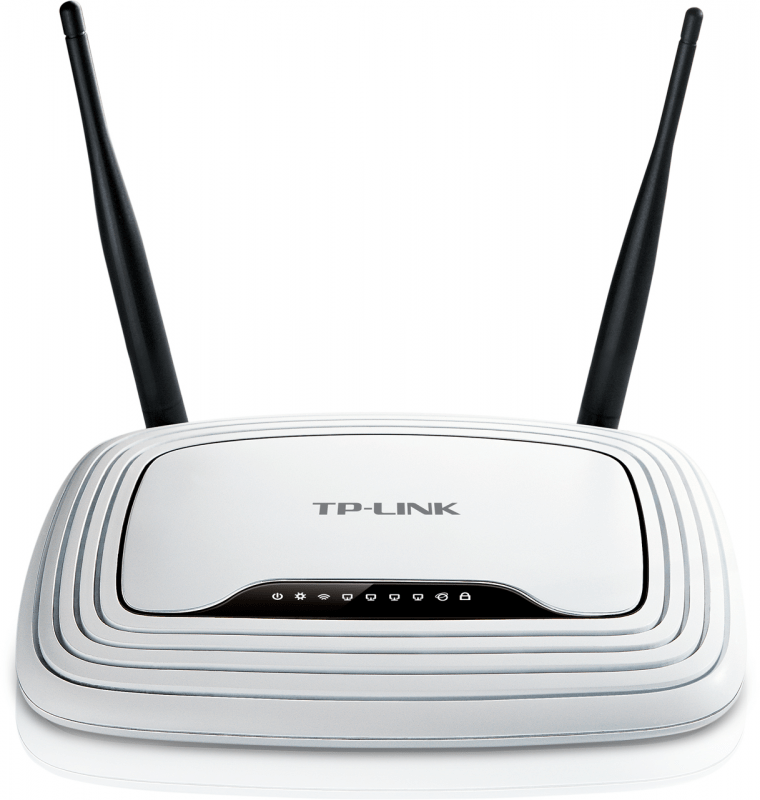
This YouTube video reviews the TP-LINK TL-WR841N 300Mbps Wireless N Router and details about the extended features it has got over a 150Mbps router.
This YouTube video is about the setup of TP-LINK TL-WR841N 300Mbps Wireless N Router. It’s so easy to configure and setup, that clear instructions with a real desktop are shown. You just have to set your Wi-Fi password, to be secure from outside interference and prevent bandwidth outage.
Pros
- Supports majority of ISP providers like ACT, Idea Broadband, Reliance Broadbank, Tikona, YouBroadband.
- 3 year warranty service.
- Extra Ethernet cable.
- All ports are RJ45.
- Physical button to turn on and off the Wi-Fi feature.
- Compatible with MTNL broadband having WLAN cable.
- compatible with BSNL FTTH Connection which has a ONT(Optical Network Terminal) and no Modem.
Cons
- It doesn’t support USB modems.
- Doesn’t support MIMO.
- This is only a router, no Modem.
- Doesn’t work with BSNL Broadband or ADSL or RJ11.
Get details from Amazon.in (aff link) – TP-LINK TL-WR841N 300Mbps Wireless N Router
D-Link DSL-2730U Wireless-N 150 ADSL2+ 4-Port Router (Black)
Wi-Fi Range :
It’s coverage area is around 1500 sq. feet.
- It has fast Internet transmission rates of up to 24 Mbps downstream and 1 Mbps upstream speeds.
- You can get wireless speeds up to 54 Mbps using the 802.11g standard and 300 Mbps using 802.11n standard.
- It is compatible with D-Link 3G USB adapter and DWM-156.
- Some of the new versions of routers are not providing ON/OFF button.
- But a wireless ON and OFF button is included for convenience.
- The device interfaces include an RJ-11 ADSL port, WPS button, Power on/off switch, USB host 2.0., Built-in 802.11n Wireless Lan.
- It has 1 year warranty for parts and can have warranty, even if you buy online.
- The contents of the package include – DSL-2750U Wireless ADSL Router, Power Adapter, CD-ROM with User Manual, One Micro Splitter, One twisted-pair telephone cable used for ADSL connection, One straight-through Ethernet cable.
- 3300+ customer reviews.
- 1800+ 5 star ratings.
- Average customer rating: 4.3/5.
- 510+ answered questions.
- 3 customer reviews.
- 10 ratings.
- 5 5 star ratings.
- Average customer rating 4.1/5.
- 3 answered questions.
- 1800+ customer reviews.
- 5200+ ratings.
- 3000+ 5 star ratings.
- Average customer rating 4.3/5.
This YouTube video talks about connecting your D-Link DSL-2750U Wireless N 300 ADSL2 router to the PC through USB.
Pros
- Good coverage and Wi-Fi signal for both ground and first floors.
- It comes with a line-splitter.
- It has a USB port.
- Works for BSNL connections also, as it has ADSL modem.
Cons
- There is no clarity on whether it can be used as router alone. (by-passing modem).
- No clarity on whether it can be used with network drive or personal cloud.
Get details from Amazon.in (aff link) – D-Link DSL-2730U Wireless-N 150 ADSL2+ 4-Port Router (Black)
D-Link DIR-615 Wireless-N300 Router (Black, Not a Modem)
Wi-Fi Range :
Range is 20-40 mtr. Or 1000 to 1200 sq.ft.
- The router supports 150 Mbps Wireless Speed.
- It has 1 WAN Port, 1 External Antenna.
- Highest level of security in the form of WPA/WPA2 Encryption.
- It has 3 Year Warranty for its parts.
- 1100+ customer reviews.
- 550+ 5 star ratings.
- Average customer rating of 4.1/5.
- 370+ answered questions.
- 1100+ customer reviews.
- 3300+ ratings.
- 1800+ 5 star ratings.
- Average customer rating 4.2/5.
- 90+ answered questions.
- 650+ customer reviews.
- 3100+ ratings.
- 1500+ 5 star ratings.
- Average customer rating 4.4/5.
This YouTube talks about the configuration part of D-Link Dir-600M router which is one of the best for home use.
Pros
- It has 4 LAN ports.
- Comes within budget.
- It is good for 2 BHK house or 20-40 mtr distance.
- You can use it as a router to your BSNL connection.
- You can run wi-fi without turning on the PC.
- It is compatible with Windows 8.1 Pro.
- Compatible with BSNL DNA-A20BEI Modem which has ADSL2+.
- 600M is better than 600L.
Cons
- It doesn’t have an ADSL modem.
- It only works as a router.
- You need to switch on your PC everytime
- Can connect only to 4 devices at a time.
- Your PC remains to be switched on to use this Wi-Fi
Buy from Amazon.in (aff link) – D-Link DIR-615 Wireless-N300 Router (Black, Not a Modem)
D-Link DIR-819 Wireless AC750 Dual Band Router (Black, Not a Modem)
Wi-Fi Range :
Coverage area: 2000 sq. ft. or 10 to 15 mtrs.
- The latest Wireless AC Technology is used.
- It has Dual-band Wi-Fi for Seamless Performance.
- It is easy to Set Up and easy to Secure. High-Speed Wired and Wireless Connectivity.
- There are two 5 dBi antennae, 4 LAN ports (output), 1 WAN port and Ethernet LAN cable.
- It has 1 year manufacturing warranty.
- The best Wireless speed is upto 750 Mbps.
- It is good for multimedia streaming and high bandwidth application.
- You will be able to play online games smoothly – ideal for gaming consoles like PS3 and Xbox360.
- It has good Coverage area.
- It is backed by D-Link’s 3 years service support.
- 150+ customer reviews.
- 65+ 5 star ratings.
- Average customer rating of 3.8/5.
- 45+ answered questions.
- 16 customer reviews.
- 48 ratings.
- 23 5 star ratings.
- Average customer rating: 4.0/5.
- 6 answered questions.
- 50+ customer reviews.
- 170+ ratings.
- 80+ 5 star ratings.
- Average customer rating 3.9/5.
Pros
- It has dual band.
- It has power button.
- Implements High speed 802.11ac Wi-Fi specification.
- It supports concurrently 10 to 12 users.
- You can register the product online.
- Up to 25 devices can be connected.
- Built-in QoS
- All ports are RJ45 compliant.
Cons
- Little costly.
- There are no USB ports.
- It does not have built-in ADSL modem.
- It doesn’t give much range to Airtel 4g.
- You have to use LAN cable to use it as AP.
- If you are using 60 Mbps ACT connection, you may not get the real speed supported through this router.
Buy from Amazon.in (aff link) – D-Link DIR-819 Wireless AC750 Dual Band Router (Black, Not a Modem)
Conclusion
The above wireless router comparison for home use shows different models from TP-Link and D-Link.
Personally, I have not bought any of these routers and only based on user comments from retail stores, I’m giving this recommendation.
But recently from Amazon.in, I bought the TP-Link TL-WR841N 300Mbps Wireless N Cable router.
I should say for Rs 999, this WiFi device, gave me no trouble in installing with Tikona ISP provider.
All you had to do is connect the RJ-45 LAN wire coming from the roof-top device to the WLAN port.
Then using the configurations page of the Router, you can set-up a password for your Wi-Fi connection.
Important Notes
- So whenever a device connects to this Wi-Fi, you have to give password.
- If you want more speed, you can also connect the LAN cable that comes with the package to the Ethernet port on the router.
- The other end will be connected to your PC LAN port. It just took me 5 minutes and Tikona recognized everything.
Regarding other routers, I should say it depends on your needs.
For example, the TP-Link TL-WR740N Wireless Router router was not giving enough Wi-Fi signal to the floor below and 2 rooms ahead from where the router was placed.
Best WiFi Router for my 1000 sq ft Home
So I ordered for the TL-WR841N 300Mbps router, which has two 5dBi antennas and works for my entire house with 3 floors.
The router is placed on the first room of second floor and could receive signal in the ground floor.
But as you move to more than 3 rooms, the wifi signal drops considerably. I can’t receive any wifi strength in the 4th room on the same floor.
The D-Link routers are also having good reputation. Especially the DIR-803 model will give less interference as it has dual band. If there are many microwave devices around you, better go for this one.
My Recommendation on Wireless Routers for Home Use in India
The DIR-600M is best suited for connectivity requiring in only 2-3 rooms on the same floor.
But if you are looking for a modem+router, then DSL-2750U is more suited for you.
It also has the additional facility of ADSL modem, which is good for BSNL type connections.
Do you think the above routers are good for your need? If you are already having these devices, are you able to configure them easily?
Please share your experience in the comment section and also share this article in your social circles.
- 300 Mbps wireless speed.
- Two 5dBi fixed Omni Directional antennas.
- 4 10/100Mbps LAN PORTS, 1 10/100Mbps WAN PORT. Ideal for streaming HD video, making VoIP and online gaming.
- IP QoS – Controlled Bandwidth Allocation.
- Wi-Fi On/Off button.
- 2T2R MIMO technology.
- The following access control features are present – Parental Control, Local Management Control, Host List, Access Schedule, Rule Management. The Wi-Fi signal work better in the same floor .
- The version number is 9.2.
- 1600+ customer reviews.
- 840+ 5 star ratings.
- Average customer rating of 4.2/5.
- 350+ answered questions.
- 1200+ customer reviews.
- 3500+ ratings.
- 1900+ 5 star ratings.
- Average customer rating 4.3/5.
- 70+ answered questions.
- 660+ customer reviews.
- 2200+ ratings.
- 1200+ 5 star ratings.
- Average customer rating 4.2/5.
This YouTube video reviews the TP-LINK TL-WR841N 300Mbps Wireless N Router and details about the extended features it has got over a 150Mbps router.
This YouTube video is about the setup of TP-LINK TL-WR841N 300Mbps Wireless N Router. It’s so easy to configure and setup, that clear instructions with a real desktop are shown. You just have to set your Wi-Fi password, to be secure from outside interference and prevent bandwidth outage.
Pros
- Supports majority of ISP providers like ACT, Idea Broadband, Reliance Broadbank, Tikona, YouBroadband.
- 3 year warranty service.
- Extra Ethernet cable.
- All ports are RJ45.
- Physical button to turn on and off the Wi-Fi feature.
- Compatible with MTNL broadband having WLAN cable.
- compatible with BSNL FTTH Connection which has a ONT(Optical Network Terminal) and no Modem.
Cons
- It doesn’t support USB modems.
- Doesn’t support MIMO.
- This is only a router, no Modem.
- Doesn’t work with BSNL Broadband or ADSL or RJ11.
Get details from Amazon.in (aff link) – TP-LINK TL-WR841N 300Mbps Wireless N Router
D-Link DSL-2730U Wireless-N 150 ADSL2+ 4-Port Router (Black)
Wi-Fi Range :
It’s coverage area is around 1500 sq. feet.
- It has fast Internet transmission rates of up to 24 Mbps downstream and 1 Mbps upstream speeds.
- You can get wireless speeds up to 54 Mbps using the 802.11g standard and 300 Mbps using 802.11n standard.
- It is compatible with D-Link 3G USB adapter and DWM-156.
- Some of the new versions of routers are not providing ON/OFF button.
- But a wireless ON and OFF button is included for convenience.
- The device interfaces include an RJ-11 ADSL port, WPS button, Power on/off switch, USB host 2.0., Built-in 802.11n Wireless Lan.
- It has 1 year warranty for parts and can have warranty, even if you buy online.
- The contents of the package include – DSL-2750U Wireless ADSL Router, Power Adapter, CD-ROM with User Manual, One Micro Splitter, One twisted-pair telephone cable used for ADSL connection, One straight-through Ethernet cable.
- 3300+ customer reviews.
- 1800+ 5 star ratings.
- Average customer rating: 4.3/5.
- 510+ answered questions.
- 3 customer reviews.
- 10 ratings.
- 5 5 star ratings.
- Average customer rating 4.1/5.
- 3 answered questions.
- 1800+ customer reviews.
- 5200+ ratings.
- 3000+ 5 star ratings.
- Average customer rating 4.3/5.
This YouTube video talks about connecting your D-Link DSL-2750U Wireless N 300 ADSL2 router to the PC through USB.
Pros
- Good coverage and Wi-Fi signal for both ground and first floors.
- It comes with a line-splitter.
- It has a USB port.
- Works for BSNL connections also, as it has ADSL modem.
Cons
- There is no clarity on whether it can be used as router alone. (by-passing modem).
- No clarity on whether it can be used with network drive or personal cloud.
Get details from Amazon.in (aff link) – D-Link DSL-2730U Wireless-N 150 ADSL2+ 4-Port Router (Black)
D-Link DIR-615 Wireless-N300 Router (Black, Not a Modem)
Wi-Fi Range :
Range is 20-40 mtr. Or 1000 to 1200 sq.ft.
- The router supports 150 Mbps Wireless Speed.
- It has 1 WAN Port, 1 External Antenna.
- Highest level of security in the form of WPA/WPA2 Encryption.
- It has 3 Year Warranty for its parts.
- 1100+ customer reviews.
- 550+ 5 star ratings.
- Average customer rating of 4.1/5.
- 370+ answered questions.
- 1100+ customer reviews.
- 3300+ ratings.
- 1800+ 5 star ratings.
- Average customer rating 4.2/5.
- 90+ answered questions.
- 650+ customer reviews.
- 3100+ ratings.
- 1500+ 5 star ratings.
- Average customer rating 4.4/5.
This YouTube talks about the configuration part of D-Link Dir-600M router which is one of the best for home use.
Pros
- It has 4 LAN ports.
- Comes within budget.
- It is good for 2 BHK house or 20-40 mtr distance.
- You can use it as a router to your BSNL connection.
- You can run wi-fi without turning on the PC.
- It is compatible with Windows 8.1 Pro.
- Compatible with BSNL DNA-A20BEI Modem which has ADSL2+.
- 600M is better than 600L.
Cons
- It doesn’t have an ADSL modem.
- It only works as a router.
- You need to switch on your PC everytime
- Can connect only to 4 devices at a time.
- Your PC remains to be switched on to use this Wi-Fi
Buy from Amazon.in (aff link) – D-Link DIR-615 Wireless-N300 Router (Black, Not a Modem)
D-Link DIR-819 Wireless AC750 Dual Band Router (Black, Not a Modem)
Wi-Fi Range :
Coverage area: 2000 sq. ft. or 10 to 15 mtrs.
- The latest Wireless AC Technology is used.
- It has Dual-band Wi-Fi for Seamless Performance.
- It is easy to Set Up and easy to Secure. High-Speed Wired and Wireless Connectivity.
- There are two 5 dBi antennae, 4 LAN ports (output), 1 WAN port and Ethernet LAN cable.
- It has 1 year manufacturing warranty.
- The best Wireless speed is upto 750 Mbps.
- It is good for multimedia streaming and high bandwidth application.
- You will be able to play online games smoothly – ideal for gaming consoles like PS3 and Xbox360.
- It has good Coverage area.
- It is backed by D-Link’s 3 years service support.
- 150+ customer reviews.
- 65+ 5 star ratings.
- Average customer rating of 3.8/5.
- 45+ answered questions.
- 16 customer reviews.
- 48 ratings.
- 23 5 star ratings.
- Average customer rating: 4.0/5.
- 6 answered questions.
- 50+ customer reviews.
- 170+ ratings.
- 80+ 5 star ratings.
- Average customer rating 3.9/5.
Pros
- It has dual band.
- It has power button.
- Implements High speed 802.11ac Wi-Fi specification.
- It supports concurrently 10 to 12 users.
- You can register the product online.
- Up to 25 devices can be connected.
- Built-in QoS
- All ports are RJ45 compliant.
Cons
- Little costly.
- There are no USB ports.
- It does not have built-in ADSL modem.
- It doesn’t give much range to Airtel 4g.
- You have to use LAN cable to use it as AP.
- If you are using 60 Mbps ACT connection, you may not get the real speed supported through this router.
Buy from Amazon.in (aff link) – D-Link DIR-819 Wireless AC750 Dual Band Router (Black, Not a Modem)
Conclusion
The above wireless router comparison for home use shows different models from TP-Link and D-Link.
Personally, I have not bought any of these routers and only based on user comments from retail stores, I’m giving this recommendation.
But recently from Amazon.in, I bought the TP-Link TL-WR841N 300Mbps Wireless N Cable router.
I should say for Rs 999, this WiFi device, gave me no trouble in installing with Tikona ISP provider.
All you had to do is connect the RJ-45 LAN wire coming from the roof-top device to the WLAN port.
Then using the configurations page of the Router, you can set-up a password for your Wi-Fi connection.
Important Notes
- So whenever a device connects to this Wi-Fi, you have to give password.
- If you want more speed, you can also connect the LAN cable that comes with the package to the Ethernet port on the router.
- The other end will be connected to your PC LAN port. It just took me 5 minutes and Tikona recognized everything.
Regarding other routers, I should say it depends on your needs.
For example, the TP-Link TL-WR740N Wireless Router router was not giving enough Wi-Fi signal to the floor below and 2 rooms ahead from where the router was placed.
Best WiFi Router for my 1000 sq ft Home
So I ordered for the TL-WR841N 300Mbps router, which has two 5dBi antennas and works for my entire house with 3 floors.
The router is placed on the first room of second floor and could receive signal in the ground floor.
But as you move to more than 3 rooms, the wifi signal drops considerably. I can’t receive any wifi strength in the 4th room on the same floor.
The D-Link routers are also having good reputation. Especially the DIR-803 model will give less interference as it has dual band. If there are many microwave devices around you, better go for this one.
My Recommendation on Wireless Routers for Home Use in India
The DIR-600M is best suited for connectivity requiring in only 2-3 rooms on the same floor.
But if you are looking for a modem+router, then DSL-2750U is more suited for you.
It also has the additional facility of ADSL modem, which is good for BSNL type connections.
Do you think the above routers are good for your need? If you are already having these devices, are you able to configure them easily?
Please share your experience in the comment section and also share this article in your social circles.
To find out the best WiFi router in India, you need to first check the requirements on how to decide it.
Linksys, TP-Link, D-Link, Tenda, Netgear are some of the good brands available for wireless router.
You need a high range wifi router and shoud fit your best budget.
There are various factors like dual band, router with usb port, wireless modem, fits your 4000 sq ft house when you are interested in buying best home router.
Best WiFi Router – Requirements
In most of the cases, legacy wireless routers will provide the basic necessities for a small house with 1000 sq ft area .
You can have dual band and marginal speeds up to 300Mbps and also get RC-11 connector type for some of these routers.
With new devices, there may be compatibility issues, but wi-fi signal will be better.
Which Router is Best in India
If you are the casual home user, then wireless routers in the range of Rs 750 to Rs 2000 are sufficient. But if it’s for business or office purpose, you may need higher capacity wireless routers.
A best wi-fi router for home in 2022 depends on various parameters.
- What is your budget?
- Type of modem you are having?
- What is the coverage area of your flat or house?
- Are there more than 1 floors?
- Do you need a USB port to connect other devices like printers, external HDD?
- How many devices and users will connect to this router?
For example, in a BSNL connection, you are typically going to have a ADSL modem. So for that purpose, you need to take an ADSL router.
Some other ISPs like Tikona, support Ethernet cable connected Modem with RJ-45 connector.
For that purpose, you need to take DSL router.
Some other ISPs charge rent for your modem.
So if you want to avoid this hassle, you can buy a built-in modem+router.
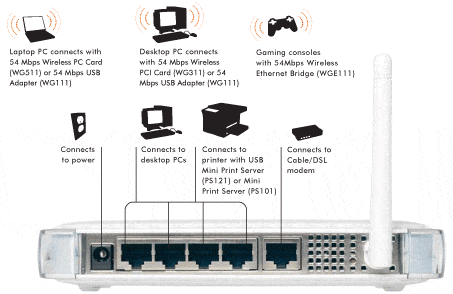
So we cannot just say, which is the best?
It depends on one’s own requirements.
So if you can research on Google on the routers within your budget, you will get to know more details.
Also reading users reviews and comments on different online retailer sites like Amazon, Snaphow, Flipkart will answer many of your questions.
Then you can decide which is the best for your personal use for your home.
Let’s see the details of the top 5 best wireless routers for home use in India, in no specific order.
How TP-Link Router Works ?
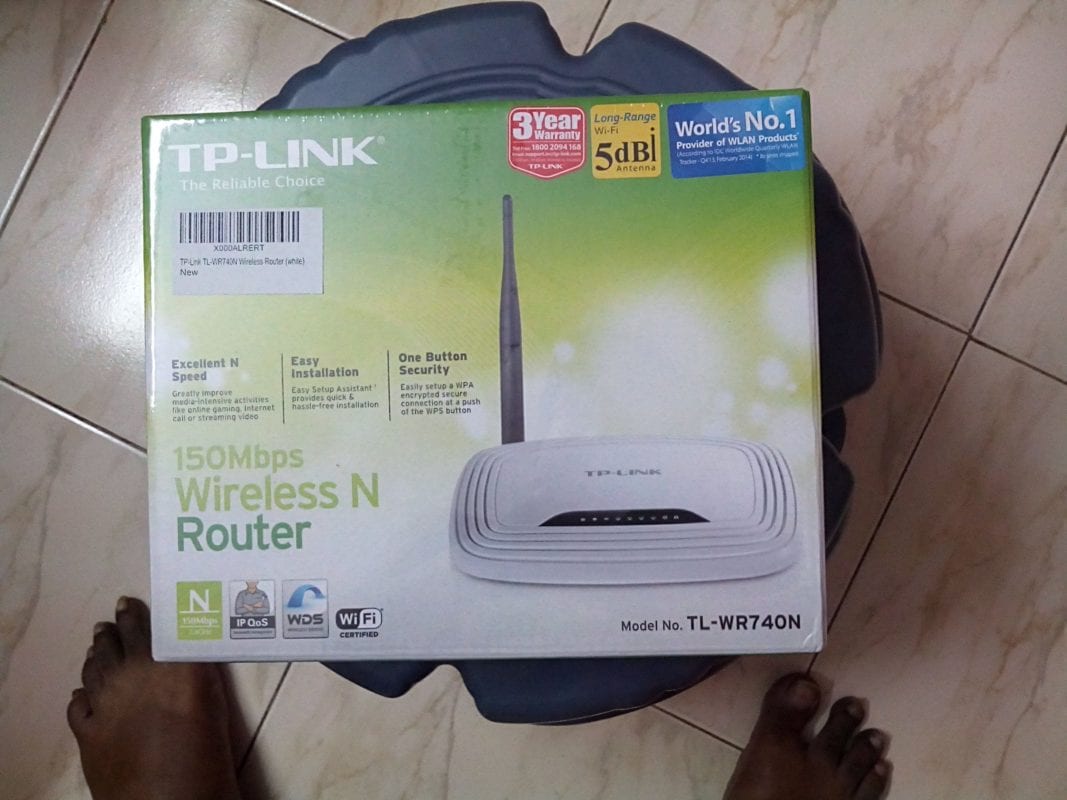
TP-Link TL-WR740N Wireless Router
Currently NA in India
Wi-Fi Range
The Wi-Fi range is about 30 feet. It can be used in a 1250 sq.ft apartment.
Amazon.in :
- 3000+ customer reviews.
- 1500+ 5 star ratings.
- Average customer rating : 4.2/5.
- 380+ answered questions.
Snapdeal.com:
- 1900+ customer reviews.
- 5000+ ratings.
- 3000+ 5 star ratings.
- Average customer rating: 4.2/5.
- 50+ answered questions.
Flipkart.com
- 2400+ customer reviews.
- 7300+ ratings.
- 4300+ 5 star ratings.
- Average customer rating 4.4/5.
Product Description:
- Around 150Mbps speed on WiFi network.
- It is compatible with Google Chromecast and RJ45.
- It has 3 years warrantly. 5 watts power.
- Supports wireless type pf 802.11bgn and connectivity type of b,g,n standards. It is compatible with UNIX also. The current version is 4.28.
- It is compatible with BSNL Wimax Outdoor CPE. It supports SPI firewall and access control management.
This YouTube video by “Sayantan Mitra” gives a review about the TP-Link TL-WR740N Wireless Router. It details about the un-boxing and the contents that come with the package. For detailed instructions on configuring and installing it, you can find other video by “Harry Nawaz“.
Pros:
- Works with ACT, Alliance, You Broadband, Beam Broadband and Tikona.
- Easy setup. Even a person with NO networking skills, can configure it in 2 min.
- Low budget.
- Excellent stable signal strength.
- Compatible with Windows 8.1 Pro (32bit and 64bit)
- 3 year warranty.
- It supports PPPoE.
Cons:
- Not compatible with BSNL broadband, as it doesn’t have ADSL configuration.
- Supports only small apartments.
- No built-in modem
- There is no Wi-Fi on/off switch.
- Doesn’t support multi-SSID feature.
- Doesn’t have USB.
- Cannot be used as Wi-Fi range Extender.
- Not work for RJ11 ADSL connection.
Check details on Amazon.in (aff) – TP-Link TL-WR841N Wireless Router (white)
TP-LINK TL-WR841N 300Mbps Wireless N Router
Range –
The coverage area is around 1000-1200 sq. feet or 25 mtrs. Or 2 to 3 rooms.
- 300 Mbps wireless speed.
- Two 5dBi fixed Omni Directional antennas.
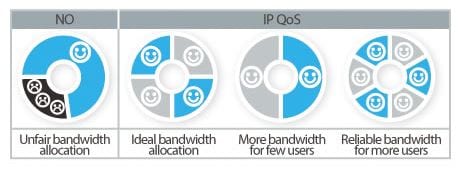
- 4 10/100Mbps LAN PORTS, 1 10/100Mbps WAN PORT. Ideal for streaming HD video, making VoIP and online gaming.
- IP QoS – Controlled Bandwidth Allocation.
- Wi-Fi On/Off button.
- 2T2R MIMO technology.
- The following access control features are present – Parental Control, Local Management Control, Host List, Access Schedule, Rule Management. The Wi-Fi signal work better in the same floor .
- The version number is 9.2.
- 1600+ customer reviews.
- 840+ 5 star ratings.
- Average customer rating of 4.2/5.
- 350+ answered questions.
- 1200+ customer reviews.
- 3500+ ratings.
- 1900+ 5 star ratings.
- Average customer rating 4.3/5.
- 70+ answered questions.
- 660+ customer reviews.
- 2200+ ratings.
- 1200+ 5 star ratings.
- Average customer rating 4.2/5.
This YouTube video reviews the TP-LINK TL-WR841N 300Mbps Wireless N Router and details about the extended features it has got over a 150Mbps router.
This YouTube video is about the setup of TP-LINK TL-WR841N 300Mbps Wireless N Router. It’s so easy to configure and setup, that clear instructions with a real desktop are shown. You just have to set your Wi-Fi password, to be secure from outside interference and prevent bandwidth outage.
Pros
- Supports majority of ISP providers like ACT, Idea Broadband, Reliance Broadbank, Tikona, YouBroadband.
- 3 year warranty service.
- Extra Ethernet cable.
- All ports are RJ45.
- Physical button to turn on and off the Wi-Fi feature.
- Compatible with MTNL broadband having WLAN cable.
- compatible with BSNL FTTH Connection which has a ONT(Optical Network Terminal) and no Modem.
Cons
- It doesn’t support USB modems.
- Doesn’t support MIMO.
- This is only a router, no Modem.
- Doesn’t work with BSNL Broadband or ADSL or RJ11.
Get details from Amazon.in (aff link) – TP-LINK TL-WR841N 300Mbps Wireless N Router
D-Link DSL-2730U Wireless-N 150 ADSL2+ 4-Port Router (Black)
Wi-Fi Range :
It’s coverage area is around 1500 sq. feet.
- It has fast Internet transmission rates of up to 24 Mbps downstream and 1 Mbps upstream speeds.
- You can get wireless speeds up to 54 Mbps using the 802.11g standard and 300 Mbps using 802.11n standard.
- It is compatible with D-Link 3G USB adapter and DWM-156.
- Some of the new versions of routers are not providing ON/OFF button.
- But a wireless ON and OFF button is included for convenience.
- The device interfaces include an RJ-11 ADSL port, WPS button, Power on/off switch, USB host 2.0., Built-in 802.11n Wireless Lan.
- It has 1 year warranty for parts and can have warranty, even if you buy online.
- The contents of the package include – DSL-2750U Wireless ADSL Router, Power Adapter, CD-ROM with User Manual, One Micro Splitter, One twisted-pair telephone cable used for ADSL connection, One straight-through Ethernet cable.
- 3300+ customer reviews.
- 1800+ 5 star ratings.
- Average customer rating: 4.3/5.
- 510+ answered questions.
- 3 customer reviews.
- 10 ratings.
- 5 5 star ratings.
- Average customer rating 4.1/5.
- 3 answered questions.
- 1800+ customer reviews.
- 5200+ ratings.
- 3000+ 5 star ratings.
- Average customer rating 4.3/5.
This YouTube video talks about connecting your D-Link DSL-2750U Wireless N 300 ADSL2 router to the PC through USB.
Pros
- Good coverage and Wi-Fi signal for both ground and first floors.
- It comes with a line-splitter.
- It has a USB port.
- Works for BSNL connections also, as it has ADSL modem.
Cons
- There is no clarity on whether it can be used as router alone. (by-passing modem).
- No clarity on whether it can be used with network drive or personal cloud.
Get details from Amazon.in (aff link) – D-Link DSL-2730U Wireless-N 150 ADSL2+ 4-Port Router (Black)
D-Link DIR-615 Wireless-N300 Router (Black, Not a Modem)
Wi-Fi Range :
Range is 20-40 mtr. Or 1000 to 1200 sq.ft.
- The router supports 150 Mbps Wireless Speed.
- It has 1 WAN Port, 1 External Antenna.
- Highest level of security in the form of WPA/WPA2 Encryption.
- It has 3 Year Warranty for its parts.
- 1100+ customer reviews.
- 550+ 5 star ratings.
- Average customer rating of 4.1/5.
- 370+ answered questions.
- 1100+ customer reviews.
- 3300+ ratings.
- 1800+ 5 star ratings.
- Average customer rating 4.2/5.
- 90+ answered questions.
- 650+ customer reviews.
- 3100+ ratings.
- 1500+ 5 star ratings.
- Average customer rating 4.4/5.
This YouTube talks about the configuration part of D-Link Dir-600M router which is one of the best for home use.
Pros
- It has 4 LAN ports.
- Comes within budget.
- It is good for 2 BHK house or 20-40 mtr distance.
- You can use it as a router to your BSNL connection.
- You can run wi-fi without turning on the PC.
- It is compatible with Windows 8.1 Pro.
- Compatible with BSNL DNA-A20BEI Modem which has ADSL2+.
- 600M is better than 600L.
Cons
- It doesn’t have an ADSL modem.
- It only works as a router.
- You need to switch on your PC everytime
- Can connect only to 4 devices at a time.
- Your PC remains to be switched on to use this Wi-Fi
Buy from Amazon.in (aff link) – D-Link DIR-615 Wireless-N300 Router (Black, Not a Modem)
D-Link DIR-819 Wireless AC750 Dual Band Router (Black, Not a Modem)
Wi-Fi Range :
Coverage area: 2000 sq. ft. or 10 to 15 mtrs.
- The latest Wireless AC Technology is used.
- It has Dual-band Wi-Fi for Seamless Performance.
- It is easy to Set Up and easy to Secure. High-Speed Wired and Wireless Connectivity.
- There are two 5 dBi antennae, 4 LAN ports (output), 1 WAN port and Ethernet LAN cable.
- It has 1 year manufacturing warranty.
- The best Wireless speed is upto 750 Mbps.
- It is good for multimedia streaming and high bandwidth application.
- You will be able to play online games smoothly – ideal for gaming consoles like PS3 and Xbox360.
- It has good Coverage area.
- It is backed by D-Link’s 3 years service support.
- 150+ customer reviews.
- 65+ 5 star ratings.
- Average customer rating of 3.8/5.
- 45+ answered questions.
- 16 customer reviews.
- 48 ratings.
- 23 5 star ratings.
- Average customer rating: 4.0/5.
- 6 answered questions.
- 50+ customer reviews.
- 170+ ratings.
- 80+ 5 star ratings.
- Average customer rating 3.9/5.
Pros
- It has dual band.
- It has power button.
- Implements High speed 802.11ac Wi-Fi specification.
- It supports concurrently 10 to 12 users.
- You can register the product online.
- Up to 25 devices can be connected.
- Built-in QoS
- All ports are RJ45 compliant.
Cons
- Little costly.
- There are no USB ports.
- It does not have built-in ADSL modem.
- It doesn’t give much range to Airtel 4g.
- You have to use LAN cable to use it as AP.
- If you are using 60 Mbps ACT connection, you may not get the real speed supported through this router.
Buy from Amazon.in (aff link) – D-Link DIR-819 Wireless AC750 Dual Band Router (Black, Not a Modem)
Conclusion
The above wireless router comparison for home use shows different models from TP-Link and D-Link.
Personally, I have not bought any of these routers and only based on user comments from retail stores, I’m giving this recommendation.
But recently from Amazon.in, I bought the TP-Link TL-WR841N 300Mbps Wireless N Cable router.
I should say for Rs 999, this WiFi device, gave me no trouble in installing with Tikona ISP provider.
All you had to do is connect the RJ-45 LAN wire coming from the roof-top device to the WLAN port.
Then using the configurations page of the Router, you can set-up a password for your Wi-Fi connection.
Important Notes
- So whenever a device connects to this Wi-Fi, you have to give password.
- If you want more speed, you can also connect the LAN cable that comes with the package to the Ethernet port on the router.
- The other end will be connected to your PC LAN port. It just took me 5 minutes and Tikona recognized everything.
Regarding other routers, I should say it depends on your needs.
For example, the TP-Link TL-WR740N Wireless Router router was not giving enough Wi-Fi signal to the floor below and 2 rooms ahead from where the router was placed.
Best WiFi Router for my 1000 sq ft Home
So I ordered for the TL-WR841N 300Mbps router, which has two 5dBi antennas and works for my entire house with 3 floors.
The router is placed on the first room of second floor and could receive signal in the ground floor.
But as you move to more than 3 rooms, the wifi signal drops considerably. I can’t receive any wifi strength in the 4th room on the same floor.
The D-Link routers are also having good reputation. Especially the DIR-803 model will give less interference as it has dual band. If there are many microwave devices around you, better go for this one.
My Recommendation on Wireless Routers for Home Use in India
The DIR-600M is best suited for connectivity requiring in only 2-3 rooms on the same floor.
But if you are looking for a modem+router, then DSL-2750U is more suited for you.
It also has the additional facility of ADSL modem, which is good for BSNL type connections.
Do you think the above routers are good for your need? If you are already having these devices, are you able to configure them easily?
Please share your experience in the comment section and also share this article in your social circles.