HDMI Audio drivers for Windows 10 are not easy to find automatically. Sound issues on HD connection or desktop speakers.
The sound system may be malfunctioning either due to a faulty speaker or microphone.
Occasionally, there could be a discrepancy between the speaker and mic when transitioning from headphones to speakers.
Windows 10 – High Definition Audio Drivers
Realtek High Definition
Conexant High Definition
VIA HD
NVIDIA High Definition
High Definition Audio (HD Audio) (Microsoft)
Most of the times, using/updating to the latest sound drivers, will solve the common problems.
Location of VIA and Realtek HD Audio Drivers (Windows 10 – 32 bit and 64 bit)
But sometimes there is a incompatibility between the corporation creating the hardware and driver software.
So probably this could create an issue sometimes. The drivers download for windows 10 are scattered at different locations. (VIA and Realtek).
But always, from standard locations like the hardware manufacturer or Microsoft website. Download the latest drivers gives you some confidence. If these don’t solve your problem, you can try some other third-party locations.
But always installing from standard locations like the hardware website or Microsoft website, will instill some confidence in you. If these don’t solve your problem, you can try some other third-party locations.
Warning: But always beware that all sites are not alike. Some of them may install malware and adware and cause further issues to the existing problems. Some will come in the form ad software, that want to install a typical application, which say that it will automatically update your drivers. But beware of them.
Download RealTek High Definition Audio (HDMI)
Location #1 : Microsoft Update Catalog for hdmi audio
Note: If you are using to download from the above link, don’t use Microsoft Edge. This is an incompatibility with certain sites like the above. Better to use the regular version of Internet Explorer, which is IE11 in .
Note: The above link will first show an informational message, asking to accept the agreement kind of anything, before you proceed to the download page. Also sometimes, the page containing the software, may throw some error message. In that case, you can use the “Menu” to go to the Downloads page.
Realtek HDMI Audio Driver
The above is the HDMI audio driver for Realtek brand. If you are connecting your PC to a Smart TV through an HDMI cable and want the AV in high quality, then updating the driver to the above should be useful.
As you can see to listen to HD quality audio from RealTek hardware, you need the above driver. Also if you can update the graphics drivers as well, you will get a high quality AV.
Install VIA HD Audio Driver for Windows 10
Most of the default chipsets and motherboards like GigaByte support these kind of codecs.
For my Intel Core 2 Duo Processor and G41MT-S2P (Socket 775) motherboard, 1024MB GeForce 210 (ASUStek Computer Inc) was producing good sound.
But the mic or recording part was not working. In another way, the mic volume was too low, even though the recording settings were set to the maximum.
But if you are having speaker problems with VIA in, you could download the from the following locations
Note: But the driver you get from this page officially supports only some kind of chipsets like the following – VIA Vinyl VT1705, VT1708S, VT1802P, VT1802S, VT1828S, and VT2021 HD Audio codecs. It is also called the VIA Vinyl HD Audio Driver.
Method #2: Install latest version of Update driver
The alternative method to update your VIA HD Audio Drivers for 32 bit or 64bit is to install a driver software.
Generally, these software will scan your PC for errors or outdated drivers and will list the latest versions.
But most of the times, these software are premium versions. You need to pay a little amount to install the current drivers.
For example, DriverTuner (costs $4.97 per 7 days trial) is one software which will check your PC for outdated drivers and provide you suggestions. The latest version of VIA HD Audio Driver – 6.0.11.1100 will be installed on your PC.
Method #3. HDMI Output Installation for playback device
If you still find that your mic or sound not working even after updating to the latest VIA HD audio drivers, then it’s best to install the generic HD drivers provided by default.
Under Device Manager, you can navigate to Sound > Video and Game Controllers > Select VIA HD or VIA HD (Win 10) driver.
You choose “Browse Computer” and then “Let me Pick from list” and then select the GENERIC HIGH DEFINITION AUDIO DRIVER (don’t select any of the VIA HD options).
Install and Re-start. This sometimes solves the problem. But if any Updates revert back to the Win 10 driver, just follow the above steps again to install that driver.
Conexant High Definition Audio high definition audio driver software
The latest version of this HD driver for Win 10 64 bit are – 8.32.43.0 (updated on May 23rd, 2017). You can download these drivers from this location. (http://support.lenovo.com/in/en/downloads/ds032124).
But most of the times, these drivers are to be installed manually. The following steps are necessary to install the driver files or manually update the drivers or overwrite the existing drivers.
Unzip or Extract the .cab file to any location on your hard-disk.
Right-click the sound driver (most probably the name will be something like Conextant HD … something).
Now select Update Driver software from the options.
Select the folder, which you have extracted in step #1.
If you have already have that driver installed, you have to upgrade it.
For this, select the option, “Let me pick from a list of device drivers on my computer”. Click “Have Disk”.
Now select the location in Step #1 and click OK.
Sometimes, if the above drivers don’t work, then you have to refer to the PC manufacturers or motherboard or chipset, website, to download the Conexant audio driver for Win 10 – 32 bit or 64 bit. Then after downloading the package, you can follow the above steps.
HDMI Audio device drivers for NVIDIA
In order to find these HD audio drivers, you can visit the following location.
As you probably see, the sound drivers are not mentioned separately. In NVIDIA, the audio drivers are part of the graphics card driver package. Simply download the driver package for your graphics card. Then the necessary audio support for your graphics card will be installed.
But if you still insist on installing only HD drivers, then you need to choose the “Custom Install” option. Then you can unselect unnecessary packages like 3D etc. But the base graphics package will be installed.
Most of the time, the NVIDIA Update software will ask your permission to update the latest drivers. So you need not worry about NVIDIA. Just select the right sound hardware and select “Update” software. Most likely it will find from the net.
General Fix for Computer Sound Problems in Windows 10 – License Agreement
Upgrade the sound drivers to the latest versions using the below steps. This can resolve problems with playback and recording devices.
Note: Only apply this solution, if you are having problems with speaker and mic. Otherwise, let normalcy prevail with existing drivers.
Open Device Manager in Windows 10.
It can be done in several ways. The common way is to go through Control Panel. Otherwise, you can press Win + X to get a menu with different options. In it you can find the required item.
Expand “Audio inputs and outputs“
Display of the following items under the above option.
3. Right-click each property and click “Uninstall”. Deleted drivers should not exist on your system partition. You may even get a warning like “You are about to uninstall this device from your system”. Just press “OK”.
4. Right-click “Sound, video and game controllers”.
Under it, you can find your audio driver. For eg. “VIA HD Audio”. Click uninstall. Completely uninstall the drivers and ignore any warning messages.
(The links to the latest versions are given little below). Generally these are uploaded in .zip or .rar format. Unzip them and run the “setup.exe” or any other file, to install them. Let them install and reboot.)
Setup your “Playback” (Speakers) and “Recording” (Microphone) properly.
In some case, the speaker works and mic doesn’t work. This is sometimes the incompatibility between the hardware and Windows 10. For this type of cases, please mail the concerned vendor for issue resolution.
To download VIA HD Audio Driver Windows 11 64 bit or 32 bit, you are tempted to use the official manufacturer page for driver downloads. But VIA has not released any sound drivers for this OS.
Also the current homepage does not list any hd audio drivers. The industry also has changed. More likely you will not find any audio codes for Windows 11 or 10. You have to use the old version available on other sites.
In that case, the best bet is to use via hd audio driver windows 10 or 7 32 or 64bit for the same. You can install it in compatibility mode, if required. Along with it, the VIA HD Audio Deck also gets installed in Windows 10 or 8.1 or 7.
The interface may vary from OS version to version. But for Windows 7, you can get only two types of audio drivers.
1. VIA Envy24 PCI Audio Controllers 2. VIA Vinyl HD Audio Codecs
For old PCs, you can use the second option.
Sometimes, the legacy motherboards and sound cards are compatible with Vista or XP or 98 or 95. For these OS’es also, drivers are provided.
via hd audio codecs
VIA AC97
VIA AC97 in VT82C686A/B
VIA Viny (or Tremor) Audio VT1612A, VT1613, VT1616/B, VT1617/A, VT1618
VIA Viny Envy24 controllers
VIA AC97 in VT8231
VIA AC97 in VT8251
VIA HD Audio Codec VT1708
VIA HD Audio Codec VT1708A
VIA HD Audio Codecs VT 1702S, VT1705, VT1708B, VT1708S, VT1716S, VT1718S
VIA HD Audio Codec VT1708B
VIA HD Audio Codecs VT2010, VT2002P, VT2020S
VIA HD Audio Codecs VT1812S, VT1818, VT1828S
VIA HD Audio Codec VT1708S
VIA VX900 HDMI Audio Driver
To download these drivers from VIA product page, you can go here.
Sometimes, the Microsoft HD audio driver is installed automatically in Windows 10. But it may not work with some motherboards and sound cards.
With every computer, you have default audio jack coming from the your CPU cabinet. Otherwise, to be secure, safe you can install a sound card.
These days you get an USB sound card from Creative or Acer. This is gives good surround sound and audio boost.
Sometimes, this default audio driver from Microsoft, may not be compatible with new or old motherboards.
The sound is missing or quality is not good.
In that case, you have to use the VIA HD audio codecs, which are the perfect drivers for your system.
VIA HD audio driver Windows 10 64 bit download
Are you looking to download VIA HD Audio Deck driver for Windows 10 64-bit?
The VIA HD Audio Deck driver is the software that allows your operating system to communicate with your VIA audio device. It is important to keep it up to date to avoid compatibility, performance, or sound quality issues.
There are several ways to download the VIA HD Audio Deck driver for Windows 10 64-bit.
One option is to visit the official VIA download portal, where you can select your operating system, driver type, and the VIA product you have.
Another option is to use a third-party website that offers the latest driver, such as TechSpot, Softpedia, or SasNet.
However, keep in mind that these sites may not be safe or trustworthy, and you should verify the source and file before installing them.
Once you have downloaded the driver zip file, you need to extract it to a folder and run the installer.
Follow the instructions on the screen and restart your computer when prompted.
After rebooting, you should see a VIA HD Audio Deck icon in your system tray or Start menu.
Click it to open the controller interface, where you can adjust the sound parameters according to your preferences.
VIA HD audio deck does not support this OS version
If you have problems with the VIA HD Audio Deck driver for Windows 10 64-bit, such as no sound, distortion, or errors when opening the application, you can try some possible solutions:
Verify that your VIA audio device is enabled and set as default in Control Panel > Sound.
Update your operating system to the latest version available through Windows Update.
Uninstall and reinstall the driver using a cleaner program like CCleaner or Revo Uninstaller.
Try an older or different version of the driver if the latest one doesn’t work correctly.
Copy the Dts2ApoApi64.dll, VDeck.exe and QsApoApi64.dll files from the Present > VDECK64 folder of the driver zip file to the Vdeck folder inside the directory where the driver was installed. This can fix an error that says “Please use 64bits version VDeck.exe”.
VIA HD Audio Deck – Features in Windows 10 or 8.1 or 7
Once the VIA High Definition Audio driver is installed, the audio deck also gets installed. It starts with Windows, if you don’t change the settings. Otherwise, you can invoke it from the Control Panel.
You can increase or decrease the volume using the via audio deck. If you expand the little arrow, below “default device”, you can see several other features for sound card or audio codec.
This includes – 1. Speaker Setting and Test 2. Default format – You can set Sample Rate and Bit depth 3. Sound Equalizer 4. Environmental Modeling
You will have different presets for sound equalizer modeling. You can also set custom frequency and can be saved.
In the environmental feature, you have different modes like – Theater, Underwater, Club, Auditorium, Bathroom.
Note: But sometimes these does not work, when you are not using the right audio codec. Also these features may not be supported on your motherboard.
I have a Creative headset and desktop speakers respectively. Normally in the morning I’d be using the speakers to hear the sound and the headset in the night. I am using the audio-jack or the 3.5mm variant to connect both these devices to my computer.
VIA HD audio codecs Issue
I had only the back-end socket which was working, while the front one was faulty. So every time I had remove the speakers plug and insert the headset jack and do vice versa, whenever I wanted to shift gears.
I’m using the Windows 8.1 64 bit OS. Earlier when I shifted from headset to speakers, I just had to remove one and insert the other, without re-booting. This was in the 32-bit variant and in Windows 7 version.
But in Win 8.1 64 bit version, when I changed from one sound device to other, my audio stopped working.
VIA vt1708s driver and Audio Solution
The normal procedure when sound is not working in Windows is to uninstall the audio driver and scan for hardware changes.
The mother board that I was using was Gigabyte Technology Co., Ltd. G41MT-S2P (Socket 775). The audio driver I was using was VIA HD Audio. When I referred the specs the audio codec driver that is required was – VIA VT2021 codec.
Trouble-shooting Steps to solve this issue
I installed the above codec from VIA and re-started the system. The latest version was 6.0.10.1200. But that didn’t solve the problem. Normally that solves it. But in 64 bit and with my specific devices and drivers, I was still having this problem.
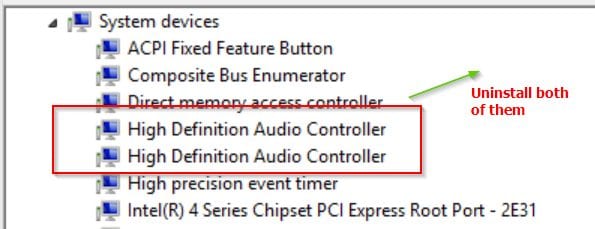
Then I repeated the above steps few times, with no result. Then after reading on the Internet, I found that there is a specific issue with “High Definition Audio Controller”. But I had two such “system devices” in my device manager.
I was using the NVIDIA GeForce 210 graphics card. With the installation of that device, even audio drivers got installed. I also tried to uninstall them, but of no vain.
So, my next step was to uninstall both the “High Definition Audio Controllers” and the “VIA High Definition Audio” driver. Then the PC asked me to restart. After it was done, the above “controllers” and “audio drivers” got automatically installed.
I thought the problem would be resolved by now. I still couldn’t listen to the sound. But when I checked the “Volume mixer” (obtained by right-clicking the sound icon in the System tray), the playback devices were showing indication that the audio is playing.
Then I went to “Sound” item in Control Panel. In the “Playback” tab I could see both the audio devices (headset and speakers) listed.
By default, the “headset” was taken as the default playback device. But still the audio was not coming from headset even. Then, I made the speakers the “default” playback device.
Then I could hear the audio. Ha, finally after some suffering, I fixed this problem.
Conclusion
Hmm. I thought I resolved the problem, but only partially. Whenever I remove the headset jack and insert the speakers jack, I still get the same problem.
In Windows 10, I’m not having any problems related to VIA. You can always shift from headset to speakers, using Sound Settings. I think one can use the “Update Driver” feature for your VIA driver in Device Manager and browse for the correct driver.
So then I had to resort to the same troubleshooting process again, which was little irritating. Sometimes, I had to re-install the audio driver and re-boot the system. So I think VIA, Creative and Microsoft should do something in fixing this issue.
In the real sense, a free driver manager is not completely “exempt” from any charges. Many of the programs scan your computer for outdated versions and provide information on the latest version of drivers.
To update to the latest version or install the correct driver, you need to purchase the pro version. Most of the time, we call this a “freemium” model. After you test their software for available drivers, you pay for the right version of drivers to be installed.
Without the right drivers, even your sound devices won’t work properly. Graphic drivers, motherboard, printers, bluetooth etc all require the correct drivers. Compatibility of driver updater software and the actual devices should work out properly.
Some old devices require old drivers while the new ones need the latest. Only then the connection between Windows and devices works properly.
Download the missing the HD Audio Drivers from RealTek, Conextant, VIA and NVIDIA? Make sure your motherboard supports these sound hardware.
Driver Updater free tools
Prices range from $9.99 to $39.99, but most of them aren’t as cheap as Windows Store or Android Play Store apps.
Every program has its own “loophole” in finding the right driver. Sometimes the device is too old to find its drivers. The company is otherwise not producing these items.
Is Driver Easy Safe? It is one of the product commonly used by many Windows users. It is popular and makes it easy to update all the program drivers at once. Is Driver Booster safe? This program also has a trial version, but to update the drivers you need to purchase it.
In all these cases, the drivers provided by these third-party programs can be useful. The Bluetooth adapter driver that Tech-Com purchased in 2001, for example, was not available on the Internet. You can then update using a good driver updater software.
What do you do then? For such cases, you can either delve deep into Google to find relevant drivers or rely on these programs to find the latest drivers.
Other times, you won’t find the latest drivers. In Windows 11 and 10, for example, some devices do not have drivers. Their support ends with Windows 7. Therefore, you have to rely either on Microsoft drivers or on drivers from other companies.
Why Use Free Driver Updater Windows 10?
The drivers can be found in one place with one click. Most of the time, you just need to click the scan button.
The third-party utility will then identify all the necessary driver updates for your computer and update them. It’s easier than finding each one individually, isn’t it?
In this review, we will look at the top 5 best free driver updater software that will not only display the right drivers required for your devices, but will also update them.
Are you facing issues related to driver updates and installs. Then follow these guides.
If Freeware Driver Updater is Faulty?
One wrong device driver installation can cause an unlimited number of problems. Other device drivers may install without a hitch.
However, in some cases, if a driver is downloaded from a malicious source or a rigged site, you may encounter more problems than solutions.
Incorrect updates to display adapters, CPUs, PCI cards, graphic cards, chipset drivers, etc., can cause your computer to freeze.
If the wireless or ethernet drivers are incorrect, connectivity issues can arise. Crashes and bugs might also happen after a driver update. Unnecessary updates to wireless mice can also cause the mouse to hang.
If printer drivers are not updated or installed correctly, they may mis-align or print visibility may be obscured. You need the right drivers to install, upgrade, and from the right source for all of these reasons.
Top 5 Best Free Driver Updater Software for Windows 11/10/8.1/7
The list below is available in many of the reviews on several websites. But we have picked only those driver utilities which come from big companies and work well.
Driver Easy
CCleaner
Driver Booster
Bit Driver Updater
AVG Driver Updater
We can try the free version before you purchase the Pro version to install and upgrade drivers. Most of the companies mentioned below provided different license terms like 1 PC/ 1 year or 3 PC/1 year or Unlimited. The price we mentioned below each product is the minimum of all.
You can check their home page for complete details, features and prices.
Download Driver Easy for PC
Pro – $29.95
Corporate Headquarters
Unit 503, 5/F, Silvercord Tower 2, 30 Canton Road, Tsimshatsui, Kowloon, Hong Kong.
Support: support@drivereasy.com
Kevin Zheng
Founder & CEO
Easeware Technology Limited
To find outdated drivers is not possible by all the mentioned above utilities. When you have an old motherboard, chipset and PCI Bus kind of drivers are not found everywhere. Though the manufacturer can release some of them, Windows 11 and 10 are not available. In such cases, you need a free driver update utility that fills the gap.
Is DriverEasy free?
Yes, there is a free version. It is just like any other free driver updater utility. You can scan for drivers and see the results. But you cannot install or upgrade. To work completely, you need to purchase the pro version.
There are many similar utilities available in the market. They work similarly to Driver Easy, except that they do not check drivers automatically. You need to go through their site and download one which is compatible with your computer’s operating system.
If you are using Windows 10 or 8.1 or 7 then Driver Easy is for you. It checks drivers automatically and updates them to the latest version available in the market. If your system crashes, then it will give you an option to roll back or replace that driver with an updated one.
Is Driver Easy Safe Reddit?
Driver Easy does not have any malware or viruses. However, it is recommended to download from the official website only. If you are using a third-party site then use that with caution.
Is Driver Easy any good?
Yes, it is good. It has an inbuilt feature that checks for any driver update automatically. If you do not want to download them manually then Driver Easy will do the job for you.
Most of all it is downloaded by more than 3 million people around the world. It has both the free and Pro versions. The free version will list all the drivers that need an update. So if you don’t want to purchase the premium version, you can just manually search around the Internet. This way, you get updated drivers for free.
Using this tool you can find drivers for audio devices, graphic cards, network/ethernet cards, wi-fi cards, chipsets, printers, USB devices, Bluetooth devices, PCI cards, modems, CD/DVD drives and scanners. You can get drivers for old and new devices.
CCleaner Driver Updater Program
Pro – $24.95
Piriform Ltd
It is a British software company based in London, owned since 2017 by Avast.
Founder: Guy Saner
Founded: 15 September 2005, London, United Kingdom
Headquarters: London, United Kingdom
We all knew that it’s a cleaning and optimization software. But did you know that it has a new driver updater tool in it’s list of modules?
We can’t thank the developers for providing such an utility at a very cheap cost. The free version just like any other driver updater tool will scan the pc and find all the necessary drivers.
You can update driver that is not out-of-date. The driver if not found or updated, sufficient information is given.
Is CCleaner driver updater any good?
CCleaner Driver Updater is a free application that allows you to update your device drivers without having to go through the hassle of manually searching for them. You can use this tool with Windows 10 or 8.1 or 7 operating systems.
Just like all other driver updater tools, this tool also scans the system and lists out the outdated drivers. It has a built-in update mechanism which will automatically check for new updates once you launch it. The free version of CCleaner Driver Updater will only list out the outdated drivers.
CCleaner’s Driver Updater is an in-built tool in CCleaner, a freeware system cleaning and optimization software that scans your computer for outdated drivers. Once installed, it runs in the background and checks if any updates are available for your device.
Can CCleaner update drivers?
Yes, CCleaner can update drivers. But you need to use the Pro version. You can use it to download and install the latest updates for your device.
CCleaner is a free software that optimizes and cleans Windows registry and improves computer performance by removing unused files from your system. It also helps you clean up junk files.
Is CCleaner harmful?
CCleaner is not harmful. It does not have any malware or virus in it.
No, CCleaner is not an anti-virus program. There are many programs that can scan your computer for viruses and malware without slowing down your computer.
No, CCleaner is not a rootkit. A rootkit is a piece of software that allows an attacker to gain control over the system and monitor what you are doing on it.
It will then tell you how many drivers are up-to-date and are required to be updated. In this way you can skip the Device Manager to see all the list of devices that need driver updates. The interface makes it clean to see all the devices at one place. I didn’t know that my PC required so many drivers and updates.
May-be most of them are not required, but my PC works well even after updating them. So we can believe that this tool does it’s job of updating drivers and is functioning well. In some cases, it is not able to update the drivers, though it says that update is required.
IOBit Driver Booster Review
Pro Version – $19.95
IObit’s CEO is Hugo Dong
IObit generates $25M in revenue
IObit’s headquarters is in San Francisco California, USA
It is also a popular freeware tool provided by IOBit. The latest version is 8.7.0. You can install the free version and test the number of drivers it displays. The welcome feature of this tool is that it also supports Windows 11 as stated on the home page.
In its database are around 3.5 million device drivers. It is a lot compared to other products. I already tried this product some time ago. The advantage with this tool is that it can install necessary graphic card, display drivers in offline mode also. It supports 1200+ major brands.
Is Driver Booster Safe 2021?
Is Driver Booster Safe?
Driver Booster works very well and is recommended. But still, there are some concerns about the safety of Driver Booster. The problem with this product is that it only supports major brands such as Intel, AMD, NVIDIA and VIA etc.
However I noticed that its main purpose to detect and update drivers.
How is the Performance of Driver Booster?
I was not able to check the safety of this product after I installed it on my PC. It can also slow down your system if you have a lot of device drivers which are outdated in your computer. Driver Booster has many features that will make sure that your system is up to date.
It is an excellent product, but still there are some concerns about the safety of this product.
I can’t say that it is completely safe because there are no official statements from the company about the security issues related to Driver Booster.
So if you want to use this, test it on your own system. I have not tested the latest version of 8 and should be different from the older versions.
Is Driver Booster the best?
Is Driver Booster the best?
Driver Booster is a very useful and powerful tool that can help you update your drivers quickly. It will detect all the devices on your computer including graphic card, sound card, network adapter etc. You can also use it to scan for outdated drivers as well as install those which are missing in your system.
How to update your drivers with Driver Booster?
How to update your drivers with Driver Booster?
Scanning for outdated drivers can be done offline or online. You need to do this before you reboot your PC so that it detects the missing driver which are not found by Microsoft or any other utility.
You can use the following two methods to update your device drivers with Driver Booster: Scan for outdated drivers in offline mode Downloading the latest drivers for your device, installing them and then rebooting your computer will automatically update all of the devices in your system.
There is a free trial and refund policy for many of the above driver update programs. If you find any missing drivers you can contact support. Driver database is large in most of these software utilities.
In addition all the drivers are Microsoft WHQL test certified and from original manufacturer sources. This makes it a reliable tool. You can prevent the mis-happening of installing another driver which can make your device malfunction.
Hardware drivers are difficult to find if they are not from a brand. But with large database it becomes easy with Driver Booster. Windows Drivers can also be upgraded, instead of reaching the manufacturer. As most of these drivers are Microsoft certified.
Another picky pro is that it also provides fix-it tools for sound, bad resolution and network problems. In many cases, not updating drivers to the latest ones are the cause of numerous device failures. As a double-edged knife it updates and fixes the errors.
Bit Driver Updater
Pro Version – $10.99
Bit Guardian GmbH
Address
Am Kirchenhölzl 14, 82166 Gräfelfing, Germany
Phone Number
+49 89 89827904
Email – support@bit-guardian.com
If defective drivers are found, then they are updated using this tool. Install driver updates and fix other driver related issues. Scan drivers on your computer to give the list of devices that need upgrade and installation.
If something goes wrong during installation, you can restore them from a backup. This facility to use the existing drivers in case of any upgrade failure is a useful feature. Sometimes, with any driver updater tool, they may not be successful. Restoration of drivers is its inherent advantage.
What is Bit Driver Updater?
Bit Driver Updater Review
Bit Driver Updater is a Windows device driver updater tool that will automatically update your drivers to the latest version. This means you can avoid reinstalling, repairing or updating drivers manually each time you install new hardware on your computer.
This program works with all major brands of hardware and software. It is not a driver manager or a driver update tool, but a complete solution for updating drivers automatically. This program will find the correct version of your hardware’s drivers from all manufacturers in one place and downloads them for you at no cost.
Bit Driver Updater scans the Internet for the latest drivers and makes them available to you. This allows you to update all of your hardware drivers automatically with just one click!
Bit Driver Updater works as a Windows service that monitors all updates available on the Internet. It will detect which device has an outdated or missing driver and downloads it for you, then installs it when complete. It is very easy to use – no complicated settings are there.
Is Bit Driver Updater safe?
Is Bit Driver Updater safe?
Bit Driver Updater is completely safe to use. It doesn’t contain any malicious code or viruses and does not install any software on your computer.
Create a restore point before you apply any update. This makes sure that nothing goes wrong. Driver Downloads are only half-perfect in any tool. So read the documentation provided with the drivers in their report. Internet Connection can be restored once the correct and accurate driver is installed. This is one of the best driver update software according to many review sites.
Compatibility with old OS has to be checked when using these tools. Read their documentation page if these driver updates work for Vista, XP and 7. As most of them are not supported by Microsoft, you may face damages later for installing corrupt drivers.
Recommended action to ignore updates, installs is available. With a single-click you can also update all the drivers. Top notch Windows performance without slowing your computer, is its primary benefit. 24×7 support is available.
AVG Driver Updater
Pro Version – $39.99/year
Founder: Jan Gritzbach and Tomáš Hofer
Headquarters: Prague, Czech Republic
Founded: 1991
It seems to be the most costly driver of all the above. Just like other models it has a free version to scan and list the drivers. But to install and upgrade you need to purchase the pro version. 8 million drivers are available in its database. System drivers can also be installed using this AVG product.
PC performance will not be affected if they are certified by Microsoft. Most of them are their partners. Scheduler is another advantage with this kind of software. So at appropriate times, driver updates are done automatically. Clutter-free interface is another advantage of these tools.
Is it safe to use AVG Driver Updater?
AVG Driver Updater is very efficient. It also provides a backup of the drivers before updating them to make sure that they are not corrupted after installing new ones. This tool can be downloaded for free and install it on your computer without any issues at all. The only thing you need to be careful about is that it can not be downloaded from the internet.
Does Driver Updater really work?
Yes, it does. It is an excellent tool for Windows XP and Vista users to update their drivers. If you are looking for a tool that will automatically download the latest driver updates on your computer then Driver Updater is what you need. This software can be downloaded without any issues from its original site.
The benefits of using this tool are that it causes less crashes, faster browsing, better graphics, richer audio and less device problems.
Though it says that it can speed up browsing and downloading, it will only optimize the speeds. As we know we can never get the better of your ISP speed, but you can reach the maximum limit.
Gaming and Streaming will be smooth with the right driver updates and installs. The latest graphic drivers are checked. Hardware conflicts are reduced and drivers installed smoothly. You can identify which specific driver is causing the issue and fix it easily.
Scan for drivers from over 1300 major brands. These include big companies like Acer, Asus, AMD, ATI, Canon, Compaq, Gigabyte, Intel, HP and many others. It pre-checks the drivers for correctness and installs secure drivers.
No loss to virus or ransomware. It reduces hardware problems by installing the branded and manufacturer drivers.
Frequently Asked Questions – Best Free Driver Updater
Suggest a good free driver updater for Windows 11?
To suggest a good free driver updater for Windows 11, the best one is IOBit Driver Booster. It scans your system for any errors in the installed drivers and provides updated versions of them automatically. Their homepage also displays that it supports Windows 11.
How do I update all drivers at once in Windows 10?
You can update all drivers at once in Windows 10 using a driver update program. Though most of them are not complete, most of them fulfill you needs. In addition, Windows 10 automatically provides updates to your drivers using Windows Update.
If that doesn’t work out then you can either go out the manual method or find from the manufacturer page.
Here is a very simple way to manually update each driver. Open Device Manager and right-click on the device. Update Driver > Choose Update Driver Software from the left menu.
What is the best driver updater software for Windows 7?
The best driver update software for Windows 7 is Bit Driver Updater. It is a Germany product and the latest one in these type of tools. It provides you with a hassle-free and easy way to download and install all your drivers at once. Scan the system for any errors in the installed drivers, eliminate them and provide updated versions of them.
How can I update all my drivers for free?
You can get a free driver update program from the manufacturer’s website. Though it will take some time to update all drivers, you will have no issues with compatibility and security of your devices. In addition, the company provides updates for newer versions of Windows 10.
What is the best driver updater for PC and Laptop?
The best driver updater for a PC and laptop is Driver Easy. It is an American software, so it provides you with the latest version of all drivers in your system automatically. Moreover, it scans the entire system for any errors or incompatibilities that are causing issues to your hardware.
The latest stable version of Windows 10 supports drivers for many devices like graphic hardware, sound devices, keyboards, mice, monitors, and many others.
Windows 7 Automatic Driver Update
Windows 7 is still in its infant stage in installing the correct drivers for the hardware. Even if it installs any driver software, Windows Updates try to update them instantly.
On the opposite Windows 10, search for updates is quick and is accessible.
We need to install driver software in Windows 7 and Windows 10 manually for some legacy devices and unsupported generic drivers.
This version only works for some devices.
Keeping given the above problems, we need to disable automatic driver update for some devices. In this guide, we are going to see the steps on how to achieve this task.
How to Disable Automatic Driver Update using System Setting?
Windows 7
Search for “system” in the Windows 7 search box.
Click on “Advanced system settings” on the left pane.
System Properties windows open.
Click on the Hardware tab.
Click on Device Installation Settings
Disable automatic driver update options
A pop-up window with the following message opens – “Do you want Windows to download driver software and realistic icons for your devices?”
Select the “No, let me choose what to do.”
Select the “Never install driver software from Windows Update.”
It will prevent searching windows updates for drivers.
Windows 10
Click on Start > Settings > System > About.
On the right-hand side, click on Advanced System Settings.
The System Properties window will open.
Click on the Hardware > Device Installation Settings.
The following window opens with the message – Do you want to automatically download manufacturer’s apps and custom icons available for your device?
Click on No.
It will stop the automatic download of drivers using Windows Update.
But as we see, Windows 10 is quick and best at updating the latest drivers. Therefore, the recommended option can be left alone if your hardware configuration is good enough.
How to Use Group Policy to Disable Automatic Driver Updates?
Windows 7
Type gpedt.msc in the Run dialog box by pressing the Win + R keys.
Local Group Policy Editor will open. It would be best if you were an administrator.
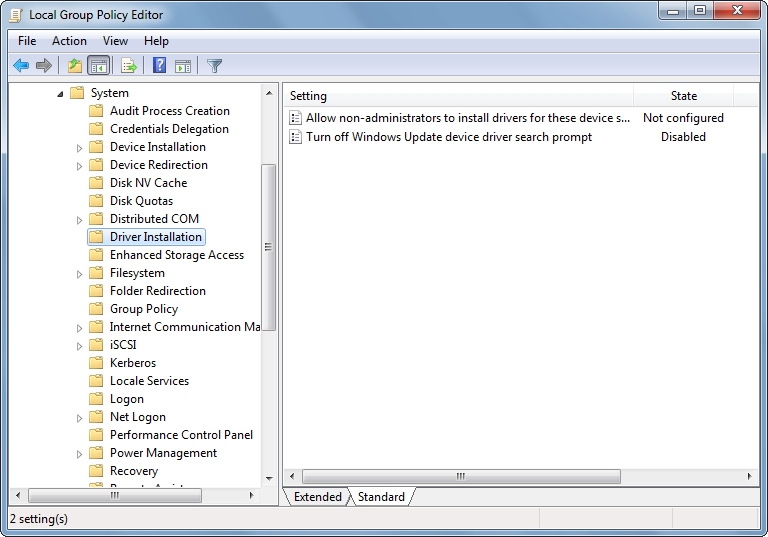
Follow the path – Computer Configuration -> Administrative Templates -> System -> Driver Installation
View by Standard option on the right pane.
Double-click the option – Turn off Windows Update device driver search prompt.
Select the “Disabled” option.
Windows 10
The steps are the same as above.
How to Disable Searching Windows Update for Device Drivers using registry
Windows 7
Type Regedit in the Search programs and files.
Registry Editor will open.
Navigate to the following path – HKEY_LOCAL_MACHINE –> SOFTWARE –> Microsoft –> Windows –> CurrentVersion –> DriverSearching
Set the SearchOrderConfig value to 3.
SearchOrderConfig 0 = Yes, do this automatically
1 = No, let me choose what to do, Always install the best.
2 = No, let me choose what to do, Install driver software from windows update
3 = No, let me choose what to do, Never install driver software from Windows
If this didn’t work, follow this path – HKLM:\SOFTWARE\Microsoft\Windows\CurrentVersion\Device Metadata
You get different error codes when the proper driver is not installed.
Driver Updater Software
Windows 10 update automatically installs the required drivers for many of your peripherals.
You may need to look in the optional updates to find the monitor, mouse, and keyboard drivers.
Driver Management
The disadvantage with this process is that legacy drivers are not available through Windows update.
You either need to contact the manufacturer or install from the driver CD. It was the standard process for older Windows operating systems.
Driver Database
Graphic hardware brands like NVIDIA, Intel update their driver software from time to time.
Visiting their site and finding the exact version of the Windows 10 driver requires much time and rigorous dwelling.
Windows Driver Update Software
Microsoft drivers are installed for many network adapters, USB cards, Bluetooth devices, sound cards, and mobile accessories.
We can use Device Manager to install the latest drivers by automatic scanning. But the compatibility of these drivers does not go well with all the tech components.
Devices having problems with driver installation and updates. See this YouTube review on CCleaner Driver Update utility.
This tutorial will discuss how to use CCleaner as driver update tool for your Windows 10 pc or laptop.
How to Update all Drivers At Once in Windows 10
Purchase the Professional or Bundle version of CCleaner.
It costs less than $24.95 for 1 PC.
Click on Driver Updater.
Up-to-Date drivers and Drivers to Update are on the right-hand side.
Click on Scan or Update all.
It will check for the latest drivers and show the summary.
The installed driver version and New driver version are visible.
Take the appropriate action to update all or one by one.
Revert to the previous driver version if the current one corrupts your driver software. It is shock-proof in case of any troubles in the future.
Version History
v5.84.9126 (18 Aug 2021)
Improving your CCleaner experience
● Smart Clean no longer prompts you to clean specific browsers if they are closed via an automated process (addresses some ‘ghost’ cleaning notifications)
● We’ve made it even simpler to use Health Check in subsequent visits to CCleaner
Driver Updater
● We’ve made it easier for you to know which drivers to revert if an update causes a problem
● This new revert flow will also help us to understand where improvements to driver compatibility are most needed
General
The PC info section now detects Windows 11 correctly
An indicator in the app now tells you when your subscription is nearing expiry
Fixed some uncommon bugs in the license registration
For seamless communication between your AMD graphics card and external devices, an AMD HDMI driver is essential. This driver ensures that both audio and video signals are transmitted correctly, providing high-quality HDMI output for an immersive media experience.
Without the proper installation of AMD HDMI audio drivers, users may face issues with no sound or poor video quality on connected devices.
The AMD HDMI driver is specifically designed to support various AMD graphics cards and ensure compatibility with HDMI audio output.
If you are running Windows 10 and facing challenges with sound or display issues on your HDMI-connected devices, you may need to update or reinstall your AMD HDMI audio driver on Windows 10. Having the latest AMD HDMI audio driver Windows 10 64-bit download ensures that you are utilizing the most up-to-date features, enhancements, and bug fixes.
For AMD HDMI output driver users, it is vital to ensure that your system is compatible with the appropriate AMD HDMI audio driver Windows 10 64-bit download to enable flawless HDMI output.
This ensures that audio is routed correctly through the HDMI output, providing both crystal-clear sound and video on external devices. Whether you are gaming, watching movies, or presenting, the ATI Radeon HDMI audio driver download plays a vital role in delivering the best possible performance.
Recently, I’ve had issues with my graphics card rendering, so today, I had to uninstall and reinstall with the newest version of the Radeon RX 580 drivers, and it’s clear from all my troubleshooting that AMD doesn’t even support HDMI Audio anymore.
How to Install AMD HDMI Audio Driver on Windows 11
If you’re facing issues with audio output from your AMD HDMI connection on Windows 11, installing the latest AMD HDMI audio driver can resolve these problems. Here’s a simple guide to help you install the driver and get your system up and running.
Step 1: Check Your Hardware Compatibility
Before starting the installation process, ensure your hardware is compatible with AMD HDMI. You’ll need an AMD graphics card that supports HDMI audio output. Common options include the AMD Radeon RX series or other supported GPUs. You can find compatible graphics cards on the official AMD website.
Step 2: Download the Latest Driver
To get the latest AMD HDMI audio driver for Windows 11, visit the official AMD driver support page. Go to AMD’s Driver & Support page and enter your product details (such as your AMD graphics card model).
Select the Windows 11 version and then download the driver. For convenience, you can also download the AMD HDMI audio driver directly from this link.
Step 3: Uninstall Old Drivers
Before installing the new driver, it’s a good practice to uninstall any existing AMD HDMI audio drivers to prevent conflicts. To do this:
Open the Device Manager by pressing Win + X and selecting it from the menu.
Expand the Sound, video and game controllers section.
Right-click on the current AMD HDMI Audio Device and select Uninstall device.
Follow the on-screen instructions to complete the uninstallation process.
Step 4: Install the New Driver
After downloading the latest AMD HDMI audio driver:
Open the downloaded file to start the installation process.
Follow the on-screen instructions to install the driver. Be sure to select “Express Install” for a quick installation.
Once installed, restart your system to ensure the changes take effect.
Step 5: Set HDMI Output as Default Audio Device
After installation, you may need to configure the HDMI output as the default audio device:
Right-click the sound icon in the taskbar and select Open Sound Settings.
Under Output, choose the AMD HDMI Output as your default device.
Step 6: Test the Audio
To ensure the driver is working correctly, test the audio by playing any sound or video. You should hear the audio through your HDMI-connected device. If the issue persists, try reinstalling the driver or checking your HDMI cable and connection.
By following these steps, you can easily install the AMD HDMI audio driver for Windows 11 and enjoy seamless audio and video output on your connected HDMI device.
Download Utility for Auto-Install of AMD Radeon Cards
There is no sound through your digital TV if the right software is not installed.
Systems with AMD Ryzen chipsets. AMD Radeon Graphics. AMD Radeon Pro Graphics and AMD Processors with Radeon Graphics can install the updates automatically.
Click the Download Now button.
The file is approximately 35 MB.
Run through the remaining steps to install the correct drivers.
Now sound through the HDMI input device should be audible.
How to Manually Find AMD HDMI Audio Driver Windows 10
The following steps are shown with an example.
Visit the above link.
Scroll through to search for your product.
Select the type of device like Graphics, Professional Graphics, Chipsets, Processors, Embedded, and Processors with Graphics, etc.
As an example, select Graphics.
On the right-hand side, you could see different graphic cards—
AMD Radeon 6000 Series
2nd generation Vega
AMD Radeon 5700 Series
5600 Series
5300 Series
Radeon 600 Series
AMD Radeon HD
Integrated Motherboard Graphics
Legacy Graphics
To install the AMD Radeon 5500 Series driver, select it.
On the right-hand side, you can see the available product list—
AMD Radeon RX 5500 Series
Click on Submit.
Drivers and software available for this product are listed.
Windows 10—64-bit edition
RHEL x86 64 bit
CentOS
Ubuntu x86 64-bit
SLED/SLES 15
In this way, you can also download legacy drivers.
AMD Radeon Graphics Cards
From the menu, click the drop-down for Graphics
Click on Radeon Graphics Cards
Click the Learn more details about them
Computer Units
Ray Accelerators
Game Frequency
Infinity Cache
Max Memory Size
Memory Type.
Specifications, drivers, and support are available on the next page.
All HDMI audio drivers are supposed to work. Compatible with the latest Windows 10 updates.
To fix the AMD high-definition audio device not plugged in Windows 10, several steps are required. These videos will show how to download the latest Radeon Software for AMD graphics drivers.
Customer Support from AMD
Different resources to download HDMI audio drivers are available. How to install them?
Various other applications, like ISV, to get Radeon Pro software once you are licensed.
Help on how to find the manufacturer and model of an AMD graphics card. As a simple Windows 10 user, you will not be able to search them. However, this kind of resource can help detect it.
For example, how to uninstall Radeon Software Adrenalin 2020 from a Windows 10-based system.
Finally, you can request warranty service if your graphics card is damaged.
Community support is beneficial.
As many other AMD users will give their experience and answers.
You can also post security-related issues.
AMD HDMI Output Driver
If you’re using popular AMD Radeon cards such as the Radeon RX 580, installing the correct AMD Radeon RX 580 HDMI audio driver will guarantee proper HDMI output and clear sound.
This is especially crucial for users experiencing issues like AMD HDMI output not plugged in, which could be resolved by updating or reinstalling the driver.
For users who have upgraded to Windows 11, it is essential to ensure compatibility with the AMD HDMI audio driver Windows 11 to prevent sound or video issues.
If you are running Windows 7 32-bit, you will need the appropriate HDMI Windows 7 32-bit version to ensure smooth performance across all connected devices.
It is also important to note that although the NVIDIA HDMI audio driver Windows 10 64-bit download is available for NVIDIA users, AMD HDMI users should not mix drivers across different brands, as this may cause system instability.
Keeping your AMD sound drivers up to date ensures that audio signals are routed properly through the AMD HDMI output, preventing issues like audio lag or distorted sound.
Conclusion
In conclusion, ensuring that your system has the correct AMD HDMI driver is vital for delivering the best possible multimedia experience.
Whether you are connecting a Radeon graphics card to an external display or using AMD HDMI audio drivers for sound output, the right driver plays a significant role in both video and audio performance.
The AMD HDMI audio driver download ensures that your system can seamlessly transmit high-definition video and high-quality audio signals to your HDMI-connected devices.
AMD HDMI audio drivers are typically updated to optimize compatibility with the latest Windows versions and graphics drivers.
If you are facing issues like no sound or distorted audio from HDMI-connected devices, it is important to download and install the AMD HDMI audio driver tailored for your system configuration.
Additionally, it’s important to keep your AMD HDMI output driver up to date to maintain seamless video performance.
Ensuring you have the latest AMD HDMI audio driver for Windows 10 and other necessary updates will greatly enhance your overall multimedia experience.
Downloading the ATI Radeon HDMI audio driver from reliable sources will keep your system optimized and free from performance issues, allowing you to fully enjoy the power of your AMD HDMI output.
Ultimately, a well-maintained AMD HDMI driver setup enhances the user experience by providing stable, high-quality video and audio output.
Whether you’re gaming, watching movies, or conducting professional presentations, installing and updating the correct AMD HDMI driver will ensure optimal performance.
Always download drivers from trusted sources to ensure compatibility and avoid performance issues.
For the best results, regularly check for driver updates and install the necessary updates promptly, especially after system upgrades, to enjoy a seamless multimedia experience on all your HDMI-enabled devices.