Author: Palla Sridhar

Palla Sridhar is the CEO of DigiPalla IT Services LLP and a seasoned ex-IT professional with over 16 years of blogging experience. He specializes in Microsoft products, including Windows 10, Windows 11, and Office 365, with deep expertise in error code solutions, computer repair, and IT troubleshooting. He publishes practical guides that help everyday users and professionals solve real tech problems quickly and confidently.
  • Windows 11 Boot Time: The Complete Guide to a Faster Startup

    Windows 11 Boot Time: The Complete Guide to a Faster Startup

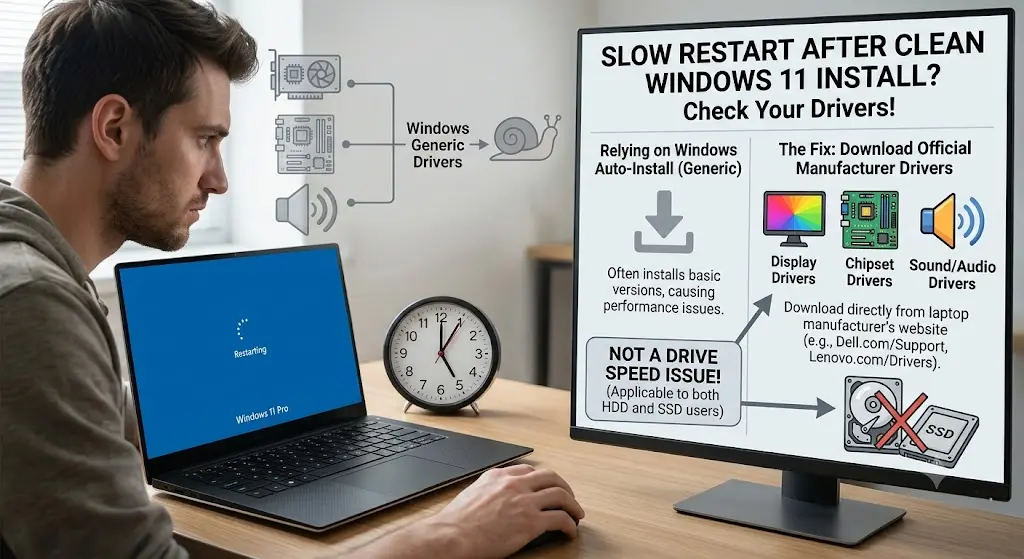
    What is a good Windows 11 boot time? A decent Windows 11 boot time is under 15 seconds from the power button to the login screen on a system with an SSD or NVMe drive. Machines with rapid startup enabled and minimal startup apps often boot in 5 to 10 seconds, while older hard drives…
  • Windows 11 Monitor Not Detected: The Complete Fix Guide for Home and Office Users

    Windows 11 Monitor Not Detected: The Complete Fix Guide for Home and Office Users

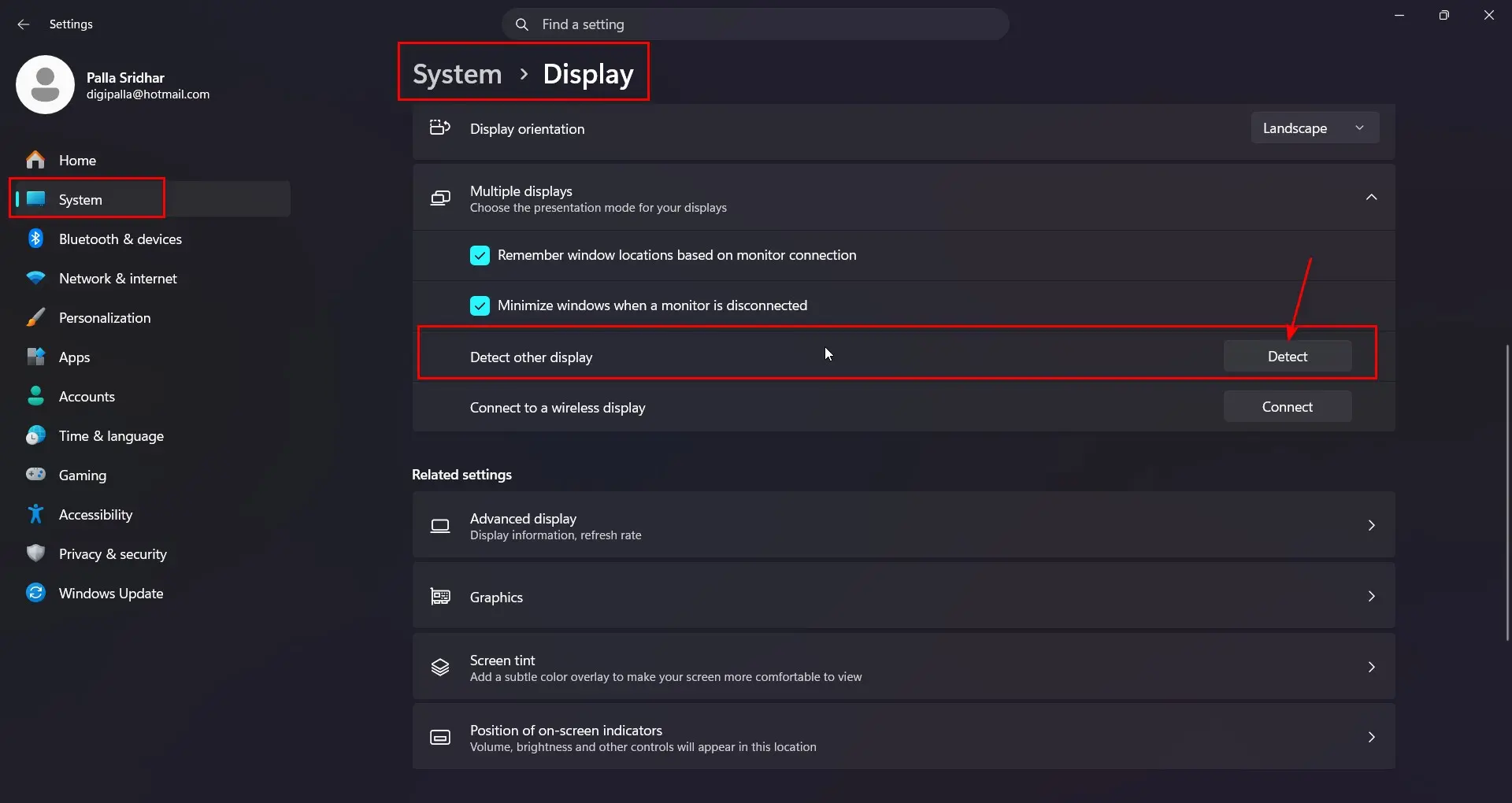
    Why is my second monitor not being detected on Windows 11? A second monitor is usually not detected on Windows 11 due to a loose or damaged cable, an outdated or corrupted graphics card driver, incorrect display settings, or a faulty port. Checking the cable connection, pressing Windows key + P, and updating the driver…

  • Microsoft Teams Issues: The Complete 2026 Troubleshooting Guide for Home and Office Users

    Microsoft Teams Issues: The Complete 2026 Troubleshooting Guide for Home and Office Users

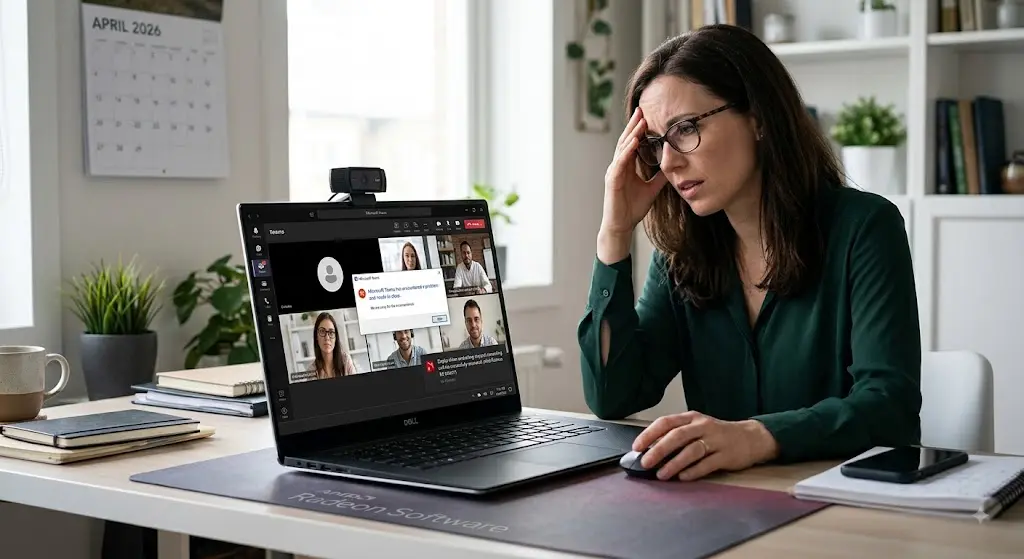
    What causes Microsoft Teams issues? Microsoft Teams issues usually come from a corrupted client cache, a temporary Microsoft Teams outage, a weak internet connection, or an outdated app version. Most problems are fixed by clearing the cache, checking the official status page, restarting the router, or reinstalling the Teams client—no advanced technical skill is needed….

  • “Isn’t Commonly Downloaded” SmartScreen Warning: What It Means & How to Fix It

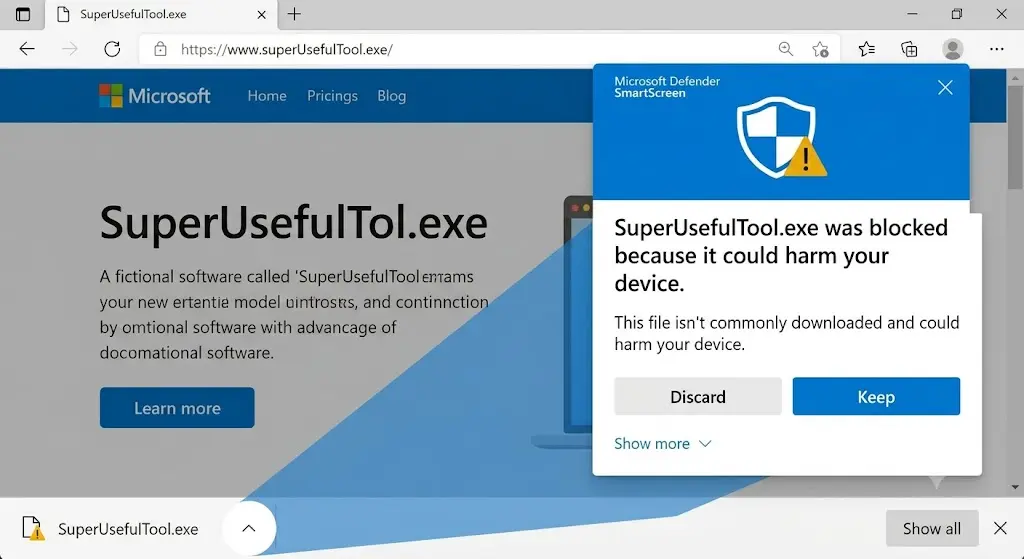
    “Isn’t Commonly Downloaded” SmartScreen Warning: What It Means & How to Fix It

    Key Takeaways If you’ve just tried to download a file in Microsoft Edge and got stopped by a message saying the file “isn’t commonly downloaded” and to “make sure you trust it” before opening, you’re not alone—and no, your computer probably isn’t infected. This warning comes from Microsoft Defender SmartScreen, and it shows up far…

  • How to Check for Outdated Drivers in Windows 11 (Before You Update Anything)

    How to Check for Outdated Drivers in Windows 11 (Before You Update Anything)

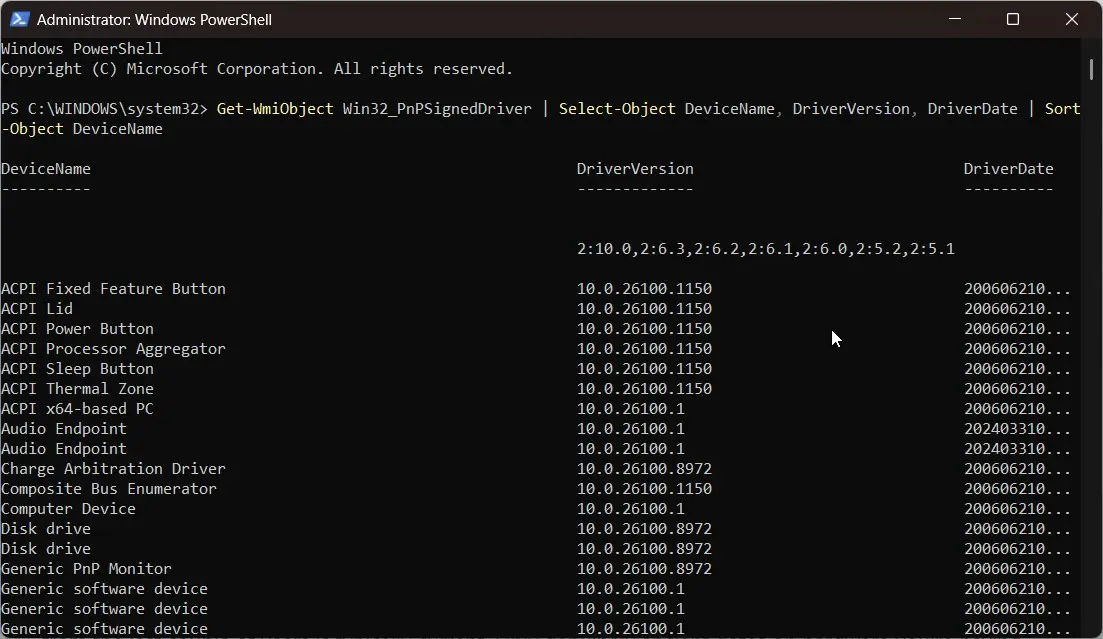
    Key Takeaways Quick answer: To check for outdated drivers in Windows 11, open Device Manager and look for yellow warning icons—those flag drivers with problems. For a full inventory, run Get-WmiObject Win32_PnPSignedDriver | Select-Object DeviceName, DriverVersion, DriverDate in PowerShell to see every driver’s version and date, then compare against the manufacturer’s website. Introduction Before you…

  • Update Drivers Using CMD: The Honest 2026 Guide (No Myth)

    Update Drivers Using CMD: The Honest 2026 Guide (No Myth)

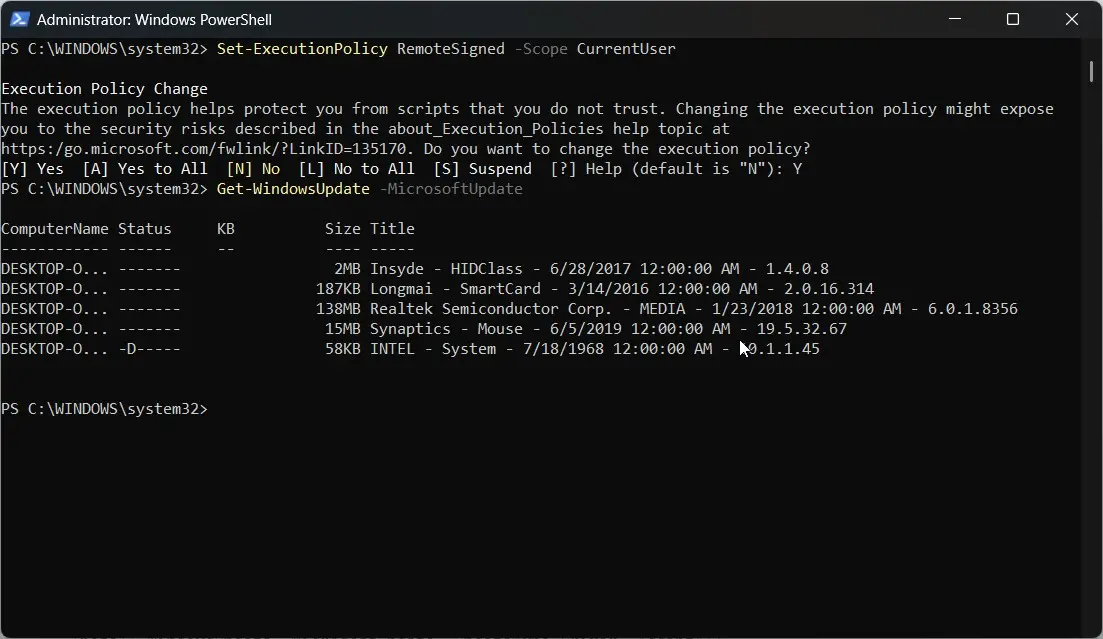
    Key Takeaways Quick answer: To update drivers using CMD, open Command Prompt as administrator. To install drivers from a folder, run pnputil /add-driver “C:\Drivers\*.inf” /subdirs /install. To download Microsoft-approved driver updates, use PowerShell: install the PSWindowsUpdate module, then run Install-WindowsUpdate -MicrosoftUpdate. There is no single native command that updates every driver at once. How to…

  • Processor Power Management Windows 11: 5 Fixes for Heat

    Processor Power Management Windows 11: 5 Fixes for Heat

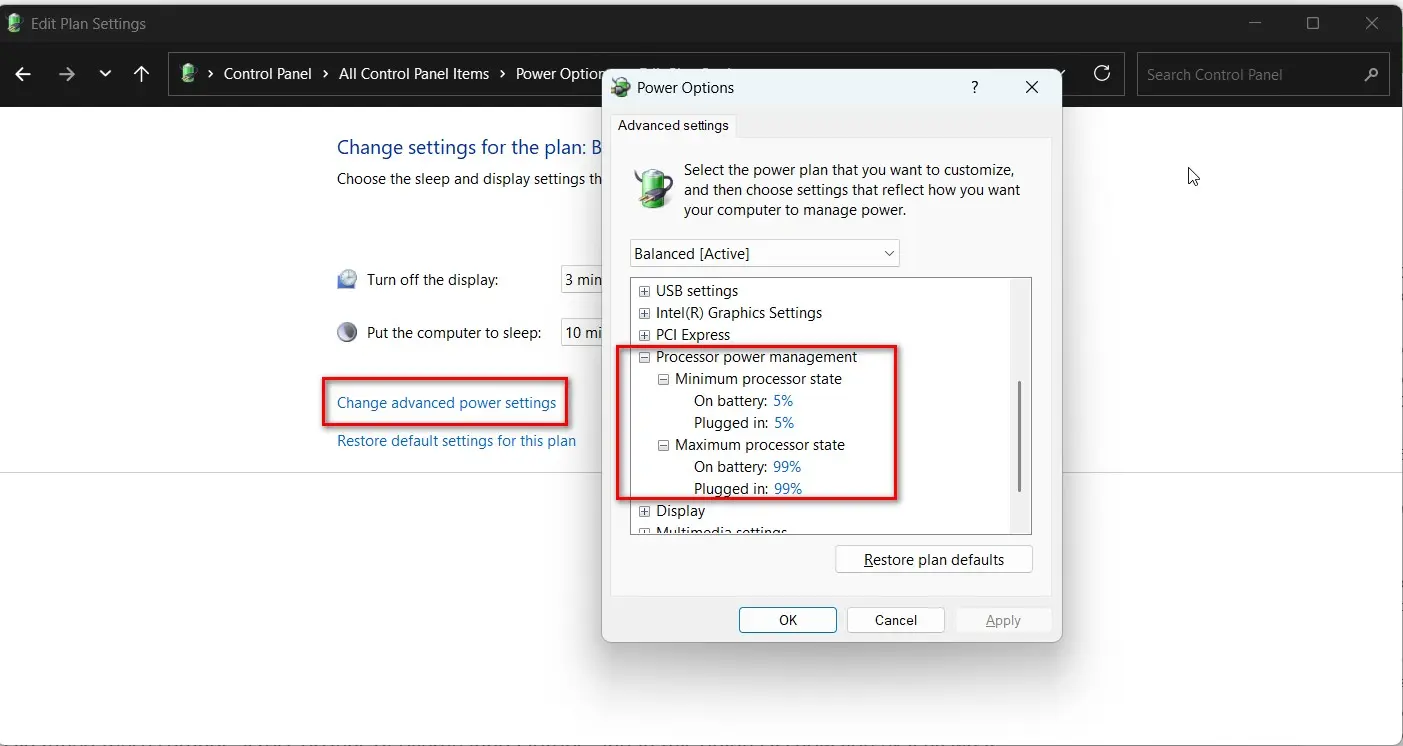
    Quick answer: To limit the processor in Windows 11, press Win + R, type powercfg.cpl, then Change plan settings → Change advanced power settings → Processor power management. Set Maximum processor state to 99% to disable Turbo Boost (lowers heat and fan noise on most PCs) and Minimum processor state to 5% so the CPU…

  • How to Change HDMI Output Resolution on Windows 11 (And Fix a Blurry TV)

    Key Takeaways Quick answer: To change HDMI output resolution on Windows 11, open Settings → System → Display, select the HDMI-connected screen, and set Display resolution to the TV’s native resolution—1920 × 1080 for Full HD, 3840 × 2160 for 4K. Then check the refresh rate under Advanced display. If the right option is missing,…

  • HDMI Port Settings: What You Can (and Can’t) Configure on Windows 11

    HDMI Port Settings: What You Can (and Can’t) Configure on Windows 11

    Key Takeaways Quick answer: HDMI port settings are split across three places: Windows (Settings → System → Display) for resolution, refresh rate, and projection; the monitor or TV’s own menu for input source and overscan; and the GPU control panel (NVIDIA Control Panel, AMD Software Adrenalin, Intel Arc Control) for color format, dynamic range, and…