
If you’ve been trying to upgrade to Windows 11 25H2 and keep hitting error 0x8007042b, you’re in the right place.
This error is one of the most reported Windows 11 upgrade failures in late 2025 and throughout 2026, affecting users upgrading from 23H2 and 24H2 across the United States, Europe, and India.
The frustrating part isn’t just the failure — it’s that Windows rolls back silently with almost no explanation. You’re left staring at a vague error code and no clear next step.
I’ve gone through dozens of solved threads on Microsoft Q&A, ElevenForum, the Syncthing community forum, and Microsoft Tech Community to find the fixes that real users have confirmed actually work.
In this guide, you’ll learn exactly what causes 0x8007042b, which variant you’re dealing with, and the five community-verified fixes that resolve it—without reinstalling Windows.
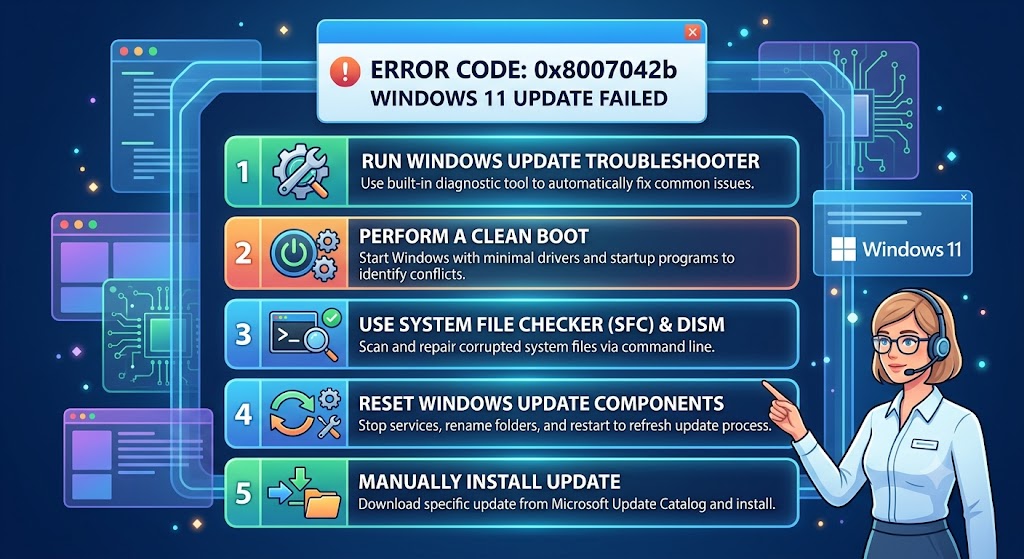
What Is Error 0x8007042b?
Causing the setup error 0x8007042b is a Windows 11 upgrade error that occurs when a background process or service is unexpectedly terminated during the upgrade installation, causing setup to roll back. It typically appears during Windows 11 feature updates (especially the 25H2 upgrade) and means the setup process was killed mid-run—usually by a third-party service, a corrupted file, a conflicting sync folder, or a recently installed cumulative update.
Featured Snippet : Error 0x8007042b is a Windows 11 upgrade failure code indicating that setup was terminated mid-process. It appears during 25H2 feature updates and is caused by third-party software conflicts, corrupt system files, sync tool folders, or incompatible cumulative updates blocking the upgrade.
0x8007042b Variant Codes: Which One Are You Seeing?
The second code after 0x8007042b tells you exactly which phase of setup failed:
| Full Error Code | Failure Phase | Primary Cause |
|---|---|---|
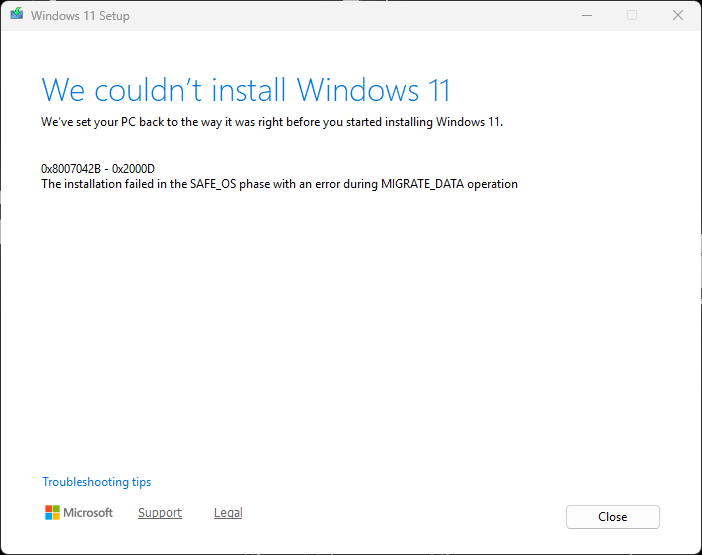
| 0x8007042b – 0x2000D | SAFE_OS / MIGRATE_DATA | Third-party service or antivirus terminated setup |
| 0x8007042b – 0x4000D | MIGRATE_DATA | Conflicting folder, sync tool, or file path issue |
| 0x8007042b – 0x3000D | FIRST_BOOT | Driver or Windows feature component conflict |
| 0x8007042b (no second code) | Varies | Windows Update cache corruption or repeat loop |
Resolve: If you see 0x2000D, start with Fix 2 (clean boot). If you see 0x4000D, start with Fix 1 (SetupDiag) and Fix 3 (sync folder removal). If you’re already running 25H2 and still see this error, skip to the Bonus Solution section on the repeat update loop.
Windows 11 high memory usage fix
What Causes the 0x8007042b Error During Windows 11 Upgrade?
Based on community-confirmed resolutions, these are the real root causes—not generic guesses:
- Third-party services terminated setup mid-process — antivirus, VPN clients, backup tools
- —Syncthing,Sync folder conflicts — Syncthing, OneDrive, Google Drive folders blocking the MIGRATE_DATA phase
- Corrupted system files — SFC/DISM-repairable damage to Windows core components
- Windows Update cache corruption — stale or broken download caches from previous failed attempts
- —Incompatible cumulative updates — December 2025 and January 2026 cumulative updates confirmed by Microsoft Q&A to block 25H2 upgrades on some systems
- —ADWindows Features conflict — AD LDS (Active Directory Lightweight Directory Services) component prevents migration
- —The Duplicate or conflicting user folders — “My Music” folder inside Documents confirmed as a culprit on ElevenForum (Solved thread, March 2026)
- Insufficient disk space — less than 30–35 GB free on the system drive
Before You Begin: Pre-Fix Checklist
Run through this before attempting any fix:
- Confirm at least 35 GB free on your C: drive
- Check your current Windows version: press
Win + R, typewinver - Back up personal files (especially Documents, Desktop, Downloads)
- Note your exact error code —
0x8007042b – 0x2000Dor0x4000Detc. - Temporarily disable Windows Defender real-time protection
- Disconnect all external USB devices except keyboard and mouse
Fix 1 — Run SetupDiag to Identify the Exact Cause (Start Here)
This is the fix that most competitors completely miss, and it’s the one ElevenForum’s Solved thread credited for resolving the 0x8007042b – 0x4000D error in March 2026. SetupDiag.exe is Microsoft’s official diagnostic tool that reads your upgrade logs and tells you the specific file, folder, or application that killed the upgrade — no guessing required.
How to Run SetupDiag.exe on Windows 11
- Download SetupDiag.exe from Microsoft:
https://go.microsoft.com/fwlink/?linkid=870142 - Move it to your C: drive root (i.e.,
C:\SetupDiag.exe) - Open Command Prompt as Administrator
- Run:
C:\SetupDiag.exe /Output:C:\SetupDiagResults.txt- Wait for it to complete (usually 30–60 seconds)
How to Read SetupDiagResults.xml
Navigate to:
C:\Windows\logs\SetupDiag\SetupDiagResults.xmlOpen it in Notepad and search (Ctrl+F) for:
FailureData— shows the exact file or folder causing failure0x8007042B— shows the line where setup diedPlugin— shows which Windows component or migration plugin failed
Real example from ElevenForum (Solved, March 2026): SetupDiagResults.xml showed D:\Users\Nadia\Documents\My Music was preventing installation. The user had two Music folders inside Documents — deleting the duplicate “My Music” folder resolved the 0x8007042b – 0x4000D error immediately.
What to do once you find the culprit:
- If it’s a file path → delete or move that folder temporarily
- If it’s an application → uninstall that app before upgrading
- If it’s a driver (.inf) → run
pnputil /delete-driver oem#.inf /uninstall /force - If it’s the AD LDS component → disable it in Windows Features before upgrading
Fix 2 — Clean Boot Windows Before Retrying the Upgrade
This is the most consistently effective fix confirmed across Microsoft Q&A and fdaytalk.com. A clean boot disables all non-Microsoft services before you attempt the upgrade, eliminating the most common cause of 0x8007042b – 0x2000D.
Step-by-Step: Clean Boot via msconfig
- Press
Win + R, typemsconfig, press Enter - Click the Services tab
- Check “Hide all Microsoft services”
- Click Disable All
- Click the Startup tab → click Open Task Manager
- Right-click each startup item and select Disable
- Close Task Manager → click OK in System Configuration
- Restart your PC
- Retry the Windows 11 25H2 upgrade via Settings → Windows Update
- After upgrade completes, re-enable services via
msconfig
Why this works: The Windows setup process runs in a sensitive environment. Any non-Microsoft background service — VPN clients, cloud backup tools, or even Razer Synapse and Logitech software — can signal Windows setup to abort, triggering 0x8007042b.
—BeforeTip for office users: If you’re on a corporate network in the US or Europe using endpoint security tools (CrowdStrike, Sophos, Bitdefender for Business), these must be fully uninstalled—not just disabled—before the upgrade will complete.
Fix 3 — Remove Conflicting Third-Party Software and Sync Folders
Syncthing Folder Conflict (Confirmed Community Fix)
This is the fix that no mainstream competitor has documented, despite it being confirmed in the official Syncthing community forum (November 2025) and replicated by multiple users.
The problem is that the Windows 11 25H2 upgrade has a bug where the presence of a Syncthing-synchronized directory causes the upgrade to fail repeatedly with error code 0x8007042b. The MIGRATE_DATA phase cannot process Syncthing’s folder structure, killing the setup every time.
The fix:
- Open Syncthing (or your system tray icon)
- Go to Settings → Folders
- Remove all synchronized folders temporarily (you can re-add them after upgrade)
- Stop the Syncthing service: press
Win + R, typeservices.msc, find Syncthing, right-click → Stop - Restart your PC
- Retry the 25H2 upgrade
Confirmed by: forum.syncthing.net thread, November 2025 — multiple users reported 100% success rate after removing the Syncthing share.
This same logic applies to Resilio Sync and other peer-to-peer sync tools. If you use any sync software that creates a hidden folder structure in your user directories, disable and remove it before upgrading.
Antivirus and Security Software
Third-party antivirus tools are the second most reported cause of 0x8007042b. Don’t just disable them — fully uninstall them before upgrading:
- Bitdefender
- Kaspersky
- Norton / Norton 360
- Sophos
- McAfee
Windows Defender will protect your system during the upgrade. Reinstall your preferred antivirus once 25H2 is running successfully.
Fix 4 — Repair System Files with SFC and DISM, Then Reset Windows Update
Corrupted Windows core files are a secondary but common cause of 0x8007042b, especially on systems that have had previous failed updates. Run these commands in order.
Run SFC Scan
- Open Command Prompt (Admin)
- Run:
sfc /scannow- Wait for the scan to complete (10–20 minutes)
- Restart your PC
Run DISM RestoreHealth
- Open Command Prompt (Admin)
- Run:
DISM.exe /Online /Cleanup-Image /RestoreHealth- This requires an internet connection and takes 15–30 minutes
- Once complete, run
sfc /scannowagain
Reset Windows Update Components
After DISM and SFC, reset the Windows Update cache to clear any stale downloads from previous failed 25H2 upgrade attempts:
net stop wuauserv
net stop cryptSvc
net stop bits
net stop msiserver
ren C:\Windows\SoftwareDistribution SoftwareDistribution.old
ren C:\Windows\System32\catroot2 catroot2.old
net start wuauserv
net start cryptSvc
net start bits
net start msiserver
Restart your PC and check for updates. Windows will rebuild the SoftwareDistribution folder from scratch and download a fresh copy of the 25H2 upgrade.
Note for Indian users: The DISM RestoreHealth step downloads replacement files from Microsoft’s servers. If you’re on a slower Jio or Airtel broadband connection, allow 45–60 minutes for this step. Run it when you have a stable connection — a dropped connection mid-DISM can corrupt the repair.
Fix 5 — Remove Problematic Cumulative Updates Before Upgrading
This is the fix that no competitor has documented in a step-by-step format, despite being confirmed in a Microsoft Q&A thread (February 2026) as a reproducible, system-wide issue.
Which Cumulative Updates Are Causing the Issue?
A Microsoft Q&A contributor (February 6, 2026) confirmed that:
“Removing the December 2025 and January 2026 cumulative updates allows the 25H2 upgrade to complete successfully.”
This affects systems upgrading from 24H2 to 25H2 where the December 2025 or January 2026 cumulative update created a servicing conflict during the in-place upgrade process.
How to Uninstall a Specific Cumulative Update
- Go to Settings → Windows Update → Update History
- Click Uninstall Updates
- dates inLook for the December 2025 or January 2026 cumulative updates (search for KB numbers starting with
KB5dates in Dec 2025 or Jan 2026) - Right-click → Uninstall
- Restart your PC
- Do not reinstall those updates—immediately attempt the 25H2 upgrade
- Once 25H2 is installed, Windows Update will deliver the latest cumulative update for 25H2 automatically
Check Settings → Windows Update → Update History and sort by date. Check Settings → Windows Update → Update History and sort by date to confirm. Important: Only do this if you’ve identified that the December/January cumulative updates are installed on your system. Check Settings → Windows Update → Update History and sort by date to confirm. Settings → Windows Update → Update History and sort by date to confirm.
Bonus Fix — Use Windows 11 Installation Assistant to Bypass the Error
If all five fixes above haven’t worked, the Windows 11 Installation Assistant offers an alternative upgrade path that bypasses the standard Windows Update service entirely—avoiding most of the conflicts that cause 0x8007042b.
Steps:
- Download the Windows 11 Installation Assistant from:
https://www.microsoft.com/en-us/software-download/windows11 - Run it as Administrator
- Follow the on-screen steps—choose “Keep my files and apps.”
- The assistant handles the upgrade independently of Windows Update
This method is confirmed effective on Microsoft Q&A for systems where the standard Windows Update path keeps failing. It uses the same installer but manages the process directly, bypassing cached broken downloads.
How to Read Your Windows Setup Logs
If none of the fixes work on the first try, your system is leaving you a diagnostic trail. Here’s how to access it:
Path to setup logs:
C:\$WINDOWS.~BT\Sources\Panther\Open setuperr.log with Notepad and search (Ctrl+F) for:
0x8007042B— find the exact line where setup failedTheFatal Error— the last fatal error entry shows the culpritMigrationMIG— migration plugin errors show which data folder blocked the upgrade
,,,,If you find a specific application path (e.g.), uninstall that application and retry. If you find a driver reference (oem#.inf), run:
pnputil /delete-driver oem#.inf /uninstall /forceCan Syncthing cause the 0x8007042b error on Windows 11 25H2?
Yes, the issue is a confirmed bug in the Windows 11 25H2 upgrade process. Syncthing-synchronized directories prevent the MIGRATE_DATA phase from completing, triggering 0x8007042b. The solution is to remove all Syncthing folder shares and stop the Syncthing service before attempting the 25H2 upgrade. Re-add your folders after the upgrade completes.
Why does Windows 11 keep trying to install 25H2 when I already have it?
This is a known Windows Update loop bug where Windows detects a pending 25H2 installation even though 25H2 is already installed. The error 0x8007042b in this scenario simply means Windows identified the duplicate install attempt and safely cancelled it. No action is needed — Windows Update will resolve the issue through normal servicing.
Should I use the Windows 11 Installation Assistant to fix 0x8007042b?
Yes—if the standard Windows Update path keeps failing with 0x8007042b, the Installation Assistant is a reliable alternative. It bypasses the update service entirely and manages the 25H2 upgrade directly. Download it from microsoft.com/software-download/windows11 and run it as Administrator, selecting “Keep my files and apps.”
How do I resolve 0x8007042b – 0x2000D when upgrading to Windows 11 25H2?
The 0x2000D variant typically means a third-party service killed the upgrade during the SAFE_OS phase. Perform a clean boot via msconfig (disable all non-Microsoft services), then retry the upgrade. Also temporarily uninstall any third-party antivirus software. These two steps resolve the 0x2000D variant in most cases.
Conclusion
Error 0x8007042b is one of the most disruptive Windows 11 25H2 upgrade failures — but once you understand it’s always caused by something specific interfering with setup, the path forward becomes clear.
Here’s a quick recap of the five community-verified fixes:
- Run SetupDiag.exe — identifies the exact culprit from your upgrade logs
- Clean boot via msconfig — eliminates third-party service interference
- Remove Syncthing/antivirus — fixes the confirmed 25H2 sync folder bug
- SFC + DISM + WU reset — repairs corrupted files and clears broken caches
- Uninstall Dec 2025/Jan 2026 cumulative updates — resolves servicing conflicts
Whether you’re in the US, Europe, or India, these fixes work on all standard Windows 11 Home and Pro systems. If you’ve tried everything and still can’t upgrade, the Installation Assistant is your final safety net.
Did one of these fixes work for you? Drop a comment below with which solution resolved your 0x8007042b error — it helps other readers find the right fix faster and saves hours of frustration.
ENJOYING OUR CONTENT?
Stay up to date with our latest guides, insights, and news. Tap below to follow us directly via your search feed.
