Author: Palla Sridhar

  • Fix Error in Loading DLL in Excel 365

    Encountering the vague “Error in loading DLL” message when trying to launch or use VBA macros in Excel 365 can be incredibly frustrating. This runtime error indicates that Excel is unable to load specific dynamic link library (DLL) files it requires to execute your Visual Basic code.

    In this detailed guide, we will demystify the causes of the “Error in loading DLL” problem and walk through systematic troubleshooting steps to resolve it for good. Follow our solutions to get your mission-critical Office 365 macros and add-ins back up and running smoothly.

    What Causes the “Error in Loading DLL” in Excel 365?

    The root causes of Excel generating this error message can include:

    • Missing referenced DLL files that contain required procedures
    • Incompatible or corrupted versions of required DLLs
    • Excel referencing a DLL of a different bitness (32-vs 64-bit)
    • Invalid paths or directories for DLL files
    • DLLs containing dependencies on other missing DLLs
    • Multiple versions of the same DLL creating conflicts
    • Insufficient permissions to load DLL files properly

    These situations prevent Excel from loading the expected DLLs when running your VBA code, resulting in a crash.
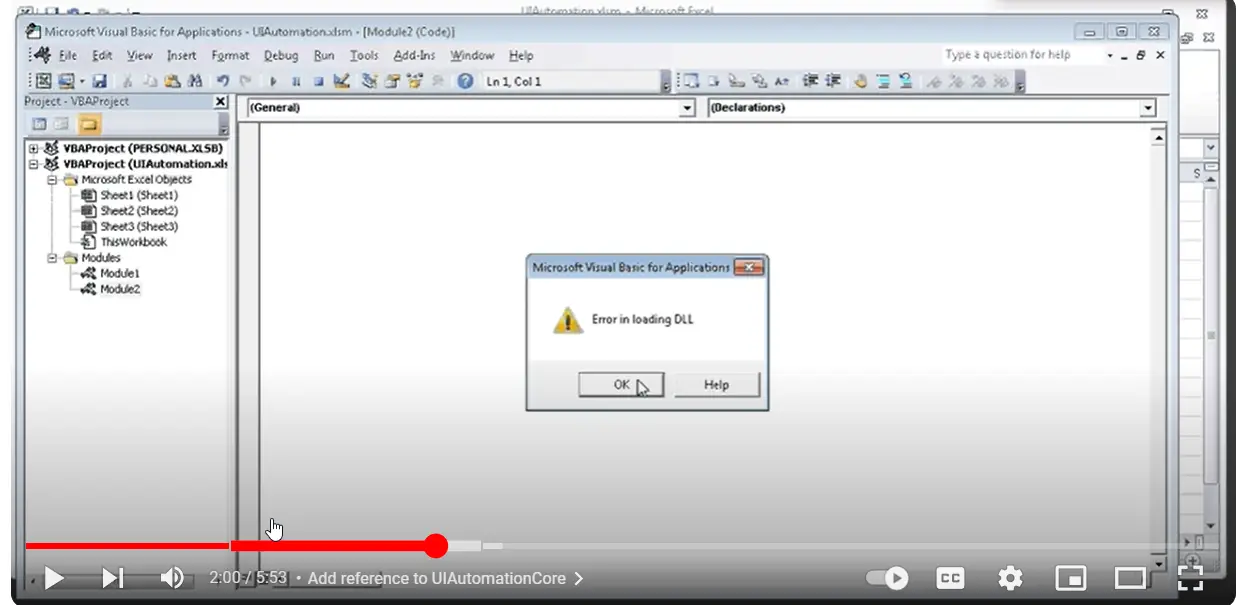
    error in loading dll excel 365
    Image Source: YouTube

    Step 1 – Identify the Problem DLL

    The first troubleshooting step is to identify exactly which DLL is causing the loading error:

    • In the Visual Basic editor, go to Tools > References to see your referenced libraries.
    • Look for any marked as “Missing:” which indicate unavailable references.
    • Check the file paths and versions to see if a correct DLL exists.
    • Make note of any libraries dependent on the missing DLL.

    This reveals what DLL needs resolution to allow proper loading.

    Step 2 – Register the DLL

    If the DLL file itself is present but Excel still can’t load it, try registering it:

    • Open Command Prompt as Administrator
    • Navigate to the DLL file directory
    • Run regsvr32 "filename.dll" to register it with Windows
    • Retry opening Excel to see if the registration resolved the load issue

    Registering installs the required DLL information allowing Excel to locate and use it.

    Step 3 – Install the Missing DLL

    If the DLL file itself is not present on your system, you need to install it:

    • For Microsoft DLLs, install the corresponding application version or redistributable package containing the DLL.
    • For third-party DLLs, obtain the necessary installer or files from the software vendor.
    • Make sure to use the 32-bit or 64-bit DLL version matching your Office installation.

    Installing the missing DLL provides the actual file for Excel to load.

    fix dll error excel 365

    Step 4 – Change the Reference Priority

    If multiple versions of the same DLL are causing conflicts, change the priority:

    • In the VB editor, go to Tools > References
    • Re-order the references so the desired DLL version is on top
    • Move any “MISSING” references to the bottom of the list

    Prioritizing the correct reference forces Excel to load it first and ignore missing ones.

    Step 5 – Repair Office Installation

    Corrupted Office system files could also be preventing successful DLL loading:

    • Go to Control Panel > Programs > Uninstall a Program
    • Select your Office version
    • Click Change to open repair options
    • Run a Repair operation to restore any missing or damaged files

    Repairing Office can fix underlying problems like registry issues impacting Excel’s ability to load DLLs.

    excel 365 error in loading dll

    Step 6 – Update Windows and Office

    Outdated Windows and Office systems can cause DLL errors:

    • Install all the latest Windows updates via Windows Update
    • Update Office 365 to the newest build
    • Restart your PC after updating

    Updating ensures you have the most recent DLL versions and dependencies required by Excel 365.

    Step 7 – Remove Problematic References

    If the previous steps don’t resolve the problem, try removing troublesome library references:

    • In the VB editor Tools > References, uncheck any problematic or mismatching references
    • Save and recompile your code to see if this allows successful loading without the DLL

    Eliminating conflicting or unsupported references can isolate the issue and allow Excel to start normally.

    Step 8 – Contact Microsoft Support

    If you still receive the error after trying all of the above, contact Office 365 support:

    • Start a chat session at support.microsoft.com for troubleshooting assistance
    • Work with support engineers to trace the source of unresolved DLL issues

    With hands-on investigation, Microsoft can often determine the last mile problems preventing DLLs from loading.

    https://www.youtube.com/watch?v=ncuQnSQwR0w

    Preventing Future “Error in Loading DLL” Problems

    Once resolved, this best practice will help avoid repeat DLL errors:

    • Reference only what VBA libraries are absolutely needed
    • Document DLL requirements and versions for your Excel workbooks
    • Use explicit file paths rather than implicit paths pointing to DLLs
    • Handle missing references and DLL errors gracefully in your code
    • Develop and test macros in same environment as end users

    Careful dependency and reference management will minimize compatibility issues causing pesky DLL errors.

    In summary, a measured troubleshooting approach checking reference priorities, installations, repairs, updates, and working with Microsoft Support can resolve even persistent “Error in loading DLL” issues. Follow the solutions in this guide so you can once again reliably run VBA macros and add-ins in Excel 365.
  • Simple Way to listen Sound through Multiple Audio Outputs in Windows 11

    Windows 11 provides flexible options for routing audio to multiple outputs simultaneously. You can direct sound from your PC to combinations of speakers, headphones, HDMI displays and more. However, the methods changed compared to Windows 10.

    In this guide, we’ll cover the new procedures for configuring multi-output audio in Windows 11 to external devices like Bluetooth headsets, HDMI monitors, speakers and beyond.

    Why Send Audio to Multiple Outputs in Windows 11?

    Here are some examples of why sending audio to multiple playbacks in Windows 11 can be useful:

    • Play music over room speakers while game sound goes through headphones
    • Presentations or demos with audio playing on both external screen and laptop speakers
    • DJ or sound engineering workstations outputting different tracks/channels
    • Accessibility for hearing impaired users to amplify multiple devices
    • Push audio alerts to multiple devices like phone and computer

    With the right steps, Windows 11 provides flexibility to route audio feeds in any combination you need.

    Challenges of Multiple Playbacks in Windows 11

    However, there are some caveats to the changed multi-output audio in Windows 11:

    • The Stereo Mix tool for duplicating audio is removed in Windows 11
    • HDMI audio can only go to one display at a time
    • Universal audio apps don’t support multiple endpoints
    • Bluetooth audio syncs to only one wireless device

    Workarounds exist for some limitations depending on your usage needs. Now let’s walk through configuring dual or multiple playbacks.

    system sound windows 11

    Step 1: Identify Your Audio Endpoints

    First, identify the audio outputs you wish to use:

    • Built-in laptop speakers, headphones or line-out
    • External USB speakers, headsets, interfaces
    • Wireless Bluetooth accessories
    • HDMI/DisplayPort monitors or TVs

    You can customize any combination depending on your devices.

    Step 2: Access Sound Settings

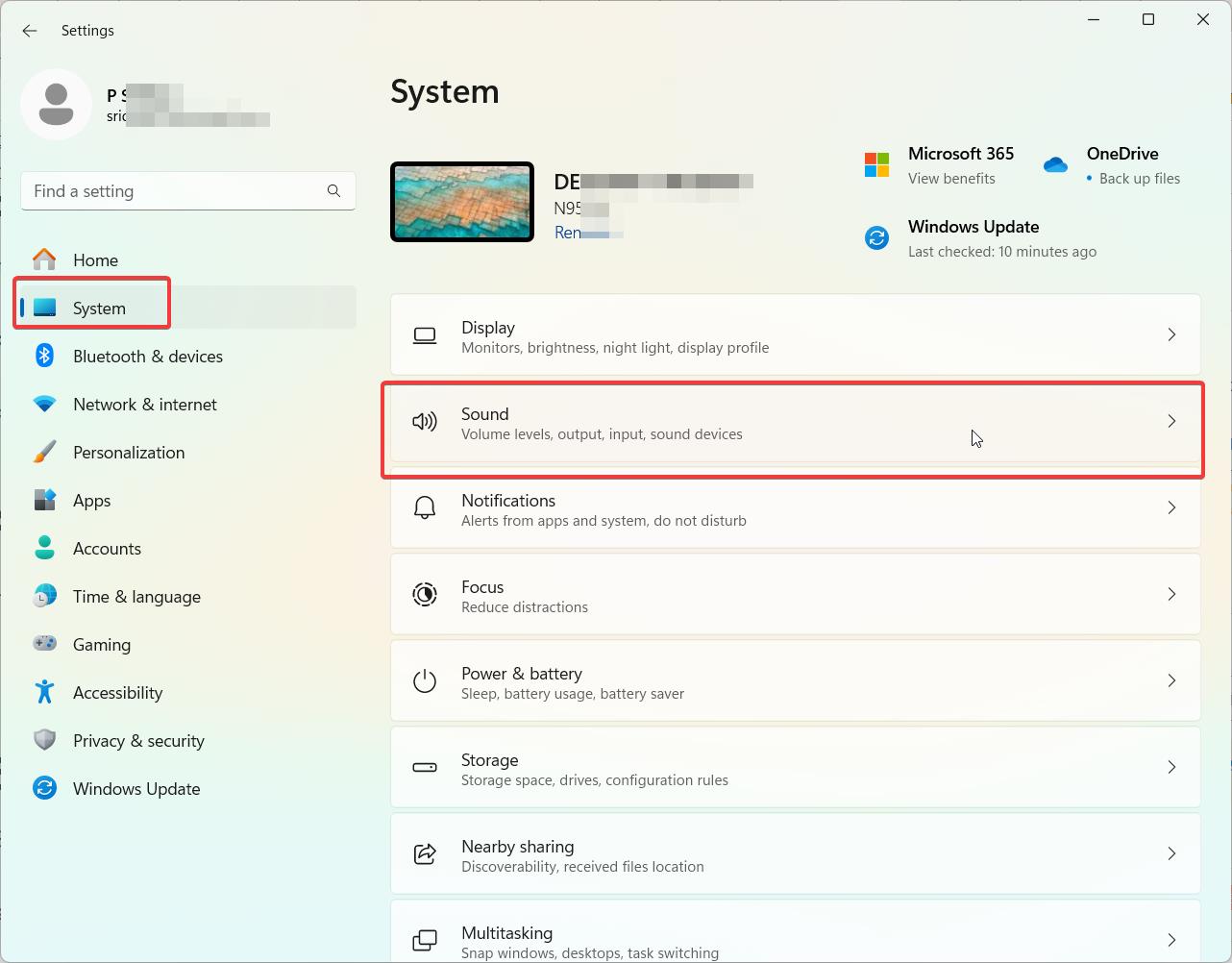
    In Windows 11, the main audio settings have moved to Settings > System > Sound. This is where you will configure audio routing.

    Make sure your desired endpoints show under “Audio outputs”. If not, install drivers or connect devices.

    Step 3: Enable Multiple Endpoints

    In Sound Settings, select an output device then click Manage sound devices.

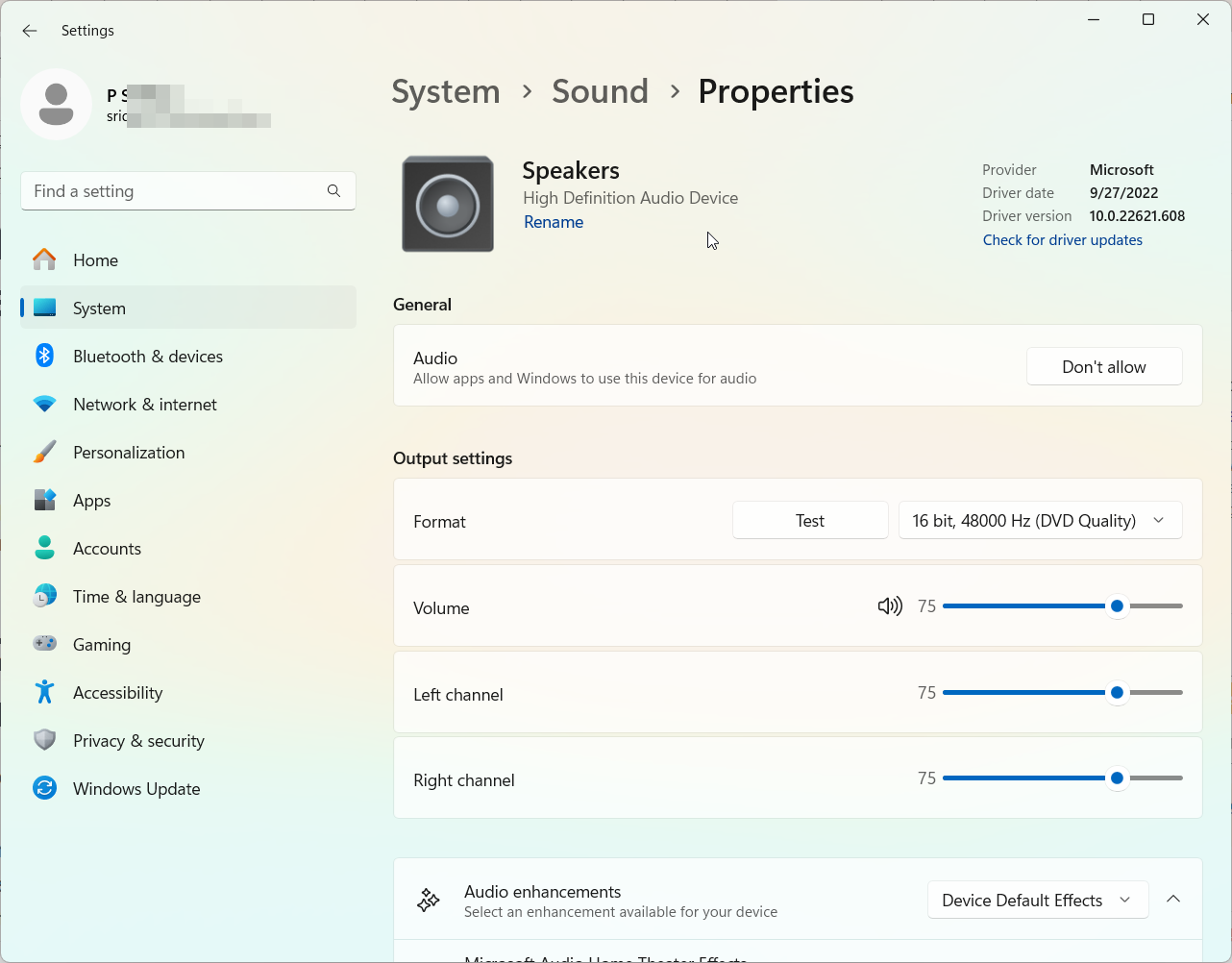
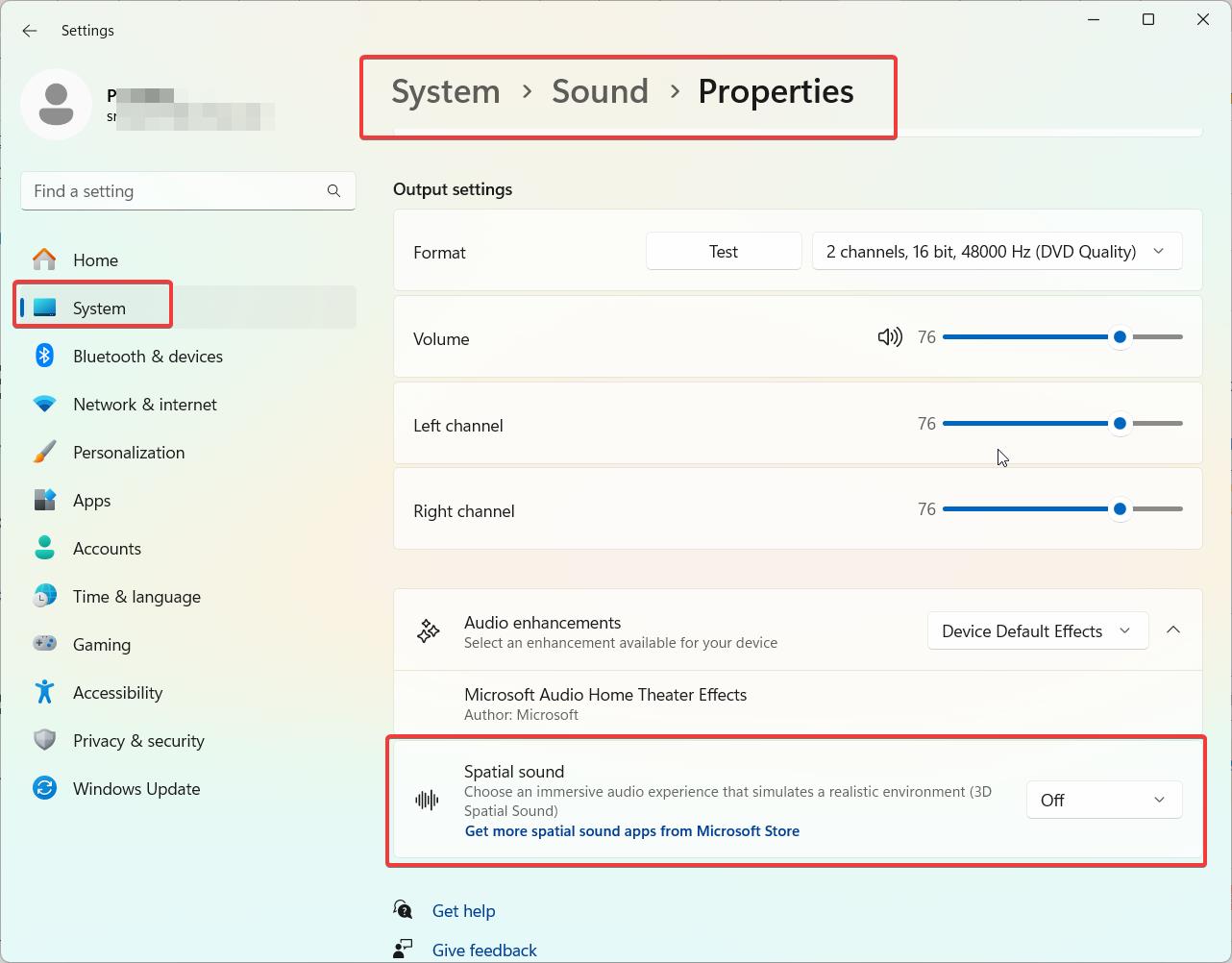
    For each device you want to use, set Spatial sound to Off – this prevents exclusive mode.

    Repeat for each endpoint. They should now all output sound simultaneously.

    spatial sound off windows 11

    Step 4: Adjust Volume Mixing

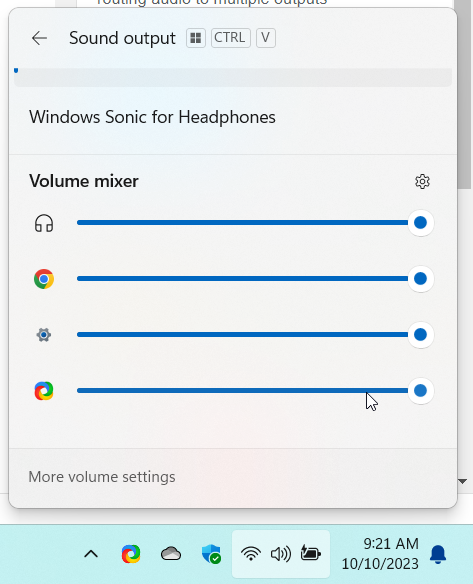
    You can fine-tune relative volume for each output under Sound Settings > Volume Mixer.

    Set levels independently for apps on each device. Adjust to achieve your desired mix.

    audio volume mixer windows 11

    Step 5: Set Default Output Devices

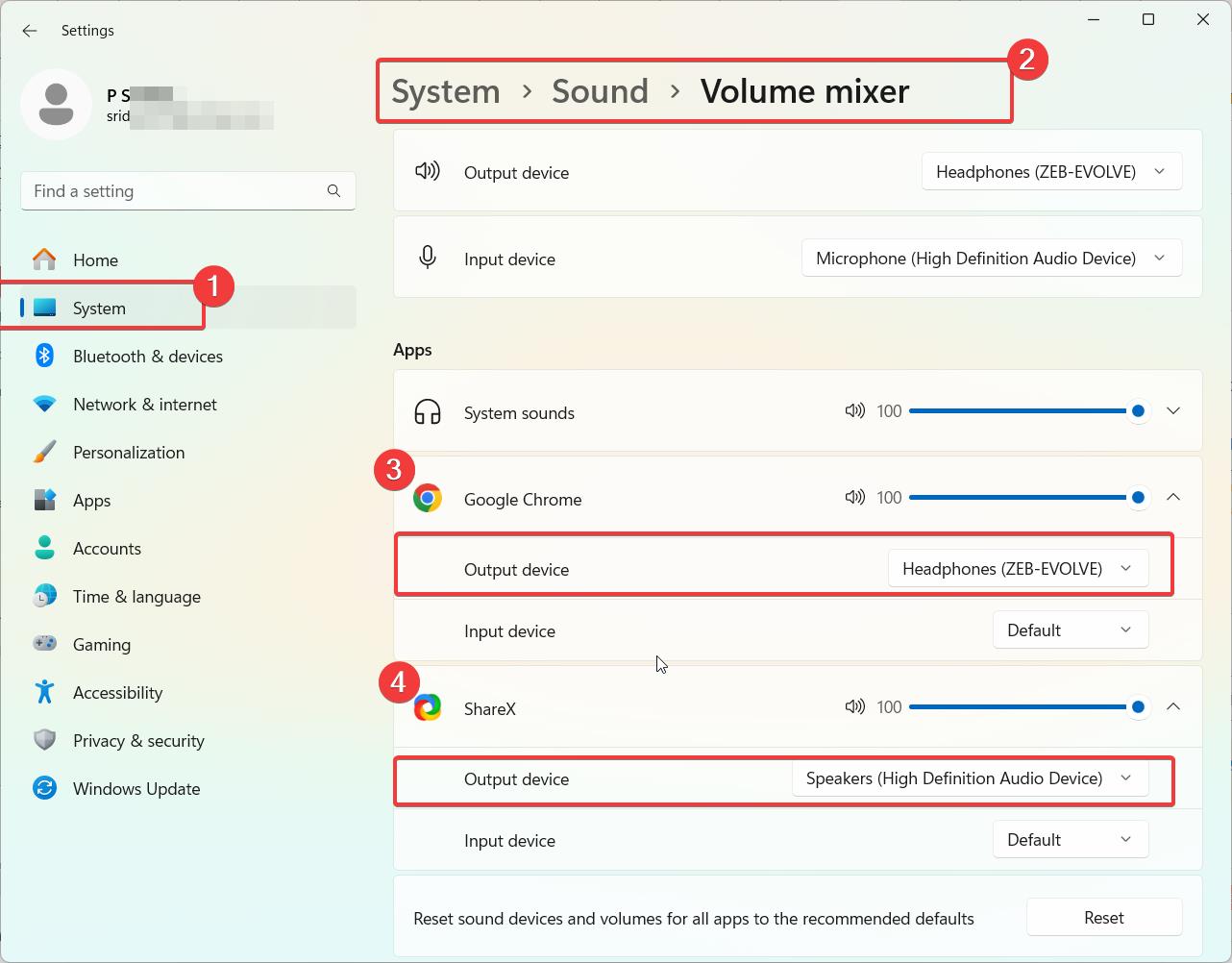
    Under Sound Settings you can set different apps to default to different audio devices.

    For example, set Firefox to use your speakers, and Spotify to use Bluetooth headphones. Apps will remember the last used output.

    windows 11 multiple audio outputs 1

    Solutions for Advanced Multi-Output Setups

    For power users with more complex needs, like aggregating multiple USB devices, consider advanced solutions:

    • Dedicated audio patch bays and routers
    • USB hubs with multi-channel output
    • Third-party routing apps like VoiceMeeter
    • DAW software like Ableton for intricate audio splicing

    For most users, Windows 11 provides all the tools you need to direct sound to multiple useful combinations of speakers, headphones, HDMI monitors and wireless headsets. Follow the steps in this guide to customize a multi-output audio configuration that fits your needs or specific applications.

  • Fix HP Monitor has No Sound When Connected to Laptop/PC

    Connecting your HP monitor to a computer using an HDMI cable should transmit both video and audio signals. However, sometimes the audio either does not come through, cuts in and out, or stops working entirely on HP monitors paired with desktops, laptops or game consoles.

    Luckily, with the right troubleshooting steps, you can resolve various “HP monitor no sound” problems and restore robust audio when using your HP display as external speakers. This guide covers proven solutions for HP monitors with no HDMI sound drawn from expert tips across HP’s community forums and support channels.

    Common Causes of HP Monitors Having No Sound

    Before getting into specific fixes, these are the most common root causes of HP monitors exhibiting no audio or sound when HDMI is connected to a playback source:

    • Incorrect sound output settings – The source device like a PC may be configured to output sound through speakers vs the HP monitor’s speakers.
    • HDMI cable issues – Faulty or loose HDMI cables can fail to transmit audio signals properly to the monitor.
    • HDMI ARC vs standard HDMI – ARC ports specifically needed for feeding TV audio back to monitors. Regular HDMI ports are for one-way video/audio.
    • Driver problems – Display/audio drivers on source device could be outdated and prevent driving external monitor speakers.
    • Hardware limitations – Some HP monitors lack integrated speakers and require external speakers plugged into source.
    hp monitor no sound
    Image Source: Bing AI

    Steps To Resolve HP Monitor Has No Sound

    With the likely reasons identified, here are systematic troubleshooting steps to resolve “no sound” or audio issues from HP monitor speakers when connected via HDMI:

    1. Confirm monitor has built-in speakers – Some HP monitors do not have integrated speakers and require attaching external speakers to your video source instead.

    2. Check audio output settings – Set your PC or other source device to output sound to the HP monitor speakers specifically.

    3. Try different HDMI cables – Faulty cables are a common cause of no audio. Swap in a high-speed HDMI cable.

    4. Update audio/video drivers – Outdated drivers on your playback source can prevent proper HP monitor speaker functionality.

    5. Adjust HP monitor settings – Enable audio output and adjust volume/mute controls using the HP display’s menus.

    6. Test multiple HDMI ports – Try connecting the HDMI cable to different ports on source and monitor in case one port is defective.

    7. Reset connected devices – Power cycle source devices and monitor to re-establish proper HDMI handshake and audio transmission.

    8. Use HDMI ARC port – For transmitting TV audio specifically, connect to HDMI ARC ports on TV and HP monitor.

    audio problems with hp

    Advanced Troubleshooting for Persistent Audio Issues

    For continued display audio problems, HP recommends these further steps:

    • Try connecting your source device directly to external speakers via 3.5mm jack to isolate issues.
    • Test the monitor’s speakers using different input sources like a Blu-ray player.
    • Adjust Windows advanced sound settings to use stereo/PCM instead of surround sound.
    • Experiment with different HDMI cable lengths in case longer lengths cause signal degradation.
    • Install the monitor speaker’s driver from the HP website if available.
    • Contact HP customer support for product-specific troubleshooting help.

    Preventing Future HP Monitor Audio Problems

    Once you have sound working reliably through your connected HP monitor’s speakers, follow these tips to avoid recurring issues:

    • Secure HDMI connections firmly and avoid loose ports.
    • Route cables neatly to prevent wire damage or interference.
    • Keep display and audio drivers updated on source devices.
    • Periodically run Windows audio troubleshooter to catch problems early.
    • Maintain proper ventilation around monitors to prevent overheating issues.

    By identifying the root cause using methodical troubleshooting, you can resolve frustrating “no sound” problems with HP monitors. Confirm basic settings and connections first, then progress to more advanced fixes involving drivers and hardware. With audio restored, proper care can prevent future sound issues.

  • How to Fix Acer Laptop Speakers Not Working?

    Discovering that your Acer laptop speakers suddenly stopped working can be incredibly frustrating. However, the issue is usually fixable with some guided audio troubleshooting. This comprehensive guide covers various solutions to get your Acer laptop speakers functioning again, whether it’s just one speaker not working, or a full audio failure.

    Common Causes of Acer Laptop Speaker Failure

    Before applying specific fixes, it helps to understand what typically causes Acer laptop speakers to stop working properly:

    • Outdated or corrupted audio drivers – The drivers controlling the integrated speakers become damaged or outdated. Keeping drivers updated often resolves speaker issues.
    • Incorrect sound settings – Volume sliders get lowered, muted, or set incorrectly preventing audible sound. Accessing settings can identify misconfigurations.
    • Hardware and connection problems – Issues with wired connections to speakers, or debris/damage to the hardware speakers themselves.
    • Software conflicts – Conflicts with other programs lead to problems with sound services and audio output.
    • Power management settings – Power saving settings incorrectly suspend audio services when speakers should work.
    acer laptop speakers not working
    Image Source: Canva

    Knowing the potential underlying cause will inform the best troubleshooting approach. Now let’s go through solutions.

    Step 1: Check Sound Settings and Connections

    Before anything else:

    • Verify volume slider and sound icons are not muted and set at an audible level.
    • Check for debris, dust, or damage to headphone and speaker ports/hardware.
    • Test headphones or external speakers in the ports to isolate issues.
    • Try a different audio source like a video or music file to rule out program specific problems.
    check volume controls acer laptop

    Step 2: Update or Reinstall Audio Drivers

    If settings appear correct, then updating your Acer laptop’s audio drivers is the next step:

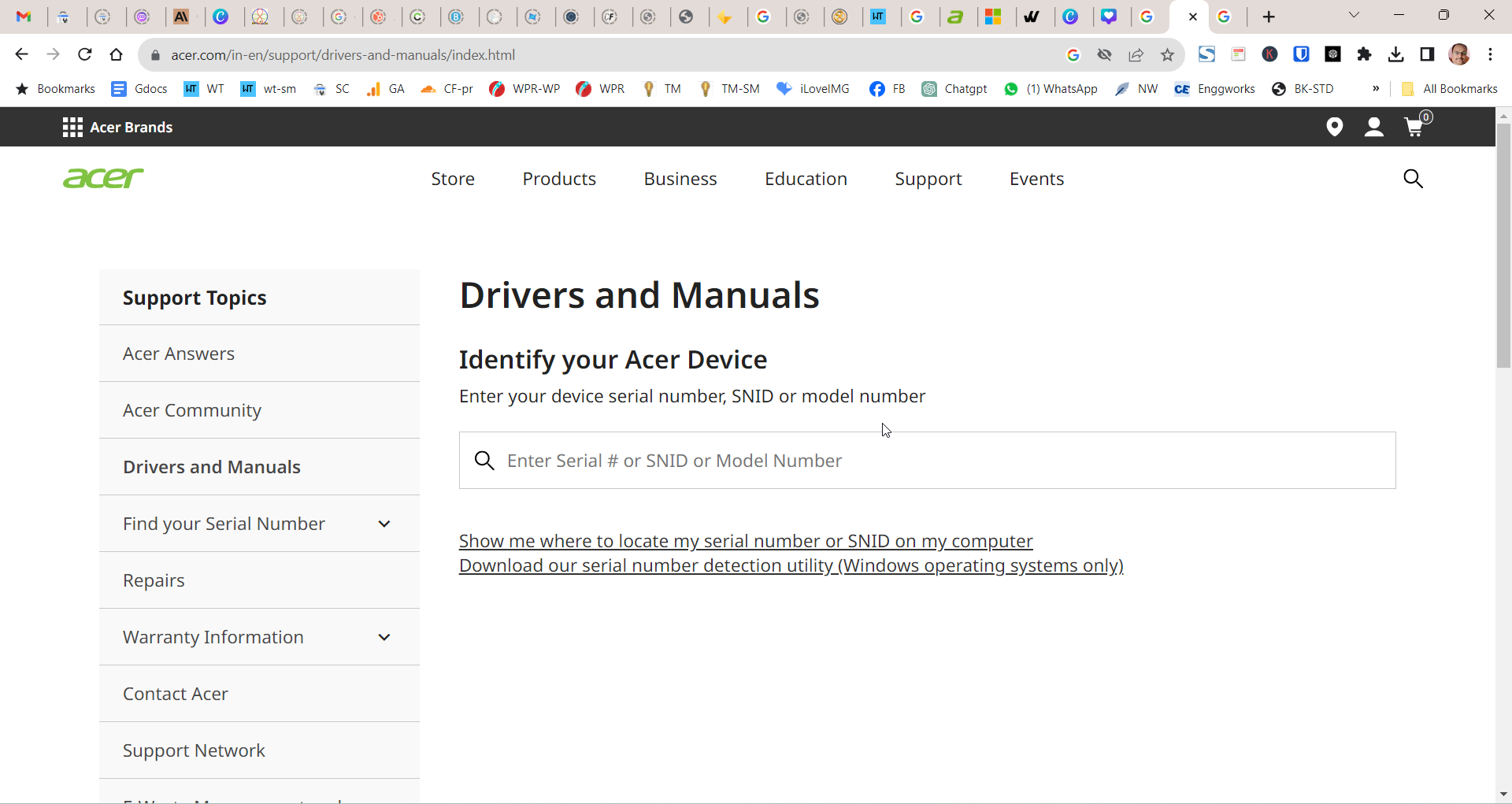
    • Search for new drivers directly from Acer’s website based on your specific laptop model.
    • Fully uninstall the current drivers before installing the latest driver package.
    • Reboot after installing new drivers to reload the audio systems.

    Updating drivers will overwrite any corrupted files and can resolve speaker failures.

    acer drivers

    Step 3: Run Audio Troubleshooters

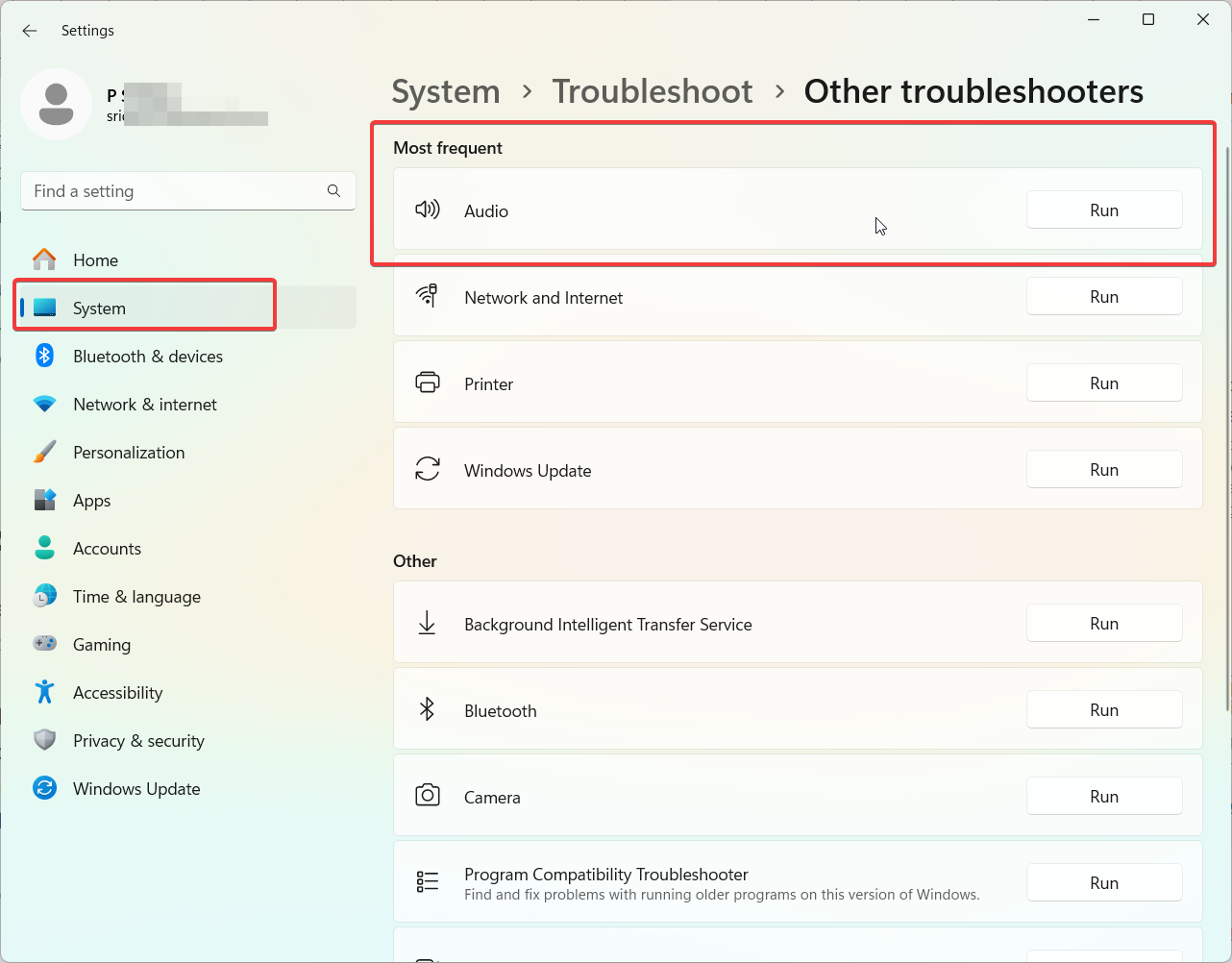
    Windows includes built-in troubleshooting tools that diagnose common audio problems:

    • Type “troubleshooting” into the Windows search bar.
    • Select “Run audio troubleshooter” and “Run as administrator”.
    • Restart the laptop after troubleshooting completes.

    This automated tool checks for driver issues, configuration problems, and attempts basic repairs.

    audio troubleshooter windows 11

    Step 4: Test with a Linux Live USB

    If the above steps don’t restore speaker functionality, boot into a Linux live environment from a USB key to further test:

    • Download the ISO for a Linux distribution like Ubuntu.
    • Create a bootable USB drive with the ISO using Rufus.
    • Change BIOS settings to boot from the USB device over the hard disk.
    • Choose “Try Ubuntu” to test the speakers without installing.

    If speakers work under Linux, a software issue exists in Windows. If not, it indicates a hardware problem.

    Step 5: Consult Acer Support for Hardware Issues

    For persisting speaker failures, especially those also occurring in Linux, contact Acer support:

    • Live chat, email, or call Acer phone support to troubleshoot further.
    • Discuss warranty and repair options if hardware damage is suspected.
    • Consider an authorized technician to inspect internal speaker connections and wiring.

    Hardware problems like loose cabling can cause intermittent or full speaker failure in some cases.

    Preventing Recurring Acer Laptop Speaker Problems

    Once your speakers are operational again, employ these practices to avoid repeat issues going forward:

    • Maintain your audio drivers – Use a tool like Driver Easy to automatically update drivers.
    • Perform regular updates for Windows and Acer software.
    • Avoid debris buildup near speakers – Use compressed air to routinely clean vents.
    • Be gentle with connectors when plugging in headphones.
    • Run monthly audio troubleshooters to catch problems early.

    With proper care and maintenance, your Acer laptop speakers should provide reliable sound. But if problems arise, this guide’s comprehensive troubleshooting tips will get audio working again.

  • Microsoft Edge Blocking Downloads – How to Fix

    Seeing the concerning “This file can’t be downloaded securely” warning when trying to download files in Microsoft Edge can be frustrating. This alert indicates that SmartScreen, Microsoft’s anti-malware filtering system, has blocked the download because it detects security risks with the file.

    While SmartScreen blocks potentially dangerous file downloads to protect you, it can also mistakenly flag safe files. Fortunately, with the right troubleshooting steps, you can resolve SmartScreen warnings in Edge and successfully download blocked files.

    This guide covers fixes like disabling SmartScreen for Edge, adding sites to trusted zones, and downloading blocked files from outside Edge. Follow these solutions and take back control of file downloads in Microsoft Edge.

    this file cant be downloaded securely how to fix in edge
    Image Source: Created by AI.

    Why SmartScreen Blocks Downloads in Microsoft Edge

    Microsoft designed SmartScreen as a protective filter to scan web content and assess security threats before they reach users. When enabled in Edge, SmartScreen will block attempted downloads of files it deems suspicious to prevent malware infections.

    Specifically, SmartScreen checks downloaded files against Microsoft’s continually updated global reputation database. If a file is not yet verified as safe or is hosted on a site with prior malware issues, SmartScreen will block the download and show the “can’t download securely” warning banner.

    While usually beneficial for security, SmartScreen can be overzealous and flag legitimate safe files, stopping you from downloading software, documents, media, and other file types you may need.

    Temporary Ways To Disable SmartScreen in Edge

    If you are confident that a blocked download is safe and want to bypass SmartScreen’s roadblock, you have a couple quick options to disable SmartScreen’s filtering just temporarily:

    Disable Directly in Edge

    • In Edge, click the Settings and more (three dots) icon > Settings > View advanced settings
    • Toggle Help protect me from malicious sites and downloads with Windows Defender SmartScreen to Off

    Proceed Anyway on Warning Banner

    • On the SmartScreen blocked download banner, click More details
    • Then click Download anyway to override just this one download block

    However, completely disabling SmartScreen even temporarily does lower your malware protections. Only proceed if you’re certain the files come from a trusted source.

    Disable SmartScreen in Edge on Windows 11

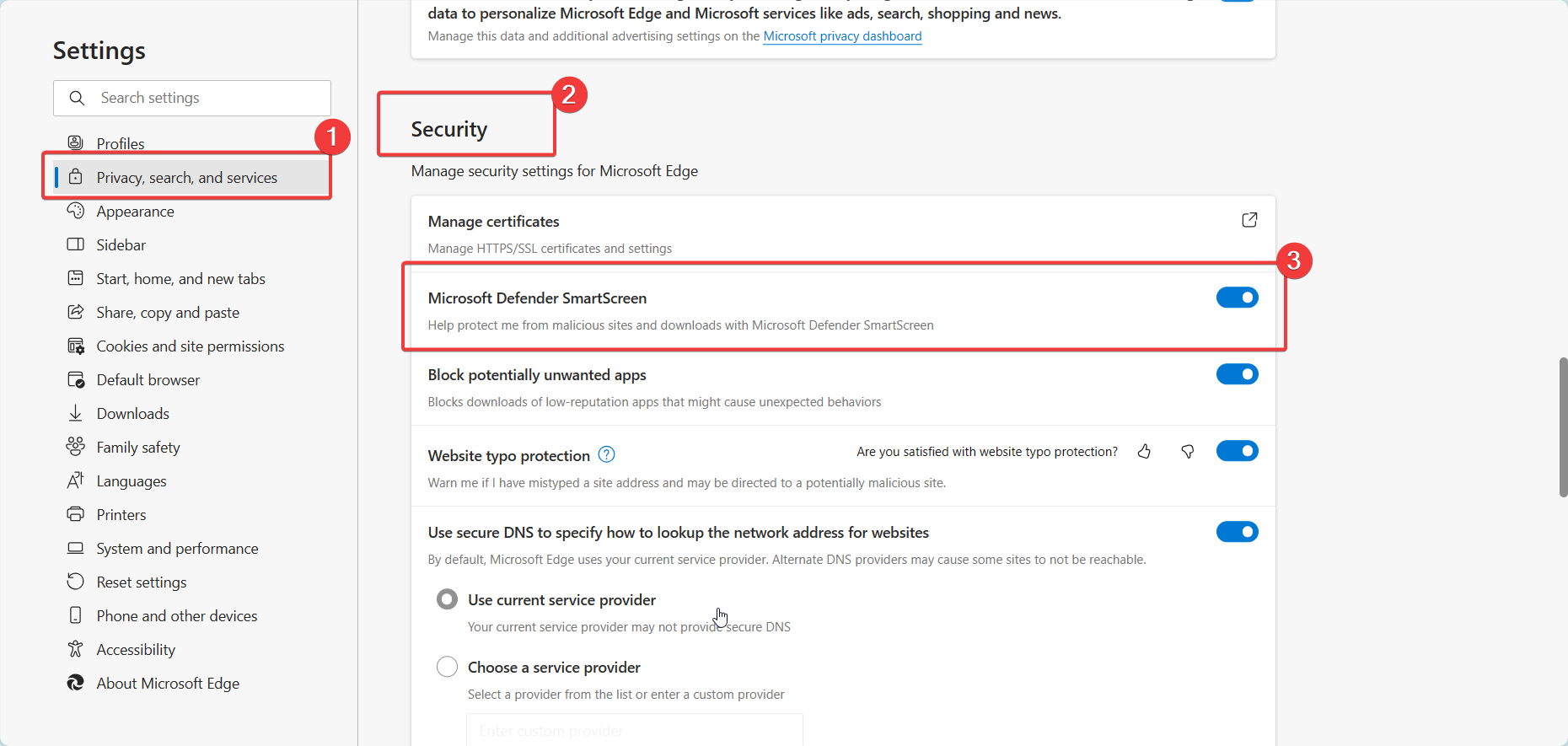
    1. Open Microsoft Edge on your Windows 11 device.
    2. Click on the 3-dot menu button in the top right and select Settings.
    3. On the left pane, click on Privacy, search and services.
    4. On the right pane, scroll down to the “Security” section.
    5. Find the setting for “Microsoft Defender SmartScreen“. Help protect me from malicious sites and downloads with Microsoft Defender SmartScreen.
    6. Turn off the option in Edge temporarily.
    7. To re-enable SmartScreen after downloading your needed files, simply return to this setting and toggle SmartScreen back On.
    smartscreen edge settings windows 11

    Alternatively, you can bypass SmartScreen on a single download instead of disabling the entire feature:

    1. When you get the SmartScreen warning banner blocking the download, click on “More details.”
    2. On the next screen, click “Download anyway” to proceed with just that download while keeping SmartScreen enabled.

    Make sure to only use these workarounds temporarily and re-enable SmartScreen for regular browsing to maintain security protections. Only download files you trust from reputable sources after bypassing SmartScreen filters.

    Permanently Allowing Sites in Edge with Trusted Zones

    A safer way to prevent Edge SmartScreen from blocking downloads from sites you regularly use and trust is to add those sites to the trusted zone in SmartScreen settings:

    Add Trusted Sites

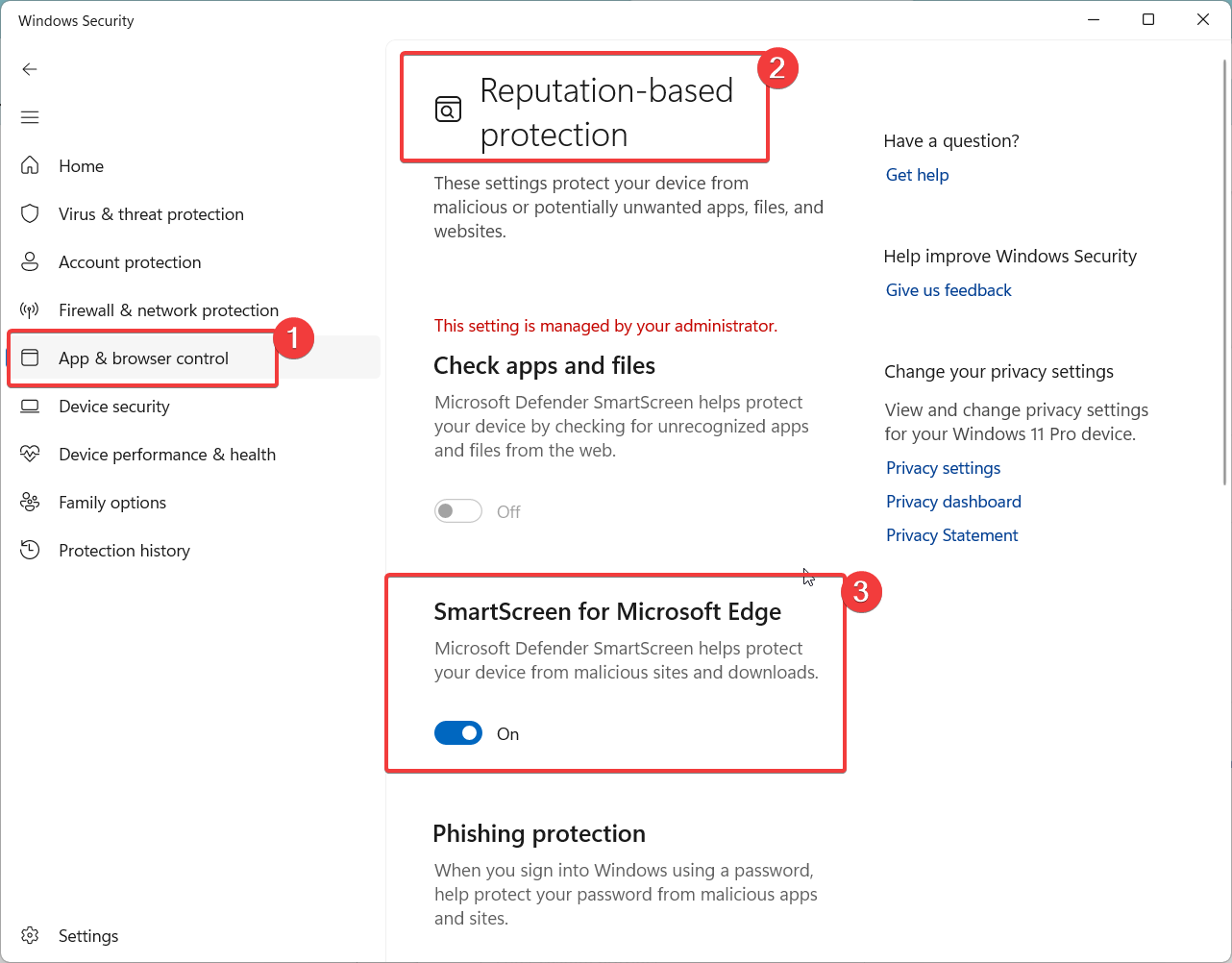
    • Open Windows Security and go to App & browser control
    • Under Reputation-based protection settings, click Manage Trusted sites
    • Enter the URL of any site you want to always allow downloads from and click Add

    With this approach, you maintain SmartScreen filtering for unknown sites but whitelist specific domains you deem safe. Just be sure only to exempt reputable sites you know and use often.

    Globally Configuring SmartScreen for Edge

    Rather than fully disabling SmartScreen in Edge or bypassing it for specific sites, another option is globally configuring its protection level. You can set SmartScreen to warn you but still allow suspicious downloads instead of blocking them entirely:

    Set SmartScreen to Warn

    • Go to Windows Security > App & browser control as above
    • Click SmartScreen for Microsoft Edge
    • Turn off the option.
    smartscreen for edge windows security

    Now Edge will flag suspicious downloads but let you decide whether to proceed instead of blocking them outright. This gives you more control while retaining basic filtering.

    Downloading Blocked Files Using Other Browsers

    If SmartScreen in Edge is obstinately blocking a download you’re positive is safe, try downloading it through another browser like Chrome or Firefox where you can disable protections:

    Use Alternative Browser

    • Copy the download link you want
    • Open Chrome, Firefox or another browser
    • Paste the link and start the download
    • Chrome has no built-in filtering so will download any file type

    Since SmartScreen only filters Microsoft browsers, using a third-party browser provides a workaround to get any blocked file, though next steps to verify safety are recommended.

    Scanning Downloaded Files Before Opening

    After bypassing SmartScreen warnings with any above method, be sure to scan files before opening to verify they are clean:

    • Right-click the downloaded file and select Scan with Windows Defender
    • Or upload to VirusTotal for aggregated scanning
    • Review scan results and only open or execute files that are confirmed safe

    Following security best practices even after bypassing SmartScreen ensures you block any truly malicious files. Combined with the above troubleshooting, you can securely resolve download blocks.

    When to Turn SmartScreen Back On

    Once you’ve downloaded the needed files that SmartScreen was blocking, be sure to re-enable protections for regular browsing:

    • Return any globally configured SmartScreen settings like default action back to blocking
    • Remove specific sites you added to trusted zones after finishing your downloads
    • Re-enable SmartScreen directly in Edge settings if disabled there

    Leakiest restore defenses so that SmartScreen can protect you moving forward against unknown or suspicious sites.

    Conclusion

    With the right approach, you can get past restrictive “can’t download securely” SmartScreen warnings in Edge when trying to access safe, valid files. Rather than disabling SmartScreen completely, use techniques like configuring its sensitivity or trusted zones. Scan any bypassed downloads, and limit protection workarounds to temporary windows to stay secure.

    SmartScreen blocks potentially dangerous downloads, but can also be trained through exceptions and settings to allow you to confidently download files you trust while filtering untrusted sources. Regain download freedom while keeping your system and data protected.

  • How to Fix Insecure Origins Treated As Secure Warning Temporarily

    Have you ever encountered a concerning “insecure origins will be treated as secure” warning while browsing the web? This message indicates your browser is accessing content from an unencrypted HTTP source rather than secure HTTPS, but allowing it temporarily despite the security risk.

    In this comprehensive guide, we’ll explain what triggers these warnings, the risks involved, and most importantly provide fixes to resolve “insecure origins treated as secure” errors in all major browsers like Chrome, Firefox, Edge, and on platforms including Windows, macOS, iOS and Android.

    What Does “Insecure Origins Treated as Secure” Mean?

    This warning pops up when your browser is attempting to access resources like images, scripts, or stylesheets on a webpage over unsecured HTTP rather than encrypted HTTPS.

    Since much of the web’s content is still served over plain HTTP, browsers use a temporary mechanism called “scheme upgrade” to load and execute HTTP-only content on HTTPS pages, avoiding broken functionality.

    However, this does decrease security, so browsers alert you with “insecure origins treated as secure” to indicate compromised encrypted connections. The goal is to push website owners to upgrade from HTTP to ubiquitous HTTPS across the web.

    insecure origins treated as secure warning
    Image Source : Created by AI

    Risks of Allowing Insecure Content

    While convenient for site functionality, letting HTTP content load on HTTPS pages does pose security and privacy risks, including:

    • Man-in-the-middle attacks that intercept traffic if connections are downgraded from HTTPS to HTTP.
    • Increased threat of malware infections from unverified HTTP sources.
    • User data like cookies that are not protected when transferred over HTTP.
    • Broken browser padlock icon and loss of user trust in the site’s security.

    So when possible, it’s best to resolve these warnings by either upgrading sites to full HTTPS or configuring browsers to block all insecure content by default.

    fix https error in edge chrome

    “Insecure Origins” Not Working in Chrome

    Chrome blocks all insecure HTTP content on HTTPS pages by default. To allow insecure content and disable warnings:

    always use secure connections
    • In Settings > Privacy and Security, toggle Allow under Insecure content.
    • Under Privacy and security > Security, toggle Do not block insecure content to disable warnings.
    • Use group policy AllowInsecureHTTPRequest enabled via administrative template to allow HTTP content sitewide.

    However, disabling this protection is not recommended as it reduces security significantly. Fixing sites to use only HTTPS is safer.

    In Windows 11, you can use chrome://flags meta information in the address bar that will bring experimental features into action. In the search bar, you can Insecure origins treated as secure, which is disabled by default. You can enable, if you feel the site is secure.

    insecure origins treated as secure chrome

    Resolving “Insecure Origins” in Mozilla Firefox

    Firefox also blocks insecure content by default with no bypass option. To resolve warnings:

    • Ensure Firefox is updated to the latest version for improved handling of mixed content.
    • Add exceptions for specific sites needing HTTP content by clicking “Disable Protection” in the shield icon menu.
    • Change the security.mixed_content.block_active_content setting to false to disable blocking but this will allow insecure content globally.

    As above, proceed with caution in Firefox and only make exceptions for trusted sites you regularly use.

    Stopping “Insecure Origins” Warnings in Microsoft Edge

    Edge blocks insecure HTTP by default like other major browsers. To allow insecure content:

    • Toggle the Block insecure content setting off in Edge’s Privacy, search, and services options.
    • Refresh any pages showing warnings to load insecure content with this setting off.
    • Use the group policy AllowInsecureHTTPDownloads to disable blocking.

    In Windows 11, you can use the edge://flags command in the address bar to get the below option. Then enable it temporarily to bypass the HTTPS restriction.

    insecure origins treated as secure edge

    Again, allowing insecure content circumvents protections so only use with trusted sites and caution.

    Fixing “Insecure Origins” on Android Devices

    On Android, Chrome blocks insecure content but has an option allowing it:

    • In Chrome Settings > Site Settings > Insecure content, toggle Allow on.
    • Refresh any pages triggering warnings to now load HTTP content.

    This option does reduce security, so avoid enabling it unless necessary for trusted sites to function.

    Resolving Warnings in iOS Safari

    Like other browsers, Safari on iOS blocks all insecure HTTP content on HTTPS pages. To allow it:

    • In Settings > Safari, disable Fraudulent Website Warning and Prevent Cross-Site Tracking.
    • Refresh pages that were showing warnings to load insecure content with these protections off.

    Again, disabling these opens risks of tracking and fraud, so only do so judiciously for trusted sites after verifying safety.

    Conclusion

    “Insecure origins treated as secure” warnings indicate your browser is allowing risky unencrypted HTTP content to load on secure HTTPS pages in order to prevent site breakage. While convenient for functionality, this does reduce security and privacy.

    Whenever possible, site owners should be pushed to upgrade fully to encrypted HTTPS rather than relying on workarounds. But for trusted sites, browsers do provide options to disable blocking of insecure content and resolve warnings if necessary, as covered here. Use these exceptional bypass mechanisms judiciously to keep your browsing defenses strong.

  • How to Fix Digital HDMI Audio Issues?

    Connecting your home theater equipment with HDMI cables should provide pristine, uncompressed digital audio quality. But sometimes, HDMI audio does not work as expected and you may see errors like “HDMI audio not plugged in” or simply have no sound when devices are connected via HDMI.

    There are several potential causes for HDMI audio problems, from loose cables to incorrect settings. Fortunately, with some guided troubleshooting and HDMI know-how, you can get HDMI audio working smoothly. This guide provides troubleshooting tips to fix various HDMI digital audio issues in home theater setups.

    Why High-Quality HDMI Digital Audio Matters

    Before diving into troubleshooting, it helps to understand why HDMI has become the standard for transmitting digital audio signals. Here are some key benefits of HDMI over analog audio options like RCA:

    • Immersive audio formats: HDMI has the bandwidth to support advanced surround sound formats like Dolby Atmos and DTS:X. These create 3D, theater-like audio that analog cannot replicate.
    • Higher quality: HDMI can transmit uncompressed, lossless audio like Dolby TrueHD and DTS-HD Master Audio for the best sound quality. Analog audio gets compressed.
    • Single cable: One HDMI cable handles both digital video AND audio. No need for separate analog audio cables.
    • Higher bandwidth: HDMI 2.0 and higher have bandwidth exceeding 10 Gpbs vs. roughly 1.5 Gbps for analog options.
    • No interference: HDMI transmits direct digital signals, avoiding noise or quality loss that analog cabling can suffer from.
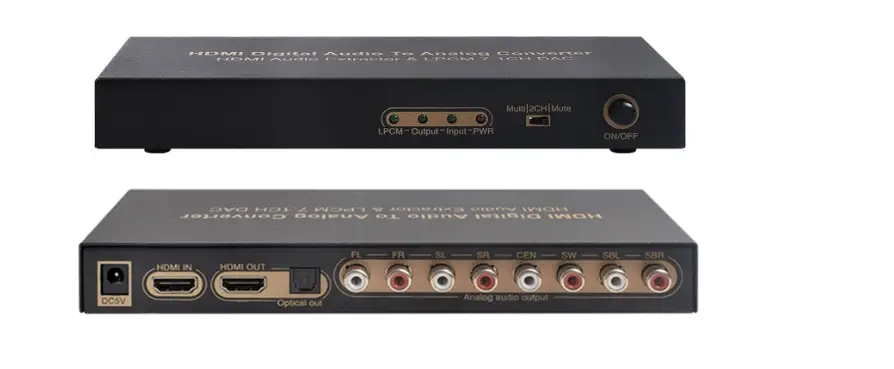
    hdmi digital audio
    ImageSource: Amazon.com

    For the ultimate home theater experience, HDMI is worth the troubleshooting effort. Now let’s cover common problems and fixes.

    HDMI Digital Audio Connection Not Working

    Here are some typical HDMI audio issues and potential solutions:

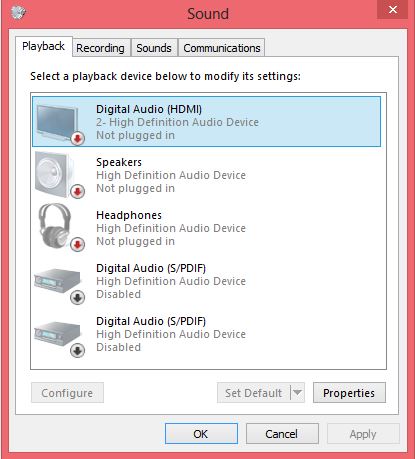
    HDMI Audio Says “Not Plugged In”

    This usually means Windows cannot detect an audio device connected via HDMI. Things to try:

    • Check that the HDMI cable is securely connected at both ends. Try swapping cables.
    • Make sure your playback device (Blu-ray, streaming box, etc) is powered on and outputting audio.
    • Select the HDMI audio output as the default device in Windows Sound Settings or Device Manager.
    • Update audio drivers on your playback device and HDMI display device (TV or monitor).
    hdmi audio not plugged in

    No Sound When HDMI is Connected

    If HDMI is connected but there is no audio:

    • Verify HDMI input/output settings on your source and display devices. Make sure they match the physical port connections.
    • Try connecting the same HDMI source device to a different TV or display. If audio works, the problem is with the first display.
    • Reset audio options like volume levels, mute status, audio formats in Windows and on the playback device.
    • Test different HDMI cables and ports if possible to isolate where the issue lies.

    Audio Cuts In and Out with HDMI

    Intermittent HDMI audio could stem from:

    • Loose or damaged HDMI cables. Inspect connections and swap cables.
    • HDMI ports that are worn out or defective. Try different ports if available.
    • Incompatible audio formats between source and display. Enable auto-detect or LPCM.
    • Outdated firmware on AV receiver or display. Check manufacturer sites for updates.
    • Nearby electrical devices interfering with HDMI signals. Keep HDMI runs short.
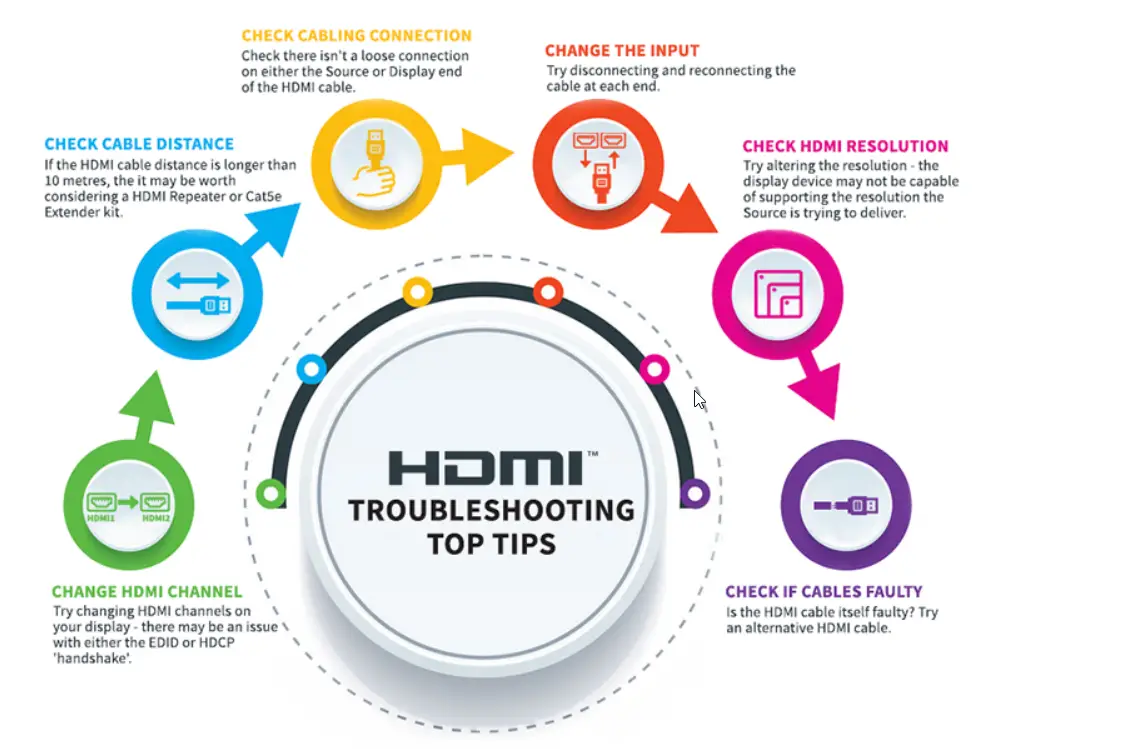
    hdmi audio troubleshooting
    Image Source: cie-group.com

    No HDMI ARC Audio Return Channel

    If you want TV audio to play through your AV receiver speakers via HDMI ARC:

    • Ensure your TV, AV receiver and HDMI cable are ARC-compatible. Look for “ARC” labeled ports.
    • Turn on HDMI-CEC control on both TV and AV receiver. ARC uses CEC signals.
    • Select ARC audio output on TV and ARC input on receiver. Set default audio devices.
    • Use the shortest possible HDMI cable for ARC connections.

    Advanced HDMI Audio Troubleshooting

    For persistent or complex HDMI audio issues, here are some additional steps to try:

    • Enable your audio controller device in Windows Device Manager in case it is disabled.
    • Run an audio diagnostic like the HP Audio Check in Support Assistant to detect driver or hardware problems.
    • Check your playback device and TV/AV receiver support the same audio formats like Dolby Digital, TrueHD, DTS, etc.
    • Update firmware for all HDMI devices in case compatibility issues are fixed in newer versions.
    • Try connecting your HDMI source to a different input on the TV/receiver.
    • Use an HDMI audio extractor between devices to isolate the problem.

    At this point, contacting your device manufacturers for additional troubleshooting or technical support may be needed if the audio issue persists without explanation.

    Content Source: Using AI Tools and Strategy

    Summary of Fixing HDMI Digital Audio

    Following the tips in this guide should help resolve a wide range of HDMI audio problems and get flawless digital sound from your home theater components. Check cables, settings, formats, ports and connections first. Update firmware and device drivers if needed.

    Finally, utilize HDMI-savvy technical support since HDMI can be a temperamental digital beast. With some diligent troubleshooting, HDMI can deliver the audio experience it promises.

  • Direct Links for Microsoft Edge Download for Different OS

    Microsoft unveiled the revamped Edge in 2020 powered by the same Chromium engine used by Google Chrome. This new browser offers better web compatibility, speed, and features. Here’s how to get the official Windows 11 browser on your device.

    Download Microsoft Edge for Windows

    To get the new Chromium-based Edge on Windows 10 and 11:

    Microsoft recommends using Edge for the best Windows 11 experience with deep integration and optimization. Edge comes pre-installed on new Windows devices.

    microsoft edge

    Download Microsoft Edge for macOS

    Apple users can also enjoy the new Edge browser:

    Microsoft Edge on Mac offers the same fast performance and compatibility as on Windows with some OS-specific optimizations.

    Download Microsoft Edge for Linux

    Linux operating systems can run the new Evergreen Edge too:

    Microsoft provides stable channel Debian and RPM packages for installing Edge natively on Linux.

    Download Microsoft Edge for Mobile

    Rounding out the multi-platform offerings, Edge is also available on iOS and Android:

    The mobile version syncs browsing data like passwords and bookmarks with the desktop browser.

    Download the new Microsoft Edge today on your Windows, Mac, Linux, iOS, or Android device for a fast and integrated browsing experience.

  • Cure Windows 11 Spotlight not Working in latest Build

    Windows 11 introduced a new feature called Spotlight that displays beautiful background images on the lock screen with informative text about the image’s origin and topic. But sometimes Spotlight stops working properly, leaving you with a blank or default background image. Here are some potential causes and fixes to get Spotlight working again.

    Check Spotlight Settings

    The first thing to check is your Spotlight settings in Windows 11. Open Settings > Personalization > Lock screen and confirm that “Windows Spotlight” is enabled under Personalize your lock screen. If this toggle is off, Spotlight won’t be able to show new images or information.

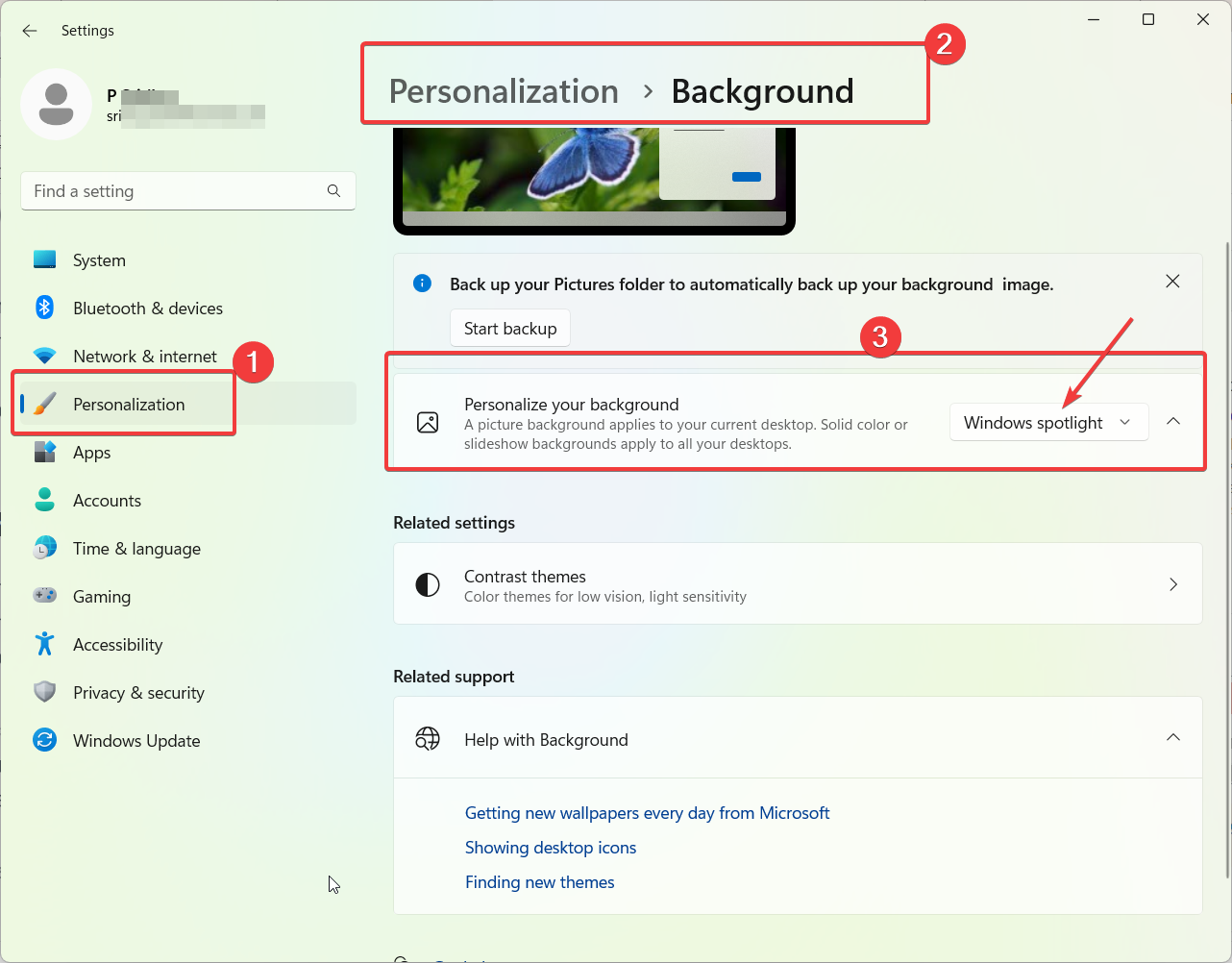
    You can also check that you have background image rotation enabled by going to Settings > Personalization > Background and making sure “Windows Spotlight” is chosen as your background with the toggle set to change images every day.

    windows 11 spotlight not working

    Switch Lock Screen Themes

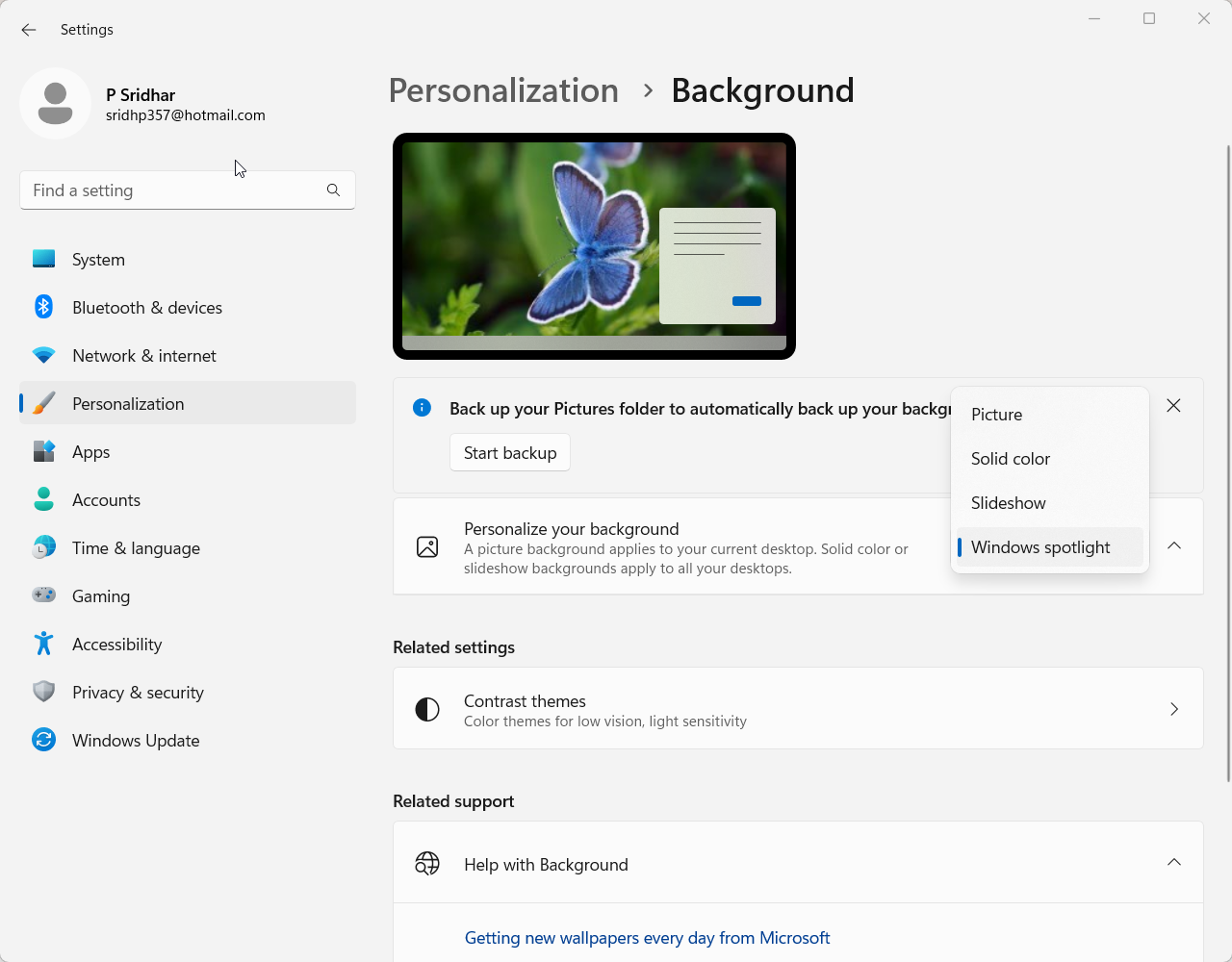
    Sometimes the Windows Spotlight theme itself seems to get stuck, failing to show new pictures and text regularly. If your settings look correct, try selecting a different lock screen theme like Picture or Solid color, then switch back to Windows Spotlight after a restart. This resets the spotlight rotation and downloads new content.

    reset windows spotlight 11

    Re-register Spotlight Exe

    An issue with the spotlight exe file itself could prevent new images from appearing properly. To re-register this core Spotlight component, open an elevated Command Prompt and run:

    cd C:\Windows\SystemApps\Microsoft.Windows.ContentDeliveryManager_cw5n1h2txyewy 
    ren Microsoft.Windows.ContentDeliveryManager.dll Microsoft.Windows.ContentDeliveryManager.dl_
    ren Microsoft.Windows.ContentDeliveryManager.exe Microsoft.Windows.ContentDeliveryManager.ex_
    regsvr32 /s Microsoft.Windows.ContentDeliveryManager.dll
    regsvr32 /s Microsoft.Windows.ContentDeliveryManager.exe

    This will re-register the necessary DLL and EXE files related to the Content Delivery Manager that handles Windows Spotlight. Restart your PC after running these commands.

    Perform SFC and DISM Scans

    Corrupted system files could prevent Spotlight from updating images and info normally. Run scans using System File Checker (SFC) and the Deployment Image Servicing and Management tool (DISM) to check for issues.

    Open an elevated Command Prompt or PowerShell and run:

    sfc /scannow

    Followed by:

    DISM /Online /Cleanup-Image /RestoreHealth

    This scans Windows system files and repairs any problems found. Then restart your computer.

    Reset Lock Screen Personalization Services

    This doesn’t seem to be visible in the latest build of Windows 11. Probably these services are old ones. If you are using an old version, then check if you can reset Windows Spotlight .

    As a last resort, you can reset the lock screen personalization service using the following steps:

    1. Press Win + R and enter “services.msc“.
    2. Find the lockApp and lockScreenContentService in the services list.
    3. Right-click each one and select Stop.
    4. After they have fully stopped, right-click each one again and choose Start.

    This will restart these background services responsible for managing the lock screen and Spotlight content.

    Get Spotlight Working Again

    With Spotlight images missing in action, try these troubleshooting methods to get your Windows 11 lock screen personalization back on track. Check your settings, change themes, re-register system files, run scans, and restart lock screen services as needed until new Spotlight images appear.

    Your Windows Spotlight should now be able to rotate beautiful new pictures and informative tidbits without issue using one of these solutions. Enjoy discovering something new on your lock screen each day. Let us know in the comments if you found other fixes for a blank or frozen Spotlight gallery.

  • How to Fix Edge Profile Error – 5 Solutions

    Microsoft Edge browser is the default web browser on Windows 10 and 11 devices. However, many users encounter the annoying “Edge profile error” which prevents them from using the browser properly. In this blog post, we’ll discuss what causes this error, the top 5 solutions to fix it, and answers to frequently asked questions about the Edge profile error.

    What Causes the Edge Profile Error?

    The Edge profile error typically occurs due to a corrupted browser profile. A profile contains your bookmarks, history, settings and other personalized data. If this profile gets corrupted or damaged, Edge cannot load it properly, leading to the profile error. Some potential causes include:

    • Pending Windows updates causing conflicts
    • Antivirus software conflicts
    • Hard drive errors or bad sectors
    • Power outages or improper shutdowns
    edge profile error

    5 Solutions to Fix the Edge Profile Error

    Here are 5 methods you can try to resolve the Edge profile error on your Windows PC:

    1. Restart Your Computer

    Restarting your computer resets programs and processes and can fix many errors. Restart and then try opening Edge again.

    2. Create a New Profile

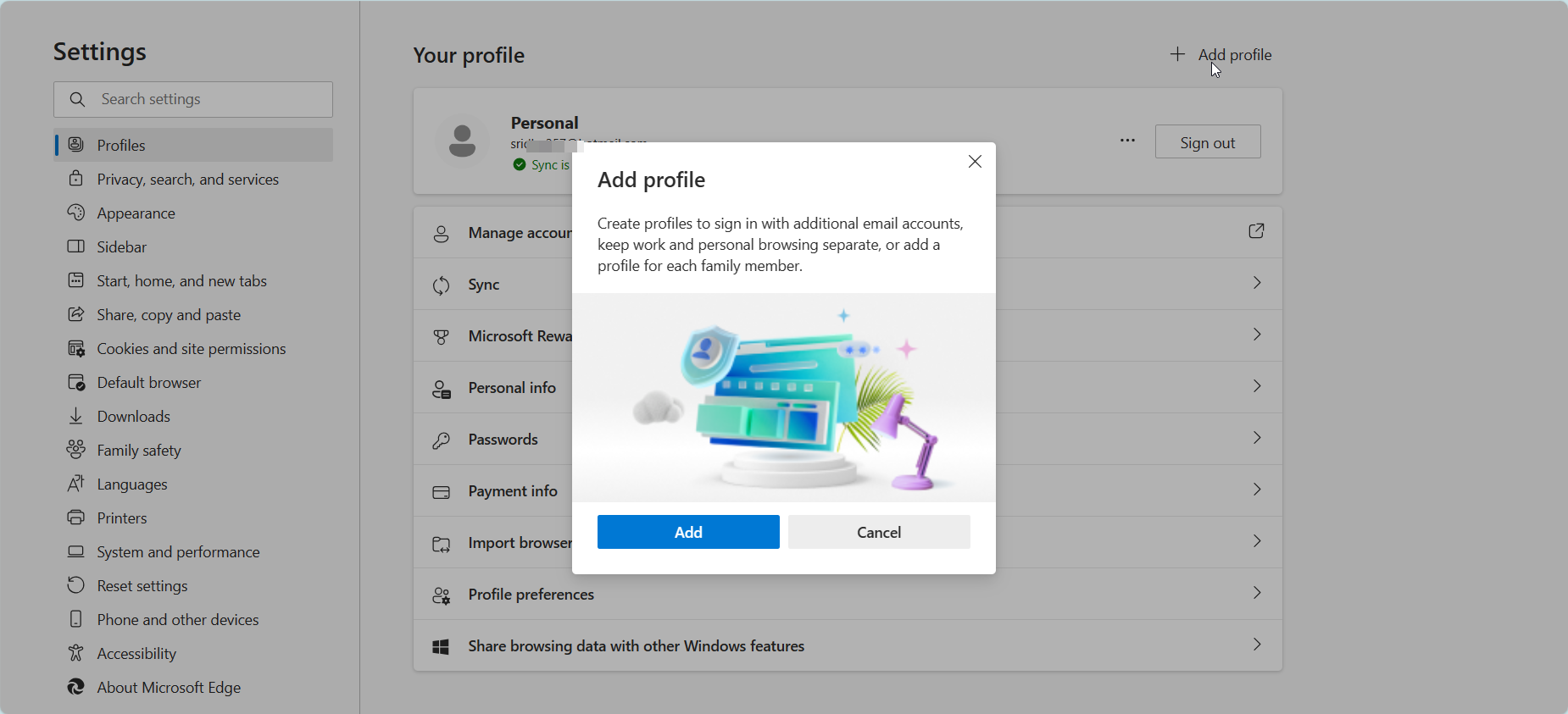
    You can create a new profile in Edge which may avoid any corruption issues. Open Edge, click the 3-dot menu > Settings > Profiles > Add.

    edge profile error fix

    3. Run SFC and DISM

    These system file checker tools scan Windows for errors and replace corrupted files. Open admin Command Prompt and run SFC /scannow followed by DISM /Online /Cleanup-Image /RestoreHealth.

    4. Uninstall Updates

    Use Windows Update history to uninstall recent Windows updates that may be causing conflicts.

    5. Reset Edge

    Resetting Edge restores it to default settings. Click the 3-dot menu > Settings > Reset browser. Choose “Reset” on the next screen.

    Frequently Asked Questions

    What causes the Edge profile error?

    Corrupted or damaged Edge browser profiles typically cause this error. Profile damage can occur due to pending Windows updates, antivirus conflicts, hard drive issues, or improper shutdowns.

    How do I fix the Edge profile error?

    Restarting your PC, creating a new Edge profile, running SFC and DISM scans, uninstalling Windows updates, and resetting Edge are potential solutions.

    Will I lose my Edge data if I reset the browser?

    Reseting Edge via the Settings menu will delete your personalized data like history, bookmarks, and settings. You can choose to sync your data to your Microsoft account before resetting.

    Why does Microsoft Edge keep crashing?

    Frequent Edge crashing is also generally caused by a corrupted profile. Use the solutions in this post to delete the damaged profile and troubleshoot the crashes.

    How can I back up my Edge favorites and settings?

    You can enable sync in Edge which will backup favorites, history, settings etc to your Microsoft account. You can then restore them later.

    By understanding the main causes of the Edge profile error and following the solutions outlined, you should be able to resolve the issue and get Edge working properly again. Let us know in the comments if you have any other questions!