
Key Takeaways
- Right-click a file or folder, choose “Scan with Microsoft Defender,” and you’re done. No extra software needed.
- The option sometimes hides under “Show more options” in Windows 11’s trimmed-down context menu.
- Command Prompt and PowerShell both offer faster, scriptable scanning for anyone who prefers scan file folder Windows Defender using the terminal.
- A missing scan option usually means a Group Policy or registry setting turned it off, not a broken installation.
- Windows Defender runs constantly in the background. A manual scan is a spot-check, not a replacement for that protection.
Quick answer
Right-click the file or folder. Choose “Show more options” if you’re on Windows 11’s default menu. Click “Scan with Microsoft Defender.”
That’s it. Windows Security opens automatically and shows you the result within seconds for a single file, and longer for a large folder.
Scan with Microsoft Defender: the right-click method
This is the fastest way, and it works for one file, several files, or an entire folder.
- Open File Explorer.
- Find the file or folder.
- Right-click it.
- On Windows 11, click Show more options first.
- Click Scan with Microsoft Defender.
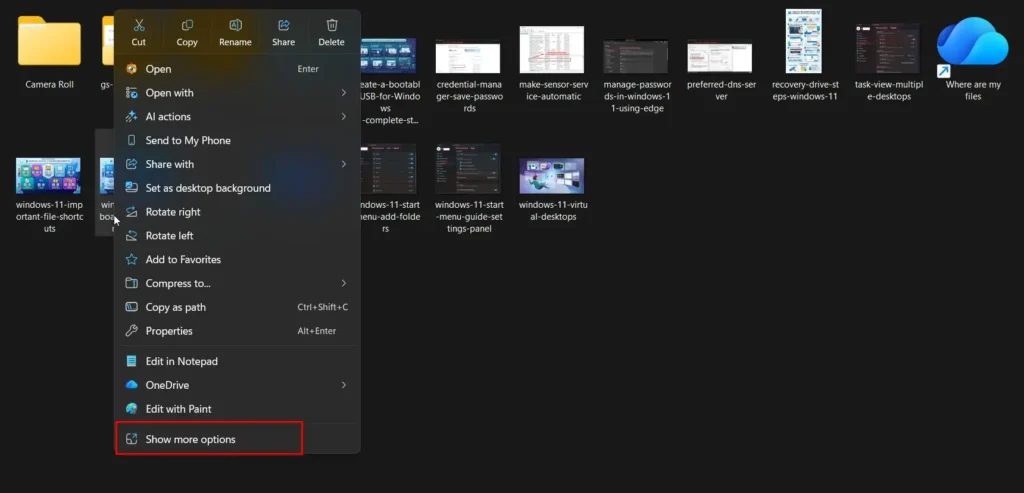
Windows Security opens on its own. It shows the scan progress, then the result.
Right-click scan on multiple files at once.
You don’t have to scan one file at a time. Select several files first. Hold Shift, then right-click. The same “Scan with Microsoft Defender” option appears, and it scans everything you selected in one pass.
Windows Security virus threat protection: the full app
Prefer a dashboard view instead of a right-click? Open Windows Security directly.
- Press Start, type Windows Security, and open it.
- Click Virus & threat protection.
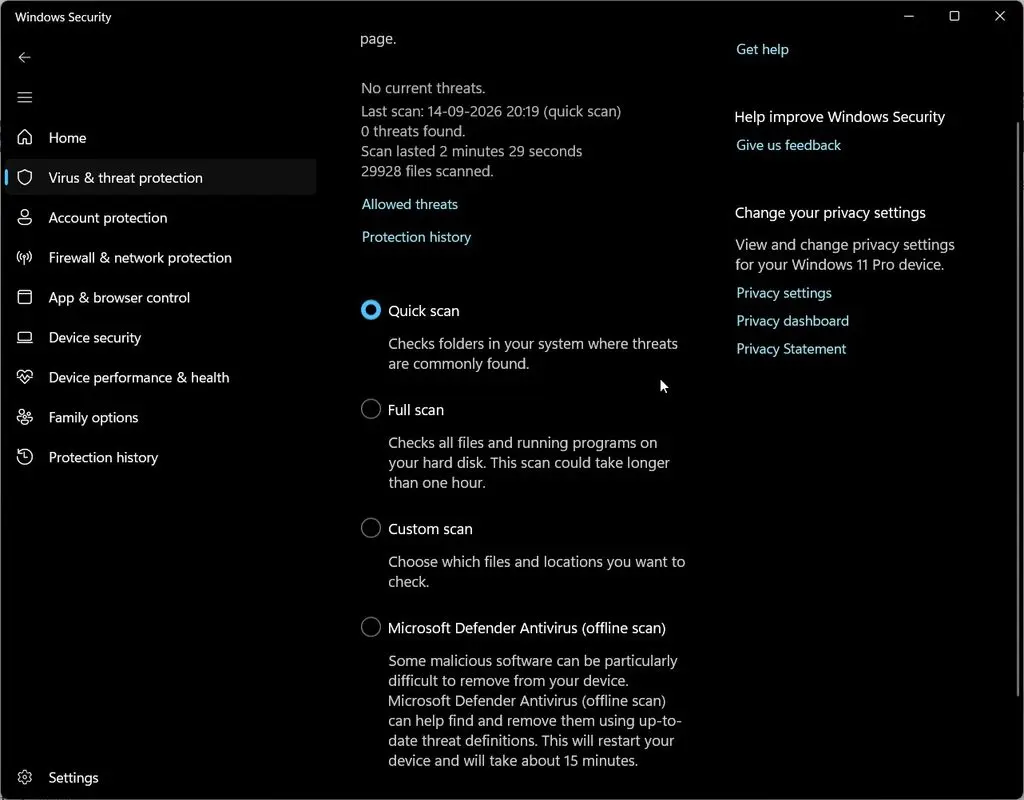
- Click Scan options.
- Choose Custom scan.
- Click Scan now, then pick the file or folder.
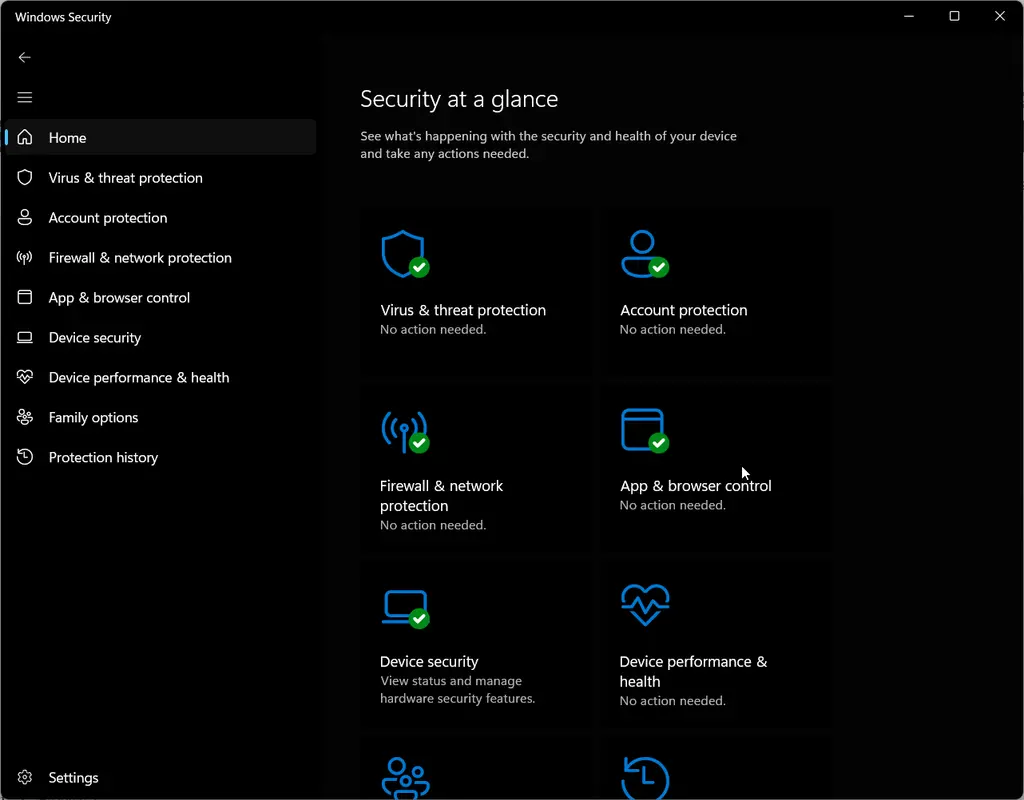
This route takes a few more clicks. It’s useful when you want to see your protection status at the same time.
Custom vs quick vs full – Scan File Folder Windows Defender
Windows Defender offers three scan types, and they’re not interchangeable.
| Scan type | What it checks | Typical time |
|---|---|---|
| Quick scan | Common malware hiding spots — startup folders, registry, temp files | 5–15 minutes |
| Full scan | Every file and program on the drive | Can take hours |
| Custom scan | Only the file, folder, or drive you pick | Seconds to minutes, depending on size |
If you just want to check one download, a custom scan is the right tool. Quick scan and full scan are for checking the whole system, not one item.
Scan a specific file for a virus.
Downloaded something that feels off? Right-click that one file, choose “Scan with Microsoft Defender,” and you’ll get a clear answer in seconds. No need to run a full system scan just to check a single attachment or download.
Scan a USB drive with Windows Defender.
If you plugged in a USB stick from somewhere you don’t fully trust, Right-click the drive itself in File Explorer, not just a file on it, and choose “Scan with Microsoft Defender.” This scans the entire drive before you open anything on it.
Scan an external hard drive in Windows 11.
Same method as a USB drive. Right-click the drive letter in File Explorer. Choose “Scan with Microsoft Defender.” Larger drives take longer, so expect several minutes rather than seconds.
Windows Defender context menu missing
Some Windows 11 installs don’t show the scan option at all, even under “Show more options.” This issue issue is almost always a policy setting, not a bug.
Check Group Policy: Computer Configuration > Administrative Templates > Windows Components > Microsoft Defender Antivirus > Client Interface. Look for anything that disables the context menu.
On Windows 11 Home, Group Policy Editor isn’t available by default. A registry edit under HKEY_CLASSES_ROOT\*\shellex\ContextMenuHandlers restores it in most cases, though this is a more advanced fix—back up the registry first.
Add the “Scan with Microsoft Defender” option back.
If it’s missing entirely and Group Policy shows nothing blocking it, reinstalling or repairing the Windows Security app often brings it back. Go to Settings > Apps > Installed apps, find Windows Security, and choose Repair.
MpCmdRun.exe scan command
Prefer the command line? Windows Defender has a built-in command-line tool.
- Open Command Prompt.
- Navigate to the Defender folder:
cd "%ProgramFiles%\Windows Defender" - Run a custom scan:
MpCmdRun.exe -Scan -ScanType 3 -File "C:\path\to\folder"
Replace the path with the location of the item you are scan produces. This method gives minimal output by design, so don’t expect a progress bar.
Start-MpScan in PowerShell
PowerShell offers the same scanning power with better feedback on screen.
Start-MpScan -ScanType FullScanSwap FullScan for QuickScan if you just want the fast version. PowerShell shows a live progress percentage, which Command Prompt doesn’t.
Windows Defender offline scan
Some malware hides so well it loads before Windows even starts. A regular scan can miss it. An offline scan restarts your PC into a special environment outside normal Windows, checks everything, then boots back in.
You can find it under Windows Security > Virus & threat protection > Scan options > Microsoft Defender Offline scan. Save your work first — it restarts your PC automatically.
Exclude a file from Windows Defender scanning.
Sometimes Defender flags something you know is safe—a custom script, a specific dev tool. You can tell it to skip that item in the future.
- Open Windows Security > Virus & threat protection.
- Click Manage settings under scan settings.
- Scroll to Exclusions, click Add or remove exclusions.
- Add the file, folder, file type, or process.
Only exclude something you’re genuinely certain about. An exclusion is a permanent blind spot until you remove it.
The Windows Security app not opening
If Windows Security itself won’t launch, the right-click scan option won’t work either, since it depends on that app. Try Settings > Apps > Installed apps > Windows Security > Repair first. If that fails, Reset goes further, though it clears any custom settings you’d configured.
Scan a folder for ransomware specifically
Windows Defender doesn’t have a separate “ransomware scan” button, but its regular scan engine detects ransomware the same way it detects other malware. For stronger, ongoing ransomware protection specifically, turn on Controlled folder access under Virus & threat protection > Ransomware protection — this blocks unauthorized apps from changing files in protected folders in the first place, rather than catching an infection after it starts.
Windows Defender scan taking too long
A custom scan on one file should finish in seconds. If it’s dragging on, check the file size first—large video or archive files simply take longer. If a small file is taking minutes, verify Task Manager for another process competing for disk access, since a scan sharing disk I/O with something else slows down noticeably.
Common mistakes people make scanning with Windows Defender
- Running a full scan just to verify one download. A custom scan does the same job much faster.
- Assuming a missing context menu option means Defender is broken. It’s almost always a policy or registry setting, not a failed installation.
- Excluding a file and forgetting about it. Please review your exclusions list occasionally, as an old exclusion can create a permanent gap in protection.
- Skipping the offline scan when a regular scan finds nothing but problems persist. Some malware only shows up in an offline scan.
Frequently asked questions
Do I need third-party antivirus if I use Windows Defender?
No. Windows Defender is a fully capable antivirus built into Windows 11. Most independent testing labs rate it comparably to paid alternatives for everyday protection.
Why is “Scan with Microsoft Defender” not appearing when I right-click?
Click “Show more options” first on Windows 11’s default context menu. If it’s still missing after that, a Group Policy or registry setting has likely disabled it.
Is a custom scan as thorough as a full scan?
For the specific file or folder you select, yes—it checks it just as thoroughly. It simply doesn’t check the rest of your drive the way a full scan does.
Can I scan a file before opening it?
Yes. Right-click the file without opening it first, choose “Scan with Microsoft Defender,” and wait for the result before deciding whether to open it.
