
Key Takeaways
- 0x8024402C error fix is officially defined by Microsoft as WU_E_PT_WINHTTP_NAME_NOT_RESOLVED — a server name resolution failure, not a corrupted update file.
- On a home PC, the issue almost always traces to DNS, firewall, or proxy configuration rather than anything wrong with Windows itself.
- On a business PC using WSUS, the same error code points to the computer failing to reach the WSUS server specifically, not the public Windows Update service.
- Clearing the SoftwareDistribution and catroot2 folders resolves this issue for a meaningful share of home users when the network-level fixes alone don’t work.
- Windows 11 Feature on Demand packages delivered via WSUS specifically require version 22H2 or later.
Quick answer
Error 0x8024402C means Windows Update couldn’t resolve the server name it needs to connect to—either the internet connection, DNS settings, or (on managed networks) the WSUS server. Start by switching your DNS to 8.8.8.8, then work through the network reset commands below if that doesn’t refix the issue
What causes error 0x8024402C
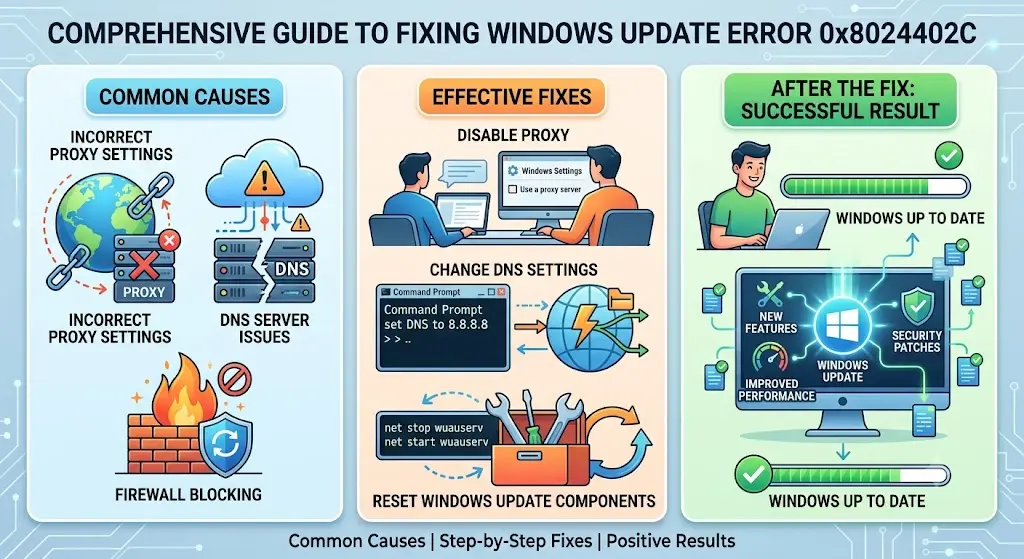
Microsoft’s own Error Lookup Tool defines 0x8024402C as WU_E_PT_WINHTTP_NAME_NOT_RESOLVED — the proxy server or target server name cannot be resolved. On a computer connecting directly to the public Windows Update service, the error points to a local network or internet connection issue. On a computer managed through WSUS (Windows Server Update Service), this specifically indicates that the machine cannot reach the WSUS server.
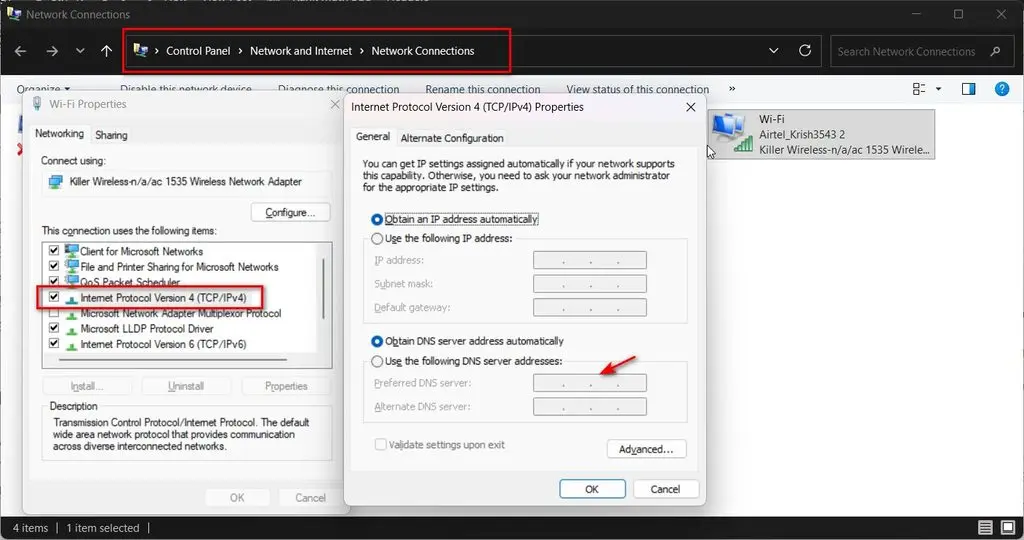
Check your DNS server settings – 0x8024402C error fix
A misconfigured or unreliable DNS server is the single most common cause on home PCs.
- Press Win + R, type
ncpa.cpl, press Enter - Right-click your active network adapter, choose Properties
- Select Internet Protocol Version 4 (TCP/IPv4), click Properties
- Choose Use the following DNS server addresses
- Enter
8.8.8.8as Preferred and8.8.8.8again as Alternate (or1.1.1.1for Cloudflare’s resolver) - Restart and retry the update
Enable automatic network detection
If Windows is misreading your network type or configuration, letting it auto-detect settings often clears the error without any manual changes. Go to Settings > Network & Internet > Proxy, and confirm Automatically detect settings is turned on.
Clear the SoftwareDistribution folder
Corrupted update cache files here can block the connection attempt entirely.
- Open Services (
services.msc), stop the Windows Update service - Navigate to
C:\Windows\SoftwareDistribution - Delete the contents of this folder
- Restart the Windows Update service and retry
Clear the catroot2 folder
This folder stores update signature data, and corruption here can trigger the same connection failure.
- With Windows Update service still stopped, navigate to
C:\Windows\System32\catroot2 - Rename the folder (don’t delete it) to
catroot2.old - Restart the Windows Update service and retry — Windows rebuilds this folder automatically
Reset network settings with netsh winsock reset
A corrupted network stack can cause exactly this kind of resolution failure.
Open an elevated Command Prompt and run:
netsh winsock resetRestart your PC before retrying the update.
Reset the WinHTTP proxy.
Run this in the same elevated Command Prompt session:
netsh winhttp reset proxyThis clears any stale or incorrect proxy configuration that Windows Update relies on separately from your browser’s proxy settings.
Flush your DNS cache.
A stale DNS cache entry can point Windows Update toward a server address that no longer resolves correctly.
ipconfig /flushdnsRun this alongside the two netsh commands above for a complete network-level reset in one pass.
Temporarily disable Windows Defender Firewall.
If firewall rules are blocking the update service’s outbound connection, disabling it temporarily will confirm whether that’s the cause.
- Open Control Panel > Windows Defender Firewall
- Click Turn Windows Defender Firewall on or off
- Select Turn off for both Private and Public networks
- Retry the update, then turn the firewall back on afterward regardless of outcome
Check proxy and LAN settings for invalid characters
An incorrectly entered proxy address—even a stray character— can cause this exact error. Open Internet Options > Connections > LAN Settings and confirm the proxy address field is either blank (if you don’t use one) or entered correctly with no typos.
Try a clean boot
A third-party service or startup program can occasionally interfere with the update connection process.
- Press Win + R, type
msconfig, press Enter - On the Services tab, check Hide all Microsoft services, then click Disable all
- In Task Manager’s Startup tab, disable all listed startup items
- Restart and retry the update
Run the Windows Update troubleshooter.
Settings > System > Troubleshoot > Other troubleshooters > Windows Update will automatically detect and fix several common causes of this error without requiring manual steps.
WSUS-specific cause and fix
If your PC is managed through WSUS rather than connecting directly to Microsoft’s servers, 0x8024402C means the computer can’t reach the WSUS server on your local network—check with your IT administrator to confirm the WSUS server address and network path are correctly configured, since this isn’t something an individual user can typically resolve alone.
Feature on-demand errors specifically
If this error appears while installing a Feature on Demand (an optional Windows component) rather than a regular update, confirm you’re running Windows 11 version 22H2 or later, or Windows Server 2025 or later—earlier versions can’t retrieve FoD packages through WSUS at all, regardless of network configuration.
Restart the Windows Update service directly.
If none of the above resolves it, a direct service restart sometimes clears a stuck connection state:
- Open Services (
services.msc) - Find Windows Update, right-click, choose Restart
- Retry the update immediately after
Common mistakes when troubleshooting this error
- Deleting the catroot2 folder instead of renaming it. Renaming lets Windows rebuild it safely; deleting it outright can cause additional update issues.
- Skipping the DNS fix because it “sounds unrelated.” Given the official error definition is a name-resolution failure, DNS is actually the most direct fix, not a last resort.
- Leaving the firewall off after testing. Disabling it is a diagnostic step, not a permanent fix — always turn it back on regardless of whether it resolved the issue.
- Assuming this is a WSUS problem on a home PC, or vice versa. The fix path differs significantly depending on whether you’re on a managed network — confirm which situation applies before troubleshooting further.
Frequently asked questions
Is 0x8024402C the same as other Windows Update error codes?
No — it’s specifically WU_E_PT_WINHTTP_NAME_NOT_RESOLVED, a name-resolution failure. Other Windows Update codes point to different causes, like corrupted files or insufficient disk space.
Will changing my DNS server affect anything else on my PC?
No, changing your DNS server (to 8.8.8.8 or similar) only affects how domain names are resolved to IP addresses — it doesn’t change your internet speed or any other system settings.
Do I need to do all of these fixes, or just one?
Start with the DNS fix and network reset commands, since they resolve this error most often. Work down the list only if the earlier fixes don’t resolve it.
Why does this error mention WSUS if I don’t use it?
The error code itself is generic to name-resolution failures — it applies to both public Windows Update connections and WSUS connections. If you’re on a home PC, the WSUS-specific section doesn’t apply to you.
