
Key takeaways
- The Windows 11 Start menu is now one scrollable panel with three zones: Pinned, Recommended (renamed Recent) and All.
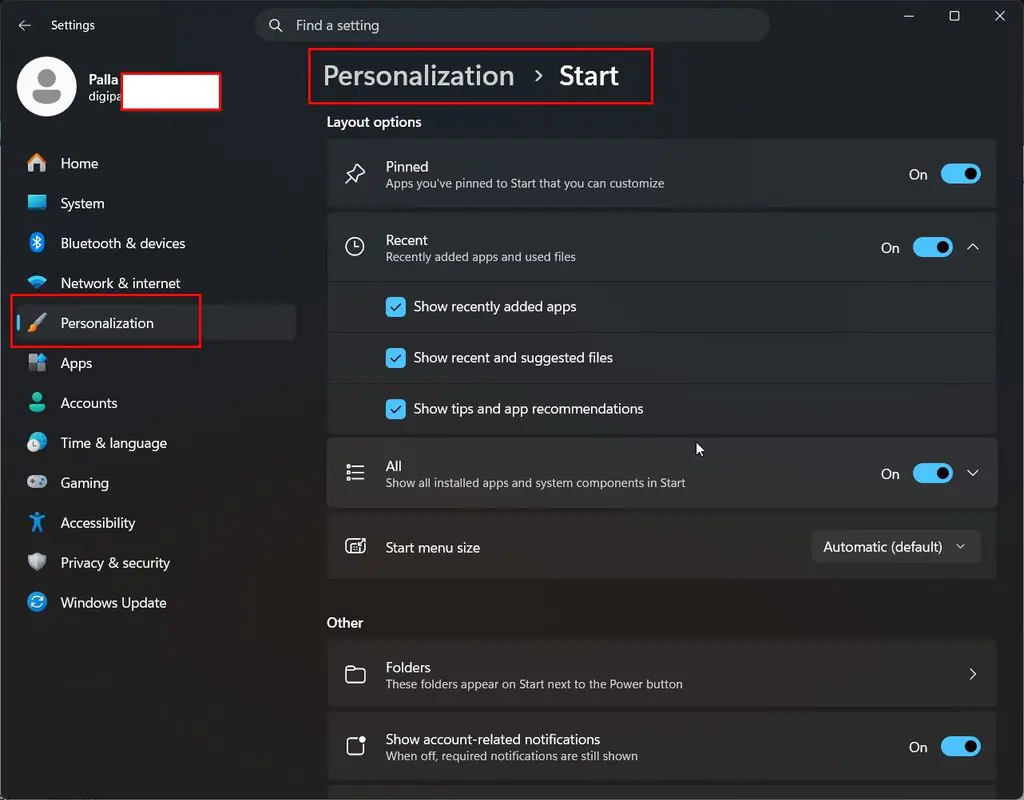
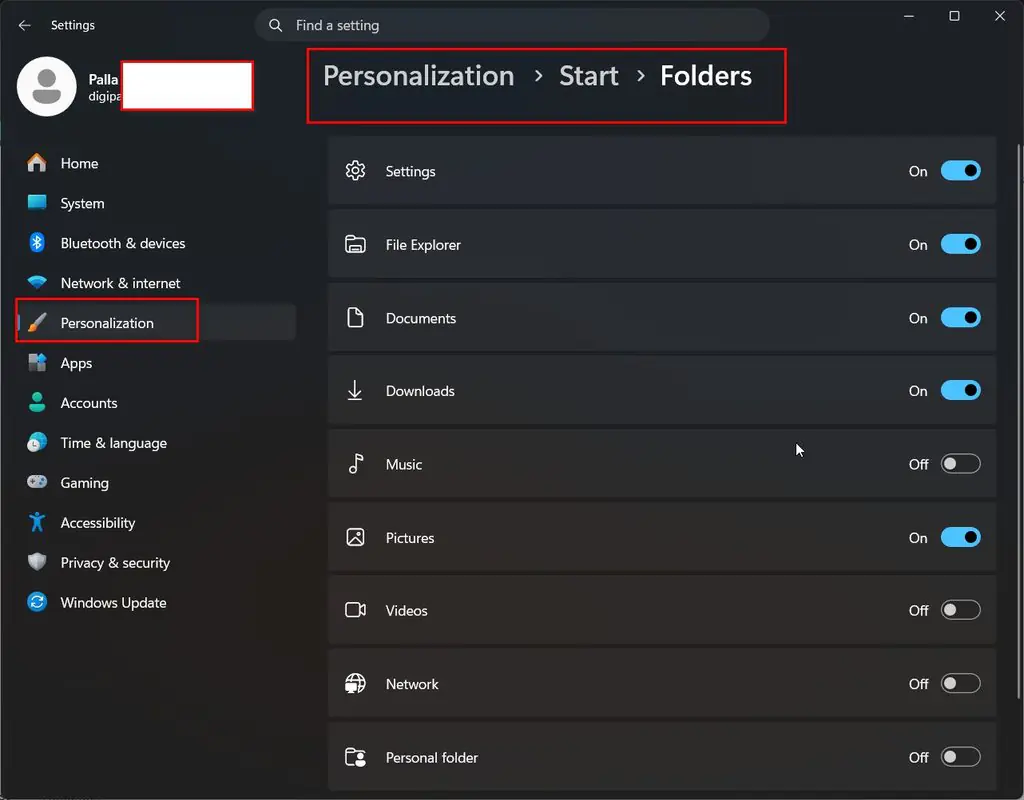
- Every option you need sits in Settings > Personalization > Start. You rarely need the registry.
- The September 2026 update (KB5120998) finally adds Small, Large and Automatic size presets plus per-section toggles.
- Start runs as its own process,
StartMenuExperienceHost.exe. Ending that task in Task Manager fixes most “Start won’t open” cases in seconds. - Turning off Recommended on older builds also empties File Explorer Recent and taskbar Jump Lists, because all three share one activity engine.
- Office admins should deploy layouts with Configure Start Pins and
applyOnce, never with per-machine registry scripts.
Quick answer
The Windows 11 Start menu in 2026 is a single scrollable panel with three zones — Pinned, Recommended (renamed Recent in the newest builds) and All.
Every setting lives in Settings > Personalization > Start.
If Start won’t open, end StartMenuExperienceHost.exe in Task Manager first; that alone clears most cases.
If it still fails, re-register the Start package in PowerShell, then run SFC and DISM.
Introduction
I have fixed a lot of Windows machines over the years, and the Start menu still generates more confused messages than anything else on the desktop.
Someone opens their laptop, presses the Windows key, and the menu either looks completely different or does not appear at all.
The Start menu is the one part of Windows nobody can avoid.
You press the Windows key hundreds of times a week without thinking about it.
So when Microsoft rebuilt it in late 2025 and then kept changing it through 2026, a lot of people opened their laptop one morning and found a desktop they did not recognise.
Nothing was broken.
The redesign simply arrived in waves.
This Windows 11 Start menu guide covers what actually shipped, which build you need, every setting worth changing, the registry keys behind those settings, and the repair sequence that fixes a Start menu that refuses to open.
Both problems have the same root cause: Microsoft rebuilt the Start menu in late 2025 and has kept changing it through 2026, shipping the pieces through monthly updates instead of one clean release.
That matters because the Start menu is the front door to your PC.
When it breaks, the machine feels unusable, and most advice online still describes the 2021 layout that no longer exists.
It is written for home users on a single laptop and for office users managing fifty desks.
Commands are included where they save time.
Nothing here requires a third-party shell replacement.
What changed in the Windows 11 Start menu
Microsoft did not ship one redesign.
It shipped a chain of them, delivered through monthly servicing rather than a single annual update.
| Update | Builds | What landed |
|---|---|---|
| KB5067036 (Oct 2025 preview) | 26100.7019 / 26200.7019 | Single scrollable layout, category view for All apps, option to hide Recommended, phone companion panel |
| KB5074109 (Jan 2026 Patch Tuesday) | 26100.7623 / 26200.7623 | Same design pushed to far more devices as a mandatory update |
| Mid-2026 servicing | 24H2 and 25H2 | Rollout completed to remaining users |
| KB5120998 (Sept 2026) | 26100.9278 / 26200.9278 | Small / Large / Automatic size presets, independent section toggles, Recommended renamed Recent, hide account name and picture |
| Windows 11 26H2 | Expected late Sept–Oct 2026 | Enablement package that folds the above into the annual release, plus movable taskbar |
Two things matter here.
First, the old two-pane menu is gone.
Pinned apps, recommendations and the full app list now sit on one continuous surface that you scroll, closer to a phone launcher than to Windows 10.
Second, Microsoft uses Controlled Feature Rollout.
Two identical PCs on the same build can show different Start menus, because the feature flag is flipped per device.
That is not a bug and no amount of reinstalling fixes it.
Check which Start menu you have
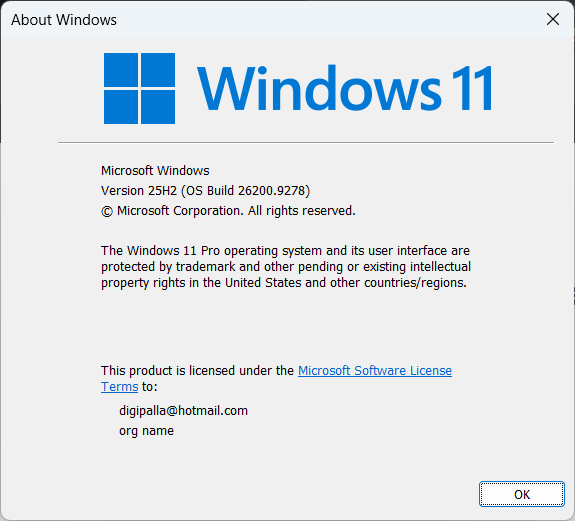
Press Windows + R, type winver, press Enter.
Note the build number after the version.
- Build 26100.xxxx means you are on 24H2.
- Build 26200.xxxx means you are on 25H2.
- The four digits after the dot decide which features you get.
To pull the same information without leaving the keyboard, open PowerShell and run:
Get-ComputerInfo | Select-Object OsName, OsVersion, WindowsVersion
If your build is current but the new layout has not appeared, turn on Settings > Windows Update > Get the latest updates as soon as they’re available.
That opts your device into earlier rollout waves.
How the Start menu actually works
Most guides skip this, and it is the reason their fixes fail.
The Start menu is not part of explorer.exe.
It runs as its own packaged app, StartMenuExperienceHost.exe, isolated so that a crash in Start does not take the taskbar down with it.
Search runs separately again, in SearchHost.exe.
Text input services live in ctfmon.exe.
That split explains behaviour people find confusing:
- Start opens but search ignores typing → SearchHost or ctfmon has failed, not Start.
- Taskbar works but Start does nothing → StartMenuExperienceHost has crashed.
- Start opens then closes instantly → the Start app package failed to register after an update.
Knowing which process owns the symptom cuts troubleshooting time from an hour to about two minutes.
Pinned apps and the layout you should choose
Pinned sits at the top.
Right-click any app in the All list and choose Pin to Start.
Drag icons to reorder them.
Drag one icon onto another to build a folder, then click the folder name to rename it.
The balance between pinned apps and recommendations is controlled in Settings > Personalization > Start:
| Layout option | Behaviour | Best for |
|---|---|---|
| More pins | Extra row of pinned apps, smaller Recommended area | Office users with fixed app sets |
| Default | Balanced split | Most home users |
| More recommendations | Fewer pins, larger recent files area | Document-heavy work |
The same setting is a registry value, which is what you deploy across machines:
HKEY_CURRENT_USER\Software\Microsoft\Windows\CurrentVersion\Explorer\Advanced
Start_Layout  (DWORD)
0 = Default   1 = More pins   2 = More recommendations
Sign out and back in, or restart Explorer, for the change to render.
The All apps list: category, grid or list
The All section is where the redesign earns its keep.
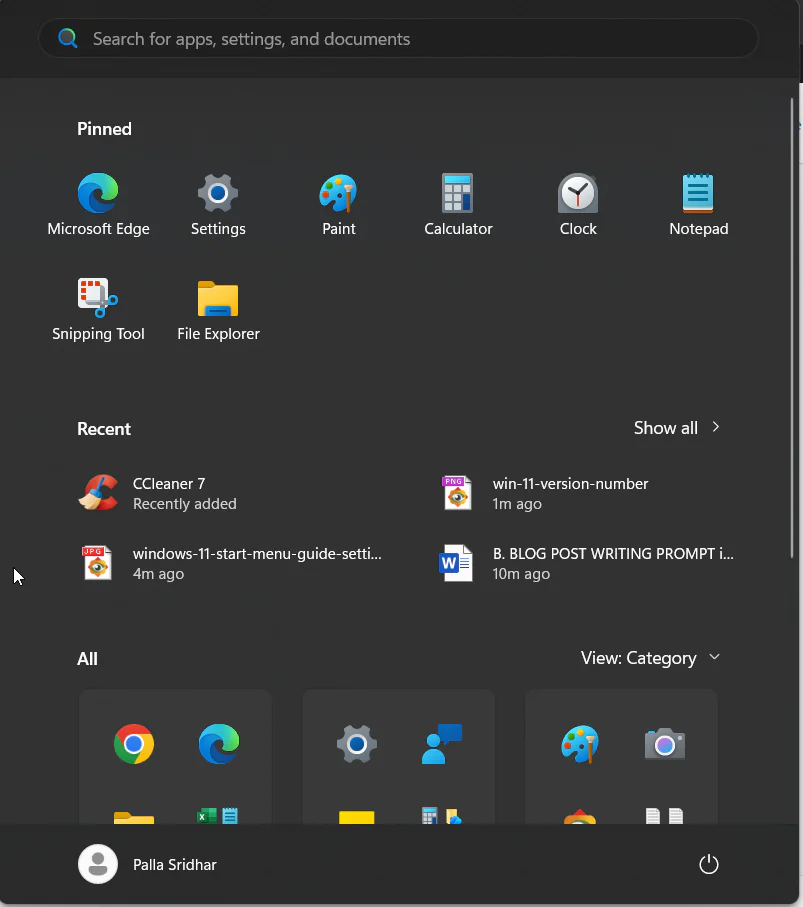
It offers three view modes.
Category view groups apps into automatically generated buckets — Productivity, Creativity, Utilities & tools and so on — and reorders those buckets based on what you launch most.
A category needs at least three apps before Windows will create it; anything below that threshold falls into “Other”.
This is the single biggest change for people upgrading from Windows 10, and it is why familiar apps seem to move around.
Grid view shows every app as a named icon in alphabetical order.
List view is the classic vertical A–Z list.
If the category shuffling annoys you, switch here and the menu behaves predictably again.
Switch modes using the small view control at the right edge of the All header.
Turning off Recommended, and the trade-off nobody mentions
The Recommended strip shows recently opened files and suggested apps.
It is the most complained-about element in the menu, and it is now switchable in Settings > Personalization > Start > Show recently opened items.
Here is the part most articles miss.
Recommended files, File Explorer’s Recent list and taskbar Jump Lists all read from the same recent-activity engine.
Turning off recommendations stops that engine recording, so your Jump Lists and Explorer Recent list empty out too.
Users hit this repeatedly on Microsoft Q&A and community forums and assumed something had corrupted.
The underlying value is:
HKEY_CURRENT_USER\Software\Microsoft\Windows\CurrentVersion\Explorer\Advanced
Start_TrackDocs  (DWORD)   0 = stop tracking   1 = track
The equivalent policy is User Configuration > Administrative Templates > Start Menu and Taskbar > Do not keep history of recently opened documents.
Good news for anyone on the September 2026 update: Microsoft has now separated file recommendations from system recommendations, so you can clear the Start menu without stripping Jump Lists everywhere else.
If you are still on an older build and want Recommended gone without losing Recent elsewhere, the enterprise policy key works:
HKEY_LOCAL_MACHINE\SOFTWARE\Policies\Microsoft\Windows\Explorer
HideRecommendedSection  (DWORD) = 1
Back up the registry and create a restore point first.
This route is unofficial for consumer editions and Microsoft can change it in any cumulative update.
New in the September 2026 update: size presets and section toggles
KB5120998 shipped as an optional install on 27 August 2026 and reaches everyone through the 8 September 2026 Patch Tuesday, for both 24H2 and 25H2.
It brings the changes people have asked for since 2021.
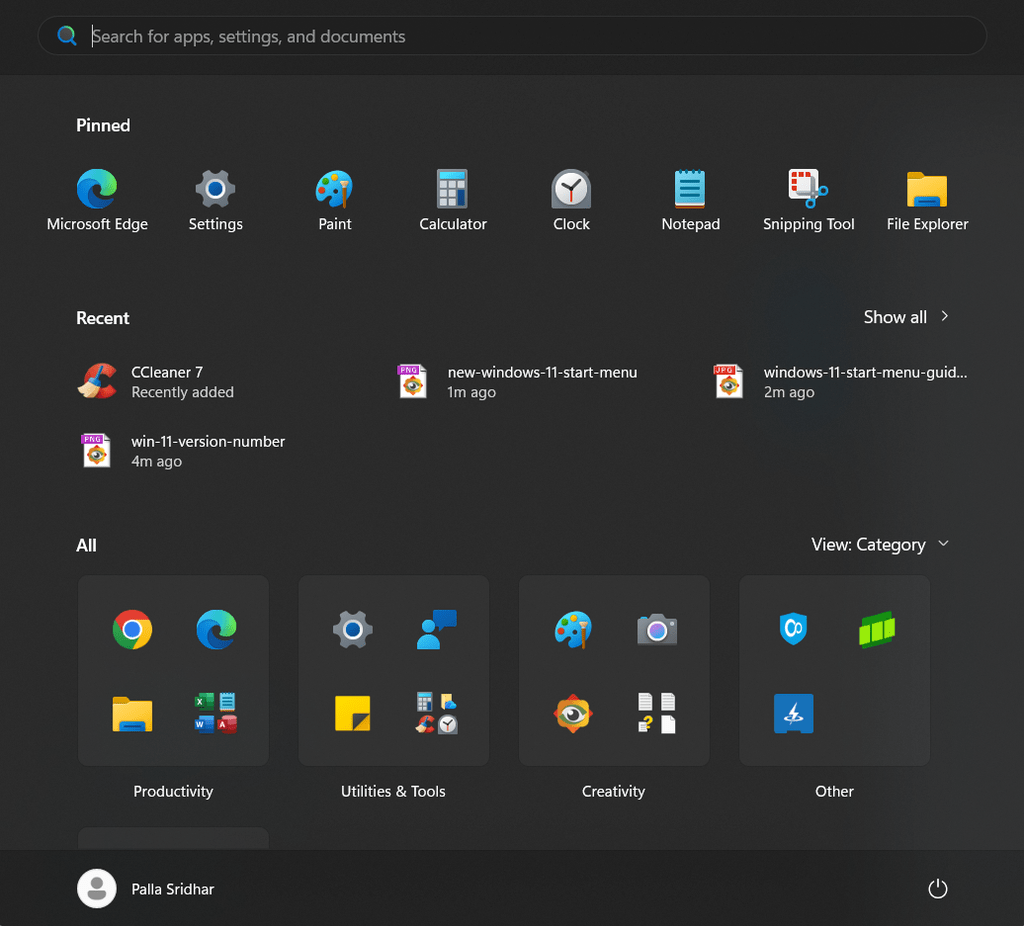
- Size presets. Small, Large and Automatic. Large adds columns of pinned apps and widens category blocks. Small suits 1366×768 laptops and tablets where the redesigned menu swallowed half the screen.
- Independent section toggles. Pinned, Recent and All can each be hidden. Switch all three off and Windows displays a notice that every section is disabled, with a link back to Settings.
- Recommended is renamed Recent. Same strip, clearer label.
- Hide your account name and profile picture. Small feature, genuinely useful in a Teams call or a lecture theatre where you are sharing your screen.
All of it sits under Settings > Personalization > Start.
If the options are missing after installing the update, your device has not had the flag enabled yet.
Wait for the next wave rather than editing anything.
Start menu keyboard shortcuts worth memorising
| Shortcut | Action |
|---|---|
| Windows | Open or close Start |
| Windows + S | Open Search directly |
| Windows + X | Power User menu (Device Manager, Disk Management, Terminal) |
| Ctrl + Esc | Open Start when the Windows key is broken or disabled |
| Windows + number | Launch the app in that taskbar position |
| Windows + D | Show desktop |
| Alt + F4 on desktop | Shut down dialog without touching Start |
Windows + X is the one to learn.
It survives most Start menu failures, because it is drawn by the taskbar rather than by StartMenuExperienceHost.
That means you can still reach Terminal and Device Manager when Start is dead.
Fix a Windows 11 Start menu that won’t open
Work through these in order and test after each step.
They are arranged from lowest risk to highest.
Restart the Start process. Press Ctrl + Shift + Esc, open Details, right-click StartMenuExperienceHost.exe and end the task.
Do the same for SearchHost.exe.
Windows relaunches both within seconds.
This is the highest-yield fix by a wide margin.
Restart Windows Explorer. In Task Manager, find Windows Explorer under Processes and choose Restart.
This rebuilds the shell without a reboot.
Restart ctfmon.exe. If Start opens but typing does nothing, press Windows + R, type ctfmon.exe and press Enter.
Re-register the Start package. If Start opens then closes instantly, the app package failed to register.
In a standard (non-elevated) PowerShell window:
Get-AppxPackage -Name Microsoft.Windows.StartMenuExperienceHost
If nothing returns, check across all users, then re-register:
Get-AppxPackage *StartMenu* -AllUsers
Add-AppxPackage -Path "C:\Windows\SystemApps\Microsoft.Windows.StartMenuExperienceHost_cw5n1h2txyewy\AppxManifest.xml" -Register -DisableDevelopmentMode
Repair system files. From an elevated Terminal:
sfc /scannow
DISM /Online /Cleanup-Image /RestoreHealth
Run DISM first if SFC reports it could not repair everything, then run SFC again.
Remove third-party shell tools. Start11, ExplorerPatcher, StartAllBack and similar utilities hook the shell directly.
After a feature update they are a frequent cause of a dead Start menu.
Uninstall, reboot, then reinstall a version updated for your build.
Roll back the update. If the problem began immediately after a specific KB, go to Settings > Windows Update > Update history > Uninstall updates.
Pause updates for a week while Microsoft ships a fix.
Create a new local user account. If Start works in a fresh profile, the fault is profile corruption rather than the OS.
Migrate your data instead of reinstalling Windows.
In-place repair install. Run Setup from a matching Windows 11 ISO and choose to keep files and apps.
This rebuilds system components without touching your data.
It is the last step before a clean install, not the first thing to try.
Does this actually resolve? What the data shows
| Failure pattern | Fix that resolves it | Reported outcome |
|---|---|---|
| Start unresponsive, taskbar fine | End StartMenuExperienceHost / restart Explorer | Resolves the large majority of cases within minutes; community and repair-shop reporting puts this near 8 in 10 |
| Start opens then closes | Re-register the Start app package | Standard Microsoft Q&A guidance for post-update package failures |
| Search box ignores typing | Restart ctfmon.exe | Immediate in most reports |
| Broken after installing a shell tool | Uninstall the third-party utility | Consistently identified as a leading cause after feature updates |
| Nothing works in your profile only | New user profile | Confirms profile corruption; avoids a reinstall |
| Fails in every profile | In-place repair install | Reserved for genuine component corruption |
One honest caveat.
Success rates circulating online come from community reporting and support-desk experience, not from published Microsoft telemetry.
Treat them as a triage order, not a guarantee.
Step-by-step guide: fix a Windows 11 Start menu that won’t open
Work through these in order and test after each step.
They run from lowest risk to highest, so stop as soon as Start comes back.
Step 1 — Restart the Start process.
Press Ctrl + Shift + Esc to open Task Manager, then open the Details tab.
Right-click StartMenuExperienceHost.exe and choose End task, then do the same for SearchHost.exe.
Windows relaunches both within a few seconds, and this is the highest-yield fix by a wide margin.
Step 2 — Restart Windows Explorer.
Still in Task Manager, find Windows Explorer under Processes and choose Restart.
This rebuilds the shell without a reboot and clears most taskbar-related knock-on faults.
Step 3 — Restart ctfmon.exe.
If Start opens but typing does nothing, press Windows + R, type ctfmon.exe and press Enter.
Text input services are a separate failure point from Start itself.
Step 4 — Re-register the Start package.
If Start opens then closes instantly, the app package failed to register after an update.
Open a standard, non-elevated PowerShell window and check the package first:
powershell
Get-AppxPackage -Name Microsoft.Windows.StartMenuExperienceHostIf nothing comes back, check across all users, then re-register it:
powershell
Get-AppxPackage *StartMenu* -AllUsers
Add-AppxPackage -Path "C:\Windows\SystemApps\Microsoft.Windows.StartMenuExperienceHost_cw5n1h2txyewy\AppxManifest.xml" -Register -DisableDevelopmentMode
Step 5 — Repair system files.
Open Terminal as administrator and run:
sfc /scannow
DISM /Online /Cleanup-Image /RestoreHealth
If SFC reports it could not repair everything, run DISM first and then run SFC again.
Step 6 — Remove third-party shell tools.
Start11, ExplorerPatcher, StartAllBack and similar utilities hook directly into the shell.
After a feature update they are a frequent cause of a dead Start menu.
Uninstall, reboot, then reinstall a version built for your current build number.
Step 7 — Roll back the update.
If the problem started immediately after a specific KB, go to Settings > Windows Update > Update history > Uninstall updates.
Pause updates for a week while Microsoft ships a fix.
Step 8 — Create a new local user account.
If Start works perfectly in a fresh profile, the fault is profile corruption rather than the operating system.
Migrate your data across instead of reinstalling Windows.
Step 9 — Run an in-place repair install.
Launch Setup from a matching Windows 11 ISO and choose to keep files and apps.
This rebuilds system components without touching your data, and it is the last step before a clean install.
Start menu management for office users and IT
For managed fleets, do not script registry edits per machine.
Use the supported path.
Build the layout on a reference PC, then export it:
Export-StartLayout -Path "C:\Layouts\LayoutModification.json"
The result is a small JSON file listing pinned entries by desktopAppId or packagedAppId.
Deploy it with the Configure Start Pins setting — in Intune through Devices > Configuration > Settings catalog > Start, or in Group Policy under Start Menu and Taskbar for Windows 11 24H2 and later.
Two details save a lot of pain:
- Windows 11 only supports full layouts. Partial layouts, which Windows 10 allowed, do not apply.
- Add
"applyOnce": trueto the JSON if you want to seed a starting layout that users can then change. Without it, the policy overwrites their pins at every sign-in, and helpdesk tickets follow. Every app you pin must already be installed when the policy applies, since it only runs once.
Import-StartLayout is not supported on Windows 11.
If you find a guide recommending it, that guide is written for Windows 10.
Privacy: what Start sends and what you can switch off
The Recommended strip surfaces recent files and, on consumer editions, occasional app suggestions from the Microsoft Store.
To reduce both:
- Settings > Personalization > Start — turn off recently added apps, most used apps, recently opened items and tips or app recommendations.
- Settings > Privacy & security > Search permissions — turn off cloud content search and search history if you do not want Microsoft account or work account content surfacing in results.
- On the September 2026 update, Settings > Privacy & security > Search adds a control for web and Microsoft Store suggestions, giving you a local-only search experience.
- Use the new hide-name-and-picture toggle before screen sharing.
For managed devices, the Education environment policy value has historically suppressed promotional content in Start.
It is an unofficial approach on non-education SKUs and should be tested before wide deployment.
Where the Start menu is heading
Windows 11 26H2 is expected in late September or October 2026.
It installs as an enablement package of around 200 KB on machines already running 24H2 or 25H2 — one restart, no reinstall.
The Start menu is being rebuilt on native WinUI with a low-latency profile, which targets the small delay some users notice when the menu opens or when switching between sections.
Alongside it, the taskbar becomes movable to any screen edge again, five years after that ability was removed at launch.
The direction is clear: less enforced design, more per-user control, delivered continuously rather than once a year.
Statistics: how big the Windows 11 audience really is
Numbers help you judge whether a Start menu problem is yours alone or something widespread.
These figures come from named sources only.
| Metric | Figure | Source and period |
|---|---|---|
| Windows 11 share of desktop Windows worldwide | 69.9% | StatCounter, June 2026 |
| Windows 10 share of desktop Windows worldwide | 28.2% | StatCounter, June 2026 |
| Windows 11 share across Europe | 70.86% | StatCounter, June 2026 |
| Windows 11 share in Germany | 74.61% | StatCounter, June 2026 |
| Windows 11 64-bit among Steam systems | 69.76% | Steam Hardware & Software Survey, May 2026 |
One caveat I always add.
StatCounter measures page views through tracking code on participating sites, not installed devices, and it revises figures as more data arrives.
Its February 2026 snapshot showed Windows 11 at 72.57%, higher than the June reading, which tells you these numbers move.
Treat them as a solid trend indicator rather than a census.
Real facts most guides get wrong
Two identical PCs can show different Start menus.
Controlled Feature Rollout flips features per device, so build number alone does not guarantee a feature.
A category needs three apps to exist.
Anything with fewer lands in “Other”, which explains apps that seem to disappear from category view.
Import-StartLayout does not work on Windows 11.
It was a Windows 10 cmdlet. Any guide recommending it is out of date, and Windows 11 supports full layouts only, not partial ones.
KB5120998 has a known issue.
Microsoft has listed a mouse cursor personalisation problem on its release health pages, where custom cursor schemes, animations, size or colour can revert to defaults after installing the update.
WMIC is gone.
From August 2026, Windows 11 24H2 and 25H2 no longer include the WMIC command-line utility, so older troubleshooting scripts that call it will fail. WMI itself is unaffected.
Practical examples from two real setups
A home laptop at 1366×768.
The redesigned menu covered most of the screen, and the owner assumed the display scaling had broken.
The fix took one minute: install KB5120998, then choose the Small size preset under Settings > Personalization > Start.
Switching All apps to List view removed the second complaint, which was apps moving position week to week.
A twelve-desk office.
Staff kept losing pinned shortcuts to the line-of-business app after every sign-in.
The cause was a Configure Start Pins policy applied without applyOnce, so the JSON overwrote user changes at each login.
Adding "applyOnce": true seeded the layout once and left staff free to pin their own tools, and the helpdesk tickets stopped.
Best practices
- Change settings in Settings > Personalization > Start first, and only reach for the registry when no toggle exists.
- Create a restore point before any registry edit, however small.
- Record the build number your configuration was tested on, so you can tell later whether an update or your own change caused a problem.
- Pin by workflow rather than by frequency, grouping related apps into named folders.
- Use List view if predictability matters more than discovery, which is usually true in an office.
- Restart Explorer to apply changes instead of rebooting; it is faster and less disruptive.
Common mistakes
- Reinstalling Windows because Start will not open. Ending one process fixes most cases in under a minute.
- Turning off recommendations without knowing the side effect. On older builds you also lose Explorer Recent and Jump Lists.
- Assuming a missing feature means a failed update. It usually means the feature flag has not reached your device yet.
- Deploying Start layouts with logon scripts. Use the supported Configure Start Pins policy instead.
- Keeping an outdated shell replacement installed through a feature update. That combination breaks Start more often than anything else I see.
- Editing unofficial policy keys on production machines without testing. Microsoft can and does disable them.
Recommended tools
- Task Manager. Built in, and your first stop for restarting Start, Search and Explorer.
- Windows Terminal with PowerShell. Needed for package checks,
Export-StartLayoutand repair commands. - Registry Editor. For
Start_Layout,Start_TrackDocsand policy values, used with a restore point in place. - Microsoft Intune Settings catalog. The supported route for deploying Start layouts across managed devices.
- Windows release health dashboard. Check here before assuming a fault is local to your machine.
- Third-party shell tools such as Start11 or StartAllBack. Useful if you want a Windows 10 style menu, but treat them as a known risk after every feature update.
Questions and answers
Why did my Start menu change on its own?
A cumulative update enabled the redesign on your device.
The rollout is staged, so it arrives on different machines on different dates even with identical builds.
Can I get the Windows 10 Start menu back?
Not through built-in settings.
List view in All apps plus the More pins layout gets you close.
Third-party tools go further but hook the shell and frequently break after feature updates.
How do I make the Start menu smaller?
Install the September 2026 update, then choose Small under Settings > Personalization > Start.
Before that build, the size is fixed and scales to your display.
Why do my apps keep moving around?
Category view reorders groups based on usage.
Switch to grid or list view for a fixed alphabetical order.
Is it safe to edit the registry for these settings?
The values listed here are well documented and reversible, but back up the registry and create a restore point first.
Microsoft can disable unofficial keys in any update.
Windows 11 is now the majority desktop platform — does that change anything?
It does.
StatCounter data through mid-2026 puts Windows 11 near 70% of desktop Windows traffic worldwide, with Europe marginally higher.
A larger installed base means Start menu bugs surface faster and get patched faster, and it is why Microsoft is shipping shell changes monthly rather than annually.
Conclusion
The Windows 11 Start menu stopped being a fixed object in 2026.
What was once a rigid two-pane panel is now a scrollable surface with size presets, per-section toggles and a genuine choice between categories, a grid and a plain alphabetical list.
For home users, five minutes in Settings > Personalization > Start removes most of what people complain about.
Turn off recommendations if you never use them, switch All apps to list view if the categories annoy you, and pick Small if the menu dominates your screen.
For office users and administrators, treat the layout as configuration, not decoration.
Export it once, deploy it with Configure Start Pins, add applyOnce so people can adapt it, and document the build number your layout was tested against.
And when Start stops responding, resist the reinstall.
End StartMenuExperienceHost.exe, restart Explorer, and you will be back at work before the coffee cools.
ENJOYING OUR CONTENT?
Stay up to date with our latest guides, insights, and news. Tap below to follow us directly via your search feed.
