
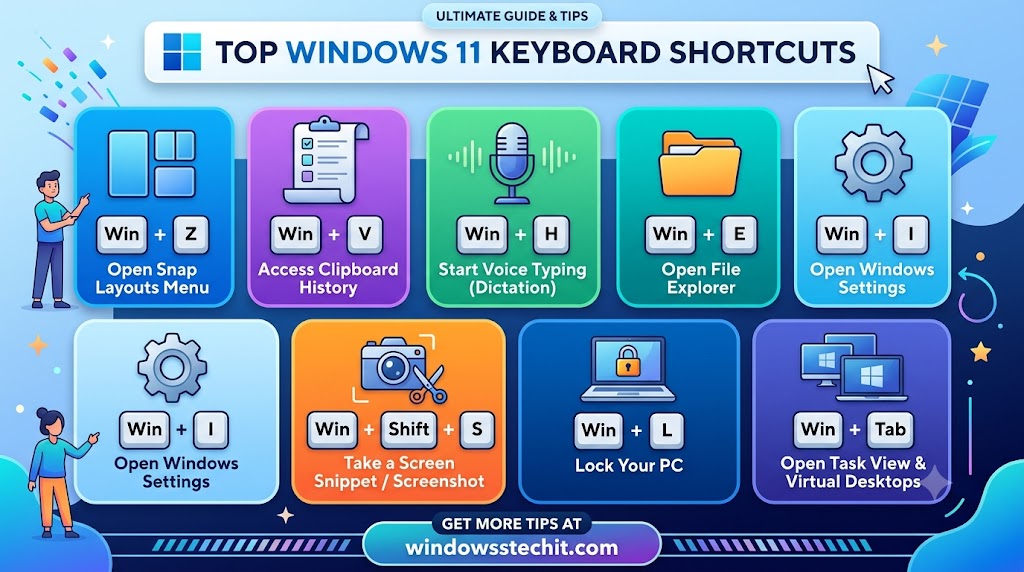
The Windows 11 keyboard shortcuts worth learning first are Win+E (File Explorer), Win+I (Settings), Alt+Tab (switch windows), Win+Shift+S (screenshot a selection), Win+V (clipboard history), and Win+Z (Snap Layouts). Everything else builds on these six.
Key Takeaways
- Windows 11 keeps almost every Windows 10 shortcut and adds new ones for Snap Layouts, the emoji panel, and clipboard history.
- The handful of shortcuts that save the most time daily are Win+E, Win+I, Win+V, Win+Shift+S, Win+Z, and Alt+Tab.
- You can build your own custom keyboard shortcut for any desktop app, file, or folder shortcut icon.
- Shortcuts sometimes stop working because another app has claimed the same key combination, not because Windows is broken.
- Built-in accessibility tools (Sticky Keys, Filter Keys, on-screen keyboard) exist if you find standard combos hard to press.
Quick answer
I’ve been fixing Windows problems for home and office users since 2010, and keyboard shortcuts are the one thing almost everyone underuses.
Most people know Ctrl+C and Ctrl+V and stop there. That’s fine, but you’re leaving a lot of speed on the table.
I put this list together the way I’d hand it to a coworker on their first day with a new Windows 11 laptop: organized by what you’re actually trying to do, not by some alphabetical dump that’s hard to scan.
Essential Windows 11 shortcuts (the ones to learn first)
| Shortcut | What it does |
|---|---|
| Win+E | Opens File Explorer |
| Win+I | Opens Settings |
| Win+D | Shows the desktop |
| Win+L | Locks your PC |
| Alt+Tab | Switches between open windows |
| Alt+F4 | Closes the active window or app |
| Win+Tab | Opens Task View |
| Win+Shift+S | Opens Snipping Tool for a screenshot |
| Win+V | Opens clipboard history |
| Win+Z | Opens Snap Layouts |
| Win+. (period) | Opens the emoji and symbol panel |
| Ctrl+Shift+Esc | Opens Task Manager directly |
Learn these twelve first.
They cover roughly 80% of what most home and office users repeat every single day, and they’re the shortcuts I get asked about most often on this site.
They cover roughly 80% of what most home and office users repeat every single day, and they’re the shortcuts I get asked about most often on this site.
Window and desktop management shortcuts
Windows 11 leans hard into multitasking, and the window-management shortcuts reflect that.
If you work across two monitors or juggle several apps at once, this section pays for itself within a day.
- Win+Left / Win+Right – Snap the active window to one side of the screen
- Win+Up – Maximize the active window
- Win+Down – Minimize or restore the active window
- Win+Shift+Left / Right – Move the active window to the next monitor
- Win+Z – Open Snap Layouts and pick a screen arrangement without dragging
- Win+Ctrl+D – Add a new virtual desktop
- Win+Ctrl+Right / Left – Switch between virtual desktops
- Win+Ctrl+F4 – Close the current virtual desktop
- Win+Tab – Open Task View to see all open windows and virtual desktops at once
Snap Layouts is the one genuinely new addition here compared to Windows 10, and it’s worth a minute of practice.
Hover over the maximize button, or just press Win+Z, and you get a set of grid options for splitting your screen between two, three, or four windows instantly.
File Explorer shortcuts
File Explorer has its own shortcut set, and most of these still work exactly as they did in Windows 10.
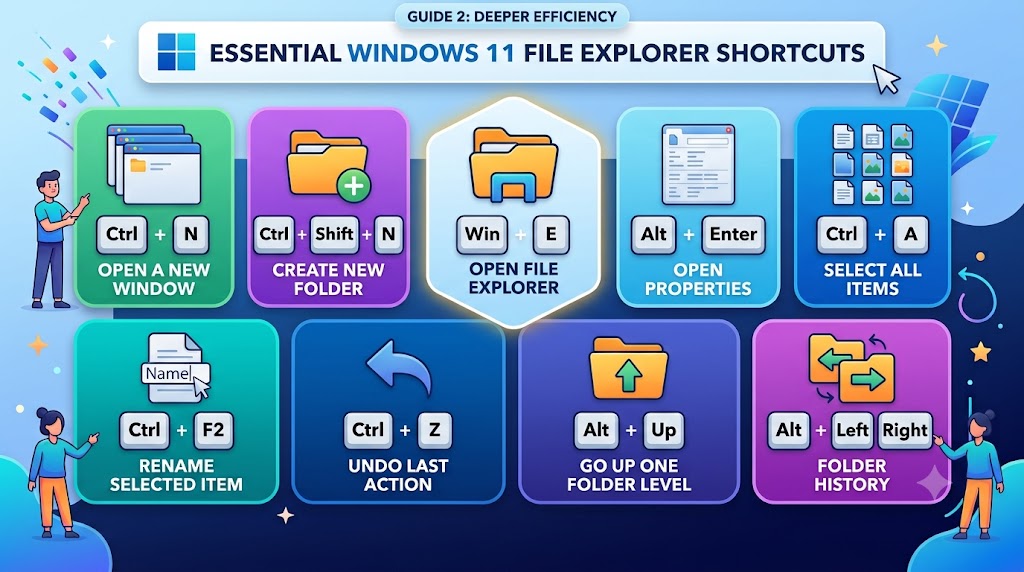
- Win+E – Open File Explorer
- Ctrl+N – Open a new File Explorer window
- Ctrl+Shift+N – Create a new folder
- Alt+Enter – Open Properties for the selected file or folder
- F2 – Rename the selected item
- Ctrl+A – Select all items in the current folder
- Ctrl+Z – Undo the last action
- Alt+Up – Go up one folder level
- Alt+Left / Right – Go back or forward through folder history
If you find yourself constantly right-clicking to check a file’s size or location, F2 and Alt+Enter alone will save you a genuine amount of clicking over a week.
Screenshot and screen recording shortcuts
Screenshots come up constantly for both home troubleshooting and office documentation, so Microsoft gave Windows 11 several ways to grab one.
- Win+Shift+S – Open Snipping Tool to capture a selected area
- Win+PrtScn – Capture the full screen and save it automatically to the Screenshots folder
- PrtScn – Copy the full screen to the clipboard only
- Alt+PrtScn – Copy just the active window to the clipboard
- Win+Alt+R – Start or stop a screen recording (via Xbox Game Bar)
- Win+Alt+PrtScn – Save a screenshot of the active game window (Game Bar)
Win+Shift+S is the one I recommend leading with.
It opens a small toolbar letting you pick a rectangular, freeform, window, or full-screen capture, and it copies straight to your clipboard so you can paste it into an email or ticket without saving a file first.
Taskbar and system shortcuts
- Win+number (1–9) – Open or switch to the app pinned in that taskbar position
- Win+B – Move focus to the system tray/notification area icons
- Win+A – Open Quick Settings (Wi-Fi, volume, brightness)
- Win+N – Open Notification Center and Calendar
- Win+X – Open the Quick Link menu (Device Manager, Disk Management, Terminal, and more)
- Win+R – Open the Run dialog
- Win+Pause – Open the System Properties page
Win+X is genuinely underused.
It’s a text menu that gives you one-click access to the tools IT people reach for constantly — Device Manager, Disk Management, Task Manager, and now Windows Terminal — without digging through Settings.
Creating your own custom keyboard shortcuts
Windows lets you assign a custom shortcut to almost any desktop app, file, or folder shortcut icon.
This is worth setting up for the two or three programs you open multiple times a day.
- Right-click the app or file shortcut on your desktop and choose Properties
- Click into the Shortcut key field
- Press the key you want to use — Windows automatically prepends Ctrl+Alt to it (for example, pressing “W” becomes Ctrl+Alt+W)
- Click OK to save
A few limits to know before you try this: custom shortcuts only work on desktop shortcut icons, not Start menu tiles or pinned taskbar apps.
The combination can’t already be claimed by a system-level shortcut, and some apps — particularly browsers and Office programs — manage their own hotkeys separately, so this method may not override those.
Accessibility shortcuts
Windows 11 includes several built-in accessibility features that are worth knowing even if you don’t use them daily, since they’re often the fix when a standard shortcut feels physically hard to execute.
- Sticky Keys – Press Shift five times to toggle; lets you press modifier keys (Ctrl, Alt, Shift) one at a time instead of holding them
- Filter Keys – Ignores brief or repeated keystrokes for anyone with limited fine motor control
- Toggle Keys – Plays a sound when Caps Lock, Num Lock, or Scroll Lock is pressed
- Win+Ctrl+O – Turns the on-screen keyboard on or off
- Win+U – Opens Accessibility settings directly
Common mistakes people make with Windows 11 shortcuts
- Assuming a shortcut is “broken” when another app has claimed it. If Win+Shift+S doesn’t open Snipping Tool, check whether a third-party screenshot tool or remote-access app is intercepting that combination.
- Testing a shortcut without checking window focus first. Many shortcuts only respond to the active, focused window — if you’re clicked into a text box, some system shortcuts won’t fire until you click elsewhere.
- Confusing app-specific shortcuts with system shortcuts. Ctrl+Shift+S in PowerPoint does something different from Win+Shift+S at the desktop level. If a shortcut works in File Explorer but not in a specific app, the app is likely overriding it.
- Forgetting that custom shortcuts need a desktop icon. A shortcut key set on a Start menu tile won’t work — it has to be a standalone desktop shortcut file.
- Not checking Windows Update after a shortcut suddenly stops working. Feature updates occasionally shift keyboard behavior, especially for newer additions like Copilot or Recall-related keys.
Best practices for using keyboard shortcuts efficiently
- Start with the twelve essential shortcuts in this guide before trying to memorize the full list — trying to learn 50 shortcuts at once means retaining none of them
- Pin your five most-used apps to the taskbar in a fixed order so Win+1 through Win+5 always opens the same programs
- Set up custom shortcuts only for programs you open at least a few times a day; anything less frequent isn’t worth the setup time
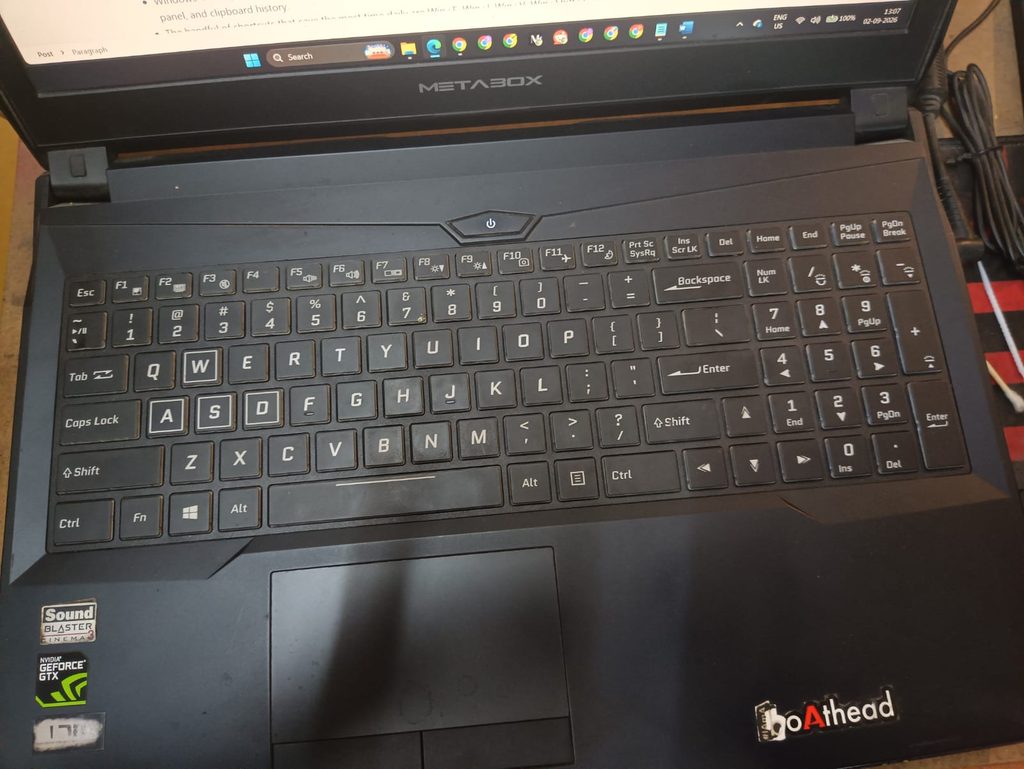
- If you use a laptop without a dedicated Windows key label, check your manufacturer’s function-key layer — some ultrabooks require Fn+Windows-icon-key instead
- Keep a printed or saved copy of this list near your desk for the first week; muscle memory takes over faster than most people expect
Recommended tools
- Microsoft PowerToys – A free, official Microsoft utility that lets you remap keys and build advanced custom shortcuts beyond what Windows natively supports
- Windows Snipping Tool – Built into Windows 11; no download needed for screenshot shortcuts covered above
- ShareX – A free, open-source alternative screenshot tool if you need more advanced capture and annotation options than the built-in tool provides
Frequently asked questions
Do all Windows 10 shortcuts still work in Windows 11?
Yes, the large majority carry over unchanged. Windows 11 adds new ones (Snap Layouts, the emoji panel refresh) but doesn’t remove the core shortcuts most people already know.
Why did my keyboard shortcut suddenly stop working?
The most common cause is another running app claiming the same key combination. Close recently installed software one at a time to identify the conflict, or check if a Windows Update changed default behavior for that key.
Can I create a shortcut for a Start menu app?
Not directly. Custom shortcut keys only work on desktop shortcut icons. If you want a keyboard shortcut for a Start menu app, create a desktop shortcut for it first, then set the shortcut key on that icon.
What’s the fastest way to take a screenshot in Windows 11?
Win+Shift+S is the quickest for most situations — it opens a selection tool and copies the result straight to your clipboard, ready to paste.
Is there a shortcut to open Task Manager without right-clicking the taskbar?
Yes — Ctrl+Shift+Esc opens Task Manager immediately, without the extra step of right-clicking first.
Do keyboard shortcuts work the same on a laptop as a desktop keyboard?
Mostly, yes. The main difference is that some laptops require holding the Fn key alongside function-row shortcuts (like PrtScn), depending on the manufacturer’s keyboard layout.
Conclusion
Keyboard shortcuts aren’t about looking fast for the sake of it.
They remove the small, repeated friction points that add up over a workday — reaching for the mouse to open Settings, right-clicking to rename a file, digging through menus to grab a screenshot.
Start with the twelve essential shortcuts in this guide, build in one or two custom ones for your most-used apps, and the rest will come naturally with use.
If a shortcut ever stops responding the way it should, it’s almost always a conflict with another app rather than something wrong with Windows itself — check that first before assuming you need to reset anything.
ENJOYING OUR CONTENT?
Stay up to date with our latest guides, insights, and news. Tap below to follow us directly via your search feed.
