
Key Takeaways
- The 0xc000007b Windows 11 64 bit error is a software conflict, not hardware failure. On 64-bit Windows 11, it almost always signals a mismatch between 32-bit and 64-bit files, or a corrupt DirectX, Visual C++, or .NET Framework runtime — rarely a broken PC.
- Reinstalling the Microsoft Visual C++ Redistributable (both x86 and x64) fixes most cases. Pairing it with a DirectX update and the built-in
sfc /scannowand DISM repair tools resolves the error for the majority of users. - Never download loose DLL files from third-party sites. It is a leading malware route for this error and rarely fixes the real cause. The safe fixes above restore the exact same files directly from Microsoft.
Quick answer: To fix 0xc000007b on Windows 11 64-bit, reinstall the Microsoft Visual C++ Redistributable (x86 and x64), update DirectX, then run
sfc /scannowandDISM /Online /Cleanup-Image /RestoreHealth. Restart and relaunch the app. Avoid third-party DLL downloads.
You clicked a game or an app, and Windows 11 threw back a wall: “The application was unable to start correctly (0xc000007b). Click OK to close the application.” Nothing opens. It is one of the most common startup errors on 64-bit PCs, and it is frustrating because the program worked yesterday.
Here is the good news. The 0xc000007b error on Windows 11 64 bit is almost always a software conflict, not a broken PC. It usually points to a mismatch between 32-bit and 64-bit files, or a corrupt runtime like DirectX, Visual C++, or the .NET Framework.
This guide shows you how to fix it the safe way. You will not download loose DLL files from random sites — that is how malware gets in. Instead, you will repair the real cause using official Microsoft tools. Home users and office users can follow every step.
What Does the 0xc000007b Windows 11 Error Mean?
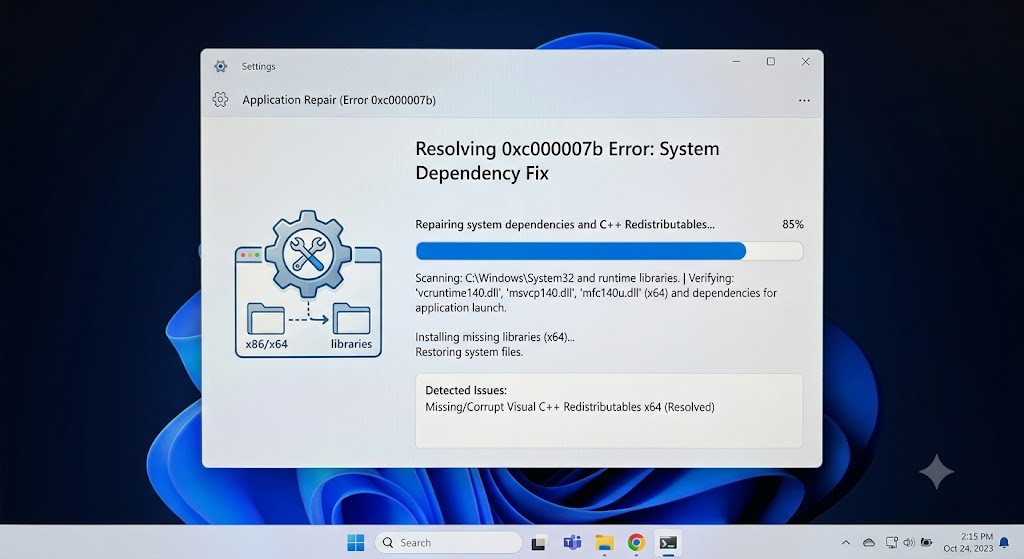
0xc000007b (STATUS_INVALID_IMAGE_FORMAT) is a Windows startup error that appears when an application cannot load the correct system files it needs. On a 64-bit Windows 11 PC, it usually means a 32-bit and 64-bit file conflict, or a corrupted DirectX, Visual C++, or .NET Framework component is blocking the program from starting.
In plain words: the app asked Windows for a file, and Windows handed back the wrong version — or a damaged one. The program gives up and closes.
What Causes 0xc000007b Windows 11 64-Bit?
Before the fixes, it helps to know the real triggers. Microsoft’s own support answers and multiple technical guides point to the same short list of causes.
- Architecture mismatch. You try to run a 32-bit app that is missing a 32-bit DLL, or a 64-bit app on the wrong runtime. Windows cannot load the mismatched file.
- Corrupt or missing Microsoft Visual C++ Redistributable. Many games and Office-related apps depend on it. If it breaks, 0xc000007b appears.
- Outdated or damaged DirectX runtime. This hits games and graphics software hardest.
- Broken .NET Framework. A common cause behind “the application was unable to start correctly.”
- Corrupted system files. Improper shutdowns, malware, or aggressive antivirus can damage protected files.
- A corrupted app install. Sometimes the program’s own files are the problem, not Windows.
A quick real example: a user on the Microsoft community reported 0xc000007b on Dying Light 2 while The Witcher 3 launched fine on the same PC. That pattern — some apps fail, others work — is the classic sign of a runtime or per-app file problem, not a dead operating system.
Before You Start: The One Thing Not to Do
Search results for this error are full of sites offering a “0xc000007b download” — a single DLL file or a “fixer” tool you drop into your Windows folder. Avoid this.
Downloading individual DLLs from third-party sites is one of the most common malware infection routes for exactly this error, and it often causes new corruption. The safe path — the one below — reinstalls those same files automatically, straight from Microsoft. You get the file you need, from the source you can trust.
How to Fix 0xc000007b Windows 11 64-Bit: Step by Step
Work through these in order. Most people are fixed by step 4 or 5. Restart your PC after each major step and test the app again.
Step 1: Restart and Run as Administrator
The simplest fixes work surprisingly often. Restart Windows 11 to clear locked files and background glitches. Then right-click the app, choose Properties → Compatibility, tick Run this program as an administrator, and click OK. Launch it again.
Step 2: Run SFC to Repair System Files
System File Checker replaces corrupt Windows files automatically. Open Command Prompt as administrator and run:
sfc /scannowLet it finish (it can take several minutes), then restart. This is safe, official, and often clears the error on its own.
Step 3: Run DISM to Repair the Windows Image
If SFC could not fix everything, repair the underlying Windows image. In the same admin Command Prompt, run:
DISM /Online /Cleanup-Image /RestoreHealthDISM is available on Windows 8, 10, and 11. Reboot afterward and test again.
Step 4: Reinstall Microsoft Visual C++ Redistributable
This is the single most effective fix for 0xc000007b, because it restores the DLL files most apps depend on — safely.
- Open Settings → Apps → Installed apps.
- Find every Microsoft Visual C++ Redistributable entry. You can Modify → Repair them, or uninstall them all.
- If you uninstalled, download the latest Visual C++ Redistributable packages from the official Microsoft Download Center.
- On a 64-bit system, install both the x86 (32-bit) and x64 (64-bit) versions — some apps still need the 32-bit runtime.
- Restart your PC.
This is what people are really after when they search for a “0xc000007b download 64 bit windows 11” — the correct 64-bit files, from Microsoft, with the 32-bit set alongside them.
Step 5: Update or Reinstall DirectX
Games and multimedia apps lean on DirectX. Download the DirectX End-User Runtime Web Installer from Microsoft’s official site, run it, and restart. To check your current version first, press Windows + R, type dxdiag, and press Enter.
Step 6: Repair or Reinstall the .NET Framework
A damaged .NET Framework is a frequent culprit. Reinstall the latest version from Microsoft’s official .NET download page, or enable it under Windows Features. You can confirm the install with Microsoft’s .NET setup verification tool.
Step 7: Update Your Graphics and System Drivers
An outdated GPU driver can trigger the error on graphics-heavy apps. Update through Windows Update, or get the latest driver from your GPU maker’s official site.
Step 8: Check Disk Health with CHKDSK
In rare cases the fault is a failing drive. In admin Command Prompt run:
chkdsk /f /rConfirm the scan on next restart. If your drive is failing, back up your data now.
Step 9: Uninstall and Reinstall the App
If only one program shows the error, its own files are likely corrupt. Uninstall it from Settings → Apps, restart, then reinstall the latest version from the official source, matching your system architecture (x64).
Best Practices to Keep 0xc000007b Away
- Keep Windows 11 fully updated — updates refresh DirectX and .NET automatically.
- Install apps only from official sources that match your 64-bit architecture.
- Never drop loose DLL files into
C:\Windows\System32orSysWOW64from untrusted sites. - Create a restore point before big installs, so you can roll back cleanly.
Common Mistakes to Avoid
- Downloading random DLLs. It risks malware and rarely fixes the root cause.
- Installing only the 64-bit Visual C++. Many apps need the 32-bit runtime too.
- Skipping the restart. Fixes often only apply after a reboot.
- Ignoring the pattern. If one app fails but others work, focus on that app’s runtime, not a full Windows reinstall.
0xc000007b by the numbers: what real users and experts report
- Microsoft’s own experts call it a top-tier nuisance. An Independent Expert on Microsoft Q&A described 0xc000007b Windows 11 as “one of the most annoying problems in Windows,” confirming it “almost always means there is a mismatch between 32-bit and 64-bit files.” (Microsoft Q&A)
- It strikes productivity apps, not just games. One user reported the error appearing mid-session in Microsoft Word on a new laptop, causing a repeated boot loop. (Microsoft Q&A, March 2026)
- It persists across modern hardware. A gamer on a Ryzen 5 3600 with an RTX-class GPU still hit 0xc000007b on Returnal and Ghost Recon Breakpoint after updating Visual C++ and DirectX. (Microsoft Q&A)
- The root cause is repeatedly a 32-bit/64-bit DLL conflict. A Steam Community thread traced affected games to Direct3D (
d3dx) DLL mismatches, with users confirming Dependency Walker revealed the wrong-architecture files. (Steam Community)
Recommended (Safe) Tools
- System File Checker (SFC) — built into Windows.
- DISM — built into Windows 8/10/11.
- DirectX Diagnostic Tool (dxdiag) — built in.
- Microsoft Download Center — official Visual C++ and DirectX packages.
Every tool here ships from Microsoft or is built into Windows. No third-party “fixer” required.
How do I fix 0xc000007b Windows 11 64 bit without downloading DLL files?
Reinstall the official Microsoft Visual C++ Redistributable (both x86 and x64), update DirectX and the .NET Framework, then run sfc /scannow and DISM. These official tools restore the exact DLL files your app needs, safely, without any risky third-party downloads.
Why does 0xc000007b happen only on some games and not others?
Because the error is tied to each app’s runtime dependencies, not your whole system. A game needing a broken DirectX or Visual C++ version fails, while an app that does not need that component runs fine. Repairing the shared runtime usually fixes all affected apps.
Does reinstalling the app fix 0xc000007b?
Sometimes. If the error affects only one program, its files may be corrupt, and a clean reinstall of the latest 64-bit version restores its DLLs. If several apps fail, the cause is usually a shared runtime like Visual C++ or DirectX, so repair that first.
What does STATUS_INVALID_IMAGE_FORMAT mean in 0xc000007b?
It means Windows tried to load a file in the wrong format — typically a 64-bit process receiving a 32-bit file, or vice versa. On a 64-bit Windows 11 PC this points to an architecture mismatch or a corrupted runtime library, not failing hardware.
Should I reinstall Windows 11 to fix 0xc000007b?
Only as a last resort. Reinstalling Windows is rarely needed for this error. The runtime and system-file fixes above resolve the vast majority of cases. Try SFC, DISM, Visual C++, DirectX, and .NET repairs first — a full reinstall is almost never necessary.
Conclusion
The 0xc000007b error on Windows 11 64 bit looks scary, but it is one of the most fixable startup errors out there. In nearly every case, it is a runtime conflict — a 32-bit and 64-bit mismatch, or a corrupt DirectX, Visual C++, or .NET file — not a broken computer.
Work down the list: restart and run as admin, then SFC and DISM, then reinstall Visual C++ (both x86 and x64), DirectX, and .NET from Microsoft. Most readers are back up and running well before the end.
The one rule to remember: get your files from Microsoft, never from a random “DLL download.” It is safer, it fixes the real cause, and it keeps your PC clean. Try these steps, then drop a comment telling us which one solved it for you.
ENJOYING OUR CONTENT?
Stay up to date with our latest guides, insights, and news. Tap below to follow us directly via your search feed.
