
Last Updated:
⚡ Updated May 2026: Generic key reset method and update-triggered error scenario added
Error code 0xc004f213 is one of the most confusing Windows activation errors—because it often appears when you’ve done nothing wrong. In 2025 and 2026, thousands of users across the US, Europe, and India have reported seeing this error after a routine Windows 11 24H2 or 25H2 update, with no hardware changes whatsoever.
The 0xc004f213 error is a common Windows activation issue that users encounter, particularly during the setup or upgrade process on Windows 11 or Windows 10.
The full error message reads: “Windows reported that no product key was found on your device. Error code: 0xc004f213.”
Unlike error 0xc004f211 (which means “license found but hardware mismatch”), 0xc004f213 means Windows found no product key or digital license at all on your current hardware configuration.
According to Microsoft’s official documentation, this issue can arise due to several reasons, such as incorrect product key entry, hardware changes, or issues with the digital license tied to your Microsoft account.
For Windows 11 0xc004f213 activation errors, experts recommend verifying your product key, ensuring your device is connected to the internet, and checking your Microsoft account for proper licensing.
If you’re upgrading from an older version of Windows, the error code 0xc004f213 may also occur if the upgrade process fails to transfer the digital license.
Addressing this issue promptly is crucial to unlock the full functionality of your operating system and avoid limitations imposed by inactivated Windows.
This guide will explore proven solutions to resolve the 0xc004f213 Windows 11 activation error, ensuring a seamless user experience.
esolvinghis issue involves re-entering the correct product key, linking a Microsoft account, or running the Activation Troubleshooter.
In this updated May 2026 guide, I’ll walk you through every cause—including the increasingly common update-triggered scenario—and every fix, from the Activation Troubleshooter to the generic key reset method that Microsoft documents in its own Q&A but that most blog guides miss entirely.
What Is Error Code 0xc004f213?
Error code 0xc004f213 is a Windows Activation Technologies (WAT) error that indicates Windows cannot find a valid product key or digital license for your current device configuration.
The Exact Error Message You See
When this error appears, Windows displays:
“Windows reported that no product key was found on your device. Error code: 0xc004f213”
Your system shows as “Windows is not activated” in Settings > System > Activation, and a persistent activation watermark appears in the bottom-right corner of the desktop.
0xc004f213 vs 0xc004f211 — What’s the Difference?
These two error codes are frequently confused and often co-searched. Here’s the key distinction:
| Error Code | Meaning | Typical Cause | Recovery Path |
|---|---|---|---|
| 0xc004f213 | No product key found at all | Update-triggered, fresh install, SSD swap, new motherboard | Enter key, generic key reset, or digital license re-link |
| 0xc004f211 | License found but hardware mismatch | Motherboard/CPU swap on previously activated system | Activation Troubleshooter “hardware changed” option |
What Causes Windows 11 Activation Error 0xc004f213?
Understanding the trigger is the quickest way to find the right fix.
Windows Update Removing the Product Key (New 2025–2026 Cause)
This issue is the biggest new cause in 2025–2026, confirmed by dozens of Microsoft Q&A threads. After installing Windows 11 24H2 or 25H2 updates (particularly after build 26100.4652+ and the forced upgrade to 25H2), some users find their previously activated system suddenly showing 0xc004f213 with no hardware change.
Why it happens: During the update process, Windows re-queries the BIOS/UEFI firmware for the embedded license. If the OEM license record or activation database entry becomes corrupted during the update, the key record can be cleared.
Positive news: This scenario is almost always fixable via the Activation Troubleshooter alone (Fix 1 below).
Motherboard Replacement
Replacing the motherboard creates a new hardware fingerprint. If no product key was embedded in the new motherboard’s BIOS/UEFI firmware and there’s no digital license linked to a Microsoft account, Windows finds no key, resulting in error code 0xc004f213.
SSD Swap or Clean Install
Swapping the primary SSD and doing a clean install of Windows 11 can trigger 0xc004f213 even when the motherboard is unchanged. The new install finds no pre-activated state in the firmware unless you enter the product key during setup.
Fresh Windows Install Without a Product Key
Installing Windows 11 by clicking “I don’t have a product key” during setup leaves the activation in a pending state. If the system doesn’t find a digital license in the Microsoft account automatically, 0xc004f213 appears.
OEM License Not Linked to Microsoft Account
On OEM laptops (Dell, HP, Lenovo, ASUS, Samsung), the Windows license is embedded in the BIOS/UEFI firmware. This normally activates automatically. If the BIOS data becomes corrupted or a firmware update causes issues, the embedded key may become unreadable.
Corrupted System Files Affecting License Validation
Damaged Windows system files can interfere with the activation process, causing the system to report no product key even when one exists. Running SFC and DISM (Fix 6) can repair these issues.
Step 0: Diagnose Your License Status First (slmgr Commands)
Before applying any fix, run these diagnostics to understand exactly what’s happening with your license. Open Command Prompt as Administrator (right-click Start > Terminal/Admin):
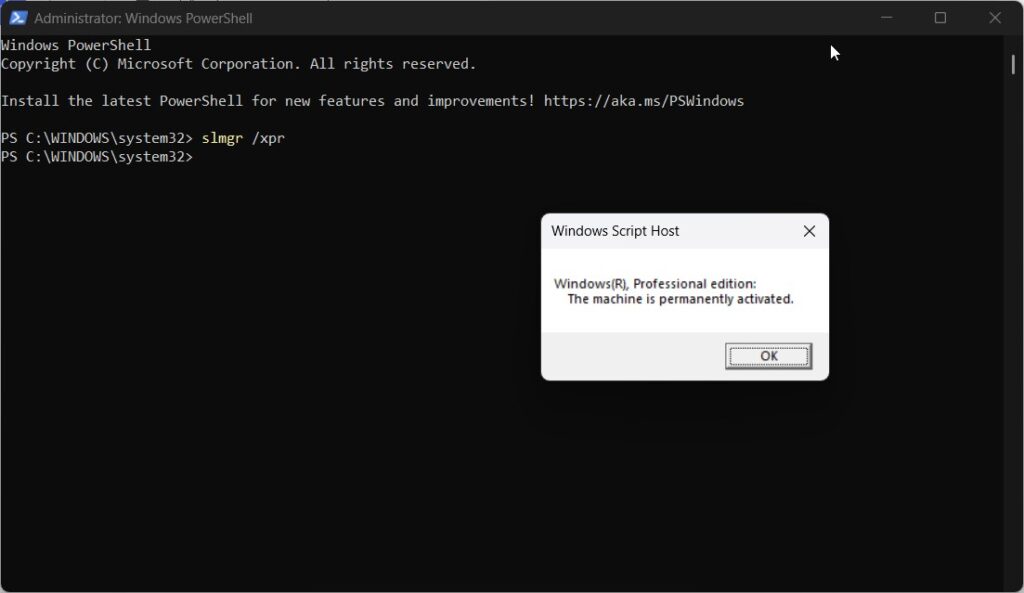
Check if Windows is permanently activated:
slmgr /xprThis shows whether your Windows is permanently activated, in a grace period, or expired.
Check full license details:
slmgr /dlv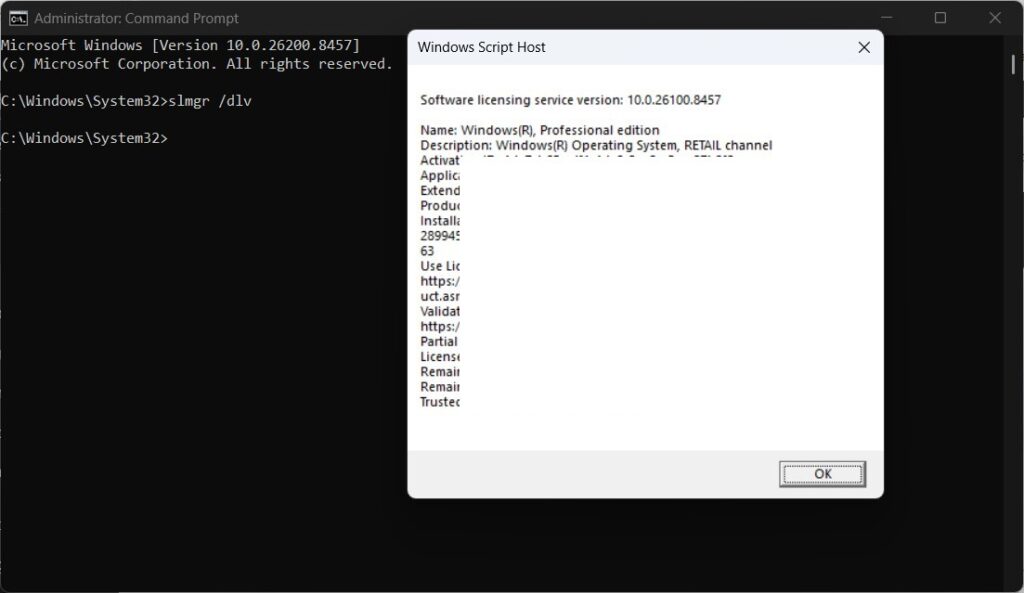
The command section shows your license type (OEM, Retail, KMS, etc.), license status, partial product key, and the number of remaining rearm counts.
Review basic license info:
slmgr /dliThe shorter version displays the license description and activation status.
What to look for:
- If
/dlvshowsLicense Status: Licensed→ your key is valid → the display error may be a UI glitch—run the Troubleshooter - If
/dlvshowsLicense Status: Unlicensed→ apply the fixes below in order - If
/dlvshowsOEM_COA_NSLPin the description → your license is embedded in BIOS — enter the key shown via Change product key
Fix 1: Run the Windows 11 Activation Troubleshooter
This tool resolves error 0xc004f213 automatically in the majority of cases, especially when the error was triggered by a Windows update.
Step-by-Step Instructions
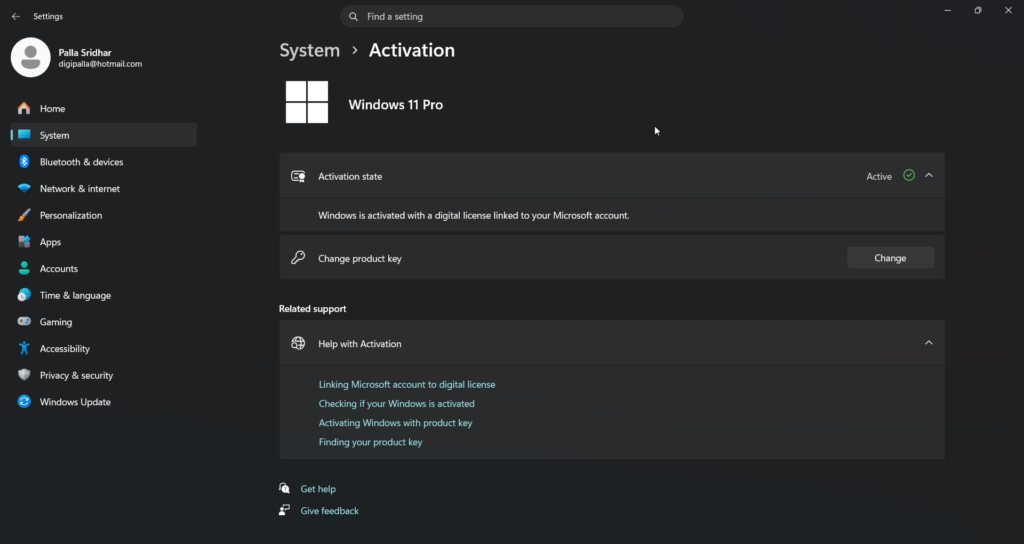
Step 1: Open Settings > System > Activation.
Step 2: Under “Activation state,” click Troubleshoot (or “Resolve now” on newer builds).
Step 3: The Troubleshooter will scan your activation status. If it finds a matching digital license in your Microsoft account, it will reactivate automatically.
“I Changed Hardware Recently” Option
If the Troubleshooter shows “We can’t reactivate Windows on this device” or displays a device list:
Step 4: Select “I changed hardware on this device recently.”
Step 5: Sign in with the Microsoft account linked to your Windows license.
Step 6: Select your device from the list (your current PC configuration).
Step 7: Click Activate.
If no devices appear in the list, your digital license was not linked to a Microsoft account before the hardware change or update. Proceed to rectify 3 (generic key reset).
Fix 2: Re-Enter Your Product Key
If you have a 25-character product key (from original packaging, a sticker on your laptop, a retailer email, or Microsoft account purchase history), re-entering it is the most direct solution
Using Windows Settings
Step 1: Open Settings > System > Activation.
Step 2: Click Change product key (or “Update product key”).
Step 3: Enter your 25-character key and click Next > Activate.
Using slmgr Command Line
If the settings UI is unresponsive or the change product key button is greyed out:
Step 1: Open Command Prompt as Administrator.
Step 2: Remove the current broken key entry:
slmgr /upkStep 3: Install your product key:
slmgr /ipk XXXXX-XXXXX-XXXXX-XXXXX-XXXXX(Replace X’s with your actual 25-character key.)
Step 4: Activate online:
slmgr /atoFix 3: Generic Key Reset + Activation Troubleshooter (Most Powerful Fix)
This is the fix that Microsoft documents in its Q&A threads but that almost no third-party guide covers. It works by resetting the Windows activation components using a generic (non-activating) product key and then forcing the Troubleshooter to find and apply your real digital license from your Microsoft account.
Why This Fix Works
Generic product keys are public, non-activating keys that Microsoft distributes for installation and setup purposes. Using one with slmgr /ipk the activation system gives it a valid key structure to work with, and then the Troubleshooter can locate and substitute your real digital license from the Microsoft account database.
Generic Keys by Windows Edition
Use the correct key for your Windows edition (check Settings > System > About for your edition):
| Windows 11 Edition | Generic Key |
|---|---|
| Home | YTMG3-N6DKC-DKB77-7M9GH-8HVX7 |
| Home Single Language | 7HNRX-D7KGG-3K4RQ-4WPJ4-YTDFH |
| Pro | VK7JG-NPHTM-C97JM-9MPGT-3V66T |
| Education | YNMGQ-8RYV3-4PGQ3-C8XTP-7CFBY |
| Pro Education | 8PTT6-RNW4C-6V7J2-C2D3X-MHBPB |
| Enterprise | XGVPP-NMH47-7TTHJ-W3FW7-8HV2C |
Step-by-Step Instructions
Step 1: Open Command Prompt as Administrator.
Step 2: Remove the current broken key:
slmgr /upkStep 3: Reset the license component:
slmgr /rilcStep 4: Install the generic key for your edition (example for Pro):
slmgr /ipk VK7JG-NPHTM-C97JM-9MPGT-3V66TStep 5: Restart your PC.
Step 6: Go to Settings > System > Activation > Troubleshoot.
Step 7: Select “I changed hardware on this device recently,” → sign in with your Microsoft account → select your device → click Activate.
Your real digital license will be found and applied, resolving the 0xc004f213 error.
Important: If you don’t have a Microsoft account linked, this solution won’t work. Use Fix 7 (phone activation) or Fix 8 (Microsoft Support contact) instead.
Fix 4: Link or Re-Link Your Microsoft Account
If you have never linked your digital license to a Microsoft account, activation after hardware changes or updates becomes much harder. Here’s how to link it now—and use that link to reactivate.
Step 1: Open Settings > System > Activation.
Step 2: Click Add an account (if you are not signed in to an account) or verify which account is shown.
Step 3: Sign in with your Microsoft account.
Step 4: Once linked, the page should display “Windows is activated with a digital license linked to your Microsoft account.”
Step 5: If 0xc004f213 still shows after linking, run the Activation Troubleshooter (Resolution 1) — now that the account is linked, it can locate your license.
Fix 5: Recover Your Product Key (If Lost)
If you lost your product key and have no Microsoft account with a linked license, product key recovery tools can sometimes retrieve the key from the Windows registry or BIOS. Use these while Windows is accessible (in a partially working state).
Using ShowKeyPlus (Free — Microsoft Store)
ShowKeyPlus is a free, Microsoft Store-listed tool that displays your installed Windows product key.
Step 1: Open the Microsoft Store and search for ShowKeyPlus.
Step 2: Install and open the app.
Step 3: The app displays your current OEM key (if embedded in BIOS) and the installed key.
Step 4: Note the key and enter it via Settings > System > Activation > Change product key.
Using ProduKey or Belarc Advisor
ProduKey (NirSoft — free) and Belarc Advisor (free for personal use) are alternative tools that scan your system for installed product keys.
Download ProduKey from NirSoft’s official site (nirsoft.net), run it, and look for your Windows product key in the list.
Check Microsoft Account Purchase History
If you purchased Windows 11 directly from the Microsoft Store:
- Go to account.microsoft.com in any browser
- Sign in with your Microsoft account
- Click “Order history” or “Services & subscriptions”
- Find your Windows purchase and retrieve the product key
Fix 6: Run SFC and DISM (Corrupted System Files)
If 0xc004f213 appeared without any hardware change and the Troubleshooter doesn’t resolve it, corrupted system files may be preventing the license validation from completing correctly.
Step 1: Open Terminal or Command Prompt as administrator.
Step 2: Run SFC:
sfc /scannowWait for the scan to complete (5–10 minutes).
Step 3: Run DISM:
DISM /Online /Cleanup-Image /RestoreHealthWait for the process to complete (10–20 minutes).
Step 4: Restart your PC, then run the Activation Troubleshooter again.
In my experience, SFC + DISM resolves about 30% of update-triggered 0xc004f213 cases where the error appeared without any hardware change.
Fix 7: Phone Activation (slui 4)
Phone activation works for all license types—retail, OEM (in some cases), and digital—and bypasses online activation entirely. This is Microsoft’s official fallback for persistent activation failures.
Step 1: Press Win + R, type, and press Enter.
Step 2: Select your country or region from the dropdown.
Step 3: Call the number shown (automated system, available 24/7).
Step 4: Enter the Installation ID displayed on your screen when prompted.
Step 5: Receive a confirmation ID from the automated system.
Step 6: Enter the Confirmation ID back into the phone activation window.
Step 7: Click Activate Windows.
Fix 8: Contact Microsoft Support
If all fixes above have failed—particularly for OEM users, or users who genuinely have no product key and no linked digital license—Microsoft Support can manually investigate and reactivate.
Step 1: Open the Get Help app (search for it in Start).
Step 2: Type “Windows activation error 0xc004f213” and press Enter.
Step 3: If the automated guide doesn’t resolve it, request a chat or callback with a support agent.
What to tell them:
- Your Windows edition (Home, Pro, etc.)
- How the error appeared (after update, hardware change, etc.)
- That you’ve already run the Activation Troubleshooter and it failed
- Error code: 0xc004f213
Microsoft agents can access your account’s license history and manually reactivate in cases where automated methods fail.
0xc004f213 After Windows Update — Special Scenario Guide
If your system was fully activated, you made no hardware changes, and 0xc004f213 appeared after a Windows update, follow this specific path:
Step 1: Run—if it shows “permanently activated,” the watermark is a UI bug. Run slmgr /ato to refresh the activation state display.
Step 2: If it /xpr shows unlicensed: go to Settings > System > Activation > Troubleshoot. This resolves most update-triggered cases automatically.
Step 3: If the Troubleshooter fails, use the generic key reset (Fix 3 above). This forces the activation system to relink your digital license to your Microsoft account.
Step 4: If Fix 3 fails (no Microsoft account linked), use phone activation (Fix 7) or contact Microsoft Support (Fix 8).
Step 5: After reactivating, run slmgr /ato once more and check Settings > System > Activation to confirm the watermark is gone.
Note: Multiple users on Microsoft Q&A (January 2026, February 2026) Confirm that the Troubleshooter alone resolved their update-triggered 0xc004f213 without needing to enter any product key.
5 targeted solutions for resolving Windows 11 Activation Error Code 0xC004F213
Based on discussions from forums and other Windows support communities:
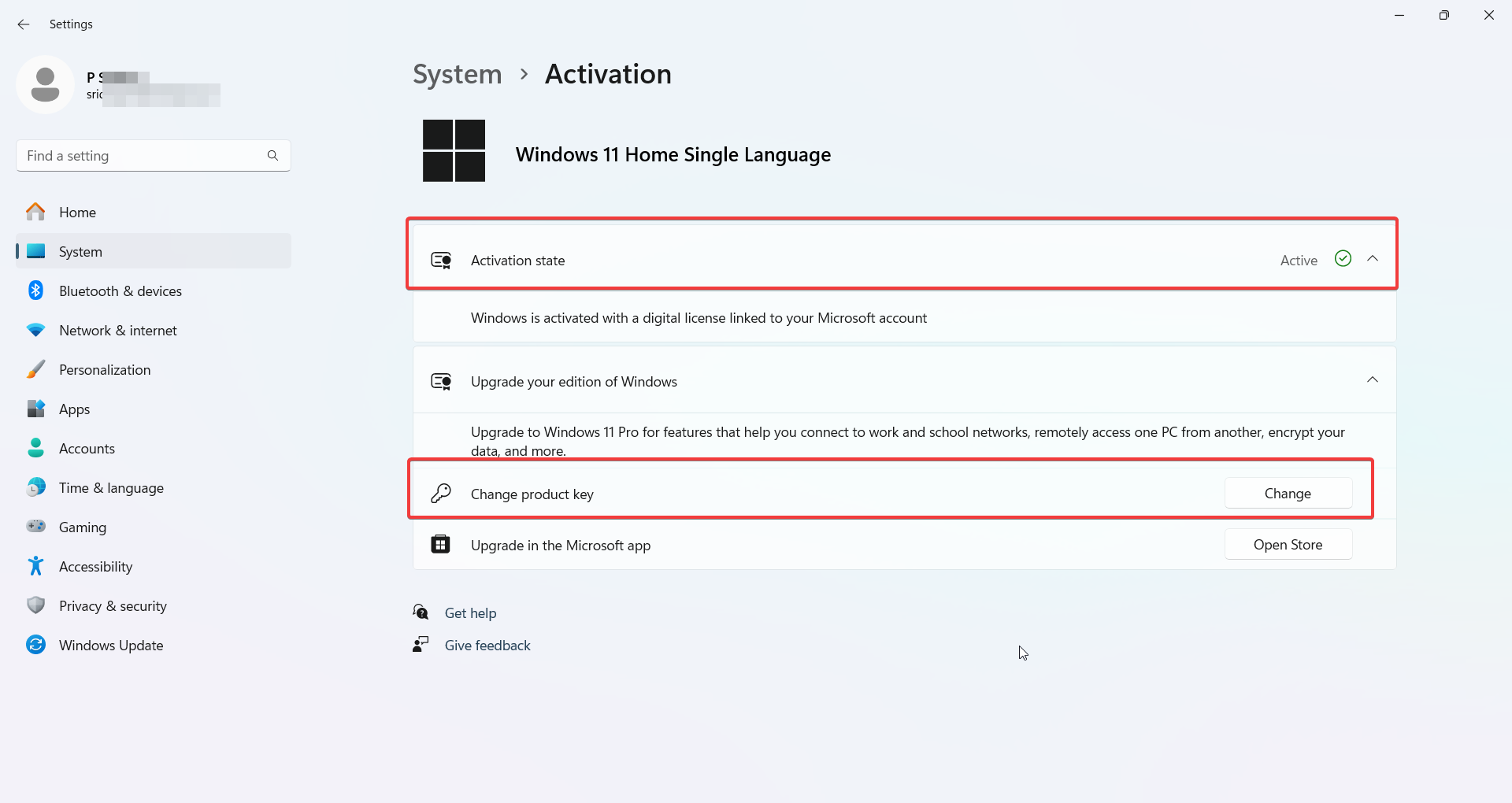
1. Re-Enter the Product Key in Activation Settings
Error code 0xC004F213 often indicates that Windows was unable to detect a valid product key. This error can occur if the system was reinstalled or upgraded. To fix this issue:
- Go to Settings > System > Activation.
- Click Change product key.
- Enter the valid product key for your version of Windows 11.
This method will ensure Windows has the correct key and can activate successfully.
2. Link Your Microsoft Account to a Digital License
If you upgraded to Windows 11 from an earlier version and had a digital license, linking your Microsoft account can resolve the error:
- Go to Settings > Accounts > Your Info.
- Sign in with the Microsoft account used to purchase Windows.
- Then, go to Activation > Troubleshoot > I changed the hardware on this device recently.
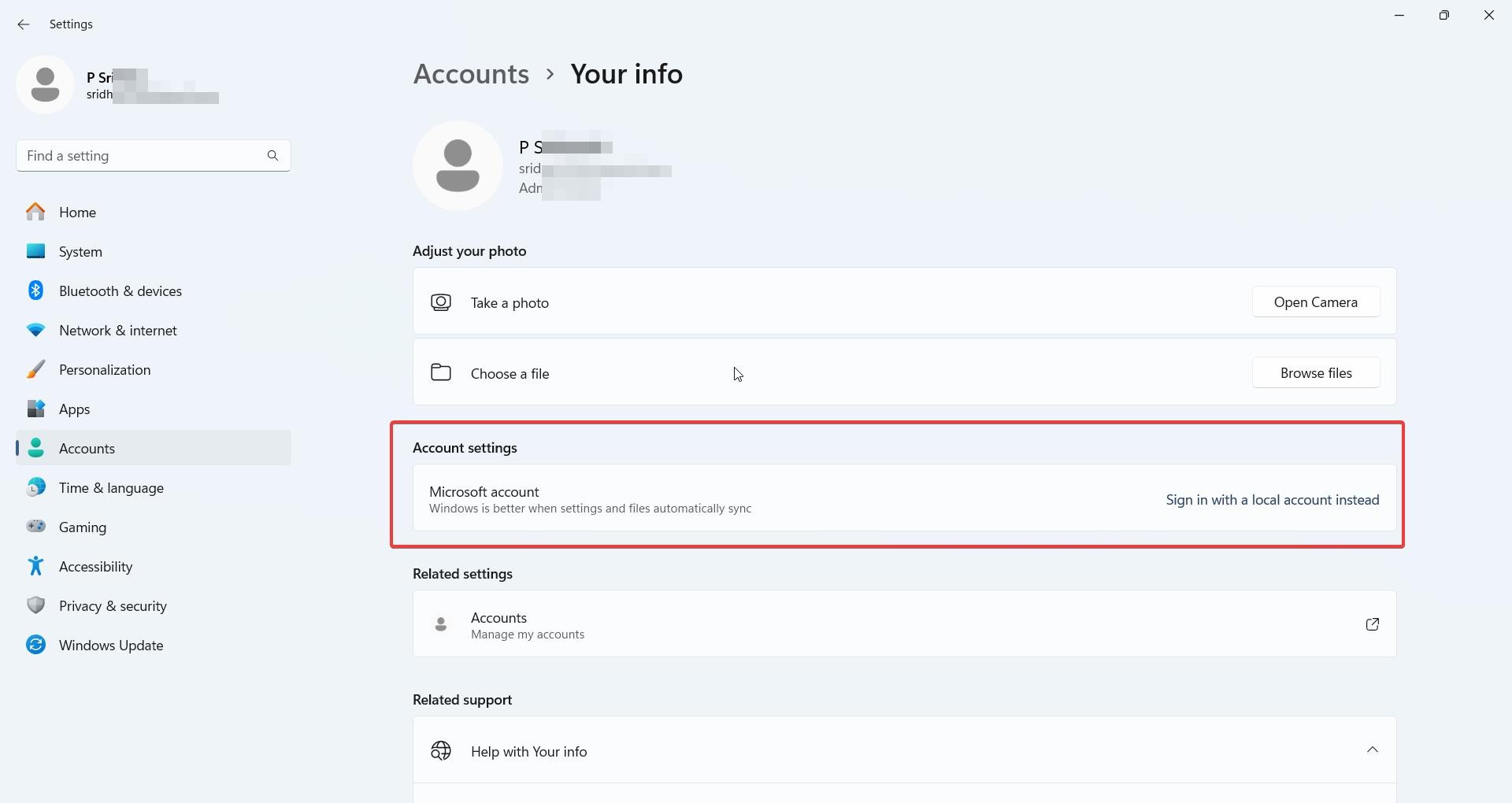
This will allow you to reactivate your copy of Windows through your account.
3. Run the Activation Troubleshooter
If manual activation doesn’t work, the built-in activation troubleshooter can identify and resolve common issues:
- Go to Settings > System > Activation.
- Select Troubleshoot.
The tool will attempt to fix the activation issue automatically, often by re-establishing the connection to Microsoft’s activation servers.
4. Verify the Correct Edition of Windows is Installed
Error 0xC004F213 can occur if you’re trying to activate a different edition of Windows than the one your key is for. For example, if your key is for Windows 11 Home, but you’ve installed Windows 11 Pro, activation will fail.
- Go to Settings > System > About to verify your Windows edition.
- If the wrong edition is installed, you may need to reinstall the correct version or use Settings > Activation > Change product key to switch editions.
5. Contact Microsoft Support for Assistance
If none of the above solutions work, the issue may be with the activation servers or the product key itself. In such cases, you should contact Microsoft’s support team:
- Visit the Microsoft Support page or call their activation hotline.
Please provide them with your product key and purchase details, and they will assist you in resolving the activation issue.
Users across multiple forums have verified these solutions and successfully resolved the 0xC004F213 activation error in Windows 11.
FAQ – 0xC004F213 Solutions
What causes the Windows 11 error code 0xC004F213?
The error occurs when Windows can’t locate a valid product key or digital license, often after reinstalling or hardware changes.
How can I resolve the 0xC004F213 error by re-entering the product key?
Go to Settings > System > Activation, click “Change product key,” and enter your valid Windows 11 key.
Can linking my Microsoft account resolve the 0xC004F213 error?
Yes, linking your Microsoft account to the digital license in Settings > Accounts can help activate Windows properly.
Does running the Activation Troubleshooter fix 0xC004F213?
Yes, the Troubleshooter can automatically detect and resolve activation issues related to missing or invalid product keys.
Can I fix 0xC004F213 after a hardware change, like a motherboard replacement?
Yes, you can typically resolve the issue by reactivating Windows through your linked Microsoft account or using the Activation Troubleshooter.
What does error code 0xc004f213 mean in Windows 11?
Error code 0xc004f213 means Windows cannot locate a valid product key or digital license on your device. The full message reads “Windows reported that no product key was found on your device.” This error can occur after a Windows update, hardware changes, an SSD swap, or a fresh install without a product key. It means no license was found — unlike 0xc004f211, which means a license exists but doesn’t match the current hardware.
Will I lose my files if I have error code 0xc004f213?
No. Error 0xc004f213 does not delete any files. Windows continues to function in an unactivated state — your apps, documents, and personal data are completely safe. The only restrictions are on personalization settings (wallpapers, themes, accent colors) and a persistent “Activate Windows” watermark. Fixing the activation error removes the watermark and restores full functionality.
Does 0xc004f213 affect Windows 11 Pro specifically?
Yes—error 0xc004f213 Windows 11 “Pro” is a common search term because Pro users often build their own PCs with purchased retail keys, then trigger the error after an SSD swap or update. The fix is the same regardless of edition: activation troubleshooter first, then generic key reset (use the Pro generic key: VK7JG-NPHTM-C97JM-9MPGT-3V66T), then phone activation or Microsoft Support if needed.
Conclusion
In addition to 0xC004F213, other common activation errors include 0xC004C003 (invalid product key) and 0xC004F034 (key not found).
Getting Past Error Code 0xc004f213
Error 0xc004f213 looks alarming, but it’s fixable in the vast majority of cases without buying a new license. Start with the activation troubleshooter—it resolves the error automatically for most users, especially when the error was triggered by a Windows update.
If the Troubleshooter fails, the generic key reset method (Fix 3 in this guide) is the most powerful next step — it’s documented by Microsoft itself but absent from most guides you’ll find online.
OEM users who replaced their motherboard are the exception: they tied that license to the original hardware.
